

Page 1
User Manual
www.samsung.comEnglish (USA). 06/2017. Rev.1.0
ET-WV522
Page 2

Table of Contents
Getting started
3 Read me first
4 About SAMSUNG Connect Home
4 Package contents
5 Device layout
Using the Wi-Fi hub
7 Connecting with a mobile device
10 Configuring the Wi-Fi router feature
Samsung Connect app
12 Introduction
13 Registering devices
14 Controlling the registered devices
Appendix
24 Troubleshooting
14 Creating locations
15 Setting and running modes
19 Setting rules
21 Managing devices and locations
22 Configuring the Samsung Connect
app
23 Practical usage of the Samsung
Connect app
Page 3
Getting started
Read me first
Please read this manual before using the device to ensure safe and proper use.
•
Images may differ in appearance from the actual product. Content is subject to change
without prior notice.
•
Before using the Wi-Fi hub, make sure it is compatible with your device.
•
The Wi-Fi hub’s performance may differ depending on the environment.
•
This product includes certain free/open source software. To see the instructions for
viewing the open source license, go to the Samsung website (
Instructional icons
Warning: situations that could cause injury to yourself or others
opensource.samsung.com).
Caution: situations that could cause damage to your device or other equipment
Notice: notes, usage tips, or additional information
Page 4
Getting started
About SAMSUNG Connect Home
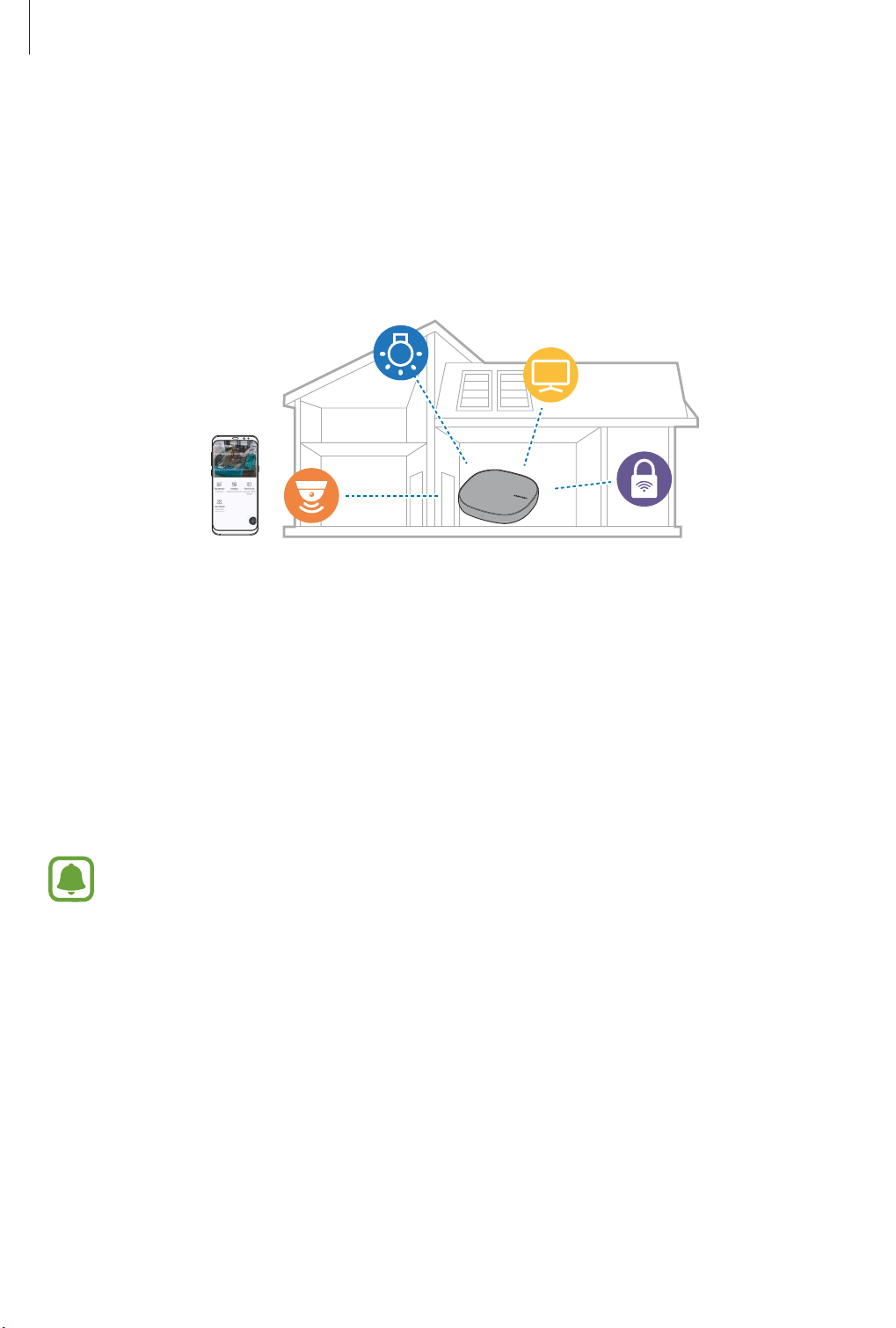
The Samsung Connect Home is a Wi-Fi router that can connect your smartphone to your
smart home appliances via Wi-Fi. You can also connect Internet of Things (IoT) devices to this
Wi-Fi hub via the Samsung SmartThings Hub feature.
For larger homes, you can connect more Wi-Fi hubs.
Package contents
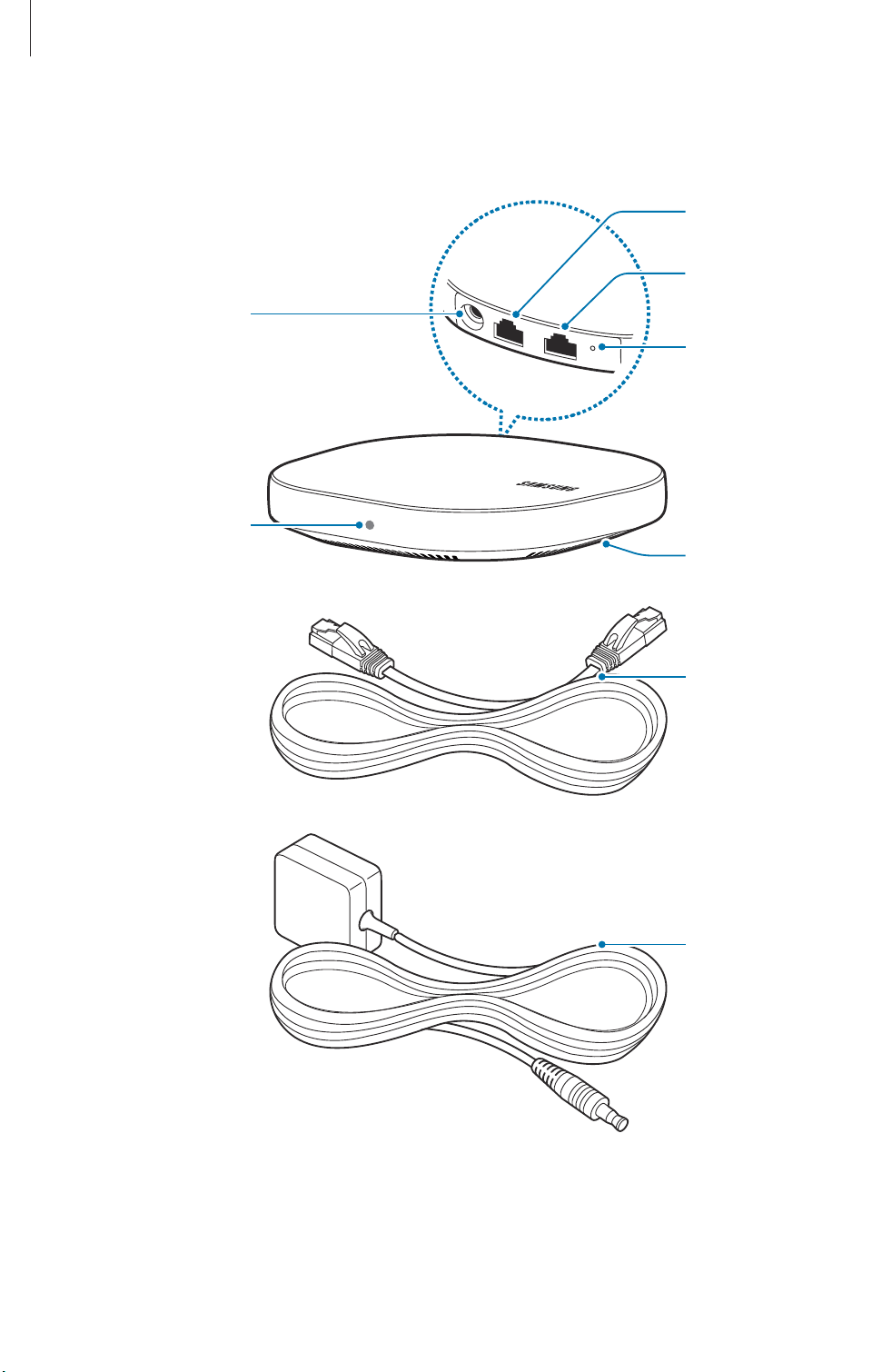
Check the product box for the following items:
•
Wi-Fi hub
•
Ethernet cable
•
AC/DC adapter (hereafter “adapter”)
•
Quick start guide
•
The items supplied with the device and any available accessories may vary
depending on the region or service provider.
•
The supplied items are designed only for this device and may not be compatible
with other devices.
•
Appearances and specifications are subject to change without prior notice.
•
You can purchase additional accessories from your local Samsung retailer. Make
sure they are compatible with the device before purchase.
•
Use only Samsung-approved accessories. Using unapproved accessories may cause
the performance problems and malfunctions that are not covered by the warranty.
•
Availability of all accessories is subject to change depending entirely on
manufacturing companies. For more information about available accessories, refer
to the Samsung website.
Page 5
Getting started
Device layout
AC/DC adapter
connector
Indicator light
WAN port (IN)
LAN port (OUT)
Reset hole
Fan vent
Ethernet cable
AC/DC adapter
Page 6

Getting started
Indicator light
The indicator light alerts you to the Wi-Fi hub status.
Color Status
Green Power on, Working
Flashes green Booting/resetting the system
Flashes green and red Waiting for devices to connect
Flashes red Function error
Page 7
Using the Wi-Fi hub
Connecting with a mobile device
To connect the Wi-Fi hub with a mobile device, you must install the Samsung Connect app on
the mobile device. You can download the app from
•
Visit www.samsung.com to see compatible devices with the Samsung Connect
app.
•
You must register and sign in to your Samsung account to use the Samsung
Connect app.
•
Supported features may vary depending on your mobile device and its operating
system.
Wi-Fi hub
Connect one end of the Ethernet cable to the hub’s WAN port (IN) and the other end to
1
the modem’s LAN port.
Galaxy Apps, Play Store
, or
App Store
.
Connect the adapter to the Wi-Fi hub.
2
The Wi-Fi hub will turn on and the indicator light will flash green.
Use only Samsung-approved adapters (12 V/2.1 A or higher).
•
You can use the Wi-Fi hub only when you connect the Wi-Fi hub to an adapter.
•
If the Wi-Fi hub’s temperature exceeds 55 °C, the Wi-Fi hub’s internal fan will
automatically activate. If the Wi-Fi hub overheats for a prolonged period, the Wi-Fi
hub may automatically turn off or reset. When this happens continually, disconnect
the adapter from the Wi-Fi hub and contact a Samsung Service Center.
•
To save energy, unplug the adapter when not in use. The adapter does not have a
power switch, so you must unplug the adapter from the electric socket when not in
use to avoid wasting power. The adapter should remain close to the electric socket
and be easily accessible while using it.
Page 8
Using the Wi-Fi hub
Mobile device
Launch the
3
The Wi-Fi and Bluetooth features will activate automatically and search for available
devices.
The Wi-Fi hub will be detected automatically. Tap
4
If the Wi-Fi hub is not detected, tap
and tap your Wi-Fi hub’s name.
Enter a network name and password to assign to the Wi-Fi hub.
5
To register IoT devices via the Samsung SmartThings Hub feature, tick
SmartThings Hub
Follow the on-screen instructions to complete the connection.
6
Samsung Connect
to activate it.
app on the mobile device.
ADD NOW
→
ADD DEVICE MANUALLY
.
→
Wi-Fi Hub
Set up
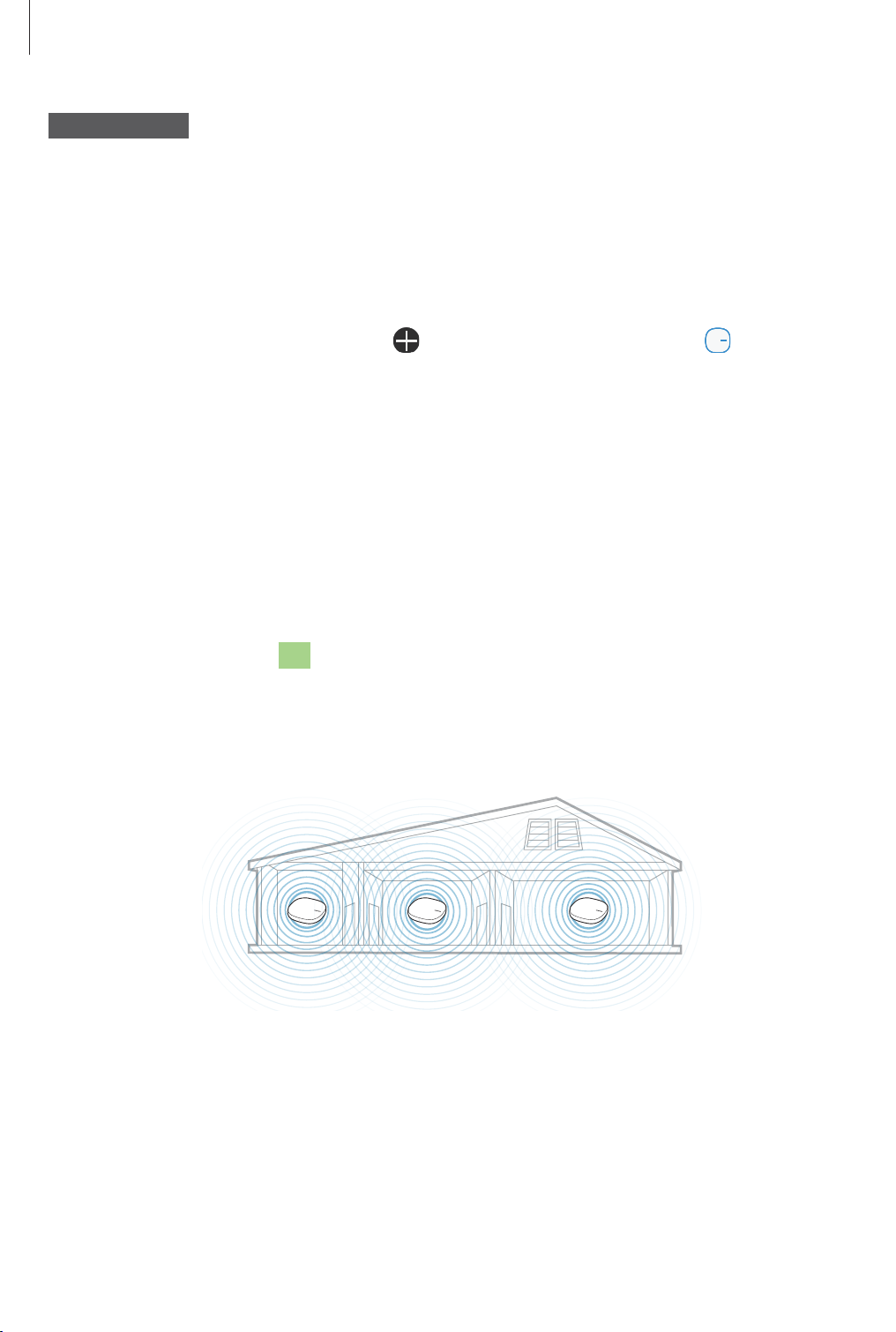
Adding additional Wi-Fi hubs
One Wi-Fi hub can cover a 140 m2 connection range (based on timber buildings) but can
differ depending on the usage environment.
,
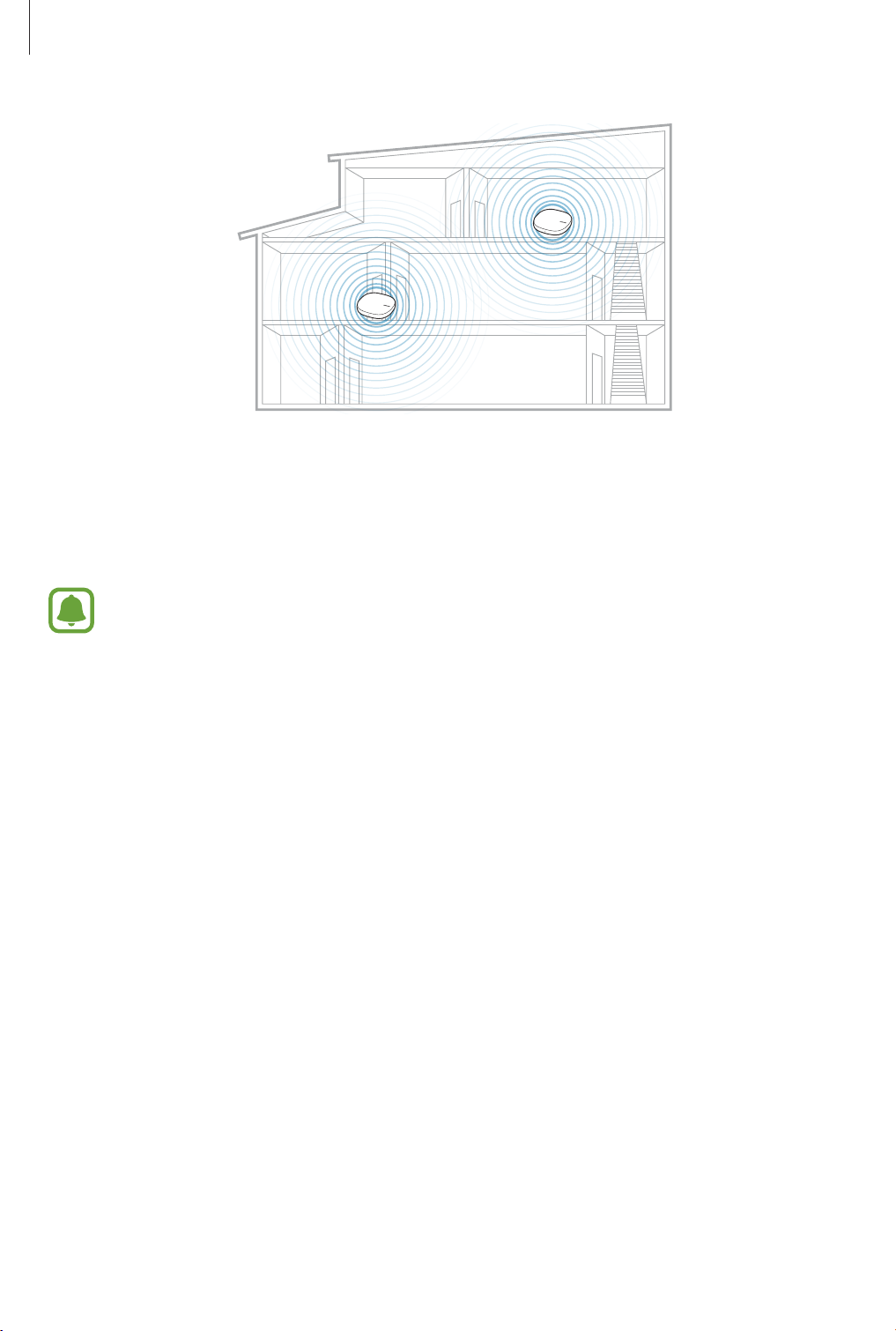
Install an additional Wi-Fi hub to connect to a larger area beyond the connection range with a
Wi-Fi network.
Page 9
Using the Wi-Fi hub
Connect the AC/DC adapter to the additional Wi-Fi hub.
1
On the mobile device, launch the
2
instructions to complete the connection.
You can connect up to four additional Wi-Fi hubs.
Samsung Connect
app and follow the on-screen
Notices for connecting a Wi-Fi hub
•
Install a Wi-Fi hub near the devices to be registered.
•
When you add additional Wi-Fi hubs, install them within the connection range.
•
Do not place obstacles between the Wi-Fi hub and the devices to be registered.
•
Obstacles such as the human bodies, walls, corners, or fences can weaken the signals.
•
When using the Wi-Fi hub, it should be connected via the Ethernet cable.
Notices for using Bluetooth
•
To avoid problems when connecting your Wi-Fi hub to another device, place the devices
close to each other.
•
Ensure that your Wi-Fi hub and the other Bluetooth device are within the maximum
Bluetooth range (5 m). The distance may vary depending on the environment the devices
are used in.
Page 10

Using the Wi-Fi hub
•
Ensure that there are no obstacles between the Wi-Fi hub and a connected device,
including human bodies, walls, corners, or fences.
•
Do not touch the Bluetooth antenna of a connected device.
•
Bluetooth uses the same frequency as some industrial, scientific, medical, and low power
products and interference may occur when making connections near these types of
products.
•
Some devices, especially those that are not tested or approved by the Bluetooth SIG, may
be incompatible with your Wi-Fi hub.
•
Do not use the Bluetooth feature for illegal purposes (for example, pirating copies of files
or illegally tapping communications for commercial purposes).
Configuring the Wi-Fi router feature
You can configure the detail settings of the Wi-Fi network.
Assigning priority to a connected device
You can set the prior connection for the specified devices connected to the Wi-Fi hub’s Wi-Fi
network.
On the Samsung Connect screen, tap
1
On the registered devices list, tap the Wi-Fi hub.
2
Tap the button next to
3
On the connected devices list, select a device to give priority to the Wi-Fi hub’s Wi-Fi
4
network.
5
Tap the
Highest bandwidth priority
Devices on network
My devices
switch to activate it.
.
.
Page 11

Using the Wi-Fi hub
Restricting time for using the Wi-Fi network
You can restrict the time for the connected devices to use the Wi-Fi hub’s Wi-Fi network.
On the Samsung Connect screen, tap
1
On the registered devices list, tap the Wi-Fi hub.
2
Tap the button next to
3
On the connected devices list, select a device to restrict the time to use the Wi-Fi hub’s
4
Wi-Fi network.
Tap
5
6
Restrict usage time
Set days and time, and then tap
Devices on network
→
Add restricted time
ADD
My devices
.
.
.
.
Adding guest network
You can add a guest network separated from the main Wi-Fi network.
On the Samsung Connect screen, tap
1
My devices
.
On the registered devices list, tap the Wi-Fi hub.
2
Tap →
3
Enter a network name and password and tap
4
Guest access
→
Add guest network
.
DONE
.
Page 12
Samsung Connect app
Introduction
Register Internet of Things (IoT) devices and smart home appliances to the Samsung Connect
app on your mobile device, and check their status or control them. To control the devices by
location, such as your home or office, create a location and assign registered devices to it. You
can also set a mode to control many devices at the same time or set a rule to perform actions
automatically at a preset time.
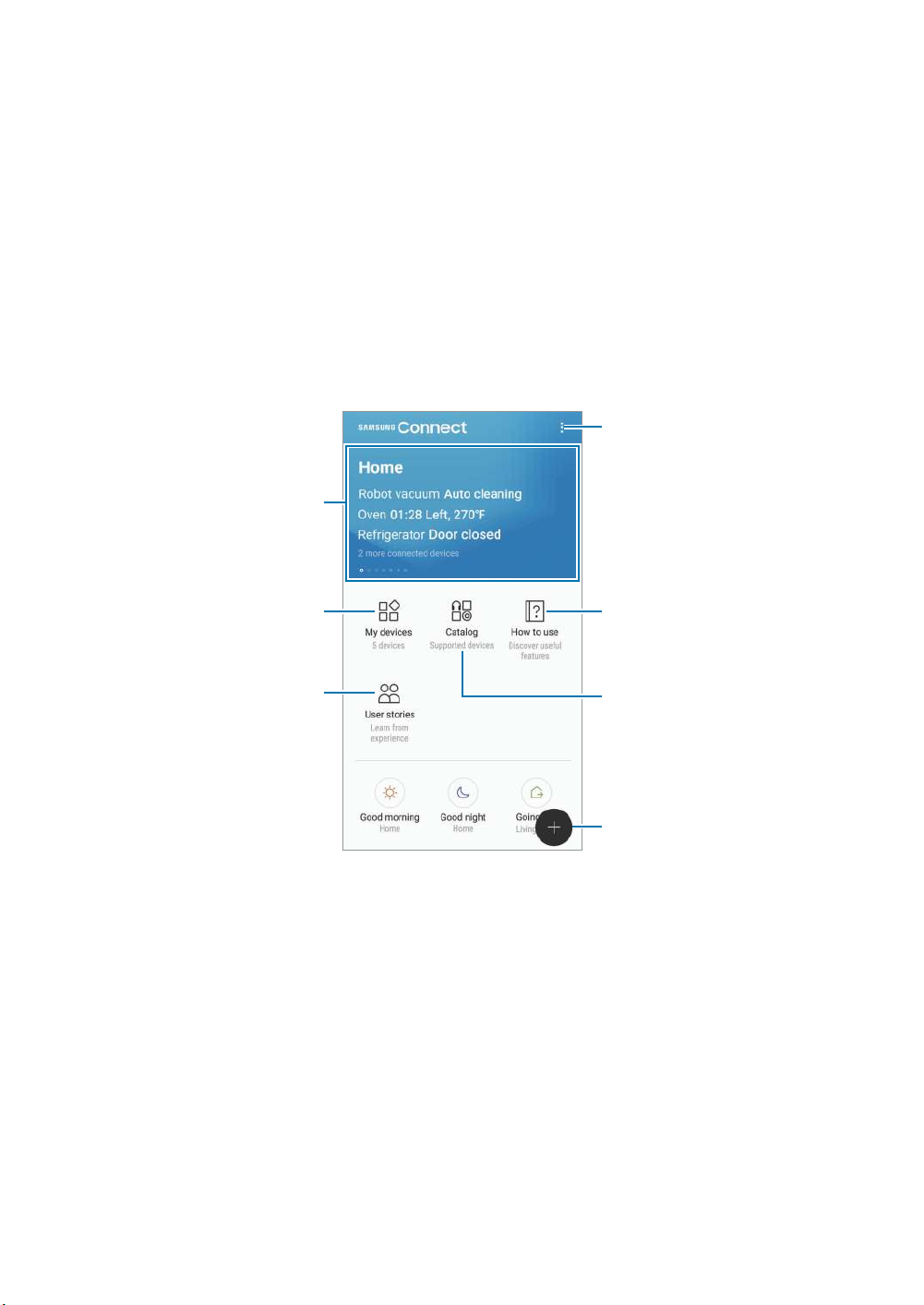
Access additional options.
View information about
Samsung Connect and access
favorite locations.
View registered devices.
User stories
Samsung Connect usage tips
Supported devices
Search for and register nearby
devices.
Page 13
Samsung Connect app
Registering devices
Registering smart home appliances via Wi-Fi
Register smart home appliances that support Wi-Fi to the Samsung Connect app and control
them. For instructions on how to register devices, refer to the other devices’ user manuals.
•
To view the supported devices, tap
•
Connected devices’ own errors or defects are not covered by the Samsung
warranty. When errors or defects occur on the connected devices, contact the
device’s manufacturer.
Registering IoT devices via the Samsung SmartThings Hub
feature
Catalog
on the Samsung Connect screen.
Register the Internet of Things (IoT) devices that support Z-Wave, zigbee, LAN, or Cloud-toCloud to the Samsung Connect app and control them.
On the Samsung Connect screen, tap .
1
Tap
2
3
4
ADD DEVICE MANUALLY
light bulbs).
Select the device maker.
Follow the on-screen instructions to complete the registration.
•
The Samsung SmartThings Hub feature may not be available depending on the
region. Visit
•
You can only register the IoT devices approved by Samsung. Visit
www.samsung.com to see a list of compatible devices.
•
Refer to the other devices’ user manuals for instructions on how to pair with them.
www.samsung.com for details.
and select a category of the device to register (for example,
Page 14

Samsung Connect app
Controlling the registered devices
On the Samsung Connect screen, tap
On the registered devices list, tap a device.
The controller for the device will be downloaded.
With the downloaded controller, remotely control the registered devices via the Samsung
Connect app.
My devices
.
Creating locations
You can register devices by location and manage them.
On the Samsung Connect screen, tap
1
Tap →
2
Enter a location name and tap
3
Tap
4
MOVE
Add place
ADD DEVICE
.
.
to register devices or select devices to assign to the location and tap
ADD
My devices
.
.
Inviting members to the created location
Invite other members to the created location to control the devices and modes assigned to
that location.
On the Samsung Connect screen, tap
1
Scroll the screen to the left or right to select a location.
2
3
Tap →
Invite member
.
My devices
.
Page 15

Samsung Connect app
Tap
4
Enter Samsung account ID
invite, and then tap
, enter the Samsung account for the person you want to
.
You can invite users by scanning the QR code. Tap
users to scan it.
•
You can only invite the users login the Samsung account via Samsung Connect
app.
•
To accept the invitation, on the Samsung Connect screen, tap the invitation popup and tap
Samsung Connect screen, tap
then scan the QR code.
Follow the on-screen instruction to complete the invitation.
5
ACCEPT
. To accept the invitation by scanning the QR code, on the
→
Settings
CREATE QR CODE
→
Accept invitation (QR code)
and invite other
and
Setting and running modes
Set a mode to operate multiple devices at once. To set a mode, you should create locations.
Refer to
Creating locations for more information.
On the Samsung Connect screen, tap
1
Scroll the screen to the left or right to select a location.
2
My devices
.
Page 16
Samsung Connect app
Tap →
3
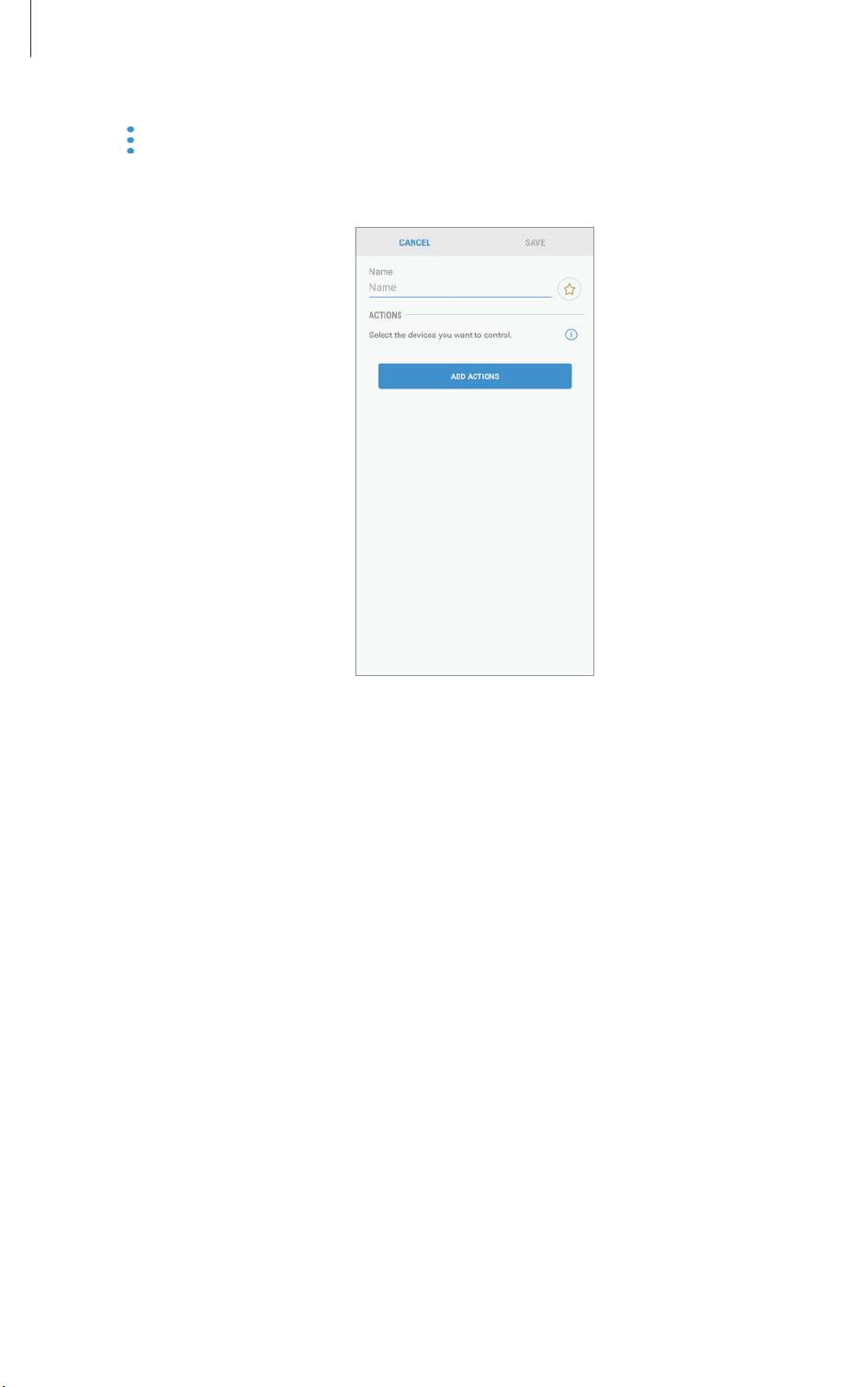
The screen for setting modes will appear.
Add mode
.
Enter the mode’s title and select an icon for the mode, then tap
4
ADD ACTIONS
.
Page 17
Samsung Connect app
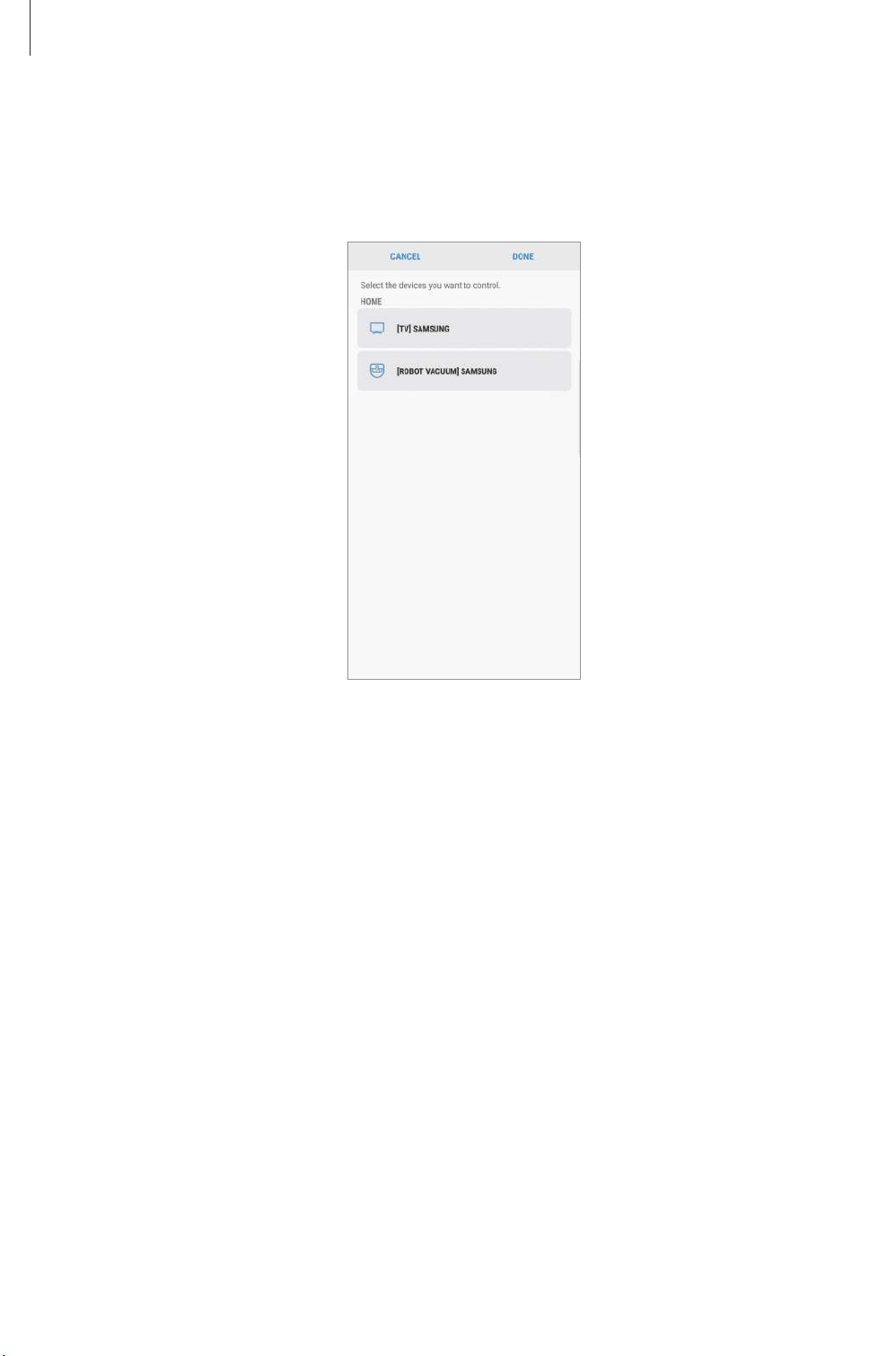
Select a device and an action to be operated, and then tap
5
For example, select a TV and a robot vacuum cleaner and the corresponding actions to
be operated.
DONE
.
Tap
SAVE
6
The mode is set. You can view the set mode on the designated location screen.
.
Activating modes
On the Samsung Connect screen, tap
1
Scroll the screen to the left or right to select a location that has the mode you want to
2
activate.
My devices
.
Page 18
Samsung Connect app
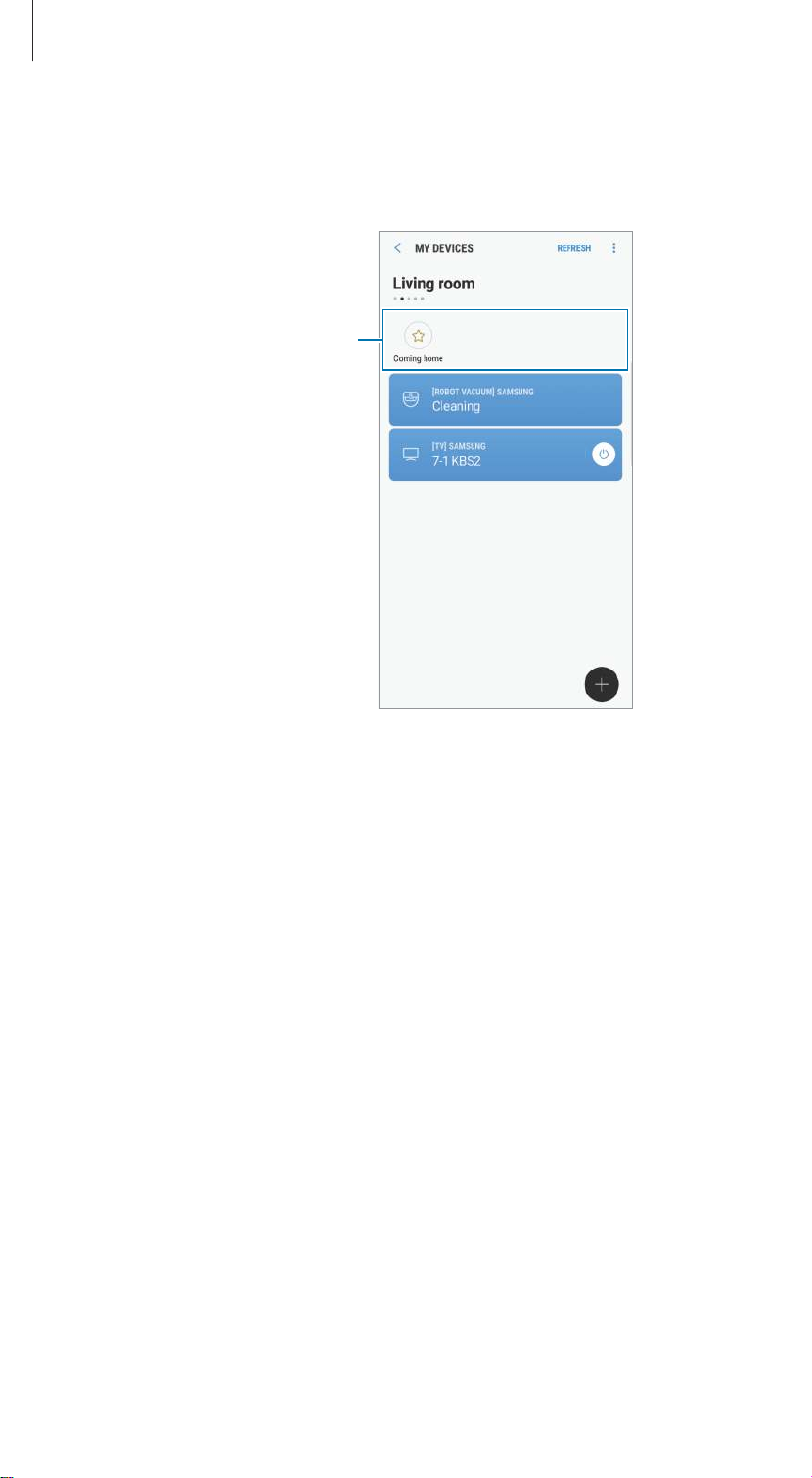
Select a mode to activate.
3
The devices you set will operate in accordance with the mode.
Set modes
Page 19
Samsung Connect app
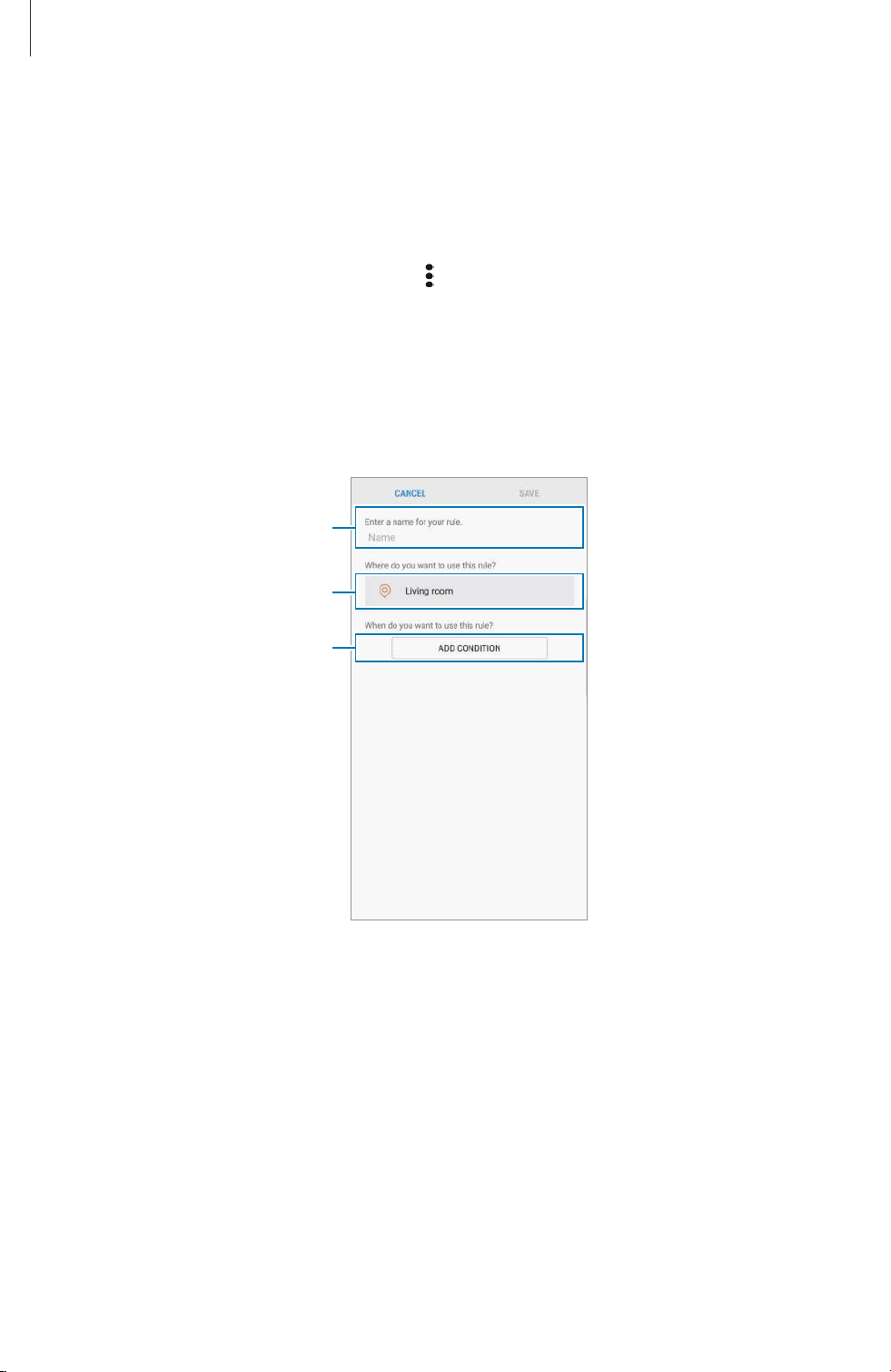
Setting rules
Set a rule for devices assigned to a location to automatically perform actions at a specific
time.
On the Samsung Connect screen, tap .
1
Tap
Rules
→
2
The screen for setting rules will appear.
ADD RULE
.
Enter the rule’s title, select a location, and then tap
3
Enter the rule's title.
Select a location.
Select the time and day.
ADD CONDITION
.
Page 20
Samsung Connect app
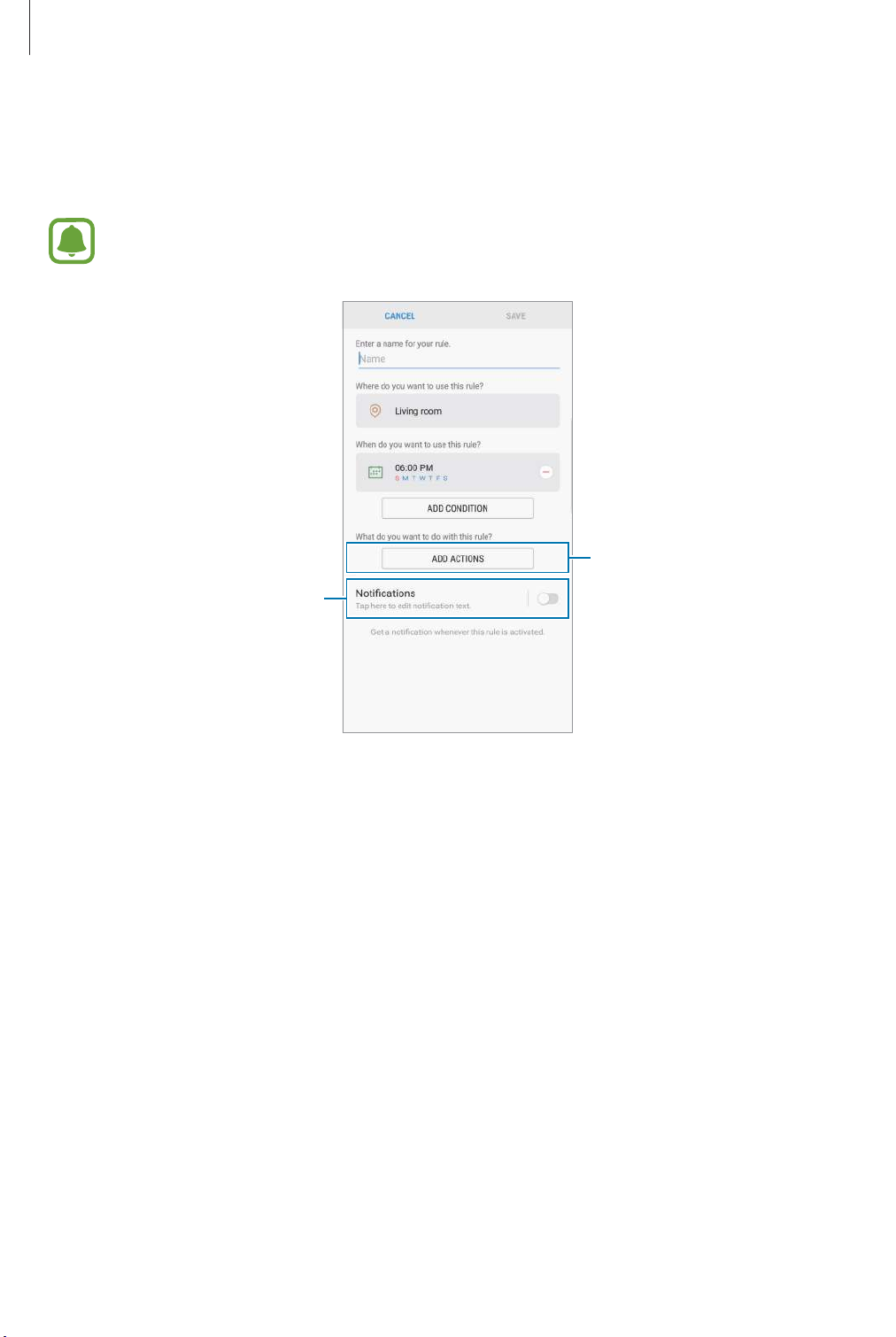
Tap
4
5
Time/day (exact)
Tap
ADD ACTIONS
To receive a notification when the devices perform an action according to the rule,
tap the
Notifications
or
Time/day (period)
, select devices and conditions, or modes, and then tap
switch to activate the feature.
, enter the time and day, and then tap
Select a device or a mode.
DONE
DONE
.
.
Activate the notification feature.
Tap
SAVE
6
The assigned devices will operate in accordance with the set rule.
.
Page 21
Samsung Connect app
Managing devices and locations
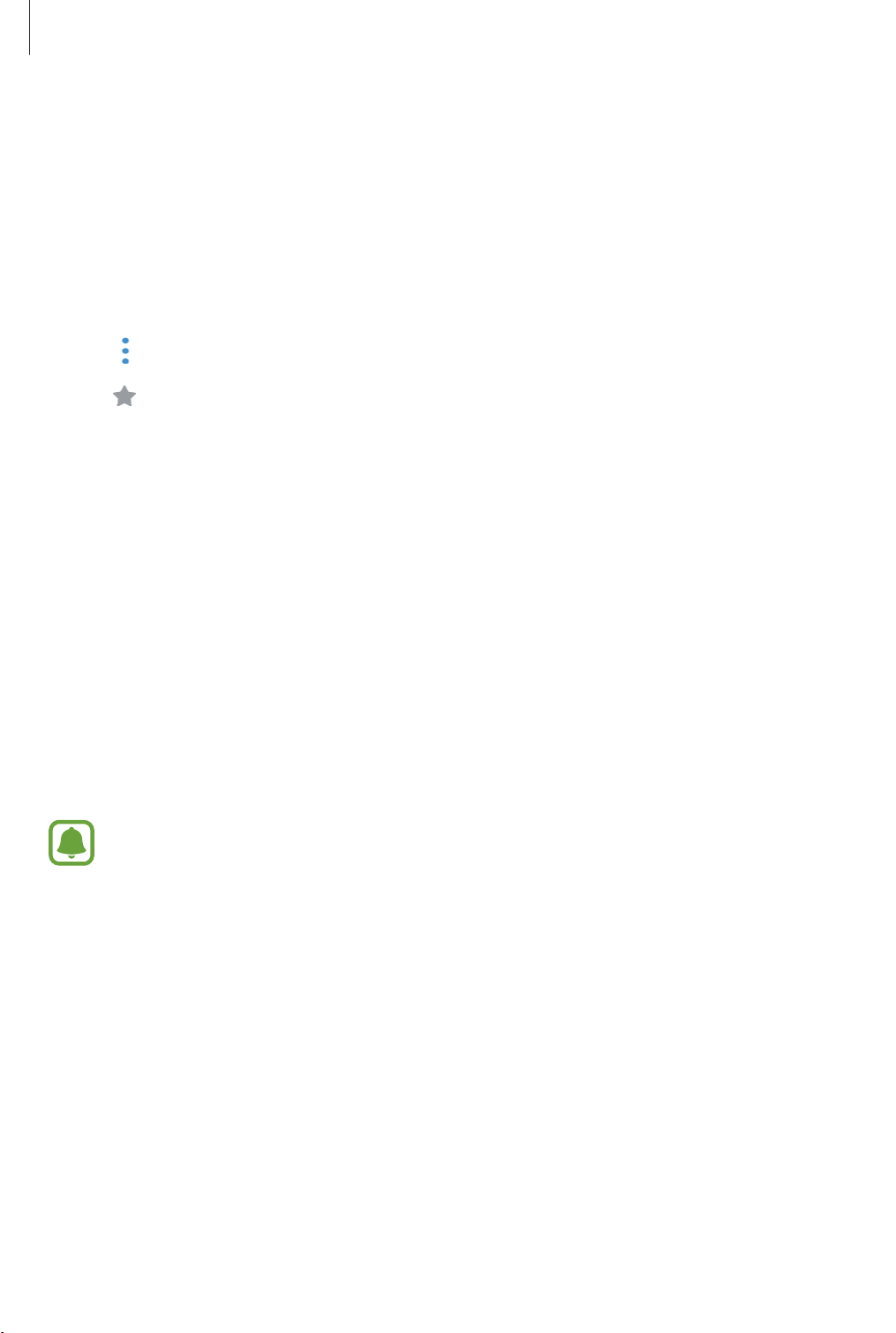
You can manage location and its assigned devices and modes.
On the Samsung Connect screen, tap
1
Scroll the screen to the left or right to select a location.
2
3
Tap →
•
•
•
•
•
•
•
Edit
and use the following options.
: Set the location or mode as a favorite. You can access the favorites on the
Samsung Connect screen.
Location name →
displayed on the Samsung Connect screen when it is set as a favorite.
Location name →
Location name →
Location name →
Device name →
on the location screen.
Device name →
available for the owner of the location.
Place name
MEMBERS
REMOVE PLACE
LEAVE PLACE
Device name
Place
: Assign the device to another location. This option is only
My devices
: Change the location name and its wallpaper color
: View the members to share the location.
: Delete the location.
: Delete the invited location.
: Change the device name and its icon color displayed
.
•
Device name →
deregister the device.
•
To connect a Z-Wave device to another device, on the currently connected mobile
device, remove the device from the Samsung Connect app to exclude it. When you
remove the device from the Samsung Connect app, the instructions for exclusion
will be provided via a URL. Follow the instructions to exclude the Z-Wave device.
If you reset the Wi-Fi hub, you should exclude the Z-Wave device and reconnect
(re-include) it. For instructions on how to exclude Z-Wave devices, refer respective
Z-Wave device’s user manual or contact the device’s manufacturer.
•
For additional Z-Wave network utility functions, visit www.smartthings.com.
•
The Wi-Fi hub automatically sends an Association Set for Lifeline/group1 for 4
nodes after adding a device that supports Association.
DELETE DEVICE
: Delete the device from the assigned location or
Page 22
Samsung Connect app
•
Mode icon →
•
Mode icon → device name: Select an action to be operated when the mode is
activated.
•
Mode icon → : Delete the device from the mode.
•
Mode icon →
•
Mode icon →
Name
ADD ACTIONS
DELETE MODE
: Change the mode name and its icon.
: Add devices and actions to the mode.
: Delete the mode.
Configuring the Samsung Connect app
Configure the Samsung Connect app settings. On the Samsung Connect screen, tap and use
the following options.
•
Add place
•
Rules
: Create a new location.
: View the created rules. You can also edit or delete rules.
This option is only available when you have registered devices to the Samsung
Connect app.
•
Notifications
change the notification settings.
•
Settings
information. You can also set the Samsung Connect panel to be displayed on the
notification panel.
•
Contact us
problem diagnosis, and lets users submit questions and error reports. You can also share
information with others in the Galaxy users’ community or view the latest Galaxy news
and tips.
while using your device.
: View the notifications from the Samsung Connect app. You can also
: Access information about the Samsung Connect app and Samsung account
: Samsung Members offers support services to customers, such as device
Samsung Members
can help you solve any problems you might encounter
Page 23

Samsung Connect app
Practical usage of the Samsung Connect app
Use the Samsung Connect app to make your life easier and more comfortable. Create rules
based on your routine, or easily control the registered devices from anywhere.
•
If you want to start your day with music every morning, connect speakers to the Samsung
Connect app and create a rule to play your favorite music when you wake up.
•
If you want to ensure that the office is cool when you arrive on a hot summer’s day, turn
on the connected air conditioner via the Samsung Connect app 10 minutes before you
arrive.
•
If you want to come home to a clean house, turn on the connected robot vacuum cleaner
via the Samsung Connect app 30 minutes before you get home.
•
If you want to improve your home security, create a rule for motion sensors to operate
at bedtime and activate the notification feature. When the motion sensors detect
unexpected movements, they will notify you.
To view other usage examples, tap
User stories
on the Samsung Connect screen.
Page 24

Appendix
Troubleshooting
Before contacting a Samsung Service Center, please attempt the following solutions.
Your Wi-Fi hub freezes
If the Wi-Fi hub freezes or hangs, disconnect the adapter from the Wi-Fi hub and reconnect it.
Close the Samsung Connect app completely on your mobile device and restart it.
If your Wi-Fi hub is frozen and unresponsive, insert a pin into the Reset hole more than
8 seconds.
If the tips above do not solve the problem, contact a Samsung Service Center.
Your Wi-Fi hub is not connected with a router
This Wi-Fi hub only supports Samsung Connect routers. Connect only the SAMSUNG Connect
Home or the SAMSUNG Connect Home.
Your Wi-Fi hub is not detected by the Samsung Connect app
•
If the Wi-Fi hub freezes or hangs, disconnect the adapter from the Wi-Fi hub and
reconnect it.
•
Close the Samsung Connect app completely on your mobile device and restart it.
•
If your Wi-Fi hub is frozen and unresponsive, insert a pin into the Reset hole.
•
Ensure that the other devices are within the maximum connection range.
If the tips above do not solve the problem, contact a Samsung Service Center.
Other devices cannot connect to the Samsung Connect app
•
On the other device, disconnect from the Wi-Fi network and reconnect to it.
•
Turn the device off and turn it on.
Page 25

Appendix
The connection is often disconnected
•
If there are obstacles between the devices, the operating distance may be reduced.
•
Ensure that the other devices are within the maximum connection range.
•
When using the Wi-Fi hub with other devices, the connection may be affected by
electromagnetic waves. Use the Wi-Fi hub in environments with fewer wireless devices
present.
The Wi-Fi hub works differently as described in the manual
Available functions may differ depending on the connected device.
Page 26

WARNING!
This product contains chemicals known to the State of California to cause
cancer, birth defects, or other reproductive harm. For more information,
please call 1-800-SAMSUNG (726-7864).
Samsung Electronics America, Inc
85 Challenger Road,
Ridgefield Park, New Jersey, 07660
Phone: 1-800-SAMSUNG (726-7864)
Copyright
Copyright © 2017 Samsung Electronics America, Inc.
This manual is protected under international copyright laws.
No part of this manual may be reproduced, distributed, translated, or transmitted in any form
or by any means, electronic or mechanical, including photocopying, recording, or storing
in any information storage and retrieval system, without the prior written permission of
Samsung Electronics.
Trademarks
•
SAMSUNG and the SAMSUNG logo are registered trademarks of Samsung Electronics.
•
Bluetooth® is a registered trademark of Bluetooth SIG, Inc. worldwide.
•
Wi-Fi®, Wi-Fi CERTIFIED™, and the Wi-Fi logo are registered trademarks of the Wi-Fi
Alliance.
•
Z-Wave and Z-Wave Plus are registered trademarks of Sigma Designs and its subsidiaries
in the United States and other countries.
•
All other trademarks and copyrights are the property of their respective owners.
 Loading...