

Page 1
Get started
All you need to know to get going.
Page 2
Welcome!
Your Device
Sprint is committed to developing technologies that give you the ability
to get what you want when you want it, faster than ever before. This
booklet introduces you to the basics of getting started with Sprint and
your new Samsung Epic 4G.™ You’ll quickly discover how easy it is to
customize with apps from Android Market™, browse the Web at 3G and 4G speeds,
send email, text, or picture messages, watch movies or TV, get turn-by-turn driving
directions, or connect up to five Wi-Fi devices to the Internet with Sprint Mobile Hotspot.
Because there’s less waiting, and more doing, on the Now Network.™
The services described in this guide may require a subscription to a service plan and/or may incur additional charges. Not all services will
work on all devices. Coverage is not available everywhere.
Important Privacy Message. Sprint’s policies often do not apply to third-party applications. Third-party applications may access your personal
information or require Sprint to disclose your customer information to the third-party application provider. To find out how a third-party application
will collect, access, use, or disclose your personal information, check the application provider’s policies, which can usually be found on their website.
If you aren’t comfortable with the third-party application’s policies, don’t use the application.
©2010 Sprint. SPRINT and the logo are trademarks of Sprint. Samsung and Epic 4G are trademarks of Samsung Electronics America, Inc. and/or
its related entities. Other marks are property of their respective owners. Screen images simulated.
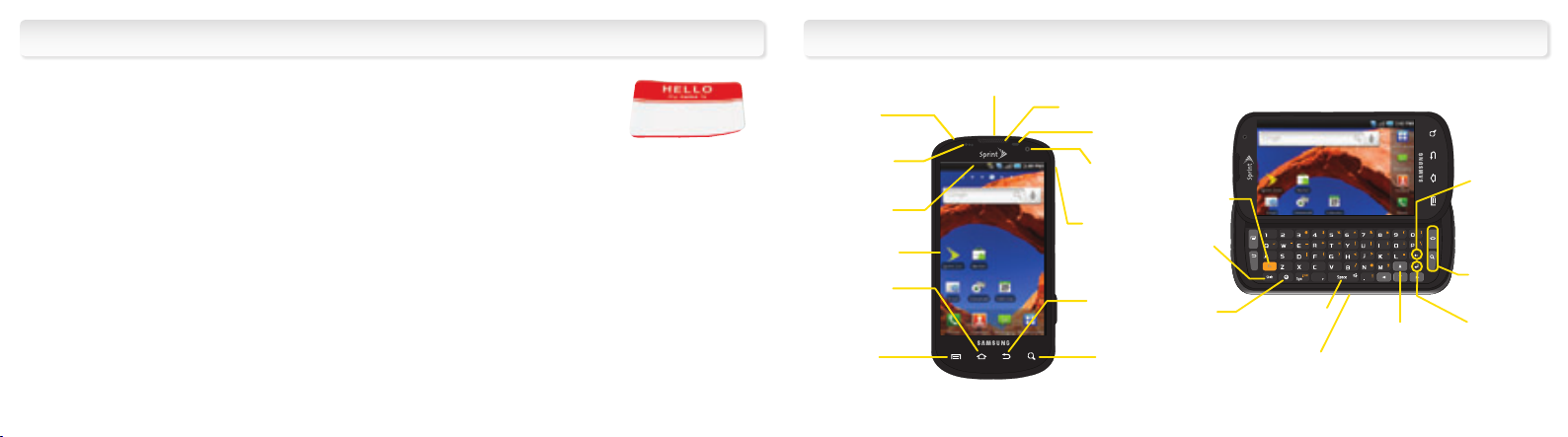
Headset
Jack
Proximity/
Light
Sensor
Status Bar
Icons
Touchscreen
Display
HOME
Key
MENU
Key
Charger/Accessory Jack
Earpiece
LED
Camera
Lens
Power
Button
BACK
Key
SEARCH
Key
Fn Key
Shift
Key
Smiley
Key
QWERTY Keyboard
Space Key
Navigation
Keys
Delete
Key
Function
Keys
Enter
Key
Page 3

Get Your Device Ready
Activate Your Phone
Making and Answering Calls
Insert the Battery
1. Remove the battery compartment cover on
the back of the device.
2. Align the battery’s contacts with those inside the
battery compartment and gently press down until
the battery is seated.
3. Replace the back cover.
Charge the Battery
1. Insert the USB cable into the charging head.
2. Slide open the Charger/Accessory Jack cover
and insert the small end of the USB cable into
the jack.
3. Plug the charging head into a standard AC
power outlet.
Turn the Device On
• Press and hold .
Unlock the Device
• Drag up to unlock.
Turn the Display Screen On or Off
• Press .
Switch to Spanish menus (optional)
1. Press
and tap Applications >
Settings > Language & keyboard.
2. Tap Select locale > Español.
Activate Your Phone
• If you purchased your phone at a Sprint Store,
it is probably activated and ready to use.
• If you received your phone in the mail, and it is a
new Sprint account or a new phone number, your
phone is designed to activate automatically when
you first turn it on. To confirm your activation, make
a phone call.
• If you received your phone in the mail and
it is going to be activated on an existing
number (you’re swapping phones), go to
sprint.com/activate and follow the instructions.
When you have finished, make a phone call to
confirm your activation. If your phone is still not
activated or you do not have access to the
Internet, contact Sprint Customer Service at
1-888-211-4727 for assistance.
Make a Call
1. If the screen is locked, drag up to unlock.
2. Press and tap Phone.
3. Tap the digits of the number you want to call on
the Phone keypad. (The number will appear just
above the keypad as you enter it. Tap to
delete one or more digits.)
4. Tap .
Answer an Incoming Call
Answer
• Drag the incoming call notice up to
Answer
.
Send a Call Directly to Voicemail
Ignore
• Drag the incoming call notice down to
Ignore
.
Page 4
Getting Around on Your Device
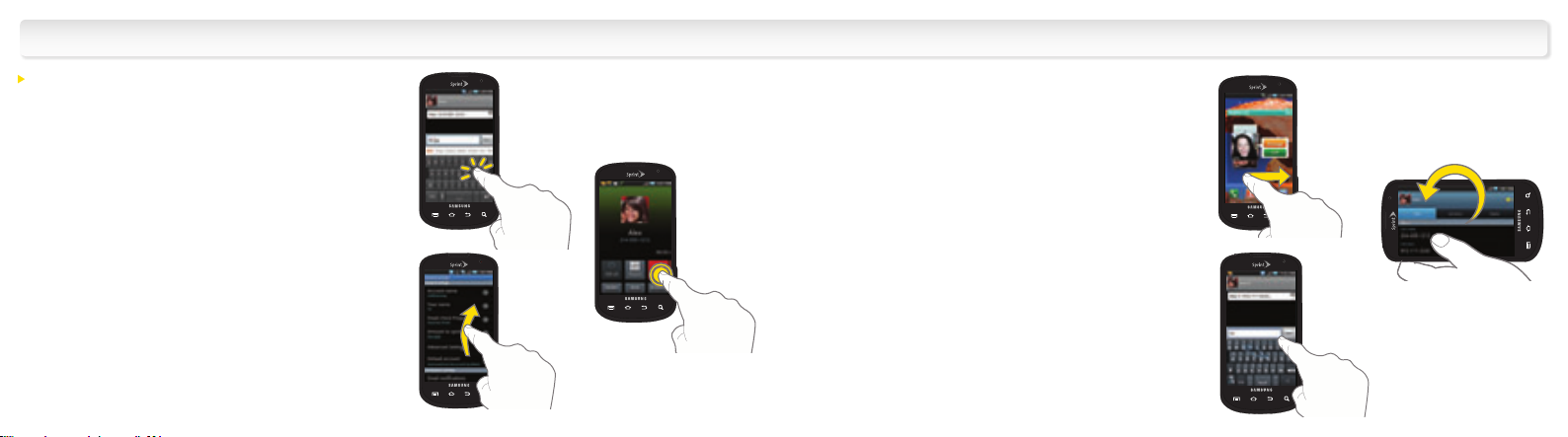
Move Around Your Device’s Menus and Screens
Tap: When you want to type using the onscreen
keyboard, select items such as application and
settings icons, or press onscreen buttons, simply
tap them with your finger. A light touch works best.
Press and hold: To display the available options for
an item simply press and hold the item.
Flick: Move your finger in lighter, quicker strokes
than swiping. This finger gesture is always used in
a vertical motion, such as when flicking through
contacts or a message list.
Swipe or slide: Quickly drag your finger vertically
or horizontally across the screen.
Drag: Press and hold your finger with some pressure
before you start to move it. Do not release your finger
until you have reached the target position.
Rotate: Activate the auto-rotate feature to
automatically change the screen orientation from
portrait to landscape by turning the
device sideways.
Swype: This unique feature allows you to enter a
word by sliding a finger from letter to letter, lifting
only between words. See the Basics Guide in the
box, and the User Guide online for instructions on
using this text input method.
Page 5
Voicemail
Contacts
Set Up Your Voicemail
All unanswered calls are automatically transferred
to your voicemail, even if your phone is in use or
turned off. You should set up your voicemail and
personal greeting as soon as your phone is
activated:
Press and tap and then press and hold
•
and follow the system prompts to create your
password and record your name and greeting.
Voicemail Password
(do not share):
_______________________
Sprint strongly recommends setting a voicemail
password. Without a password, anyone who has
access to your phone can access your messages and
place outbound calls through your wireless account.
Retrieve Your Voicemail
From your device:
• Press and tap and then touch
and hold .
• To use Visual Voicemail, press and tap
Voicemail and then tap a voicemail message
from the list.
From any other phone:
1. Dial your wireless phone number.
2. When your voicemail answers, press *.
3. Enter your password.
Save a Phone Number
1. Press and tap .
2. Enter a phone number using the
onscreeen keypad or Qwerty keyboard.
3.
Tap > Add to Contacts > Create contact.
(If prompted, tap Phone, Google, or Corporate.)
4.
Tap First name and Last name fields, and
enter a name for the new entry.
5.
Tap Mobile to select a label (Mobile, Home, Work,
Work fax, Pager, Assistant, Other, or Custom).
6.
Tap Save to complete and save the entry.
Retrieve a Phone Number
1. Press and tap Contacts . Scroll
through the entries.
2.
To display an entry, tap it.
3. To call the contact tap
has more than one number, tap a number
from the list.
Call
. If the contact
Page 6
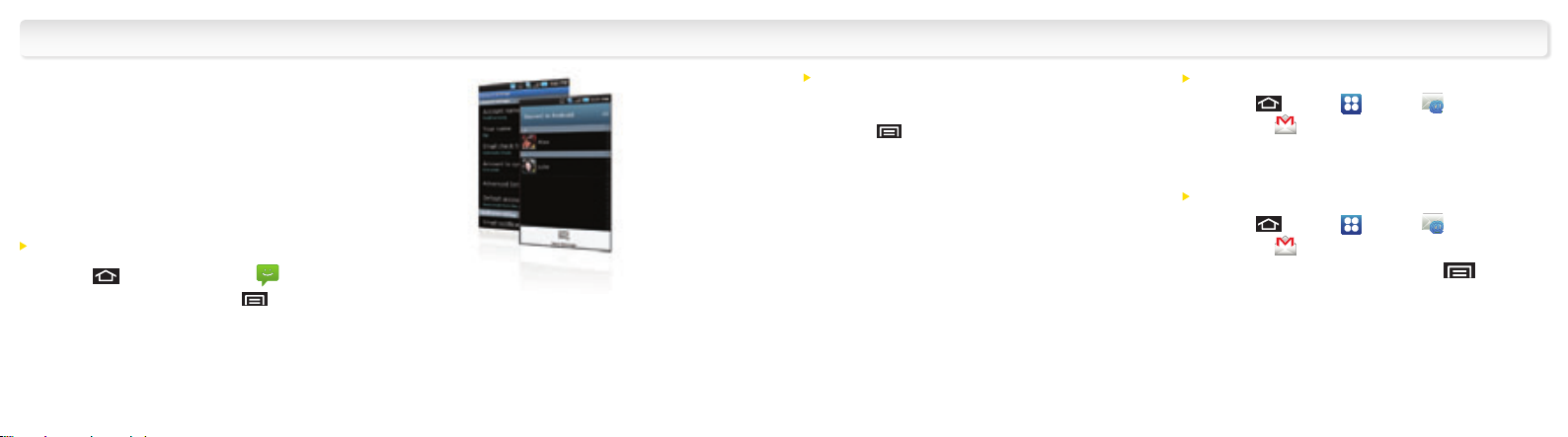
Messaging
Keep in touch your way using text
and picture messaging, or email.
Easy access to AOL, Hotmail, AIM
Mail, Yahoo!® Mail, and Gmail.
Send a Text (SMS) Message
1. Press and tap Messaging .
2. Tap New message, or press and tap
Compose.
3. Enter a phone number, email address, or contact
name in the To: field. (If the device recognizes a
contact, you’ll see a list. Touch the contact to
complete the address.)
4.
Tap Type to compose and then type
your message.
5.
When you are finished, tap Send.
Send a Picture (MMS) Message
1. Follow steps 1 – 4 for sending a text message.
2. Press and tap Attach.
3. Tap a media type (such as Pictures, Videos,
Audio, etc.) and then tap an available album.
4. Tap a picture or clip to select it. (For Audio,
tap OK.)
5. If you are satisfied with your message, tap Send.
Set Up Email
1. Press and tap > Email
or Gmail .
2. Follow the instructions to add a new
email account.
Use Email
1. Press and tap > Email
or Gmail .
2. Tap Inbox to view your mail, or tap >
Compose to compose a new email.
3. Tap Send.
Page 7
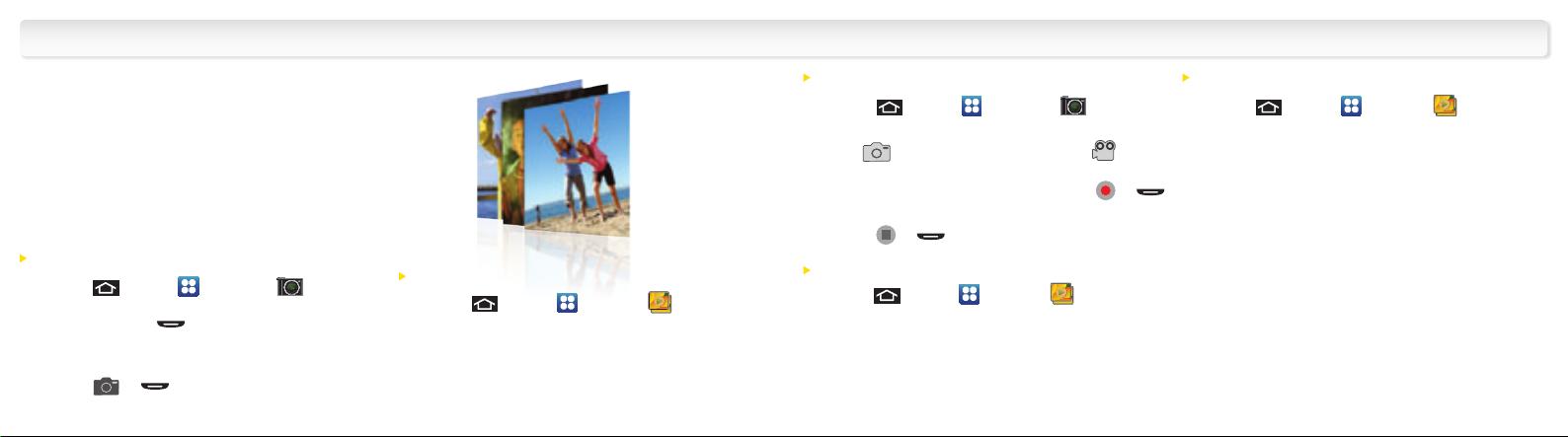
Pictures and Videos
Capture and instantly send your
moments in digital pictures and
video clips.
Take a Picture
1. Press and tap > Camera .
(You can also press and hold the
camera button .)
2. Using your display as a viewfinder, aim
the camera lens at your subject, and
press or .
View Pictures
1. Press and tap > Gallery to view
the Camera folders.
2. Tap a picture to explore other options, including
sharing the picture using Facebook, AllShare,
Picasa, Gmail, and more.
Record a Video
1. Press and tap > Camera
activate camera mode.
2. Tap to activate camcorder mode ( ).
3. Using the device’s display screen as a viewfinder,
aim the lens at your subject, and press or
to begin recording.
4. Press or to stop recording.
View videos
1. Press and tap > Gallery .
2. Tap a video icon to view the video.
to
Share Pictures and Videos
1. Press and tap > Gallery .
2. Tap Camera to reveal your pictures and videos,
and then press and hold a picture or video
to send.
3.
Tap Share and select a sharing option, such
as Picasa, Bluetooth, Messaging, Gmail, or
Email. Follow the onscreen instructions to
send your picture or video clip.
Page 8
Wi-Fi
Sprint Mobile Hotspot
Connect to a Wi-Fi network with
one quick touch to check email,
access a corporate intranet, or
browse the Web.
Connect
1. Press and tap >Settings >
Wireless & networks.
–or–
Press > Settings > Wireless & networks.
2.
Tap the Wi-Fi check box to turn Wi-Fi on.
Tap Wi-Fi settings to display a list of available
3.
networks.
4.
Tap a Wi-Fi network to connect. If necessary,
enter the security key and tap Connect.
Connect up to five Wi-Fi capable
devices to the Internet using your
Epic 4G as a mobile hotspot.
Set Up Your Sprint Mobile Hotspot
1. Press and then tap >
Sprint Hotspot .
2. Tap OK on the introduction screen.
3. Tap Activate Sprint Hotspot to
activate the hotspot.
Connect to the Sprint Mobile Hotspot From
Another Device
1. Activate Wi-Fi on the other device.
2. Scan for Wi-Fi networks from the device and
select your Epic 4G hotspot from the network list.
• The default name for your Epic 4G hotspot is
SPH-D700XXX. You can change the name by
tapping > Settings > Device name from
the Sprint Hotspot screen.
3. Connect by entering the key that appears on
the Sprint Hotspot screen.
4. When “Connected” appears on your device,
launch your Web browser to confirm you have
an Internet connection.
Page 9
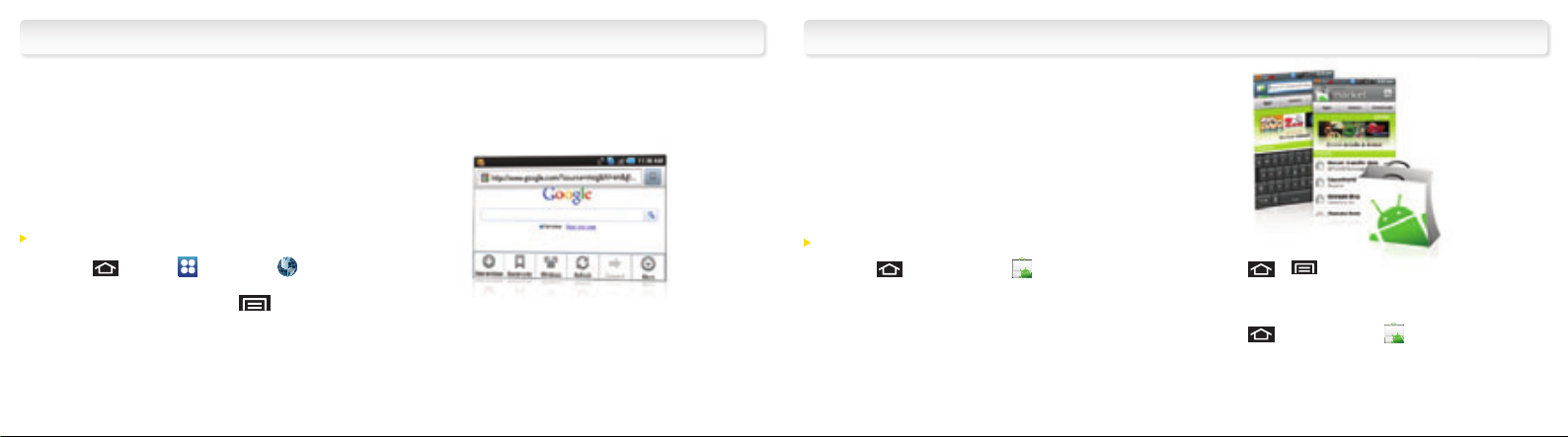
Web
Android Market
™
Find sports scores, news, and weather.
Shop online. On-the-go access lets
you browse full-color versions of
your favorite websites.
Go Online
1. Press and tap > Browser .
2. From the home page, press
and tap options such as New window,
Bookmarks, Windows, Refresh,
Forward, and More.
Thousands of innovative applications
and games to download – for fun
and function while on the go.
Download
1. Press and tap Market .* Read the Terms
of Service and tap Accept to continue.
2. Scroll through the featured items, or tap a
category to browse its contents.
3. Tap the Apps, Games, or Downloads tabs,
tap an item for a description, and then
tap Install.
4. Press >
to confirm the application or game has
completed installation.
5. Press and tap Market > Downloads
to open installed applications.
* You will need to have an active Google account.
and tap Notifications
Page 10
GPS Navigation
Sprint TV, Movies & Radio
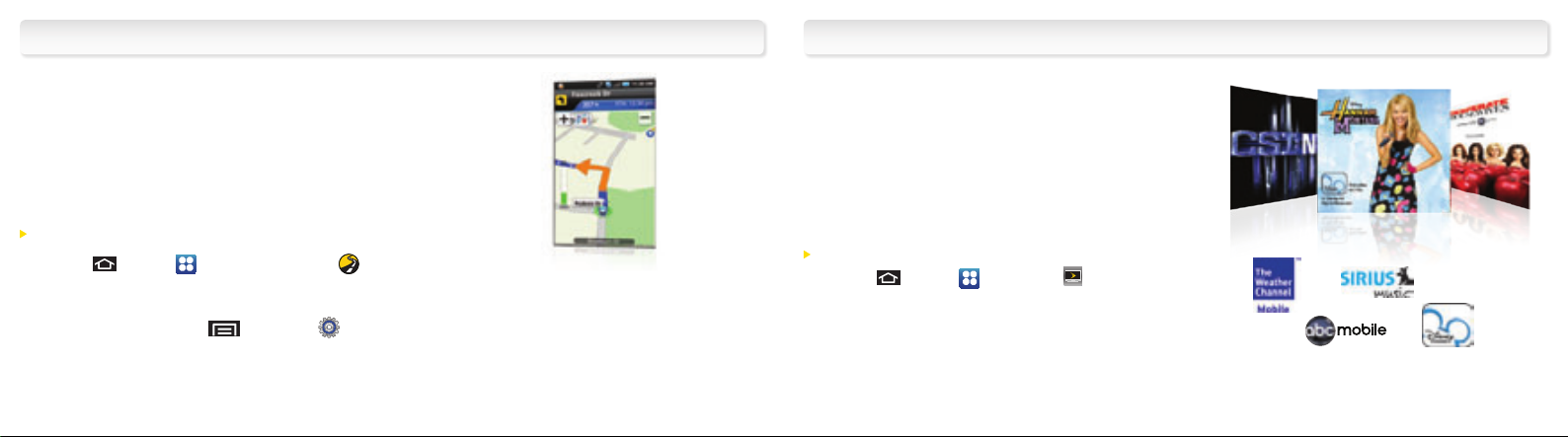
Sprint Navigation lets you see and hear
turn-by-turn directions to a known
address, or find nearby restaurants,
stores, banks, or gas stations. Get
information about traffic and
alternate routes
Navigate
1. Press and tap > Sprint Navigation .
• If you haven’t enabled GPS on your device,
you’ll see a prompt asking if you want to go to
location settings. Tap > Settings >
Location & security and tap Use GPS satellites,
and then return to Sprint Navigation from the
Applications screen.
2. Follow the onscreen instructions to access,
launch, and use.
Live TV and video on demand. Complete
episodes and clips of your favorite
primetime shows and movies. Over 50
channels of news, entertainment, weather,
sports, and streaming music.
Watch
1. Press and tap > SprintTV .
2. Tap a channel or category, and if prompted, tap
Preview or tap Subscribe to purchase access.
3. Tap an item to play it.
* Coverage not available everywhere. Content and lineup subject to change. Select channels also available for casual usage.
Go to sprint.com/tvguide for more information.
Page 11
Battery-Saving Tips
Manage Your Account
Manage the Display Brightness and Screen
On-Time
1.
Press > > Settings > Sound & display >
Brightness to modify the backlight setting as
desired.
2. To turn off the screen, tap the Power button. The
device will continue to function.
—or—
Add a Power Control widget to your Home screen.
Press > Add > Android Widgets >
Power control. (See your Basics Guide for more
information about customizing your Home
screen.)
Manage Your Device’s Wireless Functions
Disable the 4G, Sprint Mobile Hotspot, Wi-Fi,
Bluetooth, and GPS functions of the device when
you’re not using them.
• Press > > Settings > Wireless &
networks and disable any of these functions that
are not in use.
For more useful tips about battery care
and safety, see the User Guide at
www.sprint.com/epicsupport.
Online: www.sprint.com
•
make a payment, see your bills, enroll in
online billing
• check minute usage and account balance
• see or modify the details of your Sprint
service plan
• get detailed instructions and download content
From Your Sprint Phone
Press
•
minute usage and account balance
Press to make
•
a payment
Press
•
of your Sprint service plan or get answers to
other questions
to check
to access a summary
Press to add a new line of
•
service, upgrade your device, purchase
accessories, or access other account services
From Any Other Phone
• Sprint Customer Service:
Dial 1-888-211-4727
• Business Customer Service:
Dial 1-800-927-2199
Page 12

Helpful Sprint Information
Resources
Total Equipment Protection
The protection you need so you can be worry free
Should anything happen to your phone, you’ll have
a worry-free way to ensure that you get connected
again soon.
• Coverage includes:
Loss, theft, routine maintenance, physical or
liquid damage, mechanical or electrical
problems, failure from normal wear and tear.
• For more information:
See the Total Equipment Protection brochure
available at any participating retail location
or go to sprint.com/tep for more details.
To enroll within 30 days of activation, call
1-800-584-3666.
Total Equipment Protection is a service provided by Asurion
Protection Services, LLC, Continental Casualty Company’s (a CNA
company) licensed agent for the customers of Sprint.
Sprint 411
Dial 411 for nationwide listings, movie show times,
restaurant reservations, driving directions and
more. Spanish-speaking operators are available.
See sprint.com for pricing and more details.
For Your Phone
• This Get Started Guide to get you up
and running.
• Basics Guide – Get an in-depth overview with
the printed Basics Guide for the Samsung Epic 4G.
• User Guide – View the comprehensive
User Guide to the Epic 4G.
• Web – Go to sprint.com/epicsupport to
download the latest version of the User Guide,
and to access how-to videos, tutorials, and
helpful support information.
For the Environment
Recycle your old phone safely and
conveniently using the addressed recycling
envelope packaged with your new phone.
Visit sprint.com/recycle for more details.
 Loading...