

Page 1
Page 2

QUICK
START
GUIDE
H_LED View Cover
Printed in Korea
GH68-XXXXXX Rev.1.0
E Type 01/2017
Page 3
b
a
1
Copyright © 2016 Samsung Electronics
•
Please read this guide before using the device to ensure safe
and proper use.
•
Images may differ in appearance from the actual product.
Content is subject to change without prior notice. You
can access the full user manual for more information. Visit
www.samsung.com
manual, and more.
•
Your consumer rights are governed by the law of the country in
which you purchased the product. Please contact your service
provider for more information.
2
to view device information, the latest user
Page 4
•
Before using the LED View Cover, make sure the mobile device you
want to connect to is compatible with this LED View Cover.
•
Verify that the NFC function is working properly before using the
device with the LED View Cover or Auto Screen On/Off feature
active.
•
NFC may be undetectable if your device is running an MDM
software or near a metallic object.
Device layout
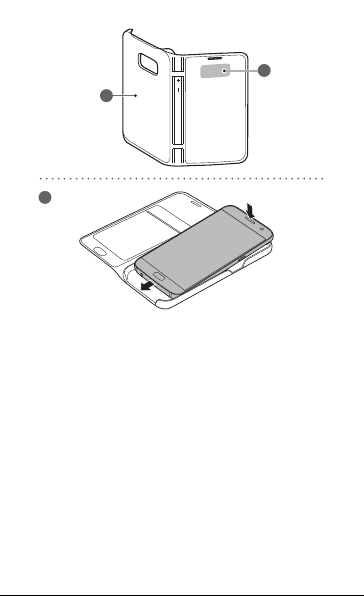
NFC antenna LED window
Attaching the LED View Cover
Open the LED View Cover and attach it to your mobile device. ►
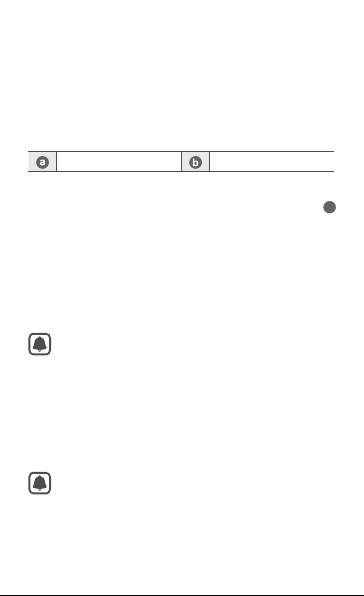
Answering or rejecting calls
You can answer or reject a call on your mobile device using the LED
window without opening the LED View Cover.
To answer a call, drag your finger to the right on the LED window.
To reject a call, drag your finger to the left on the LED window.
To stop an alarm or timer, drag your finger to the right on the LED
window.
The LED window may not work while wireless charging.
Unlocking the mobile device’s screen automatically
You can set your mobile device to unlock automatically when the
LED View Cover is flipped open. On your mobile device, complete
the below steps to activate this feature.
1. On the Home screen, tap Apps
2. Tap Automatic unlock, and then tap the switch to activate it.
This feature is available only when secure lock is disabled.
→
Settings → Accessories.
1
3
Page 5

Assigning LED images to contacts
You can assign different LED images to contacts which appear on
the LED window during incoming calls. On your mobile device,
complete the steps below.
1. On the Home screen, tap Apps
LED caller ID.
2. Select an image.
3. Select a contact from the contacts list and tap DONE.
4
→
Settings → Accessories →
Page 6
Safety information
Read all safety information before using the device to ensure safe
and proper use. To view the full safety information, refer to the
Samsung website.
Use manufacturer-approved batteries, chargers, accessories,
and supplies
Do not touch the device with wet hands
Do not drop or cause an impact to the charger or the device
The device can be used in locations with an ambient
temperature of 0°C to 35°C. You can store the device at an
ambient temperature of -20°C to 50°C. Using or storing the
device outside of the recommended temperature ranges may
damage the device or reduce the battery’s lifespan
Prevent the multipurpose jack and the small end of the
charger from contact with conductive materials, such as
liquids, dust, metal powders, and pencil leads
Do not allow children or animals to chew or suck the device
Do not disassemble, modify, or repair your device
Correct disposal
This marking on the product, accessories or
literature indicates that the product and its
electronic accessories (e.g. charger, headset,
USB cable) should not be disposed of with other
household waste.
This product is RoHS compliant.
For information on Samsung’s environmental commitments
and product-specific regulatory obligations, e.g. REACH, WEEE,
Batteries, visit
samsungelectronics/corporatecitizenship/data_corner.html
samsung.com/uk/aboutsamsung/
5
Page 7

FCC Statement
This device complies with part 15 of the FCC Rules. Operation is
subject to the following two conditions: (1) This device may not
cause harmful interference, and (2) this device must accept any
interference received, including interference that may cause
undesired operation.
Caution: Any changes or modifications not expressly approved
by Samsung Electronics Co., Ltd. could void the user's authority
to operate the equipment.
Industry Canada Statement
This device complies with Industry Canada licence-exempt RSS
standard(s). Operation is subject to the following two conditions:
(1) this device may not cause interference, and (2) this device
must accept any interference, including interference that may
cause undesired operation of the device.
Le présent appareil est conforme aux CNR d'Industrie Canada
applicables aux appareils radio exempts de licence. 'exploitation
est autorisée aux deux conditions suivantes : (1) l'appareil ne doit
pas produire de brouillage, et (2) l'utilisateur de l'appareil doit
accepter tout brouillage radioélectrique subi, même si le
brouillage est susceptible d'en compromettre le
fonctionnement.
6
 Loading...