

Page 1

Hello
Basically...
You’ve got the most unique mobile device around.
(Just don’t call it a phone.)
This is a Startup Guide. Find the complete manual on your CD-ROM.
Or get help at www.helio.com/support.
Page 2
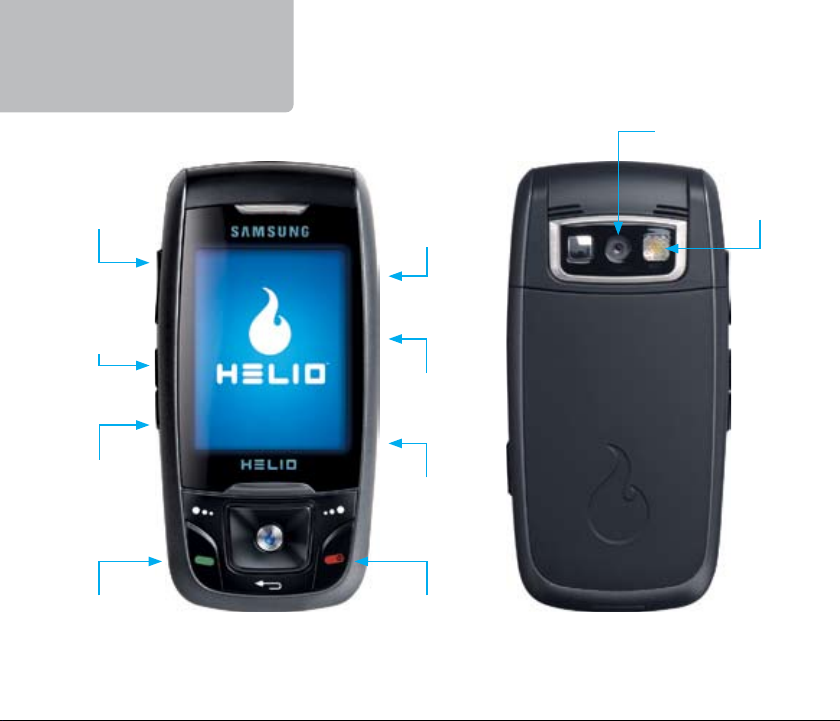
Meet Drift
TM
camera lens
volume
play/pause
(launches the
media player)
voice recorder /
speakerphone
(when on a call)
microSD
™
flash
headset
charge
+ sync
camera
power
Page 3
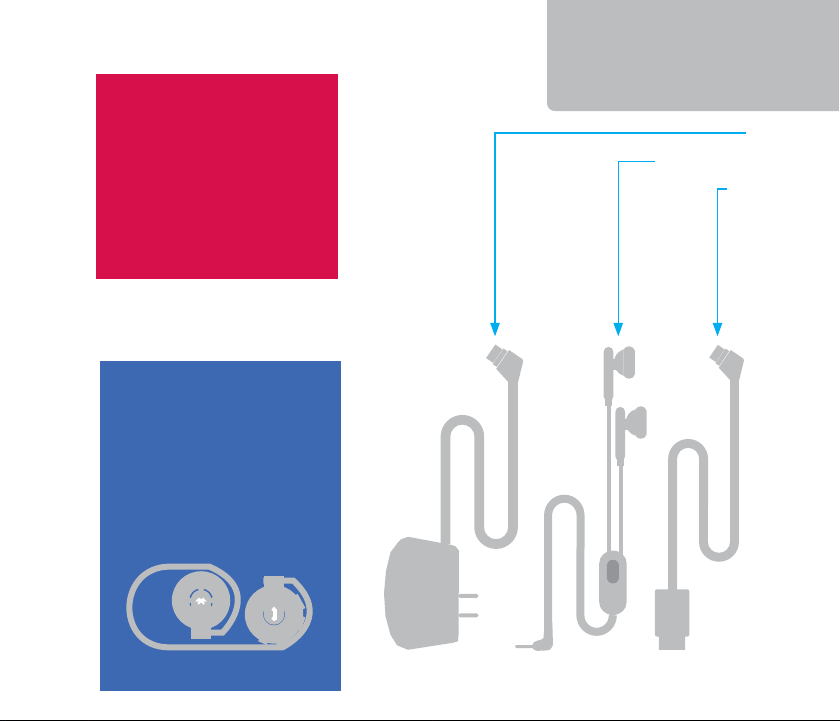
Use the USB cable as a
way to manage media
and pictures on your
device from your PC.
Get the software at
www.helio.com/support.
Listen to music
wirelessly. An optional
Bluetooth® stereo
headset is available
from your Helio dealer
or www.helio.com.
Gear
charger
headset (handsfree)
USB cable
Page 4
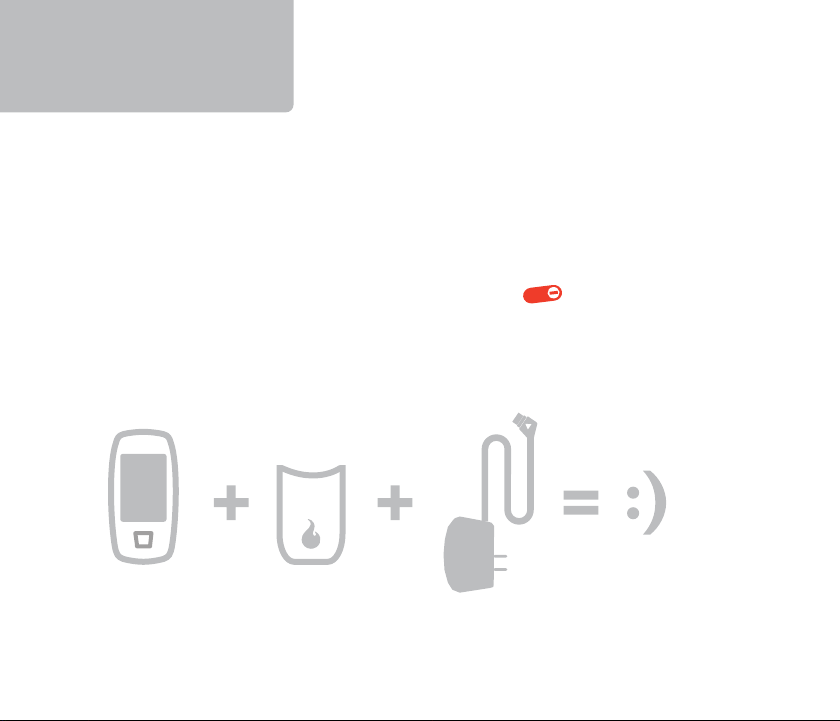
Turn Me On
Insert the battery into the back of the device, top to bottom.
(Look for the battery in the box, under the device.)
Connect the device to the charger (included).
Connect the charger to a wall outlet (not included).
Slide open the device. Press and hold the button.
Page 5
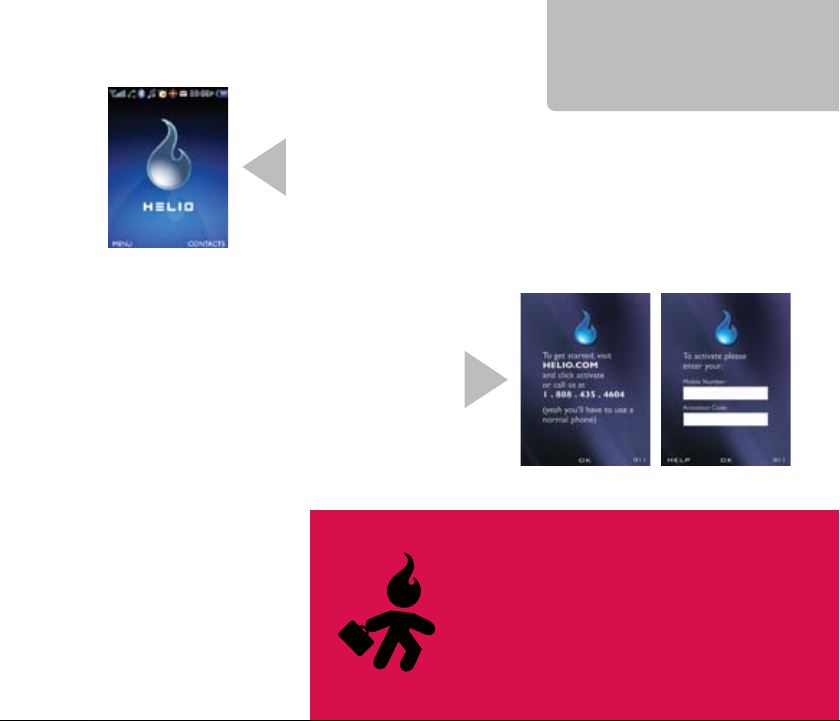
If you see a screen like this on your Helio device,
it’s already activated. Skip this page!
If you see a screen like this, then you
need to activate your Helio device. Call
888.88.HELIO to receive your new mobile
number and a 10-digit activation code.
Activate Me
Moving an existing mobile number to
your new Helio device?
Find a copy of your bill or statement
for your existing service and call us at
888.88.HELIO.
Page 6
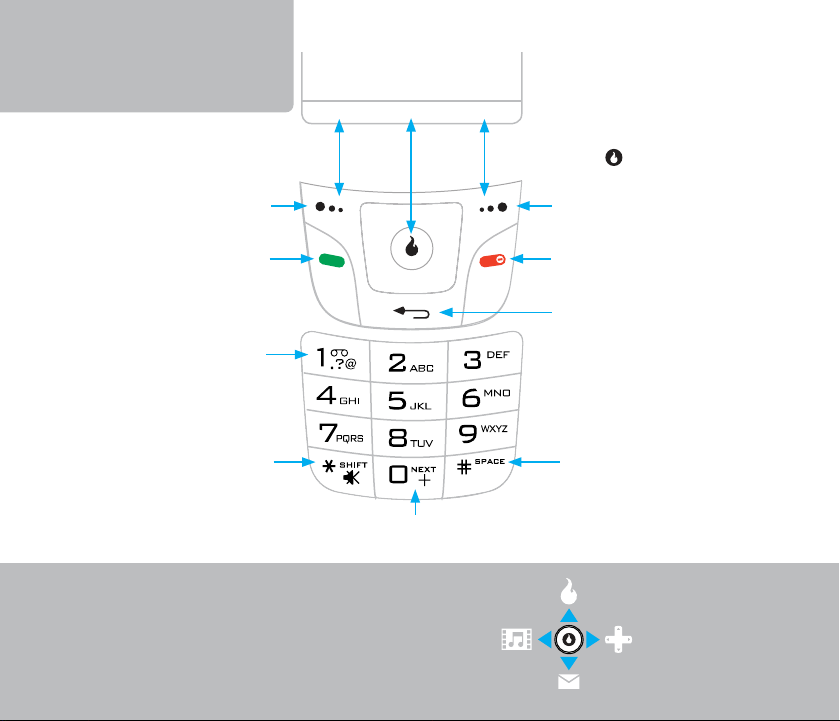
Helio 101
screen
functionfunction function
(Soft keys select the function
shown on the screen. The
center usually means OK.)
soft key
send call
voicemail (press and hold)
silent mode (press and hold)
(shift, when entering text)
Shortcuts
next word match
(T9® Predictive Text Input mode)
VIDEO+MUSIC
soft key
power / end call /
back to main screen
back
(backspace, when entering text)
space
(when entering text)
SURF
GAMES
MESSAGE
Page 7

Helio 101
Rings and
Screens
(Sweet)
VIDEO+MUSIC
Get Organized
MySpace
Surf the Web
SURF
CUSTOMIZE
CONTACT
Speed Dials
Call Log
PLAN APPS
MESSAGE
Pic and Text Messages
IM, Email
®
Photos
and Videos
SNAP
Play Time
GAMES
Google™Maps
Buddy Beacon™
and More
Page 8
Device
How do I...
...put my ring on silent (vibrate)?
Press and hold (*) to turn on Silent Mode. Repeat to turn it off.
...listen to my voice messages or set up my voicemail?
Press and hold the 1 key. Follow the voice prompts.
...see if I have a voicemail or other messages waiting?
Look for the indicator.
...ignore an incoming call?
Press Silent to silence the ringer. Press Ignore to send to voicemail.
...turn the speakerphone on and off?
During a call, press Menu, Speaker. The icon will appear.
Press Menu, Speaker again to turn off the speakerphone.
...adjust the ring volume?
Press the Volume Up/Down button (while not on a call) to bring
up the Volume menu. Scroll left/right to adjust your ring volume
and press to save.
Page 9

Contact
How do I...
...dial a number?
From the main screen, enter the number you want to call and
press the button.
...see my call history?
From the main screen, press the button.
...store a number?
Enter the number and press right (on the directional pad) to add
a new contact or a new number to an existing contact. Press to
save.
...forward my calls to another number?
From the main screen, press Menu, , Settings, Call.
Select Call Forwarding to set the forwarding number.
...make a three-way conference call (add a third person)?
While on a call, press to place the call on hold. Dial the
number of the third person and press again. After the third
person answers, press again to conference.
Page 10

Surf
How do I...
...start the Web browser?
Press Menu. Select , Access Helio Portal to start the Web
browser. Or, to shortcut to the Web browser, press up from the
main screen.
...access the Web browser menus?
Press the left soft key under the word Menu. Press right/left to
see the various menus. Press up/down to select a submenu item.
...enter a URL address?
From the Web browser, press Menu, select Go, and enter the
address. Press .
...bookmark a site?
From the Web browser, press Menu, pick Bookmarks (press right),
Add. Press to edit the name.
Tip: Access the web browser quickly by
pressing up from the main screen.
Page 11

MySpace Mobile
How do I...
...get to MySpace Mobile?
Start the Helio browser and select the MySpace link. Enter your
MySpace username or email address and password. (You must
already have a MySpace account established via the web.)
…upload photos from my device so I can use them on MySpace?
Go to . From the Internal or External Album, select a photo. Press
Menu, Helio UP and send the message. The photo is now hosted on
your Helio account and can be uploaded to MySpace.
… get a photo from my device to appear in a MySpace message?
Upload your photo (see above). Log in to MySpace Mobile.
Compose a comment, bulletin, blog, or message. Press Insert Photo.
Select a photo to insert and press OK, then Attach. Post or send the
message.
… get a photo from my device to appear in my MySpace photo album?
Upload your photo (see above). Log in to MySpace Mobile. Press
My Pics, Upload Photo. Select a photo and press Upload, then Yes to
confirm.
For help with your MySpace account, go to MySpace.com
and click on the Frequently Asked Questions link.
Page 12
Message
How do I...
...send a text or pic message?
Press Menu. Select . Choose Write Text Msg or Write Pic Msg.
Type and send. (Choose Write Pic Msg to attach pictures or even a
video to your message.)
...check my text or pic messages?
Press Menu. Select . Pick Text Messages or Pic Messages and
look in the Inbox.
...check myhelio.com email messages?
Press Menu. Select , Email.
…stay in touch with Instant Messaging?
Press Menu, , Instant Messages. Start IM’ing with your
Yahoo!®, AOL® and MSN® contacts.
…call a phone number in a text message?
Select the message in the Text Messages Inbox. Press to
display all the phone numbers in the message.
Tip: To start chatting with friends,
you may need to download
the IM app the first time.
Page 13
Tip: Use Photo Studio to adjust photos, morph facial
expressions, apply special effects and other fun
things. Press Menu, , Photo Studio to get started.
Snap
How do I...
...take a photo?
Press and hold to open the viewfinder. Press or to
shoot. Hold your hand steady until you hear the shutter sound.
...shoot some video?
Press and hold to open the viewfinder. Press the 1 key to
select video or still camera mode. Press to start recording.
Press again to stop.
...send multiple pictures?
Press Menu, , Write Pic Msg. Press Add to attach a saved
picture or video. Repeat to add up to three saved pictures. (You
can attach only one video.)
...set a saved picture or video as a screen (wallpaper)?
Press Menu. Select , Home Screens, Internal Album. Select a
saved picture or video and press .
...get pictures and videos from my device onto my PC?
Use the great PC software we have waiting for you. Go to
www.helio.com/support to download.
Page 14
Apps
Games
How do I...
...get more games and apps?
Press Menu. Select , Download Game or , Download App
and browse the Helio Store for that perfect game or app. Buy
it for yourself or Gift it to another Helio member. Check out the
Buddy Beacon, Google Maps and Instant Messaging apps.*
...play a game or start an app?
Press Menu. Select or . Or, to shortcut to Games, press
right from the main screen. Browse your downloaded games and
apps.
What is Gifting and Begging?
When you buy a new ring, screen, game, or other
item, you can Gift it to another Helio member.
Begging is finding the item you want and asking
another Helio member to pay for it. ^^
Page 15
Apps
How do I...
…hook up with friends while on the move?
Download the Helio Buddy Beacon app. With Buddy Beacon, you
can get a map showing where your friends are located anywhere
in the country or around town, automatically let them know
where you are, or hide from them. The choice is yours.
…stay in touch with Instant Messaging?
Press Menu, , Instant Messages. Start IM’ing with your
Yahoo!®, AOL® and MSN® contacts. (You’ll need to download the
IM app the first time.)
* Some games and apps are free for download; some must be purchased or rented.
Data usage charges may apply. See www.helio.com for data plan details.
Page 16
Video
+ Music
How do I...
...copy my personal media files from my PC to my device?
Use the great PC software we have waiting for you. Go to
www.helio.com/support to download.
...download new videos or music?
Press Menu, . Select Download Video or Download Music.
Or go to www.helio.com and click on Downloads.
...play videos or music stored on my device?
Press Menu, . Select Video or Music and navigate to the file
you want to play. Press to start the player.
...share downloaded music or video files with a friend?
Hold your device up to your friend’s ear. Better yet, Gift some
music or a video to your friend. Sharing downloaded music files
is cheating…and it won’t work anyway. Music files will only play
on the original device where they were downloaded.
Page 17
Video
+ Music
How do I...
...have the backlight stay on for videos, or stay off for music, to save
battery life?
Press Menu, , Settings, Backlight Duration. The Defined Light
option will turn off the backlight according to your backlight
preferences set in . The Always On option prevents the backlight
from turning off as long as the media player is open.
…play a video in full screen mode?
Begin playing a video and press the button on the right side
of the device while it’s playing. The video will fill the screen and
continue playing. Press the button again to play the video in
the media player.
...set a ring?
Press Menu, , Rings.
Page 18

H.O.T.
How do I...
...get H.O.T. on my device?
Follow the link in the “Welcome to Helio” text message to
download the H.O.T. application. Or, press Menu, , Download
H.O.T.
...make the H.O.T. application active or inactive?
Press More or to make H.O.T. active (see all the headlines).
Press to make H.O.T. inactive. (When active, H.O.T. occupies
the entire screen.)
...see the headlines on H.O.T.?
With H.O.T. active, press left/right to select a channel. Press up/
down to select a headline. Press Read or to open the headline.
What is H.O.T.?
It’s Helio On Top. Multiple channels of the latest news and headlines
(sports scores, music news, stock data and more) right on your
main screen! Stay up to date with content from Yahoo!, MTV®,
FoxSports®, Accuweather®, Surfline®, Helio Traffic and others.
Page 19
How do I...
…search from H.O.T.?
With H.O.T. active, start typing. An input box will appear. Enter
your search term (for example, PIZZA) and press Submit. Try
searching the name of an artist, a movie or a local restaurant.
…set content channels in H.O.T.?
With H.O.T. active, press Menu, Set Channel. Select from the
available channels and press Save.
...turn off H.O.T. completely (or turn it on again)?
Turn Off—With H.O.T. active, press Menu, Turn Off H.O.T.
Turn On—Press Menu, , H.O.T. Screens. Highlight the H.O.T.
application. Press Menu. Select Turn On H.O.T. and press OK
twice. The H.O.T. application is now running.
Tip: Press Refresh to immediately
update available H.O.T. content.
H.O.T.
Page 20

Sync It
How do I...
…sync my contacts wirelessly (no cable needed)?
First, go to the My Account link at www.helio.com and create
a myhelio.com Web Mail account. (Later you can access this
directly at webmail.myhelio.com)
Your Web Mail username is your [email protected].
(Hey, you can pick a “friendly” email address too.) We’ll ask you
to set a password the first time.
Next, on your device, press Menu, , Sync Contacts. Enter the
username and password for your myhelio.com Web Mail account.
(Your username for syncing is your myhelio.com email address.)
Tip: You can avoid typing and import your existing
contacts from other email accounts. In Web Mail,
click Preferences, Import Address Book for details.
Page 21
Sync It
How do I...
…sync my contacts with my PC using the USB cable?
Use the PC Link Pro software. Download it at
www.helio.com/support.
…transfer my personal music or videos to my device?
Use the USB cable and the great PC software we have waiting for
you. Go to www.helio.com/support to download.
TM
Tip: You can also transfer files to your device using the Helio
PC software and a microSD memory card (not included).
Go to www.helio.com/support to learn more.
Page 22
Bluetooth
Optional Bluetooth headsets (stereo
and mono) are available from your
Helio dealer or www.helio.com.
How do I...
…turn the Bluetooth service on or off?
Press Menu, , Bluetooth (right soft key), Bluetooth Mode. Select
On or Off and press .
...pair a Bluetooth headset (mono or stereo) with my device?
Turn on the Bluetooth service (see above). Place your Bluetooth
headset into pairing mode (see the instructions that came with
your Bluetooth headset). Select Connect Device and the type of
device. Wait for your headset to be discovered, highlight it and
press Connect.
...answer a call using a Bluetooth headset with my device?
Follow the instructions for your Bluetooth headset. Usually just
tap a button.
...place a call using a Bluetooth headset?
Follow the instructions that came with your Bluetooth headset to
initiate a call. Initiating a call from the headset will automatically
redial the last number called.
Page 23
Mass Storage
Mass Storage
Your Drift can act as a USB disk drive—16 MB of memory is set aside to store
documents, spreadsheets, pictures, media and other files. Attach the USB
cable and easily drag-and-drop files to or from any Windows PC. (Windows
2000® and later only. No drivers required.) You can also expand your memory
capacity up to 2 GB with a microSD card.
To connect your Drift as a USB disk drive, connect the USB cable.
Then press Menu, , User Memory, USB Disk Mode. You will not
be able to make or receive calls while connected to your PC.
View Files on the Go
You can view files stored in the USB Disk area or on a microSD card with the
built-in document viewer. Zoom, navigate pages, rotate and view full screen.
Supported file types are PDF, XLS, DOC, JPEG and PPT. You can also play
MP3, 3G2 and MP4 video files. Try that with a lowly key chain flash drive.
To view files in the USB Disk area, press Menu, ,
File Manager. Select a file and press .
Pick up an optional microSD memory card
from your Helio dealer or www.helio.com.
User Memory
,
Page 24

Refer a Friend
We want more members like you, and we’ll make it worth your while
to send your friends our way!
Tell your friends + family about Helio. Ask them to purchase a Helio
device anywhere and activate new service online or by calling
888.88.HELIO.
They’ll be able to list you as a referring member online or when
talking to our representatives (as long as you give them your name
and Helio number).
Go to www.helio.com and click on Referrals + Rewards to see what
you get for referring a friend.
Page 25
Need more? Check out the CD.
It has the full user’s manual for your device.
Korean and English versions are available
online at www.helio.com
Drama? Happens to the best of us.
We’re here to help.
www.helio.com/support
Customer Care: 888.88.HELIO
Need Help?
Page 26

Legal Stuff
Some features, content and applications are not available in all areas and are devicedependent. Service and features are subject to change without notice. Coverage and
service are network-dependent and are not available everywhere. Airtime, messaging,
application and content charges may apply depending on your rate plan. Higher rates
apply to international calls and messages. Accessories are sold separately. Helio LLC is not
responsible for any third-party applications, content, information, or data that is accessible
on your Helio device. See enclosed Subscriber Agreement (on CD) for complete terms and
conditions. By activating your Helio device, you are agreeing to the Subscriber Agreement.
Some screen shots are representations and the image you see on your Helio device may
be different. All brand and product names not owned by Helio LLC are the property of their
respective owners. Helio, the Helio logo, Buddy Beacon and H.O.T. are trademarks of Helio
LLC. If you’ve read this far, stand up and take a bow.
© Helio LLC
DRIFT STARTUP GUIDE (SG) GH68-12543A / Helio # PRN-SAMASTHEL
 Loading...