

Page 1

SAMSUNG
DCS
KEYSET
USER GUIDE
Page 2

Publication Information
Samsung Telecoms reserves the right without
prior notice to revise information in this
publication for any reason.
Samsung Telecoms also reserves the right without prior notice to make changes in design or
components of equipment as engineering and
manufacturing may warrant.
Disclaimer
Samsung Telecoms is not responsible for errors
or problems arising from customers not installing, programming or operating their Samsung systems as described in this manual.
Copyright 2001
Samsung Telecoms (UK) Limited
All rights reserved. No part of this manual
may be reproduced in any form or by any means
-- graphic, electronic or mechanical, including
recording, taping, photocopy or information
retrieval system -- without express written
permission of the publisher of this material.
Part No.:12619 Version 2.1
Page 3
EU Declaration of Conformity (RTTE)
Samsung Electronics Co., Ltd.
259 Gongdan-Dong, Gumi-City Kyungbuk, Korea, 730-030
(factory name, address)
declare under our sole responsibility that the product
Digital Keyphone System "DCS"
to which this declaration relates is in conformity with
RTTE Directive 1999/5/EC ( Annex II )
Low Voltage Directive 73/23/EEC
EMC Directive 89/336/EEC:92/31/EEC
By application of the following standards
EN55022 : 1998 Inc A1: 2000*
.........................................................................................
EN61000-3-2:1995 Inc. A1/A2:1998
.........................................................................................
EN61000-3-3:1995, EN61000-4-2:1995 Inc. A1:1998, EN61000-4-3:1996 Inc. A1:1998
.........................................................................................
EN61000-4-4:1995, EN61000-4-5:1995, EN61000-4-6:1996, EN61000-4-8:1993
.........................................................................................
EN61000-4-11:1994, AS/NZS3548:1995
.........................................................................................
EN60950 ; 1992+A1+A2+A3+A4+A11
.........................................................................................
.........................................................................................
(Manufacturer)
Samsung Electronics Co., Ltd
259, Gongdan-Dong, Gumi-City
Kyungbuk, Korea, 730-030
Tae-eok Jang / General Manager
................................................. .................................................................................
(place and date of issue) (name and signature of authorized person)
(Representative in the EU)
Samsung Electronics Euro QA Lab.
Blackbushe Business Park
Saxony Way, Yateley, Hampshire
GU46 6GG, UK
In-Seop Lee / Manager
................................................. ...............................................................................
(place and date of issue) (name and signature of authorized person)
2001-04-03
2001-03-31
TE Jang
IS Lee
Page 4

EU Declaration of Conformity (see previous page)
For other directives relevant to DCS Compact II, DCS-816, DCS-408,
DCS-408i and DCS-VIP systems, refer to the Samsung website at:
www.samsung-telecoms.co.uk
Intended Use
This digital telephone is intended to be connected to a digital extension of
a Samsung DCS telephone system (DCS, DCS Compact II, DCS-816,
DCS-408, DCS-408i or DCS-VIP). The connection allows voice communication between the central processor unit and the telephone. It is not intended to be connected to any other telephone system or the public telephone network.
Please read the provided user instructions carefully.
Page 5

Note for Users Outside the UK
In order to provide as much information as possible on the features
and functions of Samsung Digital Keysets, it has been necessary to include some details which are relevant to users in the UK only. Please
be aware, therefore, that you may notice some differences in the operation or performance of your keyset if you are located in another
country. However, the general operating procedures provided here
remain relevant for your keyset.
If you are unsure of any details provided in this user guide, please see
your system administrator.
Page 6

– i –
Contents
Things You Should Know ................................................. 1
Your DCS Keyphone System........................................................... 1
Your DCS Keyset ............................................................................. 1
Call Indications................................................................................. 2
Speakerphone.................................................................................... 3
Volume Controls............................................................................... 3
Hot Keypad ....................................................................................... 4
System Tones (in the UK) ................................................................ 4
Selecting Key Features Using Menus.............................................. 5
System Access Codes........................................................................ 6
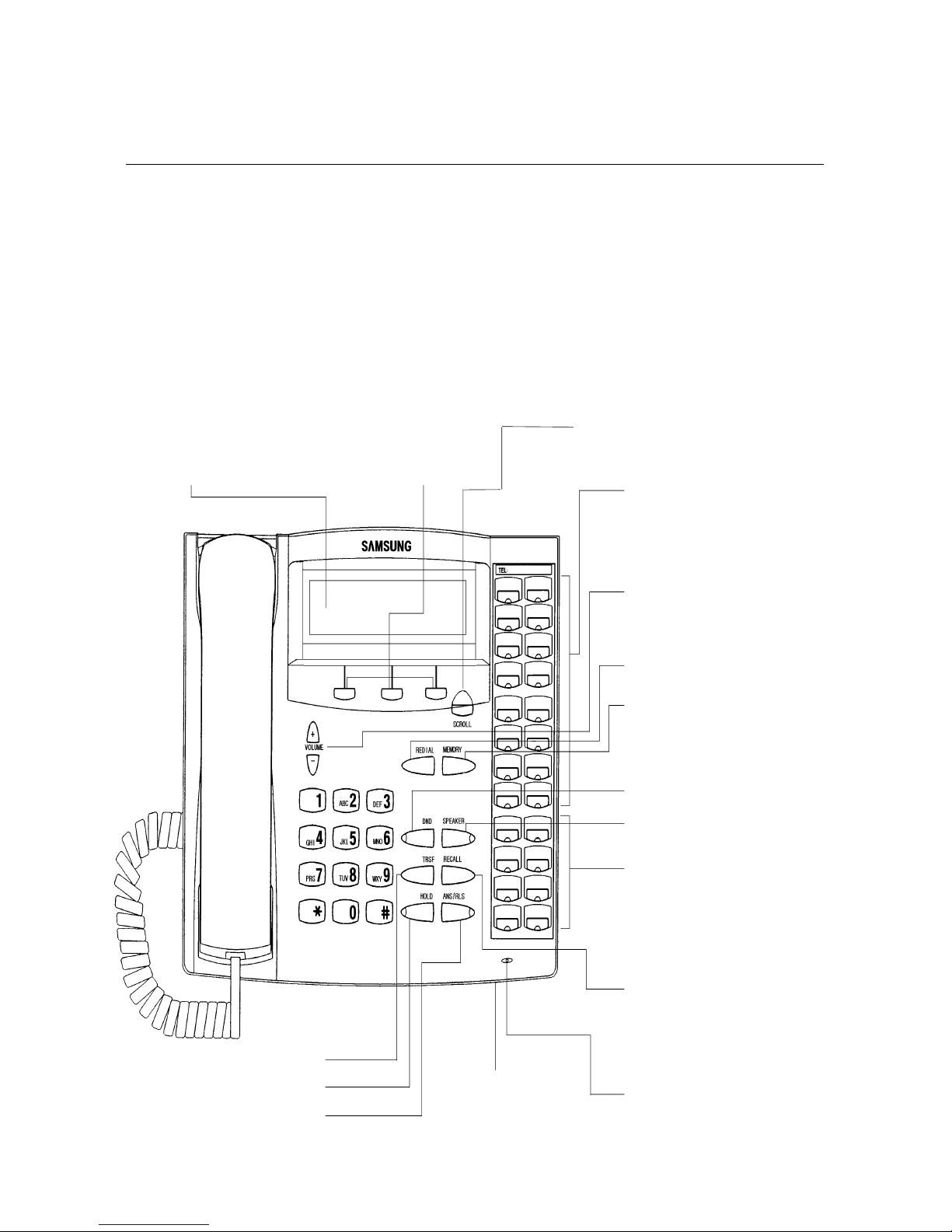
LCD 24B Keyset Layout ................................................... 7
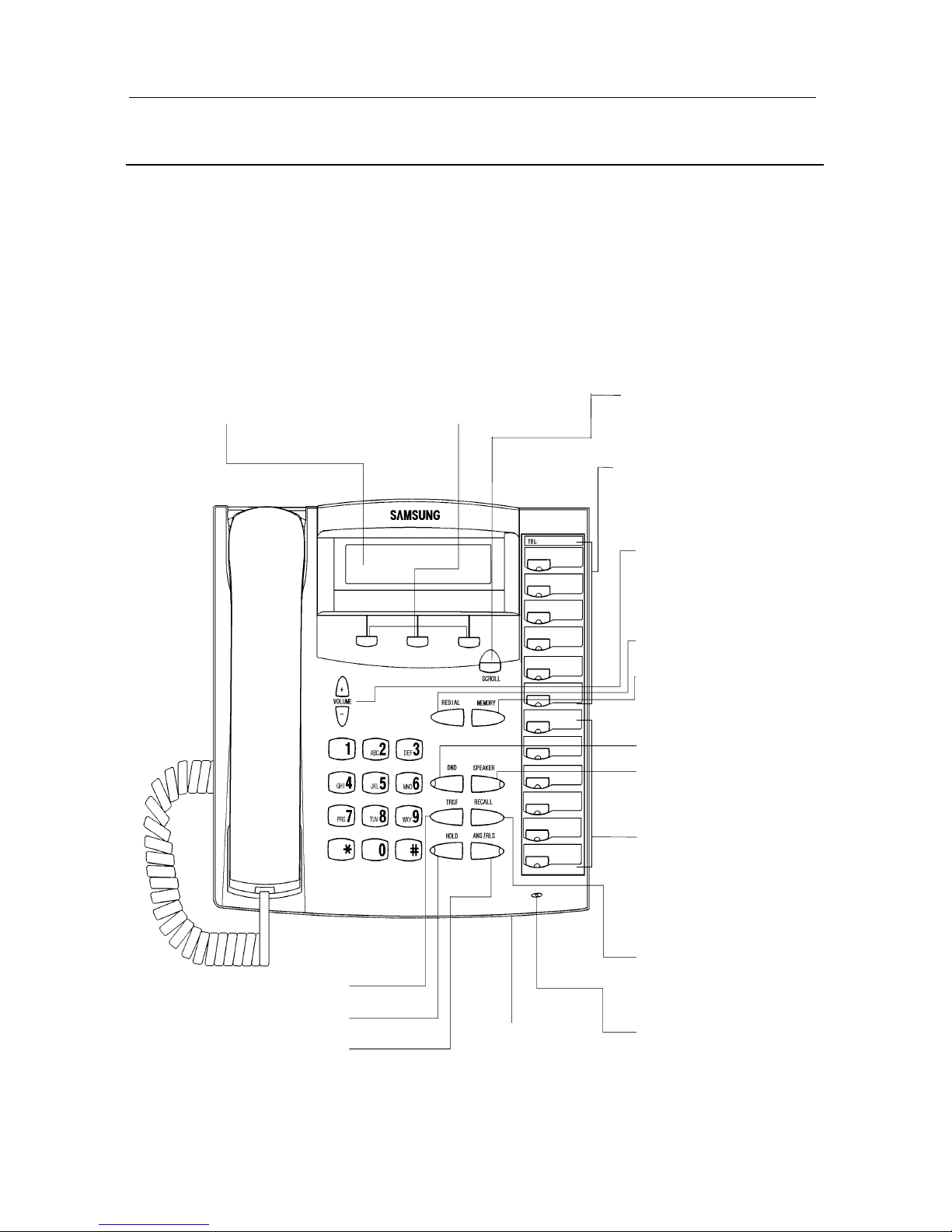
LCD 12B Keyset Layout ................................................... 8
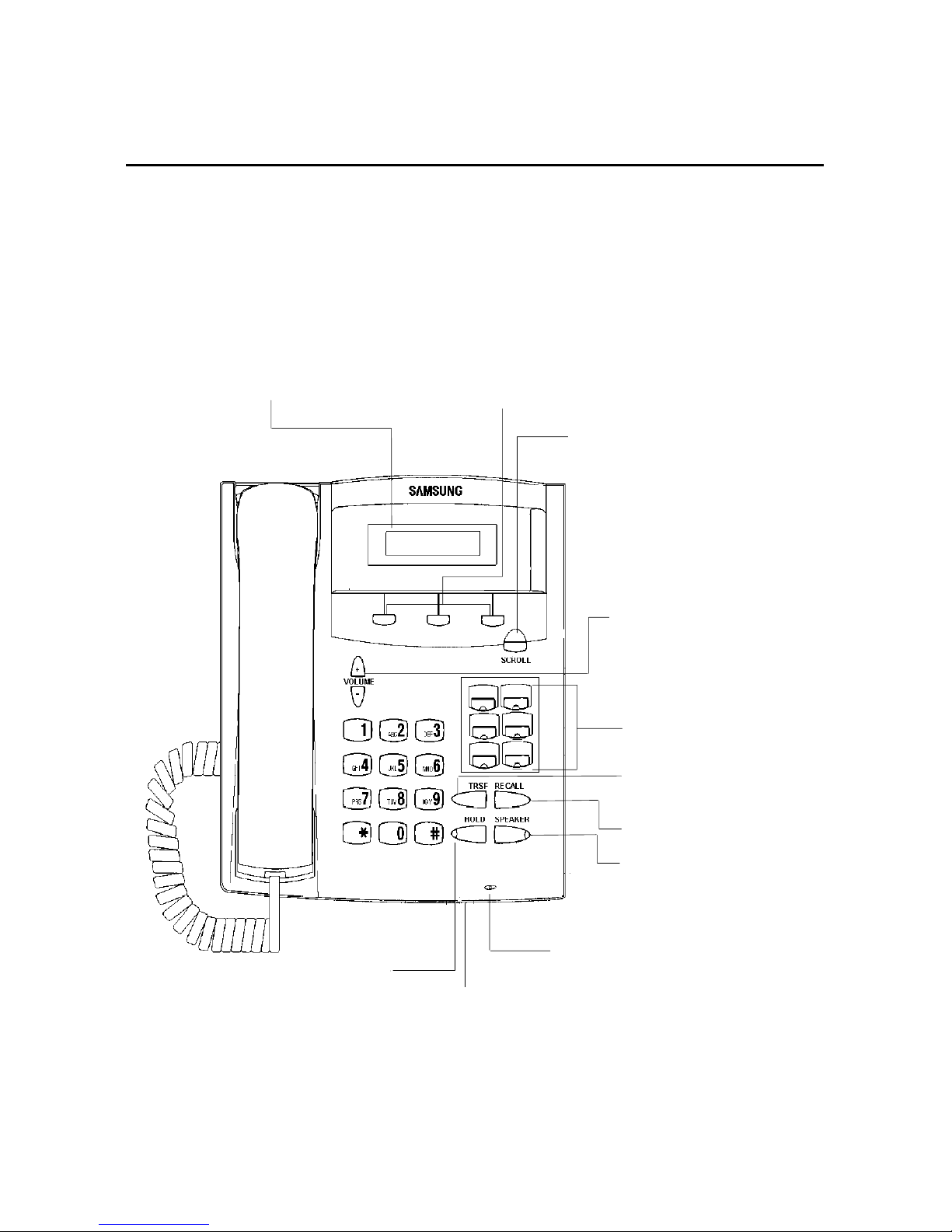
LCD 6B Keyset Layout ..................................................... 9
Add-On Module (AOM) Layout..................................... 10
Outside Calls .................................................................... 11
Making An Outside Call ................................................................ 11
Answering An Outside Call ........................................................... 12
Universal Answer Device ............................................................... 12
Recall Dial Tone ............................................................................. 12
Sending a Flash............................................................................... 12
Busy Line Queuing With Callback ............................................... 13
Internal Calls................................................................... 14
Calling Other Extensions............................................................... 14
Answering Internal Calls............................................................... 14
Ring Mode........................................................................................................ 14
Voice Announce Mode .................................................................................... 15
Auto Answer Mode ......................................................................................... 15
Busy Extension Callback ............................................................... 15
Busy Extension Camp-On.............................................................. 16
Calling Your System Operator...................................................... 16
Barge-in On An Extension............................................................. 17
Page 7

Samsung DCS Keyset User Guide
– ii –
Call Processing ................................................................. 18
System Hold .................................................................................... 18
Exclusive Hold ................................................................................ 18
Hold Recall...................................................................................... 18
Consultation Hold .......................................................................... 19
Retrieving Calls Held At Another Extension ............................... 19
Transferring Calls .......................................................................... 20
Transfer With Camp-On ............................................................... 21
Call Waiting .................................................................................... 21
Conference Calls............................................................................. 22
Leaving a Conference...................................................................................... 22
Forwarding Calls............................................................................ 23
Clearing Call Forwarding............................................................................... 23
Forward All Calls ............................................................................................ 23
Forward Busy .................................................................................................. 23
Forward No Answer........................................................................................ 24
Forward Busy/No Answer............................................................................... 24
Forward Follow Me......................................................................................... 24
Forward To An External Number.................................................................. 25
Extension Call Pickup .................................................................... 25
Group Call Pickup.......................................................................... 25
Dialling Features.............................................................. 27
Speed Dialling ................................................................................. 27
Programming Personal Speed Dial Numbers............................... 28
One-Touch Speed Dialling ............................................................. 29
Last Number Redial ....................................................................... 30
Save Number With Redial ............................................................. 30
Chain Dialling................................................................................. 31
Automatic Redial/Retry ................................................................. 31
Pulse To Tone Changeover............................................................ 31
Voice Dialler.................................................................................... 32
Recording a Voice Dialler Name .................................................................... 32
Placing a Voice Dialler Call............................................................................ 33
Possible Causes For Voice Dialler Failure..................................................... 33
Page 8

– iii –
Paging and Messaging ..................................................... 34
Making An Internal Page .............................................................. 34
Making An External Page ............................................................. 34
All Page ........................................................................................... 35
Meet Me Page / Meet Me Answer ................................................. 35
Call Park and Page......................................................................... 36
Setting a Message Indication......................................................... 36
Cancelling Messages........................................................................................ 37
Returning Messages......................................................................................... 37
Programmed Messages .................................................................. 38
Convenience Features...................................................... 40
Do Not Disturb (DND) ................................................................... 40
One-Time DND ................................................................................................ 40
Mute................................................................................................. 41
Background Music ......................................................................... 41
Appointment Reminder/Alarm Clock........................................... 41
Answering the Doorphone ............................................................. 42
Calling the Doorphone/Room Monitor......................................... 43
Boss/Secretary Hotline................................................................... 43
Group Listening.............................................................................. 43
Account Codes ................................................................................ 44
Locking Your Keyset...................................................................... 44
Off-Hook Voice Announcing (OHVA).......................................... 45
In/Out Of Group............................................................................. 46
Customising Your Keyset................................................ 48
Select Ring Tone ............................................................................. 48
Change Your Passcode................................................................... 48
Set Answer Mode............................................................................ 48
Automatic Hold............................................................................... 49
Headset Operation.......................................................................... 49
Hot Keypad ..................................................................................... 49
Key Confirmation Tone ................................................................. 50
Rejoining a Page............................................................................. 50
Ring Preference .............................................................................. 50
Page 9

Samsung DCS Keyset User Guide
– iv –
Display Features............................................................... 51
Call Progress Displays.................................................................... 51
Directory Information..................................................................................... 51
Setting Extension Names................................................................ 51
Personal Speed Dial Names ........................................................... 53
Dial By Directory............................................................................ 53
Display Number Dialled................................................................. 54
Call Duration Timer....................................................................... 54
Auto Timer....................................................................................................... 54
Timer Function ................................................................................................ 54
Call Cost.......................................................................................... 55
Viewing Message Indications ........................................................ 55
Alarm Reminder Messages ............................................................ 56
Adding Extenders To Key Assignments ....................................... 56
Calling Line Identification Presentation (CLIP) ......................... 58
Selecting Your CLIP Display.......................................................................... 58
Viewing the Next CLIP Call ........................................................................... 58
Saving the CLIP Number................................................................................ 58
Redialling a Saved CLIP Number.................................................................. 59
Storing a CLIP Number .................................................................................. 59
Inquire CLIP Park/Hold Information ........................................................... 59
Reviewing Past CLIP Calls............................................................................. 60
LCR With Clear ............................................................................. 61
Add-On Module ............................................................... 62
Page 10

– 1 –
Things You Should Know
Your DCS Keyphone System
There are a number of different Samsung keyphone systems each
designated with the prefix ‘DCS.’ The original system is called simply the ‘DCS.’ Other systems are designated DCS Compact II, DCS816, DCS-408 and DCS-408i. For simplicity, this guide uses the designations ‘DCS,’ ‘Compact II,’ ‘816,’ ‘408’ and ‘408i’ when referring to individual systems.
Your keyset is connected to one of these systems, and you should be
aware of which one it is in order to follow the instructions in this user
guide correctly. Some features described here, for example, may not
work on your system. Also, some feature codes you need to select to
operate a feature may differ from system to system. (See System Ac-
cess Codes, below.)
Your DCS Keyset
DCS telephones are called “keyphones” or “keysets.” They have buttons or “keys” that are used to access or activate features on your office phone system. They also have
LCDs
for displaying call informa-
tion, feature menus, and so on.
The keys with paper designation strips are programmable keys. This
means a key can be programmed for a specific function on your keyset, and the same key can be something different on another keyset.
There may be 6, 12 or 24 programmable keys on your keyset. To see
the layout for your keyset, refer to the appropriate layout diagram at
the end of this section. Ask the system administrator to get your most
frequently-used features assigned to your programmable keys and
make sure that these keys are labelled properly.
Page 11

Samsung DCS Keyset User Guide
– 2 –
Lines from the telephone company are “
C.O
. lines.” Calls on these
lines are referred to as “outside calls.” Your system can have individual C.O. line keys—called Direct Trunk Selection (
DTS)
keys—or
lines may be assigned to groups. When they are in a group, you access a line by dialling an access code or pressing a route key. For example, you might dial ‘9’ or ‘0’ or press the
LOCAL
key to get a local
outside line. If Least Cost Routing is used, pressing the
LCR
key will
automatically select a pre-programmed
C.O
. line according to what
digits are dialled. Each line in the system is numbered beginning with
701, then 702, 703, etc.
Note: 408/408i systems have 2-digit line numbers 71–74.
Direct Station Selection (
DSS
) keys are programmed to ring specific
extensions. You can press a
DSS
key instead of dialling the extension
number. A
DSS
key will light red when that extension is busy (this is
called a Busy Lamp Indication).
DCS provides distinctive ring patterns to your keyset. Ring patterns
vary depending on the country in which you reside. For example, in
the UK:
•••• Outside calls have a single ring tone repeated.
•••• Internal calls have a double ring tone repeated.
•••• Doorphone calls and alarm/appointment reminders have a short
ring tone repeated very quickly.
Call Indications
The keys on your phone have light emitting diodes (
LED
s). Some of
these are tri-coloured
LED
s that light green, red or amber (green and
red together). Some of the keys can only light red. See the relevant
keyset layout diagram (below) for a description of the keyset you are
using.
Page 12

– 3 –
Internal calls, also called intercom calls, always appear on your
CALL
keys and always light green. You can have up to eight
CALL
keys (or
up to five on Compact II systems), but two are recommended.
Outside calls appear on individual
DTS
keys, if these are assigned. If
an individual line is not assigned to its own key, it will appear on a
CALL
key. Your outside calls will light green on your keyset and red
on other keysets.
You never lose sight of your calls while they are on hold. They stay
right where you put them and are identified with a green flashing
light.
Some simple rules to remember:
•••• Any steady
LED
indicates the line or feature is in use.
•••• A fast flashing green
LED
indicates a new call ringing in.
•••• A slow flashing green or red
LED
indicates a call is on hold.
•••• A slow flashing amber
LED
indicates a recall to your keyset.
Speakerphone
Pressing the
ANS/RLS
key will answer or release a call on the speak-
erphone.
Switching from the handset to the speakerphone is easy. Press the
SPEAKER
key and replace the handset.
Volume Controls
DCS keysets use the
VOLUME
Up and Down (+ and –) keys to adjust
the ringer volume while the keyset is ringing, the speaker volume
while the speakerphone is in use and the handset volume while you
are listening. These three levels will be stored in memory until
changed. If background music is turned on at your keyset, the volume
keys will also control the level of music. The volume of pages heard
Page 13

Samsung DCS Keyset User Guide
– 4 –
through the speaker can be adjusted during a page announcement
using the
VOLUME
keys. (There are eight user-programmable levels
for ring, off-hook ring and handset volume, and 16 levels for speaker
and background music volume.)
Note: Volume levels can also be changed by dialling
TRSF 114
and selecting the
required option(s).
Hot Keypad
Your keyset’s keypad can be made “live” or “hot” so that it is not
necessary to lift the handset or press the
SPEAKER
key before you
begin dialling. Calls can be made and features activated by simply
dialling the line number, trunk group access code, internal number or
feature access code. Dialling feature descriptions in this guide assume that the Hot Keypad feature is switched on. If it is not, always
lift the handset or press the
SPEAKER
key before dialling. (Refer to
Customising Your Keyset for details on the Hot Keypad feature.)
System Tones (in the UK)
The system provides several tones to assist you. These are referred to
as follows:
Internal Dial Tone—a continuous steady tone that indicates you can
begin dialling.
Ringback Tone—indicates the extension you dialled is ringing
Busy Tone—indicates the extension you dialled is busy.
DND/No More Calls Tone - fast busy tone indicates the extension
you dialled is in Do Not Disturb mode or cannot receive any more
calls.
Transfer/Conference Tone—indicates your call is being held and you
can dial another party.
Confirmation Tone—very short beeps followed by dial tone indicate
you have correctly set or cancelled a system feature.
Page 14

– 5 –
Error Tone—a continuous single-level tone indicates you have done
something incorrectly and should try again.
Note: Check with your system administrator for the correct tones on your keyset if
you are outside of the UK.
Selecting Key Features Using Menus
In order to use any features that are not assigned to programmable
keys, you can press the
SCROLL
key to display feature menus on the
LCD
and then use the soft keys to select the required feature(s).
The three soft keys below the
LCD
are substitutes for dedicated feature keys and access codes. Pressing one of these keys has the same
effect as pressing a programmed key. These keys are context sensitive and their functions change to present you with the best options
for a particular call condition.
The
SCROLL
key is used to display options available at a particular
time or during a specific procedure. Press this key once while in the
idle state to view the main feature menus available.
CALL Guides you through the options to make a call.
OTHER Guides you through features other than making or answering
calls.
ANS Guides you through the options to answer calls.
201:STN NAME
CALL OTHER ANS➔
Page 15

Samsung DCS Keyset User Guide
– 6 –
1. Select one of the main menus,
CALL, OTHER
, or
ANS
using the
appropriate soft key.
2.
You select features in a menu using the soft keys. If there are
more than three features in a menu—as indicated by the symbol
➔ displayed as the last character on the lower line of the display—press the
SCROLL
key to display these further options.
Be aware that the menus presented to you will change depending on
the state of your keyphone. In idle state, you see the menus above.
While making or answering calls, other menus are displayed. When a
feature is described in this guide, you are shown how to use the
menus if you do not have the required key programmed on your keyset.
System Access Codes
As an alternative to programming the phone keys, your system is
configured with default system access codes for using the various
features described in this guide. These codes are also printed on the
back cover for quick reference. However, your system may have been
set up to use a different set of codes. Therefore, if your system does
not work as described in this guide, see your system administrator for
advice.
A special table has been provided at the back of this guide for you to
enter the codes required by your system, if different from the default
codes.
Page 16
– 7 –
LCD 24B Keyset Layout
Labelling Programmable Keys
Insert the end of a paper clip into the notch of the clear cover. Push
the cover sideways. Lift the cover and remove the designation strip.
Label the designation strip. Replace the strip and cover.
32-CHARACTER DISPLAY
Two lines with 16 characters
each.
SOFT KEYS
Used to activate features
via the display.
8 PROGRAMMABLE KEYS WITH
RED LEDs
Used to call stations directly, for OneTouch dialling and many other system
features.
VOLUME CONTROL KEYS
Used to set independent levels for handset,
speaker, background music, ring
and page volumes.
LAST NUMBER REDIAL KEY
MICROPHONE
For hands-free operation.
TRUNK FLASH KEY
SPEAKER KEY
Used to switch call to speakerphone.
DO NOT DISTURB KEY
MEMORY (SPEED DIAL) KEY
SCROLL KEY
Used to scroll through displays
.
16 PROGRAMMABLE KEYS WITH
TRI-COLOURED LEDs
Used for CALL keys, internal calls and
many other system features.
TRANSFER KEY
HOLD KEY
ANSWER/RELEASE KEY
PULLOUT
DIRECTORY TRAY
Page 17
Samsung DCS Keyset User Guide
– 8 –
LCD 12B Keyset Layout
Labelling Programmable Keys
Insert the end of a paper clip into the notch of the clear cover. Push
the cover sideways. Lift the cover and remove the designation strip.
Label the designation strip. Replace the strip and cover.
LAST NUMBER REDIAL KEY
PULLOUT
DIRECTORY TRAY
TRANSFER KEY
6 PROGRAMMABLE KEYS WITH
RED LEDs
Used to call stations directly, for OneTouch dialling and many other system
features.
SPEAKER KEY
Used to switch call to speakerphone.
HOLD KEY
MICROPHONE
For hands-free operation.
DO NOT DISTURB KEY
ANSWER/RELEASE KEY
TRUNK FLASH KEY
MEMORY (SPEED DIAL) KEY
SCROLL KEY
Used to scroll through
displays.
6 PROGRAMMABLE KEYS WITH
TRI-COLOURED LEDs
Used for CALL keys, internal calls and
many other system features
VOLUME CONTROL KEYS
Used to set independent levels for handset, speaker, background music, ring
and page volumes.
SOFT KEYS
Used to activate features via
the display.
32-CHARACTER DISPLAY
Two lines with 16 characters each.
Page 18
– 9 –
LCD 6B Keyset Layout
Labelling Programmable Keys
Insert the end of a paper clip into the notch of the clear cover. Push
the cover sideways. Lift the cover and remove the designation strip.
Label the designation strip. Replace the strip and cover.
HOLD KEY
PULLOUT
DIRECTORY
TRAY
MICROPHONE
For hands-free
operation
SPEAKER KEY
Used to switch call to s
p
eakerphone
TRUNK FLASH KEY
6 PROGRAMMABLE KEYS
WITH RED LEDs
Used for CALL keys, internal calls
and other system features
VOLUME CONTROL KEYS
Used to set independent levels
for handset, speaker, background
music, ring and page volumes
SCROLL KEY
Used to scroll through displays
SOFT KEYS
Used to activate features
via the display
32-CHARACTER DISPLAY
Two lines with 16 characters each
TRANSFER KEY
Page 19
Samsung DCS Keyset User Guide
– 10 –
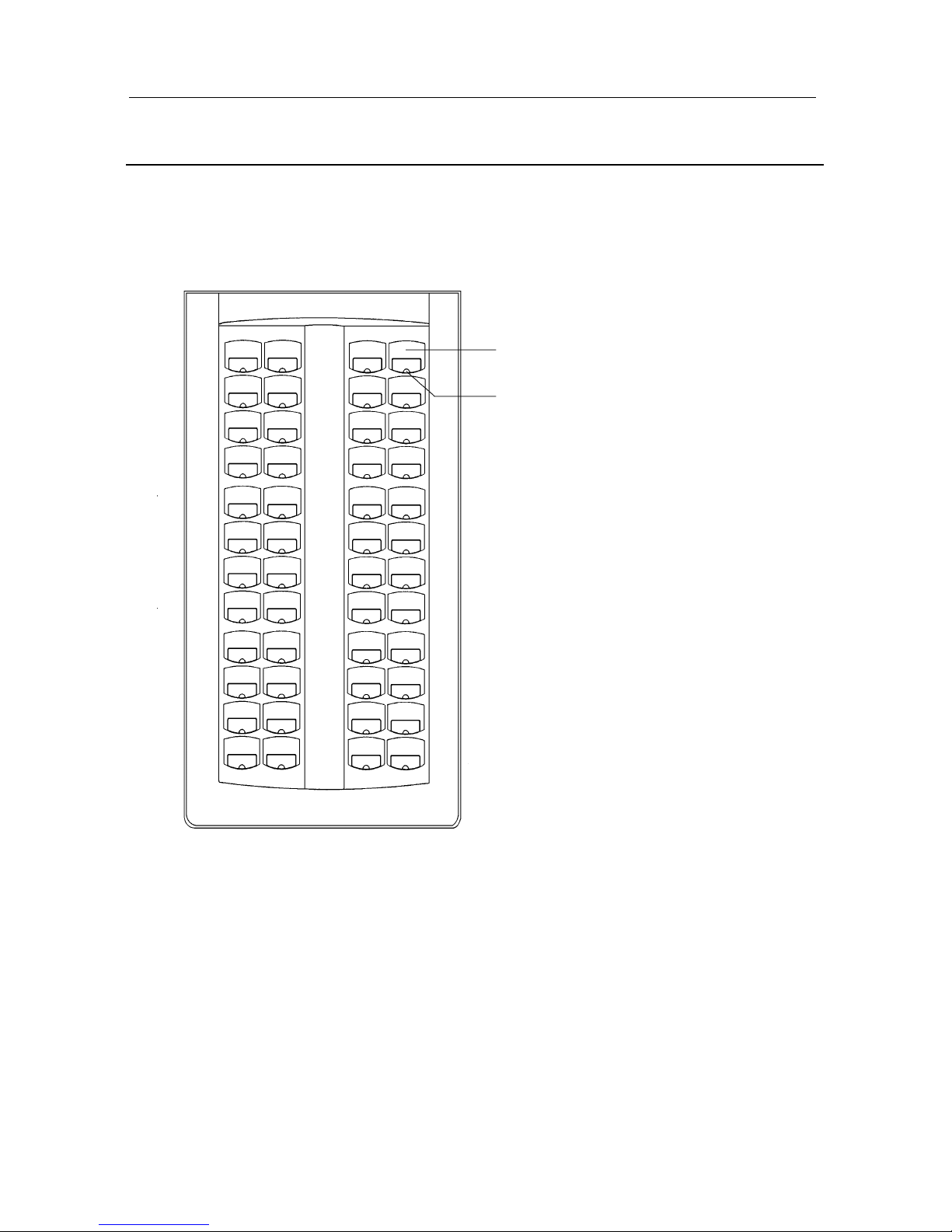
Add-On Module (AOM) Layout
Note: The AOM cannot be used with a 408 or 408i system.
RED LED INDICATOR
PROGRAMMABLE KEY
Page 20

– 11 –
Outside Calls
Making An Outside Call
1. Lift the handset and press an idle outside line key, line group key
or dial a line access code to receive dial tone.
OR
To use the speakerphone, press an idle outside line key or line
group key, or dial a line access code, to receive dial tone through
the speaker.
OR
Press the
SPEAKER
key, receive internal dial tone and dial a line
access code.
2. Dial the telephone number.
3. Finish the call by replacing the handset or pressing the
ANS/RLS
key.
Note: You will receive No More Calls tone when you attempt to make a call and
there is no key available for that line.
•••• If Least Cost Routing (LCR) is enabled on your phone system,
there may be a key labelled
LCR
or it may be selected by dialling
the access code (e.g. ‘9’) which is set during system installation.
•••• If your system is programmed to require an authorisation code
before you can make a call, dial * plus a valid code before selecting a C.O. line.
•••• If your system is programmed to require an account code before
you can make a call, press the
ACCT
key, or dial 47, followed by a
valid account code. Press the
ACCT
key or the
ACCT
soft key and
then select a
C.O
line.
For more information on authorisation and account codes, see your
system administrator.
Page 21

Samsung DCS Keyset User Guide
– 12 –
Note: If the Hot Keypad feature has been turned off, you must first lift the handset
or press the
SPEAKER
key before dialling.
Answering An Outside Call
•••• Lift the handset and you are automatically connected to the ring-
ing call. (See Ring Preference under Customising Your Keyset.)
OR
Press the
ANS/RLS
key to automatically answer on the speaker-
phone.
Note: If a call is flashing at your keyset but not ringing, you must press the flashing
key to answer.
Universal Answer Device
Outside lines can ring over the paging system or to a loud ringer. To
answer calls ringing in night service to this device, dial 67 or press
the UA key.
Note: If the Hot Keypad feature has been turned off, you must first lift the handset
or press the
SPEAKER
key before dialling.
Recall Dial Tone
•••• Press the
NEW
key to disconnect your existing call, wait for dial
tone and then make a new call on the same line.
Note: If the
NEW
key does not appear on your keyset, the
RECALL
key may be pro-
grammed to recall dial tone.
Sending a Flash
While on an outside call, press the programmed
FLASH
key to send a
flash to the telephone company. This is required for some custom
calling features or
CENTREX
use (e.g. for nuisance calls).
Page 22

– 13 –
Busy Line Queuing With Callback
If you receive a busy signal when you are selecting an outside line,
this means that the line or group of lines is busy.
1. Press the CALLBACK key or dial 44. You will hear confirmation
tone.
When the line becomes free the system will call you back.
2. Lift the handset or press the
ANS/RLS
key to answer, wait for dial
tone and dial the telephone number or speed dial number again.
Note:
• A callback will be cancelled if not answered within 30 seconds. If you have
set a callback, your
CALLBACK
key will light.
• If the Hot Keypad feature has been turned off, you must first lift the handset or
press the
SPEAKER
key before dialling.
Page 23

Samsung DCS Keyset User Guide
– 14 –
Internal Calls
Calling Other Extensions
1. Dial the extension number or group number.
2. Wait for the party to answer. If you hear a brief tone burst instead
of ringback tone, the extension you called is set for Voice Announce or Auto Answer. Begin speaking immediately after the
tone.
3. Finish the call by replacing the handset or pressing the
ANS/RLS
key.
Note:
• If you have a
DSS
key assigned to an extension or a extension group, you can
press this key instead of dialling the number.
• If the Hot Keypad feature has been turned off, you must first lift the handset or
press the
SPEAKER
key before you begin dialling.
Answering Internal Calls
Your keyset can answer internal calls in one of three modes: Ring,
Voice Announce and Auto Answer. Ring mode is the normal mode,
unless you change it to another mode.
Ring Mode
1. When your keyset rings, simply lift the handset
OR
Press the
ANS/RLS
key to be connected to the calling extension.
2. Finish the call by replacing the handset or pressing the
ANS/RLS
key.
See Ring Preference under Customising Your Keyset.
Page 24

– 15 –
Voice Announce Mode
When another extension calls you, your keyset will sound a brief attention tone and you will hear the caller's announcement.
1. Press the
ANS/RLS
key to turn on the microphone and speak
hands-free.
OR
Lift the handset to reply.
2. To finish the call, replace the handset or press the
ANS/RLS
key.
Note: To set Voice Announce mode, see Customising Your Keyset.
Auto Answer Mode
When another extension calls you, your keyset will sound a brief
attention tone and then automatically answer the call.
1. Your microphone and speaker are turned on and you can speak
hands-free. For privacy, use the handset.
2. To finish the call, replace the handset or press the
ANS/RLS
key.
Note: To set Auto Answer mode, see Customising Your Keyset.
Busy Extension Callback
When you call another extension and receive a busy signal:
1. Press the
CALLBACK
key or dial 44.
When the busy extension becomes free, your keyset will ring.
2. Lift the handset or press the
ANS/RLS
key to call the now idle
extension.
Note:
• A callback will be cancelled if not answered within 30 seconds. If you have set
a callback, your
CALLBACK
key will light.
• If the Hot Keypad feature has been turned off, you must first lift the handset or
press the
SPEAKER
key before dialling.
Page 25

Samsung DCS Keyset User Guide
– 16 –
Busy Extension Camp-On
When you call another extension and receive a busy signal but you do
not want to wait for a callback:
1. Press the
CAMP
key, if assigned
OR
Press the
CAMP
soft key.
OR
Dial 45.
The called extension will receive off-hook ring tone repeated
every few seconds and its first available
CALL
key will flash
green to indicate your call is waiting.
2. Wait for the called party to answer.
The called extension must hold or release their first call before
answering your camp-on.
Note:
• If you receive No More Calls tone, the extension has no available key to accept
your call. Hang up or leave a message.
• If the Hot Keypad feature has been turned off, you must first lift the handset or
press the
SPEAKER
key before you begin dialling.
Calling Your System Operator
•••• Dial the appropriate system code to call your system operator or
group of operators. This is normally 0 or 9.
•••• If you want to call a specific operator, dial that person’s extension
number.
Note: If the Hot Keypad feature has been turned off, you must first lift the handset
or press the
SPEAKER
key before you begin dialling.
Page 26

– 17 –
Barge-in On An Extension
The Barge-in feature allows you to barge in on a conversation currently in progress at another extension. Barge-in is an optional feature
and your keyset must be programmed to allow it to access this feature. See your system administrator if you require this.
If you dial an extension which is busy, press the
BARGE
key, if as-
signed, or the
SCROLL
key and then the
BARGE-IN
soft key to barge
in on the conversation.
Note: You can only barge in on extensions that are programmed to permit barge in.
Otherwise, you will receive a ‘barge-in failed/not allowed’ message.
Page 27

Samsung DCS Keyset User Guide
– 18 –
Call Processing
System Hold
•••• When you are connected to a call, press the
HOLD
key. The call
will go on hold and flash green at your keyset. If this call appears
on a line key at other keysets, it will flash red at those keysets.
•••• To take the call off hold, press the flashing key and the green
light will go steady green again. Resume conversation.
Note: While on a call, pressing a line key, route key or a flashing
CALL
key will
automatically put your first call on hold and connect you to the new call. See Auto-
matic Hold under Customising Your Keyset.
Exclusive Hold
To place an outside call on hold at your phone so that other users
cannot get it:
•••• Press the
HOLD
key twice. The call will flash green on your key-
set and this line will show a steady red light on other keysets.
•••• To retrieve the call, press the flashing green line key.
Note: Internal calls are always placed on exclusive hold.
Hold Recall
If you leave a call on hold longer than the hold timer, it will recall
your extension. The key that the call appears on will have a slow
flashing amber light.
•••• When your phone rings, lift the handset or press the
ANS/RLS
key
to answer the recall.
Page 28

– 19 –
If you do not answer this recall within a pre-programmed period of
time, it will go to the system operator.
Consultation Hold
When you are talking on an outside line and it is necessary to consult
with another extension:
1. Press the
TRSF
key and receive transfer dial tone. Your call is
placed on transfer hold.
2. Dial the extension number.
3. Consult with the internal party.
4. Press the
TRSF
key to return to the outside party or hang up to
transfer the outside call to the extension.
Note: Repeatedly pressing the
TRSF
key will repeatedly toggle between the outside
caller and internal extension.
Retrieving Calls Held At Another
Extension
When a line is on hold and it appears on your keyset, press the line
key with the red flashing light.
When a line is on hold and it does not appear on your keyset, dial 12
followed by the line number or extension number of the extension
that placed the call on hold.
Note:
• This feature is not available for calls put on Exclusive Hold at an extension
(see above).
• If the Hot Keypad feature has been turned off, you must first lift the handset or
press the
SPEAKER
key before you begin dialling.
Page 29

Samsung DCS Keyset User Guide
– 20 –
Transferring Calls
You can transfer a call from your extension to another number in one
of two ways. You can do a ‘screened’ transfer and inform the called
party who is calling, or you can do a ‘blind’ (unscreened) transfer
without notification.
1. While on a call, press the
TRSF
key and dial an extension num-
ber, group number or external number.
OR
Press a
DSS
key or station group key.
Your call is automatically put on transfer hold.
2. Hang up when you hear ringing (this is a blind transfer).
OR
Wait for the called party to answer, announce the call and hang
up (this is a screened transfer). If the transfer is refused, you will
be reconnected to the outside line when the called party hangs up.
Alternatively, you can press the
TRSF
key to return to the calling
party. If you wish to send the call to another extension without
waiting for the first extension to hang up, simply press another
DSS
key.
OR
Press the
CALL
key or DT key to return to the calling party and
begin the transfer process again.
When you are the transferring a call to a keyset set for Voice Announce or Auto Answer, the transferred call will always ring.
Note:
• After the called party answers, you may toggle between the calling and called
parties by pressing the
TRSF
key.
• If you receive No More Calls tone, the extension has no key available to receive another call. Press the
TRSF
key to return to the caller.
• You cannot transfer an internal call by pressing a
DSS
key. You must press the
TRSF
key and dial the destination extension number.
Page 30

– 21 –
Transfer With Camp-On
When you are transferring a call to another extension and you receive
a busy signal, you may camp the call on to the extension. Simply
hang up when you hear the busy signal. The called party will be
alerted that a call is waiting for them.
Note: If you receive No More Calls tone, the extension has no key available to receive another call. Press
TRSF
to return to the outside caller.
Call Waiting
If an outside call has been camped on to your extension or another
extension has camped on to you, your keyset will ring and the call
that is waiting for you (camped-on) will flash green.
Either
•••• Put your current call on hold. If your extension has the Automatic
Hold feature set, press the flashing key to answer. If not, press the
HOLD
key and then the flashing key.
OR
•••• Finish the first call and hang up. The waiting call will ring. Lift
the handset or press the
ANS/RLS
key to answer.
If you put a call on hold to answer the camped-on call, you can retrieve the held call by pressing the flashing
CALL
key when you have
finished the camped-on call.
Note: Internal calls will not go on Automatic Hold.
Page 31

Samsung DCS Keyset User Guide
– 22 –
Conference Calls
You may connect up to five parties (you and four others) in a conference call, in any combination of outside lines and internal extensions
in any order.
1. While engaged in a conversation, press the
CONF
key (if as-
signed), or the
CONF
soft key, or press the
TRSF
key and dial 46.
You receive conference tone.
2. Make another call (internal or outside) and press the
CONF
key,
or the
CONF
soft key, or the
TRSF
key and receive conference
tone.
3. Make another call or press the
CONF
key, or the
CONF
soft key, or
the
TRSF
key to join all parties.
4. Repeat step 3 until all parties are added.
Note: When attempting to add another party to the conference and you are not able
to reach the desired person, hang up. Press the
CONF
key again to return to your
previous conversation.
To drop a party from your conference call:
1. Press the
CONF
key or the
CONF
soft key and dial the extension or
line number that is to be dropped.
2. Press the
CONF
key or the
CONF
soft key again to re-establish the
conference without the dropped number.
Leaving a Conference
To leave a conference, hang up. Control is passed to the next internal
extension. If there are no internal extensions and you wish to leave
outside lines connected together in a trunk to trunk conference, press
the
CONF
key then the
CALL
key that the call appears on, or follow
the instructions to drop a party (above) using your extension number.
When outside callers hang up, the lines will release automatically.
Press the
CONF
key to rejoin a trunk to trunk conference.
Page 32

– 23 –
Forwarding Calls
You can forward your calls to another extension, group of extensions
or an external telephone number. Program a destination for the type
of forwarding you want as shown below. If you have
FWD ALL, FWD
BUSY
, and
FWD NO ANSWER
keys, press one to turn that forward feature on. A steady red light reminds you what forward condition is activated.
Clearing Call Forwarding
You can clear all call forwarding set at your extension by dialling
600.
Forward All Calls
To forward all your calls, under any condition, to another extension:
1. Dial 601 followed by the extension or group number.
2. When you receive confirmation tone and
LCD
message, hang up.
Note:
• If the Hot Keypad feature has been turned off, you must first lift the handset or
press the
SPEAKER
key before you begin dialling.
• The extension that receives a forwarded call can transfer the call back to the
forwarding extension. This is useful when you are expecting an important call
but you do not wish to be disturbed by other calls.
• When an extension keyset is in Forward All Calls mode and there is no
FWD
ALL
key, the
TRSF
key will light to indicate that Forward All has been set and
calls to this extension have been transferred elsewhere.
Forward Busy
To forward calls to another extension when you are on a call:
1. Dial 602 followed by the extension or group number.
2. When you receive confirmation tone and
LCD
message, hang up.
Note: If the Hot Keypad feature has been turned off, you must first lift the handset
or press the
SPEAKER
key before you begin dialling.
Page 33

Samsung DCS Keyset User Guide
– 24 –
Forward No Answer
To forward calls to another extension when you do not answer:
1. Dial 603 followed by the extension or group number.
2. When you receive confirmation tone and
LCD
message, hang up.
Note: If the Hot Keypad feature has been turned off, you must first lift the handset
or press the
SPEAKER
key before you begin dialling.
Forward Busy/No Answer
If you have both a Forward Busy destination and a Forward No Answer destination programmed, you can set both of these together:
1. Dial 604.
2. When you receive confirmation tone and
LCD
message, hang up.
Note: If the Hot Keypad feature has been turned off, you must first lift the handset
or press the
SPEAKER
key before you begin dialling.
Forward Follow Me
When you want all calls to your extension forwarded to the extension
where you are now:
1. Dial 605 plus your extension number.
2. When you receive confirmation tone and
LCD
message, hang up.
If you want a specific extension’s calls forwarded to your station
(called ‘Remote Call Forward’):
1. Dial 605 followed by the desired extension number.
2. When you receive confirmation tone and
LCD
message, hang up.
Note: If the Hot Keypad feature has been turned off, you must first lift the handset
or press the
SPEAKER
key before you begin dialling.
Page 34

– 25 –
Forward To An External Number
To forward outside calls to another outside number, you can use the
FWD EXTERNAL
key programmed on your keyset with the required
external number to forward to. Simply press this key to set forwarding (the
LED
lights and the message is displayed), and press it again
to turn forwarding off.
However, if you do not have this key programmed:
1. While on-hook, press the
TRSF
key and dial 102.
2. Dial 5.
3. Dial the trunk or trunk group access code followed by the outside
number that you want.
4. Press the
TRSF
key.
To turn forwarding off, dial 600.
Note:
• External Call Forward will cancel all other call forwarding instructions.
• If the Hot Keypad feature has been turned off, you must first lift the handset or
press the
SPEAKER
key before you begin dialling.
Extension Call Pickup
To pick up (answer) a call ringing at another extension, lift the handset and dial 65 followed by the extension number of the ringing
phone.
Note: If the Hot Keypad feature has been turned off, you must first lift the handset
or press the
SPEAKER
key before you begin dialling.
Group Call Pickup
To pick up (answer) a call ringing in any pickup group, lift the handset and dial 66 followed by the desired group number, or press the
flashing
GROUP PICKUP
key if available.
Page 35

Samsung DCS Keyset User Guide
– 26 –
Note:
• Group numbers for each system type are: DCS and Compact II=01–20;
816=01–08; 408/408i=01–04.
• A group pickup key can have an extender for a specific pickup group (see Add-
ing Extenders to Key Assignments under Display Features).
• If the Hot Keypad feature has been turned off, you must first lift the handset or
press the
SPEAKER
key before dialling the access code.
• Extension and group pickup features cannot be used to answer recalls to an
extension, only new ringing calls and operator recalls.
Page 36

– 27 –
Dialling Features
Some dialling features can be accessed using programmable keys or
feature access codes only. Others can be accessed using programmable keys, feature access codes, or the soft key menus on the
LCD
. Use
of the soft key menus is described at the beginning of this guide (see
Things You Should Know).
Speed Dialling
You can dial a pre-programmed telephone number stored in the system-wide speed dial list of numbers (see note, below) or from your
personal list of speed dial numbers (see Programming Personal
Speed Dial Numbers, below).
1. While on-hook, press the
MEMORY
key if available.
OR
Press the
SPD
key (if assigned)
OR
Dial 16.
2. Dial the desired speed dial number.
The telephone number is automatically dialled for you.
Note:
• System speed dial numbers for each system type are: DCS and Compact II=
500–999; 816=500–799; 408/408i=500–699.
• If the Hot Keypad feature has been turned off, you must first lift the handset or
press the
SPEAKER
key before you begin dialling.
Page 37

Samsung DCS Keyset User Guide
– 28 –
Programming Personal Speed Dial
Numbers
You can program frequently-dialled telephone numbers in your personal speed dial list. An extension has 10 (00–09) speed dial numbers
by default but may be assigned up to fifty (00-49). Your system administrator can tell you how many are assigned to your extension.
1. While on-hook, press the
TRSF
key and dial 105.
2. Dial a speed dial number (00–49).
3. Dial a line or line group access code.
4. Dial the telephone number to be stored (18 digits maximum). The
number can include *, # and other special digits (see below).
5. Press the
TRSF
key to store the number.
Note: If the Hot Keypad feature has been turned off, you must first lift the handset
or press the
SPEAKER
key before you begin dialling.
When programming personal speed dial numbers, some programmable keys perform special functions.
•••• On 12- and 24-button keysets the last six of the keyset’s pro-
grammable keys represent keys ‘A’–‘F’. These are keys 19–24 on
a 24-button keyset, and keys 7–12 on a 12-button keyset.
•••• On 6-button keysets, programmable keys 1–3 (on the left) repre-
sent keys ‘A’–‘C’, and keys 4–6 (on the right) represent keys
‘D’–‘F’.
Keys ‘B’–‘F’ are used to insert special digits, as follows (the A key is
not used):
B
inserts a flash (“F”).
C
inserts a pause (“P”).
Page 38

– 29 –
D
is used for pulse-to-tone conversion (“C”). If your system uses rotary (or pulse) dialling C.O. lines, pressing D while entering a speed
dial number causes all subsequent digits to be sent as DTMF tones.
E
is used to hide digits. You may want to hide some phone numbers
so that they will not show in the display when you dial the speed dial
number later. When you are programming the phone number, press E
before entering the digits you want to hide. The symbol “[” is displayed. All subsequent digits will be displayed as “*” when the speed
dial number is dialled. If you want some digits to display, press E
again (“]” is displayed) before entering these digits.
For example, if you program a speed dial number with the phone
number 9-[0121]728765, when you later dial this speed dial number
the display shows ****728765.
Note: When programming an outside number, enter the access code (e.g. 9 or 0)
before you press E to hide any digits.
F
is used to enter a name for the speed dial number. See Personal
Speed Dial Names under Display Features.
Use the
HOLD
key to clear a speed dial number and/or name.
One-Touch Speed Dialling
You can assign any personal or system speed dial number to an already programmed speed dial key for quick and easy one-touch dialling of frequently-used numbers.
1. While on-hook, press the
TRSF
key and dial 107.
2. Press an
SPD
key.
3. Dial the speed dial number that you want assigned to this key.
4. Press the
TRSF
key to store your selection.
To call this number, simply press the
SPD
key.
Page 39

Samsung DCS Keyset User Guide
– 30 –
Note: If the Hot Keypad feature has been turned off, you must first lift the handset
or press the
SPEAKER
key before you begin dialling.
Last Number Redial
To redial the last outside number you dialled:
••••
Press the
REDIAL
key
OR
Press the
LNR
key (if assigned)
OR
Press the
SCROLL
key, then the
CALL
soft key and the
LNR
soft
key.
OR
Dial 19.
Note:
• If the Hot Keypad feature has been turned off, you must first lift the handset or
press the
SPEAKER
before you begin dialling.
• Redial does not apply to internal calls.
Save Number With Redial
To save the number you just dialled for later use, before hanging up:
• Press the
SNR
key (if assigned)
OR
• Press the
SCROLL
key and select the
SAVE
soft key.
To redial this saved number at any time, press the
SNR
key or dial 17.
The same line will be dialled for you.
Note:
• If the Hot Keypad feature has been turned off, you must first lift the handset or
press the
SPEAKER
key before you begin dialling.
• The saved telephone number is stored in memory until you save another.
• Redial does not apply to internal calls.
Page 40

– 31 –
Chain Dialling
You can manually dial additional digits following a speed dial number or chain as many speed dial numbers together as required.
• After the first speed dial number is answered, press the
SPD
key
again and dial another speed number OR manually dial additional
digits following a speed dial number.
Automatic Redial/Retry
When you are making an outside call and you receive a busy signal,
the system can automatically redial the number for you. It will automatically redial at a pre-programmed interval for up to 15 attempts.
You must have a
RETRY
key programmed to use this feature.
•••• When you hear a busy signal, press the
RETRY
key.
The system will reserve the line and automatically redial the same
number for you. You will hear the call being made through the keyset
speaker.
•••• When the called party answers, you can begin speaking.
Note:
• If you make another call, auto-redial is cancelled.
• To cancel a retry, lift and replace the handset.
Pulse To Tone Changeover
When making an outside call on a dial pulse line, press #. All digits
dialled after the # will be sent as tones.
Page 41

Samsung DCS Keyset User Guide
– 32 –
Voice Dialler
Voice Dialler allows you to record a voice pattern in a digital format
and store it in an addressable location. When the Voice Dialler feature is activated, it will identify, retrieve and process the associated
stored data. This latest technology has been applied to the area of
personal speed dialling. It allows the calling party to speak a name
into the handset and have the system place a call.
Note: The Voice Dialler feature requires the optional VDIAL card and is not available on 816 or 408/408i systems.
To use Voice Dialler:
•••• You must be assigned to a channel of the
VDIAL
card. Your sys-
tem administrator should do this.
•••• Change your extension’s passcode (see Change Your Passcode in
Customising Your Keyset).
•••• Assign personal speed dial numbers (see Programming Personal
Speed Dial Numbers, above).
Recording a Voice Dialler Name
1. Lift the handset.
2. Press the
VREC
key, if assigned, or dial 682.
3. Enter your extension’s passcode.
4. Enter the personal speed dial bin number, e.g. 05.
5. After the short tone burst, speak the name carefully into the handset.
Note: Say the name as one word (e.g., Johnsmith for John Smith). Avoid similar
names such as Ted, Ned and Fred.
If you are successful, you will hear a short tone burst confirming the
name is recorded. If you hear error tone, record the name again following the same procedure.
Page 42

– 33 –
Placing a Voice Dialler Call
1. Lift the handset.
2. Press the
VDIAL
key, if assigned, or dial 681.
3. Speak the desired name carefully into the handset.
If you are successful, the call will be placed. If you hear error tone,
repeat the procedure.
Possible Causes For Voice Dialler Failure
•••• The desired name is not recorded.
•••• The personal speed dial bin you have selected is empty.
•••• All trunks or trunk group are busy.
•••• You are denied access to the Voice Dialler feature.
•••• Background noise interfered when the name was recorded or
when the name was spoken to place the call.
Page 43

Samsung DCS Keyset User Guide
– 34 –
Paging and Messaging
Making An Internal Page
To make an announcement through keyset speakers:
1. Lift the handset.
2. Press the
PAGE
key, if assigned
OR
Press the
SCROLL
key,
OTHER
soft key and
PAGE
soft key
OR
Dial 55.
3. Dial the desired zone number 1, 2, 3 or 4. (If using a 408/408i
system, dial 1 or 2 only.)
OR
Dial 0 to page all internal zones.
4. After the attention tone, make your announcement.
Note: If you have a separate
PAGE
key dedicated to each page zone, press the dedi-
cated
PAGE key to dial the required zone number.
Making An External Page
To make an announcement through external paging speakers:
1. Lift the handset.
2. Press the
PAGE
key, if assigned,
OR
Press the
SCROLL
key,
OTHER
soft key and
PAGE
soft key
OR
Dial 55.
3. Dial the desired zone number 5, 6, 7 or 8 (see note 1).
OR
Dial 9 to page all external zones.
Page 44

– 35 –
4. After the attention tone, make your announcement.
Note:
1. DCS-816, 408 and 408i systems have one external zone only (zone 5).
2. If you have a separate
PAGE
key dedicated to each page zone, press the dedi-
cated
PAGE
key to dial the required zone number.
All Page
To page all designated keysets and external speakers at the same
time:
1. Lift the handset.
2. Press the
PAGE
key, if assigned
OR
Press the
SCROLL
key,
OTHER
soft key and
PAGE
soft key
OR
Dial 55.
3. Press the ✱✱✱✱ key, or press the
PAGE (ALL)
key if assigned.
4. After the attention tone, make your announcement.
Note: The
LED
on the
PAGE
key will only light when an All Page is in progress.
Meet Me Page / Meet Me Answer
1. Lift the handset.
2. Press the
MEET ME PAGE (MMPG)
key, if assigned
OR
Press the
SCROLL
key, the
OTHER
soft key and the
MMPG
soft
key
OR
Dial 54.
3. Dial the desired zone number.
4. After the attention tone, instruct the paged person to dial 56
(Meet Me Answer).
5. Press the
TRSF
key.
6. Remain off-hook until the person dials 56 from any phone.
The paged person will be connected with you automatically.
Page 45

Samsung DCS Keyset User Guide
– 36 –
Call Park and Page
When you have a call for someone who is away from their desk, you
can park the call and page the requested party.
1. While in conversation with the caller, press the
PAGE
key (if as-
signed) or the
PAGE
soft key. The call is automatically parked at
your extension.
2. Dial the desired page zone and announce the parked call and your
extension number or the line number. Hang up.
To retrieve a parked call:
1. Press the
PARK
key, if assigned, or dial 10.
2. Dial the number that was announced.
You will be connected to the parked call.
Note:
• You cannot park and page internal calls.
• If the parked call is not retrieved within a pre-programmed period of time, it
will recall your keyset and have a slow flashing amber light.
• If the Hot Keypad feature has been turned off, you must first lift the handset or
press the
SPEAKER
key before you begin dialling.
Setting a Message Indication
When you are calling another extension or extension group and no
one answers or you receive a busy signal, you can leave a message
indication:
1. Press the
MSG
key
OR
Press the
MSG
soft key
OR
Dial 43
You receive confirmation tone.
Page 46

– 37 –
2. Hang up. The
MSG
key(s) on the called extension or on all of the
extensions in the group will flash. (Some phones have a special
multi-function lamp which flashes. Standard telephones receive
special dial tone as a message indication.)
Note:
• An extension can have up to five message indications.
• If the Hot Keypad feature has been turned off, you must first lift the handset or
press the
SPEAKER
key before you begin dialling.
Cancelling Messages
To cancel a message indication that you left at another extension, dial
42 followed by the extension number of the extension at which you
left a message.
To cancel all message indications left by others at your keyset, dial
42 followed by your extension number. Your
MSG
key
LED
will go
out.
Note: If the Hot Keypad feature has been turned off, you must first lift the handset
or press the
SPEAKER
key before you begin dialling.
Returning Messages
To answer message indications at your keyset:
1. Lift the handset.
2. Press the
MSG
key or dial 43. The first extension that left you a
message will be called automatically. If that extension does not
answer, your message light will stay on.
3. Repeat step 2 until all messages have been returned in the order
they were received.
Your
MSG
key
LED
will turn off when all messages have been re-
turned.
Page 47

Samsung DCS Keyset User Guide
– 38 –
Note:
• You can first view message indications and return them in the order you
choose. See Viewing Message Indications under Display Features.
• If the Hot Keypad feature has been turned off, you must first lift the handset or
press the
SPEAKER
key before you begin dialling.
• If a message has been left at your keyset by a keyset in Auto Answer mode,
you must manually cancel the message after it has been returned.
Programmed Messages
When you plan to be away from your phone for any length of time,
you can leave a programmed station message on your phone’s display
(e.g. In a Meeting). Display keysets calling you will also see this
message. The message may also contain instructions for callers to
follow. There are 20 possible messages (01–20). Messages 01–10 are
set up by default as follows:
01. IN A MEETING
02. OUT ON A CALL
03. OUT TO LUNCH
04. LEAVE A MESSAGE
05. PAGE ME
06. OUT OF TOWN
07. IN TOMORROW
08. RETURN AFTERNOON
09. ON VACATION
10. GONE HOME
Messages 11–20 are blank for new messages.
Note:
All programmed messages (01–20) can be changed by reprogramming the system.
Therefore, some or all of the messages shown above may be different on your system. To find out what your messages are, follow the procedure below. If necessary,
ask your system administrator to set up specific messages you might require.
Page 48

– 39 –
To set a message:
•••• Dial 48 followed by a message code 01–20.
To cancel this message:
•••• Dial 48 followed by 00.
Note: If the Hot Keypad feature has been turned off, you must first lift the handset
or press the
SPEAKER
key before you begin dialling.
You may also have several programmed message (
PMSG
) keys, each
with a different message code. If so:
•••• Press any
PMSG
key. The message is set and the key will light
red. Press the key again to turn the light off.
•••• Pressing another
PMSG
key will turn the previous one off and set
a new message.
Page 49

Samsung DCS Keyset User Guide
– 40 –
Convenience Features
Do Not Disturb (DND)
Use this feature when you want to block incoming calls to your keyset. You will still be able to make outgoing calls while in DND
mode.
•••• While on-hook, press the key marked
DND
(if available)
OR
Press the programmed
DND
key (if available)
OR
Dial 401.
The
DND
key flashes and
‘DO NOT DISTURB’
is displayed on the
LCD
.
To cancel DND:
•••• Press the
DND
key or dial 400. The
DND
key
LED
turns off and
your display returns to normal.
Note: If the Hot Keypad feature has been turned off, you must first lift the handset
or press the
SPEAKER
key before you begin dialling.
One-Time DND
This feature requires a
DND
key. If you are on a call and you do not
wish to be interrupted while on that call, you can press the
DND
key
to place your extension in DND mode. When you hang up at the end
of the call, DND mode will be automatically cancelled and your keyset will be able to receive new calls.
Note: DND can be overridden by another extension if it is set up with a hotline to
your extension (see Boss/Secretary Hotline, below).
Page 50

– 41 –
Mute
You can mute the handset transmitter or the microphone during any
conversation so you cannot be heard.
1. Press the
MUTE
key or the
MUTE
soft key. The key will light red
and ‘mute’ (lower case) is displayed.
2. To resume speaking, press the
MUTE
key or mute soft key. The
key
LED
turns off and ‘
MUTE’
(upper case) is displayed.
Background Music
When a music source is supplied, you can listen to music through the
speaker in your keyset.
•••• While on-hook, press the
HOLD
key to hear music.
•••• Press the
HOLD
key again to turn music off.
You can set the volume level for background music while listening
by pressing the
VOLUME
up or down key. This does not affect the
speakerphone volume.
Appointment Reminder/Alarm Clock
This feature works like an alarm clock. Use it to remind yourself of
an appointment later in the day
(TODAY)
or as a daily reminder every
day
(DAILY).
There are three different alarms for DCS systems, and
two for other systems. Each one can be either a
TODAY
or a
DAILY
alarm.
To set alarms:
1. Press the
TRSF
key and dial 112.
2. Dial the alarm number 1–2 (or 1–3 for DCS systems).
Page 51

Samsung DCS Keyset User Guide
– 42 –
3. Dial the time you want the alarm to sound. Enter the time as
HHMM
(hours and minutes) using a 24-hour clock. For example,
1430 is 2:30pm.
4. Dial 1
(TODAY)
or 2
(DAILY)
to select the alarm type. Dial 0
(NOTSET)
if you choose not to set the alarm.
5. Press the
TRSF
key.
6. Repeat for each alarm if needed.
To cancel any alarms you have set:
1. Press the
TRSF
key and dial 112.
2. Dial the alarm number 1–2 (or 1–3 for DCS systems).
3. Press the
HOLD
key.
To Answer an Alarm
When the alarm rings, you will hear a series of short rings, repeated
three times, and ‘
ALARM REMINDER’
is displayed on the keyset.
•••• Lift the handset to answer the alarm. If you do not, the alarm will
alert you two more times at 5-minute intervals.
Note: You can also select to have a specific reminder message displayed on your
keyset. See Alarm Reminder Messages under Display Features.
Answering the Doorphone
If your extension is programmed to receive calls from a doorphone,
you will hear a series of short rings repeated.
•••• Lift the handset or press the
ANS/RLS
key and you are connected
to the doorphone.
•••• If an electric door lock release is installed, dial 13 to unlock the
door.
Page 52

– 43 –
Calling the Doorphone/Room Monitor
You can call the doorphone and listen to what is happening outside
or in another room.
•••• Dial the extension number of the doorphone.
You will be connected to the door phone and you can listen or have a
conversation.
Note: If the Hot Keypad feature has been turned off, you must first lift the handset
or press the
SPEAKER
key before you begin dialling.
Boss/Secretary Hotline
You can program two extensions to have a ‘hotline’ between them,
called the boss/secretary hotline. When the boss extension is in the
DND mode, all of its calls will ring the secretary extension.
Either extension user can press the
BOSS
key to make a voice call to
the other extension. This will override any DND set at the other extension. The key will light red when the other extension is in use.
Group Listening
When engaged on a call and using the handset, you may want other
people to hear the other party’s voice over the speaker. You will need
a
LISTEN
key programmed on your phone to do this. This key toggles
the speaker on/off.
•••• Press the
LISTEN
key to turn on the speaker. The microphone is
not in use, so the other party cannot hear other parties present in
your office.
•••• Press the
LISTEN
key again to turn the speaker off and resume
private conversation.
•••• Repeat as necessary.
Page 53

Samsung DCS Keyset User Guide
– 44 –
Note: Depending on speaker volume and the acoustics of your office, it may be
advisable to turn the group listening feature off before hanging up. This will eliminate any momentary squeal.
Account Codes
When equipped with optional equipment, your Samsung DCS system
allows calls to be charged to a specific account. You must have an
ACCT
key programmed on your keyset to use this feature.
•••• During any outside call, press the
ACCT
key.
•••• Enter the account code (maximum 12 characters). Press the
ACCT
key again. Your conversation will not be interrupted.
Note: If you make an error before you complete the account code, press the
ACCT
key twice and redial the correct code
Locking Your Keyset
Using this option, you can allow or disallow incoming and outgoing
calls from your keyset while absent from your desk. There are three
possible options: Unlocked, Locked All and Locked Out.
Unlocked Keyset can be used without restriction.
Locked All Prevents keyset from making or receiving calls.
Locked Out Restricts the keyset from accessing an outside line and
making a call. Calls can be received.
1. While on-hook, press the
TRSF
key and dial 100.
2. Dial your 4-digit extension passcode.
3. Dial 1 to set the keyset to Locked Out
OR
Dial 2 to set the keyset to Locked All.
4. Press the
TRSF
key to store your selection.
Page 54

– 45 –
To unlock your keyset:
1. While on-hook, press the
TRSF
key and dial 100.
2. Dial your 4-digit extension passcode.
3. Dial 0 to set the keyset to Unlocked.
4. Press the
TRSF
key to store your selection.
Note:
• If Locked Out is selected, the
HOLD
key will flash slowly.
• If Locked All is selected, the
HOLD
key will light steady.
Off-Hook Voice Announcing (OHVA)
While engaged on another call, a keyset can receive voice announcements (OHVA calls) from other keysets. OHVA calls, however, cannot be received if a keyset is in DND mode or has an OHVA
Block set (see below).
Making OHVA Calls
To make OHVA calls to a busy extension you must have an
OHVA
key.
1. Dial the extension number or press the
DSS
key for the extension.
2. When you receive a busy signal, press the
OHVA
key.
3. After the attention tone, begin speaking.
4. Finish the call by replacing the handset or pressing the
ANS/RLS
key.
Note:
• If you are voice announcing to an extension close to you, use the handset to
avoid an echo effect.
• You cannot announce to single line telephones.
Page 55

Samsung DCS Keyset User Guide
– 46 –
Receiving OHVA Calls
If you receive an off-hook voice announcement, you will hear the announcement in the handset receiver or over the keyset speaker while
you are talking on your current call.
•••• Press the flashing
CALL
key on your keyset. This will place the
current call on hold and allow you to talk to the announcing
party.
•••• To return to your original call, press the key corresponding to
your original call. This will disconnect the OHVA call.
OHVA Block
Your keyset can be programmed with an
OHVA BLOCK (OHBLK)
key.
Pressing this key will prevent anyone from making an OHVA call to
you until you press the key again and cancel the blocking.
OHVA Reject
Your keyset can be programmed with an
OHVA REJECT (REJECT)
key. Pressing this key while receiving an OHVA call will disconnect
the voice announcing party and return you to your original call.
In/Out of Group
If your keyset is assigned to a station ring group, you can remove
your keyset from the group. While you are out of the group, you can
receive calls to your extension number but not calls to the group
number.
If you have an
IG
(or
IN/OUT
) key programmed:
•••• Press the
IN/OUT
key. It will light red when your keyset is in the
group.
•••• Press the
IN/OUT
key again to exit the group and turn the light
off.
Page 56

– 47 –
•••• When you wish to return your extension to the group, press the
IN/OUT
key again. The key LED will light red.
If you wish to exit/enter the group but you do not have an
IN/OUT
key:
•••• Dial 53 followed by the group number (e.g. 503), and then dial 0
to exit or 1 to enter the group
OR
Use the
SCROLL
key and the
IOG
soft key to enter the group
number to exit/enter.
Note: If the Hot Keypad feature has been turned off, you must first lift the handset
or press the
SPEAKER
key before you begin dialling.
The
IN/OUT
key programming can include an extender to indicate the
specific group that this key will affect. This means that if you are in
multiple groups, you can decide for which groups you will receive
calls (see Adding Extenders to Key Assignments under Display Fea-
tures).
Page 57

Samsung DCS Keyset User Guide
– 48 –
Customising Your Keyset
Select Ring Tone
You can select one of eight ring tones for your keyset.
1. While on-hook, press the
TRSF
key and dial 111.
2. Dial a number 1–8 or press the
VOLUME
Up and Down keys to
hear each tone.
3. When you hear the tone that you want, press the
TRSF
key.
Change Your Passcode
By default, your extension passcode is 1234. You can change this
passcode to any 4-digit number.
1. While on-hook, press the
TRSF
key and dial 101.
2. Dial your existing (old) passcode.
3. Dial a new passcode (must be four characters, e.g. 3456). You
can use numbers 0–9.
4. Redial the new passcode to verify. If successful, you will hear
two beeps. (Four beeps indicate an invalid code and you should
enter the code again.)
5. Press the
TRSF
key to store the new passcode.
Set Answer Mode
You can receive internal calls in one of three modes: Ringing, Auto
Answer or Voice Announce (see Answering Internal Calls in the section ‘Internal Calls’ for details):
1. While on-hook, press the
TRSF
key and dial 103.
2. Dial 0 for Ringing, 1 for Auto Answer or 2 for Voice Announce.
(Or use the
VOLUME
Up/Down keys to select.)
3. Press the
TRSF
key to store your selection.
Page 58

– 49 –
Automatic Hold
While on an outside call, pressing a line key, route key or a flashing
CALL
key will automatically put your call on hold and connect you to
the next call. This feature can be turned on or off at your keyset.
1. While on-hook, press the
TRSF
key and dial 110.
2. Dial 001 to turn Automatic Hold on or 000 to turn it off. (Or use
the soft keys and
VOLUME
Up/Down keys to select.)
3. Press the
TRSF
key to store your selection.
Headset Operation
You can switch between headset mode and handset mode easily.
When using headset mode, you press the
ANS/RLS
key to answer and
release calls.
1. While on-hook, press the
TRSF
key and dial 110.
2. Dial 021 to use the headset [Headset Use: On] or 020 to use the
handset [Headset Use: Off]. (Or use the soft keys and
VOLUME
Up/Down keys to select.)
3. Press the
TRSF
key to store your selection.
Note: When you are in headset mode, your speakerphone is disabled and the
ANS/RLS
key will light steady.
Hot Keypad
Your keyset’s keypad can be made “live” or “hot” so that it is not
necessary to lift the handset or press the
SPEAKER
key before you
begin dialling. Calls can be made and features activated by simply
dialling the line number, trunk group access code, internal number or
feature access code. To activate this feature:
1. While on-hook, press the
TRSF
key and dial 110.
2. Dial 031 to turn the Hot Keypad on or 030 to turn it off. (Or use
the soft keys and
VOLUME
Up/Down keys to select.)
3. Press the
TRSF
key to store your selection.
Page 59

Samsung DCS Keyset User Guide
– 50 –
Key Confirmation Tone
You normally hear a short beep (confirmation tone) each time you
press a key on the dial pad. This tone can be turned on or off.
1. While on-hook, press the
TRSF
key and dial 110.
2. Dial 041 to turn tones on or 040 to turn tones off. (Or use the soft
keys and
VOLUME
Up/Down keys to select.)
3. Press the
TRSF
key to store your selection.
Rejoining a Page
This feature allows you to hear the remaining portion of an ongoing
internal page after you return your keyset to idle. To enable this feature:
1. While on-hook, press the
TRSF
key and dial 110.
2. Dial 051 to turn this feature on or 050 to turn it off. (Or use the
soft keys and
VOLUME
Up/Down keys to select.)
3. Press the
TRSF
key to store your selection.
Ring Preference
This feature automatically answers ringing calls when you lift the
handset or press the
ANS/RLS
key. This method will always answer
calls in the order they arrived at your keyset. If you turn Ring Preference off, you must press the flashing key to answer a call, allowing
you to answer calls in the order you choose.
1. While on-hook, press the
TRSF
key and dial 110.
2. Dial 061 to turn Ring Preference on or 060 to turn it off. (Or use
the soft keys and
VOLUME
Up/Down keys to select.)
3. Press the
TRSF
key to store your selection.
Page 60

– 51 –
Display Features
Call Progress Displays
During everyday call handling, your keyset display provides information that is helpful and, in some cases, invaluable in keeping you informed of what is happening and who is calling. In some cases you
are prompted to take an action and in others you receive information
on the call.
Directory Information
A directory name of up to 11 characters can be assigned to each extension. If assigned, you can view the name of a calling extension
before answering, and your name will be displayed on any display
keysets you call. See Setting Extension Names, below. For example:
[CALL FROM 203]
John Smith
Similarly, outside lines can have a directory name of up to 11 characters. Incoming calls can then be easily identified and answered with
appropriate greetings.
Outside and internal calls ringing to an extension group will display
[CALL FOR XXX]
where
XXX
is the extension group number (e.g.
501). This allows you to answer calls directed to your group in a different way to calls directed to your extension.
Setting Extension Names
You can assign a name up to 11 characters long to your keyset. This
allows other display keyset users to see who is calling them and to
call you using the Dial by Directory feature (below). To program an
extension name:
Page 61
Samsung DCS Keyset User Guide
– 52 –
1. Press the
TRSF
key and dial 104.
2. Enter the name using the dial keypad. Each press of a key selects
a character. Pressing a different key moves the cursor to the next
position. For example: if your name is “Joanne”, press 5 once to
get the letter “J”; then press 6 three times to get the letter “O”;
then press 2 once to get “A”. Continue selecting characters using
the following table to complete the name.
COUNT 1 2 3 4 5
DIAL 0 Q Z . ) 0
DIAL 1 space ? , ! 1
DIAL 2 A B C @ 2
DIAL 3 D E F # 3
DIAL 4 G H I $ 4
DIAL 5 J K L % 5
DIAL 6 M N O ^ 6
DIAL 7 P Q R S 7
DIAL 8 T U V
✲
8
DIAL 9 W X Y Z 9
DIAL ✲ : = [ ] *
The # key can be used for the following special characters (displayed in this sequence): # space & ! : ? . , % $ - < > / = [ ] @ ^ ( ) _ + { } | ; " → `
Note:
• When the next character you want appears on the same key as the character
you just entered, press the
VOLUME
Up key to move the cursor one space to
the right. Press the
VOLUME
Down key to move the cursor to the left to make
any changes.
• Press the “A” key before entering letters if you want lower case (press “A”
again to switch back to upper case, and so on).
3. Press the
TRSF
key to store the name.
Page 62

– 53 –
Personal Speed Dial Names
Each personal speed dial number you create can have a name of up to
10 characters assigned to it. This name is used to select the speed dial
bin when you use the Dial by Directory feature (see below). To program speed dial names:
1. Press the
TRSF
key and dial 106.
2. Dial the speed dial bin number 00–49.
3. Enter the name using the procedure described in Setting Exten-
sion Names, above.
4. Press the
TRSF
key to store the speed dial name.
5. Repeat for each speed dial bin as required.
Dial By Directory
Each extension or speed dial number can have an associated directory
name, as described above. Where this is the case, an extension or
speed dial number can be selected by scrolling alphabetically through
a directory name list. This on-line “phone book” allows you to look
up and dial any extension or speed dial number quickly.
To dial by directory:
1. Press the
DIR
key (if assigned)
OR
Press the
SCROLL
key and select
DIR
from the
CALL
menu.
2. Select the directory you wish to search:
PERS
(personal speed dial
numbers),
SYS
(system speed dial numbers) or
STN
(extension
names).
3. Press the key that corresponds to the first letter of the name you
wish to search for.
4. Press the
VOLUME
Up and Down keys to scroll through the
names. (If no list exists for the letter selected, the system will tell
you.)
Page 63

Samsung DCS Keyset User Guide
– 54 –
5. Press the
DIR
key or the
DIAL
soft key to dial the number.
Display Number Dialled
Display keysets show digits as they are dialled. They will stay in the
display until the call duration timer comes on automatically or the
TIMER
key is pressed (see below). If the call duration timer is not
used, the number dialled is displayed until the call is released, transferred or put on hold.
Call Duration Timer
The system can be set to time outside calls automatically. A few seconds after you dial a telephone number, the timer will appear in the
display. (It appears immediately for incoming calls.) See Auto Timer,
below.
To manually begin timing a call, you can use the Timer function. See
Timer Function, below
Auto Timer
You can have the timer automatically start when you answer incoming calls, or after a short delay on an outgoing call.
1. While on-hook, press the
TRSF
key and dial 110.
2. Dial 11 to turn the auto timer on or 10 to turn it off.
3. Press the
TRSF
key to store your selection.
The call timer displays in minutes and seconds for the duration of the
call. If a call lasts longer than 99 minutes, the timer restarts.
Timer Function
You can manually time your calls or use this feature as a simple stopwatch.
Page 64

– 55 –
1. When the keyset is idle, press the
TIMER
key or press the
SCROLL
key and select
TIMER
from the
OTHER
menu to start tim-
ing. The timer shows in the display.
2. Press the
TIMER
key or
TIMER
soft key to stop timing.
3. Lift the handset and replace it. The display will return to normal.
Note: If you attempt to start the timer manually while the automatic timer is on, the
call duration time is restarted.
Call Cost
If your phone system is programmed to display call costs, you can
have the call charge automatically displayed on the LCD when you
make a call.
1. While on-hook, press the
TRSF
key and dial 110.
2. Dial 71 to turn the call cost on or 70 to turn it off.
3. Press the
TRSF
key to store your selection.
Viewing Message Indications
If you have a
MSG
key, you can view all your message indications
before you return them.
1. While on-hook, press the
MSG
key with the red flashing light.
The first extension that left a message indication is displayed.
2. Press the
VOLUME
Up and Down keys to scroll through the ex-
tensions that left message indications. Use the soft keys to
REPLY
(ring the extension),
CLEAR
(delete) the message or advance to
the
NEXT
message.
3. Press the
ANS/RLS
key to return your keyset to the idle condition.
Page 65

Samsung DCS Keyset User Guide
– 56 –
Alarm Reminder Messages
You can use the appointment reminder/alarm feature (refer to the
Convenience Features section of this guide) and create a 16-character
reminder message. When the alarm rings, your message will appear
instead of the normal
‘ALARM REMINDER’
message. To program re-
minder messages:
1. Press the
TRSF
key and dial 116.
2. Dial the alarm number 1 or 2 (or 1, 2, or 3 for DCS systems).
3. Dial the time you want the alarm to go off. Enter the time as
HHMM
(hours and minutes) using the 24-hour clock. For exam-
ple, 1430 is 2:30pm.
4. Dial 1
(TODAY)
or 2
(DAILY)
to select the alarm type.
5. Enter your message using the dial pad keys. For example, the
message might be “Meeting with JS.” (Refer to the table in Set-
ting Extension Names, above, for information on how to enter
text.)
6. Press the
TRSF
key to store the alarm and reminder message.
7. Repeat for each alarm as needed.
To cancel an individual alarm and reminder message:
1. Press the
TRSF
key and dial 116.
2. Dial the alarm number 1, 2 or 3.
3. Press the
HOLD
key to clear the alarm.
4. Press the
TRSF
key.
Adding Extenders to Key Assignments
You can view your key assignments and add extenders to some of
your programmable keys for easy one-touch operation of frequentlyused features. For example, you can add a group number (extender)
to a group pickup key.
Page 66

– 57 –
1. While on-hook, press the
TRSF
key and dial 107.
2. Use the
VOLUME
keys to scroll through your programmable keys.
When the key you require is displayed, press the right soft key.
OR
3. Press the programmable key to which you want to add an ex-
tender.
4. Enter the key extender. The following table shows the keys which
can be assigned extenders, and the range of values allowed for
each key according to system type.
EXTENDER
KEY NAME
DCS CII 816 408/i*
BOSS
Boss and Secretary 1–4 1–4 1–4 1–2
DIR
Directory PERS (1), SYS (2) or STN (3)
DP
Direct Pickup Station or station group number
DS
Direct Station Selection Station or station group number
FWRD
Call Forward 0–5 0–5 0–5 0–5
GPIK
Group Pickup 01–20 01–20 01–08 01–04
IG
In/Out of Group 501–529 501–519 500–509 50–53
MMPG
M ee t Me P ag e 0 –9, * 0 – 9, * 0 –4, 5, * 0 –2, 5, *
PAGE
P ag e 0 –9, * 0 –9, * 0 –4, 5, * 0 –2, 5, *
PMSG
Programmable Message 01–20 01–20 01–20 01– 20
SP
UCD Supervise UCD group number
SPD
Speed Dial: Personal
System
00–49,
500–999
00–49,
500–999
00–49,
500–799
00–49,
500–699
VT
VM Transfer VM/AA group number
* 408 and 408i
5. Press the
TRSF
key to store the data and exit programming.
Note: Make sure that the cursor is placed correctly before you enter the extender.
Page 67

Samsung DCS Keyset User Guide
– 58 –
Calling Line Identification Presentation
(CLIP)
CLIP is information that can be displayed when a call is received at
your keyset, normally the caller’s name or number.
Note: CLIP is supported by 408i systems but not 408 systems.
Selecting Your CLIP Display
You can decide if you want to see the name or number in the display,
or no
CLIP
display. Regardless of which one is selected, you can use
the
NND
function to view the remaining
CLIP
information. To select
the type of
CLIP
information you wish to view first:
1. While on-hook, press the
TRSF
key and dial 119.
2. Dial 0 if you do not wish to view
CLIP
information, or 1 to view
the
NUMBER
first, or 2 to view the
NAME
first.
3. Press the
TRSF
key to store your selection.
Viewing the Next CLIP Call
In the event that you have a call waiting or a camped-on call at your
keyset, you can display
CLIP
information associated with the call. Ei-
ther the
CLIP
name or number will show in the display depending on
your
CLIP
display selection (see above).
To view
CLIP
information for calls in queue at your keyset, press the
NEXT
key. If your keyset does not have a
NEXT
key, press the
SCROLL
key and select
NEXT
from the
CLIP
menu.
Saving the CLIP Number
At any time during an incoming call that provides
CLIP
information,
you can press the
SAVE
key to save the
CLIP
number. If your keyset
does not have a
SAVE
key, press the
SCROLL
key and select
SAVE
from the
CLIP
menu.
Page 68

– 59 –
Redialling a Saved CLIP Number
To redial a number that has been saved, press the
SAVE
key or dial
19.
Note: If the Hot Keypad feature has been turned off, you must lift the handset or
press the
SPEAKER
key before you begin dialling.
Storing a CLIP Number
At any time during an incoming call that provides
CLIP
information,
you can save the
CLIP
number as a speed dial number in your per-
sonal speed dial list.
To store a
CLIP
number in a personal speed dial bin:
•
Press the
STORE
key. The system displays the speed dial bin in
which the number was stored.
OR
•
Press the
SCROLL
key and select
STORE
from the
CLIP
menu.
The system displays the speed dial bin in which the number was
stored.
Inquire CLIP Park/Hold Information
If you are informed that an incoming call is on hold or has been
parked for you, you can view the
CLIP
information before you retrieve the call. This will influence how you choose to handle the call.
You can do this while the keyset is idle or while you are on a call.
From an idle keyset:
1. Press the
INQIRE
key.
OR
Press the
SCROLL
key and then the
OTHER
soft key. Press the
SCROLL
key again and select
INQIRE
from the
CLIP
menu.
2. Dial the trunk number.
Page 69

Samsung DCS Keyset User Guide
– 60 –
3. You can now answer the call by pressing the
ANS
soft key.
OR
You can use the
NND
menu to view more information about this
call.
OR
You can return to the idle condition by pressing the
IGNORE
soft
key.
If you are on a call:
1. Press the
INQIRE
key.
OR
Press the
CLIP
soft key and then the
INQIRE
soft key. Your exist-
ing call will go on hold.
2. Dial the trunk number.
3. You can now answer the call by pressing the
ANS
soft key.
OR
Press the
NND
soft key to view more information about this call.
OR
Return to the idle condition by pressing the
IGNORE
soft key.
Note
• If you are on an internal call or you have Automatic Hold turned off, you must
finish the existing call or place it on hold before inquiring.
• If you are inquiring about an outgoing call, you will receive a “call no longer
available” display.
Reviewing Past CLIP Calls
This feature allows you to review
CLIP
information for calls sent to
your keyset. This list can contain up to 50 calls on a first-in, first-out
basis. The list includes calls that you answered and calls that rang
your keyset but that you did not answer. When reviewing this list,
you can press a key to dial the person back. To access the
CLIP
in-
formation stored in your review list:
Page 70

– 61 –
1.
Press the
REVIEW
key.
OR
Press the
SCROLL
key and the
OTHER
soft key. Press the
SCROLL
key again and select
REVW
from the
CLIP
menu.
2. If you have entries in your review list, the oldest call will be
shown first.
3. You can now press
CLEAR
to clear this entry.
OR
Press
NND
to view more information about this call.
OR
Press
DIAL
to call this person back.
OR
Press the
SCROLL
key and then press the
STORE
soft key to save
this number in a personal speed dial location (bin).
Note: Each keyset is allowed 10 speed dial numbers by default. Please see your sys-
tem administrator to determine how many are assigned to your keyset.
LCR With Clear
When you are making an outside call using Least Cost Routing
(LCR) and you dial an incorrect digit, you can press the
CLEAR
soft
key and reenter the telephone number. You do not need to redial the
access code for LCR again.
Page 71

Samsung DCS Keyset User Guide
– 62 –
Add-On Module
The add-on module (AOM) is used when you need more programmable keys. The extra programmable keys are used exactly like those
on your keyset. They can be programmed to be
DSS
keys,
C.O.
line
(
DTS
) keys, one-touch speed dial keys, and so on. A maximum of two
AOMs can be connected to a single keyset.
Note: AOMs are not supported by 408/408i systems.
Page 72

– 63 –
Personal Speed Dial Numbers
CODE NAME TELEPHONE NUMBER
00
01
02
03
04
05
06
07
08
09
10
11
12
13
14
15
16
17
Page 73

Samsung DCS Keyset User Guide
– 64 –
18
19
20
21
22
23
24
25
26
27
28
29
30
31
32
33
34
35
36
37
Page 74

– 65 –
38
39
40
41
42
43
44
45
46
47
48
49
Page 75
Samsung DCS Keyset User Guide
– 66 –
Changed System Access Codes
Please enter the feature access codes configured for your system if different from
the default codes printed on the back cover.
CODE FEATURE CODE FEATURE
Retrieve parked calls Page internal zone 1
Put calls on and take calls off hold Page internal zone 2
Retrieve calls on hold at another extension
Page internal zone 3
Door lock release Page internal zone 4
Make speed dial calls Page external zone 5
Save number and redial it Page external zone 6
Recall dial tone for new call Page external zone 7
Last number redial Page external zone 8
Extension numbers Page all external zones
Extension numbers All Page
Cancel Do not Disturb Meet Me Answer
Set Do Not Disturb Alarm sensor clear
Set Message No Ring DISA alarm clear
Cancel message Walking class of service
Set/return messages Cancel all call forwarding
Busy extension/line callback Set Forward All Calls
Busy extension camp-on Set Forward Busy
Set up a conference Set Forward No Ans
Enter account code Set Forward Busy/No Ans
Set programmed station message Set Forward Follow Me
Send flash to outside line Directed call pickup
Station hunt group Group call pickup
to
Universal Answer
Station hunt group Voice Dialler
Out of group Voice Dialler Record
In group Individual line numbers
Meet Me Page Trunk groups
Page all internal zones
Call attendant or system operator:
Outside dial code:
Page 76

SYSTEM ACCESS CODES
DCS telephone systems have the following preset (default) feature access codes.
These codes can be used if a key is not available for the feature you want to use.
Standard telephone users must always dial these codes.
10 + ext no Retrieve parked calls 55 + 1 Page internal zone 1
11 Put calls on and take calls off hold 55 + 2 Page internal zone 2
12 + ext no Retrieve calls on hold at another ex-
tension
55 + 3 Page internal zone 3
13 Door lock release 55 + 4 Page internal zone 4
16 + spd no Make speed dial calls 55 + 5 Page external zone 5
17 Save number and redial it 55 + 6 Page external zone 6
18 Recall dial tone for new call 55 + 7 Page external zone 7
19 Last number redial 55 + 8 Page external zone 8
2x(x) Extension numbers 55 + 9 Page all external zones
3x(x) Extension numbers
55 + ∗
All Page
400 Cancel Do not Disturb 56 Meet Me Answer
401 Set Do Not Disturb 57 Alarm sensor clear
41 Set Message No Ring 58 DISA alarm clear
42 + ext no Cancel message 59 Walking class of service
43 Set/return messages 600 Cancel all call forwarding
44 Busy extension/line callback 601 + ext no Set Forward All Calls
45 Busy extension camp-on 602 + ext no Set Forward Busy
46 Set up a conference 603 + ext no Set Forward No Ans
47 Enter account code 604 + ext no Set Fwd Busy/No Ans
48 Set programmed station message 605 + ext no Set Fwd Follow me
49 Send flash to outside line 65 + ext no Direct call pickup
5x(x) Station hunt group 66 + grp no Group call pickup
to 67 Universal Answer
5x(x) Station hunt group 681 Voice Dialler
53+grp+0 Out of group 682 Voice Dialler Record
53+grp+1 In group 7x(x) Individual line numbers
54+zone Meet Me Page 8(x), 9 Trunk groups
55 + 0 Page all internal zones
Call attendant or system operator: 0 Outside dial code: 9
Samsung Telecoms (U.K.) Limited
Brookside Business Park, Greengate, Middleton, Manchester M24 1GS
Tel: 0161 655 1100 Fax: 0161 655 1166
 Loading...