

Page 1
Samsung Electronics 3-1
3. Product Functions
1. SPK connection
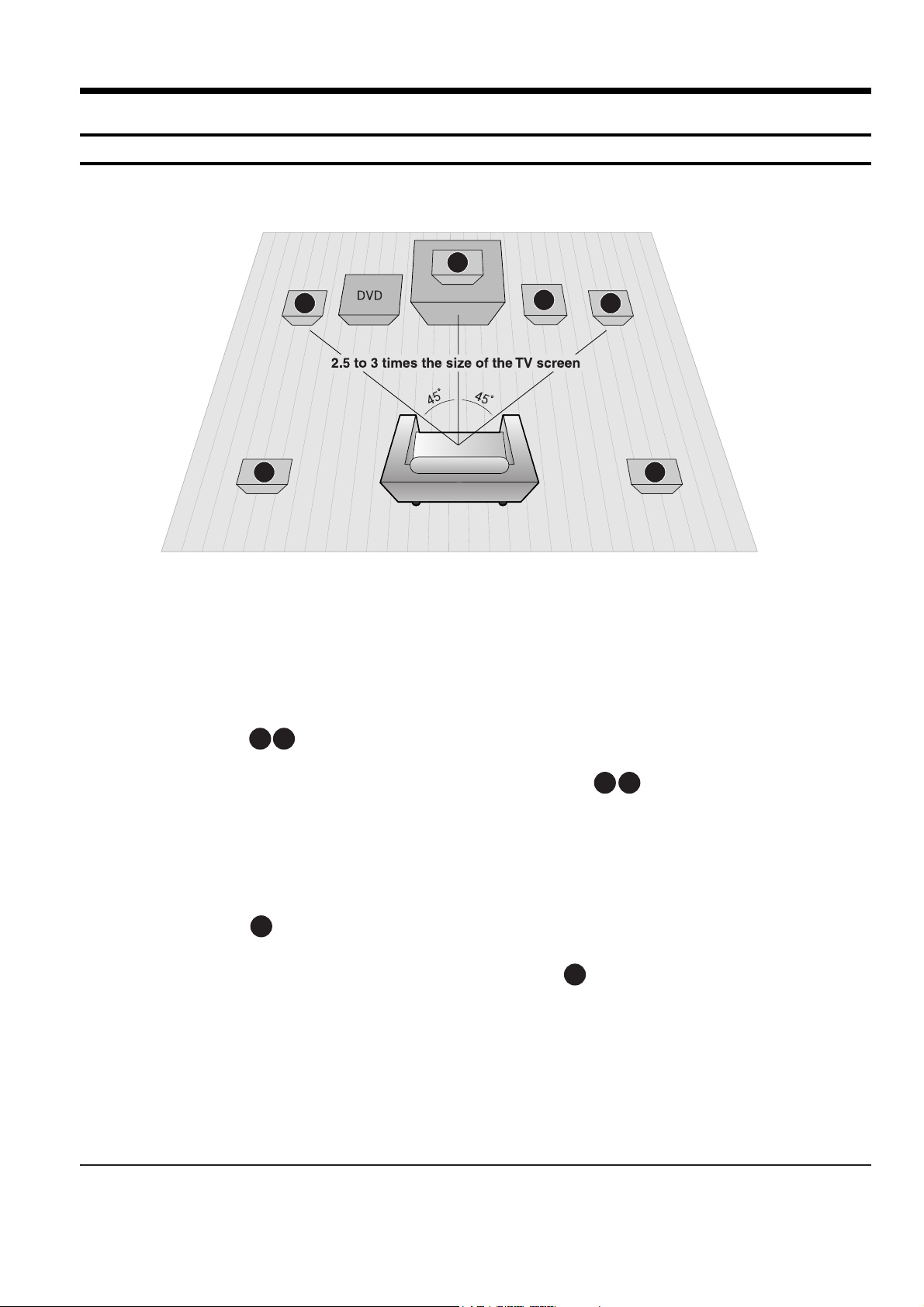
RSLS
C
L
SW
R
Rear Speakers
•
Place these speakers behind your listening position.
•
If there isn't enough room, place these speakers to face each other.
•
Place them about 60 to 90cm (2 to 3feet) above your ear, facing
slightly downward.
*
Unlike the front and center speakers, the rear speakers are used
to handle mainly sound effects and sound will not come from
them all the time.
Subwoofer
•
The position of the subwoofer is not so critical.
Place it anywhere you like.
•
Usually, it is placed by a corner near the front speakers.
Front Speakers
•
Place these speakers in front of your listening position, facing inwards (about 45°) toward you.
•
Place the speakers so that their tweeters will be at
the same height as your ear.
•
Align the front face of the front speakers with the
front face of the center speaker or place them
slightly in front of the center speakers.
Center Speaker
•
It is best to install it at the same height as the front
speakers.
•
You can also install it directly over or under the TV.
Position of the DVD Player
•
Place it on a stand or cabinet shelf, or under
the TV stand.
Selecting the Listening Position
The listening position should be located about 2.5 to 3
times the distance of the TV's screen size away from the
TV. Example: For 32" TVs 2~2.4m (6~8feet)
For 55" TVs 3.5~4m (11~13feet)
R
L
C
RS
LS
SW
Page 2
3-2 Samsung Electronics
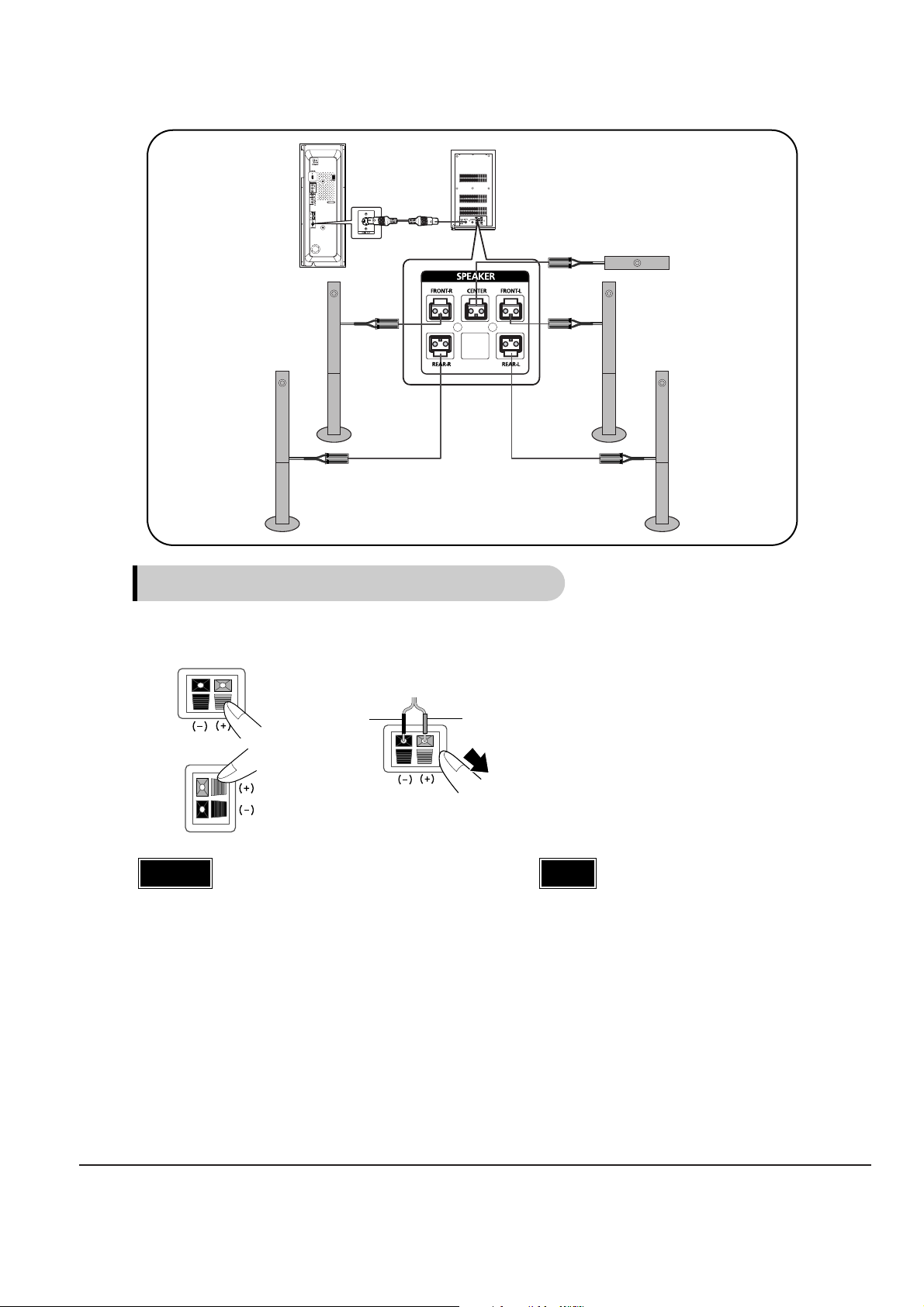
Rear of Main unit
Rear of Subwoofer
Center Speaker
Rear Speaker (L)
Rear Speaker (R)
Front Speaker (L)
Front Speaker (R)
Connecting the Speakers
Black
Press down the terminal
tab on the back of the
speaker.
1
Insert the black wire into the
black terminal (–) and the gray
wire into the gray (+) terminal,
and then release the tab.
2
Connect the connecting plugs to the back
of the Home Theater.
•
Make sure the colors of the speaker terminals
match the colors of the connecting plugs.
3
Gray
•
Do not let children play with or near the speakers.
They could get hurt if a speaker falls.
•
When connecting the speaker wires to the speakers,
make sure that the polarity (+/–) is correct.
Caution
•
If you place a speaker near your TV set,
screen color may be distorted because of
the magnetic field generated by the speaker. If this occurs, place the speaker away
from your TV set.
Note
or
Page 3
Samsung Electronics 3-3
2. Main Functions
2
1
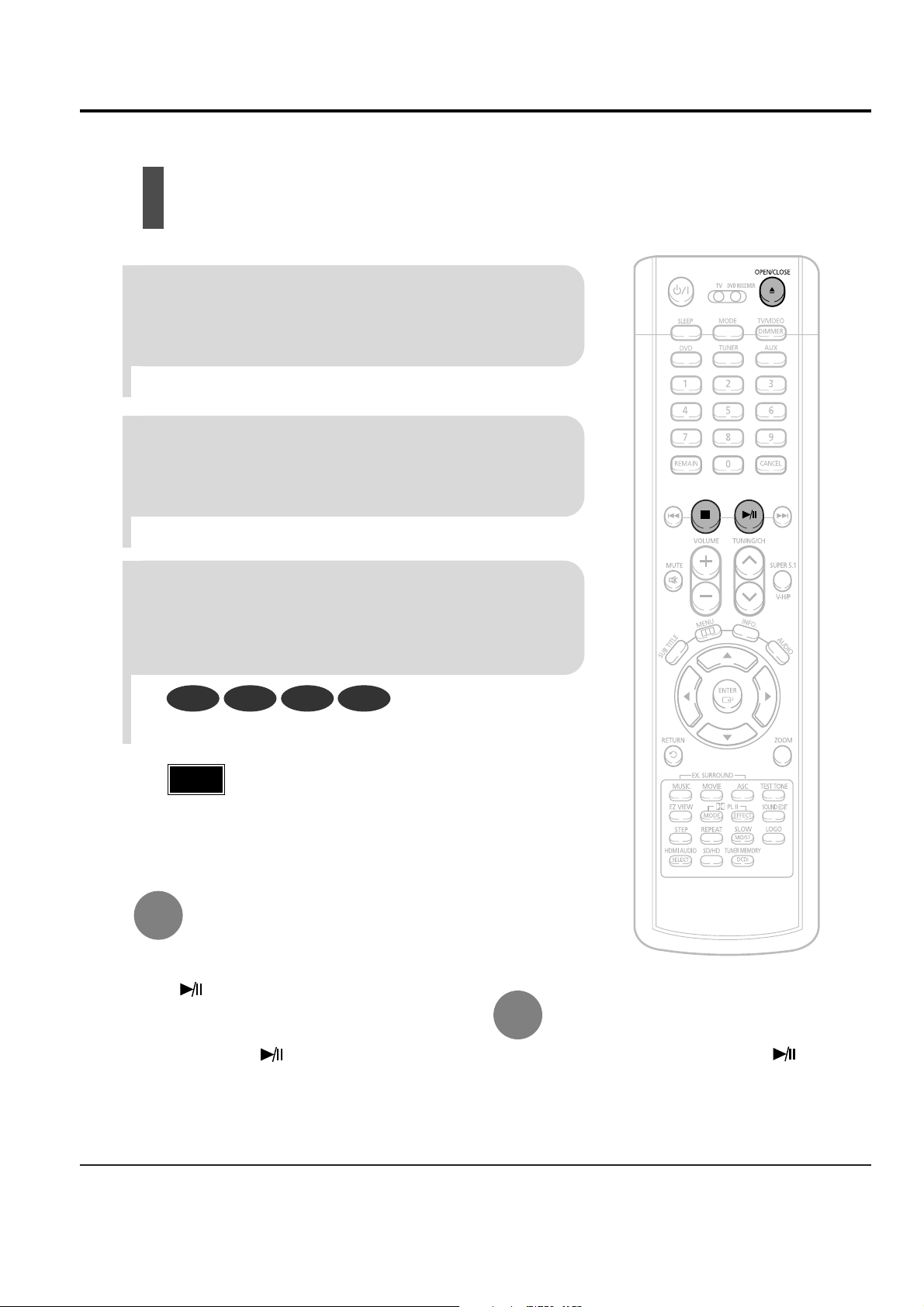
Press OPEN/CLOSE button to open the
disc tray.
3
Press OPEN/CLOSE button to close the disc
window.
•
The disc plays automatically when the disc window is closed.
•
The disc menu may appear differently depending on the disc.
Insert the disc so that the printed side
faces out.
Disc Playback
•
Depending on the content of the disc, the initial screen
may appear different.
•
To resume playback, press PLAY/PAUSE ( ) but-
ton again.
To temporarily pause playback,
press PLAY/PAUSE during playback.
DVD VCD SACD CD
•
Playback starts automatically.
•
If pressed once, “PRESS PLAY” is displayed and the
stop position will be stored in memory. If PLAY/PAUSE
( ) button or ENTER button is pressed, playback
resumes from the stop position. (This function works
only with DVDs.)
•
If pressed twice, “STOP” is displayed, and if
PLAY/PAUSE ( ) button is pressed, playback
starts from the beginning.
To stop playback,
press STOP during playback.
Note
Page 4
3-4 Samsung Electronics
Selecting Audio/Subtitle Language
•
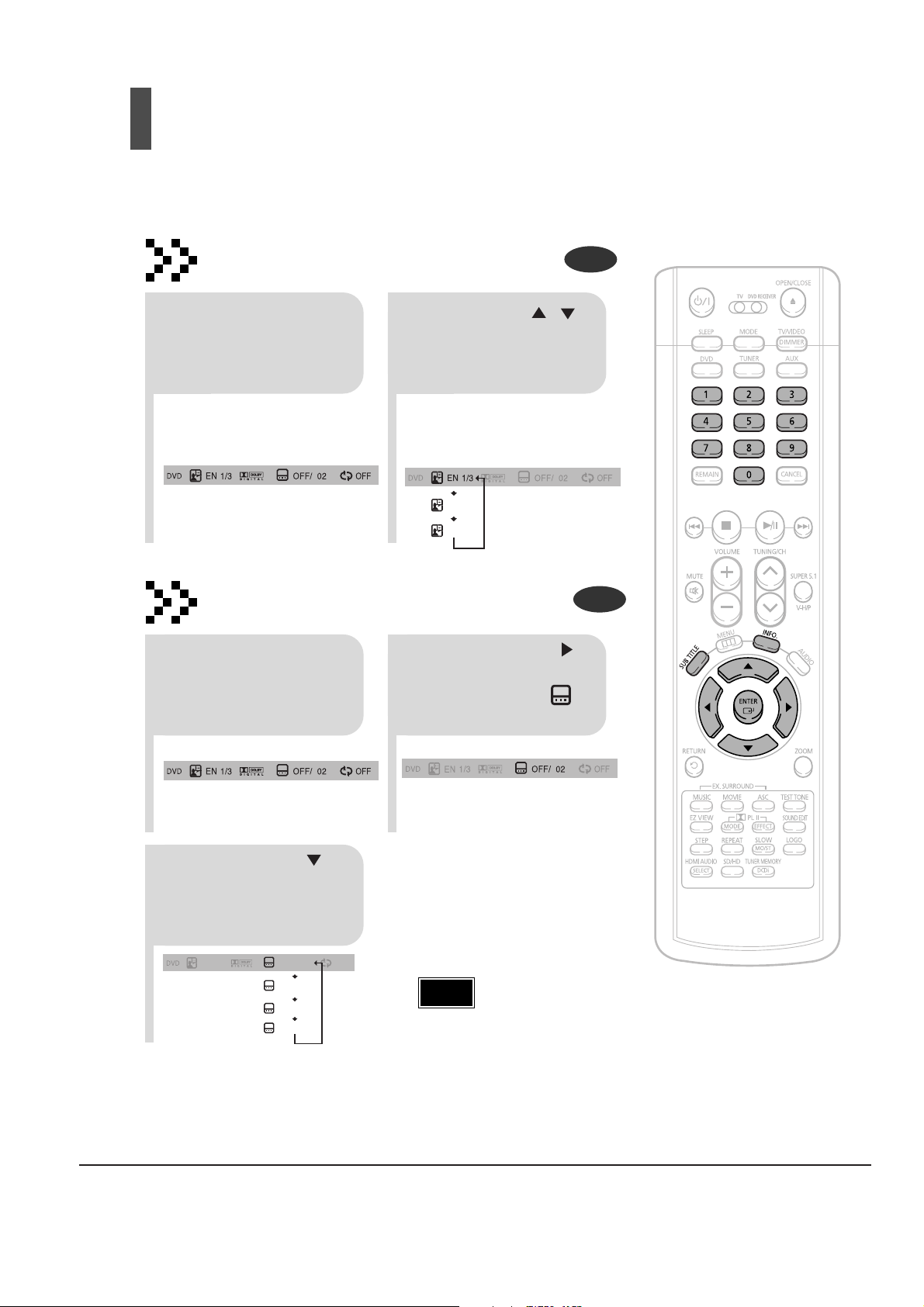
Depending on the number of languages on a
DVD disc, a different audio language (ENGLISH, SPANISH, FRENCH, etc.) is selected
each time the button is pressed.
2
Press Cursor ,
buttons or numeric buttons to select the
desired audio language.
1
Press INFO button
twice.
SP 2/3
FR 3/3
EN 1/3 EN 01/ 03
OFF
SP 02/ 03
FR 03/ 03
OFF / 03
•
To operate this function, you can also press the Select
AUDIO or Select SUBTITLE buttons on the remote control.
•
You can use the SUBTITLE button on the remote control to
select a subtitle language.
•
Depending on the disc, the Subtitle and Audio Language
functions may not work.
Audio Language Selection Function
DVD
Subtitle Language Selection Function
DVD
2
Press Cursor
button to move to
SUBTITLE ( )
display.
1
Press INFO button
twice.
3
Press Cursor
button or numeric
buttons to select
the desired subtitle.
Note
Page 5
Samsung Electronics 3-5
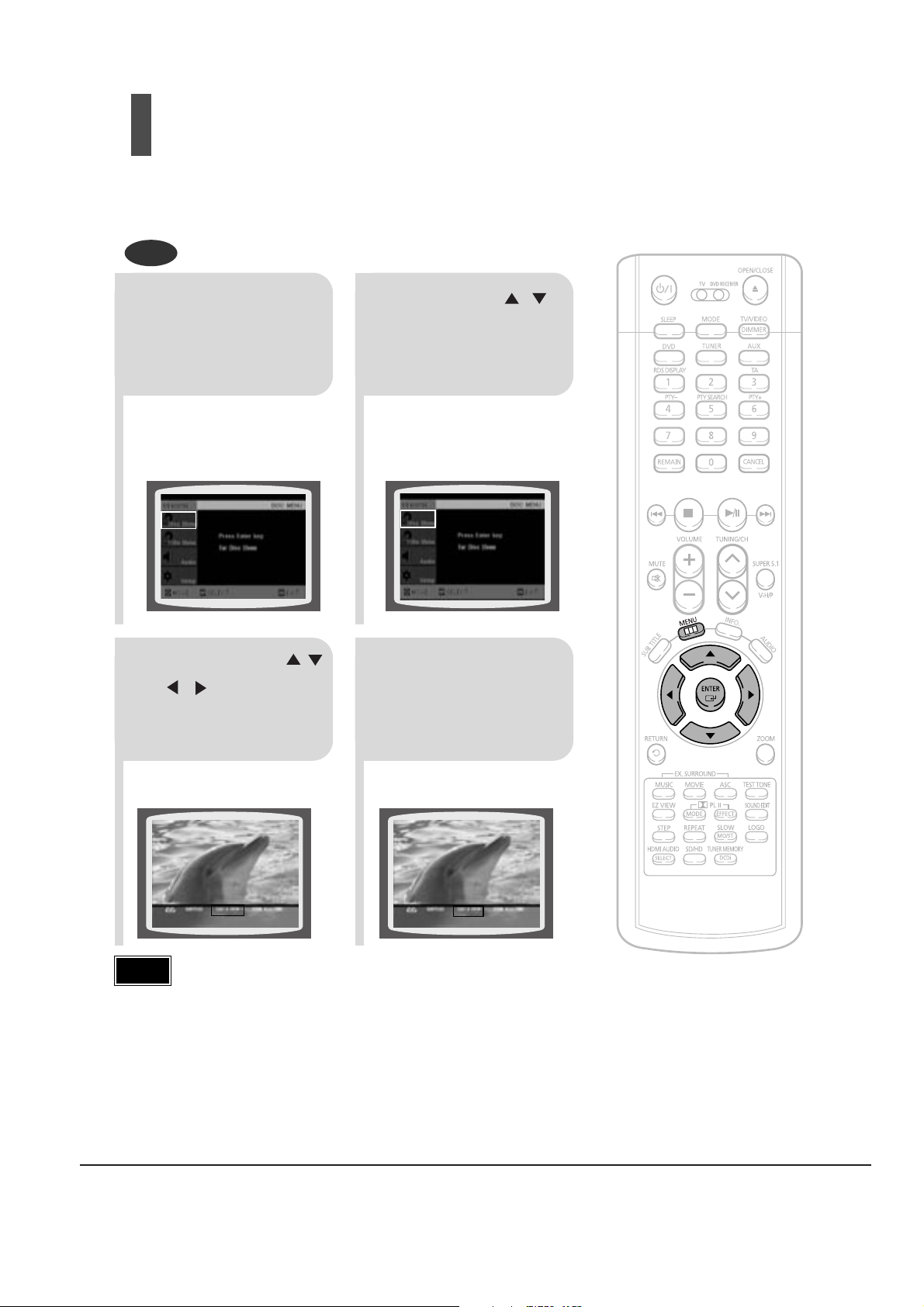
Using Disc Menu
You can use the menus for the audio language, subtitle language, profile, etc.
DVD menu contents differ from disc to disc.
DVD
2
•
When the disc has no menu, the
"This menu is not supported" mes-
sage appears on the screen.
•
When playing a VCD (version
2.), this toggles between PBC
ON and OFF.
1
In Stop mode,
press MENU
button.
Press Cursor ,
buttons to move to
‘DISC MENU’ and then
press ENTER button.
4
Press ENTER button.
3
Press Cursor ,
, buttons to
select the desired
item.
•
Disc menu display may be different depending on the disc.
PBC (Playback Control) Function
Press the MENU button while VCD 2.0 version disk is played.
Each time you press the button, "PBC ON" and "PBC OFF" will be repetitively selected in the TV screen.
• PBC ON: This VCD disc is version 2.0.The disc is played back according to the menu screen.
Some functions may be disabled.When some functions are disabled, select "PBC OFF" to enable them.
• PBC OFF: This VCD disc is version 1.1.The disc is played back in the same way as with a music CD.
Note
Page 6
3-6 Samsung Electronics
3. New Functions
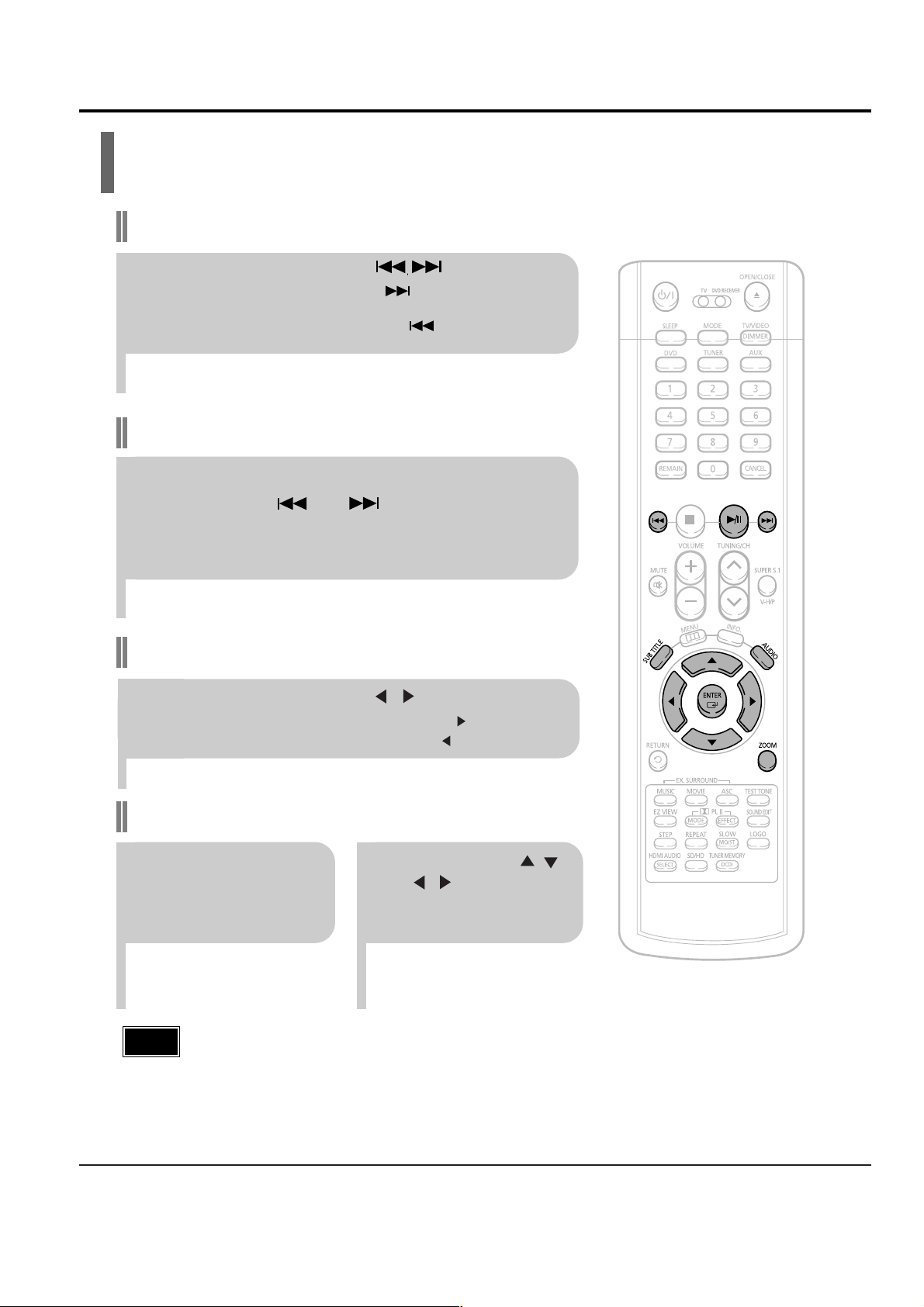
DivX Playback
Fast playback
Skip Forward/Back
During playback, press the button.
•
Goes to the next file whenever you press button, if there are over
2 files in the disk.
•
Goes to the previous file whenever you press button, if there are
over 2 files in the disk.
To play back the disc at a faster speed,
press and hold or during playback.
•
Each time you press and hold either button, the playback speed will
change as follows:
2x ➞ 4x ➞ 8x ➞ 32x ➞ Normal.
•
DivX file can be zoomed only in ZOOM X2 mode.
•
DivX files have .Avi file extensions, however, not all .Avi files are DivX and may not be playable in this unit.
Note
Zoom Function
2
Press Cursor , ,
, buttons to
move to the area
you want to enlarge.
1
Press ZOOM
button.
•
Each time you press the button,
your selection will toggle between
“ZOOM X2” and “ZOOM OFF”.
5 Minute Skip function
During playback, press the , button.
•
Playback skips 5 minutes forward whenever you press button.
•
Playback skips 5 minutes back whenever you press button.
Page 7
Samsung Electronics 3-7
•
" " is displayed when there is one supported audio item in the disc.
Note
Press the SUBTITLE button.
•
Each time you press the button, your selection will toggle between “SUBTITLE ON” (1/1, 1/2 ...) and
“SUBTITLE OFF”.
•
If the disc has only one subtitle file, it will be played automatically.
Subtitle Display
Press the AUDIO button.
•
Each time you press the button, your selection will toggle between “AUDIO ON” (1/1, 1/2 ...) and
“”.
Audio Display
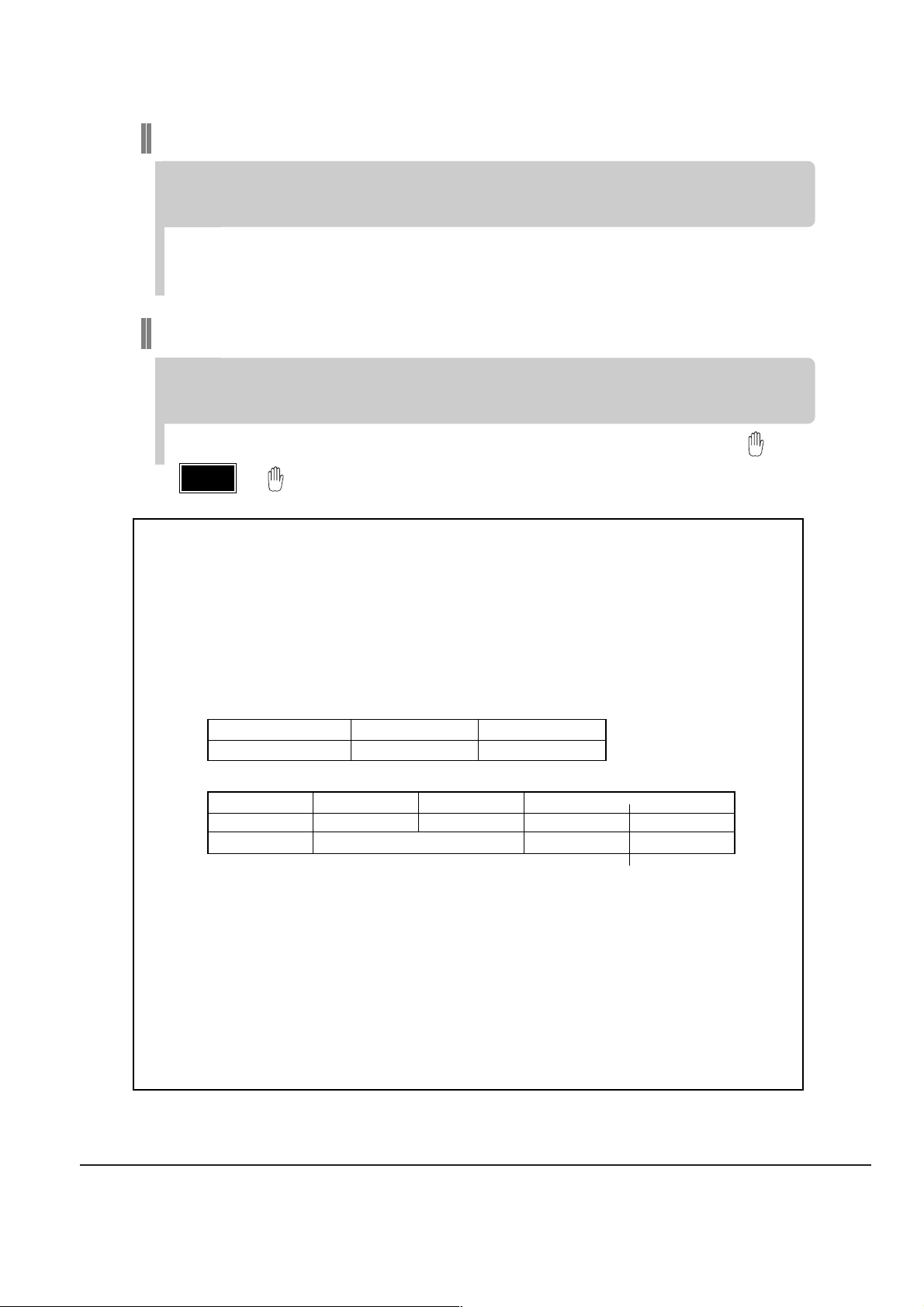
Format AVI WMA
Supported Versions DivX3.11 ~ 5.1 V1/V2/V3/V7
DivX(Digital internet video eXpress)
DivX is a video file format developed by Microsoft and is based on MPEG4 compression technology
to provide audio and video data over the Internet in real-time.
MPEG4 is used for video encoding and MP3 for audio encoding so that the users can watch a movie
at near DVD-quality video and audio.
1. Supported Formats
•
This product only provides the following media formats. If both video and audio formats are not supported, the user may experience problems such as broken images or no sound.
2. Caption Function
•
You must have some experience with video extraction and editing in order to use this feature properly.
•
To use the caption function, save the caption file (*.smi) in the same file name as that of the DivX
media file (*.avi) within the same folder.
Example. Root Samsung_Bluetek_007CD1.avi
Samsung_Bluetek_007CD1.smi
•
Up to 60 alphanumeric characters or 30 East Asian characters (2 byte characters such as Korean and
Chinese) for the file name.
●
Supported Video Formats
Format MP3 WMA AC3 DTS
Bit Rate 80~384kbps 56~128kbps 128~384kbps N/A
Sampling Frequency
44.1khz 44.1/48khz N/A
•
Aspect Ratio: Although default DivX resolution is 640*480 pixels (4:3), this product supports up to
720*480 pixels (16:9). TV screen resolutions higher than 800 will not be supported.
•
When you play a disc whose sampling frequency is higher than 48khz or 320kbps, you may experience shaking on the screen during playback.
●
Supported Audio Formats
 Loading...