

Page 1

E-Series
Installation Manual
RF Remote Control
RFR-E5
Premier products for Russound
Sphere™ Certified Professionals
Page 2
SAFETY INSTRUCTIONS
WARNING: TO REDUCE THE RISK OF FIR E OR ELECTRI C
SHOCK, DO NOT EXPOS E THI S APPLIANCE TO RAI N OR
MOISTURE.
CAUTION: TO REDUCE THE RISK OF ELECTRIC SHOCK,
DO NOT REMOVE THE COVER. NO USER-SERVI CEABLE
PARTS I NSIDE. REFER SERVICI NG TO QUALIFI ED
SERVICE P ERSONNEL.
The lightning flash with arrowhead symbol, within an equilateral triangle,
is intended to alert the user to the presence of uninsulated “dangerous
voltage” within the product’s enclosure that may be of sufficient magnitude
to constitute a risk of electric shock to persons.
The exclamation point within an equilateral triangle is intended to alert
the user to the presence of important operating and maintenance (servicing)
instructions in the literature accompanying the appliance.
Safety Instructions:
For your safety, please read and follow these precautions
before installing or using this product:
1.
Read instructions. Read and understand the applicable
instructions before installing or operating the product.
2.
Retain instructions. Keep this manual in a convenient place
for reference.
3.
Heed warnings. Be aware and heed all warnings on the
product and in the instructions.
4.
Follow instructions. Install and use this product only as
described in the instructions. Don’t try to use this product
in ways it wasn’t designed for.
5.
Use indoors only. Don’t expose this product to the weather
or harsh environmental conditions such as continuous
sunlight, excessive humidity, or rain.
6.
Keep product dry. Don’t use the product near water; e.g.,
near a bathtub, washbowl, kitchen sink, laundry tub, in a
wet basement, or near a swimming pool. Do not handle the
product when hands are wet or damp.
7.
Avoid heat. Locate the product away from heat sources
such as radiators, heat registers, stoves or other appliances
(including amplifiers) that produce heat.
8.
Use the right power source. Don’t connect the product
directly to electrical line voltage. Use only the power
adapter provided with the product, described in the
operating instructions, or as marked on the product.
9.
Ground product properly. Make sure the product’s means
of grounding or polarization is not defeated.
10.
Power cord protection. Power supply cords should
be routed so that they are not likely to be walked on or
pinched by items placed upon or against them, paying
particular attention to cords at plugs, receptacles, and the
point where they exit from the appliance.
11.
Non-use Periods. The power cord of the appliance should
be unplugged from the outlet when left unused for a long
period of time. To remove all power (supply mains) from the
appliance, remove the plug from the wall outlet and remove
batteries from the handset.
12.
Keep product clean. From time to time, wipe off the product
with a clean soft cloth. Don’t use abrasive materials,
thinners, alcohol, or chemical solvents.
13.
Avoid spills and foreign objects. Make sure liquids and
objects don’t get into the product enclosure through any
openings.
14.
Get professional service. Have the product serviced
only by qualified service personnel when: a) The power
supply cord or the plug has been damaged; b) Liquids
have spilled or objects have fallen into the product;
c) The product has been exposed to rain; d) The product
doesn’t operate normally or is damaged
Don’t attempt to service the product yourself. Doing so will void
the warranty.
If you have any questions, call Russound at 1.800.638.8055
or 603.659.5170.
Compliance Statement (Part 15.19):
This hardware device complies with Part 15 of the FCC
Rules. Operation is subject to the following two conditions:
(1) This device may not cause harmful interference, and (2)
This device must accept any interference received, including
interference that may cause undesired operation.
Warning (Part 15.21):
Changes or modifications not expressly approved by
the party responsible for compliance could void the user’s
authority to operate the equipment.
FCC Interference Statement (Part 15.105 (b)):
This equipment has been tested and found to comply
with the limits for a Class B digital device, pursuant to Part
15 of the FCC Rules. These limits are designed to provide
reasonable protection against harmful interference in a
residential installation. This equipment generates, uses, and
can radiate radio frequency energy and, if not installed or
used in accordance with the instructions, may cause harmful
interference to radio communications. However, there is
no guarantee that interference will not occur in a particular
installation. If this equipment does cause harmful interference
to radio or television reception, which can be determined by
turning the equipment off and on, the user is encouraged to
try to correct the interference by one or more of the following
measures: 1) reorient or relocate the receiving antenna; 2)
increase the separation between the equipment and the
receiver; 3) connect the equipment to an outlet on a circuit
different from that to which the receiver is connected;
4) consult the dealer or an experienced radio/TV technician
for help.
Section 7.1.5 of RSS-GEN:
Operation is subject to the following two conditions: (1)
This device may not cause harmful interference, and (2) This
device must accept any interference received, including
interference that may cause undesired operation of the
device.
RF Exposure Compliance - Cradle Charger
To comply with FCC and Industry Canada RF exposure
limits for general population/uncontrolled exposure, the
charging cradle must be installed to provide a separation
distance of at least 7.9 in (20 cm) from all persons and must
not be co-located or operating in conjunction with any other
antenna or transmitter.
RF Exposure Compliance - RF Handset
(Handheld Remote)
To comply with FCC and Industry Canada RF exposure
limits for general population/uncontrolled exposure, the
handheld remote must be operated only in the hand to
provide a separation distance of at least 7.9 in (20 cm) from
the body (excluding the hand and the wrist) and must not be
co-located or operating in conjunction with any other antenna
or transmitter.
Battery Use and Disposal Instructions:
CAUTION: the battery in used in this device may present a
risk of fire or chemical burn if mistreated. Do not disassemble,
expose the to heat above 70 degrees C (158 degrees F) ,
incinerate, or immerse in water or liquid of any kind. Do
not use or charge the battery if it appears to be leaking,
discolored, deformed, or in any way abnormal. Do not leave
your battery discharged or unused for extended periods of
time. When the battery is misused, it may explode or leak,
causing burns or other personal injury. If the battery leaks,
use normal precaution and discard it immediately following
the laws and regulations governing battery disposal in your
area. Remember that a leaking battery can caused skin burns
or other personal injury. Keep this an all batteries out of the
reach of children. Risk of explosion if battery is replaced with
an incorrect battery type.
2 Russound RFR-E5 Installation Manual
Page 3

Product overview ........................................................................................................4
Front panel ..................................................................................................................5
Charging cradle ...........................................................................................................6
RFR-E5 batteries ........................................................................................................7
Cradle / controller connection .................................................................................8
System binding / zone setup ....................................................................................9
How to choose a source ........................................................................................ 10
How to make room audio adjustments ............................................................... 11
Set clock ....................................................................................................................12
Installation menu ......................................................................................................13
TABLE OF CONTENTS
Local source setup and IR control ....................................................................... 14
Learn IR for local sources ...................................................................................... 15
Diagnostics ................................................................................................................ 16
Authorize support / factory initialization .............................................................. 17
Update firmware ....................................................................................................... 18
IR device codes..................................................................................................19-21
Technical specifications ..........................................................................................22
Warranty .....................................................................................................................23
Russound RFR-E5 Installation Manual 3
Page 4

PRODUCT OVERVIEW
The RFR-E5 is an advanced radio frequency remote control that operates
E-series controller systems. This sleek hand-held control rests in a charging
cradle that serves as the connection between the controller and the remote.
The cradle uses a 100 Base-T Ethernet connection to communicate over LAN
with the controller.
Besides its wide range wireless operation via RF, one of the RFR-E5’s main
features is its ability to “roam” to and control other zones. It offers the same
level of source selection and control as the KLK-E5 keypad, and enjoys the
same touch ring technology to easily scroll through menus and long lists of
channels, presets, artist names and song titles.
The RFR-E5 displays music information and more - it’s like holding an LCD
keypad in your hand. The touch ring makes it easy to scroll through menus
and long lists of channels, presets, artist names and song titles. The LCD
screen has white backlighting and crisp black characters. The RFR-E5 also
has transport buttons, numeric input and cursor/onscreen display controls. It
supports Russound RNET components, and legacy IR sources such as TV,
DVD, and CD players, and cable or satellite set top boxes. It can also be
programmed to control up to three local sources.
Most controller and source setup functions are performed through SCS-E5
programming software; however, a few installation steps can be completed
through the RFR-E5 menus, including local source setup, setting time and
date, doorbell chime selection, and adjusting room audio properties. The
RFR-E5’s installation screen also provides a gateway for a technical support
tunnel for the system when needed.
4 Russound RFR-E5 Installation Manual
Page 5
RFR-E5 FRONT PANEL
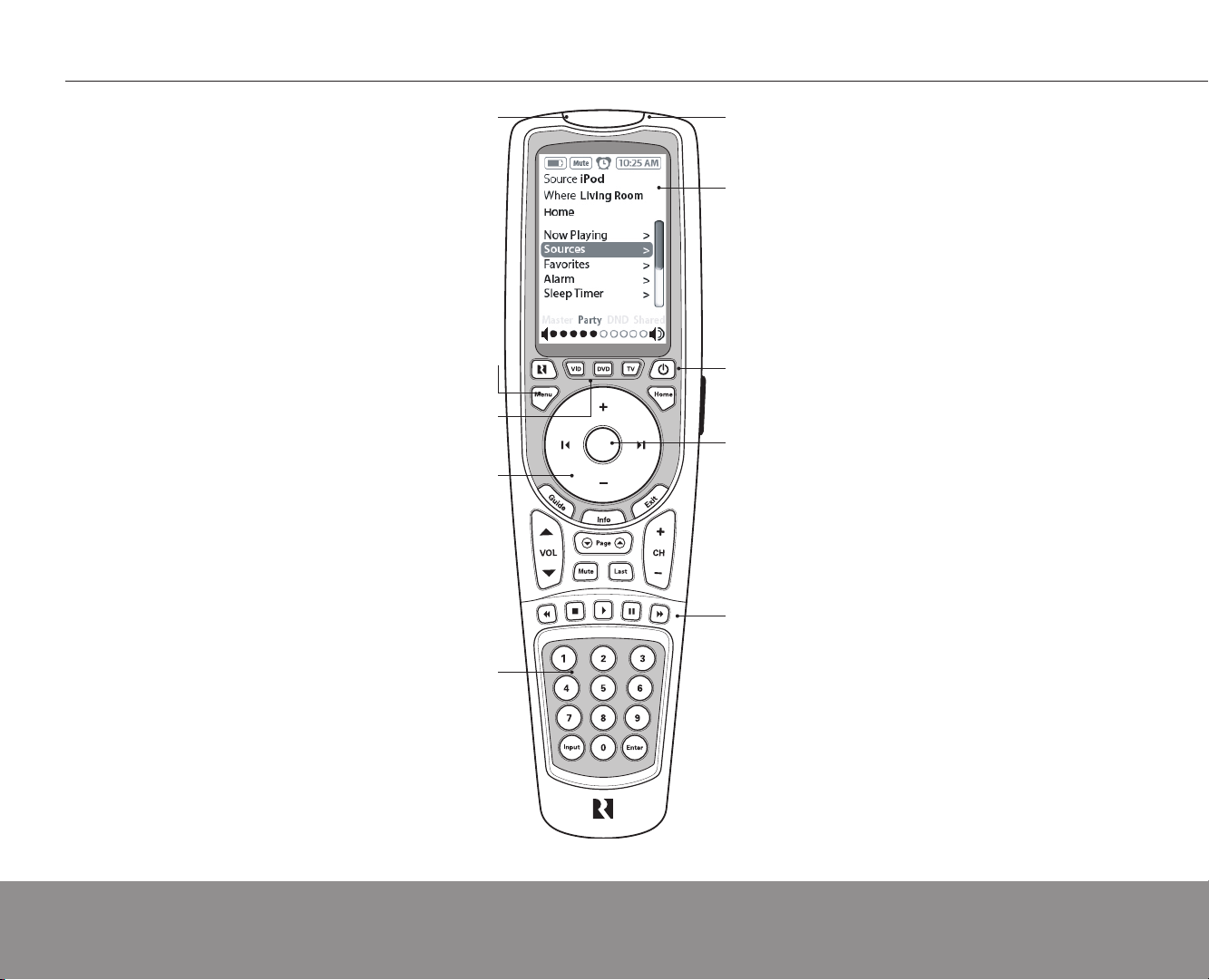
Talk-back LED - Red
LED indicates IR use
Menu - Go to top level option
screen for current source
Local Sources - Select and operate
local sources (must be programmed)
Touch Ring - Scroll through
menus, navigate and make
selections using
marked push buttons
on the wheel
Number Pad - Digits
0 - 9 for numeric entry of
channel, disc, etc.
IR Receiver - Receives IR
signals during learning
LCD Screen - Monochrome
screen shows source and
system navigation screens
Power - Turn room power on/off.
Press and hold for system all on/off
Select - Press to activate
a selected item from a
menu. Also press for
easy source selection
from the Now Playing
screen (brings up source
list)
Transport - standard
controls for navigation and
source commands
Russound RFR-E5 Installation Manual 5
Page 6
RFR-E5 ChARGING CRADLE
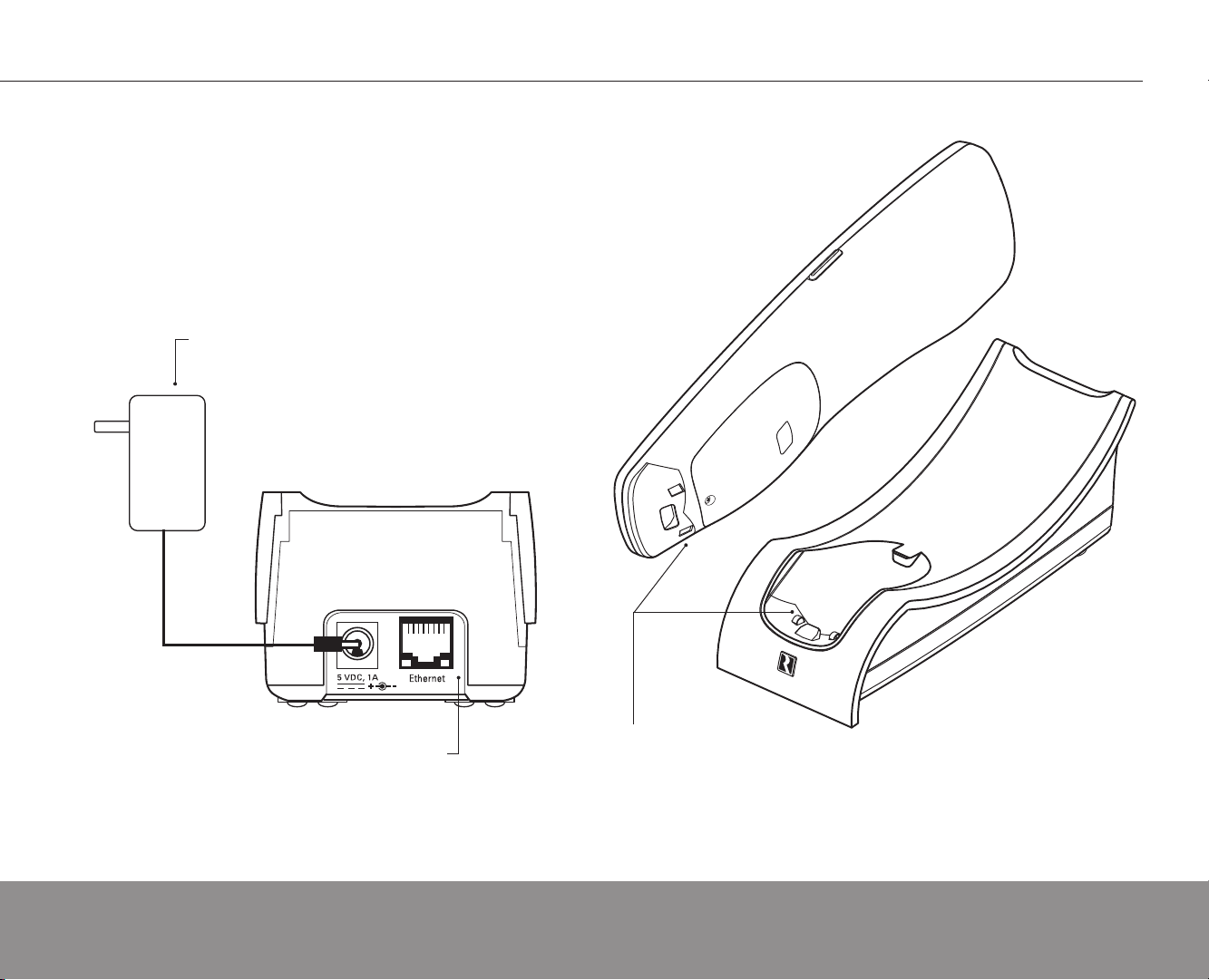
The RFR-E5 and cradle use a two-way RF link which enables the remote
to send control commands to the system through the ACA-E5 controller
and receive metadata feedback from the system and smart sources. The
cradle communicates with the controller over a 10/100/1000 (1Gigabit
recommended) Base-T Ethernet network via the CAT-5 RJ45 connector on
the rear of the cradle.
The cradle is powered by a detachable power supply that plugs into the
rear of the cradle. The cradle provides the remote with the appropriate DC
voltage for battery charging through two contacts when docked in the cradle.
Cradle power supply
Ethernet connection with
Battery charging contacts
connection and activity LEDs
Cradle back view
6 Russound RFR-E5 Installation Manual
Remote control and cradle
Page 7
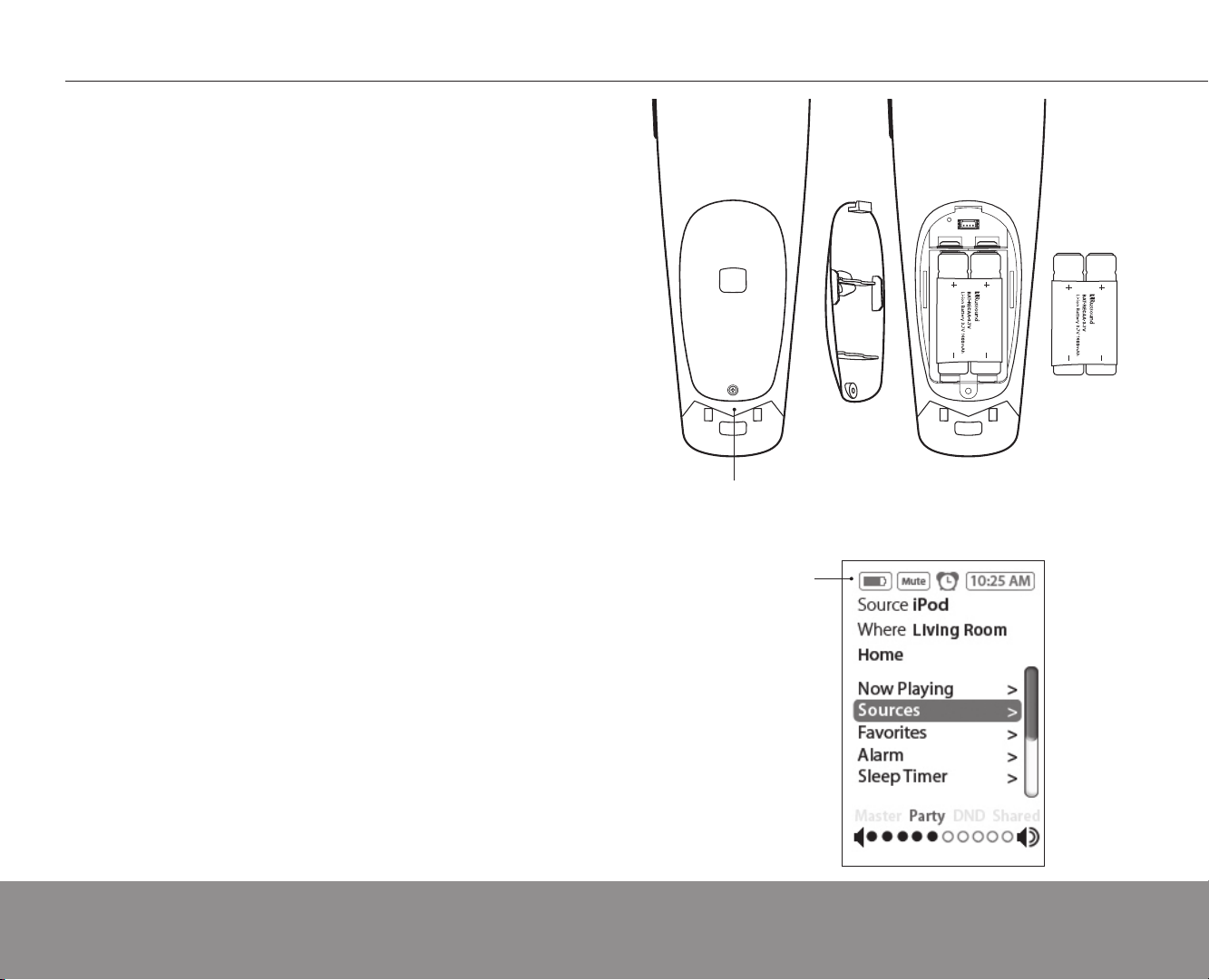
The RFR-E5 is powered by two lithium-ion rechargeable batteries. The
Battery
compartment
door
Lithium-ion
batteries
(use ONLY
Russound
E150-531217)
batteries are accessed by removing the screw on the battery compartment
door on the back of the remote control.
NOTE: Before first use, the batteries must be installed in the RFR-E5 and
charged for three hours by placing the remote in the cradle.
The battery charge level can be checked by reviewing the battery icon at
the top of the home screen. A solid dark icon means the batteries are fully
charged; a solid white icon means the batteries need to be charged. When
the RFR-E5 remote is docked in its cradle, the battery icon scrolls to indicate
charging and shows a solid black icon when charging is complete.
If the RFR-E5 is left off the charging cradle for a long period of time, the
batteries will eventually go dead. If this happens, dock the remote in the
cradle, making sure the charging contacts fit snugly. The RFR-E5 screen will
remain blank until it has enough power to display the battery icon.
Battery Use and Disposal Instructions
CAUTION: Danger of explosion if the batteries are improperly replaced.
Replace ONLY with the same type (Russound P/N E150-531217). Batteries
are to be serviced by the installer only.
This device contains a replaceable lithium-ion rechargeable battery. Battery
life is dependent upon usage. Heavy daily use will result in shorter battery
life. Casual use will extend battery life. If you suspect that the battery may
be dead, try charging it. If the battery does not recharge, please contact
Russound technical support for repair or replacement information. If you
replace the battery, follow the proper disposal procedure. Consult local laws
and regulations for proper battery disposal in your area. If there are no local
regulations concerning battery disposal, please dispose of the dead battery
in a waste bin for electronic devices. Refer to the safety instructions in this
manual for more information.
Screw secures battery
compartment door
Battery icon shows
battery charge level
and scrolls when batteries
are being charged
RFR-E5 BATTERIES
Batteries shown installed
Russound RFR-E5 Installation Manual 7
Page 8
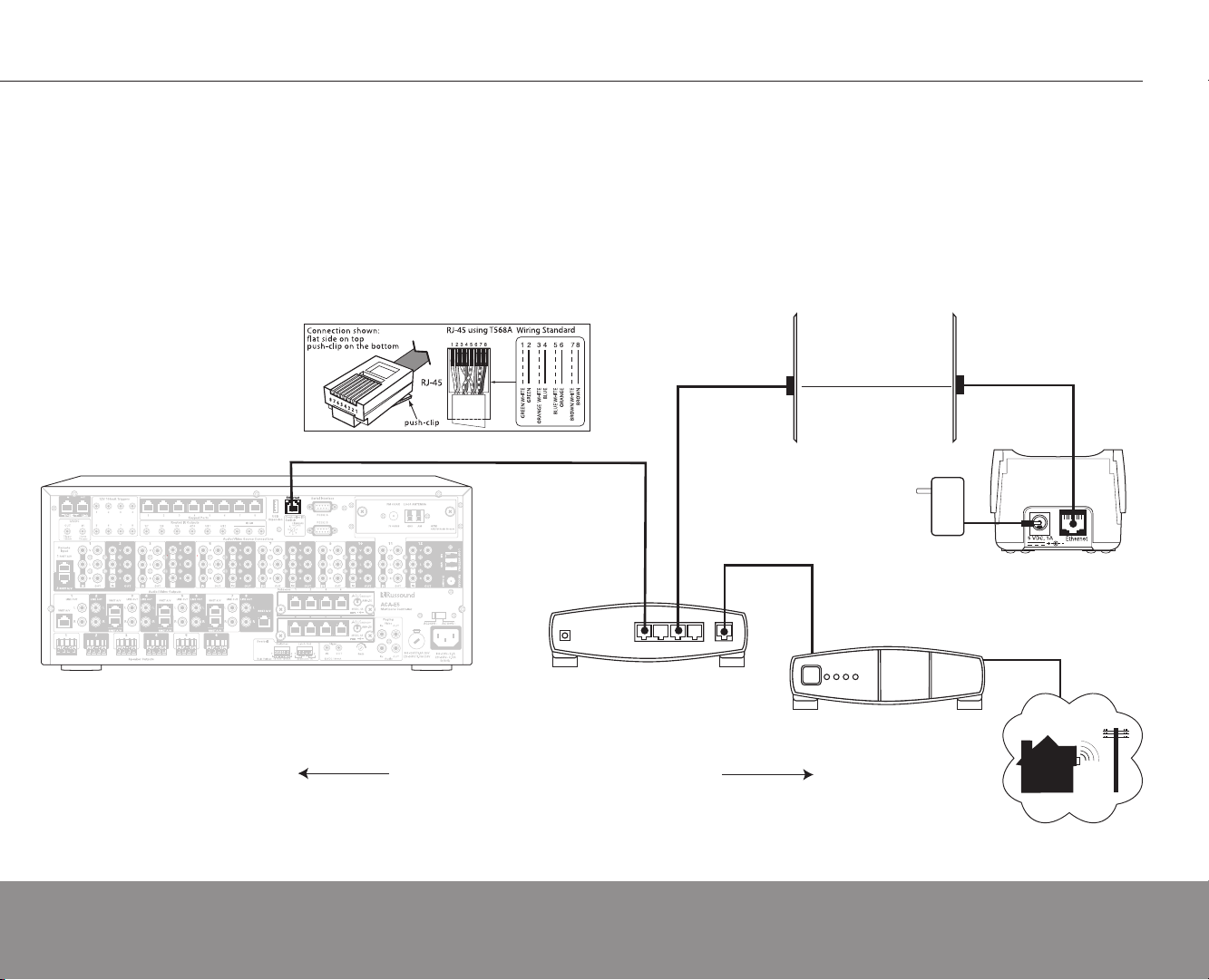
LAN
WAN
Required DHCP router
with NAT/firewall
CAT-5 cable
CAT-5 cable (max 250 feet from controller to cradle)
CAT-5 cable
CAT-5 cable
ACA-E5 controller
Cradle
RJ45 wall plates
(Ethernet connection)
Cable or
DSL Modem
INTERNET
CRADLE / CONTROLLER CONNECTION
The RFR-E5 is connected and configured after the ACA-E5 controller has
been successfully installed, and all zones, options and sources have been
configured through SCS-E5 system configuration software.
The RFR-E5’s charging cradle communicates with the controller via an
Ethernet connection. Typical installations feature a LAN port in the room
where the RFR-E5 will be located, with CAT-5 run from the cradle to the LAN
connection. The ACA-E5 requires a connection to a 100 Base-T (1 Gigabit
recommended) or router. The ACA-E5 and RFR-E5(s) must be on the same
subnet.
Connect the power supply to the cradle. •
Connect the cradle to the LAN port in the room using a CAT-5 cable •
with RJ45 terminations (T568A). Check the Link LED on the cradle to
ensure a network connection has been made.
Charge the batteries in the RFR-E5 by leaving the remote docked in •
the powered cradle for at least three hours. Be sure the remote’s two
contacts are properly fitted into the cradle.
8 Russound RFR-E5 Installation Manual
Page 9

The binding procedure establishes a communication relationship between
the controller, the charging cradle and the remote control. It also involves
choosing the default zone for the RFR-E5.
The cradle is bound to the ACA-E5 controller when it is powered and •
connected via Ethernet to the same network.
The cradle searches the network for the ACA-E5. This will take several •
minutes. The blue light on the base will become fully lit when a connection
has been made. If the base is power cycled, it will try to reconnect to
the controller at the same IP address. If it cannot connect it will begin a
search of the network.
Power on the remote by pressing the power button. The RF Network •
screen shows on the RFR-E5.
Press the setup button on the bottom of the charging cradle. Immediately •
scroll to and select “Join Network.” This binds the remote to the cradle.
The RFR ID screen appears (within Installation menu). This screen lets •
you set the unique ID number for an RFR when multiple RFR-E5s are
in a system. The default is ID 1 to make installation of a single RFR-E5
easy. The RFR ID # does not have to match the zone number but each
RFR must have a unique number assigned.
The remote screen moves to the Default Zone menu (within Installation •
menu) for selection of a “home” zone. This screen shows a list of all
available zone names in the system.
Scroll to and select from the list the desired “home” zone for the remote. •
The assigned default zone remains even when the user roams to other
zones. More than one remote control can have the same default zone
assigned if desirable.
Check default zone operation.•
The RFR-E5 now is assigned to a default zone. The user can now select
any other zone from a zone list and temporarily control that zone. The current
zone in use is indicated at the top of most screens.
SYSTEm BINDING / zONE SETUP
The RF Network screen
shows up during the
remote binding procedure
Setup button on bottom of
cradle for binding it to the
remote
Russound RFR-E5 Installation Manual 9
Page 10

hOW TO ChOOSE A SOURCE
The RFR-E5 has buttons and a click touch wheel to find and control music
and video.
The remote has backlit buttons to access power on/off, music pause,
volume up/down and menu shortcuts. A select button in the center of the click
wheel activates a menu choice, and the touch wheel provides the scrolling
action through menus and lists. All music/video sources, audio adjustments
and system settings are arranged in menus and lists.
Choose music or video source
From the home screen, scroll to and select “Sources.” A list of available
sources appears. Scroll to and select a source. Also, press Select while on a
source’s Now Playing screen.
Play music or video
Once you have chosen a source, you can select music or a video to play
from that source. Each type of source has its own menu and series of screens.
Main menus of music or video sources list what is available to choose from,
such as channels, genres, playlists, songs or artists.
10 Russound RFR-E5 Installation Manual
Page 11

From the home screen, scroll to and select “Settings,” and choose “Audio
Settings.” You’ll see items to adjust, such as bass, treble and balance. Each
selection has its own screen and shows levels for real-time adjustments.
For volume adjustments, press the Volume up/down buttons on the
remote.
To mute the room’s audio, press the Mute button.
hOW TO mAkE ROOm AUDIO ADjUSTmENTS
Russound RFR-E5 Installation Manual 11
Page 12

SET CLOCk
The clock format, time and date for the system can be set with the RFR-E5.
From the Home screen, select “Settings” then choose “Clock.”
Set Time
From the Clock menu, select “Set Time.” Scroll with the touch wheel, or
press the wheel’s + and -- to move through numbers. Press next and previous
on the wheel to move the cursor, and press select to save.
Set Date
From the Clock menu, select “Set Date.” The date format is month/day/year.
Scroll with the touch wheel, or press the wheel’s + and -- to move through
numbers. Press next and previous on the wheel to move the cursor, and press
select to save.
Clock Format
There are two clock formats to choose from. From the home menu, select
“Settings,” then “Clock.” Choose “Clock Format,” and select 12 hour (AM/PM)
or 24 hour (1200) format.
12 Russound RFR-E5 Installation Manual
Page 13

The RFR-E5 Installation menu gives access to installer-centric system
options such as diagnostics, local source setup and support authorization.
From the home screen, scroll to and select “Settings,” and choose
“Installation.” You’ll see the following items listed.
Local IR Setup - Procedure to set up local source equipment for IR control
by RFR-E5
Diagnostics - Provides the installer with a variety of display and button
operation tests to diagnose unplanned behaviors.
Authorize Support - This option enables the system to be accessed
remotely so the dealer or Russound tech support can access the system over
Ethernet for diagnostics, update or programming.
Default Zone - Allows the installer to choose from a list of all zones the
default zone to which the RFR-E5 is attached.
RFR ID - List of available ID numbers for RFR-E5s in the system.
RF Network - Lists options to join or leave RF network.
Factory Initialize - Resets RFR-E5 to factory default state and clears any
settings.
INSTALLATION mENU
Russound RFR-E5 Installation Manual 13
Page 14

LOCAL SOURCE SETUP AND IR CONTROL
Up to three local sources can be programmed into the RFR-E5. These
sources are controlled by IR commands when located in the same room as
the RFR-E5.
Three buttons on the remote control correspond with local sources: VID
(Video), DVD and TV.
From the main menu, select “Settings,” then “Installation.” Choose “Local
Source Setup.”
Press the device button (VID, DVD, TV) on the remote. On the source setup
screen, scroll to the appropriate device type and press the Select button. The
type selected will populate the “Type” box.
Choose the appropriate 4-digit device code from the list in the back of this
manual, and enter it in the code box using the numeric buttons on the RFR-E5.
Press the Select button to enter.
Local Source IR Control
To operate a local source with the RFR-E5, point the RFR-E5 in the
direction of the source and press its corresponding device button, then the
desired control button (volume, channel, etc.).
To return to control of the ACA-E5 system, press the “R” button on the
RFR-E5.
Local source buttons on RFR-E5
14 Russound RFR-E5 Installation Manual
Page 15

The RFR-E5 supports IR learning when programming the three local
sources into the remote, if none of the device codes provided work with the
sources. The local source’s remote control is required for this procedure.
From the main menu, select “Settings,” then “Installation.” Choose “Local
IR Setup.”
Press the device button (VID, DVD, TV) on the remote. Under “Choose
Device Type,” scroll to Learned IR and press the select button. Press key on
RFR-E5 where you want to learn the command. The display will show the key
name. The red talk back LED at the top of the RFR-E5 will blink when it is
ready to accept commands from the donor remote.
Point the source donor remote at IR window at the top of the RFR-E5. Press
and hold the key on donor remote to learn command and wait for feedback
message: LEARNED or ERROR.
After the learned message appears, the button that was programmed can
be tested before repeating the procedure again for the next command.
LEARN IR FOR LOCAL SOURCE
Russound RFR-E5 Installation Manual 15
Page 16

DIAGNOSTICS
The Diagnostics menu provides a way to test the RFR-E5 display and
buttons for proper operation. It also shows what version of firmware is running
on the RFR-E5 and its IP address. Note: zone and source controls are
disabled during diagnostic testing.
From the main menu, select “Settings,” then “Installation.” Choose
“Diagnostics.”
Button Test
This selection tests the RFR-E5’s main navigation buttons. To test their
function, press the remote’s navigation buttons one at a time. If the button
is functioning properly, the name of the button appears on the screen. Zone
controls are deactivated during the button test; no controller response should
occur. The backlight remains on during the test so the screen can be read.
Press and hold Power to exit the test.
Display Test
This selection tests the RFR-E5’s display window. Choosing “all on”
activates all the screen’s pixels (appears dark). Choosing “all off” deactivates
all the pixels (appears light). This test reveals any pixel failures. Press Last
to return to the Display Test screen, or press and hold Exit to return to the
Installation menu.
Versions
This selection shows the firmware version of the RFR-E5.
Display Test screen
16 Russound RFR-E5 Installation Manual
Versions Display screen
Page 17

Authorize Support
The RFR-E5 provides a portal to a Russound network support tunnel when
an installer needs Russound’s help troubleshooting an ACA-E5 system.
The Authorize Support feature enables the system to be accessed remotely
over Ethernet for Russound technical support to diagnose, update or program
the system.
From the main menu, select “Settings,” then “Installation.” Choose “Authorize
Support.” On the Authorize support screen, select “On.” A session number will
be provided in the Session Number box.
A “Press Menu for Details” message is displayed if there is a problem
establishing a tunnel.
During the support tunnel process, the system is unavailable for use.
AUThORIzE SUPPORT / FACTORY INITIALIzATION
Factory Initialization
If it becomes necessary, the RFR-E5’s settings can be returned to factory
state through a factory initialization from the RFR-E5. A factory initialization
deletes all programmed settings and resets them to the factory defaults.
From the Installation menu, scroll to and select “Factory Initialize.” Select
“Reset Defaults.” Once the initialzation is complete, the system binding/zone
setup procedure begins when a button is pressed to power on the remote.
Russound RFR-E5 Installation Manual 17
Authorize Support screen
Factory Initialize screen
Page 18

UPDATE FIRmWARE
Both the RFR-E5 remote and its cradle support firmware updates. When
firmware updates are issued, the files will be posted under Downloads on the
Sphere website, www.russoundsphere.com.
On the RFR-E5 remote, the programming and update port is located on the
back of the remote behind the battery access door.
The cradle update port is located on the bottom of the unit behind a small
removable panel.
For both pieces, the Russound USB-A4P USB Programming Cable
(Russound P/N 8300-531415) is used to connect the port to a PC for the
update procedure.
Update port on bottom of cradle
with access door removed
Bottom view of cradle
18 Russound RFR-E5 Installation Manual
Update port on remote control
with battery access door removed
Back of remote control
Page 19

Device Codes for TVs:
Admiral 0093, 0463
Advent 0761, 0842
Aiko 0092
Akai 0030, 0672, 0702,
0812
Albatron 0700, 0843
America Action 0180
Anam 0180
AOC 0030
Apex Digital 0748, 0765, 0767,
0879, 1943
Audiovox 0451, 0180, 0092,
0623
Bell & Howell 0154
BenQ 1032
Bradford 0180
Broksonic 0236, 0463, 1935,
1911
Candle 0030
Carnivale 0030
Carver 0054
Celebrity 0000
Celera 0765
Changhong 0765
Citizen 0060, 0030, 0092
Clarion 0180
Comm’l Solutions 1447, 0047
Contec 0180
Craig 0180
Crosley 0054
Crown 0180
Curtis Mathes 0047, 1147, 1347,
0054, 0154, 0451,
0093, 0060, 0030,
0145, 0166, 0702
CXC 0180
Daewoo 0451, 1661, 0672,
0092, 0661, 0623
Dell 1080
Denon 0145
Dumont 0017
Durabrand 0463, 0180, 0178,
0171, 1034
Electroband 0000
Emerson 0154, 0236, 0463,
0180, 0178, 0171,
1911, 0623
Envision 0030
ESA 0812, 0171
Fisher 0154
Fujitsu 0853, 0809, 0683
Funai 0180, 0171, 1904
Futuretech 0180
Gateway 1756, 1755
GE 1447, 0047, 1147,
1347, 0051, 0451,
0178, 1922, 1917
Gibralter 0017, 0030
Go Video 0886
GoldStar 0030, 0178
Grunpy 0180
Haier 1034
Hallmark 0178
Harley Davidson 1904
Harman/Kardon 0054
Harvard 0180
Havermy 0093
Helios 0865
Hello Kitty 0451
Hisense 0748
Hitachi 1145, 0145, 1960,
1904
Hyundai 0849
Infinity 0054
Inteq 0017
JBL 0054
JCB 0000
Jensen 0761
JVC 0053, 1253, 1923,
0731
KEC 0180
Kenwood 0030
KLH 0765, 0767
KTV 0180, 0030
LG 0178, 0700, 0856
Lloyd’s 1904
LXI 0047, 0054, 0154,
0156, 0178
Magnavox 1454, 0054, 0030,
0706, 1904, 1254
Marantz 0054, 0030
Matsushita 0250
Maxent 1755
Megapower 0700
Megatron 0178, 0145
Memorex 0154, 0463, 0150,
0178, 1911
MGA 0150, 0030, 0178
Midland 0047, 0017, 0051
Mitsubishi 0093, 1250, 0150,
0178, 1917
Monivision 0843, 0700
Motorola 0093
MTC 0060, 0030
Multitech 0180
NAD 0156, 0178, 0866
NEC 0030
Nikko 0030, 0178, 0092
Norcent 0748, 0824
NTC 0092
Onwa 0180
Optimus 0154, 0250, 0166
Optonica 0093
Orion 0236, 0463, 1911,
1463
Panasonic 0250, 0051, 1941
Penney 0047, 0156, 0051,
0060, 0030, 0178,
1347
Philco 0054, 0030
Philips 1454, 0054, 1961,
0690
Pilot 0030
Pioneer 0166, 0679, 0866
Portland 0092
Prima 0761
Princeton 0700
Prism 0051
Proscan 1447, 0047, 1347,
1922
Proton 0178
Pulsar 0017
Quasar 0250, 0051
Radio Shack 0047, 0154, 0180,
0030, 0178, 1904
RCA 1447, 0047, 1047,
1347, 1917, 0679,
1247, 1547, 1948,
0090, 1147, 1922
Realistic 0154, 0180, 0030,
0178
Runco 0017, 0030
Sampo 0030, 1755
Samsung 0060, 0812, 0702,
0030, 0178, 0766,
1959, 1060
Sansui 0463, 1935, 1911,
1904
Sanyo 0154, 0088
Scotch 0178
Scott 0236, 0180, 0178
Sears 0047, 0054, 0154,
0156, 0178, 0171,
1904
Sharp 0093, 1917
Sheng Chia 0093
Sony 1100, 0000, 1904
Soundesign 0180, 0178
Squareview 0171
SSS 0180
Starlite 0180
Studio Experience 0843
Supreme 0000
SVA 0748, 0865
Sylvania 0054, 0030, 0171
Symphonic 0180, 0171, 1904
Tandy 0093
Tatung 1756
Technics 0051, 0250
Techwood 0051
Teknika 0054, 0180, 0150,
0060, 0092
Telefunken 0702
Thomas 1904
TMK 0178
TNCi 0017
Toshiba 0154, 0156, 0060,
1256, 1156, 1656,
1356, 1945, 1935
TVS 0463
V Inc. 1756
Vector Research 0030
Victor 0053
Vidikron 0054
Vidtech 0178
Viewsonic 1755
Wards 0054, 0030, 0178,
0866, 1156
Waycon 0156
Westinghouse 0889
WhiteWestinghouse 0463, 0623
Yamaha 0030
Zenith 0017, 0463, 0178,
1911, 0092, 1904
Device Codes for Cable:
ABC 0003, 0008
Americast 0899
Bell South 0899
Clearmaster 0883
ClearMax 0883
Coolmax 0883
Director 0476
General Instrument 0003, 0476,
0810, 0276
GoldStar 0144
Hamlin 0009, 0273
Jerrold 0003, 0276, 0476,
0810
Memorex 0000
Motorola 0476, 0276, 0810,
1254, 1376
Multitech 0883
Pace 0237, 1877
Panasonic 0000, 0107
Paragon 0000
IR DEVICE CODES
Philips 0317, 1305
Pioneer 0144, 0533, 0877,
1 877
Pulsar 0000
Quasar 0000
RadioShack 0883
Regal 0273, 0279
Runco 0000
Samsung 0144
Scientific Atlanta 0008, 0477, 0877,
1 877
Sony 1006
Starcom 0003
Supercable 0276
Supermax 0883
Torx 0003
Toshiba 0000
Tristar 0883
V2 0883
Viewmaster 0883
Vision 0883
Vortex View 0883
Zenith 0000, 0525, 0899
Device Codes for Video
Acc:
ABS 1272
Alienware 1272
CyberPower 1272
D-Link 1554
Escient 1151, 1371, 1370,
1373, 1372
Gateway 1272
Hewlett Packard 1272, 1267
Howard Computers1272
iBUYPOWER 1272
LG 1415
Linksys 1365
Media Center PC 1272
Microsoft 1272
Mind 1272
Motorola 1363
Northgate 1272
Panasonic 1120
Pioneer 1010
Samsung 1190, 1490
Sensory Science 1126
Sharp 1010
SMC 1456
Sony 1272, 1324, 1364
Systemax 1272
Tagar Systems 1272
Russound RFR-E5 Installation Manual 19
Page 20

IR DEVICE CODES
Toshiba 1272
Touch 1272
Viewsonic 1272, 1329
ZT Group 1272
Device Codes for SAT/
DSS:
AlphaStar 0772
Century 0856
Chaparral 0216
Crossdigital 1109
DirecTV 0392, 0566, 0639,
1639, 1142, 0247,
0749, 1749, 0724,
0819, 1856, 1076,
1109, 0099, 1640,
1108, 1392, 1442,
1414
Dish Network Sys 1005, 0775,
1775, 1505
Dishpro 1005, 0775, 1505,
1 775
Echostar 1005, 0775, 1775,
1505
Expressvu 0775, 1775
GE 0566
General Instrument 0869
GOI 0775, 1775
Hisense 1535
Hitachi 0819, 1250
HTS 0775, 1775
Hughes Net. Sys. 0749, 1142, 1749,
1442
I-Lo 1535
JVC 0775, 1775
LG 1414
Magnavox 0724, 0722
Memorex 0724
Mitsubishi 0749
Motorola 0869
Next Level 0869
Panasonic 0247, 0701
Paysat 0724
Philips 1142, 0749, 1749,
0724, 1076, 0722,
0099, 1442, 0856
Proscan 0392, 0566
Proton 1535
RadioShack 0869
RCA 0392, 0566, 0143,
0855, 1392
Samsung 1276, 1109, 1108
Sony 0639, 1639, 1640
Star Choice 0869
Tivo 1142, 1442
Toshiba 0749, 1749, 0790,
1285
UltimateTV 1392,1640
Uniden 0724, 0722
US Digital 1535
USDTV 1535
Voom 0869
Zenith 0856, 1856
Device Codes for VCRs:
ABS 1972
Admiral 0048, 0209
Adventura 0000
Aiko 0278
Aiwa 0037, 0000
Akai 0041
Alienware 1972
America Action 0278
American High 0035
Asha 0240
Audiovox 0037, 0278
Beaumark 0240
Bell & Howell 0104
Broksonic 0184, 0121, 0209,
0002, 0479
Calix 0037
Canon 0035
Carver 0081
CCE 0072, 0278
Citizen 0037, 0278
Colt 0072
Craig 0037, 0047, 0240,
0072
Curtis Mathes 0060, 0035, 0162,
0041
Cybernex 0240
CyberPower 1972
Daewoo 0045, 0278
Dell 1972
Denon 0042
DirecTV 0739
Durabrand 0039, 0038
Dynatech 0000
Electrohome 0037
Electrophonic 0037
Emerex 0032
Emerson 0037, 0184, 0000,
0121, 0043, 0209,
0002, 0278, 0479
Fisher 0047, 0104
Fuji 0035, 0033
Funai 0000
Garrard 0000
Gateway 1972
GE 0035, 0060, 0240
Go Video 0432
GoldStar 0037, 0038
Gradiente 0000
Harley Davidson 0000
Harman/Kardon 0081, 0038
Harwood 0072
Hewlett Packard 1972
HI-Q 0047
Hitachi 0000, 0042, 0041,
0089
Howard Computers 1972
Hughes Net. Sys. 0042, 0739
iBUYPOWER 1972
Jensen 0041
JVC 0067, 0041
KEC 0037, 0278
Kenwood 0067, 0041, 0038
KLH 0072
Kodak 0035, 0037
Lloyd’s 0000
Logik 0072
LXI 0037
Magnavox 0035, 0039, 0081,
0000, 0149
Magnin 0240
Marantz 0035, 0081
Marta 0037
Matsushita 0035, 0162
Media Center PC 1972
MEI 0035
Memorex 0035, 0162, 0037,
0048, 0039, 0047,
0240, 0000, 0104,
0209, 0479
MGA 0240, 0043
MGN Technology 0240
Microsoft 1972
Mind 1972
Minolta 0042
Mitsubishi 0067, 0043
Motorola 0035, 0048
MTC 0240, 0000
Multitech 0000, 0072
NEC 0104, 0067, 0041,
0038
Nikko 0037
Noblex 0240
Northgate 1972
Olympus 0035
Optimus 1062, 0162, 0037,
0048, 0104, 0432
Orion 0184, 0209, 0002,
0479
Panasonic 1062, 0035, 0162,
0225, 0616
Penney 0035, 0037, 0240,
0042, 0038
Pentax 0042
Philco 0035
Philips 0035, 0081, 0618,
073 9
Pilot 0037
Pioneer 0067
Polk Audio 0081
Profitronic 0240
Proscan 0060
Protec 0072
Pulsar 0039
Quasar 0035, 0162
Radio Shack 0000
Radix 0037
Randex 0037
RCA 0060, 0240, 0042,
0149, 0880
Realistic 0035, 0037, 0048,
0047, 0000, 0104
ReplayTV 0616
Runco 0039
Samsung 0045, 0240
Sanky 0048, 0039
Sansui 0000, 0067, 0209,
0041, 0479
Sanyo 0047, 0240, 0104
Scott 0184, 0045, 0121,
0043
Sears 0035, 0037, 0047,
0000, 0042, 0104
Sharp 0048
Shintom 0072
Shogun 0240
Singer 0072
Sonic Blue 0616
Sony 0035, 0032, 0033,
0000, 0636, 1972
STS 0042
Sylvania 0035, 0081, 0000,
0043
Symphonic 0000
Systemax 1972
Tagar Systems 1972
Tatung 0041
Teac 0000, 0041
Technics 0035, 0162
Teknika 0035, 0037, 0000
Thomas 0000
Tivo 0618, 1503, 0739,
0636
TMK 0240
Toshiba 0045, 0043, 1008,
1972, 1503
Totevision 0037, 0240
Touch 1972
Unitech 0240
Vector 0045
Vector Research 0038
Video Concepts 0045
Videomagic 0037
Videosonic 0240
Viewsonic 1972
Villain 0000
Wards 0035, 0060, 0048,
0047, 0081, 0000,
0042, 0240, 0072,
0149
White Westinghouse 0209, 0072
XR-1000 0035, 0000, 0072
Yamaha 0038
Zenith 0039, 0033, 0000,
0209, 0479
ZT Group 1972
Device Codes for Laser
Disc Players:
Denon 0059
Mitsubishi 0059
NAD 0059
Optimus 0059
Panasonic 0204
Pioneer 0059
Quasar 0204
Sony 0201
Technics 0204
20 Russound RFR-E5 Installation Manual
Page 21

Device Codes for DVD
Players:
Allegro 0869
Apex Digital 0672, 0717, 0797,
1061, 0796, 1056,
0794, 1020
Aspire Digital 1168
Blaupunkt 0717
Blue Parade 0571
Broksonic 0695
CineVision 0869
Coby 1086
CyberHome 0816, 1129
Daewoo 0784, 0833, 1172,
0869
Denon 0490
DVD2000 0521
Emerson 0591, 0675
Enterprise 0591
Fisher 0670
Funai 0675
Gateway 1073, 1194, 1158,
1 077
GE 0522, 0717
Go Video 0744, 0715, 0833,
1099, 0783, 1075,
1730, 0869, 1158
Greenhill 0717
Hitachi 0573, 0664
Hiteker 0672
Initial 0717
JVC 0558, 0623, 0867
Kenwood 0490, 0534
KLH 0717, 1020
Koss 0651
Lasonic 0798
LG 0591, 0869
Lite-On 1158, 1058
Magnavox 0503, 0539, 0675
Marantz 0539
Memorex 0695
Microsoft 0522
Mintek 0839, 0717
Mitsubishi 1521, 0521
Nesa 0717
Onkyo 0503
Oritron 0651
Panasonic 0490, 1762
Philips 0503, 0539, 0646,
0675, 0885
Pioneer 0525, 0571
Polaroid 1086, 1061
Polk Audio 0539
Proscan 0522
Qwestar 0651
RCA 0522, 0571, 0717,
0822
Rio 0869
Rotel 0623
Sampo 0752
Samsung 0490, 0573, 1075,
0820
Sansui 0695
Sanyo 0695, 0670, 0873
Sharp 0630, 0752
Sherwood 1077
Shinsonic 0533, 0839
Sonic Blue 0869, 1099
Sony 0533, 0864, 1033
Sylvania 0675
Symphonic 0675
Technics 0490
Theta Digital 0571
Toshiba 0503, 1154, 0695
Urban Concepts 0503
US Logic 0839
Xbox 0522
Yamaha 0490, 0539, 0545
Zenith 0503, 0591, 0869
Device Codes for Tuner/
Amp:
ADC 0531
Aiwa 0189, 1405, 0158,
0121
Anam 1609, 1074
Audiotronic 1189
Bose 1229
Capetronic 0531
Carver 0189, 1189
Coby 1263
Dell 1383
Denon 1360, 1142
Gateway 1517
Glory Horse 1263
Harman/Kardon 0110, 0189
Hewlett Packard 1181
Integra 0135
JBL 0110
JVC 0074, 1263
Kenwood 1313, 1569, 0027
KLH 1428
Linn 0189
Magnavox 1189, 1269, 0189,
0531
Marantz 1189, 1269, 0039,
0189
MCS 0039
Mitsubishi 1393
Onkyo 0135
Optimus 1023, 0670, 0531,
1 0 74
Panasonic 0039, 0309
Philips 1189, 1269, 0189
Pioneer 1023, 0150, 0014,
0630, 0531
Polk Audio 0189
Proscan 1254
Quasar 0039
RadioShack 1263
RCA 1023, 1609, 1254,
1074, 0531
Rio 1383
Sansui 0189
Sharper Image 1263
Sonic Blue 1383
Sony 1058, 1759, 0158,
1406
Soundesign 0670
Stereophonics 1023
Sunfire 1313
Teac 1074
Technics 1308, 0039, 0309
Thorens 1189
Victor 0074
Wards 0158, 0189, 0014
Yamaha 0176, 1276, 1176
Device Codes for Amp
and Misc. Audio:
Aiwa 0159
Altec Lansing 1485
Cambridge Sound. 1530
Creative 0872
Durabrand 1561
GE 0078
Harman/Kardon 0892
JVC 0331
Left Coast 0892
Lenoxx 1561
Marantz 0892, 1491
Motorola 1464
Omnifi 1605
Optimus 0395
Philips 0892
Polk Audio 0892
Realistic 0395
Russound 1302
Sony 0159
Soundesign 0078
Victor 0331
Wards 0078
Yamaha 0354
Device Codes for CD
Players:
Aiwa 0157
Burmester 0420
Calif. Audio Labs 0029
Carver 0157, 0179
Denon 0873, 0003
DKK 0000
DMX Electronics 0157
Emerson 0305
Fisher 0179
Garrard 0420
Genexxa 0032, 0305
Harman/Kardon 0157, 0173
Hitachi 0032
Integra 0101
JVC 0072
Kenwood 0681, 0028, 0037,
0190
KLH 1318
Krell 0157
Linn 0157
LXI 0305
Magnavox 0157, 0305
Marantz 0029, 0157
MCS 0029
Miro 0000
Mission 0157
MTC 0420
NSM 0157
Onkyo 0868, 0101
Optimus 1063, 0000, 0032,
0037, 1075, 0179,
0145, 0420, 0087,
0305
Panasonic 0029
Parasound 0420
Philips 0157
Pioneer 1063, 0032, 0305
Polk Audio 0157
Proton 0157
QED 0157
Quad 0157
Quasar 0029
RadioShack 1075
RCA 0032, 0305, 0179,
0053, 0420
Realistic 0420, 0179
Rotel 0157, 0420
IR DEVICE CODES
SAE 0157
Sansui 0157, 0305
Sanyo 0087, 0179
Scott 0305
Sears 0305
Sharp 0861, 0037
Sherwood 1067
Sonic Frontiers 0157
Sony 0490, 0000, 0100
Soundesign 0145
Symphonic 0305
TAG McLaren 0157
Tascam 0420
Teac 0420
Technics 0029
Victor 0072
Wards 0157, 0053
Yamaha 0888, 0036
Device Codes for Home
Control:
Accutek 1215
Bionaire 1215
Frigidaire 1333
GE 0240
GoldStar 1537
Holmes 1215
Lasko 0846
LG 1537
Lutron 0597
One For All 0167
RadioShack 0240
Russound 1232, 1233
Security System 0167
Sharper Image 0846
Universal X10 0167
Whirlpool 1332
Windmere 1215
X10 0167
Russound RFR-E5 Installation Manual 21
Page 22

TEChNICAL SPECIFICATIONS
RFR-E5 Remote Control
Dimensions: 2.5”W x 1.6”H x 9.25”D
(65 x 40 x 9.25 mm)
Weight: 1 lbs. (0.45 kg)
RF radio module: 2.4 GHz 802.15.4 data transceiver
RF range: 150 feet (indoor), 325 feet (outdoor)
(typically depends on conditions)
Battery: 3.7V 800 mAh Lithium-ion cell (qty 2)
Battery life: 36 hours in standby, 11 hours active
(Actual battery life dependent upon use)
Cradle for Remote Control
Dimensions: 3.0”W x 2.37”H x 7.11”D
(78.5 x 60 x 180 mm)
Weight: 1 lbs. (0.45 kg)
Power: 5 VDC 1A
Power supply: 100-240V 50/60 Hz 300mA
Network connection: RJ45 T568A standard connector
Programming port: 4-pin DF13 header
22 Russound RFR-E5 Installation Manual
Page 23

Russound sells E-Series products through Russound Sphere Certified Integrators to
ensure customers obtain quality pre-sale and after-sale support and service. Russound
does not authorize internet, telephone or mail order sales of Russound E-Series products
to consumers. The sale to consumers of any Russound E-Series product on the Internet
or by telephone or mail order shall void the Russound E-Series warranty on the applicable
product; and any Russound E-Series product purchased from an unauthorized dealer
or source, including any Internet retailer or telephone or mail order seller, will not be
honored or serviced under any Russound warranty.
The warranty on Russound E-Series products is NOT VALID if the products have
been purchased on the Internet, by telephone or mail order, or from an unauthorized
dealer. PROTECT YOUR WARRANTY. Buy only from a Russound Sphere Certified
integrator. If you have questions about a dealer or reseller, contact Russound Sales at
866.604.5245
The Russound E-Series RFR-E5 product is fully guaranteed against defects in
materials and workmanship for three (3) years from the date of purchase. During this
period, Russound will replace any defective parts and correct any defect in workmanship
without charge for either parts or labor.
For this warranty to apply, the unit must be installed and serviced by a Russound
Sphere Certified Integrator and used in accordance with written instructions. If service
becomes necessary, please contact your local Russound Sphere Certified Integrator to
arrange for product return.
This Warranty does not cover:
Damage caused by abuse, accident, misuse, negligence, or improper installation •
or operation
Power surges and lightning strikes•
Normal wear and maintenance•
Products that have been altered or modified•
Any product whose identifying number, decal, serial number, etc. has been •
altered, defaced or removed
Products out of warranty will be subject to a minimum repair estimate. All repairs
will be made on the basis of the retail value of the parts and labor. All service is to be
performed by Russound.
WARRANTY
Russound Sphere Certified Integrator Instructions:
Prior to returning a unit for repair, contact Russound at (866) 604.5245 to obtain a
Return Authorization Number. Reference this RA# number on all correspondence and
outer shipping label.
Ship to:
Russound
ATTN: E-Series Priority Service
5 Forbes Road
Newmarket, NH 03857
It is recommended that the product be packaged in a corrugated container with a
minimum of three (3) inches of resilient material to protect the unit from damage during
transit. Accidental damage and shipping damage are not considered defects.
Russound RFR-E5 Installation Manual 23
Page 24

E-Series
Installation Manual
Russound, Inc.
5 Forbes Road,
Newmarket, NH 03857
tel866.604.5245•fax603.292.8352
www.russoundsphere.com
RF Remote Control
RFR-E5
All trademarks are the property of their respective owners.
©2009 Russound. All rights reserved.
Specifications are subject to change without notice. Russound is not
responsible for typographical errors or omissions.
28-1299 02/18/09
Premier products for Russound
Sphere™ Certified Professionals
 Loading...