

Page 1
OWNER’S OPERATING MANUAL
System Expansion Device
Page 2

Page 3

1TWO YEAR LIMITED WARRANTY
For Projectors, Video Processors and Controllers
Congratulations on your purchase of a Runco video product and welcome to the Runco family! We believe Runco produces
“The World’s Finest Home Theater Products.” With proper installation, setup and care, you should enjoy many years of
unparalleled video performance.
This is a LIMITED WARRANTY as defined in the Magnuson-Moss Warranty Act. Please read it carefully and retain it with your
other important documents.
WHAT IS COVERED UNDER THE TERMS OF THIS LIMITED WARRANTY:
SERVICE LABOR: Runco will pay for service labor by a Runco Authorized Service Center when needed as a result of
manufacturing defect for a period of two (2) years from the effective date of delivery to the end user (excluding the lamp).
PARTS (not including the lamp): Runco will provide new or rebuilt replacement parts for the parts that fail due to defects in
materials or workmanship for a period of two (2) years from the effective date of delivery to the end user. Such replacement
parts are then subsequently warranted for the remaining portion (if any) of the original warranty period.
PROJECTOR LAMP: Runco will pay for service labor by a Runco Authorized Service Center when needed as a result of a
manufacturing defect for a period of six (6) months or 1000 hours, whichever comes first, from the effective date of delivery to
the end user. In addition, Runco will provide a new or rebuilt replacement lamp for the lamp that fails due to defects in materials
or workmanship for a period of six (6) months or 1000 hours, whichever comes first, from the effective date of delivery to the
end user. Such replacement lamps are then subsequently warranted for the remaining portion (if any) of the original warranty
period.
Y
IMINAR
WHAT IS NOT COVERED UNDER THE TERMS OF THIS LIMITED WARRANTY:
This Limited Warranty only covers failure due to defects in materials and workmanship that occur during normal use and does
not cover normal maintenance. This Limited Warranty does not cover cabinets or any appearance items; failure resulting from
accident, misuse, abuse, neglect, mishandling, misapplication, faulty or improper installation or setup adjustments; improper
maintenance, alteration, improper use of any input signal; damage due to lightning or power line surges, spikes and
brownouts; damage that occurs during shipping or transit; or damage that is attributed to acts of God. In the case of remote
control units, damage resulting from leaking, old, damaged or improper batteries is also excluded from coverage under this
Limited Warranty.
CAUTION: THIS LIMITED WARRANTY ONLY COVERS RUNCO PRODUCTS PURCHASED FROM RUNCO AUTHORIZED
DEALERS. ALL OTHER PRODUCTS ARE SPECIFICALLY EXCLUDED FROM COVERAGE UNDER THIS WARRANTY.
MOREOVER, DAMAGE RESULTING DIRECTLY OR INDIRECTLY FROM IMPROPER INSTALLATION OR SETUP IS
SPECIFICALLY EXCLUDED FROM COVERAGE UNDER THIS LIMITED WARRANTY. IT IS IMPERATIVE THAT INSTALLATION
AND SETUP WORK BE PERFORMED ONLY BY AN AUTHORIZED RUNCO DEALER TO PROTECT YOUR RIGHTS UNDER
THIS WARRANTY. THIS WILL ALSO ENSURE THAT YOU ENJOY THE FINE PERFORMANCE OF WHICH YOUR RUNCO
PRODUCT IS CAPABLE WHEN INSTALLED AND CALIBRATED BY RUNCO AUTHORIZED PERSONNEL.
PRE
L
RIGHTS, LIMITS AND EXCLUSIONS:
Runco limits its obligations under any implied warranties under state laws to a period not to exceed the warranty period. There
are no express warranties. Runco also excludes any obligation on its part for incidental or consequential damages related to
the failure of this product to function properly. Some states do not allow limitations on how long an implied warranty lasts, and
some states do not allow the exclusion or limitation of incidental or consequential damages. So the above limitations or
exclusions may not apply to you. This warranty gives you specific legal rights, and you may also have other rights that vary from
state to state.
Runco SDC-1 Owner’s Operating Manual iii
Page 4

EFFECTIVE WARRANTY DATE:
This warranty begins on the effective date of delivery to the end user. For your convenience, keep the original bill of sale as
evidence of the purchase date.
IMPORTANT – WARRANTY REGISTRATION:
Please fill out and mail your warranty registration card. It is imperative that Runco knows how to reach you promptly if we
should discover a safety problem or product update for which you must be notified.
CONTACT A RUNCO AUTHORIZED SERVICE CENTER TO OBTAIN SERVICE:
Y
Repairs made under the terms of this Limited Warranty covering your Runco video product will be performed at the location of
the product, during usual working hours, providing location of product is within normal operating distance from a Runco
Authorized Service Center. In some instances it may be necessary for the product to be returned to the Runco factory for
repairs. If, solely in Runco’s judgment, location of product to be repaired is beyond normal operating distance of the closest
Runco Authorized Service Center, or the repair requires the unit be returned to the Runco factory, it is the owner’s
responsibility to arrange for shipment of the product for repair. These arrangements must be made through the selling Runco
Dealer. If this is not possible, contact Runco directly for a Return Authorization number and shipping instructions. Runco will
return product transportation prepaid in the United States, unless no product defect is discovered. In that instance, shipping
costs will be the responsibility of the owner.
COPYRIGHT AND TRADEMARKS:
© Copyright 2006 Runco International. This document contains proprietary information protected by copyright, trademark and
other intellectual property laws. All rights are reserved. No part of this manual may be reproduced by any mechanical,
electronic or other means, in any form, without prior written permission of the manufacturer.
Reflection, Enhanced GEN3, DHD, Vivix, Virtual Cinema, CineWide, AutoScope, O-Path, CinOptx, LiveLink, CSMS, SuperOnyx
and VirtualWide are trademarks of Runco International. All other trademarks and registered trademarks used in this document
are the property of their respective owners.
Runco International products are manufactured under one or more of the following patents: US. Patent 6755540 and Other
Patents Pending.
PRE
IMINAR
L
iv Runco SDC-1 Owner’s Operating Manual
Page 5

ADDITIONAL INFORMATION:
To locate the name and address of the nearest Runco Authorized Service Center, or for additional information about this
Limited Warranty, please call or write:
RUNCO INTERNATIONAL, INC.
Attn: Customer Service Department
2900 Faber Street
Union City, CA 94587
Ph: (510) 324-7777
Fax: (510) 324-9300
Toll Free: (800) 23-RUNCO
RUNCO VIDEO-PRODUCT INFORMATION
RETAIN THIS INFORMATION FOR YOUR RECORDS
Y
IMINAR
_________________________________________________________ ________________________________________
Model Purchased Date
____________________________________________________________________________________________________________
Serial Number
____________________________________________________________________________________________________________
Runco Authorized Dealer Name
____________________________________________________________________________________________________________
PRE
L
Address
____________________________________________ __________________ ________________________
City State/Province Postal Code
____________________________________________ _______________________________________________________
Phone Fax
Runco SDC-1 Owner’s Operating Manual v
Page 6
Safety Precautions
Thank you for your purchase of this quality Runco video projector! It has been designed to provide you with the quality of video
that is expected in a home theater. For the best performance, please read this manual carefully as it is your guide through the
menus and operation.
WARNING
CAUTION
RISK OFELECTRIC SHOCK
DO NOTOPEN
TO REDUCE THE RISK OF ELECTRIC SHOCK
DO NOT REMOVE COVER (OR BACK)
NO USER SERVICEABLE PARTS INSIDE.
REFER SERVICING TO QUALIFIED
This equipment has been tested and found to comply with the limits for a Class B digital device, pursuant to Part 15 of the FCC
Rules. These limits are designed to provide reasonable protection against harmful interference in a residential installation.
1. Read these instructions.
2. Keep these instructions.
3. Heed all warnings.
4. Do not use this equipment near water, outdoors or otherwise exposed to the elements.
5. Clean only with a dry cloth.
6. Do not block any ventilation openings.
7. Do not install near any heat sources such as radiators, heat registers, stoves, or other apparatus (including amplifiers) that
produce heat.
8. Do not defeat the safety feature of the polarized or grounding type plug. A polarized type plug has two blades with one
wider than the other. A grounding type plug has two blades and a third grounding prong. The third prong is provided for
your safety. If the provided plug does not fit into your outlet, consult an electrician for the replacement of the obsolete
outlet.
CAUTION:
SERVICE PERSONNEL.
PRE
This symbol is intended to alert the user to the presence of
uninsulated “dangerous voltage” within the product’s enclosure
that may be of sufficient magnitude to constitute a risk of electric
shock.
This symbol is intended to alert the user to the presence of
important operating and maintenance (servicing) instructions in the
literature accompanying the appliance.
Y
IMINAR
L
9. The 12V trigger only outputs DC 12V signal for triggering. Do not connect to any other power input or output. This could
cause damage to this unit.
10. Only use accessories specified by Runco International.
11. Keep the packing material in case the equipment should ever need to be shipped.
12. Unplug this projector during lightning storms or when it will not be used for an extended period of time.
13. The lamp becomes extremely hot during operation. Allow the projector to cool down for approximately 45 minutes prior to
removing the lamp assembly for replacement. Do not operate lamps beyond the rated lamp life. Excessive operation of
lamps beyond rated life could cause them to explode in rare occasions.
14. Refer all servicing to qualified service personnel. Servicing is required when the projector has been damaged in any way,
objects have fallen or spilled into the projector, the projector has been exposed to rain or moisture, does not operate
normally, or has been dropped.
vi Runco SDC-1 Owner’s Operating Manual
Page 7

1Table of Contents
TWO YEAR LIMITED WARRANTY ................................................................................. iii
Safety Precautions ......................................................................................................... vi
1. Introduction ...............................................................................................................1
About This Manual ....................................................................................................... 1
Target Audience ..................................................................................................... 1
If You Have Comments About This Manual ... ......................................................... 1
Textual and Graphic Conventions ...........................................................................1
Using This Manual ........................................................................................................ 2
Related Documents ...................................................................................................... 2
Description, Features and Benefits ...............................................................................3
Key Features and Benefits ...................................................................................... 3
Parts List ................................................................................................................4
2. Controls and Functions ............................................................................................ 5
SDC-1 Front Panel ....................................................................................................... 5
SDC-1 Rear Panel ........................................................................................................ 6
SDC-1 Remote Control ................................................................................................ 8
3. Installation ...............................................................................................................13
Remote Control ..........................................................................................................13
Notes on Remote Control Operation .....................................................................13
PRE
Projector Installation ...................................................................................................13
Connections to the SDC-1 ......................................................................................... 14
Connecting the SDC-1 to the Projector................................................................. 14
IMINAR
L
Y
Connecting the SDC-1 to Source Components ....................................................15
RS-232 or RS-422 Controller Connection.............................................................19
Connecting 12-Volt
Trigger and Dry Contact Outputs to External Theater Components....................... 21
Connecting to AC Power ...................................................................................... 21
Runco SDC-1 Owner’s Operating Manual vii
Page 8

Table of Contents
4. Operation .................................................................................................................23
Turning on the Power ................................................................................................. 23
Selecting a Source ..................................................................................................... 23
Using the Remote Control .......................................................................................... 23
Using the On-Screen Menus ......................................................................................24
Serial Communications ............................................................................................... 24
Command Syntax ................................................................................................. 24
Basic SDC-1 Commands...................................................................................... 24
Source Selection Commands ...............................................................................25
Aspect Ratio Commands ......................................................................................25
Trigger Configuration Commands ......................................................................... 27
Miscellaneous Commands .................................................................................... 28
5. Maintenance and Troubleshooting ........................................................................ 31
Troubleshooting Tips .................................................................................................. 31
6. Specifications ..........................................................................................................33
SDC-1 Specifications ................................................................................................. 33
SDC-1 Dimensions ..................................................................................................... 34
Y
IMINAR
L
PRE
viii Runco SDC-1 Owner’s Operating Manual
Page 9

1List of Figures
2-1. SDC-1 Front Panel ....................................................................................................... 5
2-2. SDC-1 Rear Panel ........................................................................................................6
2-3. SDC-1 Remote Control Functions ................................................................................8
3-1. Installing Batteries in the Remote Control ................................................................... 13
3-2. Connecting the Projector to the SDC-1 ...................................................................... 14
3-3. HDMI Source Connections .........................................................................................15
3-4. Digital (DTV) RGB Connections...................................................................................16
3-5. Analog RGB Connections........................................................................................... 17
3-6. Composite, S-Video and Component Video Connections........................................... 18
3-7. Serial Interface Jumper Locations and Settings ..........................................................19
3-8. RS-232 Control System Connection........................................................................... 20
3-9. Connecting 12-Volt Trigger and Dry Contact Outputs.................................................21
6-1. SDC-1 Dimensions .....................................................................................................34
Y
IMINAR
L
PRE
Runco SDC-1 Owner’s Operating Manual ix
Page 10

List of Figures
Notes:
Y
IMINAR
L
PRE
x Runco SDC-1 Owner’s Operating Manual
Page 11

1Introduction
This Owner’s Manual describes how to install, set up and operate the Runco SDC-1
System Expansion Device. Throughout this manual, the Runco SDC-1 System Expansion
Device is referred to simply as the “SDC-1.”
most out of the SDC-1.
Runco has made every effort to ensure that this manual is accurate as of the date it was
printed. However, because of ongoing product impovements and customer feedback, it
may require updating from time to time. You can always find the latest version of this and
other Runco product manuals on-line, at www.runco.com.
Runco welcomes your comments about this manual. Send them to techpub@runco.com.
Text Conventions: The following conventions are used in this manual, in order to clarify
the information and instructions provided:
• Remote and built-in keypad button identifiers are set in upper-case bold type; for
example, “Press EXIT to return to the previous menu.”
• Computer input (commands you type) and output (responses that appear on-screen) is
shown in monospace (fixed-width) type; for example: “To change the aspect ratio to
Letterbox, type DISPLAY LETTERBOX <Enter>.”
• All keys with functional names are initial-capped, set in bold type and enclosed in angle
brackets. These keys are the following: <Enter>, <Spacebar>, <Control>,
<Esc> and <Tab>.
• <Enter> indicates that you may press either the RETURN or ENTER key on your
keyboard if it has both keys.
PRE
IMINAR
L
Y
1.1 About This Manual
Target AudienceRunco has prepared this manual to help home theater installers and end users get the
If You Have Comments About This Manual ...
Textual and Graphic Conventions
Runco SDC-1 Owner’s Operating Manual 1
Page 12
Introduction
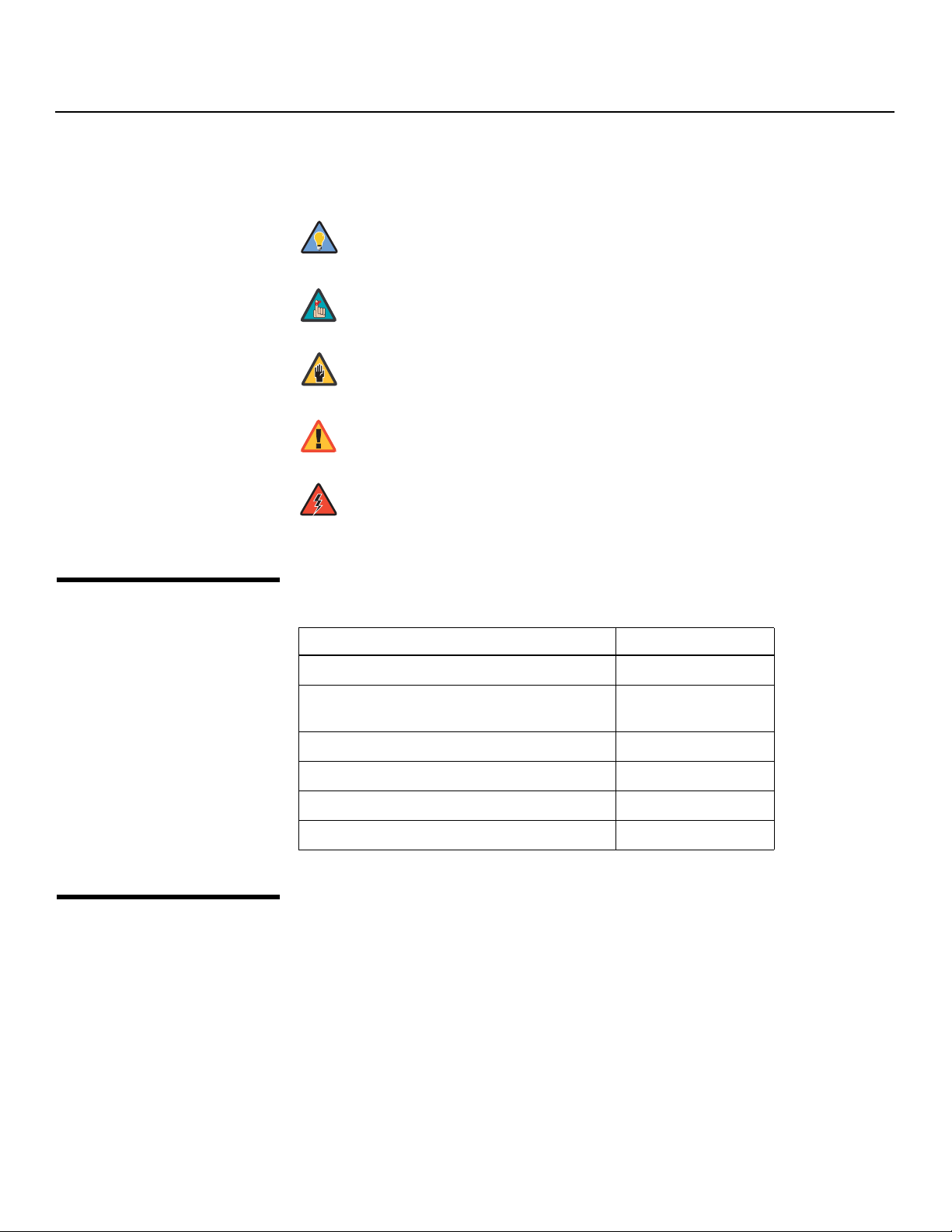
Graphic Conventions: These symbols appear in numerous places throughout the
manual, to emphasize points that you must keep in mind to avoid problems with your
equipment or injury:
1.2
Using This Manual
Tip
Note
Caution
TIPS highlight time-saving short cuts and helpful guidelines for using
certain features.
NOTES emphasize text with unusual importance or special
significance. They also provide supplemental information.
CAUTIONS alert users that a given action or omitted action can
degrade performance or cause a malfunction.
Y
WARNING
DANGER!
Use the following table to locate the specific information you need in this manual.
WARNINGS appear when a given action or omitted action can result
in damage to the equipment, or possible non-fatal injury to the user.
DANGER appears when a given action can cause severe injury or
death.
IMINAR
If you need ... ... Turn to page:
Information about obtaining service iv
L
1.3
Related Documents
General information about the SDC-1 System
Expansion Device
Installation instructions 13
First-time configuration instructions 24
PRE
Troubleshooting tips 31
SDC-1 System Expansion Device specifications 33
The following are related Runco documents:
• Runco CL-810 Series DLP Projectors Owner’s Operating Manual
3
2 Runco SDC-1 Owner’s Operating Manual
Page 13

Introduction
The Runco SDC-1 System Expansion Device is a versatile, high-performance digital video
switcher. It is designed to enhance the functionality of select Runco digital projectors.
By providing a single, convenient connection point for home theater components that is
separate from the projector, it gives designers and installers greater flexibility in terms of
projector placement. It also simplifies the task of adding components after the projector
has been installed.
Runco’s proprietary R-LinkTM cable was developed by Runco engineers specifically for
use with select Runco digital projectors. This high-bandwidth cable uses a DVI-style
connector on the projector end. The SDC-1 end has an 8-pin mini-DIN connector and an
HDMI-style connector. This allows the cable to be pulled through a wall or conduit much
more easily than if it had DVI-style connectors.
Y
• Dual HDMI™ digital inputs with High-Bandwidth Digital Content Protection (HDCP)
allow digital connections for a richer pixel for pixel and direct digital signal.
• Minimizes cable clutter between the projector and other home theater components by
merging all source signals into a single cable.
• Full control of all projector settings and image quality adjustments.
• Two, 12-VDC outputs and one dry contact (0 VDC, when engaged) for controlling
drop-down screens, lighting and/or screen masking.
• Serial control interface (configurable as RS-232 or RS-422) for seamless integration
with popular home theater automation systems.
• Easy-to-use remote controls all aspects of operation, and includes discrete on/off,
aspect ratio and source selection commands.
IMINAR
L
1.4 Description, Features and Benefits
Key Features and BenefitsThe SDC-1 offers these key features and benefits:
PRE
Runco SDC-1 Owner’s Operating Manual 3
Page 14

Introduction
Parts List Your SDC-1 is shipped with the following items. If any items are missing or damaged,
➤
please call Runco Customer Service at (800) 23-RUNCO.
• SDC-1 System Expansion Device
• Remote Control Unit and two (2), AAA-size batteries
• AC Power Cord
• Rack mounting hardware
• Warranty information and registration card
• Runco SDC-1 Owner’s Operating Manual (this document)
• R-Link™ Cable
Y
IMINAR
L
PRE
4 Runco SDC-1 Owner’s Operating Manual
Page 15

Figure 2-1 shows the SDC-1 front panel.
2Controls and Functions
2.1 SDC-1 Front Panel
HIGH DEFINITION DIGITAL VIDEO CONTROLLER
HDMI-1
HDMI-2
1 2 3 4 5
Figure 2-1. SDC-1 Front Panel
VIDEO
S-VID
HD-1 YPrPb
HD-2 RGB
IMINAR
1. RUNCO ICON
Indicates current operating status for the system, as follows:
Red = SDC-1 and projector are in standby mode.
Blue = Normal operation.
Alternating Red/Blue = Projector is cooling down.
Flashing Blue = Projector is warming up.
2. POWER BUTTON
Press once to toggle from standby mode to on mode. Press it again to return to
standby mode. For a discrete on or off command, you can use the direct access
buttons on the remote control.
3. IR SENSOR
Receives IR commands from the remote.
PRE
L
Y
4. FRONT-PANEL DISPLAY
Displays the active video source: Composite Video, S-Video, HD-1, HD-2, HDMI-1 or
HDMI-2. Also, if HD-1 or HD-2 is active, the SDC-1 automatically detects the format –
progressive component video (YPbPr) or RGB – and displays it here.
5. INPUT BUTTON
Press repeatedly to select a video source: Composite Video, S-Video, HD-1, HD-2,
HDMI-1 or HDMI-2.
Runco SDC-1 Owner’s Operating Manual 5
Page 16

Controls and Functions
2.2
SDC-1 Rear Panel
Serial No
Runco International
Union City, CA
BOTH OUTPUTS MUST BE
CONNECTED TO PROJECTOR
SDC-1
SYSTEM EXPANSION DEVICE
OUTPUTS TO
PROJECTOR
1 2 3
Figure 2-2. SDC-1 Rear Panel
2
HDMI / DVI
DIGITAL
INPUTS
Figure 2-2 shows the SDC-1 rear panel.
4 7 8 10
VHBGR
1
VHBGR
HD-1 INPUTS
HD-2 INPUTS
S-VIDEO
5 6 9 11 12 13 14 15
1. ANALOG VIDEO OUTPUT
An 8-pin, female mini-DIN connector for connecting the SDC-1 analog video output to
the projector.
2. DIGITAL VIDEO OUTPUT
IMINAR
A female, HDMI-type connector for connecting the SDC-1 digital video output to the
projector.
L
VIDEO
12V
TRIGGERS
1
2
WIRED
IR
DRY
CONTACT
SERIAL CONTROLUSB
Y
CAUTION
RISK OF ELECTRIC SHOCK
DO NOT OPEN
AVIS: RISQUE DE CHOC ELECTRIQUE-NE PAS OUVRIR
CAUTION: TO REDUCE THE RISK OF ELECTRIC SHOCK,
DO NOT REMOVE COVER. NO USER-SERVICEABLE PARTS
INSIDE. REFER SERVICING TO QUALIFIED SERVICE CENTER.
WARNING: TO REDUCE THE RISK OF FIRE OR ELECTRIC
SHOCK, DO NOT EXPOSE THIS APPLIANCE TO RAIN OR
MOISTURE.
100-230VAC 50-60 Hz, 40 Watts Max
Made In USA
!
Note
3. HDMI DIGITAL VIDEO INPUTS
PRE
Two, HDCP-compliant digital video inputs for connecting a DVD player or HD tuner
with an HDMI output.
4. HD-1 INPUT
Five, BNC connectors for connecting either RGB or component high-definition
television signals. (The SDC-1 automatically detects the signal format.)
5. HD-2 INPUT
Five, BNC connectors for connecting either RGB or component high-definition
television signals. (The SDC-1 automatically detects the signal format.)
6. S-VIDEO INPUT
Standard S-Video input for connecting a DVD player, satellite receiver or Super VHS
(S-VHS) VCR.
7. COMPOSITE VIDEO INPUT
Standard composite video input for connecting a VCR, laser disc player or other
composite video source.
8. 12-VOLT (750 mA) TRIGGER OUTPUTS
Connection for one or two, 12-volt trigger-controlled devices.
Both video outputs connect to the projector via single R-Link cable
with two connectors at the SDC-1 end and a single DVI-type
connector at the projector end.
6 Runco SDC-1 Owner’s Operating Manual
Page 17

9. DRY CONTACT OUTPUT
Similar to the 12V trigger outputs, but goes to ground (0V) when engaged.
10. WIRED IR PORT
Wired input from an external remote control or infrared (IR) receiver. It is a 3.5-mm,
mini phono jack, wired as follows:
Ring = +5V
Tip = IR Input
Sleeve = Ground
Controls and Functions
Note
11. USB PORT
A standard, USB Series “B” connection to a personal computer. (For future use.)
12. SERIAL CONTROL PORT
A female, 9-pin D-sub connector for interfacing with an RS-232- or
RS-422-compatible home theater automation system.
13. POWER INPUT
Connect the SDC-1 to power here.
14. MAIN AC FUSE
This is the main AC input fuse (5mm x 20mm, 500 mA, 250V slow-blow).
15. MAIN POWER SWITCH
Disconnects or applies power to the SDC-1.
When an external remote control or infrared receiver is connected
to the wired IR input, the IR sensor on the front of the SDC-1 is
disabled.
IMINAR
L
Y
PRE
Runco SDC-1 Owner’s Operating Manual 7
Page 18

Controls and Functions
2.3
SDC-1 Remote Control
Figure 2-3 shows the SDC-1 remote control, and the paragraphs that follow describe its
functionality.
1
LIGHT
ON
OFF
HD2HD1S-VIDVID
2
3
HDMI 2HDMI 1
INFO RVR
4
EXIT MENU
BRT
6
IMINAR
L
MEM1 FACT
ANA
16X9
CINEMA
ENTER
CONT COL TNT
ISF
ISF
4X3
DAY
1
2
NIGHT
Y
VWIDELBOX
VCINE
5
7
8
PRE
9
Figure 2-3. SDC-1 Remote Control Functions
3
7
FOCUS
ZOOM
FOCUS LENSZOOM
5
46
9
80
LENS
8 Runco SDC-1 Owner’s Operating Manual
Page 19

1. LIGHT
Press to illuminate the buttons.
2. ON / OFF
Use these buttons to turn the SDC-1 and projector on or off.
3. Source Selection Buttons:
VID
Press to select the Composite video input as the source.
S-VID (S-Video)
Press to select the S-Video input as the source.
HD 1 / HD 2 (RGB or HD Component)
Press to select the HD 1 or HD 2 video input as the source.
HDMI 1 / HDMI 2
Press to select an HDMI input.
4. INFO
Displays active source and aspect ratio information.
Cursor Keys ( , , , )
Use these buttons to select items or settings, adjust settings or switch display
patterns.
RVR (Reflectance Volume Regulation) (CL-810 Series only)
Adjusts the lens aperture (iris) setting according to the ambient light level in the
viewing area.
EXIT
Press to save menu item setting(s), exit the current menu and return to the previous
one.
ENTER
Press to select a highlighted menu item or confirm a changed setting.
MENU
Press this button to show or hide the On-Screen Display (OSD) controls.
IMINAR
L
PRE
Controls and Functions
Y
Runco SDC-1 Owner’s Operating Manual 9
Page 20

Controls and Functions
5. Picture Adjustment Buttons:
BRT (Brightness)
Adjust black level.
CONT (Contrast)
Adjust white level.
COL (Color)
Adjust color intensity.
TNT (Tint)
Adjust color hues.
6. Memory Preset Buttons:
MEM1
Press to recall settings for the current input from the “Memory 1” memory preset.
ISF NIGHT
Press to recall settings for the current input from the “ISF Night” memory preset.
ISF DAY
Press to recall settings for the current input from the “ISF Day” memory preset.
FACT
Press to recall the factory-default settings for the current source.
IMINAR
7. Aspect Ratio Selection Buttons
Use these buttons to select an aspect ratio directly, as follows:
L
ANA 16:9 (Anamorphic)
For viewing 16:9 DVDs or HDTV programs in their native aspect ratio.
4X3 (Standard 4:3)
Scales the input signal to fit 4:3 display mode in the center of the screen.
PRE
LBOX (Letterbox)
For viewing LaserDisc movies or non-anamorphic DVDs on a 4:3 screen.
VWIDE (VirtualWide)
Enlarges a 4:3 image horizontally in a NON-linear fashion to fit 16:9 full screen display.
CINEMA
For viewing 2.35:1 source material on a 1.78:1 (16:9) screen. The upper and lower
portions are masked.
VCINE (CineWideTM-equipped projectors only)
Selects the Virtual Cinema aspect ratio, which anamorphically compresses a 2.35:1
image to fill a 16:9 image area. The anamorphic lens then “stretches” the image back
to 2.35:1.
8. 0 - 9
Use these keys to enter menu passcodes.
Y
10 Runco SDC-1 Owner’s Operating Manual
Page 21

9. Motorized Lens Controls (CL-810 Series only):
FOCUS
Press to focus the image.
ZOOM
Press to reduce or enlarge the projected image size.
LENS
Press to access the lens shift controls.
Controls and Functions
Y
IMINAR
L
PRE
Runco SDC-1 Owner’s Operating Manual 11
Page 22

Controls and Functions
Notes:
Y
IMINAR
L
PRE
12 Runco SDC-1 Owner’s Operating Manual
Page 23

3Installation
To install batteries in the remote control, push the battery cover and slide it off. Install the
two AAA batteries with the correct polarity and then replace the cover. See
Figure 3-1.
Y
Figure 3-1. Installing Batteries in the Remote Control
Note
1. Do not mix an old battery with a new one or different types of
batteries.
2. If you will not use the remote control for a long time, remove the
batteries to avoid damage from battery leakage.
IMINAR
L
3.1 Remote Control
• Make sure that there is nothing obstructing the infrared beam between the remote
control and the IR receiver on the projector.
• The usable range is up to 8 meters (26.25 feet) within a 45-degree horizontal angle and
a 15-degree vertical angle.
• If the effective range of the remote control decreases, or it stops working, replace the
batteries with new ones.
• The remote control may fail to operate if the infrared remote sensor is exposed to bright
sunlight or fluorescent lighting.
• Ambient conditions may possibly impede the operation of the remote control. If this
happens, point the remote control at the projector, and repeat the operation.
• The Ø icon appears on the screen when a button for an unavailable function is pressed.
Install your projector according to the instructions in the manual that came with it. Then,
refer to the following sections to connect the SDC-1 to the projector, video sources,
external controller(s) – if present – and AC power.
PRE
Notes on Remote Control Operation
3.2 Projector Installation
Runco SDC-1 Owner’s Operating Manual 13
Page 24

Installation
T
3.3
Connections to the SDC-1
Connecting the SDC-1 to
the
Projector
When connecting your equipment:
• Turn off all equipment before making any connections.
• Use the correct signal cables for each source.
• Ensure that the cables are securely connected. Tighten the thumbscrews on
connectors that have them.
Figure 3-2 shows how to connect the SDC-1 to the projector – a CL-810 in this case –
➤
using a Runco R-Link cable.
Y
R-LINK IN
(from SDC-1 Controller
R-Link Output to Projector
R-Link Input)
INPUT FROM SDC-1
INPUT FROM SDC-1
S-VID
S-VID /
IMINAR
L
CL-810 Connector Panel
Runco International
Union City, CA
PRE
SDC-1
SYSTEM EXPANSION DEVICE
Figure 3-2. Connecting the Projector to the SDC-1
Serial No
BOTH OUTPUTS MUST BE
CONNECTED TO PROJECTOR
OUTPUTS TO
PROJECTOR
VHBGR
HDMI / DVI
2
1
DIGITAL
INPUTS
SDC-1 Rear Panel
VHBGR
HD-1 INPUTS
HD-2 INPUTS
VIDEO
S-VIDEO
14 Runco SDC-1 Owner’s Operating Manual
Page 25

Installation
Connect your video sources to the SDC-1 as shown and described in the sections that
follow.
HDMI Connections: See Figure 3-3.
Use the HDMI inputs whenever possible. This ensures the highest
video quality because the signal is carried in the digital domain
throughout the entire signal path, from source component output,
through the SDC-1 and finally into the projector.
HD-1 INPUTS
VHBGR
VHBGR
HD-2 INPUTS
VIDEO
S-VIDEO
12V
TRIGGERS
1
2
WIRED
IR
DRY
CONTACT
2
Tip
HDMI / DVI
DIGITAL
INPUTS
1
Connecting the SDC-1 to Source Components
Y
Figure 3-3. HDMI Source Connections
PRE
IMINAR
L
HDMI Source
(DVD Player or
HD Tuner with
HDMI or DVI out)
Runco SDC-1 Owner’s Operating Manual 15
Page 26

Installation
2
HDMI / DVI
1
VHBGR
VHBGR
HD-1 INPUTS
S-VIDEO
T
VIDEO
DIGITAL
INPUTS
HD-2 INPUTS
Digital (DTV) RGB or Component Video Connections: See Figure 3-4.
Y
Vert Horiz Blue/Pb Green/Y Red/Pr
IMINAR
L
DTV RGB or Progressive
Component (YPbPr)
Source
PRE
Figure 3-4. Digital (DTV) RGB Connections
16 Runco SDC-1 Owner’s Operating Manual
Page 27

Analog (Computer) RGB Connections: See Figure 3-5.
2
HDMI / DVI
1
VHBGR
VHBGR
HD-1 INPUTS
S-VIDEO
T
VIDEO
DIGITAL
INPUTS
HD-2 INPUTS
Vert Horiz Blue Green Red
Installation
Y
PRE
Personal Computer
Figure 3-5. Analog RGB Connections
IMINAR
L
Runco SDC-1 Owner’s Operating Manual 17
Page 28

Installation
2
HDMI / DVI
1
VHBGR
VHBGR
HD-1 INPUTS
S-VIDEO
T
VIDEO
DIGITAL
INPUTS
HD-2 INPUTS
Composite/S-Video/Component Video: See Figure 3-6.
Y
Pb Y Pr
IMINAR
L
PRE
Figure 3-6. Composite, S-Video and Component Video Connections
DVD Player, VCR,
Satellite Receiver
DTV Source,
etc.
18 Runco SDC-1 Owner’s Operating Manual
Page 29

Installation
Configuring the SERIAL CONTROL Port for RS-422 Signal Levels: The SDC-1
SERIAL CONTROL port is pre-configured at the factory as an RS-232 interface. Before
connecting a home theater control/automation system with an RS-422 interface to the
SDC-1, you must configure the serial interface for RS-422 signal levels. To do this:
1. Remove the screws (six on each side and four on the top) holding the SDC-1 top
cover in place.
2. Remove the top cover.
WARNING
3. Locate jumper blocks JP4 and JP16, directly behind the SERIAL CONTROL
connector (see
4. For RS-422 operation, set the jumpers as shown below.
RS-232
Jumper Settings
JP16
JP4
Electrostatic discharge (ESD) can damage sensitive electronic
components. To prevent this, ground yourself by wearing a wrist
grounding strap when working inside the SDC-1.
Figure 3-7).
RS-232 or RS-422 Controller Connection
Y
RS-422
Jumper Settings
IMINAR
L
JP16
JP4
= Installed
= Removed
Figure 3-7. Serial Interface Jumper Locations and Settings
5. Replace the SDC-1 cover.
Connect your home theater control/automation system to the SERIAL CONTROL port on
the SDC-1. Use a cable that has a DB-9 male connector on the SDC-1 end and the
required connector on the controller end, and is wired as shown in
For more information on using this connection, refer to Serial Communications on
page 24.
PRE
SERIAL CONTROL Port
Figure 3-8.
Runco SDC-1 Owner’s Operating Manual 19
Page 30

Installation
SERIAL CONTROLUSBS-VIDEO
2
DRY
CONTACT
WIRED
IR
1
12V
TRIGGERS
VIDEO
RS-232
Connector Pinouts
345
89
RS-422
Connector Pinouts
Y
345
89
1
2
6
7
2 Transmit Data
3 Receive Data
5 Ground
1
2
6
7
to Automation/
Control System
IMINAR
Figure 3-8. RS-232 Control System Connection
L
PRE
1 Ground
2 Receive Data +
7 Receive Data 3 Transmit Data 8 Transmit Data +
5, 9 Ground
20 Runco SDC-1 Owner’s Operating Manual
Page 31

Installation
SERIAL CONTROLUSBS-VIDEO
2
DRY
CONTACT
WIRED
IR
1
12V
TRIGGERS
VIDEO
If your projector is equipped with a CineWide with AutoScopeTM system, or if your home
theater contains other devices that respond to 12-Volt or 0-Volt (dry contact) triggers
(such as retractable screens or screen masks), connect them to the trigger outputs as
shown in
For more information on using the triggers, refer to Trigger Configuration Commands
on page 27.
Figure 3-9.
Y
3.5-mm
mini plug
to CineWide with AutoScope
system or other home
theater components
(screen, screen mask etc.)
IMINAR
Connecting 12-Volt Trigger and Dry Contact Outputs to External Theater Components
Figure 3-9. Connecting 12-Volt Trigger and Dry Contact Outputs
(AC 100V ~ 240V). Then, connect the other end to your AC power source.
L
PRE
Connecting to AC PowerPlug the female end of the power cord into the AC receptacle on the rear of the SDC-1
Runco SDC-1 Owner’s Operating Manual 21
Page 32

Installation
Notes:
Y
IMINAR
L
PRE
22 Runco SDC-1 Owner’s Operating Manual
Page 33

4Operation
1. Turn on the main power switch on the projector.
2. Turn on the main power switch on the SDC-1.
3. Press the ON button on the remote control to turn on the SDC-1 and the projector.
The LED at the front of the SDC-1 lights blue to indicate that it is on.
4. “Searching...” appears on the screen before the projector identifies the input signal,
and remains there until the SDC-1 detects a valid input signal.
Y
To select a video source, press the INPUT button at the front of the SDC-1 repeatedly
until the desired source is highlighted in the front-panel display. Or, press the button on
the remote control corresponding to the desired source (see
With the exception of the discrete input selection buttons (see Figure 2-3), the SDC-1
remote control looks and works identically to the remote control for the display device with
which it is used. For detailed instructions on using this remote, refer to the manual for your
display device.
IMINAR
Figure 2-3).
L
4.1 Turning on the Power
4.2 Selecting a Source
4.3 Using the Remote Control
PRE
Runco SDC-1 Owner’s Operating Manual 23
Page 34

Operation
4.4
Using the On-Screen Menus
4.5
Serial Communications
Command Syntax Serial commands to the SDC-1 are in ASCII format and are NOT case-sensitive. A
➤
The on-screen menus you see with the SDC-1 are dependent on the display device with
which it is used. For detailed instructions on using the on-screen menus, refer to the
manual for your display device.
Note
The SDC-1 has a text-based, command-line user interface that you can access using a
serial connection and any terminal-emulation program.
To interface the SDC-1 with a home theater automation/control system:
1. Connect it to your control system as shown in Figure 3-8.
2. Initiate a terminal session on your PC using a terminal-emulation program, such as
HyperTerminal.
3. Configure the serial controller as follows: no parity, eight (8) data bits, one (1) stop bit
and no flow control. Set the baud rate to 57600, to match that of the SDC-1 SERIAL
CONTROL port.
4. Press <Enter>. You should see a command prompt (Ready ->) in the terminal
window, indicating that the SDC-1 is ready to accept commands.
The RS-232 Baud Rate setting is not available with the SDC-1, nor
are the Picture-In-Picture/Picture-By-Picture (PIP/PBP) controls.
Y
IMINAR
carriage return must follow each command.
When you enter a valid command, the SDC-1 executes it and acknowledges it with the
command prompt. When you enter an unsupported or misspelled command, the SDC-1
simply ignores it.
L
Basic SDC-1 Commands HELP: Use the HELP command to see a list of available serial commands.
➤
PRE
POWER OFF: The POWER OFF command emulates the OFF button on the SDC-1
remote control.
After the SDC-1 receives a POWER OFF command, it will not respond to any commands
until after the projector has completed its cool-down cycle.
POWER ON: The POWER ON command emulates the ON button on the SDC-1 remote
control.
24 Runco SDC-1 Owner’s Operating Manual
Page 35

Operation
COMPOSITE: Use the COMPOSITE command to select the Composite Video input.
HDMI-1: Use the HDMI-1 command to select the HDMI-1 input.
HDMI-2: Use the HDMI-2 command to select the HDMI-2 input.
HD-1: Use the HD-1 command to select the HD-1 input.
HD-2: Use the HD-2 command to select the HD-2 input.
SVIDEO: Use the SVIDEO command to select the S-Video input.
Select the appropriate aspect ratio for your screen size and the type of program material
being viewed; refer to
Table 4-1. Aspect Ratio Settings
Aspect Ratio Command
display anamorphic ANA
Table 4-1.
Remote
Control
Button
16X9
Y
Description
Select Anamorphic
to view 16:9 DVDs
16:9 Image on
16:9 Screen
IMINAR
L
4:3 Image on
16:9 Screen
and HDTV
programs in their
native aspect ratio.
4:3 images are
stretched
horizontally to fit a
16:9 screen.
Source Selection Commands
Aspect Ratio CommandsUse these commands to change the aspect ratio (size and shape) of the projected image.
display standard 4X3 Standard 4:3
PRE
Active Image
Area (4:3)
Runco SDC-1 Owner’s Operating Manual 25
scales the input
signal to fit in the
center of the 16:9
screen. 4:3 is the
aspect ratio used
by computer
monitors, standard
television
programming and
most VHS video
cassettes.
Page 36

Operation
Table 4-1. Aspect Ratio Settings (continued)
Remote
Aspect Ratio Command
display letterbox LBOX In Letterbox mode,
display virtual wide VWIDE A 4:3 image is
Control
Button
Description
Letterbox Image on
16:9 Screen
Y
the image is
stretched vertically;
the top and bottom
portions are
“blanked off.”
Letterbox is best
suited for viewing
LaserDisc movies
or non-anamorphic
DVDs on a 4:3
screen.
scaled
NON-linearly (more
on the sides than in
the center) to fit a
16x9 screen.
display cinema CINEMA Select Cinema to
IMINAR
L
PRE
display virtual cinema VCINE A 2.35 image is
2.35:1 Image on
16:9 Screen
2.35:1 Image on
16:9 Screen
2.35:1 Image on
16:9 Screen with
Virtual Cinema
2.35:1 Image on
2.35:1 Screen with
Virtual Cinema
view 2.35 source
material on a 16:9
screen. The upper
and lower portions
of the screen are
masked, but the
geometry of the
active image area is
not changed.
stretched
anamorphically in
both directions to
fill a 16:9 image.
Virtual Cinema is
available only on
projectors
equipped with the
CineWide option
(secondary
anamorphic lens).
26 Runco SDC-1 Owner’s Operating Manual
Page 37

Operation
Use the following commands to view or change the settings for the SDC-1 trigger outputs
(see
Figure 3-9).
Trigger 1 always activates when the SDC-1 is powered on. (This behavior cannot be
changed.) You can assign Trigger 2 and/or Trigger 3 to one or more aspect ratios. Those
triggers are then activated by selecting that aspect ratio.
All three triggers de-activate when the SDC-1 is put into standby mode.
Note
Tip
If you have a projector equipped with the Runco CineWide with AutoScope system,
assign the trigger output to which the lens motor is connected to the Cinema and Virtual
Cinema aspect ratios.
TRIGGER 2 / TRIGGER 3: Use these commands to see which aspect ratios are
assigned to a specific trigger. Or, use the TRIGGERS command to see all trigger/aspect
ratio associations.
VIRTUAL CINEMA: Use this command to specify which triggers activate when the Virtual
Cinema aspect ratio is selected:
TRIGGER 3 is the DRY CONTACT output.
To configure Trigger 2 or Trigger 3 to activate when the SDC-1 is
turned on – for
retractable screen – assign that trigger to all aspect ratios.
example, when using the trigger to control a
Y
Trigger Configuration Commands
Ready -> virtual cinema
When you issue this command, the SDC-1 responds by listing the trigger(s) assigned to
that aspect ratio and asks if you want to modify these assignments. If you do, type y:
Virtual Cinema associated with Trigger 2
Modify (Y/N)? y <Enter>
To assign a trigger to this aspect ratio, enter +t followed by the trigger number. To cancel
a previous assignment, enter -t followed by the trigger number.
You can assign both Trigger 2 and Trigger 3 to an aspect ratio with a single command.
For example, if Trigger 2 and Trigger 3 are currently unassigned and you want to assign
both of them to Virtual Cinema, type:
? +t2 +t3 <Enter>
(Separate each trigger assignment with a space.)
VIRTUAL WIDE / ANAMORPHIC / LETTERBOX / STANDARD / CINEMA: These
commands work identically to the VIRTUAL CINEMA command.
PRE
IMINAR
L
Runco SDC-1 Owner’s Operating Manual 27
Page 38

Operation
Miscellaneous Commands AMX: The SDC-1 supports the “dynamic device discovery” feature found in certain
➤
control systems manufactured by AMX Corporation (refer to
command displays the identifying information that the SDC-1 sends to an AMX control
system when it is polled by that system.
DISABLE AMX: Use this command to turn off the AMX “dynamic device discovery”
feature (refer to
57600.
ENABLE AMX: The SDC-1 supports the “dynamic device discovery” feature found in
certain control systems manufactured by AMX Corporation. This command changes the
SERIAL CONTROL port baud rate to 9600.
EXTERNAL IR: Use this command to disable the SDC-1’s internal IR receiver and enable
the external IR receiver connected to WIRED IR port (see
ENABLE AMX, below) and reset the SERIAL CONTROL port baud rate to
ENABLE AMX, below). This
Figure 2-2).
Y
INTERNAL IR: Use this command to enable the SDC-1’s internal IR receiver and disable
the external IR receiver.
RESTORE FACTORY DEFAULTS: Use this command to load the factory-default image
quality settings for the current input. (Doing so does not affect settings stored in memory
presets.)
This command is equivalent to pressing the FACT button on the projector remote control.
The first time you issue this command, a message appears on the screen asking you to
confirm the restore operation. Send the command a second time to do this.
RESTORE ISF DAY: Use this command to recall image quality settings for the current
input from the “ISF
on the remote control, or selecting Restore Image Settings from the Picture Adjustment
menu and choosing “ISF Day.”
RESTORE ISF NIGHT: Use this command to recall image quality settings for the current
input from the “ISF
button on the remote control or selecting Restore Image Settings from the Picture
Adjustment menu and choosing “ISF Night.”
RESTORE USER CONFIG 1: Use this command to recall image quality settings for the
PRE
current input from the “Memory
button on the remote control or selecting Restore Image Settings from the Picture
Adjustment menu and choosing “Memory
STORE ISF DAY: Use this command to save image quality settings for the current input
to the “ISF Day” memory preset.
STORE ISF NIGHT: Use this command to save image quality settings for the current
input to the “ISF Night” memory preset.
STORE USER CONFIG 1: Use this command to save image quality settings for the
current input to the “Memory
IMINAR
L
Day” memory preset. It is equivalent to pressing the ISF DAY button
Night” memory preset. It is equivalent to pressing the ISF NIGHT
1” memory preset. It is equivalent to pressing the MEM1
1.”
1” memory preset.
28 Runco SDC-1 Owner’s Operating Manual
Page 39

STATUS: Use this command to obtain status information from the SDC-1.
Ready -> status <Enter>
Welcome to the RUNCO SDC-1
Firmware Release Date: 16:17 on 06/19/2006
Controller is currently in: Active Mode
Internal IR Detector: Enabled
The current delay (10ms + (xx * 10ms)) between IR commands is: 0B
Controller currently set to video input source: HDMI-2 - Hot plug
status bit set
Trigger 2: Cinema, Virtual Cinema
Trigger 3:
Display device READY
Y
Operation
Requesting status from display device
Sending command to display device - x705x
Awaiting command acknowledgement from display device
Display device acknowledged command
Received display device status - 21501
Active
Menus Disabled
HDMI-2
Anamorphic
CineWide Disabled
IMINAR
L
PRE
Runco SDC-1 Owner’s Operating Manual 29
Page 40

Operation
Notes:
Y
IMINAR
L
PRE
30 Runco SDC-1 Owner’s Operating Manual
Page 41

5Maintenance and Troubleshooting
Table 5-1 provides some general guidelines for troubleshooting problems you may
encounter with the SDC-1 and/or projector. For additional information, refer to the manual
for your projector.
If you encounter an issue not described here, or if the suggested solutions fail to resolve
the problem, please contact your Runco dealer or Runco Technical Support.
Table 5-1. Troubleshooting Chart
Symptom Possible Cause(s) Solution
The projector does not turn
on after initial installation. The
power LED on the front of the
SDC-1 lights red after you
press the power button.
The projector and SDC-1 are
both on, but there is no video
image on-screen.
The system does not respond
to remote control commands.
• SDC-1 is connected to the
projector improperly or not
at all.
• The SDC-1 and/or
projector is not plugged in
or the AC outlet is not
active.
• Incorrect source selection.
• Source component is not
turned on.
• The batteries have worn
out.
IMINAR
• Check the connection
between the SDC-1 and
the projector.
• Ensure that the SDC-1 and
projector are both plugged
in and that the AC outlet is
active.
• Select the correct source.
• Turn on the source.
• Replace the batteries.
Y
L
A projected image from a
DVD is split or otherwise
scrambled.
• DVD player is set to
progressive scan mode.
• Turn off progressive scan
on the DVD player.
5.1 Troubleshooting Tips
Image is too bright and/or
lacks definition in the bright
areas of the image.
• Contrast is set too high. • Lower the contrast setting.
PRE
Image appears “washed out”
and/or dark areas appear too
bright.
Colors in the image are
swapped; for example, reds
appear blue or vice versa.
The projector will not turn
back on after it was powered
down, or the image
disappears during operation.
The message “Invalid IR
command sequence
received!” appears on the
command line.
Runco SDC-1 Owner’s Operating Manual 31
• Brightness is set too high. • Lower the brightness
•The Red/Pr, Green/Y or
Blue/Pb outputs from the
source are connected to
the wrong inputs on the
SDC-1.
• The projector will not turn
on for two minutes after
power-down, to protect
the lamp.
• The lamp has failed.
• The SDC-1 detected an IR
signal from another
source.
• Ensure that the source
• Wait two minutes until the
• Replace the lamp.
• None (normal behavior).
setting.
outputs are connected to
the correct SDC-1 input.
LED at the front of the
SDC-1 turns red.
Page 42

Maintenance and Troubleshooting
Notes:
Y
IMINAR
L
PRE
32 Runco SDC-1 Owner’s Operating Manual
Page 43

6Specifications
Table 6-1 lists the SDC-1 specifications.
Table 6-1. SDC-1 Specifications
Inputs (from video sources): 2 x HDMI, 2 x HD (RGBHV or YPbPr, auto-detecting),
Composite Video, S-Video
Outputs (to projector,
via R-Link):
R-Link Specifications: Connectors:
Control Options: • Discrete infrared remote
Trigger Outputs: (2) +12 VDC, each rated at 750 mA and thermal
Digital Video/Control (HDMI-style connector), Analog Video
(8-pin DIN connector)
• Projector Side - DVI-style connector
• SDC-1 side - (1) 8-pin mini-DIN and (1) HDMI-style
connector
Bandwidth: 2 GHz
• Serial (RS-232 or RS-422, selectable)
• Front-panel input select
• Wired IR receiver
fuse-protected
IMINAR
Dry Contact Output: Floating; Tip (normally-open) and Ring (common) shorted
together when engaged
Power Requirements: 100 to 240 VAC (auto-sensing), 50/60 Hz, 40W
L
6.1 SDC-1 Specifications
Y
Operating Environment: 41°F to 95°F (5°C to 35°C), 0% to 90% humidity
(non-condensing)
Dimensions: See Figure 6-1
Weight: Net: 13 lbs. (5.9 kg)
Regulatory Approvals: Complies with FCC, CE C-Tick
Limited Warranty: Two (2) years parts and labor from date of delivery to end
Specifications are subject to change without notice.
PRE
user.
Runco SDC-1 Owner’s Operating Manual 33
Page 44

Specifications
6.2 SDC-1 Dimensions
Figure 6-1 shows the SDC-1 dimensions.
3.474 in.
(88.24 mm)
IMINAR
Y
L
17.472 in. (443.79 mm)
PRE
Figure 6-1. SDC-1 Dimensions
11.125 in. (282.58 mm)
34 Runco SDC-1 Owner’s Operating Manual
Page 45

Page 46

SERIAL NUMBER
RUMA-011190
rev 06-23-06 v1.1
Runco International • 2900 Faber Street • Union City, CA 94587 • Ph (510) 324-7777 / (800) 23RUNCO / Fax (510) 324-9300
www.runco.com
Runco CL-810 Owner’s Operating Manual
 Loading...