

Page 1
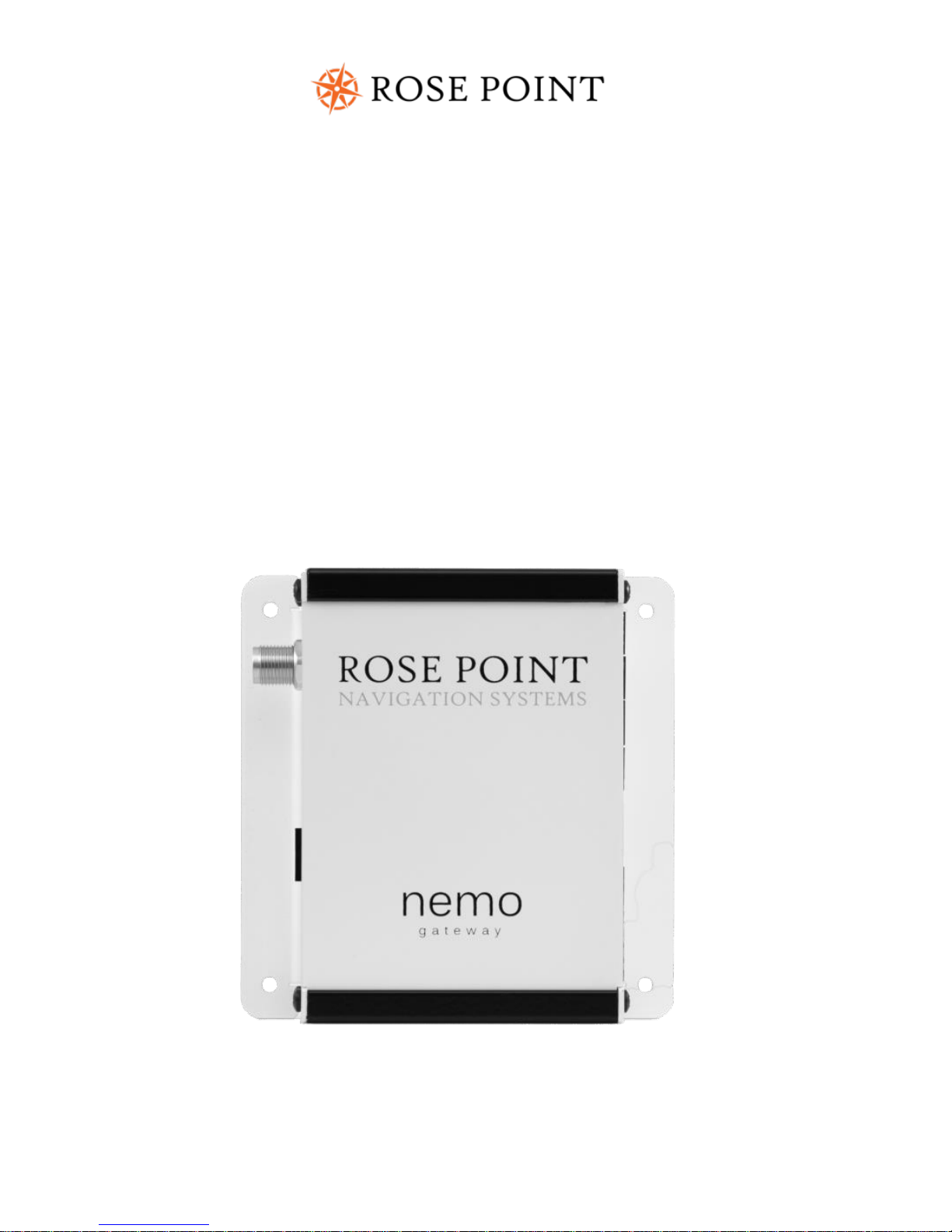
nemo
gateway
Installation Guide
Page 2

WARNINGS
Use of the Nemo Gateway is at your own risk. Rose Point Navigation
Systems does not warrant the accuracy of any information processed by the
Nemo Gateway.
The Nemo Gateway contains magnetic material and should not be placed
near a compass or other device that may be sensitive to magnetic
interference.
The information in this user guide is subject to change without notice.
COPYRIGHTS AND TRADEMARKS
Copyright © 2017 Rose Point Navigation Systems.
All rights reserved.
Rose Point Navigation Systems and Nemo Gateway are trademarks of Rose
Point Navigation Systems, Inc. The names of any other companies and/or
products mentioned herein may be the trademarks of their respective
owners.
The NMEA® name, NMEA 2000® and NMEA logo are copyrights held by the
NMEA. All uses in this manual are by permission and no claim on the rights
to the NMEA name or logo are made in this manual.
Rose Point Navigation Systems
18005 NE 68th Street
Suite A100
Redmond, WA 98052
Phone: 425-605-0985
Fax: 425-605-1285
E-Mail: [email protected]
www.rosepoint.com
Updated September, 2017
Page 3

Nemo Gateway
Contents
Introduction ..................................................................... 1
Device Connectivity ......................................................... 2
Gateway Connections...................................................... 3
Gateway Configuration ................................................. 14
Specifications ................................................................. 19
Troubleshooting ............................................................ 20
Use and License Agreement ......................................... 22
Return Policy .................................................................. 23
Page 4

Page 5

Nemo Gateway 1
Introduction
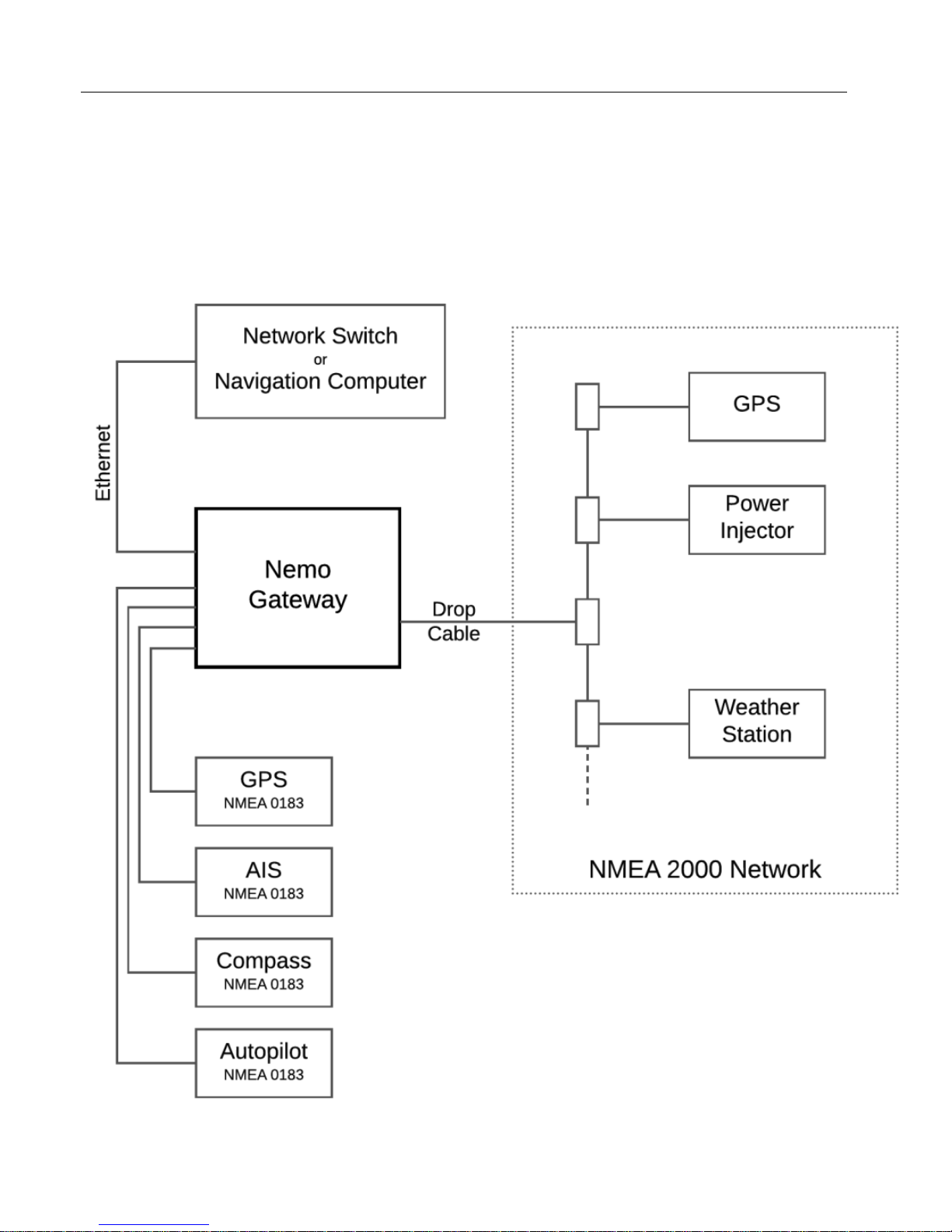
Thank you for purchasing a Rose Point Navigation Systems Nemo Gateway. The
Nemo Gateway is a bridge between the NMEA 0183, NMEA 0183-HS, NMEA
2000 marine electronic device network communication standards and your
shipboard Ethernet-compatible navigation systems and devices (e.g. computers
running Coastal Explorer/Rose Point ECS, tablets, phones).
The Nemo Gateway has been certified by the NMEA to meet the NMEA 2000
standard and conforms to the NMEA 0183 and NMEA 0183-HS standards. Due
to the technical nature and complexity of these standards it is recommended
the Nemo Gateway is installed by an NMEA certified installer.
Package Contents
• This installation guide
• Nemo Gateway
• Power terminal connector
• NMEA 0183/0183-HS terminal connectors
Installation Requirements
The minimum requirements for using the Nemo Gateway are:
• An iOS or Android device with companion app installed or PC running
the latest version of Rose Point ECS™ or Coastal Explorer™
• Ethernet cable
• Ethernet network or available Ethernet port on PC running Rose Point
ECS™ or Coastal Explorer™
• 8 - 32 VDC power source, negative ground
• Secure mounting in a dry location
• No strain shall be placed on any connectors
Page 6
2 Rose Point Navigation Systems
Device Connectivity
Page 7

Nemo Gateway 3
Gateway Connections
POWER
The Nemo Gateway may be powered by 8 – 32 volts DC, negative ground. If an
AC to DC adapter is being used, it needs to be a 12V 2A adapter, and must be
connected to an uninterrupted power supply. The Nemo Gateway needs to be
protected with an inline 3-amp fast acting fuse or circuit breaker.
Recommendation: The power source should be independent of the vessels
starting battery system.
ETHERNET
Connect an Ethernet cable between the ETHERNET port on the Nemo Gateway
and your PC or network (router, switch or hub). If connecting the Nemo
Gateway to your network, your PC(s) may connect to the same network via
Ethernet or Wi-Fi. If utilizing Wi-Fi, your router or access point would provide
the Wi-Fi connectivity.
When connecting to an existing network the Nemo Gateway should be able to
operate without additional configuration, either by acquiring a DHCP or LinkLocal IP address. Changes to the configuration can be made following the steps
in section Device Configuration of this manual.
The Nemo Gateway can output NMEA 0183 information over UDP, allowing
multiple devices on the same network to receive data simultaneously.
Recommendation: All devices critical to the navigation system should use a
wired Ethernet connection.
NMEA 2000
The Nemo Gateway has been certified by the NMEA to meet version 3.10 of the
NMEA 2000 standard.
The Nemo Gateway has a single NMEA 2000 terminal used to connect it to the
bus with a drop cable. Ensure that the drop cable used to connect to the NMEA
2000 backbone is no more than 6 meters in length.
Page 8

4 Rose Point Navigation Systems
Accessory Port (ACCY)
The ACCY port is reserved for future use. Please do not plug any devices into
the ACCY port unless specifically approved by Rose Point Navigation Systems.
Please refer to our website for updates regarding the use of this port.
NMEA 0183
The Nemo Gateway conforms to the NMEA 0183 and NMEA 0183-HS marine
electronic device network communication standard. All NMEA 0183 ports are
capable of communicating in NMEA 0183 (4800 baud) and NMEA 0183-HS
(38,400 baud) modes via two talker ports and four listener ports.
NMEA 0183 and NMEA 0183-HS standards define device ports as either Talker
or Listener. A Talker is a port on a device (e.g. GPS) that is transmitting
information. A Listener is a port on a device (e.g. chart plotter) that is receiving
information. Some devices are capable of being both a Talker and a Listener, for
example an AIS transponder or chart plotter.
Common talker devices include GPS’s, depth sounders, water speed indicators,
compasses, and wind indicators. Common listener devices include: AIS
transceivers, autopilots and chart plotters. Most of the common listener devices
mentioned will also have Talker ports
Note: A Talker may be connected in parallel to up to 10 Listeners, while a
Listener may only connect to a single Talker.
Note: Talker 1 and Listener 1 operate at the same baud rate, but are otherwise
independent. Talker 2 and Listener 2 can also only have one baud rate, but are
otherwise independent.
Example:
Nemo Port 1 Talker - Connect autopilot ("Talking to AP")
Nemo Port 1 Listener - Connect GPS device ("Listening to GPS")
Baud Rate set to 4,800 for Nemo Port 1 – This setting applies to both parts of
the port (Autopilot and GPS)
When using NMEA 0183-HS, a three conductor, shielded cable is to be used and
requires two connections to be made in addition to the A and B wires used in
the NMEA 0183 protocol. These additional connections are a common ground
Page 9
Nemo Gateway 5
line (C) and shield (S). The ground line (C) is connected to both devices while the
shield (S) is only connected to the Talker. (See page 13)
Default port configuration
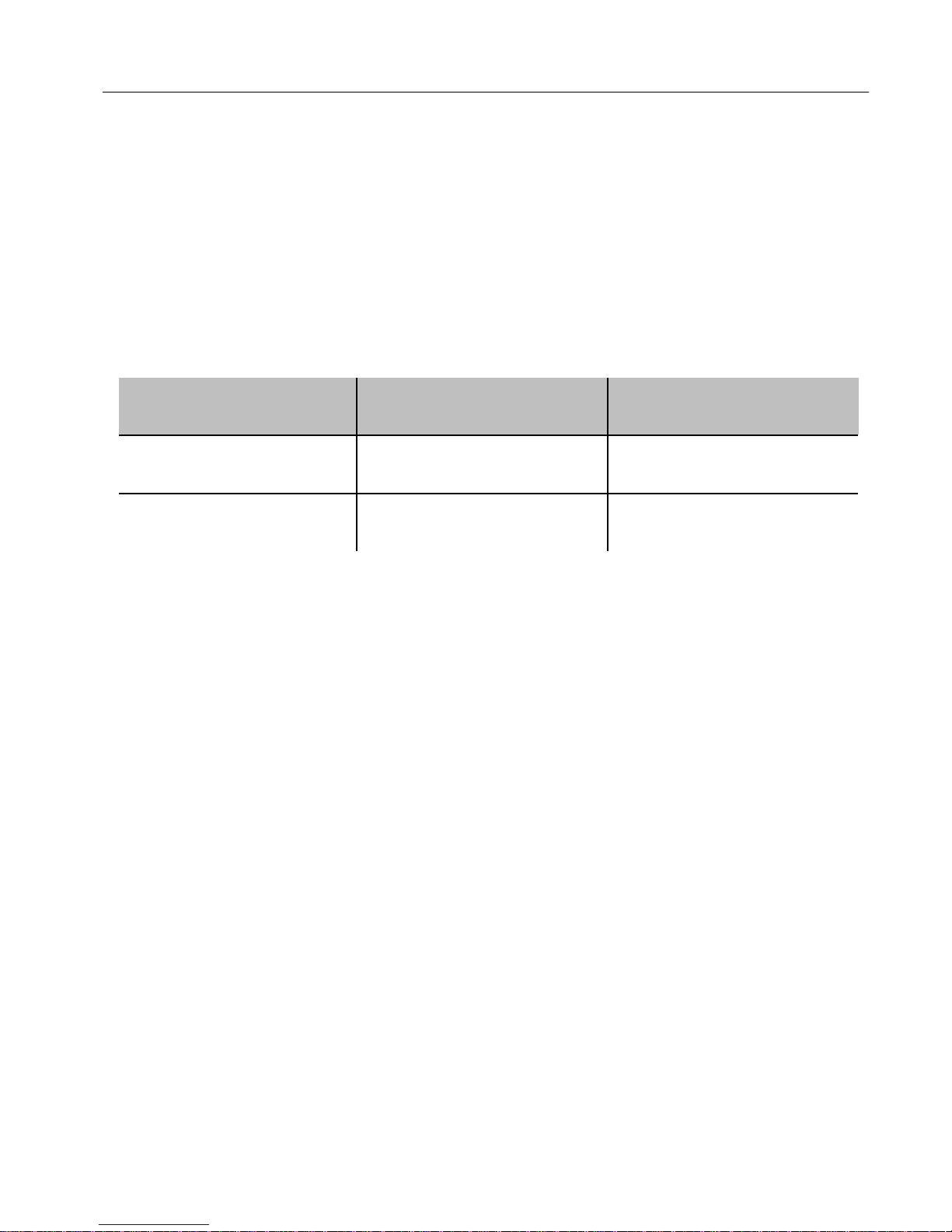
The following table describes the default port configuration. These defaults may
be adjusted in Rose Point ECS or Coastal Explorer or the companion app.
Changes to the configuration can be made by following the steps in section
Device Configuration of this manual.
Port Number
Protocol
Baud Rate
1
NMEA 0183-HS
38,400 baud
2,3,4
NMEA 0183
4800 baud
Typically, an AIS transponder would be connected to port 1, while other NMEA
0183 devices should be connected to ports 2, 3 and 4. If you are not connecting
an AIS or other NMEA 0183-HS device you may change the configuration and
use port 1 for a NMEA 0183 device.
Automatic Protocol (Baud Rate) Detection
The Nemo Gateway is capable of automatically detecting the protocol (baud
rate) of devices connected to the NMEA 0183 and NMEA 0183-HS ports. This
feature is enabled within Rose Point ECS, Coastal Explorer or via the Nemo
Gateway companion app (available on iOS or Android).
NMEA 0183 Compatibility
The Nemo Gateway conforms to version 4.10 of the NMEA 0183 standard and is
compatible with older versions.
Note: Current versions of the standard require use of differential pair wiring for
communication via the RS-422 protocol while older versions (and noncompliant devices) use the RS-232 protocol which uses a single signal wire and
a ground connection.
Page 10

6 Rose Point Navigation Systems
The documentation for some devices may reference the NMEA 0183 and NMEA
0183-HS connections in different ways, please use the following pages to
identify how to connect the Nemo Gateway to other devices.
If it is unclear how to connect your NMEA compatible device to the Nemo
Gateway please contact the manufacture of the connecting device for additional
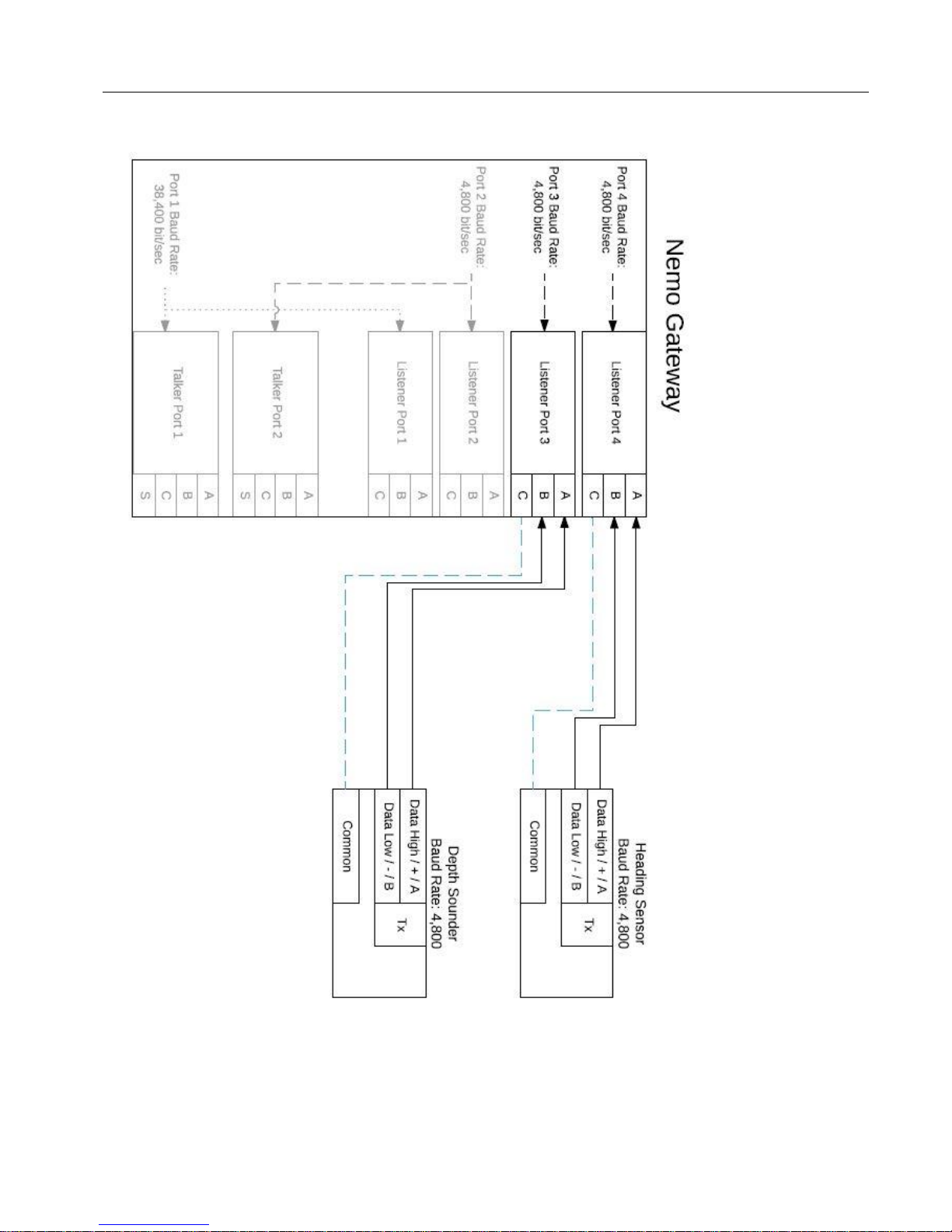
support. See the “Sample Wiring” section to see how sensors should be
connected to the Nemo Gateway. Additional sample wiring schematics are
available on the support page at
www.rosepoint.com.www.rosepoint.com.www.rosepoint.com.www.rosepoi
nt.com.www.rosepoint.com.www.rosepoint.com.www.rosepoint.com.
NMEA 0183 / NMEA 0183-HS Listeners
The four differential opto-isolated three terminal listener ports conform to the
NMEA 0183 and NMEA 0183-HS marine electronic device network
communication standard. These ports are capable of interfacing with most fully
and partially compliant devices that are transmitting any properly formed
sentences. Only NMEA 0183 and NMEA 0183-HS devices are to be connected to
these ports.
The Nemo Gateway will receive all properly formed NMEA 0183 and NMEA
0183-HS sentences.
Each listener port is isolated from all other listener ports. Each listener is
designed for operation with a minimum differential input voltage of 2.0 Volts
and shall not take more than 2.0 mA from the line at that voltage.
The listener circuit consists of an Altec PHP03-3.81 connector followed by a 240
ohm resister on the A line followed by isolation and protection circuitry.
NMEA 0183 / NMEA 0183-HS Talkers
The two differential four-terminal talker ports conform to the NMEA 0183 and
NMEA 0183-HS marine electronic device network communication standard.
These ports are capable of interfacing with most fully and partially compliant
devices transmitting any properly formed sentences. Only NMEA 0183 and
NMEA 0183-HS devices are to be connected to these ports.
Page 11

Nemo Gateway 7
The Nemo Gateway is capable of sending all properly formed NMEA 0183 and
NMEA 0183-HS sentences.
Each talker port is capable of driving a load of 50 mA using a 5V differential pair.
The circuit is composed of a UA9638 driver connected to an Altec PHP04-3.81
terminal.
Page 12
8 Rose Point Navigation Systems
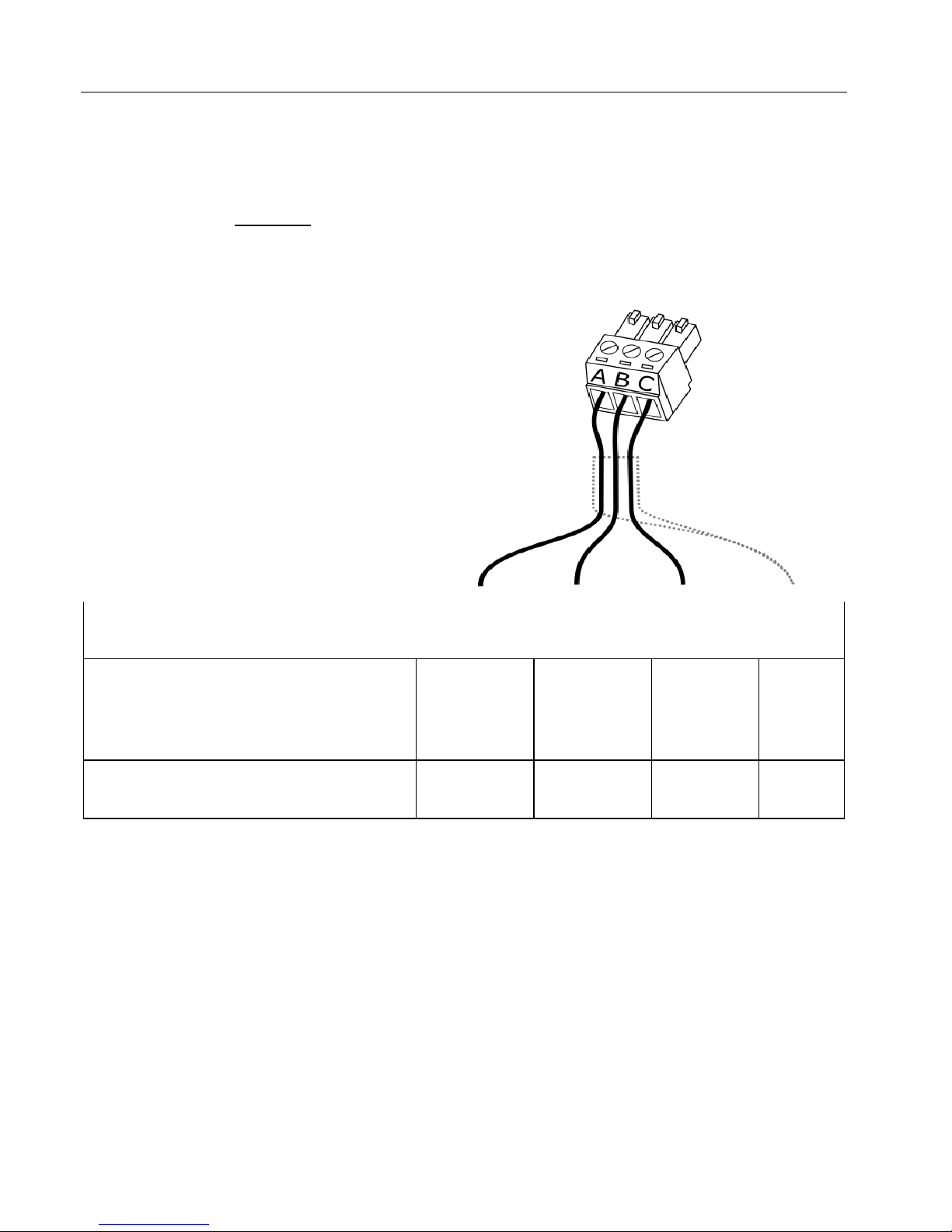
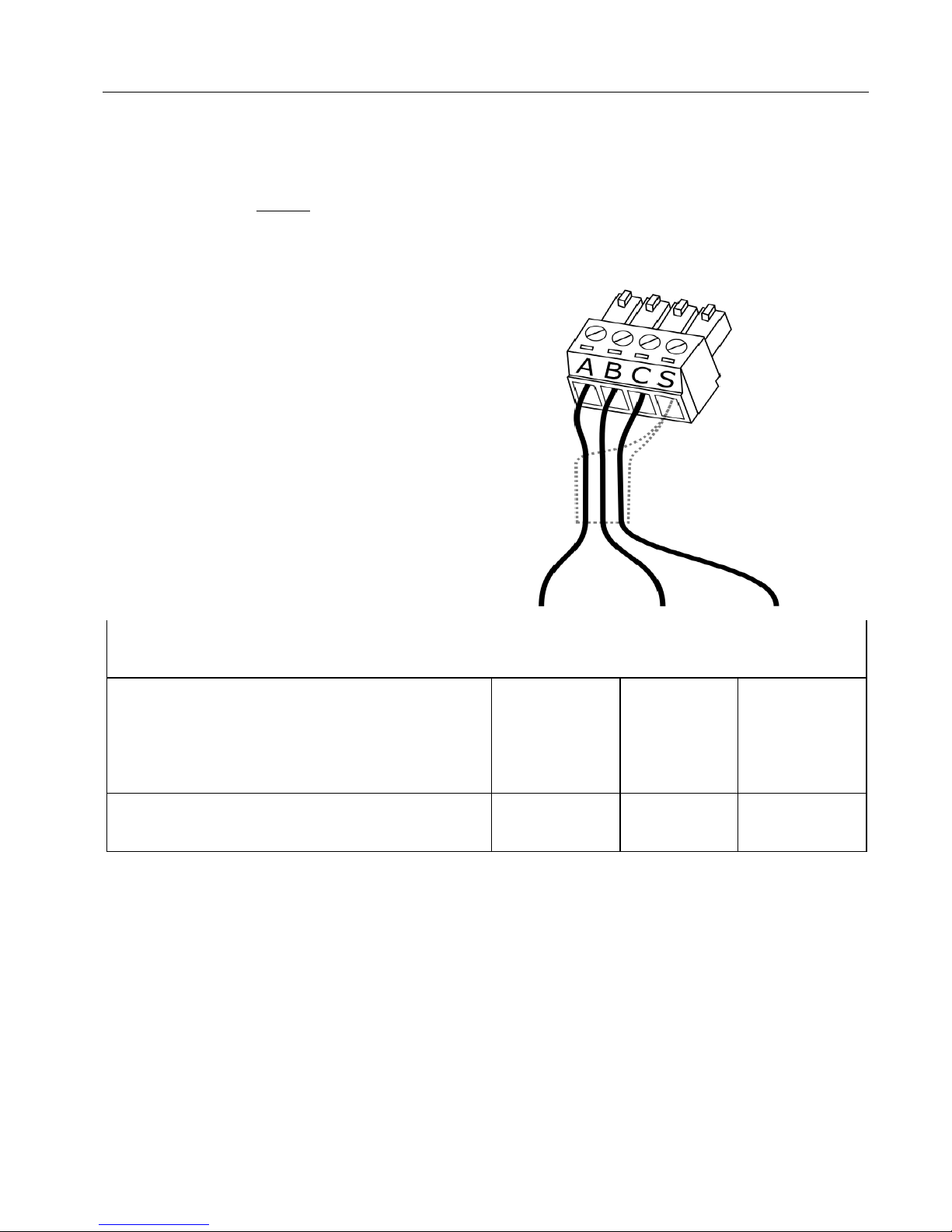
Connecting Nemo LISTENER Port to a Talker (RS- 422)
(Compliant with NMEA 0183 v2.x – 4.x and NMEA 0182-HS 1.x)
Nemo Gateway receives data through these ports.
DEVICE BEING CONNECTING TO NEMO GATEWAY
Name / Label
+
A / +
-
B / -
0183-HS
C
Shield
S
Description
Data-H
Data-L
Ground
Shield
Note: NMEA 0183-HS C and Shield must be connected when connecting to
NMEA 0183-HS (38,400 baud) devices. Non NMEA 0183-HS devices may not
have a Ground and Shield.
Nemo Gateway LISTENER port
Page 13
Nemo Gateway 9
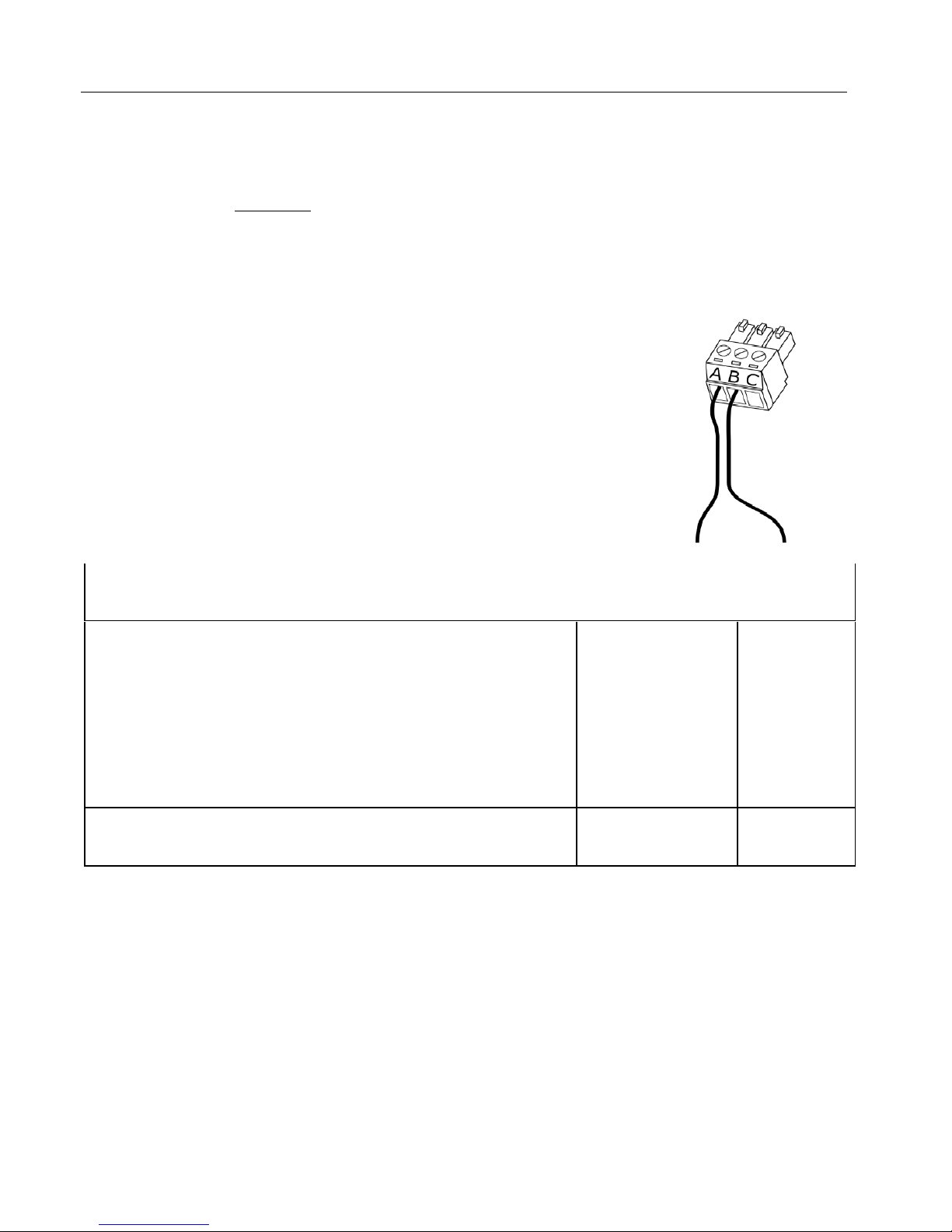
Connecting Nemo TALKER Port to Listener (RS-422)
(Compliant with NMEA 0183 v2.x – 4.x and NMEA 0183-HS 1.x)
Nemo Gateway sends data through these ports.
DEVICE BEING CONNECTING TO NEMO GATEWAY
Name / Label
+
A / +
-
B / -
0183-HS
C
Description
Data-H
Data-L
Ground
Note: NMEA 0183-HS C must be connected when connecting to NMEA 0183HS (38,400 baud) devices. Non NMEA 0183-HS devices may not have a Ground
and Shield.
Nemo Gateway TALKER port
Page 14
10 Rose Point Navigation Systems
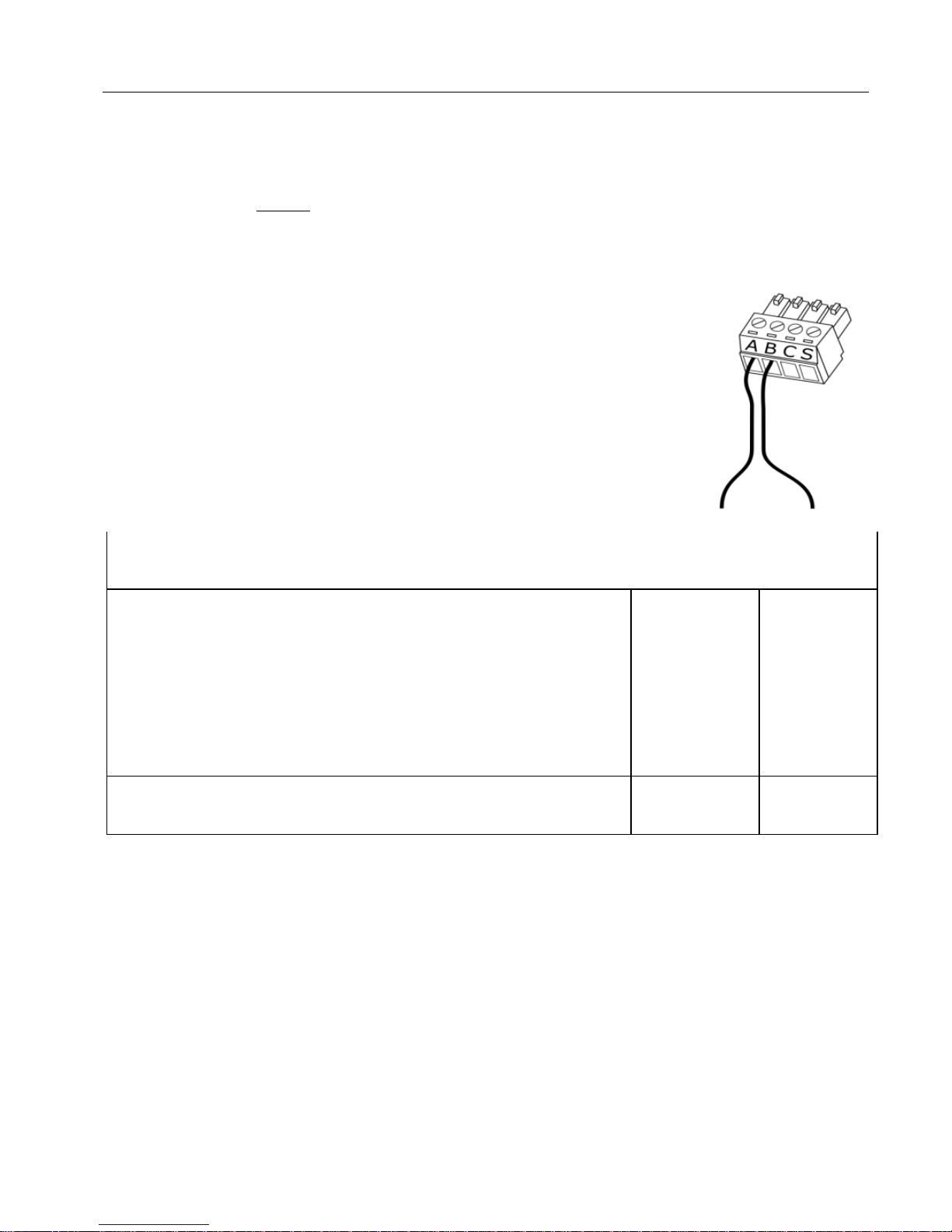
Connecting Nemo LISTENER Port to Talker (RS-232)
(Compatible with NMEA 0183 v1.x)
Nemo Gateway receives data through these ports.
DEVICE BEING CONNECTING TO NEMO GATEWAY
Name / Label
+
Signal Out
Data Out
Tx
-
Ground
Common
Description
Data-H
Data-L
Nemo Gateway LISTENER port connector
Page 15
Nemo Gateway 11
Connecting Nemo TALKER Port to Listener (RS-232)
(Compatible with NMEA 0183 v1.x standard)
Nemo Gateway sends data through these ports.
DEVICE BEING CONNECTING TO NEMO GATEWAY
Name / Label
+
Signal In
Data In
Rx
-
Ground
Common
Description
Data-H
Data-L
Nemo Gateway TALKER port connector
Page 16
12 Rose Point Navigation Systems
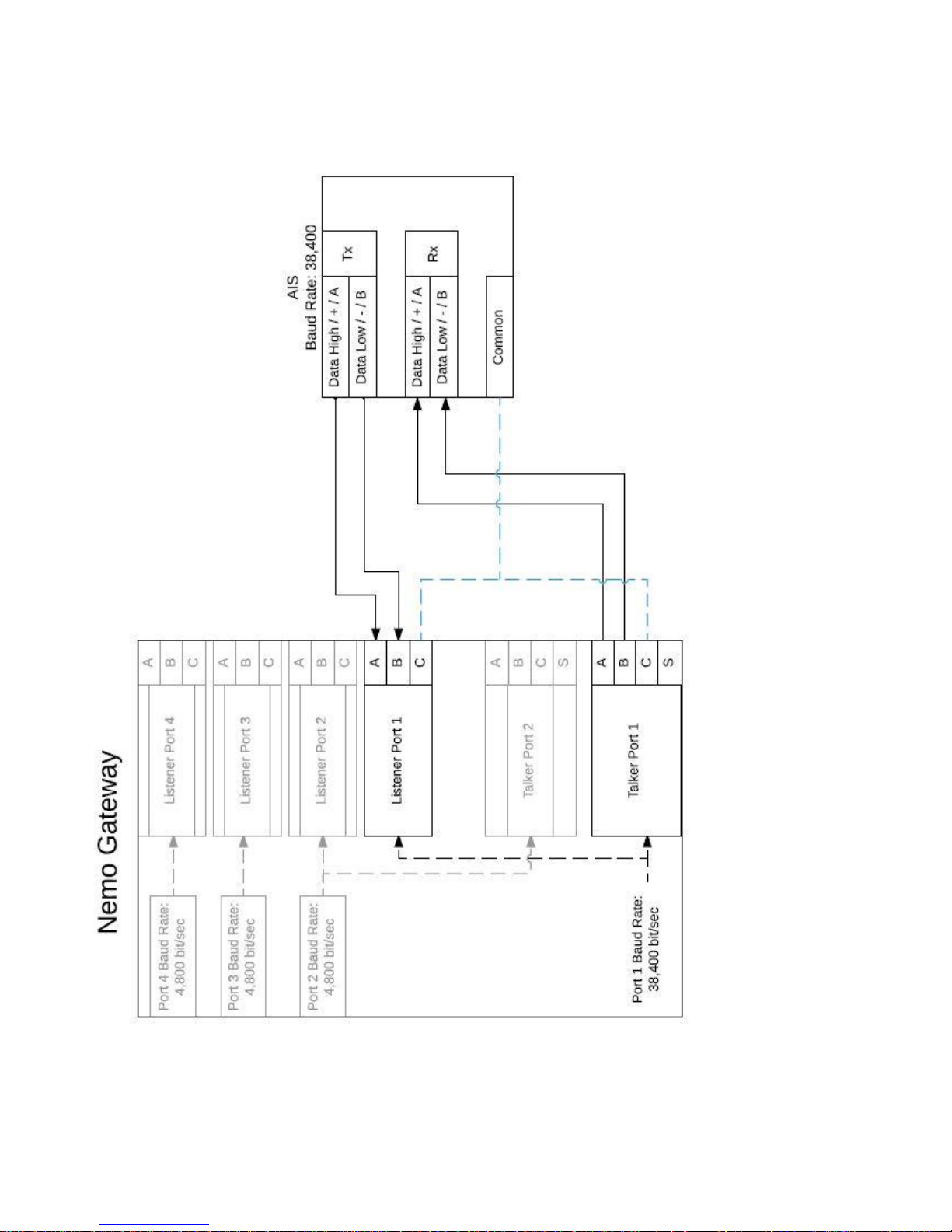
Sample Wiring – AIS (Bi-Directional)
Page 17
Nemo Gateway 13
Sample Wiring – Multiple Sensors
Page 18

14 Rose Point Navigation Systems
Gateway Configuration
Rose Point ECS or Coastal Explorer
Note: You must install the latest release of Rose Point ECS™ or Coastal
Explorer™ to ensure proper communication with the Nemo Gateway.
Coastal Explorer 2011 / Rose Point ECS 2011:
In Rose Point ECS or Coastal Explorer use Main Menu > Configure Vessel and
Electronics > Electronics. Then select the appropriate device in the list and
click Gateway Settings
Coastal Explorer 4.0 / Rose Point ECS 4.0:
In Rose Point ECS or Coastal Explorer use Settings > Electronics > Rose Point
Nemo Gateway > Gateway Settings
The system’s default web browser will open and present the Configuration
Interface.
See “Configuration Interface” for additional information. For a more detailed
explanation of Nemo Configuration, please see our Nemo Gateway support
page on www.rosepoint.com.www.rosepoint.com.
Companion App
The companion app “Nemo Gateway” may be installed on iOS and Android
devices through their respective app stores.
Accessing Configuration Interface
Connect the mobile device to the WiFi network that the Nemo Gateway is
connected to.
Launch the companion app and wait for your Nemo Gateway to be discovered.
Once discovered; click or tap on Nemo Gateway listing.
This will launch the Configuration Interface.
Page 19

Nemo Gateway 15
See “Configuration Interface” for additional information.
Configuration Interface
See “Accessing Configuration Interface” to launch the Configuration Interface.
Security
To prevent unintentional changes, you may enable “Password Mode”. This
option can be found in the System Settings > Security section and will enable
the requirement to enter a user name and password prior to adjusting any
settings.
When enabling the “Password Mode”, you must provide the user name and
password you wish to use.
To reset the credentials please see “Reset” in “Troubleshooting”.
NOTE: The Nemo Gateway does not provide secure data transmission,
secure firmware updates, or encrypted storage of settings and information.
It is required for the user to maintain physical security of the Ethernet
network to which the Nemo Gateway is connected.
Firmware
Firmware information is available in the System Settings > Firmware section of
the app. If an update is available there will be a notice on the top of the main
view.
The version currently installed on the Gateway will be displayed, as well as if an
update is available.
“Firmware Update Available” and an Update Now button is displayed on the
Firmware view when the firmware is out of date. Select the Update Now button
to install the latest version of firmware. The new firmware will then download,
install, and the gateway will reboot.
The “Branch” section allows the user to select what version of firmware will be
downloaded. This option should be left on Default unless otherwise instructed
by Rose Point Navigation Systems.
Page 20

16 Rose Point Navigation Systems
Update from File can be used to install a firmware version that the user has
stored locally on their system.
IP Address
Select “IP Address” from the menu bar. Click on the “Edit” button to adjust the
settings.
The Gateway is capable of acquiring a DHCP address (default) or being set to a
static IP.
Port Configuration
Each port’s settings can be modified by selecting the desired port from the
menu bar.
For more information about outputting NMEA data from ports; see section
“Advanced Port Output”.
Restart System
Select “Restart System” from the menu bar. Then select the Restart button on
the confirmation panel.
System Logs
System Log files may be acquired by selecting “Log Files” from the System
Settings menu. Log files may also be downloaded or emailed depending on
whether a PC or a mobile device is being used, respectively. These logs are used
for troubleshooting purposes, and may be requested by Rose Point Navigation
Systems if there are issues with the device.
Sensors
The Nemo Gateway is capable of interpreting NMEA data being processed
through its data ports. This allows the Nemo Gateway to distinguish between
devices and assign priorities to sensors.
When the Nemo is generating NMEA data using "Auto" as the source (see
"Advanced Port Output"), having properly prioritized sensors will guarantee that
the Nemo is listening to and generating data from the appropriate sensors.
Page 21

Nemo Gateway 17
Priorities may be set for each class (e.g. Position, Speed, Depth, etc.) of data. By
default, the priorities are chosen by the order the devices are discovered; the
first – highest priority, the last – lowest priority. To change the priority, select
Sensors > Sensor Class > Edit button, and drag the three-bar-icon up and down
to rearrange the order (top - highest, bottom – lowest).
Individual sensors can also be enabled/disabled in this menu.
Advanced Port Output
Please refer to our Nemo Gateway Configuration Guide online for the most
current configuration walkthroughs. The device’s configuration interface is
subject to change without notice.
Each port that is capable of outputting data will have a “Talker Options” section.
Repeating Data
The UDP and NMEA 0183 ports can repeat data received on other ports of the
same data format (NMEA 0183). Each source may be toggled On/Off
individually.
To configure data repetition options:
Port (UDP/NMEA 0183) > Talker Options > Repeating > Edit
Note: When possible, the Nemo Gateway should be set up to generate all
outgoing data. The ability to repeat data being received from other NMEA 0183
ports is designed to output sentences that the Nemo Gateway cannot parse or
generate on its own.
Generating Data
Ports can generate data (translate) from sources of other data formats. Data
generation may operate in auto (default), or manual mode.
Auto Mode
Page 22

18 Rose Point Navigation Systems
The output is set up for the user using default port outputs. The default output
sentences/PGNs will be listed upon selecting Auto. These defaults can also be
found on the Nemo Gateway support page at www.rosepoint.com
Manual Mode
The user can set up the output as needed by using this mode. By selecting Edit
next to Generate Sentences, followed by selecting "Add a Generated
PGN/Sentence," the user can specify the type, source, ID, and rate of the data
being output.
Disabled
The Nemo Gateway will not generate any data for this port. (However, if
configured, Coastal Explorer and Rose Point ECS can still output information
through these Talker Ports)
For more information about generating data, please refer to the Nemo Gateway
configuration guide found on rosepoint.com
Page 23
Nemo Gateway 19
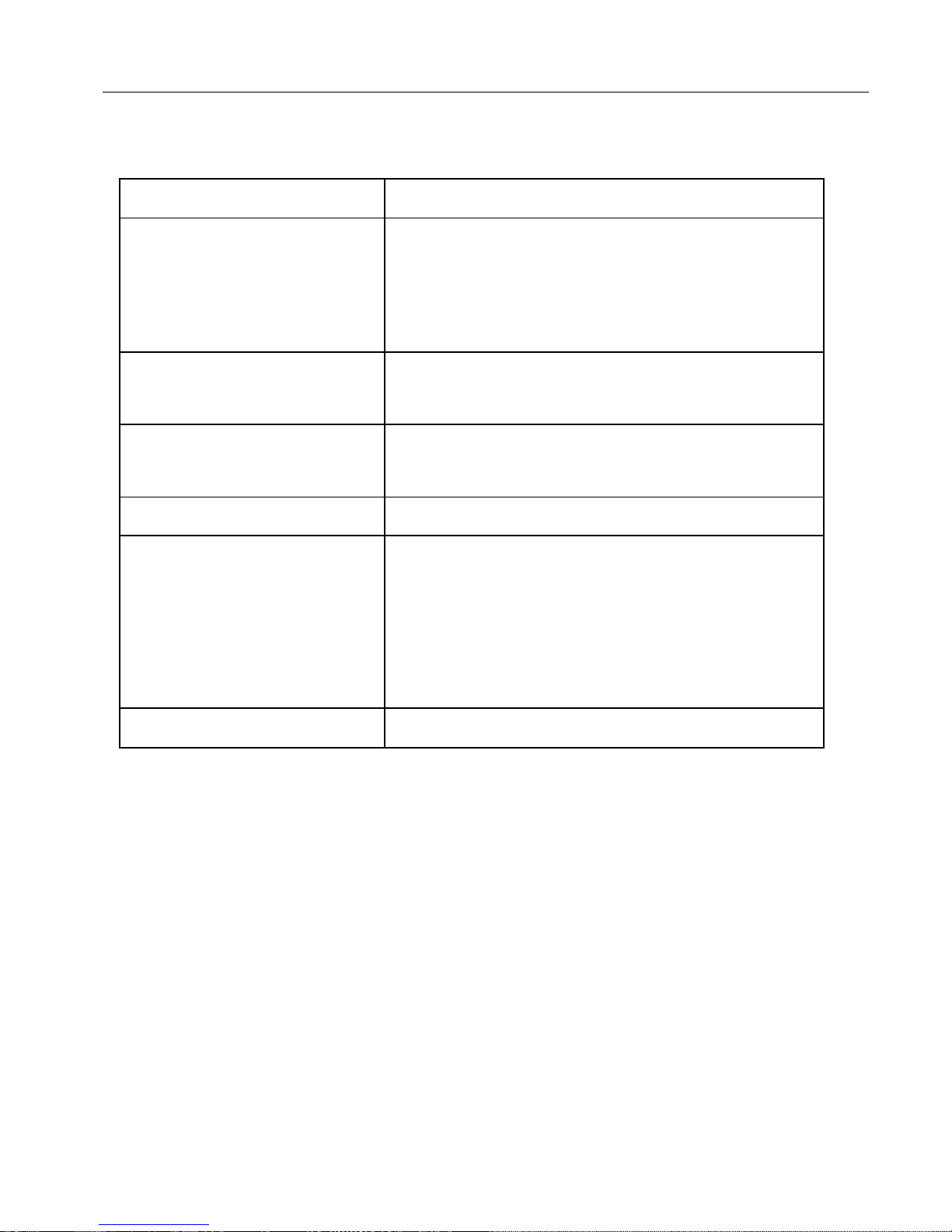
Specifications
Voltage
8 – 32 VDC, negative ground
Typical Current Draw
200 mA @ 12 VDC*
100 mA @ 24 VDC*
* Varies by number of devices connected
and amount of data transfer
Max. Current Draw
3 Amp Max
* Recommended Fuse: 3A Fast acting
Dimensions
4.94 x 5.06 x 1.75 inch
(12.6 x 12.85 x 4.45 cm)
Weight
0.9 lbs. (0.41 kg)
Supported Protocols
IEC 61162-1 (NMEA 0183)
IEC 61162-2 (NMEA 0183-HS)
IEC 61162-3 (NMEA 2000)
UDP Broadcast
TCP
Operating Humidity
5% to 90% non-condensing
Page 24
20 Rose Point Navigation Systems
Troubleshooting
Reset
The Gateway may be reset to factory default settings, excluding firmware.
Conducting Reset
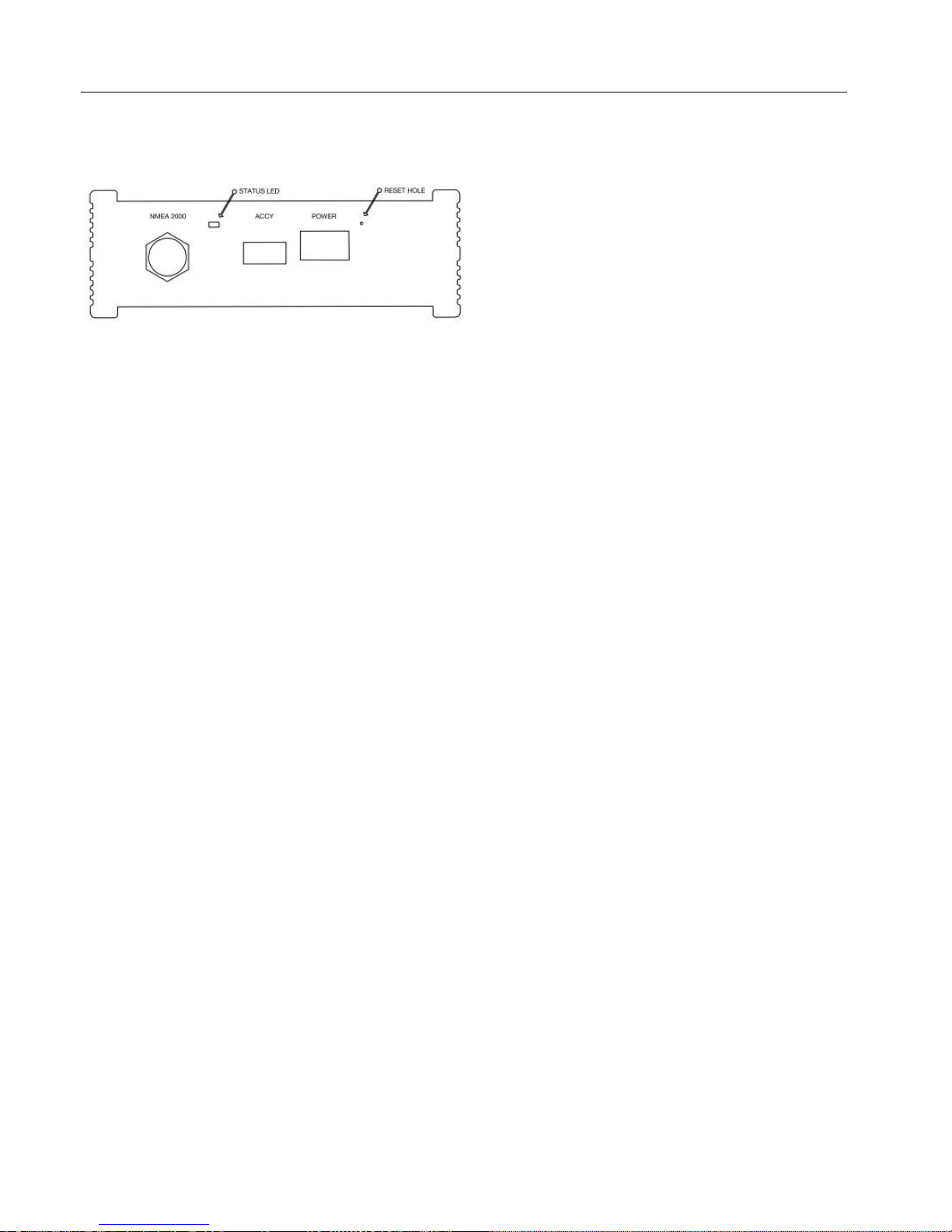
Ensure the power is off or unplugged and then using a pointed object, lightly
depress the button inside the unmarked small round hole near the POWER port
(you will feel it click). While pressing the reset button, apply power to the Nemo
Gateway.
Once power is applied wait until the Diagnostic LED flashes rapidly, oscillating
between green and red. Once Diagnostic LED oscillating starts; release reset
button.
The device will reboot and all settings, apart from the firmware version, will be
reset to factory defaults. This will also reset the security password if it has been
enabled.
Firewall
If using our PC based navigation system and the Nemo is discoverable but no
data is being received, make sure that Rose Point ECS and Coastal Explorer are
permitted through the system’s firewall.
Page 25
Nemo Gateway 21
Status LED
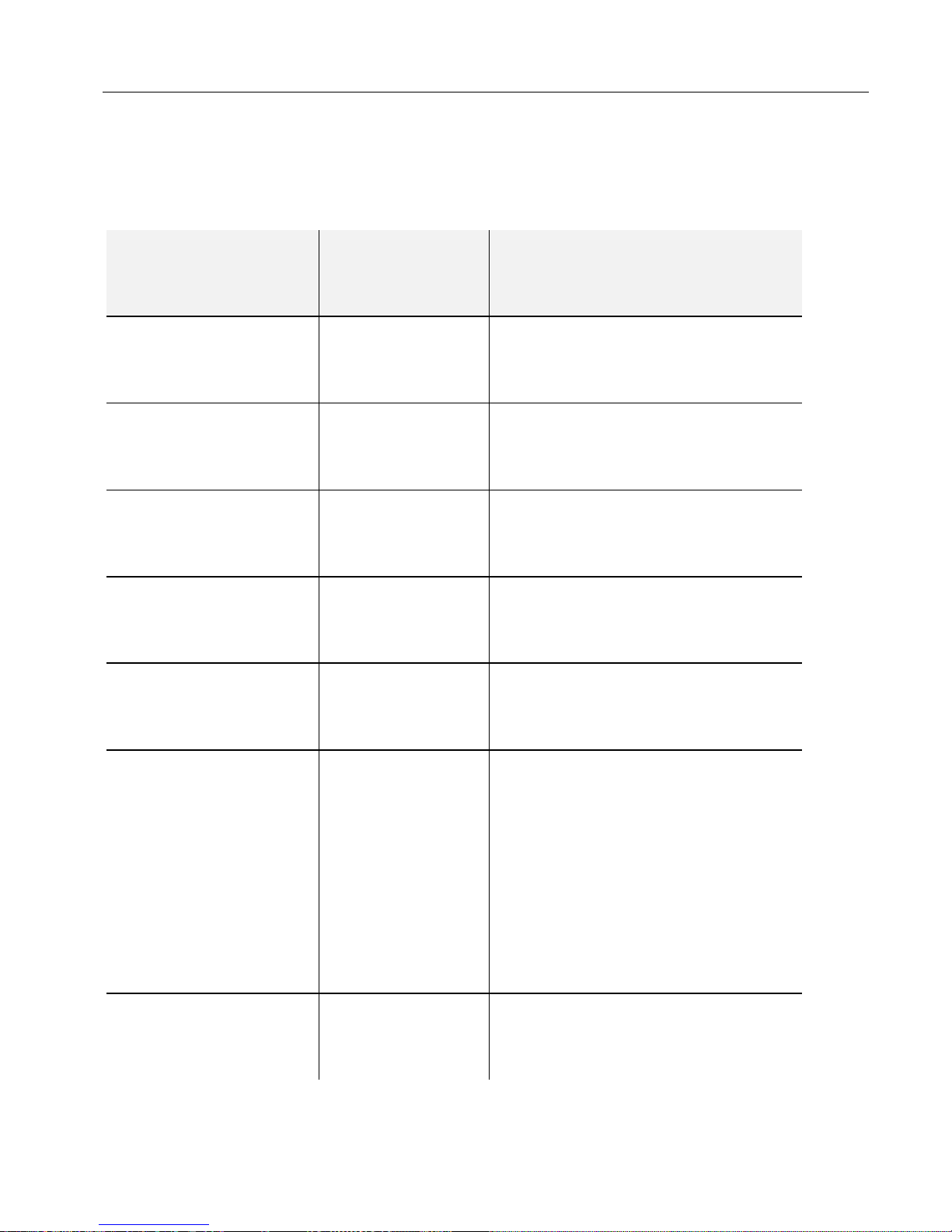
A single LED provides operational status. The following table may help in selfdiagnosing the system status.
Color
Flash Pattern
Mode / Error
Condition
Required Action
Off
Power off
Check power to device and
correct wiring
Amber
Solid
Initializing
None
Amber
Blinking
General error
Power cycle device
Green
Solid
Correct
Operation
None
Green
“Heartbeat”
Connecting to
network
None
Green
Intermittent
Blinking
Unable to
acquire DHCP
address
If DHCP server on network
(e.g. Network Router):
Check network cabling
With no DHCP server on
network (e.g. direct
connection to PC):
None
Green
Fast Blinking
Updating
Firmware
Wait for reboot to complete
Page 26

22 Rose Point Navigation Systems
Use and License Agreement
By installing or using this product, you agree to all the terms of the
accompanying USE AND LICENSE AGREEMENT, including limitations on liability
and authorized use. The agreement is subject to change without notice. The
latest version of this agreement is available at http://www.rosepoint.com/legal.
http://www.rosepoint.com/legal. http://www.rosepoint.com/legal.
http://www.rosepoint.com/legal. http://www.rosepoint.com/legal.
http://www.rosepoint.com/legal. http://www.rosepoint.com/legal.
Page 27

Nemo Gateway 23
Return Policy
If You, the original purchaser of the Nemo Gateway (“Product”) made by Rose
Point Navigation Systems, discover a defect in the Product covered by the
limited warranty set forth in the license accompanying the Product when You
purchased it, as amended by the license posted at rosepoint.com/legal
(“License”), You must contact Rose Point for an RMA at: 425-605-0985 within
the warranty period set forth in the License. If You fail to do so, You waive any
rights under the warranty.
When you contact Rose Point for an RMA you will need to provide the Serial
Number of the Product which can be found on the back of the unit or on the
original box the unit was packaged in. If the Product is covered by the limited
warranty, Rose Point will issue you an RMA number that must accompany the
return.
Proof of purchase in the form of a dated invoice or receipt is required.
You are responsible for arranging for and paying for freight/shipping when
returning Product.
Upon receipt of the Product accompanied by an RMA and invoice, Rose Point
will inspect the Product to confirm that the Product is covered by the warranty.
If it is, Rose Point may repair and return the Product, replace the Product, or
provide a refund at the sole option of Rose Point. Rose Point will pay the cost
of shipping within the U.S. for any repaired or replaced Product under warranty.
 Loading...