

Rose electronics EE4-2X16U, EE2-2X16U, EE2-2X16U/E, EE4-1X16U/E2, EE4-2X16U/E2 Overview
...Page 1

n
n
n
n
n
n
n
Access up to 1000 computers from four keyboards,
monitors, and mice
Full non-blocking access from 4 KVMs
Multi-platform for PC, Sun, RS/6000, HP, DEC, SGI,
and others
Plug-in cards makes the system easy to expand and
maintain
Integrated auto-switching power supply, 110/220 VAC
Advanced on-screen display technology
Rich set of features for security and access
OVERVIEW
ELECTRONICS
Confidential
UltraMatrix 4X
UltraMatrix 4X Technical Overview
Page 2
CPU 4
CPU 4
CPU 3
CPU 3
CPU 2
CPU 2
CPU 1
CPU 1
KVM Serial
Serial
OUT-1OUT-2 IN-1IN-2
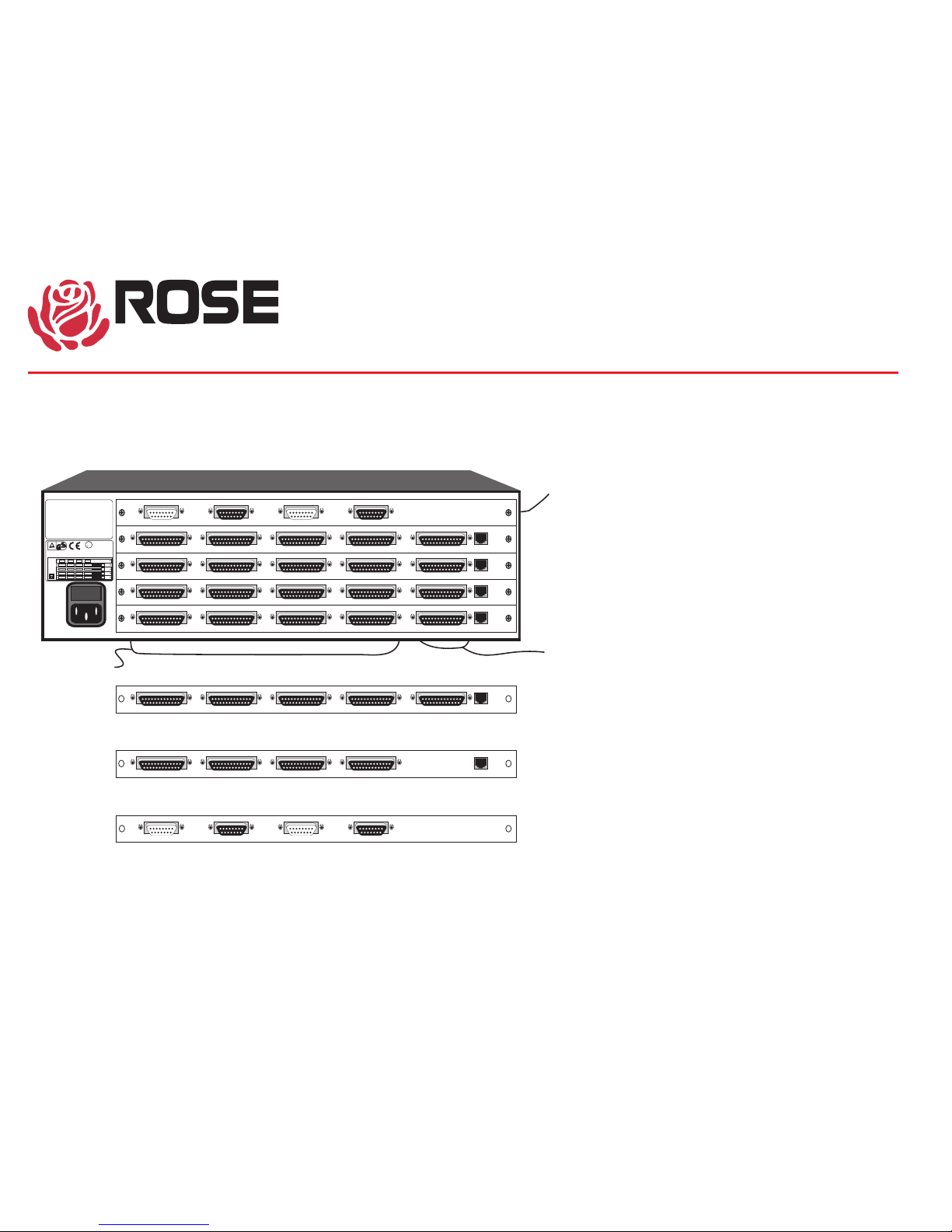
Fully populated4x16
unit with expansion
Plug-in card for 4 CPUs and 1 KVM
Plug-in card for 4 CPUs
Plug-in card for expansion
when not populated use
terminator board
HARDWARE
4 KVM ports
Expansion ports: 2 bus in(female), 2 bus out(male)
2 video connections per bus
16 CPU ports
ThisdevicecomplieswithPart15oftheFCCRules.
Operationissubjecttothe followingtwoconditions:
(1)thisdevicemaynot causeharmfulinterference, and
(2)thisdevicemustaccept anyinterferencereceived
includinginterferencethatmaycause undesiredoperation.
Model UM4-CH
Serial # 356722
Made inUSA
IO
43
21
8765
12 11
10 9
16 151413
OUT2
IN2 OUT1 IN1
CPU CPU CPU CPU
SERIAL
PORT
POWER
INPUT
KVM
KVM
KVM
KVMCPU CPU CPU CPU
CPU CPU CPU CPU
CPU CPU CPU CPU
1
2
3
4
POWERINPUT
100-240VAC 50/60Hz 0.75A
MADEIN USA
SERIAL
PORT
SERIAL
PORT
SERIAL
PORT
CUS
U
L
LISTED
I.T.E.
7F04
R
TÜVRheinland
geprüfte
Sicherheit
ELECTRONICS
Confidential
UltraMatrix 4X
UltraMatrix 4X Technical Overview
Page 3
ThisdevicecomplieswithPart15oftheFCCRules.
Operationissubjecttothefollowingtwoconditions:
(1)thisdevicemaynotcauseharmfulinterference,and
(2)thisdevicemustacceptanyinterferencereceived
ModelUM4-CH
Serial# 356722
MadeinUSA
IO
43
21
8765
12 11
10 9
16 151413
OUT2
IN2 OUT1IN1
CPU CPUCPU CPU
SERIAL
PORT
POWER
INPUT
KVM
KVM
KVM
KVMCPU CPU CPUCPU
CPU CPUCPU CPU
CPU CPUCPU CPU
1
2
3
4
POWERINPUT
100-240VAC50/60Hz 0.75A
MADEINUSA
SERIAL
PORT
SERIAL
PORT
SERIAL
PORT
CUS
U
L
LISTED
I.T.E.
7F04
R
TÜVRheinland
geprüfte
Sicherheit
ThisdevicecomplieswithPart15oftheFCCRules.
Operationissubjecttothefollowingtwoconditions:
(1)thisdevicemaynotcauseharmfulinterference,and
(2)thisdevicemustacceptanyinterferencereceived
ModelUM4-CH
Serial# 356722
MadeinUSA
IO
43
21
8765
12 11
10 9
16 151413
OUT2
IN2 OUT1IN1
CPU CPUCPU CPU
SERIAL
PORT
POWER
INPUT
KVM
KVM
KVM
KVMCPU CPU CPUCPU
CPU CPUCPU CPU
CPU CPUCPU CPU
1
2
3
4
POWERINPUT
100-240VAC50/60Hz 0.75A
MADEINUSA
SERIAL
PORT
SERIAL
PORT
SERIAL
PORT
CUS
U
L
LISTED
I.T.E.
7F04
R
TÜVRheinland
geprüfte
Sicherheit
ThisdevicecomplieswithPart15oftheFCCRules.
Operationissubjecttothefollowingtwoconditions:
(1)thisdevicemaynotcauseharmfulinterference,and
(2)thisdevicemustacceptanyinterferencereceived
ModelUM4-CH
Serial# 356722
MadeinUSA
IO
43
21
8765
12 11
10 9
16 151413
OUT2
IN2 OUT1IN1
CPU CPUCPU CPU
SERIAL
PORT
POWER
INPUT
KVM
KVM
KVM
KVMCPU CPU CPUCPU
CPU CPUCPU CPU
CPU CPUCPU CPU
1
2
3
4
POWERINPUT
100-240VAC50/60Hz 0.75A
MADEINUSA
SERIAL
PORT
SERIAL
PORT
SERIAL
PORT
CUS
U
L
LISTED
I.T.E.
7F04
R
TÜVRheinland
geprüfte
Sicherheit
ThisdevicecomplieswithPart15oftheFCCRules.
Operationissubjecttothefollowingtwoconditions:
(1)thisdevicemaynotcauseharmfulinterference,and
(2)thisdevicemustacceptanyinterferencereceived
ModelUM4-CH
Serial# 356722
MadeinUSA
IO
43
21
8765
12 11
10 9
16 151413
OUT2
IN2 OUT1IN1
CPU CPUCPU CPU
SERIAL
PORT
POWER
INPUT
KVM
KVM
KVM
KVMCPU CPU CPUCPU
CPU CPUCPU CPU
CPU CPUCPU CPU
1
2
3
4
POWERINPUT
100-240VAC50/60Hz 0.75A
MADEINUSA
SERIAL
PORT
SERIAL
PORT
SERIAL
PORT
CUS
U
L
LISTED
I.T.E.
7F04
R
TÜVRheinland
geprüfte
Sicherheit
ThisdevicecomplieswithPart15oftheFCCRules.
Operationissubjecttothefollowingtwoconditions:
(1)thisdevicemaynotcauseharmfulinterference,and
(2)thisdevicemustacceptanyinterferencereceived
ModelUM4-CH
Serial# 356722
MadeinUSA
IO
43
21
8765
12 11
10 9
16 151413
OUT2
IN2 OUT1IN1
CPU CPUCPU CPU
SERIAL
PORT
POWER
INPUT
KVM
KVM
KVM
KVMCPU CPU CPUCPU
CPU CPUCPU CPU
CPU CPUCPU CPU
1
2
3
4
POWERINPUT
100-240VAC50/60Hz 0.75A
MADEINUSA
SERIAL
PORT
SERIAL
PORT
SERIAL
PORT
CUS
U
L
LISTED
I.T.E.
7F04
R
TÜVRheinland
geprüfte
Sicherheit
ThisdevicecomplieswithPart15oftheFCCRules.
Operationissubjecttothefollowingtwoconditions:
(1)thisdevicemaynotcauseharmfulinterference,and
(2)thisdevicemustacceptanyinterferencereceived
ModelUM4-CH
Serial# 356722
MadeinUSA
IO
43
21
8765
12 11
10 9
16 151413
OUT2
IN2 OUT1IN1
CPU CPUCPU CPU
SERIAL
PORT
POWER
INPUT
KVM
KVM
KVM
KVMCPU CPU CPUCPU
CPU CPUCPU CPU
CPU CPUCPU CPU
1
2
3
4
POWERINPUT
100-240VAC50/60Hz 0.75A
MADEINUSA
SERIAL
PORT
SERIAL
PORT
SERIAL
PORT
CUS
U
L
LISTED
I.T.E.
7F04
R
TÜVRheinland
geprüfte
Sicherheit
ThisdevicecomplieswithPart15oftheFCCRules.
Operationissubjecttothefollowingtwoconditions:
(1)thisdevicemaynotcauseharmfulinterference,and
(2)thisdevicemustacceptanyinterferencereceived
ModelUM4-CH
Serial# 356722
MadeinUSA
IO
43
21
8765
12 11
10 9
16 151413
OUT2
IN2 OUT1IN1
CPU CPUCPU CPU
SERIAL
PORT
POWER
INPUT
KVM
KVM
KVM
KVMCPU CPU CPUCPU
CPU CPUCPU CPU
CPU CPUCPU CPU
1
2
3
4
POWERINPUT
100-240VAC50/60Hz 0.75A
MADEINUSA
SERIAL
PORT
SERIAL
PORT
SERIAL
PORT
CUS
U
L
LISTED
I.T.E.
7F04
R
TÜVRheinland
geprüfte
Sicherheit
ThisdevicecomplieswithPart15oftheFCCRules.
Operationissubjecttothefollowingtwoconditions:
(1)thisdevicemaynotcauseharmfulinterference,and
(2)thisdevicemustacceptanyinterferencereceived
ModelUM4-CH
Serial# 356722
MadeinUSA
IO
43
21
8765
12 11
10 9
16 151413
OUT2
IN2 OUT1IN1
CPU CPUCPU CPU
SERIAL
PORT
POWER
INPUT
KVM
KVM
KVM
KVMCPU CPU CPUCPU
CPU CPUCPU CPU
CPU CPUCPU CPU
1
2
3
4
POWERINPUT
100-240VAC50/60Hz 0.75A
MADEINUSA
SERIAL
PORT
SERIAL
PORT
SERIAL
PORT
CUS
U
L
LISTED
I.T.E.
7F04
R
TÜVRheinland
geprüfte
Sicherheit
ThisdevicecomplieswithPart15oftheFCCRules.
Operationissubjecttothefollowingtwoconditions:
(1)thisdevicemaynotcauseharmfulinterference,and
(2)thisdevicemustacceptanyinterferencereceived
ModelUM4-CH
Serial# 356722
MadeinUSA
IO
43
21
8765
12 11
10 9
16 151413
OUT2
IN2 OUT1IN1
CPU CPUCPU CPU
SERIAL
PORT
POWER
INPUT
KVM
KVM
KVM
KVMCPU CPU CPUCPU
CPU CPUCPU CPU
CPU CPUCPU CPU
1
2
3
4
POWERINPUT
100-240VAC50/60Hz 0.75A
MADEINUSA
SERIAL
PORT
SERIAL
PORT
SERIAL
PORT
CUS
U
L
LISTED
I.T.E.
7F04
R
TÜVRheinland
geprüfte
Sicherheit
CPUs 1-16
CPUs 17-32
CPUs 33-48
Slot 1
Slot 2
Slot 3
Slot 4
CPUs 1-16
CPUs 17-32
CPUs 33-48
Slot 3
Slot 4
Slot 1
Slot 2
CPUs 1-16
CPUs 17-32
CPUs 33-48
Slot 1
Slot 4
Slot 2
Slot 3
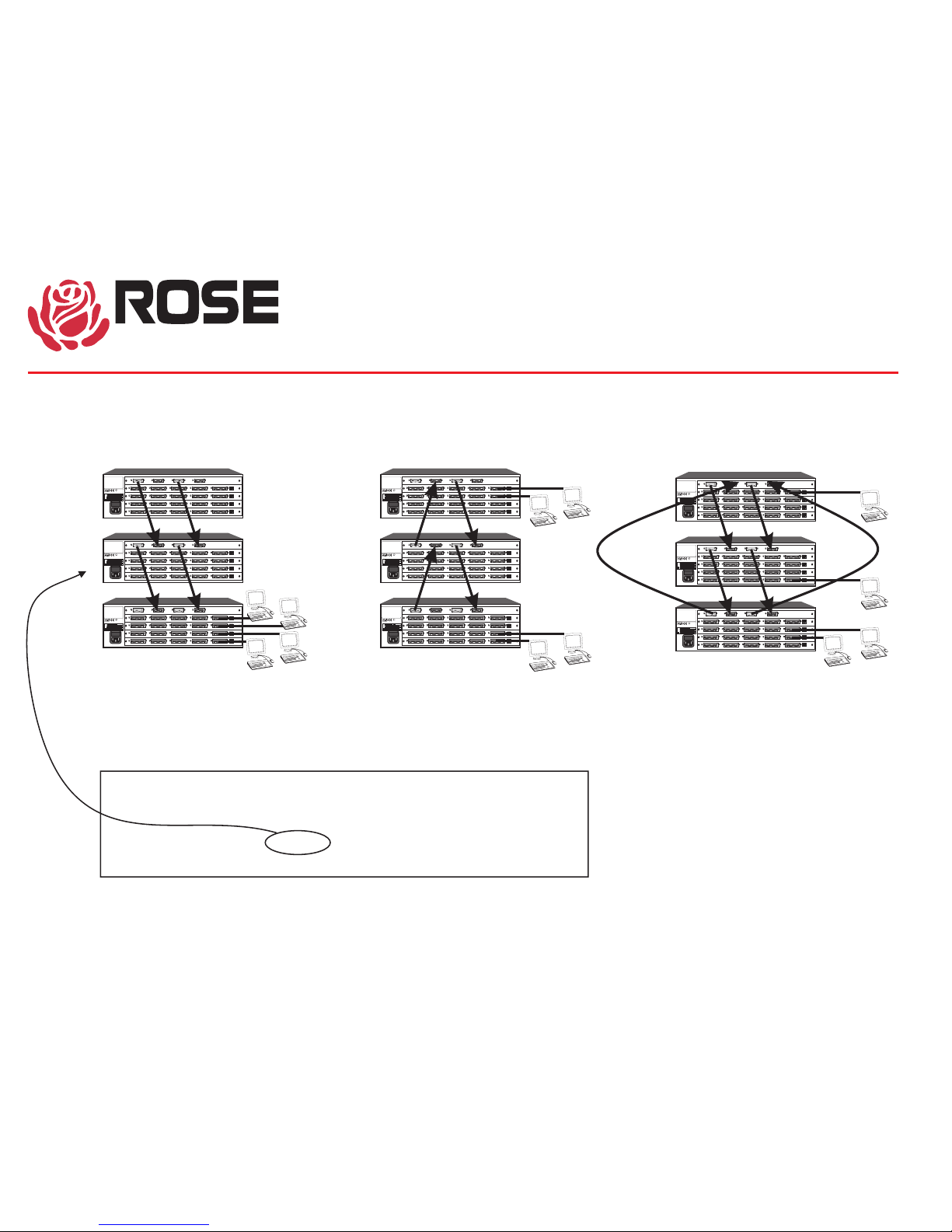
Connecting units together
KVMs clustered together
Same bus direction
Connecting units together
KVMs separated in 2 locations
Split bus direction
Connecting units together
KVMs distributed
Ring connection
Two adjacent units
must have bus jumpers
removed on expansion cards
EXPANSION
Note on bus direction: KVMs can not see video
from downstream boxes.
Example: KVMs on this box can see video from CPUs 33-48,
but can not see video from CPUs 1-16
ELECTRONICS
Confidential
UltraMatrix 4X
UltraMatrix 4X Technical Overview
Page 4
ThisdevicecomplieswithPart15oftheFCCRules.
Operationissubjecttothefollowingtwoconditions:
(1)thisdevicemaynotcauseharmfulinterference,and
(2)thisdevicemustacceptanyinterferencereceived
ModelUM4-CH
Serial# 356722
MadeinUSA
IO
43
21
8765
12 11
10 9
16 151413
OUT2
IN2 OUT1IN1
CPU CPUCPU CPU
SERIAL
PORT
POWER
INPUT
KVM
KVM
KVM
KVMCPU CPU CPUCPU
CPU CPUCPU CPU
CPU CPUCPU CPU
1
2
3
4
POWERINPUT
100-240VAC50/60Hz 0.75A
MADEINUSA
SERIAL
PORT
SERIAL
PORT
SERIAL
PORT
CUS
U
L
LISTED
I.T.E.
7F04
R
TÜVRheinland
geprüfte
Sicherheit
ThisdevicecomplieswithPart15oftheFCCRules.
Operationissubjecttothefollowingtwoconditions:
(1)thisdevicemaynotcauseharmfulinterference,and
(2)thisdevicemustacceptanyinterferencereceived
ModelUM4-CH
Serial# 356722
MadeinUSA
IO
43
21
8765
12 11
10 9
16 151413
OUT2
IN2 OUT1IN1
CPU CPUCPU CPU
SERIAL
PORT
POWER
INPUT
KVM
KVM
KVM
KVMCPU CPU CPUCPU
CPU CPUCPU CPU
CPU CPUCPU CPU
1
2
3
4
POWERINPUT
100-240VAC50/60Hz 0.75A
MADEINUSA
SERIAL
PORT
SERIAL
PORT
SERIAL
PORT
CUS
U
L
LISTED
I.T.E.
7F04
R
TÜVRheinland
geprüfte
Sicherheit
ThisdevicecomplieswithPart15oftheFCCRules.
Operationissubjecttothefollowingtwoconditions:
(1)thisdevicemaynotcauseharmfulinterference,and
(2)thisdevicemustacceptanyinterferencereceived
ModelUM4-CH
Serial# 356722
MadeinUSA
IO
43
21
8765
12 11
10 9
16 151413
OUT2
IN2 OUT1IN1
CPU CPUCPU CPU
SERIAL
PORT
POWER
INPUT
KVM
KVM
KVM
KVMCPU CPU CPUCPU
CPU CPUCPU CPU
CPU CPUCPU CPU
1
2
3
4
POWERINPUT
100-240VAC50/60Hz 0.75A
MADEINUSA
SERIAL
PORT
SERIAL
PORT
SERIAL
PORT
CUS
U
L
LISTED
I.T.E.
7F04
R
TÜVRheinland
geprüfte
Sicherheit
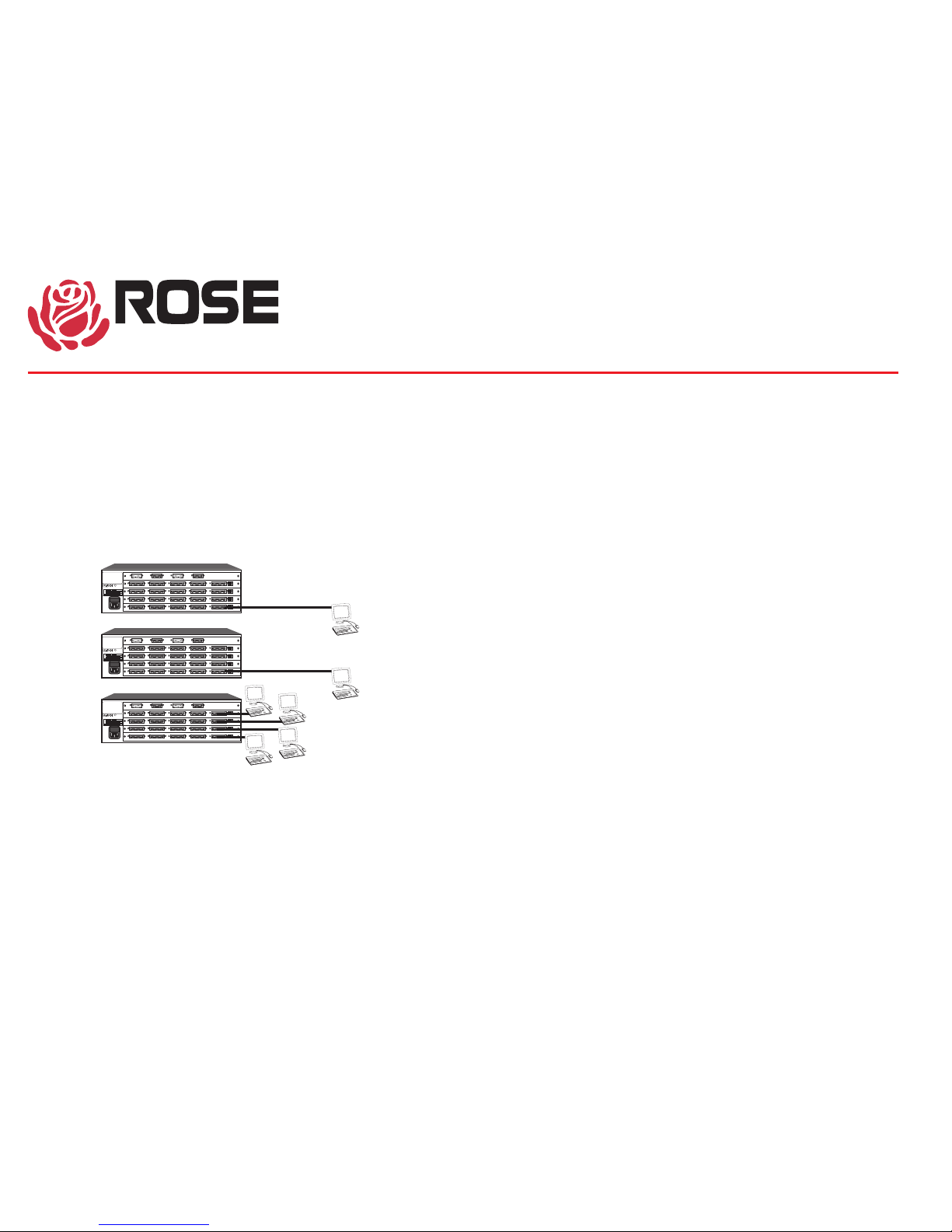
MORE THAN 4 KVMS
CPUs 1-16
CPUs 17-32
CPUs 33-48
Slot 1
Slot 1
Slot 1
Slot 2
Slot 3
Slot 4
The UltraMatrix supports up to 4 KVMs with non-blocking access. You
can connect more than 4 KVMs, usually for local access to computers
on a specific box. This will create some blocking as described further.
The concept of a local KVM is a useful one. It is often desirable to have
a KVM located right next to the CPUs for maintenance or access to the
CPU's drives, network connection, or other physical access.
When a KVM connects outside of its box, this will cause a conflict with
all KVMs on the same slot position. The new connection will cause a
"video path cancel" message to appear on all KVMs at the same slot
position.
As long as all KVMs on a given slot position connect only to CPUs in
their own box, then there will be no video conflict. As soon as any of the
KVMs on a given slot position connect to a CPU outside of their box,
then all other KVMs on that slot position will get a video path cancel.
In the example shown here, there are three slot 1 KVMs, which can
have potential conflicts. KVMs on slots 2, 3, and 4 will never have any
conflicts.
It is possible to configure the system to prevent access of a KVM to
CPUs outside of its box, preventing conflicts from ever occurring. This is
done by giving each KVM a profile with an access group set to include
only its CPU ports.
ELECTRONICS
Confidential
UltraMatrix 4X
UltraMatrix 4X Technical Overview
Page 5
ELECTRONICS
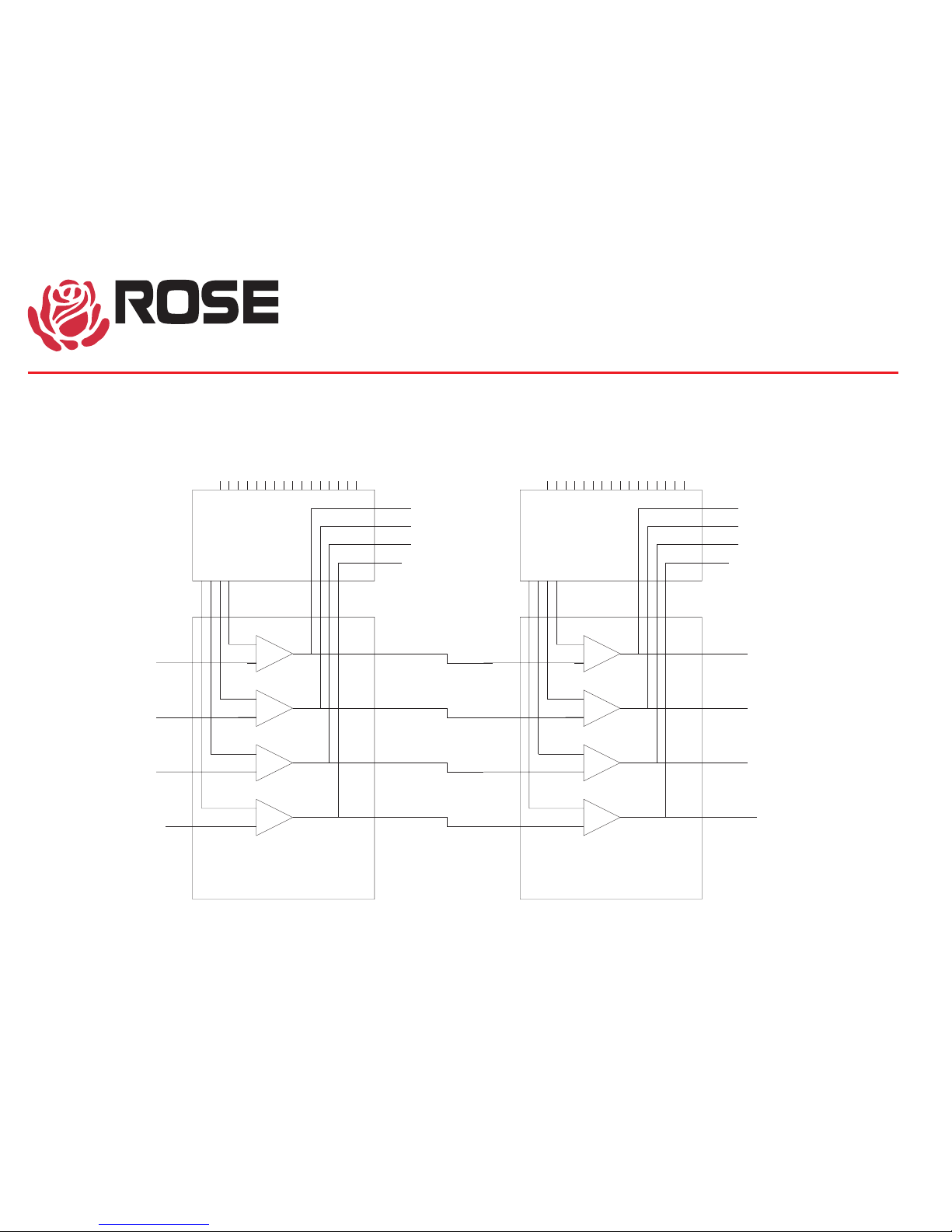
KVM1 KVM5
COMPUTERS 1-16 COMPUTERS 17-32
BUS IN 1 BUS IN 1
BUS OUT 1 BUS OUT 1
BUS OUT 2 BUS OUT 2
BUS OUT 3 BUS OUT 3
BUS OUT 4 BUS OUT 4
BUS IN 2 BUS IN 2
BUS IN 3 BUS IN 3
BUS IN 4 BUS IN 4
KVM2 KVM6
KVM3 KVM7
KVM4 KVM8
4x16
MATRIX
4x16
MATRIX
4x16
MATRIX
4x16
MATRIX
EXPANSION
CARD
EXPANSION
CARD
Confidential
VIDEO PATH
UltraMatrix 4X
UltraMatrix 4X Technical Overview
Page 6
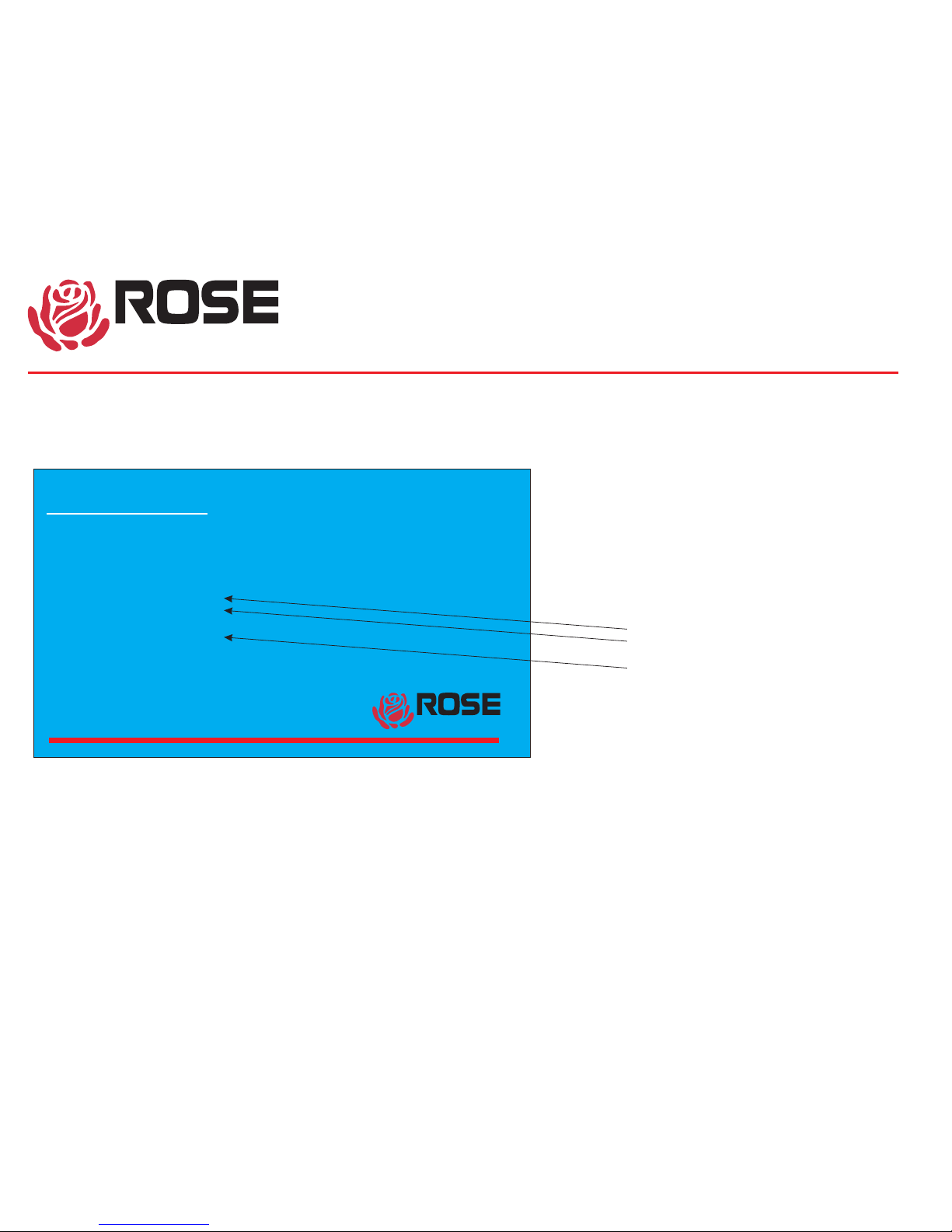
POWER UP DIAGNOSTICS
PS2 mouse detected
PC keyboard detected
Main program Good
Program version MX15
Local ports 8
Communication Good
Communication ID 6
Board number 2
Configuration Good
Static ram Good
Kernel program Good
Overlay version 031B
Kernel version KX14
Power on diagnostics
This screen comes from the on-screen display when
the switch first turns on. If there is a failure of the self
test, then the reason will be displayed. This screen is
blue with white letters.
Slot position in chassis
Address of card in system,
1= CPUs 1-4, 2=CPUs 5-8, 3=CPUs 9-12, and so on
Number of CPU cards present in chassis
UltraMatrix version MX16 Rose Electronics Copyright 1990-1999
ELECTRONICS
ELECTRONICS
Confidential
UltraMatrix 4X
UltraMatrix 4X Technical Overview
Page 7
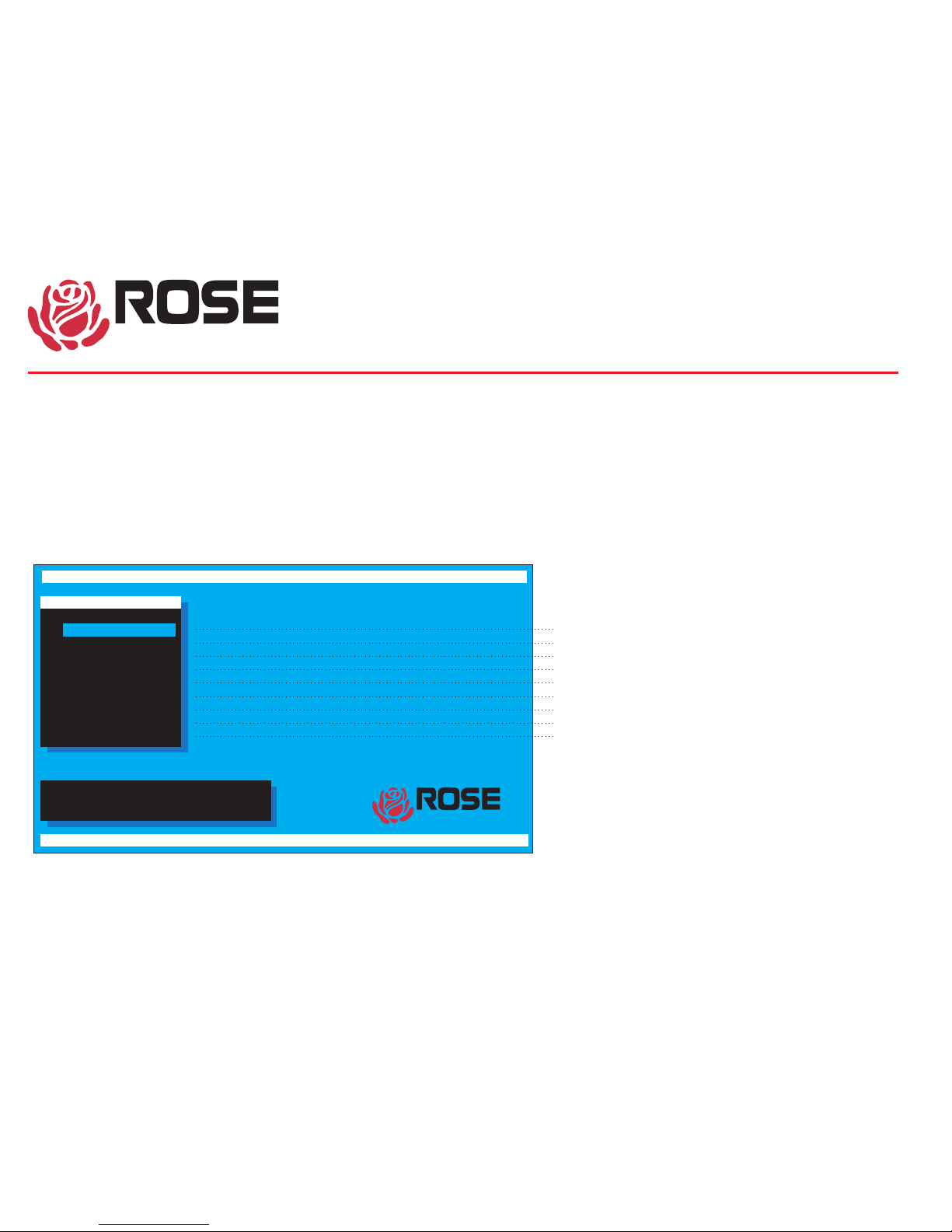
MAIN CONFIGURATION MENU
Use arrow keys to highlight
selection and press enter
or press escape to exit
Configure
System
Computer
KVM
User
Profile
Group
Status
Save
Exit
Main Menu
UltraMatrix version MX16 Rose Electronics Copyright 1990-1999
Configure password, box numbers, keyboard settings, appearance
This screen comes from the on-screen display by pressing and
releasing the left control key and the hitting the F12 key. From
this page, you reach all other pages to configure the unit.
Navigation through the menus is very simple, use the arrow keys
to go to an item and hit enter to go to that page or to change a
value. The help line at the bottom, changes to explain what each
setting is. When changing a value, pop-up boxes appear,
Configure password, box numbers, keyboard settings, appearance
Configure computer names, keyboard, and mouse type
Configure KVM name, resolution, start port, and login mode
Configure user name, password, and profile
Configure user access and other settings
Configure group names and which computers are in groups
Show communication and connection status
Sends configuration to system and saves to flash memory
Exit this menu and return to normal operation
LIST OF HELP MESSAGE FOR EACH ITEM
ELECTRONICS
ELECTRONICS
Confidential
UltraMatrix 4X
UltraMatrix 4X Technical Overview
Page 8
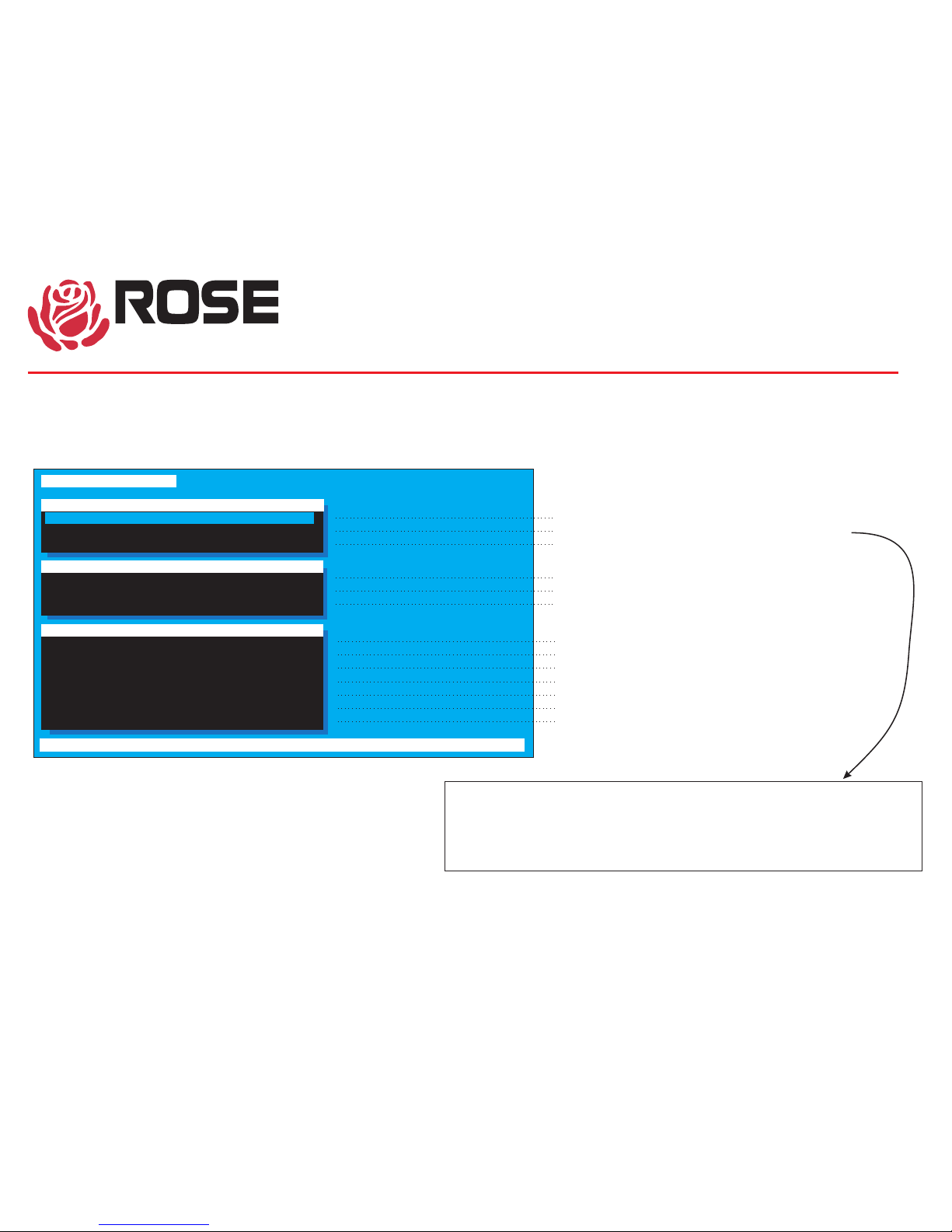
CONFIGURE SYSTEM
Configure system
System settings
Configure password ********
Starting computer number 1
Maximum computer 64
Password to configure box
Main Menu
Keyboard settings
PC keyboard rate (chars/sec) 20
PC keyboard delay Fast
Sun keyboard language US
Main Menu
Appearance
Menu color scheme Night sky
Screen saver Weaving
Screen saver time (seconds) 1200
Background color Cyan
Text color Black
Position X= 2 Y= 45
Fadeout (seconds) 5
Password to configure box
Number for first CPU on this box, rounded to multiple of4+1
Maximum number of computers in system
Colors of the configuration menu
Shows pattern if no keyboard or mouse activity
Time to screen saver, if no keyboard or mouse activity (0-9999)
Background color of connection status and select menu
Text color of connection status and select menu
Position of connection status
Connect status erase time(0-255), 0=don't show, 255=always show
Rate at which key down repeats (1-31)
Delay time before key down starts to repeat
Response to Sun computer's query for language type
LIST OF HELP MESSAGE FOR EACH ITEM
This is a critical item to configure. The setting on the bottom card
determines the addresses of the CPU in the chassis. The settings on the
upper cards are ignored, they automatically follow the bottom card
sequentially.
1 = CPU 1-4, 5 = CPU 5-8, 9 = CPU 9-12, 13 = CPU 13-16 and so on
ELECTRONICS
Confidential
UltraMatrix 4X
UltraMatrix 4X Technical Overview
Page 9

CONFIGURE COMPUTER
Configure computer
Name of computer up to 16 characters
Use page up and page down keys to configure more computers
1 Computer 1 PC2 PS2
2 Computer 2 PC2 PS2
3 Computer 3 PC2 PS2
4 Computer 4 PC2 PS2
5 Computer 5 PC2 PS2
6 Computer 6 PC2 PS2
7 Computer 7 PC2 PS2
8 Computer 8 PC2 PS2
9 Computer 9 PC2 PS2
10 Computer 10 PC2 PS2
11 Computer 11 PC2 PS2
12 Computer 12 PC2 PS2
13 Computer 13 PC2 PS2
14 Computer 14 PC2 PS2
15 Computer 15 PC2 PS2
16 Computer 16 PC2 PS2
u
Computer name Keyboard Mouse
Name of computer up to 16 characters
Use page up and page down keys to configure more computers
Type of computer, for PCs this is the computer's keyboard mode
Type of computer mouse used, can be changed for PCs only
LIST OF HELP MESSAGE FOR EACH COLUMN
ELECTRONICS
Confidential
UltraMatrix 4X
UltraMatrix 4X Technical Overview
Page 10

CONFIGURE KVM
Configure KVM
Name of keyboard-video-mouse station(KVM), up to 16 characters
1 KVM Station 1 640x480@60 0 No User 1
2 KVM Station 2 640x480@60 0 No User 2
3 KVM Station 3 640x480@60 0 No User 3
4 KVM Station 4 640x480@60 0 No User 4
KVM name Resolution Start Login User
If name/password not required, this user is assigned to KVM
Required to enter user name/password to access computers
Resolution of on-screen-display when no external video
Name of keyboard-video-mouse station (KVM), up to 16 characters
Computer connected to when box is powered on, use 0 for none
LIST OF HELP MESSAGE FOR EACH COLUMN
ELECTRONICS
Confidential
UltraMatrix 4X
UltraMatrix 4X Technical Overview
Page 11

CONFIGURE USER
Configure User
User login name, up to 8 characters
User name Password Profile
User 1 ******** Profil 1
User 2 ******** Profil 2
User 3 ******** Profil 3
User 4 ******** Profil 4
User 5 ******** Profil 5
User 6 ******** Profil 6
User 7 ******** Profil 7
User 8 ******** Profil 8
User 9 ******** Profil 9
User10 ******** Profil10
User11 ******** Profil11
User12 ******** Profil12
User13 ******** Profil13
User14 ******** Profil14
User15 ******** Profil15
User16 ******** Profil16
User login name, up to 8 characters
User password, up to 8 characters
User profile, controls access rights and other settings
LIST OF HELP MESSAGE FOR EACH COLUMN
ELECTRONICS
Confidential
UltraMatrix 4X
UltraMatrix 4X Technical Overview
Page 12

CONFIGURE PROFILE
Configure Profile
Profile name, up to 8 characters
Name Access Connect Share Scan Logout
Profil 1 Group 1 Share 2 5 240
Profil 2 Group 2 Share 2 5 240
Profil 3 Group 3 Share 2 5 240
Profil 4 Group 4 Share 2 5 240
Profil 5 Group 5 Share 2 5 240
Profil 6 Group 6 Share 2 5 240
Profil 7 Group 7 Share 2 5 240
Profil 8 Group 8 Share 2 5 240
Profil 9 Group 9 Share 2 5 240
Profil10 Group11 Share 2 5 240
Profil12 Group12 Share 2 5 240
Profil13 Group13 Share 2 5 240
Profil14 Group14 Share 2 5 240
Profil15 Group15 Share 2 5 240
Profil16 Group16 Share 2 5 240
Profile name, up to 8 characters
Which group of computers a user may access
Which connect mode (view, share, control, or private) is used
Time(seconds) if no kb-ms activity, another can share computer
Time(seconds) in scan mode between switching to next computer
Time(minutes) with no kb-ms activity that CPU is disconnected
LIST OF HELP MESSAGE FOR EACH COLUMN
ELECTRONICS
Confidential
UltraMatrix 4X
UltraMatrix 4X Technical Overview
Page 13

CONFIGURE GROUP
Configure Group
+ means computer belong to group PAGE UP/DOWN-more computers
SPACE BAR-adds/Removes computer from group ENTER-renames group
1 Computer 1 ++++++++++++++++
2 Computer 2 ++++++++++++++++
3 Computer 3 ++++++++++++++++
4 Computer 4 ++++++++++++++++
5 Computer 5 ++++++++++++++++
6 Computer 6 ++++++++++++++++
7 Computer 7 ++++++++++++++++
8 Computer 8 ++++++++++++++++
9 Computer 9 ++++++++++++++++
10 Computer 10 ++++++++++++++++
11 Computer 11 ++++++++++++++++
12 Computer 12 ++++++++++++++++
13 Computer 13 ++++++++++++++++
14 Computer 14 ++++++++++++++++
15 Computer 15 ++++++++++++++++
16 Computer 16 ++++++++++++++++
Computer Group 2
This page determines which computers belong to which group.
Use the arrow keys to go to the desired row(computer) and
column(group) and use the space bar to toggle whether that
computer is a member of the group or not.
You can also hit enter to change the name of the group depending
upon which column the cursor is in.
ELECTRONICS
Confidential
UltraMatrix 4X
UltraMatrix 4X Technical Overview
Page 14

STATUS
System Status
Computers Power Slot Ver KVM CPU User Status
1-4 1 013 PC 14 Bob View mode
5-8 2 013 PC 3 David Share mode
9-12 3 013 PC 14 Sharon View mode
nnnn
nnn
nn n
nnnn
n
n
17-20 No response
21-24 No response
25-28 No response
29-32 No response
33-36 No response
37-40 No response
41-44 No response
45-48 No response
49-52 No response
53-56 No response
57-60 No response
61-64 No response
13-16 4 013 Sun Not logged in
Slot: card position/Ver: program version/KVM: PC, Sun, or none
CPU power: =on =off Line color:
n Connect/OKn ErrorDisconnect
This is a very powerful feature that lets you see many things from one screen.
Each data line can be green, yellow, or red.
Green means the KVM on that card is connected to a CPU
Yellow means the KVM is not connected
Red means the card does not exist or has an error
Computers Which card it is
Power Each square is green for power on to the CPU and red for
power off to the CPU
Slot Which slot the card is installed in
Ver The firmware version of the main program
KVM The type of KVM attached either none, PC, or Sun
CPU If a connection is present, which computer the KVM is
connected to
User I
Status What the state of the card is can be any of the following:
1 View mode The KVM is connected in view mode
2 Share mode
3 Control mode
4 Private mode
Connected (green)
f a connection is present, which user is logged on the KVM
The KVM is connected in share mode
The KVM is connected in control mode
The KVM is connected in private mode
5 Initial state Since power on, the KVM has never been connected
6 User request The user typed in a control Q command and disconnected
7 Timed out The disconnect timer elapsed and the user was disconnected
8 Video path cancel A conflict with a KVM on the same slot position caused a
disconnect
9 Private mode cancel Another user in private mode overrode the connection
10 No response The last connect was to a non-existent computer
12 Not in access group Last attempt to connect was to computer not in access group
of user
13 Computer is private Last attempt to connect was to a computer already connected
to another user in private mode
14 Queue full More than 4 KVMs tried to connect to a single computer
15 Unknown reason Error, call tech support
16 Not logged in Log in is required and no user has logged in
17 Remote request The computer was disconnected by RS232 command
The numbers in the connect and disconnect states are result codes returned by the
RS232 switching command.
Disconnected (yellow)
ELECTRONICS
Confidential
UltraMatrix 4X
UltraMatrix 4X Technical Overview
Page 15

CONFIGURATION MENU SAVE
Use arrow keys to highlight
selection and press enter
or press escape to exit
Configure
System
Computer
KVM
User
Profile
Group
Status
Save
Exit
Main Menu
UltraMatrix version MX16 Rose Electronics Copyright 1990-1999
Sends configuration to system and saves to flash memory
boards to update=3
Saving to flash
The save function is used to save all the settings in flash memory.
The configuration is automatically sent to all the other boards in the
system. The number of boards (other than the one you are on) is
listed and a progress bar is shown as the flash memory is saved.
ELECTRONICS
ELECTRONICS
Confidential
UltraMatrix 4X
UltraMatrix 4X Technical Overview
Page 16
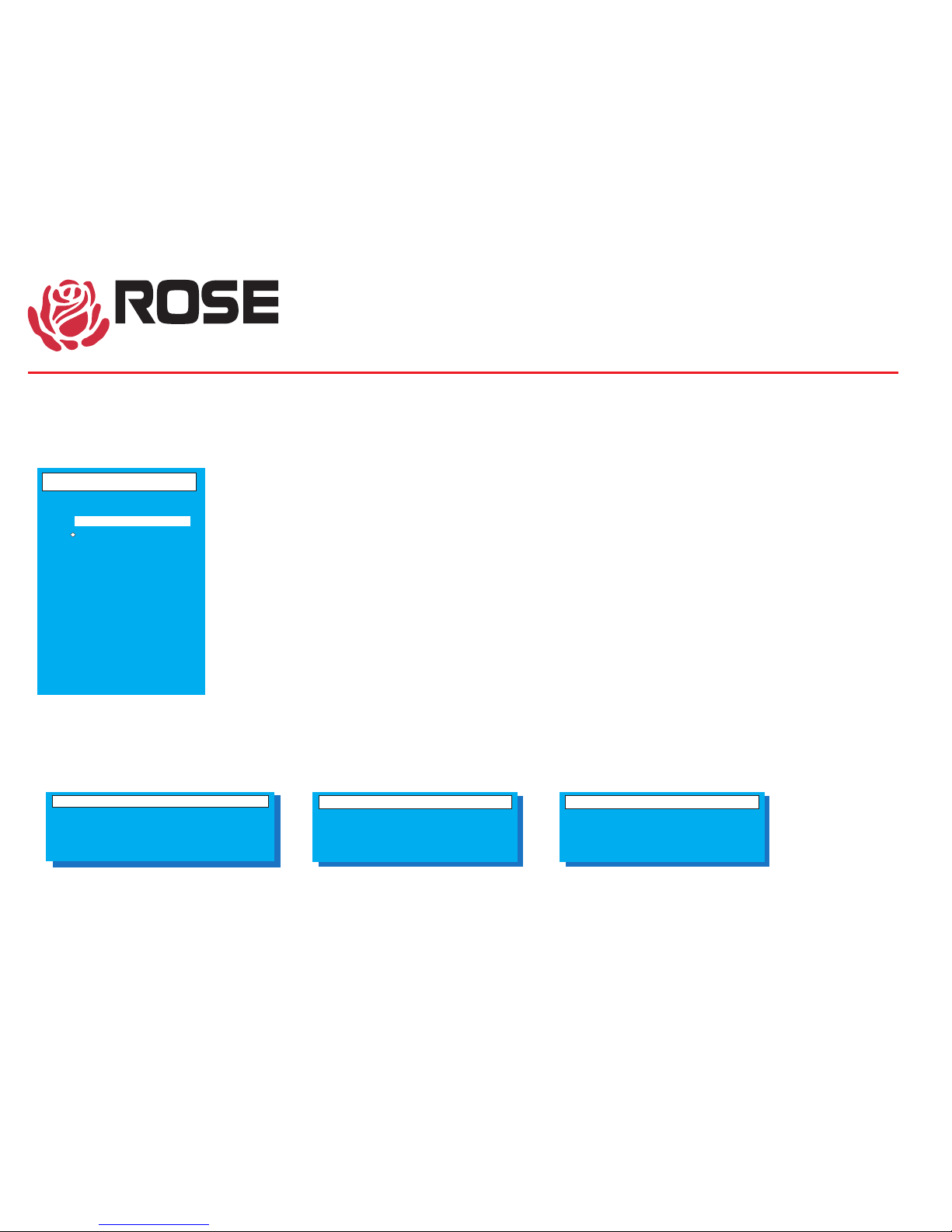
SWITCHING TO COMPUTERS
You can switch to computers through three different methods:
1. - Pressing and releasing the left control and then hitting the escape
key brings up the computer select menu. Use the arrow keys and the page up and page down to
highlight a computer and hit enter to switch to it.
2. - If you know the number of the computer you want to switch to then press
and release the left control key, enter the numeric value using the number keys below the function
keys, and hit enter to switch.
3. - Specify the KVM value with Knnn where nnn is the 1-255 KVM number of
the card desired. Specify the CPU number with Cnnnn where nnnn is the 1 to 1000 computer
number of the CPU desired. Send S to switch or question for an inquiry. <cr> below means carriage
return (value 13).
For example: K1C3S<cr> Switches KVM 1 to computer 3
For example: K2?<cr> Returns which computer KVM 2 is connected to
in the form K2CnnnRxx<cr> where nnn is the
computer connected or last connected and xx is
the status value described previously on the status page.
COMPUTER SELECT MENU
DIRECT BY NUMBER
USING THE RS232 port
The last value of K or C is remembered.
Status MIS Console
Connection successful
to NT Server
on Admin
Share mode
Not in access group
on Richard
to Mail Server
Connect failed
Status Control Room 5
Status App station 1
Disconnected
from Payroll
on Sharon
Timed out
Computer select menu
1 Mail Server
2 NT Server 1
3
4 NT Server 3
5 Inventory
6 Inventory 2
7 Sales domain
8 Computer 8
9 Computer 9
10 Computer 10
11 Computer 11
12 Computer 12
13 Computer 13
14 Computer 14
15 Computer 15
16 Computer 16
NT Server 2
The on-screen display gives you messages on the status of your connection and you will receive a message of
the following type when connecting or disconnecting. The last line is the status and is very important for
troubleshooting. This message may also be recalled with the control D command.
ELECTRONICS
Confidential
UltraMatrix 4X
UltraMatrix 4X Technical Overview
Page 17
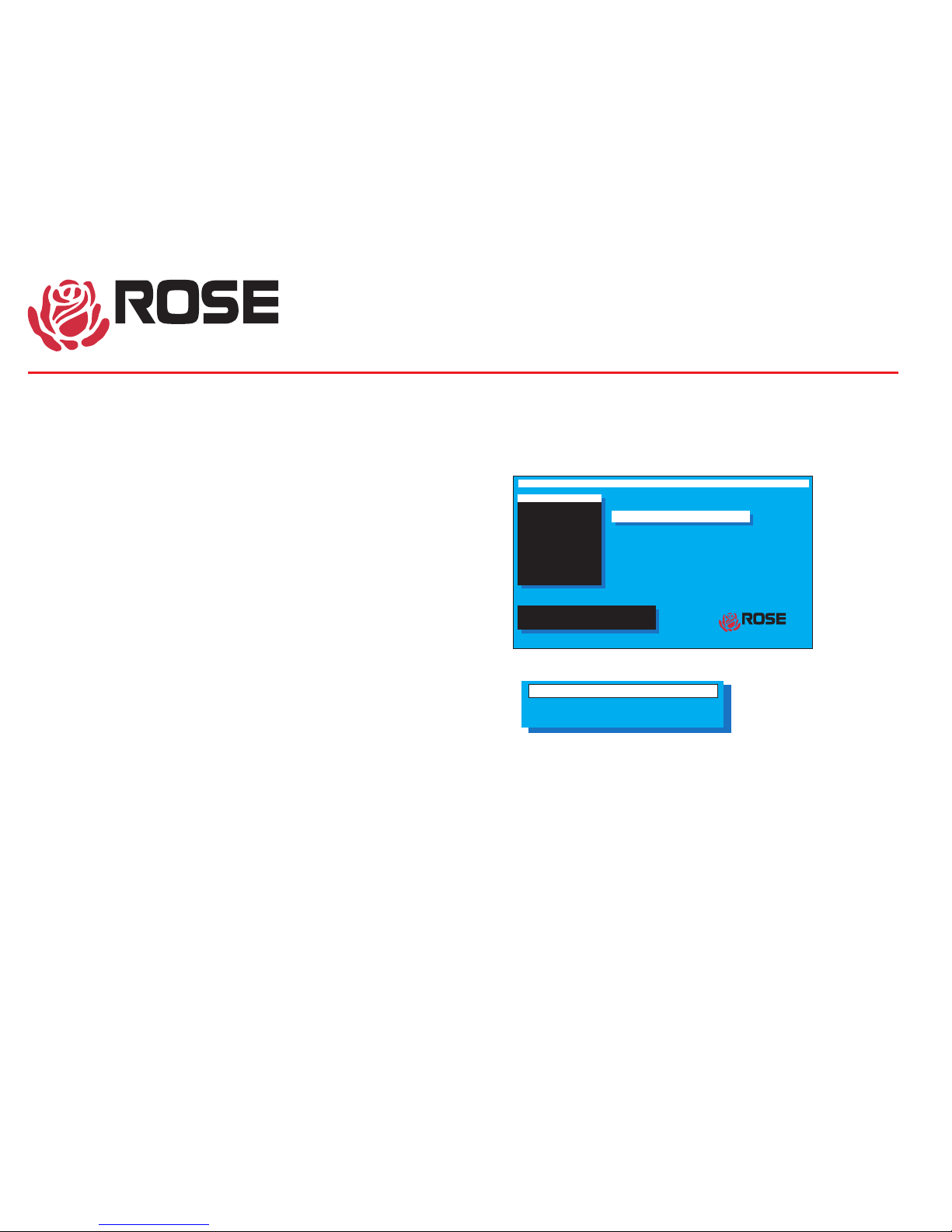
SECURITY
Login Control Room 2
User ID
Password
There are several types of security features in the product.
1. Configuration password
This feature is used to prevent unauthorized access to the configuration
menus. The password is entered from the configure system page. Any
subsequent access to the configuration page will require this password.
There is a password defeat jumper, in case the password is forgotten.
The jumper is marked on the CPU cards. The unit is shipped with no
jumper. If this jumper is installed., the unit will behave as if no password
is present.
2. Switch login
On the configure KVM page there is a selection for login yes/no. If you
say yes all access to the box from this KVM will require a user id and
password as shown to the left. Once the password is entered correctly,
the profile assigned to the user via the configure user page will be active.
The settings of that profile are assigned on the configure profile page.
3. User access group
Each KVM has a user assigned to it. This is determined by the settings
on the configure KVM page. If login=yes, then the user is from the value
entered at the login box. If login=no, then the user name is from the user
field adjacent to the login=no field. Each user has a profile from the
configure user page and each profile has an access group. The access
group can be configure to allow or deny access to any computer.
Use arrow keys to highlight
selection and press enter
or press escape to exit
Configure
System
Computer
KVM
User
Profile
Group
Status
Save
Exit
Main Menu
UltraMatrix version Mx16 Rose Electronics Copyright 1990-1999
Enter password
ELECTRONICS
ELECTRONICS
Confidential
UltraMatrix 4X
UltraMatrix 4X Technical Overview
Page 18

Hit space bar within 5 seconds of power-on of unit
Primarily used for loading flash and initial installation
SERIAL OPTIONS MENU
Welcome to UltraMatrix
Hit space bar within 5 seconds to get serial options menu
Power on diagnostics
Kernel version KX14
Overlay version 031R
Kernel program Good
Static ram Good
Configuration Good
Board number 2
Communication ID 6
Communication Good
Local ports 16
Serial options menu
1) Change starting computer number ... 1
2) Change the serial port baud rate ... 9600
3) Receive new main program or kernel from serial port (this card only)
4) Send this unit's main program to other units
5) Send this unit’s kernel to other units
6) Reset configuration data to factory default (this card only)
7) Save changes made in 1 and 2 (this card only)
8) Exit (restart the unit)
Enter choice -->
To set unit’s address if no KVM in slot 1, can be saved with
item 7
To set baud rate of serial port, can be saved with item 7
Much faster to use 57600 when loading new flash
To load new flash program or kernel from serial port
Use file copy from dos or send text file from Hyperterminal
To copy flash program or kernel to other boxes
Will display total of boards to update and prompt
Reset to factory default, resets this card only
Other cards must be reset with save configuration from
main configuration menu
To save items 1 and 2 only
Exits serial option menu and restarts box
Are you sure ? Y/N
ELECTRONICS
Confidential
UltraMatrix 4X
UltraMatrix 4X Technical Overview
 Loading...