

Page 1
Page 2
Using the CD
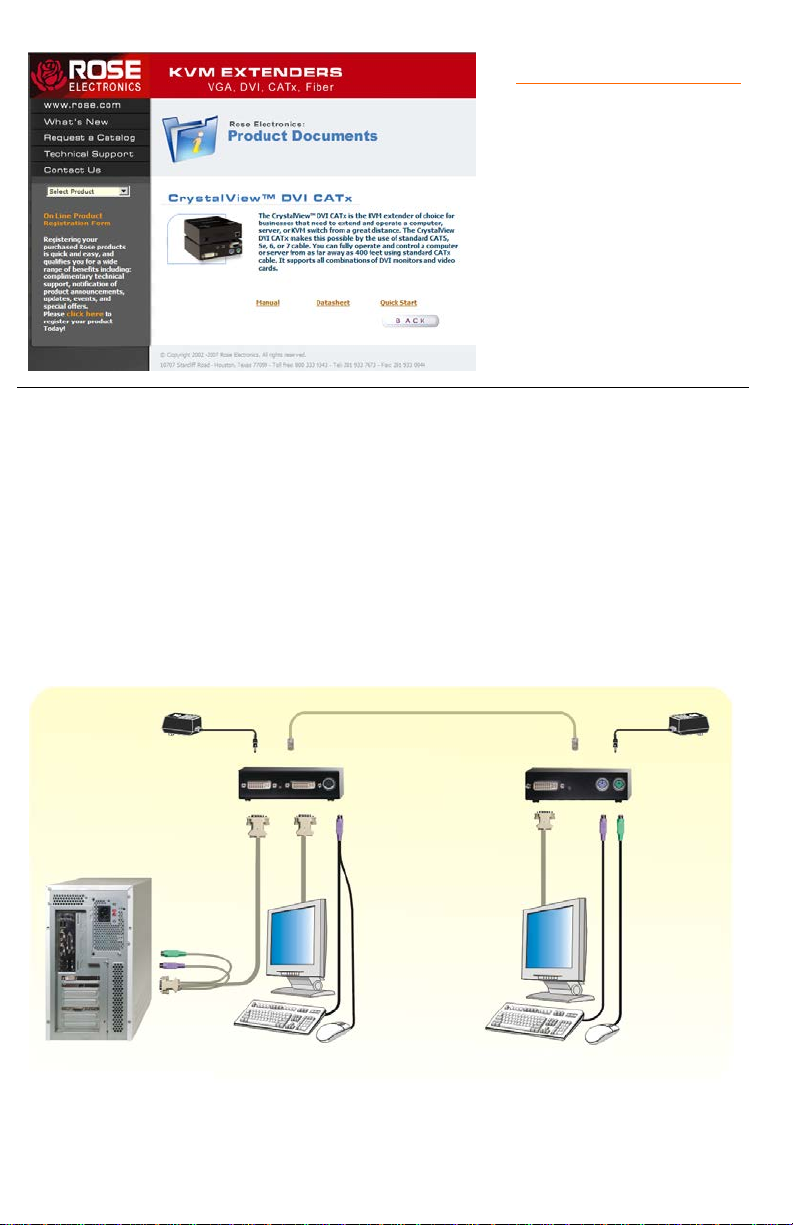
TRANSMITTER RECEIVER
LOCAL KVM REMOTE KVM
CATx cable
Insert the provided CD and
the Product Document
selection window will
automatically display.
Select the product and the
Manual, DataSheet, and
QuickStart document
window will display. Select
the document to display or
print. Documents are in
PDF format.
The system consists of two Units, a transmitter and a receiver. The transmitter
connects to your CPUs keyboard, DVI monitor, and mouse connectors, or to a
Rose KVM switch. The receiver connects to a keyboard, DVI video monitor
and mouse or KVM station. The transmitter and receiver are connected
together with CATx industry standard cable. The receiver can be up to 400 feet
from the transmitter using CAT5, 5e, 6, or 7 cables.
If your model is the serial/audio model, connect a serial DB9 cable from the
COM port on your computer to the DB9 connector on the transmitter. Connect
audio cables from the computer sound card audio in/out to the transmitter. On
the receiver, connect a supported serial device and stereo speakers and a
microphone.
Up to 400’
ACCESS ACCESS
Page 3
Operating instructions – Local KVM access
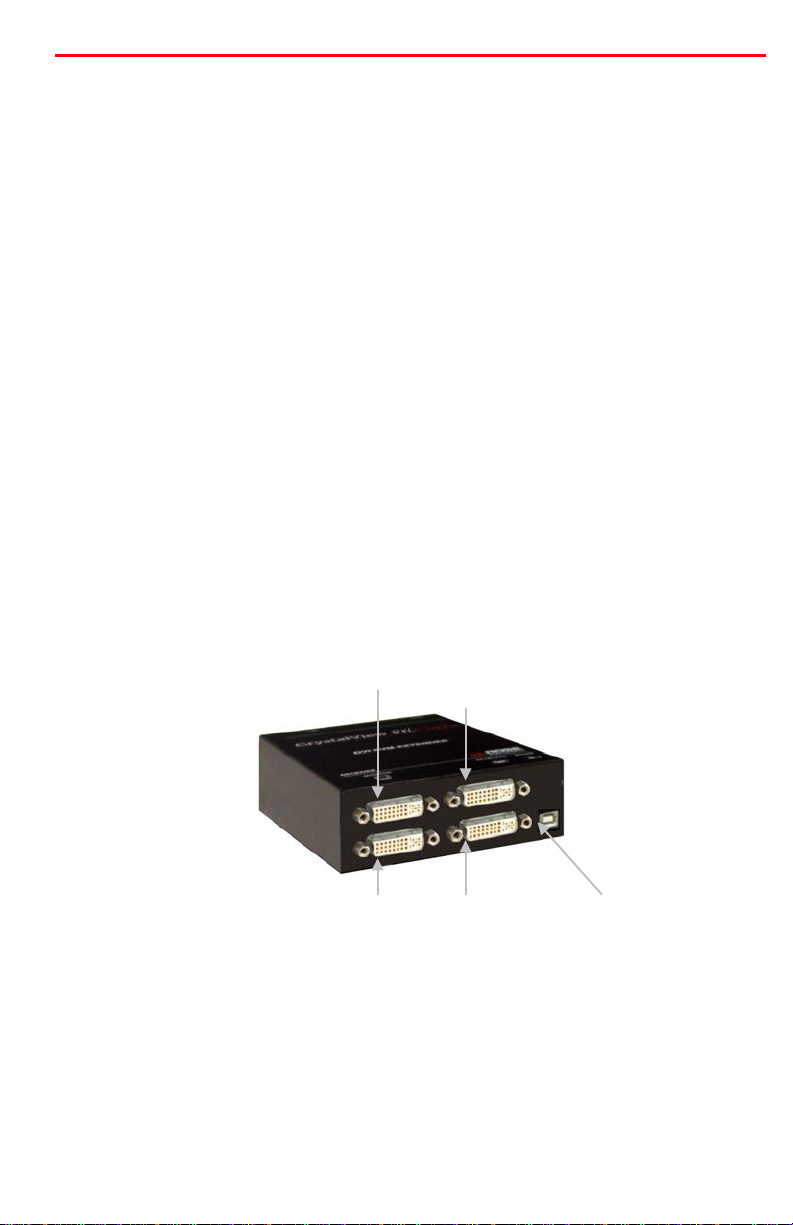
To 2nd DVI To 2nd DVI
DVI To CPU USB or USB hub
Operation of your computer is no different than having your keyboard, monitor,
and mouse connected directly to the computer. All functions, applications,
upgrades and other items can be done normally. The only difference is the
computer can be up to 400 feet away.
CrystalView DVI CATx with local KVM access allows an additional KVM station
to be connected to the transmitter. The CPU can easily be operated from the
remote KVM station or the local KVM station but not simultaneously.
The transmitter or local unit is active during boot-up and the connected CPUs
video is displayed on both the local and remote KVM stations monitor. To
activate the remote KVM station, simply press any key on the remote KVM
stations keyboard. Control is passed to the remote KVM station. To activate
the local KVM station, press any key on the KVM station’s keyboard.
The dual video models have the capability of connecting the transmitter to two
video sources. The two video sources are sent to the receiver and displayed
on it’s two video monitors. Video source one should be connected to the
computer’s primary DVI video port that is associated with the keyboard and
mouse.
Connect the local USB model transmitter as shown below (single or dual
video). A USB hub is used for local keyboard and mouse connections to the
computer
Graphic card local monitor
To 1st DVI To 1st
Graphic card local monitor for keyboard and mouse
Page 4

Maximum resolution
DVI – 1600 x 1200 @ 60Hz
Video compatibility
DVI-D
Keyboard
PS/2 or USB
Mouse
PS/2 or USB
Transmitter power
90-240 VAC adapter to 5VDC / app. 10W
Receiver power
90-240 VAC adapter to 5VDC / app. 10w
Connectors
Video to PC – DVI-D
Interconnect: RJ45
Temp/Humidity
41
ο
F-113
ο
F / 5
ο
C-45
ο
C / 80% RH max
Weight
0.65 lbs / 0.3 kg (each unit)
Dimensions
H: 1.375 in / 3.0 cm
D: 5.625in / 14.4 cm
Part Number
Description
CRV-DLDTXPD1D
DVI-D / PS/2 Single video (Transmitter)
CRV-SRDTXPD1D
DVI-D / PS/2 Single video (Receiver)
CRV-DLDTXPD2D
DVI-D / PS/2 Dual video (Transmitter)
CRV-SRDTXPD2D
DVI-D / PS/2 Dual video (Receiver)
CRV-DLDTXUD1D
DVI-D / USB Single video (Transmitter)
CRV-SRDTXUD1D
DVI-D / USB Single video (Receiver)
CRV-DLDTXUD2D
DVI-D / USB Dual video (Transmitter)
CRV-SRDTXUD2D
DVI-D / USB Dual video (Receiver)
CAB-DDPMDD66M006
DVIDM w/PS2 to DVID & 2 MD6M, 6’
CAB-MD6M2MD6F
Keyboard/Mouse PS/2 “Y” cable
Specifications
Parts and cables
Video to KVM – DVI-D
Keyboard: PS/2 or USB
Mouse: PS/2 or USB
W: 4.125 in / 10.0 cm
Copyright Rose Electronics 2007. All rights reserved.
No part of this publication may be reproduced, stored in a retrieval system, or transcribed in any form or any
means, electronic or mechanical, including photocopying and recording, without the prior written permission of
Rose Electronics.
Rose Electronics Part # QS-CRV-DVI5
Printed In the United States of America
 Loading...