

Page 1
© 2020 Roland Corporation
Roland Cloud Manager
Owner’s Manual
01
Page 2
Roland Cloud Manager
Contents
Login Screen
Normal Screen
Membership
Hardware
Software
Library
Page 3
to Contents
Login Screen
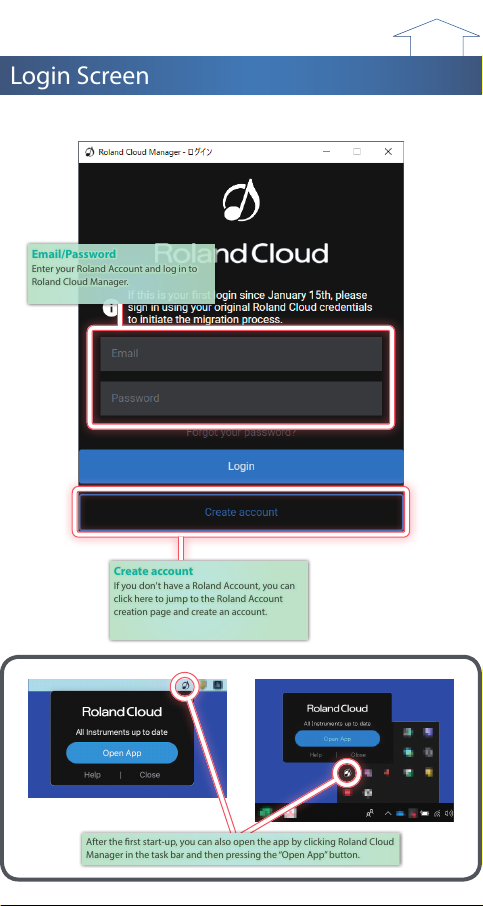
Email/Password
Enter your Roland Account and log in to
Roland Cloud Manager.
Create account
If you don't have a Roland Account, you can
click here to jump to the Roland Account
creation page and create an account.
After the rst start-up, you can also open the app by clicking Roland Cloud
Manager in the task bar and then pressing the “Open App” button.
Page 4
Normal Screen
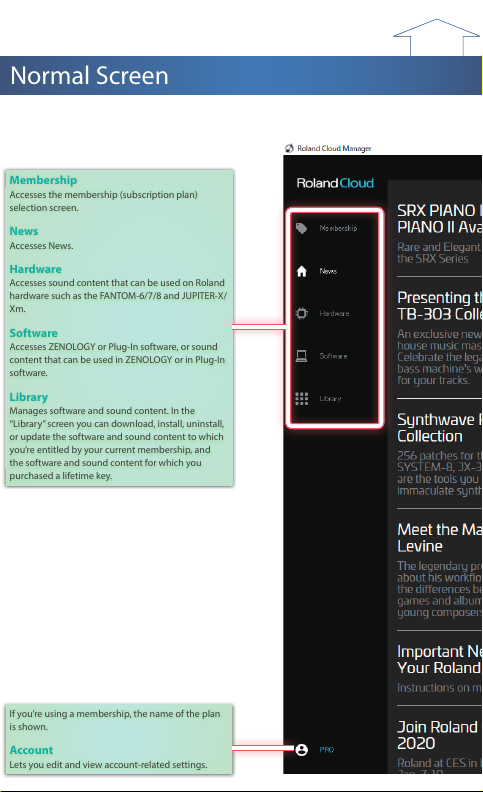
Membership
Accesses the membership (subscription plan)
selection screen.
News
Accesses News.
Hardware
Accesses sound content that can be used on Roland
hardware such as the FANTOM-6/7/8 and JUPITER-X/
Xm.
Software
Accesses ZENOLOGY or Plug-In software, or sound
content that can be used in ZENOLOGY or in Plug-In
software.
Library
Manages software and sound content. In the
“Library” screen you can download, install, uninstall,
or update the software and sound content to which
you’re entitled by your current membership, and
the software and sound content for which you
purchased a lifetime key.
If you’re using a membership, the name of the plan
is shown.
Account
Lets you edit and view account-related settings.
to Contents
Page 5
Membership
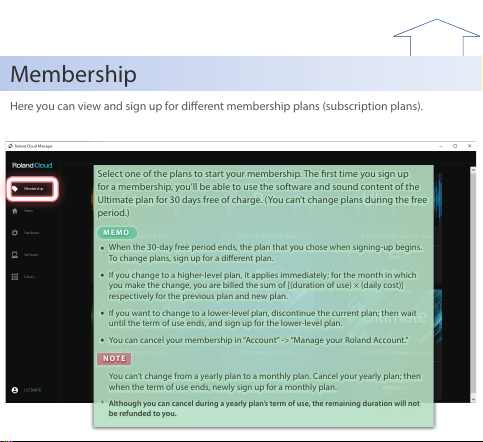
Here you can view and sign up for dierent membership plans (subscription plans).
Select one of the plans to start your membership. The rst time you sign up
for a membership, you’ll be able to use the software and sound content of the
Ultimate plan for 30 days free of charge. (You can’t change plans during the free
period.)
MEMO
5When the 30-day free period ends, the plan that you chose when signing-up begins.
To change plans, sign up for a dierent plan.
5If you change to a higher-level plan, it applies immediately; for the month in which
you make the change, you are billed the sum of [(duration of use) × (daily cost)]
respectively for the previous plan and new plan.
5If you want to change to a lower-level plan, discontinue the current plan; then wait
until the term of use ends, and sign up for the lower-level plan.
5You can cancel your membership in “Account” -> “Manage your Roland Account.”
NOTE
You can’t change from a yearly plan to a monthly plan. Cancel your yearly plan; then
when the term of use ends, newly sign up for a monthly plan.
* Although you can cancel during a yearly plan’s term of use, the remaining duration will not
be refunded to you.
to Contents
Page 6
to Contents
Hardware
You can select and purchase sound content for use on Roland hardware such as the
FANTOM-6/7/8 or JUPITER-X/Xm.
* If you want to use sound content on your hardware, you’ll need to purchase a lifetime key (one-time purchase). Data
that’s downloaded using a membership (subscription) can’t be loaded into hardware.
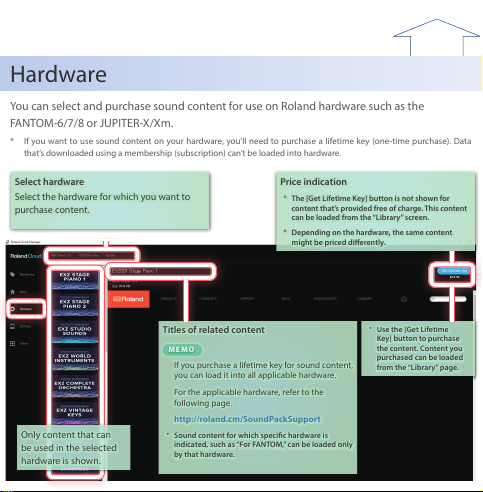
Select hardware
Select the hardware for which you want to
purchase content.
Titles of related content
MEMO
If you purchase a lifetime key for sound content,
you can load it into all applicable hardware.
For the applicable hardware, refer to the
following page.
http://roland.cm/SoundPackSupport
* Sound content for which specic hardware is
indicated, such as “For FANTOM,” can be loaded only
by that hardware.
Price indication
* The [Get Lifetime Key] button is not shown for
content that’s provided free of charge. This content
can be loaded from the “Library” screen.
* Depending on the hardware, the same content
might be priced dierently.
Only content that can
be used in the selected
hardware is shown.
* Use the [Get Lifetime
Key] button to purchase
the content. Content you
purchased can be loaded
from the “Library” page.
Page 7
to Contents
Software
Here you can purchase ZENOLOGY, plug-in software, and sound content for use in
ZENOLOGY or plug-in software.
* The ZENOLOGY software synthesizer can only be used via membership (subscription). Note that the sound content
downloaded/installed using your membership privileges cannot be installed in hardware.
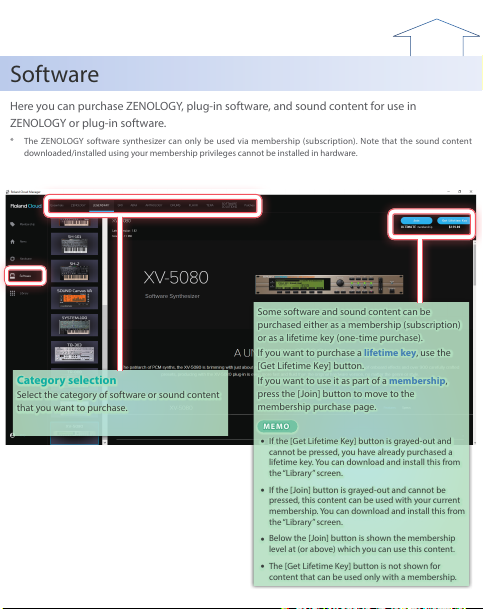
Category selection
Select the category of software or sound content
that you want to purchase.
Some software and sound content can be
purchased either as a membership (subscription)
or as a lifetime key (one-time purchase).
If you want to purchase a lifetime key, use the
[Get Lifetime Key] button.
If you want to use it as part of a membership,
press the [Join] button to move to the
membership purchase page.
MEMO
5If the [Get Lifetime Key] button is grayed-out and
cannot be pressed, you have already purchased a
lifetime key. You can download and install this from
the “Library” screen.
5If the [Join] button is grayed-out and cannot be
pressed, this content can be used with your current
membership. You can download and install this from
the “Library” screen.
5Below the [Join] button is shown the membership
level at (or above) which you can use this content.
5The [Get Lifetime Key] button is not shown for
content that can be used only with a membership.
Page 8
to Contents
Library
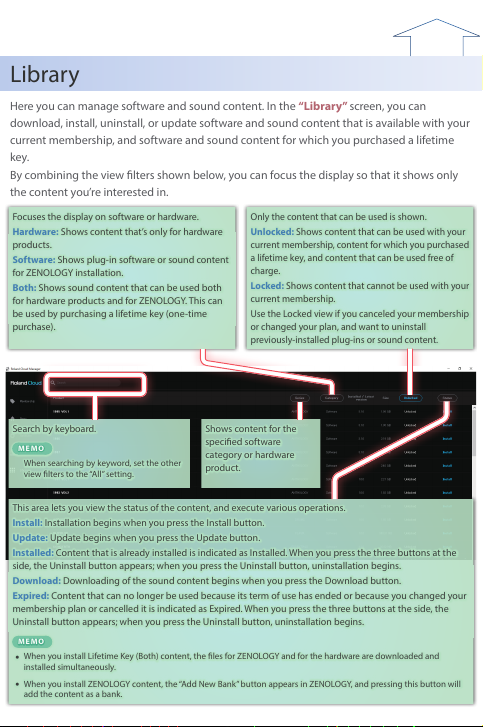
Here you can manage software and sound content. In the “Library” screen, you can
download, install, uninstall, or update software and sound content that is available with your
current membership, and software and sound content for which you purchased a lifetime
key.
By combining the view lters shown below, you can focus the display so that it shows only
the content you’re interested in.
Search by keyboard.
MEMO
When searching by keyword, set the other
view lters to the “All” setting.
Focuses the display on software or hardware.
Hardware: Shows content that’s only for hardware
products.
Software: Shows plug-in software or sound content
for ZENOLOGY installation.
Both: Shows sound content that can be used both
for hardware products and for ZENOLOGY. This can
be used by purchasing a lifetime key (one-time
purchase).
Only the content that can be used is shown.
Unlocked: Shows content that can be used with your
current membership, content for which you purchased
a lifetime key, and content that can be used free of
charge.
Locked: Shows content that cannot be used with your
current membership.
Use the Locked view if you canceled your membership
or changed your plan, and want to uninstall
previously-installed plug-ins or sound content.
This area lets you view the status of the content, and execute various operations.
Install: Installation begins when you press the Install button.
Update: Update begins when you press the Update button.
Installed: Content that is already installed is indicated as Installed. When you press the three buttons at the
side, the Uninstall button appears; when you press the Uninstall button, uninstallation begins.
Download: Downloading of the sound content begins when you press the Download button.
Expired: Content that can no longer be used because its term of use has ended or because you changed your
membership plan or cancelled it is indicated as Expired. When you press the three buttons at the side, the
Uninstall button appears; when you press the Uninstall button, uninstallation begins.
MEMO
5When you install Lifetime Key (Both) content, the les for ZENOLOGY and for the hardware are downloaded and
installed simultaneously.
5When you install ZENOLOGY content, the “Add New Bank” button appears in ZENOLOGY, and pressing this button will
add the content as a bank.
Shows content for the
specied software
category or hardware
product.
 Loading...