

Page 1

User’s Manual
Performance Series Real-Time DVR
▪ H.264 Stand-Alone DVR
▪ Independent Dual Display
▪ Triple Streaming
▪ Auto IP Detection
▪ iPhone, Android Phone Support
Page 2
1
Preface
Thank you for being a user of the world's best digital video recorder (DVR), and the leading
Digital Video Surveillance System. For effective usage, please read this manual carefully. For
future reference, please keep this manual handy.
Copyright/Authentication/Trademark/Limited Warranty
Copyright
This manual is produced under copyright law. None of its contents may be copied or duplicated
without prior approval.
Copyright 2009~
Authentication
CE, FCC, KCC
Trademark
Ethernet(TM) is the trademark of Xerox Corporation.
Microsoft(TM), MS-DOS(TM), Windows(TM logo), Windows(TM) and Windows NT(TM) are the
trademarks of Microsoft Corporation, used in the United States and elsewhere.
Limited Warranty
• The manufacturer, importer and agent shall not be responsible for accidental damage (including
injury) and other damage caused by inappropriate use or operation of this product.
• The information in this manual is prepared based on the current specifications for the product.
The manufacturer is currently adding new functions and will continue to upgrade the product
with new technology. All specifications may be changed without notice to individual users.
Cautions
We strongly recommend that users read all safety cautions carefully before operating the product
in order to operate the product appropriately.
Since the indicated cautions contain critical safety information, they must be fully complied with.
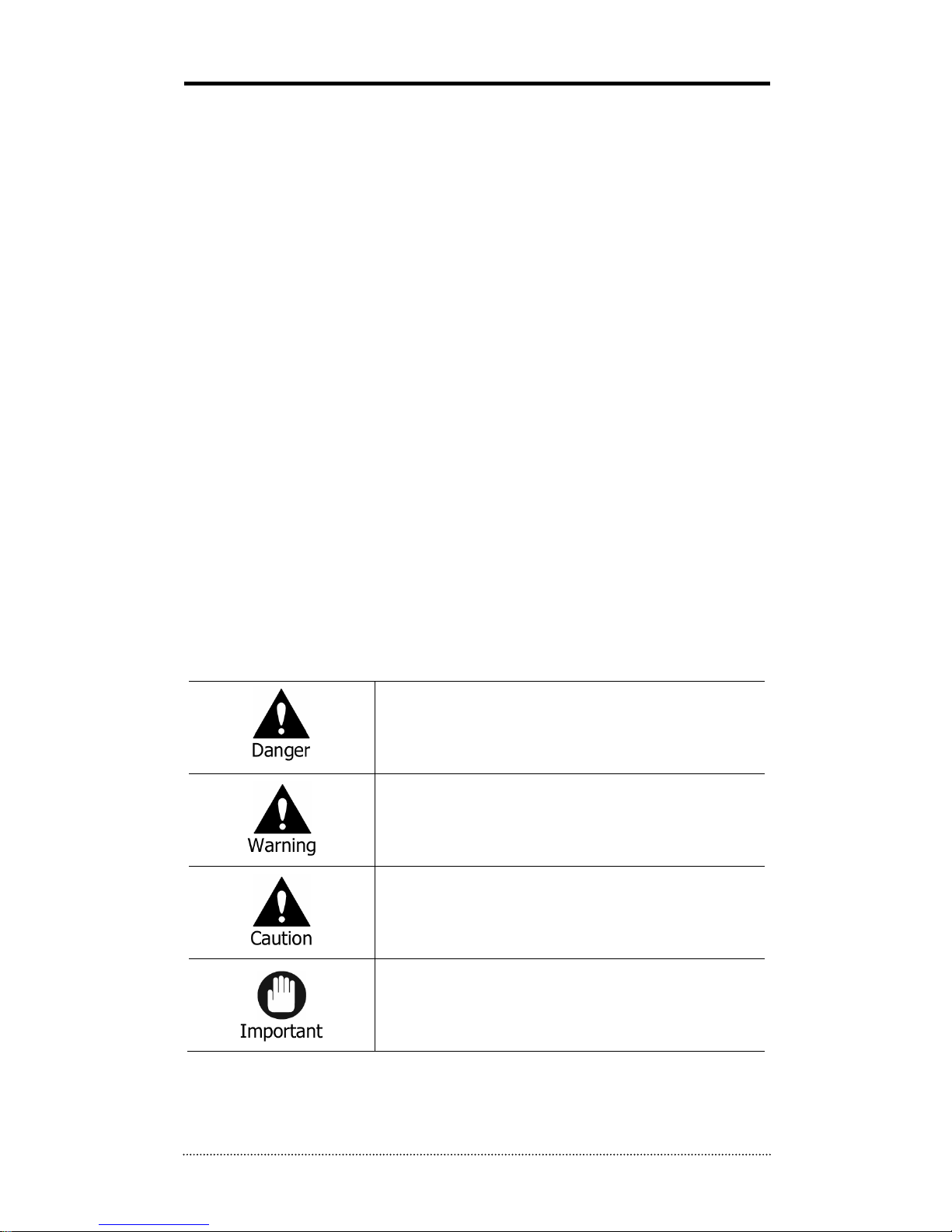
The cautions are categorized into Danger, Warning, Caution and Important.
Risk of death or serious injury.
This is the highest priority danger warning.
Risk of serious or lesser degree of injury.
May also cause damage to the product or to property.
Risk of minor injury or damage.
Requirements or limitations regarding operation. Users are
recommended to read the relevant details carefully so as to
operate the product properly and without harm.
The above cautions indicate the degree of damage that may occur due to inappropriate use of
the system.
Page 3
2
Risk of death or serious injury.
This is the highest priority danger warning.
• RISK OF EXPLOSION IF BATTERY IS REPLACED BY INCORRECT TYPE. DISPOSE OF USED
BATTERY ACCORDING TO THE INSTRCTIONS.
• THIS EQUIPMENT IS FOR INDOOR USE AND ALL WIRINGS AND CABLINGS SHOULD BE
LIMITED TO INSIDE OF THE BUILDING.
• Please connect the power cord only to the type of AC outlet indicated in the manual or product
specification. If connected to other types of power outlet, fire or electric shock may occur.
• Do not expose the product to moisture or dampness. Doing so may result fire or electric shock.
• Do not place heavy objects on top of the power cord. Damage to the power cord may result in
fire or electric shock.
• Do not place containers with liquid or small metal objects on top of the product. Liquid or small
metal objects getting into the unit may lead to fire or electric shock.
• Do not score, bend, twist, pull or heat the power cord. Damage to the power cord may lead to
fire or electric shock.
• Do not remove the top casing of the product. Doing so may result in electric shock. If internal
examination and maintenance are deemed necessary, contact the authorized system vendors
or installers.
• Do not modify the product in any way. Doing so may lead to fire or electric shock.
• In case of lightning, immediately turn off the power switch and remove the power cord from
the power outlet. Failure to do so may result in fire or electric shock.
• Please use only the power cord supplied with the product. Use of other power cords may result
in fire or electric shock.
• In case of smoke, smell or noise, immediately turn off the power switch and remove the power
cord from the power outlet. Continued operation of the product may result in fire or electric
shock. Request a maintenance service from the authorized system vendors or installers.
• If the product is dropped or damaged, turn off the power switch and remove the power cord
from the power outlet. Continued operation of the product may result in fire or electric shock.
Users should request a maintenance service from the authorized system vendors or installers.
• Do not touch the product with wet hands. Doing so may result in electric shock.
Risk of serious or lesser degree of injury.
May also cause damage to the product or to property.
• Do not leave the power cord or other cables in passageways. Passers-by may trip and fall.
• Avoid contact with water or beverages. It may result in damage that cannot be repaired.
• In case of lightning, immediately turn off the power switch and remove the power cord from
the power outlet. The product may otherwise be damaged.
• Excessive current from the product and the camera may result in an electric shock. Connect the
power cord only to an appropriate power source when the product is disconnected from its
own power supply.
Page 4

3
Risk of minor injury or damage.
• If a foreign substance is stuck to the product, remove it using a soft cloth or tissue. Do not use
chemical agents (thinner, solvent, etc.) to remove the substance.
• Do not operate or store the product in the following places.
- An area that is either too cold or too hot
- An area of high humidity, in front of an air-conditioner, or in places subject to sudden
temperature changes
- An area with excessive dust
- Areas where heat from the product cannot be dissipated through both of the product's
side ventilation openings
• Do not place credit cards/telephone cards/bank account books/tickets and other objects with
magnetic properties near the product.
• Static electricity may cause damage to the internal parts of the product. Please remove static
electricity from your body before touching the rear panel and internal electronic parts of the
product.
• If this product is damaged beyond repair or reaches its maximum service life, dispose of it in
compliance with local laws and regulations regarding to the disposal of lead and plastic waste.
Requirements or limitations regarding operation. Users are
recommended to read the relevant details carefully so as to
operate the product properly without any injury or damage.
• The product may not work properly if the power source is unstable or if an electric shock occurs.
Make sure to use the correctly rated power.
• The product is designed to be safe against electric power failures; however, damage may occur
at a power failure. Current data may be damaged or not be recorded properly. Make sure to
use an Uninterruptible Power Supply (UPS).
• Since the product is designed to record video data on a hard disk, an error in the hard disk or
other miscellaneous errors might prevent the product from recording properly. Periodic
maintenance is required for proper operation of the product.
• The product is designed for users to configure their own interface. However, a user
configuration error could lead to an operation failure. This product should be set up by certified
installers only.
• Since the product is connected - and tightly coupled - to exterior accessories (camera, sensor,
LAN, Hard Disk, etc.), there is a risk of malfunction from external causes. Make sure to have
certified installers do regular maintenance on all devices in the system.
• Use the rack mounting handle provided with the product for installation.
• In this product, 1 Kbyte equals 1,024 bytes, 1 Mbyte equals 1,048,576 bytes and 1 Gbyte
equals 1,073,700,000 bytes.
Page 5

4
Contents
Preface ............................................................................................... 1
Contents ............................................................................................. 4
Chapter 1. Introduction ..................................................................... 7
1. The System ......................................................................................................... 7
2. General Features ................................................................................................ 7
3. Specification ....................................................................................................... 8
Chapter 2. System Installation ........................................................ 10
1. Package Contents ............................................................................................. 10
2. Connecting Devices .......................................................................................... 11
2-1. 4 Channel Premium DVR ................................................................................... 11
2-2. 8/16 Channel Premium DVR .............................................................................. 14
3. Cautions............................................................................................................ 16
Chapter 3. Using DVR ....................................................................... 17
1. Basic Operation ................................................................................................ 17
1-1. Front Panel & IR Remote Controller ................................................................... 17
1-2. Turning on the System ...................................................................................... 17
1-3. Menu Bar ......................................................................................................... 18
1-4. Display Icons ................................................................................................... 18
1-5. User or Admin Login ......................................................................................... 20
1-6. The Main Menu ................................................................................................ 21
1-7. Contextual Menu .............................................................................................. 22
2. DVR Configuration ............................................................................................ 23
2-1. SYSTEM ........................................................................................................... 23
2-1-1. MENU > SYSTEM > Information .............................................................. 23
2-1-2. MENU > SYSTEM > Date & Time ............................................................. 24
2-1-3. MENU > SYSTEM > User ......................................................................... 24
2-1-4. MENU > SYSTEM > Quick Setup .............................................................. 26
2-1-5. MENU > SYSTEM > System Log .............................................................. 26
2-2. DEVICE ............................................................................................................ 27
2-2-1. MENU > DEVICE > Camera ..................................................................... 27
2-2-2. MENU > DEVICE > Audio ........................................................................ 28
2-2-3. MENU > DEVICE > Alarm........................................................................ 28
2-2-4. MENU > DEVICE > Keyboard .................................................................. 29
2-2-5. MENU > DEVICE > RS232 & RS485 ......................................................... 29
2-3. DISPLAY .......................................................................................................... 30
2-3-1. MENU > DISPLAY > Display .................................................................... 30
2-3-2. MENU > DISPLAY > VGA ........................................................................ 30
2-3-3. MENU > DISPLAY > CVBS ....................................................................... 31
2-3-4. MENU > DISPLAY > Digital Signage ......................................................... 32
2-4. RECORD .......................................................................................................... 33
2-4-1. MENU > RECORD > Storage ................................................................... 33
2-4-2. MENU > RECORD > Record..................................................................... 33
2-4-3. MENU > RECORD > Utilities .................................................................... 35
2-5. NETWORK ....................................................................................................... 36
2-5-1. MENU > NETWORK > Address ................................................................ 36
2-5-2. MENU > NETWORK > DDNS ................................................................... 37
2-5-3. MENU > NETWORK > Notification ........................................................... 37
Page 6

5
2-5-4. MENU > NETWORK > Transmission ......................................................... 38
2-6. EVENT ............................................................................................................. 39
2-6-1. MENU > EVENT > Sensor ....................................................................... 39
2-6-2. MENU > EVENT > Motion ....................................................................... 40
2-6-3. MENU > EVENT > Video Loss .................................................................. 43
2-6-4. MENU > EVENT > Text-In ....................................................................... 44
2-6-5. MENU > EVENT > System ....................................................................... 46
3. Playback ........................................................................................................... 47
3-1. Go to Time....................................................................................................... 49
3-2. Calendar Search ............................................................................................... 49
3-3. Event Search .................................................................................................... 49
3-4. Text-In Search .................................................................................................. 50
3-5. Backup Data Playback ...................................................................................... 51
3-6. Playback Control .............................................................................................. 52
4. Backup .............................................................................................................. 53
4-1. Backup ............................................................................................................ 53
4-2. Instant Backup ................................................................................................. 54
4-3. Clip Maker........................................................................................................ 54
Chapter 4. Remote Software ........................................................... 55
1. Using Remote Software .................................................................................... 55
1-1. Starting the Software........................................................................................ 55
1-2. Site Set Up ...................................................................................................... 57
1-3. Favorite Set Up ................................................................................................ 60
1-3. Site List Panel .................................................................................................. 62
1-4. Tool Panel ........................................................................................................ 63
1-4-1. DVR Status ............................................................................................. 63
1-4-2. PTZ ....................................................................................................... 63
1-4-3. TEXT-IN ................................................................................................. 64
1-4-4. GPS ....................................................................................................... 64
2. Remote Playback .............................................................................................. 65
2-1. Calendar Search ............................................................................................... 65
2-2. Event Search .................................................................................................... 66
2-3. Text-In Search.................................................................................................. 67
2-4. Saving the recorded data .................................................................................. 68
2-5. Play Backup Data ............................................................................................. 69
2-6. Play Independent HDD Data on PC .................................................................... 70
3. Setup ................................................................................................................ 71
3-1. Remote Software Setup .................................................................................... 71
3-2. Remote DVR Setup ........................................................................................... 75
3-3. Remote Upgrade .............................................................................................. 76
4. Callback ............................................................................................................ 77
Appendix A. Remote Access Using I.E. ............................................ 79
Appendix B. How to set DDNS using router ..................................... 83
Appendix C. Digital Signage Maker .................................................. 89
1. How to use Digital Signage Maker ........................................................................ 90
Appendix D. PFRM Instructions ....................................................... 92
1. Outline ............................................................................................................... 92
2. How to connect ................................................................................................... 93
Appendix E. NEMON Network Archiver Instructions ....................... 95
1. Outline ............................................................................................................... 95
Page 7

6
2. Feature ............................................................................................................... 95
3. How to use Network Archiver ............................................................................... 96
4. Set Up .............................................................................................................. 100
5. Reference ......................................................................................................... 106
COMPLIANCE NOTICE OF FCC: ........................................................................... 107
WEEE (Waste Electrical & Electronic Equipment) ............................................... 107
ROHS Compliance ............................................................................................... 107
Page 8

7
Chapter 1. Introduction
1. The System
This product is targeted towards the expanding DVR market. As the market is expanding from
Professional to Consumer and into wider sectors, both price and feature oriented products are
highly on demand across different market sectors. This product is designed to fulfill these various
aspects of different market needs. This highly affordable, reliable, and usable DVR series is to
fulfill basic DVR requirements and the most satisfactions.
2. General Features
• True H.264 Standard Video Compression
• Embedded Linux System to give you the Ultimate Reliability
• Dedicated DB Structure for Stability
• Various Recording Resolution D1/Half D1/CIF
• CMS (Central Monitoring System)
• Easy Setup same like DVR GUI in CMS
• Web Monitoring, Searching and Setup
• Own Media Player for Backup Playback
• Two USB Port for Mouse operation, Multi USB Hub and Backup
• Up to Two SATA HDD and No Limitation of Capacity
• Two- Way Audio
• Multiple DVRs can be operated with One Keyboard Controller
• Text-In & Relay Output Support
• Real Time Recording and Multi Ch. Playback
• Triple Streaming / Digital Zoom
• iPhone, Android Phone Support
• Independent Dual Display
Dual Display allows user to use both VGA and CVBS outputs at the same time with different
display options. Two different individual display modes can be set on each monitor output. Two
different display mode (Live Monitoring on one monitor and Playback on the other) can be
displayed and controlled at the same time. This function will provide high flexibility and efficiency
for monitoring options for the users.
Note
: This manual covers the 4-channel, 8-channel and 16-channel DVRs. The DVRs are
identical except for the number of cameras, audio inputs and alarms. The GUI illustrations and
descriptions in this manual are based on the 4 channel model.
Page 9

8
3. Specification
Model
4 Channel Performance DVR
Video
In
4 BNC (without Loop-out)
Out
1 VGA, 1 CVBS (Dual Display)
Audio
In
4 RCA (Line-In)
Out
1 RCA (Line-Out)
Device
Sensor In
4 TTL (3+Emergency)
Alarm Out
2 Open Collector Output
I/O Interface
RS232, RS485, USB x 2
Display
Speed
Real Time
Resolution
720 x 480 (NTSC)
Split Screen
1, 4, PIP, Digital Zoom
Recording
Compression
H.264 Codec
Speed /
Resolution
120fps@CIF(NTSC)
120fps@Half D1(NTSC)
60fps@D1(NTSC)
Picture Quality
Very High, High, Standard, Low
Mode
Time-lapse, Event, Time & Event, Emergency (Panic)
Playback
Display
1, 4, Digital Zoom
Search Mode
Calendar Search, Event Search, Text-In Search, Go to Time
Playback Mode
Multi Channel Normal & Reverse Play,
RW & FF ( x2, x4, x8, x16, x32), Frame to Frame, Pause
Network
Interface
Ethernet (10/100 Base)
Protocol
TCP/IP, HTTP, DHCP, ADSL(PPPoE), RTP/RTSP
Application
Live, Playback, Setup, Notification (Callback, E-Mail)
Web Browse
Internet Explorer 7 or higher
Mobile Support
iPhone, Android Phone (Real Streaming)
Storage
2 x SATA HDD
Backup
External HDD(USB), External USB Memory
Control
Front Panel Button, USB Mouse port,
IR Remote Controller, Joystick Controller port
OSD
Graphic User Interface (Multilingual)
Approval
FCC, CE, KCC
ROHS
ROHS Compliance
Power Consumption
DC12V, 3.33A (40W)
Operating Temperature
41°F~104°F
Operating Humidity
0%~80% / non-condensing
Dimension
13.39(W)x2.64(H)x10.43(D)inch
Weight
4.4lbs (without HDD)
Page 10

9
Model
8 Channel Performance DVR
16 Channel Performance DVR
Video
In
8 BNC (Loop-out option*)
16 BNC (Loop-out option*)
Out
1 VGA, 1 CVBS (Dual Display)
Audio
In
8 RCA (Line in) – Option*
Out
1 RCA (Line Out)
Device
Sensor In
4 TTL (3+Emergency)
Alarm Out
2 Open Collector Output
I/O Interface
RS232, RS485, USB x 2
Display
Speed
Real Time
Resolution
720 x 480 (NTSC)
Split Screen
1,4,6,9,PIP,Digital Zoom
1,4,6,8,9,13,16,PIP,
Digital Zoom
Recording
Compression
H.264 Codec
Speed /
Resolution
240fps@CIF(NTSC)
240fps@Half D1(NTSC)
120fps@D1(NTSC)
480fps@CIF(NTSC)
240fps@Half D1(NTSC)
120fps@D1(NTSC)
Picture Quality
Very High, High, Standard, Low
Mode
Time-lapse, Event, Time & Event, Emergency (Panic)
Playback
Display
1, 4, 6, 9, Digital Zoom
1,4,6,8,9,13,16,Digital Zoom
Search Mode
Calendar Search, Event Search, Text-In Search, Go to Time
Playback Mode
Multi Channel Normal & Reverse Play,
RW & FF ( x2, x4, x8, x16, x32), Frame to Frame, Pause
Network
Interface
Ethernet (10/100 Base)
Protocol
TCP/IP, HTTP, DHCP, ADSL(PPPoE), RTP/RTSP
Application
Live, Playback, Setup, Notification (Callback, E-Mail)
Web Browse
Internet Explorer 7 or higher
Mobile Support
iPhone, Android Phone (Real Streaming)
Storage
2 x SATA HDD
Backup
External HDD(USB), External USB Memory
Control
Front Panel Button, USB Mouse port,
IR Remote Controller, Joystick Controller port
OSD
Graphic User Interface (Multilingual)
Approval
FCC, CE, KCC
ROHS
ROHS Compliance
Power Consumption
DC12V, 3.33 (40W)
Operating Temperature
41°F~104°F
Operating Humidity
0%~80% / non-condensing
Dimension
13.39(W)x2.64(H)x10.43(D)inch
Weight
4.4lb (without HDD)
* Requires optional accessory connector(s). Please ask about this to your supplier.
Page 11
10
Chapter 2. System Installation
1. Package Contents
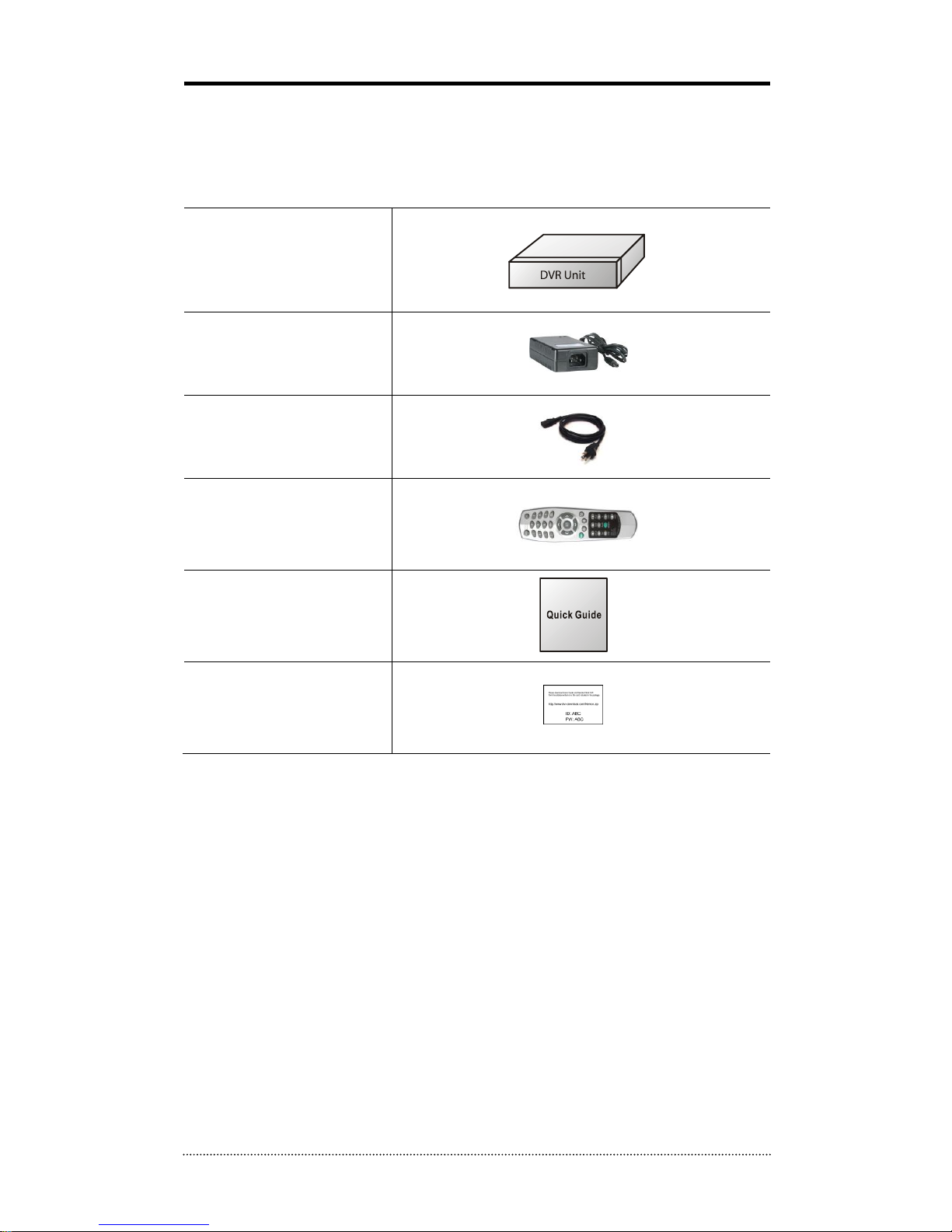
The following components are included in the product packaging:
DVR Unit
DC Adaptor
Power Cord
Remote Controller
Quick Guide
Customer Card
Note
: Please download Users‟ Guide and Remote Client S/W from the address written on the
customer card.
Page 12
11
2. Connecting Devices
2-1. 4 Channel Premium DVR
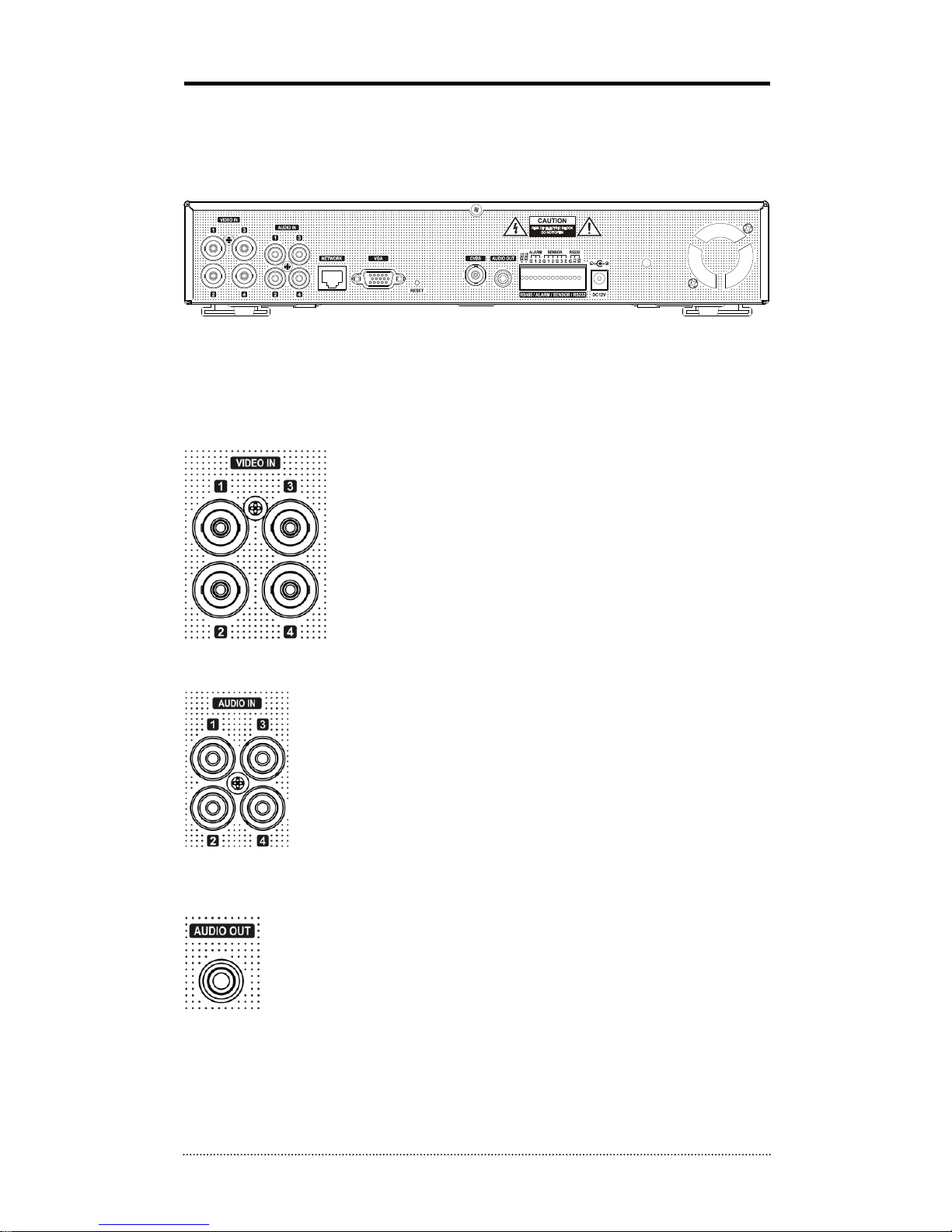
The rear panel of the 4 channel performance DVR looks like the following:
• Front USB: On the front panel, two USB ports are provided to connect external devices like
HDD and Flash memory for Backup and System upgrade. A USB mouse can only be connected to
the USB port dedicated for mouse.
Video Input
Connect the coaxial cables from the cameras to the BNC video
connectors.
Audio Input
The 4 channel DVR can record audio up to 4 sources. Connect the audio
sources to the Audio-In RCA connectors. All channels need external preamplifiers.
It is the user's responsibility to determine if local laws and regulations permit
recording of audio or not.
Audio Out
You will need to connect a speaker and an amplifier to this output. The DVR
does not have a built in amplifier.
Page 13
12
Video Output
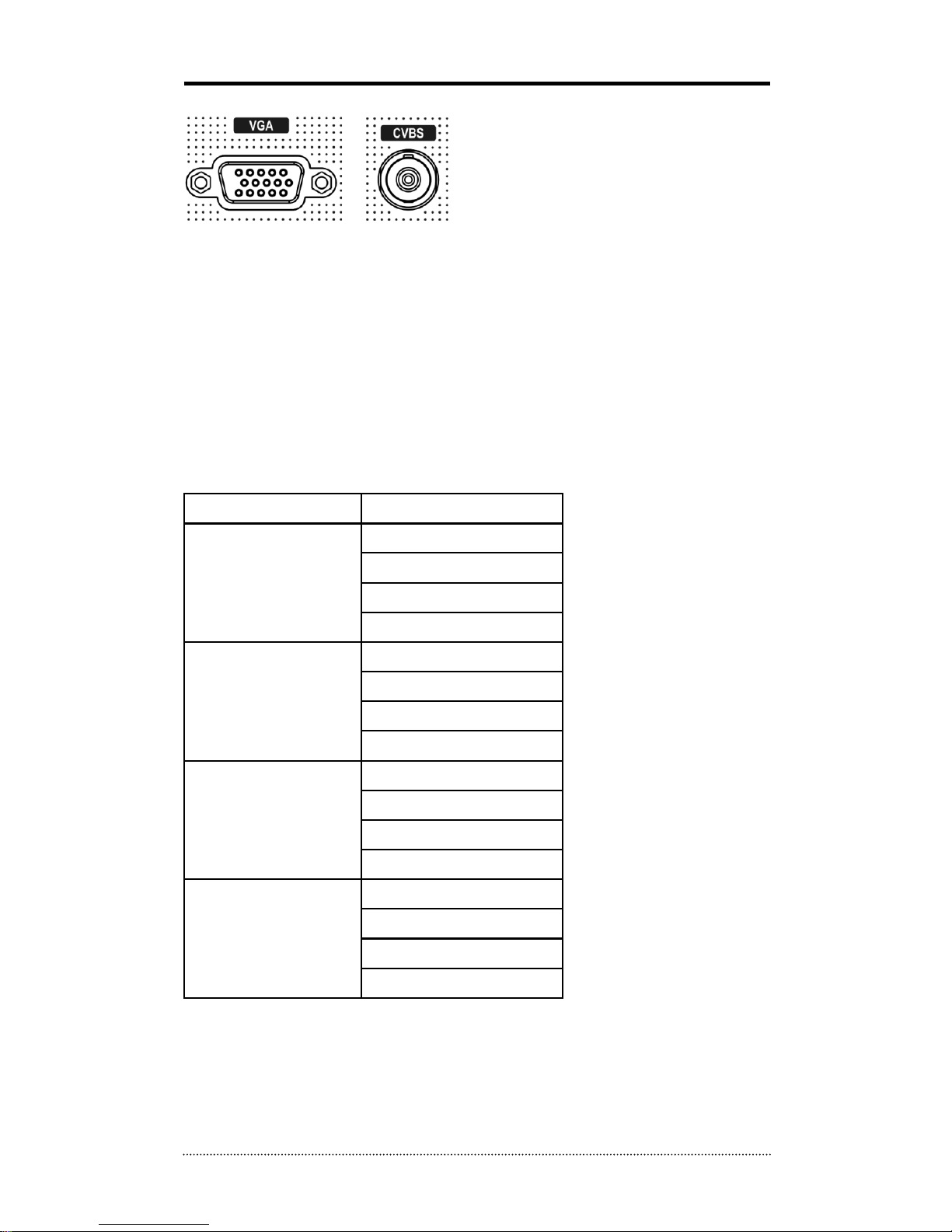
Connect the monitors to VGA or CVBS out connector. Dual Display allows user to use both VGA
and CVBS outputs at the same time with different display options. Two different and individual
display modes such, as live on one and playback on the other, can be set on each monitor output.
This function will provide such high flexibility and efficiency for monitoring options.
Note
: VGA Monitor is set as a main monitor when system boots up. To move the control to
another monitor (CVBS), please use one of the following control options.
1. Press and Hold Display button for 3 seconds.
2. Click 2 mouse buttons at the same time.
3. Choose “Move Display Focus” on the contextual menu on GUI.
Please refer to following list for independent dual display/control options.
VGA Monitor
CVBS Monitor
LIVE
LIVE (O)
PLAYBACK (O)
PTZ (O)
DISIGTAL SIGNAGE (O)
PLAYBACK
LIVE (O)
PLAYBACK (X)
PTZ (O)
DISIGTAL SIGNAGE (X)
PTZ
LIVE (O)
PLAYBACK (O)
PTZ (O)
DISIGTAL SIGNAGE (O)
DIGITAL SIGNAGE
LIVE (O)
PLAYBACK (X)
PTZ (O)
DISIGTAL SIGNAGE (O)
Page 14
13
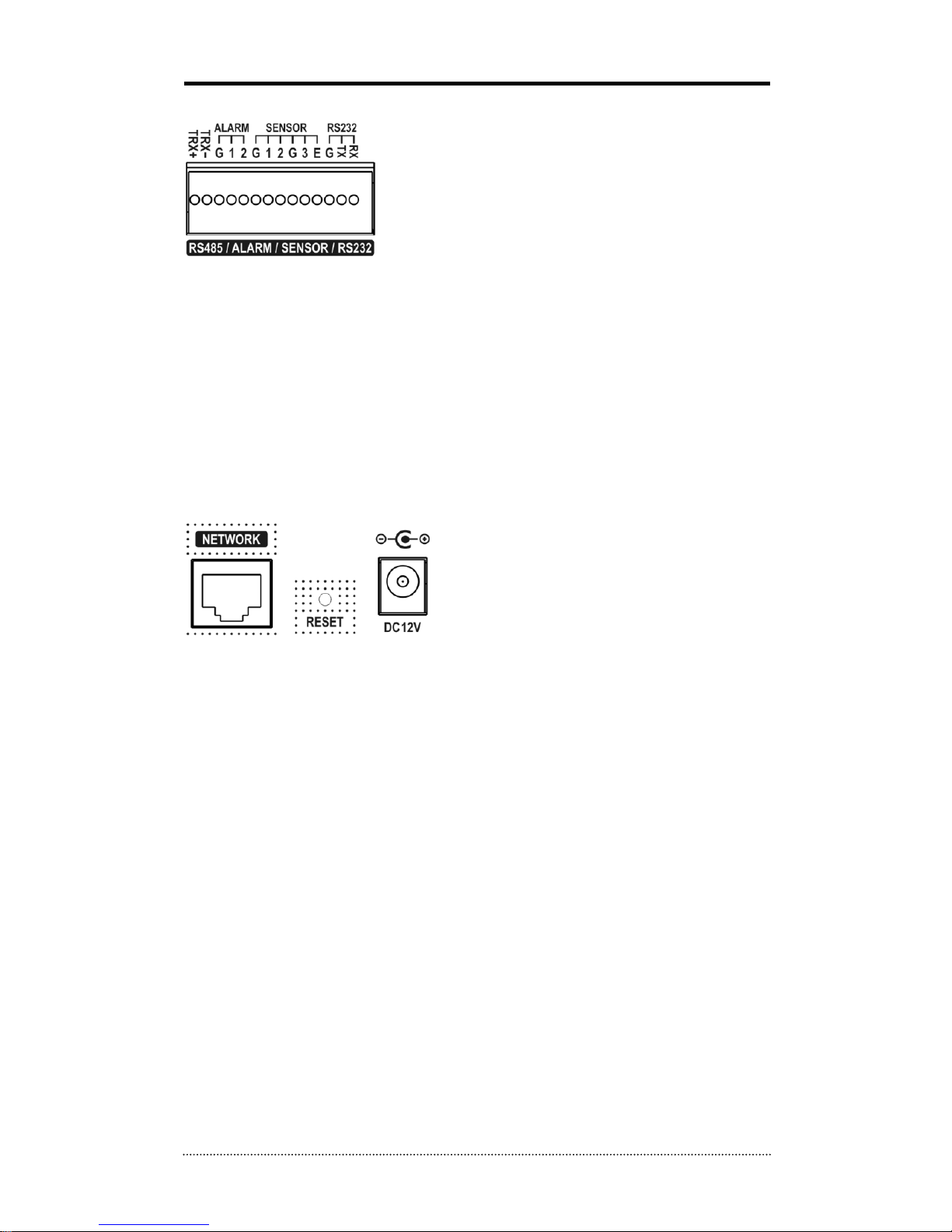
RS485/ALARM/SENSOR
The RS485 connector can be used to control PTZ cameras.
The DVR can also be controlled remotely by an RS-485 control
keyboard through this port.
2 alarm output connectors are provided to connect external
alarms such as sirens or lights. Alarm output connectors are
Open-collector output signals.
3 sensor input and 1 emergency sensor input connectors are provided to connect the DVR to
external alarm sensor devices. This input will be processed ad Alarm events by the DVR. The
emergency sensor is designed for Emergency recording only. The DVR will do the Emergency
record as per the configurations when this port is triggered.
An RS-232C connector is provided to connect the DVR to an ATM or POS machine for Text-In
function.
To make connections on the terminal block, press and hold the button and insert the wire in the
hole below the button.
ETC
• Network: Connect a Cat5 cable with an RJ-45 connector to the DVR‟s network port for
monitoring, playback, and setup from a remote site. See
Chapter 3-2. DVR Configuration
for configuring the Network connections.
• Reset: The DVR has a Reset switch that will only be used to return all the settings to the
original factory settings. To reset the unit, turn the DVR off first. Turn the DVR on while poking
a straightened paperclip in the reset hole. Hold the switch while the DVR is initializing.
• Power Connector: Connect adapter cable to the power connector on the rear panel. (DC12V,
3.33A) Input AC power to the adapter. (free voltage from 100V to 240V, 50/60Hz)
Page 15
14
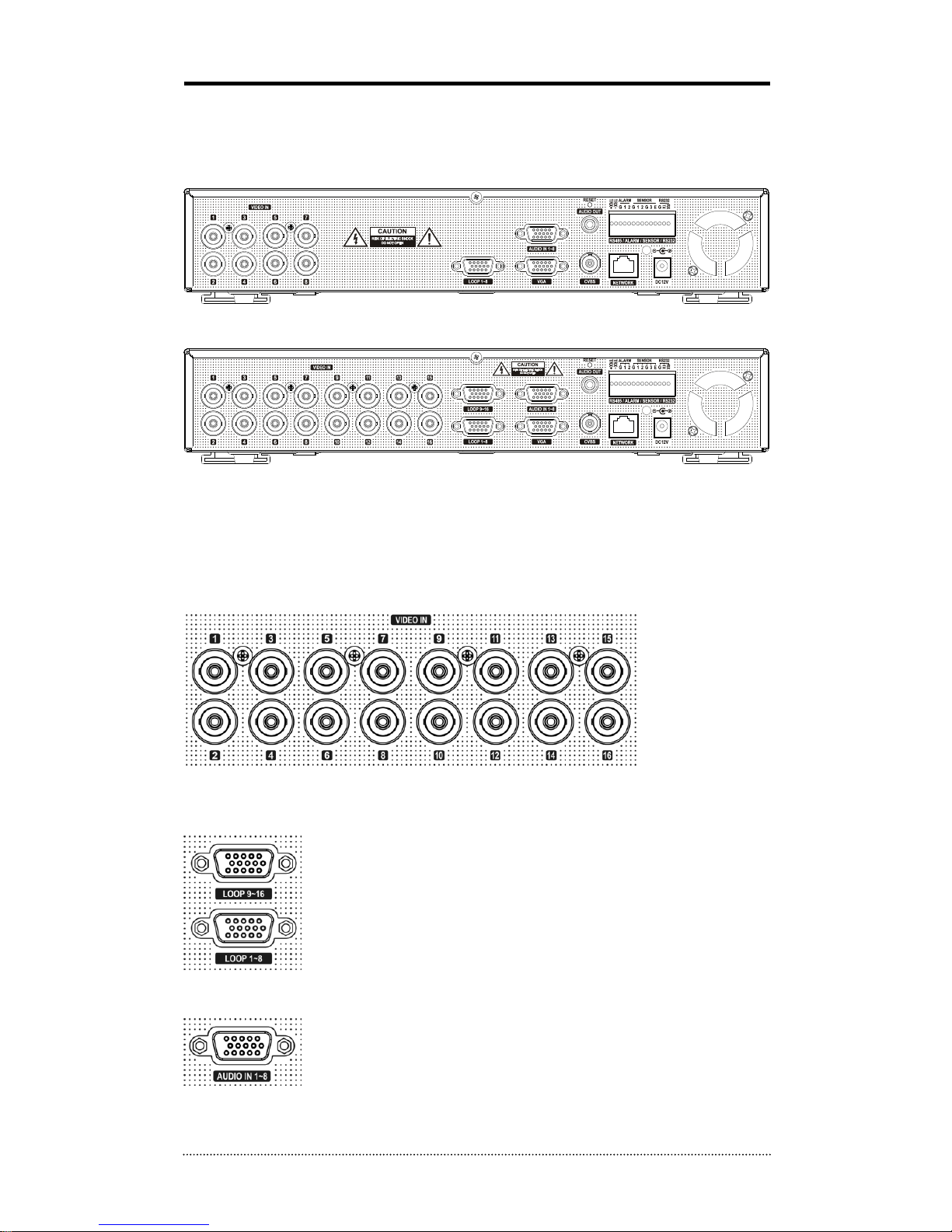
2-2. 8/16 Channel Premium DVR
The rear panels of the 6/18 channel Performance DVR look like the following:
[8 Channel Premium Model]
[16 Channel Premium Model]
• Front USB: On the front panel, two USB ports are provided to connect external devices like
HDD and Flash memory for Backup and System upgrade. A USB mouse can only be connected
to the USB port dedicated for mouse.
Video Input
Connect the coaxial cables from the cameras to the BNC video connectors.
Loop-Through Video
Connect the coaxial cables from the Loop BNC connector (Optional
accessory) to another device.
Note
: To use Loop option, additional Loop BNC connector (Optional
accessory) is needed. Please contact your supplier about this.
Audio Input
The DVR can record audio up to 8 sources. Connect the audio sources to
the Audio-In Multi-connectors (Optional Accessory). All channels need
external pre-amplifiers.
It is the user's responsibility to abide to local laws and regulations
regarding to recording audio.
Page 16
15
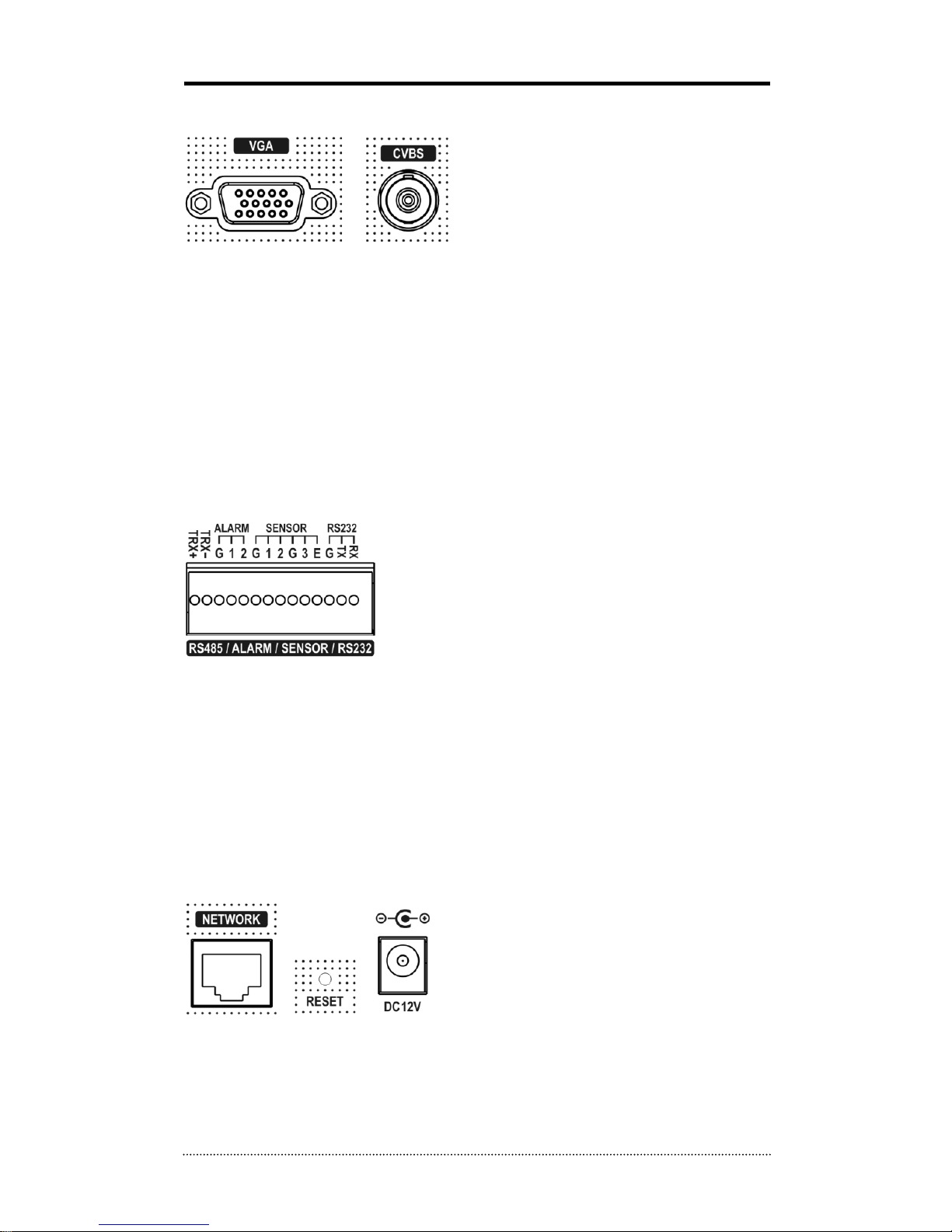
Video Output
Connect the monitors to VGA or CVBS out connector. Dual Display allows user to use both VGA
and CVBS outputs at the same time with different display options. Two different and individual
display modes such, as live on one and playback on the other, can be set on each monitor output.
This function will provide such high flexibility and efficiency for monitoring options.
Note
: VGA Monitor is set as a main monitor when system boots up. To move the control to
another monitor (CVBS), please use one of the following control options.
1. Press and Hold Display button for 3 seconds.
2. Click 2 mouse buttons at the same time.
3. Choose “Move Display Focus” on the contextual menu on GUI.
RS485/ALARM/SENSOR
The RS485 connector can be used to control PTZ cameras.
The DVR can also be controlled remotely by an RS-485 control
keyboard through this port.
2 alarm output connectors are provided to connect external
alarms such as sirens or lights. Alarm output connectors are
Open-collector output signals.
3 sensor input and 1 emergency sensor input connectors are provided to connect the DVR to
external alarm sensor devices. This input will be processed ad Alarm events by the DVR. The
emergency sensor is designed for Emergency recording only. The DVR will do the Emergency
record as per the configurations when this port is triggered.
An RS-232C connector is provided to connect the DVR to an ATM or POS machine for Text-In
function.
To make connections on the terminal block, press and hold the button and insert the wire in the
hole below the button.
ETC
• Network: Connect a Cat5 cable with an RJ-45 connector to the DVR‟s network port for
monitoring, playback, and setup from a remote site. See
Chapter 3-2. DVR Configuration
for configuring the Network connections.
• Reset: The DVR has a Reset switch that will only be used to return all the settings to the
original factory settings. To reset the unit, turn the DVR off first. Turn the DVR on while poking
a straightened paperclip in the reset hole. Hold the switch while the DVR is initializing.
Page 17

16
• Power Connector: Connect adapter cable to the power connector on the rear panel. (DC12V,
3.33A) Input AC power to the adapter. (free voltage from 100V to 240V, 50/60Hz)
3. Cautions
• Avoid installing the product in hot places or near the heat generator. (It may cause fire.)
• Do not put vase, flowerpot, cup, cosmetics, drug, or anything that contains liquid on the
product. (It may cause fire or electric shock, or they may fall and cause injury)
• Do not insert or drop any metal object (coin, hair pin) or flammable object (match, paper) into
the air vent. (It may cause fire or electric shock)
• Do not put a heavy object on the product. (It may damage the product or may fall and cause
injury.)
• Secure the power plug and do not move it around. (It may cause fire.)
• Unplug the power plug when there are thunders and lightening. (It may cause fire.)
• To clean the product, wipe the surface with a dry towel. Using chemical or cleaner may change
the color or peel off the paint.
• Do not plug multiple units to a single outlet. (It may cause electric shock.) If there is smoke or
smell, stop the operation immediately. Turn the power off and unplug it, and contact our
service center. (it may cause fire or electric shock.)
• When unplugging the cord, do not strain the cord too much. (A cord can be damaged and may
cause fire or electric shock.)
• Do not plug or unplug with wet hands. (It may cause electric shock.)
• Do not twist the power cord. (It may cause fire or electric shock.)
• Use the adapter supplied or specified. (An adapter that does not match the power rating may
cause fire or electric shock.)
• Do not install the product in the place that is exposed to rain, wind, or water drop. (It may
cause fire, electric shock, or malfunction.)
• Keep away from fire. (It may cause an explosion or overheating.)
• Do not disassemble or alter the product on your own. (It may cause malfunction or electric
shock.)
• Keep away from flammable materials such as flammable spray. (It may cause fire.)
• Do not install the product in a dirty place. (Too much dirt may cause fire.)
• Do not install the product on an unstable places like shaking or inclined table. (It may fall and
cause injury.)
• Do not put heavy objects on power cord, or do not put the power cord underneath the product.
(It may cause fire or electric shock.)
• Do not use multiple extension cords to power up the device. (The extension cords may heat up
and cause fire.)
• When there is a dirt or debris on the metal pin of power cord or the power outlet, clean it
before using. (It may cause fire.)
• Do not use damaged power cord or plug. Do not excessively bend, twist, or pull the cord. Do
not place the cord on a pathway or near heat. Do not use a loose power outlet. (It may cause
fire or electric shock.)
• Do not drop the product or apply a physical shock. (It may injure people or cause malfunction.)
• Do not touch the power adaptor or signal controller. (It may cause electric shock.)
• Do not block the cooling fan. (It may cause fire.)
• An improper type batteries may explode.
• Dispose of used batteries safely.
• Do not let the children play with the batteries. Keep the product away from the children. (If a
child put the battery in his mouth, contact a doctor right away.)
Page 18

17
Chapter 3. Using DVR
1. Basic Operation
1-1. Front Panel & IR Remote Controller
The DVR should be correctly installed before proceeding. The location and shape of the buttons
and function keys may vary depending on the DVR model. Only the most commonly used
functions are linked to the buttons on the front panel.
Control
Description
USB Port
Two USB ports are located on the front panel.
Camera Buttons (1~0)
Pressing camera buttons and Enter button will display the
selected camera full screen. Buttons are also used to enter
passwords.
MENU / EXIT Button
Opens up the Setup Menu. The User will need to enter the
authorized password to assess the menu. In Playback mode,
MENU button opens the Playback Menu.
DISPLAY Button
Changes the screen display mode in the current live or
playback screen.
SEQUENCE Button
Displays the live channels sequentially.
Up, Down, Left, Right
Arrow, ENTER Buttons
Move the curser and select an option in the MENU screen, or
controls the PTZ camera. (pan, tilt)
BACKUP Button
Copies the recorded data to an external storage device.
PLAYBACK Button
Goes to the playback mode from live mode.
PAUSE Button
Under playback mode, this button pauses the playback.
- Saves the PTZ preset in PTZ mode.
PLAY Button
Plays the video in forward direction. Press the button
repeatedly to increase play speed up to max 32 times (1, 2, 4,
8, 16, 32 times) faster. Use this button to move the cursor to
right in MENU screen.
- Focus far in PTZ mode.
R.PLAY Button
Plays the video in reverse direction. Press the button
repeatedly to increase play speed up to max 32 times (1, 2, 4,
8, 16, 32 times) faster. Use this button to move the cursor to
left in MENU screen.
- Zoom Out in PTZ mode.
STEP FORWARD Button
Move forward by one frame at Pause. Use this button to move
the cursor up in MENU screen.
- Focus near in PTZ mode.
STEP BACKWARD Button
Move backward by one frame at Pause. Use this button to
move the cursor down in MENU screen.
- Zoom In in PTZ mode.
PTZ Button
Enables PTZ control mode from the live monitoring mode.
Page 19
18
ZOOM Button
Zooms in the current screen.
PIP Button
Turns on PIP screen mode in the live monitoring screen.
AUDIO Button
Selects a camera for live & playback audio output.
OSD Button
Turns on/off the OSD display.
LOG Button
Checks the system‟s log information.
ID Button
Selects the DVR‟s system ID. (When using Remote controller)
E.REC Button
Pressing the E.REC button starts Emergency Recording Mode
of all camera channels, and "!" icon will be displayed on each
channel while in the emergency recording mode. Pressing the
button again will stop E.REC mode.
Status LED
Power, HDD, Network, Alarm
1-2. Turning on the System
Connecting the power cord will turn the DVR system on. It will take approximately 10 to 30
seconds for the system to be initialized. Once the system is initialized, it will display live screen,
and begin recording of video automatically.
Note
: To turn off the system, select SHUTDOWN under main menu (MENU > SHUTDOWN) and
unplug the power cord when the shutdown message is displayed.
Note
: When a new HDD is installed, it should be formatted first in the following menu location:
“MENU > RECORD > Storage > HDD format”
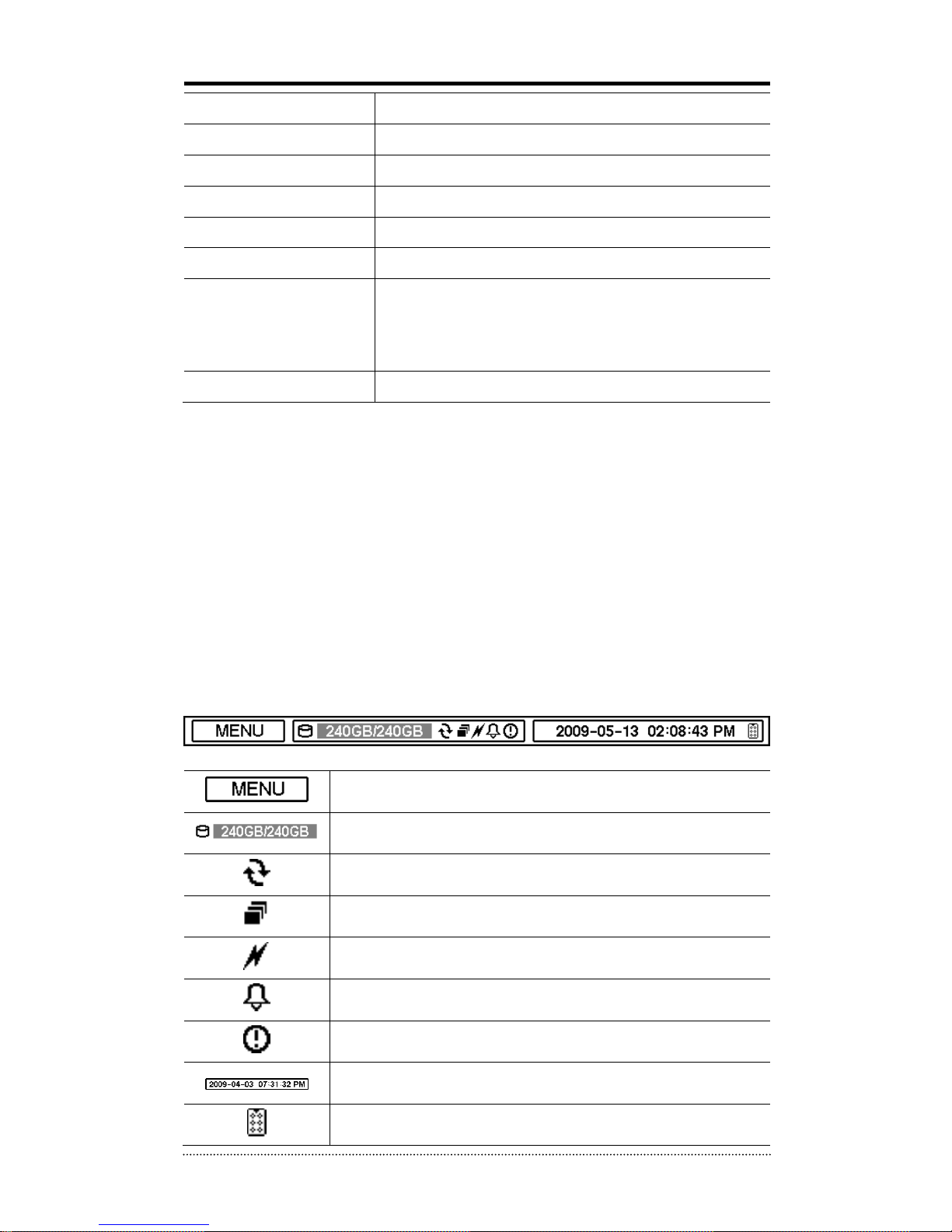
1-3. Menu Bar
The menu bar will appear on the bottom of the screen as shown below.
Pressing the Menu will bring up Main Menu.
Shows the % of HDD used.
Turns on when the HDD is set to be overwritten.
Sequence display mode.
Turns on when the system is connected to the network.
Turns on when the Alarm is activated.
E.REC (Emergency Recording) Mode.
Displays date & time.
IR Remote Controller
Page 20
19
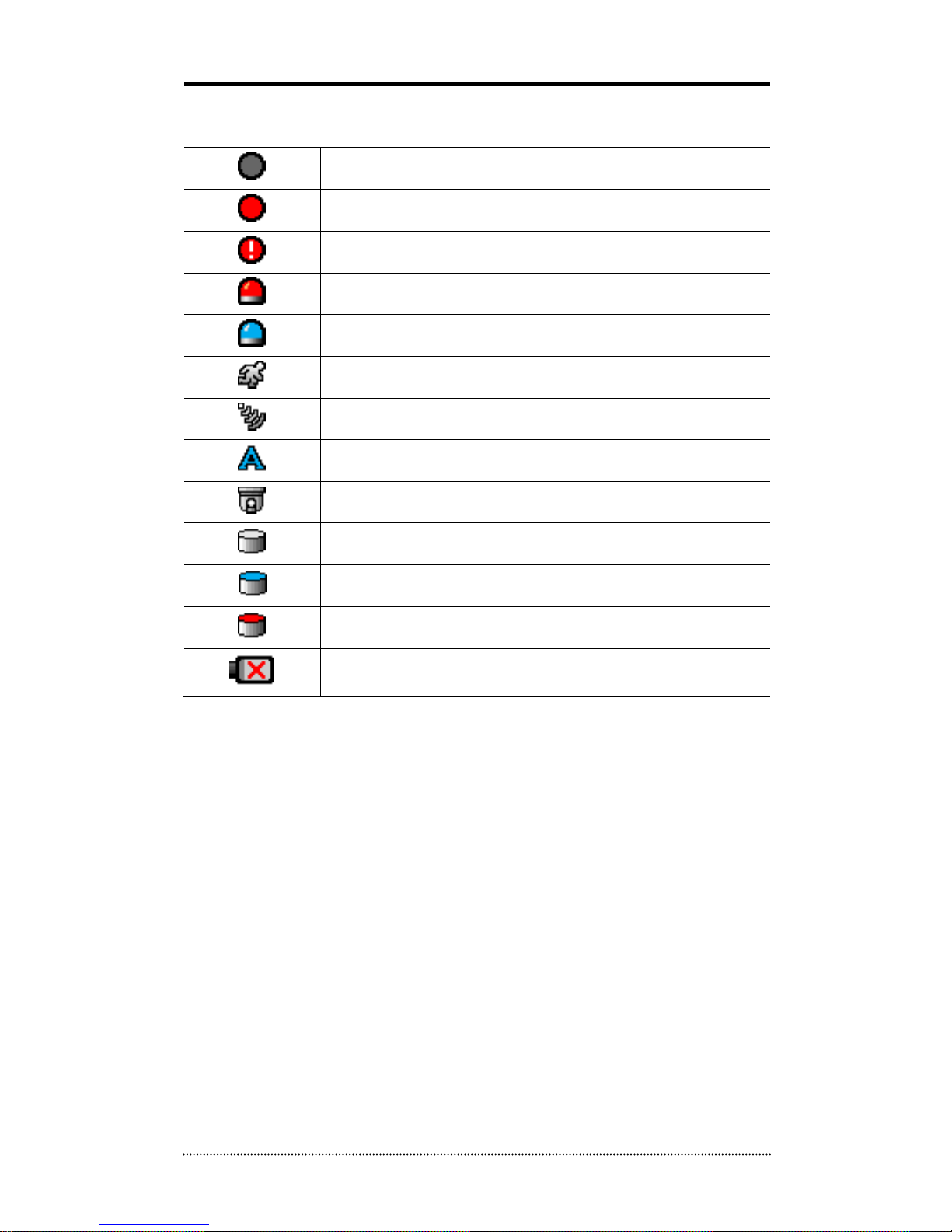
1-4. Display Icons
No Recording
Recording (Red)
E.REC (Emergency Recording)
Event Recording (Red)
Pre Event Recording (Blue)
Motion Detection
Sensor Detection
Text In
PTZ Camera
Instant Backup
Clip Maker (Blue)
Backup (Red)
Video Loss
Page 21
20
1-5. User or Admin Login
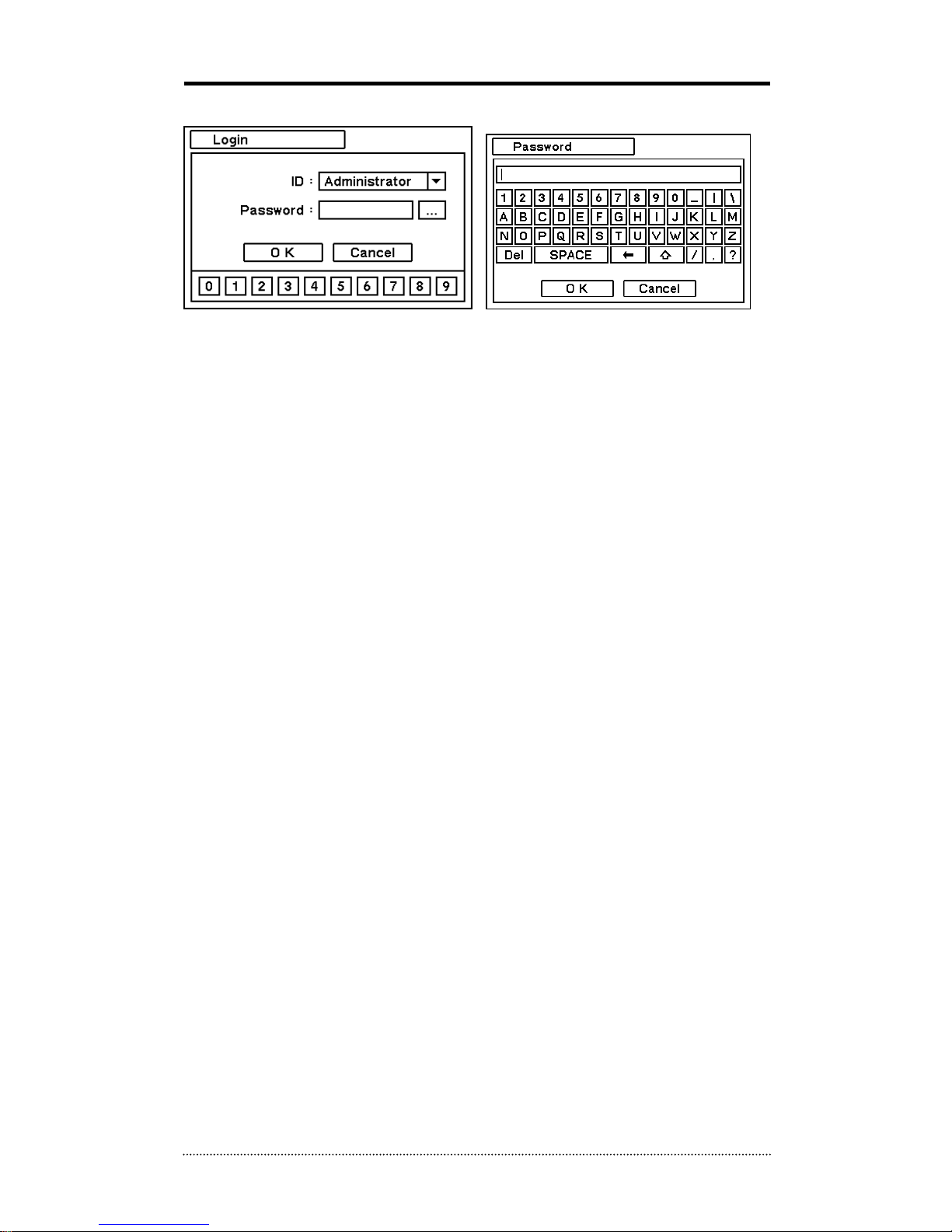
Press MENU to display Main Menu. Login in screen asking for ID and password will appear.
Password can be set up to 8 numbers by a combination of 0 to 9. Click numbers on the bottom to
enter password when using a mouse. Click “…” button to pop up virtual keyboard to enter
password when using the front buttons or remote controller.
The factory default password is „1111‟. At default mode, press “1111” and OK to log in to the
system. Password can be set under password option (MENU > SYSTEM > User). The menu will
automatically be logged out if it is idle for a certain time. This "Auto Logout Time" can be set
under password set up option (MENU > SYSTEM > User).
Page 22

21
1-6. The Main Menu
The DVR‟s Main Menu consists of SYSTEM, DEVICE, DISPLAY, RECORD, NETWORK and EVENT.
Each menu has various sub menus that allow detailed set up of the system. Use Mouse, Remote
Controller or Front Buttons to access each menu.
Note
: Please make sure to log out of the menu after changing any configuration to prevent any
unauthorized changes.
MAIN MENU
SYSTEM
Information
Date & Time
User
Quick Setup
System Log
DEVICE
Camera
Audio
Alarm
Keyboard
RS232 & RS485
DISPLAY
Display
VGA
CVBS
Digital Signage
RECORD
Storage
Record
Utilities
NETWORK
Address
DDNS
Notification
Transmission
EVENT
Sensor
Motion
Video Loss
Text-In
System
LOGOUT
SHUTDOWN
Page 23
22
1-7. Contextual Menu
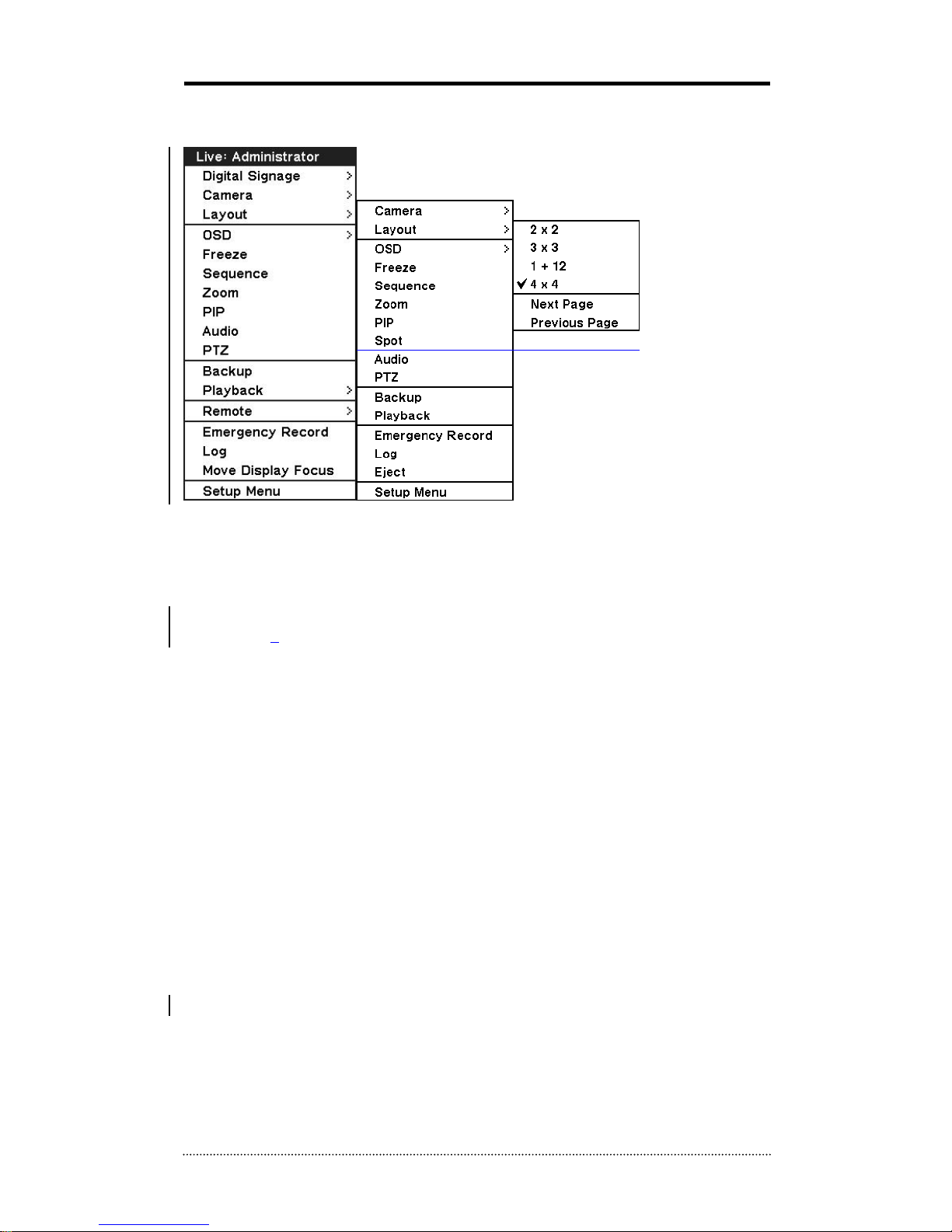
Additional Contextual Menu screen appears by right-clicking the Mouse.
Digital Signage: Select Digital Signage output either to VGA or CVBS.
Camera : Select camera no.
Layout : Select display mode (8/16 ch. DVR Only)
OSD : Select OSD display option
Text-in Info.: Turns On or Off the text input on the screen.
Freeze : Pause the current image display
Sequence : Begin sequence display
Zoom : Zoom in the image (x2, x4, x8)
PIP : Select PIP mode and camera for PIP display
Audio : Select Audio outs
PTZ : Select PTZ options
Backup : Select backup options
Playback : Playback recorded data
E. Record : Start Emergency Recording
Log : Select System/Event log
Move Display Focus: Move the control (e.g. setup, OSD and etc.) from one monitor to another
when using both CVBS and VGA at the same time.
Setup Menu: Displays the Main setup menu
For more information on Contextual Menu please refer to 2. DVR Configuration.
Page 24
23
2. DVR Configuration
2-1. SYSTEM
Under SYSTEM menu, System configuration options for general Information, Date &Time, User,
Quick Setup, and System Log can be selected.
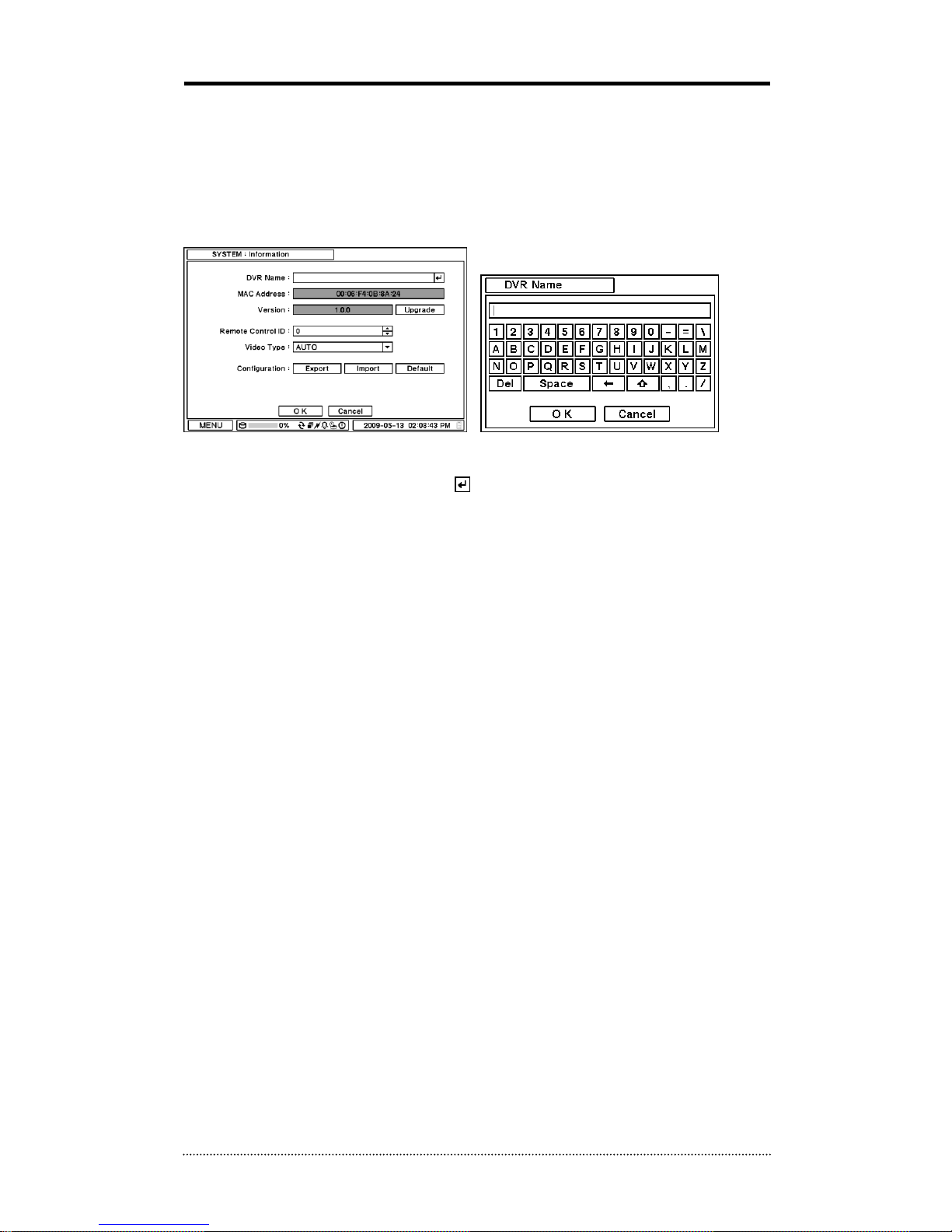
2-1-1. MENU > SYSTEM > Information
In the Information box, DVR Name, System Version, Upgrade, Mac Address, and Configuration
options can be selected. Highlight and press at DVR Name to enter or change the name of
the DVR. Name the DVR by using the virtual keyboard.
To upgrade firmware on the system, save the upgrade file to USB Flash Memory and connect it to
DVR. Once the Device is connected, press Upgrade button to execute the system upgrade.
Upgrade will take approximately 5 minutes. DVR will reboot automatically when the upgrade is
completed.
Note
: DO NOT remove USB Flash Memory or turn off the system during the upgrade. This may
cause system malfunctioning.
Remote Control ID
Entering Remote Control ID allows controlling of multiple DVRs individually by one remote
controller. If the Remote Control ID remains as 0, the DVR will always be controlled by the
remote control.
Video Type
The system automatically detects camera signal types (NTSC/PAL). But you can manually select
in between NTSC/ PAL.
Configuration
System settings can be saved and loaded using Configuration Import/Export option.
Export: Save settings to USB Flash Memory
Import: Load saved settings from USB Flash Memory
Default: Load factory default settings
Note
: Configuration Import does not affect or changes system and network settings.
Network settings will also not be changed when Default configuration is loaded.
Page 25
24
2-1-2. MENU > SYSTEM > Date & Time
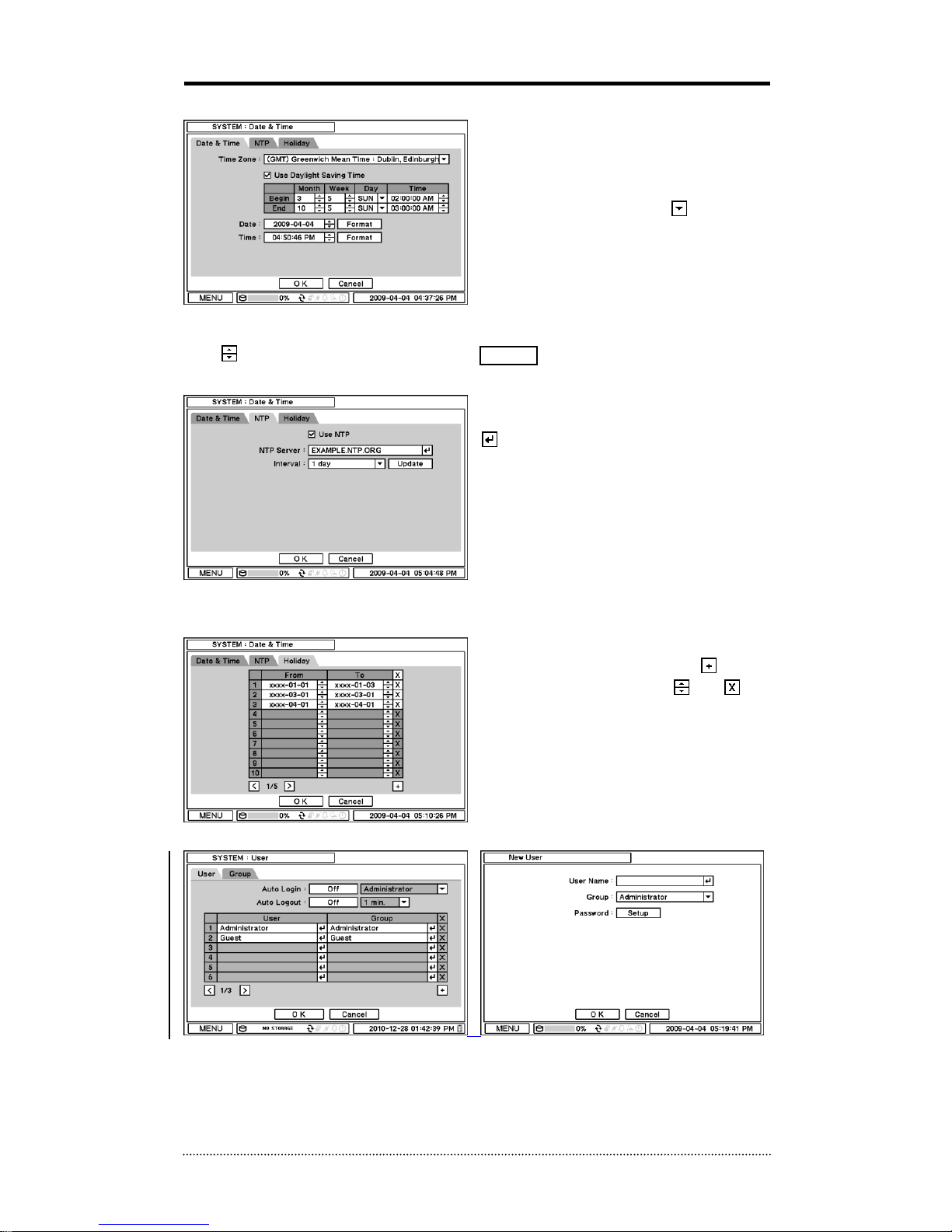
In the Date & Time menu, Time Zone, Date,
Time, NTP Server, and Holiday options can be
selected.
Highlight and press Time Zone to select
appropriate Time Zone.
Select „Use Daylight Saving Time‟ if it is
applicable. Enter start and end date/time for
local „Daylight Saving Time‟.
Press button to set up Date and Time. Press Format button to select a date & time display
format.
Select „Use NTP‟ to enter Time Servers to be
synchronized with the DVR. Highlight and press
to enter the address of Time Server using
the virtual keyboard. Press „Update‟ to
synchronize the DVR‟s clock with the registered
time server.
Note
: NTP is not an essential part of the DVR‟s
operation. Any type of Standard Time Server
can be used (e.g. time.windows.com). Time
Synch might not be completed due to heavy traffic or delays from the Time Synch server.
Press Holiday to set specific dates for Holiday
setup. Set specific date by pressing button.
Change and delete dates using and
buttons.
Note
: Please update this every year since
some holidays change yearly.
2-1-3. MENU > SYSTEM > User
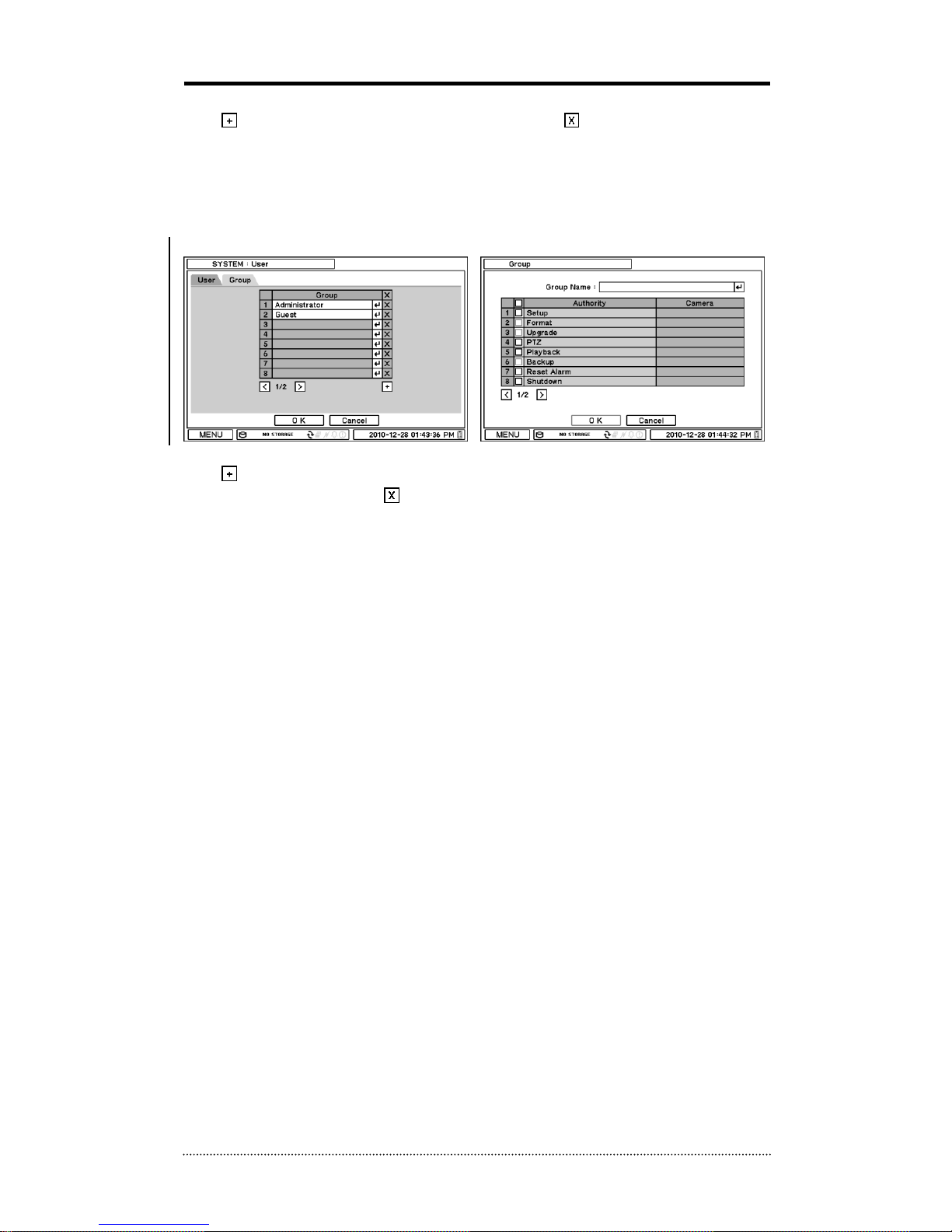
Press User Tab to enter/add a new user.
Auto Login: It allows an automatic log-in into the system when the system is booted up. Since
this is an automatic log in without the authentication process, please make sure the DVR has a
limited access by non-authorized personnel.
Page 26
25
Auto Logout: Turn On or Off Auto Logout option.
Press to add a new user. To remove an existing user, press next to it.
User Name: Enter a user name
Group: Select a Group which the new user will belong to
Password: Set a new password.
Note
: Default password is “1111”
Note
: Do not use “admin” as a user name since it may cause an error.
Configure user groups for the system. Press Group tab to add a group and set authorities.
Press to add a new group. Enter a group name and select access rights for the group. To
remove an existing Group, press next to it.
Page 27
26
2-1-4. MENU > SYSTEM > Quick Setup
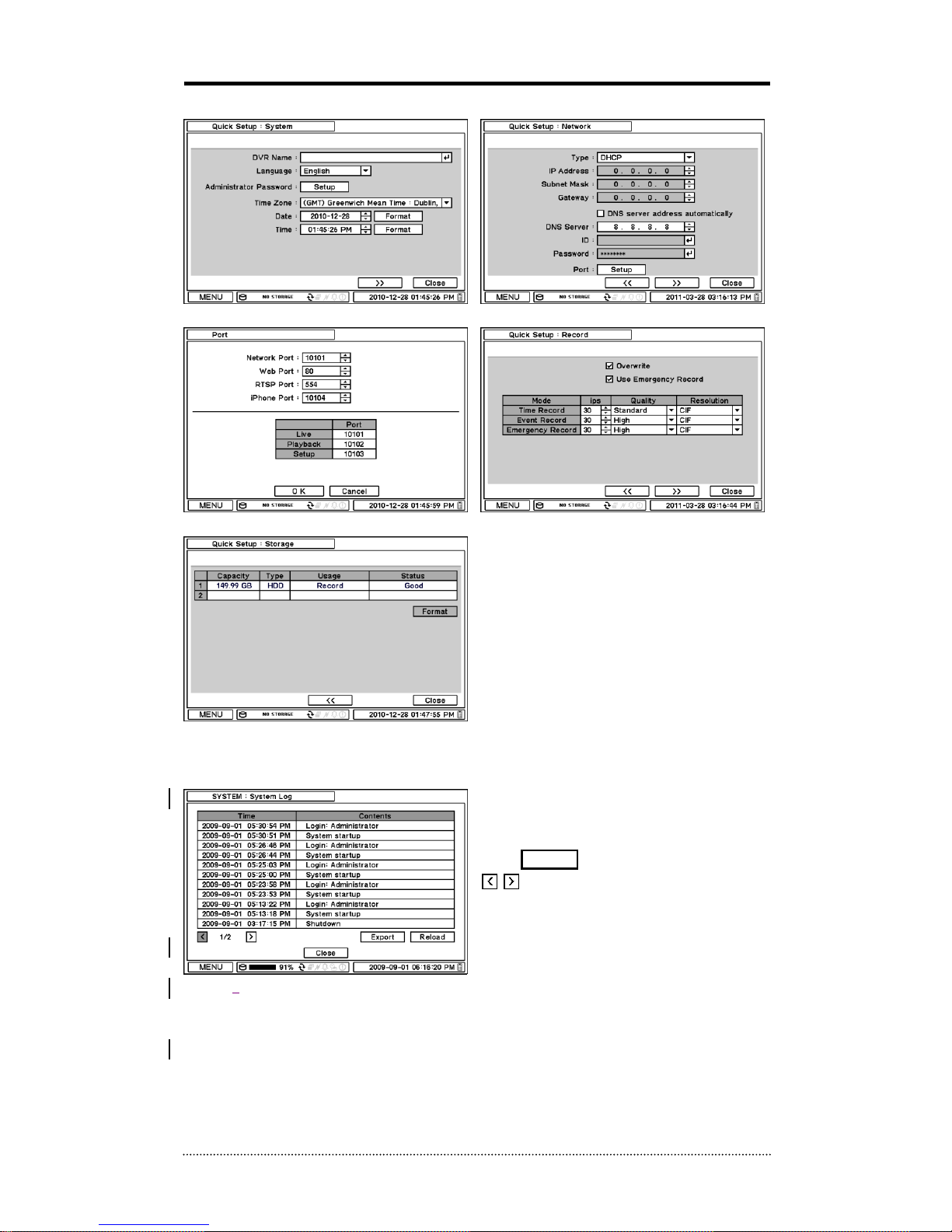
Quick Setup Menu allows easy configurations
for the basic main menu settings.
2-1-5. MENU > SYSTEM > System Log
In the System Log, full list of system logs can
be searched.
Press Reload button to refresh the log. Use
button to search through the log page
by page.
The Log can be exported to a text file (txt
format).
Page 28
27
2-2. DEVICE
Under Device menu, Device configurations for Camera, Audio, Alarm, Keyboard, and RS232 &
RS485 (POS/PTZ/Keyboard) can be selected.
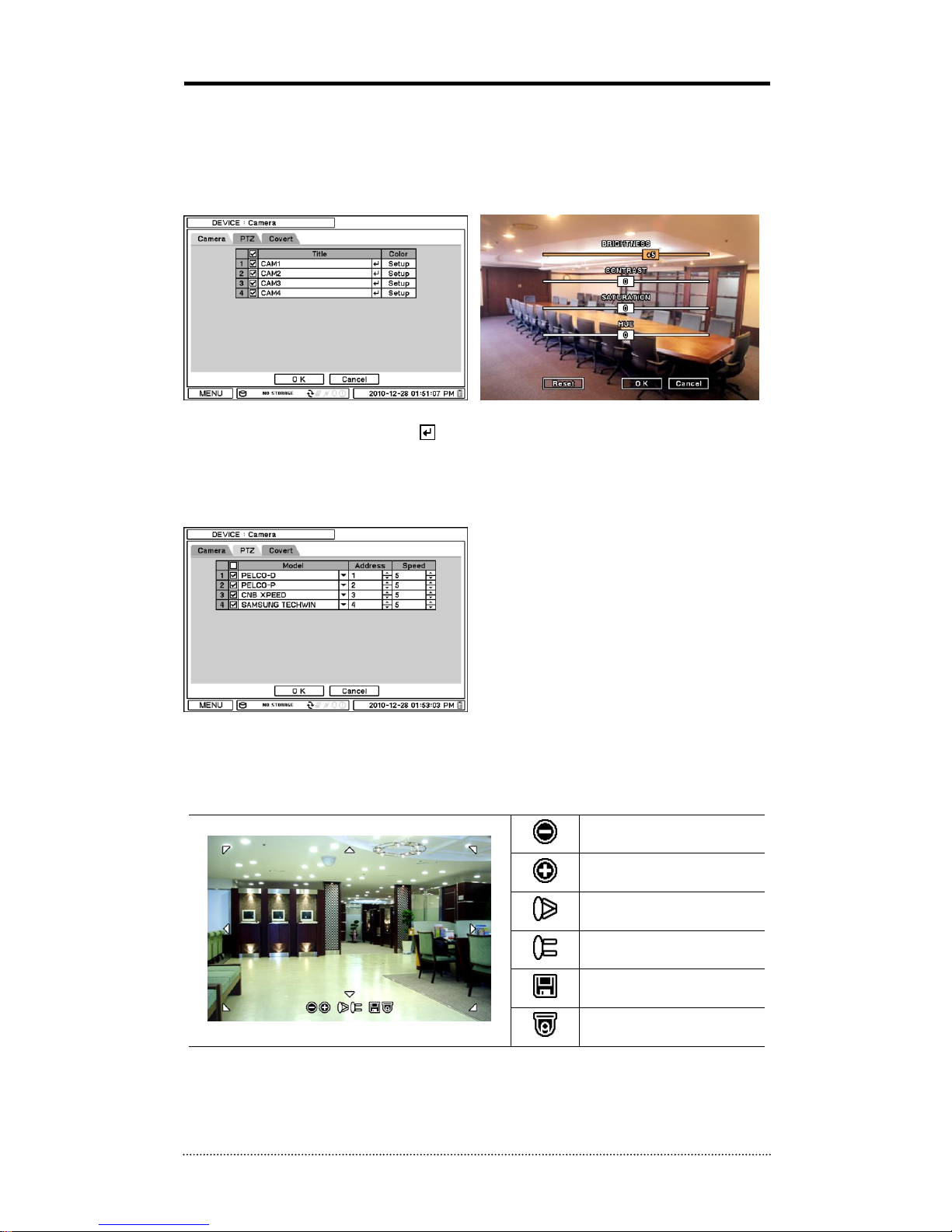
2-2-1. MENU > DEVICE > Camera
In Camera display option, display of a camera (as well as „video loss‟ message) can be disabled
by unmarking the box next to it. Press to change the title of each Camera.
Press Setup button under Color column to adjust color of the video. Click and drag the scale on
each line to adjust each color level.
PTZ Control
Select the channel that is connected to a PTZ
camera. To activate the PTZ control mode, right
click the mouse to select PTZ from the
contextual menu.
Note
: PTZ can only be controlled in a single
screen mode.
Use icons on the screen to control PTZ. By using a mouse, click arrow heads to move the PTZ
around. Also click PTZ function icons at the bottom of the screen to change.
Zoom Out
Zoom In
Focus on near distance
Focus on far distance
Save Presets
Load Presets
Page 29
28
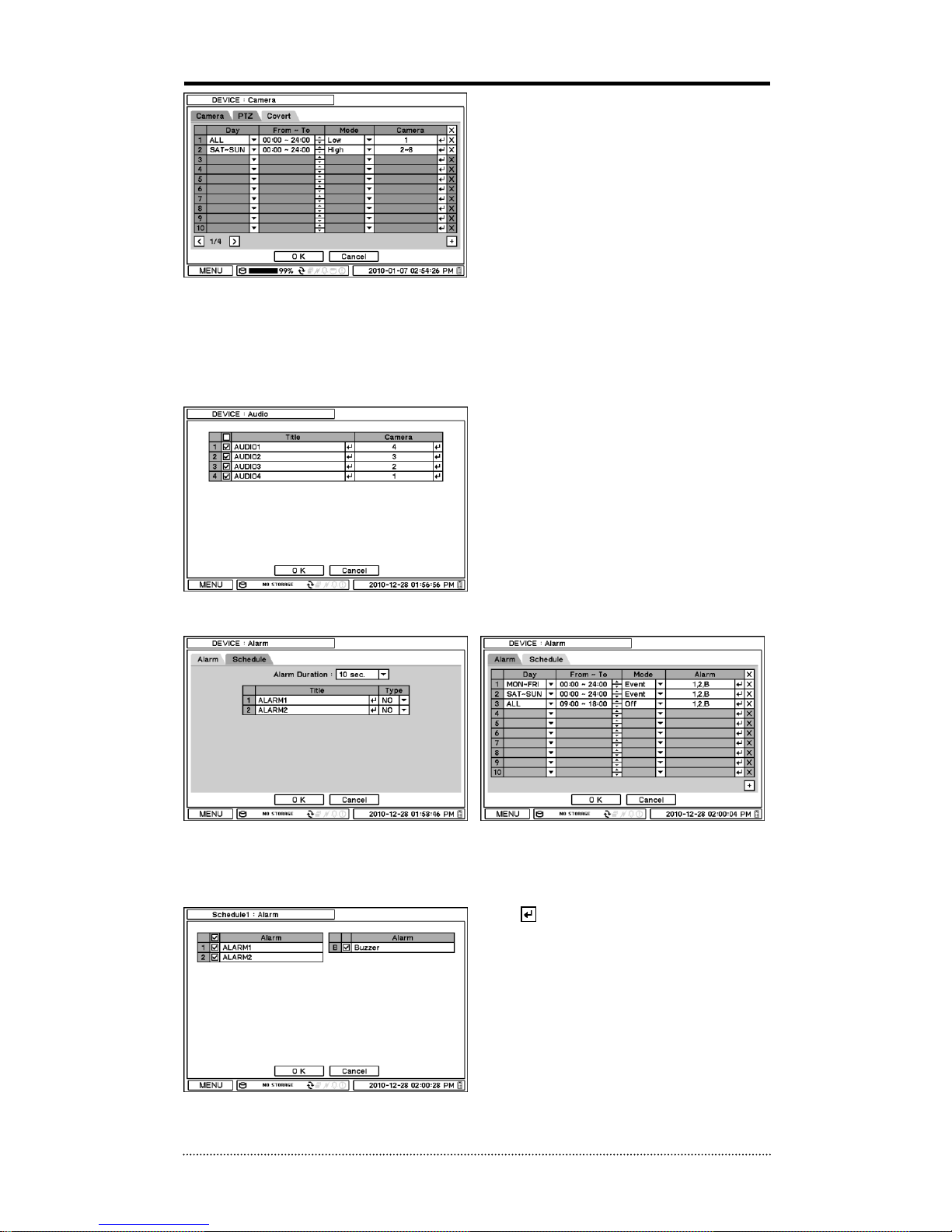
Covert Setting
Covert setting allows a privacy monitoring. If
Covert is set, live image will not be displayed.
Covert can be scheduled by day and time, and
each camera can be set to a different covert
mode.
Covert Low Mode: No display of video image
on screen, but OSD will still be displayed on the
screen.
Covert High Mode: Neither the video image nor OSD will be displayed on the screen.
Note
: The Covert options will not affect the recording as it only changes live monitoring screen.
2-2-2. MENU > DEVICE > Audio
Select Audio for recording Audio. Each Camera
and Audio can be linked to different channel
numbers from each other.
2-2-3. MENU > DEVICE > Alarm
Alarm duration: Set Alarm activation time from 5 seconds to 10 minutes.
Select Schedule tab to schedule an Alarm operation. Alarm can be set by day, time, mode, and
inputs (camera).
Press to choose Alarms outputs and Buzzer
output when activated.
Page 30
29
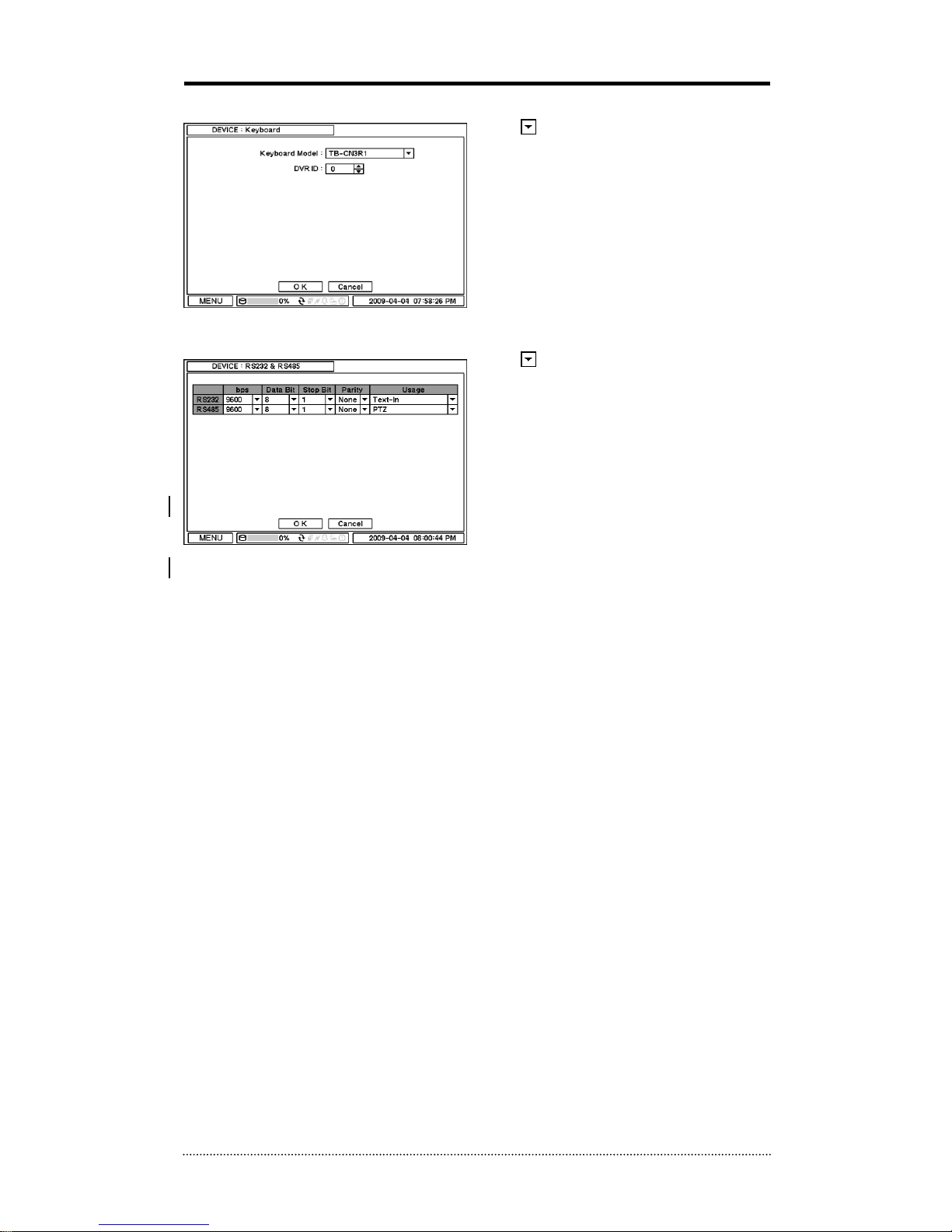
2-2-4. MENU > DEVICE > Keyboard
Press to find and select the desired
keyboard from the list.
2-2-5. MENU > DEVICE > RS232 & RS485
Press to choose a device to connect on
each ports.
RS232: Supports Text In (POS) device, PTZ,
and Keyboard device (An external signal
converter may be required)
RS485: Supports Text In (POS) device (An
external signal converter may be required), PTZ,
and Keyboard device.
Note
: Text In devices (e.g. Cash Register)
needs to use ASCII code.
Page 31

30
2-3. DISPLAY
In Display menu, Display options for OSD and Monitor can be configured.
2-3-1. MENU > DISPLAY > Display
Language: Select the system language. Press
to find available language options.
Hide Status Bar: Select On/Off and time to
hide Status Bar when system is not in use.
2-3-2. MENU > DISPLAY > VGA
OSD margin: Set OSD margin (position) using
.
Sequence Interval: Set time interval between
displays of each camera in sequential display
mode.
Event Pop-up: Pops up the camera image in
full screen when an event occurs.
PIP: Select the desired size and positions of
PIP (Picture In Picture) display.
Page 32

31
2-3-3. MENU > DISPLAY > CVBS
OSD margin: Set OSD margin (position) using
.
Sequence Interval: Set time interval between
displays of each camera in sequential display
mode.
Event Pop-up: Pops up the camera image in
full screen when an event occurs.
PIP: Select the desired size and positions of
PIP (Picture In Picture) display.
Page 33

32
2-3-4. MENU > DISPLAY > Digital Signage
Initiate Digital Signage: Set Initial Digital
Signage as On to display imported Digital
Signage Data. Set a time for the Digital Signage
to display when the system is not in use.
Picture Interval (sec): Select the type of
data to be displayed under Digital Signage
mode. Select either Video or Image data format.
Select the interval time for displaying the image
data.
Import: Retrieve prepared Digital Signage data from the USB Memory. Please refer to Appendix
C to see how to make the digital signage video clip.
Schedule: Schedule display of Digital Signage
by time and date.
Page 34

33
2-4. RECORD
Under Record menu, options for Storage, Record, and Record Tools can be configured.
2-4-1. MENU > RECORD > Storage
Storage screen displays the information about the installed/connected storage device such as
Capacity, Type, Usage, and Status.
Format: Press Format to format the selected HDD.
Record: Displays the HDD‟s storage space used and the time period of the recorded data.
Detail: Displays the detailed information of the data stored on the HDD
In S.M.A.R.T screen, status of the HDD are
displayed with its temeprature. Click Update to
get the latest status.
2-4-2. MENU > RECORD > Record
In Record, general recording options such
as overwrite, resolution, speed, recording quality and etc. can be configured.
Overwrite: Select Overwrite to overwrite the recording on the HDD when it gets full.
Auto Deletion(days): Turn on Auto Deletion to delete the data older than what is specified
automatically.
Resolution: Select resolution of the data to record.
Time Record: Set ips/quality for continuous recording
Event Record: Set ips/quality for event recording
Page 35

34
Emergency Record: Set ips/quality for emergency recording.
Note
: The ips needs to be higher than 1 when recording the Audio at D1 or Half D1, otherwise
the Audio and Video will not be synchronized.
In Event, recording for pre and post Event
period can be configured.
Pre-Event Duration: Video Images right
before the Event can be recorded by setting
Pre-Event. Duration of Pre-Event recording can
be set up to 30 seconds in Pre-Event(sec)
menu option.
Emergency Record Duration: Recording
time for the Emergency recording can be set to either continuous (NO Limit) or from 5 seconds to
30 minutes.
Event Record Duration: Set event recording duration up to 30 minutes.
In Schedule, recording schedules and operations can be set in detail by day, time, modes,
cameras, and recording options.
Press to add a new schedule. To remove an existing schedule, press . Press Setting to set
recording options.
Use Default Setting: Check Use Default Setting to record as per the setting in Record menu.
Page 36

35
2-4-3. MENU > RECORD > Utilities
In Recording Status, current recording options,
and status are displayed. The list will show
Recording Frames, Video Quality, Resolution,
and Audio recording (o/x) in order.
In Storage Capacity, estimated HDD usage per day and recording period can be calculated. Set
the resolutions, ips, number of cameras, and quality. Press Calculate button.
The GB/day shows the estimated HDD size that will be used after a day of recording. Day and
Hours show the estimated recording period when the HDD gets full.
Note
: This calculation is estimation only. Same frame rate and video quality does not guarantee
the same storage size and recording duration. This is due to the variety of conditions on images
such as more/less colors or more/less movements. This situational variance will affect the file
sizes more in lower frame rate settings.
Note
: Reduce the Ips for more recording period. Changing resolution will not change the IPS
automatically.
Note
: approximate size for each resolution – CIF: 360X240, Half D1: 720x240, D1: 720x480
Page 37

36
2-5. NETWORK
Under Network menu, Network options such as network Address, DDNS, Remote Notification,
and Transmission can be configured.
2-5-1. MENU > NETWORK > Address
In Address screen, network information such as Type, IP address, Subnet Mask, Gateway Port,
and DNS can be configured.
Type: Select the type of network configuration from: Static IP, DHCP, and ADSL(with PPPoE).
IP Address: Enter IP address using button.
Subnet Mask: Enter Subnet Mask using button.
Gateway: Enter Gateway using button.
DNS: Enter the IP address of the DNS server. DNS Server enables the user to use a domain
name instead of the IP address through a DDNS service.
DNS sever address automatically: Select this option to get DNS Server Address automatically
from the server when using DHCP or PPPoE option.
In Port screen, Select appropriate port number for remote access to the system. The port list
shows ports that need to be opened for each operation.
Network Port: Set port for Remote Client access.
Web Port: Set port for Remote Client access over the web browser.
RTSP Port: Set port for Android based devices.
iPhone Port: Set port for iPhone.
Note
: ID and Password are required in ADSL(with PPPoE) type.
Note
: Default TCP port is 10101, but it can be set in between 1500 and 32000 if it is necessary.
UPnP Option: By checking the UPnP option, it automatically sets the ports on the connected
router.
Note
: The router should support UPnP option for this feature. If the same ports are already
being used, DVR displays a message asking to try other ranges.
Page 38

37
2-5-2. MENU > NETWORK > DDNS
In the DDNS screen, network options for DDNS can be selected.
DDNS: Dynamic Domain Name Server allows network connections when the DVR is connected to
a network that uses a dynamic IP address.
Note
: A website,“autoipset.com”, offers free registrations for DDNS service.
Please refer to the appendix for DDNS set up page.
Host Name: Name the DVR or site using the virtual keyboard by pressing .
ID/Password: ID and Password are required for Authentication.
Note
: Use ID/Password registered in DDNS.
Note:
Host Name can also be registered automatically without registration from DDNS Server.
Just enter Host Name (not duplicated name) and uncheck Use ID box. After clicking Update
button, a message is displayed to indicate if it was successful or not.
2-5-3. MENU > NETWORK > Notification
In Callback screen, enter IP addresses of
client sites so that Events detected in local
system can be notified to remote client sites
simultaneously. Press to pop up the virtual
keyboard.
Callback Interval: Select Callback Interval to
set time interval to send out each repetitive
event notifications to remote sites.
Note
: Any events detected during the set interval time will not be notified right away. e.g. If the
interval is set as 30 seconds, only the events registered at every 30 seconds after the first event
will be notified.
Page 39

38
In Email Menu box, Events can be notified to
personal email addresses in text message
format.
E-Mail Interval: Select E-Mail Interval to set
time interval between each repetitive event
notifications via email.
Recipient: Enter the email address of a
recipient. Up to 5 recipients can be entered.
Note
: Any events detected during the pre-set interval time will not be notified right away. e.g. If
the interval is set as 30 seconds, only the events registered every 30 seconds after the first event
will be notified via email.
SMTP Server: Enter SMTP server using the virtual keyboard. SMTP server information can be
obtained from the system administrator.
Sender: Enter the address/name where the email will be sent from.
2-5-4. MENU > NETWORK > Transmission
In Transmission menu box, Network
transmission parameters such as ips and
bandwidth can be configured.
Page 40

39
2-6. EVENT
Under Event menu, events can be set in connection with Sensor, Motion, Video Loss, Text-In, and
System.cameras, alarm and remote notifications.
2-6-1. MENU > EVENT > Sensor
In Sensor screen, activation type for each
sensor can be configured. Select Sensor Type
using button.
NC: Normally Closed
NO: Normally Opened
4th Sensor is designed for Emergency recording
only. It will initiate the Emergency recording
when it is triggered.
In Record menu box, each sensor can trigger single or multi cameras. Press to select cameras
to be triggered by the sensors.
Page 41

40
In Alarm screen, each sensor can trigger single or multi alarms. Press to select alarms to be
triggered by the sensors.
In Notification, each sensor can trigger single or multi callback or emailing sites. Press to
enter callback or email address to be triggered by the sensors.
PTZ preset can be recalled by an Event. If an Event occurs, the PTZ can recall a designated
preset position. As you can see from the menu above, Sensor 1 is set to trigger cameras 1,2,3
and 4. PTZ presets (position) for each camera can be selected when sensor 1 is activated.
PTZ preset can only be recalled by Sensor/Motion/Video Loss events. If several events happen on
a PTZ camera at the same time, it will be triggered in the order of Sensor > Motion > Video Loss.
2-6-2. MENU > EVENT > Motion
Page 42

41
In Motion menu box, Motion Detection function can be configured. Set Motion Detection with its
Sensitivity, View, and Area options.
Sensitivity: Select motion sensitivity from Very Low to Very High.
Area: Define the area for motion detection.
Press Setup under Area column to select motion detection areas. The blocks indicate the area
where motion would be detected.
Select Block: Use arrow keys to move in the screen. Select individual blocks to set motion zones.
Use number keys to select and unselect blocks (When using a mouse, use a left button).
Clear Block: Unselect all blocks inside the box
Select All: Select blocks on the entire screen.
Clear All: Unselect blocks on the entire screen.
View: When enabled, boxes to highlight the motion detection will be displayed on the screen.
In Record tab, each camera‟s recording can be
initiated by single and multi motion detections
from other cameras. Press to select
cameras to be recorded by motion detections.
In Alarm tab, each camera with motion
detection can trigger single and multi alarms.
Press to select alarms to be triggered by
cameras with motion events.
In Notification tab, each camera with motion
detection can trigger single and multi callback
or emailing sites. Press to enter callback or
email address to be notified by cameras with
motion events.
Page 43

42
A PTZ preset can be recalled when a Motion
event occurs. Enter PTZ presets to be recalled
by cameras with motion events.
Page 44

43
2-6-3. MENU > EVENT > Video Loss
In record tab, single or multi cameras can be
programmed to do event recording when video
gets lost on any camera. Press to select
single or multi cameras to be recorded when
the video gets lost on each camera.
In Alarm tab, each camera‟s video loss can
trigger single or multi alarms. Press to
select alarms to be triggered by each camera‟s
video loss.
In Notification tab, each camera‟s video loss
can be notified to single or multi callback sites
or email addresses. Press to enter callback
or email address to be notified by each
camera‟s video loss.
PTZ‟s presets can be recalled by a Video Loss
event. Enter PTZ presets to be recalled by
cameras with Video Loss events.
Page 45

44
2-6-4. MENU > EVENT > Text-In
The system can be connected to POS or ATM
machines to get Text Input.
Note
: The POS/ATM machine must use general
ASCII code.
Text-In Model: Select Text-In model from the
list
Transaction Begin: Enter the first word from
which the text to be displayed on the screen.
Any Character: Check Any Character Box to display all text input.
Transaction End: Enter the last word to which the text to be displayed on the screen. To
display additional lines after the transaction end, select more line options.
Ignore String: Enter a word to be ignored.
Line Delimiter: Enter a symbol or a word to be recognized as the end of lines.
Case Sensitive: Select Case Sensitive option to differentiate upper and lower cases.
In Record tab, text event can activate recording of single or multi cameras. Press to select
camera(s) to be recorded upon text events. If both RS232/RS485 Ports are used simultaneously,
they should be in conjunction with different cameras. For example, if RS232 is programmed to
record cameras 1~12, RS485 should be connected to 13~16. RS232 and RS484 ports cannot
activate the same camera.
Page 46

45
In Alarm tab, text event can trigger single or multi alarms. Press to select alarms to be
triggered by text event. If B is selected, system will also buzz.
In Notification tab, text event can be notified to single and multi callback sites or email addresses.
Press to enter callback or email addresses to send notices upon text event.
In PTZ tab, PTZ‟s preset can be recalled by Text in event. Enter PTZ presets to be recalled by the
text event. (More than one PTZ cameras can be configured by a single text input.) Press to
select presets to be recalled with the text inputs.
Page 47

46
2-6-5. MENU > EVENT > System
In System menu, S.M.A.R.T function monitors
storage conditions such as Temperature,
Conditions, and Recording status.
Storage Full value can be configured so that
the DVR sends notifications when the HDD
usage reaches a certain level. Warning
message can be notified in various ways as
described below.
In S.M.A.R.T Threshold, you can configure tolerable temperature level of the HDD. If the
temperature of HDD increases over the threshold, a notification will be sent in various ways
according to the following settings.
In Alarm tab, the system event can trigger single or multi alarms. Press to select alarms to be
triggered by each event. If Alert is selected, system will pop up a warning message on the screen.
In Notification tab, the system events can be configured to notify single or multi callback sites or
email addresses. Press to enter callback or email addresses to be notified upon system
events.
Page 48

47
3. Playback
The system provides various playback menus in browsing through recorded data. Please click
right Mouse button on Search Mode and select the storage type. If Backup Data is selected, the
data on the external HDD can be searched.
Camera : Select camera no.
Layout : Select display mode (8/16 ch. DVR Only)
Go to : Search recorded data by time/date. Move to the beginning or the end of recorded
data. Also search data by 5/10/15/30/60 seconds backward from the current time of search.
Search : Select Calendar Search, Event Search, or Text In Search
OSD : Select OSD display option
Text-In Info.: Select Text display option for POS or ATM machines.
Zoom : Zoom in the image by X2
Audio : Enables Audio output
Backup : Select backup or Clip Copy option
Storage : Select HDD or Backup Data to playback
Emergency Record : Start Emergency Recording
Log : Select System/Event log
Move Display Focus: Choose “Move Display Focus” to control display options on the other
Page 49

48
monitor.
Exit Playback: Exit Search Mode and return to Live Mode
Page 50

49
3-1. Go to Time
Select Go to Time to browse through recorded
data by time/date. Set time/date using
button. Use Go to Beginning and End options to
search the very first and last data of the
recording. Once desired settings are entered,
press OK to begin playback.
Go to Beginning : Move to the very first data
in the recording.
Go to End : Move to the latest data in the
recording.
3-2. Calendar Search
Calendar Search provides easy search on the calendar and time line graph. Dates with recorded
data will be highlighted. Once you select the date, it will display recorded time bar below. Click
detail to open recorded time table. In the table, the numbers on the top shows the hours in 24
hours format, and titles on the left indicate camera numbers. The color bar shows the time period
that was actually recorded on each camera. Move the indicator (line) to go to specific time to play.
Press Go To to begin playback.
3-3. Event Search
Event Search Menu provides an easy search through recorded events. Select the date and type of
event to narrow your search. Press Event: All on the top of the list to display event search menu
options.
All: System displays all events
Motion: System displays motion events only
Sensor: System displays Sensor events only
Video Loss: System displays Video Loss events only
Text-In: System displays Text In events only
Page 51

50
Emergency: System displays Emergency Recording events only
Once desired list is displayed, move up or down button to highlight a log and press it to play the
video.
3-4. Text-In Search
Text In Search provides an easy search through recorded text input. Enter Time period and
specific text to narrow your search. Press Search for detailed information.
From: Set beginning time to be searched from or select First for search from the beginning of
the data.
To: Set end time to be searched to or select Last for search to the end of the data.
Search Text: Enter the words to search for.
Once the search detail is entered, press OK to start search the Text data.
Page 52

51
3-5. Backup Data Playback
Backup files stored on a media can be played on the DVR. Insert the media that contains backup
files and select a file to play.
Page 53

52
3-6. Playback Control
R.Play( ): Reverse Playback
Step Backward( ): Go to the previous image
Pause( ): Freeze or Stop current image
Step Forward( ): Go to the next image
Play( ): Play the data at normal speed
To control the backward and forward playback speed, press ◀ or ▶ repeatedly. Forward/
reverse Playback speed can increase up to x32.
Page 54

53
4. Backup
Data on the DVR can be saved to a USB Flash memory. Select backup or Clip Maker option in
Search or Live mode by selecting Backup in the menu.
4-1. Backup
In the BACKUP menu, the data to be saved can be selected.
Press Device to select which USB Device to save the data to. Only the USB devices that are
currently connected to the DVR will be listed.
Select date & time period of data to save using button.
Select Camera‟s channel number to be saved, or select All to save all recorded data.
Select Audio to save recorded Audio along with the video data.
Status shows available storage space of the device selected for backup, and it will show the
progress during the backup.
The files saved (backup) in DVRMediaPlayer (.exe) format allows multi camera backup, and the
files can be played on a PC without any specific codec. To open and play the file saved in
DVRMediaPlayer (.exe), double click the file, and it will automatically play in an Internet Explorer
window. This function is supported only by Internet Explorer 7.0 or above.
Note
: The backup process could take longer if the system is being monitored/ played back from
the remote location using the client program.
Note: “DO NOT remove the back up media from the DVR while the data backup is
being processed. It may cause critical damage to either the media or the system."
Page 55

54
4-2. Instant Backup
Press backup button on front panel to instantly Backup the video while watching the playback
video. Instant Backup window will open up. Select Device, File Name, Audio and press Start to do
the backup while playback is being continued. The Backup Icon will appear on the screen during
the Playback. Press backup button one more time to stop and complete Instant Backup.
Note: “DO NOT remove the back up media while the data backup is being processed.
It may cause critical damage to either the media or the system."
Note
: Playback speed will be slower than usual during instant back up.
4-3. Clip Maker
Clip Maker creates a single channel backup file that can be played on any PC with Quick Time
player. Select Clip Maker option on the pop up menu in play or pause mode.
Select the backup option for Clip Maker. Press Start button to create Quick Time backup file.
Note
: The Clip Maker file cannot be played on other programs such as Window Media Player.
Page 56

55
Chapter 4. NEMON Remote Software
1. Using NEMON Remote Software
Note
: Before using the remote software, refer to the customer card in the package to
download the software. Please install the software on your PC once you download it.
1-1. Starting the Software
Double click on the program icon on PC to run the NEMON remote software.
Main screen of the NEMON remote software appears as shown below.
Note
: A minimum resolution should be at least 1024 x 620; and it is recommended to use the
software at 1280 x 1024 or higher.
The Log In window will appear when the NEMON remote software starts. Select user as each
user and user group has different access authority over the system control based on how it is
configured. Enter OK once the user level is selected. The default password for any user is blank.
Live: Click the icon to enter the live mode.
Playback: Click the icon to enter the playback mode.
Connect / Disconnect: Click the button to connect a site for the live or playback mode selected.
Connect
Disconnect
Setup
Playback Control
Change Display Page
Display Mode
Full Screen
Playback
Live
Close
Audio Volume
Voice Transmission
Calendar Search
Screenshot
Sequence
Event Search
Text-In Search
Unfold Site List
Unfold Tool Panel
Page 57

56
Playback Control: Use the buttons to control the playback. (Stop, Move by Image, Play,
Rewind/Forward, and Move to First/End)
Display Mode: Select display modes. (single screen, 4, 9, 16, 25, 36, 49, 64, and full screen)
Change Display Page: Change Display Mode to Previous or Next page as per the camera‟s
numeric order.
Voice Transmission: Click the button to send audio from monitoring station to the DVR.
Screenshot: Capture the current screen and save it as an image file.
Sequence: Display images on pre-selected cameras in sequence mode.
Setup: To open the set up menu on either the NEMON software or the DVR remotely connected.
Audio Volume: Click Audio icon to open audio volume and mute panel.
Select a camera to receive Audio from the selected camera (highlighted in border lines).
Full Screen: Display the image on full screen mode.
Close: Click the box to close the software
The below options are selectable only in playback mode.
Calendar Search: Search the data using the calendar and the time line graph.
Event Search: Search the data using recorded event logs.
Text-In Search: Search the data using recorded Text-In data from POS/ATM device.
Backup: Shows backup options as below:
- Save as MP4: Save the data in MP4 file format.
- Backup: Backup the data.
Storage: To search for the data, select the storage device installed in the connected DVR.
Either recording HDD or Archiving HDD can be selected for playback and search.
Page 58

57
1-2. Site Set Up
Click Connect button to display registered remote locations or add new locations.
Click Add button to add a remote location and to enter required information.
Page 59

58
Name: designate a name to the site
Address: Enter IP address or domain name of the site
Port: Enter the playback port number
Description: Enter a description for the site
Auto Login: If you do not want the Log In window to be popped up every time when you start
the NEMON, check Auto Login to skip User/Password authentication process
User: Select the user from the list
Password: Enter the password for that user
Layout: Select desired display layout for the site when it is connected
Note
: Layout can be changed when you change the display option on the menu.
Click OK to save the information and complete the registration. Double click the location or
Highlight it and click Connection button to get connected to the site.
Page 60

59
The DVR and the Client program searches for each other if they are in the same local network.
The Auto Detection menu shows the DVRS detected on the same local network.
Note
: This function is only available on local networks. No settings are required if both DVR and
PC use DHCP. But in Static IPs mode, the DVR and PC need to have same subnet info with
different IP addresses.
Note
: Auto Detection finds DVRs on the local network automatically. To use this function,
Apple® Bonjour® needs to be installed in your PC. Please refer to
http://www.apple.com/bonjour for more details.
Page 61

60
1-3. Favorite Set Up
Favorite function allows managing multiple sites. Up to 64 different cameras and sites can be
monitored and managed on one screen. Select Favorite tab.
Click Add button to group multiple sites as one favorite group.
Enter the group‟s name and description. Up to 64 different cameras in different sites can be
grouped and displayed together. Select sites and cameras from the drop down list by clicking
button.
Note
: Sites should be registered under „Site‟ menu before setting the favorite group.
Page 62

61
Page 63

62
1-3. Site List Panel
The remote sites also can be registered on Site List Panel. Use ADD , EDIT , REMOVE
buttons at the bottom to register and manage the remote and favorite sites.
Drag and Drop the listed sites or cameras onto the display section to connect to and display them.
Each camera can be dragged and dropped for independent display. This allows making a display
by a group of cameras from the different sites.
Once the group of cameras from the different sites has been set, move to Favorite tab to save
the current display setting as a new Favorite site.
Note
: Cameras can only be dragged and dropped onto display section in Sites Tab. (not in
Favorites and Auto Detect Tab)
Note
: Camera positions (CH locations) can be dragged and dropped to desired locations.
Page 64

63
1-4. Tool Panel
1-4-1. DVR Status
DVR tab shows Video Loss, Motion Detection,
Sensor Detection status of the remote site that is
currently connected. User can activate an alarm
remotely in the DVR Status options.
Reload: Refresh to get the latest DVR status
info.
Reset Alarms: Turn off activated Alarms in
the DVR.
Event Pop-up: Activate event pop up option. The
corresponding camera will be displayed in full
screen mode when an event occur. Configure the
duration for the Pop up at Setup > System >
Event Pop-up Duration.
Note
: Event Pop-up will be deactivated even it is
checked if DVR status menu is hidden or other
menu options (e.g. PTZ control) are being used.
1-4-2. PTZ
The second tab of the Tool Panel is PTZ control tab.
In DVR‟s live mode after connection. select the
Channel connected to PTZ camera, and it will
display the site info and activate the PTZ
controllers.
Set Preset: Save PTZ camera‟s current
location as a preset. Up to 16 Presets can be
saved.
Move to Preset: Move PTZ camera to a
saved preset location.
Page 65

64
1-4-3. TEXT-IN
Displays recorded TEXT-IN info. TEXT-IN tab is
activated in playback mode only.
1-4-4. GPS
GPS is for Mobile DVR tracking in playback mode.
GPS data from built in GPS on Mobile DVR is
recorded with images. This data will be displayed
on Google Map in playback mode.
Note
: the GPS function isn‟t used for this DVR.
Page 66

65
2. Remote Playback
2-1. Calendar Search
Calendar Search Panel opens when a site is connected with playback mode as shown below. Time
bar will appear once the date is selected, and an image preview will appear when specific time is
selected on the time bar.
Use below buttons to control the playback image.
Playback Control Button
Beginning
Reverse Play / Rewind
Step Backward
Stop
Step Forward
Play / Fast Forward
End
Go To Time
• Click the icon to display time search window. Enter specific time to search the data
• Click icon to refresh and update the calendar info.
Calendar Search
Fold Calendar Search Panel
Page 67

66
2-2. Event Search
Select Event Search on the bottom of the screen to open Event Search Panel. Enter Date, Event
Type, etc. and select SEARCH button to retrieve the search results.
Select an event from the list to playback the video. Search trough the list using < > buttons.
Select the date to search an event in the Date list. Select All or specific camera numbers for
related event search. The Event type can be selected from the list for detailed search.
Event Search
Fold Event Search Panel
Page 68

67
2-3. Text-In Search
Select Text-In Search on the bottom of the screen to open TEXT-IN Search Panel. Enter Date and
Text, and select SEARCH button to retrieve the search results.
Select a text-in event from the list to playback the video. Search trough the list using < > buttons.
Text-In Search
Fold Text-In Search Panel
Page 69

68
2-4. Saving the recorded data
Screenshot
Select button to capture the current image during the playback as show below. Select Save...
button to save the image. The Image can be saved in JPEG, BMP and PNG format.
Save as MP4
Select button during the playback, and select “Save as MP4” to open the window as shown
below to save the data in MP4 format.
• Enter file name and select Location.
• Select the time period.
• Select Camera number. Press Start to create MP4 file.
Page 70

69
Backup
Select button during the playback and select “Backup” to open the window as shown below
to save data in the strg file format (a video format provided by the DVR).
• Enter file name and select Location.
• Select the time period.
• Select Camera number(s). Press Start to create Backup file.
2-5. Play Backup Data
Data backed up from the local site can be played on the remote software.
Select button in playback mode, and above window will appear. Select the location where
the data is saved. Select the file and click Connection to play the video.
Note
: Recorded Audio can be played on single screen mode only.
Page 71

70
2-6. Play Independent HDD Data on PC
Data in the HDD (taken out from this DVR product) can be played on PC using NeMon. Connect
the HDD to a PC using a SATA to USB connector cable if necessary. Make sure the HDD is
connected properly.
Select button in the playback mode. Click Storage tab to display HDD information (if
HDD is not shown please click Reload button to refresh the list). Double click the list or
highlight and click Connection button.
Page 72

71
3. Setup
3-1. Remote Software Setup
Click on and Setup to enter setup menu.
Product: Displays general information of the S/W
Software Version: Displays current S/W version
Secondary Monitor: Select the secondary monitor if using multiple monitors
Event Pop-up Duration: Set the duration for the camera to be displayed in full screen in the
event situation.
Reconnect Automatically: Set auto reconnection on Live mode in case of disconnection for
any reason.
Load: Load saved configuration data.
Save as: Save current configurations
Default: Reset to default configuration
Log...: Displays the history of S/W usage
Page 73

72
Click on Display tab to enter display setup menu.
Maintain Aspect Ratio (4:3):Keep the 4:3 ratio for the display screen
Use Alpha-Blending: Enables alpha-blending effect on S/W UI
Video Acceleration: Video Acceleration option enhances natural live image display on the client
S/W. Please be aware that this may cause live images to be displayed improperly. Some PC‟s
graphic card does not support and is not compatible with this option.
Note
: Some graphic cards do not support such functions. In this case, please unselect the option
as it might result in abnormal system operation.
Language: Select language option
Date/Time Format: Select Date/Time Format
Page 74

73
Click on Sequence tab to enter Sequence Setup menu.
Activate sequence mode and select sites to be sequentially displayed from the registered or
Favorite sites. Click the site and select > button to add the site to the Sequence list. >>
button will move the all sites to the sequence list.
Sequence Duration: Set interval for the sequential display.
Page 75

74
Click on User tab to open user setup menu.
Register the remote users. Each user needs to use their own password when they log in. Select
Add to start registering a new user.
Page 76

75
3-2. Remote DVR Setup
Click on and Remote Setup to open Remote Setup menu.
Select a DVR to setup and select Connection button. Setup menu will appear as show below once
it is connected
Note
: The Setup menu opened in the remote site will look the same to the setup menu at the
DVR‟s physical location. This is to make the users easily use the setup menu no matter where
they are controlling the DVR from.
Page 77

76
3-3. Remote Upgrade
You can upgrade the DVR system from a remote location on your PC using NEMON.
• Click on and Remote Setup to open Remote Setup menu.
• Select Information under System.
• Click Upgrade next to S/W version to browse for the file for upgrade
• Select the file location and the file to upgrade the system.
Note
: Please do not exit NEMON or power off a computer until the system upgrade is completed.
Page 78

77
4. Callback
Start-> Program -> remote software folder -> Callback
Callback icon will be displayed on the bottom right of Window once the program starts.
Callback message will be displayed/notified as shown above.
Click Callback icon to display main window of Callback as shown below.
Page 79

78
Select a log from the list and click Live or Playback icon image to connect related DVR.
Clear: Clear all the logs listed on Callback window
Log: Click Log button to display log search window as shown below.
Up to 100,000 log can be saved. 1,000 log lists will be displayed per search. Click More button to
display next 1,000 logs. Click Export button to save searched logs in either txt or csv format.
Setup: Click Setup button to set a port for Callback. Check Run Callback at Startup of the System
box to start Callback program automatically with Window.
Note
: UDP port needs to be set (open) to transmit Callback if Firewall is being used.
Page 80

79
Appendix A. Remote Access Using I.E.
Users can access the DVR‟s Setup, Live Web Monitoring, and Playback functions through a
Internet Explorer.
4-1. Login
Open up internet explorer window. Users can access to the DVR‟s Remote Monitoring System by
entering DVR‟s IP address or its registered hostname in the Internet Explorer‟s address bar.
Ex) When web port is 80(by Default) – http://hostname.autoipset.com or 211.104.176.143
Ex) When web port is not the default value – http://hostname.autoipset.com:Web port or
211.104.176.143:Web port Ex) http://hostname.autoipset.com:8080 or
211.104.176.143:8080
Port numbers can be checked at DVR MENU > Network > Address > Port
Note
: Web Viewer is supported only on Internet Explorer 7.0 or above.
At the DVR‟s login page, User should input correct ID, Password, and Port Number in order to
access Live or Playback function of the DVR.
ID : DVR‟s Administrator ID or User ID (Default ID: admin or user)
Password : DVR‟s Password for the administrator or a user (Default Password :
“1111”)
Page 81

80
Port Number : DVR‟s Port Number (Default : 10101)
*If you need more information about the Port Number, please check the following
Section of this manual. - “3-5-1. MENU > Network > Address > Port “
Live : Live Monitoring through the web
Playback : Search and Play the DVR‟s recorded data
Note: Please install Active X when Internet Explore displays Active X installation message.
4-2. Live
In live window, users can view the live video and go into the setup Menu
Icons in live Mode
: One Channel View Mode.
: Select the channel to display in One Channel View Mode.
: Quad View Mode.
: Full screen View Mode.
Setup: Open the DVR‟s setup Menu.(administrators only)
4-3. Playback
User can search and play the DVR‟s recorded data.
Page 82

81
Icons in Playback Mode
: Backward High-Speed Play(X2, 4, 8, 16, 32) : Backward Play
: Forward High-Speed Play(X2, 4, 8, 16, 32) : Forward Play
: Jump to the beginning of data at the selected date : Backward Play by one frame
: Jump to the end of data at the selected date : Forward Play by one frame
: Pause
4-3-1. Calendar Search
User can select a specific time to play from the calendar displayed.
As you see from the picture, date is marked red
when there is a recording. In addition, a selected
date is highlighted with yellow.
, : Change month / year
: Search data by entering a specific time.
: Refresh the DVR‟s recorded data information.
4-3-2. EVENT Search
User can search from the recorded events using the Event Search function.
Click the Event Search button to open up Event Search window, then click on the date. Finally,
select the event that you want to search for on the Event list.
Page 83

82
, : Change the Event List pages
: Event Search on different date
Note
: Web viewer may not display videos properly if the user use low performance video cards,
especially an on-board type.
Page 84

83
Appendix B. How to set DDNS using router
(DDNS will not work when DVR is directly connected to ISP or ADSL)
1. DDNS(Dynamic Domain Name Server)
Dynamic DNS (DDNS) allows you to create a hostname that would be linked to your dynamic or
static IP address (of IP Camera, DVR, or a Web Server). This server will automatically keep
updating the IP address of the network connected to the DVR so the host name is
properly linked all the time. You can get this DDNS service by signing up at
autoipset.com.
1-1. Using DDNS service by logging into autoipset.com
1. Sign up at autoipset.com
Go to http://www.autoipset.com. The autoipset.com DDNS service page will open up as shown
below.
Click “Registration” to sign up.
Page 85

84
Fill up the blank with correct information, and then click submit button. Before submission, check
to see if your ID is available by clicking “Check ID”.
2. Log in
Please log in with your ID and Password.
When you log in, you can see the list of your registered DVRs as shown below at the product list.
Page 86

85
3. DDNS registration
Please open DDNS menu at your DVR in the following route.
DVR > MENU > NETWORK > DDNS
First, enter a unique hostname you want to use, and check the Use ID check box.
Next, input ID and Password that you registered at autoipset.com, and click “Update” button. The
registration process is completed if you see the message, “DDNS: Succeeded in updating”.
4. DDNS Management
Status
Specification
The last update was done less than 5 Minutes ago.
The last update was done 5 to 20 minutes ago.
The last update was done more than 20 minutes ago.
No update history
5. Delete the registered DDNS
Please select the DVR‟s DDNS that you want to delete, and then click “Delete” button.
5. Router Configuration
- Insert the gateway address on the explorer to connect the homepage for the Router.
- Go to “Port Forwarding” Menu. (The picture below is for particular Router.)
Page 87

86
- Please insert the IP address and Port number for DVR in the Port Forward menu.
- The Port number which you insert at this point make it possible to distinguish each of DVRs
- Specify the WEB port number to access the DVR with Internet Explorer. Default port number is
80.
Page 88

87
6. DVR Configuration
Example of DVR Network setting.
Select Static IP option and enter following options accordingly. Then the network should assign
an dedicated IP address to the DVR.
Make sure the ports for DVR are all set accordingly or set network ports according to DVR port
settings.
1-2.Using DDNS without logging into autoipset.com
Please open DDNS menu at your DVR in the following route.
DVR > MENU > NETWORK > DDNS
Page 89

88
Enter a unique hostname that you want to use, and click “Update” button. The registration
process is completed if you see the message, “DDNS: Succeeded in updating.”
Page 90

89
Appendix C. Digital Signage Maker
Digital Signage Maker converts any video files into DVR‟s Digital Signage format (JPG).
Digital Signage Maker Options and Limitations. (Before/After Conversion)
Video File
Digital Signage File
Conversion
Video Files
JPG
File Name
No Limits
Filename_00001.JPG,
Filename_0002_JPG ~
File Size
No Limits
256KB per each JPG File
Video Type (Size)
No Limits
Select either NTSC (704 x 480)
or
PAL (704 x 576)
FPS
No Limits
15 FPS only
Supported
File Extensions
All File Extension except JPG, BMP,
and JPEG is supported
JPG
Supported Codecs
MPEG(Moving Picture Experts Group)
MOV(QuickTime)
AVI(Audio Video Interleaved).
WMV
DAT
ASF
MP4
Etc.
JPG
Page 91

90
1. How to use Digital Signage Maker
a. Select Source Video File
Files with extensions such as JPG, BMP, JPEG are not supported.
Please refer to above list for right file formats.
b. Select Output Device
Existing Logical drive or Removable device is displayed as Drive Name.
DeviceName\advertise is a default file folder name that MUST be changed or renamed.
If the \advertise folder is already created, it doesn‟t make a new folder and overwrite the
existing one.
c. Enter Output File Name
Enter file name. The file name is automatically created with numbers in order as follow:
E.g. filename_000001.jpg, filename_000002.jpg and ……..
d. Select Video Type
The file can be saved as NTSC(704 x 480) or PAL(704 x 574) according to Video Type. But this
does not affect the display resolution.
e. Click Start Button
Click the start button. Play time and End time of Video File are shown under progress bar.
The Video conversion process will be displayed on the window.
If Stop the process during the conversion, it will end and complete the conversion process up to
the stopped point.
Page 92

91
F. Import Digital Signage File into DVR
Create a folder by name of „advertise‟ and same the files in that folder in USB flash memory.
Files must be saved in the folder and the folder name should be „advertise‟. DVR will not
recognize any other folder names. Once it is done, connect USB flash memory to DVR and follow
Digital Signage instructions (Import) to use Digital Signage features.
(refer to Chapter 3. 2-3-4. Digital Signage for the detail)
Page 93

92
Appendix D. PFRM Instructions
(PC Free Remote Monitoring)
1. Outline
It allows a direct remote connections on LIVE/PLAYBACK between DVRs without a PC by
connecting a DVR remotely from another DVR.
Note:
- PFRM supports its feature in same models and later models are not applied.
ED04 –> ED04 (connecting is available) ED08 & ED16 (not available)
ED08 –> ED04 & ED08 (available) ED16 (not available)
ED16 –> ED04 & ED08 & ED16 (available)
- Audio and PTZ are supported. (Supports Audio in single screen mode)
- Text-in Scroll is not supported.
- Backup option is not supported on Remote Playback.
- Auto Detection is not supported.
Page 94

93
2. How to connect
A. Live & Playback Mode
Follow the direction “Remote -> Live or Playback” in Contextual Menu on Live.
The system is switched to Remote Live or Playback Mode and the list of Remote Site(up to 100
sites) is displayed on the screen.
Select a site that user wants on the Remote Site List. By selecting Edit button, user can add
Remote Site by pressing button or delete the site by button.
Page 95

94
Name : Enter the Site name.
Address : Enter the Site address for Remote DVR.
Port : Enter Port for the site. It depends on the network setting of the local site.
User / Password : Enter User and Password to log in. User has to be set with authority of
Network.
After the editing is done, click Done button.
B. PTZ Mode
Click the right button of the mouse or the arrow shape in the middle of remote controller on
Remote Live Mode and select Remote PTZ.
Page 96

95
Appendix E. NEMON Network Archiver
Instructions
1. Outline
NEMON Network Archiver is a Remote Archiving Program to keep recorded data from DVRs on
remote sites via Network.
2. Feature
The S/W can be used without any additional upgrade of the DVRs.
Archiving can be simultaneously performed with multi sites registered.
The S/W offers flexible storage management by creating, adding or deleting Storage File as much
as user wants regardless of the size and numbers.
Page 97

96
3. How to use Network Archiver
Start Network Archiver(Archiving) by using Schedule Wizard(New Schedule).
Step 1) Entering Archiving Site address and following information for a site
registration and log-in.
Name : Enter the Site name.
Address : Enter the Site address for Remote Archiving.
Playback Port : Enter Playback Port for the site. The default setting value is 10102 and it
depends on the network setting of the local site.
Note: Network Archvier requires to set Playback Port as a DVR for its network connection.
User / Password : Enter User and Password to log in. User has to be set with authority of
Network Playback.
Page 98

97
Step 2) Selecting a starting point of data for Remote Archiving.
First : Archiving from the very beginning of recorded data on DVR.
Last : Archiving from the latest recorded data on DVR.
Specific : Archiving from designated point by user. If data doesn‟t exist on the designated point,
archiving will start from the latest data right after the designated point.
Load : Shows the status of recorded data on the DVR. It is displayed on Recording Interval List.
Page 99

98
Step 3) Setting performing schedule for Archiving.
Auto Connection Scheduler : Set a time schedule for Archiving. Select a time for Start/Stop
point, the system will automatically perform Archiving as the schedule set. If Archiving is failed
due to any causes, it will continuously attempt to re-connect the sites. If Always is selected,
Archiving will continue until user stops the operation.
Note: The S/W only attempts to reconnect the site when it is within the Archiving schedule as
pre-set.
Overwrite : Select Overwrite to overwrite storage. When it is full, the oldest data is
automatically overwritten by the latest data, and Archiving continues.
Page 100

99
Step 4) Creating Storage Group. (refer to 4-D for the detail)
Storage Group File : Set name of new Storage Group File. The default directory is designated
to “My Documents NEMON Network Archiver Storages\<Site Name>\<Site Name>.strgx”.
Create storage files automatically : Select to determine whether to create storage files
automatically or not. Storage File can be created individually by Storage Manager (refer to 4-D).
The created file is saved in “<Site Name> <Numbers>.strg”.
In case of creating storage files automatically, enter the following information.
The number of Storages : The number of Storage Files to be created.
Storage Size : Size of each Storage File. The default setting value is 4GB. It needs to set up
with at least 0.5GB or more.
Total Storage Group Size : Total Storage Group Size is equal to (The number of Storages) X
(Storage Size).
Archiving will be performed once the setting is completed by clicking “finish” button. Use
Schedule Wizard to add new Archiving option.
 Loading...