

Page 1

QUICK REFERENCE
Adjust LCD Brightness
( = Start)
Tap Start Æ Settings Æ System Æ Backlight
Control , adjust desired brightness
Press the power button for > 1 second to turn LCD
backlight ON or OFF
Swap Battery
Press the power button to turn OFF computer
Turn the battery knob counterclockwise to release
battery
Replace new battery within 5 minutes to avoid
memory data loss
Pop Up On-Screen Input method
Tap the icon at lower right, enable or disable the Input
method by the pop-up menu.
Touch Screen Calibration
Tap Start Æ Settings ÆSystem Æ Screen Æ Align
Screen. Point at the center of mark “+” as prompted,
tap the screen to start when finished
Wireless ON/OFF
Press wireless ON/OFF button to enable/disable the
wireless device. Please turn it OFF at locations with
wireless control (hospital, onboard airplane, etc.)
Define Your Own Button Functions
Tap Start Æ Settings Æ Personal Æ Buttons, define
the button functions from the selection list
HANDHELD COMPUTER DA04 (PPC)
Page 2
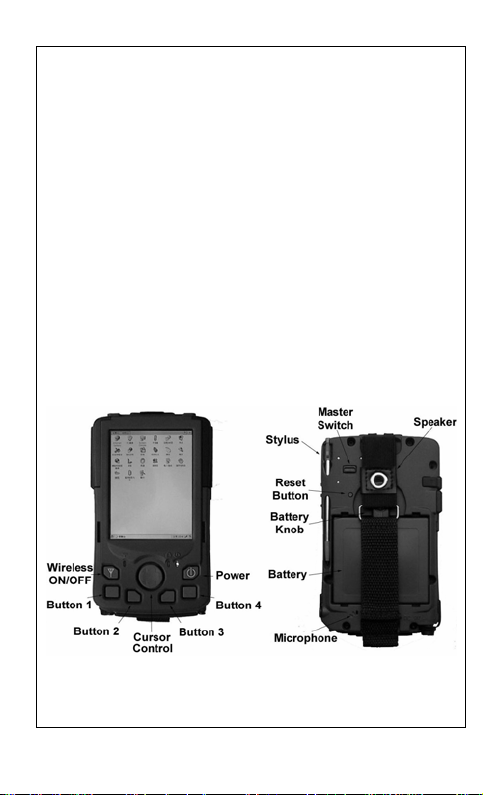
Reset Button and Master Switch
Soft reset: Press reset button
Hard reset: Press reset button and power button
simultaneously
Hard reset and master switch are for troubleshooting or
emergency use only. All settings and RAM data are lost
after hard reset or master switch OFF. When reboot,
need to set up the LCD brightness, button functions,
touch screen, etc. The lost data cannot be recovered
Backup Data
Tap Start Æ Programs Æ Utilities Æ Backup Utility.
Choose Backup to Flash Disk. The data in Flash Disk
will be intact even system hard reset or master switch
OFF
Front and Rear Controls
 Loading...