

Page 1
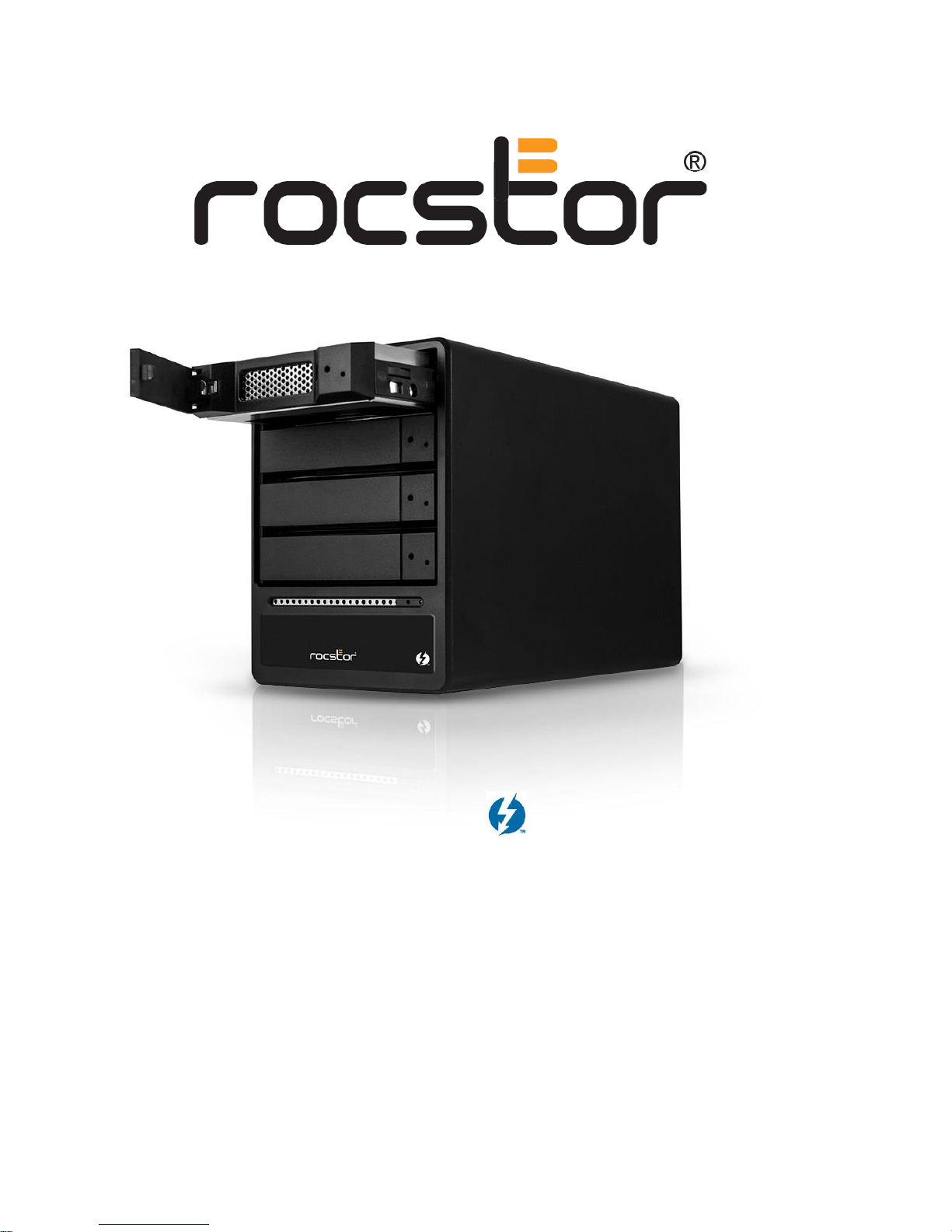
ROCPRO T24
4-Bay RAID System
User Manual
Page 2

TABLE OF CONTENTS
IMPORTANT NOTICES ............................................................................................................ 4
SAFETY NOTICES .............................................................................................................................. 4
GENERAL NOTICES ............................................................................................................................ 4
CAPACITY DISCLAIMER ...................................................................................................................... 4
CARE AND HANDLING ........................................................................................................................ 4
FCC-B RADIO FREQUENCY INTERFERENCE STATEMENT ........................................................... 5
PRECAUTIONS FOR THE RAID SYSTEM …………………………………….…………………………………….….….5
GENERAL ............................................................................................................................... 7
INTRODUCTION ................................................................................................................................ 7
BOX CONTENT ................................................................................................................................. 8
SPECIAL FEATURES ............................................................................................................................ 8
MINIMUM SYSYTEM REQUIREMENTS ................................................................................................... 9
HARDWARE REQUIREMENTS AND PRECUSIONS ....................................................................................... 9
VIEWS ................................................................................................................................ 10
CONNECTORS ................................................................................................................................ 10
SYSTEM VIEWS (FRONT-BACK) ......................................................................................................... 10
HARD DRIVE INSTALLATION ................................................................................................. 11
MANAGEMENT SOFTWARE INSTALLACION ......................... ERROR! BOOKMARK NOT DEFINED.
INSTALLATION OF MONITORING SOFTWARE ......................................................................................... 12
OPERATION OF MONITORING SOFTWARE ............................................................................ 16
RAID SETTING ............................................................................................................................... 17
DELETION OF RAID ........................................................................................................................ 19
FREQUENTLY ASKED QUESTIONS ......................................................................................... 21
E-MAIL NOTIFICATIONS ....................................................................................................... 21
VISUAL STATUS INDICATOR DEFINITIONS ............................................................................. 23
CONNECTING MULTIPLE DEVICES ......................................................................................... 23
RAID MODES ....................................................................................................................... 23
NUMBER OF DISKS SUPPORTING EACH RAID MODE ............................................................................. 22
RAID 0 (STRIPING) ........................................................................................................................ 23
RAID 1 (MIRRORING) .................................................................................................................... 24
RAID 1+0 (10) ............................................................................................................................ 24
JBOD .......................................................................................................................................... 25
Rocstor Rocpro T24 [2]
Page 3

SPECIFICATIONS................................................................................................................... 26
IMPORTANT NOTES ............................................................................................................. 27
KNOWLEDGE BASE .............................................................................................................. 28
LIMITED WARRANTY ............................................................................................................ 29
TECHNICAL SUPPORT ........................................................................................................... 32
TRADEMARKS ACKNOWLEDGEMENTS ................................................................................. 32
COPYRIGHTS ........................................................................................................................ 33
CONTACT INFORMATION ..................................................................................................... 34
Rocstor Rocpro T24 [3]
Page 4

IMPORTANT NOTICES
Safety Notices
The warranty is void if an unauthorized person attempts and/or repairs the hard disk drive.
Read all Manuals and instructions carefully before using the device.
Do not spill any liquid or insert any object into the device.
Use the device within the specifications indicated, including but not limited to: power requirements,
temperature, humidity, sunlight and magnetism from other devices such as computers and televisions.
The product information provided in this user’s manual is subject to change without prior notice and does
not represent a commitment on behalf of the Manufacturer or vendor. Rocstor nor vendor assumes no
liability or responsibility for any errors that may appear in this manual. Firmware, software, images, and
descriptions may vary slightly from actual products.
Please visit the Rocstor website, www.rocstor.com for further information concerning specifications and
use of the device.
General Notices
Consistently make multiple backup copies of your data for your protection. Hard disk drives are subject to
failure at any time.
Rocstorage, Inc. shall not be held liable for loss of data or the restoration or recovery of data on the
device. Please view complete Limited Warranty Information in this manual or on the Rocstor website
(www.rocstor.com) for further details.
Capacity Disclaimer
Actual accessible hard drive capacity will indicate up to 10% lower than stated under different Operating
Systems and formatting.
The storage volume is measured in total bytes before formatting. References to round numbers of gigabytes
or terabytes are an approximation only. For example, a disk drive labeled as having 500GB (gigabytes) has
space for approximately 500,000,000,000 bytes before formatting. After formatting, the drive capacity is
reduced by about 5% to 10% depending on the operating system and formatting used.
Care and Handling
The following instructions concern the proper care and handling of the Arcticroc 4-Bay RAID. Please take a
moment to review these instructions.
As with any storage solution, it is recommended that all data be backed up regularly.
Ensure that you follow the proper removal procedure to disconnect the RAID.
Do not move or disconnect this device from your computer while it is reading or writing
data. This may cause damage to the RAID.
Do not place this device near a heat source or expose it to direct flame.
Do not place the device near any equipment generating strong electromagnetic fields.
Exposure to strong electromagnetic fields may cause the device to malfunction or data to
be corrupted.
Do not drop or cause shock to your RAID.
Rocstor Rocpro T24 [4]
Page 5
Do not spill any liquid or insert any object into the device.
Do not attempt to disassemble and service the Rocpro drive during the warranty period.
Please read the Safety Notices and Limited Warranty information in this Manual and on the
Rocstor website (www.rocstor.com) for further details.
FCC-B RADIO FREQUENCY INTERFERENCE STATEMENT
This device complies with Part 15 of the FCC rules. Operation is subject to the following two conditions:
This device may not cause harmful interference.
This device must accept any interference received, including interference that may cause undesired operation.
This equipment has been tested and found to comply with the limits for a Class B digital device,
pursuant to Part 15 of the FCC rules. These limits are designed to provide reasonable protection
against harmful interference when the equipment is operated in a commercial environment. This equipment
generates radio frequency energy, and if not installed and used in accordance with the instruction manual,
may cause harmful interference to radio communications.
PRECAUTIONS FOR THE RAID SYSTEM
The main circuit board of the RAID System is susceptible to static electricity. Proper grounding is
required to prevent electrical damage to the RAID System unit or other connected devices, including the host
computer. Always place the RAID System unit on a smooth surface and avoid all dramatic movement,
vibration and percussion.
Any loss, corruption, or destruction of data is the sole responsibility of the owner/user(s). Under no
circumstances will the manufacturer be held liable for the recovery, restoration, loss … of any data.
Installation of MSU Software in the host computer is required for proper operation.
Do NOT allow water to enter the RAID System unit.
Installation of additional equipment in the host computer may be required. Visit our website to download
the latest product information updates.
Do NOT attempt to service this unit yourself. Disassembling the RAID System’s inner parts will expose you
to dangerous voltages or other hazards.
Do NOT block the ventilation. Proper airflow is required to ensure reliable operation and to prevent
overheating.
Do NOT place the RAID System close to magnetic devices (such as a mobile phone), high-voltage devices
(such as a hair dryer), or near a heat source (such as on the dashboard of a car or any place where it will be
exposed to direct sunlight).
Do unplug the RAID System unit from the electrical outlet when not in use to provide an ecological friendly
environment.
Rocstor Rocpro T24 [5]
Page 6
Use only the power supply cable provided with the RAID System unit.
Any loss, corruption, or destruction of data is the sole responsibility of the user of the RAID System.
Under no circumstances will the manufacturer be held liable for the recovery or restoration of any data
Please thoroughly read and follow the instructions provided in this manual. Failure to do so may
result in damage to the RAID System, and any or all of the connected devices.
Rocstor Rocpro T24 [6]
Page 7
GENERAL
Introduction
Rocpro T24 Thunderbolt 2
4 - Bay Desktop RAID
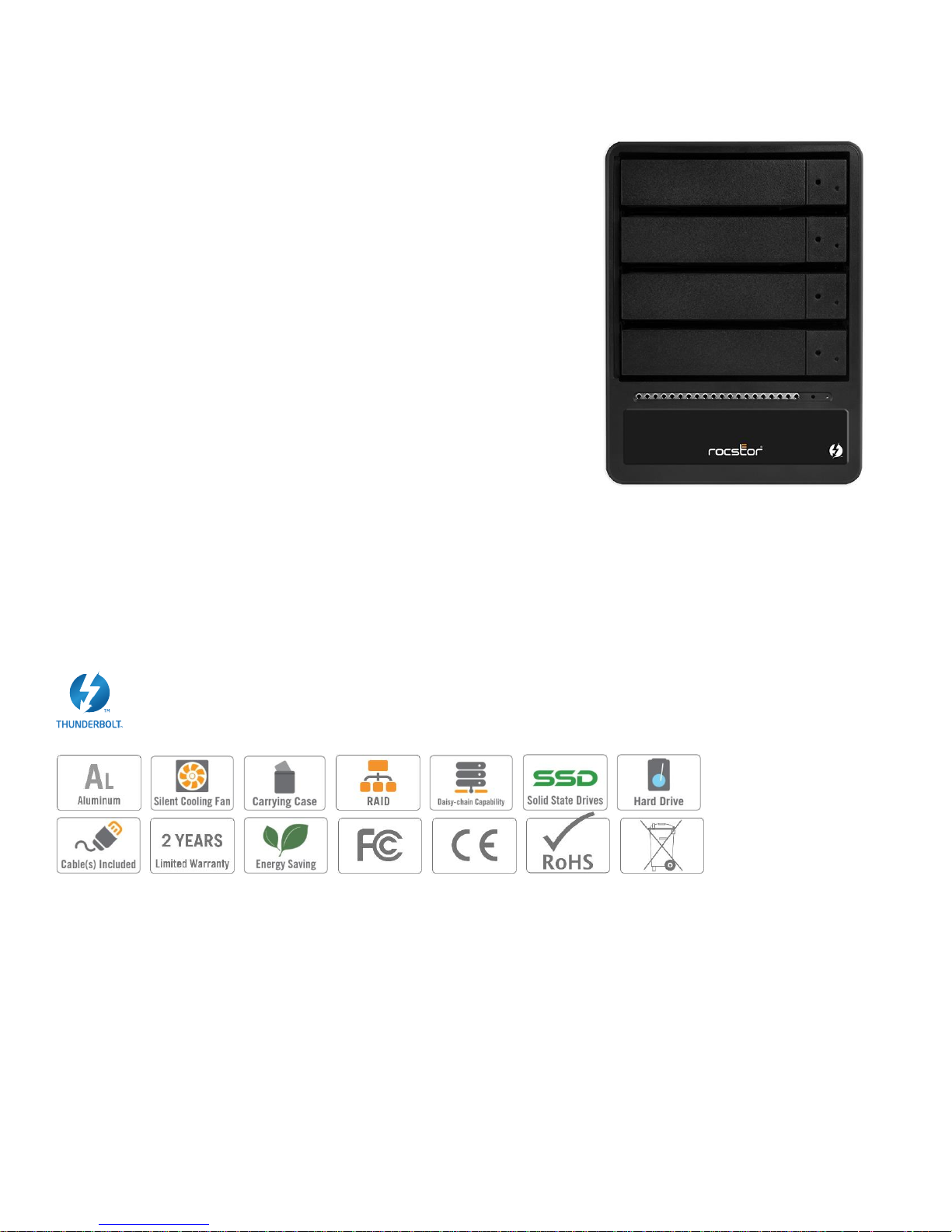
The new Rocpro T24 Thunderbolt 4-Bay RAID system provides
massive storage capacity and advanced RAID configuration in a
compact storage device. The Rocprot T24 delivers extraordinary
performance and reliability. Specifically designed for demanding
audio/video professionals, the new Rocpro T24 utilizes fast SATA
high capacity 3.5” drives or Solid State Drive; in heat dissipating
aluminum case. Silent fans assure quiet operation while providing
maximum airflow for cooling purposes.
Before using your Rocpro T24, please read this manual thoroughly.
Although all information contained in this user manual has been
carefully verified before publishing, the actual product specification will be based on the time of delivery from
Rocstor. Any updates to the product specifications, information, user manual, software/firmware updates or
relevant information may be found on www.Rocstor.com. Products are subject to change without prior
notifications.
Choose Rocstor drives and store your future.
Rocstor Rocpro T24 [7]
Page 8

BOX CONTENTS
Rocpro T24 x 1(with removable drive tray enclosed x 4)
Thunderbolt cable x 1
Power Cable x 1
Accessories Kit
CD ( User Manual / Software ) x 1
Please make sure that the contents listed above are not damaged or missing. If you should find damages or
missing contents, please contact your supplier immediately.
Please keep (store) all package contents and packaging material during the limited warranty period.
SPECIAL FEATURES
Compatible with SATA hard drives and solid-state drives.
Connects via two (2) Thunderbolt 2 ports (up to 20Gbps of transfer rates)
Provides multiple RAID tasks for effective storage management: JBOD (None RAID), RAID 0 (Striping), RAID
1 (Mirroring), RAID 10 (1+0)
Supports Rebuild under RAID 1, RAID 10 (1+0)
Provides multiple devices with increased speed and flexibility via Daisy Chaining up to six Thunderbolt
compatible devices/displays
Configures RAID modes easily using MSU Graphic User Interface (GUI)
Monitors System status via LED indicators or MSU (GUI)
Features secure tray hard disk or solid state
Dissipates heat efficiently with aluminum housing
Maximizes airflow with two silent fans
Any loss, corruption, or destruction of data is the sole responsibility of the user of the RAID System.
Under no circumstances will the manufacturer be held liable for the recovery or restoration of any
data.
Rocstor Rocpro T24 [8]
Page 9

Hardware: Thunderbolt port(s.)
Mac: Any Mac with a Thunderbolt port running
OS X 10.9 or later.
Memory RAM: 4 GB RAM
MINIMUM SYSTEM REQUIREMENTS
To utilize the RAID, the minimum system configuration in the host computer requires the following:
Mac Users:
3.5 or 2.5 inch SATA-compatible hard drive and/or 2.5-inch Solid State Drive(s) (SSD) are required for
the RAID System. Once the hard drive and/or SSD are formatted, the actual available storage
capacity can vary depending on the selected operating environment (normally 5-10 % less).
HARDWARE REQUIREMENTS AND PRECAUSIONS
1. Whenever turning off or unplugging the RocproT24 Series from your computer system becomes
necessary, always remember to safely remove it from your operating system first.
2. When the Rocpro T24 is connected to the computer system, it’s prohibited to remove, insert or swap
the hard drive while data transfer is being performed.
3. If you will be incorporating either software or hardware RAID functionality to operate with the ST4
Series, it is important to understand the RAID level and its component that will be incorporated and
the precautions to take as each RAID level and component may function differently and contains
various limitations.
4. If installing your own HDD, please make sure that the hard drives are free from bad blocks or defects
prior to installation in order to avoid system crashes or data loss.
5. It is highly recommended for users to back up important data contained within the drives of the
Rocpro T24 Series on a regular basis or whenever the user feels necessary to a remote or a separate
storage device. Rocstor will not be responsible for any loss of data caused during the use of the T24
Rocstor Rocpro T24 [9]
Series or the recovery of the data lost.
Page 10
H
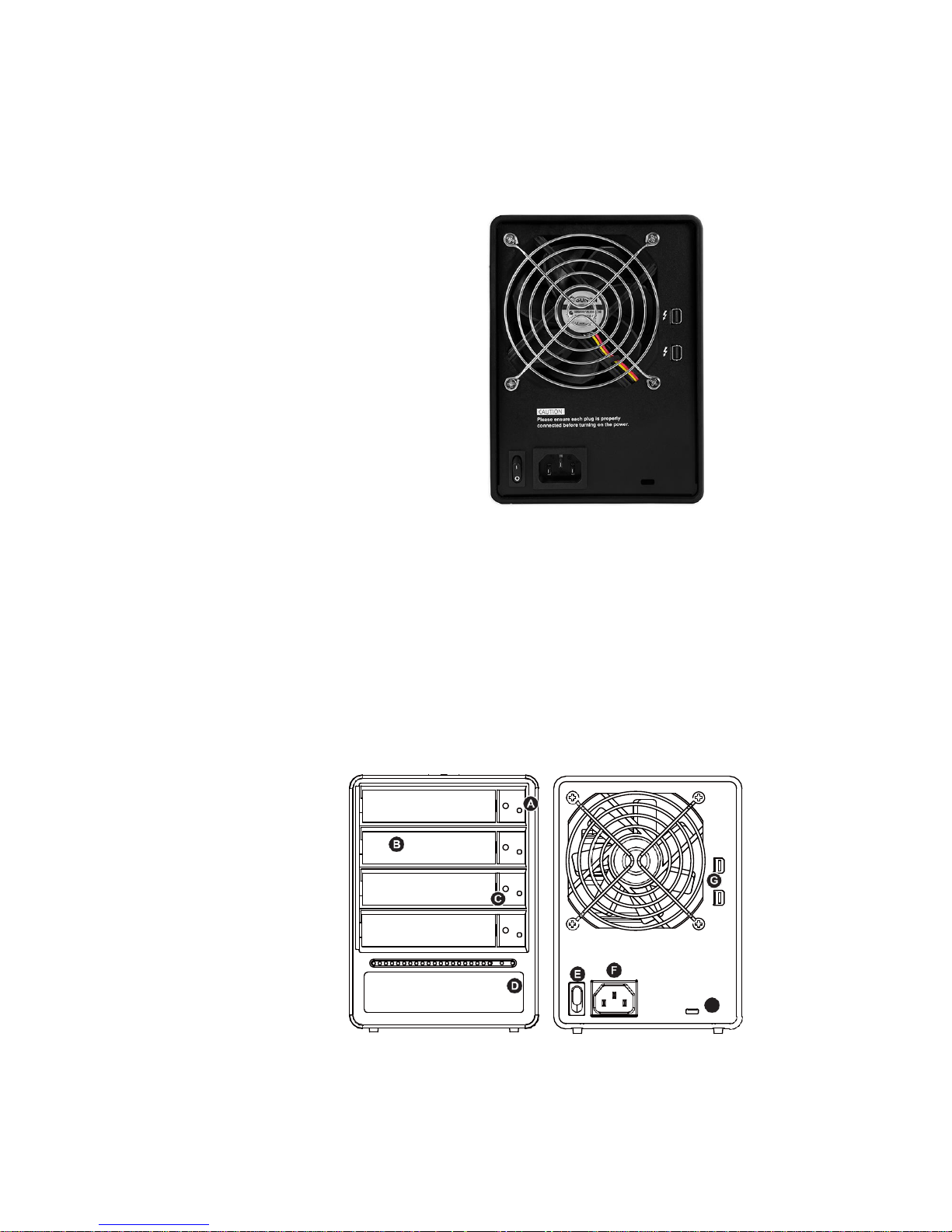
CONNECTORS
Thunderbolt 2 port x2
Power Input
ON/OFF Power Switch
Lock Port/Slot
SYSTEM VIEWS
Front and Rear View
The status indication of each LED indicator is listed under the LED INDICATORS section below.
A. Hard drive status indicator
B. Removable drive tray
C. Key access opening
D. Power indicator
E. Power Switch
F. Power socket
G. Thunderbolt
H. Anti-theft cord slot
Rocstor Rocpro T24 [10]
Page 11
Hard Drive Installation
1. Open the package and take out the product making sure that all the enclosed contents are not
damaged or missing. Should you find damages or missing contents, please contact your supplier
immediately.
2. Place the enclosure on a stable surface, ensure that it is well ventilated without blockage to the vent
and kept away from locations near water or where the product may become vulnerable resulting in
damages.
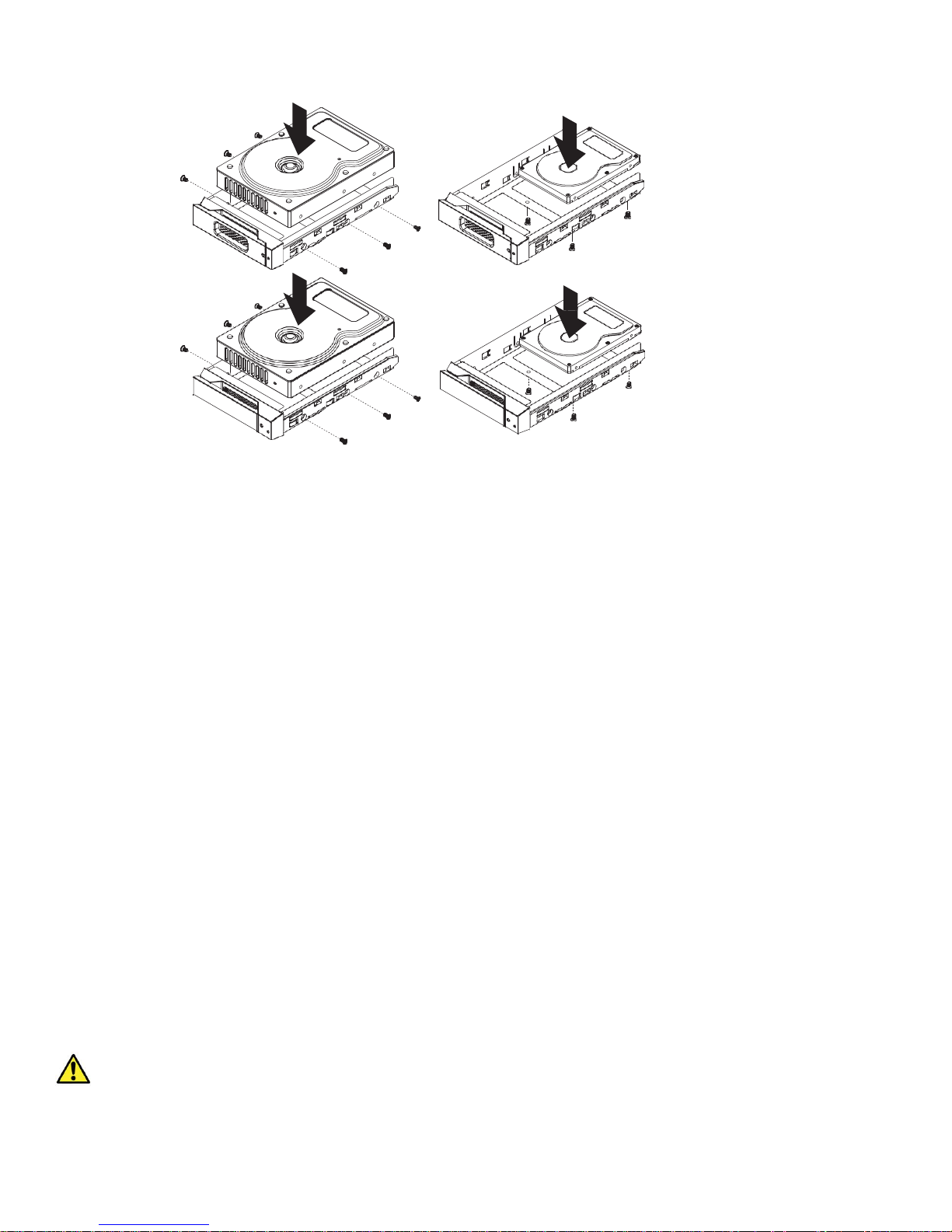
3. Use the provided key in the accessories kit and inserted into the key access opening to eject the
removable drive tray latch and extract the removable drive tray.
4. Mount your hard drives onto the removable drive tray and secure it with the screws included in the
accessory kit to avoid any damage to the hard drive due to accidental movements.
5. Choose one of the provided cables of your preference to connect the preferred interface connection
on the enclosure unit to the computer.
6. Attach the AC power cable to the power socket. Once completed, you may power on the unit.
7. Once your computer has also booted, your operating system should recognize the drive automatically.
If the hard drive installed requires formatting, follow the formatting instructions given by the operating
system to format the drive volume to your preference. Once the formatting has been completed, the
device is ready for use.
IMPORTANT NOTE: all hard drives installed MUST be RAID compatible hard drives, with same capacities
and speeds of 7,200 R.P.M. or higher and preferably from the same manufacturer of hard drives.
Rocstor Rocpro T24 [11]
Page 12
Management Software Installation.
Installation of Monitoring Software
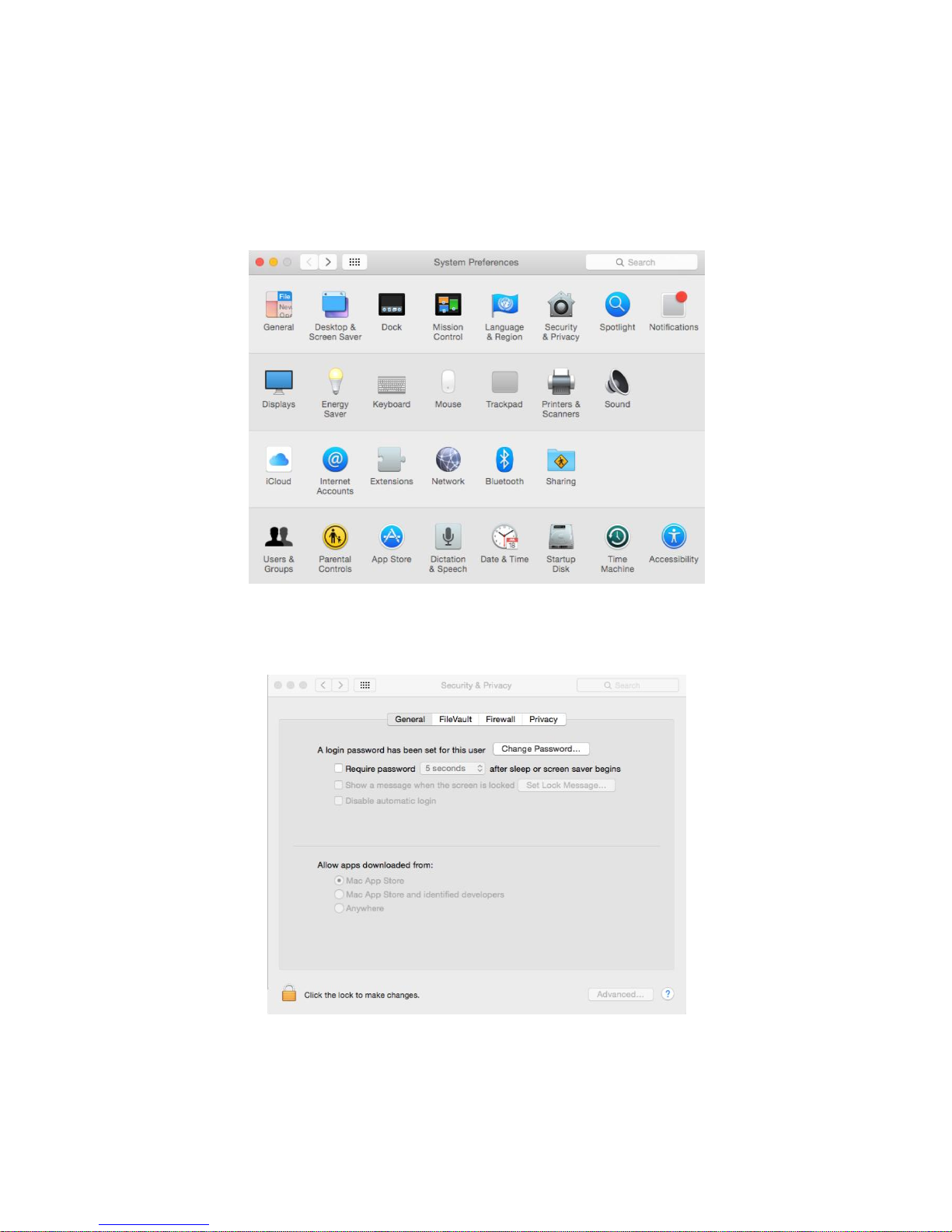
Please install from product CD in the accessory package or download it from www.Rocstor.com.
Step 1. Select “Security & Privacy” under “System Preferences”.
Step 2. Click on the lock icon from the bottom-left corner to unlock settings under “General”.
Rocstor Rocpro T24 [12]
Page 13
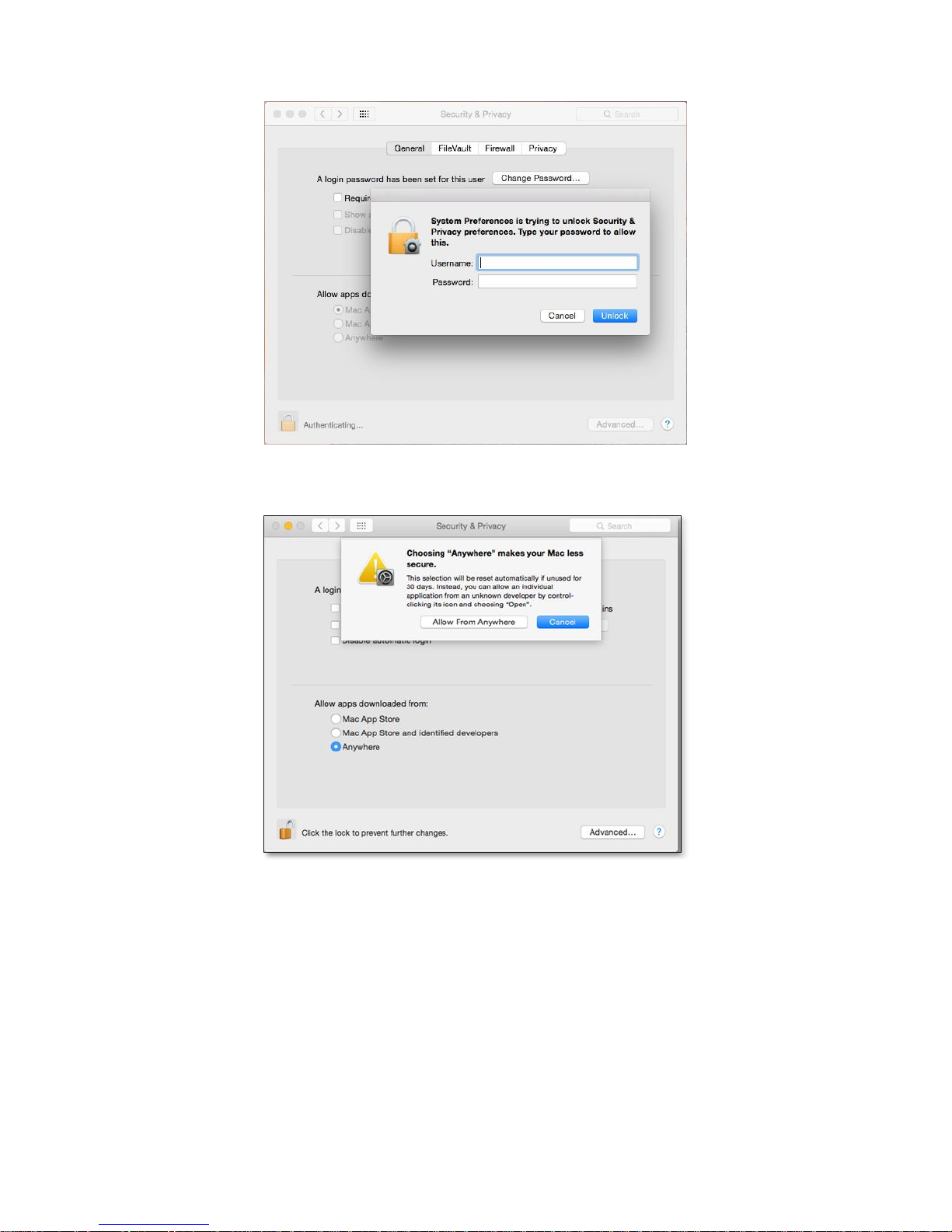
Step 3. Insert your “Username” & “Password” for the computer.
Step 4. Select “Allow from anywhere” for App downloads.
Step 5. Click on the lock icon from the bottom-left corner to lock settings.
Step 6. Run MSU application to proceed installation for “Introduction” > “License” > “Destination Select” >
“Installation Type” > “Installation” > “Summary”, and please click on “Continue” for “Introduction”.
Rocstor Rocpro T24 [13]
Page 14
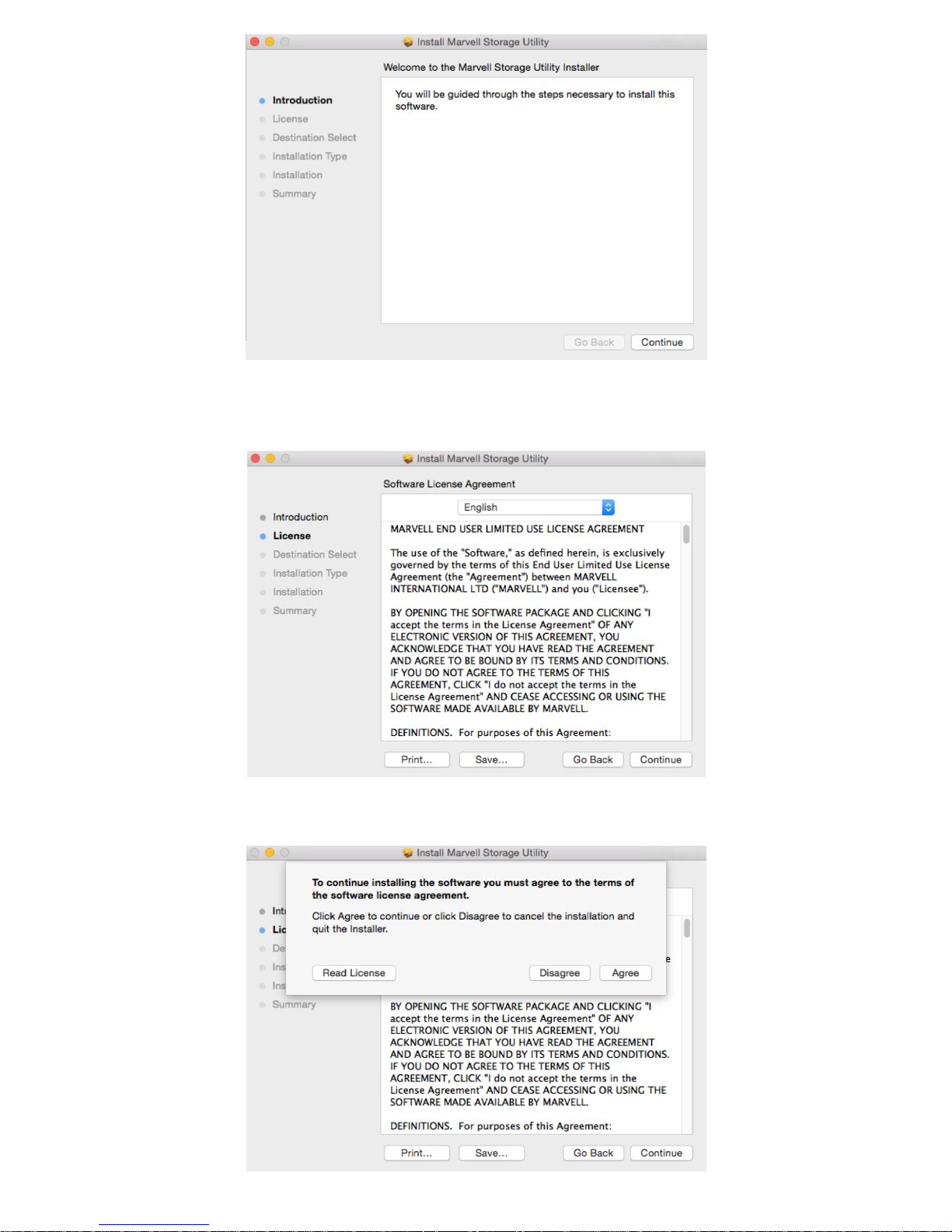
Step 7. Please click on “Continue” for “License”.
Step 8. Please click on “Agree” in the popped-up dialogue of “License” to continue.
Rocstor Rocpro T24 [14]
Page 15
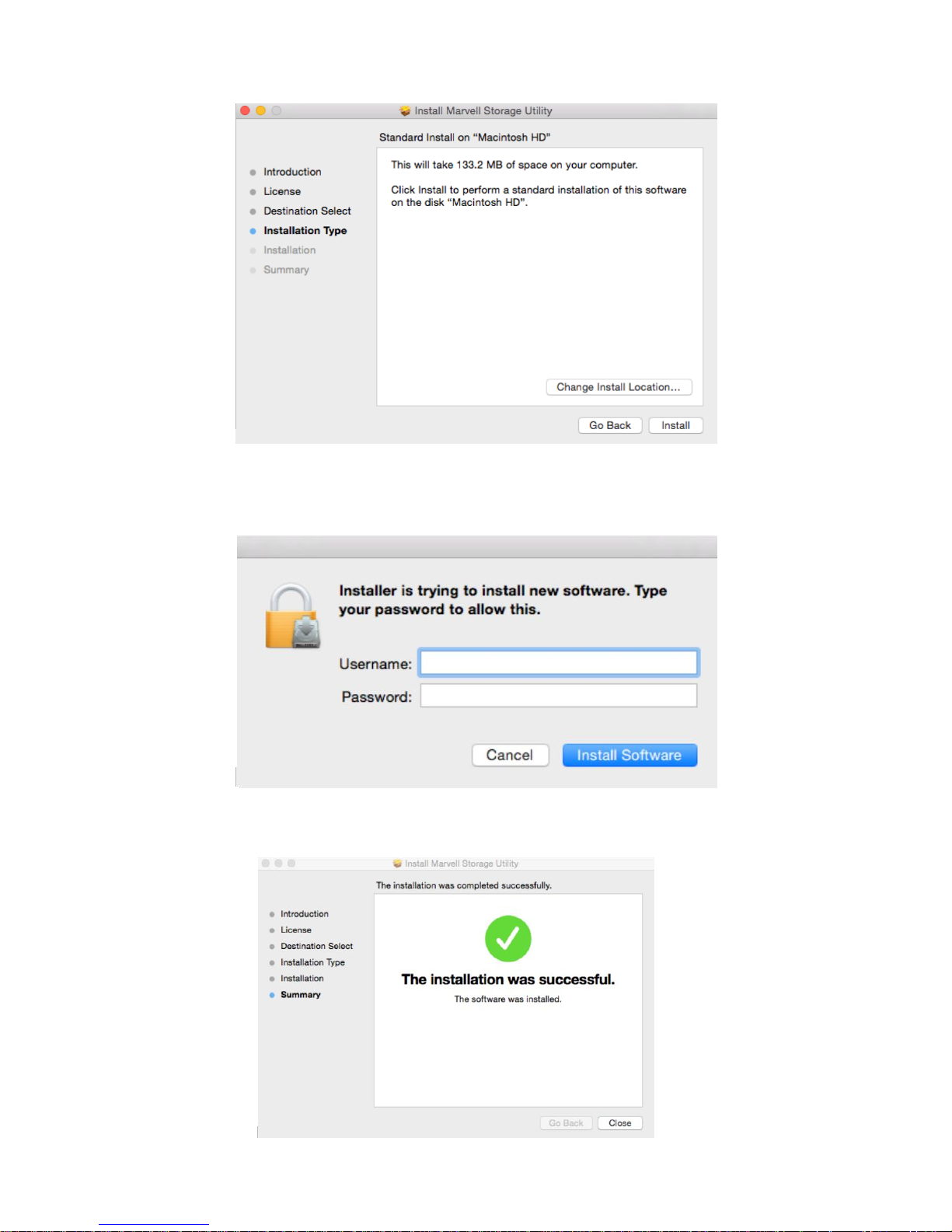
Step 9. “Installation Type” indicates the size of space will occupy, please click on “Install”.
Step 10. Insert your “Username” & “Password” for the computer then please click on “Install Software” to
continue.
Step 11. Software installation completed, please click on “Close” button to exit installation.
Rocstor Rocpro T24 [15]
Page 16
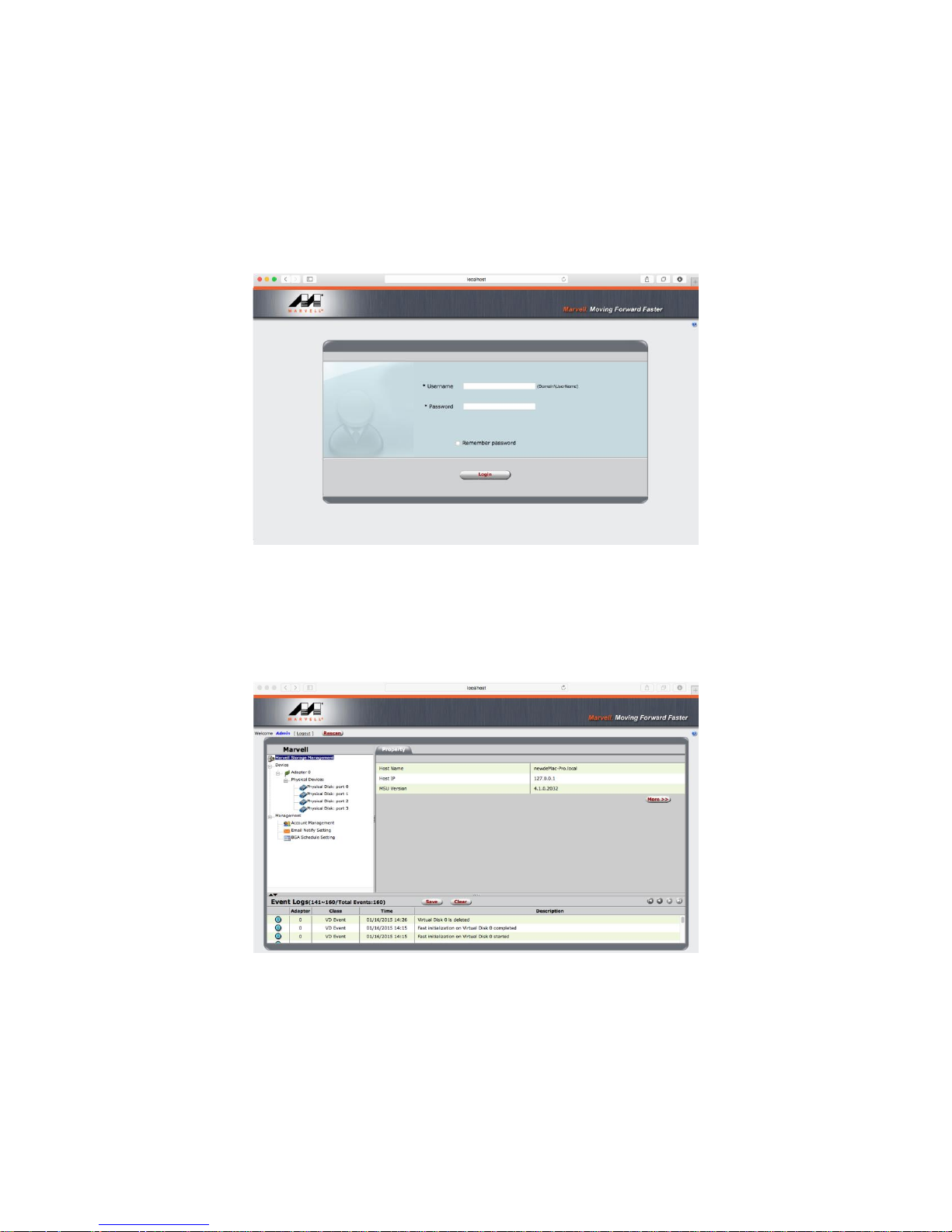
Step 12. Please launch the monitoring software after restarting the computer from software installation.
Operation of Monitoring Software
Before operating MSU, please verify ROCPRO T24 has already connected to the computer with HDD installed
and powered on. Please choose enterprise standard HDD for surveillance with identical brand and capacity.
Step 1. Insert your “Username” and “Password” for the computer.
Step 2. 3 setting options can be found on the left of managing window as for “Marvel Storage Management”,
“Device” and “Management”.
Marvel Storage Management: Host Name, IP address and MSU version. Device: RAID configurations and
information of installed HDD Management: Configurations of E-Mail notification for incidents.
Rocstor Rocpro T24 [16]
Page 17
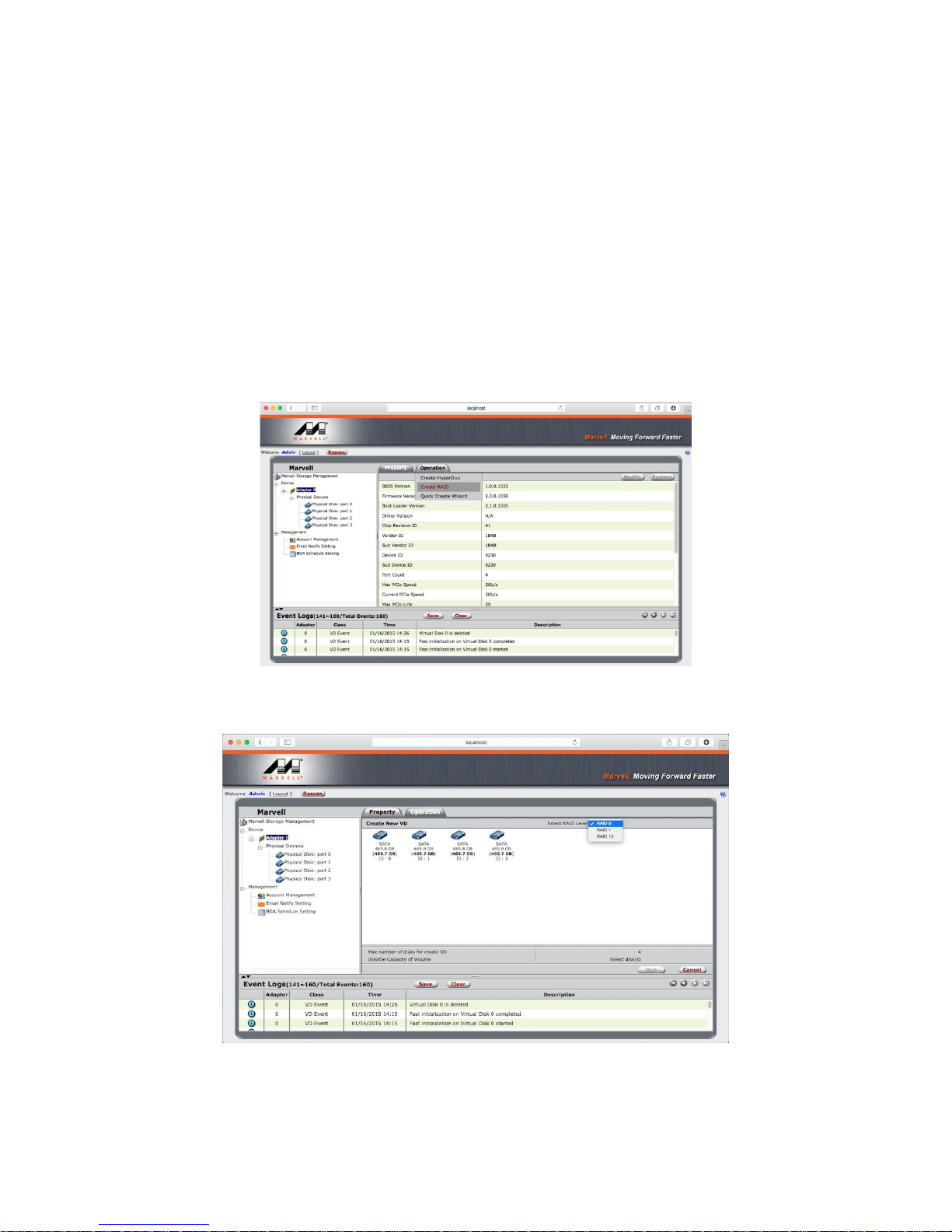
RAID Settings
A. If installed HDD was used for RAID on other devices, please assure that previous RAID info in
HDD has been successfully removed/erased and HDD has been reformatted.
B. Please backup all data before configuring/changing to desire RAID mode.
C. JBOD: To use individual capacity of each installed HDD.
D. RAID-0: Only enhances the performance of data accessing, it does not provide backup/fail-safe
for stored data.
Step 1. Please select “Device” > “Adapter” > “Operation” > “Create RAID”.
Step 2. Choose for desired RAID level.
Step 3. Please select desired HDD(s) for proceeding with RAID configuration.
Rocstor Rocpro T24 [17]
Page 18
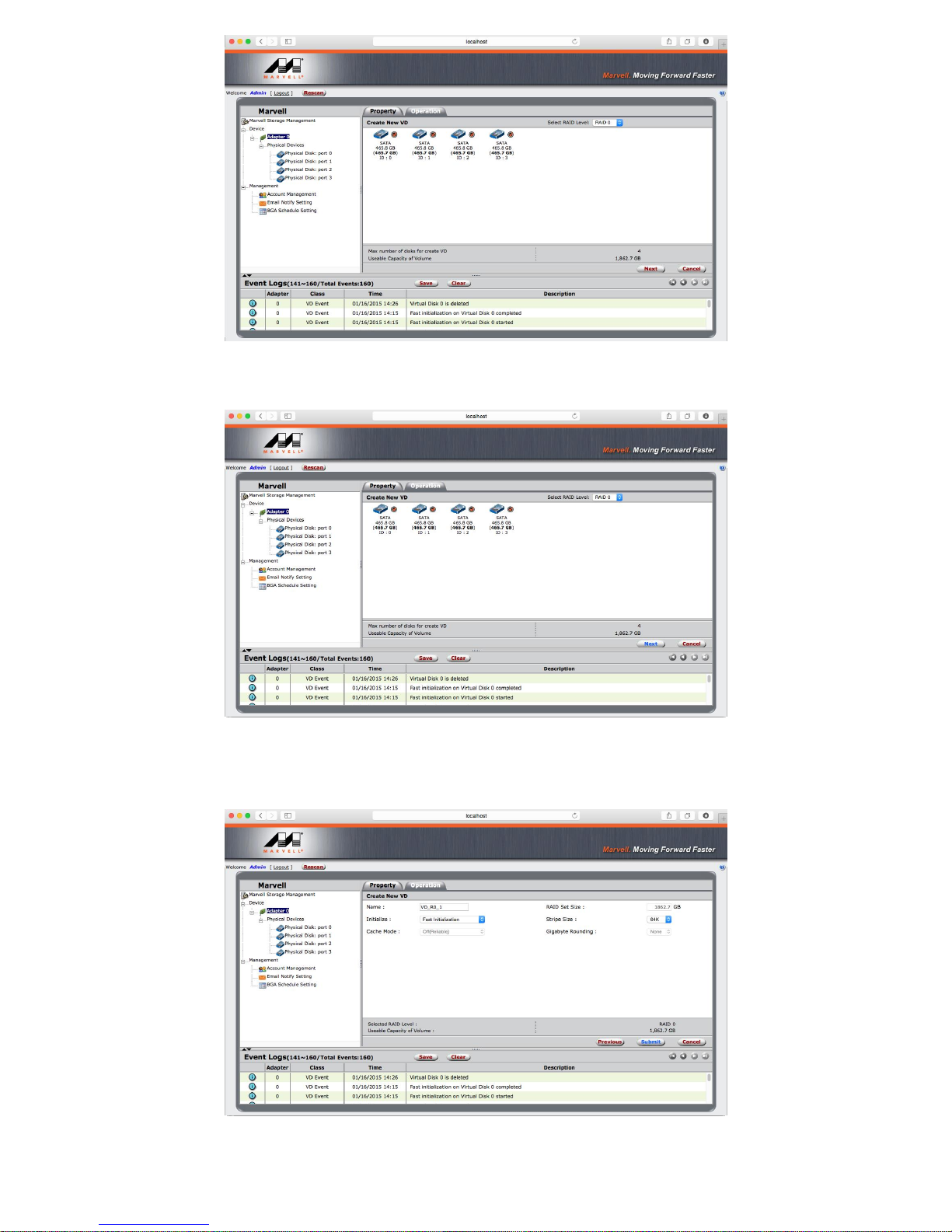
Step 4. Please verify RAID level and number of HDD selected are indicated correctly, and then click on “Next”
to continue.
Step 5. Please verify selected RAID level and relevant information are indicated correctly, and then click on
“Submit” to continue
Step 6. Click for confirmation in the popped-up dialogue to proceed with selected RAID level.
Rocstor Rocpro T24 [18]
Page 19
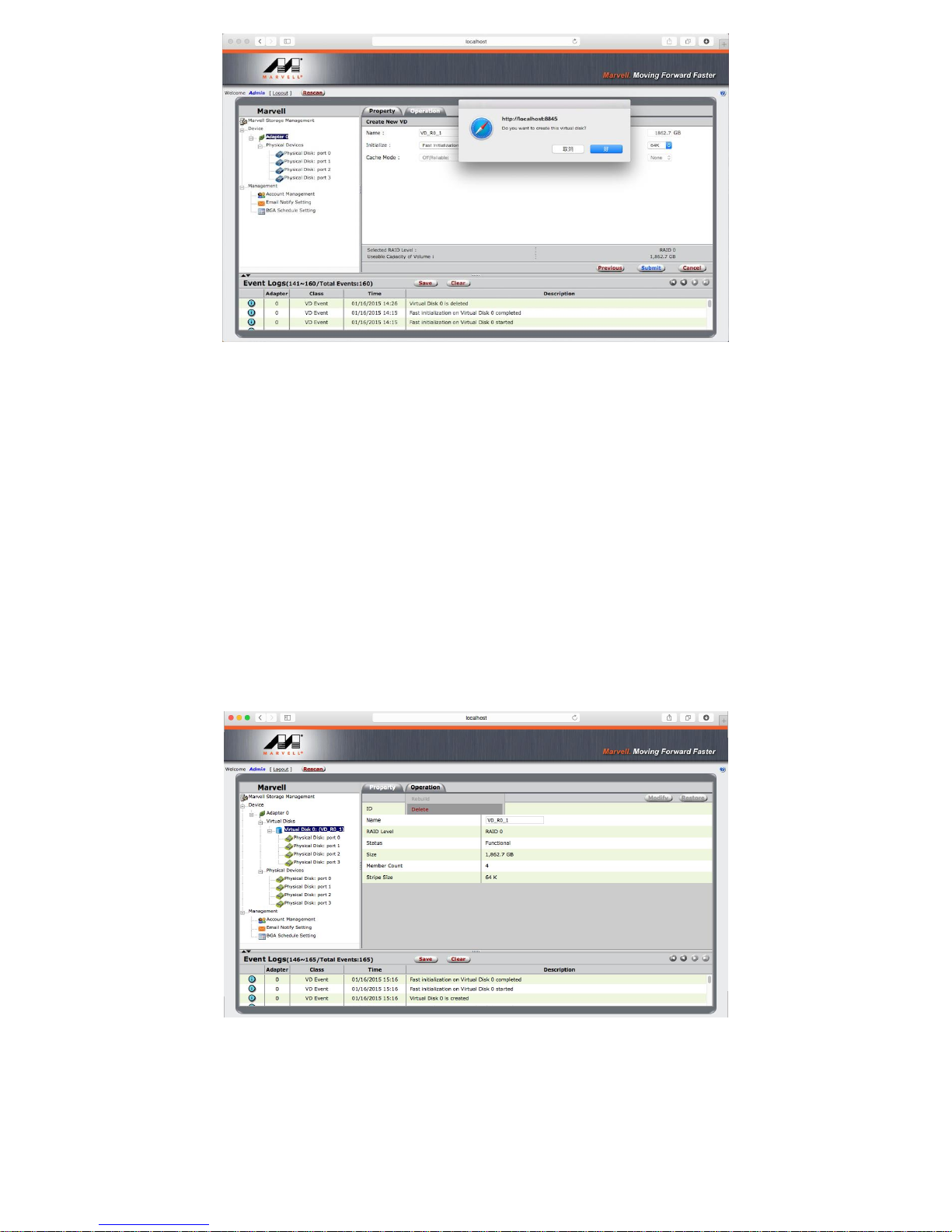
Step 7. RAID level completed
The naming sequences of adapter set assigns from “Adapter 0”, ”Adapter 1”… to ”Adapter 5”, and ROCPRO
T24 may adopt maximum of 6 sets.
RAID: Default name is “VD_R0_1”. The options in the top-right corner may apply for “Modify” or “Restore”.
HDD ID: Each set of HDDs within will be indicated as 0, 1, 2 and 3.
Deletion of RAID
Please backup stored data before deleting RAID, once RAID been deleted all data within shall be erased.
Step 1. On the left of managing window, please select the “Virtual Disk” from a RAID set which wish to be
deleted. The option for “Delete” will appear once click the “Operation” tab on the right of managing window.
Rocstor Rocpro T24 [19]
Page 20
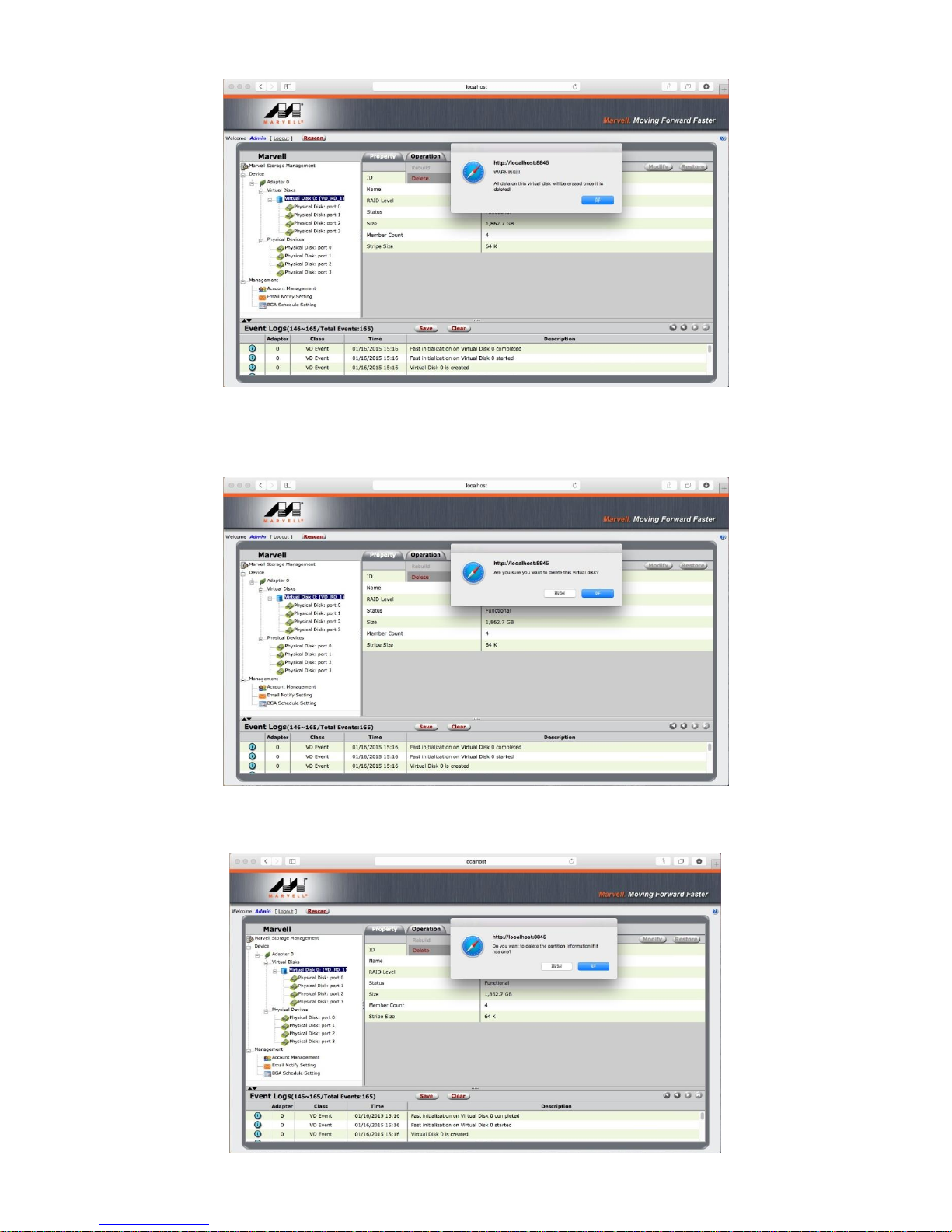
Step 2. Confirmation dialogue will appear for deletion.
Step 3. Second confirmation dialogue will appear to proceed with delete.
Step 4. Final confirmation dialogue will appear to delete partition information.
Rocstor Rocpro T24 [20]
Page 21
Step 5. After RAID has been deleted, each of the HDD will revert to original connecting status individually.
Frequently Asked Questions
A. ROCPRO T24 will goes into sleep mode when Thunderbolt cable is not connected, while fan and LED
indication of ROCPRO T24 will not be functioning until connecting with Thunderbolt cable.
B. When ROCPRO T24 goes into sleep mode that fan and LED indication of ROCPRO T24 will not be
functioning, until ROCPRO T24 has been reactivated.
C. If HDD was used for RAID in other devices, please revert the HDD to JBOD mode using original
device/software before install in ROCPRO T24.
D. If monitoring software is being active for a period of time without accessing, please proceed with
refreshing or restarting the software for acquiring an updated status.
E. If an older version of Marvell monitoring software has already been installed in the computer, please
remove it completely before installing the monitoring software from product CD to avoid the
occurrence of software corruptions.
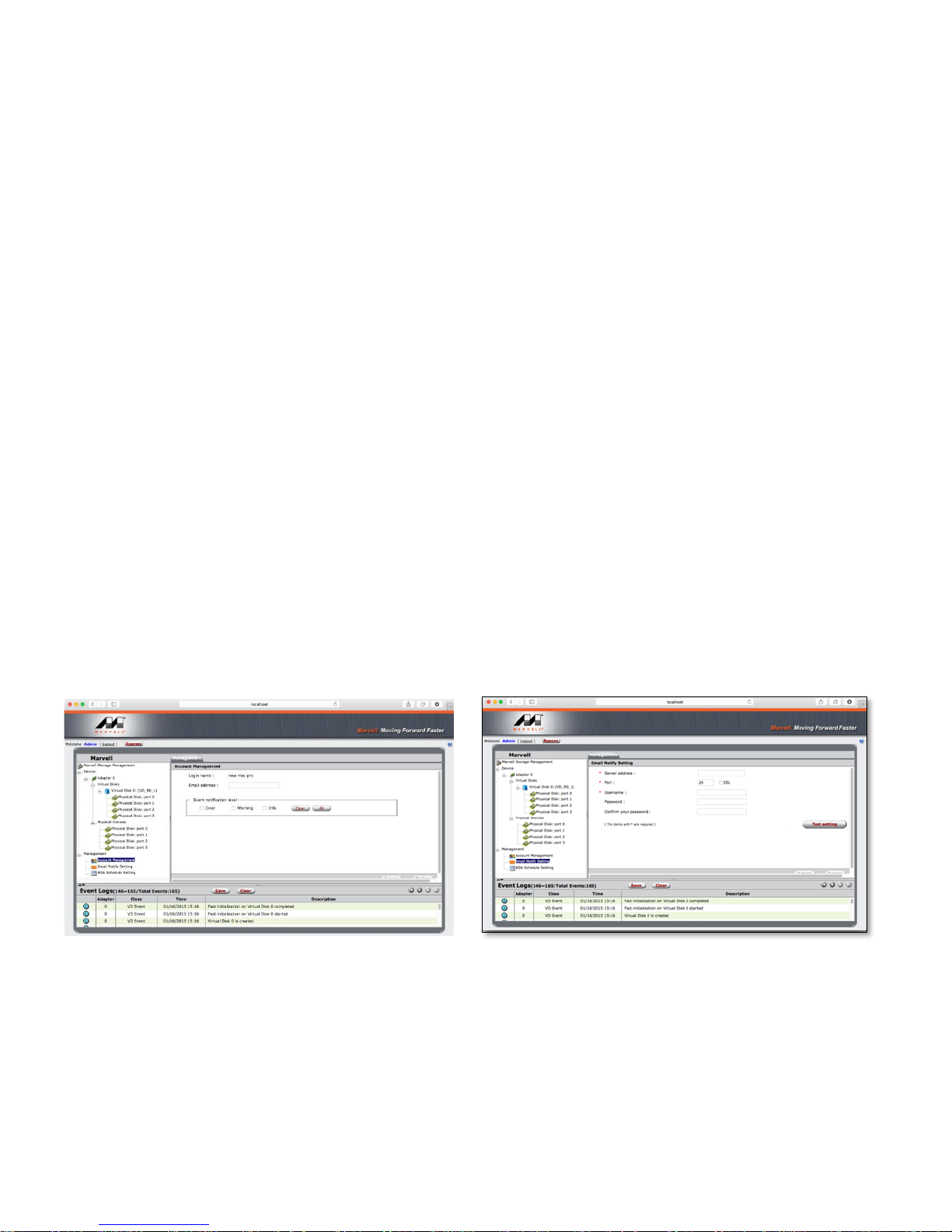
E-Mail Notifications.
“Account Management” under “Management” on the left of managing window allows configuring for e-mail
notification by sending “Event Logs” which generated during the operation of ROCPRO T24.
Rocstor Rocpro T24 [21]
Page 22
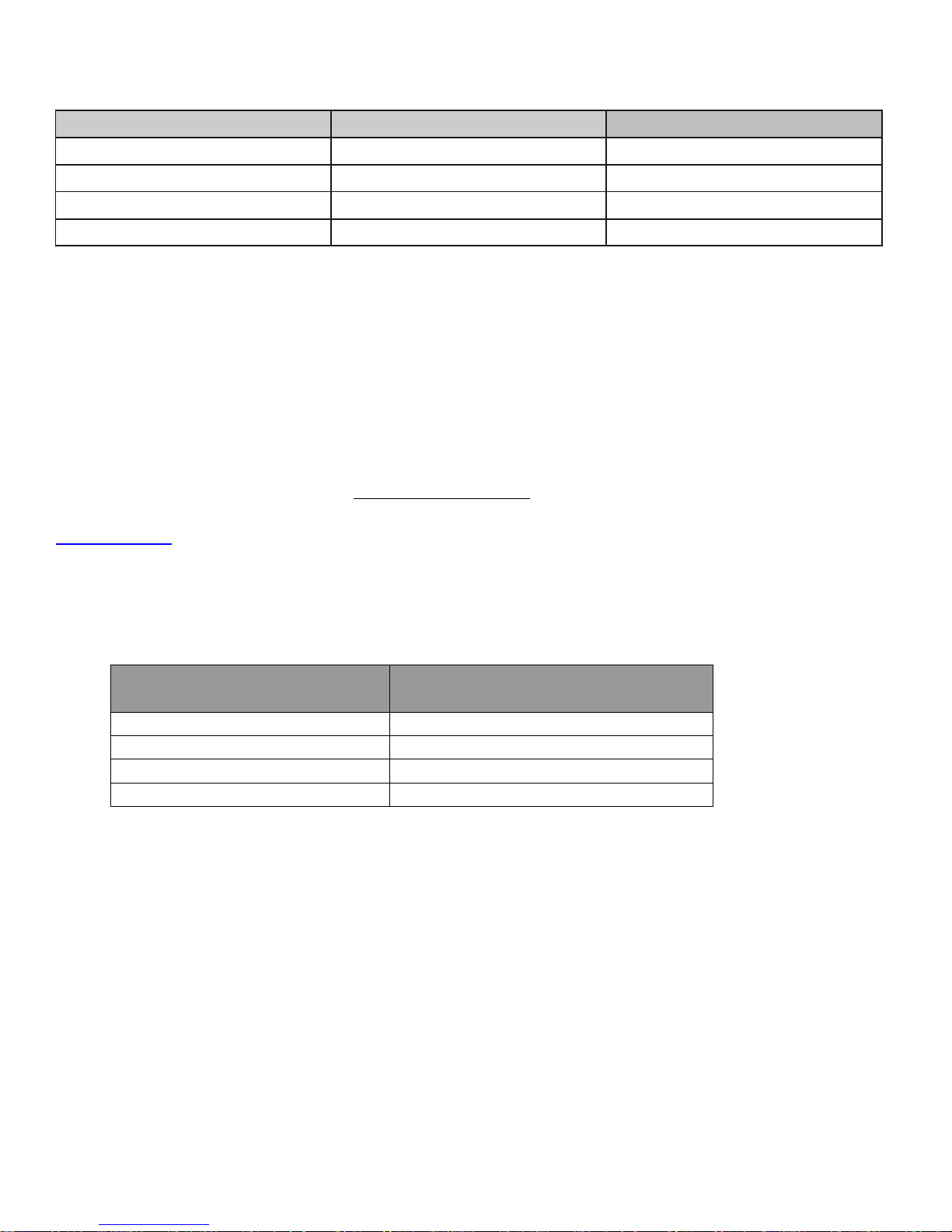
Status
Power LED
HDD LED
Power on / NO HDD
Blue On
N / A
Power on / HDD Idle
Blue On
Blue On
Power on / HDD Access
Blue On
Blue Blinks
Power on / HDD Fail
Blue On
N / A
RAID Modes
Number of Hard Drive/SSD(s) in the
RAID System
JBOD (None RAID)
1 to 4
RAID 0 (Striping)
2 to 4
RAID 1 (Mirroring)
2
RAID 1+0
4
Visual Status Indicator Definitions
Connecting Multiple Devices
Up to six Thunderbolt compatible devices can be connected to the computer via Daisy Chain, including: the
Rocpro T24 , other computer hardware (i.e. DVD writer), high-resolution displays, digital devices (i.e. digital
video camera), and more. However, the process/transfer speeds of each device connected along the
Thunderbolt may vary depending on the device’s model/brand and its original connection port itself. To
maximize the process/transfer rates, it is highly recommended to place the RAID System at the beginning of
the chain, connected directly to the host computer. For more information, please go to Intel’s website at
www.intel.com .
NUMBER OF HARD DISK OR SOLID STATE DRIVES SUPPORTING EACH RAID MODE
Rocstor Rocpro T24 [22]
Page 23
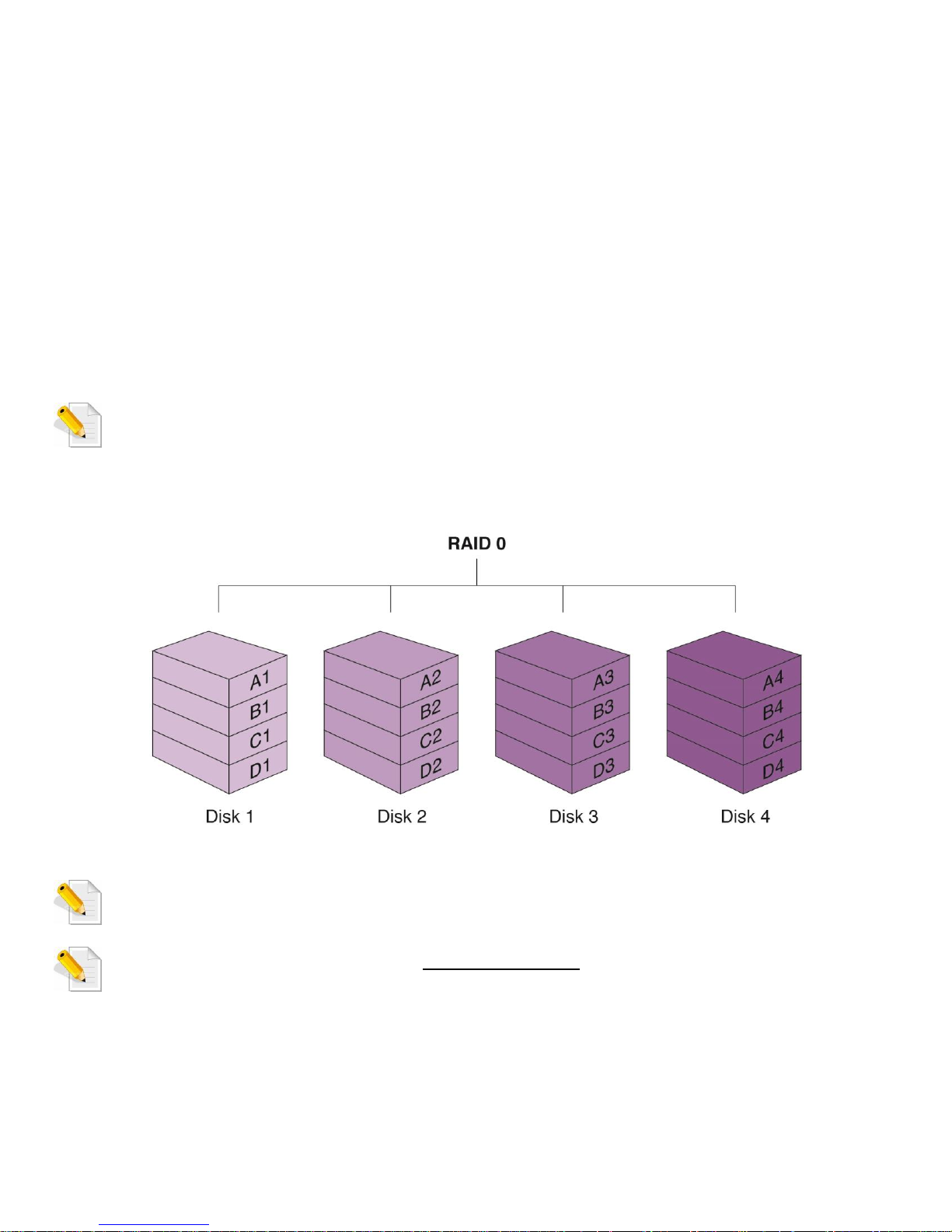
RAID Definition
RAID 0 (Striping)
RAID 0 (Striping) is a performance-oriented, non-redundant data mapping technique. It combines multiple
drives into a single logical unit. Instead of viewing several different drives, the operating system sees only one
large drive. Striping splits data evenly across two or more disks simultaneously, dramatically increasing
performance.
Striping can be implemented in disks of differing sizes, but the storage space added to the array by each disk is
limited to the size of the smallest disk. Although Striping is an easily implemented simple configuration,
Striping should never be used for mission critical applications. The speed of operation is excellent in
comparison to other RAID modes.
In Striping mode, it is not possible to see the HDDs as more than one unit. If you choose to insert all 4
HDDs, it will still be viewed as one single storage unit. When you choose to insert only two HDDs,
there is not limitation on the order of drive insertion or
the slot number.
In Striping mode, if one disk in the RAID System fails, all data in installed disks (HDD or SSD) will be
lost.
When operating under Striping mode, it is not recommended to do HDD Hot Swap. Any attempt to do
so may result in complete loss of all data.
Rocstor Rocpro T24 [23]
Page 24
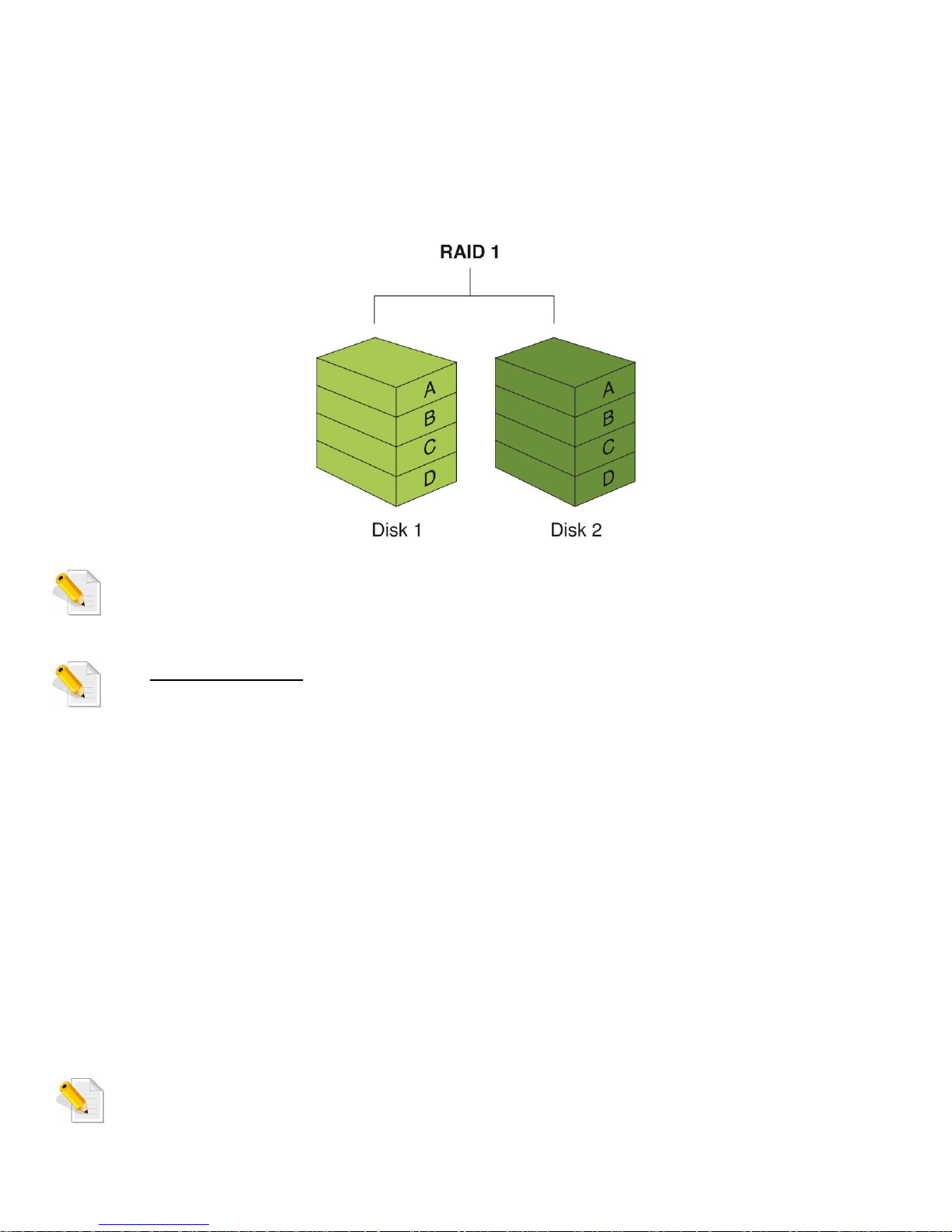
RAID 1 (Mirroring)
RAID 1 (Mirroring) consists of at least two drives storing duplicate copies of the same data. In this
configuration (mode) the data is simultaneously written to two drives (HDD or SSD). Thus, the storage
capacity of a two-disk (SSD) array is combined into a single disk and the capacity is limited to the size of the
smallest disk. The speed of operation is average in comparison to other RAID modes.
In Mirroring mode, if one of the drives (HDD or SSD) fails, either source or spare disk, the data is still
available. However, if the source disk fails during the rebuild process, the data in both drives will be
lost.
It is NOT recommended to do Hot Swap for the source disk during the rebuild process because the
data in both disks will be lost.
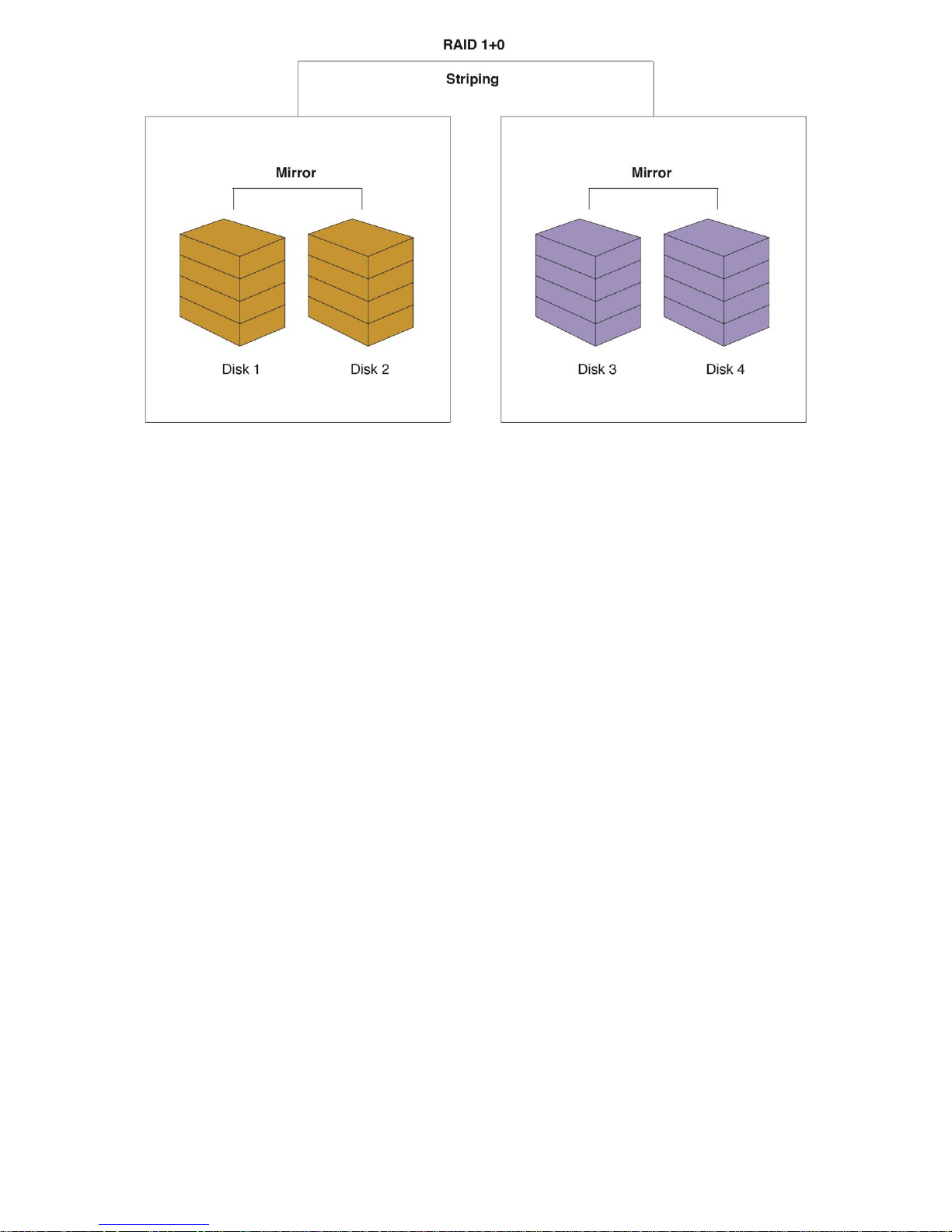
RAID 1+0 (10)
In RAID 1+0, the data is first mirrored and then striped. Under this RAID Mode, it provides another way to
achieve higher performance and data security, while increasing complexity.
The speed of operation is average in comparison to other RAID modes (except RAID 0).
The key difference between RAID 1+0 and RAID 1+0 is that RAID 1+0 creates a striped set from a series of
mirrored drives. In a failed disk situation, RAID 1+0 performs better because all the remaining disks can
continue to be used. The array can sustain multiple drive losses as long as none of the mirror set loses all of its
drives.
RAID 1+0 (10) requires a minimum of four (4) hard drive/SSDs in an array. If one of the hard
drive/SSDs becomes defective, the original and identical backed up data is still available offhand
Rocstor Rocpro T24 [24]
Page 25
JBOD (JUST A BUNCH OF DISKS)
Just a Bunch of Disks (JBOD) refers to a group of drives. In JBOD, the number of logical drives is equal to the
number of physical drives (HDD and/or SSD.) This mode allows the RAID System to operate as a multi-disk
storage enclosure, but provides no data redundancy. The speed of operation is fast in comparison to other
RAID modes.
Rocstor Rocpro T24 [25]
Page 26

SPECIFICATIONS
Device Type:
Hard Drive Array
interface:
Thunderbolt™ 2
Installed Devices / Modules:
4 SATA Drives Maximum
Supported Drives:
SATA-600
Localization:
United States
Storage Controller:
Hardware RAID ( SATA 6Gb/s ) – RAID 0, 1, 10 (0+1), JBOD
Hard Drive:
SSD or HDD SATA 6Gb/s – Hot-swap
OS Required:
Microsoft® Windows®, Apple® Mac® OS X 10.8.5 or later
Dimensions:
6.54” (H) x 4.89” (W) x 8.27“ (D), (166x124x210 mm)
Weight (Without HDD):
7.25 Lbs (3.3 kg)
Weight (With HDD):
14.55 Lbs (6.6 kg)
Weight (With SSD):
7.7 Lbs (3.49 kg)
Retail package Dimension:
9″ (H) x 9″ (W) x 12.5″ (L)
Retail package (No HDD):
8.90 Lbs (4.04 Kg)
Retail package (With HDD):
14.50 Lbs (6.58 Kg)
Retail package (With SSD):
9.40 Lbs (4.26 Kg)
Manufacturer Warranty:
3 Years Rocare Standard Warranty
Maximum Installed Devices /
Modules Qty:
4
Type:
RAID
RAID Level:
RAID 0, RAID 1, RAID 10, JBOD (0+1)
Expansion Bays:
4 (total) – 3.5″ or 2.5” – Hot-swap
Enclosure Physical Security:
Security Lock Anti-theft Slot
Interfaces:
2 x Thunderbolt 2
Contents:
Rocpro T24 Raid System Unit
Power Supply:
Input: Auto Switching 100 ~ 240v, 50/60Hz
Width:
4.89 in
Depth:
8.27 in
Height:
6.54 in
Weight:
9.92 lbs (Without Hard Drive)
Rocstor Rocpro T24 [26]
Page 27

IMPORTANT NOTES:
1. All programs should be closed before beginning.
2. Connect the Rocstor hard disk drive to your computer using the appropriate cables.
3. Turn ON the Rocstor hard disk drive.
4. The initial goal is to reach the Control Panel. If you know how to get there, skip this section and go directly
to Instruction 1 (Instructions for Partitioning and Formatting from FAT 32 to NTFS.) A fast way of reaching
“Disk Management” is to right click “My Computer” icon and left click on “Manage” in the drop down
menu. The next window is “Computer Management.”
In the left menu, click “Disk Management.”
5. The ultimate goal is to reach Disk Management. If you know how to get there, skip this section and go
directly to Instruction 4 (Instructions for Partitioning and Formatting from FAT 32 to NTFS).
6. Due to different views that are possible on Windows operating systems (2000, XP, Vista, Windows 7), we
will provide various ways of reaching the Control Panel.
7. “Click” means left click. “Right Click” will be so labeled.
8. Some computers are set so a single “click” will perform the task, such as opening a window. Depending on
your mouse setting, you may have to double click to get to the next window. If a single click does not open
the next window, please double click.
Rocstor Rocpro T24 [27]
Page 28
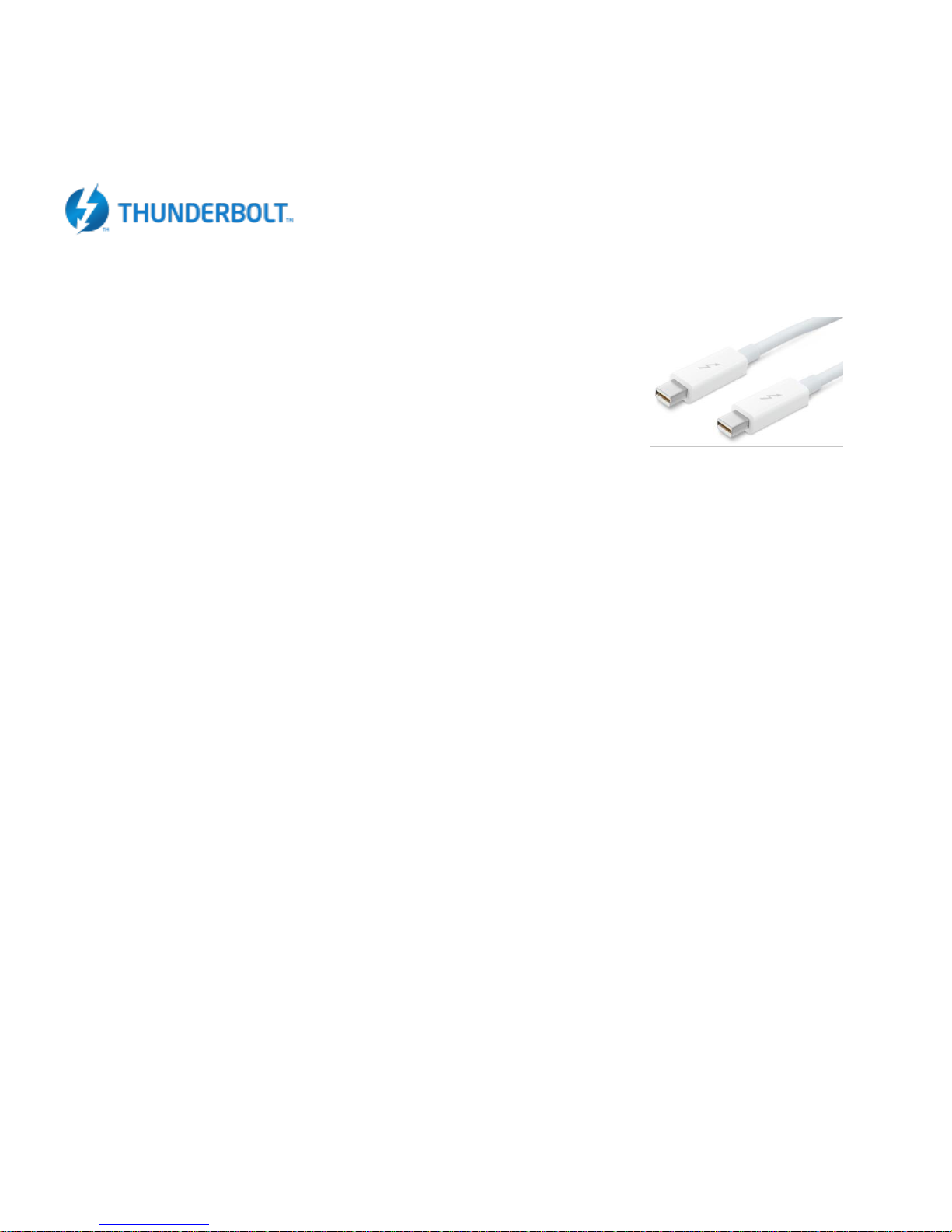
KNOWLEDGE BASE
Introductions: Interfaces (ports) and Cables
Thunderbolt is the brand name of a hardware interface that allows the
connection of external peripherals to a computer. Thunderbolt 1 and 2 use the
same connector as Mini DisplayPort (MDP), while Thunderbolt 3 uses USB
Type-C. It was initially developed and marketed under the name Light
Peak,[1] and first sold as part of a consumer product on February 24,
2011.[2]
Thunderbolt combines PCI Express (PCIe) and DisplayPort (DP) into one serial signal, and additionally provides
DC power, all in one cable. Up to six peripherals may be supported by one connector through various
topologies.
Thunderbolt 2
At the physical level, the bandwidth of Thunderbolt 1 and Thunderbolt 2 are identical, and Thunderbolt 1
cabling is thus compatible with Thunderbolt 2 interfaces. At the logical level, Thunderbolt 2 enables channel
aggregation, whereby the two previously separate 10 Gbit/s channels can be combined into a single logical 20
Gbit/s channel. Intel claims Thunderbolt 2 will be able to transfer a 4K video while simultaneously displaying
it on a discrete monitor.
Thunderbolt 2 incorporates DisplayPort 1.2 support, which allows for video streaming to a single 4K video
monitor or dual QHD monitors. Thunderbolt 2 is backwards compatible, which means that all Thunderbolt
cables and connectors are compatible with Thunderbolt 1.
Source: Wikipedia
Rocstor Rocpro T24 [28]
Page 29

LIMITED WARRANTY
This Limited Warranty is provided by Rocstorage, Inc. (hereinafter: Rocstor) for all lines of products.
General Terms
EXCEPT AS EXPRESSLY SET FORTH IN THIS LIMITED WARRANTY, ROCSTOR MAKES NO OTHER WARRANTIES OR CONDITIONS, EXPRESS
OR IMPLIED, INCLUDING ANY IMPLIED WARRANTIES OF MERCHANTABILITY AND FITNESS FOR A PARCTICULAR PURPOSE. ROCSTOR
EXPRESSLY DISCLAIMS ALL WARRANTIES AND CONDITIONS NOT STATED IN THIS LIMITED WARRANTY. ANY IMPLIED WARRANTIES
THAT MAY BE IMPOSED BY LAW ARE LIMITED IN DURATION TO THE LIMITED WARRANTY PERIOD. SOME STATES OR COUNTRIES DO
NOT ALLOW A LIMITATION ON HOW LONG AN IMPLIED WARRANTY LASTS OR THE EXCLUSION OR LIMITATION OF INCIDENTAL OR
CONSEQUENTIAL DAMAGES FOR CONSUMER PRODUCTS. IN SUCH STATES OR COUNTRIES, SOME EXCLUSIONS OR LIMITATIONS OF
THIS LIMITED WARRANTY MAY NOT APPLY TO YOU.
This Limited Warranty applies to the Rocstor branded hardware products sold by or leased from Rocstorage, Inc., its worldwide
subsidiaries, affiliates, authorized resellers, or country distributors (collectively referred to in this Limited Warranty as “Rocstor“)
with this Limited Warranty. This Limited Warranty is applicable in all countries and may be enforced in any country where Rocstor or
its authorized service providers offer warranty service subject to the terms and conditions set forth in this Limited Warranty.
However, warranty service availability and response times may vary from country to country and may also be subject to registration
requirements in the country of purchase.
Rocstor warrants that the Rocstor hardware product and all the internal components of the product that you have purchased or
leased from Rocstor are free from defects in materials or workmanship under normal use during the Limited Warranty Period. The
Limited Warranty Period starts on the date of purchase or lease from Rocstor. Your dated sales or delivery receipt, showing the date
of purchase or lease of the product, is your proof of the purchase or lease date. You may be required to provide proof of purchase or
lease as a condition of receiving warranty service. You are entitled to warranty service according to the terms and conditions of this
document if a repair to your Rocstor branded hardware is required within the Limited Warranty Period. This Limited Warranty
extends only to the original purchaser or lessee of this Rocstor branded product and is not transferable to anyone who obtains
ownership of the Rocstor branded product from the original purchaser or lessee.
Rocstor products are manufactured using new materials or new and used materials equivalent to new in performance and reliability.
Spare parts may be new or equivalent to new. Spare parts are warranted to be free from defects in material or workmanship for
thirty (30) days or for the remainder of the Limited Warranty Period of the Rocstor hardware product in which they are installed,
whichever is longer.
Rocstor’s Obligation under the Limited Warranty
During the Limited Warranty Period, Rocstor will repair or replace the defective component parts or the hardware product. All
component parts or hardware products removed under this Limited Warranty become the property of Rocstor. The replacement
part or product takes on either the Limited Warranty status of the removed part or product or the thirty (30) day limited warranty of
the spare part. In the unlikely event that your Rocstor product has a recurring failure, Rocstor, at its discretion, may elect to provide
you with a replacement unit of Rocstor‘s choosing that is at least equivalent to your Rocstor branded product in hardware
performance. Rocstor reserves the right to elect, at its sole discretion, to give you a refund of your purchase price or lease payments
(less interest) instead of a replacement. This is your exclusive remedy for defective products. The original Limited Warranty is
not extended when the product, or a part of the product, is repaired or replaced during the Limited Warranty
period. Rocstor shall not be responsible or liable for backing up any data that is on a drive being returned for service
YOU SHOULD MAKE PERIODIC BACKUP COPIES OF THE DATA STORED ON YOUR HARD DRIVE OR OTHER STORAGE DEVICES AS A
PRECAUTION AGAINST POSSIBLE FAILURES, ALTERATION, OR LOSS OF THE DATA. BEFORE RETURNING ANY UNIT FOR SERVICE, BE
SURE TO BACK UP DATA AND REMOVE ANY CONFIDENTIAL, PROPRIETARY, OR PERSONAL INFORMATION. ROCSTOR IS NOT
RESPONSIBLE FOR DAMAGE TO OR LOSS OF ANY PROGRAMS, DATA, OR REMOVABLE STORAGE MEDIA. ROCSTOR IS NOT
RESPONSIBLE FOR THE RESTORATION OR REINSTALLATION OF ANY PROGRAMS OR DATA OTHER THAN SOFTWARE INSTALLED BY
ROCSTOR WHEN THE PRODUCT WAS MANUFACTURED.
Rocstor does not warrant that the operation of this product will be uninterrupted or error-free. Rocstor is not responsible for
damage that occurs as a result of your failure to follow the instructions that came with the Rocstor branded product.
This Limited Warranty does not apply to expendable parts. This Limited Warranty does not extend to any
product from which the serial number has been removed or that has been damaged or rendered defective
Rocstor Rocpro T24 [29]
Page 30

(a) as a result of accident, misuse, abuse, or other external causes; (b) by operation outside the usage
parameters stated in the user documentation that shipped with the product and/or posted on the Rocstor
website; (c) by the use of parts not manufactured or sold by Rocstor; (d) as a result of normal wear; or (e)
by modification or service by anyone other than (i) Rocstor, (ii) a Rocstor authorized service provider, or
(iii) your own installation of end-user replaceable Rocstor or Rocstor approved parts if available for your
product in the servicing country.
These terms and conditions constitute the complete and exclusive limited warranty agreement between Rocstor and you regarding
the Rocstor branded product you have purchased or leased. These terms and conditions supersede any prior agreements or
representations including representations made in Rocstor sales literature or advice given to you by Rocstor or an agent or
employee of Rocstor-that may have been made in connection with your purchase or lease of the Rocstor branded product. No
change to the conditions of this Limited Warranty is valid unless it is made in writing and signed by an authorized representative of
Rocstor.
Buyer’s Obligation under the Warranty
The person requesting coverage under this warranty shall prove that he or she is the original purchaser and declares that the product
has not been sold, leased, bartered or otherwise changed possession. The purchaser shall frequently backup the Rocpro hard drive
and backup the data immediately prior to returning the drive for warranty service.
The buyer must notify Rocstor and show proof of notification, through any reasonable means of communication. See full street
address email address and toll free phone numbers below or updated contact information are available on Rocstor.com website.
The notification shall identify any defect, malfunction, or nonconformity promptly upon discovery. Rocstor will acknowledge
receipt of the communication and issue a Return Merchandise Authorization (RMA) code. The buyer is obligated to securely and
safely package(s) the product, preferably in the original packing materials, WITH THE RMA number, and deliver it together with a
copy of the original purchase receipt and a description of the problem to the Rocstor home office. Buyer is responsible for the
product until it is received by Rocstor. It is recommended that the product be insured during transportation by the sender. You
must prepay any shipping charges, taxes, or duties associated with transportation of the product. In addition, you are responsible
for insuring any product shipped or returned for service. You assume risk of loss during shipping.
Limitation of Damages (Liability)
IF YOUR ROCSTOR BRANDED HARDWARE PRODUCT FAILS TO WORK AS WARRANTED ABOVE, THE ORIGINAL PURCHASER’S SOLE AND
EXCLUSIVE REMEDY SHALL BE REPAIR OR REPLACEMENT. ROCSTOR‘S MAXIMUM LIABILITY UNDER THIS LIMITED WARRANTY IS
EXPRESSLY LIMITED TO THE LESSER OF THE PRICE YOU HAVE PAID FOR THE PRODUCT OR THE COST OF REPAIR OR REPLACEMENT OF
ANY ROCSTOR HARDWARE COMPONENTS THAT MALFUNCTION IN CONDITIONS OF NORMAL USE. ROCSTOR IS NOT LIABILE
FOR ANY DAMAGE TO ANY OTHER PRODUCT CONNECTED TO A ROCSTOR PRODUCT.
Limitation on Consequential Damages
ROCSTOR IS NOT LIABLE FOR ANY DAMAGES CAUSED BY THE PRODUCT OR THE FAILURE OF THE PRODUCT TO PERFORM, INCLUDING
ANY LOST PROFITS OR SAVINGS OR SPECIAL, INCIDENTAL OR CONSEQUENTIAL DAMAGES. ROCSTOR IS NOT LIABLE FOR ANY CLAIM
MADE BY A THIRD PARTY OR MADE BY YOU FOR A THIRD PARTY. THIS LIMITATION OF LIABILITY ALSO APPLIES WHETHER DAMAGES
ARE SOUGHT OR A CLAIM IS MADE UNDER THIS LIMITED WARRANTY OR AS A TORT CLAIM (INCLUDING NEGLIGENCE AND STRICT
PRODUCT LIABILITY), A CONTRACT CLAIM OR ANY OTHER CLAIM. THIS LIMITATION OF LIABILITY CANNOT BE WAIVED OR AMENDED
BY ANY PERSON. THIS LIMITATION OF LIABILITY WILL BE EFFECTIVE EVEN IF YOU HAVE ADVISED ROCSTOR OR AN AUTHORIZED
REPRESENTATIVE OF ROCSTOR OF THE POSSIBILITY OF ANY SUCH DAMAGES.
THIS LIMITED WARRANTY GIVES YOU SPECIFIC LEGAL RIGHTS. YOU MAY ALSO HAVE OTHER RIGHTS THAT MAY VARY FROM STATE
TO STATE OR FROM COUNTRY TO COUNTRY. YOU ARE ADVISED TO CONSULT APPLICABLE STATE OR COUNTRY LAWS FOR A FULL
DETERMINATION OF YOUR RIGHTS.
Disclaimer
We accept no liability for any loss of data, damages and the inability of Rocstor products to work with any third party equipment.
Nor can Rocstor accept any liability or responsibility for software or third party hardware products.
Limited Warranty Period
The limited warranty period for the Arcticroc 4-Bay RAID is one (1) Year Parts and Labor. This Limited Warranty extends only to the
Rocstor Rocpro T24 [30]
Page 31

original purchaser or lessee of this Rocstor branded product and is not transferable to anyone who obtains ownership of the Rocstor
branded product from the original purchaser or lessee.
Types of Limited Warranty Service
Your Rocstor Limited Warranty consists of repair or replacement of defective parts, including hard drives identified by Rocstor
Support Organization as “pre-failure.”
Carry-in Limited Warranty Service Available Monday - Friday
Under the terms of carry-in service, you may be required to deliver your Rocstor product to the Rocstor Service Center or an
authorized service location for warranty repair. You must prepay any shipping charges, taxes or duties associated with
transportation of the product. In addition, you are responsible for insuring any product shipped or returned for service. You assume
risk of loss during shipping.
YOU SHOULD MAKE PERIODIC BACKUP COPIES OF THE DATA STORED ON YOUR HARD DRIVE OR OTHER STORAGE DEVICES AS A
PRECAUTION AGAINST POSSIBLE FAILURES, ALTERATION OR LOSS OF THE DATA. BEFORE RETURNING ANY UNIT FOR SERVICE, BE
SURE TO BACK UP DATA AND REMOVE ANY CONFIDENTIAL, PROPRIETARY OR PERSONAL INFORMATION. ROCSTORAGE IS NOT
RESPONSIBLE FOR DAMAGE TO OR LOSS OF ANY PROGRAMS, DATA OR REMOVABLE STORAGE MEDIA. ROCSTORAGE IS NOT
RESPONSIBLE FOR THE RESTORATION OR REINSTALLATION OF ANY PROGRAMS OR DATA OTHER THAN SOFTWARE INSTALLED BY
ROCSTORAGE WHEN THE PRODUCT WAS MANUFACTURED.
Rocstorage shall not be responsible or liable for backing up any data that is on a drive being returned for service. Expect that all
data on the drive will be destroyed and not retrievable when returned for warranty service.
Rocstor Replaceable Parts Program
Where available, the Rocstor Replaceable Parts program ships approved replacement parts directly to you to fulfill your warranty.
This will save considerable repair time. After you call the Rocstor Technical Support Center at 888.877.8777 a replaceable part can
be sent directly to you. Once the part arrives, call the Rocstor Technical Support Center. A technician will assist you over the phone
to ensure that the installation is quick and easy.
Service Upgrades
Rocstor offers extra coverage for your product. For information on service upgrades, visit www.rocstor.com.
Service upgrades purchased in one country are not transferable to another country.
Capacity Disclaimer
Actual accessible hard drive capacity will indicate up to 10% lower than stated under different Operating Systems and formatting.
The storage volume is measured in total bytes before formatting. References to round numbers of gigabytes or terabytes are an
approximation only. For example, a disk drive labeled as having 500GB (Gigabytes) has space for approximately 500,000,000 bytes
before formatting. After formatting, the drive capacity is reduced by about 5% to 10% depending on the operating system and
formatting used or “1GB = 1,000,000,000 bytes.
Options and Software
The Limited Warranty terms and conditions for Rocstor options are as indicated in the Limited Warranty applicable to Rocstor
options. ROCSTOR DOES NOT WARRANTY SOFTWARE PRODUCTS, INCLUDING ANY SOFTWARE PRODUCTS OR THE OPERATING
SYSTEM PREINSTALLED BY ROCSTOR. Rocstor‘s only obligations with respect to software distributed by Rocstor under the Rocstor
brand name are set forth in the applicable end-user license or program license agreement. Non-Rocstor hardware and software
products are provided “AS IS“ and without any Warranty. However, non-Rocstor manufacturers, suppliers or publishers may provide
their own warranties directly to you.
The data stored in Rocstor and Rocsecure storage product lines are not guaranteed by Rocstor (or the hard
disk manufacturer.) We are not responsible for any loss of data. Always back up data regularly
Rocstor Rocpro T24 [31]
Page 32

TECHNICAL SUPPORT
Software Technical Support
Software technical support is defined as assistance with questions and issues about the software that was either preinstalled by
Rocstor on the Rocstor branded product or that was included with the Rocstor branded product at the time of your purchase or
lease of the product. Technical support for software is available for the first ninety (90) days from date of product purchase or lease.
Your dated sales or delivery receipt, showing the date of purchase or lease of the product, is your proof of the purchase or lease
date. You may be required to provide proof of purchase or lease as a condition of receiving software technical support. After the
first ninety (90) days, technical support for software that was either preinstalled by Rocstor on the Rocstor branded product or
included with the Rocstor branded product at the time of your purchase or lease of the product is available for a fee.
WARNING: The individual user should take care to determine prior to use whether this device is suitable,
adequate or safe for the use intended. Since individual applications are subject to great variation, the
manufacturer “Rocstor” makes no representation or warranty as to the suitability or fitness of these devices
for any specific application.
Technical Support
The Rocpro T24Bay RAID is backed by free telephone technical support for two (2) years from the date of purchase. Please register
your product with Rocstor. To register, fill in the Limited Warranty Registration form in the Support tab at www.rocstor.com.
Free telephone technical support is available weekdays from 9 AM until 6 PM Pacific Standard Time. Customers in the United States
and Canada can call toll-free: (888) 877-8777; all others must call (818) 449-2000.
When calling for support, please have the product’s serial number (printed on the label on the bottom of the drive) and system
hardware information available.
TRADEMARKS ACKNOWLEDGEMENTS
© 2016, Rocstorage, Inc; acknowledges the following trademarks for company names or products mentioned
within the Rocstor site, portal pages and Articles/text/manuals:
Rocstor, Rocsecure and Rocpower are registered trademarks of Rocstorage, Inc. Rocpro, Rocport, Rocbit,
Rocsafe … are the trademarks of Rocstorage, Inc. "store your future", "secure your future" and “power your
future” are the slogan marks of Rocstorage, Inc.
Apple, the Apple logo, Mac, Power Macintosh, FireWire, and Mac Pro, Leopard … are trademarks of Apple
Computer, Inc. in the United States and other countries.
Microsoft, MS-DOS, Windows CE, Windows NT, Windows 98, Soft Windows, Vista … are registered
trademarks of Microsoft Corporation in the United States and other countries.
Intel, Itanium, Pentium, Celeron, and Xeon MMX … are registered U.S. trademarks of Intel; Thunderbolt and
the Thunderbolt logo are trademarks of Intel Corporation in the United States and other countries. HyperDuo
is the Register Trademark of Marvell Technology Group LTD.
This product is (may also be) integrated with SATA hard drives from the following manufactures: Seagate,
Samsung, Western Digital, Hitachi, Toshiba, Fujitsu …
All other names are trademarks of their respective companies.
Rocstor wishes to acknowledge the use of tables, charts, graphs and texts from the Wikipedia website. © 2000
- 2016
Rocstor Rocpro T24 [32]
Page 33

COPYRIGHTS
© 2016 Rocstorage, Inc. This Manual is protected by United States copyright law and may not be reproduced,
distributed, transmitted, displayed, published or broadcast without the prior written permission of
Rocstorage, Inc. You may not alter or remove any trademark, copyright or other notice from copies of this
Manual.
Assembled and integrated in U.S.A. using domestic and / or foreign components.
Rocstor Rocpro T24 [33]
Page 34

CONTACT INFORMATION
Corporate Headquarters
9445 De Soto Ave
Chatswoth, CA 91311
Office: +1 (818) 727-7000
Fax: +1 (818) 998-8777
Email: [email protected]
Technical Support / RMA
Tel: (888) 877-7716 (USA and Canada)
Tel: +1 (818) 727-7000 (Domestic and Internationals)
Fax: +1 (818) 998-8777
Hours: 9:00 am - 5:00 pm PST
Mon - Fri (excluding holidays)
Email: [email protected]
Sales Info
Hours: 8:00 am - 5:00 pm PST
Mon - Fri (excluding holidays)
Email: [email protected]
Tel: (888) 727-7000
Fax: (818) 998-8777
Corporate, Government and Academic Customers
Our Corporate Sales Team's goal is to help our U.S.A. and Canadian customers find a
storage solution that best serves their needs. We will help you determine your best
purchasing options. For more information please contact the appropriate department
below or call us at +1 (888) 877-7716
General sales information: [email protected]
Corporate sales information: [email protected]
Educational sales information: [email protected]
Federal, State & Local government sales information:
Resellers/Business Development/OEM Partners
All Channel National and International Resellers, VARs, Consultants … contact Rocstor
Channel Sales:
In U.S., call: 888.877.7716
Out of USA call +1.818. 727-7000
Email: [email protected]
Rocstor Rocpro T24 [34]
Page 35
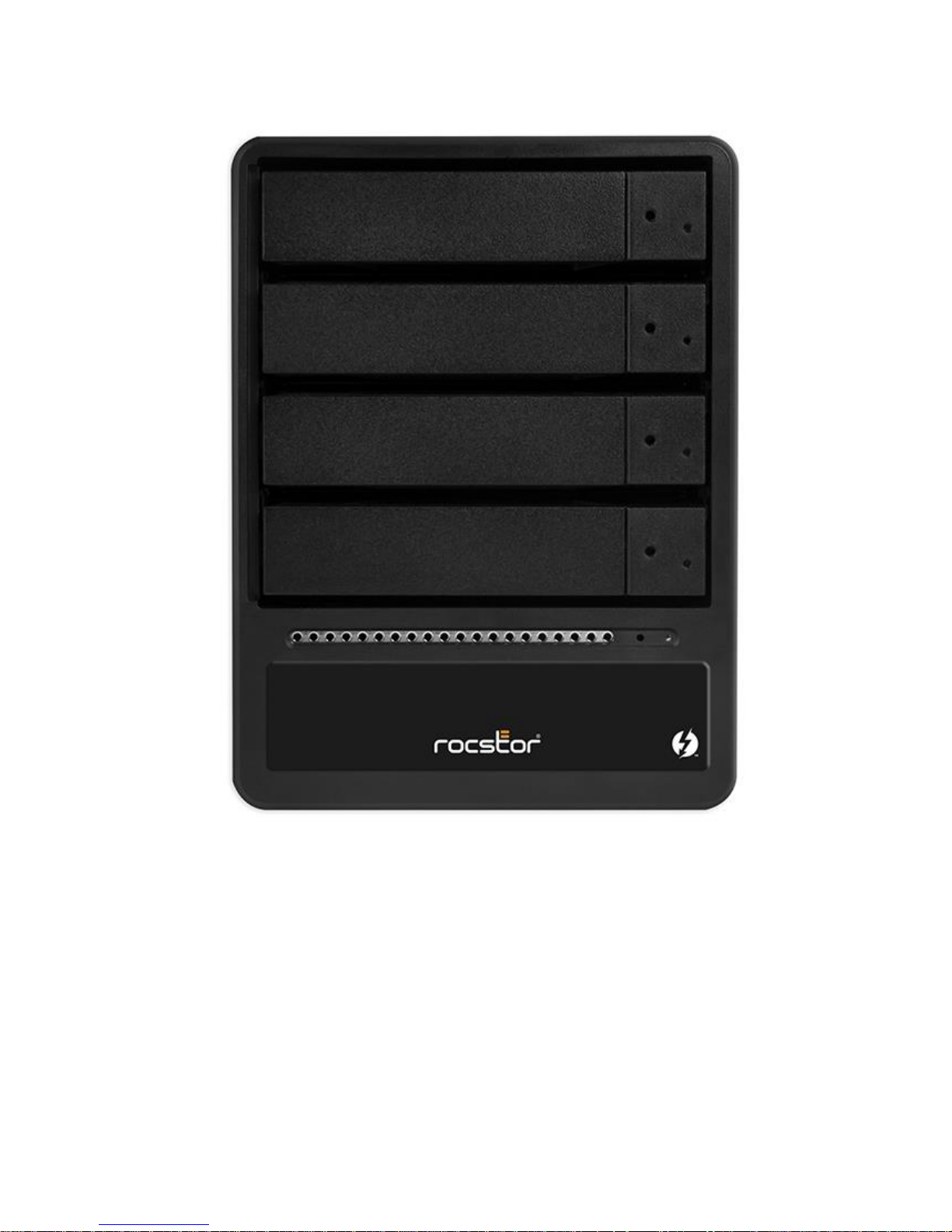
Thank you for purchasing the Rocpro T24 4-Bay RAID. Ver.1129M
Rocstor Rocpro T24 [35]
 Loading...