

Page 1
Version 2.5
Page 2

2
Table of contents
1. Safety instructions ......................................................................................................... 3
2. Description of the the RoboSpot ................................................................................. 4
2.1 RoboSpot ................................................................................................................... 4
2.2 FollowSpot Controller ................................................................................................ 5
3. Installation....................................................................................................................... 6
3.1 Monitor shield and note holder installation ................................................................. 8
4. RoboSpot connection .................................................................................................... 9
5. Operation....................................................................................................................... 10
5.1 Functions mapping ................................................................................................... 10
5.2 LCD monitor screen ................................................................................................. 13
5.3 Streaming a camera video ....................................................................................... 17
5.4 Saving and recalling the FollowSpot controller presets ........................................... 18
5.5 RoboSpot handles calibration .................................................................................. 19
5.6 Multi device control .................................................................................................. 20
6. Control menu ................................................................................................................ 29
6.1 Functions Mapping ................................................................................................... 30
6.2 Show Library ............................................................................................................ 35
6.3 All Lamps On/O ...................................................................................................... 37
6.4 Devices Settings ...................................................................................................... 37
6.5 RDM Discovery ........................................................................................................ 37
6.6 Product IDs .............................................................................................................. 37
6.7 Software Version ...................................................................................................... 37
6.8 Settings .................................................................................................................... 38
7. Software update............................................................................................................ 39
8. Error and information messages ............................................................................... 40
9. Technical specications .............................................................................................. 41
10. Maintenance and cleaning ......................................................................................... 43
10.1 Replacing the fuse ................................................................................................. 43
10.2 Disposing of the product ........................................................................................ 43
RoboSpot BaseStation
Page 3
3
FOR YOUR OWN SAFETY, PLEASE READ THIS USER MANUAL CAREFULLY
BEFORE YOU INSTALL THE PRODUCT .
1. Safety instructions
CAUTION!
The RoboSpot was designed for indoor use only.
The product is for professional use only, it is not for household use.
This product has left our premises in absolutely perfect condition. In order to maintain this condition and to
ensure a safe operation, it is absolutely necessary for the user to follow the safety instructions and warnings
written in this manual.
DANGEROUS VOLTAGE CONSTITUTING A RISK OF ELECTRIC SHOCK IS PRESENT WITHIN THIS UNIT!
Make sure that the available voltage is not higher than stated on the rear panel of the xture.
This xture should be operated only from the type of power source indicated on the marking label. If you are
not sure of the type of power supplied, consult your authorized distributor or local power company.
Always disconnect the xture from AC power before cleaning, removing or installing a fuse, or any part.
The power plug has to be accessible after installing the xture. Do not overload wall outlets and extension cords
as this can result in re or electric shock.
Do not allow anything to rest on the power cord. Do not locate this xture where the cord may be damaged by
persons walking on it.
Make sure that the power cord is never crimped or damaged by sharp edges. Check the xture and the power
cord from time to time.
Refer servicing to qualied service personnel.
This xture falls under protection class I. Therefore this xture has to be connected
to a mains socket outlet with a protective earthing connection.
Do not connect this xture to a dimmer pack.
If the xture has been exposed to drastic temperature uctuation (e.g. after transportation), do not switch it on
immediately. The arising condensation water might damage your device. Leave the device switched o until
it has reached room temperature.
Do not shake the xture. Avoid brute force when installing or operating the xture.
This xture was designed for indoor use only, do not expose this unit to rain or use near water.
When choosing the installation spot, please make sure that the xture is not exposed to extreme heat, moisture,
dust or entertainment smoke (haze)
Air vents and slots in the xture are provided for ventilation, to ensure reliable operation of the device and to
protect it from overheating.
Operate the xture only after having familiarized with its functions. Do not permit operation by persons not
qualied for operating the xture. Most damages are the result of unprofessional operation!
Please use the original packaging if the xture is to be transported.
Please consider that unauthorized modications on the xture are forbidden due to safety reasons!
Page 4
4
2. Description of the the RoboSpot
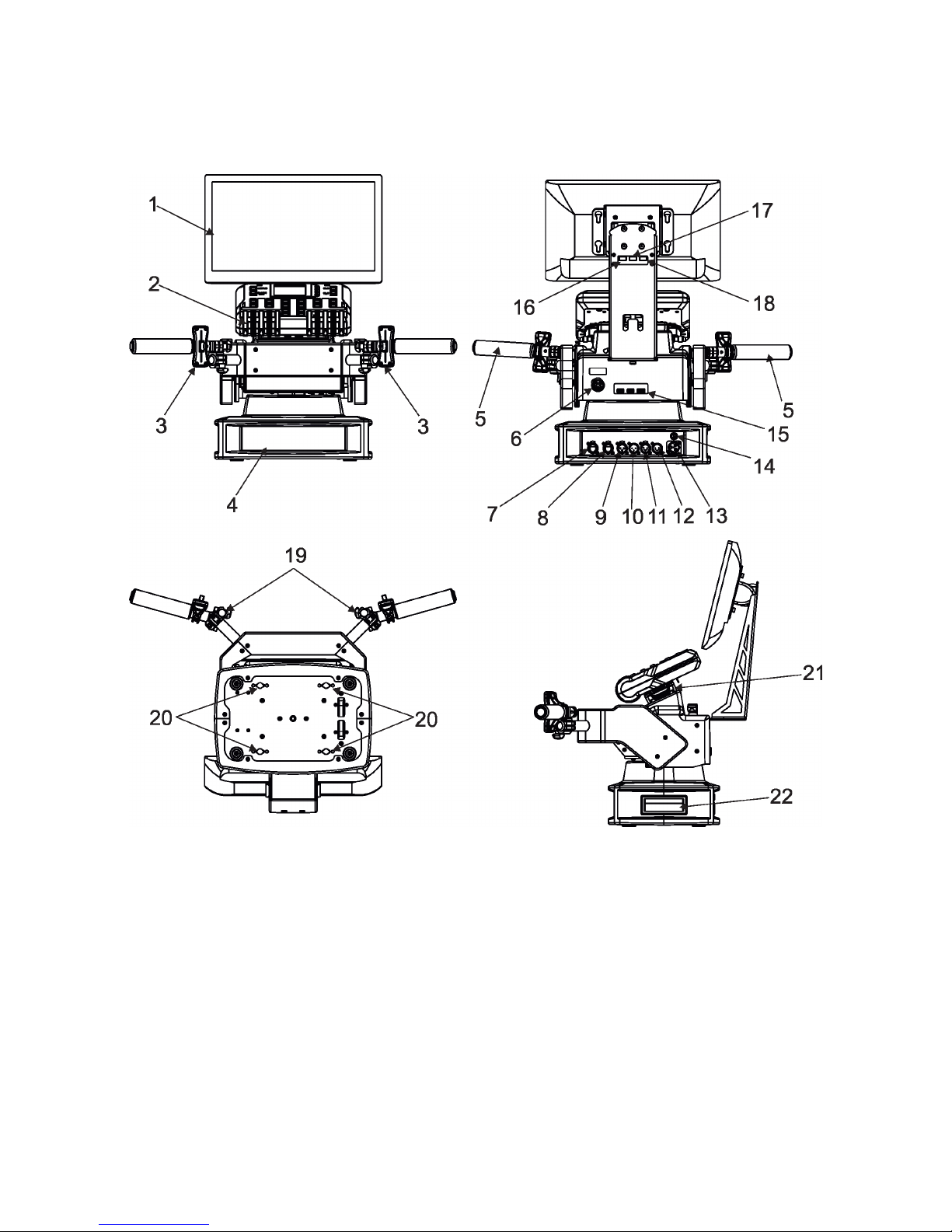
2.1 RoboSpot
1 - Monitor installed on the monitor holder 17 - USB (50mA)
2 - FollowSpot Controller 18 - Input for USB lamp (+5V/50mA)
3 - Faders 19 - Adjusting locks for handles
4 - Base 20 - Apertures for 1/4 turn locks
5 - Control handlebars 21 - Base of the FollowSpot Controller
6 - Monitor supply 22 - Manipulation handles
7 - Camera IN (RJ45)
8 - Ethernet (RJ45)
9- (DMX Out (3-pin XLR)
10 - (DMX In (3-pin XLR)
11- (DMX Out (5-pin XLR)
12 - (DMX In (5-pin XLR)
13 - Power (Neutrik PowerCon)
14 - Fuse holder
15 - HDMI output for monitor + 2 x USB
16 - Input for USB lamp (+5V/50mA)
Page 5
5
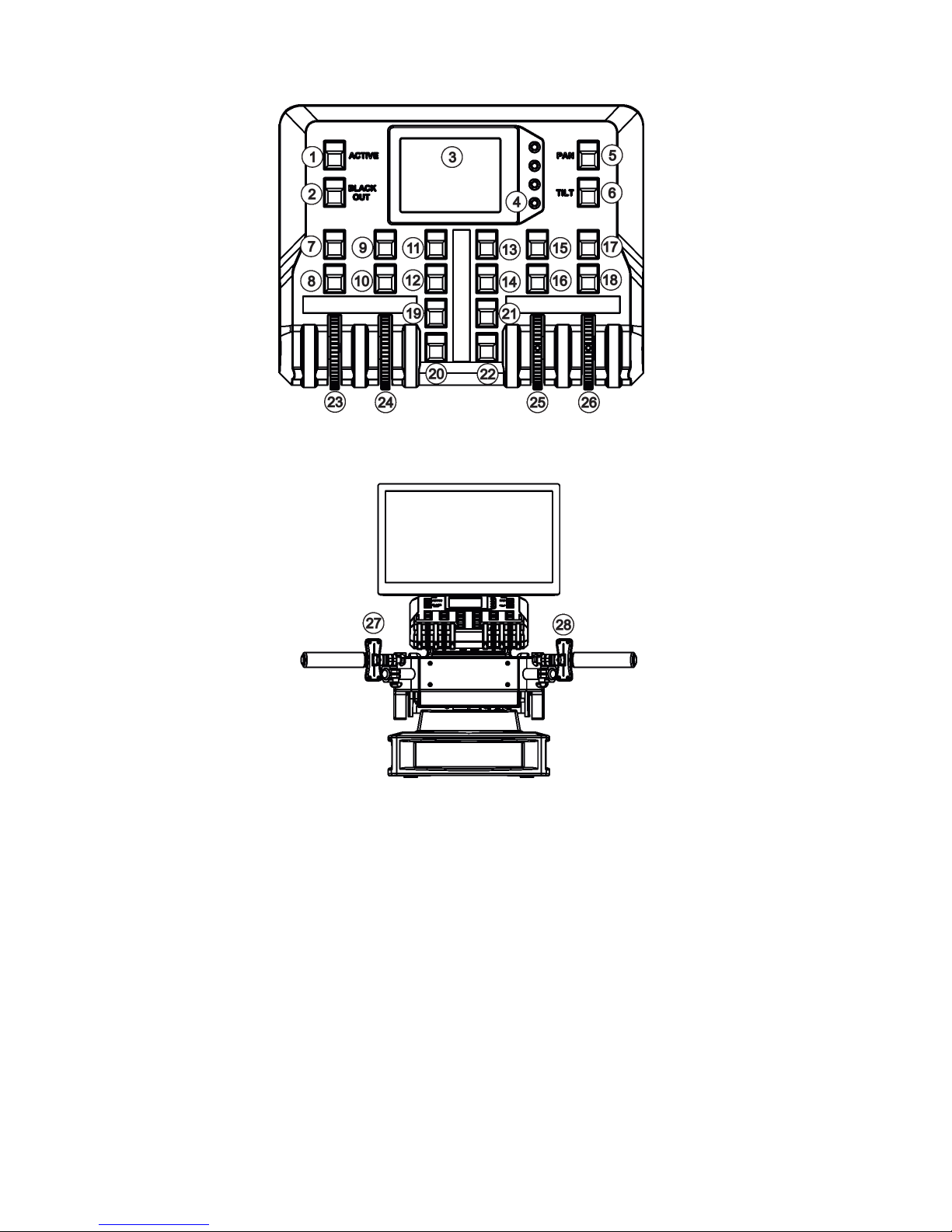
1 - Activation button (actives
the FollowSpot Controller)
2 - BlackOut button
3 - Graphic touch screen
4 - Switch On screen button
5 - Pan button(enables/disables
pan motor)
6 - Tilt button(enables/disables
tilt motor)
7 - Preset button
8 - Activation button for jog-wheel
9 - Preset button
10 - Activation button for jog-wheel (24)
11 - Preset button
12 - Preset button
13 - Preset button
14 - Preset button
15 - Preset button
16 - Activation button for jog-wheel (25)
17 - Preset button
18 - Activation button for jog-wheel (26)
19 - Preset button
20 - Preset button
21 - Preset button
22 - Preset button
23 - Jog-wheel
24 - Jog-wheel
25 - Jog-wheel
26 - Jog-wheel
27 - left Fader
28 - Right Fader
2.2 FollowSpot Controller
Page 6
6
3. Installation
The RoboSpot must be installed by a qualied worker in accordance with
all national and local electrical and construction codes and regulations.
Monitor installation
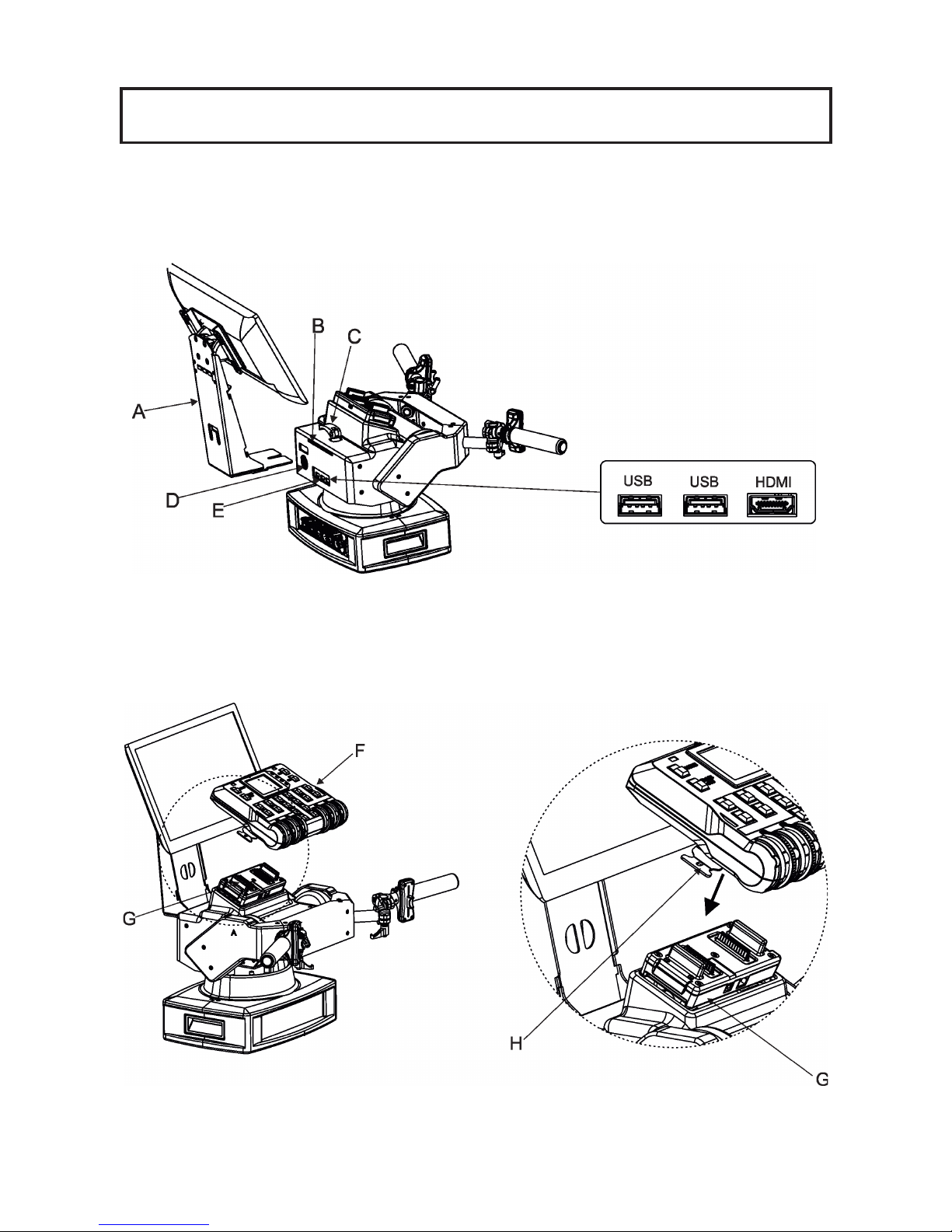
1. Insert the monitor holder (A) into the slot (B) of the RoboSpot and secure it by means of the lock (C).
The lock must be fully screwed and reclined. Check the monitor is securely fastened.
2. Connect the power cable of LCD monitor to the socket (D), HDMI cable and two USB cables to sockets (E)
in the RoboSpot.
Note: The HDMI connection has to be carried out before connecting the RoboSpot to mains.
FollowSpot Controller installation
1. Place the FollowSpot Controller (F) on the FollowSpot Controller base (G). Connectors on both parts have
to snap each other. Two locks (H) have to be pressed during placing (removing) the FollowSpot Controller (F).
2. If you need to place the RoboSpot on a tripod, you have to install an adaptor with spigot to the tripod.
Page 7
7
Tripod and adaptor installation
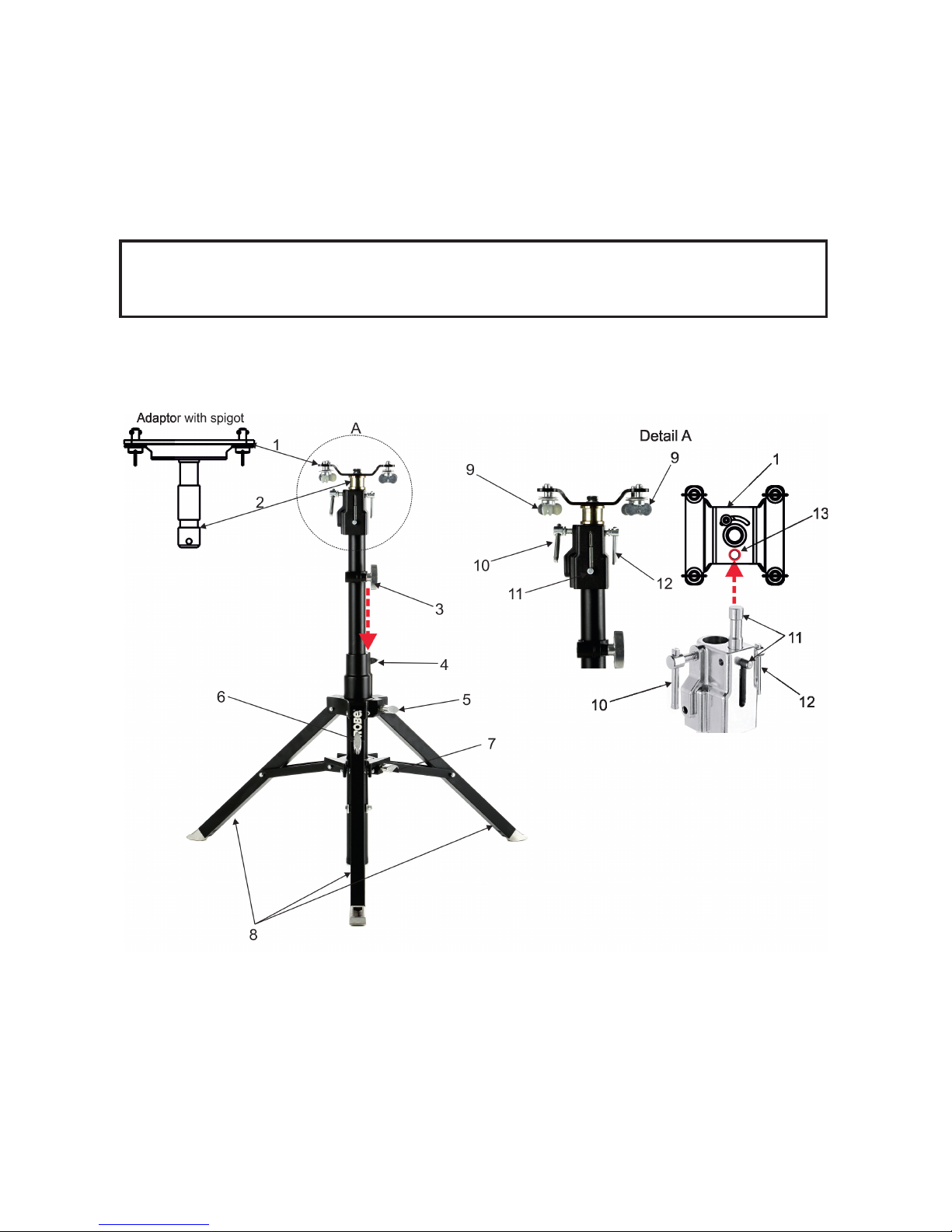
1. Unfold and adjust height of the tripod and distance of legs (8) by means of adjusting locks (4,5,6,7).
The lock (3) has to be in a lower position (as shows arrow on picture below).
2. After inserting the adaptor (1) with spigot (2) to the tripod, the spigot (2) has to be secured by means of
the lock (10) and the adaptor (1) by means of the pin (11) which is inserted to the hole (13) of the adaptor (1)
as shows arrow on picture below. Position of the pin(11) has to be secured by means of the lock (12).
3. The four quarter -turn locks (9) of the adaptor serve for fastening the RoboSpot on the adaptor. Two workers
should install the RoboSpot on the assebled tripod with the adaptor.
Check that all quarter -turn locks (9) are fully tightened before operating the RoboSpot.
Check that all locks (3, 4, 5,6,7, 10,12) are fully tightened before placing
the RoboSpot on the tripod with adaptor.
Page 8
8
3.1 Monitor shield and note holder installation
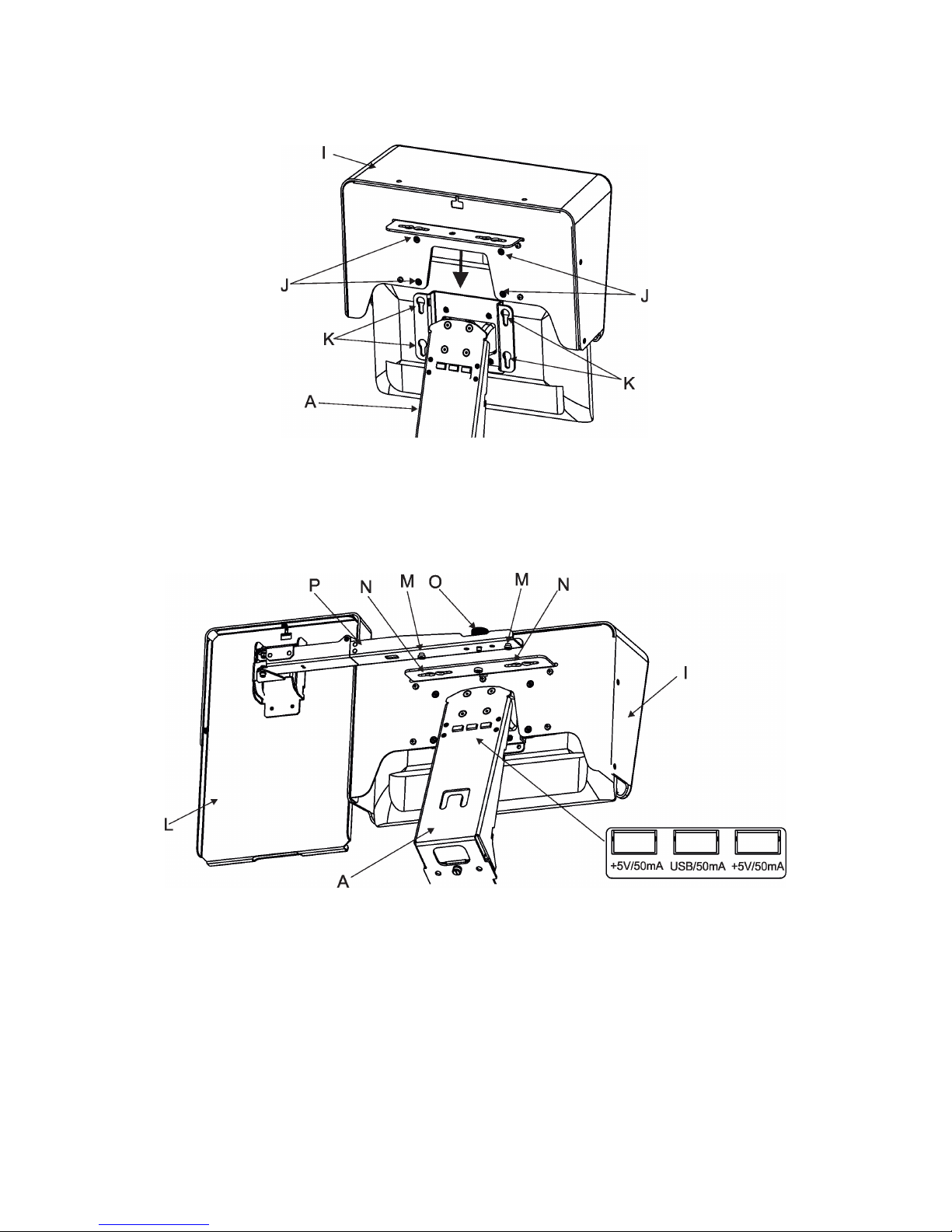
1. Place the monitor shield (I) on the monitor holder (A) in this way that pins (J) of the monitor shield snap to
apertures (K) in the monitor holder and move the monitor shield down until you rich a stop.
2. Place the note holder (L) on the monitor shield (I) in this way that pins (M) of the arm (P) snap to the apertures
(N) of the monitor shield (I) and move the arm (P) to the left until you rich a stop.
3. Secure the note holder to the monitor shield by means of the knob (O).
4. Connect two cables of USB lamps to the sockets marked +5V/50mA on the monitor holder.
Note. The arm (P) of the note holder (L) can be turned by 180°, this turned position of the arm allows you to
install the note holder on the opposite site of the monitor shield.
Page 9
9
4. RoboSpot connection
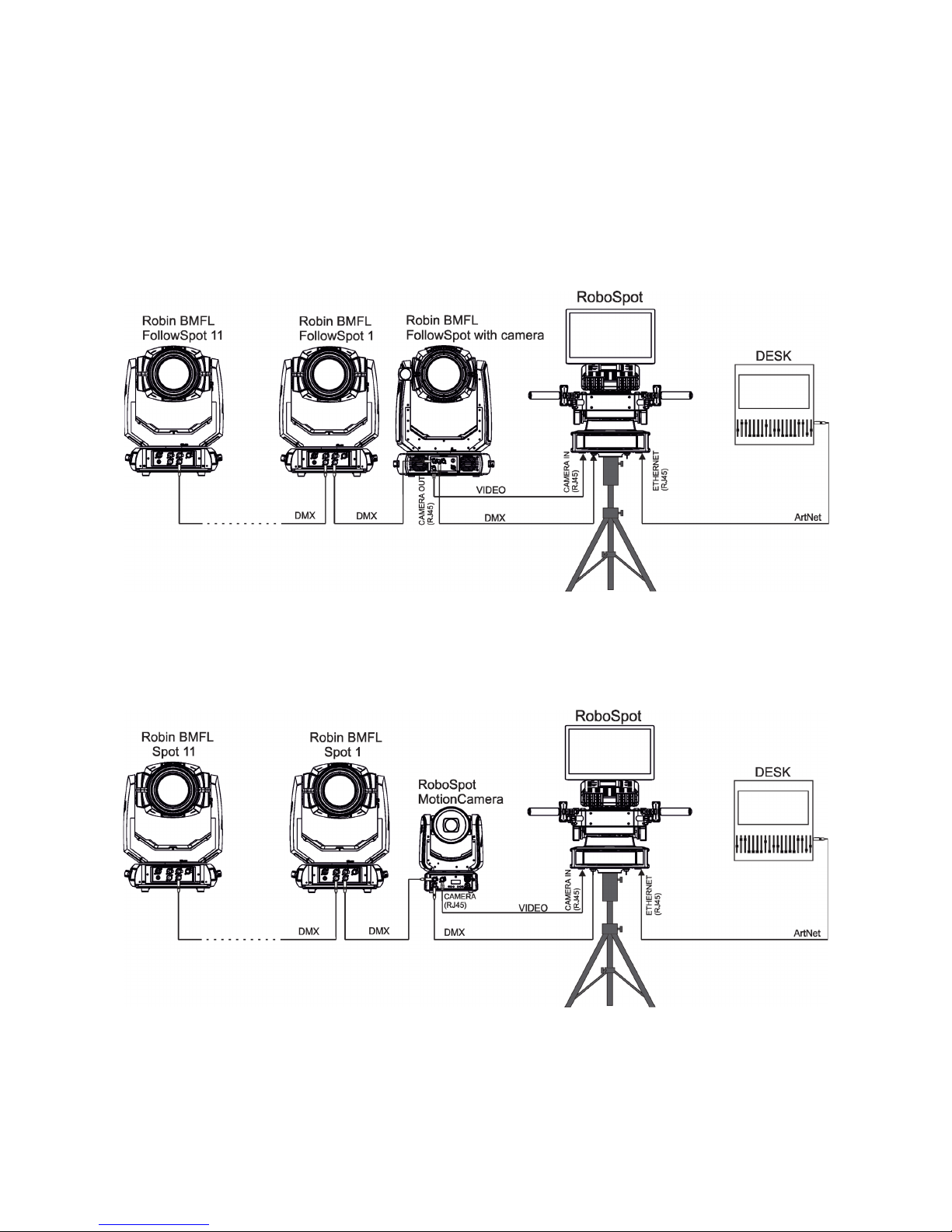
After installing the RoboSpot, connect it with the ROBIN BMFL FollowSpot with camera (or the RoboSpot MotionCamera), with another supported ROBIN xtures and a control desk.
You do not need to patch the RoboSpot, but xtures connected to the RoboSpot have to be patched.
Note: Fixtures connected to the RoboSpot and not supported by the RoboSpot will be ignored by the
RoboSpot.
Example 1. Connection with the ROBIN BMFL FollowSpot with camera
Up to 11 ROBIN BMFL FollowSpots can be connected to the ROBIN BMFL FollowSpot with camera.
Example 2. Connection with the RoboSpot MotionCamera
Up to 11 supported ROBIN xtures can be connected to the RoboSpot MotionCamera.The xtures should be
of the same type.
Note. In case of operating the RoboSpot system in interfered environment, Ethernet switches are
recommended in video line (one at the RoboSpot and one at the Robin BMFL FollowSpot or RoboSpot MotionCamera).
Page 10
10
5. Operation
After installing the RoboSpot and connecting it with the ROBIN BMFL FollowSpot (RoboSpot MotionCamera),
connect the RoboSpot to mains by means of the enclosed power cord.
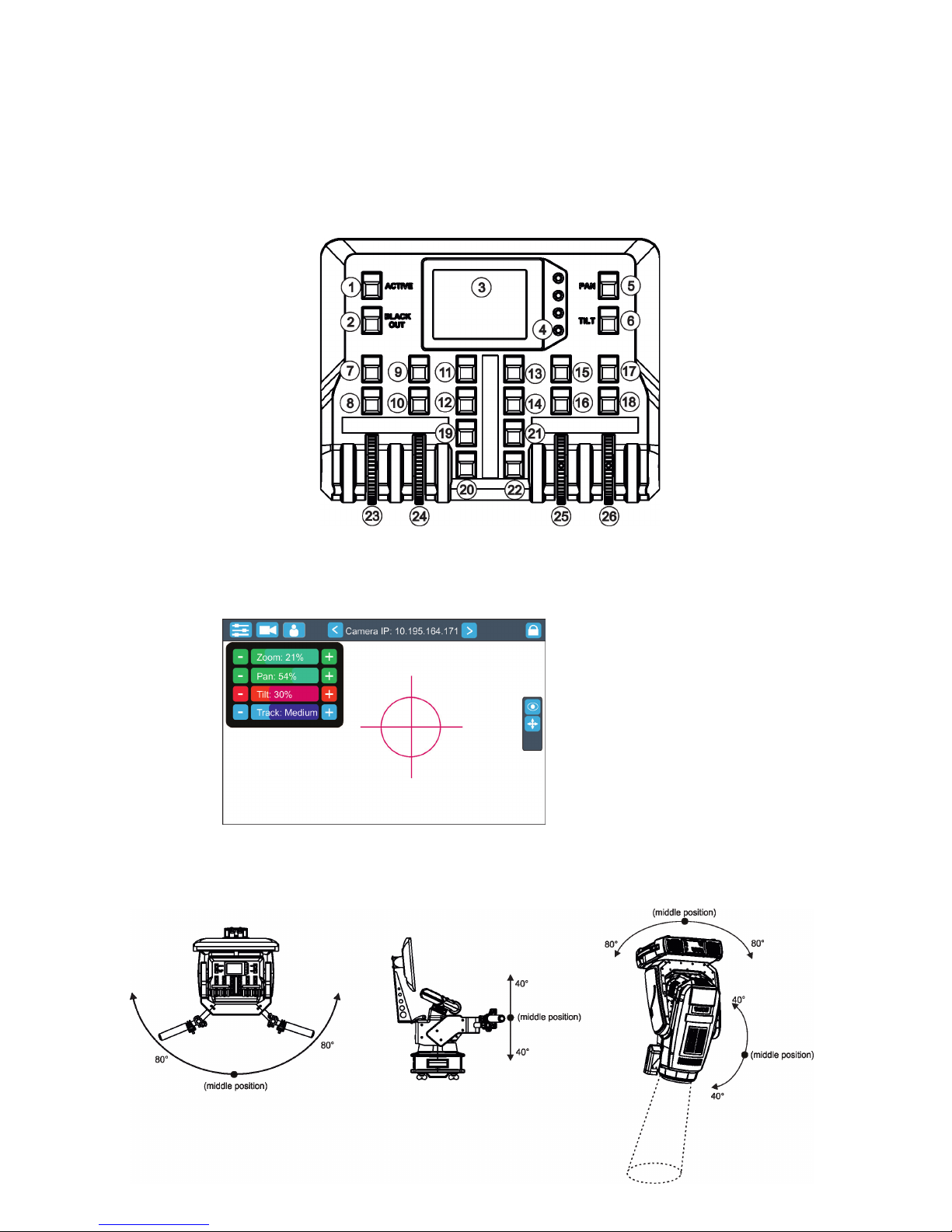
Press the button ACTIVE (1) in order to activate the FollowSpot Controller. By pressing the button PAN (5) and
TILT (6) you can activate/deactivate of the pan/tilt movement of the ROBIN BMFL FollowSpot (and all connected
BMFL xtures to the RoboSpot).
The button BLACK OUT (2) closes light output of the ROBIN BMFL FollowSpot (and also all connected BMFL
xtures to the RoboSpot).
5.1 Functions mapping
After switching the xture on,touch the Sliders button on the RoboSpot touch screen and use the pan and tilt
sliders to set desired position of the ROBIN BMFL FollowSpot´s head.
It is suitable to set the RoboSpot handlebars to the "middle" position and after that set the pan and tilt position
of the moving head by the sliders on the RoboSpot touch screen.
Sensitivity of pan/tilt movement:
High level (most accurate) - green
slider
Medium level -yellow slider
Low level- red slider
In order to switch sensitivity of pan or
tilt movement to desired level, press
and hold the PAN (5) or TILT (6) button
until the colour of fader is changed.
Sliders button
Page 11
11
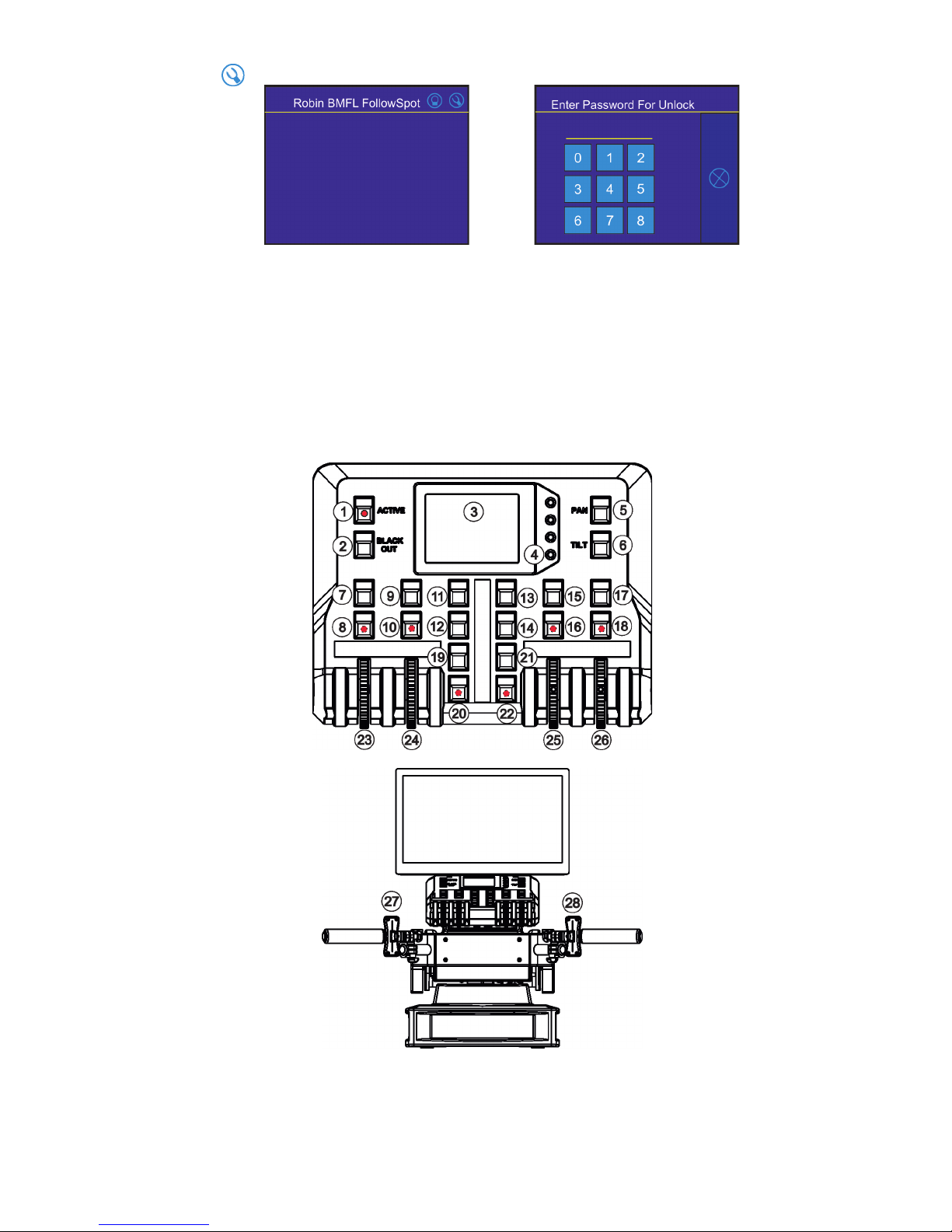
Touch the icon on the FollowSpot Controller to display the password entering screen:
Enter the password (5242) to enter the main menu of the FollowSpot Controller. The password prevents unauthorized person from changing setting of the FollowSpot Controller.
Enter the menu "Functions Mapping". The list of available eects will appear:
If the message" Please Activate FollowSpot Controller!" will appear, press the ACTIVE button (1) on the Follow
Spot Controller.
To assign an eect to the jog-wheels and faders
1.Touch desired eect. Buttons (8/10/16/18) which activate Jog-wheels (23/24/25/26) and buttons (20/22), which
matches faders (27/28) will start to ash.
2.Press desired button and selected eect will be assigned to its jog-wheel (fader).
Assigned eect is displayed in a yellow colour, free eects stay in a white colour.
3.Repeat steps 1 and 2 for needed eects.
Page 12
12
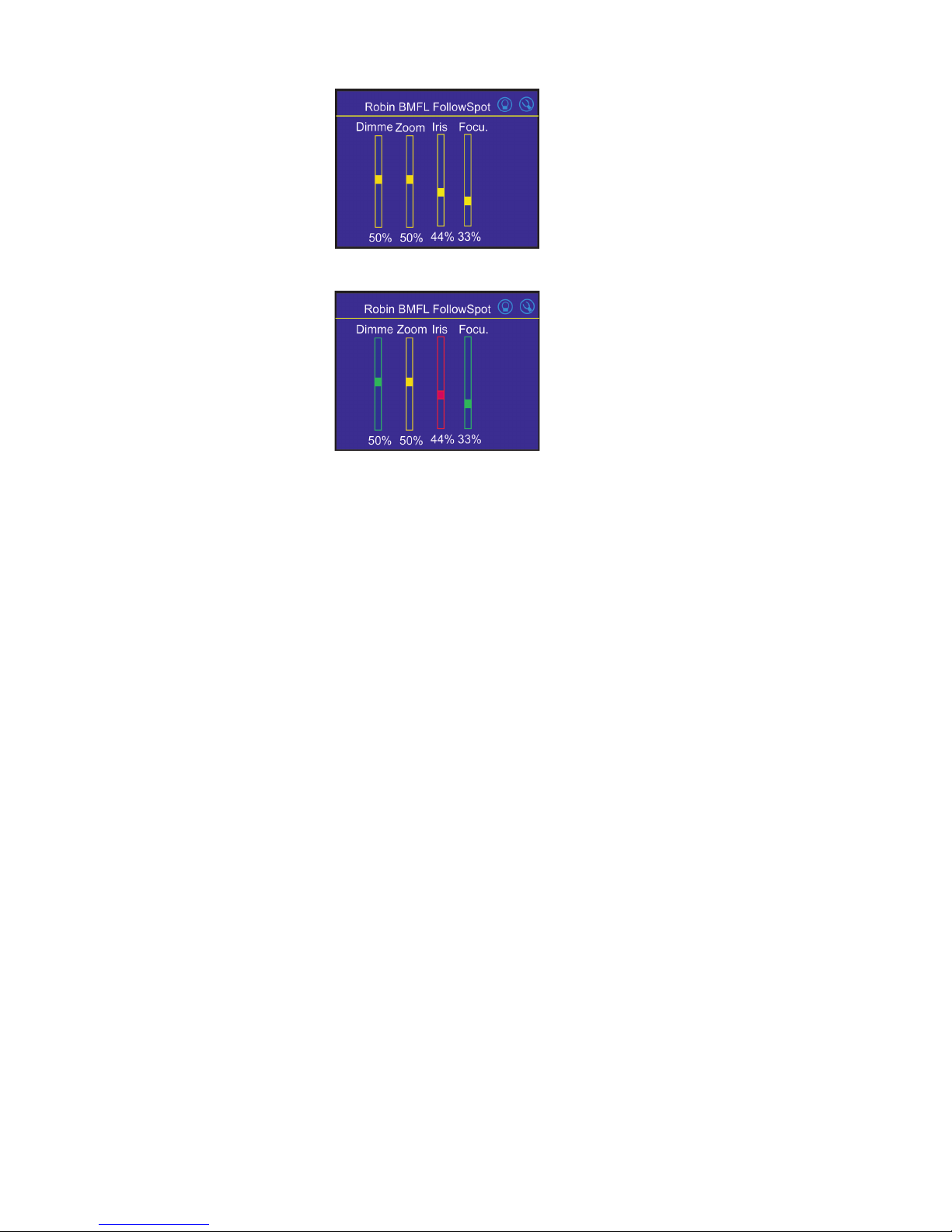
Only eects assigned to the jog-wheels will
appear on this screen.
Eects assigned to the faders will not be
shown.
4.Touch the [cancel] icon and than [back arrow] icon. The screen with eect faders will appear.
E.g.
Sensitivity of the jog-wheels assigned to the eects can be set at three levels: low, medium and high.
The levels of the sensitivity are marked in colour on the screen:
low level - red slider
medium level - yellow slider
high level (most accurate)-
green slider
In order to switch an jog-wheel to desired level of sensitivity, press and hold its activating button (8/10/16/18)
until the colour of fader is changed.
Eects assigned to the four jog-wheels and two faders on the handlebars have a priority over DMX values
coming from a DMX controller.
Functionality of the RoboSpot can by restricted by means of commands on the channel Power/Special Functions
(240-255 DMX) of connected xture.
To control desired eect
1.Use its slider on the screen or press the activating button for its jog-wheel and use this jog-wheel or use a
corresponding fader.
To release an eect from the jog-wheel (fader)
1.Touch desired eect from the list of eects in the menu "Functions Mapping".
2.Touch the option "Unlink".
3.The eect will be displayed in a white colour.
The item "All" allows you to release all assigned eects at one go.
Page 13
13
5.2 LCD monitor screen
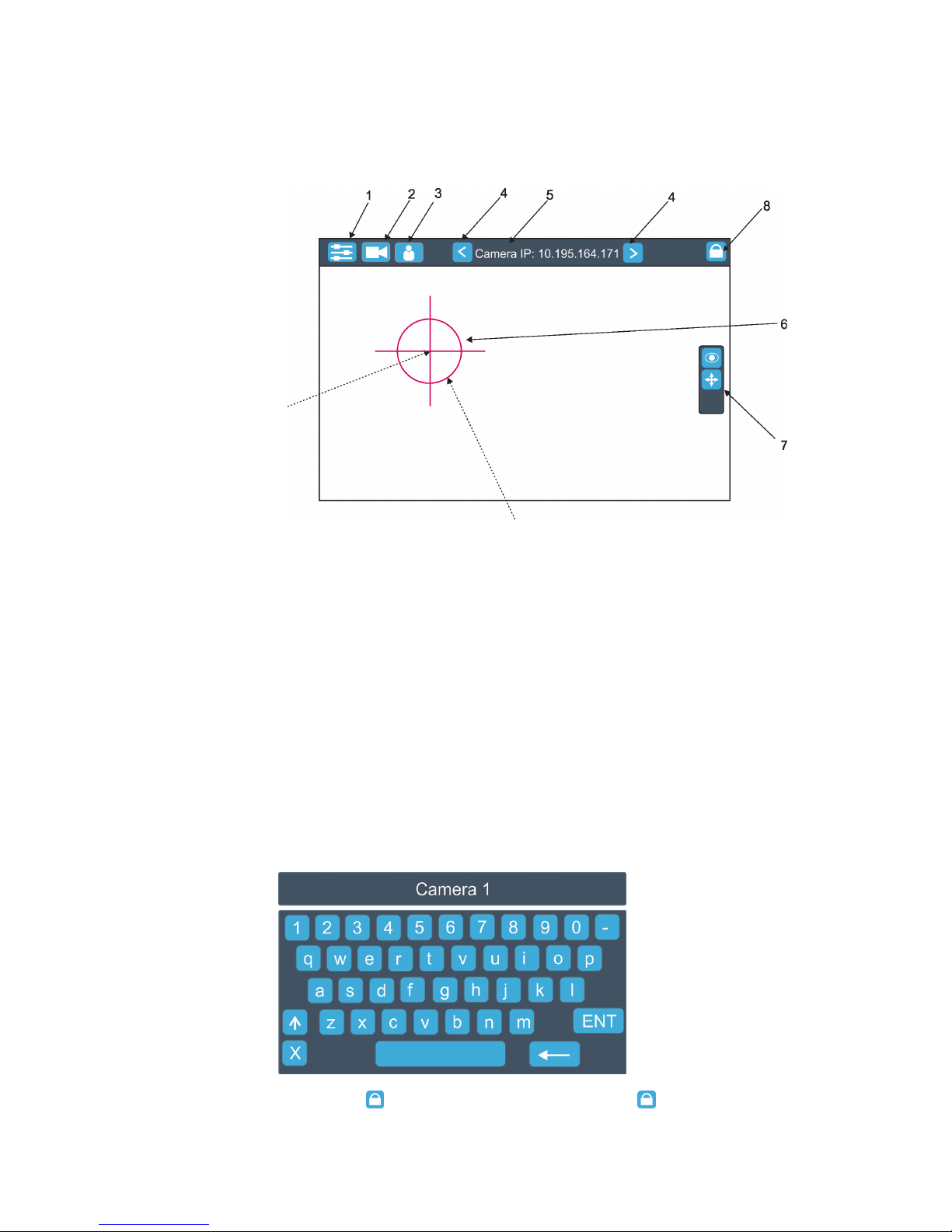
The RoboSpot is equipped with the 15.6" (10-point) touch screen with max. resolution 1366 x 768.
1. After switching the RoboSpot and the ROBIN BMFL FollowSpot (or the RoboSpot MotionCamera) on, image
scanned by the camera is displayed.
1- Slider button
2- Camera button
3- User button
4 - Camera selection buttons*
5- IP address of selected camera
6 - Position circle (red)
7 - Action toolbar
8 - Screen lock**
*You can change the name of selected camera. To rename selected camera, touch for two seconds the camera
name (e.g. Camera IP: 10.195.164.171).
The software touch keyboard will appear. Use the keyboard to type a new name of camera (e.g. Camera 1).
Touch ENT to save the new name of the camera. The new name is saved into camera (in case that you will
use other Robospot, the new camera name will be reloaded)
Touch the key X to close the keyboard.
** To lock the screen, touch the button . To unlock the screen, touch the button and the the software touch
keyboard will appear. Type a correct password (the password is the same as the password for the FollowSpot
Controller, default password is 5242) and conrm it by touching the key ENT.
Touch the key X to close the keyboard.
.
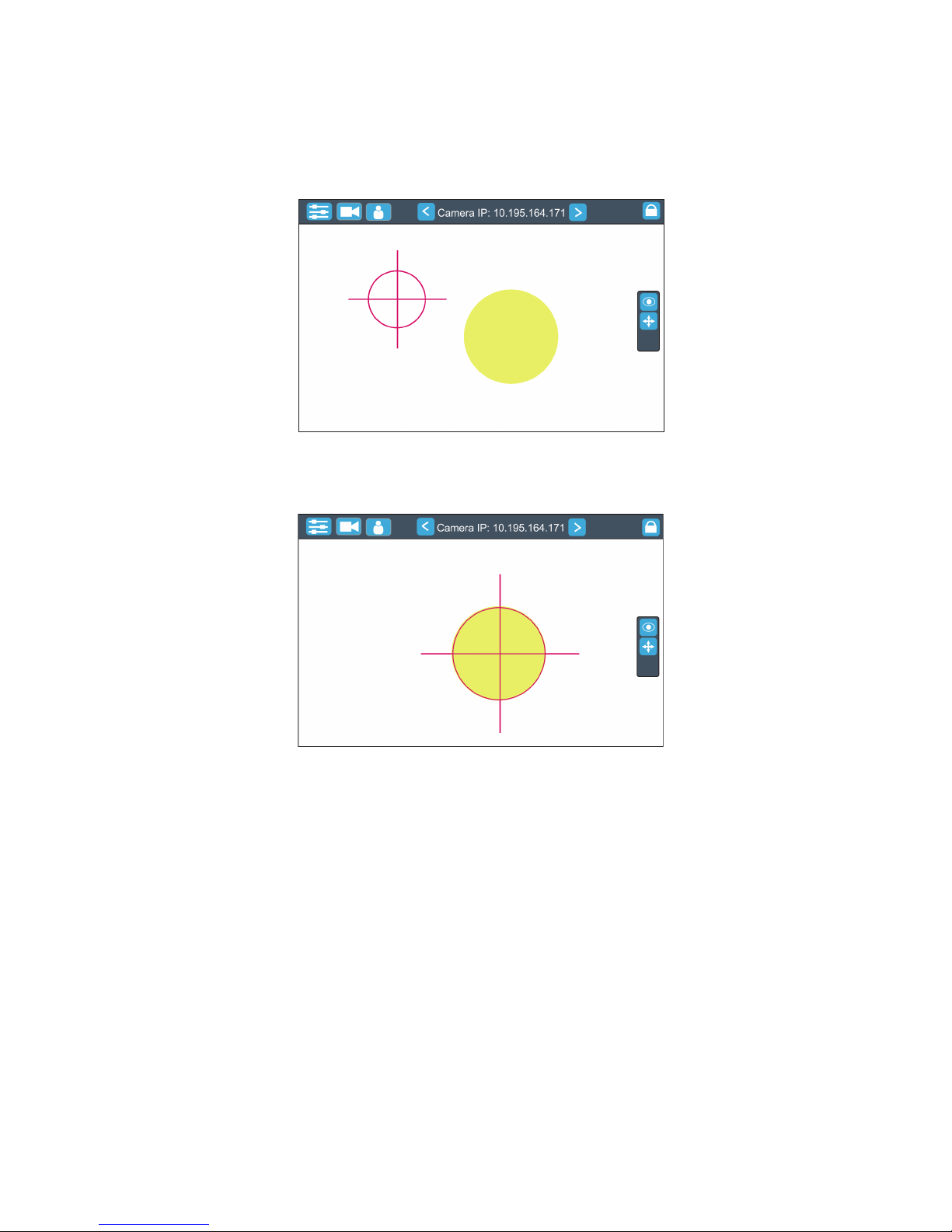
Touch the centre of the
positioning cross and
move the positioning
cross to desired
position on the screen.
Touch the edge of the positioning circle and move it in/out
to decrease/increase the size of the circle
Page 14
14
Note: the message "Not correct camera settings! Reset camera settings?" informs you that the RoboSpot
software and the camera settings are not accordance.
Use the option "Yes" to set correct camera settings.
The option "Yes" has the same eect as the option "Factory reset " in the Camera button menu.
2. After switching the ROBIN BMFL FollowSpot lamp on and adjusting its beam (zoom, focus, dimmer....), aim
the beam to desired position by means of the FollowSpot Controller handlebars.
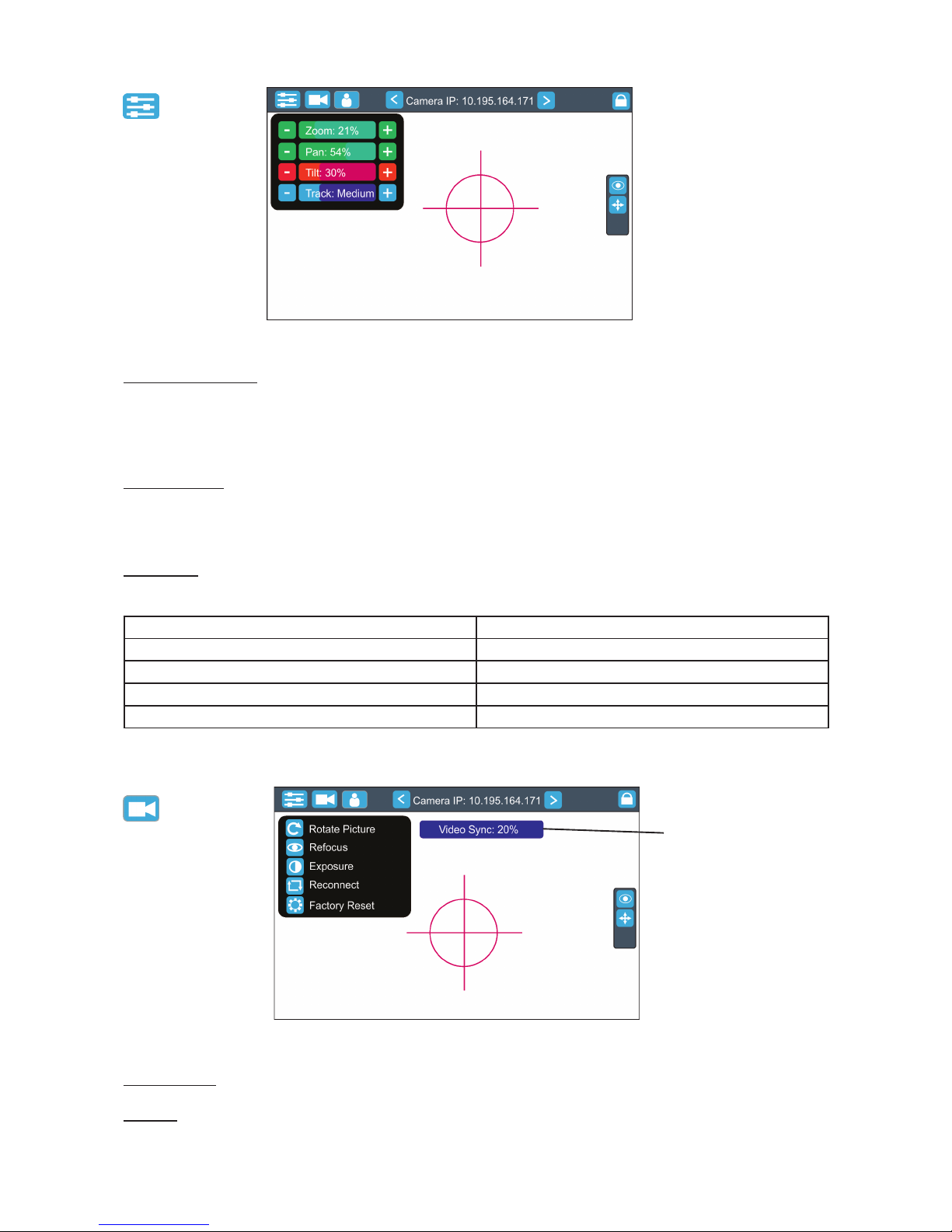
3. Move the position circle on the beam image. Now, when you move with the control handlebars, both beam
image and position circle on the screen will move synchronously. It is useful in case that the light output from
the xture is closed and by means of the sighting point you approximately know the position of the light beam.
Page 15
15
Note: if you change a camera zoom, you have to move and adjust the position circle on the beam image again.
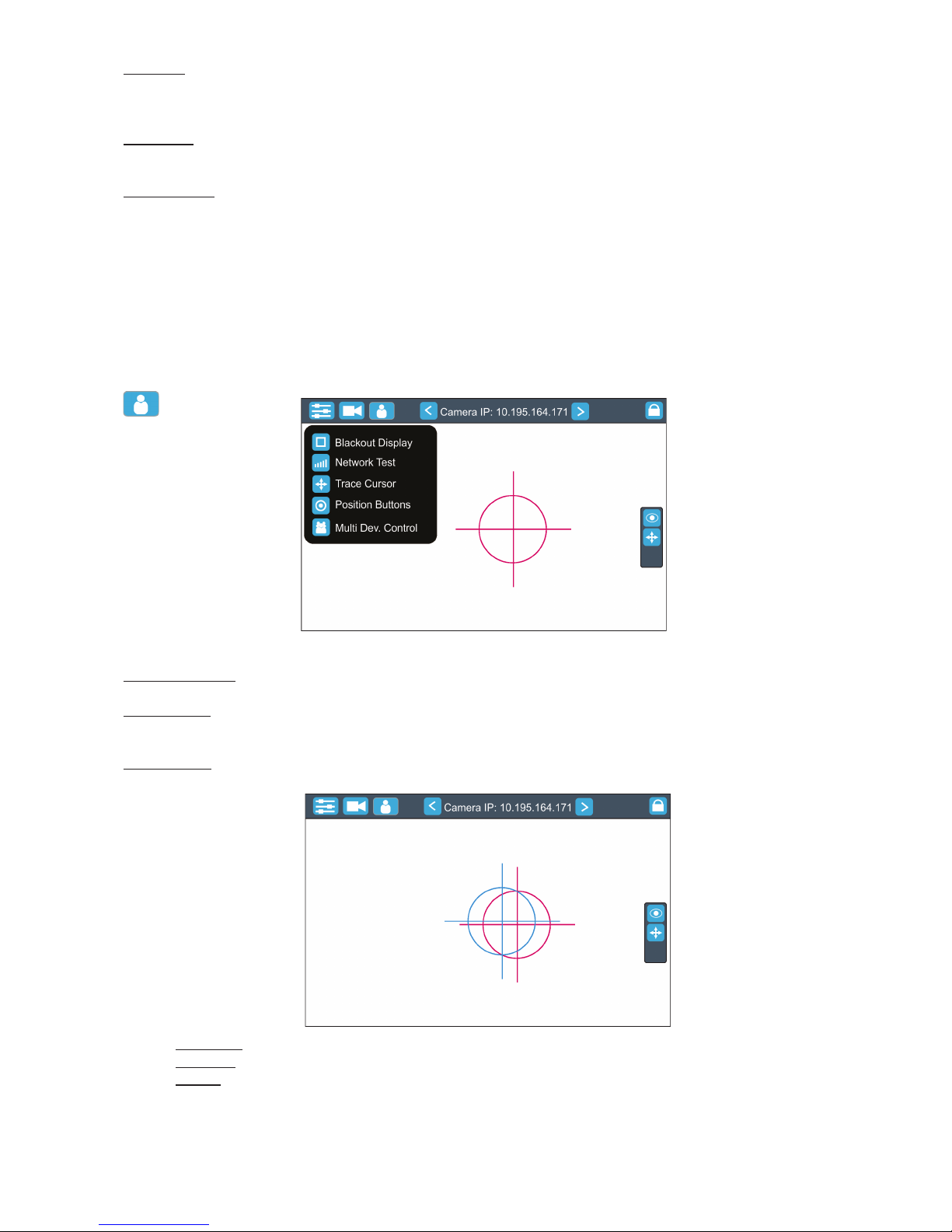
Sliders menu
Camera Zoom slider- use it to change a zoom of currently selected camera. A sensitivity of a camera zoom
can be set in three levels: low (green slider), medium (yellow slider) and high (red slider).
To change the sensitivity level of the camera zoom, the camera zoom has to be assigned to some jog-wheel
of the FollowSpot Controller, please see the chapter "Functions mapping" how to change sensitivity level of a
slider. After changing of zoom size, picture is automatically focused.
Pan/Tilt sliders - use them to move a moving head to the desired position. A Sensitivity of pan/tilt movement
can be set in three levels : low (green slider), medium (yellow slider) and high (red slider).
In order to switch the sensitivity of pan or tilt movement to desired level, press and hold the PAN (5) or TILT (6)
button until the colour of fader is changed.
Track slider- use it to set desired level of speed of pan/tilt movement. Each level of the track slider responds to
the DMX value of the Pan/Tilt speed channel in DMX chart of BMFL xture:
Track level DMX value on the Pan/Tilt speed channel
Smooth 0
Fast 1
Medium 10
Slow 20
Camera menu
Rotate Picture- use this item to rotate a picture on the touch screen 180 degrees from current orientation.
Refocus- use this item to focus an image on the screen (Focus of the camera is set to the "One shot focus "
mode which means that picture is focused automatically after zoom change and the item Refocus allows to
focus the image when the zoom is without change.
video synchronization
eld
Page 16
16
Exposure- you can choose from three levels (Low, Medium, High) of a light intensity in the position circle on
the screen to see objects hidden from reason of high light intensity in the position circle on the screen. The
item Auto switches o this function.
Reconnect- the item disconnects and again connects active camera to the RoboSpot. Use the item in case that
behaviour of the camera is not correct (e.g. long response time).
Factory Reset- use this item to set a camera to the current setting.
All items stated above relate to the selected camera in the menu bar.
When you switching between cameras, a eld with video synchronization status is displayed. This eld shows
a delay between the camera and the screen. The value 0% means max. delay, 100% is without delay (and this
eld will disappear from the screen after reaching 100%).
Every camera holds information about position of the position circle, its size and picture rotation.
User menu
Blackout Display - use the item to darken the screen. To active the screen, touch it.
Network Test - the item runs a connection test between a camera and the RoboSpot. Do not touch any buttons
on the FollowSpot controller.
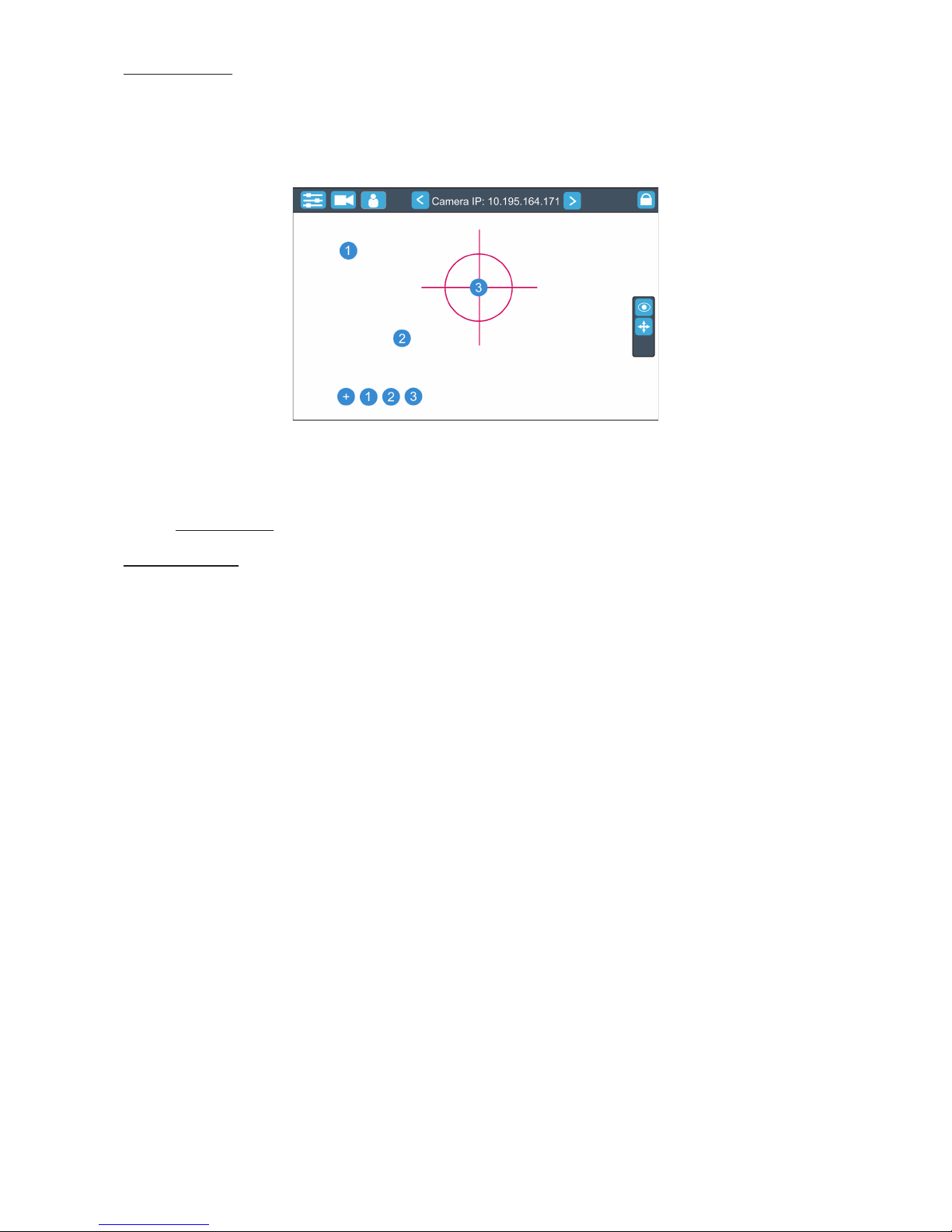
Trace Cursor - if the function is on, a blue circle will appear during (behind a red position circle) which gives a
target position of the position circle (beam image) during its movement.
Pan Invert - the item inverts a pan movement
Tilt Invert - the item inverts a tilt movement
Device - the menu allows you to select a device with camera. Correct device has to be chosen
if the "Trace Cursor" function is to work correctly.
MotionCamera - select the item if you use the RoboSpot Motion Camera.
BMFL Follow Spot - select the item if you use the Robin BMFL FollowSpot with camera.
Page 17
17
Position Buttons - if the function is on, the "+" button will appear at the bottom of the screen. Move the position
circle to desired position and press the "+" button. Button no.1 will appear at the bottom of the screen and
the button no.1 is assigned to this position of the position circle (if item " Show in scene is active, button no.1
is displayed in the position circle on the screen). You can assign up to 9 buttons to dierent positions of the
position circle on the screen.
If you touch a position button, the position circle will move to the position of this position button.
Example (option "Show in Scene" is active):
In the position button are also saved values of the following items: zoom, focus, camera zoom, pan/tilt sensitivity and track.
To remove position button from screen, touch it until the message "Delete position button number X?" appears
on the screen and select option "Yes".
Show in Scene - the item allows you to show positions of the position buttons on the screen.
Multi Dev.Control - the menu serves for activating and setting control of xtures in the multi device operation.
For more information please see the chapter Multi device control.
5.3 Streaming a camera video
If you wish to stream a camera video over computer network, use a rtsp stream supported media player (e.g.
VLC media player, SMPlayer,...) running on your computer and type the following to your media player:
rtsp://IP address of camera/prole2/media.smp
example: rtsp://10.195.165.223/prole2/media.smp
Page 18
18
5.4 Saving and recalling the FollowSpot controller presets
The FollowSpot Controller oers to save up to 12 presets.
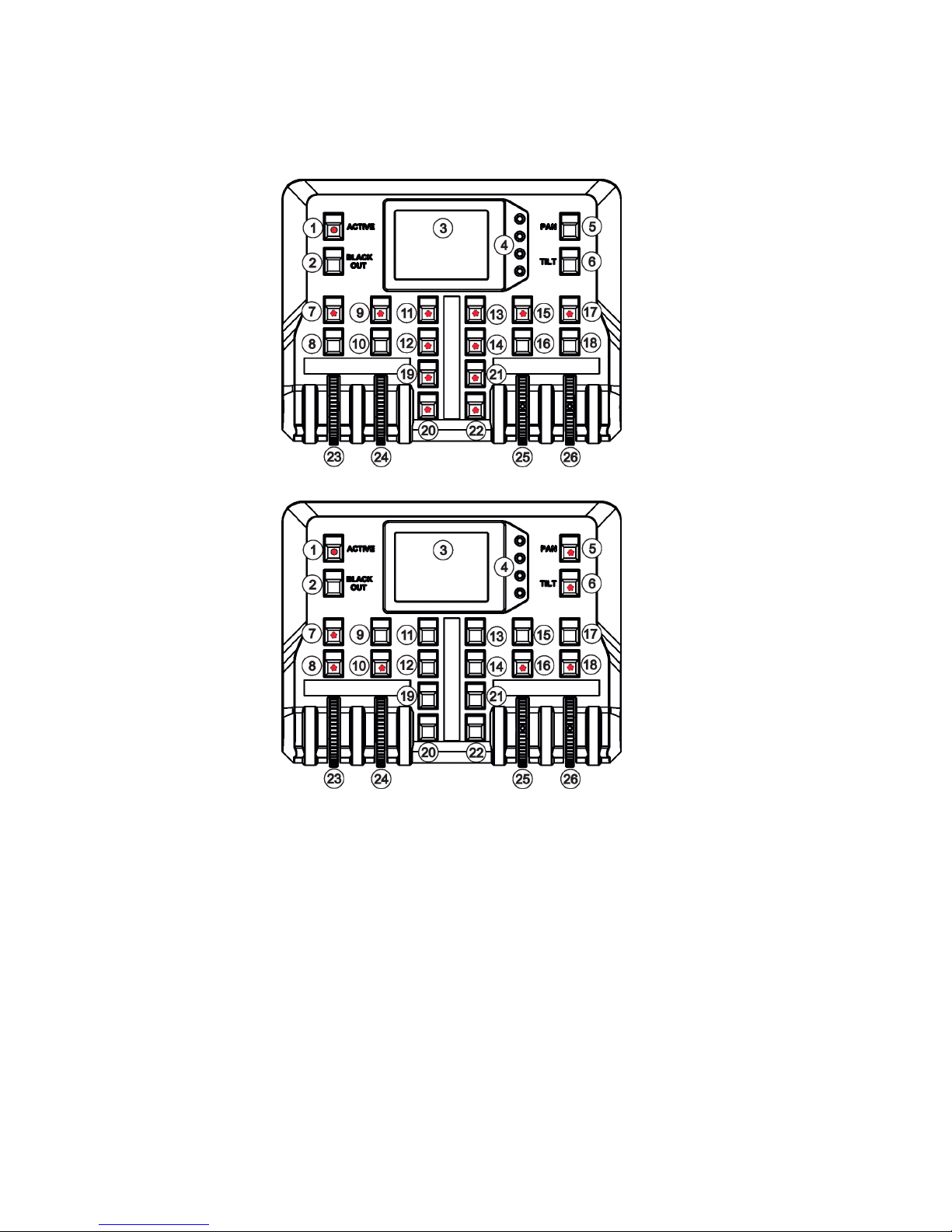
To save the FollowSpot controller preset
1. Press and hold one of the preset buttons (7/9/11/12/13/14/15/17/19/20/21/22) e.g. button (7) until the jogwheel activating buttons (8/10/16/18) and the pan/tilt buttons (5/6) start to ash.
2. Press ashing button of eect which value you wish to add to the current preset (the button will start light
continually).
3. Press and hold selected preset button until the jog-wheels activating buttons stop to ash.
The preset button will light.
Note: Every user preset can have dierent FollowSpot Controller presets which are saved into the user preset
le. This le can be saved on a USB ash drive.
To recall the FollowSpot controller preset
Press a button with stored FollowSpot Controller preset.
To delete the FollowSpot controller preset
1. Press and hold desired preset button until the jog-wheel activating buttons (8/10/16/18) and the pan/tilt
buttons (5/6) start to ash.
2. Press and hold selected preset button until the jog-wheels activating buttons stop to ash. Do not press any
jog-wheels activating button. The preset button will stop to light.
Note: you can write notes on the white elds of the FollowSpot Controller, use a marker on an alcohol base and
a suitable cleaning liquid (on alcohol base) for removing the notes. Never use solvents!
Note: values on faders
cannot be included to
presets.
Page 19
19
5.5 RoboSpot handles calibration
To calibrate the RoboSpot handles.
1. Install the FollowSpot Controller on the FollowSpot Controller base
1. Deactive the FollowSpot Controller (button ACTIVE (1) must not light)
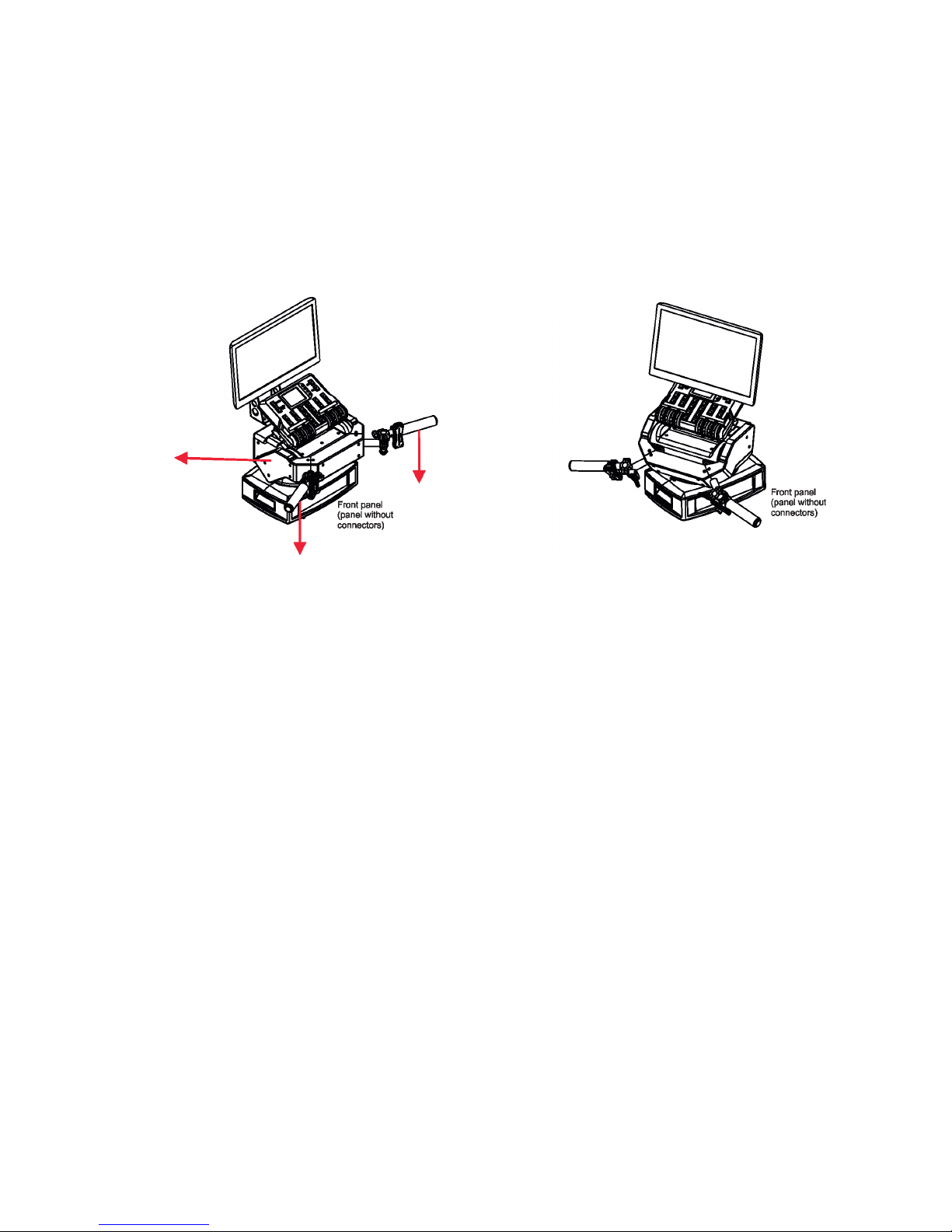
2. Move the control handles of the RoboSpot to the calibration position, in this way:
pan direction - move handles fully to the left until you reach a stop
tilt direction - move handles fully down until you reach a stop
3. Keep handles in the calibration position and press and hold the PAN button (5) for circa 6 seconds until this
button makes one ash - it is a nish of the calibration and you can use the FollowSpot Controller.
Middle position Calibration position
Move handles down to
reach the stop
Move handles to
the left to reach
the stop
Page 20
20
5.6 Multi device control
The RoboSpot can support more xtures in the follow spot operation.
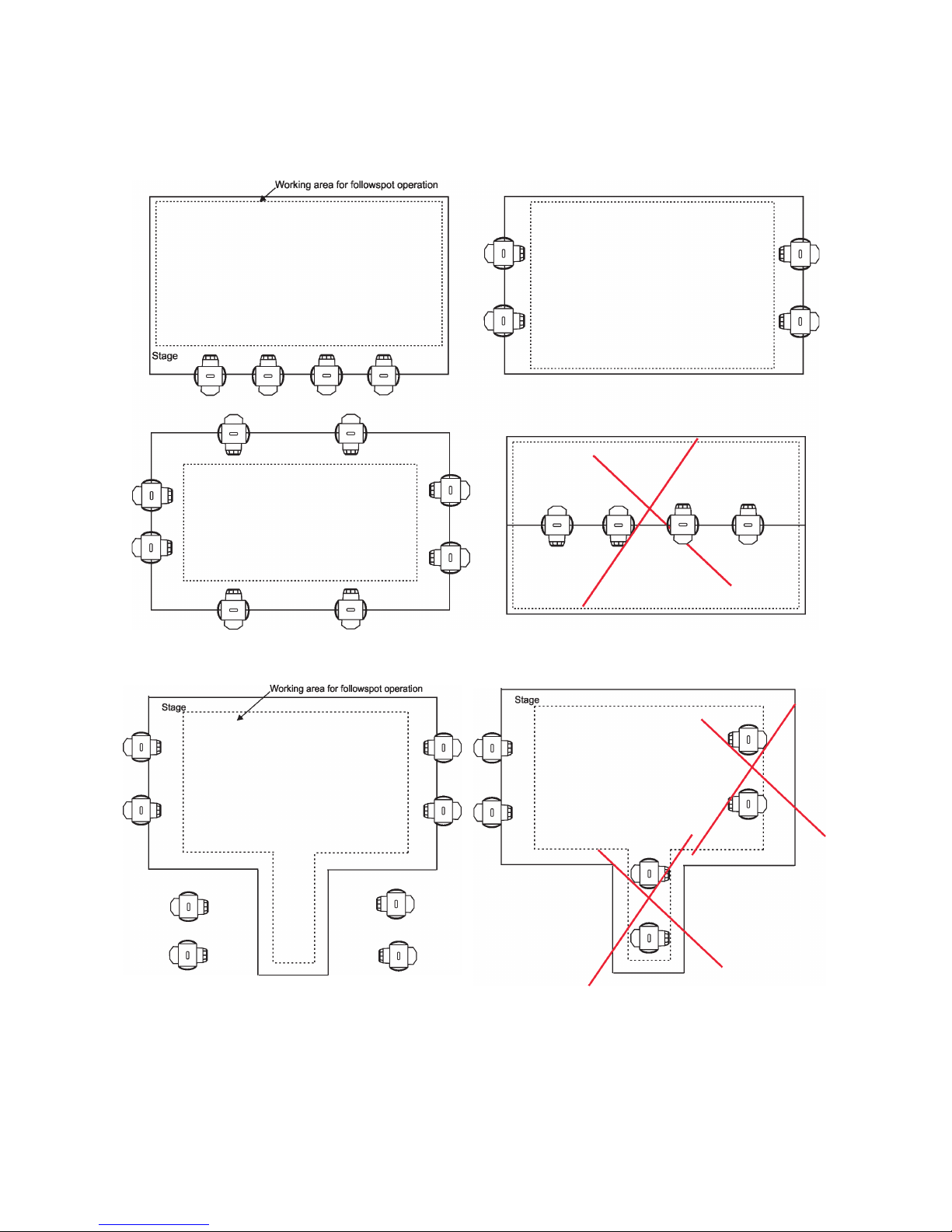
The xtures used in the follow spot operation should be placed on a truss around the area intended for the follow
spot operation. The xtures can be placed above stage on one ( two or three) side(s) of the stage or around
the stage, placing inside the working area for the follow spot operation is not suitable .
Some examples of possible arrangements of xtures above the stage:
Page 21
21
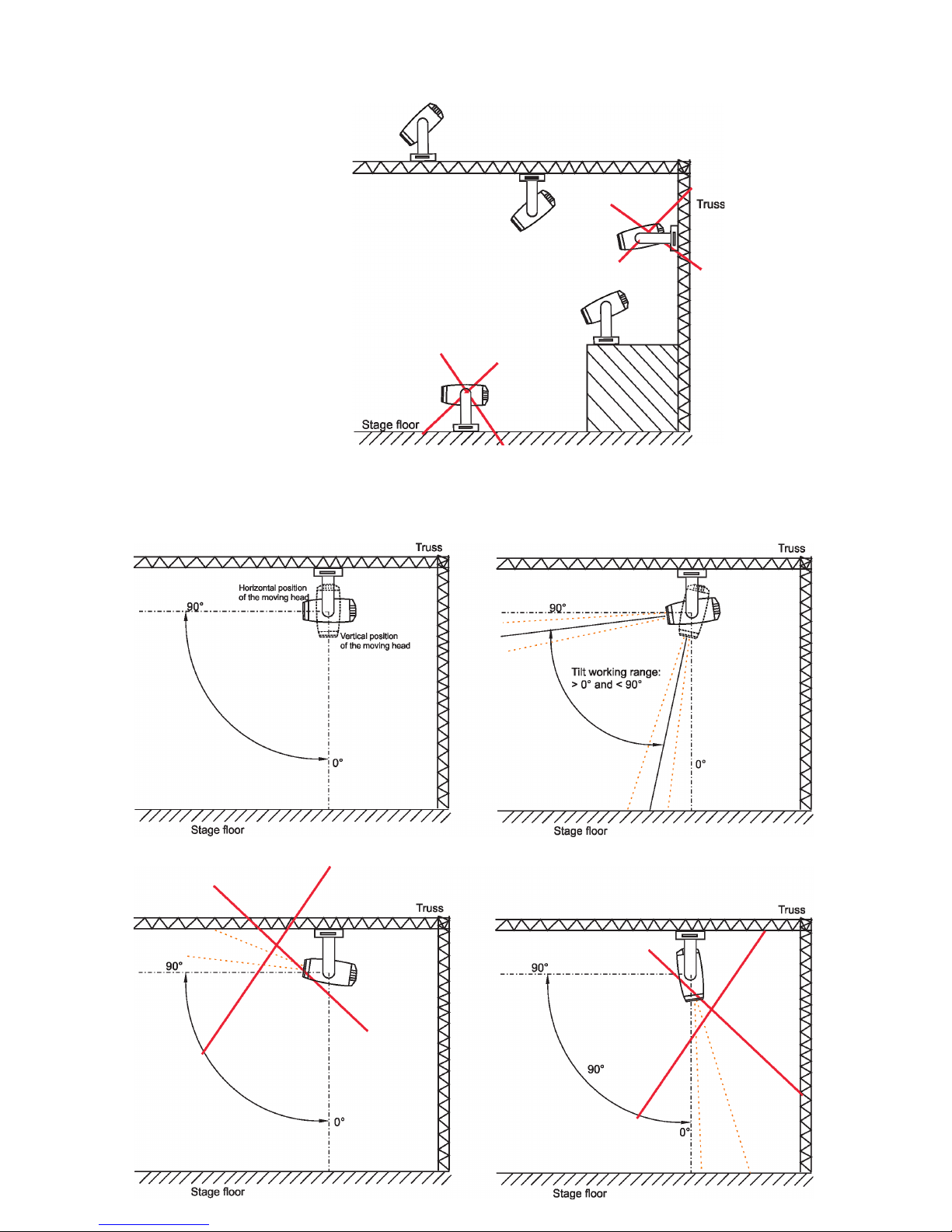
Fixtures cannot stay directly on the stage oor. They have to be placed above the stage oor in two positions
only: head downwards or head upwards.
Fixture has to be installed on a truss in this way, that its tilt will move in range: >0° and < °90° as shown on the
picture below to cover the whole working area for the followspot operation.
Page 22
22
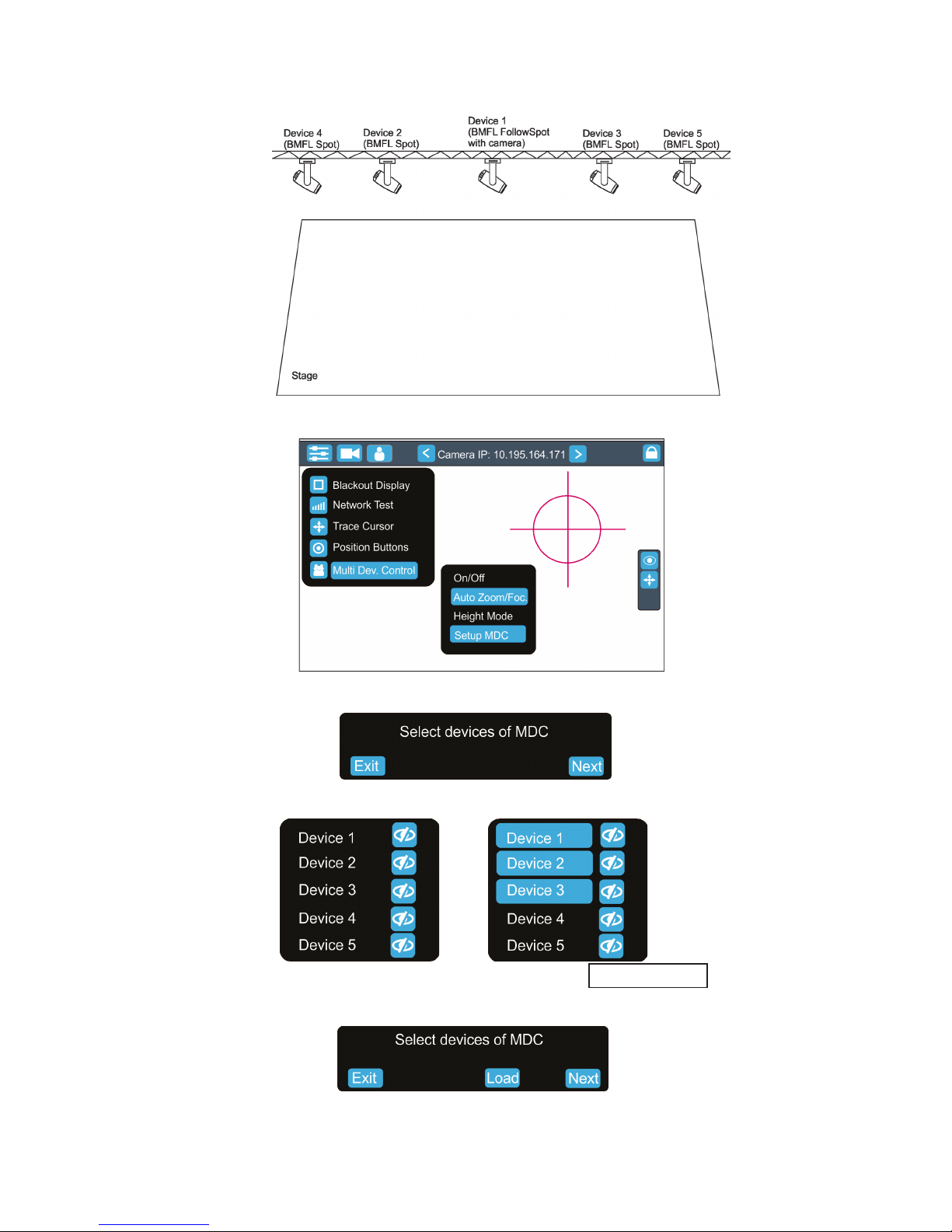
There is an example how to create the follow spot operation for three xtures.
The stage is lighted by the ve devices in a row and three of them will be used for the follow spot operation.
1. Enter the "Multi Dev. Control" menu on the screen and select the option "Setup MDC".
2. Select item " Setup MDC" and the following massage will appear on the screen:
Select xtures which will be used for the follow spot operation (e. g. Device 1, Device 2, Device 3).
Note: In case that setup of DMC has been created, the following message will appear:
Select the option "Load" if you want to load existing setup and modied it.
Touch the Next button.
blackout buttons
Exit -cancels Setup MDC
Next - goes to next step
Page 23
23
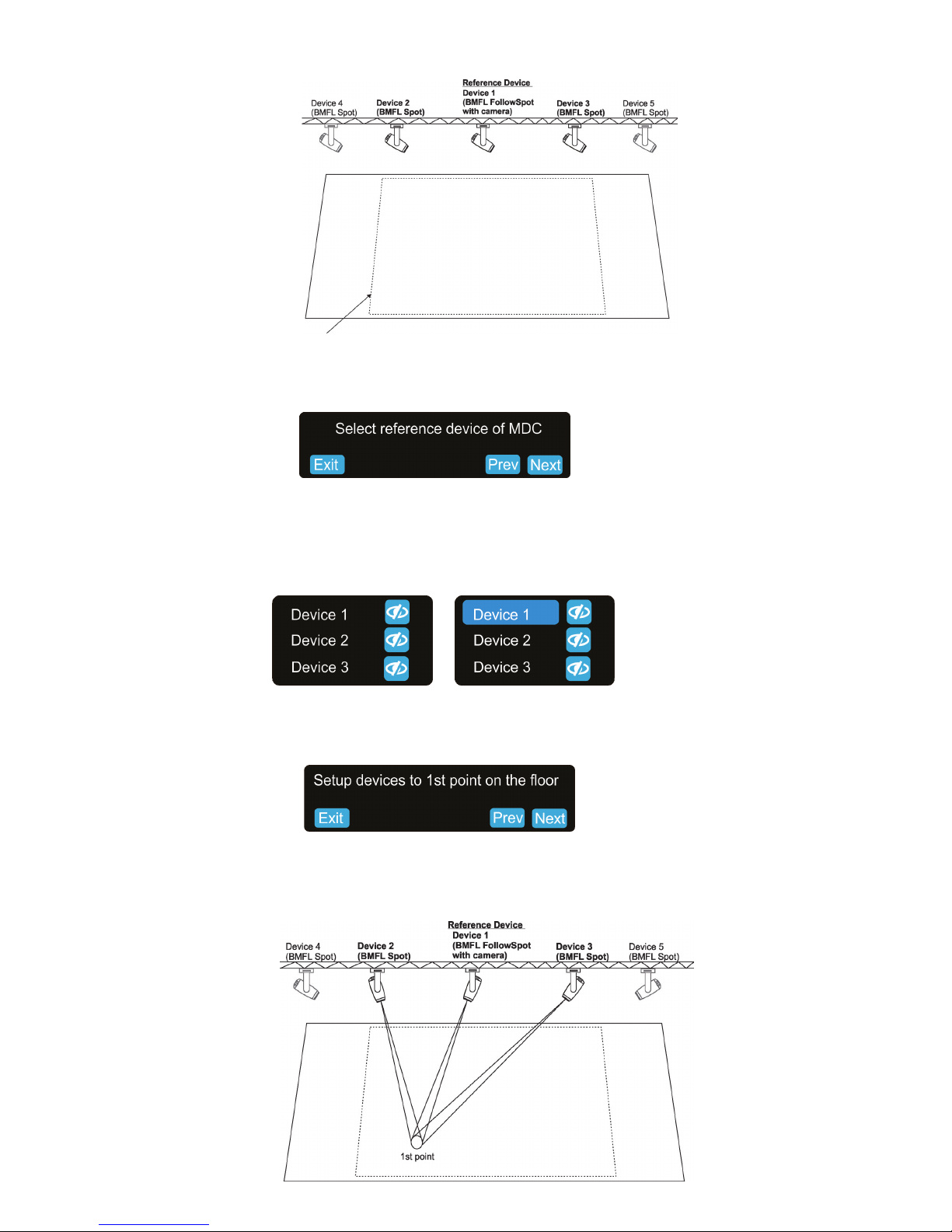
Three xtures are selected for the follow spot operation
3. The following massage will appear on the screen:
Select desired reference device from devices intended for the follow spot operation (the reference device should
be a device with a camera /BMFL FollowSpot with camera or RoboSpot Motion camera)/ and should not be
placed on the edge of xtures row, optimal position is in the middle of xtures /if it is possible/, in this case it
is the Device 1) and touch the Next button.
The pan/tilt position of the reference device is directly controlled by means of the RoboSpot handles.
The pan/tilt positions of remaining devices in the follow spot operation are calculated in relation to the reference
device.
Touch the Next button.
4.The Following massage will appear on the screen:
Zoom and iris is automatically set to the narrow beam at all devices used in the follow spot operation.
Activate the device 1 (by touching desired device button ), focus it (by means of the FollowSpot Controller) and
aim it to one point on the oor (by means of the RoboSpot handles) as exactly as possible.
Repeat this action for the device 2 and device 3.
Exit -cancels MDC setup
Next - goes to next step
Prev - goes to previous step
Working area for the follow spot operation
Page 24
24
Touch the Next button.
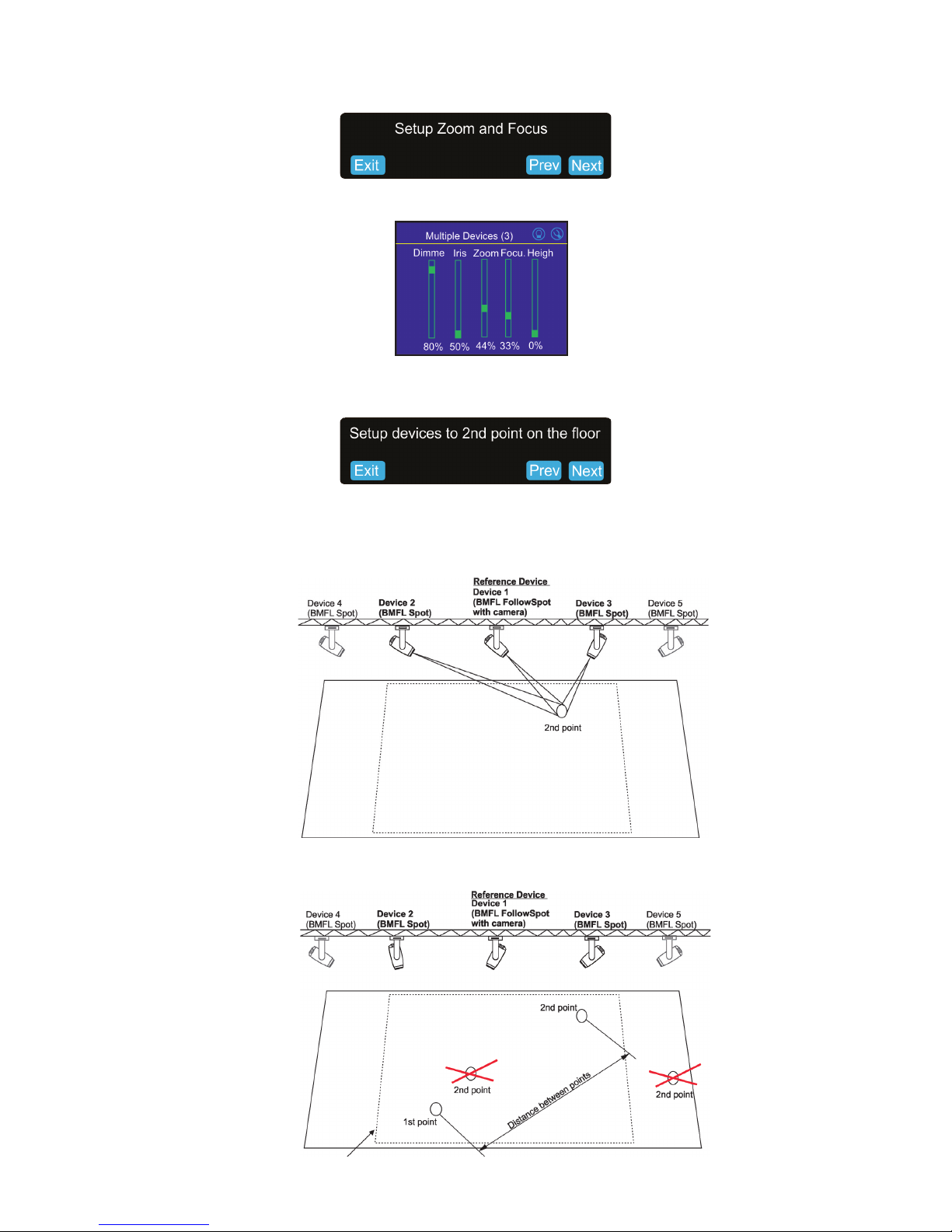
5. The following massage will appear on the screen:
Use the jog-wheels or handle faders or faders on the FollowSpot Controller screen (depending on xture
mapping) to set desired zoom and focus in the point 1.
Touch the Next button.
6. The following massage will appear on the screen:
Zoom and iris is automatically set to the narrow beam at all devices used in the follow spot operation.
Activate the device 1 (by touching desired device button ), focus it (by means of the FollowSpot Controller) and
aim it to one point on the oor (by means of the RoboSpot handles) as exactly as possible.
Repeat this action for the device 2 and device 3 to aim them to the second point.
Note: The two points should be placed suciently apart on the oor and situated inside the eld which is
intended for the follow spot operation. The two points should not be placed too close.
Working area for the follow spot operation
Page 25
25
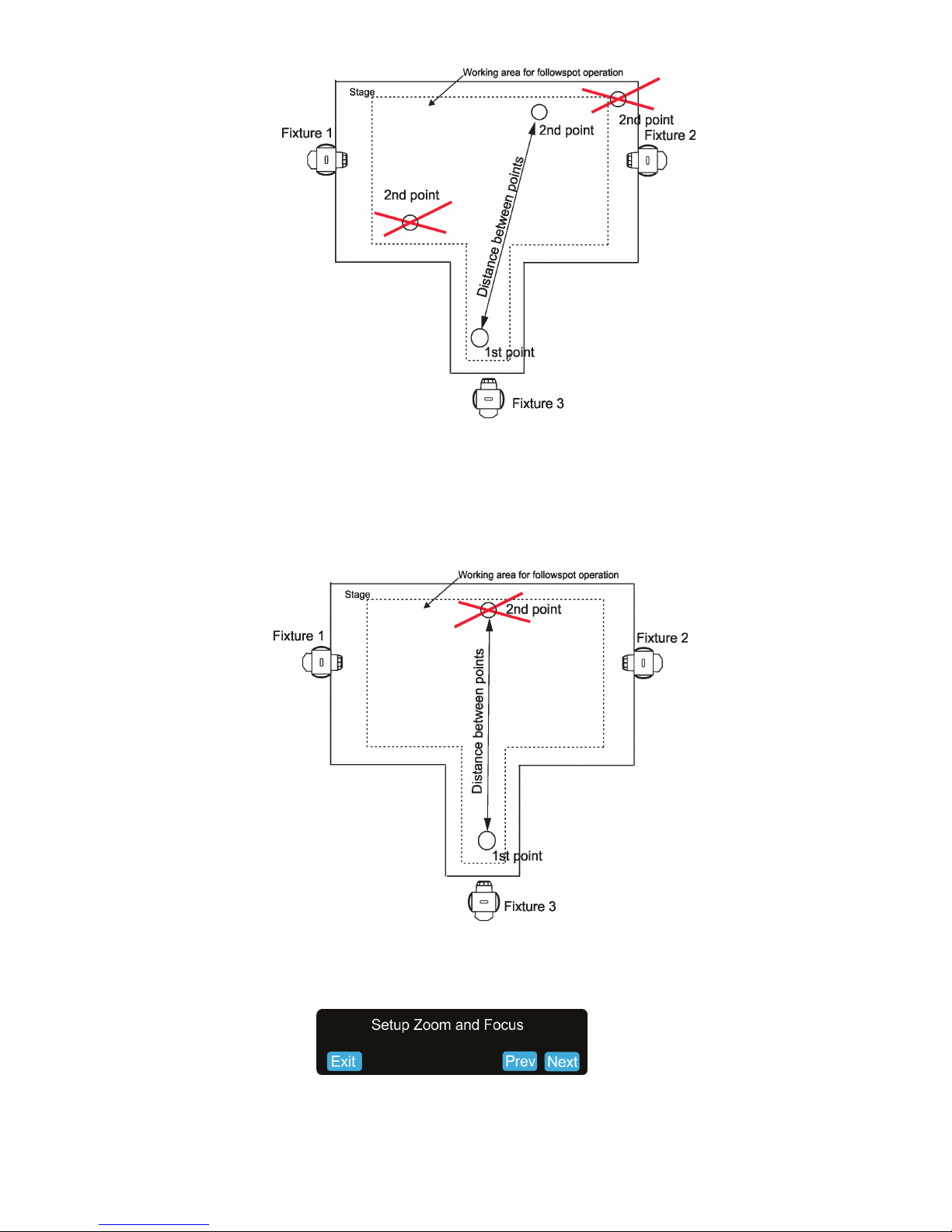
Two position points has to be placed on the stage in a way that all xtures used in the follow spot operation
have to change both pan and tilt values when go from the 1st point to the 2nd point.
In the following example the xture 3 does not change its pan value (only tilt value) when head moves from the
1st point to the 2nd point, the 2nd point is not select correctly, better position for the 2nd point is on the picture
above.
Touch the Next button.
7. The following massage will appear on the screen:
Use the jog-wheels or handle faders or faders on the FollowSpot Controller screen (depending on xture
mapping) to set desired zoom and focus in the point 2.
Page 26
26
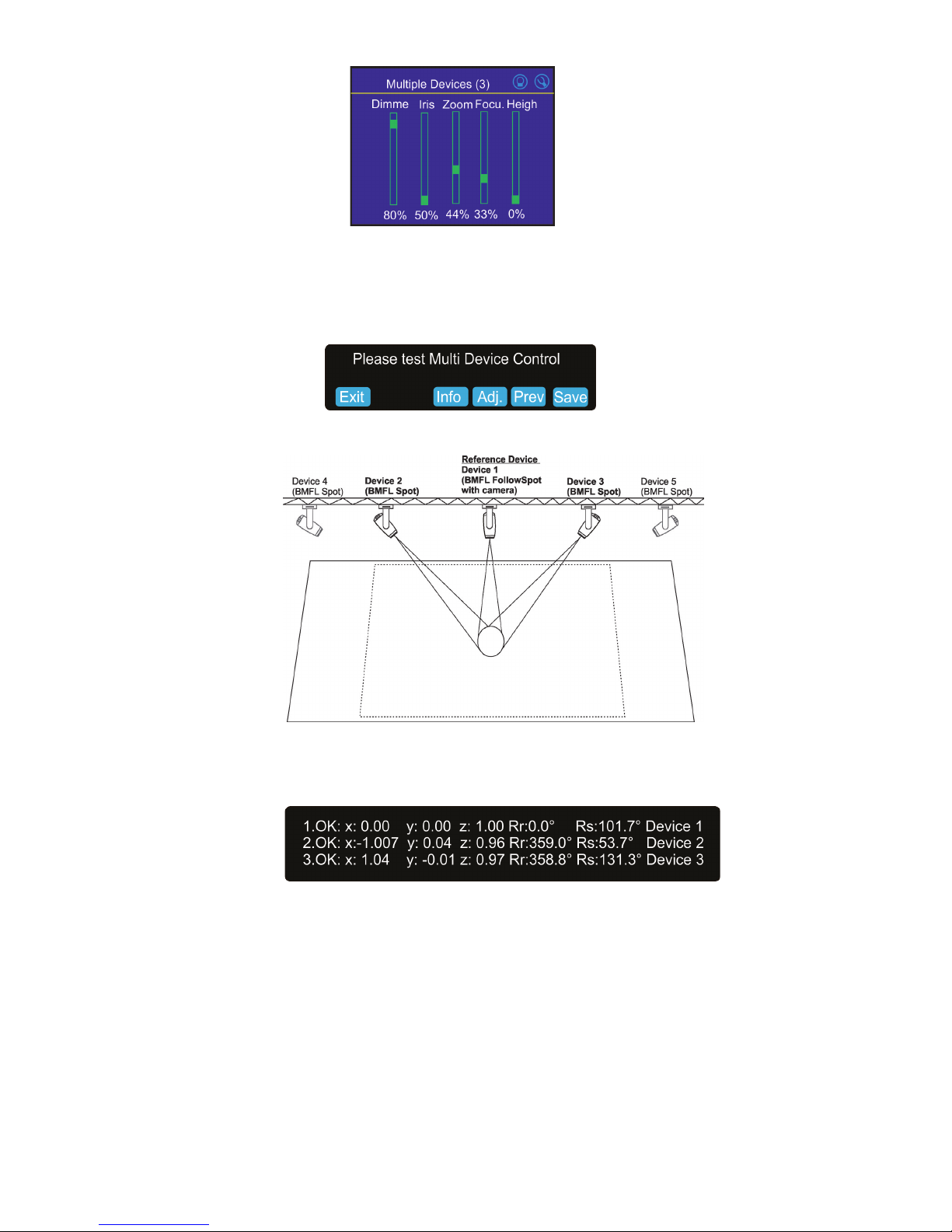
Note: if the option Multi device control is activated, both zoom and focus on all devices are set at 50%. The
values are osets in relation to the zoom and focus values set at the rst and the second point.
Touch the Next button.
8. The following massage will appear on the screen:
Now you can test the follow spot operation. If it is OK, touch the "Save" button or you can use the "Prev" button
to move one or more steps back and change setting.
The button "Info" shows information about current positions of xtures used in the follow spot operation.
Example:
x,y,z - relative coordinates of the device in relation to the reference device
Rr - orientation of the device in relation to the reference device
Rs - orientation of the device in relation to the stage
The button "Adj." allows you to go back in the setting procedure and correct settings of devices in the rst and
second point (if it is needed ).
Page 27
27
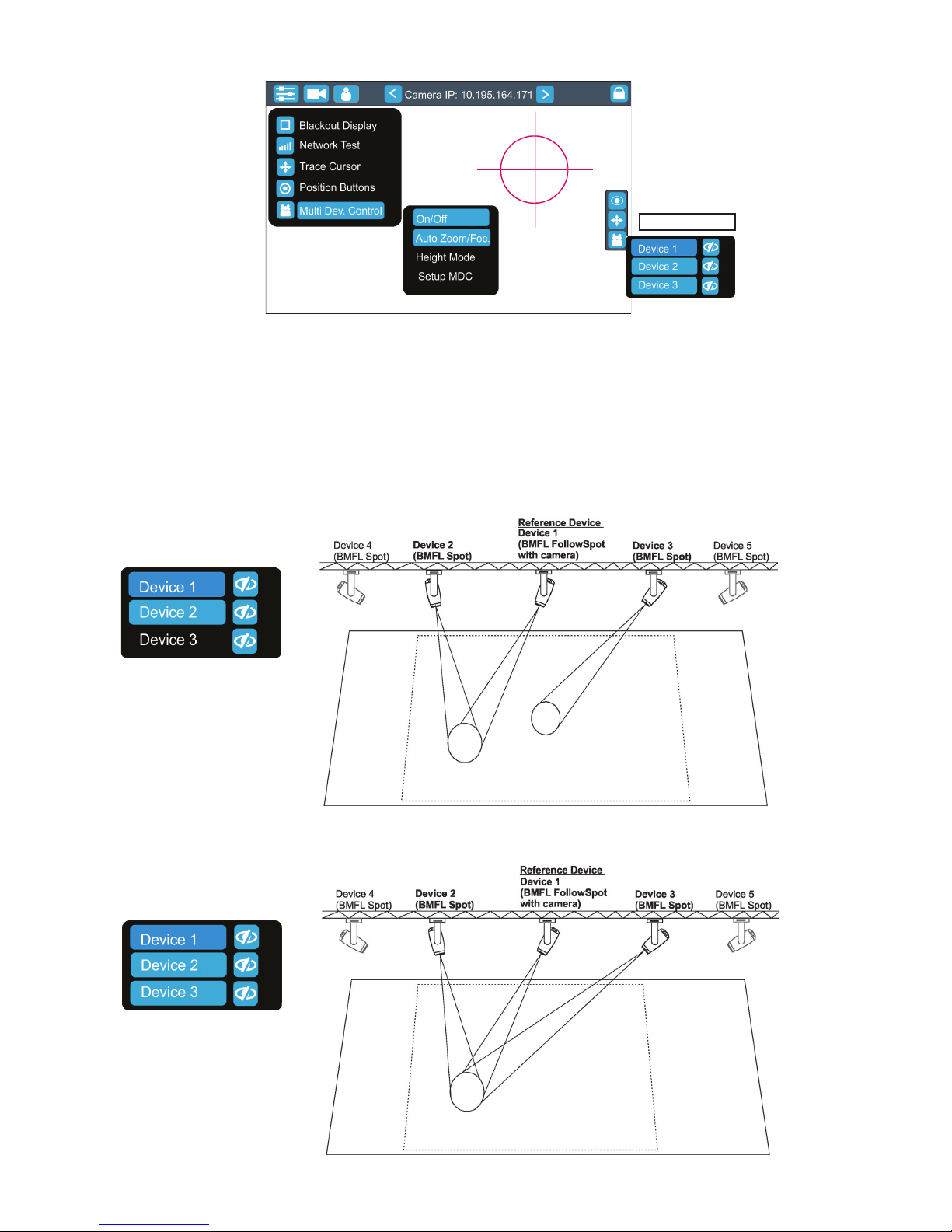
To activate the multi device control, touch the button "On/O.
If the item "Auto Zoom/Foc." is active (highlighted), the zoom and focus of xtures used in the follow spot operation
will be carried out automatically (in a range as was adjusted in "1st point" and "2nd point") during moving of
the light image on the stage. If the item "Auto Zoom/Foc." is deactivated, zooming and focusing of xtures has
to be done manually.
During the follow spot operation you can deactivate any device (except the reference device). The deactivated
device remains in the original position and the rest of devices will continue in the follow spot operation. When
you activate this device back, the device "jumps" to the follow spot operation.
Example: Device 3 is deactivated (by touching the button Device 3 in the Action toolbar ).
Device 3 is activated (by touching the button Device 3 in the Action toolbar).
Action toolbar
Page 28
28
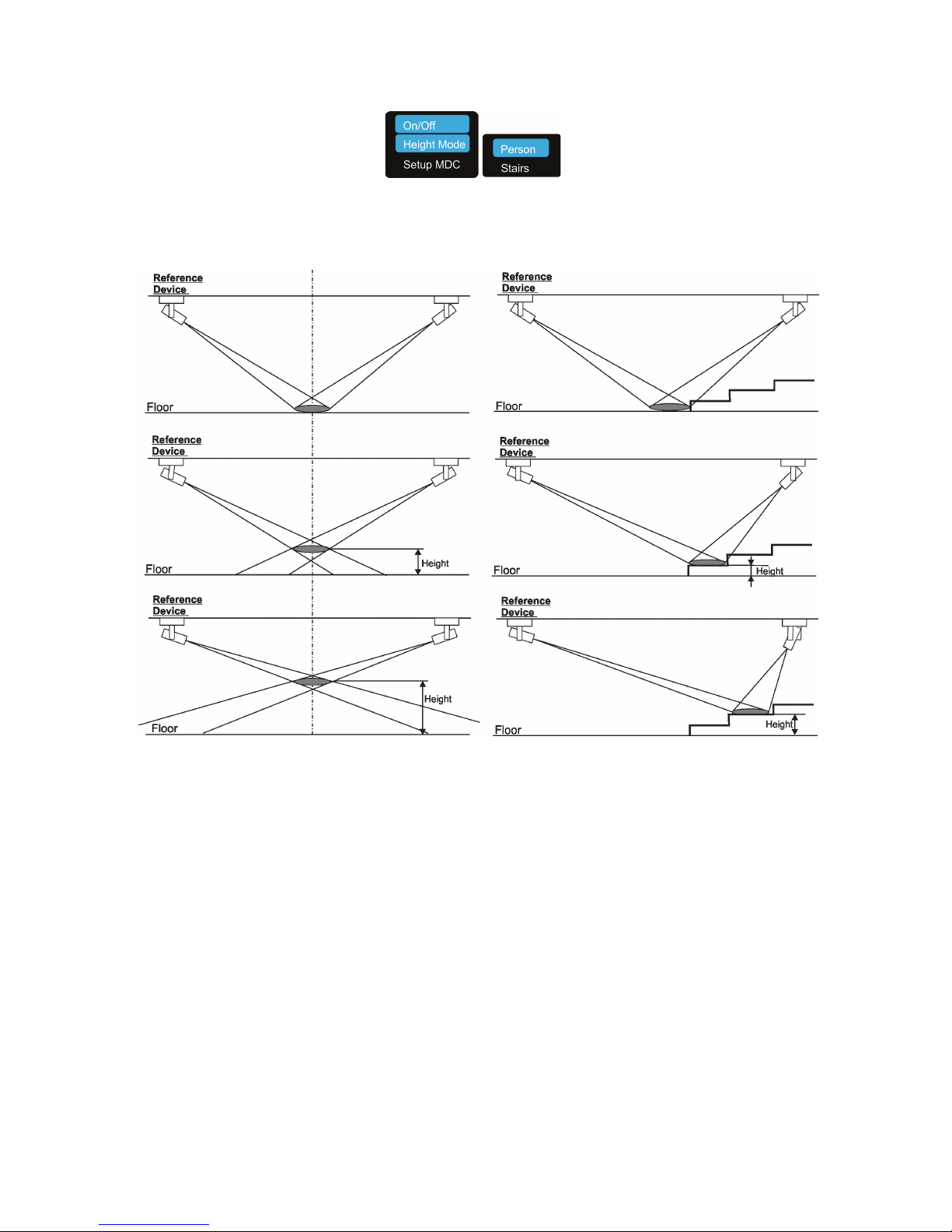
9. When Multi Device Control is on, select suitable Height Mode.
Note: the item Height has to be mapped to some fader or jog-wheel in order to control it during multi device
operation.
Person mode Stairs mode
Page 29
29
6. Control menu
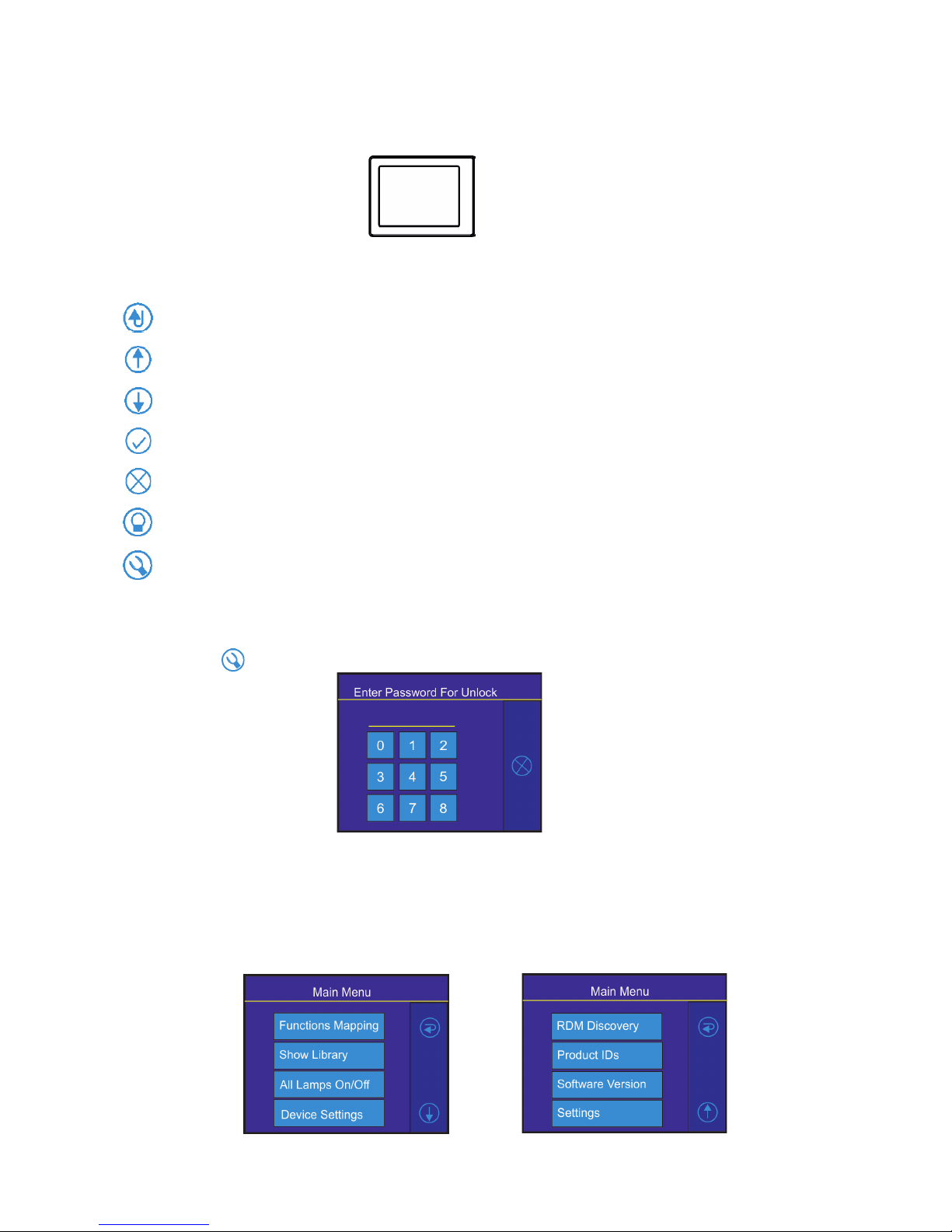
The FollowSpot Controller is equipped with the QVGA Robe touch screen with battery backup which
allows you to set the device behaviour according to your needs.
Icons used in the touch screen menu:
- [back arrow] used to move back to the previous screen (or menu level).
- [up arrow] used to move up on the previous page.
- [down arrow] used to move down on the next page.
- [conrm] used to save adjusted values and leave menu or to perform desired action.
- [cancel] used to leave menu without saving changes.
- [display on/o] used to switch on/o the display.
- [menu enter] used to enter xture menu.
Note: buttons of control panel are not functional.
Touch the icon to display the password entering screen:
Enter the default password (5242) to enter the main menu of the FollowSpot Controller. The password prevents
unauthorized person from changing setting of the FollowSpot Controller (password can changed or switched
o via the menu Settings).
Main menu
Page 1 Page 2
Page 30
30
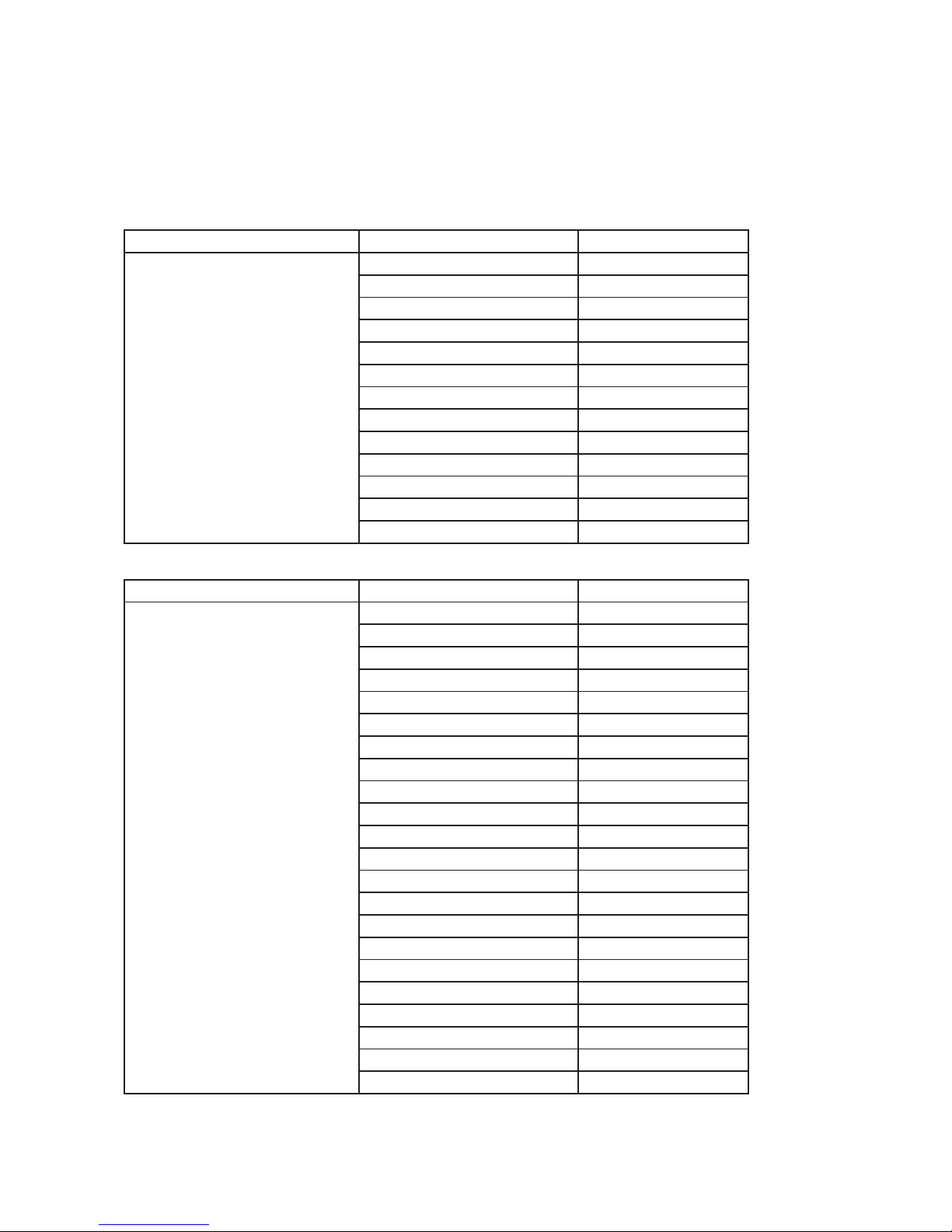
6.1 Functions Mapping
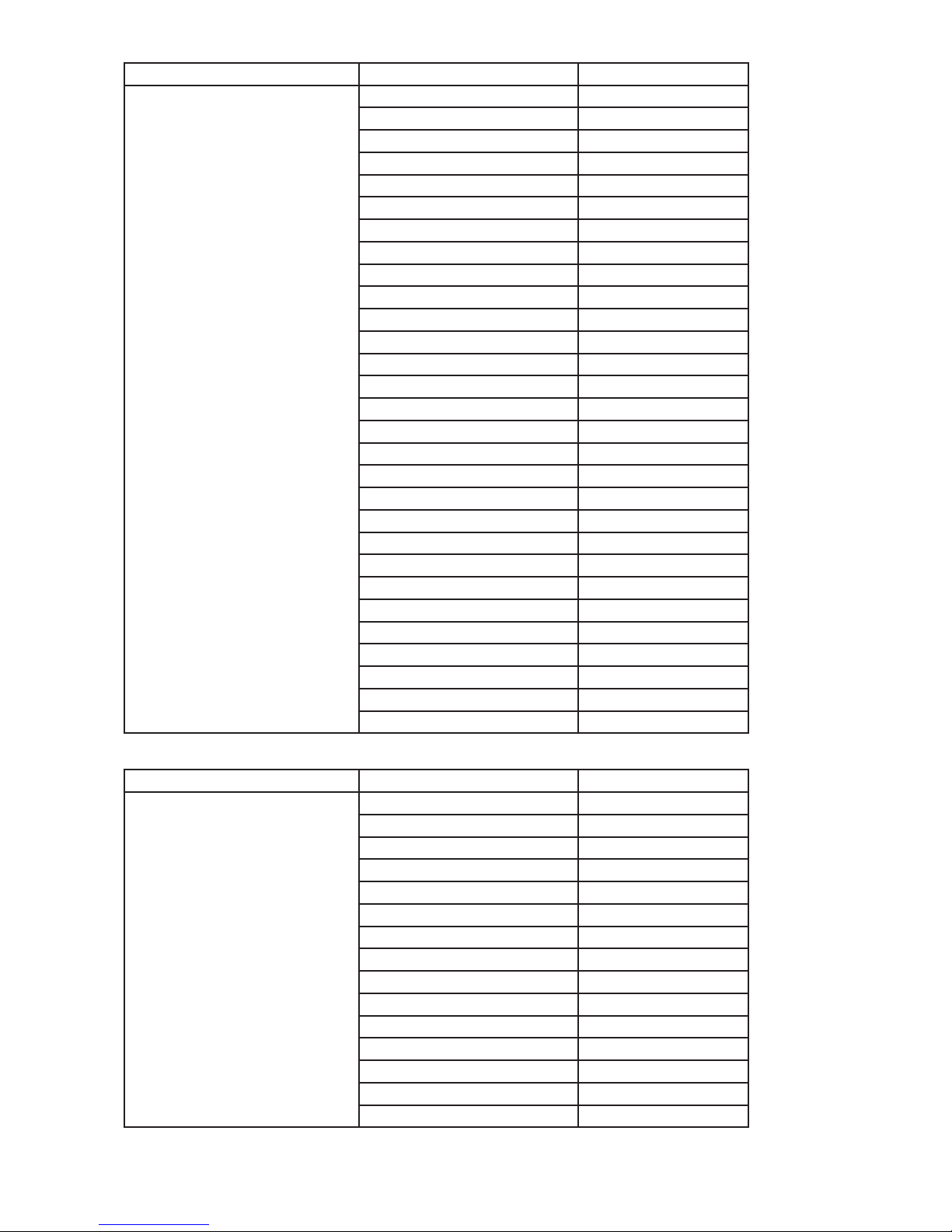
By entering the menu you can assign eects from the list of available eects to the jog-wheels and faders.
List of available eect channels depends of the used moving head. The item All - releases all assigned eects
at one go.
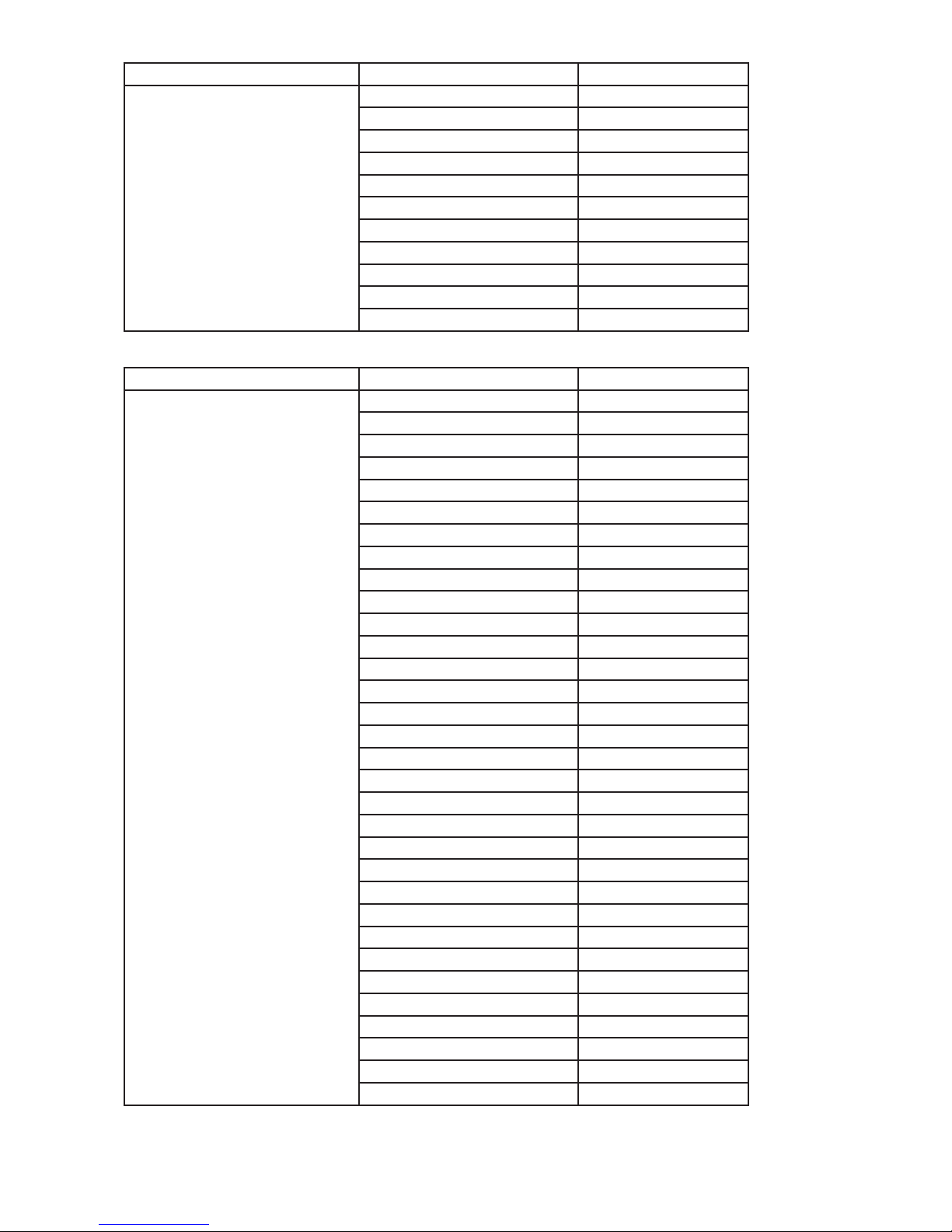
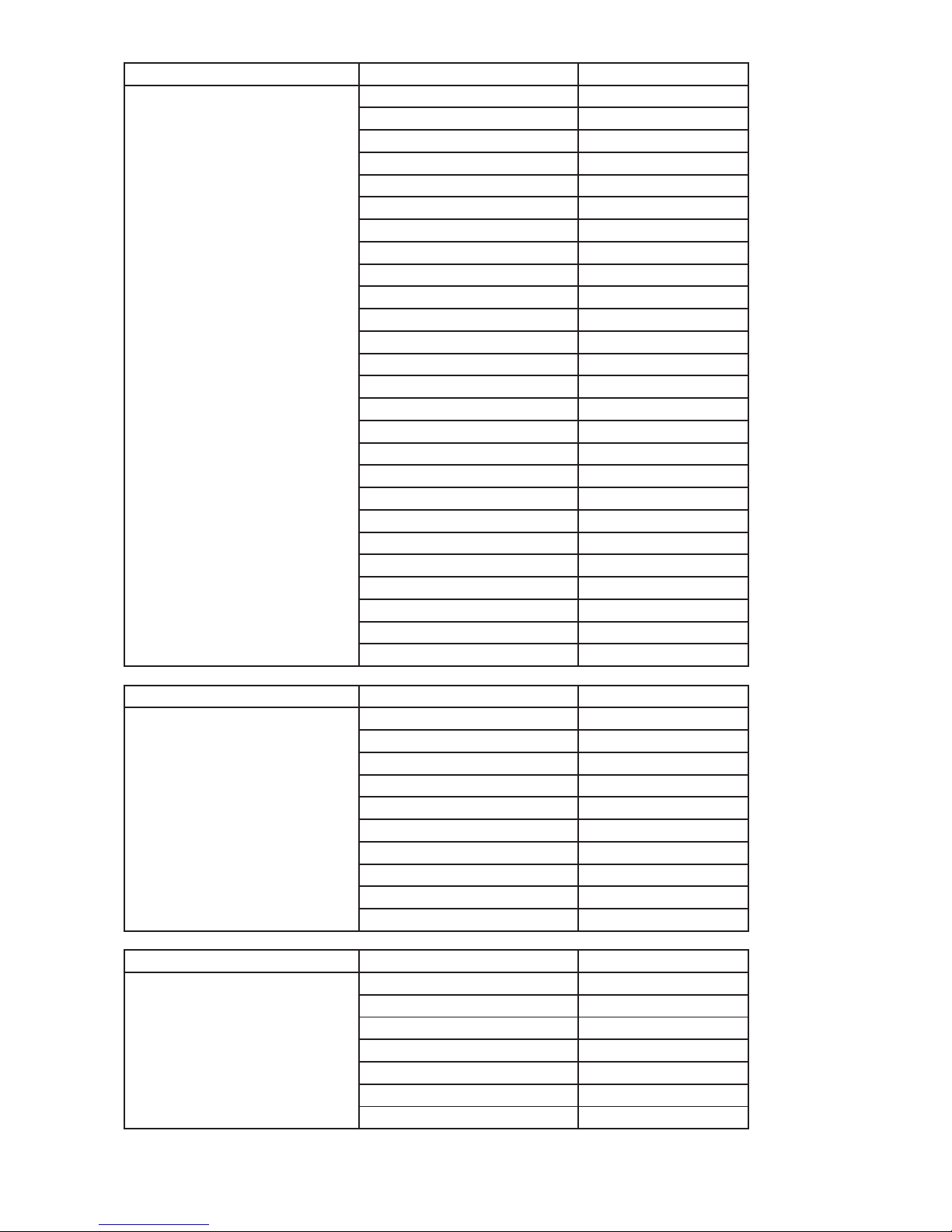
Note: The FollowSpot Controller does not allow to control full DMX range (0-255) of some eects, available
DMX values for each eect are stated in the tables below.
The item "Heigh." (Height) is not stated in tables below and serves for Multi Devices Control.
Fixture Eect Available DMX values
Robin BMFL FollowSpot
Dimmer 0-255
Iris 0-179
Focus 0-255
Zoom 0-255
L Frost 0-254
M Frost 0-254
H Frost 0-254
Color 1 0,130-189
Color 2 0,130-189
Cyan 0-255
Magenta 0-255
Yellow 0-255
CTO 0-255
Fixture Eect Available DMX values
Robin BMFL Spot
Dimmer 0-255
Iris 0-179
Focus 0-255
Zoom 0-255
L Frost 0,1-50
M Frost 0,87-136
H Frost 0,173-222
Color 1 0,130-189
Color 2 0,130-189
Cyan 0-255
Magenta 0-255
Yellow 0-255
CTO 0-255
DgW. pos 0-127
DgW. r1 0-255
DgW. r2 0-255
RGW 1 0,32-59
RGWr 1 0-255
RGW 2 0,32-59
RGWr 2 0-255
Prism 0-127
Pris r 0-255
Page 31
31
Fixture Eect Available DMX values
Robin BMFL Blade
Dimmer 0-255
Iris 0-191
Focus 0-255
Zoom 0-255
L Frost 0,1-50
M Frost 0,87-136
H Frost 0,173-222
Color 1 0,130-189
Color 2 0,130-189
Cyan 0-255
Magenta 0-255
Yellow 0-255
CTO 0-255
Efw. pos 0-127
Efw. rot 0-255
SGW 0, 8-103
RGW 1 0,32-59
RGW r1 0-255
Prism 0-127
Pris r 0-255
FS rot 0-255
FS 1 m 0-255
FS 1 s 0-255
FS 2 m 0-255
FS 2 s 0-255
FS 3 m 0-255
FS 3 s 0-255
FS 4 m 0-255
FS 4 s 0-255
Fixture Eect Available DMX values
Robin BMFL WashBeam
Dimmer 0-255
Iris 0-179
Focus 0-255
Zoom 0-255
L Frost 0-254
M Frost 0-254
H Frost 0-254
Color 1 0,130-189
Color 2 0,130-189
Cyan 0-255
Magenta 0-255
Yellow 0-255
CTO 0-255
Efw. pos 0-127
Efw. rot 0-255
Page 32
32
Fixture Eect Available DMX values
Robin BMFL WashBeam
RGW 1 0,32-59
RGWr 1 0-255
FS rot 0-255
FS 1 m 0-255
FS 1 s 0-255
FS 2 m 0-255
FS 2 s 0-255
FS 3 m 0-255
FS 3 s 0-255
FS 4 m 0-255
FS 4 s 0-255
Fixture Eect Available DMX values
Robin DL7S
Dimmer 0-255
Iris 0-179
Focus 0-255
Zoom 0-255
Frost 0-179
V Colour 0-132
Cyan 0-255
Magenta 0-255
Yellow 0-255
Red 0-255
Green 0-255
Blue 0-255
Amber 0-255
C Blue 0-255
L Green 0-255
CTO 0-255
Efw. pos 0-127
Efw. rot 0-255
SGW 0, 65-109
RGW 0, 32-59
RGW r 0-255
Prism 0-127
Pris r 0-255
FS rot 0-255
FS 1 m 0-255
FS 1 s 0-255
FS 2 m 0-255
FS 2 s 0-255
FS 3 m 0-255
FS 3 s 0-255
FS 4 m 0-255
FS 4 s 0-255
Page 33
33
Fixture Eect Available DMX values
Robin DL4S
Dimmer 0-255
Iris 0-179
Focus 0-255
Zoom 0-255
Frost 0-179
V Color 0-247
Red 0-255
Green 0-255
Blue 0-255
White 0-255
CTO 0-255
Efw. pos 0-127
Efw. rot 0-255
RGW 0, 32-59
RGW r 0-255
Prism 0-127
Pris r 0-255
FS rot 0-255
FS 1 m 0-255
FS 1 s 0-255
FS 2 m 0-255
FS 2 s 0-255
FS 3 m 0-255
FS 3 s 0-255
FS 4 m 0-255
FS 4 s 0-255
Fixture Eect Available DMX values
Robin Pointe
Dimmer 0-255
Focus 0-255
Zoom 0-255
Frost 0-189
Color 0, 130-189
SGW 0, 4-87
RGW 0, 32-59
RGW r 0-255
Prism 0-127
Pris r 0-255
Fixture Eect Available DMX values
Robin MegaPointe
Dimmer 0-255
Focus 0-255
Zoom 0-255
Frost 0-50, 87-136, 173-222
Cyan 0-255
Magenta 0-255
Yellow 0-255
Page 34
34
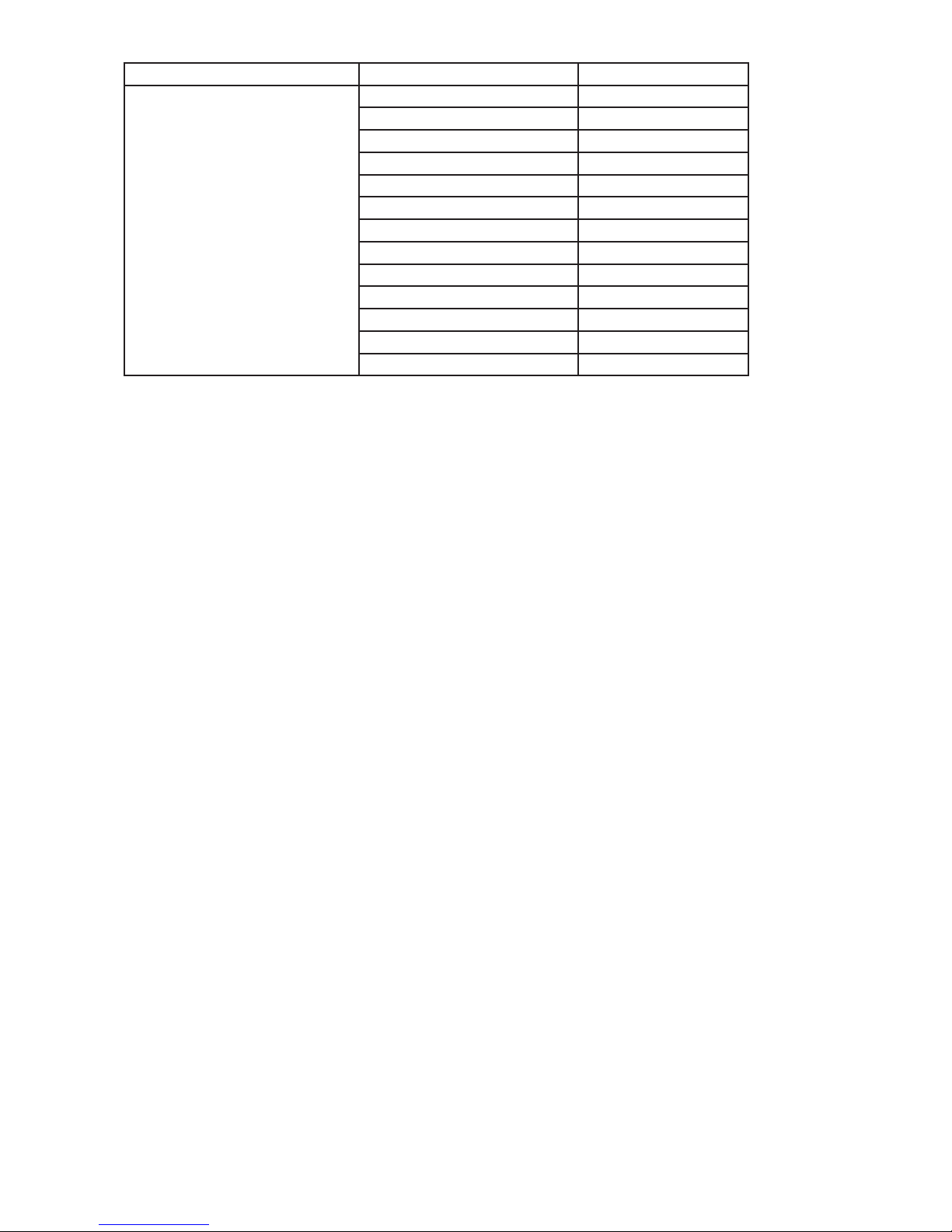
Fixture Eect Available DMX values
Robin MegaPointe
Color 0, 130-189
V Color 0-132
Efw. pos 0-127
Efw. rot 0-255
SGW 0, 4-87
RGW 0, 32-59
RGW r 0-255
Prism 1 0-27
Pris1 r 0-255
Prism 2 0-27
Pris2 r 0-255
Beam 0-19
Beam r 0-255
Page 35
35
6.2 Show Library
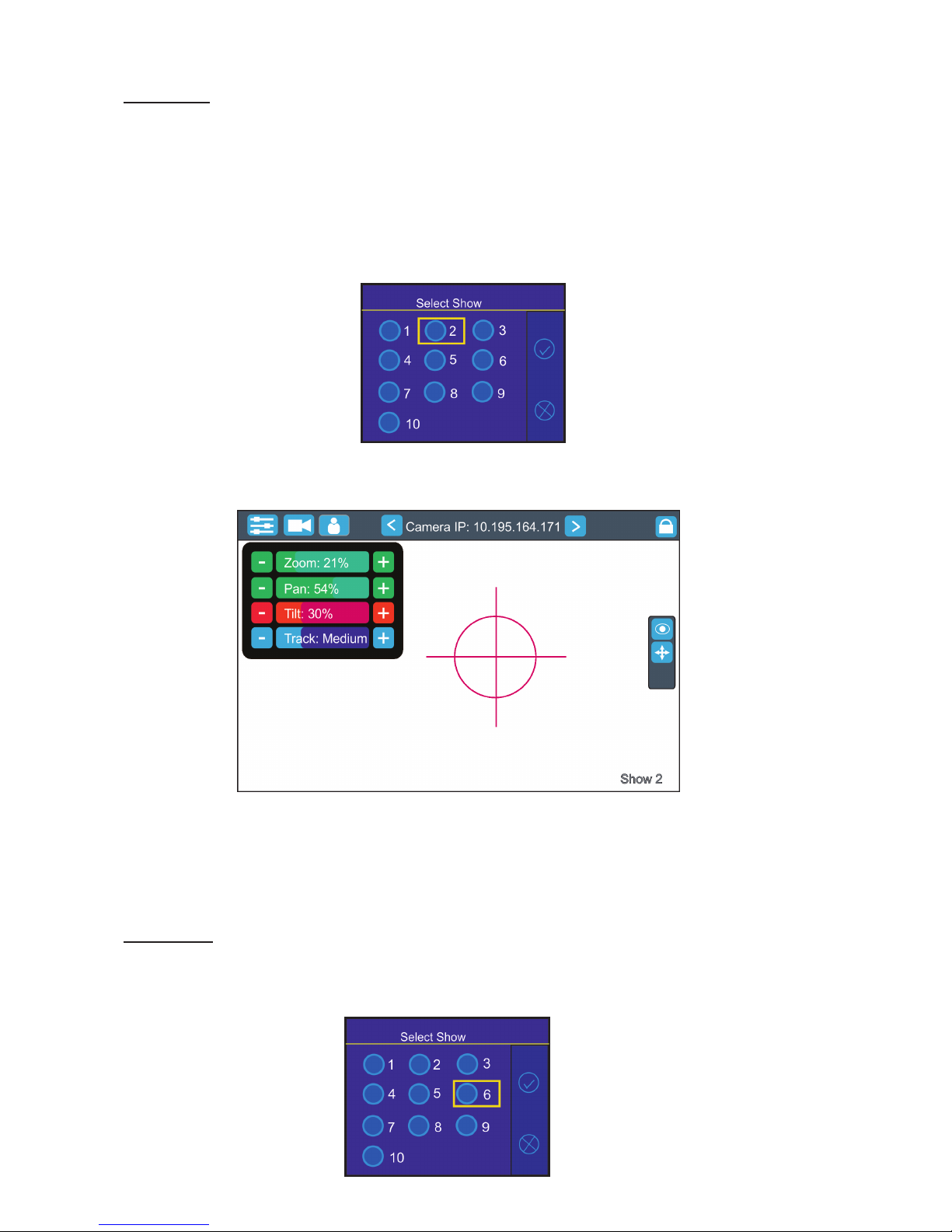
Select Show - the menu item oers 10 show libraries. In the show library is saved setting of the FollowSpot
Controller and the RoboSpot system e.g.:
Functions mapping
FollowSpot Controller presets
Position buttons
DMX addresses and modes of connected devices
RDM information about connected devices (only if the option "Manual" is selected in the menu "Discovery
Settings")
Items included in the show library can be saved on a USB ash drive.
Note: values in the menu Ethernet settings (menu Settings) are not saved to user setting.
Select desired show by touching its button and conrm it. the notice: "Switch To Show OK" will appear for a
moment on the screen.
Selected show is displayed in the bottom right corner of the screen.
Error and notice messages:
"Already In selected Show"-it means that you are trying to switch to active show .
"Switch To Show Error" -it means that some problem in desired show le occured.
All changes in setting of the RoboSpot made by the user are immediately saved into
the selected show library.
Export Show - the menu item allows you to save a show on a USB ash drive connected to the USB port of
the RoboSpot. Supported le systems of USB ash drive are: FAT16, FAT32, EXT2, EXT3, EXT4.
To export show.
1. Connect a USB ash drive to RoboSpot and select desired show (e.g. show 6) and conrm it.
Page 36
36
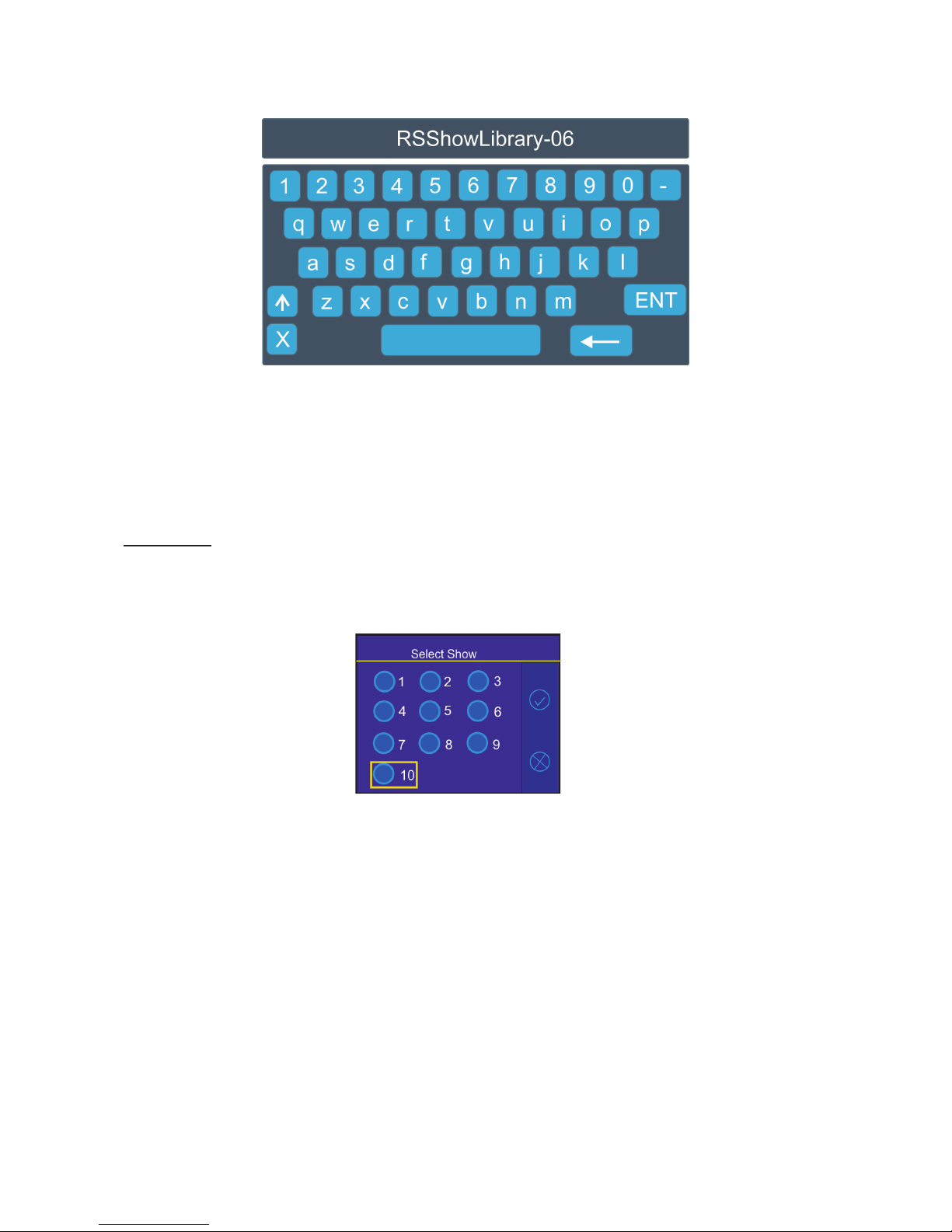
2. The virtual keyboard will appear on the screen with a default name of the show le. You can edit the name
of the show and conrm it by the key ENT. The show le on the USB ash drive will have extension rsL (e.g.
RSShowLibrary-06.rsL.
If the import is successful, the notice: "Export Show OK" will appear.
Error and notice messages:
"Export Show Error ID:" -it means that the show library export failed. If ID=-1, it means that show le
cannot be saved on the USB ash drive(e.g. the USB ash drive is set read-only)
"USB ash drive is not present "-it means that the USB ash drive is not connected to the USB port of
the RoboSpot.
Import Show - the menu item allows you to load a show le saved on a USB ash drive connected to the USB
port of the RoboSpot.
To load the library le.
1. Select a show (e.g. Show 10) to which you want to load a show le from the USB ash drive and conrm it.
2. The list of available show les on the USB ash drive will appear on the screen e.g.:
RSShowLibrary-01.rsL
RSShowLibrary-02.rsL
:
:
RSShowLibrary-10.rsL.
3 Select desired show le (e.g. RSShowLibrary-10.rsL) and touch the button "Load" to import selected show
le to the RoboSpot. If the import is successful, the notice: "Import Show OK" will appear.
Error and notice messages:
"No show les on USB ash drive" - it means that no show le was found on the USB ash drive.
" Import Show Error! " it means that some problem has occured during writing of show le to the internal memory
drive of the RoboSpot
"USB ash drive is not present " - it means that the USB ash drive is not connected to the USB port
of the RoboSpot.
" Err: Cannot nd show le " - it means that the show le cannot be loaded from the USB ash drive.
" Err: Wrong version of show le" - It means that the show le has a wrong format.
Note. You can load to selected show any show le, for example, to the show 10 you can load the le RSS-
howLibrary-02.rsL etc.
Page 37

37
6.3 All Lamps On/O
The menu item allows you to switch on/o lamp in the Robin BMFL FollowSpot and xtures connected to this
Robin BMFL FollowSpot.
6.4 Devices Settings
By entering the menu list of available devices will be displayed, e.g.
BMFL Follow Spot: 033 (Robin BMFL Follow Spot)
RoboCamera: 001 (RoboSpot MotionCamera)
Touch desired device and the following menu items will appear.
Set Device Label - the menu item allows you to rename actual device. Touch the item
until the keyboard will apear on the touch screen. Use the key <-- to delete original
name of the device and type a new name. Conrm it by means of the key ENT.
Pan Oset - allows you to set a pan oset in the range of +/-100% .
Tilt Oset - allows you to set a tilt oset in the range of +/-100%.
Zoom Oset - allows you to set a zoom oset in the range of +/-100%.
Focus Oset - allows you to set a focus oset in the range of +/-100%.
Lamp On/O - allows you to switch on/o lamp of the device
Pan/Tilt reverse - allows you to reverse the pan/tilt movement of the device.
DMX Address - allows you to set DMX address of the device.
DMX Preset - allows you to select DMX mode of the device.
Device Default Settings - sets all items stated above (except DMX Address and DMX Preset)
to the default (factory) values.
Set To Def. In Preset - sets items of devices displayed in the menu "Devices Settings" to default values. This
function aects the active user preset only.
Set All To Defaults - sets items of devices displayed in the menu "Devices Settings" to default values. This
function aects all user presets.
6.5 RDM Discovery
The menu item serves for searching devices and should be used when you connect/disconnect some xture to
the RoboSpot. The behaviour of the function depends on setting the item "Discovery Settings" (menu Settings).
If the item "Discovery Settings" is set to Auto, no message appears after nishing this procedure.
If the item "Discovery Settings" is set to Manual, the following message will appear:
Do You Want To Save
Discovery Cong
To RoboSpot Base
If you conrm it, list of discovered xtures will be saved and at every switching the RoboSpot on, xtures from
the list will be loaded to the RoboSpot without discovery procedure running at the RoboSpot starting-up.
Note. If the item "Discovery Settings" is set to Auto and no device is connected to the RoboSpot, the graphic
touch screen of the Follow Spot Controller displays message "Waiting for devices". To terminate the message
and enter the menu, touch this graphic touch screen for 6 seconds until you get into menu screen.
6.6 Product IDs
Select this menu item to read an RDM UID, MAC Address and RDM Label.
6.7 Software Version
Select this item to read the software version of the xture modules:
Display System - a display processor
Module C - a control panel processor
Module RPI - a control computer in the xture base
Page 38

38
6.8 Settings
The menu allows you to set the behaviour of the RoboSpot according to your needs.
System Test - the menu allows you to test jog-wheels, faders and pan/tilt movement of the RoboSpot.
Ethernet Settings - the menu allows you to set the RoboSpot for the Ethernet operation
Ethernet Mode
Artnet - Fixture
receives Artnet protocol
gMAI
- Fixture
receives MANet I protocol
gMA2
- Fixture
receives MANet 2 protocol
sACN
- Fixture
receives sACN protocol
IP Address/Net Mask - select this menu to set IP address. IP address is the Internet protocol
address.The IP uniquely identies any node (xture) on a network.
There cannot be 2 xtures with the same IP address on the network!
Default IP Address -Preset IP address, you can set up only rst byte of IP address
(2 or 10) e.g. 002.019.052.086.
Custom IP Address - The option enables to set up all bytes of IP address.
Net Mask - The option enables to set up all bytes of Net Mask.
ArtNet Universe - use
this item to set a Universe (0-255). The Universe is a single DMX
512 frame
of 512 channels.
MANet Settings - use this menu to set parameters for MANet operation.
MANet Universe I/II - The value of this item can be set in range 1-256.
MANet Session ID - The value of this item can be set in range 1-32.
sACN Settings - use this menu to set parameters for sACN operation.
sACN Universe - The value of this item can be set in range 1-32000.
sACN Priority - The value of this item can be set in range 0-255.
Discovery Settings - the menu item allows you to set a behaviour of the RoboSpot during RDM discovery
process (menu item RDM Discovery) and after switching the RoboSpot on.
Auto - the RoboSpot searches connected devices after each switching it on and does not save
the list of discovered devices. Also If the option RDM Discovery is run, the list of discovered devices
is not saved.
Manual - the RoboSpot searches connected devices and save the list of discovered devices.
When the RoboSpot is switched on, the saved list of discovered devices will be load to the RoboSpot
and (even in case that xtures are not be connected to RoboSpot) the RoboSpot will not run
the discovery procedure.
Controls invert - the menu item allows you to invert pan/tilt and faders of the RoboSpot.
Default settings of faders: fader down-minimum (0 DMX), fader up-maximum (255 DMX).
Faders Switch - swaps functions of faders.
Camera Rotation - the function rotates a camera picture on the monitor 180 degrees from the current orientation.
Camera Zoom invert - the function inverts a camera zoom.
Password Settings - the menu item allows you to change the password or switch it o at a current user preset.
The password applies to the FollowSpot Controller as well as the RoboSpot screen and also to all user presets.
You cannot have a dierent password for each user preset.
Change password - use this option to change password. Default (factory) password is 5242.
Protect with Password - If this function is on, the password is required at entry the menu at the current
user preset.
Note: both menu items stated above require inserting of password to enter them even the password is
set o ! You have to remember the last set password!
Page 39

39
Recalibrate Touchscreen - the item starts calibration of the touchscreen. Follow instructions on
the screen.
Default Settings - The menu item allows you to set the items stated above (except Ethernet Settings) to default
values.
Note: the password will not be set to a default password (set password will remain without change) but the
option Protect with Password will be set to On.
7. Software update
RoboSpot software update is done via a network connection between a computer running a ROBE RDM Up-
loader software through the CAMERA input (RJ45) of the RoboSpot base station. It is important to note, that
computer IPv4 address has to be set to 10.x.x.x network (for example 10.0.1.10) with netmask 255.0.0.0 .
During the update, the FollowSpot Controller has to be attached to the RoboSpot.
Do note, that to enable all new features, you must update the RoboSpot base station and also all BMFL xtures
controlled by the RoboSpot system.
To update software in the Robospot.
1. Connect a computer running ROBE RDM Uploader to the internet and update software libraries (Libraries
→ Update)
2. Connect the computer and the RoboSpot base station via Ethernet cable. Use Camera input RJ45 socket
on the RoboSpot base station for this connection.
3. Set computer to address 10.x.x.x/255.0.0.0 (do note the 10.x.x.x). Do not change any IP settings on the
RoboSpot.
4. Use the ROBE Uploader → Devices → Discovery and Devices → Update. This will update RoboSpot together
with the attached FollowSpot Controller panel. The message "Flashing Mode. Please do not touch any buttons!"
will appear on the RoboSpot screen during updating process.
5. Do a calibration of the Robospot handles as described in the article 5.5 RoboSpot handles calibration.
Page 40
40
8. Error and information messages
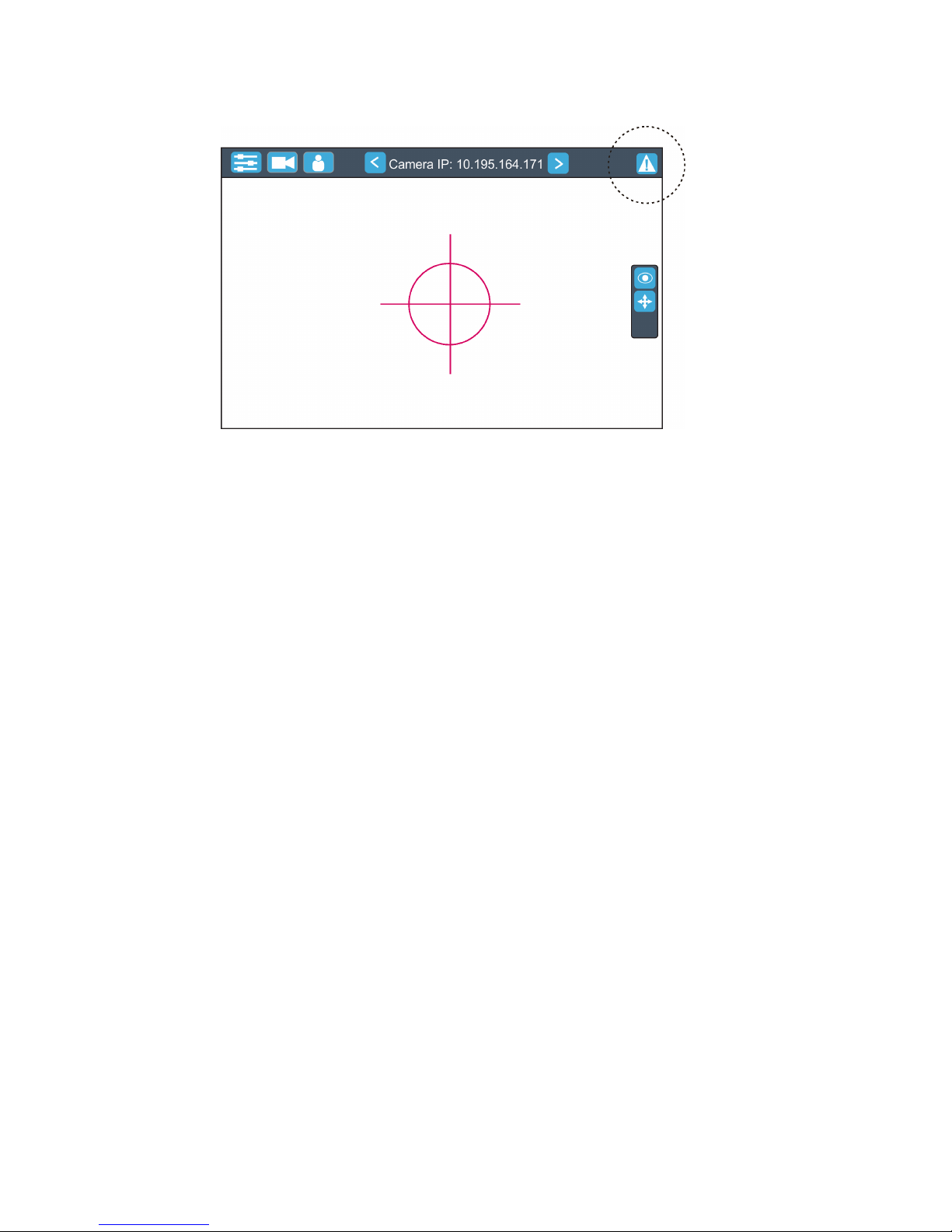
Error message message is signalled by the warning icon in the right top corner of the RoboSpot screen:
Touch the warning icon to display a message. Touch the screen to hide the message.
List of error and information messages:
Display Communication Error
This message informs you that the FollowSpot Controller is not installed in the FollowSpot Controller base or
the connection between the FollowSpot Controller and a computer in the RoboSpot base is faulty.
Page 41
41
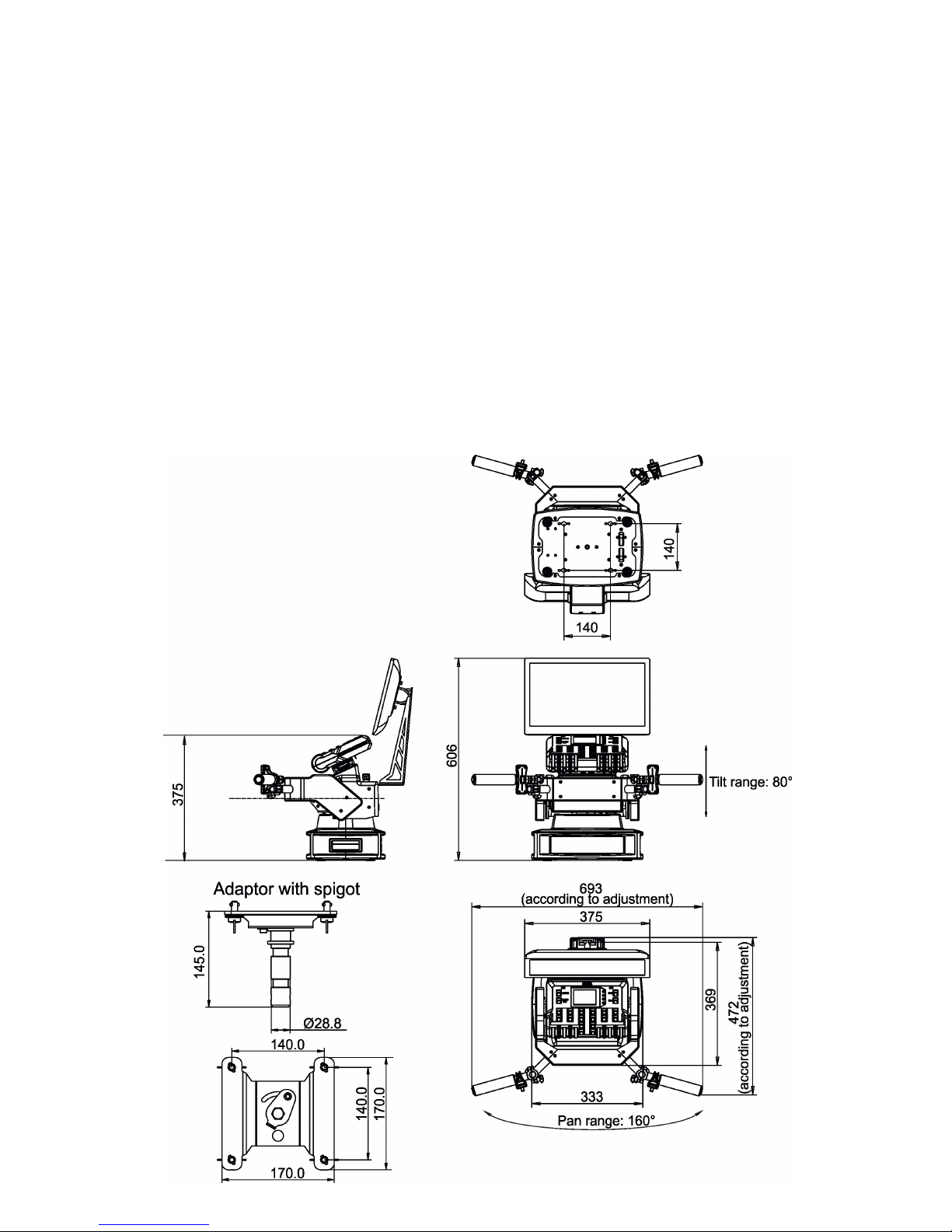
9. Technical specications
Supported xtures: Robin BMFL FollowSpot/Spot/Blade/WashBeam, Robin Pointe,
MegaPointe, DL4S, DL7S
Input voltage: 100-240V AC
Power consumption: 15W (power factor=0.43, I=0.12A at 230V)
Fuse: T 2 A
LCD Monitor: ASUS VT168 H (panel size:15.6" , max. resolution:1366 x 768)
Setting & Control: graphic touch screen
Protocols: RDM, ArtNet, sACN,gMA I, gMA II
Control elements: 20 buttons, 4 jog-wheels and 2 faders
Connection: DMX In/Out: Locking 3-pin and 5-pin XLR
Ethernet: RJ 45
Camera: RJ 45
AC power: Neutrik PowerCon, A-type, NAC3MPA
Monitor: HDMI
USB lamp: 2x USB socket +5V/50mA
1 x USB
Pan rage: +/- 80°
Tilt range: +/- 40°
Fastening: via adaptor on tripod
Weights: 16.5 kg (RoboSpot), 1.9 kg (Monitor Shied + Note Holder), 1.7kg (Adaptor), 8.7 kg (Tripod)
Dimensions (mm)
Page 42
42
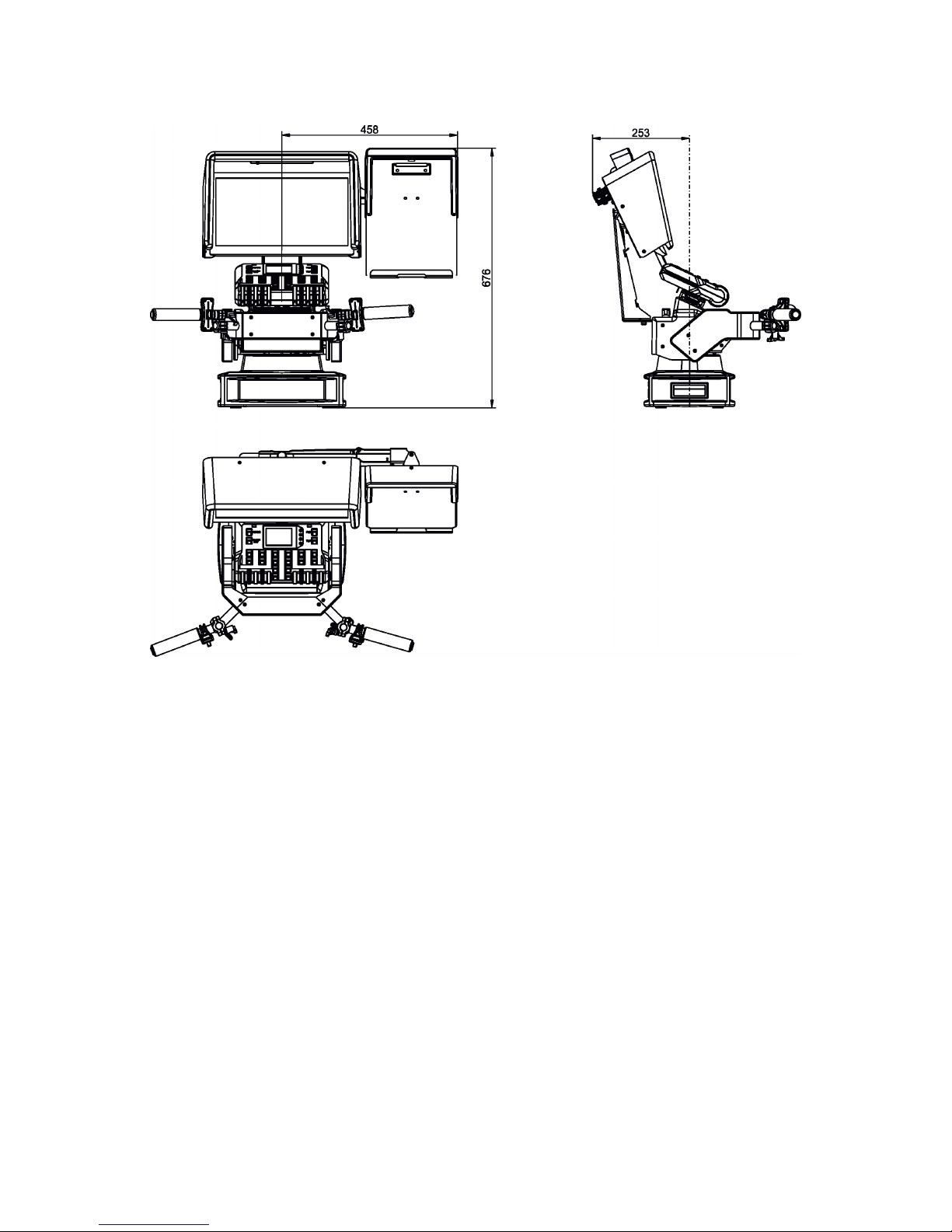
Dimensions with monitor shield and note holder (mm)
Included items
1 x RoboSpot
1 x Adaptor (including spigot) (P/N 9901504)
1 x Tripod for RoboSpot/FollowSpot/LightMaster (P/N 10980350)
1 x Power cable
1 x User manual
Optional accessory
Monitor Shield and Note Holder for RoboSpot BS (P/N 10980409)
Page 43
43
10. Maintenance and cleaning
DANGER !
Disconnect from the mains before starting any
maintenance work
A soft lint-free cloth moistened with cleaning uid is recommended, under no circumstances should solvents
be used! For cleaning of the LCD monitor use a uid intended for this purpose.
Never use solvents for cleaning the device
More complicated maintenance and service operations are only to be carried out by authorized distributors.
10.1 Replacing the fuse
Replace the fuse by a fuse of the same type and rating only.
Before replacing the fuse, unplug mains lead!
1) Remove the fuse holder on the rear panel of the base with a tting screwdriver from the housing (anti-clockwise).
2) Remove the old fuse from the fuse holder.
3) Install the new fuse in the fuse holder (only the same type and rating).
4) Replace the fuse holder in the housing and x it.
10.2 Disposing of the product
To preserve the environment please dispose or recycle this product at the end of its life according to the local
regulations and codes.
Specications are subject to change without notice.
Copyright © 2017-2018 Robe Lighting - All rights reserved
June 26, 2018
Made in CZECH REPUBLIC by ROBE LIGHTING s.r.o. Palackeho 416/20 CZ 75701 Valasske Mezirici
Page 44

44
 Loading...