

Page 1
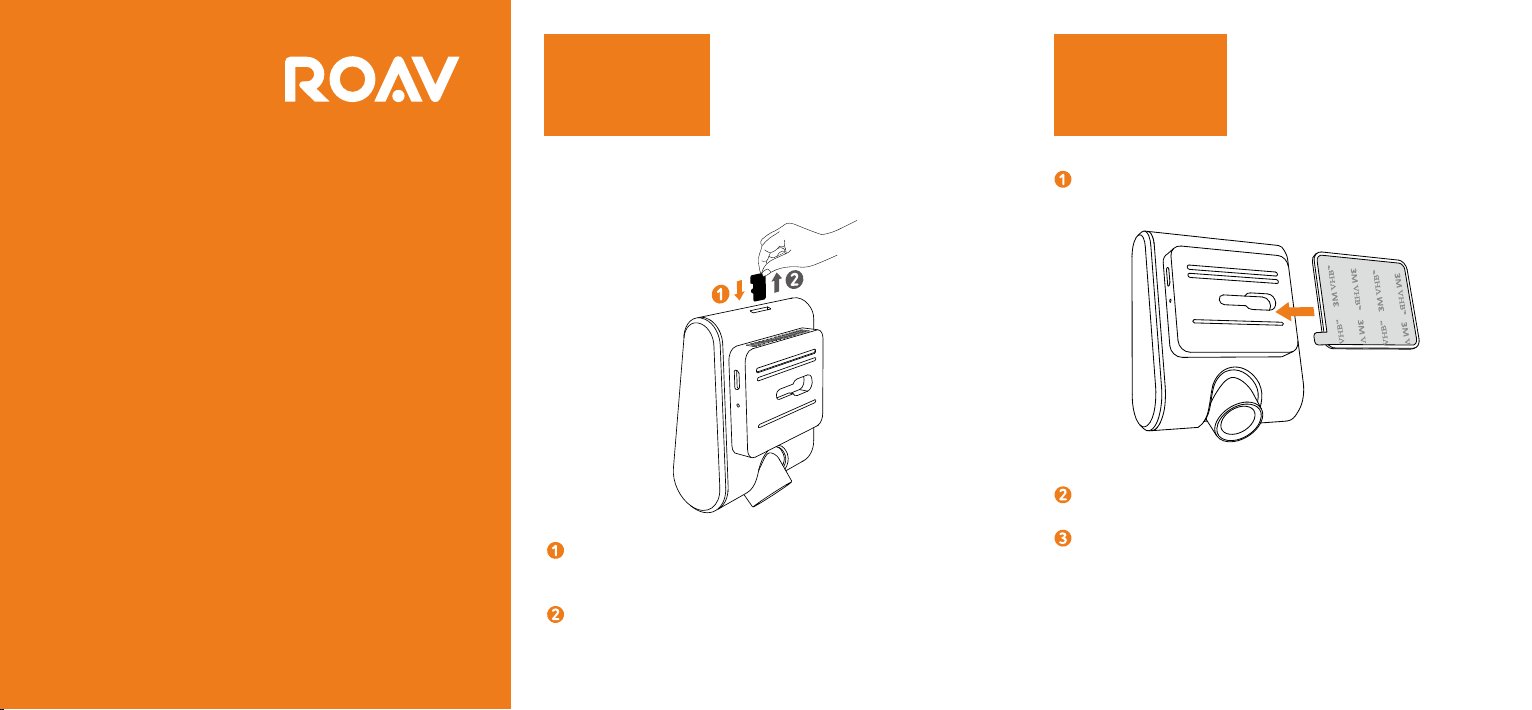
Inserting
Memory Card
Installing
Your DashCam
Quick Start Guide
DASHCAM C1
For reliable operation, use a Class 10 microSD / TF card with a
capacity of 8GB, 16GB or 32GB.
Insert a microSD / TF card with the gold contacts facing
the screen side of the DashCam. Push the card until it
clicks into place.
To remove the microSD / TF card, gently push its top edge
inward until it clicks, and then pull it out of the slot.
Attach the DashCam onto the mount.
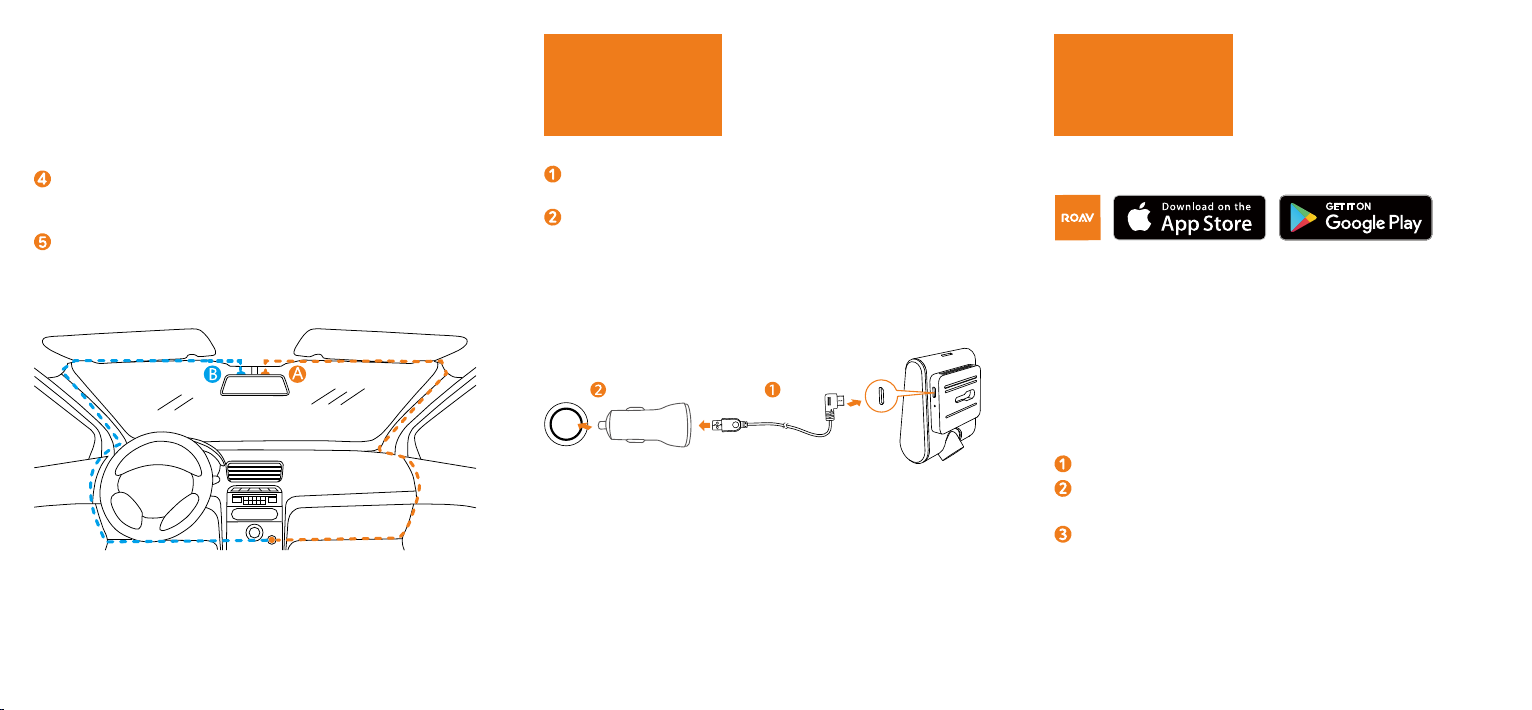
Select a location (A or B) on the windshield rear of the rear-
view mirror.
Remove 3M adhesive sticker and firmly ax the mount onto
the windshield.
1
2
Page 2
Connecting
to Power
Downloading
Roav App
Use the trim removal tool to press and hide the charging
cable into the seams and weatherstripping around the edge
of the dashboard.
Adjust the lens viewing angle to ensure that it is aligned
with the road ahead.
Connect the car charger and DashCam by using the
charging cable.
Plug the other end of the car charger to your vehicle’s
cigarette lighter socket.
Search “Roav” in App Store or Google Play to Download.
Apple and the Apple logo are trademarks of Apple Inc.
Google Play and the Google Play logo are trademarks of Google
Inc.
Connect DashCam with Smartphone
With successful connection with your smartphone via built-in
Wi-Fi, you can save and playback the driving recording videos
on your smartphone.
On your Smartphone: Select “Settings” > “Wi-Fi”.
Find “Roav DashCam C1” on the list and connect it, enter
password (initial password: goroavcam).
Follow the instructions on your smartphone to complete the
connection.
3 4 5
 Loading...