

Page 1
CONTENTS
1 . General
1.1 Parts supplied
1.2 Installation
2. Driving information screens
3. Camera warning
4. Congestion zone warning
5. Marking a new camera
5.1 Deleting a camera location
6. Settings
6.1 Adjusting the settings
6.2 General
6.3 Warning
7. Subscription
1. GENERAL
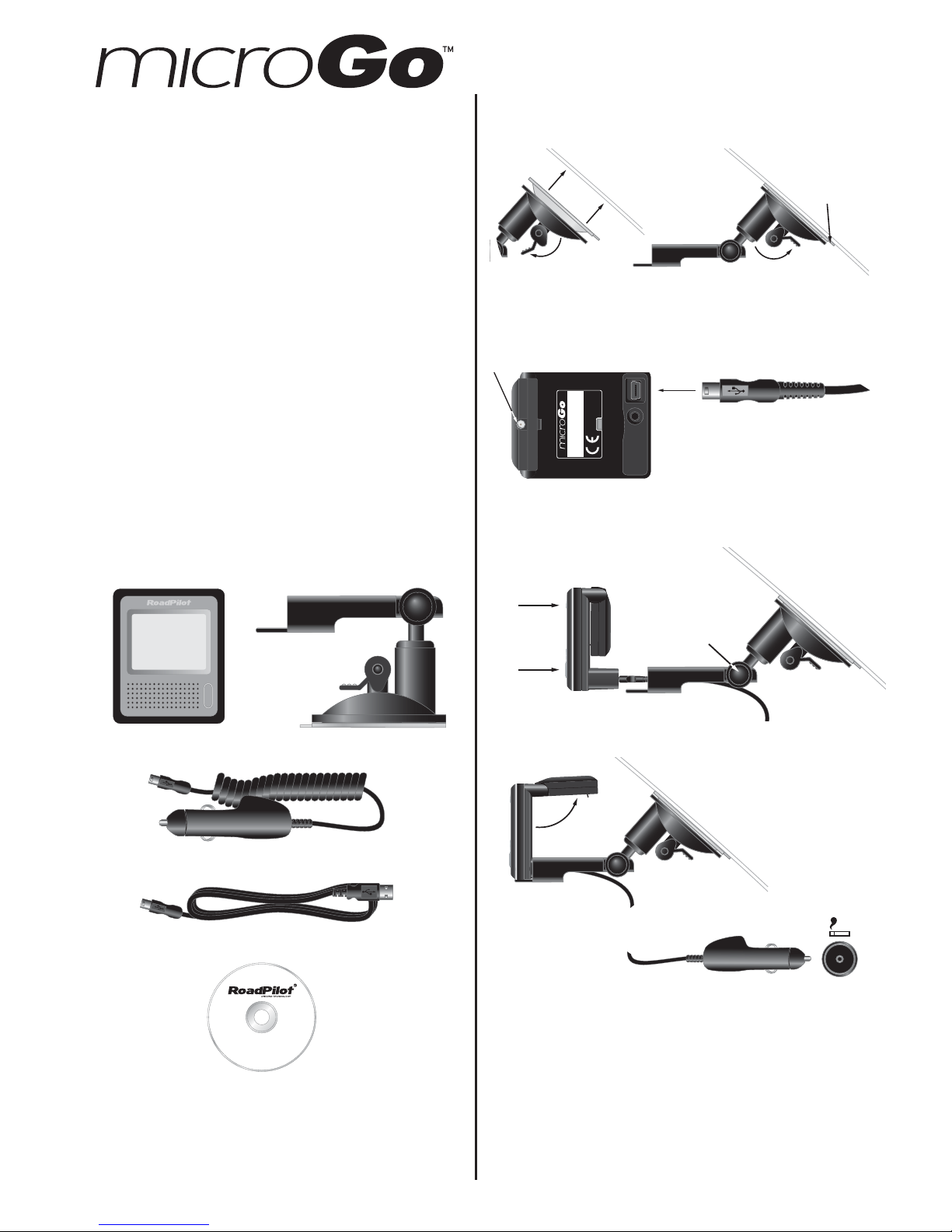
1.1 Parts supplied
1.2 Installation
1. Fix bracket to windscreen using suction cup -
USER GUIDE Issue 1.6
Lift clamp
Lock clamp
Power
Ext. antenna
(optional)
Slacken to adjust
bracket angle
Swivel antenna to get
best view of sky
12-24v DC
- 1 -
CD-Rom containing synchronisation software which
enables the camera database to be updated via the
internet (Windows 2000, XP or Windows Vista). The
CD will guide you through the installation process for
the RPSync software.
Suction
cup tab
To remove, lift the locking clamp and gently pull on
the tab on the suction cup.
2. Plug in power cable -
Note - the cables should be fed through the bracket
before connecting to the microGo.
3. Clip microGo to bracket
4. Plug cable into cigarette lighter
Note - the first time microGo is powered up it may
take a few minutes to obtain a GPS fix (cold start).
Note - you must load the CD-Rom and register in
order to perform downloads of new speed camera
locations etc.
Warning - cutting or modifying the cigarette lighter
plug/power cable or the use of non-genuine RoadPilot
cables will invalidate the warranty.
USB cable
Power cable
RoadPilot microGo Mounting bracket
Page 2
2. DRIVING INFORMATION SCREENS
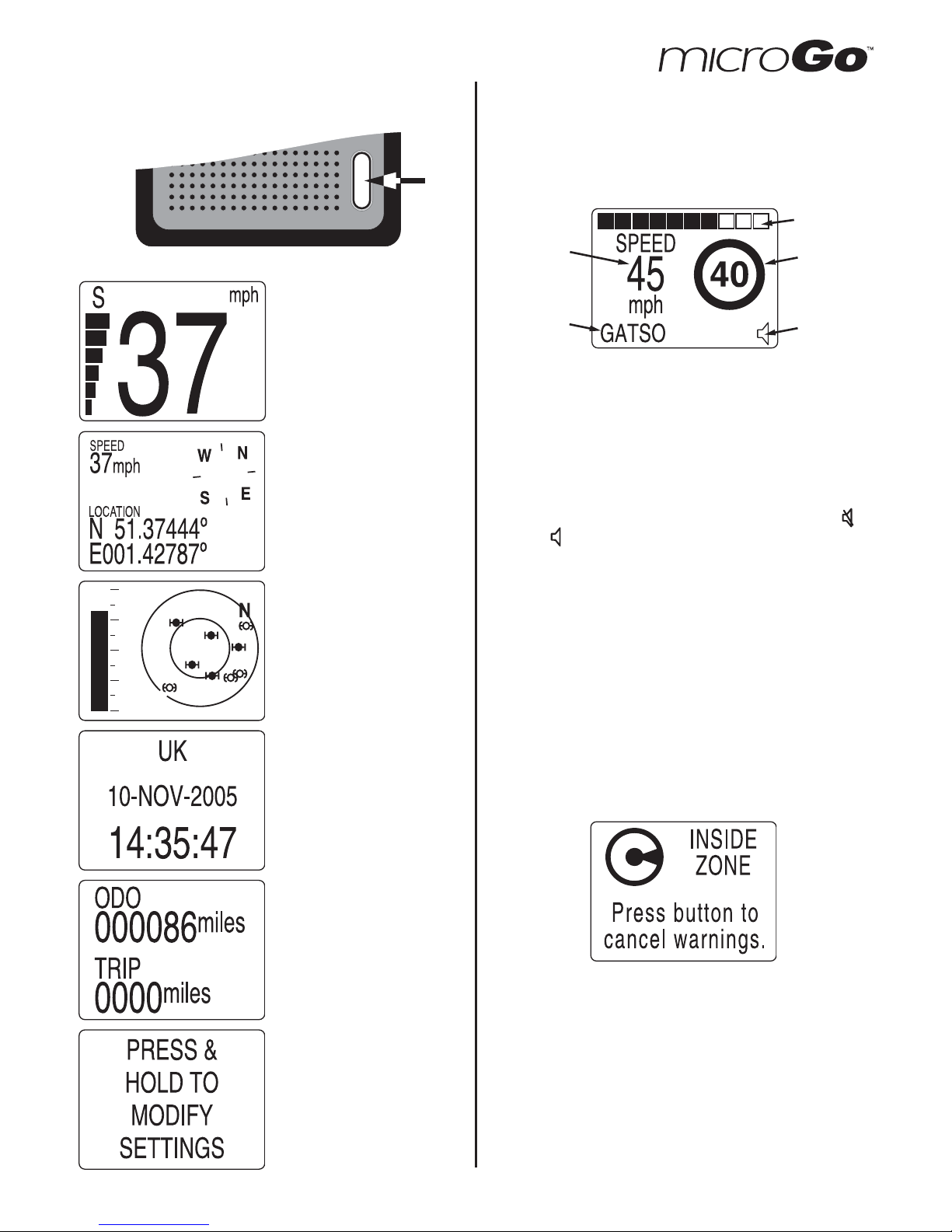
Press button to cycle through available screens -
Speed
Shows the vehicle’s
current speed, heading
and the GPS signal
strength as a bar graph.
Rescue Me
TM
This screen contains
useful information in the
event of a breakdown,
including position and
heading.
Signal Status
The strength of the GPS
signal being received and
the number of satellites
in view. Three or more
satellites are required for
microGo to operate.
Date & Time
The date and time shown
is derived from data
transmitted from the
satellites and is extremely
accurate.
Trip
Shows the total distance
travelled (non-resettable)
and a resettable trip
counter. To reset, press
and hold the button.
Settings
Please refer to section 6
for details on settings.
3. CAMERA WARNING
If the vehicle is approaching a speed camera and is
exceeding the speed limit, microGo will sound an
audible warning (chime and voice alert) and switch to
the camera warning screen -
Speed limit
Speaker on/
mute
Current
speed
Camera
type
Range to camera
• The bars at the top indicate the relative distance to
the camera.
• At 5/10 distance, if the speed limit is still being
exceeded, microGo will give another audible
warning and continue until the vehicle slows to the
legal speed or the camera has been passed.
• The display will flash the alarm colour while the
speed camera alarm is sounding.
• Press the button to toggle audible warnings off
and on .
• The conditions under which the camera alerts are
shown depend on the settings entered in the
Warnings section of the settings (section 6.3).
4. CONGESTION CHARGE WARNING
The London Congestion Charge Zone operates
between 7am and 6:30pm Monday-Friday.
Three warnings are given by microGo within the congestion charge zone hours of operation - when
approaching the charge zone, on the zone boundary
and within the zone -
- 2 -
Page 3
5. MARKING A NEW CAMERA
To keep the internal camera database up to date we
recommend you regularly update your microGo
through your PC. However, occasionally you may
pass a new or temporary camera location (e.g. in
roadworks) that is not yet marked by your microGo.
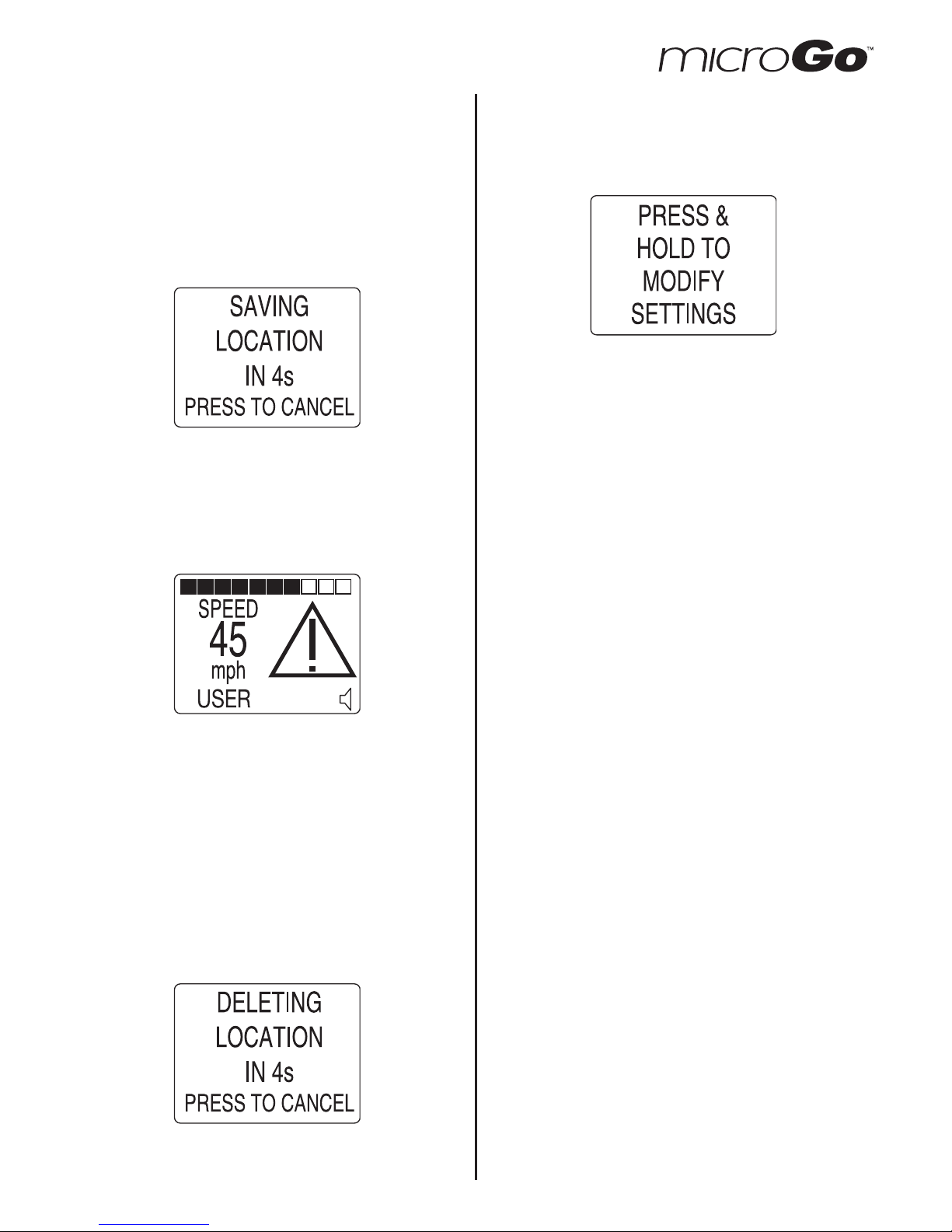
Press and hold the button as you pass the camera to
record its location -
To abort storing the location, press the button again
within the countdown period.
User recorded locations like this will trigger the camera alert screen as you pass the position, but as no
speed limit, direction or camera type information will
be stored, the display will show the following -
The location of the camera will be stored and
uploaded to our server the next time the microGo is
updated through your PC. We will add this location
to our database upon successful validation by our
database team. The recorded location will be deleted
from microGo's memory after the upload.
5.1 Deleting a camera location
If a speed camera is no longer at a location marked
by microGo or you have marked a new camera location and wish to delete it, simply press and hold the
button while the camera alert screen is shown as you
pass the location -
- 3 -
6. SETTINGS
To access Setup, press the button to cycle through
the driving information screens until the settings
screen is shown -
To abort deleting the location, press the button again
within the countdown period.
Press and hold the button to access settings.
The options are divided into four main sections -
General - common settings such as audio volume,
backlight colour, country of use, language etc.
Warning - options that adjust the conditions under
which the camera warnings are triggered.
Information - useful information such as the unit’s
serial number and the date the unit was last updated.
Press the button to scroll down the options until the
required section is highlighted. Press and hold the
button to select.
To exit settings and return to normal operation,
select EXIT and press and hold the button.
6.1 Adjusting the settings
All the settings are adjusted in the same way -
To adjust the selected setting - press and hold the
button. The setting level will increase until it reaches
the maximum level, then it will cycle back round to
the minimum level. This will continue as long as the
button is held down.
If the setting has an on/off state then holding the
button will toggle between the two states.
Release the button when the required setting is
shown.
To accept the current setting level and move on to
the next option - press the button.
Summary - Press = select
Press & hold = adjust
Note - while in settings mode, the unit will auto exit
back to normal operation after 10 seconds of inactivity.
Note - for safety reasons, the settings cannot be
changed while the vehicle is in motion.
Page 4
- 4 -
6.2 General
The following is a summary of what each of the
settings does.
Volume (Default = 80%)
Set the volume of the audible alarms (Off - 100%).
Backlight Colour
Set the colour of the backlight by adjusting the RGB
(Red/Green/Blue) levels individually (64 colours).
Alarm Backlight Colour
Set the colour the backlight flashes when the alarm
is sounding by adjusting the RGB (Red/Green/Blue)
levels individually (64 colours).
Backlight on at night only (Default = OFF)
Specify whether the backlight is on permanently or
only at night (Off/On).
Contrast (Default = 50%)
Adjust the contrast of the display (0 - 100%).
Units (Default = IMPERIAL)
Display speed and distance in mph and yards or
km/h and metres (Imperial/Metric).
Country (Default = UK)
Select country of use, which will automatically select
the correct time.
Language (Default = ENGLISH)
Select operation language (currently English, French,
Dutch, Norwegian).
Mode (Default = NORMAL)
This is used to select shop demonstration mode.
Exit settings?
Press and hold to exit to main settings menu
6.3 Warning
Over speed warning (Default = OFF)
This lets you set a personal speed limit that will
sound an alarm when it is exceeded (Off - 90mph).
Range (Default = 1 mile)
The distance from the camera that the alarm sounds
(0.2 - 2 miles).
Heading sensitive (Default = ON)
Ignore cameras that are covering the opposite carriageway (Off/On).
Auto Range (Default = ON)
Adjust the range to suit the speed of the vehicle
(Off/On).
Speed sensitive (Default = ON)
Only sound an alarm if the vehicle is exceeding the
speed limit (Off/On).
Early Warning (Default = ON)
Sound the camera alarm as soon as the camera
comes into range (Off/On).
Early warning speed sensitive (Default = OFF)
Only sound the early warning alarm if the vehicle is
exceeding that speed limit (Off/On).
Exit settings?
Press and hold to exit to main settings menu
7. SUBSCRIPTION
After you buy your microGo, database updates are
free for the first six months. Subsequently the
updates are charged on an annual subscription basis
- £48.00 for 12 months or £96.00 for 3 years.
NNoottee
- If you do not keep your microGo updated it
will eventually stop working.
IMPORTANT NOTE - RoadPilot does not condone
speeding. Anyone who commits a road traffic
offence while using a RoadPilot product is deemed to
have broken the law and will have no recourse, legal
or otherwise against RoadPilot Ltd, its agents or representatives.
RRooaaddPPiilloott LLiimmiitteedd
43 Riverside 2, Sir Thomas Longley Road
Rochester, Kent ME2 4DP, United Kingdom
Tel +44 (0) 844 4487777
Fax +44 (0) 844 4487778
[email protected]
roadpilot.com
 Loading...