

Page 1

RIVA CONCERT SETUP
INSTRUCTIONS
Page 2

CONTENTS
•
•
•
•
•
•
What You Need to Get Started
Register RIVA Concert
LED Light Color Key
Button Controls
Setup Via RIVA Voice App
Setup Via AirPlay
Page 3

WHAT YOU NEED
•
RIVA Concert Speaker!
•
Power Cord !
•
Smartphone or Tablet
•
Turn ON/Enable Bluetooth & Location Services!
•
RIVA Voice App & Alexa App !
On Your Smartphone or Tablet!
•
Wi-Fi Network and Password!
•
Amazon Account Username and Password
REGISTER RIVA CONCERT to receive your three (3) year warranty.
Page 4

REGISTER RIVA CONCERT
Register your RIVA Concert to receive all of the
benefits of RIVA Nation and more, including:
•
Three (3) year product warranty (normally 2 yr)!
•
Special RIVA Nation VIP Offers & Promotions !
•
RIVA Concert News: New Features, Firmware
Updates & More
•
Early Access To New RIVA Product Releases!
•
And More…
REGISTER RIVA CONCERT to receive your three (3) year warranty.
Page 5
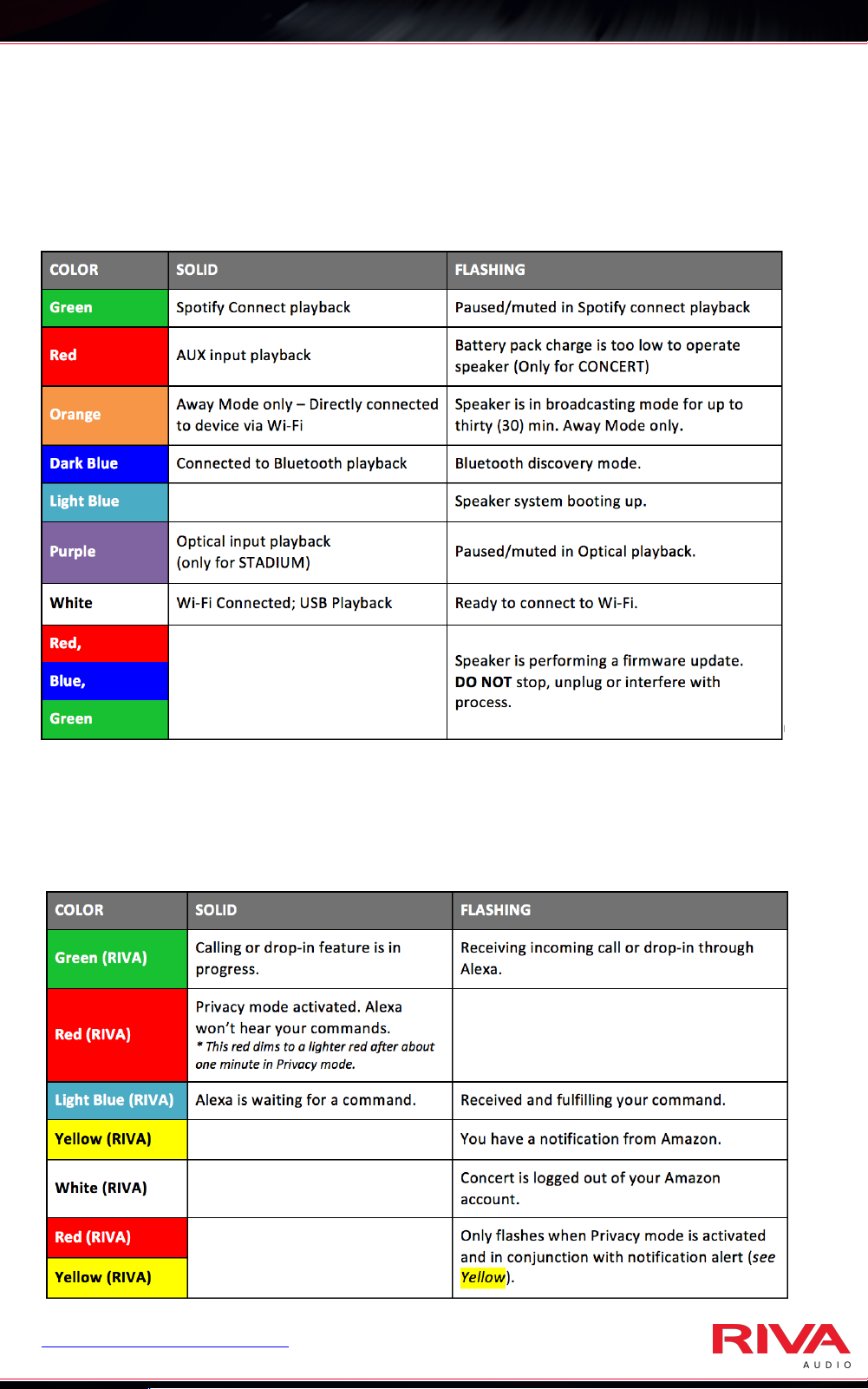
LED LIGHT COLOR KEY
What do the colors on top of my speaker mean?
What do the RIVA logo colors on the front of my
speaker mean?
REGISTER RIVA CONCERT to receive your three (3) year warranty.
Page 6
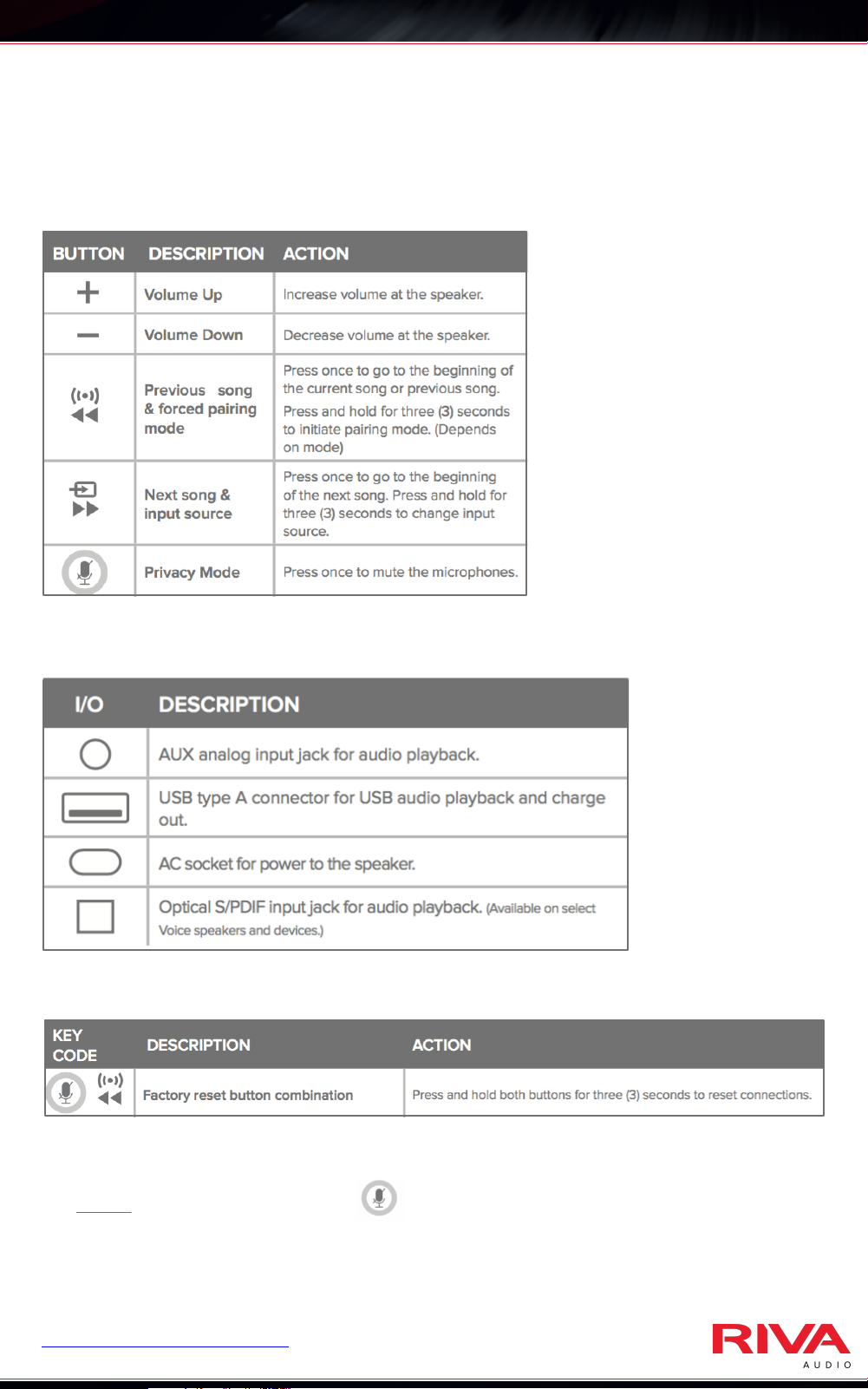
BUTTON CONTROLS
I/O Connections
Shortcuts
Speaker Buttons
Power Off/On
•
OFF: Press and hold the button on top of Concert for 15 sec. !
This will remove it from the Wi-Fi network.
ON: Press any button on top of Concert to turn back on.!
•
Concert should automatically reconnect to your Wi-Fi network.
REGISTER RIVA CONCERT to receive your three (3) year warranty.
Page 7

SETUP VIA !
RIVA VOICE APP
Page 8

SETUP - RIVA VOICE APP
1.
On the back of the Concert speaker, make sure
the switch is on the home side.!
2.
Power on your Concert speaker by plugging it
into the wall.!
3.
Wait for the pulsing light BLUE LED light to turn
to a pulsing WHITE light. !
4.
Your Concert speaker is now ready to be
connected to a Wi-Fi network.
•
Make sure your Bluetooth is ON or enabled.
•
Make sure location services are ON or enabled.!
5.
Open the RIVA Voice app.
REGISTER RIVA CONCERT to receive your three (3) year warranty.
Page 9
SETUP - RIVA VOICE APP
6.
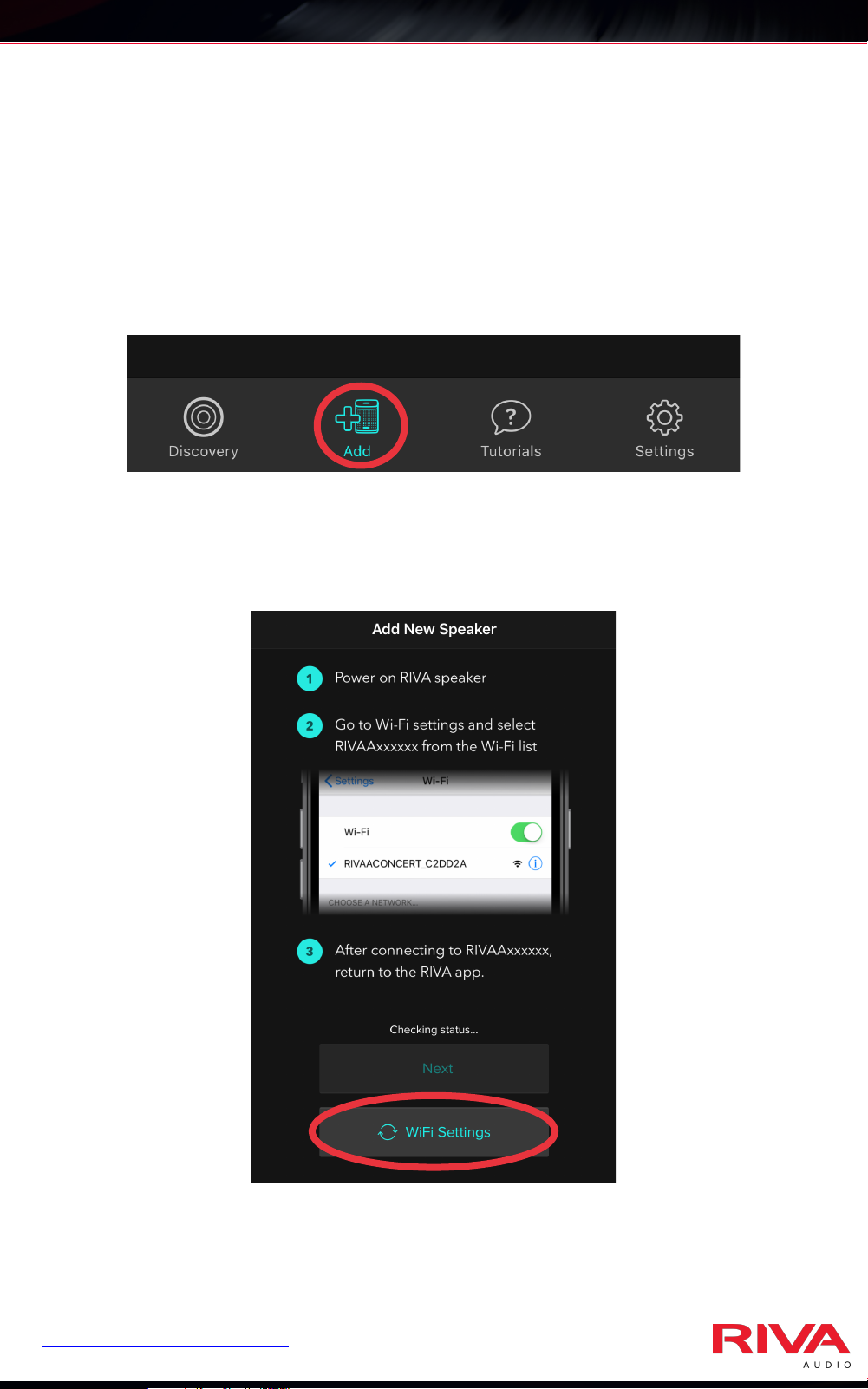
Tap on “Add” on the bottom menu and follow
the “Add New Speaker” Instructions. !
!
!
!
!
!
!
Tap the Wi-Fi Settings button on the screen.!
!
!
!
!
!
!
!
!
!
!
!
REGISTER RIVA CONCERT to receive your three (3) year warranty.
Page 10
SETUP - RIVA VOICE APP
7.
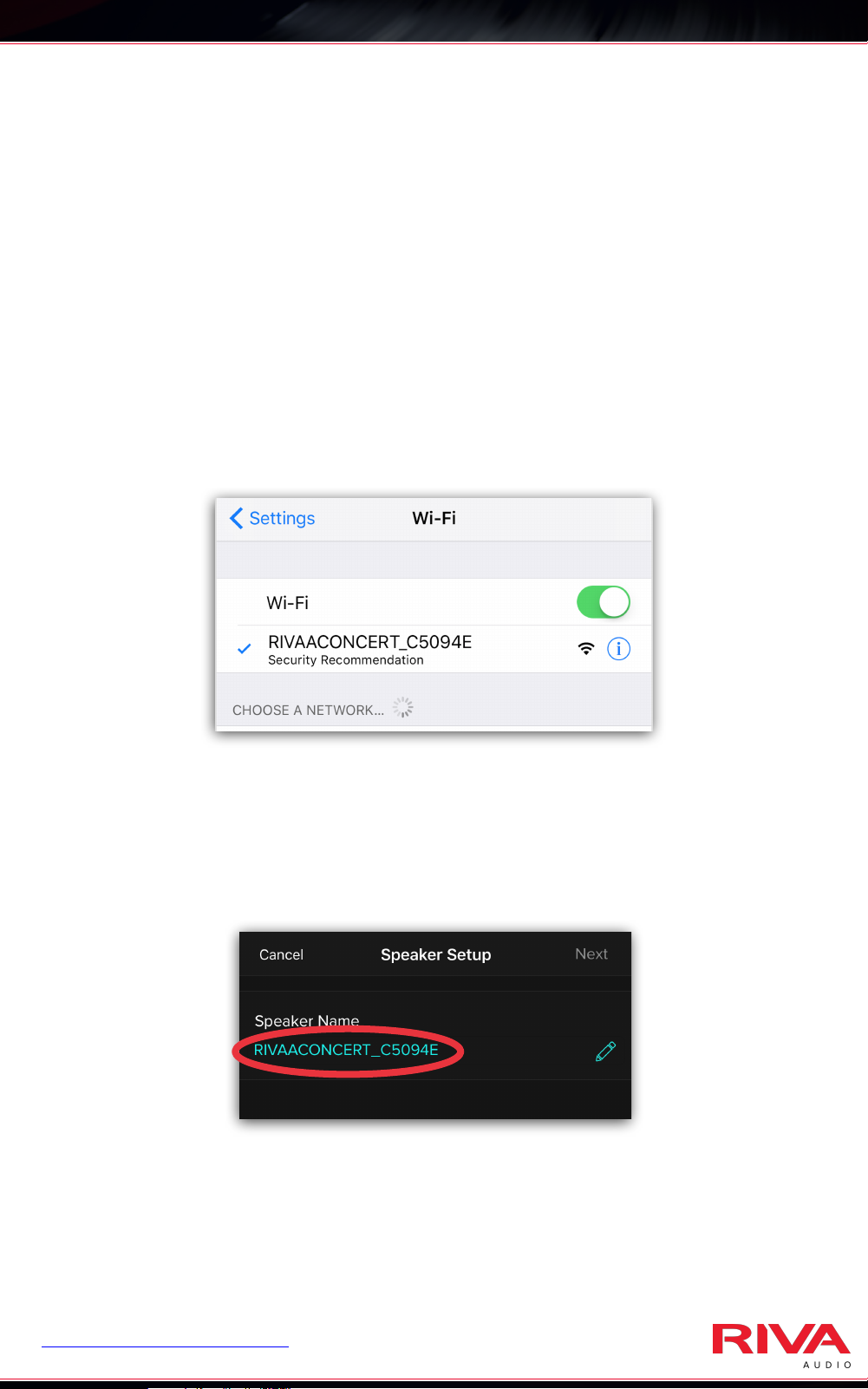
Go to your device’s Wi-Fi settings. Select the
RIVA Concert to connect to in your phone or
tablet’s Wi-Fi settings. It is normal for the
following to appear:!
!
•
On Apple devices: “Security Recommendation”
!
•
On Android devices: “Internet Not Available”!
!
!
!
!
!
!
!
8.
Reopen the RIVA Voice app. You should see a
page where you can customize the speaker
name. Tap on speaker name to change it.!
!
!
!
!
!
!
If you are not taken automatically to the next
page, tap on the “Next” button.
REGISTER RIVA CONCERT to receive your three (3) year warranty.
Page 11
SETUP - RIVA VOICE APP
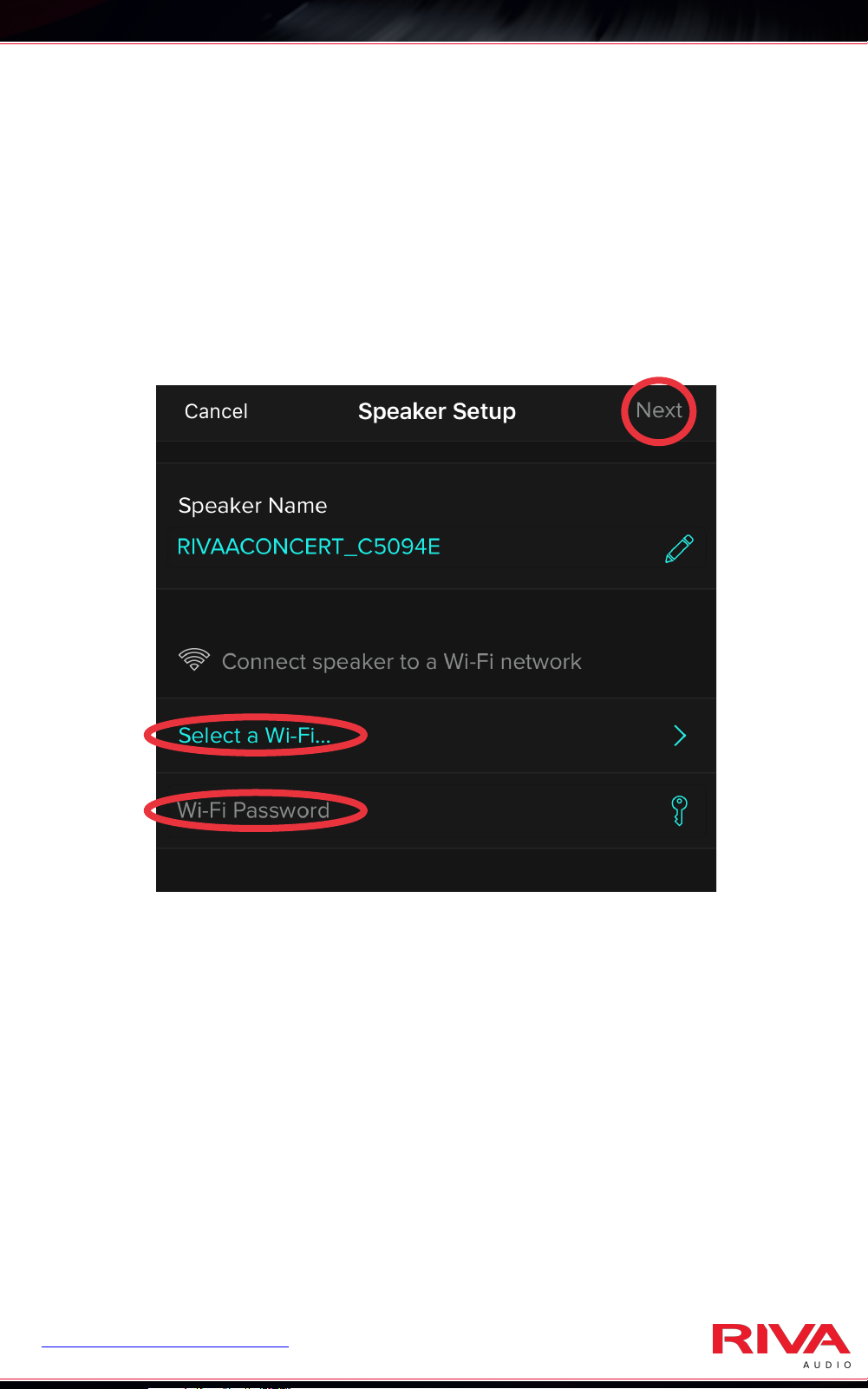
9.
Make sure your preferred Wi-Fi network appears
on the screen and tap on the password field to
enter the password.!
!
!
!
!
!
!
!
!
!
!
!
!
!
!
!
Tap on “Next” in the upper right corner.
REGISTER RIVA CONCERT to receive your three (3) year warranty.
Page 12
SETUP - RIVA VOICE APP
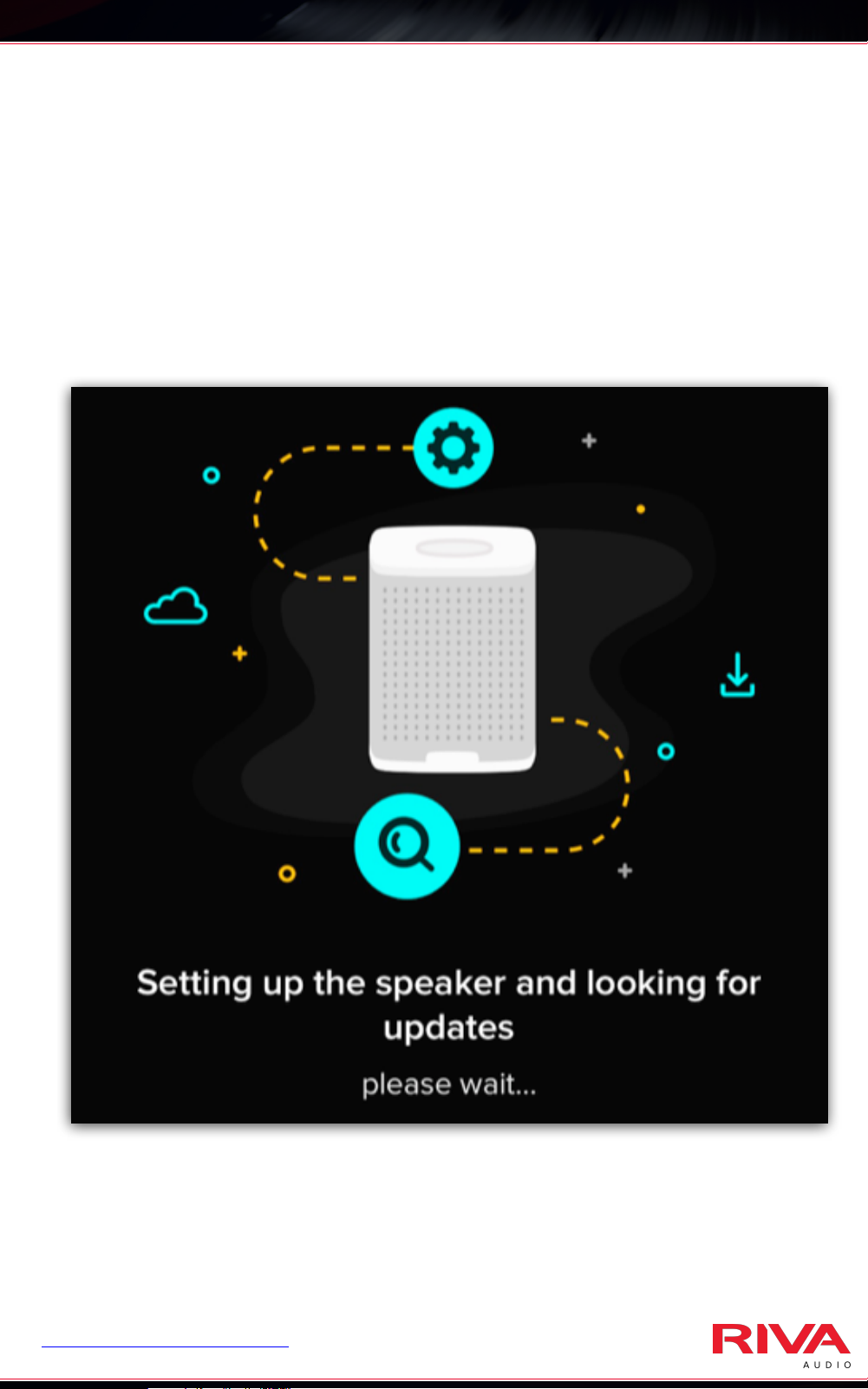
10.
The RIVA Voice app will start setting up your
speaker. Once added to your network, it will
look for available firmware updates. !
REGISTER RIVA CONCERT to receive your three (3) year warranty.
Page 13
SETUP - RIVA VOICE APP
11.
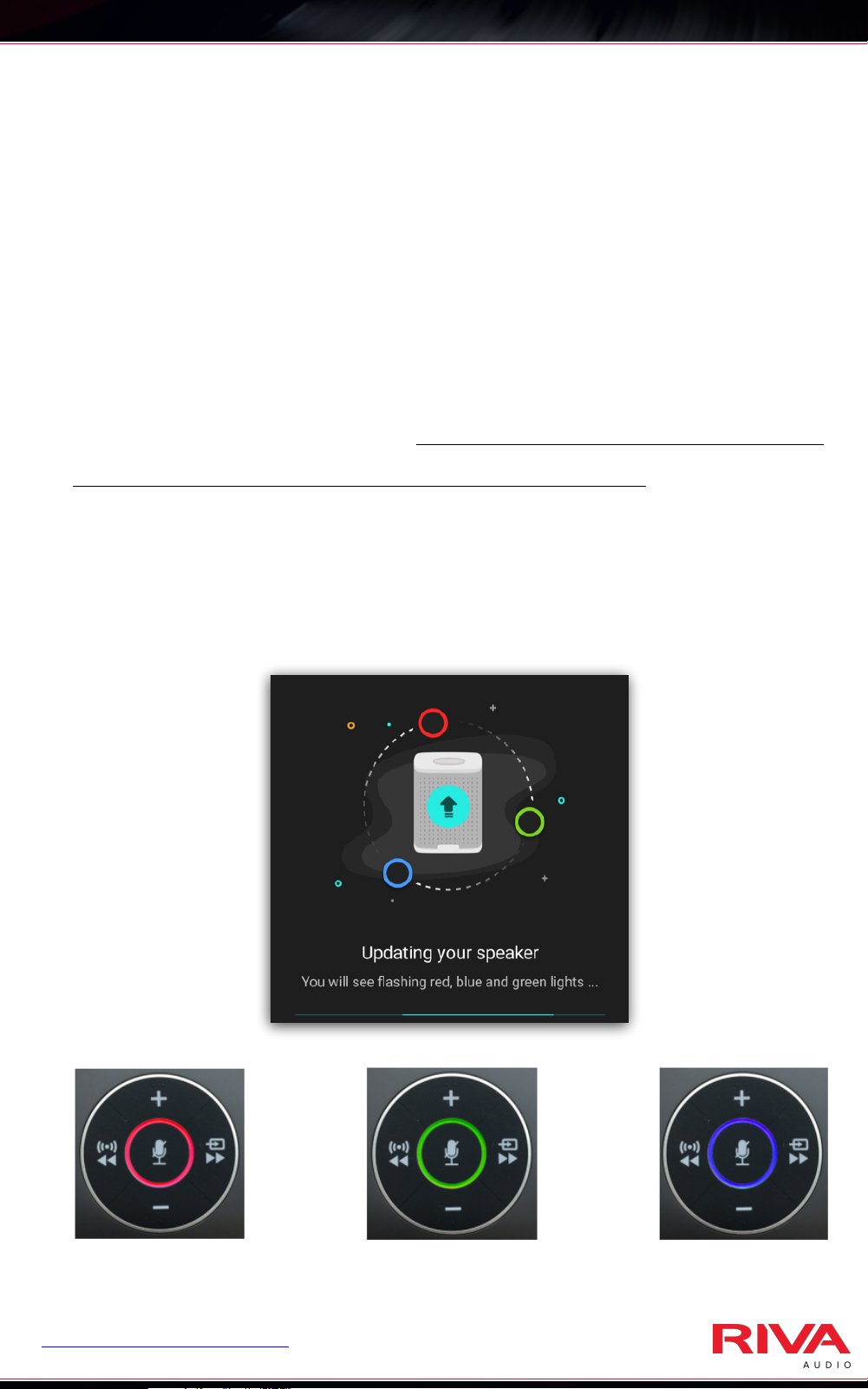
If the RIVA Voice app finds new firmware, it will
automatically update itself. !
!
The RIVA Voice app will show an updating
screen and the top ring will flash RED, GREEN,
BLUE as it updates. DO NOT INTERRUPT OR
UNPLUG Concert during this process. !
!
Concert will automatically reboot (pulsing light
BLUE ring) and reconnect itself to your wi-fi
network (steady WHITE ring) afterwards.
REGISTER RIVA CONCERT to receive your three (3) year warranty.
Page 14
SETUP - RIVA VOICE APP
12.
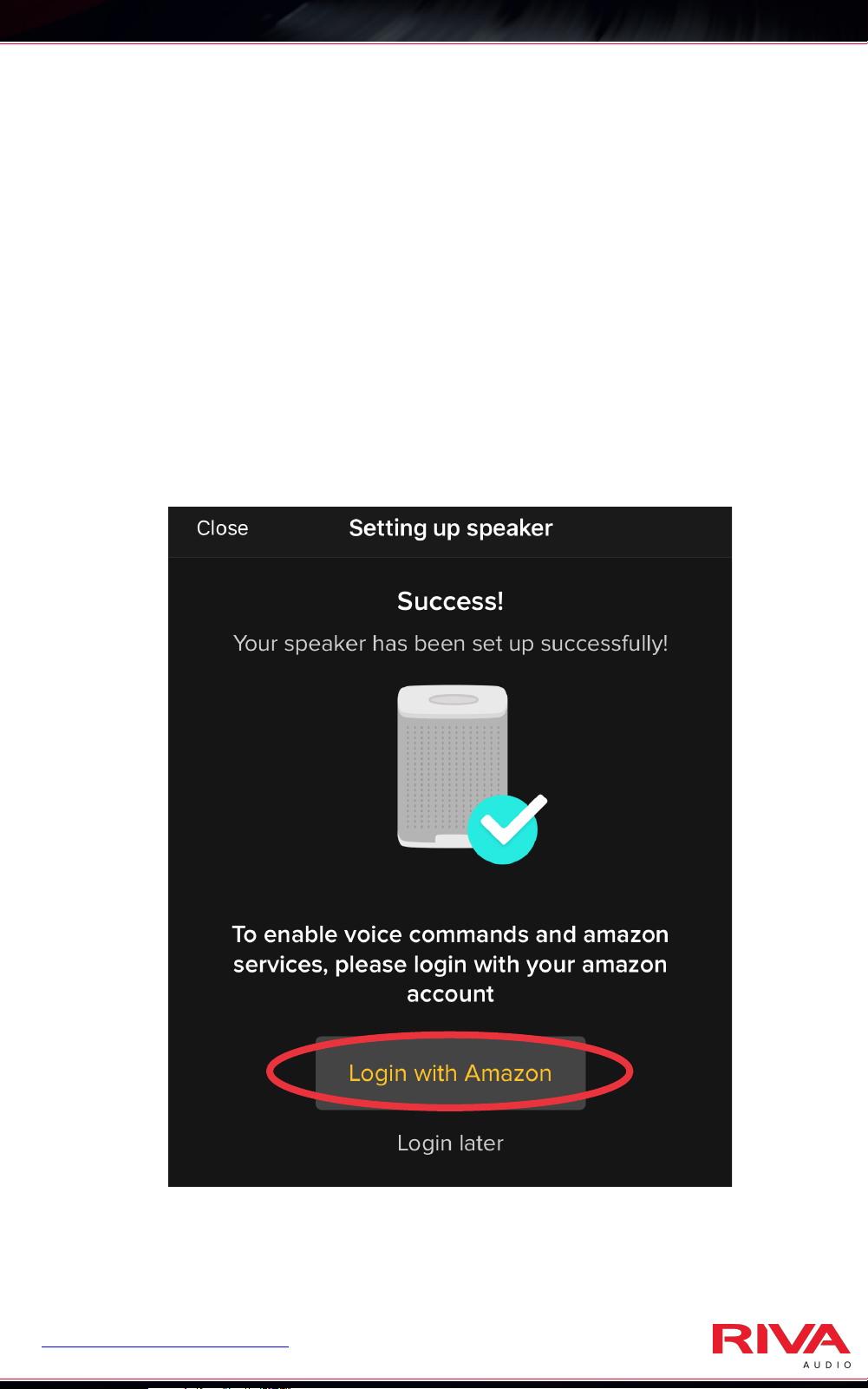
Once the setup and/or the update has been
completed, you should receive a “Success!”
confirmation screen. !
!
Now tap on “Sign in with Amazon” to setup your
voice command feature.!
!
REGISTER RIVA CONCERT to receive your three (3) year warranty.
Page 15
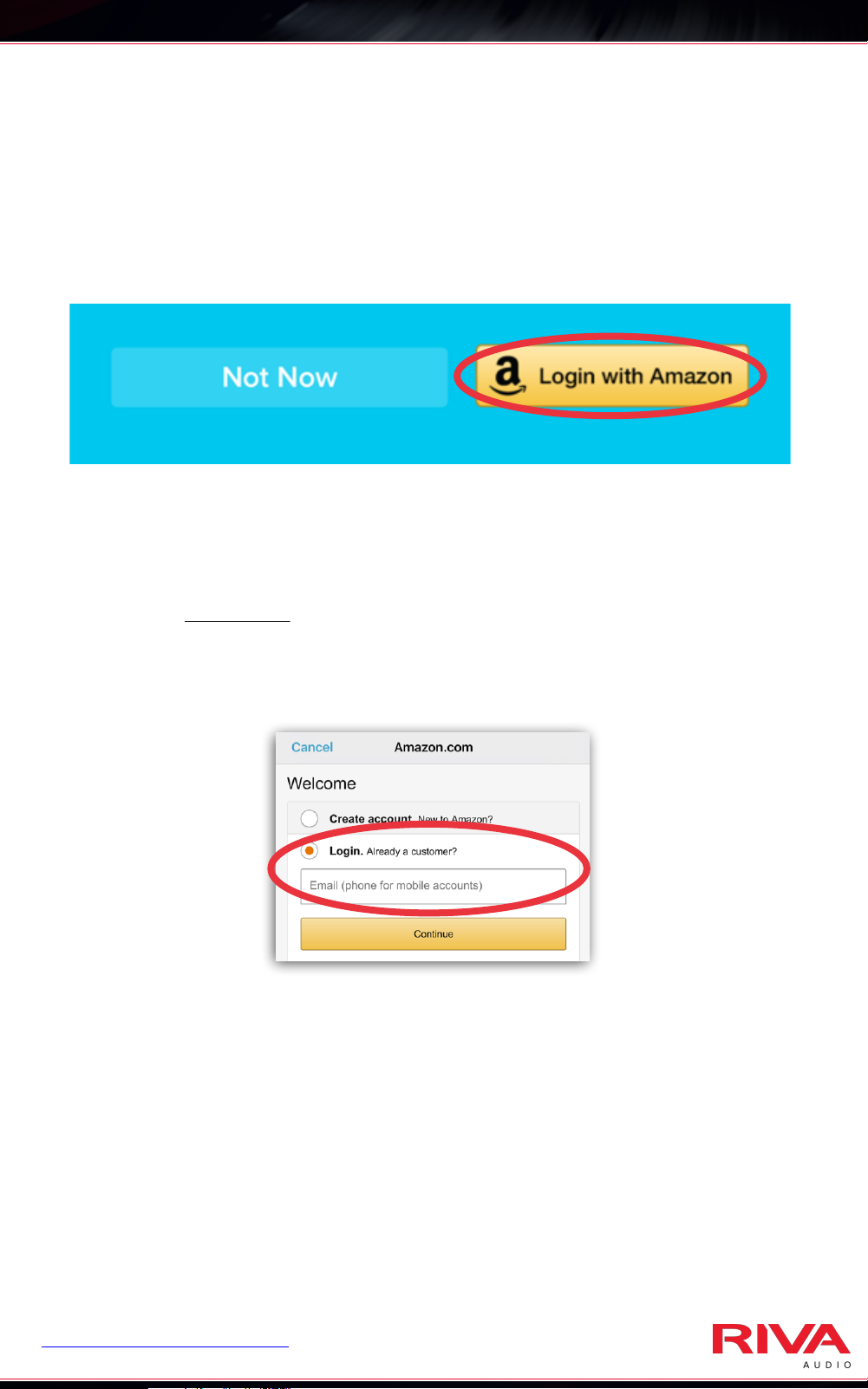
SETUP - RIVA VOICE APP
13.
On the page that appears, tap on the “Login with
Amazon” button on the lower right corner.!
!
!
!
!
!
* Allow permission to access Amazon account and
microphone when asked.!
!
If you do not have the Amazon Shopping app
installed on your device, you will need to login into
your account to link it to the Concert.!
!
!
!
!
!
!
!
If you already have the Amazon Shopping app
installed and are LOGGED IN to your account, you
will NOT need to login again to activate voice
command.!
!
You should hear an ascending tone which confirms
voice commands are now activated.!
REGISTER RIVA CONCERT to receive your three (3) year warranty.
Page 16
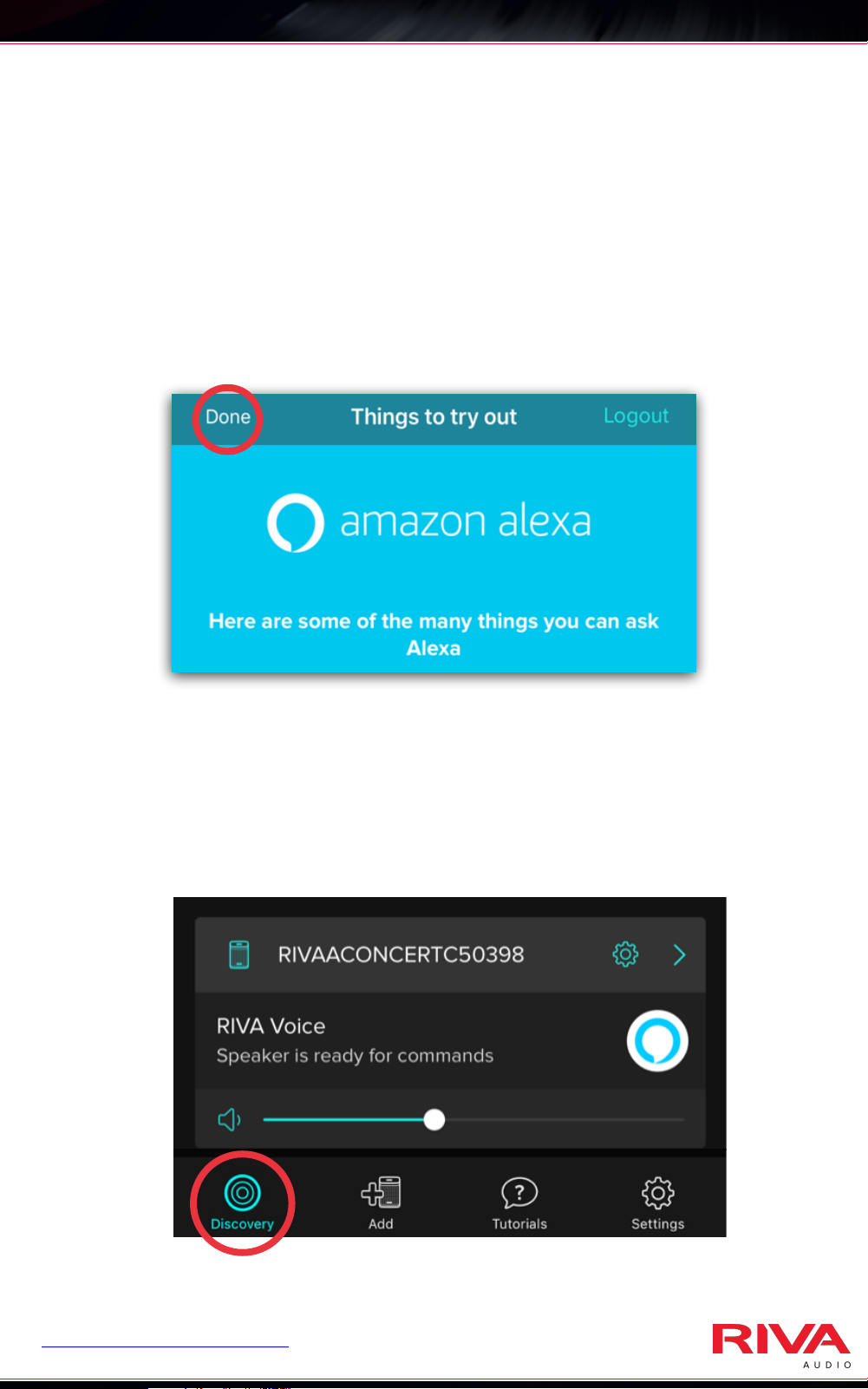
SETUP - RIVA VOICE APP
14.
Tap on the “Done” link in the upper left corner.
This will take you back to the RIVA Voice app,
and you can now ask questions or tell Alexa
commands. !
!
!
!
!
!
!
!
15.
When you tap on the “Discovery” in the lower
left corner of RIVA Voice app screen, you should
now see the Concert listed as an available
speaker for you to access.
REGISTER RIVA CONCERT to receive your three (3) year warranty.
Page 17

SETUP VIA !
AIRPLAY
Page 18
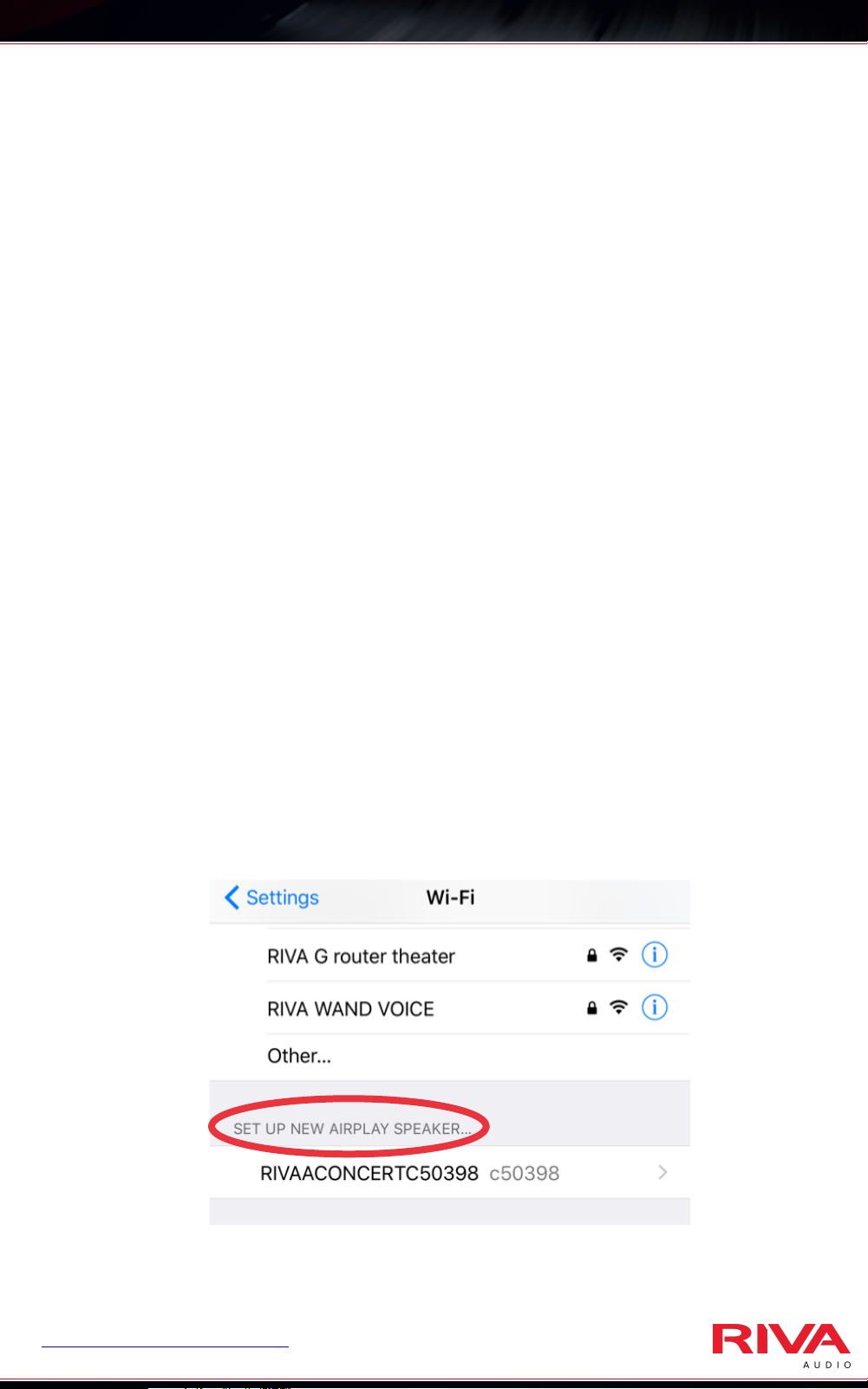
SETUP - AIRPLAY
1.
Power on your Concert speaker by plugging it
into the wall.!
2.
Wait for the pulsing light BLUE LED light to turn
to a pulsing WHITE light. !
3.
Your Concert speaker is now ready to be
connected to a Wi-Fi network.!
Make sure your Bluetooth is ON or enabled.
•
Make sure location services are ON or enabled.!
•
4.
Open the Wi-Fi settings on your Apple device.
Select your Concert speaker in the “Setup New
AirPlay speaker” section.!
REGISTER RIVA CONCERT to receive your three (3) year warranty.
Page 19
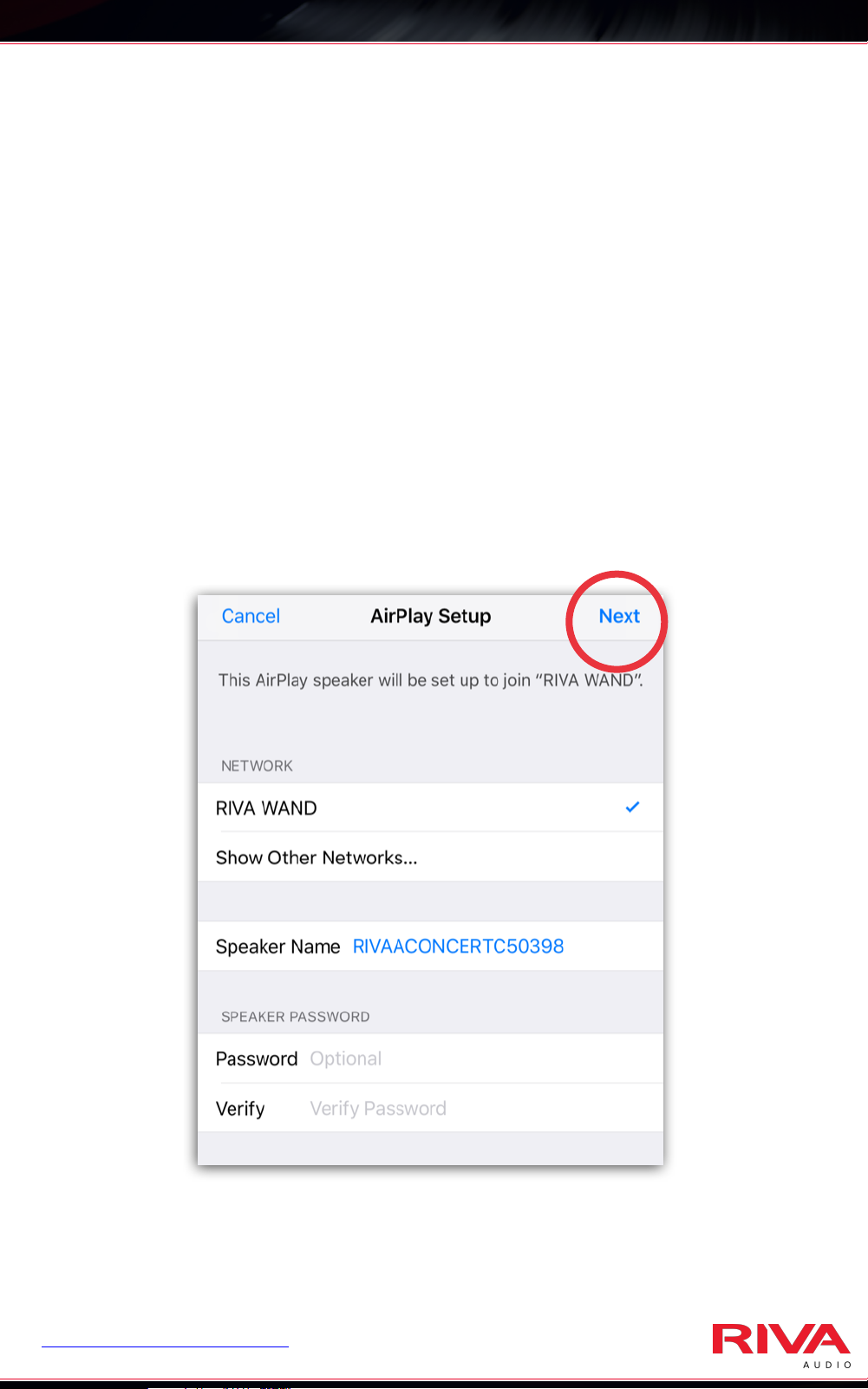
SETUP - AIRPLAY
5.
You will be taken to another screen where it should
list your network, the Speaker Name (you can
customize the name here by tapping on the blue
speaker name) and assign a separate access
password (optional) for this AirPlay speaker only. !
!
Tap on “Next” in the upper right corner of the
s c r e e n o n c e y o u h a v e c o m p l e t e d a n y
customizations or additions. !
Your device will automatically setup the Concert
6.
speaker.
REGISTER RIVA CONCERT to receive your three (3) year warranty.
Page 20
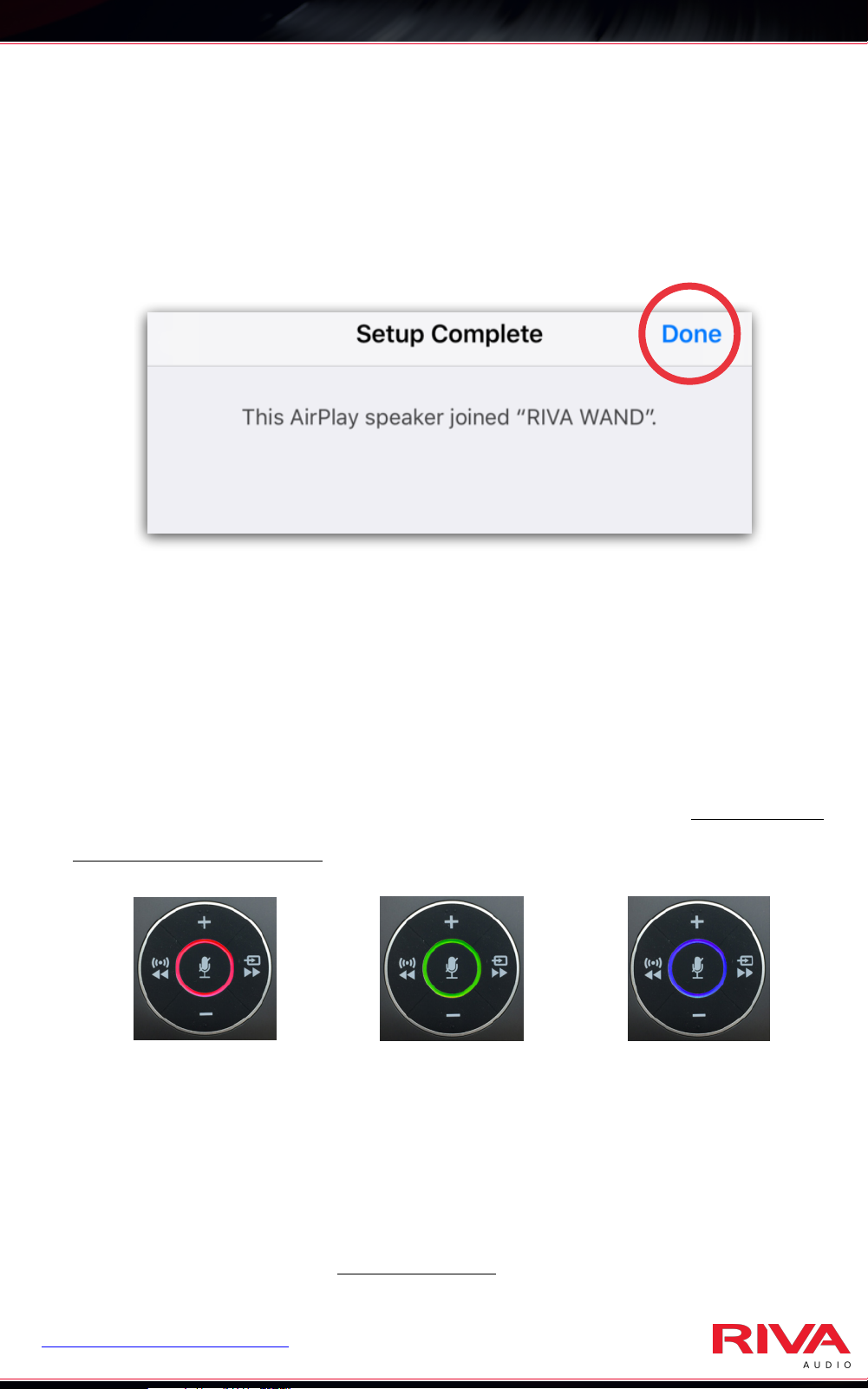
SETUP - AIRPLAY
7.
Tap “Done” in the upper right corner when
setup is complete.!
!
!
!
!
!
!
8.
Once added to your network, Concert will look
for available firmware updates.!
!
If Concert finds a new firmware, it will
automatically update itself. The top ring will
flash RED, GREEN, BLUE as it updates. DO NOT
INTERRUPT OR UNPLUG. !
!
!
!
!
!
Concert will automatically reboot (pulsing light
BLUE ring) and reconnect itself to your Wi-Fi
network (steady WHITE ring) afterwards.!
!
RIVA Concert will not appear in the Voice app until
the update has been completed.!
REGISTER RIVA CONCERT to receive your three (3) year warranty.
Page 21
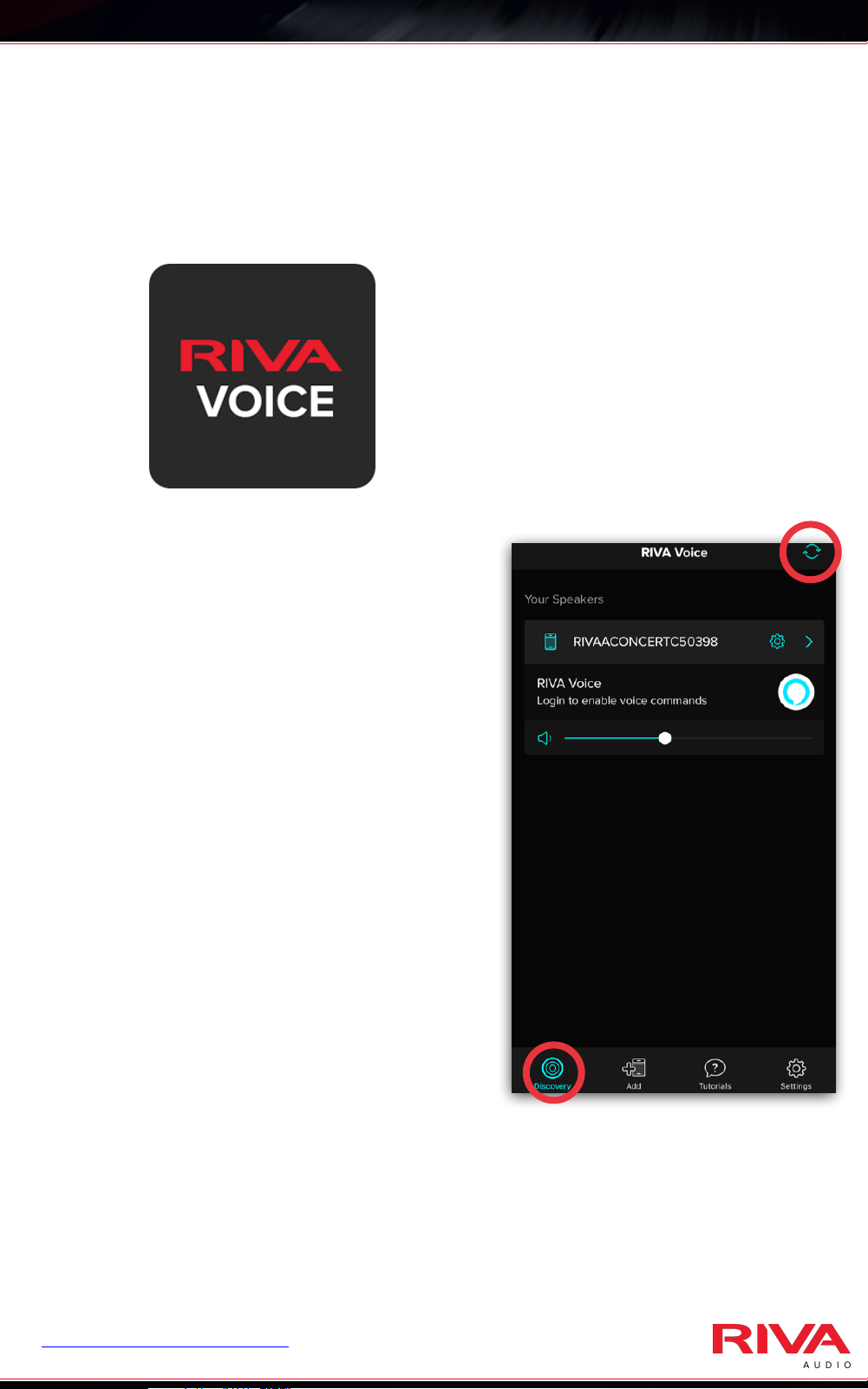
SETUP - AIRPLAY
9.
Open the RIVA Voice app.
10.
Your Concert speaker
should appear. If not, tap
on the refresh icon in the
upper right corner. !
!
* Make sure you are on the
Discovery tab. !
REGISTER RIVA CONCERT to receive your three (3) year warranty.
Page 22
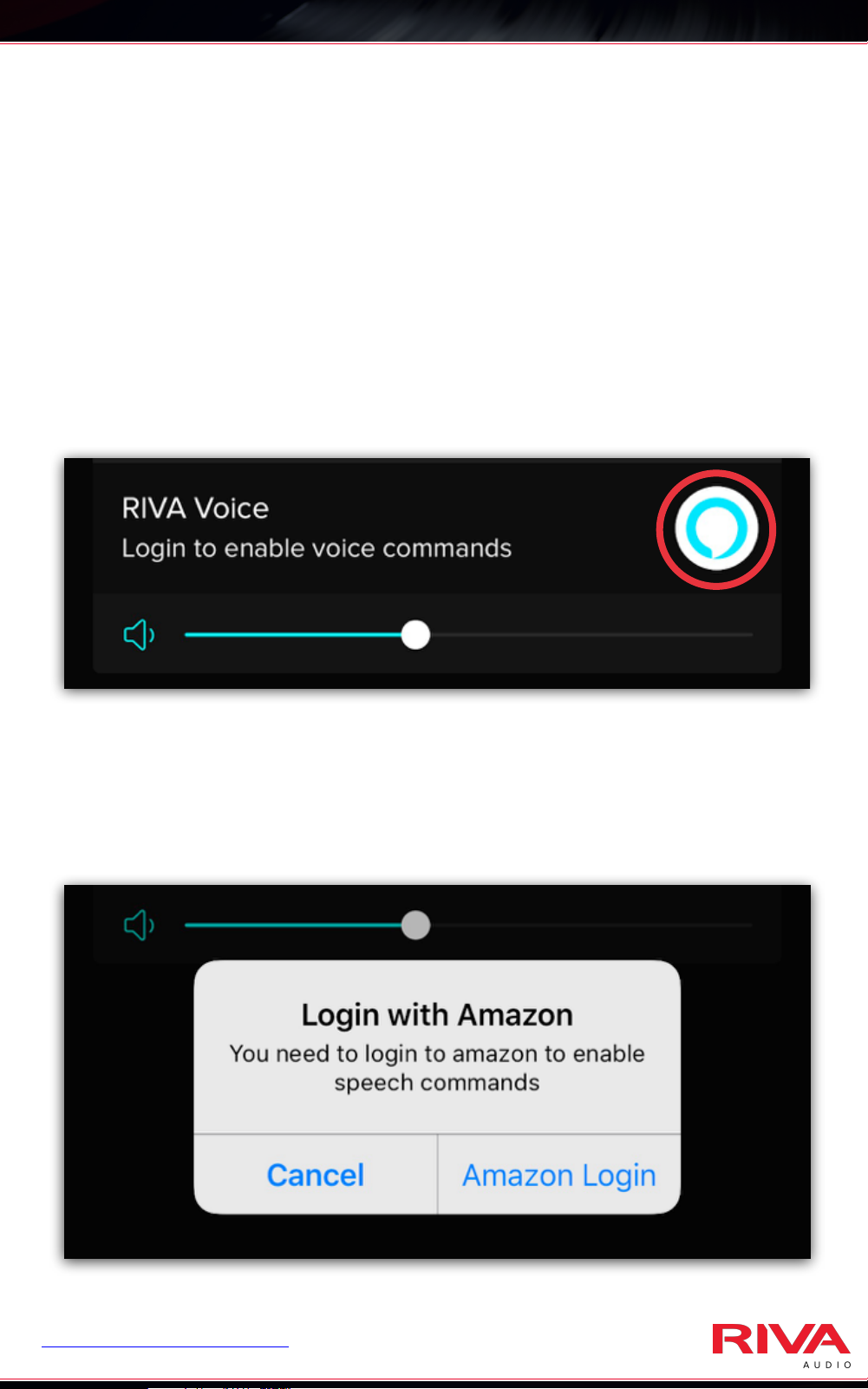
SETUP - AIRPLAY
11.
Tap on the Alexa icon to login to enable voice
commands. !
!
* Allow permission to access microphone when
asked.!
!
!
!
!
!
!
!
!
12.
Tap on the Amazon login button on the small
window that comes up. !
REGISTER RIVA CONCERT to receive your three (3) year warranty.
Page 23
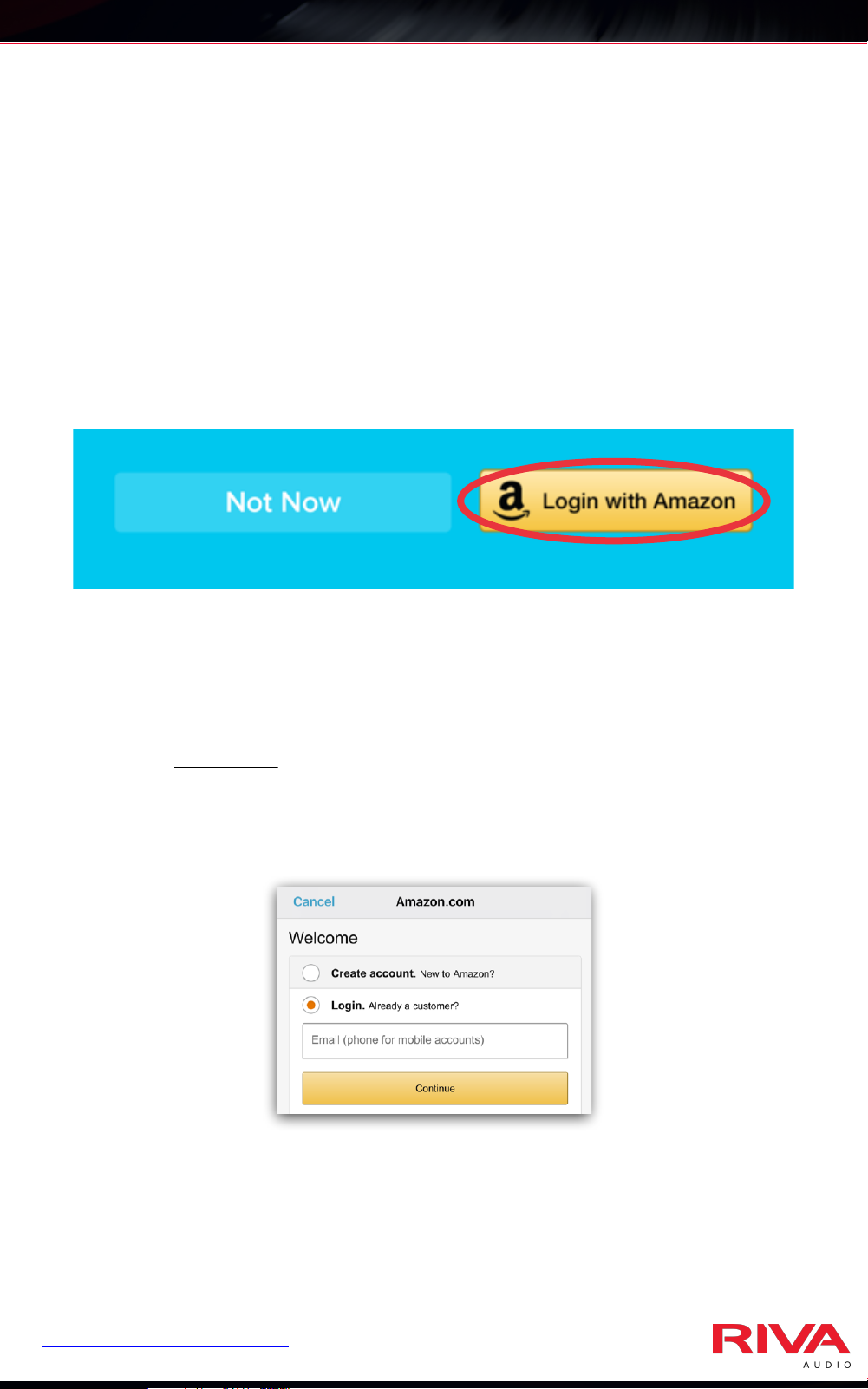
SETUP - AIRPLAY
13.
Tap on the “Login with Amazon” button on the
lower right corner. It should automatically log
you into your Amazon account. You should hear
an ascending tone which confirms voice
commands are now activated.!
!
!
!
!
!
* Allow permission to access Amazon account and
microphone when asked.!
!
If you do not have the Amazon purchasing app
installed on your device, you will need to login
into your account to link it to the Concert.!
!
!
!
!
!
!
!
If you already have the Amazon purchasing app
installed and are LOGGED IN to your account,
you will NOT need to login again to activate
voice command.!
REGISTER RIVA CONCERT to receive your three (3) year warranty.
Page 24
SETUP - RIVA VOICE APP
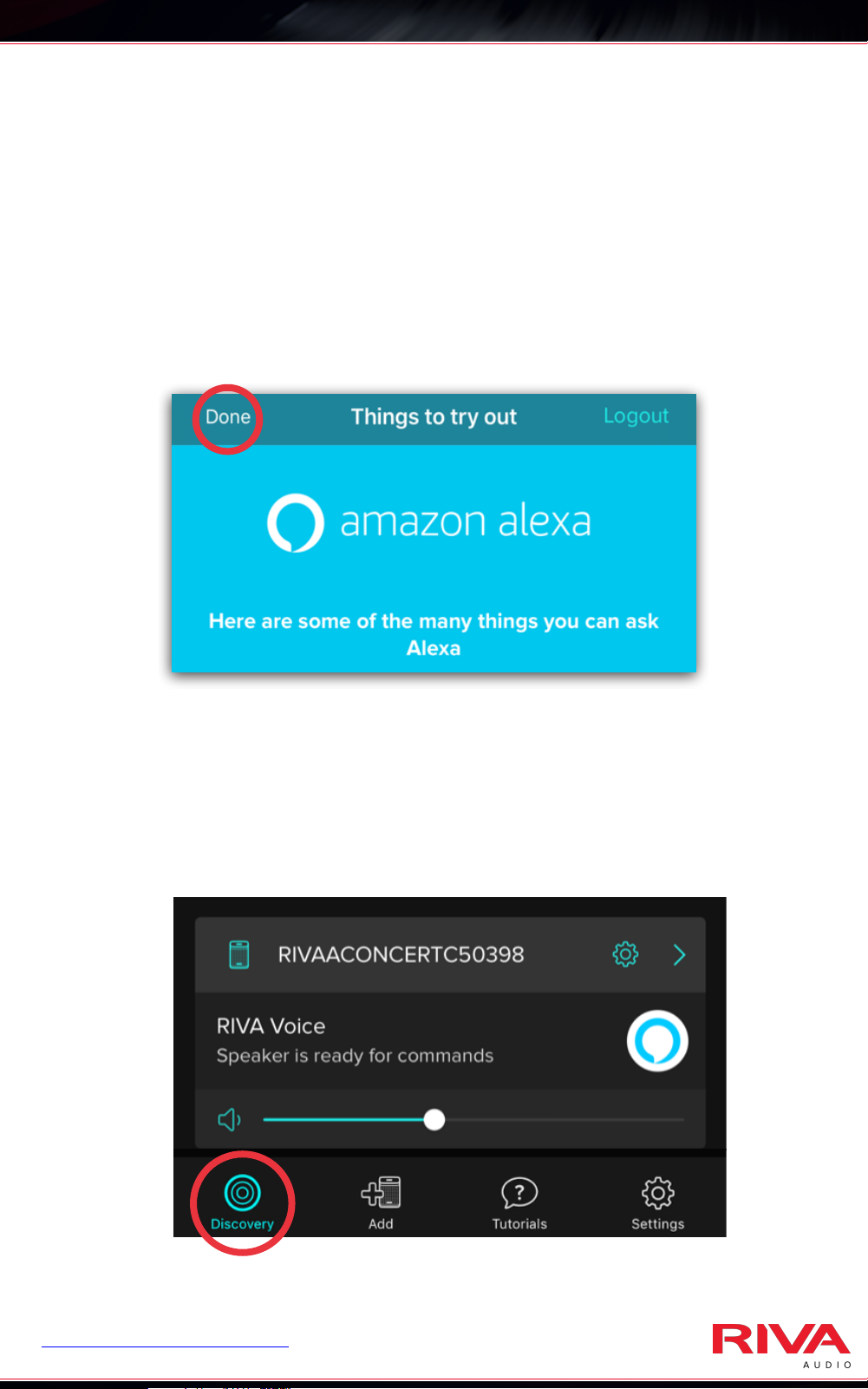
14.
Tap on the “Done” link in the upper left corner.
This will take you back to the RIVA Voice app,
and you can now ask questions or tell Alexa
commands. !
!
!
!
!
!
!
!
15.
When you tap on the “Discovery” in the lower
left corner of RIVA Voice app screen, you should
now see the Concert listed as an available
speaker for you to access.
REGISTER RIVA CONCERT to receive your three (3) year warranty.
 Loading...