

Page 1
Instruction manual
MP1872 – MP1874
Page 2

Please Note:
1. Do not use the unit in places that are extremely hot, cold, dusty, or humid.
2. Avoid dropping unit.
3. The battery service life may differ under different usage conditions and
different models
4. The unit charges when connected to PC via the USB cable.
5. Please charge the unit when any of the following cases occur:
-The battery indicator shows low battery
-The player turns off automatically, and turns off again after rebooting.
-The keys become inactive
-The unit does not turn on.
6. Do not disconnect the player while it is formatting or
uploading/downloading
7. Do not disassemble. Contact the manufacturer with any questions.
8. Specifications are subject to change and improvement without notice
Page 3

Features:
1.8’’ 65,000 Color Display
MP3/WMA/WAV Playback
AVI Video Playback
FM Tuner, Preset Up To 20 Stations
JPEG Picture Viewing
High Quality Voice Recording
A-B Repeat Function
3D Sound
Multiple EQ Modes
ID3 TAG Support
Built-in Rechargeable Lithium-ion Battery
USB 2.0
Page 4
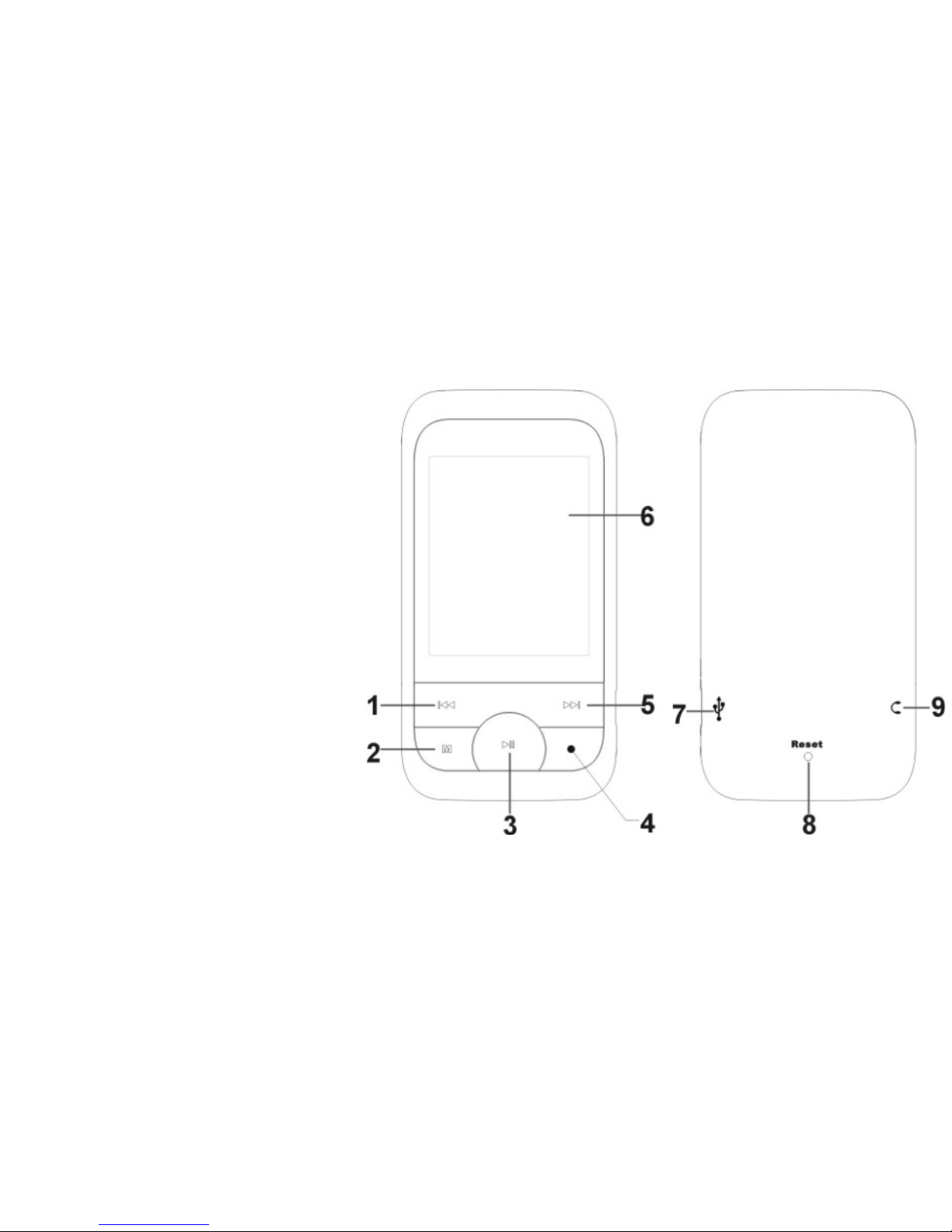
Getting To Know Your Player
Buttons and Controls
1) Previous/Rewind
2) Menu (Enter/Confirm)
3) Play/Pause/Power
On/Off
4) Record Button/A-B
repeat/Back
5) Next/Fast Forward
6) Display
7) USB Jack
8) Reset
9) Earphone jack
Page 5

Basic Operation
Power On/Off
A) To power on, press and hold the button. The Riptunes logo will appear.
B) To power off, press and hold the button.
Charging
A) Plug player into computer with enclosed USB cable. Depending on the
computer settings, you may need to safely eject the player from the
computer.
B) Plug player into optional USB wall adapter, available for purchase online.
Note: To prolong battery life, the charging time should not exceed 8 hours.
Page 6

Buttons
In the main menu, press the or buttons to scroll to the option you want
and press the M button to select. To return to the main menu, press and hold
the M button.
Key Lock
To lock the buttons to prevent them from being pressed accidentally, press
and hold the M button together with the button. Press again to unlock
buttons.
FM Radio
The earphones acts as the antenna while listening to the FM radio. Please plug
the earphones in if you wish to listen to FM radio.
Page 7

Music
Playback
Select Music in the main menu. The music will be sorted automatically by
album, artist and genre.
Buttons
A) Press the or buttons to scroll between album, artist and genre, press
the M button to select.
B) Press the or buttons to highlight track, and then press the M button
to select.
C) Press the button to start playback.
D) Press and hold the M button to return to the main menu.
Volume Adjustment
While playing, press and hold to increase the volume or to decrease the
volume.
Page 8

Pause
Press to pause playback. Press again to resume play.
Previous Song/ Next Song/ Fast Forward/ Rewind
Press to skip to the next file or press button to skip to the previous file.
When paused, press and hold or to fast forward or to rewind.
Play Song
Press M to enter the playlist. Press or to highlight song and press M to
start playback.
EQ Mode Setting
Press and hold M button to return to the main menu. Select Settings > Music
> EQ. The equalizer includes 7 modes: Normal, MS PlayFX, Rock, Pop, Classic,
Bass and Jazz. You can change those modes by pressing or button and
pressing the M button to confirm.
Page 9

Repeat Mode Setting
Select Settings > Music > Repeat Mode. By pressing the or or buttons,
the play mode will change in the following order: Once, Repeat One, Folder
Once, Folder Repeat, All Once, All Repeat and Intro. Press the M button to
confirm.
Shuffle
Select Settings > Music > Play Mode. Choose between Order and Shuffle by
pressing the or buttons. Press the M button to confirm.
A-B Repeat
While playing music, press the ● button one time to set the start point A, the
LCD screen will display A-. Press the ● button again to set the end point B, the
LCD screen will display A-B.
The player will start to repeat the section. Press the ● button a third time to
exit. The A-B repeat function is not available when paused.
Page 10

Note: When A- or A-B is set, if you press the or buttons, the A-B repeat
will be cancelled.
Lyrics Display
While playing music, press and hold ● button, to display the lyrics. If there is a
lyrics file with the same name as the music file, and they are placed in the
same folder, the player will display the lyrics automatically.
Video Playback
Playback
A) Select Video in the main menu.
B) Press the or buttons to highlight a video.
C) Press the M button to start playback.
D) To return to the main menu, press and hold the M button.
Page 11

Volume Adjustment
While in playback mode, press and hold to increase the volume or to
decrease the volume.
Previous Video/ Next Video/ Fast Forward/ Rewind
Press the button to skip to the next video and press the button to return
to the previous video. To fast forward or rewind, pause video and then press
and hold the or buttons.
Pause
When playing, press button to pause. Press button again to continue
playback.
View List of Videos
Press M button to enter the play list. Press the or buttons to highlight
files and press the M button to select and start playback.
Page 12

FM Radio
Enter FM Radio
Select Radio in the main menu.
Manual Station Search
Press the M button and select Manual. You can now search manually by
pressing the or buttons. The frequency will decrease or increase by 0.1
MHz.
Auto-Search
Press the M button and select Auto, the player will search through every
station and store all available stations automatically. Press the or
buttons to tune to the preset FM stations.
Volume Control
Press and hold the button to increase the volume and the button to
decrease the volume.
Page 13

Saving Stations
Manually go to the station you want to save. Press M button and select Mem.
Press the M button to save the current station. Use the or buttons to
select the channel you wish to save the station to. Press the button to exit.
Preset station
Press the M button, select Preset and press M button to listen to the preset
stations. Press or to scroll to the channel you want.
Delete Stations
Press the M button and select Delete. Select the station you want to delete,
and press M button again to confirm the deletion.
Picture Viewer
Select Photo in the main menu.
A) Press the or buttons to highlight the picture you want to see.
Page 14

B) After highlighting the picture, press the M button to view in full screen.
C) Press or to go to the next or previous picture.
D) Press the M button to return to the picture browser.
Press button to start the slideshow.
Slideshow can be set to play in intervals of 2, 4, 6, 8 or 10 seconds. To change
the duration, go to Settings > Picture Settings > Auto Play Time. Choose your
desired speed and press the M button.
eBook
Select eBook in the main menu.
A) Press or buttons to select the eBook you want to read.
B) Press the M button to start reading.
C) Press or button to skip to the next or previous line.
D) Press the ● button to display the save bookmark list. Press or buttons
to select the bookmark, and then press the M button to save it.
Page 15

E) Press and hold the ● button to display the load bookmark list. Press or
buttons to select the bookmark, and then press the M button to load it.
F) While reading the eBook, press the M button to return to the eBook list.
Press and hold the M button to exit to the main menu.
Note: The bookmark is only available to the current file, and has to be re-set
while reading other eBooks.
Voice Recording
Select Record in the main menu.
To start recording, press the ● button. To pause the recording, press the ●
button again. To save the recording, press and hold the ● button.
To play the recordings, go to Music and select Recore File. Use the or
buttons to highlight the recording you wish to listen to. Press the M button to
select.
Page 16

Navigation / File Explorer
Select Browser in the main menu. All file that are stored on the player is listed.
Press or to highlight a file. Press M to select. If the file is not being
recognized, there will be no response after pressing the M button.
Settings
Select Settings in the main menu. Below is an explanation of all options.
Music Playback Settings
There are five options under this menu: Repeat Mode, Play Mode, EQ Select,
MS PlayFX Set, and User EQ Setting.
A) Repeat Mode includes: Once, Repeat One, Folder Once, Folder Repeat, All
Once, All Repeat and Intro.
B) Play Mode includes: Order and Shuffle.
C) EQ Select includes: Normal, MS PlayFX, Rock, Pop, Classic, Bass, Jazz, and
User EQ.
Page 17

D) User EQ Setting includes 5 frequencies and 7 levels to adjust in each
frequency
Radio
In this menu there are two options: Stereo Switch and FM Region.
A) Stereo Switch: In this menu, there are two options: On and Off.
B) FM Region: In this menu there are four options: China, Europe, Japan, and
U.S.A.
Record Setting
A) Record Quality: In this menu, there are two options: High Quality or
Normal Quality.
Display
In this menu there are three options: Backlight Time, Lum, and Backlight
Mode.
A) Backlight Time: In this menu there are 6 options: 5 seconds, 10 seconds, 15
seconds, 20 seconds, 30 seconds and Always On.
Page 18

B) Lum / Brightness: In this menu, there are five options: 1, 2, 3, 4 and 5.
C) Backlight Mode: In this menu, there are two options: Normal and Power
Save.
System
In this menu, there are three options: About, Upgrade and Default Set.
A) About: The following information is displayed: storage capability, remaining
capability, system software version.
B) Upgrade: A pop up dialog box will appear when you press the M button,
press or to select Yes or No and then press the M button, connect the
player to the PC via the USB, and the system will enter the firmware upgrading
status.
C) Default Set: Use if you want to reset the player to the default settings. A
pop up dialog box will appear when you press the M button, use the or
buttons to select Yes or No and press the M button to confirm.
Page 19

Power Off
In this menu, there are six options as follows: Off, 10 Minutes, 15 Minutes, 30
Minutes, 60 Minutes and 120 Minutes.
Language
There are 11 languages for you to select: English, German, French, Spanish,
Russian, Portuguese, Italian, Chinese, Simple Chinese, Japanese, and Korean
Troubleshooting
Failure to Power Up
· Charge the battery.
No sound
· Check the volume.
· Check the connection of the earphone.
Reception of FM Radio Is Not Clear
· The earphones act as the FM antenna. Move somewhere with better
reception.
Page 20

Download File Failure
· Check the connection between computer and player.
· Make sure the Media is in the correct format.
Disc Error
· File format is not supported.
Page 21
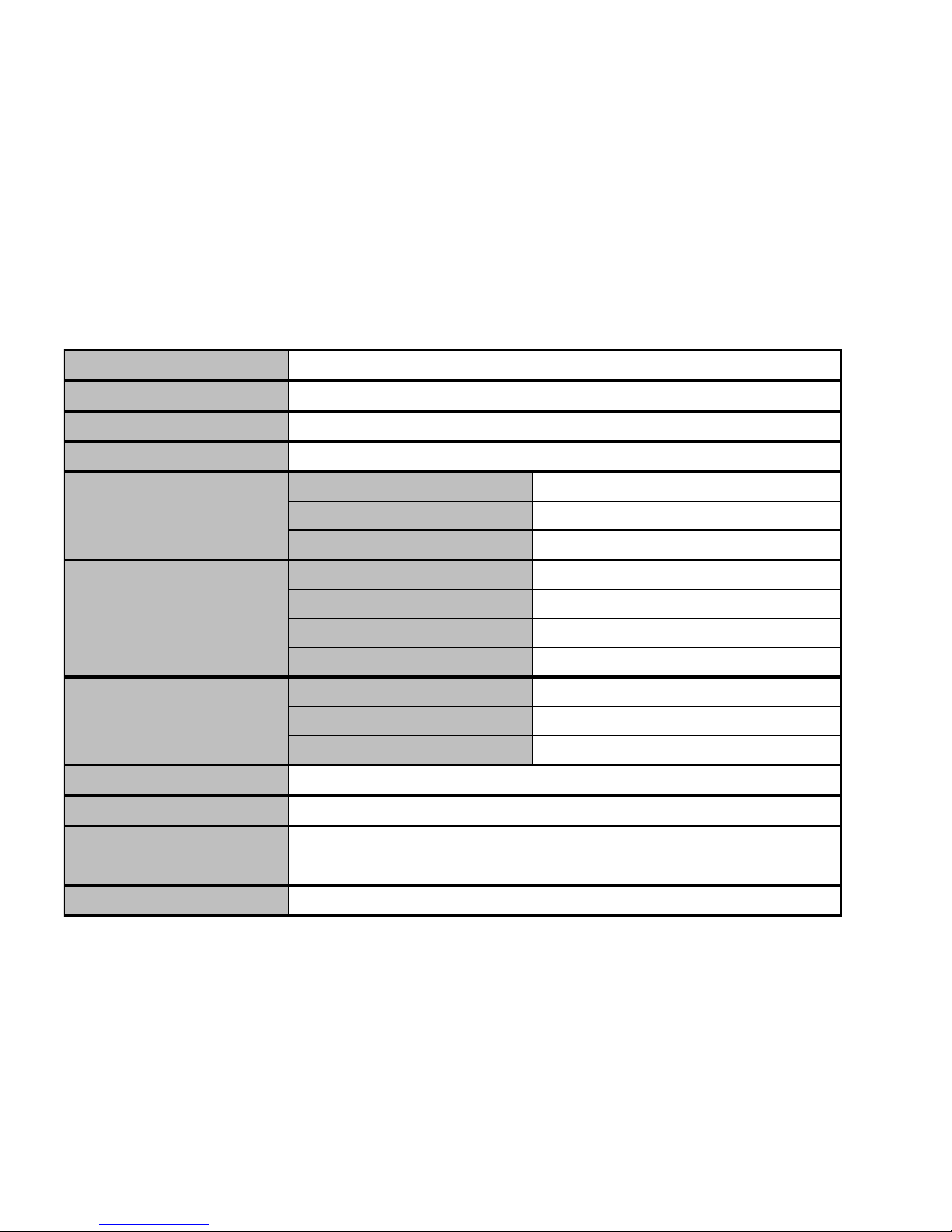
Display
Connections
Memory
Power Source
Sampling Rate 8KHz/16KHz
Recording Format WAV (32kbps/64kbps)
Recording Time Approx. 120 hours (2GB Memory)
Earphone Max Output (L) 5mW / (R) 5mW (32 ohm)
MP3 bit rate 8kbps – 320kbps
WMA bit rate 32kbps – 384kbps
Frequency Response 20Hz to 20KHz
Frequency Range 76MHz-90MHz / 87.5MHz-108MHz
Number of Saved Stations 20
Earphone Max Output (L) 5mW / (R) 5mW (32 ohm)
Music File Format
Operating Temperature
Languages
Supported OS
Specifications
1.8" 65K Color LCD
23° to 104° F (-5° to 40° C)
MP3, WMA, WAV
Windows SE/ME/2K/XP/Vista/Windows 7
English, German, French, Spanish, Russian, Portuguese,
Italian, Chinese, Simple Chinese, Japanese, Korean
Recording
Music
FM Tuner
Built-in Lithium Rechargeable Battery
MP1872- 2GB / MP1874- 4GB
USB 2.0
 Loading...