

Page 1
USER MANUAL
MP1202
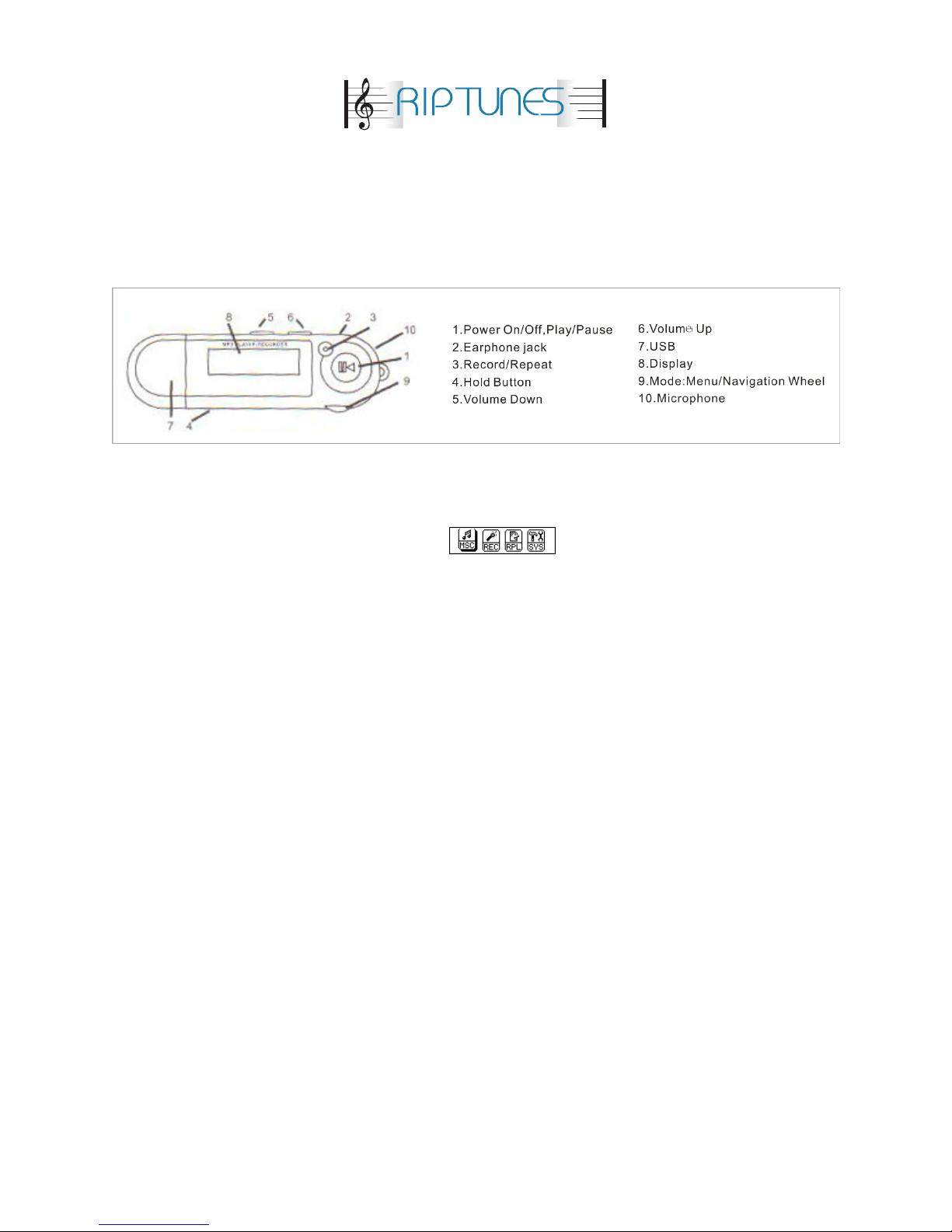
Appearance and button definition:
Basic operation:
•
Power on/Off: Press and hold ‘PLAY’ button for three seconds to turn on or off.
•
Enter into menu: At main interface, use
mode, Voice Record mode, Playback record mode, System settings mode, and
Browser, roll navigation wheel to switch main menu, press ‘MENU’ button to enter.
•
PLAY/PAUSE/EXIT: Choose main menu, press ‘MODE’ button to enter into play interface,
then press ‘PLAY’ button to start to play, press ‘PLAY’ button again to pause, hold ‘MENU’
button for three seconds to exit or press ’PLAY’ button to exit from submenu.
•
Volume: Press 【V+】/【V-】to increase/decrease volume while playing music.
to access to different modes: Music
•
Lock/unlock keypad: right push ‘Hold’ button to lock, left push ‘Hold’ button to unlock.
Music playback:
1. Insert earphone into earphone jack.
2. Select’music mode’,short press ‘PLAY’ to start to play music.
3. Change music:roll navigation wheel to change music
4. How to enter into submenu: press ‘MENU’ button while playing music to enter into submenu.
Including ‘Repeat mode, Equalizer, 3D, Play rate, File browse, Classification, Playlist, ACL,
Replay’
Repeat mode: including Repeat one/Repeat all/Random all/Dir normal/Dir all repeat/Dir
•
random all/Dir random all/No repeat. After enter into ‘Repeat mode’, short press ‘MENU’
button to enter into submenu, choose the repeat mode you like and press ‘PLAY’ button to
confirm.
Equalizer: including Normal, Pop, Rock, Classic, Jazz, Bass, and Custom EQ. After enter
•
into ‘Equalizer’, short press ‘MENU’ button to enter into submenu, choose the EQ modes
Page 2

you like and press ‘PLAY’ button to confirm.
Play rate: short press ‘MENU’ button to enter into submenu while playing music and
•
choose ‘Play rate’, short press ‘MENU’ again to enter next level, roll navigation wheel to
change play rate value.
Replay: A-B replay
•
•
Choose ‘Replay’ from submenu Mode, short press ‘MENU’ button and ‘A’ of blink
as starting point,clockwise slide navigation wheel to confirm starting point A, and
‘B’ of start to blink,clockwise slide navigation wheel to confirm B as stopping
point. After that replay from A to B till it reach the set number of times.
•
Browser: While in this function, you can browse all your Music and voice Recording
files without having to switch from the music folder to the voice recording
folder.
Note: while playing music, please make sure the lyric’s name is the same as the song’s name.
Voice Record mode
This player supports up to 99 recording files in each folder.
•
Recording sound in ‘Record mode’
•
Press ‘REC’ button directly to record at main menu interface
Operation guide:
1. Enter main menu
2. Roll navigation wheel to choose ‘REC’.
3. Short press ‘Mode’ button to enter into record interface like below:
4. Short press ‘PLAY’ to start to record.
Warning:
The recorded files are saved in the current directory-‘Playback record mode’ from main menu.
if it display’ the space is full’, which means that there is not any more space to record your new
file again, please delete some files to release space.If it displays “the folder is full”,which
means there have already been 99 recorded files, please change to another folder.
Record settings:
Choose ‘System settings’ at main menu, short press ‘MODE’ to enter into submenu. And
Choose ’Record setting’, short press ‘MODE’ button again to enter into record quality interface.
‘Long time//Normal quality/High quality’ for your option, short press ‘PLAY’ button to start to
Page 3

record.
No power
1. Check the battery to make sure it’s installed correctly
2. Make sure the ‘Hold’ button is on the unlock position
Playback record mode
1. Access main menu
2. Use navigation wheel to choose ‘RPL’, enter replay mode by pressing ‘MODE’ button.
3. Play ‘PLAY’ button to start to play recorded files.
User the navigation wheel to move to previous/next file
System settings mode
Setting system parameters, which will be changed with the firmware upgrading.
Enter Settings menu
1. Choose ‘System settings’ at main menu
2. Short press ‘Mode’ button to enter into submenu.
Setting options:
• Time: Set the date and time.
1. Short press ‘V+’ to set, start to blink.
2. Role navigation button to adjust value.
3. Press ‘Mode’ button to confirm after adjustment.
•
Power---disable time: the player will be power off automatically when there is not any
operation after the setting time.
•
Language: select language
•
Display setting: set contrast/backlight/color
•
Record setting: ref. to record menu
•
System tools: Format ((quick/complete) reset/system information (firmware version and
available free memory)
USB disk mode
The player can be connected to PC and work even without battery. At ‘MSC’ waiting interface,
short press ‘Mode’ button to main menu.
Troubleshooting:
Page 4
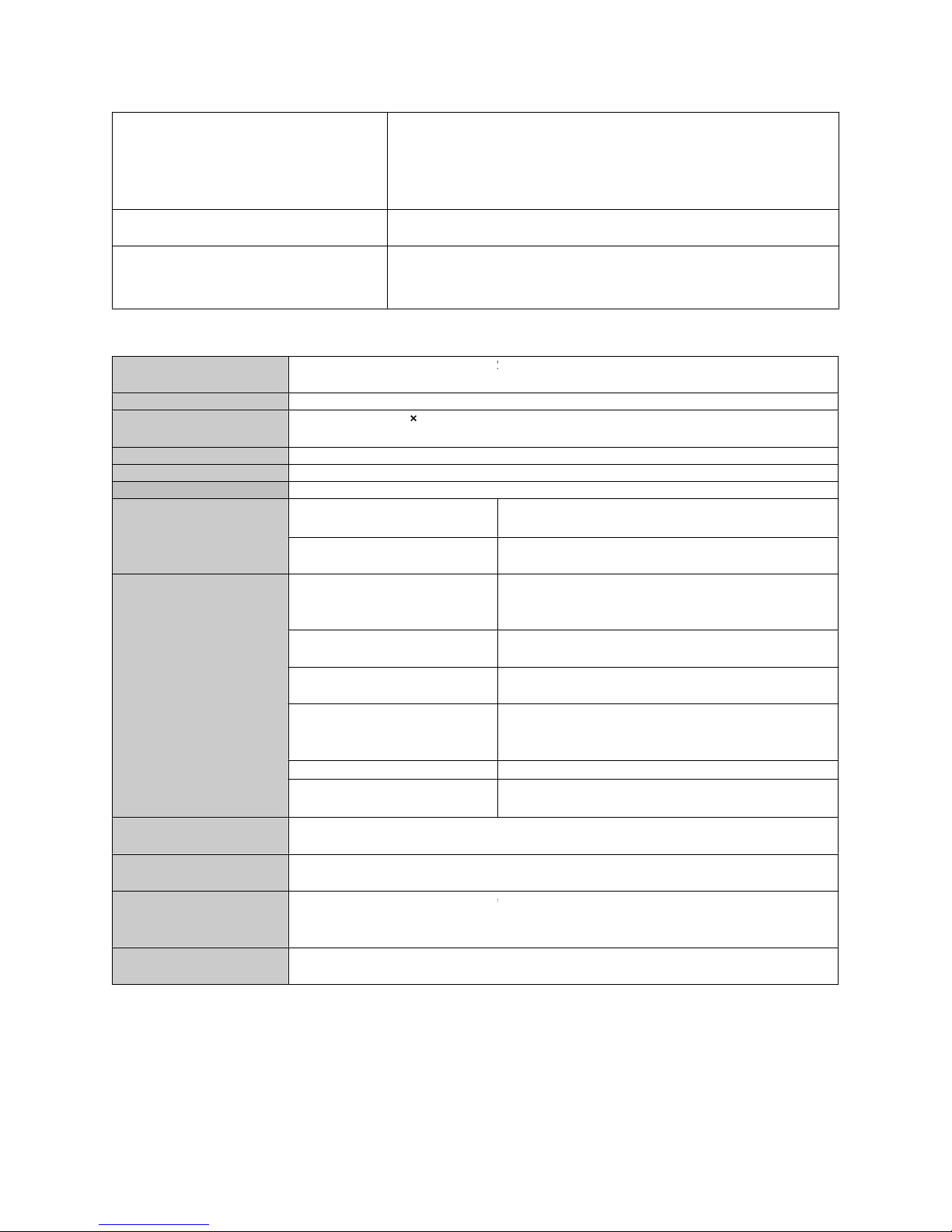
No sound is heard from earphone
Check whether the Volume is not set to "0" and connect the
headphone plugs firmly, please make sure the earphone is clean
and the music files are not corrupted.
Characters in LCD are corrupted
Check whether the right language has been selected.
Download of music files failed
1. Check the USB cable connection.
2. Check the USB cable if it’s damaged
3. Check whether the player's memory is full
Specifications:
Size
3.54x1.02x0.86 inch (89.9x26x22mm)
Weight
0.88 oz (25g) without battery
Display
Resolution of 132 32, seven colors backlights
PC connection
High speed USB2.0
Flash memory
2GB
Playing time
10 hours (while backlight is off)
Sampling rate
8KHz
Record
Recording format
WAV(32K bps)
Earphone max. output
(L)10mW+(R)10mW(32Ohm)
MP3 bit rate
8K bps – 320Kbps
Music
WMA,WMV bit rate
5K bps – 384K bps
Music
Frequency response
20Hz to 20KHz
Music
SNR
85dB
Music
Distortion rate
<0.05%
Music format supported
MP3, WMA, WAV
Working temperature
-5 to 40 degrees celsius
Sixteen languages
supported
Chinese, English, Germany, French etc.
Supported operation system
Windows98™/SE™/ME™/2000™/XP™/Vista™/7™, Mac OS 10™, Linux 2.4.2™
Riptunes® product, works with above mentioned operating systems. Windows/Mac are registered trademarks of Microsoft/Apple Inc. This product
is not made or approved by above mentioned rms. Riptunes® is a division of WBH Inc., all rights reserved. All other trademarks are the property
of their respective owners. Used by WBH Inc. solely for descriptive purposes.
 Loading...