

Page 1

Laser Barcode Scanner
Model no.
LS6000B, LS6000Z
QUICK GUIDE
Page 2
INTRODUCTION
LS6000B / LS6000Z laser barcode scanners series have incorporated the latest
wireless blue-tooth / Zig-bee technology. The technology provides customer with
the freedom of mobility, with long communication range from the charging
cradle.
The bar code scanner requires establishing communications with its charging
cradle (built-in dongle). After communications have been established between
the scanner and charging cradle, futures bar code scans will be transmitted from
the scanner to the cradle and from the cradle to the host.
For power supply, the charging cradle of LS6000B / LS6000Z also works as a
battery charger for the scanner. Users can plug in 5V DC power adaptor for
power charge of the scanner.
Package of LS6000B / LS6000Z series should contain:
1. LS6000B or LS6000Z Laser Barcode Scanner
(Rechargeable Li-Ion battery pack inside)
2. Charging Cradle with USB cable & DC plug
3. Power Adaptor (5V/1A)
4. User’s Manual
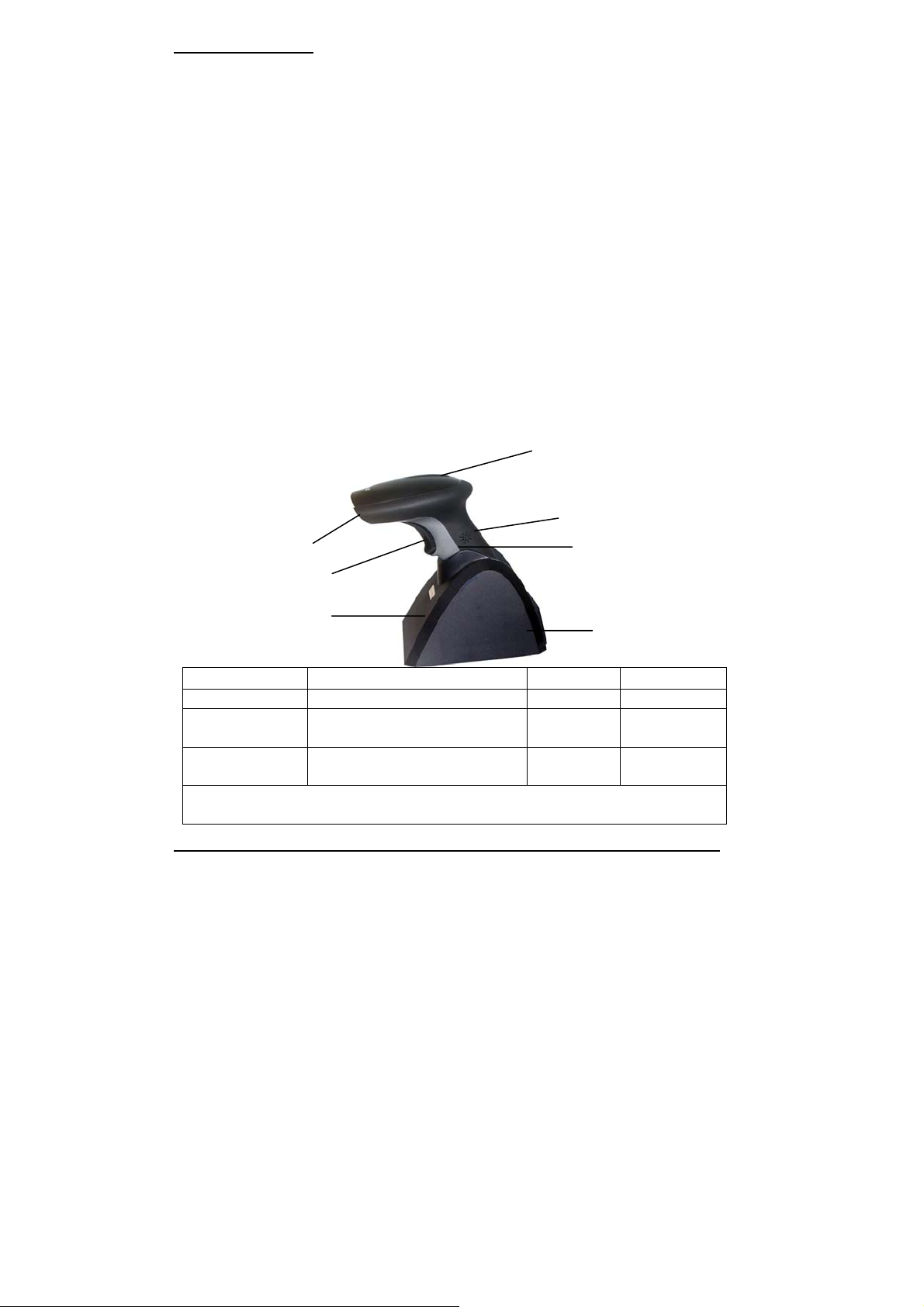
3 indicators (LED)
Buzzer
Exit Window
Trigger
Charging Cradle
Handle
USB dongle
USB Zig-bee dongle
RED BLUE ORANGE
ON Not read Good read
Continual ON
Blinking
Off line / out of service
range
Wireless connection not
linked
Low power
Charging
P.S. If scanner not in use, will automatic switch to sleeping
mode after 30 min.
* When out of service range the laser will on but wil l not scan.
2
Page 3
INSTALLATION
t
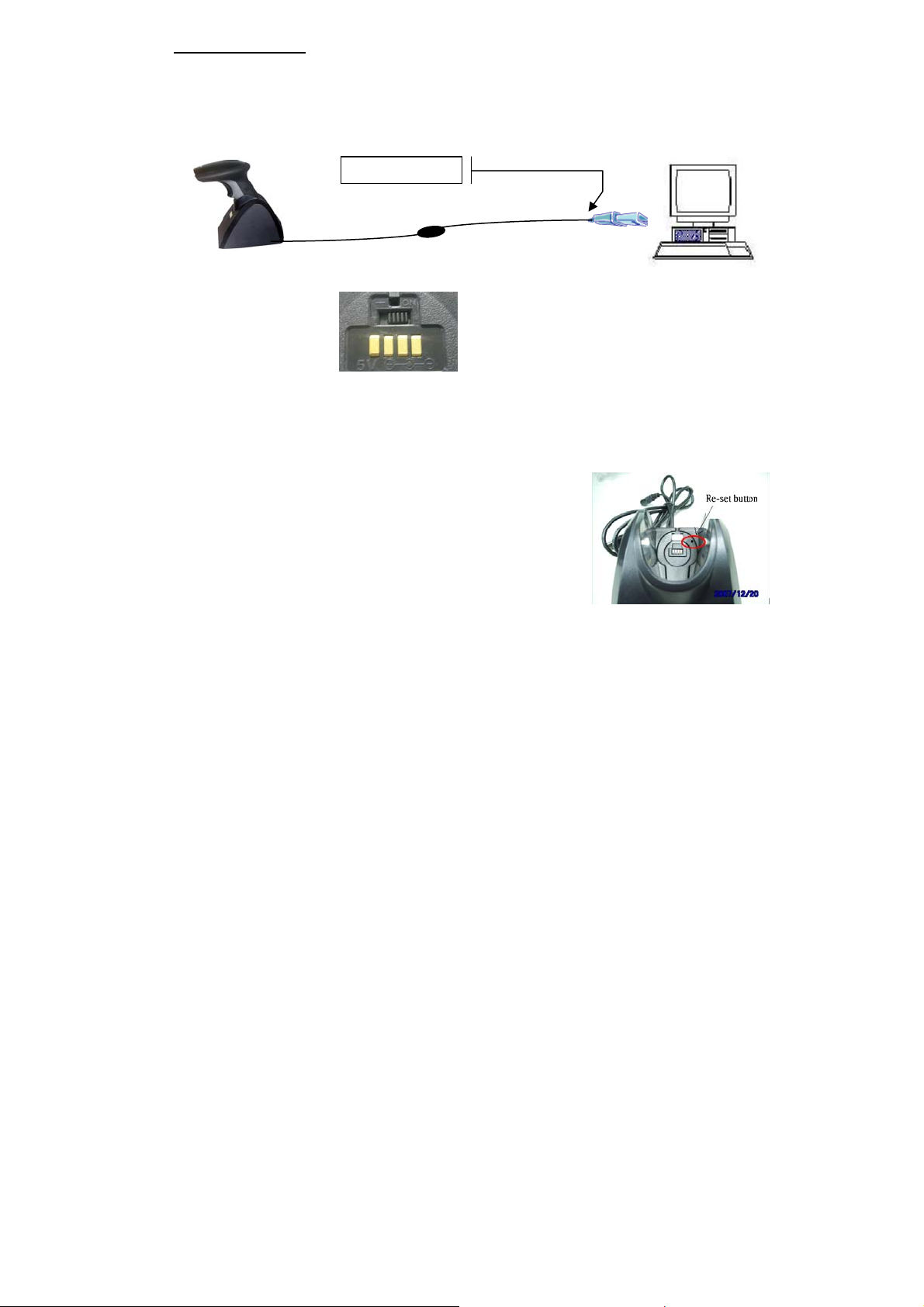
Insert the plug on the free end of the Communications Cable into the
appropriate connector on the host as below described:
USB Connection
Connectwith hos
(RS232 data format)
1. Please switch on and charging scanner for 6 hours at
first time before install driver.
2. Install the software “PL-2303 Driver Installer.exe” to the host system
for LS6000B / LS6000Z series.
3. Connect scanner cradle to the USB port on the host
system.
Once link the red led light on scanner will off.
In case it still keeps ON please re-plug the USB
connector again and click on reset button shown on
picture. That circle on red color.
4. Go to My Computer Æ One click right button of mouse Æ Administrate
Æ Device Administrator Æ Connect Port (COM and LPT).
5. Choose Prolific USB-to-Serial Com Port, and see identify COM number,
ex. COM 5.
6. Go to START Æ Programs Æ Accessories Æ Communications Æ
Hyper Terminal.
Detail set up on the Hyper Terminal, please see at the Figure 1 to Figure 3.
3
Page 4
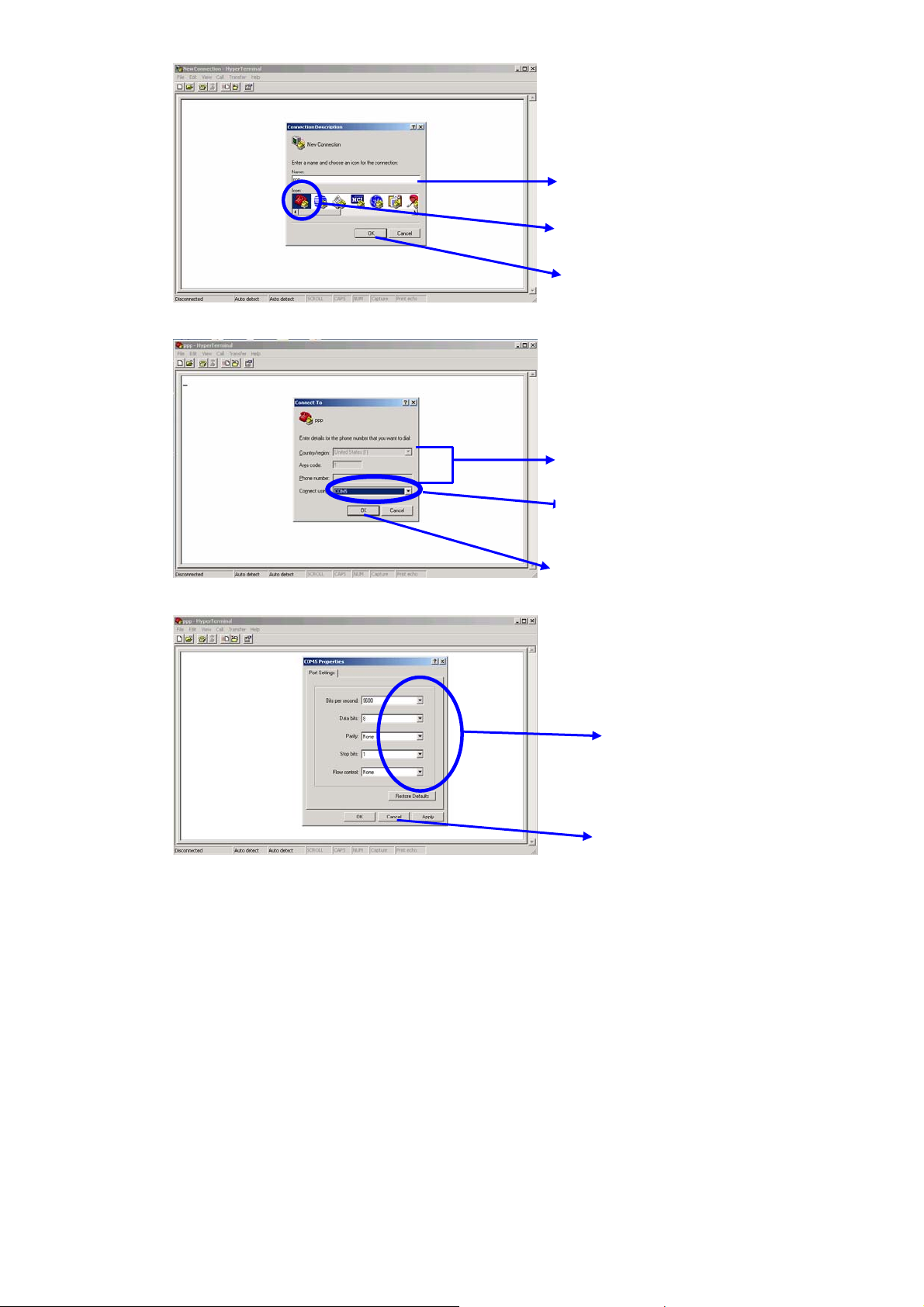
Figure 1
N
Figure 2
Step 1: key-in a file name
Step 2: select the first
Step 3: press OK
o need to key-in
Figure 3
Step 1: key-in the identify
Step 1: key-in the identify
COM number, ex.
COM number
COM 5
Step 2: press OK
Step 2: press OK
Row 1: key-in “9600”
Row 2: key-in “8”
Row 3: key-in “none”
Row 4: key-in “1”
Row 5: key-in “none”
Press OK
4
Page 5
7. Start to aim the scanner at a bar code, you may see data shown on the hyper
terminal.
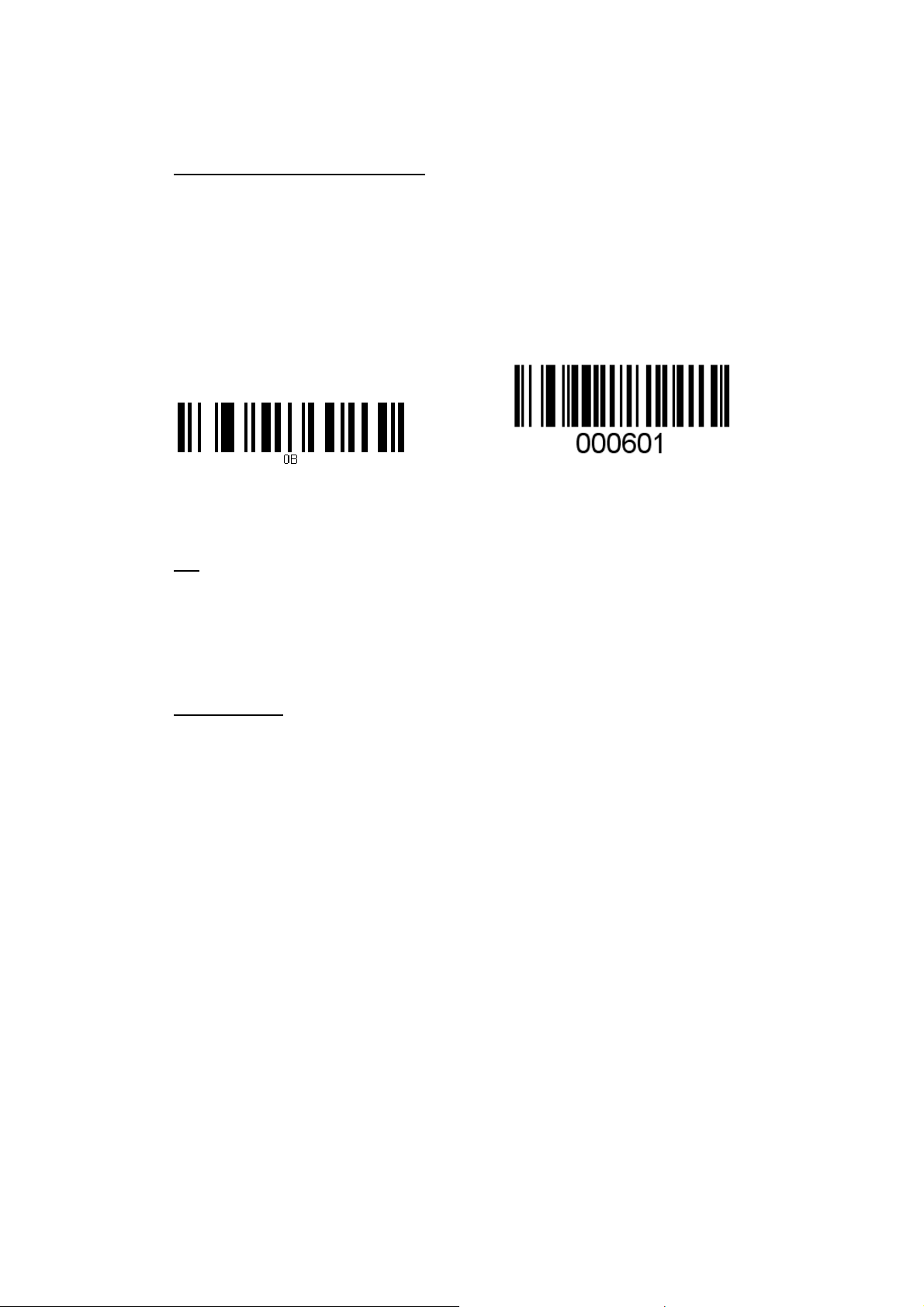
Reset Configuration to Defaults
If you are unsure of the scanner configuration or have scanned the incorrect codes,
please scan the “Reset Configuration to Defaults” barcode. This will reset the
scanner to its factory settings.
LS 6000B or LS6000Z
Tip
Do not hold the scanner directly over a barcode at 90˚. Scanning light bounces
directly back into the scanner from the barcode label is known as specular reflection
which will create a "dead zone" where decoding is difficult. Practice a few times to
find what range of angles works best.
Maintenance
Cleaning the scan window is the only maintenance required. A dirty window may
affect scanning accuracy.
Wipe the scanner window gently with a lens tissue or other material suitable for
cleaning optical material.
Do not spray water or other cleaning liquids directly onto the window.
5
 Loading...