

Page 1
1
*
Wireless 2D
Pocket barcod e scanner
Quick Guide
M odel no. : iDC9607 L
Introduction
Designed primarily for P.O.S. retail environments, the iDC9607L is
a wireless pocket barcode scanner that allows you to scan various
barcoded items.
Its in-built excellent 2D engine allows you to reliably read 1D / 2D
barcodes on various shapes and is a great space-saver for busy or
limited workspaces.
It supports iOS, Android, and Windows devices through Bluetooth HID
or SPP communication.
Technical data
* Light source...............625±10 nm LED
* Depth of field..............(20 mil Code 39) : 320 mm
* Scan speed.................30 frame / second
* Best resolution............5 mil
* Transmission range.....BT Class 1 (100m, line of sight)
* Profiles.......................HID & SPP profile 2.4GHz Wireless
* Memory Capacity.........1MB memory inside
* Input voltage..............5 V/DC
* Rechargeable battery...3.7V 900mA Li-Ion battery
* Operating time............10,000 readings when full charged
* Operating conditions....0℃ to 50℃
* Dimensions.................100 x 43 x 24.5mm (L x W x H)
* Symbologies:
2D: PDF417, QR code, Micro Q R code, Data Matrix
1D: Code 128, UCC/EAN-128, EAN- 8, EAN-13, ISBN/ISSN, UPC-E,
UPC-A, Interleaved 2 of 5, Matrix 2 of 5, Industrial 25, MSI,
Code 39, Codabar, Code 93, Code 11, RSS-14, RSS-Limited,
RSS-Expand
Delivery content
* Pocket Barcode scanner x 1
* Mini USB cable x 1 (for charging only)
* Quick instructions x 1
* Strap x 1
Limited Warranty
We provide one-year limited warranty.
We will not warranty any product which has been su bjected to
improper usage, neglect or unauthorized repair or installation.
Besides, warranty does not cover the faulty usages or consumable
parts. (Cable & battery are consuma ble.)
Safety instructions
Read the operating instructions carefully and especially observe the
safety information.
If you do not follow the safety instructions and information on proper
handling in this manual, we assume no liability for any resulting
personal injury or damage to property.
* Don’t put scanner in places excessively high temperatures, such as
expose under direct sunlight
* Don’t use scanner in extremely humid area or drastic temperature
change
* The rechargeable battery is permanently built into the product and
cannot be replaced.
* Never damage the rechargeable battery. Damaging the casing of
the rechargeable battery might cause an explosion or a fire!
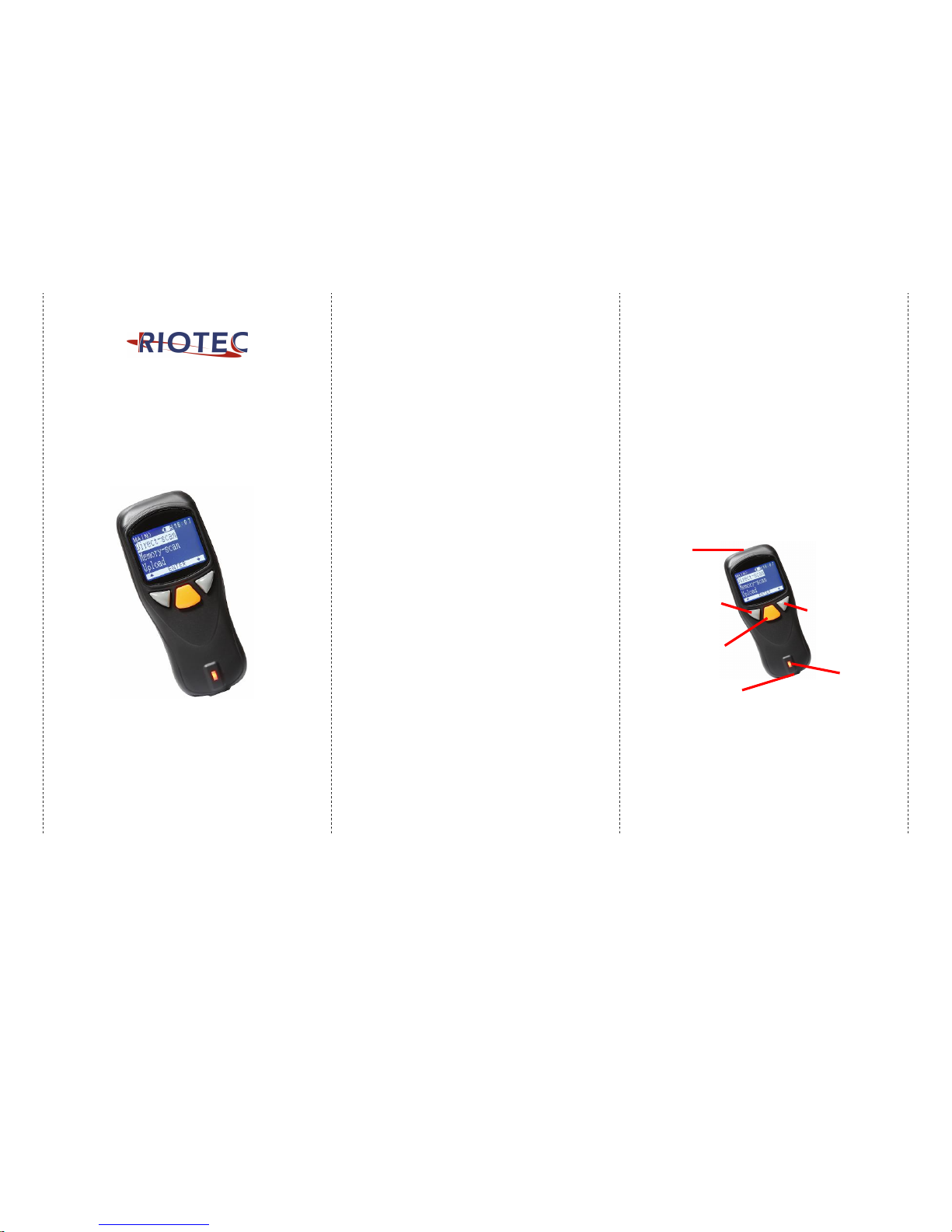
Operating elements
** Please switch ON and charge scanner for 3~4 hours at first time
before use.
* In the beginning, you must press the orange trigger button
for 8 seconds to turn on the pocket barcode scanner.
Then, press it for scanning bar codes & waking up from
sleeping mode.
Power Saving button:
Press the button for 2~3
seconds then enter
power saving mode
SCAN/ENTER/Power ON
Button
(For iOS Device ONLY)
the button to raise and
lower ON-Screen
Keyboard
Indicator (LED)
Exit
Window
Mini USB port
with protective cover
charge scanner via mini USB host cable.
Page 2

2
How to Connect to Smartphone or Tablet
1. Make sure your device supports BT HID or BT SPP profile
2. Turn off Power-Saving mode on your smartphone/tablet first
3. Then, choose HID or SPP device before connecting to smartp hone/tablet.
If you don’t know what profil e your device is, please try HID profile first,
then, SPP profile.
1. Main MENU 2. select Setup
MAIN> S 12:52
Direct-scan
Memory-scan
Upload
↑
ENTER
↓
MAIN> S 12:52
Memory-scan
Upload
Setup
↑
ENTER
↓
3. select BT setup
S>
S
12:52
BT setup
Sleep time
Output Speed
ESC ENTER
↓
After you select what you want,
press the orange button to enter the
next or ESC button back to the
previous.
How to connect to SPP or HID device or dongle
HID device (from A1 to A3)
A1. select HID device
A2. select Simple pairing
or Pairing
S/B>
S
12:52
SPP device
HID device
Dongle
ESC ENTER
↓
S/B/H>
H
12:52
Simple pairing
Pairing
ESC ENTER
↓
A3. Setting … Complet ed. .
Setting …
Completed!!!
* After you select what you want, press the orange button to enter the
next or ESC button back to the previous.
How to connect to SPP or HID device or dongle
SPP device (from B1 to B3) Dongle (from C1 to C4)
B1. select SPP device C1. select Dongle
S/B>
H
12:52
SPP device
HID device
dongle
ESC ENTER
↓
S/B>
S
12:52
SPP device
HID device
Dongle
ESC ENTER
↓
B2. Setting… Completed. C2. Setting … Completed.
Setting …
Completed!!!
Setting …
Completed!!!
C3. Scan MAC Address barcode
on the label of Dongle
B3. When your device pairs with
scanner, it will ask you to key-in the
PIN code, please key-in “1234”.
Then, the connection is ready.
Then, open your app (like
Blueterm), then, the data you scan
will be sent to BT Serial port.
S/B/S>
S
12:52
Push scan key
to read MAC
address…
ESC SCAN
C4. Please plug Dongle into PC and
it will connects automatically.
Then, you can begin to scan the
codes. The data will be sent to PC
directly.
* After you s elect what you want, press the orange button to enter the
next or ESC button back to the previous.
1. click the “Settings” 2. click “General”
3. click “Bluetooth”
4. Turn it ON, and search the
Devices
5. Select “Rxxxxxx” to conne ct
6. When see the “Connected” means
the connection is OK.
(example: pairing with iPhone)
1. Please complete the connection procedures as the above photo s.
2. After the connection is completed, the RED light wil l be OFF.
3. Before using WordPad file or appropriate APP, please set keyboard language
of device to US languag e. Then, scan the barcodes and the barcode data
will show on the cursor side.
Page 3
3
Notes:
* This product complies with Bluetooth standards. This device that communicated
with this product must support the same SPP or HID. For other Bluetooth
devices with other profiles we cannot guarantee a connection before the
product has been tested.
* The communication speed and range of the product may vary due to obstacles
and radio wave condition between the product and device to which it is
connected. Condition on the host device may also affect the communication
speed and range of the scanner.
LED Indicator Information
Orange LED ON Full charged
Orange LED Flashing Charging / Low battery
Red LED ON Offline / out of service
Green LED ON Good read
Orange LED ON Good read (Batch mode)
Remark:
* When the battery power is too low, the Orange LED will flash and beep
once. Scanner should be charged immediate ly.
* If scanner shuts down it is recommended to charge it fully before
turning it back on.
* Under power-saving mode, there will not be LED indication when
charging.
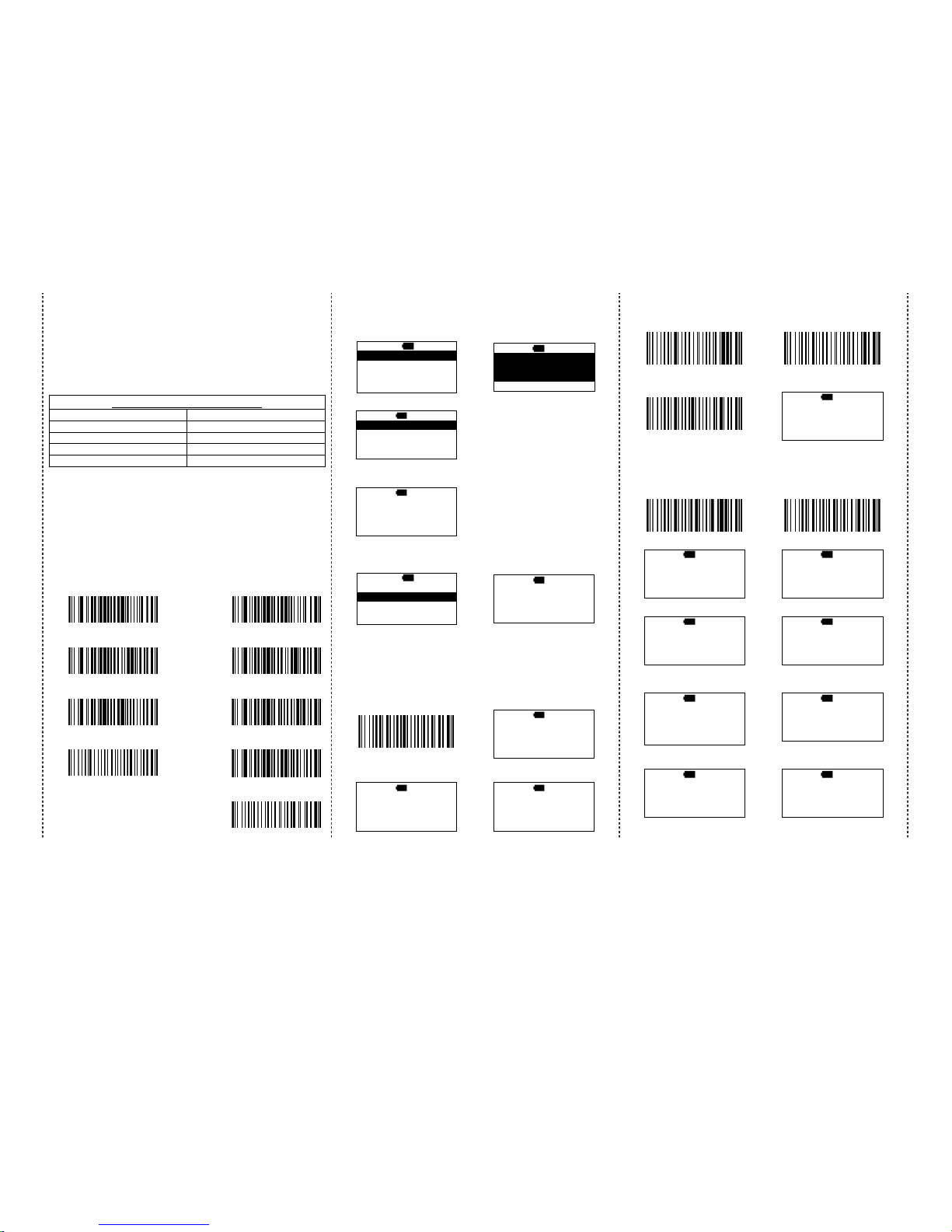
Reset Configuration to Defaults
(scan from A1 to A4 for HID prof ile or B1 to B5 for SPP prof ile)
HID profile
SPP profile
A1
B1
A2
B2
A3
B3
A4
B4
B5
There are two operating modes on the scanner
1. Direct-scan Mode
1. select Direct-scan 2. Clear memory
MAIN> H 12:52
Direct-scan
Memory-scan
Upload
↑
ENTER
↓
D>
H
12:52
Data in memory
Will be erased!
NO YES
3a. BT is disconnected.
D>
H
12:52
Off line !!!
…Linking!
ESC
If BT is disconnected, please back to
page #2 and do the pairing procedure
again.
3b. BT connected, begin to
scan the barcodes
D>
H
12:52
ESC SCAN
2. Memory-scan Mode
1. select Memory-scan 2. begin to scan the barcodes
MAIN> H 12:52
Direct-scan
Memory-scan
Upload
↑
ENTER
↓
M>
H
12:52
ESC SCAN
Under Memory-scan mode, enable/disable “Quantity
entry” function
Disable “Quantity entr y” (default)
1. disable “Quantity entry”
Setting code
2. begin the scan the barcodes
M>
H 12:52
ESC SCAN
3. press DEL to delete the last
barcode data
4. be sure that you want to
delete the last barcode.
M>
H
12:52
1234567
ESC SCAN DEL
M>
H
12:52
The last code
Will be deleted !
Are you sure ?
NO YES
Enable “Quantity Entry” function,
Decide the order of the output data to yo ur device first
1. Q’ty first, then, barcode 2. Barcode first, then, Q’ty
3. Enable “Quantity Entry”
Setting code
4. begin the scan the barcodes
M>
H
12:52
Scan:
Q’ty: 1
ESC SCAN ENTER
When “Quantity Entry” is enabled, decide how to type-in
the number.
By button (default) By scanning the number code
C1. enable D1. enable
C2. scan the barcode D2. scan the barcodes
M>
H
12:52
Scan:
Q’ty: 1
ESC SCAN ENTER
M>
H
12:52
Scan :
Q’ty: 1
ESC SCAN ENTER
C3. Press the ENTER to type the q’ty D3. Press the ENTER to type the q’ty
M>
H
12:52
1234567
Q’ty: ---ESC SCAN ENTER
M>
H
12:52
7654321
Q’ty: ---ESC SCAN
C4. press ↓ to choose number,
then, press ENTER to confirm
D4. scan numeric code (page #5)
M>
H 12:52
Q’ty: 5--ESC ENTER
↓
M>
H 12:52
Q’ty: 5--ESC SCAN
C5. Then, scan the next barcode
D5. end by X code, then,
be ready to scan the next
M>
H
12:52
Scan:
Q’ty: 1
ESC SCAN ENTER
M>
H
12:52
Scan :
Q’ty: 1
ESC SCAN ENTER
Page 4

4
Upload data (Memory-scan)
1. press ESC, select Upload
2. BT connected, press
START t o send data
MAIN> H 12:52
Direct-scan
Memory-scan
Upload
↑
ENTER
↓
U>
H
12:52
Push START key
to send data…
ESC START
3. After data upload, press
ERASE to delete memory data
4. be sure that you want to delete
memory data.
U>
H 12:52
Transmitting…
Completed!!
ESC SPEED ERASE
U/E>
H 12:52
Data i n memory
Will be erased!
Are you sure?
NO YES
5. After you delete the memory data, it will be back to MAI N MENU
Switch from Memory-scan to Direct-scan mode
1. switch Memory-scan to
Direct-scan mode
2. must delete all data in the
memory
D>
H 12:52
Data in memory
will be erased!
NO YES
…process
Completed!!!
3. begin to scan the barcode
D>
H
12:52
ESC SCAN
Power-saving Mode
1. Main MENU 2. select Setup
MAIN> H 12:52
Direct-scan
Memory-scan
Upload
↑
ENTER
↓
MAIN> H 12:52
Memory-scan
Upload
Setup
↑
ENTER
↓
3. select Sleep time
4. press ↓, decide the time to
enter sleeping mode
S>
H 12:52
BT setup
Sleep time
Output Speed
ESC ENTER
↓
S/P/S>
H 12:52
Sleep ti me
00
ESC ENTER
↓
* When chargi ng, the scanner will not enter power-saving mode
automatically.
Trigger Mode
Trigger always
(Trigger available at any time)
Trigger standard (Default)
(Trigger available, after data sent to the
device)
Transmission Speed
Transmission speed is dependent on your device. In order not to lose
data, please choose the correct speed.
1. Main MENU 2. select Setup
MAIN> H 12:52
Direct-scan
Memory-scan
Upload
↑
ENTER
↓
MAIN> H 12:52
Memory-scan
Upload
Setup
↑
ENTER
↓
3. select Output Speed 4. select the speed type,
S>
H
12:52
BT setup
Sleep time
Output Speed
ESC ENTER
↓
S/O>
H
12:52
Unlimited
Extra high
High
ESC ENTER
↓
RTC (Real-time clock)
1. Main MENU 2. select Setup
MAIN> H 12:52
Direct-scan
Memory-scan
Upload
↑
ENTER
↓
MAIN> H 12:52
Memory-scan
Upload
Setup
↑
ENTER
↓
3. select Time 4. select Stamp
S>
H
12:52
Sleep ti me
Output Speed
Time
ESC ENTER
↓
S/T>
H
12:52
Stamp
Format
Date
ESC ENTER
↓
5. select Date Stamp 6. Date Stamp is on or off.
S/T/S>
H
12:52
Date Stamp
Time Stamp
Interval char.
ESC ENTER
↓
S/T/S/D>
H
12:52
Date Stamp
On
Off
ESC ENTER
↓
7. press ESC, select Time
Stamp
8. Time Stamp is on or off
S/T/S>
H
12:52
Date Stamp
Time Stamp
Interval char.
ESC ENTER
↓
S/T/S/T>
H
12:52
Time Stamp
On
Off
ESC ENTER
↓
9. press ESC, select
Interval char.
8. select Interval char.
S/T/S>
H 12:52
Date Stamp
Time Stamp
Interval char.
ESC ENTER
↓
S/T/S/T>
H 12:52
Interval char.
,
ESC ENTER
↓
Page 5

5
The format of Date setting
1. Main MENU 2. select Setup
MAIN> H 12:52
Direct-scan
Memory-scan
Upload
↑
ENTER
↓
MAIN> H 12:52
Memory-scan
Upload
Setup
↑
ENTER
↓
3. select Time 4. select For mat
S>
H
12:52
Sleep ti me
Output Speed
Time
ESC ENTER
↓
S/T>
H
12:52
Stamp
Format
Date
ESC ENTER
↓
5. select the format of date
S/T/F>
H
12:52
MM/DD/YY
DD/MM/YY
YY/MM/DD
ESC ENTER
↓
Date setting
1. Main MENU 2. Select Setup
MAIN> H 12:52
Direct-scan
Memory-scan
Upload
↑
ENTER
↓
MAIN> H 12:52
Memory-scan
Upload
Setup
↑
ENTER
↓
3. Select Time 4. Select Date
S>
H 12:52
Sleep ti me
Output Speed
Time
ESC ENTER
↓
S/T>
H 12:52
Stamp
Format
Date
ESC ENTER
↓
5. Set the date, press ↓ to
select number, then, press
ENTER to go to the next
6. Save the date data
S/T/D> H 12:52
Month
(01-12) : 12
Date (01-31) : 02
Year (00-99) : 11
ESC ENTER
↓
Save i t ?
NO YES
Time setting
1. Main MENU 2. select Setup
MAIN> H 12:52
Direct-scan
Memory-scan
Upload
↑
ENTER
↓
MAIN> H 12:52
Memory-scan
Upload
Setup
↑
ENTER
↓
3. select Time 4. select Clock
S>
H
12:52
Sleep ti me
Output Speed
Time setup
ESC ENTER
↓
S/T>
H
12:52
Format
Date
Clock
ESC ENTER
↓
5. set the time. Press ↓ to
select the number, then,
press the ENTER to go the next
6. save the time setting
S/T/T>
H
12:52
Hour (00-23) : 00
Min (00-59) : 00
Sec (00-59) : 00
ESC ENTER
↓
Save i t ?
NO YES
How to append a “prefix” or a “suffix” to the
barcode data
prefix
suffix
1. Scan above configuration code for Prefix or Suffix
2. Enter the required values (right, numeric barcode) for Prefix or Suffix
using the hex values for the desired HEX values from “Prefix & Suffix
TABLE (below page)”
3. Then, end by scanning Code X (belo w, right)
* The max. of special charact ers is 5.
* When you append 1~4 requir ed values for Prefix or Suffix, it must end
with Code X.
* It doesn’t need Code X, if you append 5 values to barcode data.
How to delete Prefix or Suffix
1. Scan above co nfiguration code for Prefix or Suffix
2. Enter the “0” “0 ” (above, right)
3. Then end by sc anning Code X (below, right)
Numeric barcode for settings
0
6
C
1
7
D
2
8
E
3
9
F
4
A
5
B
X
Page 6

6
Prefix & Suffix TABLE
HEX
HID
(SPP)
HEX
HID
(SPP)
HEX HEX
HEX
HEX
01
CTRL A
(SOH)
19
CTRL Y
(EM)
20
SPACE 38 8 50 P 68 h
02
CTRL B
(STX)
1A
CTRL
Z(SUB)
21
! 39 9 51 Q 69 i
03
CTRL C
(ETX)
1B
ESC
(ESC)
22
" 3A : 52 R 6A j
04
CTRL D
(EOT)
1C
CTRL \
(FS)
23
# 3B ; 53 S 6B k
05
CTRL E
(ENQ)
1D
CTRL ]
(GS)
24
$ 3C < 54 T 6C l
06
CTRL F
(ACK)
1E
CTRL ^
(RS)
25
% 3D = 55 U 6D m
07
CTRL G
(BEL)
1F
CTRL _
(US)
26
& 3E > 56 V 6E n
08
Backspace
(BS)
27 ' 3F ? 57 W 6F o
09
Tab
(HT)
28 ( 40 @ 58 X 70 p
0A
CTRL J
(LF)
29 ) 41 A 59 Y 71 q
0B
CTRL K
(VT)
2A * 42 B 5A Z 72 r
0C
CTRL L
(FF)
2B + 43 C 5B [ 73 s
0D
Enter
(CR)
2C , 44 D 5C \ 74 t
0E
CTRL N
(SO)
2D - 45 E 5D ] 75 u
0F
CTRL O
(SI)
2E . 46 F 5E ^ 76 v
10
CTRL P
(DLE)
2F / 47 G 5F _ 77 w
11
CTRL Q
(DC1)
30 0 48 H 60 ` 78 x
12
CTRL R
(DC2)
31 1 49 I 61 a 79 y
13
CTRL S
(DC3)
32 2 4A J 62 b 7A z
14
CTRL T
(DC4)
33 3 4B K 63 c 7B {
15
CTRL U
(NAK)
34 4 4C L 64 d 7C |
16
CTRL V
(SYN)
35 5 4D M 65 e 7D }
17
CTRL W
(ETB)
36 6 4E N 66 f 7E ~
18
CTRL X
(CAN)
37 7 4F O 67 g
Barcode Configuration Method:
(Flow chart for setup procedure :)
Start
Configuration
End
Configuration
1D Symbologies – 1
ENABLE
Matrix
2 of 5
DISABLE
ENABLE
Industrial 25
Default
DISABLE
6 digit
(at least)
ENABLE
Interleaved
2 of 5
DISABLE
1D Symbologies – 2
ENABLE
GS1-Databar
(RSS)
DISABLE
ENABLE
UPC-E
DISABLE
ENABLE
UPC-A
DISABLE
ENABLE
Code 128
DISABLE
ENABLE
GS1-128
UCC/EAN-128
DISABLE
ENABLE
MSI
DISABLE
Page 7

7
Barcode Configuration Method:
(Flow chart for setup procedure :)
Start
Configuration
End
Configuration
1D Symbologies – 3
ENABLE
EAN-8
DISABLE
ENABLE
EAN-13
DISABLE
ENABLE
ISSN
DISABLE
1D Symbologies – 4
ENABLE
ISBN
DISABLE
ENABLE
Codabar
DISABLE
ENABLE
CODE 11
DISABLE
ENABLE
Code 39
DISABLE
ENABLE
Code 93
DISABLE
If you want to read the Industrial 2 of 5 (3~5 digital),
please read the below setting code to set the Minimum
Length to 3 digits
1.
2.
3.
4.
5.
6.
Page 8

8
Bar
code Configuration Method:
(Flow chart for setup procedure :)
Start
Configuration
End
Configuration
2D Symbologies
ENABLE
Data
Matrix
DISABLE
ENABLE
QR Code
DISABLE
ENABLE
Micro
QR Code
DISABLE
ENABLE
PDF 417
DISABLE
1. Pull out the USB cover its
slot
2. Press inward firmly on the
USB cover to reattach it
Top Bottom
Insert a thin object (e.g. a bent paper clip) into the small hole.
To click the reset button inside
Quick guide is subject to change without notice. R_160412_01
Pressing
direction
Reset
 Loading...