

Page 1

Mini Wireless
Keyboard Touchpad Combo
Rii Mini RT-MWK08
[2.4GHz]
(Rii mini i8)
Ver: 2.2*
Installation & User Manual
*Reviewed by DP from HQ-Tech
Page 2

Page 3

Safety Precautions
Safety Matters
To avoid injury, death of personnel or damage to
the equipment the operator must refer to the
explanations in this User’s Manual.
Battery: There is a lithium-ion rechargeable
battery in this device. Don’t water this device, or put
it in a humid environment for a long time or the
device will be damaged.
Attention to traffic safety
(CAR PC): Do not use the device while
driving. W
hen you want to use it, please
park your car.
Turn off this device on planes
This Electronic wireless product can
disturb the communicati
ons systems of
airplanes. Please turn if off before boarding.
In vicinity of dangerous goods to be
shut down
In gas station and close to fuel and
chemical agents and other
hazardous materials
areas, please turn the device off.
Page 4
Turn off this device in hospital
Please turn the device off in areas with “no
wireless devi
ce” indication.
Wireless devices may interfere with implanted
cardiac pacemakers, hearing aids and other
medical implant devices.
Interference
All wireless devices may be subject to
interference, thus affecting t
he performance
of this product.
Accessories
Only use factory specified parts. Please
use the suppli
ed travel charging cable. The
use of other charging devices may be dangerous.
Do not point the laser beam on human or
animal eyes directly to avoid damage to
the eye.
Page 5

Overview
Thank you for purchasing the Wireless Mini
QWERTY Keyboard &Touchpad Combo. You can
use it for emails, chat, or to enjoy your favorite
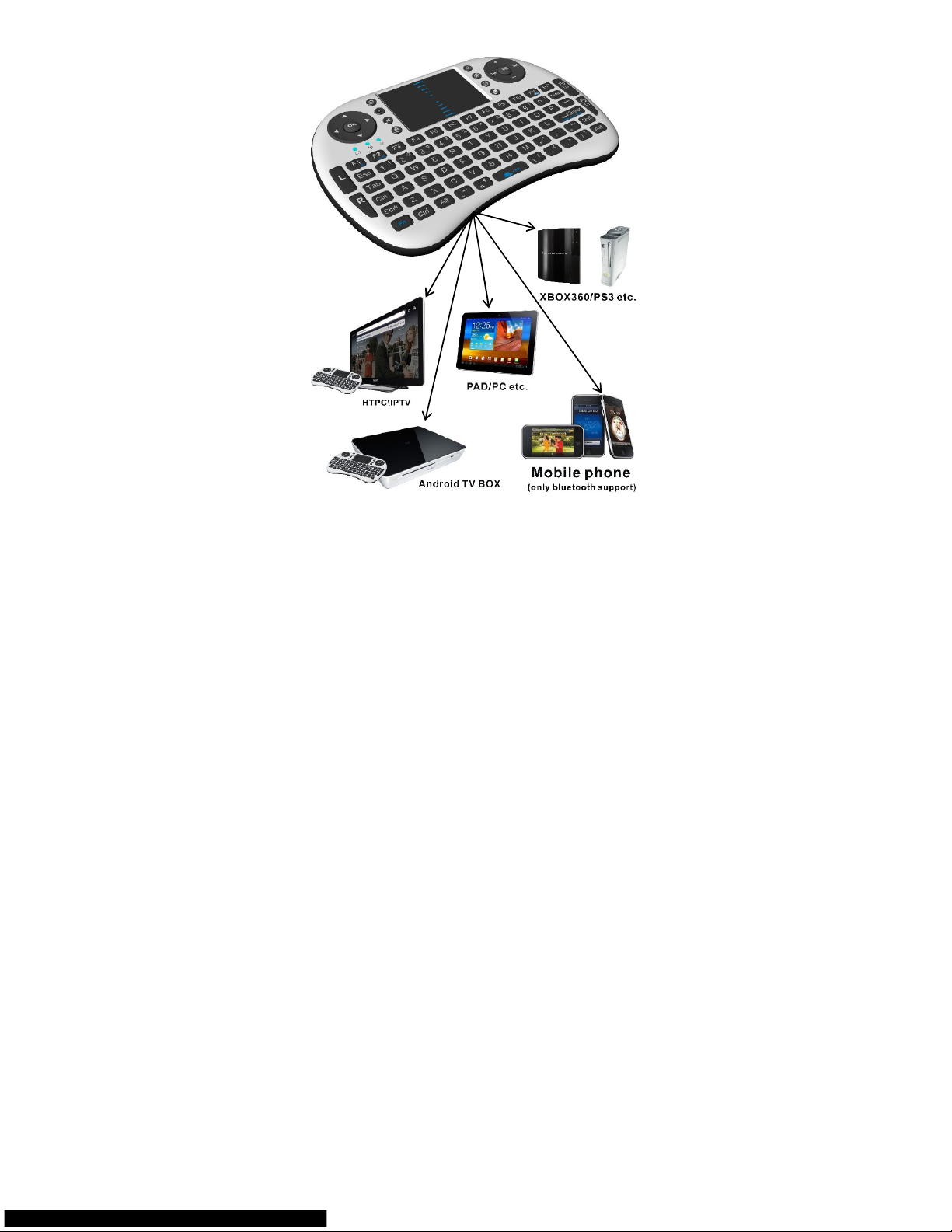
games. It is compatible with PC, pad, HTPC,
Smart TV, TV BOX running Android systems. It
also supports Xbox360 and Sony Playstation3.
Use it with your HTPC on your Sofa or browse the
internet in the most comfortable fashion.
This mini keyboard ideal for the lecture, sales
manager, presenter, from within a 10m radius
make a presentation and operate PC remotely.
You can change slides and screen options, write
on the screen, emphasize words and objects just
by using this wireless Mini Keyboard and Mouse
with Touch Pad.
Rii mini keyboard is best choice for people who
want to watch internet TV, play on their standard
TV, via broadband and a PC, like NBC, ABC, FOX
and IPTV, Android TV Box, browse internet on
Smart TV. If use this wireless mini combo, you can
sit in comfortable chair and select viewing
pleasures without walking to computer to change
channels or scroll through options.
Page 6
Introduction
Product overview
Page 7

Touchpad
This touchpad support the function of the mouse
scroll wheel. When you press the Fn button and
your fingers touch anywhere in the sliding region, it
simulate mouse scroll wheel function. You can
adjust touchpad sensitivity to achieving more
comfortable using pressing Fn+Spacebar keys
simultaneously. Touchpad have 3 DPI levels.
Connecting the receiver
Slide the receiver out from the side of keyboard,
and insert to the devices with a standard USB
interface. Once connected, slide the power switch
to the "ON" position located on the left side of the
unit to establish the connection.
Auto sleep and wake feature
The keyboard also features an auto sleep and auto
wake mode. If there is a long period of inactivity, the
keyboard will automatically go into a sleep mode.
During the sleep mode, the user can wake the unit
up by pressing any key. The 2.4 GHz receiver and
keyboard’s RF indicator will continue to flash and
will not power down.
Switching off the keyboard after use
After finishing using the keyboard, push the
switch to the off position. This turns off the
keyboard power. The USB receiver should be
plugged out from the PC and then inserted back in
the keyboard so it is being kept safely.
Page 8

Charging the battery
The device have replaceable lithium-ion battery,
please use only approved data lines and chargers.
Note: Fully charge the unit before operating for the
first time. This device can be used w
hen charging,
but will extend the charging time;
When the battery is low, the low-voltage light will
flash to warn the user. The unit will automatically
turn off if the battery has been depleted.
Appendix
Technical parameters
Specification
Measurements (LxWxH): 146.8x97.5x19 mm
Weight (grams): 1
10g
Frequency range: 2.403 ~ 2.480GHZ
Operational Range: up to 10
meters
Transmit power: +5db Max.
Operation voltage: 3.3V
Charge Voltage: 4.4V
~ 5.25V
Operation current: < 50mA
Charging current: < 300mA
Sleep current: < 1mA
System requirements
Computer operated with Windows
2000/XP/Vista/7/8,
Linux
Android OS 1.6 or above.
Mac OS
Windows CE
Smart TV/Google TV with USB HID devices
Page 9

support
Maintenance:
Do not attempt to disassemble the device or
replace rechargeable battery. Doing so will
void the warranty.
The battery will discharge if stored for a long
period of ti
me without usage.
Use the specified charger. Disconnect the
device after the battery
has been fully charged.
Overcharging the battery will shorten the life
span of the battery.
Do not expose the device in extreme heat or
cold. Extreme temperat
ures will cause the life
span of the battery to shorten.
Use only a damp cloth with mild soap to clean
the
device. Solvents and other cleaning agents
may cause damage to the device.
Warning:
While finished charging, pull out the charge
cable.
Never try to open or repair this product
yourself.
Keep this device away from fluids, such as
water.
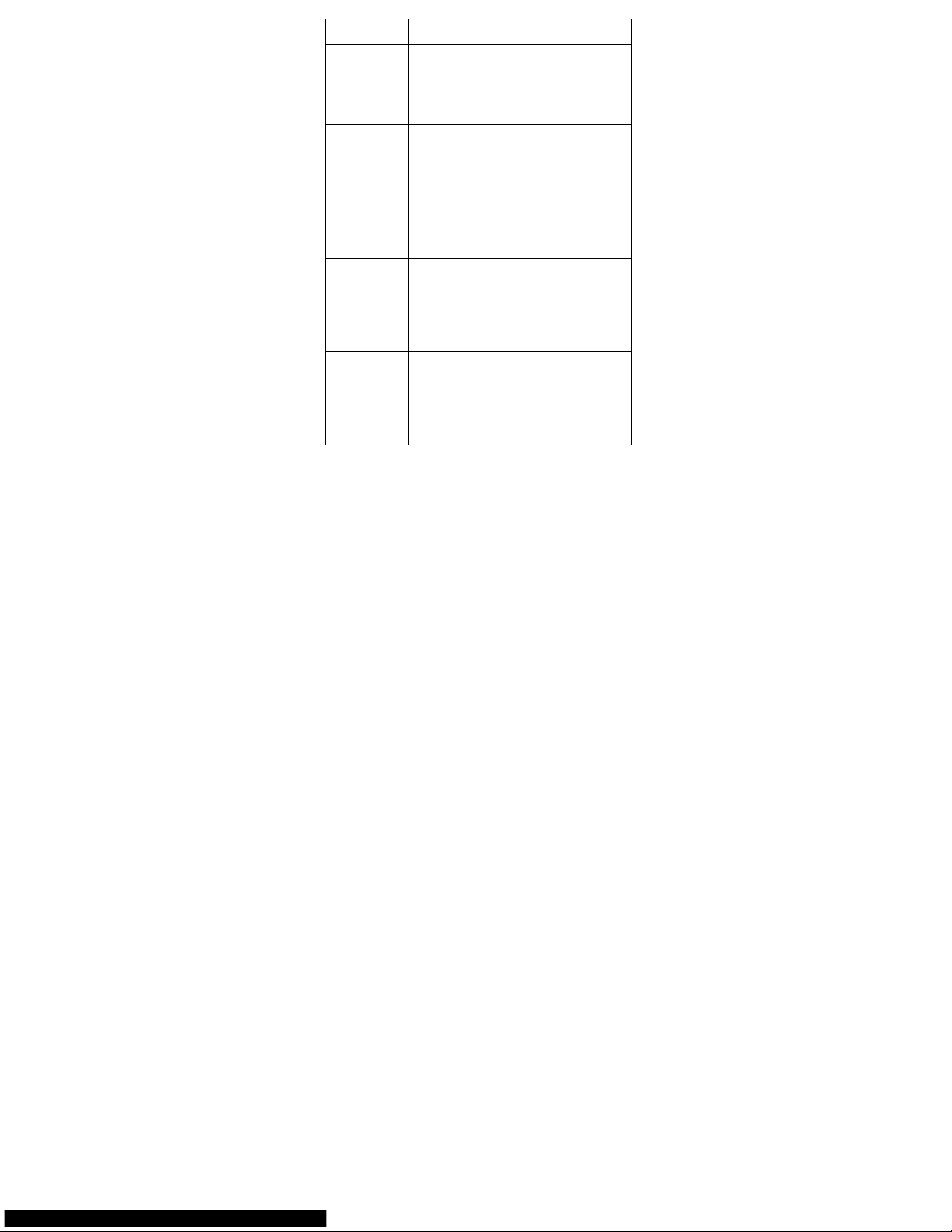
Troubleshooting:
Below are some basic troubleshooting
scenarios for the device. Please contact support
from the place of purchase if you are unable to
resolve any issues with the device.
Page 10
Problem
Possible issue
Solutio
n
Unit does not
respond.
1. Low battery
power.
2. Unit is not turned
on.
1.
Charge the device for
at least 15 minutes.
2. Check if the switch
selected to the “ON”
position.
Keyboard
cannot
establish a
connection to
the receiver.
1. The receiver may
not be inserted correctly.
2. Possible wire
less
interference with
another device.
1. Disconnect and
reconnect the receiver
to the USB port.
2. Change the channel
of the device by
pressing and holding
the Fn+ F1 key for 10
seconds and let the unit
reconnect.
The mouse
pointer moves
erratically
and/or
unresponsive.
1. Device may not
be within optimal
range of the
receiver
2. Dust or oil on the
touchpad.
1. Bring the unit closer
to the receiver.
2. Clean the touchpad
with a damp cloth.
The unit does
not charge.
1. Defective battery.
2. Check
connections.
1. Contact your local
dealer for replacements.
2. Verify if the device is
securely connected to
the charger.
Page 11

Disposal
Always dispose of the used
appliance at a recycling centre.
Do not dispose of the used
appliance with the household
waste.
Notes:
Since devices using 2.4G technology
communicate using radio waves, your device and
the other devices do not need to be in direct
line-of-sight. The connection can be subject to
interference from obstructions, such as walls or
other electronic devices
In line with the policy of continued development,
the manufacturer reserves the right to amend
specifications without prior notification. The
illustrations in the user manual are for reference
only. Please operate according to the real design.
 Loading...