

Page 1

Mini Bluetooth
Keyboard Mouse Combo
With Backlit
With DPI Adjustable
User’s Manual
Ver:K03BT3.1
Page 2

Contents
1、Introduction
2、Hardware Installation
3、Software Setup
Microsoft Windows Mobile OS
Google Android OS
Symbian OS
Windows OS (with IVT Bluetooth Stack)
Windows OS (Broadcom Bluetooth Stack)
Linux(Ubuntu)
4、Product overview
5、Technical parameters
6、Maintenance
Page 3

1、Introduction
Thank you for purchasing the Mini Bluetooth
Keyboard! This is wonderful combo, Bluetooth
Wireless Mini QWERTY Keyboard & Touch Pad
Combo.You can use it for emails, chat, or to enjoy
your favorite games. It is compatible with desktop
computers running Windows or Linux but also with
handhelds running Android, Windows Mobile
Pocket PCs or Symbian S60 Operating systems.
It also supports the Sony Playstation3. Use it with
your HTPC on your Sofa or browse the internet in
the most comfortable fashion.
Features
The perfect companion for your device
Ideal for typing emails, chat and playing
games
Pocket sized, sleek, slim design
Built-in rechargeable more staying power
lithium-ion battery
innovative design of the Navigation keys
have a real notebook Touchpad
real QWERTY full-function mini keyboard
Compatible with Bluetooth3.0
Computer System Requirements
Windows 98/ME/2000/XP/Vista/7
Mac OS 10.2.8 or Later
Mobile System Requirements
Google Android
Apple IOS 4 or Later
Microsoft Windows Mobile 5.0 or Later
Nokia Symbian S60 System
Sony Playstation 3
Page 4

Package Contents:
Bluetooth Mini Keyboard with Touchpad
Bluetooth USB Dongle(Optional)
Charging Cable
User Manual
2、Hardware Setup
Please Note: The battery may be empty when you
first unbox the product.Make sure to charge the
device 20-30min before attempting to set it up
Paring Mode
1. Turn ON the power swith,the green LED will
illuminate for 2 seconds.
2. Click on the “Bluetooth
Pair/Connect”button.The green LED will
blink intermittently.
3. The Keyboard is now in paring mode and is
ready to be paired with your device.
Recharging
Connect the mini Bluetooth keyboard to your
computer by using the included USB charging
cable.When connected,the Red LED will
illuminate and get dimmer as the battery charge
level nears capacity.
3、Software Setup
Microsoft Windows Mobile OS
Setup:
1. Connect your mobile device to your
computer using the USB port.
2. On your PC,insert the Driver CD and access
the drive by clicking on”My Computer”
Page 5

3. Locate the “Mobile” folder and inside the
“windowsmobile.cab” (Bluetooth input driver)
CAB file.
4. Open ActiveSync on your desktop and Click
Explore
5. Copy the CAB file to your mobile device. You
can do this by dragging and dropping the file
from the desktop folder to My Documents
folder on your device.
6. On the device,click on Start,Program,File
Explorer,My Documents.
7. Run the windowsmobile.cab file by taping on
it.
8. The Bluetooth keyboard drivers will install on
your device.
9. After your device is reset,ensure the
keyboard is in pairing mode.
10. On the device open”Bluetooth Devices”and
click”Add New”.
11. After the keyboard is discovered,select it and
then tap on”Next”.
12. When prompted for the passkey leave the
field blank and click on”Next”if the pairing
fails,repeat this step and use”0000”as the
passcode.
13. Ensure”Input Device”is checked and tap
on”Finish”.
14. Go to the Software settings panel and tap
on”Connect”
Troubleshooting:
The software is not responding.You need to
reinstall this software-This error is caused by a
problem with the communication between the
software components.Check to ensure your
Windows Mobile Device is supported by the
Page 6

keyboard(Version 5.0 or higher)and try to reinstall
the software.
Bluetooth is turned off-Bluetooth needs to be
enabled in ordr to use this device.Make sure to turn
it on in the settings menu.
No active input device found-Make sure the
keyboard is properly paired with your smartphone.
Settings:
To open the setting menu,tap on
Start,Settings,System and tap the icon
named”Bluetooth Input Driver”.
Keyboard Page:
This page allows you to enable or disable the
keyboard functionality and sounds.
Status Page:
Allows you to view the status and autostart when
windows mobile starts.
About:
Displays the software version and other useful info.
Google Android OS
Setup:
1. On your PC,insert the Driver CD and access
the drive by clicking on”My Computer”.
2. Open the”Android”folder and copy the file
labeled”android.apk”to your android’s
memory card.
3. On your device,open”Market”and install
the”AppManager” Software.
4. Tap Install from SD option and run the”
android.apk”file.
Page 7

5. You will be presented with a screen
requesting activation.Make sure to click”OK”
with an active internet connection.
6. Make sure your Bluetooth mini keyboard is in
the pairing mode and access the “Bluetooth
Keyboard”icon under the main menu.
7. Make sure that Bluetooth is turned on and
tap on”Search and Connect”.The software
will automatically find the keyboard and
connect to it.
Troubleshooting:
Keyboard Disconnected-If your device loses the
connection with the keyboard,you can reconnect by
pressing the reconnect button.
Symbian OS:
Setup
1. On your PC,insert the Driver CD and access
the drive by clicking on”My Computer”.
2. Open the “Nokia Wireless Keyboard
Application” folder on the CD and choose
your device model by operating system
version.
3. Copy the .sis file to your devices memory
card or directly to the device via a USB
cable.
4. On the device,find the .sis file and select it.
Follow the onscreen instructions for
installation.
5. Run the installed application-Wireless
Keyboard and search for nearby Bluetooth
devices.
6. After the device is paired and connected you
may need to set the keyboard layout.
Page 8

Windows OS(IVT Bluetooth Stack)
Setup
1. Make sure that Bluetooth is enabled on your
PC.
2. Double click on the Bluetooth icon and
select”Bluetooth Device Discovery”.
3. Right click on the Bluetooth keyboard found
and click on”Refresh Services”.
4. Right click on the Bluetooth keyboard and
select”Connect-Bluetooth Input Service”.
5. A popup dialog will appear with a code.Input
this code to the keyboard and press OK.The
system will automatically install the drivers
for the keyboard.
Windows OS(Broadcom Bluetooth stack)
1. Make sure that the Bluetooth function
is active on your PC. Double click the
Bluetooth icon, then click “View
devices in range”
2. Click “Search devices in range” and
wait until the Mini Bluetooth keyboard
is discovered.
3. Right clicking the detected
keyboard brings a popup menu.
Click “Connect device”.
4. Press YES to connect to the “Human
interface Device”
5. Using the Mini Bluetooth keyboard,
type the number displayed on the
screen, then press enter.
Page 9

Linux(Ubuntu)
1. Make sure that the Bluetooth function
is active on your PC. Click the
Bluetooth icon and select “Setup new
device”
2. A wizard window opens, read the text
and press “Forward”
3. Wait until the keyboard is discovered,
then select it and press “Forward”
4. Type the code display on the Mini
Bluetooth keyboard, then press Enter
Page 10
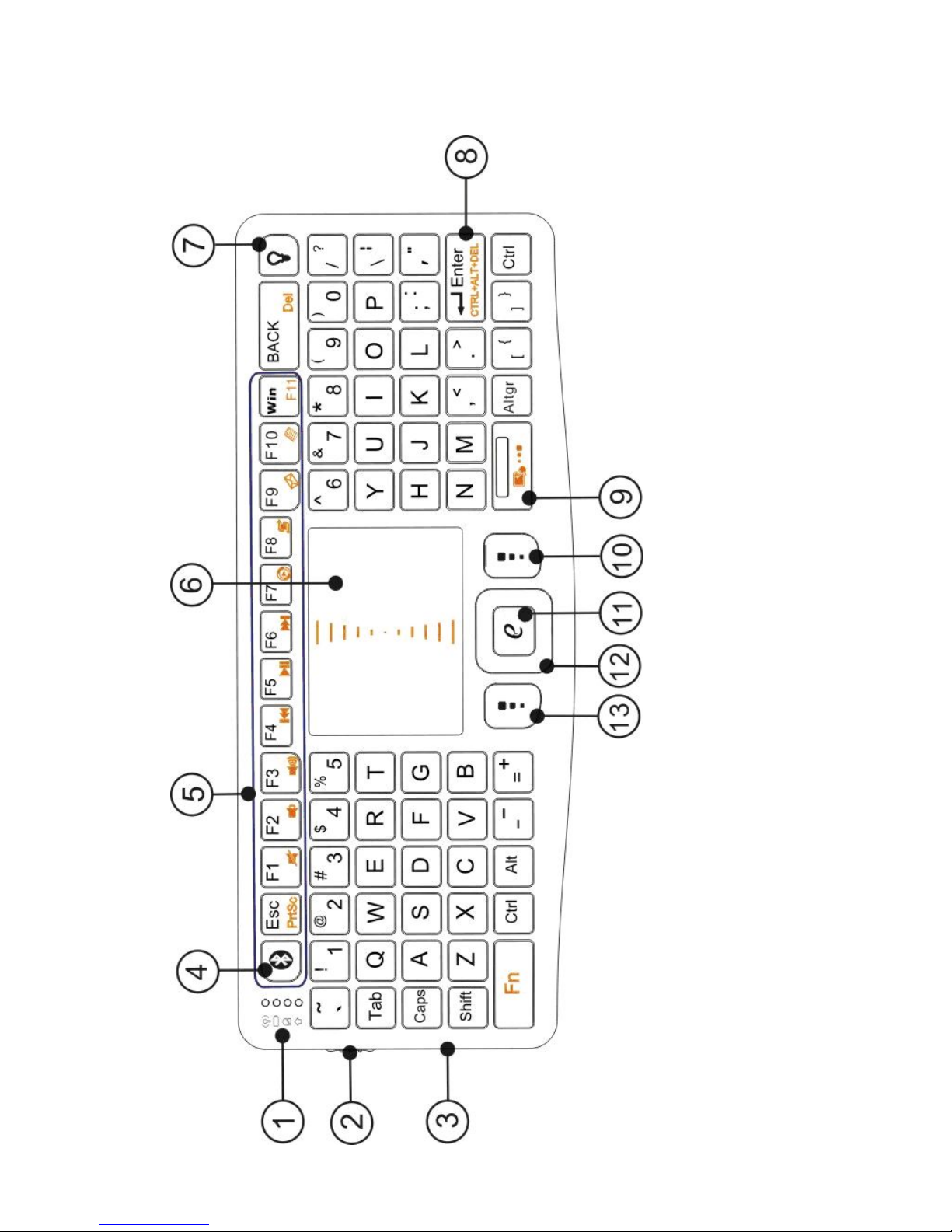
4、Product overview
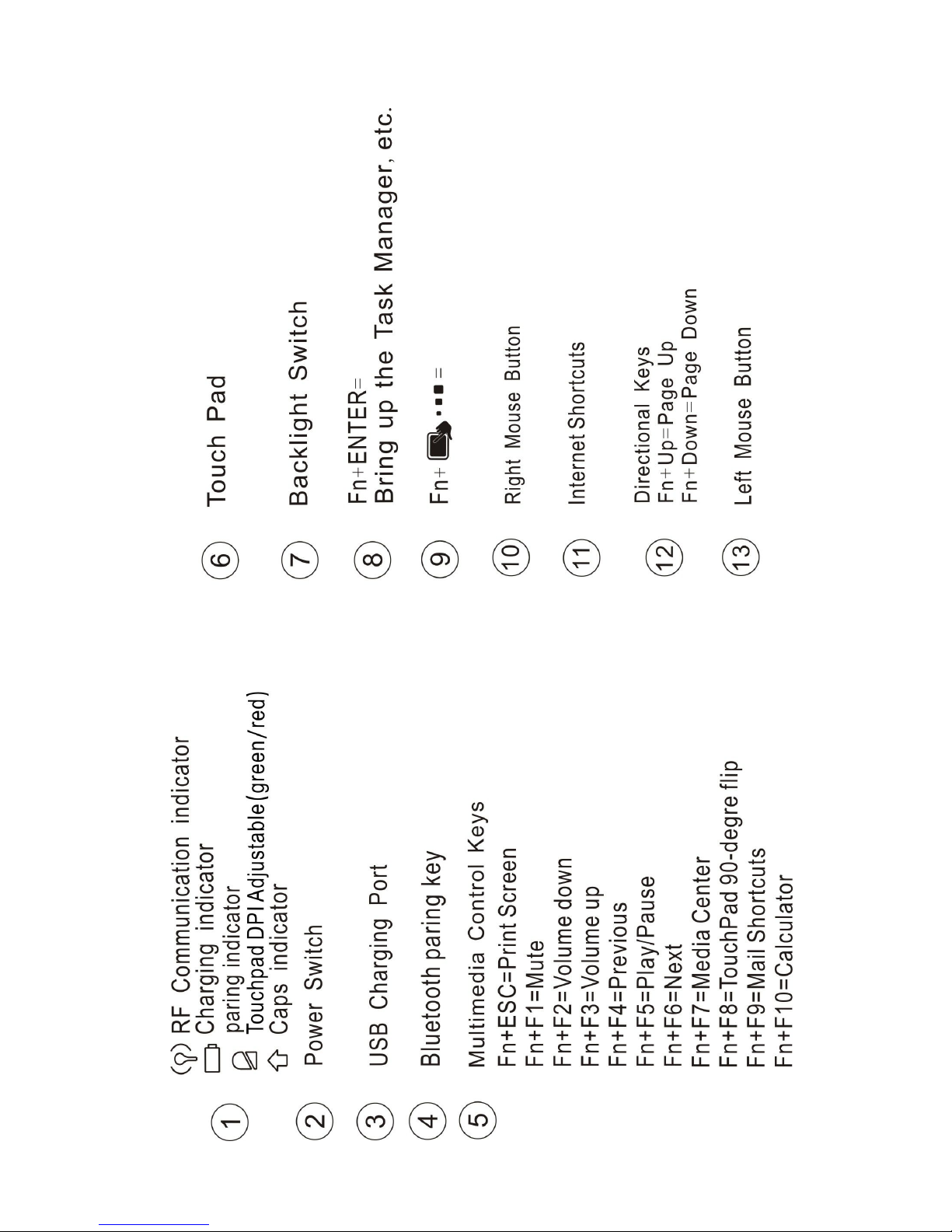
Keyboard Layout IIIustration
Page 11
Page 12

Enabling the backlight
Once the keyboard has established a connection
with the receiver,the backlight keys will
automatically turn on for 3 seconds.The backlight
will turn off after 3 seconds to preserve battery
life.To manually turn the backlight on,simply press
the key specifed above
In the keyboard layout illustration shown on
previous page.
Auto sleep and wake feature
The keyboard also features an auto sleep and auto
wake mode.If there is a long period of inactivity,the
keyboard will automatically go into a sleep
mode.During the sleep mode,the user can wake
the unit up by pressing any key.The Bluetooth
receiver and keyboard’s RF indicator will continue
to fash and will not power down.
Touchpad DPI Adjustable functions
The world’s first Touchpad DPI Adjustable
functins,LED lights of different colors represent
different DPI Better match the different sizes of
screen .With this product ,you can enjoy more
multimedia fun!
Page 13

Lighting instructions
(a),RF Communication indicator:
data transmission instruction.
(b),Charging indicator:
light on = Charging , light off = full charge.
(c),Battery capacity indicator:
The light keeps flashing suggests battery
low; The light turns green suggests touchpad
speed is in low-bit mode;
The light turns red suggests touch pad speed is in
high speed mode.
(d),CAPS indicator :CAPS conversion instruction.
5.Technical parameters
Specification
Dimension: 151mmX61mmX12.5mm
Weight: 95g
Suitable temperature: -10 ℃ to +55 ℃
Battery Type: Built-in lithium-ion battery
Operation range: up to 8 meters
Operating Voltage: 3.3V
Operating Current: <50mA
Charge voltage: 4.2V - 5.05V
Charge current: <300mA
6、Maintenance
Do not attempt to disassemble the device or
replace rechargeable battery. Doing so will
void the warranty.
The battery will discharge if stored for a long
period of time without usage.
Page 14

Use the specified charger. Disconnect the
device after the battery has been fully
charged. Overcharging the battery will
shorten the life span of the battery.
Do not expose the device in extreme heat or
cold. Extreme temperatures will cause the
life span of the battery to shorten.
Use only a damp cloth with mild soap to
clean the device. Solvents and other
cleaning agents may cause damage to the
device.
Notes:
Since devices using Bluetooth technology
communicate.The connection can be subject to
interference from obstructions, such as walls,or
other electronic devices
In line with the policy of continued
development.The manufacturer reserves the right
to amend The specifications without prior
notification,The pictures and date in the stylebook
are consult only.If there is fluctuation.According to
the real object please.
 Loading...