

Page 1
For safe and correct use, be sure to read the Safety Information in
"Read This First" before using the machine.
For information not in this manual, refer to
the HTML/PDF files on the supplied
CD-ROM.
Troubleshooting
Adding Paper and Toner
Web Image Monitor
Document Server
Scan
Print
Fax
Copy
Getting Started
What You Can Do with This Machine
User Guide
Page 2
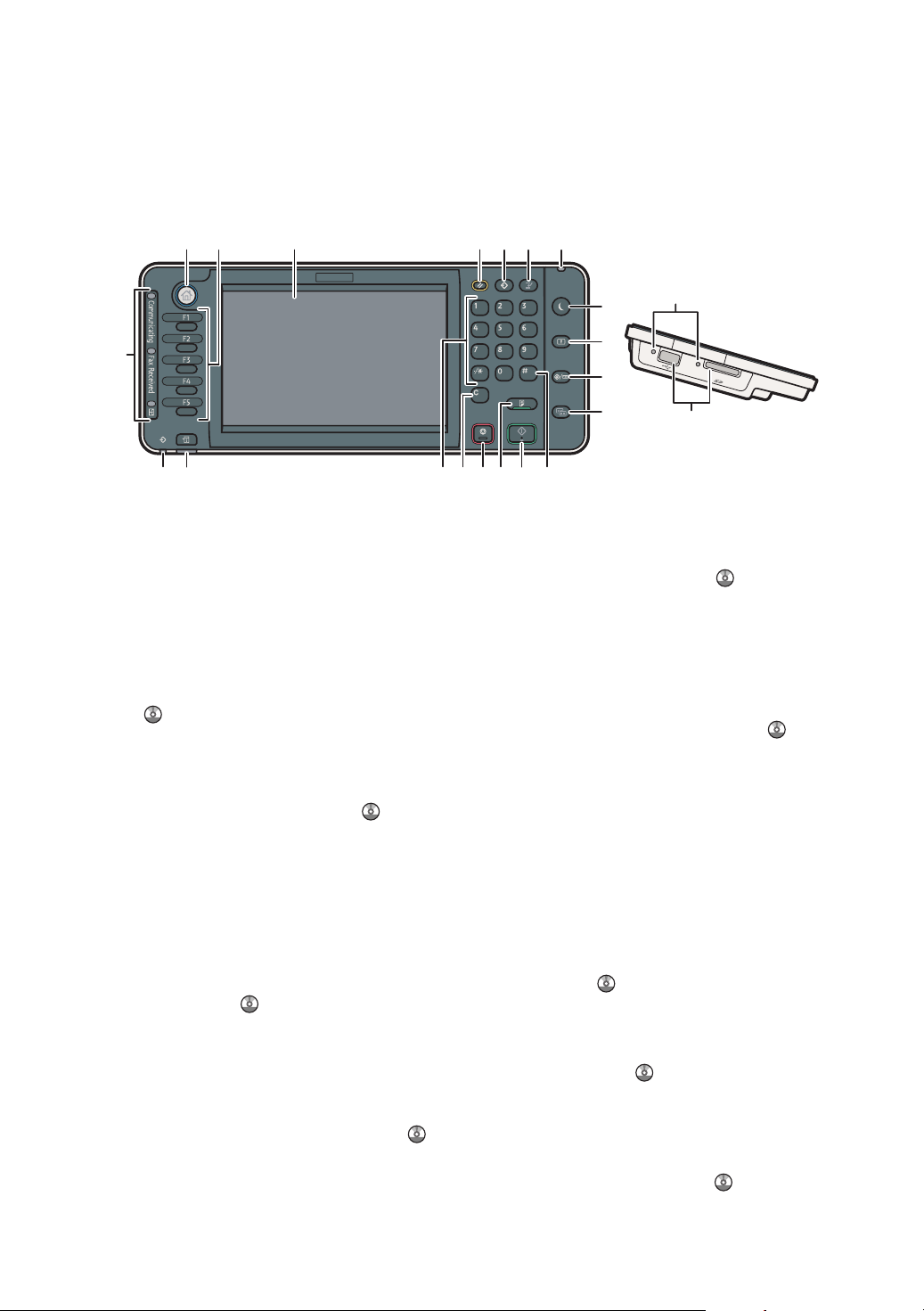
Guide to the Names and Functions
1 4 5 6 732
8
9
10
11
1213141516171819
20
21
22
of the Machine's Control Panel
This illustration shows the control panel of the machine with options fully installed.
[Home] key1.
Press to display the [Home] screen. For details,
see "How to Use the [Home] Screen".
Function keys2.
No functions are registered to the function keys
as a factory default. You can register often used
functions, programs, and Web pages. For details,
see "Conguring function keys", Getting Started
.
Display panel3.
Displays keys for each function, operation status,
or messages. See "How to Use the Screens on
the Control Panel", Getting Started
[Reset] key4.
Press to clear the current settings.
[Program] key (copier, Document Server, 5.
facsimile, and scanner mode)
Press to register frequently used settings, or •
to recall registered settings. See "Registering
Frequently Used Functions", Convenient
Functions .
Press to program defaults for the initial •
display when modes are cleared or reset,
or immediately after the main power switch
is turned on.
See "Changing the Default Functions of the
Initial Screen", Convenient Functions
.
.
[Interrupt] key6.
Press to make interrupt copies. See "Interrupt
Copy", Copy/ Document Server
Main power indicator7.
The main power indicator goes on when you turn
on the main power switch.
[Energy Saver] key8.
Press to switch to and from Low Power mode or Sleep
mode. See "Saving Energy", Getting Started
When the machine is in Low Power mode, the
[Energy Saver] key is lit. In Sleep mode, the
[Energy Saver] key ashes slowly.
[Login/Logout] key9.
Press to log in or log out.
[User Tools/Counter] key10.
User Tools•
Press to change the default settings to meet
your requirements. See "Accessing User
Tools", Connecting the Machine/ System
Settings
Counter•
Press to check or print the counter
value. See "Counter", Maintenance and
Specications
You can nd out where to order expendable
supplies and where to call when a malfunction
occurs. You can also print these details. See
"Checking Inquiry Using the User Tools",
Maintenance and Specications
.
.
.
.
.
Page 3
[Simple Screen] key11.
Press to switch to the simple screen. See
"Switching Screen Patterns", Getting Started
[ # ] key (Enter key)12.
Press to conrm values entered or items specied.
[Start] key13.
Press to start copying, printing, scanning, or
sending.
[Sample Copy] key14.
Press to make a single set of copies or prints to
check print quality before making multiple sets.
See "Sample Copy", Copy/ Document Server
.
[Stop] key15.
Press to stop a job in progress, such as copying,
scanning, faxing, or printing.
[Clear] key16.
Press to delete a number entered.
Number keys17.
Use to enter the numbers for copies, fax numbers
and data for the selected function.
[Check Status] key18.
Press to check the machine's system status,
operational status of each function, and current
jobs. You can also display the job history and the
machine's maintenance information.
Data In indicator (facsimile and printer 19.
mode)
.
Flashes when the machine is receiving print jobs
or LAN-Fax documents from a computer. See Fax
and Print .
Communicating indicator, Fax Received 20.
indicator, Condential File indicator
Communicating indicator•
Lights continuously during data transmission
and reception.
Fax Received indicator•
Lights continuously while data other than
personal box or Memory Lock le is being
received and stored in the fax memory.
See "Substitute Reception", Fax
Condential File indicator•
Lights continuously while personal box data
is being received. Blinks while Memory
Lock le is being received. See "Personal
Boxes" and "Printing a File Received with
Memory Lock", Fax
Media access lamp21.
Lights up when a removable memory device is
inserted in the media slot.
Media slots22.
Use to insert an SD card or a USB ash memory
device.
.
.
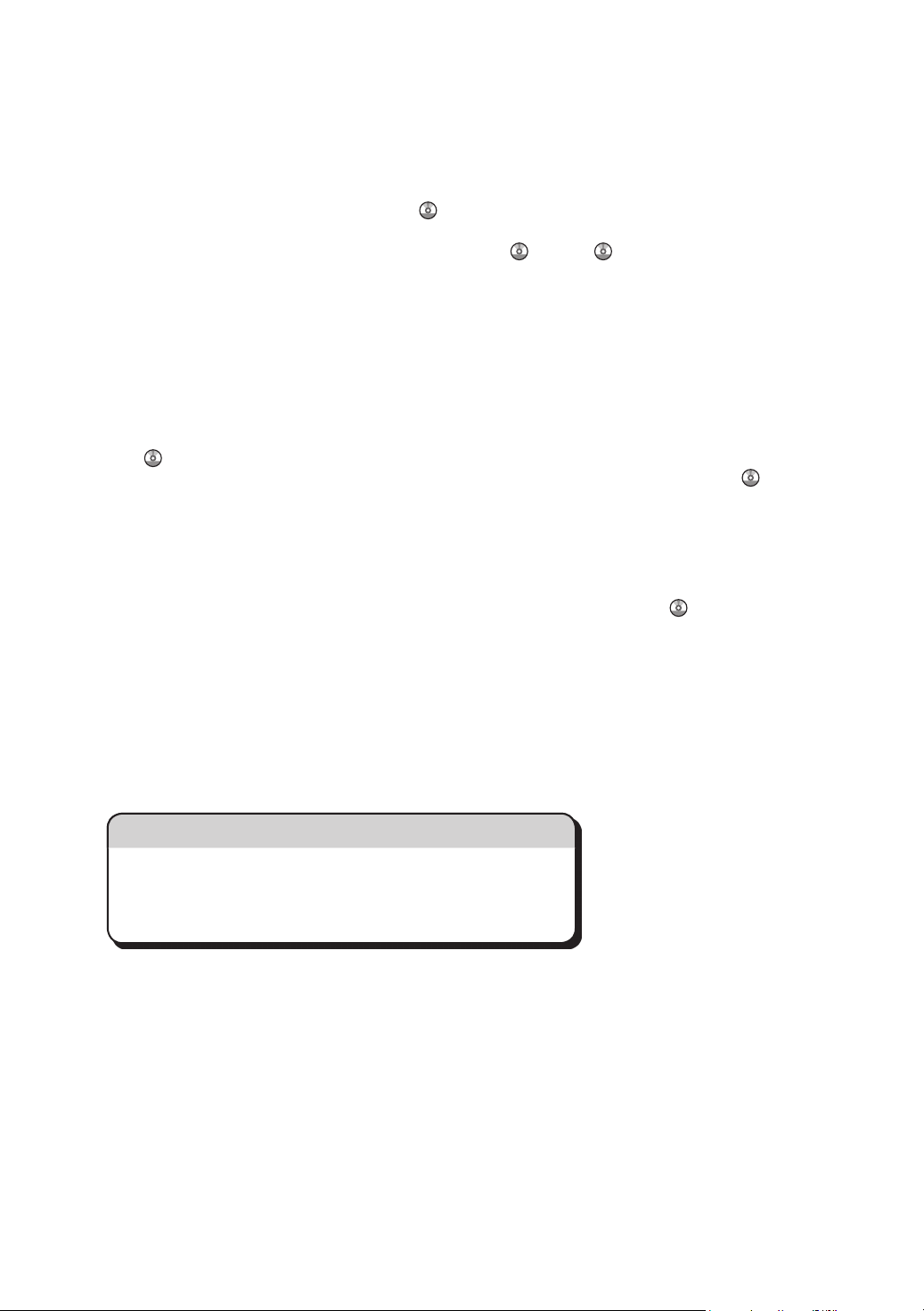
Simple Screen
When you press the {Simple Screen} key, the screen changes
to the simplified display. Letters and keys are displayed at a
larger size, making operations easier.
Certain keys do not appear on the simplified display.
Page 4
Tips
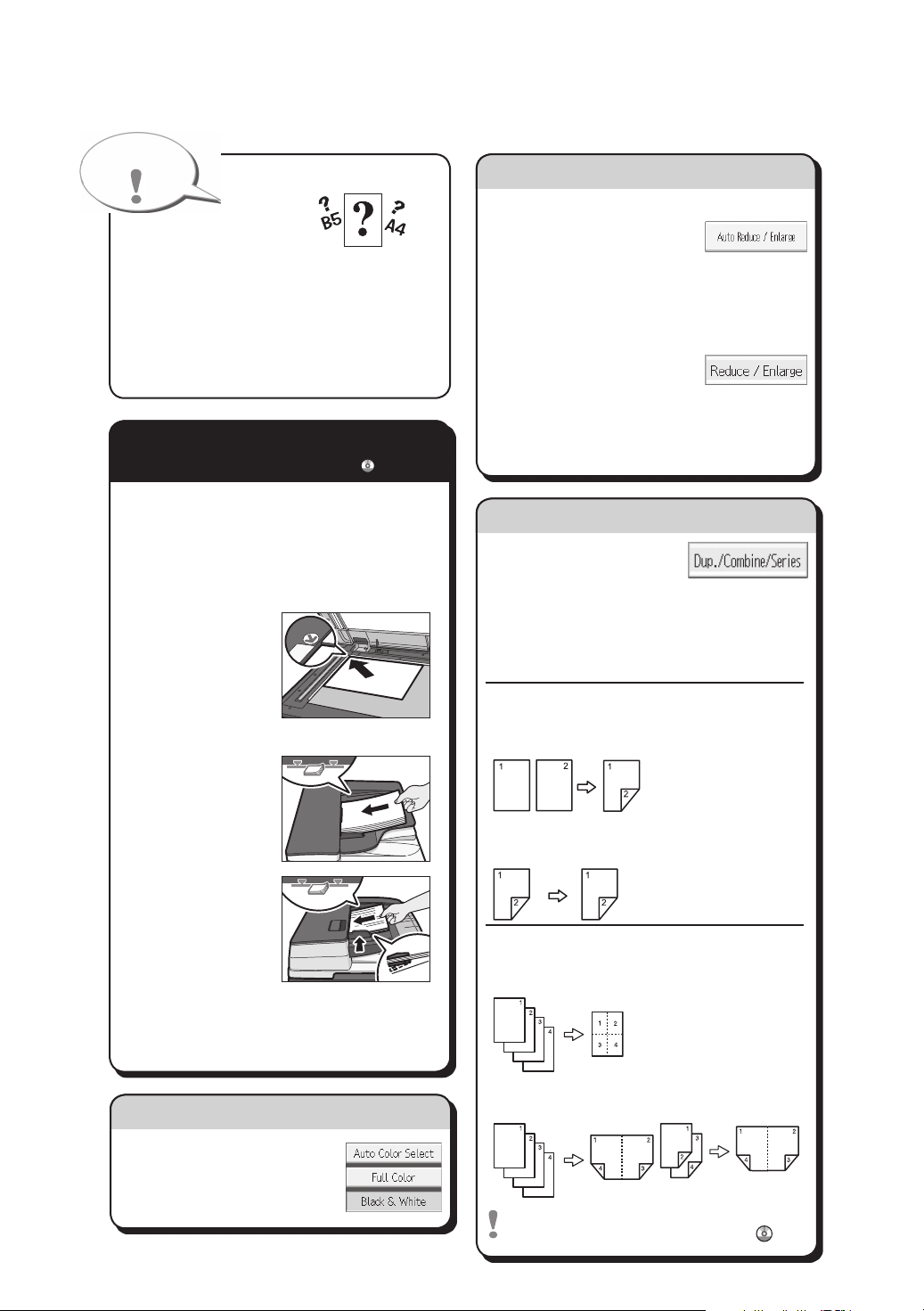
Quick Reference Copy Guide
Paper Size
Paper Size
You can check the paper
sizeusingthescaleontheexposureglass.
Auto Image Density
Darktextureoriginalswillbecopiedsothat
backgroundwillnotbereproduced.
Auto Paper Select
Selectsasuitablesizeofpaperautomatically.
How to make Copies...
(Placing Originals, Paper Specifications and Adding Paper , Basic Copying)
A Press the {Home} key on the top left of
the control panel, and press the [Copier]
icon on the [Home] screen.
B Press the {Reset} key.
C Place the originals.
• ExposureGlass
(Face down)
• AutoDocumentFeeder(Faceup)
ARDF•
How to Reduce/Enlarge...
(Basic Copying)
Auto Reduce/Enlarge
A Press[AutoReduce/
Enlarge].
B Select the paper size.
Place the originals, and then press the {Start} key.
C
Preset Reduce/Enlarge
A Press[Reduce/Enlarge].
B Select a ratio, and then
press [OK].
Place the originals, and then press the {Start}
C
key. (Paper size is selected automatically.)
How to save paper...
A
See if original is 1-sided or
(Basic Copying)
2-sided(duplex).
B Press[Dup./Combine/Series].
C Selecttheoriginalandcopytypesand/or
the orientation.
Place the originals, and then press the {Start} key.
D
Duplex
1-Sided → 2-Sided
Copies two 1-sided pages
on one 2-sided page.
One-passduplex •
scanningADF
D
Make desired settings.
E Enterthenumberofcopies.
F Press the {Start} key.
How to select a color mode...
A Select a color mode.
(Color Copying)
2-Sided → 2-Sided
Copies one 2-sided page on
one 2-sided page.
Combine
1-sided Combine
Copies multiple 1-sided or 2-sided
originals on one side of copy paper.
2-sided Combine
Copies multiple 1-sided originals
on two sides of copy paper.
Copies multiple 2-sided originals
on two sides of copy paper.
FormorefunctionsonCombine,see"Basic
Copying",Copy/DocumentServer
.
Page 5
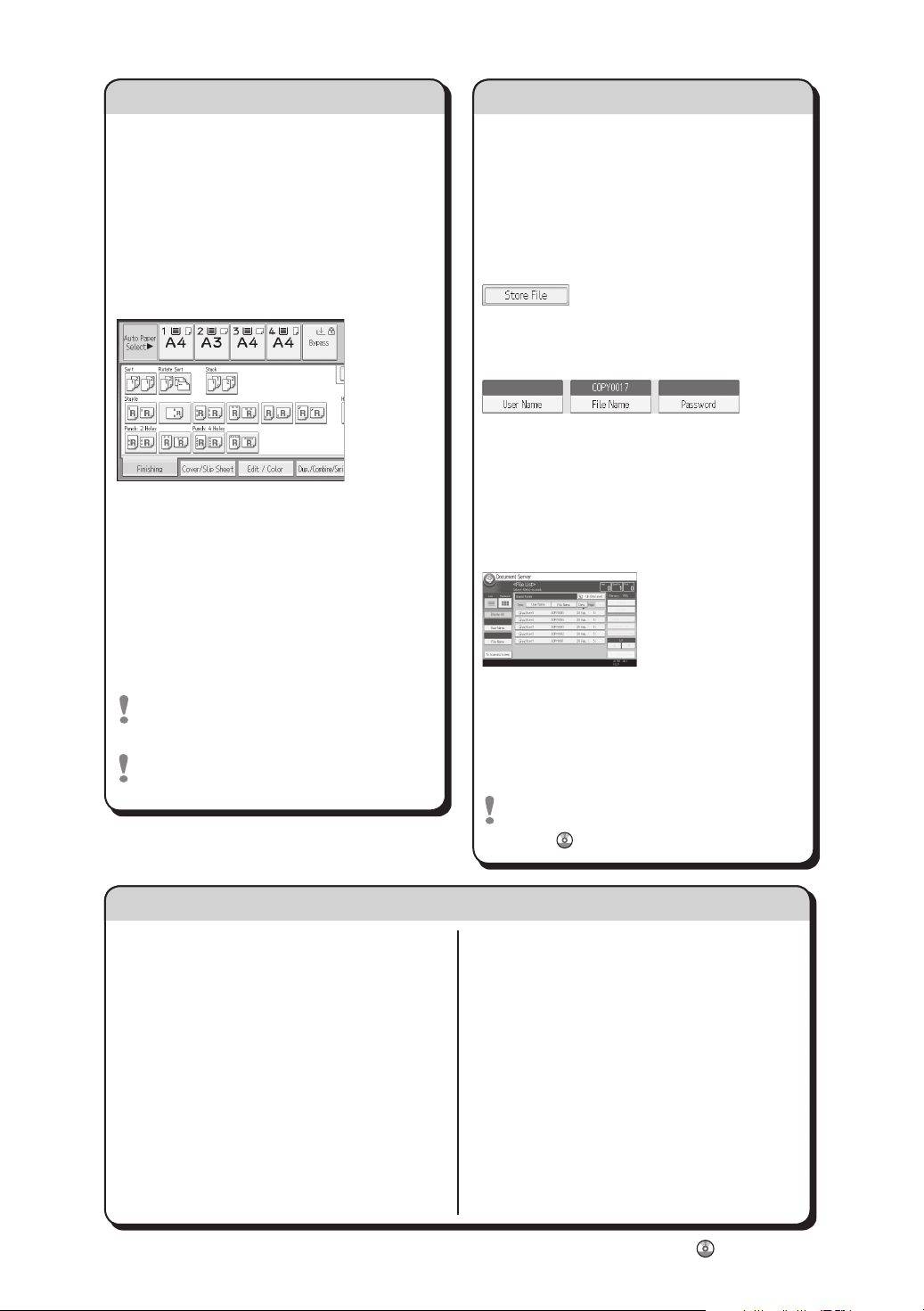
How to finish your document...
(Basic Copying)
Document Server
(Basic Copying)
Staple
A Press [Finishing].
B Select one of the stapling positions
(Copieswillbesortedautomatically).
C Press [OK].
D Enterthenumberofcopies.
E Place the originals, and then
press the {Start} key.
Punch
A Press [Finishing].
B Select one of the punch hole positions
(Copieswillbeholepunched).
C Press [OK].
D Enterthenumberofcopies.
E Place the originals, and then press the
{Start} key.
StapleandPunchcanbedoneatthe
same time.
Availabilityoffinishingdependsonyour
configuration.
Why use it...
•Tostoreoftenuseddocumentscentrally
and print on demand.
•Toreducenetworkload.
How to use in copy mode...
A Press [Store File].
B Enterafilename,
user name, or
password if necessary.
C Specify a folder in which to store the
document if necessary.
D Press [OK].
E Place the originals.
Make the scanning settings for the original.
F
G Press the {Start} key.
Themachinestoresscannedoriginalsin
memory and makes one set of copies.
Tofindyourdocument,pressthe{Home}
key on the top left of the control panel, and
pressthe[DocumentServer]icononthe
[Home] screen.
FormorefunctionsonDocumentServer,
see"DocumentServer",Copy/Document
Server
.
Advanced features
Reduce/Enlarge
Zoom: You can specify the reproduction •
ratio in increments of 1%.
Magnification: You can specify the horizontal •
andverticalreproductionratios,individually.
Series Copies
Separatelycopiesthefrontandbackofa•
2-sided original onto two sheets.
Booklet/Magazine
Copies two or more originals in page order.•
Edit/Stamp
ImageRepeat/DoubleCopies:Theoriginal•
image is copied repeatedly.
Centering:Movesimagetocenter.•
Erase:Erasesthecenterand/orallfour•
sides of the original image.
Stamps:Copieswiththedate,pagenumbers,etc.•
Cover/Slip Sheet
FrontCover/Front/BackCover:Createcover•
sheets.
Designate:Copiescertainpagesofthe•
original onto designation sheets.
(BasicCopying,AdvancedCopying)
Chapter references in this guide refer to the bundled OI CD; Copy/ Document Server .
Page 6
Quick Reference Fax Guide
How to send a fax...
A Specify a transmission mode:
• MemoryTransmission,or
• ImmediateTransmission(selectedby
pressing[Immed.TX])
B Place the original.
• Exposureglass
(Face down)
• AutoDocumentFeeder(Faceup)
ARDF•
One-passduplex •
scanningADF
C Make the scan settings you require.
D Specify a destination.
E Press the {Start} key.
IfyouchooseMemoryTransmission,youcan
sendtomoredestinationsatonce.Todothis,
after step 4, specify destinations and press
the {Start} key.
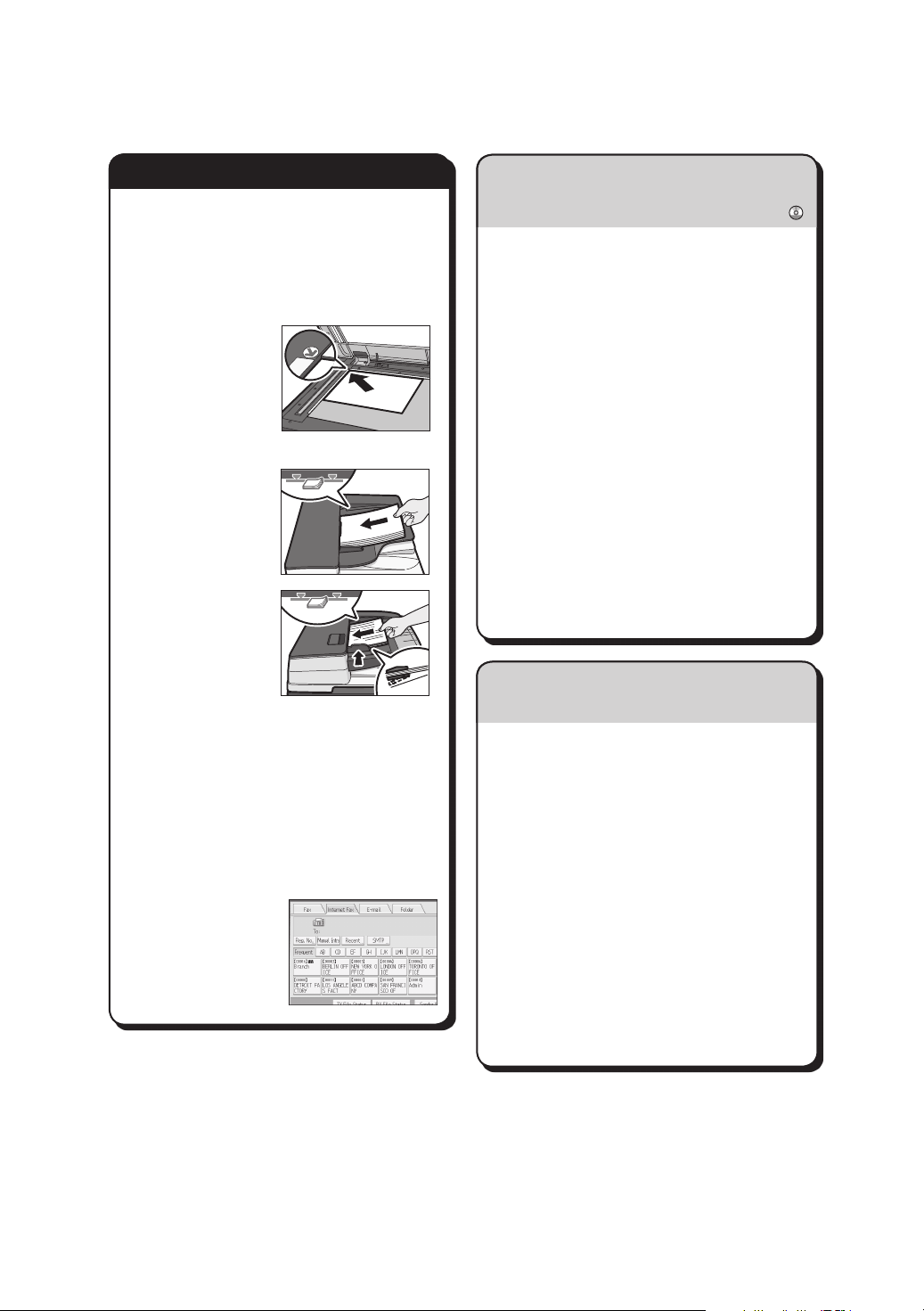
TosendtoanInternet
Fax,e-mail,orfolder
destination, press
[InternetFax],[E-mail],
or [Folder] to switch
the transmission type.
(Transmission)
How to program a Destination key...
(RegisteringAddressesandUsers,Connecting the
Machine/ System Settings )
A Press the {UserTools/Counter} key.
B Press[AddressBookMangmnt].
C Checkthat[Program/Change]is
selected.
D Press [New Program].
E Press [Change] and set user’s
information, press [OK].
F Press[FaxDest.].
G Press[Change]underFaxDestination,
enterthefaxnumberusingthenumber
keys and press [OK].
H Press [OK].
I Press[Exit].
J Press the {UserTools/Counter} key.
How to fax to Document Server...
(StoringaDocument)
A Press [Store File].
B Select [Send & Store].
C Set the user name, file name, and
password as necessary, and then press
[OK].
D Specify a destination, and then press the
{Start} key.
To send a fax from Document Server:
A Press [Select Stored File].
B Selectthedocumentstobesent,and
then press [OK].
C Specify a destination, and then press the
{Start} key.
Page 7
How to send at a specific time (Send Later)
(OtherTransmissionFeatures)
Using this function, you can instruct the
machine to send the fax at a later time via
Memory Transmission.
Advantage: you can take advantage of offpeak telephone charges, without being at
the machine.
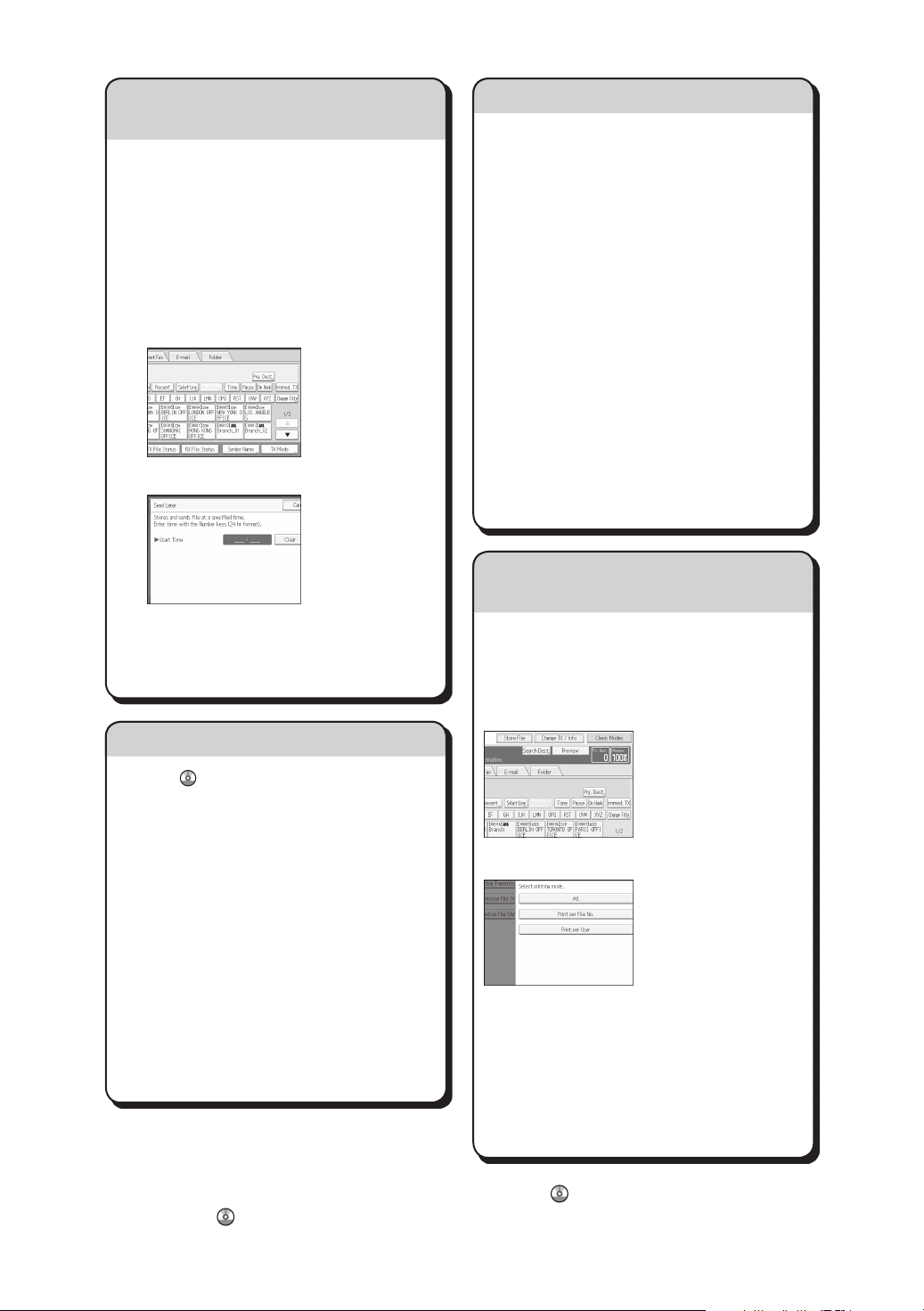
A Place the original, and then select the
scan settings you require.
B Press[TXMode].
C Press [Send Later].
How to cancel a transmission...
Memory + Immediate
Beforetheoriginalisscanned=before
pressing the {Start} key:
A Press the {Reset} key.
Whiletheoriginalisbeingscanned
A Press the {Stop} key.
B Press[CancelScanning]or[CancelTX].
Memory
Aftertheoriginalisscanned
A Press the {Stop} key.
B Press[StandbyFileList].
C Select the file you want to cancel.
D
Press[StopTransmission],andthenpress[OK].
E Press[Exit].
How to print the Journal...
(Transmission)
(Changing/ConfirmingCommunicationInformation)
D Enterthetimeusingthenumberkeys,
and then press [#].
E Press [OK] twice.
Advanced Fax Features
See Fax Operating Instructions:
- SUB/SEPCodes(OtherTransmission
Features)
Privacycanbeprotectedwhenfaxingwith
aSUB/SEPCode,sinceonlypeoplewho
knowtheSUB/SEPCodecanreceiveor
printthefaxdocument.
- Printedreports(Changing/Confirming
Communication Information) Inform you if
afaxhasbeensaved,sent,orfailedtobe
transmitted.
- LAN-Faxfeatures-Sendingafaxfroma
computer
(FaxviaComputer)
The Journal is printed automatically
after every 50 communications. You can
also request a Journal at any time, by
following the procedure below.
A Press[TX/RXStatus/Print].
B Select [Print Journal].
C Select the printing method:
-[All]
- [Print per File No.]
- [Print per User]
D Press the {Start} key.
E Press[Exit]twice.
Chapter references in this guide refer to the bundled OI CD; Fax and Connecting the Machine/
System Settings .
Page 8
Quick Reference Scanner Guide
To use the scanner functions, several
settings must be made beforehand.
For details about these settings,
see "Accessing User Tools", Connecting
the Machine/ System Settings
Scan
on the supplied CD-ROM.
and
How to scan...
Availablescanfunctions:
A ScantoE-mail
B ScantoFolder(SMB/FTP/NCP)
C ScanUsingWSD(WebServiceson
Devices)
D StoretoHardDisk
E SavetoMemoryStorageDevice
F ScantoDeliveryServer
G ScanviaTWAINDriver
FordetailsaboutC, E, F, and G, see Scan
onthesuppliedCD-ROM.
How to use Scan to E-mail/Scan to Folder...
(BasicProcedureforSendingScanFilesbyEmail.
Basic Procedure When Using Scan to Folder)
A Press the {Home} key on the top left
of the control panel, and press the
[Scanner] icon on the [Home] screen.
G Specify the destination(s). You can specify
multiple destinations.
For scan to e-mail:
Before you select destination(s), make
sureyouhaveselected[To].Ifnecessary,
press [Cc] or [Bcc], and then select
destination(s).
H For scan to e-mail only
Specify the e-mail sender.
Dependingonthesecuritysettings,
thelogged-inusermaybespecifiedas
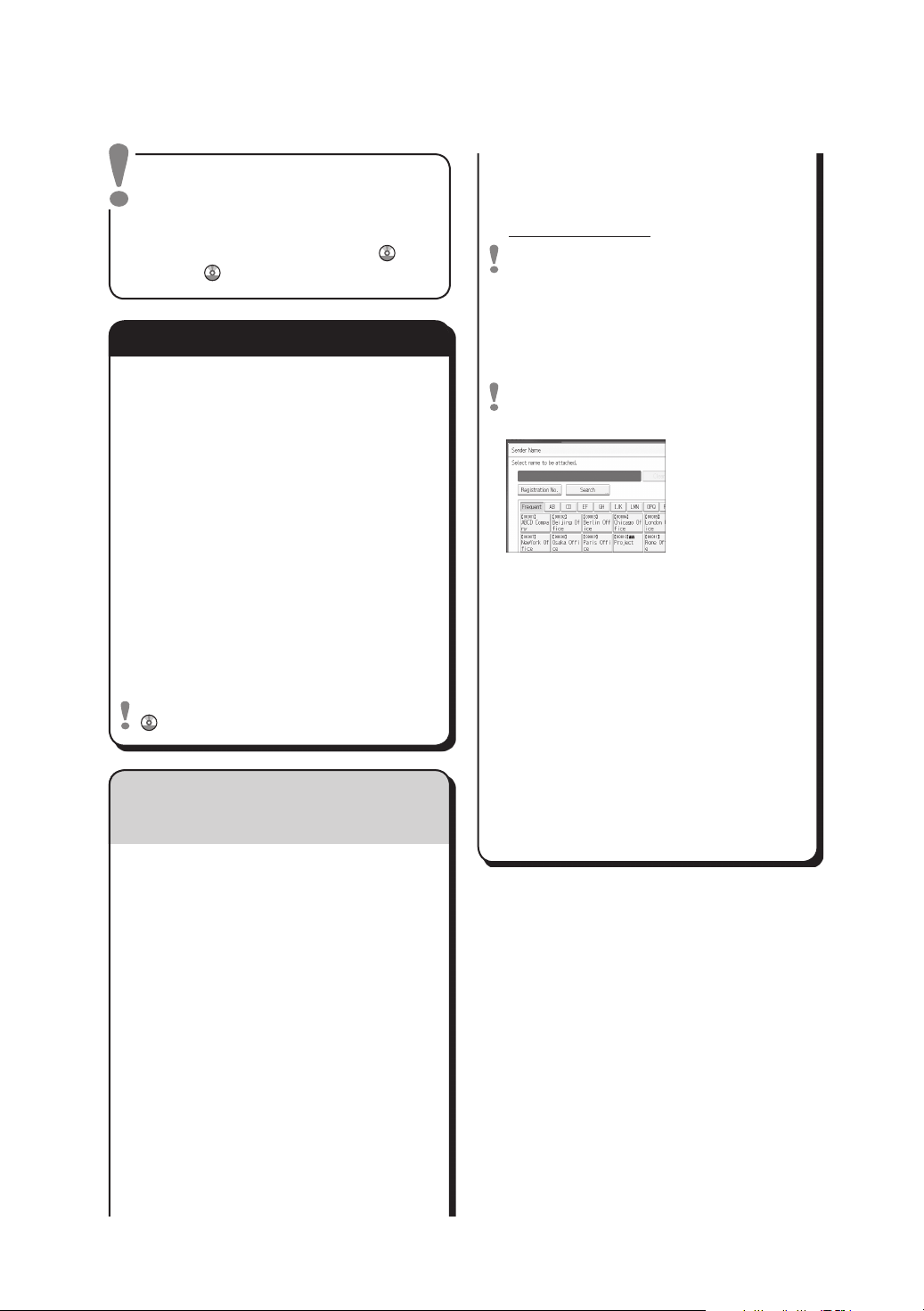
[Sender Name]
• Tospecifythee-mailsender,press
[Sender Name].
• Selectasender.
• Press[OK].
• Forreception
confirmation e-mail,
press [Recept. Notice].
I For scan to e-mail only
Enterasubjectlineifnecessary.
• Press[Subject].
• Enterthesubject.
• Press[OK].
J Press the {Start} key.
B Makesurethatnoprevioussettings
remain.Ifaprevioussettingremains,
press the {Reset} key.
C Pressthe[E-mail]or[Folder]tab.
D Place originals.
E If necessary, specify the scan settings
accordingtotheoriginaltobescanned.
F Ifnecessary,press[SendFileType/
Name] to specify settings such as file
name and file format.
Page 9
How to save to the machine’s hard
How to save to the machine’s hard disk...
disk...
(StoringandSavingtheScannedDocuments)
A Press the {Home} key on the top left of
the control panel, and press the [Scanner]
icon on the [Home] screen.
B Makesurethatnoprevioussettings
remain.Ifaprevioussettingremains,
press the {Reset} key.
C Place originals.
D Press [Store File].
E Press[StoretoHDD].
F If necessary, specify file information,
such as [User Name], [File Name], and
[Password].
G Press [OK].
H If necessary, press [Scan Settings]
to specify scanner settings such as
resolution and scan size.
I Press the {Start} key.
Fordetailsaboutsavingtomemory
storagedevice,see"StoringtheScanned
DocumentstoaUSBFlashMemory
DeviceorSDCard",Scan
suppliedCD-ROM.
Why use it?
Tostorescannedfilesintheharddiskof
the machine for later (shared) use. (See
Scan
.)
on the
Registering an E-mail destination...
(RegisteringAddressesandUsers, Connecting the
Machine/ System Settings )
A Press the {UserTools/Counter} key.
B Press[AddressBookMangmnt].
C Checkthat[Program/Change]is
selected.
D Select the name whose e-mail address
you want to register. Press the name key,
orentertheregisterednumberusingthe
numberkeys.
E Press[E-mail].
F Press[Change],under"E-mailAddress".
G Enterthee-mailaddress.
H Press [OK].
Fordetailsaboutregisteringfolders,see
"RegisteringAddressesandUsers",
ConnectingtheMachine/SystemSettings
.
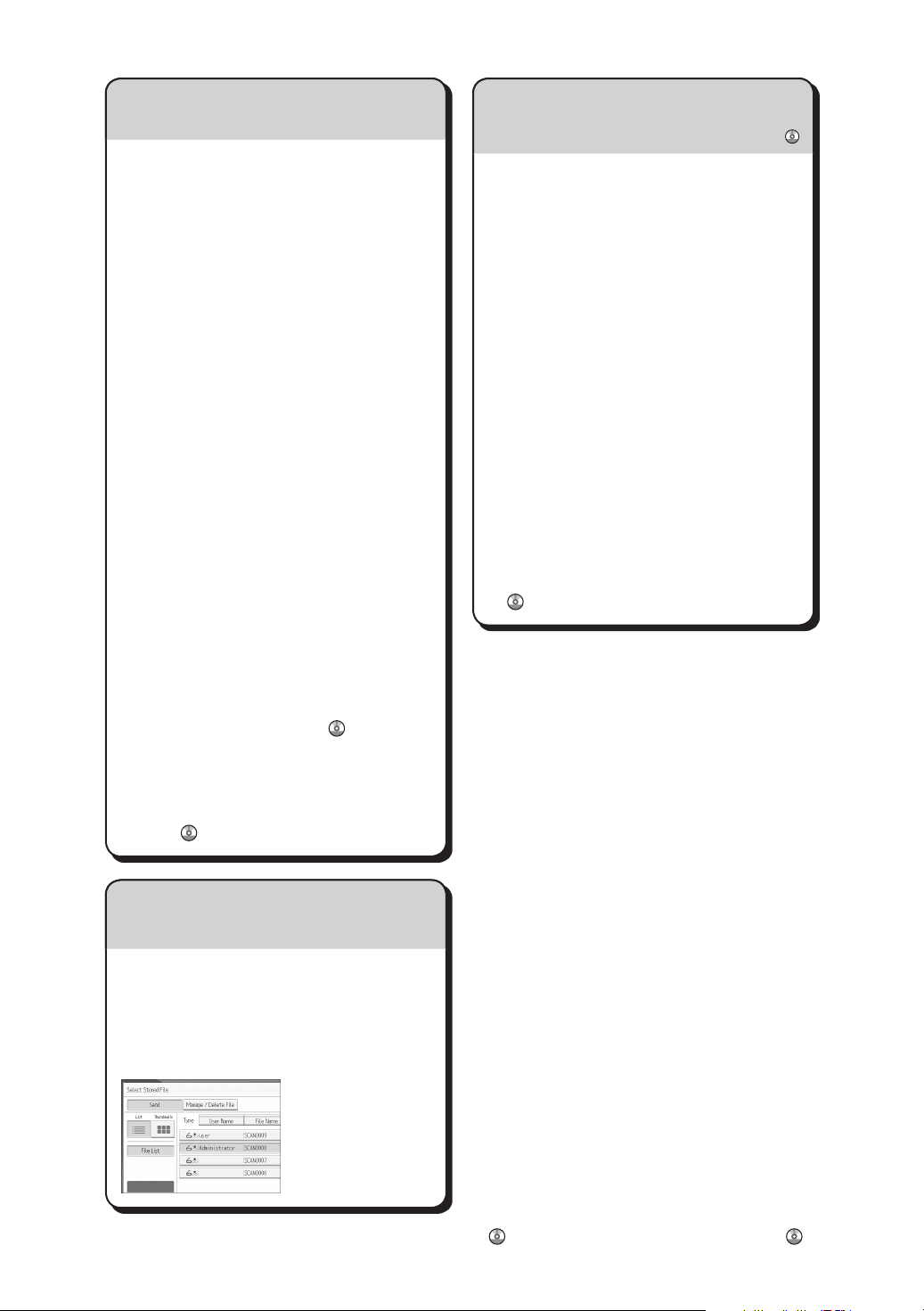
Displaying a list of files stored on the machine’s hard disk
(StoringandSavingtheScannedDocuments)
A Press the {Home} key on the top left of
the control panel, and press the [Scanner]
icon on the [Home] screen.
B Press[SelectStoredFile].Thelistof
stored files is displayed.
Chapter references in this guide refer to the bundled OI CD; Scan and Connecting the Machine/ System Settings .
Page 10

Page 11

TABLE OF CONTENTS
How to Read the Manuals.................................................................................................................................6
Symbols Used in the Manuals.......................................................................................................................6
Model-Specific Information............................................................................................................................... 7
Names of Major Features..................................................................................................................................8
1. What You Can Do with This Machine
Reducing my Costs............................................................................................................................................. 9
Converting Documents to Electronic Formats Easily......................................................................................10
Registering Destinations...................................................................................................................................11
Operating the Machine More Effectively...................................................................................................... 12
Customizing the [Home] Screen..................................................................................................................... 13
Making Copies Using Various Functions........................................................................................................14
Printing Data Using Various Functions............................................................................................................16
Utilizing Stored Document...............................................................................................................................17
Sending and Receiving Faxes without Paper.................................................................................................18
Sending and Receiving Faxes via the Internet............................................................................................... 20
Sending and Receiving Faxes by Using the Machine without Fax Unit Installed....................................... 22
Using the Facsimile and the Scanner in a Network Environment.................................................................23
Embedding Text Information in Scanned Files...............................................................................................24
Preventing Information Leakage (Security Functions)....................................................................................25
Centrally Controlling Scan Conditions and Distribution............................................................................... 26
Monitoring and Setting the Machine Using a Computer..............................................................................27
Preventing Unauthorized Copying................................................................................................................. 28
2. Getting Started
Guide to Names and Functions of Components............................................................................................29
Guide to Functions of the Machine's Options................................................................................................33
Guide to Functions of the Machine's External Options.............................................................................33
Changing the Display Language.................................................................................................................... 45
How to Use the [Home] Screen...................................................................................................................... 46
Adding Icons to the [Home] Screen........................................................................................................... 47
Registering Functions in a Program.................................................................................................................51
Example of Programs...................................................................................................................................53
Turning On/Off the Power..............................................................................................................................57
Turning On the Main Power........................................................................................................................57
1
Page 12

Turning Off the Main Power........................................................................................................................57
When the Authentication Screen Is Displayed...............................................................................................58
User Code Authentication Using the Control Panel.................................................................................. 58
Logging In Using the Control Panel............................................................................................................58
Logging Out Using the Control Panel.........................................................................................................59
Placing Originals..............................................................................................................................................60
Placing Originals on the Exposure Glass...................................................................................................60
Placing Originals in the Auto Document Feeder....................................................................................... 60
3. Copy
Basic Procedure................................................................................................................................................63
Auto Reduce / Enlarge....................................................................................................................................65
Duplex Copying............................................................................................................................................... 67
Specifying the Original and Copy Orientation.........................................................................................69
Combined Copying......................................................................................................................................... 71
One-Sided Combine................................................................................................................................... 72
Two-Sided Combine....................................................................................................................................73
Copying onto Custom Size Paper from the Bypass Tray.............................................................................. 76
Copying onto Envelopes................................................................................................................................. 77
Copying onto Envelopes from the Bypass Tray.........................................................................................77
Copying onto Envelopes from the Paper Tray...........................................................................................78
Sort.................................................................................................................................................................... 79
Changing the Number of Sets.................................................................................................................... 80
Storing Data in the Document Server............................................................................................................. 82
4. Fax
Basic Procedure for Transmissions (Memory Transmission)..........................................................................83
Sending Originals Using the Exposure Glass (Memory Transmission)................................................... 85
Registering a Fax Destination......................................................................................................................86
Deleting a Fax Destination.......................................................................................................................... 87
Transmitting while Checking Connection to Destination (Immediate Transmission)................................... 89
Sending Originals Using the Exposure Glass (Immediate Transmission)................................................90
Canceling a Transmission................................................................................................................................91
Canceling a Transmission Before the Original Is Scanned...................................................................... 91
Canceling a Transmission While the Original Is Being Scanned.............................................................91
2
Page 13

Canceling a Transmission After the Original Is Scanned......................................................................... 92
Storing a Document......................................................................................................................................... 93
Sending Stored Documents.........................................................................................................................94
Printing the Journal Manually..........................................................................................................................96
5. Print
Quick Install...................................................................................................................................................... 97
Displaying the Printer Driver Properties.......................................................................................................... 98
Standard Printing..............................................................................................................................................99
When Using the PCL 6 Printer Driver..........................................................................................................99
Printing on Both Sides of Sheets................................................................................................................... 100
When Using the PCL 6 Printer Driver....................................................................................................... 100
Types of 2 Sided Printing..........................................................................................................................100
Combining Multiple Pages into Single Page............................................................................................... 101
When Using the PCL 6 Printer Driver....................................................................................................... 101
Types of Combine Printing........................................................................................................................101
Printing on Envelopes.................................................................................................................................... 103
Configuring Envelope Settings Using the Control Panel........................................................................ 103
Printing on Envelopes Using the Printer Driver........................................................................................ 103
Saving and Printing Using the Document Server.........................................................................................105
Storing Documents in Document Server.................................................................................................. 105
Managing Documents Stored in Document Server................................................................................ 106
6. Scan
Basic Procedure When Using Scan to Folder............................................................................................. 107
Creating a Shared Folder on a Computer Running Windows/Confirming a Computer's Information.....
.................................................................................................................................................................... 108
Registering an SMB Folder.......................................................................................................................110
Deleting an SMB Registered Folder.........................................................................................................113
Entering the Path to the Destination Manually........................................................................................ 114
Basic Procedure for Sending Scan Files by E-mail......................................................................................115
Registering an E-mail Destination.............................................................................................................116
Deleting an E-mail Destination................................................................................................................. 118
Entering an E-mail Address Manually..................................................................................................... 118
Basic Procedure for Storing Scan Files........................................................................................................ 119
3
Page 14

Checking a Stored File Selected from the List......................................................................................... 120
Specifying the File Type................................................................................................................................ 121
Specifying Scan Settings...............................................................................................................................122
7. Document Server
Storing Data................................................................................................................................................... 123
Printing Stored Documents............................................................................................................................ 125
8. Web Image Monitor
Displaying Top Page..................................................................................................................................... 127
9. Adding Paper and Toner
Precautions for Loading Paper......................................................................................................................129
Loading Paper into Paper Trays................................................................................................................... 130
Loading Paper into the Bypass Tray.............................................................................................................132
Printing from the Bypass Tray Using the Printer Function........................................................................133
Loading Paper into Tray 3 (LCT)...................................................................................................................138
Loading Paper into the Large Capacity Tray (LCT).....................................................................................140
Loading Orientation-fixed Paper or Two-sided Paper............................................................................... 141
Recommended Paper Sizes and Types........................................................................................................144
Thick Paper.................................................................................................................................................154
Envelopes...................................................................................................................................................155
Adding Toner................................................................................................................................................. 159
Sending Faxes or Scanned Documents When Toner Has Run Out...................................................... 161
Disposing of Used Toner...........................................................................................................................161
10. Troubleshooting
When a Status Icon Is Displayed..................................................................................................................163
When the Indicator Lamp for the [Check Status] Key Is Lit or Flashing..................................................... 165
When the Machine Makes a Beeping Sound.............................................................................................167
When You Have Problems Operating the Machine...................................................................................168
When Multiple Functions Cannot Be Executed Simultaneously............................................................ 173
Messages Displayed When Using the Copy/Document Server Function................................................174
Messages Displayed When Using the Facsimile Function......................................................................... 178
When There Is a Problem Specifying the Network Settings.................................................................. 179
When the Remote Fax Function Cannot Be Used...................................................................................185
Messages Displayed When Using the Printer Function..............................................................................188
4
Page 15

Messages Displayed on the Control Panel When Using the Printer Function...................................... 188
Messages Printed on the Error Logs or Reports When Using the Printer Function............................... 191
Messages Displayed When Using the Scanner Function...........................................................................201
Messages Displayed on the Control Panel When Using the Scanner Function...................................201
Messages Displayed on the Client Computer.........................................................................................211
When Other Messages Appear...................................................................................................................217
When There Is a Problem Scanning or Storing Originals......................................................................218
When the Home Screen Cannot Be Edited.............................................................................................219
When the Address Book Is Updated....................................................................................................... 220
When Data Cannot Be Sent Due to a Problem with the Destination.....................................................221
When the Machine Cannot Be Operated Due to a Problem with the User Certificate.......................221
When Problems Occur While Logging In............................................................................................... 223
When the User Lacks Privileges to Perform an Operation..................................................................... 223
When the LDAP Server Cannot Be Used.................................................................................................223
INDEX...........................................................................................................................................................225
5
Page 16
How to Read the Manuals
Symbols Used in the Manuals
This manual uses the following symbols:
Indicates points to pay attention to when using the machine, and explanations of likely causes of paper
misfeeds, damage to originals, or loss of data. Be sure to read these explanations.
Indicates supplementary explanations of the machine's functions, and instructions on resolving user
errors.
This symbol is located at the end of sections. It indicates where you can find further relevant information.
[ ]
Indicates the names of keys on the machine's display or control panels.
Indicates instructions stored in a file on a provided CD-ROM.
(mainly Europe and Asia), (mainly Europe) or (mainly Asia)
(mainly North America)
Differences in the functions of Region A and Region B models are indicated by two symbols. Read the
information indicated by the symbol that corresponds to the region of the model you are using. For
details about which symbol corresponds to the model you are using, see page 7 "Model-Specific
Information".
6
Page 17
Model-Specific Information
CUV010
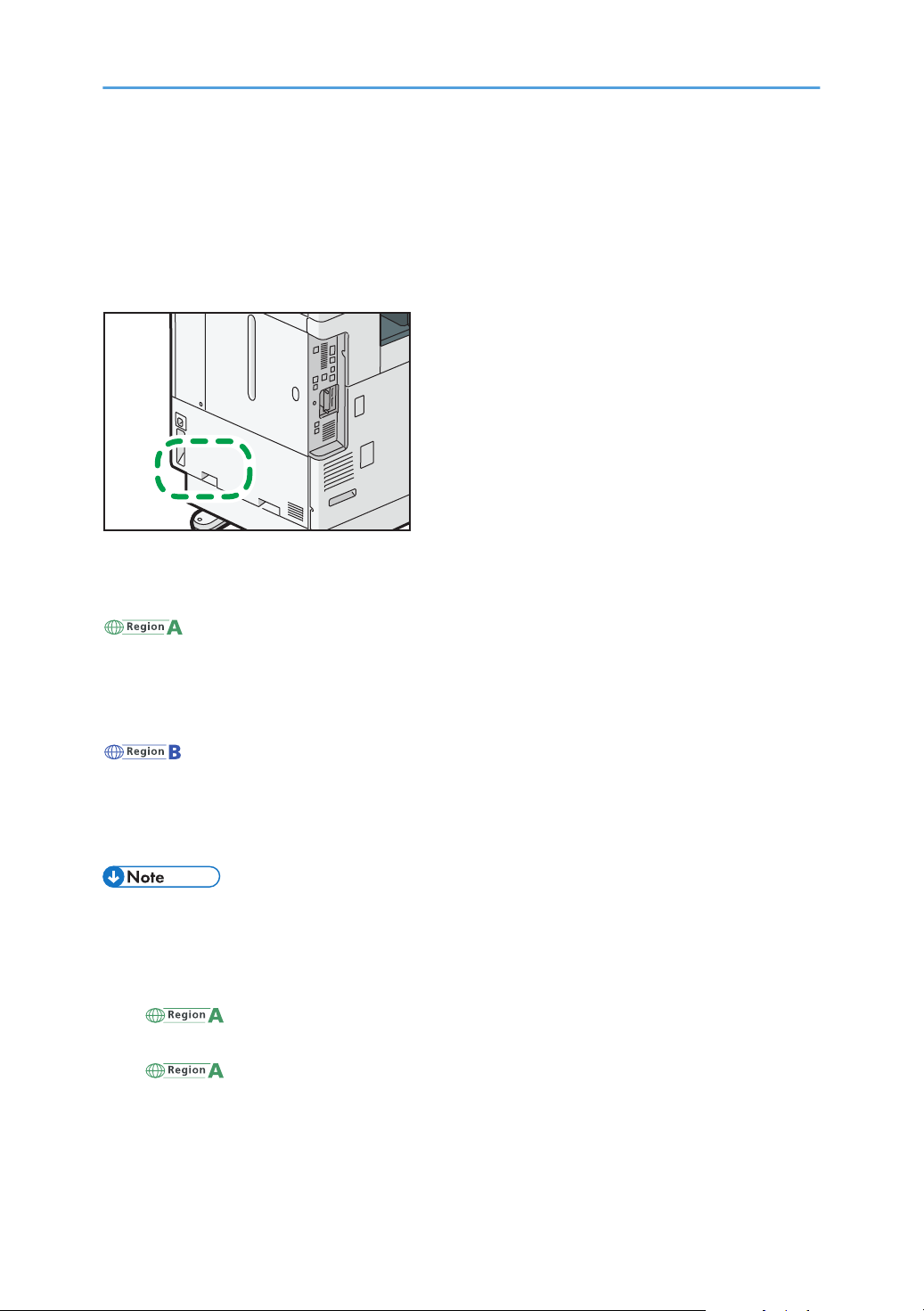
This section explains how you can identify the region your machine belongs to.
There is a label on the rear of the machine, located in the position shown below. The label contains
details that identify the region your machine belongs to. Read the label.
The following information is region-specific. Read the information under the symbol that corresponds to
the region of your machine.
(mainly Europe and Asia)
If the label contains the following, your machine is a region A model:
• CODE XXXX -27, -29
• 220–240 V
(mainly North America)
If the label contains the following, your machine is a region B model:
• CODE XXXX -17
• 120–127 V
• Dimensions in this manual are given in two units of measure: metric and inch. If your machine is a
Region A model, refer to the metric units. If your machine is a Region B model, refer to the inch
units.
• If your machine is a region A model and "CODE XXXX -27" is printed on the label, see
" (mainly Europe)" also.
• If your machine is a region A model and "CODE XXXX -29" is printed on the label, see
" (mainly Asia)" also.
7
Page 18

Names of Major Features
In this manual, major features of the machine are referred to as follows:
• Auto Reverse Document Feeder ARDF
• Auto Document Feeder ADF (in this manual, "ADF" refers to the ARDF and the one-pass duplex
scanning ADF)
• Large Capacity Tray LCT
8
Page 19
1. What You Can Do with This Machine
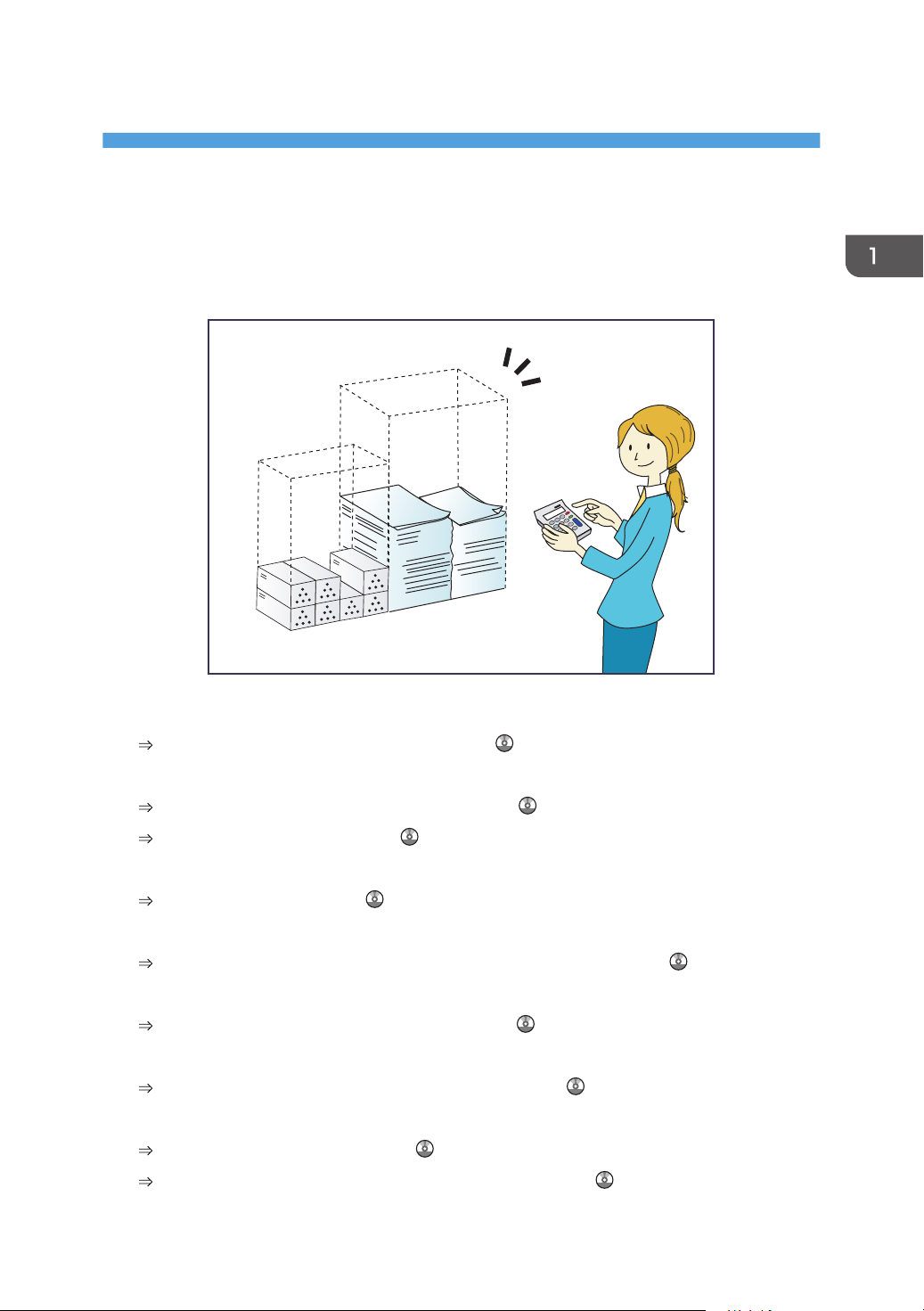
BRL059S
You can search for a description by what you want to do.
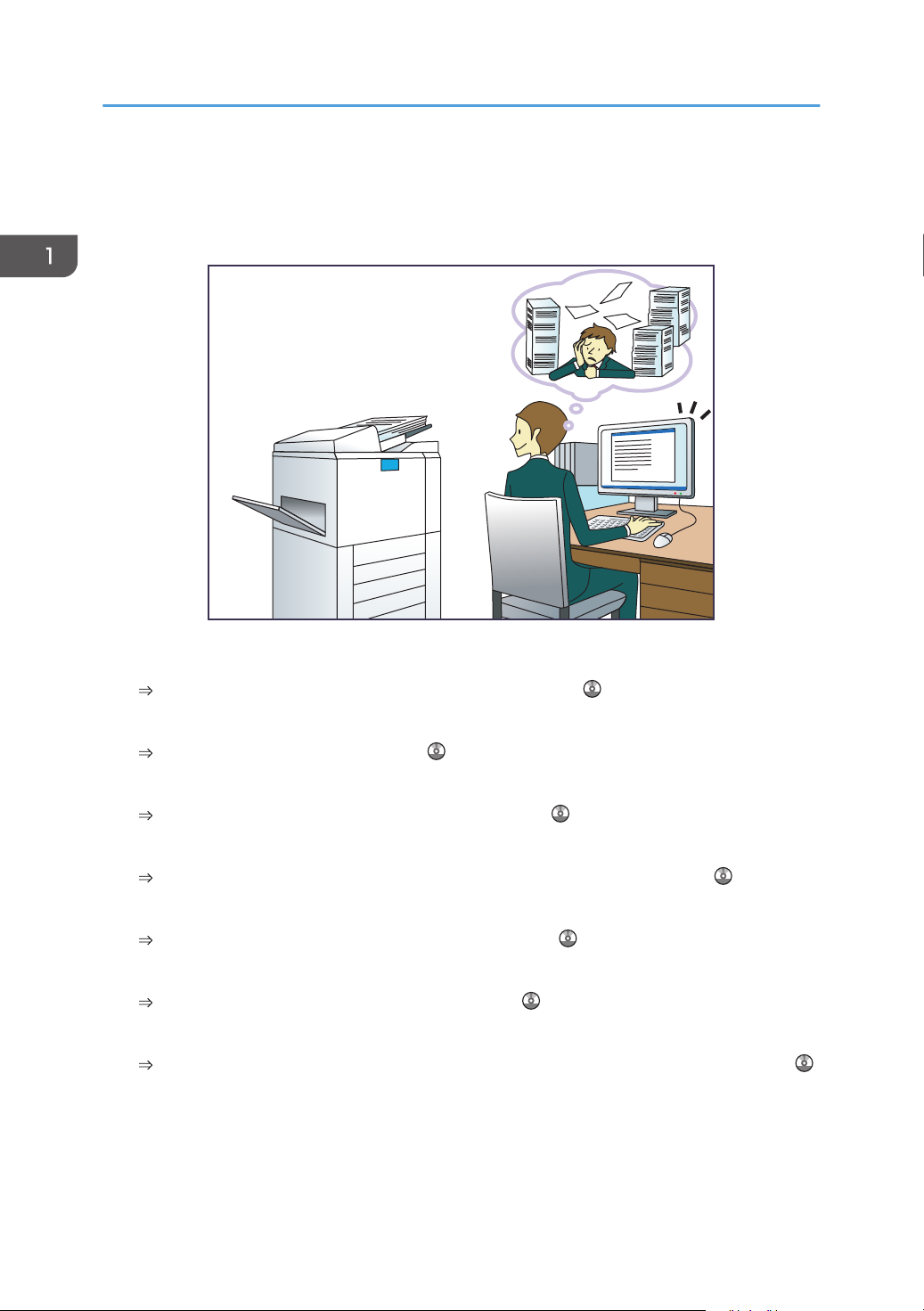
Reducing my Costs
Printing multi-page documents on both sides of sheets (Duplex Copy)
See "Duplex Copying", Copy/ Document Server .
Printing multi-page documents and received faxes on a single sheet (Combine (Copier/Fax))
See "Combined Copying", Copy/ Document Server .
See "Combine Two Originals", Fax .
Printing received faxes on both sides of sheets (2 Sided Print)
See "Two-Sided Printing", Fax .
Converting received faxes to electronic formats (Paperless Fax)
See "Confirming/Printing/Deleting Received and Stored Documents", Fax .
Sending files from the computer without printing them (LAN-Fax)
See "Sending Fax Documents from Computers", Fax .
Checking how much paper is saved ([Information] screen)
See "How to Use the [Information] Screen", Getting Started .
Reducing electricity consumption
See "Saving Energy", Getting Started .
See "Timer Settings", Connecting the Machine/ System Settings .
9
Page 20
BQX138S
1. What You Can Do with This Machine
Converting Documents to Electronic Formats Easily
Sending scan files
See "Basic Procedure for Sending Scan Files by E-mail", Scan .
Sending the URL of the folder in which scan files are stored
See "Sending the URL by E-mail", Scan .
Storing scan files in a shared folder
See "Basic Procedure When Using Scan to Folder", Scan .
Storing scan files on media
See "Basic Procedure for Saving Scan Files on a Memory Storage Device", Scan
Embedding text information in scanned files
See "Embedding Text Information in Scanned Data", Scan .
Converting transmitted faxes to electronic formats and sending them to a computer
See "Overview of Folder Transmission Function", Fax .
Managing and using documents converted to electronic formats (Document Server)
See "Relationship between Document Server and Other Functions", Copy/ Document Server .
10
Page 21
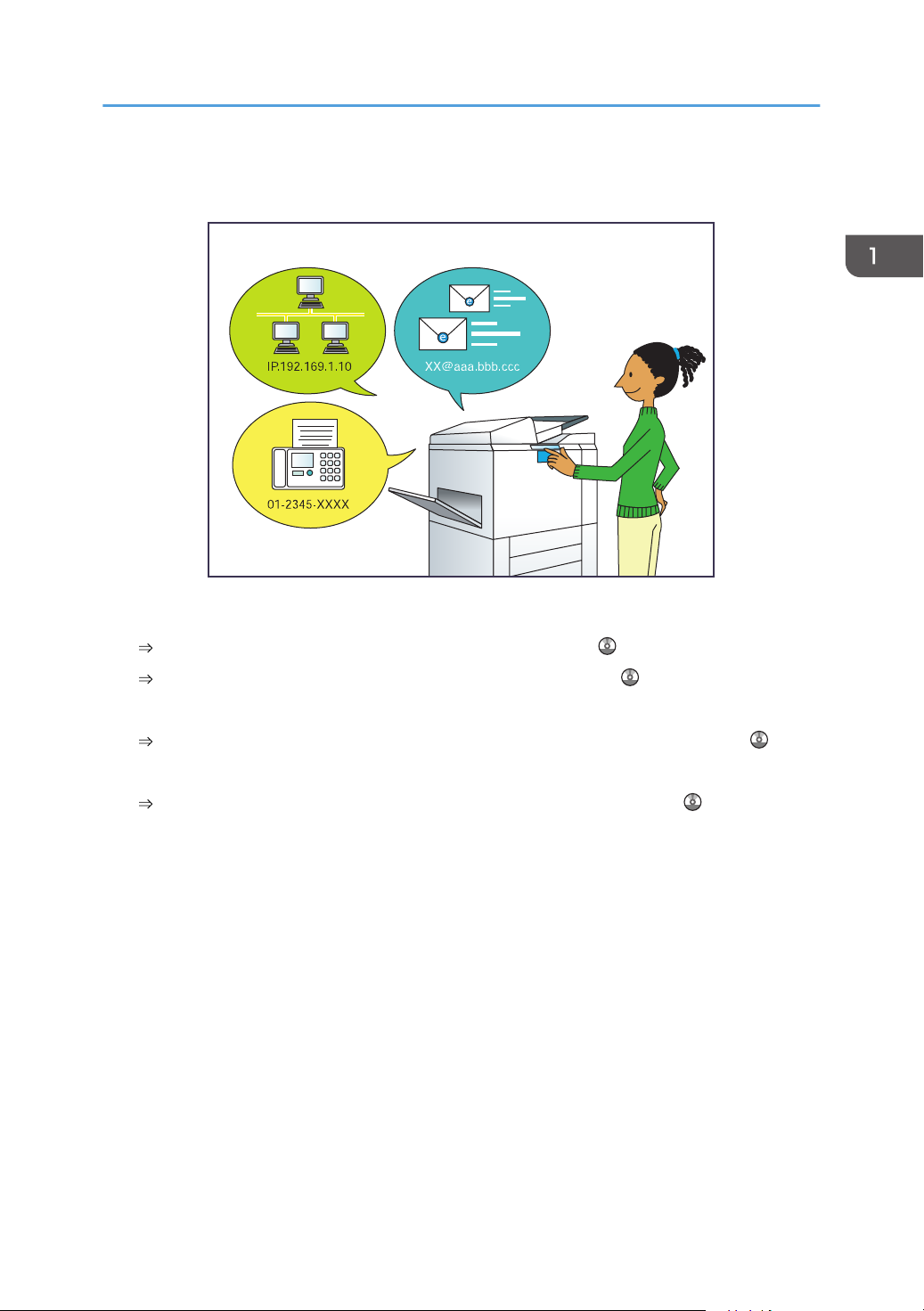
Registering Destinations
BRL060S
Registering Destinations
Using the control panel to register destinations in the Address Book
See "Registering Entered Destinations to the Address Book", Fax .
See "Registering a destination in the address book manually", Scan .
Using Web Image Monitor to register destinations from a computer
See "Registering Internet Fax Destination Information Using Web Image Monitor", Fax .
Downloading destinations registered in the machine to the LAN-Fax driver destination list
See "Using the machine's Address Book as the LAN-Fax destination list", Fax .
11
Page 22
BQX139S
1. What You Can Do with This Machine
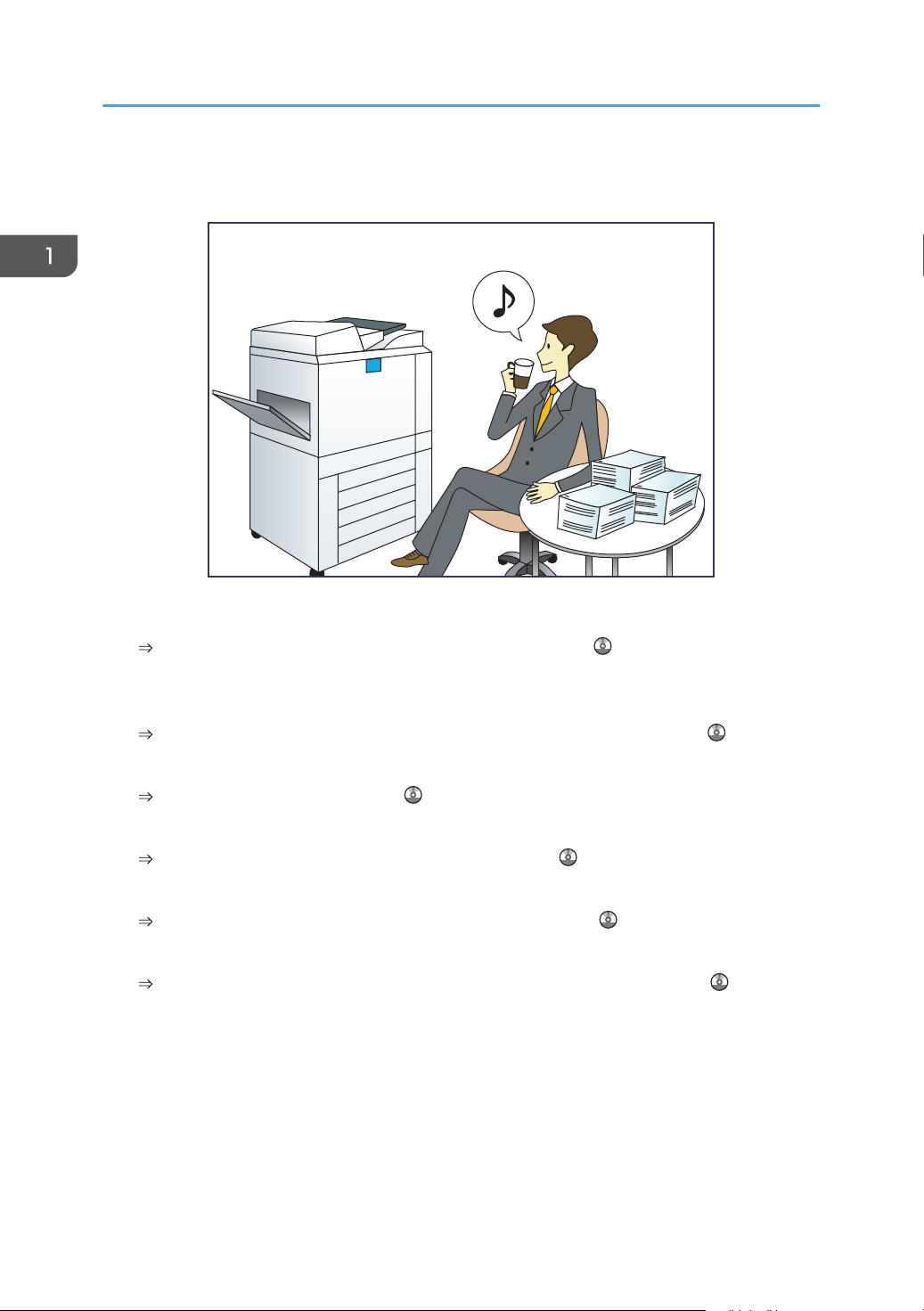
Operating the Machine More Effectively
Registering and using frequently-used settings (Program)
See "Registering Functions in a Program", Convenient Functions .
Registering frequently-used settings as initial settings (Program as Defaults (Copier/Document
Server/Fax/Scanner))
See "Changing the Default Functions of the Initial Screen", Convenient Functions .
Registering frequently-used printing settings to the printer driver
See "Using One Click Presets", Print .
Changing the initial settings of the printer driver to frequently-used printing settings
See "Displaying the Printing Preferences Dialog Box", Print .
Adding shortcuts to frequently used programs or Web pages
See "Adding Icons to the [Home] Screen", Convenient Functions .
Changing the order of the function and shortcut icons
See "Changing the Order of Icons on the [Home] Screen", Convenient Functions .
12
Page 23
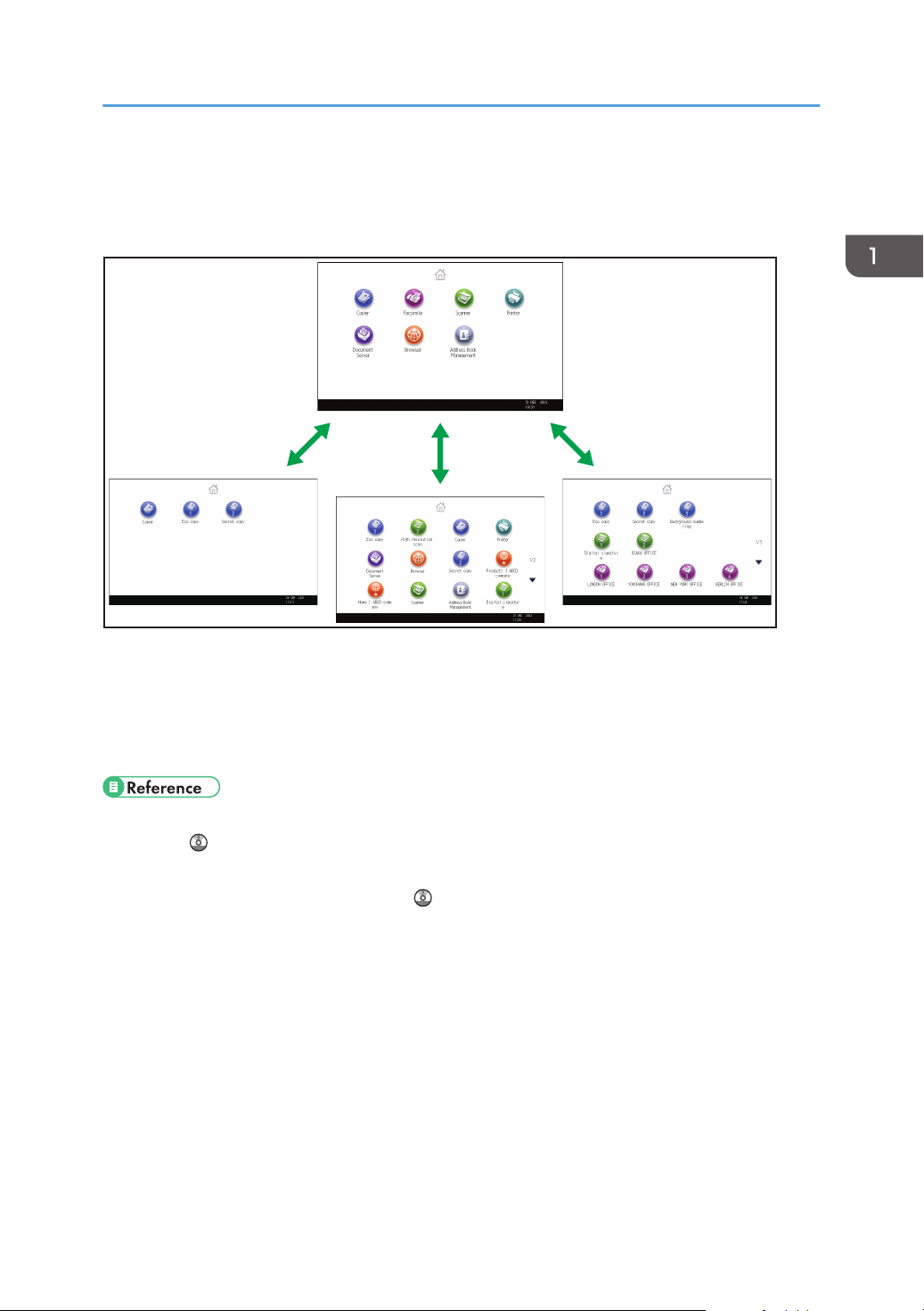
Customizing the [Home] Screen
CUM001
The icons of each function are displayed on the [Home] screen.
Customizing the [Home] Screen
• You can add shortcuts to often used programs or Web pages to the [Home] screen. The programs
or Web pages can be recalled easily by pressing the shortcut icons.
• You can display only the icons of functions and shortcuts that you use.
• You can change the order of the function and shortcut icons.
• For details about the features on the [Home] screen, see "How to Use the [Home] Screen", Getting
Started .
• For details about how to customize the [Home] screen, see "Types of [Home] Screens and How to
Customize Them", Convenient Functions .
13
Page 24
CJQ601
1. What You Can Do with This Machine
Making Copies Using Various Functions
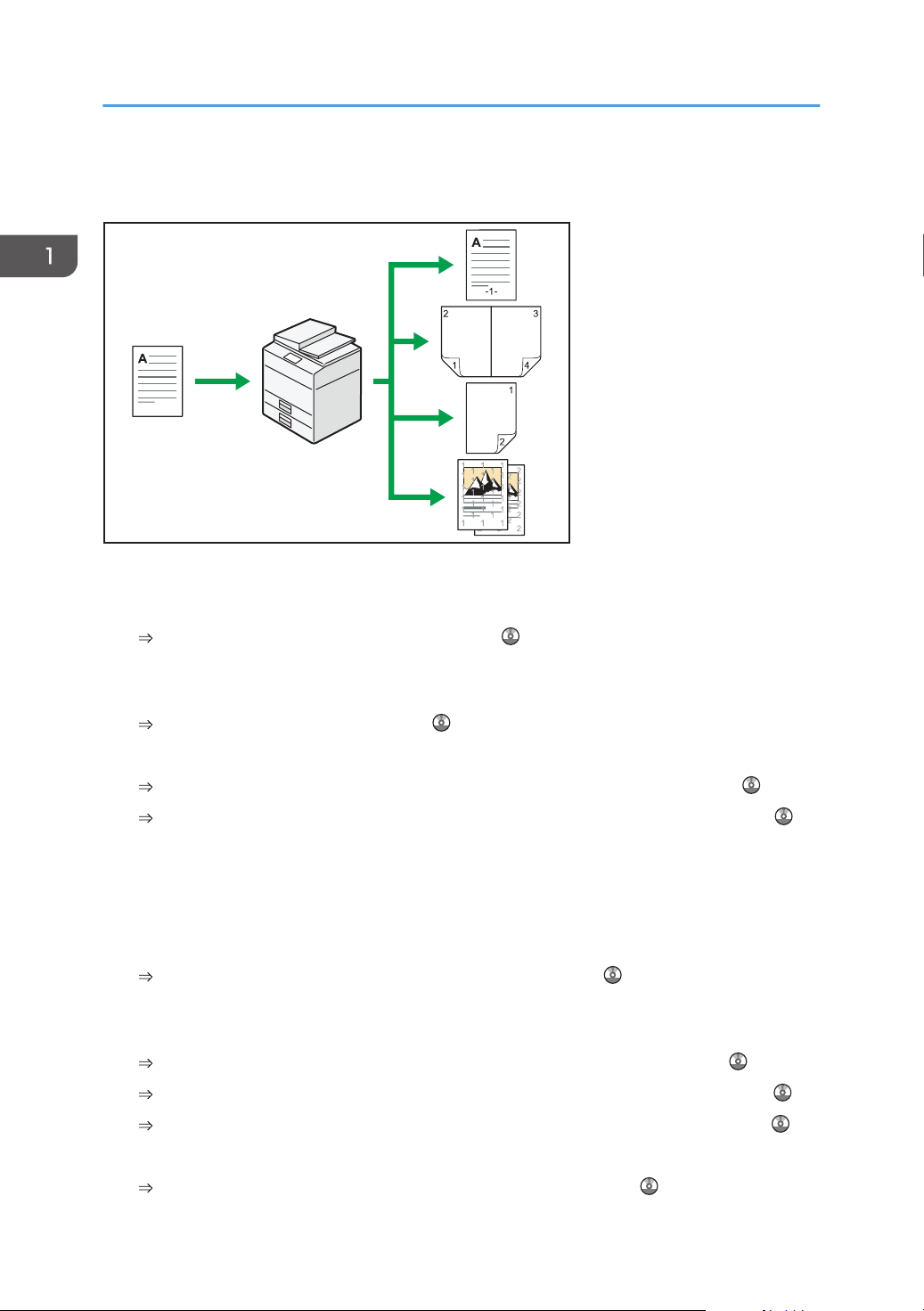
• You can make copies in full color. You can switch the color copy mode depending on the type of
originals used and the desired finish.
See "Copying in Color", Copy/ Document Server .
• You can print stamps on copies. Stamps can include background numbers, scanned images, dates,
and page numbers.
See "Stamps", Copy/ Document Server .
• You can adjust the color tones and image quality of your copies.
For details about a color adjustment, see "Adjusting Color", Copy/ Document Server .
For details about an image adjustment, see "Image Adjustment", Copy/ Document Server .
• You can reduce or enlarge the copy image. Auto Reduce / Enlarge function enables the machine
to detect the original size automatically. Also, it enables the machine to select an appropriate
reproduction ratio based on the paper size you specify. If the orientation of the original is different
from that of the paper you are copying onto, the machine rotates the original image by 90 degrees
to match it with the copy paper.
See "Reducing or Enlarging Originals", Copy/ Document Server .
• Copier functions such as Duplex, Combine, Booklet, and Magazine allow you to save on paper by
copying multiple pages onto single sheets.
For details about duplex copying, see "Duplex Copying", Copy/ Document Server .
For details about combined copying, see "Combined Copying", Copy/ Document Server .
For details about combined copying, see "Booklet/Magazine", Copy/ Document Server .
14
• You can copy onto various types of paper such as envelopes and OHP transparencies.
See "Copying onto Various Types of Paper", Copy/ Document Server .
Page 25

Making Copies Using Various Functions
• The finisher allows you to sort, staple, and punch holes in your copies.
See "Finishing", Copy/ Document Server .
15
Page 26
CJQ602
1. What You Can Do with This Machine
Printing Data Using Various Functions
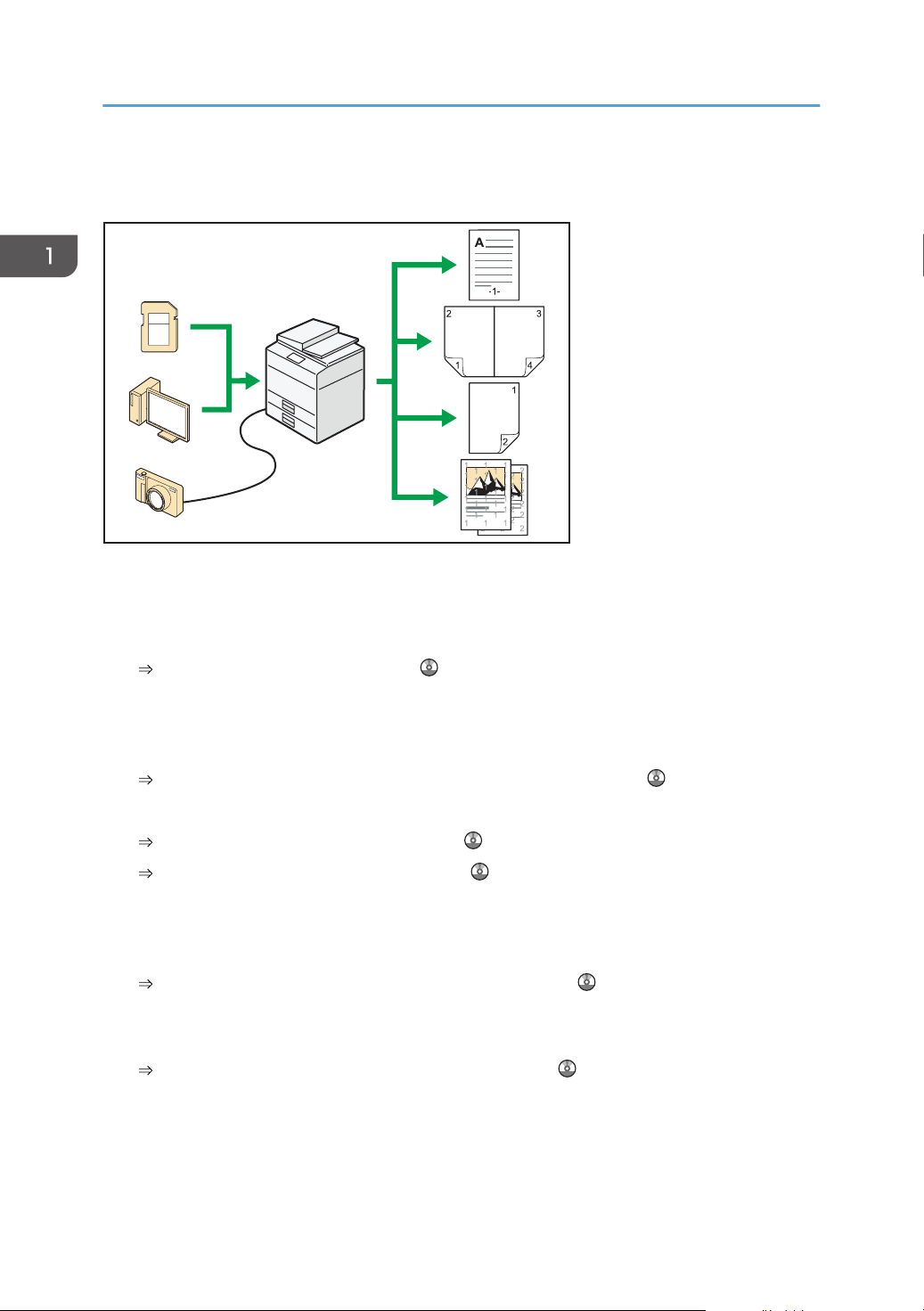
• This machine supports network and local connections.
• You can send PDF files directly to the machine for printing, without having to open a PDF
application.
See "Printing a PDF File Directly", Print .
• You can print or delete print jobs stored on the machine's hard disk, which have been previously
sent from computers using the printer driver. The following types of print jobs can be selected:
Sample Print, Locked Print, Hold Print, and Stored Print.
See "Storing Documents in the Hard Disk Drive and Printing them", Print .
• The finisher allows you to collate, staple, and punch holes in your prints.
For details about stapling, see "Staple", Print .
For details about punching, see "Punch", Print .
• If the PictBridge card is installed, you can connect a PictBridge-compatible digital camera to this
machine using a USB cable. This allows you to print the photographs stored on the camera using
the camera's own interface.
See "Direct Printing from a Digital Camera (PictBridge)", Print .
• You can print files stored on a removable memory device and specify print conditions such as print
quality and print size.
See "Direct Printing from a Memory Storage Device", Print .
16
Page 27
CJQ603
Utilizing Stored Document
Utilizing Stored Document
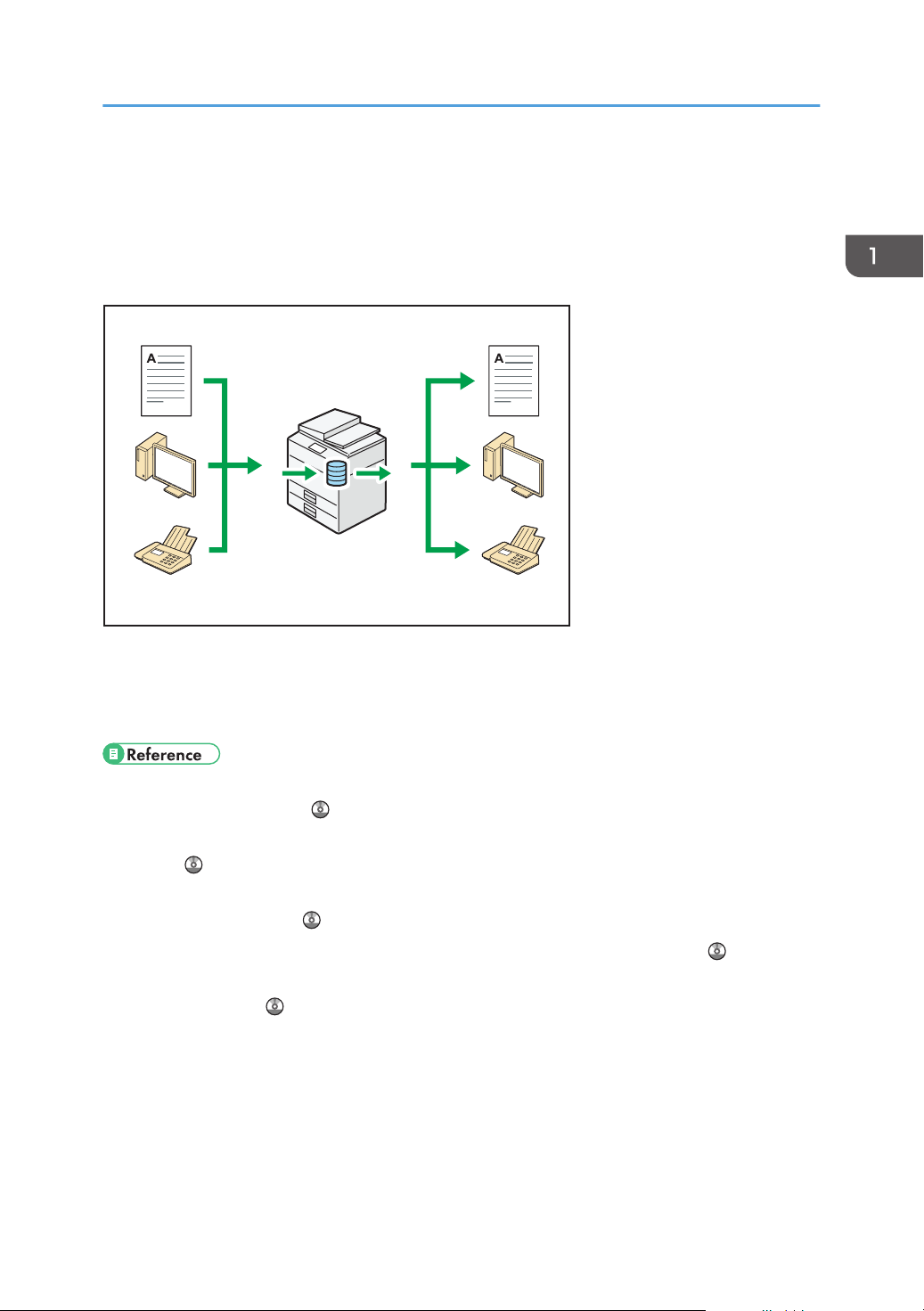
You can store files scanned in copier, facsimile, printer, or scanner mode on the machine's hard disk.
Web Image Monitor allows you to use your computer to search for, view, print, delete, and send stored
files via the network. You can also change print settings and print multiple documents (Document Server).
• You can retrieve stored documents scanned in scanner mode to your computer.
• Using the file format converter, you can download documents stored in copier, Document Server,
or printer mode to your computer.
• For details about how to use the Document Server, see "Storing Data in the Document Server",
Copy/ Document Server .
• For details about the Document Server in copier mode, see "Document Server", Copy/ Document
Server .
• For details about the Document Server in printer mode, see "Saving and Printing Using the
Document Server", Print .
• For details about the Document Server in fax mode, see "Storing a Document", Fax .
• For details about the Document Server in scanner mode, see "Storing and Saving the Scanned
Documents", Scan .
17
Page 28
CJQ604
1. What You Can Do with This Machine
Sending and Receiving Faxes without Paper
Reception
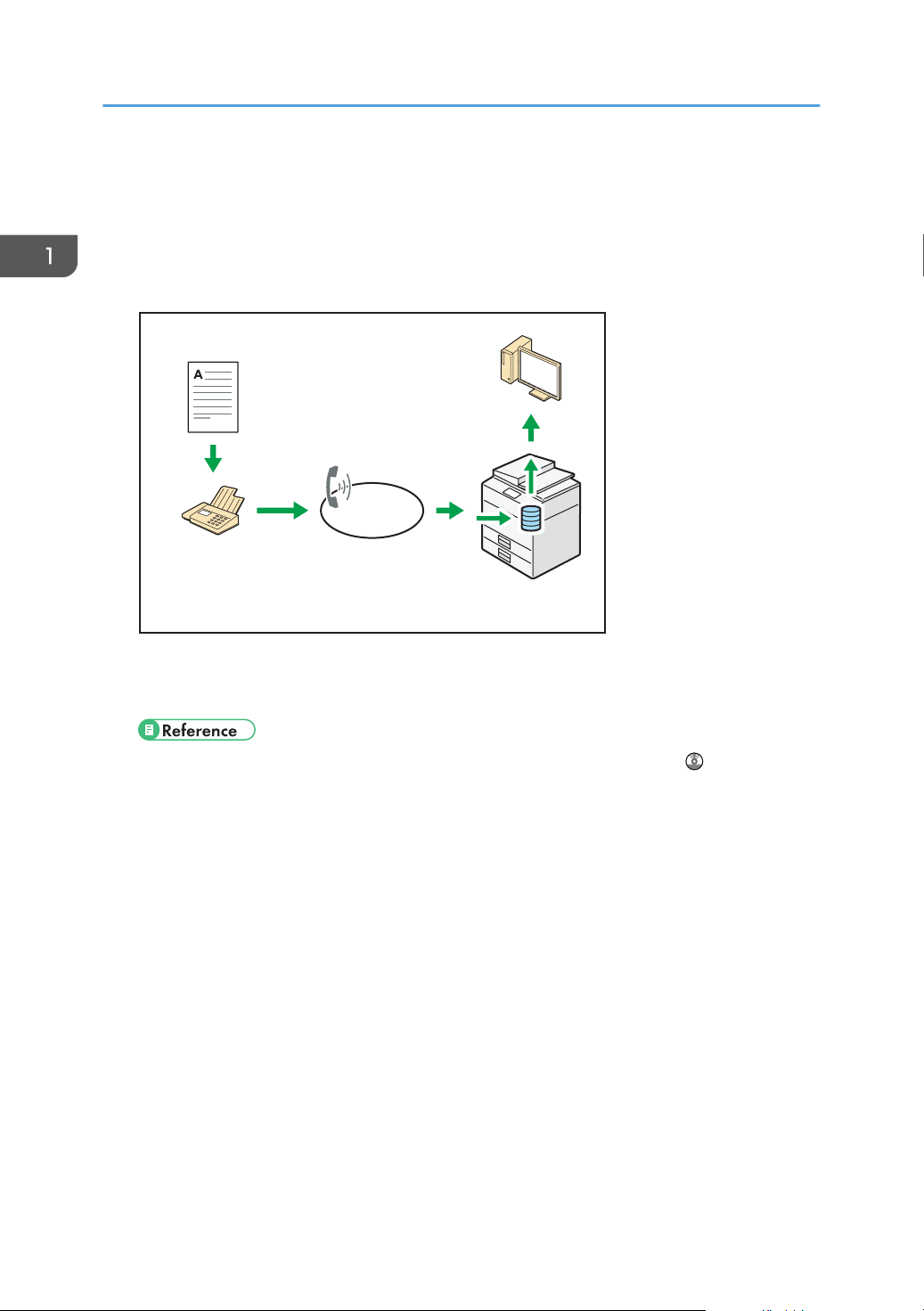
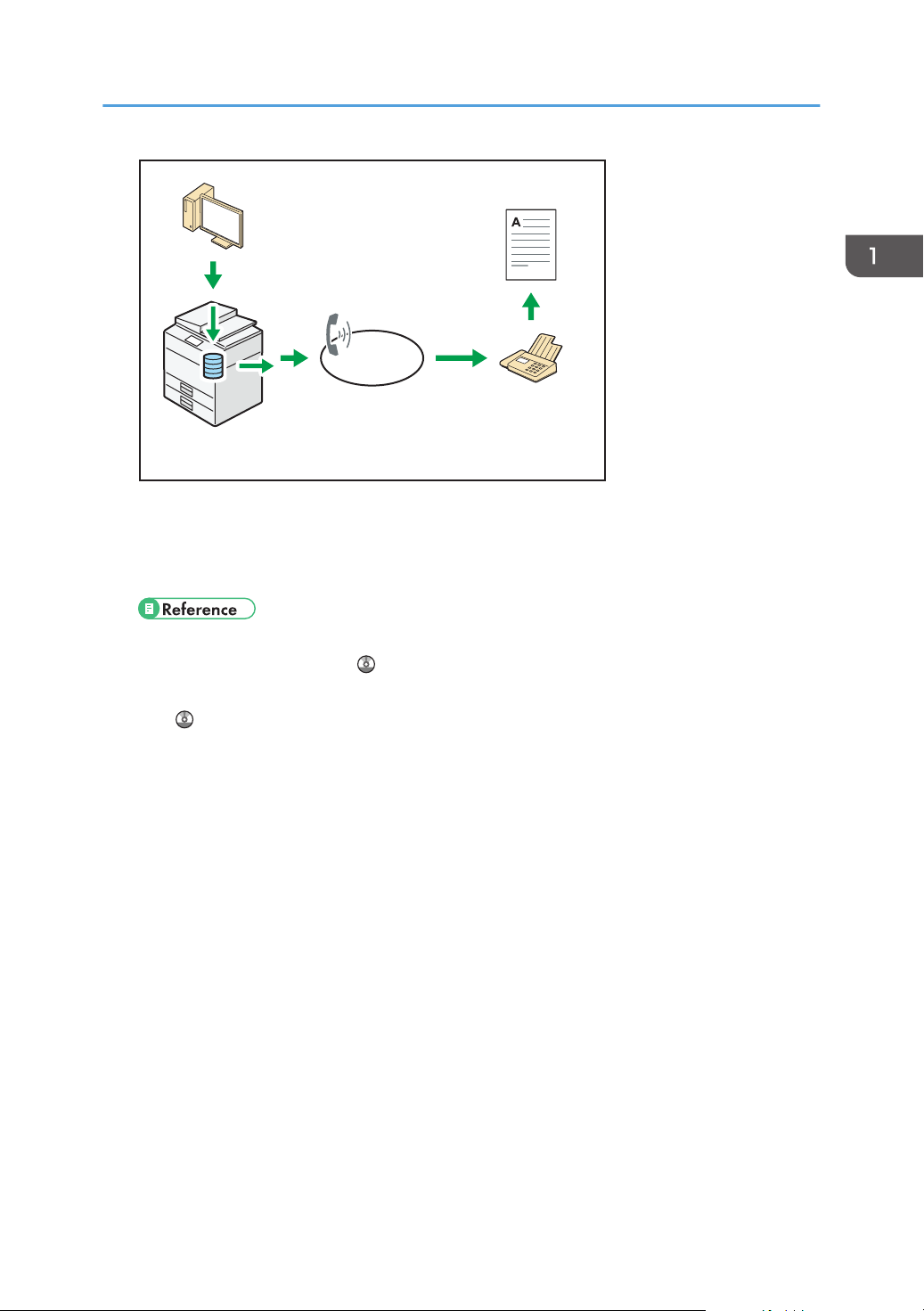
You can store and save received fax documents as electronic formats in the machine's hard disk
without printing them.
You can use Web Image Monitor to check, print, delete, retrieve, or download documents using
your computer (Storing received documents).
• See "Confirming/Printing/Deleting Received and Stored Documents", Fax .
Transmission
You can send a fax from your computer over the network (Ethernet or wireless LAN) to this
machine, which then forwards the fax via its telephone connection (LAN-Fax).
18
Page 29
CJQ605
Sending and Receiving Faxes without Paper
• To send a fax, print from the Windows application you are working with, select LAN-Fax as
the printer, and then specify the destination.
• You can also check the sent image data.
• For details about the machine's settings, see "Network Settings Requirements", Connecting the
Machine/ System Settings .
• For details about how to use the function, see "Sending Fax Documents from Computers", Fax
.
19
Page 30
xxx@xxx.com
xxx.xxx.xxx.xxx
xxx@xxx.com
xxx.xxx.xxx.xxx
CJQ606
1. What You Can Do with This Machine
Sending and Receiving Faxes via the Internet
E-mail Transmission and Reception
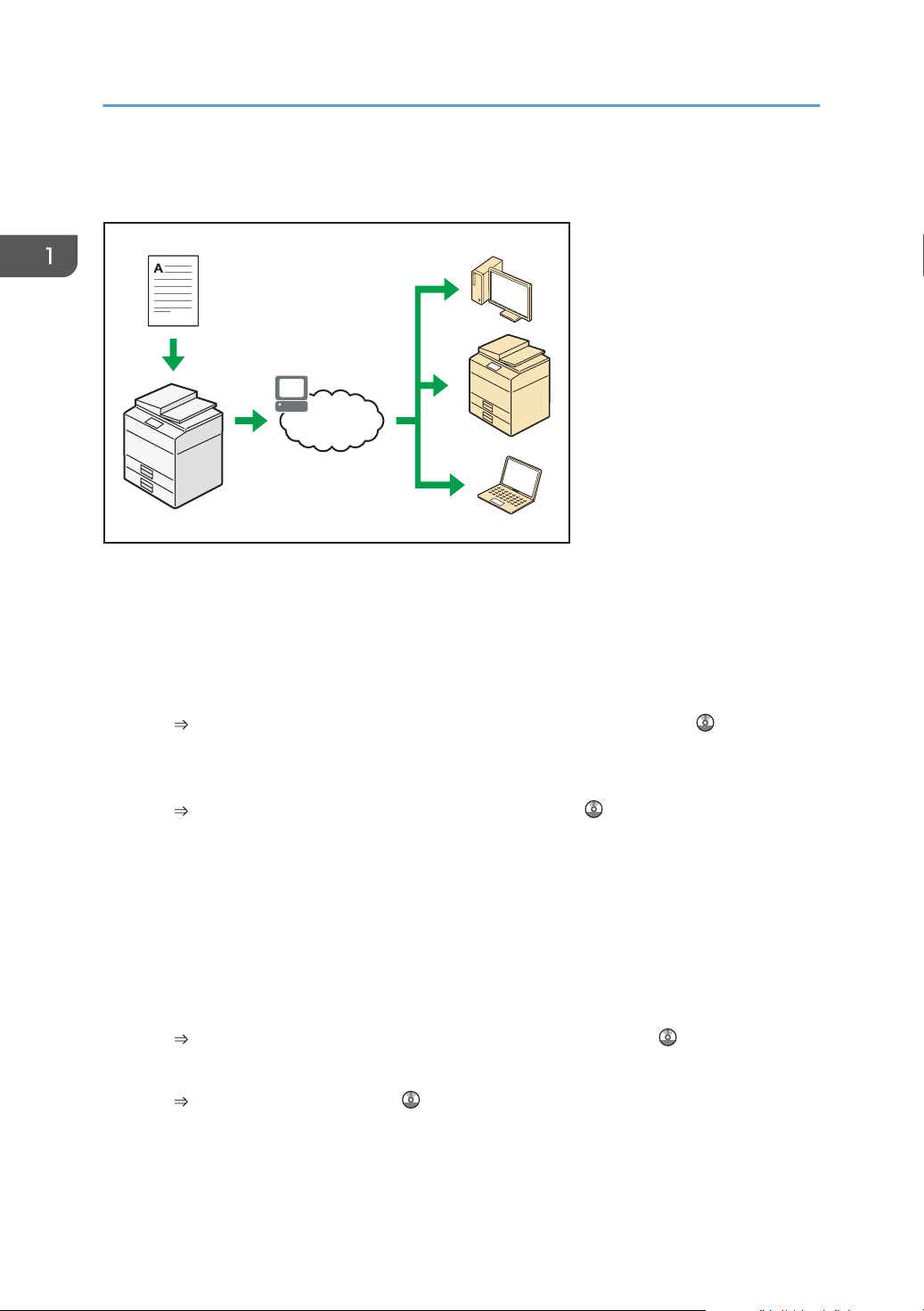
This machine converts scanned document images to e-mail format, and transmits and receives the
e-mail data over the Internet.
• To send a document, specify an e-mail address instead of dialing the destination telephone
number (Internet Fax and e-mail transmission).
See "Specifying an Internet Fax Destination by Entering It Manually", Fax .
• This machine can receive e-mail messages via Internet Fax or from computers (Internet Fax
Reception and Mail to Print).
See "Receiving E-mail by Internet Fax/Mail to Print", Fax .
• Internet Fax compatible machines and computers that have e-mail addresses can receive email messages via Internet Fax.
IP-Fax
The IP-Fax function sends or receives documents between two facsimiles directly via a TCP/IP
network.
• To send a document, specify an IP address or host name instead of a fax number (IP-Fax
Transmission).
See "Specifying an IP-Fax Destination by Entering It Manually", Fax .
• This machine can receive documents sent via Internet Fax (IP-Fax Reception).
See "Types of Reception", Fax .
• Using a VoIP gateway, this machine can send to G3 facsimiles connected to the public
switched telephone network (PSTN).
20
Page 31

Sending and Receiving Faxes via the Internet
• For details about the machine's settings, see "Network Settings Requirements", Connecting the
Machine/ System Settings .
21
Page 32

CJQ612
1. What You Can Do with This Machine
Sending and Receiving Faxes by Using the Machine without Fax Unit Installed
You can send and receive faxes through a different machine's fax functions via a network (Remote Fax).
22
• To use the remote fax function, install the fax connection unit on the main-machine and submachine.
• The procedure for sending faxes is as same as that of for the machine with the fax unit. When a job
has finished, confirm results displayed on sending history or printed on reports.
• You can forward documents received by the main machine with the facsimile function to submachines.
• For details, see "Sending/Receiving Documents Using a Remote Machine (Remote Fax)", Fax .
Page 33

CJQ607
Using the Facsimile and the Scanner in a Network Environment
Using the Facsimile and the Scanner in a
Network Environment
• You can send scan files to a specified destination using e-mail (Sending scan files by e-mail).
See "Overview of E-mail Transmission Function", Fax .
See "Basic Procedure for Sending Scan Files by E-mail", Scan .
• You can send scan files directly to folders (Sending scan files by Scan to Folder).
See "Overview of Folder Transmission Function", Fax .
See "Basic Procedure When Using Scan to Folder", Scan .
• You can use this machine as a delivery scanner for the ScanRouter delivery software*1 (Network
delivery scanner). You can save scan files in the delivery server or send them to a folder in a
computer on the same network.
See "Basic Procedure for Delivering Files", Scan .
• You can use Web Services on Devices (WSD) to send scan files to a client computer.
See "Basic Operating Procedure of WSD Scanner (Push Type)", Scan .
The ScanRouter delivery software is no longer available for sale.
*1
23
Page 34

CUL003
1. What You Can Do with This Machine
Embedding Text Information in Scanned Files
You can extract text information from a scanned document and embed it in the file without using a
computer.
If you scan a document using this function, embedded text can be searched by using the text search
function or copied to another document.
• To use this function, the optional OCR unit is required.
• You can select a file type from [PDF], [High Compression PDF], or [PDF/A].
• This function can optically recognize characters in various languages and up to approximately
40,000 characters a page.
• See "Embedding Text Information in Scanned Data", Scan .
24
Page 35

CJQ608
Preventing Information Leakage (Security Functions)
Preventing Information Leakage (Security
Functions)
• You can protect documents from unauthorized access and stop them from being copied without
permission.
• You can control the use of the machine, as well as prevent machine settings from being changed
without authorization.
• By setting passwords, you can prevent unauthorized access via the network.
• You can erase or encrypt the data on the hard disk to minimize the risk of information leakage.
• You can limit the usage of functions for each user.
• See Security Guide .
25
Page 36

A
A
CUL004
xxx@xxx.xxx
600 dpi
xxx@xxx.xxx
600 dpi
1. What You Can Do with This Machine
Centrally Controlling Scan Conditions and Distribution
You can use the distributed scan management (DSM) system in Windows Server 2008 R2 to manage
the destinations and scan settings for each individual user in a group and to use the information when
distributing scanned data.
You can also use this system to centrally manage information about people using the network and the
machine's scanner functions. Both delivered files and user information can be controlled.
26
• You must set up and configure a Windows server to use the distributed scan management system.
This system is supported under Windows Server 2008 R2.
• For details about how to deliver files using the distributed scan management system, see
"Managing Scan Conditions and Other Settings in the Block using Distributed Scan Management",
Scan .
Page 37

CJQ609
Monitoring and Setting the Machine Using a Computer
Monitoring and Setting the Machine Using a
Computer
Using Web Image Monitor, you can check the machine's status and change the settings.
You can check which tray is running out of paper, register information in the Address Book, specify the
network settings, configure and change the system settings, manage jobs, print the job history, and
configure the authentication settings.
• See "Using Web Image Monitor", Connecting the Machine/ System Settings .
• See Web Image Monitor Help.
27
Page 38

CUM003
1. What You Can Do with This Machine
Preventing Unauthorized Copying
You can print embedded patterns on printouts to prevent unauthorized copying.
• Using the copier function or the printer driver, you can embed a pattern in the printed document. If
the document is copied on a machine with the Copy Data Security unit, protected pages are
grayed out in the copy. This can minimize the risk of confidential information being copied.
Protected fax messages are grayed out before being transmitted or stored. If a document protected
by unauthorized copy guard is copied on a machine that is equipped with the Copy Data Security
unit, the machine beeps to notify users that unauthorized copying is being attempted.
If the document is copied on a machine without the Copy Data Security Unit, the hidden text
becomes conspicuous in the copy, showing that the copy is unauthorized.
• Using the copier function or the printer driver, you can embed text in the printed document for
unauthorized copy prevention. If the document is copied, scanned, or stored in a Document Server
by a copier or multifunction printer, the embedded text appears conspicuous in the copy,
discouraging such unauthorized copying.
• For details, see the printer driver Help and Security Guide .
• For details about this function in the copier mode, see "Preventing Unauthorized Copies", Copier/
Document Server .
• For details about this function in the printer mode, see "Printing Documents that Are Not Authorized
for Duplication", Print .
28
Page 39

2. Getting Started
1
2
4
6
7
8
9
CUV001
5
3
This chapter describes how to start using this machine.
Guide to Names and Functions of Components
• Do not obstruct the machine's vents. Doing so risks fire caused by overheated internal
components.
Front and left view
1. ARDF or one-pass duplex scanning ADF
(The illustration shows the one-pass duplex scanning ADF.)
Lower the ADF over originals placed on the exposure glass.
If you load a stack of originals in the ADF, the ADF will automatically feed the originals one by one.
The ARDF scans both sides of an original one side at a time.
The one-pass duplex scanning ADF scans both sides of an original simultaneously.
2. Exposure glass
Place originals face down here.
29
Page 40

2. Getting Started
3. Vents
Prevent overheating.
4. Control panel
See "Guide to the Names and Functions of the Machine's Control Panel".
5. Main power switch
To operate the machine, the main power switch must be on. If it is off, open the main power switch's cover and
turn the switch on.
6. Internal tray 1
Copied/printed paper and fax messages are delivered here.
7. Front cover
Open to access the inside of the machine.
8. Paper trays (Trays 1–2)
Load paper here.
9. Lower paper trays
Load paper here.
30
Page 41

Front and right view
CUV002
1
2
3
4
5
2
6
7
Guide to Names and Functions of Components
1. ADF's extender
Pull this extender to support large paper.
2. Vents
Prevent overheating.
3. Bypass tray
Use to copy or print on OHP transparencies, adhesive labels, and paper that cannot be loaded in the paper
trays.
4. Paper guides
When loading paper in the bypass tray, align the paper guides flush against the paper.
5. Extender
Pull this extender out when loading sheets larger than A4 , 81/2 × 11 in the bypass tray.
31
Page 42

CUV003
1
1
1
2. Getting Started
6. Lower right cover
Open this cover when a paper jam occurs.
7. Right cover
Open this cover when a paper jam occurs.
Rear and left view
32
1. Vents
Prevent overheating.
Page 43

CUV004
9
345
6
11
12
1
2
10
8
7
Guide to Functions of the Machine's Options
Guide to Functions of the Machine's Options
Guide to Functions of the Machine's External Options
External options for Type 1 and 2 (mainly Europe and Asia)
1. Lower paper tray
Holds up to 550 sheets of paper.
2. Caster table for lower paper tray
To use the lower paper tray, attach the caster table.
3. Tray 3 (LCT)
Holds up to 2,000 sheets of paper.
You can load paper even if Tray 3 (LCT) is in use. It is okay to pull out the left half of the tray while Tray 3
(LCT) is in use.
33
Page 44

2. Getting Started
4. Large capacity tray (LCT)
Holds up to 1,500 sheets of paper.
5. Lower paper trays
Consists of two paper trays. Holds up to 1,100 sheets of paper. Each paper tray holds 550 sheets.
6. Internal tray 2
If you select this as the output tray, copied/printed paper or fax messages are delivered here face down.
7. Bridge unit
Relays paper to the finisher.
8. Internal shift tray
Sorts and stacks multiple sheets of paper.
9. External tray
If you select this as the output tray, copied/printed paper and fax messages are delivered here face down.
10. Internal Finisher SR3130
Sorts, stacks, and staples multiple sheets of paper.
Copies can be punched if the optional punch unit is installed on the finisher.
11. Finisher SR3140
Sorts, stacks, and staples multiple sheets of paper. Consists of the following paper trays:
• Finisher upper tray
• Finisher shift tray
Copies can be punched if the optional punch unit is installed on the finisher.
12. Booklet Finisher SR3150
Sorts, stacks, and staples multiple sheets of paper. The saddle stitch function can staple multiple sheets of
paper in the center and fold them into booklets. Consists of the following paper trays:
• Finisher upper tray
• Finisher shift tray
• Finisher booklet tray
Copies can be punched if the optional punch unit is installed on the finisher.
34
Page 45

CUV005
10
456
7
12
13
2
3
11
9
1
8
Guide to Functions of the Machine's Options
External options for Type 1 and 2 (mainly North America)
1. Handset
Used as a receiver when a fax unit is installed.
Allows you to use the On Hook Dial and Manual Dial functions. It also allows you to use the machine as a
telephone.
2. Lower paper tray
Holds up to 550 sheets of paper.
3. Caster table for lower paper tray
To use the lower paper tray, attach the caster table.
4. Tray 3 (LCT)
Holds up to 2,000 sheets of paper.
You can load paper even if Tray 3 (LCT) is in use. It is okay to pull out the left half of the tray while Tray 3
(LCT) is in use.
5. Large capacity tray (LCT)
Holds up to 1,500 sheets of paper.
35
Page 46

2. Getting Started
6. Lower paper trays
Consists of two paper trays. Holds up to 1,100 sheets of paper. Each paper tray holds 550 sheets.
7. Internal tray 2
If you select this as the output tray, copied/printed paper or fax messages are delivered here face down.
8. Bridge unit
Relays paper to the finisher.
9. Internal shift tray
Sorts and stacks multiple sheets of paper.
10. External tray
If you select this as the output tray, copied/printed paper and fax messages are delivered here face down.
11. Internal Finisher SR3130
Sorts, stacks, and staples multiple sheets of paper.
Copies can be punched if the optional punch unit is installed on the finisher.
12. Finisher SR3140
Sorts, stacks, and staples multiple sheets of paper. Consists of the following paper trays:
• Finisher upper tray
• Finisher shift tray
Copies can be punched if the optional punch unit is installed on the finisher.
13. Booklet Finisher SR3150
Sorts, stacks, and staples multiple sheets of paper. The saddle stitch function can staple multiple sheets of
paper in the center and fold them into booklets. Consists of the following paper trays:
• Finisher upper tray
• Finisher shift tray
• Finisher booklet tray
Copies can be punched if the optional punch unit is installed on the finisher.
36
Page 47

CUV006
11
567
8
13
3
4
12
10
14
15
16
1
2
9
Guide to Functions of the Machine's Options
External options for Type 3 and 4 (mainly Europe and Asia)
1. One-pass duplex scanning ADF
Load a stack of originals here. They will feed in automatically.
2. ARDF
Load a stack of originals here. They will feed in automatically.
3. Lower paper tray
Holds up to 550 sheets of paper.
4. Caster table for lower paper tray
To use the lower paper tray, attach the caster table.
5. Tray 3 (LCT)
Holds up to 2,000 sheets of paper.
You can load paper even if Tray 3 (LCT) is in use. It is okay to pull out the left half of the tray while Tray 3
(LCT) is in use.
37
Page 48

2. Getting Started
6. Large capacity tray (LCT)
Holds up to 1,500 sheets of paper.
7. Lower paper trays
Consists of two paper trays. Holds up to 1,100 sheets of paper. Each paper tray holds 550 sheets.
8. Internal tray 2
If you select this as the output tray, copied/printed paper or fax messages are delivered here face down.
9. Bridge unit
Relays paper to the finisher.
10. Internal shift tray
Sorts and stacks multiple sheets of paper.
11. External tray
If you select this as the output tray, copied/printed paper and fax messages are delivered here face down.
12. Internal Finisher SR3130
Sorts, stacks, and staples multiple sheets of paper.
Copies can be punched if the optional punch unit is installed on the finisher.
13. Finisher SR3140
Sorts, stacks, and staples multiple sheets of paper. Consists of the following paper trays:
• Finisher upper tray
• Finisher shift tray
Copies can be punched if the optional punch unit is installed on the finisher.
14. Booklet Finisher SR3150
Sorts, stacks, and staples multiple sheets of paper. The saddle stitch function can staple multiple sheets of
paper in the center and fold them into booklets. Consists of the following paper trays:
• Finisher upper tray
• Finisher shift tray
• Finisher booklet tray
Copies can be punched if the optional punch unit is installed on the finisher.
15. Finisher SR3160
Sorts, stacks, and staples multiple sheets of paper. Consists of the following paper trays:
• Finisher upper tray
• Finisher shift tray
Copies can be punched if the optional punch unit is installed on the finisher.
16. Booklet Finisher SR3170
Sorts, stacks, and staples multiple sheets of paper. The saddle stitch function can staple multiple sheets of
paper in the center and fold them into booklets. Consists of the following paper trays:
• Finisher upper tray
• Finisher shift tray
38
Page 49

CUV007
10
456
7
12
2
3
11
9
13
14
15
1
8
Guide to Functions of the Machine's Options
• Finisher booklet tray
Copies can be punched if the optional punch unit is installed on the finisher.
External options for Type 3 and 4 (mainly North America)
1. Handset
Used as a receiver when a fax unit is installed.
Allows you to use the On Hook Dial and Manual Dial functions. It also allows you to use the machine as a
telephone.
2. Lower paper tray
Holds up to 550 sheets of paper.
3. Caster table for lower paper tray
To use the lower paper tray, attach the caster table.
4. Tray 3 (LCT)
Holds up to 2,000 sheets of paper.
39
Page 50

2. Getting Started
You can load paper even if Tray 3 (LCT) is in use. It is okay to pull out the left half of the tray while Tray 3
(LCT) is in use.
5. Large capacity tray (LCT)
Holds up to 1,500 sheets of paper.
You can load paper even if Tray 3 (LCT) is in use. It is okay to pull out the left half of the tray while Tray 3
(LCT) is in use.
6. Lower paper trays
Consists of two paper trays. Holds up to 1,100 sheets of paper. Each paper tray holds 550 sheets.
7. Internal tray 2
If you select this as the output tray, copied/printed paper or fax messages are delivered here face down.
8. Bridge unit
Relays paper to the finisher.
9. Internal shift tray
Sorts and stacks multiple sheets of paper.
10. External tray
If you select this as the output tray, copied/printed paper and fax messages are delivered here face down.
11. Internal Finisher SR3130
Sorts, stacks, and staples multiple sheets of paper.
Copies can be punched if the optional punch unit is installed on the finisher.
12. Finisher SR3140
Sorts, stacks, and staples multiple sheets of paper. Consists of the following paper trays:
• Finisher upper tray
• Finisher shift tray
Copies can be punched if the optional punch unit is installed on the finisher.
13. Booklet Finisher SR3150
Sorts, stacks, and staples multiple sheets of paper. The saddle stitch function can staple multiple sheets of
paper in the center and fold them into booklets. Consists of the following paper trays:
• Finisher upper tray
• Finisher shift tray
• Finisher booklet tray
Copies can be punched if the optional punch unit is installed on the finisher.
14. Finisher SR3160
Sorts, stacks, and staples multiple sheets of paper. Consists of the following paper trays:
• Finisher upper tray
• Finisher shift tray
Copies can be punched if the optional punch unit is installed on the finisher.
40
Page 51

CUV008
9
345
6
1
2
8
7
10
11
12
13
Guide to Functions of the Machine's Options
15. Booklet Finisher SR3170
Sorts, stacks, and staples multiple sheets of paper. The saddle stitch function can staple multiple sheets of
paper in the center and fold them into booklets. Consists of the following paper trays:
• Finisher upper tray
• Finisher shift tray
• Finisher booklet tray
Copies can be punched if the optional punch unit is installed on the finisher.
External options for Type 5
(mainly Europe and Asia)
1. Lower paper tray
Holds up to 550 sheets of paper.
2. Caster table for lower paper tray
To use the lower paper tray, attach the caster table.
3. Tray 3 (LCT)
Holds up to 2,000 sheets of paper.
41
Page 52

2. Getting Started
You can load paper even if Tray 3 (LCT) is in use. It is okay to pull out the left half of the tray while Tray 3
(LCT) is in use.
4. Large capacity tray (LCT)
Holds up to 1,500 sheets of paper.
5. Lower paper trays
Consists of two paper trays. Holds up to 1,100 sheets of paper. Each paper tray holds 550 sheets.
6. Internal tray 2
If you select this as the output tray, copied/printed paper or fax messages are delivered here face down.
7. Bridge unit
Relays paper to the finisher.
8. Internal shift tray
Sorts and stacks multiple sheets of paper.
9. External tray
If you select this as the output tray, copied/printed paper and fax messages are delivered here face down.
10. Finisher SR3140
Sorts, stacks, and staples multiple sheets of paper. Consists of the following paper trays:
• Finisher upper tray
• Finisher shift tray
Copies can be punched if the optional punch unit is installed on the finisher.
11. Booklet Finisher SR3150
Sorts, stacks, and staples multiple sheets of paper. The saddle stitch function can staple multiple sheets of
paper in the center and fold them into booklets. Consists of the following paper trays:
• Finisher upper tray
• Finisher shift tray
• Finisher booklet tray
Copies can be punched if the optional punch unit is installed on the finisher.
12. Finisher SR3160
Sorts, stacks, and staples multiple sheets of paper. Consists of the following paper trays:
• Finisher upper tray
• Finisher shift tray
Copies can be punched if the optional punch unit is installed on the finisher.
13. Booklet Finisher SR3170
Sorts, stacks, and staples multiple sheets of paper. The saddle stitch function can staple multiple sheets of
paper in the center and fold them into booklets. Consists of the following paper trays:
• Finisher upper tray
• Finisher shift tray
• Finisher booklet tray
Copies can be punched if the optional punch unit is installed on the finisher.
42
Page 53

CUV009
10
456
7
2
3
9
8
11
12
13
14
1
Guide to Functions of the Machine's Options
External options for Type 5 (mainly North America)
1. Handset
Used as a receiver when a fax unit is installed.
Allows you to use the On Hook Dial and Manual Dial functions. It also allows you to use the machine as a
telephone.
2. Lower paper tray
Holds up to 550 sheets of paper.
3. Caster table for lower paper tray
To use the lower paper tray, attach the caster table.
4. Tray 3 (LCT)
Holds up to 2,000 sheets of paper.
You can load paper even if Tray 3 (LCT) is in use. It is okay to pull out the left half of the tray while Tray 3
(LCT) is in use.
5. Large capacity tray (LCT)
Holds up to 1,500 sheets of paper.
43
Page 54

2. Getting Started
6. Lower paper trays
Consists of two paper trays. Holds up to 1,100 sheets of paper. Each paper tray holds 550 sheets.
7. Internal tray 2
If you select this as the output tray, copied/printed paper or fax messages are delivered here face down.
8. Bridge unit
Relays paper to the finisher.
9. Internal shift tray
Sorts and stacks multiple sheets of paper.
10. External tray
If you select this as the output tray, copied/printed paper and fax messages are delivered here face down.
11. Finisher SR3140
Sorts, stacks, and staples multiple sheets of paper. Consists of the following paper trays:
• Finisher upper tray
• Finisher shift tray
Copies can be punched if the optional punch unit is installed on the finisher.
12. Booklet Finisher SR3150
Sorts, stacks, and staples multiple sheets of paper. The saddle stitch function can staple multiple sheets of
paper in the center and fold them into booklets. Consists of the following paper trays:
• Finisher upper tray
• Finisher shift tray
• Finisher booklet tray
Copies can be punched if the optional punch unit is installed on the finisher.
13. Finisher SR3160
Sorts, stacks, and staples multiple sheets of paper. Consists of the following paper trays:
• Finisher upper tray
• Finisher shift tray
Copies can be punched if the optional punch unit is installed on the finisher.
14. Booklet Finisher SR3170
Sorts, stacks, and staples multiple sheets of paper. The saddle stitch function can staple multiple sheets of
paper in the center and fold them into booklets. Consists of the following paper trays:
• Finisher upper tray
• Finisher shift tray
• Finisher booklet tray
Copies can be punched if the optional punch unit is installed on the finisher.
44
Page 55

Changing the Display Language
CUP009
You can change the language used on the display. English is set as default.
1. Press the [User Tools/Counter] key.
2. Press language key until the language you want to display appears.
3. Press the [User Tools/Counter] key.
Changing the Display Language
45
Page 56

CUV215
1 2 3 4
8 7910
5
6
2. Getting Started
How to Use the [Home] Screen
The icons of each function are displayed on the [Home] screen.
You can add shortcuts to frequently used programs or Web pages to the [Home] screen. The icons of
added shortcuts appear on the [Home] screen. The programs or Web pages can be recalled easily by
pressing the shortcut icons.
To display the [Home] screen, press the [Home] key.
1. [Copier]
Press to make copies.
For details about how to use the copy function, see Copy/ Document Server .
2. [Facsimile]
Press to send or receive faxes.
For details about how to use the fax function, see Fax .
3. [Scanner]
Press to scan originals and save images as files.
For details about how to use the scanner function, see Scan .
4. [Printer]
Press to make settings for using the machine as a printer.
For details about how to make settings for the printer function, see Print .
5. Home screen image
You can display an image on the [Home] screen, such as a corporate logo. To change the image, see
"Displaying the Image on the [Home] Screen", Convenient Functions .
6. /
Press to switch pages when the icons are not displayed on one page.
46
Page 57

How to Use the [Home] Screen
7. Shortcut icon
You can add shortcuts to programs or Web pages to the [Home] screen. For details about how to register
shortcuts, see page 47 "Adding Icons to the [Home] Screen". The program number appears on the bottom
of the shortcut icon.
8. [Address Book Management]
Press to display the Address Book.
For details about how to use the Address Book, see "Address Book", Connecting the Machine/ System
Settings .
9. [Browser]
Press to display Web pages.
For details about how to use the browser function, see Convenient Functions .
10. [Document Server]
Press to store or print documents on the machine's hard disk.
For details about how to use the Document Server function, see Copy/ Document Server .
Adding Icons to the [Home] Screen
You can add shortcuts to programs stored in copier, facsimile, or scanner mode, or Web pages
registered in Favorites using the browser function.
You can also review icons of functions and embedded software applications that you deleted from the
[Home] screen.
• Shortcuts to programs stored in Document Server mode cannot be registered to the [Home] screen.
• Shortcut names of up to 32 characters can be displayed in a standard screen. If the name of the
shortcut is longer than 32 characters, the 32nd character is replaced with "...". Only 30 characters
can be displayed in a simple screen. If the name of the shortcut is longer than 30 characters, the
30th character is replaced with "...".
• For details about how to make a program, see page 51 "Registering Functions in a Program".
• For details about the procedure for registering Web pages to Favorites, see "Specifying the
Settings for Favorites", Convenient Functions .
• Shortcuts to Web pages that are registered to Common Favorites can be registered to the [Home]
screen. When user authentication is enabled, shortcuts to Web pages that are registered to
Favorites by User can also be registered to a user's [Home] screen.
• For details about the procedure for registering a shortcut using the [Program] screen, see
"Registering a Shortcut to a Program to the [Home] Screen", Convenient Functions .
• You can register up to 72 function and shortcut icons. Delete unused icons if the limit is reached. For
details see "Deleting an Icon on the [Home] Screen", Convenient Functions .
47
Page 58

CUP009
2. Getting Started
• You can change the position of icons. For details, see "Changing the Order of Icons on the [Home]
Screen", Convenient Functions .
Adding icons to the [Home] screen using Web Image Monitor
1. Start Web Image Monitor.
For details, see "Using Web Image Monitor", Connecting the Machine/ System Settings .
2. Log in to Web Image Monitor as an administrator.
For details, see Security Guide .
3. Point to [Device Management], and then click [Device Home Management].
4. Click [Edit Icons].
5. Point to [ Icon can be added.] of the position that you want to add, and then click [
Add].
6. Select the function or shortcut icon you want to add.
7. Click [OK] four times.
Adding icons to the [Home] screen using the User Tools
In the following procedure, a shortcut to a copier program is registered to the [Home] screen.
1. Register a program.
2. Press the [User Tools/Counter] key.
48
Page 59

3. Press [Edit Home].
4. Press [Add Icon].
How to Use the [Home] Screen
5. Press the [Program] tab.
49
Page 60

2. Getting Started
6. Make sure that [Copier Program] is selected.
7. Select the program you want to add.
8. Specify the position where [Blank] is displayed.
9. Press [OK].
10. Press the [User Tools/Counter] key.
• Press [ ] on the upper-right corner of the screen to check the position on the simple screen.
50
Page 61

CJS113
Registering Functions in a Program
Registering Functions in a Program
Depending on the functions, the number of programs that can be registered is different.
• Copier: 25 programs
• Document Server: 25 programs
• Facsimile: 100 programs
• Scanner: 25 programs
The following settings can be registered to programs:
Copier:
Color mode, original type, density, Special Original, paper tray, Store File (except for User Name,
File Name, and Password), Auto Reduce / Enlarge, Create Margin, Finishing, Cover/Slip Sheet,
Edit / Color, Dup./Combine/Series, Reduce / Enlarge, number of copies
Document Server (on the initial document print screen):
2 Sided Copy Top to Top, 2 Sided Copy Top to Bottom, Booklet, Magazine, Finishing, Cover/Slip
Sheet (except for Main Sheet Tray in Designate / Chapter), Edit / Stamp, number of prints
Facsimile:
Scan Settings, density, Original Feed Type, File Type, Store File (except for User Name, File
Name, and Password), Preview, transmission type, destinations (except for folder destinations),
Select Line, Adv.Features, memory transmission/immediate transmission, Communi. Result Rep., TX
Mode (except for Subject)
Scanner:
Scan Settings, density, Original Feed Type, Send File Type / Name (except for Security Settings
and Start No.), Store File (except for User Name, File Name, and Password), Preview,
Destinations selected from the Address Book, Text, Subject, Security, Recept. Notice
This section explains how to register functions in a program using copier function as an example.
1. Press the [Home] key on the top left of the control panel, and press the [Copier] icon on
the [Home] screen.
51
Page 62

CUP008
2. Getting Started
2. Edit the copy settings so all functions you want to store in a program are selected.
3. Press the [Program] key.
4. Press [Program].
5. Press the program number you want to register.
52
6. Enter the program name.
7. Press [OK].
8. Press [Exit].
• The number of characters you can enter for a program name varies depending on the functions as
follows:
• Copier: 34 characters
• Document Server: 34 characters
• Facsimile: 20 characters
• Scanner: 34 characters
• When a specified program is registered as the default, its values become the default settings, which
are displayed without pressing the [Program] key, when modes are cleared or reset, and after the
machine is turned on. See "Changing the Default Functions of the Initial Screen", Convenient
Functions .
Page 63

Registering Functions in a Program
• When the paper tray you specified in a program is empty and if there is more than one paper tray
with the same size paper in it, the paper tray prioritized under [Paper Tray Priority: Copier] or
[Paper Tray Priority: Facsimile] in the [Tray Paper Settings] tab will be selected first. For details, see
"System Settings", Connecting the Machine/ System Settings .
• Destinations that are registered in the machine's Address Book can be registered to a program of
the scanner mode.
• Destinations can be registered to a program of the scanner mode only when [Include Destinations]
is selected for [Program Setting for Destinations] in [Scanner Features]. For details about the setting,
see "General Settings", Scan .
• Folder destinations that have protection codes cannot be registered to a program of the scanner
mode.
• Programs are not deleted by turning the power off or by pressing the [Reset] key unless the
program is deleted or overwritten.
• Program numbers with next to them already have settings made for them.
• Programs can be registered to the [Home] screen, and can be recalled easily. For details, see
"Registering a Shortcut to a Program to the [Home] Screen", Convenient Functions and page 47
"Adding Icons to the [Home] Screen". Shortcuts to programs stored in Document Server mode
cannot be registered to the [Home] screen.
Example of Programs
Copier mode
Program name Program description Effect
Eco copy Specify [Combine 2 Sides] in
[Dup./Combine/Series].
Dated confidential
copy
Conference
material copy
In [Edit / Color], specify
[CONFIDENTIAL] under [Preset
Stamp], and [Date Stamp].
Specify [Combine 2 Sides] in
[Dup./Combine/Series] and
[Staple] in [Finishing].
You can save paper and toner.
You can increase security
awareness by printing
"CONFIDENTIAL" and the date on
copies.
You can copy conference materials
efficiently.
53
Page 64

2. Getting Started
Program name Program description Effect
Magazine copy Specify [Magazine] in [Dup./
Combine/Series] and [Staple:
Center] in [Finishing].
Unified-size copy Specify [Mixed Sizes] in [Special
Original] and [Auto Reduce /
Enlarge] in the initial display.
Stamping
corporate name
Specify [User Stamp] in [Edit /
Color].
copy
Thumbnail copy Specify [Combine 1 Side] in [Dup./
Combine/Series].
Storage copy:
XXXX
Specify a folder in [Target Folder to
Store] in [Store File].
(replace XXXX by a
folder name)
You can save paper. Also, you can
perform printing jobs such as
producing leaflets in-house instead
of having them printed by an
outside printing company.
You can print various size copies
onto one size of paper, so they are
easier to manage.
You can stamp the name of your
company on copies of working or
architectural drawings. Your
company name needs to be preregistered in the machine.
You can copy up to eight pages
onto one side of a sheet, so that you
can save paper.
You can use folders to organize
stored files by user name or
intended use.
54
Scanner mode
Program name Program description Effect
Easy PDF scan Select [Full Color: Text / Photo] in
[Scan Settings]. In [Send File Type /
Name], select [PDF] under [File
Type] and enter the business details
such as "London branch: daily
report" under [File Name].
High compression
PDF scan
Select [Full Color: Text / Photo] in
[Scan Settings] and [High
Compression PDF] in [Send File
Type / Name].
You can scan documents efficiently.
You can compress the data size of
scanned documents, so that you can
send and store them.
Page 65

Registering Functions in a Program
Program name Program description Effect
Long-term storage
scan
Select [PDF/A] in [Send File Type /
Name].
Unified-size scan In [Scan Settings], select [Mixed
Original Sizes] in [Scan Size] and
specify the finished size of scanned
data in [Reduce / Enlarge] under
[Edit].
Digital signature
scan
In [Send File Type / Name], specify
[PDF] in [File Type], and also
specify [Digital Signature].
Dividing file scan Specify [Divide] in [Original Feed
Type].
High resolution
scan
Specify settings to save scanned
data in TIFF format. Also, specify a
higher resolution in [Scan Settings].
You can easily digitize documents
to "PDF/A" file format, which is
suitable for long-term storage.
You can skip this procedure to unify
the size when reprinting scanned
data.
You can add a digital signature to
an important document such as a
contract, so that any data tampering
can be detected.
You can scan a multiple page
original as one file by splitting it into
groups of a specified number of
pages.
Scanned documents maintain much
of the detail of the originals, but the
size of the data may be quite large.
Batch document
scan
Scan to XXXX
(replace XXXX by a
destination name)
Storage scan:
XXXX
(replace XXXX by a
folder name)
Select [Batch] in [Original Feed
Type].
Select e-mail or folder destinations
from the list that is registered in the
machine's Address Book, and then
specify the scan settings.
Specify a folder in [Target Folder to
Store] in [Store File].
You can apply multiple scans to a
large volume of originals and send
the scanned originals as a single
job.
If you register destinations and scan
settings that you use often, you can
skip the procedures to specify them
when sending a scanned file.
You can use folders to organize
stored files by user name or
intended use.
55
Page 66

2. Getting Started
Facsimile mode
Program name Program description Effect
Transmission result
notification fax
Specified time fax
transmission
Departmental fax
transmission
Select [Preview] in the initial display
and specify [E-mail TX Results] in [TX
Mode].
You can check whether the
transmission settings are correct
before and after transmission.
Specify [Send Later] in [TX Mode]. You can send a fax at a specified
time.
Specify [Fax Header Print] in [TX
Mode].
This setting can be used if the
receiver specifies forwarding
destinations by senders.
• Depending on the options installed, some functions cannot be registered. For details, see "Functions
Requiring Optional Configurations", Getting Started .
• The names of programs given above are just examples. You can assign any name to a program
according to your objectives.
• Depending on your business details or the type of documents to be scanned, registering a program
cannot be recommended.
56
Page 67

CUV031
Turning On/Off the Power
Turning On/Off the Power
The main power switch is on the right side of the machine. When this switch is turned on, the main power
turns on and the main power indicator on the right side of the control panel lights up. When this switch is
turned off, the main power turns off and the main power indicator on the right side of the control panel
goes out. When this is done, machine power is off. When the fax unit is installed, fax files in memory
may be lost if you turn this switch off. Use this switch only when necessary.
Turning On the Main Power
1. Make sure the power cord is firmly plugged into the wall outlet.
2. Open the main power switch cover, and push the main power switch.
The main power indicator goes on.
Turning Off the Main Power
• When disconnecting the power cord from the wall outlet, always pull the plug, not the cord.
Pulling the cord can damage the power cord. Use of damaged power cords could result in fire
or electric shock.
• Do not turn off the power while the machine is in operation.
• Do not hold down the main power switch while turning off the main power. Doing so forcibly turns
off the machine's power and may damage the hard disk or memory and cause malfunctions.
1. Open the main power switch cover, and then push the main power switch.
The main power indicator goes out. The main power turns off automatically when the machine shuts
down. If the screen on the control panel does not disappear, contact your service representative.
57
Page 68

2. Getting Started
When the Authentication Screen Is Displayed
If Basic Authentication, Windows Authentication, LDAP Authentication, or Integration Server
Authentication is active, the authentication screen appears on the display. The machine only becomes
operable after entering your own Login User Name and Login Password. If User Code Authentication is
active, you cannot use the machine until you enter the User Code.
If you can use the machine, you can say that you are logged in. When you go out of the operable state,
you can say that you are logged out. After logging in the machine, be sure to log out of it to prevent
unauthorized usage.
• Ask the user administrator for the Login User Name, Login Password, and User Code. For details
about user authentication, see Security Guide .
• User Code to enter on User Code Authentication is the numerical value registered in the Address
Book as "User Code".
User Code Authentication Using the Control Panel
This section explains the procedure for logging in to the machine using the control panel while User
Code Authentication is active.
If User Code Authentication is active, a screen prompting you to enter a User Code appears.
1. Enter a User Code (up to eight digits), and then press [OK].
Logging In Using the Control Panel
This section explains the procedure for logging in to the machine when Basic Authentication, Windows
Authentication, LDAP Authentication, or Integration Server Authentication is set.
58
Page 69

CJS040
When the Authentication Screen Is Displayed
1. Press [Login].
2. Enter a Login User Name, and then press [OK].
3. Enter a Login Password, and then press [OK].
When the user is authenticated, the screen for the function you are using appears.
Logging Out Using the Control Panel
This section explains the procedure for logging out the machine when Basic Authentication, Windows
Authentication, LDAP Authentication, or Integration Server Authentication is set.
• To prevent use of the machine by unauthorized persons, always log out when you have finished
using the machine.
1. Press the [Login/Logout] key.
2. Press [Yes].
59
Page 70

CVA054
1
2. Getting Started
Placing Originals
Placing Originals on the Exposure Glass
• Keep your hands away from the hinges and exposure glass when lowering the ADF. Not doing
so may result in an injury if your hands or fingers are pinched.
• Do not lift the ADF forcefully. Otherwise, the cover of the ADF might open or be damaged.
1. Lift the ADF.
Be sure to lift the ADF by more than 30 degrees. Otherwise, the size of the original might not be
detected correctly.
2. Place the original face down on the exposure glass. The original should be aligned to the
rear left corner.
Start with the first page to be scanned.
1. Positioning mark
3. Lower the ADF.
Placing Originals in the Auto Document Feeder
Be sure not to block the sensor or load the original untidily. Doing so may cause the machine to detect
the size of the original incorrectly or display a paper misfeed message. Also, be sure not to place
originals or other objects on the top cover. Doing so may cause a malfunction.
60
Page 71

ARDF
CSN003
1
1
CVA056
CSN004
1
2
One-pass duplex scanning ADF
Placing Originals
1. Sensors
1. Adjust the original guide to the original size.
2. Place the aligned originals squarely face up in the ADF.
Do not stack originals beyond the limit mark.
The first page should be on the top.
• ARDF
• One-pass duplex scanning ADF
61
Page 72

1
2
CVA057
2. Getting Started
1. Limit mark
2. Original guide
62
Page 73

3. Copy
CJS113
This chapter describes frequently used copier functions and operations. For the information not included
in this chapter, see Copy/ Document Server on the supplied CD-ROM.
Basic Procedure
To make copies of originals, place them on the exposure glass or in the ADF.
When placing the original on the exposure glass, start with the first page to be copied. When placing
the original in the ADF, place them so that the first page is on the top.
For details about how to place the original on the exposure glass, see page 60 "Placing Originals on
the Exposure Glass".
For details about how to place the original in the ADF, see page 60 "Placing Originals in the Auto
Document Feeder".
To copy onto paper other than plain paper, specify the paper type in User Tools according to the weight
of the paper you are using. For details, see "Tray Paper Settings", Connecting the Machine/ System
Settings .
1. Press the [Home] key on the top left of the control panel, and press the [Copier] icon on
the [Home] screen.
2. Make sure that no previous settings remain.
When there are previous settings remaining, press the [Reset] key.
3. Place the originals.
4. Make desired settings.
5. Enter the number of copies with the number keys.
The maximum copy quantity that can be entered is 999.
63
Page 74

3. Copy
6. Press the [Start] key.
When placing the original on the exposure glass, press the [ ] key after all originals are scanned.
Some functions such as Batch mode may require that you press the [ ] key when placing originals
in the ADF. Follow the messages that appear on screen.
7. When the copy job is finished, press the [Reset] key to clear the settings.
64
Page 75

CKN008
Auto Reduce / Enlarge
Auto Reduce / Enlarge
The machine automatically detects the original size and then selects an appropriate reproduction ratio
based on the paper size you select.
• If you select a reproduction ratio after pressing [Auto Reduce / Enlarge], [Auto Reduce / Enlarge]
is canceled and the image cannot be rotated automatically.
This is useful to copy different size originals to the same size paper.
If the orientation in which your original is placed is different from that of the paper you are copying onto,
the machine rotates the original image by 90 degrees and fits it on the copy paper (Rotate Copy). For
example, to reduce A3 (11 × 17) originals to fit onto A4 (81/2 × 11) paper, select a paper tray
containing A4 (81/2 × 11) paper, and then press [Auto Reduce / Enlarge]. The image is
automatically rotated. For details about Rotate Copy, see "Rotate Copy", Copy/ Document Server .
The original sizes and orientations you can use with this function are as follows:
(mainly Europe and Asia)
Original location Original size and orientation
Exposure glass A3 , B4 JIS , A4 , B5 JIS , A5 , 81/2 × 13
ADF A3 , B4 JIS , A4 , B5 JIS , A5 , B6 JIS , 11
× 17 , 81/2 × 11 , 81/2 × 13
(mainly North America)
Original location Original size and orientation
Exposure glass 11 × 17 , 81/2 × 14 , 81/2 × 11 , 51/2 × 81/
ADF 11 × 17 , 81/2 × 14 , 81/2 × 11 , 51/2 × 81/
2
2
, 10 × 14 , 71/4 × 101/2, A3 , A4
65
Page 76

3. Copy
1. Press [Auto Reduce / Enlarge].
2. Select the paper size.
3. Place the originals, and then press the [Start] key.
66
Page 77

CKN009
Duplex Copying
Duplex Copying
Copies two 1-sided pages or one 2-sided page onto a 2-sided page. During copying, the image is
shifted to allow for the binding margin.
There are two types of Duplex.
1 Sided
2 Sided 2 Sided
The resulting copy image will differ according to the orientation in which you place your originals ( or
).
Original orientation and completed copies
2 Sided
Copies two 1-sided pages on one 2-sided page.
Copies one 2-sided page on one 2-sided page.
To copy on both sides of the paper, select the original and copy orientation according to how you
want the printout to appear.
Original Placing originals
Original
Orientation
Orientation Copy
Top to Top
Top to Bottom
67
Page 78

3. Copy
Original Placing originals
1. Press [Dup./Combine/Series].
Original
Orientation
Orientation Copy
Top to Top
Top to Bottom
68
2. Make sure that [Duplex] is selected. If [Duplex] is not selected, press [Duplex].
3. Select [1 Sided 2 Sided] or [2 Sided 2 Sided] according to how you want the
document to be output.
To change the original or copy orientation, press [Orientation].
4. Press [OK].
5. Place the originals.
6. Press [Special Original].
Page 79

CKN011
CKN012
Duplex Copying
7. Select the original orientation, and then press [OK].
8. Press the [Start] key.
Specifying the Original and Copy Orientation
Select the orientation of the originals and copies if the original is two-sided or if you want to copy onto
both sides of the paper.
• Top to Top
• Top to Bottom
1. Press [Orientation].
69
Page 80

3. Copy
2. Select [Top to Top] or [Top to Bottom] for [Original:] if the original is two-sided.
3. Select [Top to Top] or [Top to Bottom] for [Copy:].
4. Press [OK].
70
Page 81

CKN015
CKN016
Combined Copying
Combined Copying
This mode can be used to select a reproduction ratio automatically and copy the originals onto a single
sheet of copy paper.
The machine selects a reproduction ratio between 25 and 400%. If the orientation of the original is
different from that of the copy paper, the machine will automatically rotate the image by 90 degrees to
make copies properly.
Orientation of the original and image position of Combine
The image position of Combine differs according to original orientation and the number of originals
to be combined.
• Portrait ( ) originals
• Landscape ( ) originals
Placing originals (originals placed in the ADF)
The default value for the copy order in the Combine function is [From Left to Right]. To copy
originals from right to left in the ADF, place them upside down.
• Originals read from left to right
71
Page 82

CKN010
CKN017
CKN014
3. Copy
• Originals read from right to left
One-Sided Combine
Combine several pages onto one side of a sheet.
There are six types of One-Sided Combine.
1 Sided 2 Originals Combine 1 Side
Copies two 1-sided originals to one side of a sheet.
1 Sided 4 Originals Combine 1 Side
Copies four 1-sided originals to one side of a sheet.
1 Sided 8 Originals Combine 1 Side
Copies eight 1-sided originals to one side of a sheet.
2 Sided 2 Pages Combine 1 Side
72
Copies one 2-sided original to one side of a sheet.
Page 83

2 Sided 4 Pages Combine 1 Side
Copies two 2-sided originals to one side of a sheet.
2 Sided 8 Pages Combine 1 Side
Copies four 2-sided originals to one side of a sheet.
1. Press [Dup./Combine/Series].
2. Press [Combine].
3. Select [1 Sided] or [2 Sided] for [Original:].
Combined Copying
If you selected [2 Sided], you can change the orientation.
4. Press [Combine 1 Side].
5. Select the number of originals to combine.
6. Press [OK].
7. Select the paper size.
8. Place the originals, and then press the [Start] key.
Two-Sided Combine
Combines various pages of originals onto two sides of one sheet.
73
Page 84

CKN074
3. Copy
There are six types of Two-Sided Combine.
1 Sided 4 Originals Combine 2 Sides
Copies four 1-sided originals to one sheet with two pages per side.
1 Sided 8 Originals Combine 2 Sides
Copies eight 1-sided originals to one sheet with four pages per side.
1 Sided 16 Originals Combine 2 Sides
Copies 16 1-sided originals to one sheet with eight pages per side.
2 Sided 4 Pages Combine 2 Sides
Copies two 2-sided originals to one sheet with two pages per side.
2 Sided 8 Pages Combine 2 Sides
Copies four 2-sided originals to one sheet with four pages per side.
2 Sided 16 Pages Combine 2 Sides
Copies eight 2-sided originals to one sheet with eight pages per side.
1. Press [Dup./Combine/Series].
2. Press [Combine].
74
Page 85

Combined Copying
3. Select [1 Sided] or [2 Sided] for [Original:].
4. Press [Combine 2 Sides].
5. Press [Orientation].
6. Select [Top to Top] or [Top to Bottom] for [Original:] and/or [Copy:], and then press
[OK].
7. Select the number of originals to combine.
8. Press [OK].
9. Select the paper size.
10. Place the originals, and then press the [Start] key.
75
Page 86

3. Copy
Copying onto Custom Size Paper from the Bypass Tray
Paper that has a horizontal length of 148.0–457.2 mm (5.83–18.00 inches) and a vertical length of
90.0–320.0 mm (3.55–12.59 inches) can be fed in from the bypass tray.
1. Load the paper face down in the bypass tray.
The bypass tray (
2. Press the [ ] key.
3. Press [Paper Size].
4. Press [Custom Size].
5. Enter the horizontal size with the number keys, and then press [ ].
6. Enter the vertical size with the number keys, and then press [ ].
7. Press [OK] twice.
8. Place the originals, and then press the [Start] key.
) is automatically selected.
76
Page 87

CJF005
Copying onto Envelopes
Copying onto Envelopes
This section describes how to copy onto regular size and custom size envelopes. Place the original on
the exposure glass and place the envelope in the bypass tray or paper tray.
Specify the thickness of the paper according to the weight of the envelopes you are printing on. For
details about the relationship between paper weight and paper thickness and the sizes of envelopes that
can be used, see page 144 "Recommended Paper Sizes and Types".
For details about how to handle envelopes, supported envelope types, and how to load envelopes, see
page 155 "Envelopes".
• The Duplex function cannot be used with envelopes. If the Duplex function is specified, press [1
sided 2 sided:TtoT] to cancel the setting.
To copy onto custom size envelopes, you must specify the envelope's dimensions. Specify the horizontal
and vertical length of the envelope.
: Horizontal
: Vertical
Be sure to include the fully open flap in the horizontal dimension.
Copying onto Envelopes from the Bypass Tray
Before using this function, select [Envelope] for the paper type under [Tray Paper Settings] in User Tools.
For details, see "Tray Paper Settings", Connecting the Machine/ System Settings .
77
Page 88

3. Copy
1. Load the envelopes face down in the bypass tray.
The bypass tray ( ) is automatically selected.
2. Press the [ ] key.
3. Press [Paper Size].
4. Specify the envelope size, and then press [OK] twice.
5. Place the originals, and then press the [Start] key.
Copying onto Envelopes from the Paper Tray
Before using this function, specify the paper size and type under [Tray Paper Settings] in User Tools. For
the paper type, select [Envelope]. For details, see "Tray Paper Settings", Connecting the Machine/
System Settings .
1. Select the paper tray where the envelopes are loaded.
78
2. Place the originals, and then press the [Start] key.
Page 89

Sort
CKN018
CKN019
The machine assembles copies as sets in sequential order.
• You cannot use the bypass tray with Rotate Sort.
Sort/Shift Sort
Copies are assembled as sets in sequential order.
To use Shift Sort, a finisher or the internal shift tray is required. Each time the copies of one set or a
job are delivered, the next copy is shifted to separate each set or job.
Sort
Rotate Sort
Every other copy set is rotated by 90 degrees ( ) and delivered to the copy tray.
To use the Rotate Sort function, two paper trays loaded with paper of the same size and type, but in
different orientation ( ), are required. For details, see "Tray Paper Settings", Connecting the
Machine/ System Settings .
79
Page 90

3. Copy
1. Press [Finishing].
2. Select [Sort] or [Rotate Sort], and then press [OK].
3. Enter the number of copy sets using the number keys.
4. Place the originals.
To confirm the type of finishing, press the [Sample Copy] key.
5. Press the [Start] key.
• Depending on your model and which options are installed on it, some of these functions might not
be available. For details, see "Functions Requiring Optional Configurations", Getting Started .
Changing the Number of Sets
You can change the number of copy sets during copying.
• This function can be used only when the Sort function is selected.
1. While "Copying..." is displayed, press the [Stop] key.
80
Page 91

2. Enter the number of copy sets with the number keys.
3. Press [Continue].
Copying starts again.
Sort
81
Page 92

3. Copy
Storing Data in the Document Server
The Document Server enables you to store documents being read with the copy feature on the hard disk
of this machine. Thus you can print them later applying necessary conditions.
You can check the stored documents on the Document Server screen. For details about the Document
Server, see page 123 "Storing Data".
1. Press [Store File].
2. Enter a file name, user name, or password if necessary.
3. Specify a folder in which to store the document if necessary.
4. Press [OK].
5. Place the originals.
6. Make the scanning settings for the original.
7. Press the [Start] key.
Stores scanned originals in memory and makes one set of copies. If you want to store another
document, do so after copying is complete.
82
Page 93

4. Fax
CJS113
This chapter describes frequently used facsimile functions and operations. For the information not
included in this chapter, see Fax on the supplied CD-ROM.
Basic Procedure for Transmissions (Memory Transmission)
This section describes the basic procedure for transmitting documents using Memory Transmission.
You can specify the fax, IP-Fax, Internet Fax, e-mail, or folder destinations. Multiple types of destination
can be specified simultaneously.
• It is recommended that you call the receivers and confirm with them when sending important
documents.
• If there is a power failure (the main power switch is turned off) or the machine is unplugged for
about one hour, all the documents stored in memory are deleted. As soon as the main power
switch is turned on, the Power Failure Report is printed to help you check the list of deleted files. See
"When an Error Is Notified via a Report or E-mail", Troubleshooting .
1. Press the [Home] key on the top left of the control panel, and press the [Facsimile] icon on
the [Home] screen.
2. Make sure "Ready" appears on the screen.
83
Page 94

4. Fax
3. Make sure [Immed. TX] is not highlighted.
4. Place the original into the ADF.
5. Make the scan settings such as scan size and resolution.
84
6. Configure the transmission settings such as [TX Mode] as necessary.
7. Specify a destination.
You can enter the destination's number or address directly or select from the Address Book by
pressing the destination key.
If you make a mistake, press the [Clear] key, and then enter again.
8. When sending the same original to several destinations (broadcasting), specify the next
destination.
Page 95

Basic Procedure for Transmissions (Memory Transmission)
9. If you send documents to Internet Fax or e-mail destinations or enable the E-mail TX
Results function, specify a sender.
10. Press the [Start] key.
Sending Originals Using the Exposure Glass (Memory Transmission)
1. Make sure [Immed. TX] is not highlighted.
2. Place the first page of the original face down on the exposure glass.
3. Specify a destination.
4. Make the scan settings you require.
5. Press the [Start] key.
6. Place the next original on the exposure glass within 60 seconds when you send multiple
originals, and then repeat steps 4 and 5.
Repeat this step for each page.
7. Press the [ ] key.
The machine dials the destination and starts transmission.
85
Page 96

4. Fax
Registering a Fax Destination
1. Press the [User Tools/Counter] key.
2. Press [Address Book Mangmnt].
3. Check that [Program / Change] is selected.
4. Press [New Program].
5. Press [Change] under "Name".
The name entry display appears.
6. Enter the name, and then press [OK].
7. Press [
8. Press the key for the classification you want to use under "Select Title".
The keys you can select are as follows:
You can select [Frequent] and one more key for each title.
9. Press [Fax Dest.].
10. Press [Change] under "Fax Destination".
Next].
• [Frequent]: Added to the page that is displayed first.
• [AB], [CD], [EF], [GH], [IJK], [LMN], [OPQ], [RST], [UVW], [XYZ], [1] to [10]: Added to the
list of items in the selected title.
86
Page 97

Basic Procedure for Transmissions (Memory Transmission)
11. Enter the fax number using the number keys, and then press [OK].
12. Specify optional settings such as "SUB Code", "SEP Code", and "International TX Mode".
13. Press [OK].
14. Press [Exit].
15. Press the [User Tools/Counter] key.
Deleting a Fax Destination
• If you delete a destination that is a specified delivery destination, messages to its registered
Personal Box, for example, cannot be delivered. Be sure to check the settings in the fax function
before deleting any destinations.
1. Press the [User Tools/Counter] key.
2. Press [Address Book Mangmnt].
3. Check that [Program / Change] is selected.
4. Select the name whose fax destination you want to delete.
Press the name key, or enter the registered number using the number keys.
You can search by the registered name, user code, fax number, folder name, e-mail address, or IPFax destination.
5. Press [Fax Dest.].
6. Press [Change] under "Fax Destination".
87
Page 98

4. Fax
7. Press [Delete All], and then press [OK] under "Fax Destination".
8. Press [OK].
9. Press [Exit].
10. Press the [User Tools/Counter] key.
88
Page 99

CJS113
Transmitting while Checking Connection to Destination (Immediate Transmission)
Transmitting while Checking Connection to
Destination (Immediate Transmission)
Using Immediate Transmission, you can send documents while checking the connection to the
destination.
You can specify fax or IP-Fax destinations.
If you specify Internet Fax, e-mail, folder destinations, and group or multiple destinations, the
transmission mode is automatically switched to Memory Transmission.
• It is recommended that you call the receivers and confirm with them when sending important
documents.
1. Press the [Home] key on the top left of the control panel, and press the [Facsimile] icon on
the [Home] screen.
2. Make sure "Ready" appears on the screen.
3. Press [Immed. TX].
4. Place the original into the ADF.
5. Select the scan settings you require.
89
Page 100

4. Fax
6. Specify a destination.
If you make a mistake, press the [Clear] key, and then enter again.
7. Press the [Start] key.
Sending Originals Using the Exposure Glass (Immediate Transmission)
1. Press [Immed. TX].
2. Place the first page face down on the exposure glass.
3. Specify a destination.
4. Make the scan settings you require.
5. Press the [Start] key.
6. Place the next original on the exposure glass within 10 seconds when you send multiple
originals, and then repeat steps 4 and 5.
Repeat this step for each page.
7. Press the [ ] key.
90
 Loading...