

Ricoh DataOverwriteSecurity Unit Type A, DataOverwriteSecurity Unit B Operating Instructions Manual
Page 1

DataOverwriteSecurity Unit Type A
DataOverwriteSecurity Unit Type B
Operating Instructions
For security, please read this manual carefully before you use this product and keep it handy
for future reference.
Page 2

Introduction
This manual contains information on the use of this product. All operators should carefully read and
follow the instructions in the manual. Please keep this manual in a handy place near the machine.
Important
Parts of this manual are subject to change without prior notice. In no event will the company be liable
for direct, indirect, special, incidental, or consequential damages as a result of handling or using this
product.
Some illustrations in this manual might be slightly different from the machine.
Page 3

Conditions for Use
This option is effective on the premise
that it is used under the following
conditions:
Operating Environment
• The machine is used in its normal
state (i.e. it is neither damaged,
modified nor are there missing
components).
• The machine is managed by a key
operator who has carefully read
and understood the manual for
this option, and can ensure the safe
and effective use of this option by
general users.
Note
❒ Customer engineers dispatched
from the supplier and its affiliated
companies are instructed to maintain user information security.
Instructions for Use
•
Always make sure that this option
is functioning normally, by checking that the Data Overwrite icon is
visible on the panel display.
• Before turning off the main pow-
er switch of the machine, always
make sure that the Data Overwrite icon has turned to “Clear”.
If the Data Overwrite icon remains “Dirty”, check if there is a
Sample Print or Locked Print job
*2
waiting in line. Either execute
or delete the job, and then wait
until the icon changes to “Clear”.
• Should the main power switch of
the machine be turned off before
overwriting is completed, the
temporary data will remain on
the hard disk until the main power switch is next turned on and
overwriting is resumed.
*1
*1
For details on the Data Overwrite
icon, see p.2 “Panel Display”.
*2
For details on Sample Print and Locked
Print, see “Sample Print/Locked
Print”, Printer Reference 2.
• If the machine is in Energy Saver
mode and the panel display is off,
press the {{{{Energy Saver}}}} key to revive the display in order to check
the icon.
• Depending on your timer settings
for Low-Power mode or Off mode
(Sleep mode), the machine may go
into these modes when there is still
temporary data on the hard disk,
or before the overwriting process
has been completed. The temporary data will then remain on the
hard disk until the machine recovers from Low-Power mode or Off
mode (Sleep mode) and overwriting is resumed. Set the time such
that overwriting can be completed
before your machine shifts to LowPower mode or Off mode (Sleep
mode). For details on how to
change the timer settings, see “User Tools (System Settings)”, Gener-
al Settings Guide.
The time needed to complete overwriting differs according to the
machine, and also the functions
that you are using. As a guide, it
takes approximately 90 seconds to
overwrite 100 pages of originals
(A4 size and containing 6% text,
copied in black and white at 100%reproduction, then sorted into 2
sets).
• Should the Data Overwrite icon
continue to be “Dirty” even after
you have made sure that there is
no temporary data, turn off the
main power of your machine. Turn
it on again and see if the icon
changes to “Clear”. If it does not,
contact your sales or service representative.
1
Page 4
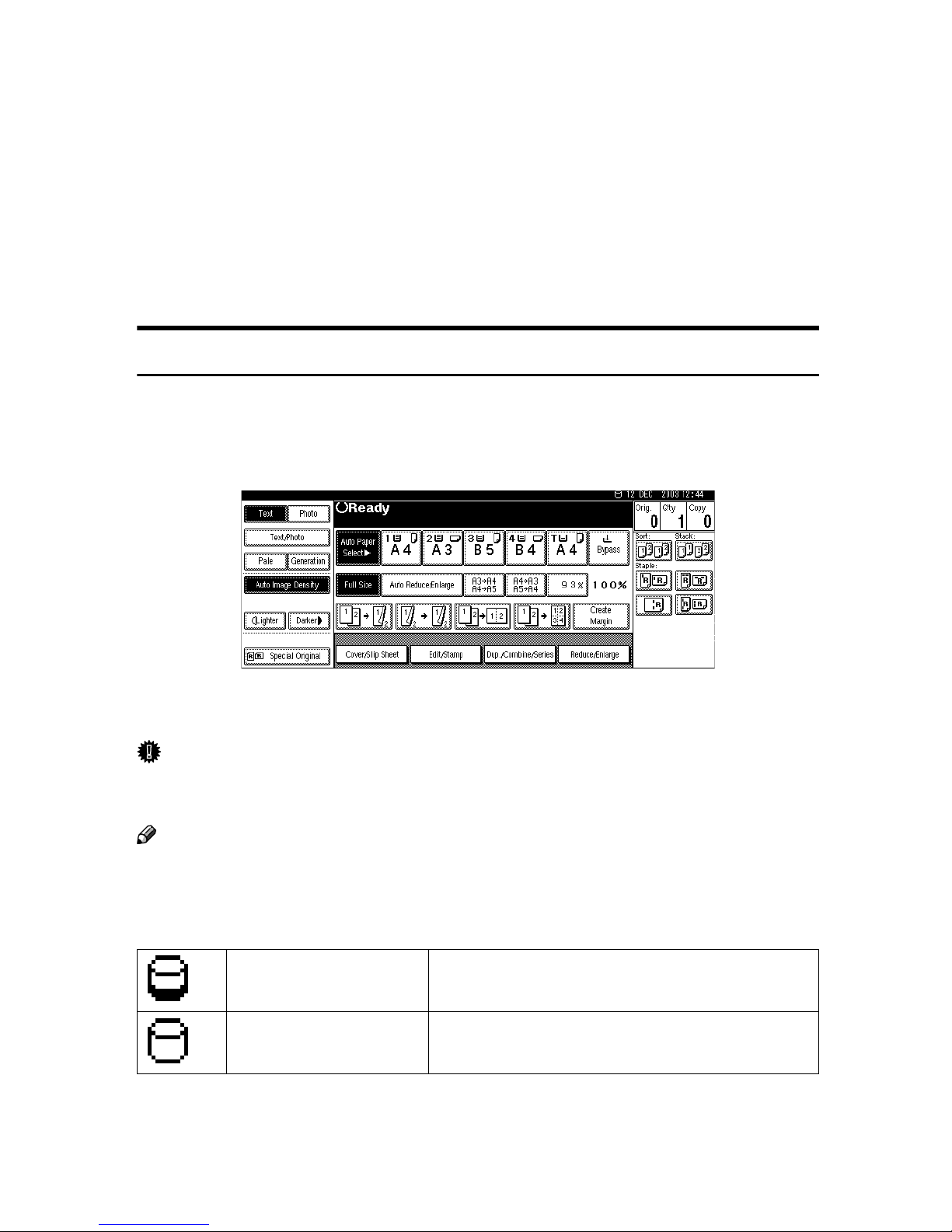
Using the Data Overwrite Function
A document scanned in Copy mode, or data sent from a printer driver for printing is stored temporarily on the hard disk of your machine. Even after the copy
or print job is completed, it remains in the hard disk as temporary data. This option erases the temporary data on the hard disk by writing over it.
Overwriting starts automatically once a copy or print job is completed.
Copier, Facsimile and Printer functions takes priority over the Data Overwrite
function. If a copy, fax or print job is in progress, overwriting will begin only after that job is completed.
Panel Display
If this option has been correctly installed and is functioning properly, the Data
Overwrite icon will be indicated on the top right hand corner on the panel display of your machine.
The above is an example to indicate the position of the Data Overwrite icon. Depending on your machine the display may differ slightly.
Important
❒ Always make sure that this option is functioning normally, by checking that
the Data Overwrite icon is visible on the panel display.
Note
❒ If the Data Overwrite icon is not visible even though the display is on, contact
your sales or service representative.
❖❖❖❖ Data Overwrite Icon
Dirty Indicates that there is temporary data to be overwrit-
ten, or that overwriting is in progress.
Clear Indicates that there is no temporary data to be over-
written.
2
Page 5
Types of Temporary Data and Compatibility of this Option with
Other Functions
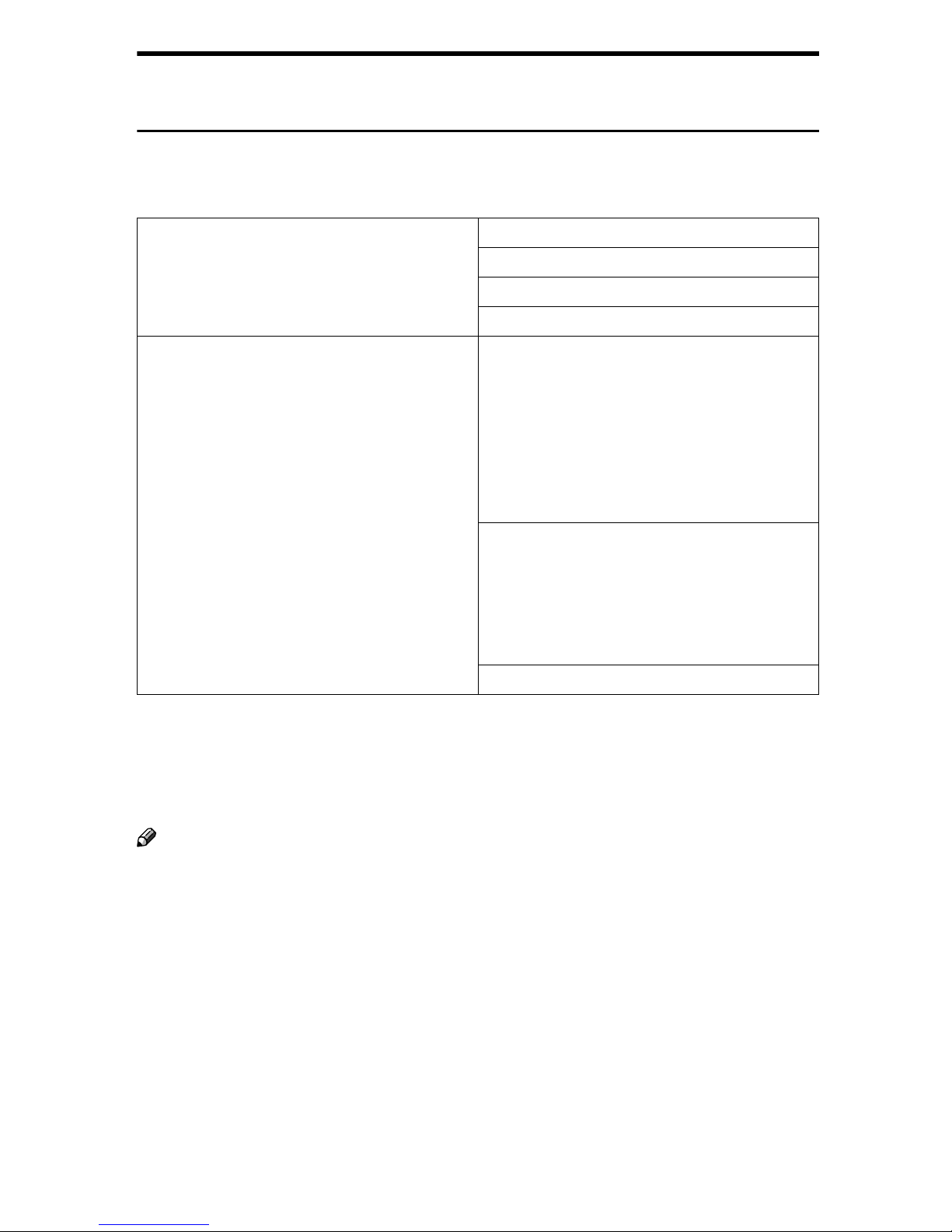
The following table shows the types of temporary data that are overwritten automatically, and the compatibility of the Data Overwrite function with the other
functions of your machine.
Types of Temporary Data
Functions that Cannot be Used Together
with the Data Overwrite function
*2
*1
*3
*4
):
Copy jobs
Print jobs
Sample Print/Locked Print jobs
Printing LAN-Fax
Functions that involve storing data on the
hard disk of the machine:
• Storing documents using the Copier, Printer, Facsimile or Scanner functions (Document Server)
• Storing RX files
• Internet fax
• Spool Printing
Functions that involve using the scanner (excluding the network TWAIN scanner
• Sending scan files by e-mail
• Sending scan files by Scan to Folder
• Sending documents with ScanRouter V2
Lite, ScanRouter Professional
File Format Converter
*1
Take note that user stamps will not be overwritten automatically.
*2
Take note that printer fonts and printer forms will not be overwritten automatically.
*3
Take note that a Sample Print or Locked Print job can only be overwritten after it has
been executed.
*4
Data scanned with network TWAIN scanner is not deemed temporary data because
it is stored in the memory of your machine and not in its hard disk.
Note
❒ Data sent or received via facsimile is not deemed temporary data because it is
stored in the memory of your machine and not in its hard disk.
❒ With this option installed on your machine, the Address Book can only be
used to store fax numbers. Fax numbers will not be overwritten automatically
because they are not stored in the hard disk of the machine. However, you
will only be able to register a maximum of 500 entries (maximum of 1200 with
the optional Fax Function Upgrade Unit).
3
Page 6

When an Error Message is Displayed
Contact your sales or service representative.
Overwriting Temporary Data
Temporary data that remains on the hard disk is erased by overwriting twice
with random numbers and then once with 0's.
Accessories
• key covers
• Operating Instructions (this manual)
4
GB GB EN USA AE AE B692-8600A
Page 7

ISO15408 Security Certification
The following versions of this security option have been certified to comply with the standards of
ISO/IEC15408 (level:EAL3).
DataOverwriteSecurity Unit Type A Version 1.00
DataOverwriteSecurity Unit Type B Version 1.00
To know if you are using the certified version, please contact your sales or service representative.
Copyright © 2003
Page 8

GB GB
EN USA
AE AE B692-8600A
 Loading...