

Page 1

Version 04/09
Multimedia-Player
„MP777“
Bedienungsanleitung
Seite 2 - 30
Multimedia-Player
„MP777“
Operating Instructions
Page 31 - 59
Lecteur multimédia
« MP777 »
Mode d’emploi
Page 60 - 88
Multimedia Player
„MP777“
Gebruiksaanwijzing
Pagina 89 - 117
Best.-Nr. / Item No. /N° de commande / Bestnr. 34 50 44
Page 2

2
Bedienungsanleitung
Deutsch
Inhaltsverzeichnis
Seite
Einführung ............................................................................................................................ 4
Bestimmungsgemäße Verwendung ................................................................................. 5
Lieferumfang ........................................................................................................................ 5
Symbol-Erklärung ................................................................................................................ 6
Merkmale und Funktionen ................................................................................................. 6
Sicherheitshinweise ............................................................................................................ 7
Akkuhinweise ....................................................................................................................... 9
Bedienelemente ................................................................................................................. 10
Akku laden .......................................................................................................................... 11
Grundfunktionen ............................................................................................................... 12
a) Einschalten .............................................................................................................. 12
b) Ausschalten ............................................................................................................. 12
c) Hauptmenü, Funktionen auswählen .......................................................................12
d) Tastensperre ........................................................................................................... 13
e) 3.5mm-Anschluss (Audioausgang) bzw. interner Lautsprecher ........................... 13
Anschluss an den Computer ........................................................................................... 14
Bedienung .......................................................................................................................... 15
a) Funktion „MUSIC“ .................................................................................................... 15
Standardfunktionen ................................................................................................. 15
Sonderfunktionen .................................................................................................... 15
Wiedergabe des Songtextes .................................................................................. 17
b) Funktion „MOVIE“ .................................................................................................... 18
Standardfunktionen ................................................................................................. 18
Sonderfunktionen .................................................................................................... 19
c) Funktion „PHOTOS“ ................................................................................................ 20
Page 3

3
Seite
d) Funktion „E-BOOK“ ................................................................................................. 21
e) Funktion „SETUP“ ................................................................................................... 22
Untermenü „Power“ ................................................................................................. 22
Untermenü „Language“ ........................................................................................... 22
Untermenü „Display Setting“ ................................................................................... 22
Untermenü „System Tools“ ..................................................................................... 22
Reset .................................................................................................................................... 24
Abspielbare Audio-/Videoformate................................................................................... 25
AV-Converter-Software ..................................................................................................... 25
Behebung von Störungen ................................................................................................ 26
Wartung und Reinigung ................................................................................................... 27
Handhabung .......................................................................................................................27
Entsorgung ......................................................................................................................... 29
a) Allgemein ................................................................................................................. 29
b) Batterien und Akkus ................................................................................................ 29
Technische Daten .............................................................................................................. 30
Page 4

4
Bedienungsanleitung
Deutsch
Einführung
Sehr geehrte Kundin, sehr geehrter Kunde,
wir bedanken uns für den Kauf dieses Produkts.
Dieses Produkt erfüllt die gesetzlichen, nationalen und europäischen Anforderungen.
Um diesen Zustand zu erhalten und einen gefahrlosen Betrieb sicherzustellen, müssen Sie als
Anwender diese Bedienungsanleitung beachten!
Lesen Sie sich vor Inbetriebnahme des Produkts die komplette Bedienungsanleitung durch,
beachten Sie alle Bedienungs- und Sicherheitshinweise!
Diese Bedienungsanleitung gehört zu diesem Produkt. Sie enthält wichtige Hinweise
zur Inbetriebnahme und Handhabung. Achten Sie hierauf, auch wenn Sie dieses
Produkt an Dritte weitergeben. Heben Sie diese Bedienungsanleitung zum Nachlesen
auf!
Alle enthaltenen Firmennamen und Produktbezeichnungen sind Warenzeichen der jeweiligen Inhaber. Alle Rechte vorbehalten.
Bei technischen Fragen wenden Sie sich bitte an:
Tel.-Nr.: 0180/5 31 21 11
Fax-Nr.: 0180/5 31 21 10
e-mail: Bitte verwenden Sie unser Formular im Internet www.conrad.de, unter der
Rubrik „Kontakt“.
Mo. - Fr. 8.00 bis 18.00 Uhr
www.conrad.at
www.business.conrad.at
Tel.-Nr.: 0848/80 12 88
Fax-Nr.: 0848/80 12 89
e-mail: [email protected]
Mo. - Fr. 8.00 bis 12.00 Uhr, 13.00 bis 17.00 Uhr
Page 5
5
Bestimmungsgemäße
Verwendung
Der Multimedia-Player „MP777“ dient als mobiles Abspielgerät für Multimedia-Dateien (z.B.
JPG, MP3). Im Gerät ist ein farbiges LC-Display eingebaut, die Audiowiedergabe erfolgt über
eine 3.5mm-Stereoklinkenbuchse.
Über einen USB-Anschluss kann der integrierte Speicher mit Daten befüllt werden, indem das
Gerät an einen Computer angeschlossen wird. Dadurch kann der Multimedia-Player auch als
Transportmittel für andere Daten verwendet werden, wie ein herkömmlicher USB-Stick.
Die Stromversorgung erfolgt über einen integrierten Akku, die Aufladung erfolgt über USB.
Das Produkt darf nicht feucht oder nass werden.
Das Produkt ist kein Spielzeug, es gehört nicht in Kinderhände. Das Produkt enthält zerbrech-
liche bzw. verschluckbare Glas- und Kleinteile, außerdem einen Akku.
Eine andere Verwendung als oben beschrieben kann zur Beschädigung
des Produkts führen, außerdem bestehen weitere Gefahren.
Lesen Sie sich diese Bedienungsanleitung vollständig und aufmerksam
durch, sie enthält viele wichtige Informationen für Betrieb und Bedienung.
Lieferumfang
• Multimedia-Player mit eingebautem Akku
• Ohrhörer
• USB-Kabel
•CD
• Bedienungsanleitung
Page 6
6
Bedienungsanleitung
Deutsch
Symbol-Erklärung
Das Symbol mit dem Ausrufezeichen weist auf wichtige Hinweise in dieser
Bedienungsanleitung hin, die unbedingt zu beachten sind.
Das „Hand“-Symbol ist zu finden, wenn Ihnen besondere Tipps und Hinweise
zur Bedienung gegeben werden sollen.
Merkmale und Funktionen
• 8GByte Speicher
• LC-Display eingebaut (ca. 4.6cm, 1.8“)
• Integrierter Akku, Ladefunktion über USB
• Abspielmöglichkeit für Dateien im Format JPG, BMP, GIF, MP3, WMA, TXT, MTV (Video)
• Audioausgang: 3.5mm-Stereoklinkenbuchse für Kopfhörer/Ohrhörer
• USB2.0-Anschluss (Gerät wird wie ein herkömmliches Laufwerk im Betriebssystem eingebunden (wie ein USB-Stick oder eine USB-Festplatte)
• Flaches Design, kleine Bauform
Page 7

7
Sicherheitshinweise
Bei Schäden, die durch Nichtbeachten dieser Bedienungsanleitung verursacht werden, erlischt die Gewährleistung/Garantie. Für Folgeschäden übernehmen wir keine Haftung!
Bei Sach- oder Personenschäden, die durch unsachgemäße Handhabung oder Nichtbeachten der Sicherheitshinweise verursacht werden,
übernehmen wir keine Haftung. In solchen Fällen erlischt die Gewährleistung/Garantie!
Sehr geehrte Kundin, sehr geehrter Kunde, die folgenden Sicherheits- und
Gefahrenhinweise dienen nicht nur zum Schutz Ihrer Gesundheit, sondern
auch zum Schutz des Geräts. Lesen Sie sich bitte die folgenden Punkte
aufmerksam durch:
• Aus Sicherheits- und Zulassungsgründen (CE) ist das eigenmächtige Umbauen und/oder Verändern des Produkts nicht gestattet. Öffnen/Zerlegen
Sie es nicht! Es sind keinerlei von Ihnen einzustellende oder zu wartende
Teile im Inneren enthalten.
Bei Beschädigung des integrierten Akkus besteht höchste Gefahr einer
Explosion oder eines Brandes!
Wartungs-, Einstellungs- oder Reparaturarbeiten dürfen nur von einem
Fachmann/Fachwerkstatt durchgeführt werden.
• Das Produkt darf nicht feucht oder nass werden. Schützen Sie es auch vor
direkter Sonneneinstrahlung, starker Hitze (>35°C), Kälte (<0°C), Staub
und Schmutz.
• Wenn das Produkt von einem kalten in einen warmen Raum gebracht wird
(z.B. bei Transport), kann Kondenswasser entstehen. Dadurch könnte das
Produkt beschädigt werden.
Lassen Sie deshalb das Produkt zuerst auf Zimmertemperatur kommen,
bevor Sie es verwenden. Dies kann u.U. mehrere Stunden dauern.
• Das Produkt ist kein Spielzeug, es ist nicht für Kinder geeignet. Kinder
können die Gefahren, die im Umgang mit elektrischen Geräten bestehen,
nicht einschätzen. Außerdem enthält das Produkt verschluckbare Kleinteile
und Glas (Display), sowie einen Akku.
Page 8
8
Bedienungsanleitung
Deutsch
• Lassen Sie das Verpackungsmaterial nicht achtlos liegen, dieses könnte für
Kinder zu einem gefährlichen Spielzeug werden.
• Betreiben Sie das Produkt nur in gemäßigtem Klima, nicht in tropischem
Klima.
• Stellen Sie keine Gefäße mit Flüssigkeiten, z.B. Eimer, Vasen oder Pflanzen, in die unmittelbare Nähe des Produkts. Flüssigkeiten könnten ins
Gehäuseinnere gelangen und dabei die elektrische Sicherheit beeinträchtigen. Außerdem besteht Brand- und Explosionsgefahr (Kurzschluss des
Akkus).
• Stellen Sie keine offenen Brandquellen, wie brennende Kerzen, auf dem
Gerät oder in dessen Nähe ab.
• Knicken Sie die Kabel nicht, stellen Sie keine Gegenstände darauf ab.
• Sollte das Gerät Beschädigungen aufweisen, so verwenden Sie es nicht
mehr. Bringen Sie das Gerät in diesem Fall in eine Fachwerkstatt.
• In gewerblichen Einrichtungen sind die Unfallverhütungsvorschriften des
Verbandes der gewerblichen Berufsgenossenschaft für elektrische Anlagen
und Betriebsmittel zu beachten.
• In Schulen, Ausbildungseinrichtungen, Hobby- und Selbsthilfewerkstätten
ist das Betreiben des Produkts durch geschultes Personal verantwortlich zu
überwachen.
• Gehen Sie vorsichtig mit dem Produkt um, durch Stöße, Schläge oder dem
Fall aus bereits geringer Höhe wird es beschädigt.
Page 9
9
Im Multimedia-Player ist ein sog. „LiIon“-Akku integriert. Diese moderne Akku-Bauart verfügt
über keinen sog. „Memory-Effekt“; d.h, der Akku kann aufgeladen werden, wann immer Sie es
möchten.
Außerdem bietet er einen höheren Energieinhalt als herkömmliche NiCd- und NiMH-Akkus.
Beachten Sie bitte folgende wichtige Hinweise zum Umgang mit dem Akku:
• Beschädigen Sie den Akku niemals, bauen Sie ihn nicht aus dem Multimedia-Player aus. Beachten Sie dazu das Kapitel „Entsorgung“.
Durch Beschädigung der Hülle des Akkus besteht Explosions- und Brandgefahr!
Die Hülle des Akkus besteht nicht wie bei herkömmlichen Batterien/Akkus
(z.B. AA- oder AAA-Baugröße) aus einem dünnen Blech, sondern nur aus
einer empfindlichen Kunststofffolie.
• Schließen Sie die Kontakte/Anschlüsse des Akkus niemals kurz. Es besteht
Explosions- und Brandgefahr!
• Laden Sie den Akku regelmäßig nach, auch wenn das Produkt nicht benötigt
wird. Der Multimedia-Player benötigt im Standby eine (wenn auch geringe)
Menge „Strom“.
Durch die verwendete Akkutechnik ist dabei keine vorherige Entladung des
Akkus erforderlich. Laden Sie den Akku einfach etwa jeden Monat wieder
vollständig auf. So steht immer ein einsatzbereites Gerät zur Verfügung.
• Laden Sie den Multimedia-Player niemals unbeaufsichtigt.
• Platzieren Sie den Multimedia-Player beim Ladevorgang auf einer hitzeunempfindlichen, nicht brennbaren Oberfläche. Eine gewisse Erwärmung
beim Ladevorgang ist normal.
• Trennen Sie den Multimedia-Player vom Computer, wenn er nicht benötigt
wird.
Akkuhinweise
Page 10
10
Bedienungsanleitung
Deutsch
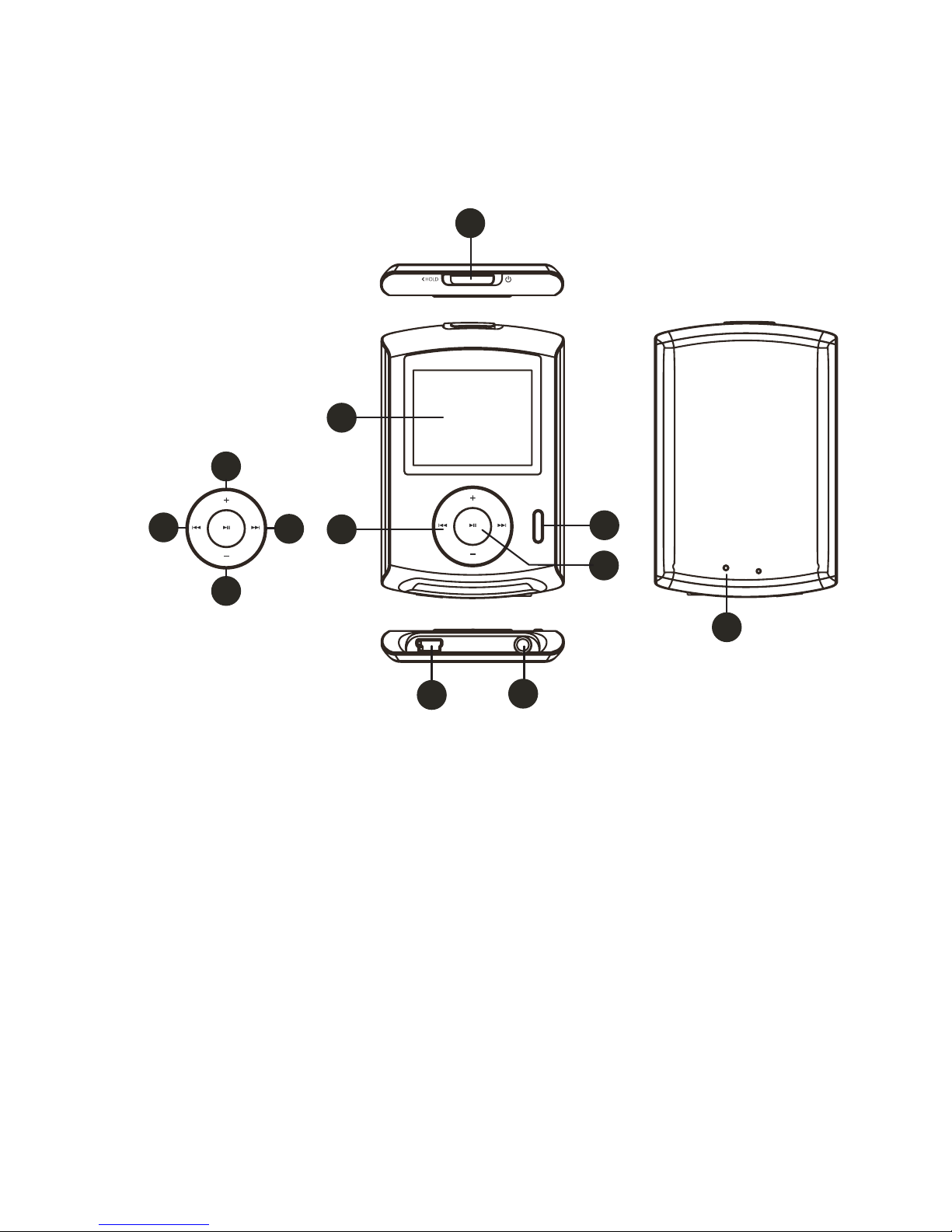
Bedienelemente
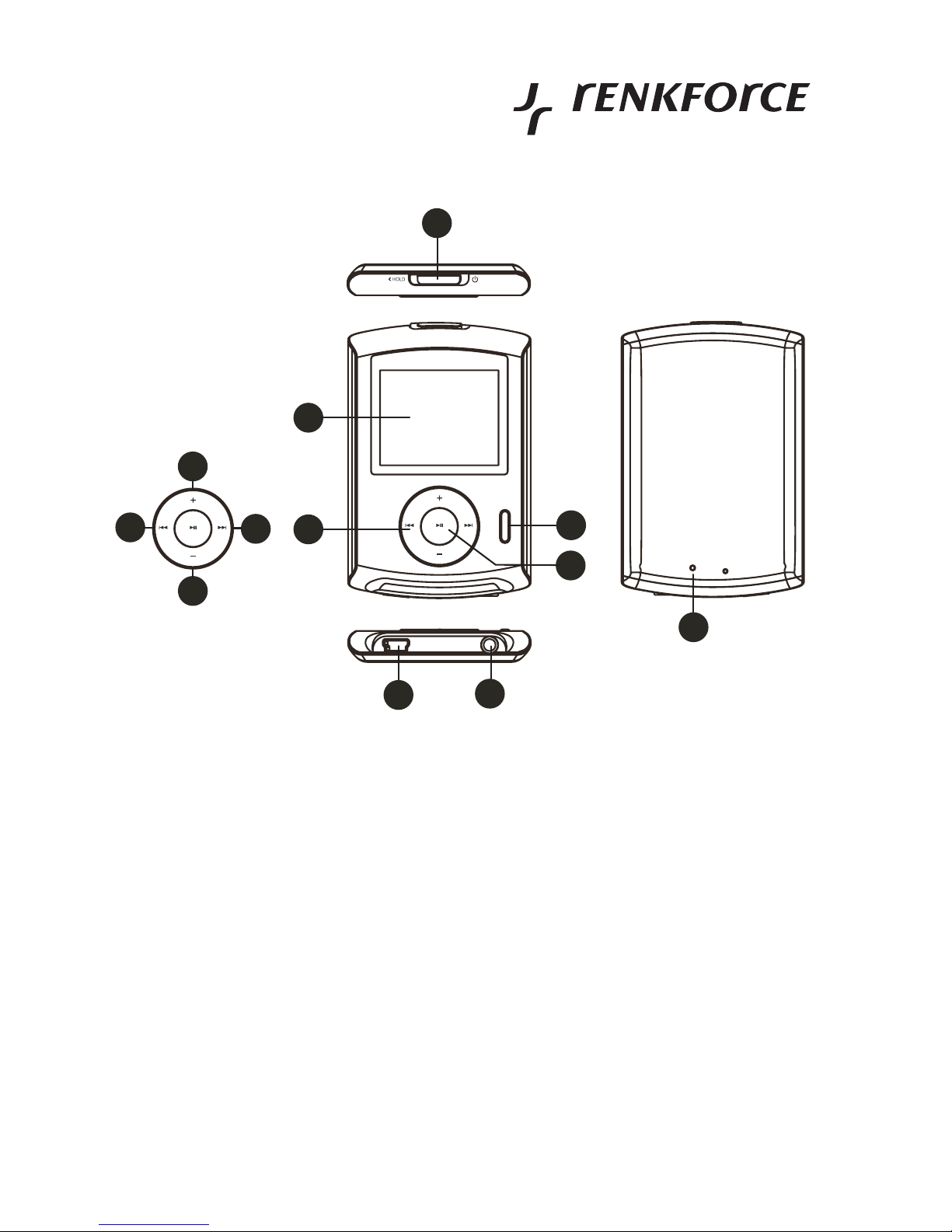
1 Schiebeschalter für Ein/Aus und Tastensperre („HOLD“)
2 LC-Display
3 Steuerring für Menübedienung mit 4 Tastenfunktionen (3a....3d)
3a Taste „
“
3b Taste „
“
3c Taste „+“
3d Taste „-“
4 Taste „M“ für Menüfunktionen
5 Taste „“
6 USB-Buchse zum Anschluss an einen USB2.0-Port eines Computers
7 Audioausgang, 3.5mm-Stereoklinkenbuchse für Kopfhörer/Ohrhörer
8 Versenkt angeordnete Reset-Taste
2
4
1
3
5
7
6
8
3a
3c
3d
3b
Page 11
11
Akku laden
• Der integrierte Akku wird über USB geladen.
• Der Ladevorgang kann bei vollständig leerem Akku mehrere Stunden dauern.
Wie bereits beschrieben, kann der Ladevorgang unabhängig vom Akkuzustand vorgenommen werden. Aufgrund der Akku-Technik ist dazu kein vorheriges Entladen erforderlich, da es keinen sog. Memory-Effekt gibt. Durch die
integrierte Ladeelektronik wird der Akku auch nicht überladen; sie schaltet den
Ladevorgang rechtzeitig ab.
• Der Akku ist leer, wenn sich der Multimedia-Player nicht einschalten lässt.
Gleiches gilt, wenn eine „Batterie leer“-Warnung ausgegeben wird oder wenn sich der
Multimedia-Player während dem Betrieb selbst ausschaltet.
• Abhängig vom Mainboard Ihres Computers werden beim Ausschalten über den FrontTaster des Computers auch die USB-Ports ausgeschaltet (Computer befindet sich im
Standby).
Ein Ladevorgang ist dann natürlich nicht mehr möglich. Gleiches gilt, wenn der Computer
über seinen Netzschalter ausgeschaltet wird.
Da es unsinnig wäre, den Computer nur für den Ladevorgang weiterlaufen zu lassen,
können Sie z.B. einen USB-Hub mit eigenem Netzteil verwenden. Dieser bleibt normalerweise auch dann aktiv, wenn der Computer ausgeschaltet wird.
Laden Sie den Multimedia-Player ausschließlich über eine USB-Schnittstelle
eines Computers oder USB-Hubs und das mitgelieferte USB-Kabel, andernfalls wird die Ladeelektronik und damit der Multimedia-Player beschädigt.
Außerdem besteht Brand- und Explosionsgefahr durch den integrierten Akku!
Beachten Sie das Kapitel „Sicherheitshinweise“ und „Akkuhinweise“.
Page 12
12
Bedienungsanleitung
Deutsch
Grundfunktionen
a) Einschalten
Trennen Sie ggf. die USB-Verbindung zum PC. Bewegen Sie den Schiebeschalter (1) auf der
Oberseite in die Stellung „ “ und lassen Sie ihn wieder los. Das Display zeigt eine
Begrüßungsmeldung, anschließend erscheint das Hauptmenü des Multimedia-Players.
Falls das Display nicht aufleuchtet und die Begrüßungsmeldung nicht erscheint, ist der Akku leer und muss zuerst aufgeladen werden.
b) Ausschalten
Bewegen Sie den Schiebeschalter (1) auf der Oberseite in die Stellung „ “ und halten Sie
ihn in dieser Stellung, bis sich der Multimedia-Player ausschaltet.
c) Hauptmenü, Funktionen auswählen
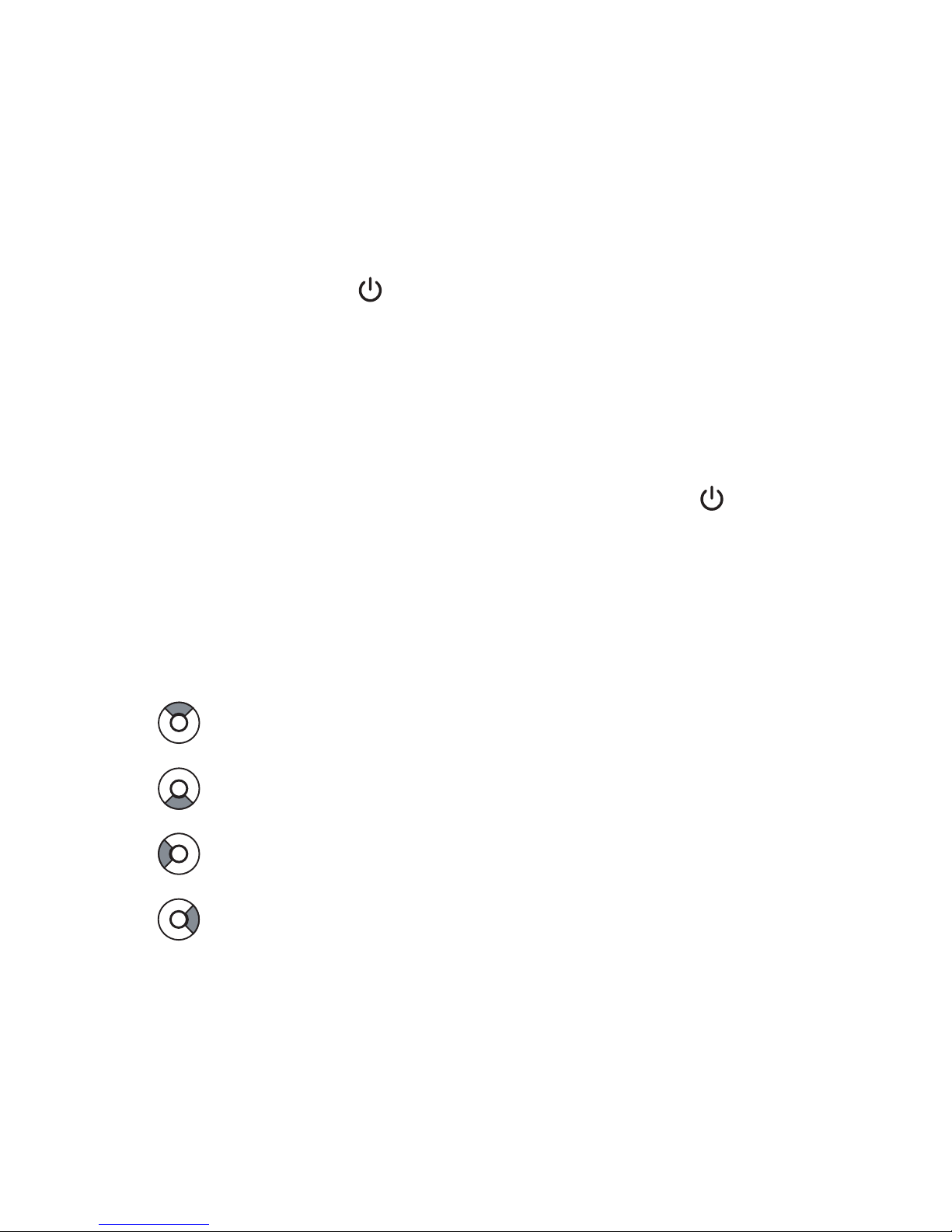
• Im Hauptmenü und den Untermenüs erfolgt die Auswahl der einzelnen Funktionen mit dem
Steuerring (3).
Hoch , Taste „+“ (3c)
Runter, Taste „-“ (3d)
Links, Taste „
“ (3a)
Rechts, Taste „
“ (3b)
• Die Auswahl wird bestätigt, indem Sie die Taste „“ (5) in der Mitte des Steuerrings (3)
drücken.
• Zum vorherigen Menü gelangen Sie mit der Taste „M“ (4).
Page 13

13
d) Tastensperre
Bewegen Sie den Schiebeschalter (1) nach links in Richtung „HOLD“. Bei eingeschaltetem
Multimedia-Player erscheint ein Schlosssymbol im Display. Alle Tasten sind nun ohne
Funktion.
Um die Tastensperre aufzuheben, bewegen Sie den Schiebeschalter wieder in die Mittelstellung.
e) 3.5mm-Anschluss (Audioausgang)
Verbinden Sie einen Ohrhörer bzw. Kopfhörer mit der 3.5mm-Ausgangsbuchse (7).
Page 14

14
Bedienungsanleitung
Deutsch
• Die Treiber für den Multimedia-Player sind bei Windows ME, XP, Vista und 2000 im
Betriebssystem enthalten, er wird automatisch erkannt.
• Falls Sie Windows 98SE verwenden, so sind zuerst die Treiber der CD zu installieren und
ein Neustart durchzuführen.
• Warten Sie, bis das Betriebssystem vollständig geladen ist und schließen Sie den Multimedia-Player über das mitgelieferte USB-Kabel an einen freien USB2.0-Port Ihres Computers
an.
• Windows erkennt neue Hardware und schließt die Treiberinstallation ab. Warten Sie einen
Moment, bis dies beendet ist.
• Der Multimedia-Player arbeitet nun wie ein USB-Stick oder eine externe USB-Festplatte. Im
Dateimanager von Windows erscheint ein neues Laufwerk, das mit den entsprechenden
Multimedia-Daten (Bilder, MP3s, Videos) befüllt werden kann.
• Bevor der Multimedia-Player wieder abgesteckt werden darf, warten Sie, bis die Dateiübertragung vollständig beendet wurde.
In der Menüleiste von Windows findet sich ein kleines Pfeilsymbol („Hardware sicher
entfernen“). Diese Funktion dient dazu, Windows mitzuteilen, dass Sie das Gerät abstecken
möchten. Daraufhin werden alle noch offenen Dateien geschlossen; Windows informiert Sie
danach, wenn das Gerät abgesteckt werden kann.
Falls Sie einfach die USB-Verbindung im laufenden Betrieb trennen, so kann
es zu Fehlern im Dateisystem des Multimedia-Players kommen; z.B. erscheinen Daten nicht mehr im Inhaltsverzeichnis oder Dateien können nicht oder
nicht richtig abgespielt werden.
• Wenn der Multimedia-Player an einen Computer angeschlossen ist, sind die Tasten ohne
Funktion.
Der Ladevorgang wird automatisch gestartet, sofern der Akku nicht vollständig geladen ist.
Bitte beachten Sie dazu das Kapitel „Akkuhinweise“ und „Akku laden“.
Anschluss
an den Computer
Page 15

15
Bedienung
a) Funktion „MUSIC“
Wählen Sie im Hauptmenü mit den Tasten „
“ (3a) und „
“ (3b) die Funktion „MUSIC“
aus und drücken Sie zur Bestätigung kurz die Taste „“ (5). Im Display erscheint jetzt die
erste vorhandene Musikdatei.
Bei Erstinbetriebnahme sind noch keine Audiodateien vorhanden.
Schließen Sie den Multimedia-Player an den Computer an (siehe Kapitel
„Anschluss an den Computer“) und übertragen Sie z.B. einige MP3-Dateien
auf den Multimedia-Player.
Standardfunktionen:
• Mit den Tasten „
“ (3a) und „
“ (3b) kann eine Audiodatei ausgewählt werden.
• Starten Sie die Wiedergabe durch kurzen Druck auf die Taste „“ (5).
• Wenn die Wiedergabe läuft, hält ein kurzer Druck auf die Taste „“ (5) die Wiedergabe
an (Pause) bzw. setzt sie fort.
• Die Lautstärke lässt sich mit den Tasten „+“ (3c) und „-“ (3d) nach Wunsch einstellen.
• Zum Vor- und Zurückspulen halten Sie die Tasten „
“ (3a) und „
“ (3b) länger
gedrückt. Nach dem Loslassen wird die Wiedergabe mit normaler Geschwindigkeit fortgesetzt.
• Wird die Taste „M“ (4) kurz gedrückt, so wird das Menü mit den Sonderfunktionen angezeigt,
siehe unten.
• Wird die Taste „M“ (4) für etwa 1 Sekunde gedrückt, gelangen Sie ins Hauptmenü zurück.
Sonderfunktionen:
Befindet sich der Multimedia-Player in der Funktion „MUSIC“, so drücken Sie kurz die Taste
„M“ (4), um das Menü mit den Sonderfunktionen anzuzeigen. Mit der gleichen Taste kann das
Menü oder eine Unterfunktion wieder verlassen werden.
Wählen Sie mit den Tasten „+“ (3c) und „-“ (3d) die gewünschte Funktion.
Wählen Sie mit den Tasten „
“ (3a) und „
“ (3b) die Unterfunktionen aus bzw. verlassen
Sie die Unterfunktion wieder.
Page 16

16
Bedienungsanleitung
Deutsch
Speichern Sie eine Einstellung mit der Taste „“ (5).
Verlassen Sie das Menü mit der Taste „M“ (4).
Folgende Funktionen gibt es:
• Funktion „Repeat Mode“: Wählen Sie den gewünschten Wiederholmodus aus.
„No Repeat“ = Wiederholmodus ausgeschaltet
„Repeat One“ = Die momentane Audiodatei wiederholen
„Repeat All“ = Alle Audiodateien wiederholen
„Random All“ = Zufallswiedergabe
„Dir Repeat“ = Alle Audiodateien im momentanen Verzeichnis wiederholen
• Funktion „Equalizer“: Wählen Sie eine der vordefinierten Equalizer-Einstellungen („Normal“, „Pop“, „Rock“, „Classic“, „Jazz“, „Bass“) oder die von Ihnen veränderbare EqualizerEinstellung („Custom EQ“) aus.
Bei letzterer kann mit dem Steuerring eine eigene Frequenzkurve eingestellt werden.
• Funktion „3D“: Schalten Sie einen 3D-Effekt mit „On“ ein, mit „Off“ aus.
• Funktion „Play Rate“: Hier kann die Wiedergabegeschwindigkeit in mehreren vordefinierten
Stufen verändert werden. Für die normale Wiedergabegeschwindigkeit stellen Sie „1.00X“
ein.
• Funktion „File Browse“: Hier können die Verzeichnisse bzw. einzelnen Audiodateien im
Speicher des Multimedia-Players angesehen bzw. ausgewählt werden.
• Funktion „Classification“: Der Multimedia-Player erlaubt es hier, anhand der ID3-Informationen in den MP3s eine interne Liste zu erstellen, um die vorhandenen MP3-Dateien später
nach Musikstil („Genre“), Interpret („Artist“), Albumname („Album“) und Titelname („Title“)
sortieren zu können.
Falls Sie diese Funktion nutzen wollen, so sollten Sie die Funktion immer dann aufrufen,
wenn neue MP3-Audiodateien auf den Multimedia-Player übertragen werden.
Damit die Liste auch stimmt, müssen die ID3-Informationen in den MP3Audiodateien korrekt sein.
Sind sehr viele MP3-Audiodateien vorhanden, kann das Auslesen der entsprechenden Daten einige Minuten dauern.
Page 17

17
Wiedergabe des Songtextes
Während der Wiedergabe einer MP3-Audiodatei kann der Songtext im Display angezeigt
werden.
Dazu ist eine sog. LRC-Datei erforderlich mit dem gleichen Namen wie die
MP3-Datei. Es handelt sich dabei um eine reine Textdatei, die auch selbst
erzeugt werden kann (z.B. mit einem Texteditor oder mit entsprechenden
Programmen, die Sie im Internet finden).
Beispiel:
Name der MP3-Datei: Test.mp3
Name der LRC-Datei: Test.lrc
Beispiel für den Inhalt einer LRC-Textdatei:
[ti]Musiker LYRICS
[al]Musiktitel
[00:11]Musiktext 1
[00:25]Musiktext 2...
Die Zeitangabe legt fest, bei welcher Zeitposition der MP3-Audiodatei der jeweilige Text im
Display des Multimedia-Players angezeigt werden soll.
Page 18

18
Bedienungsanleitung
Deutsch
b) Funktion „MOVIE“
Wählen Sie im Hauptmenü mit den Tasten „
“ (3a) und „
“ (3b) die Funktion „MOVIE“
aus und drücken Sie zur Bestätigung kurz die Taste „“ (5). Im Display erscheint jetzt eine
Liste mit verfügbaren Videodateien.
Bei Erstinbetriebnahme sind noch keine Videodateien vorhanden.
Schließen Sie den Multimedia-Player an den Computer an (siehe Kapitel
„Anschluss an den Computer“) und übertragen Sie entsprechende Videodateien auf den Multimedia-Player.
Die auf der CD enthaltene Software kann passende Videodateien erzeugen
(„MTV“-Format). Diese haben eine Auflösung von 160x128 Punkten und eine
Bildrate von 25 Bildern pro Sekunde.
Standardfunktionen:
• Direkt nach dem Aufruf der Funktion „MOVIE“ wird eine Liste mit verfügbaren Videodateien
angezeigt. Mit den Tasten „+“ (3c) und „-“ (3d) lässt sich die gewünschte Videodatei
auswählen.
• Starten Sie die Wiedergabe durch kurzen Druck auf die Taste „“ (5).
• Wenn die Wiedergabe läuft, hält ein kurzer Druck auf die Taste „“ (5) die Wiedergabe
an (Pause) bzw. setzt sie fort.
• Während der Wiedergabe einer Videodatei kann mit den Tasten „
“ (3a) und „
“ (3b)
die vorherige bzw. nächste Videodatei abspielen.
• Die Lautstärke lässt sich mit den Tasten „+“ (3c) und „-“ (3d) nach Wunsch einstellen.
• Zum Vor- und Zurückspulen halten Sie die Tasten „
“ (3a) und „
“ (3b) länger
gedrückt. Nach dem Loslassen wird die Wiedergabe mit normaler Geschwindigkeit fortgesetzt.
• Wird die Taste „M“ (4) mehrfach kurz gedrückt, gelangen Sie nacheinander zum Menü der
Sonderfunktionen, zur Auswahl einer Videodatei bzw. zurück ins Hauptmenü.
Page 19

19
Sonderfunktionen:
Drücken Sie während der Wiedergabe einer Videodatei kurz die Taste „M“ (4), um das Menü
mit den Sonderfunktionen anzuzeigen.
Wählen Sie mit den Tasten „+“ (3c) und „.-“ (3d) die gewünschte Funktion.
Wählen Sie mit den Tasten „
“ (3a) und „
“ (3b) die Unterfunktionen aus bzw. verlassen
Sie die Unterfunktion wieder.
Speichern Sie eine Einstellung mit der Taste „“ (5).
Verlassen Sie das Menü mit der Taste „M“ (4).
Folgende Funktionen gibt es:
• Funktion „Repeat Mode“: Wählen Sie den gewünschten Wiederholmodus aus.
„No Repeat“ = Wiederholmodus ausgeschaltet
„Repeat One“ = Die momentane Videodatei wiederholen
„Repeat All“ = Alle Videodateien wiederholen
„Random All“ = Zufallswiedergabe
„Dir Repeat“ = Alle Videodateien im momentanen Verzeichnis wiederholen
• Funktion „Subtitle Color“: Wählen Sie die gewünschte Farbe für die Einblendungen
(Fortschrittsanzeige, Wiedergabe-Symbole) unten im Display.
Page 20

20
Bedienungsanleitung
Deutsch
c) Funktion „PHOTOS“
Wählen Sie im Hauptmenü mit den Tasten „
“ (3a) und „
“ (3b) die Funktion „PHOTOS“
aus und drücken Sie zur Bestätigung kurz die Taste „“ (5). Im Display erscheint jetzt eine
Vorschau der vorhandenen Bilder.
Bei Erstinbetriebnahme sind noch keine Bilder vorhanden.
Schließen Sie den Multimedia-Player an den Computer an (siehe Kapitel
„Anschluss an den Computer“) und übertragen Sie entsprechende Bilddateien
auf den Multimedia-Player.
• Direkt nach dem Aufruf der Funktion „PHOTOS“ wird eine Vorschau der vorhandenen Bilder
angezeigt. Mit dem Steuerring kann nun eines der Bilder ausgewählt werden; ein Rahmen
um das Bild zeigt die momentane Auswahl an, links unten im Display erscheint der
zugehörige Dateiname (rechts unten wird die Nummer der aktuellen Vorschau-Seite und die
Gesamtzahl der Vorschau-Seiten angezeigt).
• Drücken Sie die Taste „“ (5), um das momentan ausgewählte Bild anzuzeigen.
Ein nochmaliger Druck auf die Taste „“ (5) startet die Diashow (Taste nochmals
betätigen, um die Diashow anzuhalten).
• Mit den Tasten „
“ (3a) und „
“ (3b) kann das vorherige bzw. nächste Bild dargestellt
werden. Die Diashow (automatische Weiterschaltung der Bilder) wird dabei automatisch
abgeschaltet.
• Mit der Taste „M“ (4) gelangen Sie zur Übersicht bzw. zum Hauptmenü zurück.
Page 21

21
d) Funktion „E-BOOK“
Wählen Sie im Hauptmenü mit den Tasten „
“ (3a) und „
“ (3b) die Funktion „E-BOOK“
aus und drücken Sie zur Bestätigung kurz die Taste „“ (5). Im Display erscheint jetzt eine
Liste mit den verfügbaren Textdateien.
Es können nur Standard-Textdateien angezeigt werden (Dateiendung „TXT“).
Dateien von diversen Textverarbeitungsprogrammen können nicht angezeigt
werden.
• Direkt nach dem Aufruf der Funktion „E-BOOK“ wird eine Liste mit verfügbaren Textdateien
angezeigt. Mit den Tasten „+“ (3c) und „-“ (3d) lässt sich die gewünschte Textdatei
auswählen.
• Starten Sie die Ansicht der Textdatei durch kurzen Druck auf die Taste „“ (5).
• Mit den Tasten „+“ (3c) und „-“ (3d) kann der im Display sichtbare Bereich des Textes
verschoben werden.
• Wird die Taste „M“ (4) kurz gedrückt, gelangen Sie zur Auswahl einer Textdatei bzw. ins
Hauptmenü zurück.
Page 22

22
Bedienungsanleitung
Deutsch
e) Funktion „SETUP“
Untermenü „Power“
Hier kann die Zeit ausgewählt werden, wann sich der Multimedia-Player von selbst ausschaltet, wenn keine Wiedergabe bzw. Tastenbetätigung erfolgt.
Die Funktion kann auch ausgeschaltet werden.
Untermenü „Language“
Sofern bei dieser Version des Multimedia-Players vorhanden, kann hier die Sprache für das
Menü ausgewählt werden.
Untermenü „Display Setting“
Stellen Sie hier die Zeit ein, die die Hintergrundbeleuchtung nach Betätigen einer Taste
eingeschaltet bleibt. Wenn Strom gespart werden soll, um eine lange Betriebsdauer zu
erzielen, ist eine möglichst kurze Zeit einzustellen.
Untermenü „System Tools“
• Funktion „Delete File“
Dies dient zum Löschen einer Datei. Sofern Sie diese nicht direkt an einem Computer
durchführen wollen, kann nach Aufruf der Funktion „Delete File“ die gewünschte Datei
ausgewählt werden. Drücken Sie dann die Taste „“ (5). Es erscheint eine Sicherheitsabfrage.
Um die Datei zu löschen, wählen Sie „YES“ aus und drücken Sie die Taste „“ (5).
Um die Datei nicht zu löschen, wählen Sie „NO“ aus und drücken Sie die Taste „“ (5).
Mit der Taste „M“ (4) gelangen Sie zurück zur Auswahl der Funktionen.
• Funktion „Format“
Der Speicher ist vom Hersteller vorformatiert. Ein Format-Vorgang ist in der Regel nur dann
erforderlich, wenn der Multimedia-Player versehentlich vor dem Ende eines Kopiervorgangs vom PC getrennt wurde. Dadurch kann u.U. das Dateisystem beschädigt werden
(z.B. werden nur seltsame Dateinamen angezeigt o.ä.).
Page 23

23
Mit „Quick“ kann eine Schnellformatierung erfolgen (dauert nur ein paar Sekunden, es wird
dabei nur das Inhaltsverzeichnis im Speicher gelöscht) oder mit „Complete“ eine Komplettformatierung (dies kann einige Minuten dauern).
Nach dem Format-Vorgang sind alle Daten (Audio-/Video-/Bild-/Textdateien)
im Speicher gelöscht.
Nach der Auswahl von „Quick“ oder „Complete“ drücken Sie die Taste „“ (5), danach
erscheint eine Sicherheitsabfrage.
Um den Speicher zu formatieren, wählen Sie „YES“ aus und drücken Sie die Taste „“
(5).
Um den Speicher nicht zu formatieren, wählen Sie „NO“ aus und drücken Sie die Taste „“
(5).
Mit der Taste „M“ (4) gelangen Sie zurück zur Auswahl der Funktionen.
• Funktion „Reset“
Hier werden alle Einstellungen auf die Werkseinstellung zurückgesetzt (z.B. Wiederholmodus); evtl. im Speicher vorhandene Multimedia-Daten werden nicht gelöscht.
• Funktion „System Info“
Der Multimedia-Player zeigt die Firmware-Version und den Gesamtspeicher im Display an.
• Funktion „Refresh“
Hier wird die interne Liste für die Musikdateien (Sortierung nach Musikstil („Genre“),
Interpret („Artist“), Albumname („Album“) und Titelname („Title“)) neu erstellt. Dies kann bei
vielen MP3-Dateien einige Minuten dauern. Beachten Sie dazu das Kapitel „Bedienung“,
Abschnitt a).
Page 24

24
Bedienungsanleitung
Deutsch
Sollte der Multimedia-Player nicht auf Tastenfunktionen reagieren, wirre Zeichen im Display
erscheinen oder sich nicht aus- oder einschalten lassen, so gehen Sie wie folgt vor:
• Falls der Multimedia-Player mit einem Computer verbunden ist, trennen Sie die USBVerbindung.
• Drücken Sie die Reset-Taste (8) auf der Rückseite des Multimedia-Players vorsichtig mit
einem Zahnstocher (Taste nur kurz betätigen).
Evtl. im Speicher vorhandene Daten werden dabei nicht gelöscht.
Der Multimedia-Player ist wieder zurückgesetzt und sollte sich jetzt wieder wie gewohnt
einschalten lassen (sofern der Akku ausreichend geladen ist).
Reset
Page 25

25
Der Multimedia-Player kann verschiedenste Datenformate anzeigen (z.B. Bilder, Texte) und
abspielen (MP3s, Videos).
Aufgrund der Vielzahl von Programmen, die solche Datenformate erzeugen, kann es jedoch
dazu kommen, dass eine Datei nicht abgespielt werden kann.
Beispiele:
MP3-Dateien werden mit den unterschiedlichsten Programmen erzeugt und besitzen unter-
schiedliche Bitraten (z.B. 128kBit, 192kBit oder auch variable Bitraten, VBR).
Bei Videodaten gibt es viele Verfahren, die Bildinhalte und Tonsignale zu komprimieren, um
Speicher zu sparen. Außerdem liegen Videodaten in zahlreichen verschiedenen Auflösungen
und Bitraten vor.
Aus diesem Grund kann leider nicht garantiert werden, dass eine bei Ihnen
vorhandene Audio- oder Videodatei auch auf dem Multimedia-Player abgespielt werden kann.
Beachten Sie für die Erzeugung geeigneter Videodateien das nächste Kapitel.
AV-Converter-Software
Auf der mitgelieferten CD befindet sich eine Software, mit der für den Multimedia-Player
passende Videodateien erzeugt werden können. Vorhandene Videodateien in vielen unterschiedlichen Formaten können damit passend für den Multimedia-Player umgewandelt
werden.
Abspielbare
Audio-/Videoformate
Page 26
26
Bedienungsanleitung
Deutsch
Beachten Sie alle Sicherheitshinweise dieser Bedienungsanleitung!
Behebung
von Störungen
Problem
Gerät lässt sich nicht einschalten.
Keine Wiedergabe von Dateien
bzw. eine bestimmte Datei wird
nicht abgespielt
Der Multimedia-Player wird vom
Computer nicht erkannt bzw. es
erfolgt kein Aufladen des Akkus
Gerät schaltet sich selbst aus
Lösungshilfe
• Ist der integrierte Akku leer? Laden Sie ihn wie in
Kapitel „Akku laden“ beschrieben auf.
• Ist der Multimedia-Player über USB mit einem
Computer verbunden? Hier ist keine Wiedergabe möglich. Trennen Sie das Gerät zuerst vom
Computer.
• Die Datei lässt sich nicht abspielen bzw. anzeigen, da der Multimedia-Player dieses Format
nicht unterstützt.
• Verwenden Sie einen USB-Anschluss, der einen
Strom von 500mA liefern kann. Dies ist z.B. ein
USB-Port eines Computers oder eines USBHubs mit eigenem Netzteil.
• Manche Notebooks sind nicht in der Lage, die
Stromversorgung an dem USB-Port sicherzustellen. Verwenden Sie in diesem Fall einen
USB-Hub mit eigenem Netzteil.
• Ist der Akku leer?
• Prüfen Sie die Einstellungen für das automatische Abschalten.
Page 27
27
Eine Wartung oder Reparatur ist nur durch eine Fachkraft oder Fachwerkstatt zulässig. Es sind
keinerlei für Sie zu wartende Bestandteile im Inneren der Bestandteile des Produkts, öffnen
Sie es deshalb niemals.
Zur Reinigung der Außenseite des Produkts genügt ein trockenes, weiches und sauberes
Tuch.
Drücken Sie nicht zu stark auf das Display oder das Gehäuse, dies kann zu
Kratzspuren führen oder zu Fehlfunktionen der Anzeige.
Staub kann mit Hilfe eines weichen und sauberen Pinsels und einem Staubsauger leicht
entfernt werden.
Handhabung
Beachten Sie sämtliche Sicherheitshinweise dieser Bedienungsanleitung und alle weiteren Informationen zum Umgang mit dem Produkt.
Das Produkt ist kein Spielzeug, es gehört nicht in Kinderhände. Es enthält Kleinteile, Glas
(Display) und einen Akku.
Das Produkt darf nicht geöffnet oder zerlegt werden.
Es sind keine für Sie zu wartenden Teile im Inneren des Produkts. Außerdem erlischt durch
das Öffnen/Zerlegen die Zulassung (CE) und die Gewährleistung/Garantie.
Durch den Fall aus bereits geringer Höhe wird das Produkt beschädigt.
Vermeiden Sie folgende widrige Umgebungsbedingungen bei Betrieb des Produkts:
- Nässe oder zu hohe Luftfeuchtigkeit
- Extreme Kälte oder Hitze
- Direkte Sonneneinstrahlung
- Staub oder brennbare Gase, Dämpfe oder Lösungsmittel
- starke Vibrationen
- starke Magnetfelder, wie in der Nähe von Maschinen oder Lautsprechern
Wartung
und Reinigung
Page 28
28
Bedienungsanleitung
Deutsch
Verwenden Sie das Produkt niemals gleich dann, wenn es von einem kalten
in einen warmen Raum gebracht wird. Das dabei entstehende Kondenswasser
kann unter Umständen das Produkt zerstören.
Warten Sie, bis das Produkt auf Zimmertemperatur gekommen ist. Dies kann
mehrere Stunden dauern.
Achten Sie beim Betrieb darauf, dass keine Kabel geknickt oder gequetscht werden.
Achten Sie darauf, dass die Isolierung des gesamten Produkts weder beschädigt noch zerstört
wird. Überprüfen Sie vor jedem Gebrauch das Produkt auf Beschädigungen!
Falls Sie Beschädigungen feststellen, so darf das Produkt NICHT in Betrieb
genommen werden.
Beschädigungen am Multimedia-Player können zur Explosion bzw. zum Brand
des integrierten Akkus führen.
Bringen Sie in diesem Fall das Produkt in eine Fachwerkstatt, betreiben Sie es
nicht mehr.
Platzieren Sie das Produkt bei Betrieb so, dass es nicht herunterfallen kann.
Wertvolle oder kratzempfindliche Möbeloberflächen sollten Sie mittels geeigneter Unterlagen
vor Beschädigung schützen, bevor Sie den Multimedia-Player darauf ablegen.
Schützen Sie das Gerät vor Kratzern, Staub und Schmutz bei Transport.
Page 29
29
a) Allgemein
Elektronische und elektrische Produkte dürfen nicht in den Hausmüll.
Entsorgen Sie das Produkt am Ende seiner Lebensdauer gemäß den gelten-
den gesetzlichen Bestimmungen.
b) Batterien und Akkus
Sie als Endverbraucher sind gesetzlich (Batterieverordnung) zur Rückgabe aller gebrauchten
Batterien und Akkus verpflichtet; eine Entsorgung über den Hausmüll ist untersagt!
Schadstoffhaltige Batterien/Akkus sind mit nebenstehenden Symbolen gekennzeichnet, die auf das Verbot der Entsorgung über den Hausmüll hinweisen.
Die Bezeichnungen für das ausschlaggebende Schwermetall sind:
Cd=Cadmium, Hg=Quecksilber, Pb=Blei (Bezeichnung steht auf Batterie/
Akku z.B. unter den links abgebildeten Mülltonnen-Symbolen).
Ihre verbrauchten Batterien/Akkus können Sie unentgeltlich bei den Sammelstellen Ihrer Gemeinde, unseren Filialen oder überall dort abgeben, wo
Batterien/Akkus verkauft werden!
Sie erfüllen damit die gesetzlichen Verpflichtungen und leisten Ihren Beitrag zum Umweltschutz.
Entsorgung
Page 30

30
Bedienungsanleitung
Deutsch
Speicher: ............................... 8GByte
Anschluss an Computer: ...... USB2.0
LC-Display: ............................ Ca. 4,6cm (1,8“), Auflösung 160 x 128 Pixel
Stromversorgung: ................. Interner Akku
Aufladen des Akkus: ............. Über mitgeliefertes USB-Kabel
Audioausgang: ...................... 3.5mm-Stereoklinkenbuchse für Ohrhörer/Kopfhörer
Gewicht: ................................ 40 g
Abmessungen: ...................... 82 x 55 x 10mm
Technische Daten
Page 31

31
Table of Contents
Page
Introduction ........................................................................................................................ 33
Intended use ....................................................................................................................... 34
Delivery content ................................................................................................................. 34
Symbol explanation........................................................................................................... 35
Features and functions..................................................................................................... 35
Safety instructions ............................................................................................................ 36
Notes on rechargeable batteries ..................................................................................... 38
Operating elements ........................................................................................................... 39
Charging accumulators .................................................................................................... 40
Basic functions .................................................................................................................. 41
a) Switching on ............................................................................................................ 41
b) Switching off ............................................................................................................41
c) Main menu, function selection ................................................................................ 41
d) Key lock ................................................................................................................... 42
e) 3.5 mm connection (audio output) or internal speaker .......................................... 42
Connection to the computer ............................................................................................ 43
Operation ............................................................................................................................ 44
a) Function "MUSIC" ................................................................................................... 44
Standard functions .................................................................................................. 44
Special functions ..................................................................................................... 44
Playback of the song text ........................................................................................ 46
b) Function "MOVIE" ................................................................................................... 47
Standard functions .................................................................................................. 47
Special functions ..................................................................................................... 48
c) Function "PHOTOS" ................................................................................................ 49
Page 32

32
Operating manual
English
Page
d) Function "E-BOOK" ................................................................................................. 50
e) Function "SETUP" ................................................................................................... 51
Submenu "Power" ................................................................................................... 51
Submenu "Language" .............................................................................................51
Submenu "Display Setting" ..................................................................................... 51
Submenu "System Tools" ....................................................................................... 51
Reset .................................................................................................................................... 53
Usable audio/video formats ............................................................................................. 54
AV converter software ...................................................................................................... 54
Troubleshooting ................................................................................................................ 55
Maintenance and cleaning ............................................................................................... 56
Handling ..............................................................................................................................56
Disposal .............................................................................................................................. 58
a) General .................................................................................................................... 58
b) Batteries and rechargeable batteries ..................................................................... 58
Technical data .................................................................................................................... 59
Page 33

33
Introduction
Dear Customer,
Thank you for purchasing this product.
This product complies with the applicable national and European specifications.
We kindly request the user to follow the operating instructions, to preserve this condition and
to ensure safe operation!
Please read the operating instructions completely and observe the safety and operator
instructions before and during use of the product!
This user manual is part of this product. It contains important details concerning
operation and handling. Bear this in mind when you pass on this product to others.
Keep these operating instructions for future reference.
Any company or product names are trademarks of their respective owners. All rights reserved.
In case of any technical inquiries, contact or consult:
Tel. no.: +49 9604 / 40 88 80
Fax. no.: +49 9604 / 40 88 48
E-mail: [email protected]
Mon. to Thur. 8.00am to 4.30pm
Fri. 8.00am to 2.00pm
Page 34

34
Operating manual
English
Intended Use
The Multimedia Player "MP777" serves as a mobile playback device for multimedia files (e.g.
JPG, MP3). The device features a colour display and audio files are played back via a 3.5 mm
stereo jack socket.
Via a USB port, you can fill the integrated memory with data by connecting the device to a
computer. This way, the Multimedia Player can also be used to transport other data (like a
common USB stick).
The power is supplied via an integrated accumulator charged via USB.
The product must not get damp or wet.
The product is not a toy and should be kept out of the reach of children. The product contains
glass and other small parts that may break or be swallowed as well as an accumulator.
Any use other than the one described above may damage the product
and involves other possible risks.
Read these operating instructions completely and carefully. They contain
a lot of important information about operation and use.
Delivery content
• Multimedia player with integrated rechargeable battery
• Earphone
• USB cable
•CD
• Operating instructions
Page 35
35
Symbol explanation
A symbol with an exclamation mark indicates important instructions in this
operating manual which absolutely have to be observed.
The "hand” symbol can be found when you are to be given tips and information
on operation.
Features and functions
• 8GByte memory
• Integrated LC display (approx.4.6 cm, 1.8")
• Integrated rechargeable battery, charging via USB
• Playback of files with the format JPG, BMP, GIF, MP3, WMA, TXT, MTV (video)
• Audio output: 3.5mm stereo jack socket for headphones/earphones
• USB2.0 port (device is integrated in the operating system like a common drive, e.g. USB stick
or USB hard disk)
• Flat design, small dimensions
Page 36

36
Operating manual
English
Safety instructions
The guarantee/warranty will be void if damage is incurred resulting from
non-compliance with the operating instructions. Liability for any and all
consequential damage is excluded!
Nor do we assume liability for damage to property or personal injury,
caused by improper use or failure to observe the safety instructions. In
such cases the guarantee/warranty will be void.
Dear customer, the following safety instructions and danger warnings are not
only to protect your well-being but also to protect the device. Please read
carefully through the following points:
• The unauthorized conversion and/or modification of the product is inadmissible
because of safety and approval reasons (CE). Do not open/disassemble it!
There are no parts on the inside that need to be adjusted or maintained by
you.
Damaging the built-in integrated rechargeable batteries presents high danger
of explosion or fire!
Maintenance, setting and repair work may only be carried out by a specialist/
specialised workshop.
• The product must not get damp or wet. Also protect it from direct solar
radiation, strong heat (>35°C), cold (<0°C), dust and dirt.
• When the product is brought from a cold into a warm room (e.g. during
transport), condensation water may form. This could damage the product.
Wait until the product has reached room temperature before using it. This
may take several hours.
• The product is not a toy and should be kept out of reach of children! Children
cannot judge the dangers involved when handling electrical devices. In
addition, the product contains small parts that may be swallowed, a glass
display and an accumulator.
• Do not leave packaging material unattended. It may become a dangerous toy
for children!
• Use the device only in moderate climate regions and not in tropical climate.
Page 37
37
• Do not place any containers with liquid, e.g. buckets, vases or plants in the
immediate proximity of the product. Liquids could seep into the casing and
in doing so impair the electrical safety of the device. There is also the danger
of fires or explosion (short-circuited accumulator).
• Do not place any open fire sources such as burning candles on the device
or in its proximity.
• Do not bend the cables and do not place objects on them.
• Should the device show any damages, don’t use it anymore! If the device
does not work, bring it to a specialist workshop!
• In industrial facilities, the regulations for the prevention of accidents laid
down by the professional trade associations for electrical equipment and
facilities must be adhered to.
• If the product is used at schools, training facilities, do-it-yourself and hobby
workshops, it should not be handled unless supervised by trained, responsible
personnel.
• Handle the product carefully, it can be damaged by impacts, strikes or by
falling from a low height.
Page 38

38
Operating manual
English
A „LiIon“ rechargeable battery is integrated in the Multimedia Player (lithium-ion). This modern
type of rechargeable battery does not have the so-called "memory effect”, i.e., the rechargeable
battery can be charged whenever you want.
Furthermore, it presents a higher energy content than conventional NiCd and NiMH rechargeable
batteries.
Take note of the following important instructions when handling the rechargeable
battery.
• Never damage the rechargeable battery; never take it out of the Multimedia
Player. Note the chapter "Disposal”.
Damaging the wrapping of the rechargeable battery might cause an explosion
or a fire!
The wrapping of the rechargeable battery does not consist, like conventional
batteries/rechargeable batteries (e.g. AA or AAA type) of a thin sheet, but
consists of a sensitive plastic film only.
• Never short-circuit the contacts/connections of the rechargeable battery.
There is a danger of fire and explosion!
• Charge the rechargeable battery regularly, even if you do not need the
product. The Multimedia Player needs "current” (even a small quantity) in
standby mode
Due to the used rechargeable battery technology, it is not necessary to
discharge the rechargeable battery first. Simply recharge the rechargeable
battery completely, approximately once a month. In this way the device is
always ready for use.
• Never recharge the multimedia player unattended.
• During charging, place the multimedia player on a heat-resistant, nonflammable surface. A slight warming during the charge process is normal.
• Separate the multimedia player from the computer when you do not require
it.
Notes on
rechargeable batteries
Page 39
39
Operating elements
1 Sliding switch for ON/OFF and key lock ("HOLD")
2 LC display
3 Control ring for menu selection with 4 key functions (3a....3d)
3a Button "
"
3b Button "
"
3c Button "+"
3d Button "-"
4 Button "M" for menu functions
5 Button ""
6 USB socket for connection to a USB 2.0 port of a computer
7 Audio output, 3.5mm stereo jack socket for headphones/earphones
8 Countersunk reset button
2
4
1
3
5
7
6
8
3a
3c
3d
3b
Page 40

40
Operating manual
English
Charging the battery
• The integrated rechargeable battery is charged via USB.
• With a completely empty rechargeable battery, the charging procedure may take several
hours.
As already described, the charging procedure can be performed independently
from the state of the rechargeable battery. Due to the battery technology, no
previous discharging is necessary, since there is no so-called memory effect.
Due to the integrated charging electronics, the rechargeable battery does not
get over-charged. The charging procedure switches off timely.
• The battery is spent when the multimedia player cannot be turned on.
The same applies when a "battery empty" warning is issued or if the Multimedia Player turns
off automatically during operation.
• Depending on your computer's mainboard, the USB ports are turned off when you turn off
the computer via the front button (computer in standby-mode).
Then charging is of course no longer possible. The same applies when the computer is
turned off via its mains switch.
As it doesn't make sense to keep the computer running just for the charge process, you may
also use a USB hub with own mains cable. This normally remains activated when the
computer is turned off.
Only charge the multimedia player via a USB port on your computer or a USB
hub and the supplied USB cable, otherwise you damage the charge electronics
and therefore the multimedia player. There is also danger of fires or explosion
due to the integrated rechargeable battery!
Refer to the two chapters "Safety notices" and "Accumulator notices".
Page 41
41
Basic functions
a) Turning the player on
Disconnect the USB connection to the computer. Move the slider (1) on the top to the position
" " and release it again. The display shows a welcome message and then the main menu
of the Multimedia Player appears.
If the display does not light up and if the welcome message also does not
appear, the battery is spent and must be recharged.
b) Turning the player off
Move the slider (1) on the top to the position " " and keep it there until the Multimedia Player
turns off.
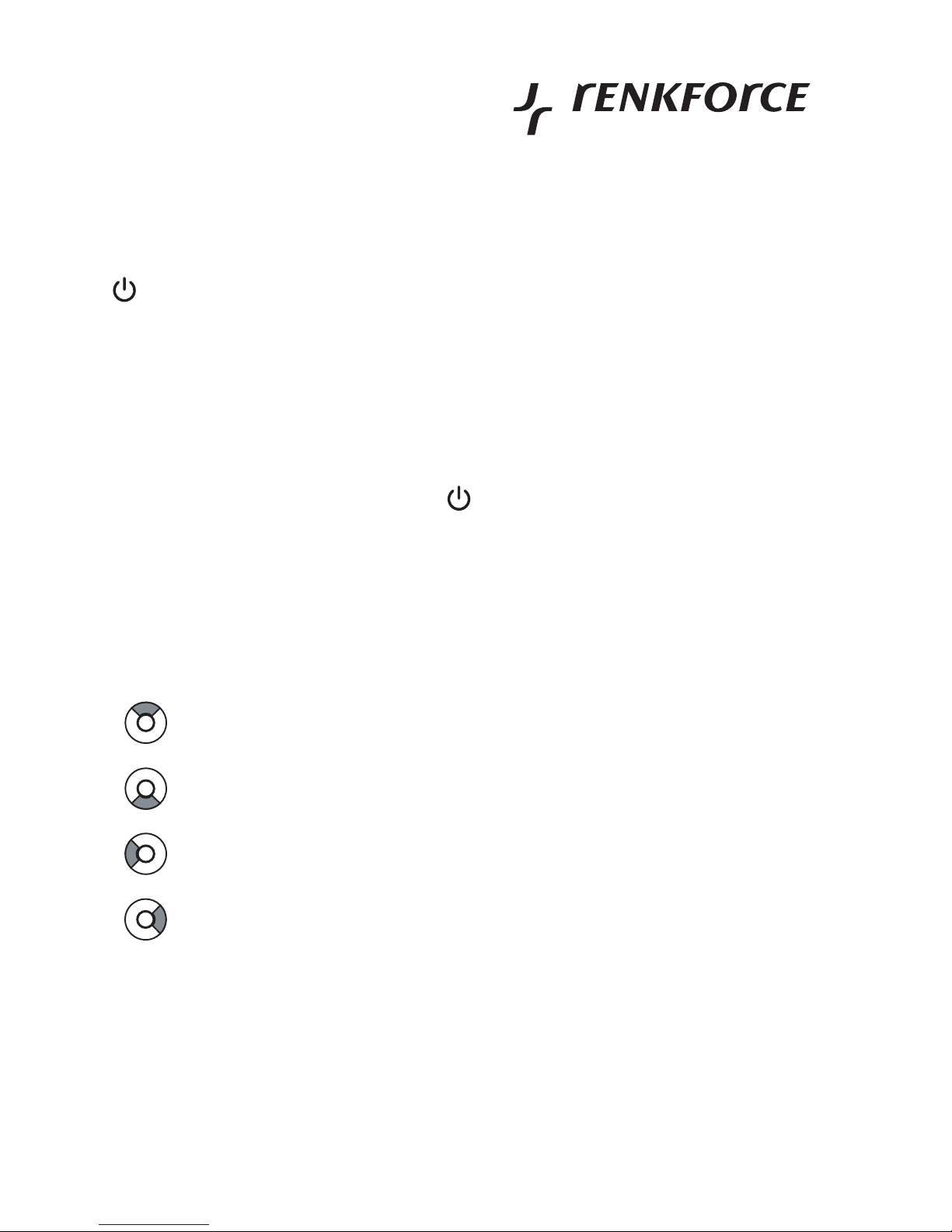
c) Main menu, function selection
• In the main menu and the submenus, you select the individual functions with the control
wheel (3).
Up, button "+" (3c)
Down, button "-" (3d)
Left, button "
" (3a)
Right, button "
" (3b)
• Confirm the selection by pressing the button "" (5) in the center of the control wheel (3).
• Return to the previous menu with the button "M" (4).
Page 42

42
Operating manual
English
d) Key lock
Move the slider (1) to the left towards "HOLD". When the Multimedia Player is turned on, a lock
icon appears on the display. Now all keys are without function.
To release the key lock, return the slider to the center position.
e) 3.5mm connection (audio output)
Connect an ear phone or a set of headphones with the 3.5mm output socket (7).
Page 43

43
• The drivers for the Multimedia Player are contained in the operating system of Windows ME,
XP Vista and 2000. It is detected automatically.
• With Windows 98SE the drivers must be installed first and a restart must be carried out.
• Wait until the operating system has booted completely and then connect the Multimedia
Player via the USB cable, contained in the delivery, to a free USB2.0 port on your computer.
• Windows detects the new hardware and completes the driver installation. Wait a moment
until the installation is finished.
• Now the multimedia player works like a USB stick or an external USB drive. A new drive
appears in the Windows file explorer, which can be filled with multimedia files (images, MP3
files, videos).
• Prior to disconnecting the multimedia player from the computer, wait until all file transfers are
complete.
There is a little arrow symbol ("Safely remove hardware") in the Windows menu bar. This
function serves to tell Windows that you want to disconnect the device. Afterwards, all open
files are closed. Windows tells you afterwards that you can remove the device.
If you simply disconnect the USB connection in running operation, this may
lead to errors in the multimedia player's file system, e.g. data no longer appears
in the content tree or cannot be played back properly.
• If the Multimedia Player is connected to a computer, the buttons do not work.
The charge process is started automatically if the accumulator is not fully charged. Please
refer to the chapter "Rechargeable battery instructions" and "Charging rechargeable
batteries".
Connection
to the computer
Page 44

44
Operating manual
English
Operation
a) Function "MUSIC"
In the main menu, select the function "Music" with the buttons "
" (3a) and "
" (3b);
briefly press the button "" (5) for confirmation. The first available music file now appears
on the display.
When you first use the device, there are no audio files contained on it.
Connect the multimedia player as described in the chapter "Connection to the
computer" with a computer and transfer e.g. some MP3 files to the multimedia
player.
Standard functions:
• You can select an audio file with the buttons "
" (3a) and "
" (3b).
• Start playback by briefly pressing the button "" (5).
• You can pause playback of the file by briefly pressing the button "" (5) and/or continue
it the same way.
• Set the volume at wish with the buttons "+" (3c) and "-" (3d).
• To rewind or fast-forward, keep the buttons "
" (3a) and "
" (3b) depressed for longer.
Once you let go, playback continues at normal speed.
• If you briefly press the button "M" (4), the menu with the special functions is displayed (see
below).
• If you press the button "M" (4) for approx. 1 second, you return tot he main menu.
Special functions:
If the Multimedia Player is located in the function "MUSIC", briefly press the button "M" (4) to
display the menu with the special functions. With the same button, you can quit the menu or
a subfunction again.
Select the desired function with the "+" (3c) and "-" (3d) button.
With the buttons "
" (3a) and "
" (3b), select the subfunctions or quit them again.
Page 45

45
Save a setting by pressing the button "" (5).
Quit the menu with the button "M" (4).
The following functions exist:
• Function "Repeat Mode": Select the desired repeat mode.
"No Repeat" = Repeat mode deactivated
"Repeat One" = Repeat the present audio file
"Repeat All" = Repeat all audio files
"Random All" = Random playback
"Dir Repeat" = Repeat all audio files in the present directory
• Function "Equalizer": Select one of the predefined equalizer settings ("Normal", "Pop",
"Rock", "Classic", "Jazz", "Bass") or an equaliser setting you can define yourself ("Custom
EQ").
With the latter, you can set your own frequency with the control wheel.
• Function "3D": Activates a 3D effect with "On", deactivate it with "Off".
• Function "Play Rate": Here you can change the speed in several pre-defined steps. For
normal playback speed, select "1.00X".
• Function "File Browse": Here you can select or view the directories or individual audio files
in the memory of the Multimedia Player.
• Function "Classification": The Multimedia Player allows you to create an internal list using
the ID3 information in the MP3s to sort the available MP3 files later on according to style
("Genre"), artist ("Artist"), album name ("Album") and track name ("Title").
If you want to use this function, you should always call it up when transferring new MP3 audio
files to the Multimedia Player.
To generate a proper list, the ID3 information in the MP3 audio files must be
correct.
If there are a lot of MP3 audio files, the reading of the data may take a few
minutes.
Page 46

46
Operating manual
English
Playback of the song text
During playback of an MP3 audio file, the song text can be displayed on the display.
This requires a so-called LRC file with the same name as that of the MP3 file.
This is a mere text file, which you can also generate yourself (e.g. with a text
editor or with corresponding programs that are available in the Internet).
Example:
Name of the MP3 file: Test.mp3
Name of the LRC file: Test.lrc
Example for the content of an LRC text file:
[ti]Artist LYRICS
[al]Music title
[00:11]Music text 1
[00:25]Music text 2...
The time indicates at which position of the MP3 audio file is supposed to be displayed on the
Multimedia Player.
Page 47

47
b) Function "MOVIE"
In the main menu, select the function "MOVIE" with the buttons "
" (3a) and "
" (3b);
briefly press the button "" (5) for confirmation. Now the display shows a list with available
video files.
When you first use the device, there are no video files contained on it.
Connect the multimedia player as described in the chapter "Connection to the
computer" with a computer and transfer video files to the multimedia player.
The software contained on the CD can generate matching video files (MTV
format). These have a resolution of 160x128 pixels and a frame rate of 25
frames per second.
Standard functions:
• Directly after calling up the function "MOVIE", a list with available video files is displayed.
Select the desired video file with the "+" (3c) and "-" (3d) buttons.
• Start playback by briefly pressing the button "" (5).
• You can pause playback of the file by briefly pressing the button "" (5) and/or continue
it the same way.
• During playback of a video file, you can play back the previous resp. next video file with the
buttons "
" (3a) and "
" (3b).
• Set the volume at wish with the buttons "+" (3c) and "-" (3d).
• To rewind or fast-forward, keep the buttons "
" (3a) and "
" (3b) depressed for longer.
Once you let go, playback continues at normal speed.
• If you press the button "M" (4) briefly several times, you access the special functions menu,
the selection of a video file or return to the main menu.
Page 48

48
Operating manual
English
Special functions:
During playback of a video file, briefly press the button "M" (4) to display the special functions
menu.
Select the desired function with the "+" (3c) and "-" (3d) button.
With the buttons "
" (3a) and "
" (3b), select the subfunctions or quit them again.
Save a setting by pressing the button "" (5).
Quit the menu with the button "M" (4).
The following functions exist:
• Function "Repeat Mode": Select the desired repeat mode.
"No Repeat" = Repeat mode deactivated
"Repeat One" = Repeat the present video file
"Repeat All" = Repeat all video files
"Random All" = Random playback
"Dir Repeat" = Repeat all video files in the present directory
• Function "Subtitle Color": Select the desired colour for the display information (progress,
playback icon) on the bottom of the display.
Page 49

49
c) Function "PHOTOS"
In the main menu, select the function "PHOTOS" with the buttons "
" (3a) and "
" (3b);
briefly press the button "" (5) for confirmation. The display now shows a preview of the
available images/photos.
When you first use the device, there are no image files contained on it.
Connect the multimedia player as described in the chapter "Connection to the
computer" with a computer and transfer image files to the multimedia player.
• Directly after calling up the function "PHOTOS", you will see a preview of the available
images. With the control wheel you can now select one of the images; a frame around the
image shows the current selection, the respective file name is stated on the bottom left of
the display (the number of the current preview page and the total number of preview pages
are indicated on the bottom right).
• Press the button "" (5) to display the currently selected image.
Another press of the button "" (5) starts the slide show (press the button again to stop
the slide show).
• You can select the previous resp. next image with the buttons "
" (3a) and "
" (3b).
The slide show (automatic forward playback of the images) is then switched off automatically.
• The button "M" (4) takes you back to the overview or the main menu.
Page 50

50
Operating manual
English
d) Function "E-BOOK"
In the main menu, select the function "E-BOOK" with the buttons "
" (3a) and "
" (3b);
briefly press the button "" (5) for confirmation. Now the display shows a list with available
text files.
Only standard text files can be displayed (file extension "TXT"). Files of various
text editors cannot be displayed.
• Directly after calling up the function "E-BOOK", a list with available text files is displayed.
Select the desired text file with the "+" (3c) and "-" (3d) buttons.
• Start the view of the text file by briefly pressing the button "" (5).
• You can shift the section visible on the display with the buttons "+" (3c) and "-" (3d).
• If you briefly press the button "M" (4), you return to the selection of a text file and/or to the
main menu.
Page 51

51
e) Function "SETUP"
Submenu "Power"
In this setting function, you can select when the player is supposed to turn off if no button is
pressed or no file played back.
This function can also be deactivated.
Submenu "Language"
If available with this version of the Multimedia Player, you can select the language for the
display here.
Submenu "Display Setting"
Here you can set the time during which the background illumination is turned on after pressing
a key. Set a short time here to achieve a long service life and save power.
Submenu "System Tools"
• Function "Delete file":
Serves to delete a file. If you do not want to do this directly on the computer, you can select
the desired file after calling up the function "Delete File". Then press the button "" (5).
A confirmation prompt appears.
To delete the file, select "YES" and press the button "" (5).
To not delete the file, select "NO" and press the button "" (5).
The button "M" (4) takes you back to the function selection.
• Function "Format":
The memory was preformatted by the manufacturer. You generally only need to format the
memory if the Multimedia Player was accidentally removed from the PC prior to the end of
a copy process. This may damage the file system (e.g. strange file names appear, etc.).
With "Quick", you can quick-format the memory (only takes a few seconds and only the table
of contents in the memory is deleted) or carry out a complete formatting with "Complete" (this
may take a few minutes).
Page 52

52
Operating manual
English
After formatting, all data in the memory (audio/video/image/text files) is deleted.
After selecting "Quick" or "Complete", press the button "" (5), then a conformation
prompt appears.
To format the memory, select "YES" and press the button "" (5).
To not format the memory, select "NO" and press the button "" (5).
The button "M" (4) takes you back to the function selection.
• Function "Reset":
Resets all settings to the factory settings (e.g. repeat mode); any multimedia data in the
memory will not be deleted.
• Function "System Info"
The Multimedia Player shows the firmware version and the total memory on the display.
• Function "Refresh"
Here is where you re-generate the list for music files (sorting according to style ("Genre"),
artist ("Artist"), album name ("Album") and track name ("Title")). With lots of MP3 files, this
may take a few minutes. Int his context, see the chapter "Operation", section a).
Page 53

53
If the Multimedia Player does not react to key functions, if strange characters appear on the
display or if the player cannot be turned on or off, proceed as follows:
• If the Multimedia Player is connected to a computer, separate the USB connection.
• Carefully press the reset button (8) on the back of the Multimedia Player with a toothpick
(only press the button briefly).
Any data in the memory will not be deleted.
The Multimedia Player is reset and should now turn on as usual (if the battery is sufficiently
charged).
Reset
Page 54

54
Operating manual
English
The multimedia player can display different file formats (e.g. images, texts) or play them back
(e.g. MP3s, videos).
Due to the large number of programs that generate such data formats, however, it may happen
that a file cannot be played back.
For example:
MP3 files are generated with the most varied programs and have different bit rates (e.g.
128kBit, 192kBit or variable bit rates, VBR).
With video data, there are numerous methods to compress image contents and audio signals
to save memory. In addition, video data has different resolutions and bit rates.
For this reason, we cannot guarantee that an audio or video file on your
computer can be played back on the Multimedia Player.
Please observe the next chapter for generating suitable video files.
AV converter software
The CD also contains a software with which you can generate video files for the multimedia
player. Available video files in many different formats can be converted to the right format for
the Multimedia Player.
Usable
audio/video formats
Page 55
55
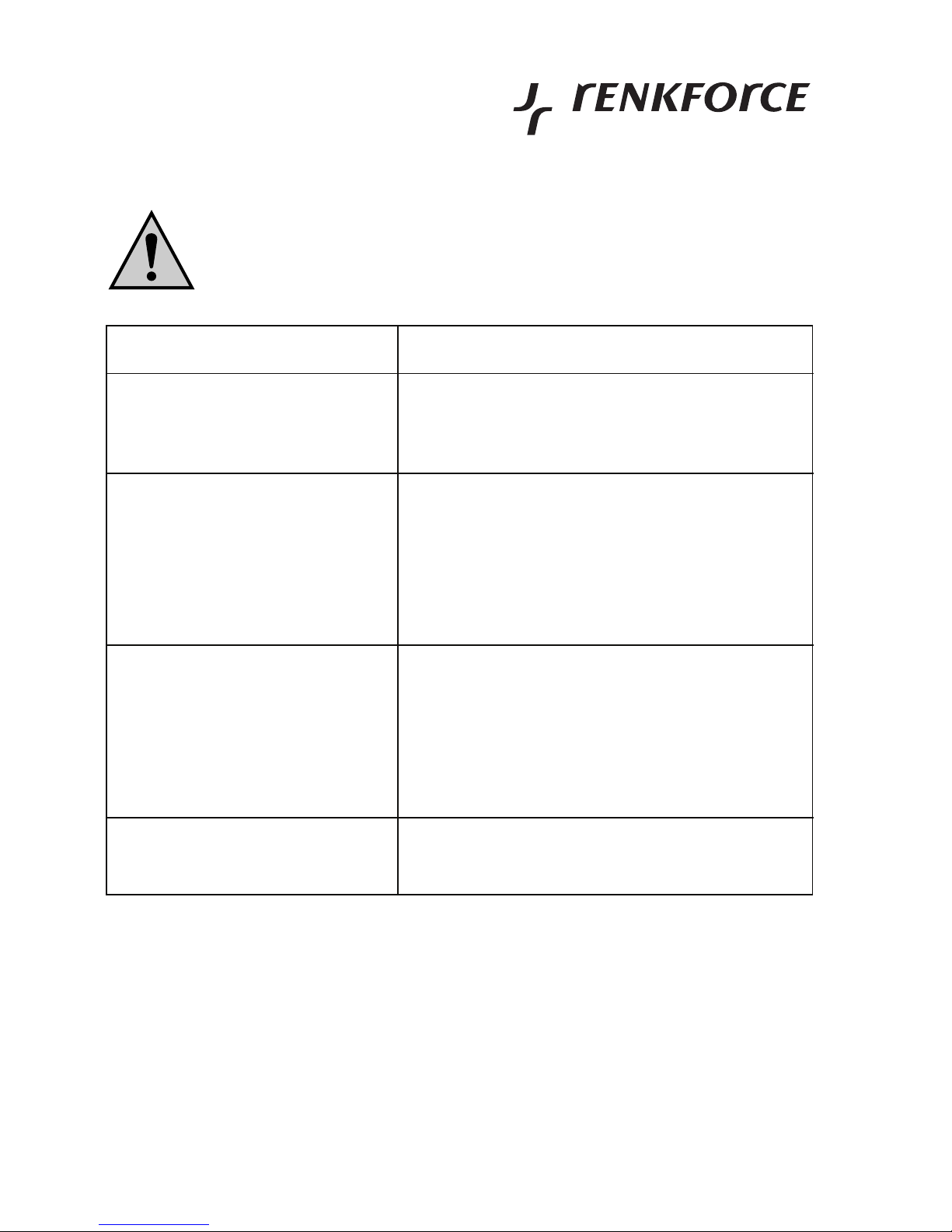
Observe all safety instructions in these operating instructions!
Troubleshooting
Problem
Device cannot be switched on.
No playback of files or a certain file
is not played back.
The computer does not recognize
the multimedia player or the
accumulator is not charging.
Device turns off automatically.
Solution
• Is the integrated rechargeable battery empty?
Charge it as described in the chapter "Charge
battery".
• Is the multimedia player connected with a
computer via USB? Playback is not possible
then. First separate the device from the computer.
• The file cannot be played back or displayed
because the multimedia player does not support
this format.
• Use a USB port that can provide a current of
500mA. This is e.g. the USB port of a computer
or a USB hub with an inherent power supply.
• Some notebooks cannot provide power supply
on the USB port. Use an external USB hub with
its own power supply unit in this case.
• Is the rechargeable battery empty?
• Check the settings for automatic shutoff.
Page 56

56
Operating manual
English
Servicing or repair may only be carried out by a specialist/specialist workshop. The product
contains no parts that require servicing. Therefore, do not open it.
To clean the outside of the product, a dry, soft and clean cloth is sufficient.
Do not press too hard on the display or the housing, as this may cause scratch
marks or lead to faulty displays.
Dust can easily be removed with the help of a clean brush and a vacuum cleaner.
Handling
Take note of all safety instructions contained in this operating manual
and all further information specific to the handling of the product.
The product is not a toy and should be kept out of the reach of children. The product contains
small parts, glass (display) and an accumulator.
The device must not be opened or disassembled.
None of the components inside the product is to be maintained by the user. If opened of taken
apart, the CE approval as well as the warranty/guarantee will be void.
Do not drop the product even from a low height as this might damage it.
Avoid the following adverse environmental condition when operating the product:
- Excessive humidity or dampness
- extreme cold or heat
- direct sunlight
- Dust or combustible gases, vapours or solvents
- Strong vibrations
- strong magnetic fields such as those found in the vicinity of machinery or loudspeakers
Maintenance
and cleaning
Page 57
57
Never use the product immediately after it has been brought from a cold into
a warm room. Condensation that forms might destroy your device.
Wait until the product has reached room temperature. This may take several
hours.
During operation make sure that no cables are pinched or caught.
Make sure the insulation of the whole product is neither damaged nor destroyed. Check the
product for damage before each use!
If you notice any damages, the product must NOT be used.
Damage to the multimedia player can cause an explosion or the burning of the
built-in storage battery.
If this is the case, bring the product to a specialised workshop and do not use
it anymore.
During operation install the product in a safe way that secures it from falling.
Valuable or scratch sensitive furniture surfaces should be protected from damage with suitable
covers, before you put the Multimedia Player on it.
Protect the device from scratches, dust and dirt during transport.
Page 58
58
Operating manual
English
a) General information
Electric and electronic devices must not be disposed of in the household waste.
Please dispose of the device when it is no longer of use, according to the
current statutory requirements.
b) Batteries and rechargeable batteries
You as the end user are required by law (Battery Ordinance) to return all used batteries/
rechargeable batteries. Disposing of them in the household waste is prohibited!
Contaminated batteries/rechargeable batteries are labelled with these symbols
to indicate that disposal in domestic waste is forbidden.
The symbols for dangerous heavy metal constituents are: Cd=cadmium,
Hg=mercury, Pb=lead (name on battery/rechargeable battery, e.g. under the
trash icons on the left).
You can return your used batteries/rechargeable batteries free of charge at the
official collection points of your community, in our stores, or everywhere else
where batteries or rechargeable batteries are sold.
You thus fulfil your statutory obligations and contribute to the protection of the environment.
Disposal
Page 59

59
Memory: ................................ 8GByte
Connection to computer: ...... USB2.0
LC display: ............................ approx. 4.6cm (1.8"), resolution 160 x 128 pixels
Power supply: ....................... Internal rechargeable battery, 3.7V
Recharging: ........................... Via the supplied USB cable
Audio output: .........................3.5mm stereo jack socket for headphones/earphones
Weight: .................................. 40 g
Dimensions: .......................... 82 x 55 x 10mm
Technical data
Page 60

60
Mode d’emploi
français
Table des matières
Page
Introduction ........................................................................................................................ 62
Utilisation conforme .......................................................................................................... 63
Contenu de la livraison ..................................................................................................... 63
Explication des symboles ................................................................................................ 64
Caractéristiques et fonctions .......................................................................................... 64
Consignes de sécurité ...................................................................................................... 65
Indications afférentes aux accumulateurs .................................................................... 67
Eléments de commande ................................................................................................... 68
Chargement de l´accumulateur ....................................................................................... 69
Fonctions de base ............................................................................................................. 70
a) Mise en marche ....................................................................................................... 70
b) Mise à l'arrêt ............................................................................................................ 70
c) Menu principal, choix des fonctions ....................................................................... 70
d) Verrouillage des touches ........................................................................................ 71
e) Prise 3.5mm (sortie audio) ou haut-parleur interne ............................................... 71
Raccordement à l'ordinateur ........................................................................................... 72
Utilisation ............................................................................................................................ 73
a) Fonction « MUSIC » ................................................................................................ 73
Fonctions standard .................................................................................................. 73
Fonctions particulières ............................................................................................ 73
Lecture du texte de la chanson .............................................................................. 75
b) Fonction « MOVIE » ................................................................................................ 76
Fonctions standard .................................................................................................. 76
Fonctions particulières ............................................................................................ 77
c) Fonction « PHOTOS » ............................................................................................ 78
Page 61

61
Page
d) Fonction « E-BOOK » ............................................................................................. 79
e) Fonction « SETUP » ............................................................................................... 80
Sous-menu « Power » ............................................................................................. 80
Sous-menu « Language » ...................................................................................... 80
Sous-menu « Display Setting » .............................................................................. 80
Sous-menu « System Tools »................................................................................. 80
Reset .................................................................................................................................... 82
Formats audio/vidéo appropriés à la lecture ................................................................ 83
Logiciel convertisseur audio-vidéo ................................................................................ 83
Dépannage .......................................................................................................................... 84
Maintenance et nettoyage ................................................................................................ 85
Manipulation .......................................................................................................................85
Elimination ..........................................................................................................................87
a) Généralités .............................................................................................................. 87
b) Piles et accumulateurs ............................................................................................87
Caractéristiques techniques ............................................................................................ 88
Page 62

62
Mode d’emploi
français
Introduction
Chère cliente, cher client,
Nous vous remercions de l’achat du présent produit.
Ce produit satisfait aux exigences légales nationales et européennes.
Afin de maintenir l’appareil en bon état et d’en assurer l’exploitation sans risques, l’utilisateur
doit absolument tenir compte de ce mode d’emploi !
Avant l'utilisation de ce produit, lisez attentivement l'intégralité du présent mode d'emploi et
respectez toutes les instructions d'utilisation et consignes de sécurité !
Le mode d'emploi suivant correspond au produit mentionné ci-dessus. Il comporte des
directives importantes pour la mise en service et la manipulation de l'appareil. Il faut
respecter ces instructions, même si ce produit est transmis à des tiers. Conservez ce
mode d'emploi pour une consultation ultérieure !
Tous les noms d’entreprises et appellations de produits contenus dans ce mode d’emploi sont
des marques déposées des propriétaires correspondants. Tous droits réservés.
Pour toutes vos questions techniques, veuillez vous adresser à :
Tél. : 0892 897 777
Fax : 0892 896 002
e-mail : [email protected]
Du lundi au vendredi de 8h00 à 18h00, le samedi de 8h00 à 12h00
Tél. : 0848/80 12 88
Fax : 0848/80 12 89
e-mail : [email protected]
Du lundi au vendredi de 8h00 à 12h00 et de 13h00 à 17h00
Page 63
63
Utilisation conforme
Le lecteur multimédia « MP777 » sert de lecteur mobile des fichiers multimédia tels que JPG,
MP3). L’appareil intègre un écran LC couleur, la reproduction audio s’effectue par une douille
jack 3.5mm stéréo.
Un branchement USB permet de remplir la mémoire intégrée de données lorsque l'appareil
est relié à un ordinateur. Ainsi le lecteur multimédia peut également être utilisé en tant que
médium de transport pour d’autres données (comme une clé USB classique).
L´alimentation électrique se fait par un accu intégré, la recharge par USB.
L'appareil ne doit pas prendre l'humidité ni être mouillé.
Ce produit n'est pas un jouet, tenez-le hors de portée des enfants. Le produit contient des
composants en verre et de petite taille qui pourraient être avalés, et de plus il intègre un
accumulateur.
Toute utilisation autre que celle décrite ci-dessus occasionne
l'endommagement de ce produit ; d´autres risques sont en outre encourus.
Lisez attentivement l’intégralité du présent mode d’emploi qui contient
un grand nombre d’informations importantes concernant la commande
et le fonctionnement du produit.
Contenu de la livraison
• Lecteur multimédia avec accumulateur incorporé
• Écouteurs
• Câble USB
•CD
• Notice d'utilisation
Page 64
64
Mode d’emploi
français
Explication
des symboles
Le symbole avec le point d'exclamation attire l'attention sur les conseils
importants de ce mode d'emploi, qui sont impérativement à respecter.
Le symbole de la « main » précède les recommandations et indications
d'utilisation particulières.
Caractéristiques et fonctions
• 8Go de mémoire
• Ecran LC intégré (env. 4,6cm, 1,8 pouces)
• Accu intégré, fonction de recharge via USB
• Lecture de fichiers aux formats JPG, BMP, GIF, MP3, WMA, TXT, MTV (Vidéo)
• Sortie audio: douille jack 3.5mm stéréo pour casques/ oreillettes
• Branchement USB2.0 (l’appareil est traité du système d'exploitation comme un lecteur
classique, une clé USB ou un disque dur USB)
• Design plat, construction de petite taille
Page 65
65
Consignes de sécurité
Tout dommage résultant d'un non-respect du présent mode d'emploi
entraîne l'annulation de la garantie ! Nous déclinons toute responsabilité
pour les dommages consécutifs !
De même, le constructeur n'assume aucune responsabilité en cas de
dommages matériels ou corporels résultant d'une utilisation non
conforme de l'appareil ou du non-respect des présentes consignes de
sécurité. De tels cas entraîne l’annulation de la garantie.
Chère Cliente, cher Client. Les consignes de sécurité et les indications de
danger sont destinées non seulement à préserver votre santé, mais aussi à
préserver le bon fonctionnement de l’appareil. Veuillez lire attentivement les
points suivants :
• Pour des raisons de sécurité et d'homologation (CE), toute transformation ou
modification arbitraire du produit est interdite. Ne l'ouvrez/le démontez pas.
Aucune pièce nécessitant un entretien ne se trouve à l'intérieur du produit.
Lorsque l’accumulateur intégré est endommagé il y a un risque important
d'explosion ou d'incendie !
Les travaux d'entretien, de réglage ou de réparation ne doivent être effectués
que par du personnel qualifié ou par un atelier spécialisé.
• Il faut impérativement veiller à ce que l’appareil ne soit ni mouillé ni humide.
Protégez-le également du rayonnement solaire direct, d’une forte chaleur
(>35°C) ou froideur (<0°C), de la poussière et de toute saleté.
• Lors du changement d'emplacement du produit d'une pièce froide dans une
pièce chaude (par ex. lors de son transport), de l'eau de condensation
pourrait se former. Cela pourrait endommager le produit.
Laissez donc le produit éteint prendre la température ambiante avant de le
mettre en service. Selon le cas, cela peut prendre plusieurs heures.
• Ce produit n'est pas un jouet, maintenez-le hors de la portée des enfants. Les
enfants ne sont pas en mesure d'évaluer les risques résultant de la
manipulation des appareils électriques. De plus, le produit incorpore des
composants de petite taille qui pourraient être avalés et ceux en verre
(l'écran) ainsi qu'un accumulateur.
Page 66
66
Mode d’emploi
français
• Ne laissez jamais le matériel d'emballage sans surveillance ; il pourrait
devenir un jouet dangereux pour les enfants.
• N'utilisez le produit que dans des régions climatiques modérées et non
tropicales.
• Ne placez pas de récipients comportant de liquides, tels qu'un seau, une
vase ou une plante, à proximité immédiate du produit. Les liquides pourraient
pénétrer à l'intérieur du boîtier et compromettre sa sécurité électrique. De
plus, il y a risque d´incendie et d´explosion (court-circuit de l´accu).
• Ne placez jamais une bougie allumée ou d'autres sources d'incendie sur
l'appareil ou tout près de celui-ci.
• Ne pliez pas le câble et ne déposez rien dessus.
• Si l'appareil devait présenter des dommages, ne l'utilisez plus! Dans ce cas,
apportez l'appareil dans un atelier spécialisé.
• Dans les installations industrielles, il convient d'observer les consignes de
prévention des accidents relatives aux installations et moyens d'exploitation
électriques, édictées par la caisse d'assurance mutuelle de l'industrie.
• Dans les écoles, les centres de formation, les ateliers de loisirs et de
réinsertion, la manipulation d'appareils alimentés par le secteur doit être
surveillée par un personnel responsable, spécialement formé à cet effet.
• Ce produit doit être manipulé avec précaution – les coups, les chocs, ou une
chute, même d'une faible hauteur, peuvent l'endommager.
Page 67
67
Un accumulateur dit « LiIon » (accumulateur lithium-Ion) est intégré dans le lecteur multimédia.
Ce type moderne d’accumulateur ne présente pas d’effet dit « mémoire », c’est-à-dire que
vous pouvez chargez l’accumulateur quand vous le souhaitez.
De plus, il offre plus d’énergie que les accumulateurs classiques NiCd et NiMH.
Veuillez respecter les consignes importantes suivantes pour l’utilisation de
l’accumulateur :
• Ne jamais endommager l'accu, ne pas le démonter du lecteur multimédia.
Observez à ce sujet le chapitre « Elimination ».
L’endommagement de la gaine de l’accumulateur entraîne un risque
d’explosion et d’incendie !
La gaine de l’accumulateur n'est pas fait d'une tôle fine comme c'est le cas
pour des piles/accumulateurs traditionnels (par ex. du type AA ou AAA) mais
consiste seulement en un film plastique sensible.
• Ne court-circuitez jamais les contacts/branchements de l’accumulateur. Il y
a risque d´explosion et d’incendie !
• Rechargez régulièrement l’accumulateur, même lorsque le produit n’est pas
utilisé. Le lecteur « MP777 » a besoin en mode veille d´une quantité (même
faible) de courant.
La technologie d’accumulateur utilisé rend superflu le déchargement préalable
de l'accumulateur. Rechargez entièrement l´accu environ une fois par mois.
Ainsi vous disposez toujours d’un appareil prêt à l’emploi.
• Ne rechargez jamais le lecteur multimédia sans surveillance.
• Placez le lecteur multimédia sur une surface ininflammable et résistante à la
chaleur lors du rechargement. Un certain échauffement pendant le
rechargement est tout à fait normal.
• Débranchez le lecteur multimédia de l´ordinateur en cas d´inutilisation.
Indications afférentes
aux accumulateurs
Page 68
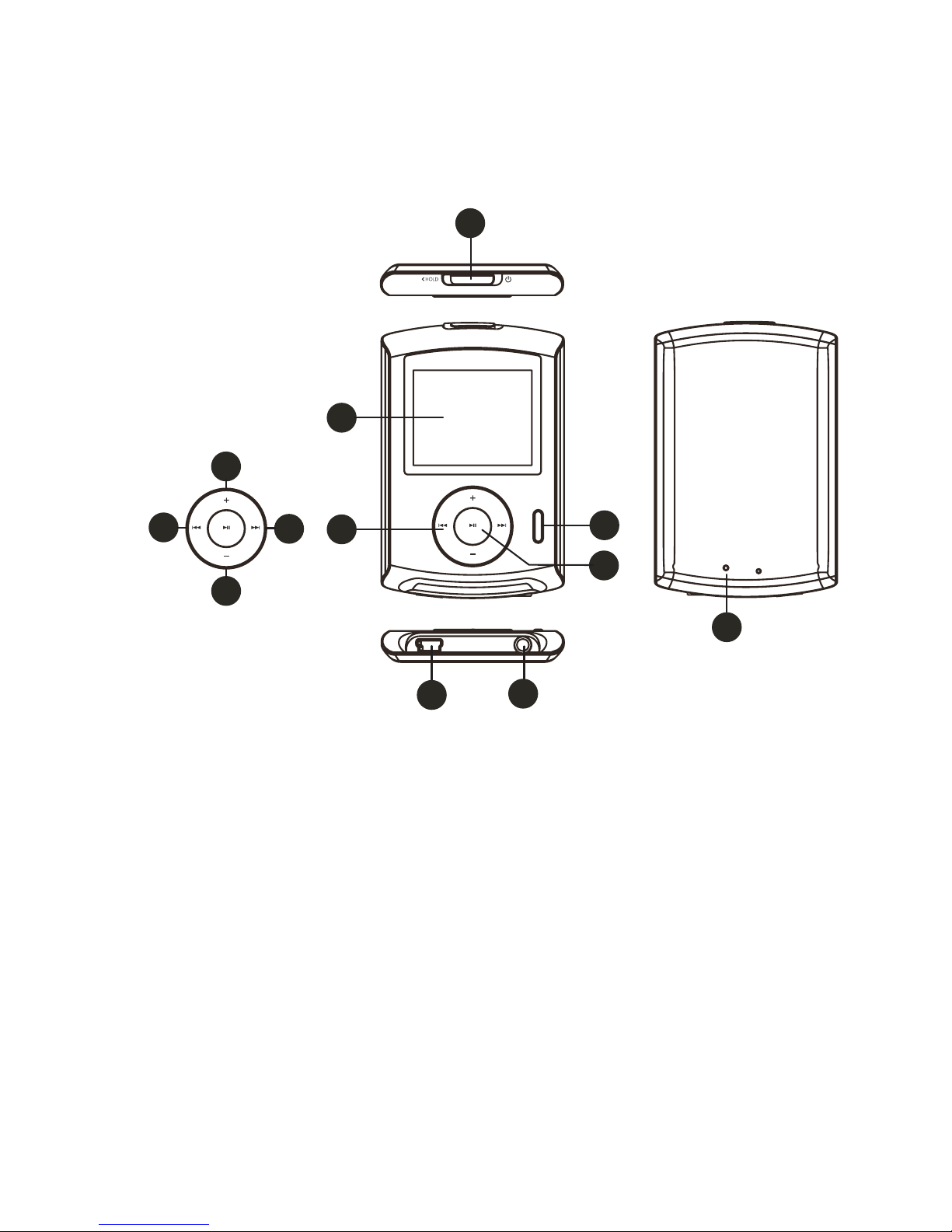
68
Mode d’emploi
français
Eléments
de commande
1 Interrupteur à coulisse pour Marche/arrêt et verrouillage des touches (« HOLD »)
2 Afficheur à cristaux liquides (LCD)
3 Bague de commande du menu avec 4 fonctions de touche (3a…3d)
3a Touche «
»
3b Touche «
»
3c Touche « + »
3d Touche « - »
4 Touche « M » pour fonctions de menu
5 Touche « »
6 Douille USB pour raccorder l´appareil à un port USB2.0 d´un ordinateur
7 Sortie audio, douille jack 3.5mm stéréo pour casques/ oreillettes
8 Touche Reset noyée
2
4
1
3
5
7
6
8
3a
3c
3d
3b
Page 69
69
Chargement
de l´accumulateur
• L´accu intégré se charge via USB.
• Si l'accumulateur est vide, le chargement peut prendre plusieurs heures.
Comme déjà décrit, le chargement peut être effectué indépendamment de
l'état de charge de l'accumulateur. En raison de la technologie accumulateur,
un déchargement préalable n'est pas requis car il n'y a pas d'effet dit mémoire.
L’électronique de charge intégrée assure que l’accumulateur n’est pas
surchargé en coupant le chargement à temps.
• L’accu est vide quand le lecteur multimédia ne peut pas être mis en marche.
Il en est de même lorsqu´un avertissement de « Pile vide » est indiqué ou que le lecteur
multimédia s´éteint automatiquement alors qu´il est en marche.
• Selon la carte mère de votre ordinateur, la mise à l´arrêt de ce dernier par le biais de la touche
sur la face avant désactive éventuellement aussi les ports USB de votre ordinateur
(l’ordinateur se trouve en mode veille).
Dans ce cas, un chargement du lecteur multimédia n’est plus possible. Il en est de même
lorsque l’ordinateur est éteint par l'interrupteur secteur.
Comme il serait inutile de laisser l’ordinateur en marche juste pour continuer le chargement,
vous pouvez utiliser par ex. un concentrateur USB avec propre bloc d’alimentation. Celuici reste normalement actif même si l’ordinateur est éteint.
Chargez le lecteur multimédia uniquement via l´interface USB d´un ordinateur
ou d´un concentrateur USB et le câble USB fourni; le cas échéant, cela peut
endommager l´électronique de charge et, par conséquent, le lecteur multimédia.
De plus, il y a risque d’incendie et d’explosion à cause de l’accumulateur
intégré !
Respectez les chapitres « Consignes de sécurité » et « Indications afférentes
aux accumulateurs ».
Page 70
70
Mode d’emploi
français
Fonctions de base
a) Mise en marche
Déconnectez éventuellement la liaison USB à l’ordinateur. Déplacez l'interrupteur à coulisse
(1) situé sur le dessus en position « » et relâchez celui-ci. L’écran affiche un message
d’accueil puis le menu principal du lecteur multimédia apparaît.
Si l´écran ne s´allume pas et que le message d´accueil n´apparaît pas, cela
signifie que l´accu est vide et doit d´abord être rechargé.
b) Mise à l´arrêt
Déplacez l'interrupteur à coulisse (1) situé sur le dessus en position « » et maintenez-le
dans cette position jusqu´à l’extinction du lecteur multimédia.
c) Menu principal, choix des fonctions
• Vous sélectionnez les fonctions individuelles dans le menu principal et les sous-menus à
l´aide de la bague de commande (3).
Haut, touche « + » (3c)
Bas, touche « - » (3d)
A gauche, touche «
» (3a)
A droite, touche «
» (3b)
• Vous validez la sélection en appuyant sur la touche « » (5) au centre de la bague de
commande (3).
• Pour revenir au menu précédent, utilisez la touche « M » (4).
Page 71

71
d) Verrouillage des touches
Déplacez l’interrupteur à coulisse (1) vers la gauche en direction « HOLD ». Si le lecteur
multimédia est activé, le symbole d'un verrou s’affiche sur l´écran. Toutes les touches n´ont
à présent aucune fonction.
Pour débloquer le verrouillage des touches, ramenez l’interrupteur à coulisse au centre.
e) Prise 3,5 mm (sortie audio)
Reliez des oreillettes ou un casque d´écoute doté d’une douille de sortie 3,5mm (7)
Page 72

72
Mode d’emploi
français
• Les pilotes du lecteur multimédia sont compris dans le système d´exploitation de Windows
ME, XP, Vista et 2000 qui est reconnu automatiquement.
• Si vous utilisez Windows 98SE, installez d´abord les pilotes du CD et redémarrez l´ordinateur.
• Patientez jusqu'à ce que le système d´exploitation soit complètement chargé et branchez
ensuite le lecteur multimédia via le câble USB fourni à un port USB2.0 libre de votre
ordinateur.
• Windows détecte le nouveau matériel et termine ensuite l'installation des pilotes. Attendez
un instant jusqu’à ce que ce processus soit terminé.
• Le lecteur multimédia fonctionne maintenant comme une clé USB ou un disque dur USB
externe. Le gestionnaire de fichiers de Windows affiche un nouveau lecteur qui peut être
rempli des données multimédia correspondantes (images, MP3, vidéos).
• Avant de pouvoir débrancher le lecteur multimédia, attendez jusqu’à ce que toute transmission
de données soit terminée.
La barre de menu de Windows comprend un petit symbole de flèche (« Retirer le
périphérique en toute sécurité »). Cette fonction sert à notifier Windows du fait que vous
souhaitez débrancher l’appareil. Tous les fichiers ouverts sont alors fermés, Windows vous
informe lorsque vous pouvez débrancher l’appareil.
Si vous débranchez la connexion USB pendant le service, sans utiliser cette
fonction, il se peut que des erreurs se produisent dans le système de fichier du
lecteur multimédia, par ex. quelques données ne seront plus affichées dans la
tables des matières ou il y aura des fichiers qui ne peuvent pas ou pas
correctement être reproduits.
• Lorsque le lecteur multimédia est raccordé à un ordinateur, les touches n´ont pas de
fonction.
Le processus de charge démarre automatiquement à condition que l´accu ne soit pas
complètement chargé. Tenez compte à ce sujet des chapitres « Indications afférentes à
l´accumulateur » et « Chargement de l´accumulateur ».
Branchement
à l’ordinateur
Page 73

73
Utilisation
a) Fonction « MUSIC »
Sélectionnez dans le menu principal la fonction « MUSIC » à l’aide des touches «
» (3a)
et «
» (3b), validez en appuyant brièvement sur la touche « » (5). Le premier fichier
audio existant apparaît maintenant sur l´écran.
Il n’existe pas encore de fichiers audio lors de la première mise en service.
Branchez le lecteur multimédia à l´ordinateur (voir chapitre « Connexion à
l'ordinateur ») et transférez par ex. quelques fichiers MP3 sur le lecteur
multimédia.
Fonctions standard :
• Les touches «
» (3a) et «
» (3b) permettent de sélectionner un fichier audio.
• Démarrez la lecture en appuyant courtement sur la touche « » (5).
• Quand la lecture est en cours, une brève pression sur la touche « » (5) arrête la lecture
(Pause) et la poursuit.
• Vous réglez le volume à volonté à l’aide des touches « + » (3c) et « - » (3d).
• Pour avancer ou reculer la lecture, maintenez enfoncées les touches «
» (3a) et
«
» (3b) plus longtemps. La lecture se poursuit à une vitesse normale dès que vous
relâchez les touches.
• Appuyez brièvement sur la fonction « M » (4) pour afficher le menu avec les fonctions
particulières, voir ci-dessous.
• Maintenez la touche « M » (4) enfoncée pendant env. 1 secondes pour revenir au menu
principal.
Fonctions particulières :
Si le lecteur multimédia est en mode « MUSIC », appuyez alors courtement sur la touche
« M » (4) pour afficher le menu des fonctions spéciales. Vous pouvez quitter à nouveau le menu
ou une sous-fonction avec la même touche.
Réglez le format souhaité au moyen des touches «+ » (3c) et « - » (3d).
Sélectionnez les sous-fonctions à l´aide des touches «
» (3a) et «
» (3b) ou quittez
à nouveau la sous-fonction.
Page 74

74
Mode d’emploi
français
Enregistrez le réglage à l’aide de la touche « » (5).
Quittez le menu en appuyant sur la touche « M » (4).
Les fonctions suivantes sont disponibles :
• Fonction « Répétition » (= « Repeat Mode ») : sélectionnez le mode de répétition souhaité.
« No Repeat » = mode de répétition désactivé
« Repeat One » = répéter le fichier audio actuel
« Repeat All » = répéter tous les fichiers audio
« Random All » = Lecture aléatoire
« Dir Repeat » = répéter tous les fichiers audio du répertoire momentané
• Fonction « Equalizer » : sélectionnez un des réglages d’égaliseur prédéfini (« Normal »,
« Pop », « Rock », « Classic », « Jazz », « Bass ») ou le réglage d’égaliseur que vous pouvez
modifier (« Custom EQ »).
Il est possible de régler une courbe de fréquence propre pour ce dernier à l´aide de la bague
de commande.
• Fonction « 3D » : activer un effet 3D avec « On » et désactivez-le avec « Off ».
• Fonction « Play Rate » : vous pouvez modifier ici la vitesse de lecture à plusieurs niveaux
prédéfinis. Réglez « 1.00X » pour la vitesse de lecture normale.
• Fonction « File Browse » : il est possible de visualiser et de sélectionner les répertoires ou
les fichiers audio individuels dans la mémoire du lecteur multimédia.
• Fonction « Classification » : le lecteur multimédia permet ici de créer une liste interne à l´aide
des informations ID3 dans les MP3 afin de pouvoir classer ultérieurement les fichiers MP3
existants par style (« Genre »), interprète (« Artist »), nom d’album (« Album ») et titre
(« Title »).
Si vous voulez utiliser cette fonction, alors vous devez toujours l’appeler lorsque de
nouveaux fichiers audio MP3 sont transférés sur le lecteur multimédia.
Pour que la liste soit exacte, les informations ID3 doivent être correctes dans
les fichiers MP3.
S´il existe un très grand nombre de fichiers audio MP3, la lecture des données
correspondantes peut prendre quelques minutes.
Page 75

75
Lecture du texte de la chanson
Le texte d’une chanson peut être affiché sur l´écran pendant la lecture d'un fichier audio MP3.
Pour cela il faut utiliser un fichier dit LRC portant le même nom que le fichier
MP3. Il s´agit d’un fichier purement textuel qui peut être aussi créé
automatiquement (par ex. à l´aide d´un éditeur de textes ou de programmes
correspondants que vous trouvez sur Internet).
Exemple :
Nom du fichier MP3: Test.mp3
Nom du fichier LRC: Test.lrc
Exemple de contenu d'un fichier textuel LRC:
[ti]Auteur LYRICS
[al]Titre de musique
[00:11]Texte musique 1
[00:25]Texte musique 2
L´indication de la localisation fixe la position à laquelle le fichier audio MP3 du texte respectif
doit s´afficher sur l´écran du lecteur multimédia.
Page 76

76
Mode d’emploi
français
b) Fonction « MOVIE »
Sélectionnez dans le menu principal la fonction « MOVIE » à l’aide des touches «
» (3a)
et «
» (3b) et validez en appuyant brièvement sur la touche « » (5). Une liste des
fichiers vidéo disponibles s´affiche maintenant sur l´écran.
Ceci ne s'applique pas lors de la première mise en service.
Branchez le lecteur multimédia à l´ordinateur (voir chapitre « Connexion à
l'ordinateur ») et transférez par ex. les fichiers vidéo correspondants sur le
lecteur multimédia.
Le logiciel compris sur le CD est en mesure de créer des fichiers vidéo
appropriés (format « MTV ». Ils ont une résolution de 160x128 points et un taux
de 25 images par secondes.
Fonctions standard :
• Immédiatement après avoir appeler la fonction « MOVIE », une liste des fichiers vidéo
disponibles s´affiche. Sélectionnez le format vidéo souhaité au moyen des touches «+ » (3c)
et « - » (3d).
• Démarrez la lecture en appuyant courtement sur la touche « » (5).
• Quand la lecture est en cours, une brève pression sur la touche « » (5) arrête la lecture
(Pause) et la poursuit.
• Durant la lecture d´un fichier vidéo, vous pouvez reculer ou avancer le fichier vidéo à l´aide
des touches «
» (3a) et «
» (3b).
• Vous réglez le volume à volonté à l’aide des touches « + » (3c) et « - » (3d).
• Pour avancer ou reculer la lecture, maintenez enfoncées les touches «
» (3a) et
«
» (3b) plus longtemps. La lecture se poursuit à une vitesse normale dès que vous
relâchez les touches.
• Lorsque vous appuyez brièvement sur la touche « M » (4) plusieurs fois, vous accédez
successivement au menu des fonctions spéciales, à la sélection d´un fichier vidéo et
revenez au menu principal.
Page 77

77
Fonctions particulières:
Appuyez brièvement sur la touche « M » (4) pendant la lecture d´un fichier vidéo pour afficher
le menu des fonctions particulières.
Réglez le format souhaité au moyen des touches «+ » (3c) et « - » (3d).
Sélectionnez les sous-fonctions à l´aide des touches «
» (3a) et « » (3b) ou quittez
à nouveau la sous-fonction.
Enregistrez le réglage à l'aide de la touche « » (5).
Quittez le menu en appuyant sur la touche « M » (4).
Les fonctions suivantes sont disponibles :
• Fonction « Répétition » (= « Repeat Mode ») : sélectionnez le mode de répétition souhaité.
« No Repeat » = mode de répétition désactivé
« Repeat One » = répéter le fichier vidéo actuel
« Repeat All » = répéter tous les fichiers vidéo
« Random All » = Lecture aléatoire
« Dir Repeat » = répéter tous les fichiers vidéo du répertoire momentané
• Fonction « Subtitle Color » Sélectionnez la couleur souhaitée des affichages (affichage de
la progression, symboles de lecture) en bas de l´écran.
Page 78

78
Mode d’emploi
français
c) Fonction « PHOTOS »
Sélectionnez dans le menu principal la fonction « PHOTOS » à l’aide des touches «
» (3a)
et «
» (3b) et validez en appuyant brièvement sur la touche « » (5). Une
prévisualisation des images existantes s´affiche maintenant sur l´écran.
Ceci ne s'applique pas lors de la première mise en service.
Branchez le lecteur multimédia à l´ordinateur (voir chapitre « Connexion à
l'ordinateur ») et transférez par ex. les fichiers d’images correspondants sur le
lecteur multimédia.
• Immédiatement après avoir appeler la fonction « PHOTOS », une prévisualisation des
images disponibles apparaît. La bague de commande vous permet de sélectionner à
présent une des images, un cadre autour de l´image indique la sélection actuelle, dans la
partie inférieure gauche de l´écran s´affiche le nom du fichier correspondant (à droite en bas
le numéro de la page actuelle de la prévisualisation et le nombre totale de page s´affichent).
• Appuyez sur la touche « » (5) pour afficher l´image actuellement sélectionnée.
Une nouvelle pression sur la touche « » (5) démarre le diaporama (nouvelle pression
sur la touche pour arrêter le diaporama).
• Les touches «
» (3a) et «
» (3b) permettent de représenter l´image précédente ou
suivante. Le diaporama (représentation automatique en cascade des images) est
automatiquement désactivé pour cette fonction.
• La touche « M » (4) vous permet de revenir au sommaire et au menu principal.
Page 79

79
d) Fonction « E-BOOK »
Sélectionnez dans le menu principal la fonction « E-BOOK » à l’aide des touches «
» (3a)
et «
» (3b) et validez en appuyant brièvement sur la touche « » (5). Une liste des
fichiers textuels disponibles s´affiche maintenant sur l´écran.
Il n’est possible d’afficher que les fichiers texte standard (extension de fichier
« txt »). Fichiers de divers programmes de traitement de texte ne peuvent pas
être affichés.
• Immédiatement après avoir appeler la fonction « E-BOOK », une liste des fichiers vidéo
disponibles s´affiche. Le fichier textuel souhaité peut être sélectionné au moyen des touches
« + » (3c) et « - » (3d).
• Démarrez l’affichage du fichier textuel en appuyant courtement sur la touche « » (5).
• Les touches « + » (3c) et « - » (3d) permettent de déplacer la zone visible du texte sur l´écran.
• Appuyez courtement sur la touche « M » (4) pour retourner à la sélection d´un fichier textuel
ou au menu principal.
Page 80

80
Mode d’emploi
français
e) Fonction « SETUP »
Sous-menu « Power »
Vous pouvez sélectionner ici le moment auquel le lecteur multimédia s’éteint automatiquement
au cas qu’aucune touche n'est actionnée et qu’aucune reproduction n’est en cours.
Cette fonction peut être désactivée.
Sous-menu « Language »
La langue du menu peut être sélectionnée ici, si elle est disponible pour cette version du
lecteur multimédia.
Sous-menu « Display Setting »
Réglez ici la durée pendant laquelle le rétroéclairage doit rester allumé après avoir actionné
une touche. Si vous voulez économiser du courant pour assurer une longue autonomie de
fonctionnement, réglez un temps aussi court que possible.
Sous-menu « System Tools »
• Fonction « Delete File »
Permet d’effacer un fichier. Si vous ne voulez pas réaliser l´effacement directement sur un
ordinateur, il est possible de sélectionner le fichier souhaité en appelant la fonction « Delete
File ». Appuyez ensuite sur la touche « » (5). Une demande de confirmation apparaît.
Pour effacer le fichier, sélectionnez « YES » et appuyez sur la touche « » (5).
Pour ne pas effacer le fichier, sélectionnez « NO » et appuyez sur la touche « » (5).
La touche « M » (4) vous permet de revenir à la sélection des fonctions.
• Fonction « Format »
La mémoire est préformatée par le fabricant. Un processus de formatage n’est en général
nécessaire que si le lecteur multimédia a été déconnecté par inadvertance de l’ordinateur
avant la fin d’une procédure de copie. Cela pourrait endommager le système de fichier (en
affichant par ex. uniquement des noms de fichier rares ou similaires).
Page 81

81
Avec « Quick » il est possible d´effectuer un formatage rapide (ne dure que quelques
secondes, seul le répertoire du contenu ne sera effacé dans la mémoire) ou un formatage
intégra avec « Complete » (cela peut durer quelques minutes).
Après l’opération de formatage, toutes les données (fichiers audio/vidéo/
image) sont effacées dans la mémoire.
Après avoir sélectionné « Quick » ou « Complete », appuyez sur la touche « » (5), une
interrogation de sécurité apparaît ensuite.
Pour formater la mémoire, sélectionnez « YES » et appuyez sur la touche « » (5).
Pour ne pas formater la mémoire, sélectionnez « NO » et appuyez sur la touche « » (5).
La touche « M » (4) vous permet de revenir à la sélection des fonctions.
• Fonction « Reset »
Tous les réglages sont réinitialisés au réglage d’usine (par ex. mode de répétition) ; les
données multimédia existantes éventuellement dans la mémoire ne seront pas effacées.
• Fonction « System Info »
Le lecteur multimédai affiche la version du micrologiciel et la mémoire totale sur l´écran.
• Fonction « Refresh »
La liste interne des fichiers audio (classée par style (« Genre »), interprète (« Artist »), nom
d’album (« Album ») et titre (« Title ») est recréée. Cela peut durer quelques minutes s’il
existe de nombreux fichiers MP3. Observez à ce sujet le chapitre « Utilisation », section a).
Page 82

82
Mode d’emploi
français
Si le lecteur multimédia ne devait pas réagir aux fonctions de touche, des caractères bizarres
devaient s’afficher sur l´écran ou si le lecteur ne devait pas s´allumer ou s´éteindre, procédez
alors comme suit .
• Si le lecteur multimédia est relié à un ordinateur, coupez la liaison USB.
• Appuyez prudemment sur la touche Reset (8) au dos du lecteur multimédia avec un curedent (actionner seulement courtement la touche).
Les données existantes dans la mémoire ne sont pas effacées lors de cette opération.
Le lecteur multimédia est réinitialisé et devait pouvoir à nouveau s´allumer comme de coutume
(si l´accu est suffisamment chargé).
Reset
Page 83

83
Les formats les plus divers conviennent pour être affichés (par ex. images, textes) ou
reproduits (MP 3, vidéo) par le lecteur multimédia.
En raison de la multitude de programmes servant à la création de ces formats il est cependant
possible qu’un fichier ne puisse pas être lu.
Exemples :
Les données MP3 sont créées à l'aide des programmes les plus diversifiés et possèdent
différents taux de bits (par ex. 128kBit, 192kBit ou des taux variables VBR).
Pour les données vidéo existent de nombreux processus pour la compression de contenus
d’image et de signaux sonores afin d'économiser de l’argent. De plus, les données vidéo se
présentent dans les résolutions et taux de bits les plus variés.
Pour cette raison, il n´est pas possible de garantir qu´un fichier audio ou vidéo
disponible pourra être également lu sur le lecteur multimédia.
Conférez-vous au chapitre suivant pour créer vos propres fichiers vidéo.
Logiciel convertisseur audio-vidéo
Sur le CD fourni vous trouvez un logiciel qui permet de créer des fichiers vidéo convenables
pour le lecteur multimédia. Les fichiers vidéo existant dans de nombreux formats différents
peuvent donc être convertis et adaptés au lecteur multimédia.
Formats
Formats audio/vidéo
Page 84
84
Mode d’emploi
français
Respetez toutes les instructions d’utilisation et consignes de sécurité!
Dépannage
Problème
L’appareil ne peut être mis en
marche.
Aucune reproduction de fichiers ou
un fichier particulier n'est pas
reproduit.
Le lecteur multimédia n’est pas
reconnu par l’ordinateur ou
l’accumulateur ne se charge pas.
L´appareil s´éteint tout seul
Remède
• Est-ce que l'accumulateur intégré est vide ?
Chargez-le comme décrit dans le chapitre
« Chargement de l’accumulateur ».
• Le lecteur multimédia est-il relié via USB à un
ordinateur ? Aucune reproduction n’est possible
dans ce cas. Débranchez d’abord l’appareil de
l’ordinateur.
• Le fichier ne peut pas être reproduit ou affiché
car le lecteur multimédia ne supporte pas ce
format.
• Utilisez un branchement USB qui peut fournir un
courant de 500mA. Cela peut être un port USB
d'un ordinateur par ex. ou d'un concentrateur
USB doté de propre bloc d'alimentation.
• Certains ordinateurs portables ne peuvent pas
assurer l’alimentation par le port USB. Utilisez
dans ce cas un concentrateur USB doté d´un
propre bloc d´alimentation.
• Est-ce que l'accumulateur est vide ?
• Vérifiez les réglages pour la mise en arrêt
automatique.
Page 85
85
L'entretien et les réparations ne sont admis que s'ils sont effectués par un technicien ou un
atelier spécialisé. Ne jamais ouvrir l'appareil, il ne contient aucun composant exigeant une
maintenance.
Pour nettoyer l'extérieur du produit, il vous suffit d'utiliser un chiffon propre, sec et doux.
N'appuyez pas trop fort sur l'affichage, ceci pourrait le rayer ou causer un
affichage incorrect.
Vous pouvez facilement enlever les poussières au moyen d'un pinceau à long poils, propre
et d'un aspirateur.
Manipulation
Respectez toutes les consignes de sécurité du présent mode d’emploi et
toutes les autres informations concernant l’utilisation de ce produit.
Ce produit n'est pas un jouet, tenez-le hors de portée des enfants. Il contient des composants
de petite taille, ceux en verre (l’écran) ainsi qu'un accumulateur.
Il est interdit d'ouvrir ou de démonter le produit.
Aucune pièce nécessitant un entretien ne se trouve à l'intérieur du produit. Ouvrir/démonter
le produit annule la validité de la garantie (CE).
Une chute même d'une faible hauteur provoque un endommagement du produit.
Evitez les conditions environnementales suivantes lors de la mise en service du produit :
- une humidité ou un taux d'hygrométrie trop élevé
- le froid ou la chaleur extrême,
- l´exposition directe aux rayons du soleil,
- la poussière ou des gaz, vapeurs ou solvants inflammables,
- les fortes vibrations,
- les champs magnétiques intenses à proximité de machines ou de haut-parleurs par ex.
Maintenance
et nettoyage
Page 86
86
Mode d’emploi
français
N'utilisez jamais immédiatement le produit lorsqu'il vient d'être transporté d'un
local froid à un local chaud. L'eau de condensation qui en résulte pourrait, dans
des conditions défavorables, détruire le produit.
Attendez que le produit prenne la température ambiante. Selon le cas, ceci
peut prendre plusieurs heures.
Lors de l´utilisation du produit, veillez à ce qu’aucun câble ne soit ni coudé ni écrasé.
Veillez à ce que l'isolation de l'ensemble du produit ne soit ni endommagée ni détruite.
S´assurer, avant chaque utilisation, que le produit ne présente aucun endommagement !
En cas de dommages visibles, ne mettez PAS le produit en marche !
Tout endommagement du lecteur multimédia peut entraîner l’explosion ou
l’incendie de l’accumulateur intégré.
Dans un tel cas, amenez le produit à un atelier spécialisé, ne le mettez plus en
service.
Placez l´appareil de manière à éviter qu´il ne tombe.
Protégez les surfaces de meubles de valeur ou non résistants aux rayures à l´aide de
protections adéquates avant de poser le lecteur multimédia.
Protégez l’appareil de rayures, de poussière et de saletés lors d’un transport.
Page 87
87
a) Généralités
Les appareils électriques et électroniques ne doivent pas être jetés dans les
ordures ménagères !
Jetez l'appareil devenu inutilisable suivant les lois en vigueur.
b) Piles et accumulateurs
Le consommateur final est légalement tenu (ordonnance relative à l´élimination des piles
usagées) de rapporter toutes les piles et accumulateurs usés, il est interdit de les jeter dans
les ordures ménagères !
Les piles et accus qui contiennent des substances toxiques sont caractérisés
par les symboles ci-contre, qui indiquent l'interdiction de les jeter dans les
ordures ménagères.
Les désignations pour le métal lourd prépondérant sont : Cd=cadmium,
Hg=mercure, Pb=plomb (vous trouverez la désignation sur la pile ou l'accu, par
ex. au-dessous des symboles de poubelles figurant à gauche).
Vous pouvez rapporter gratuitement vos piles et accus usagés aux centres de
récupération de votre commune, à nos succursales ou à tous les points de
vente de piles et d'accumulateurs.
Vous répondez ainsi aux exigences légales et contribuez à la protection de l'environnement.
Elimination
Page 88

88
Mode d’emploi
français
Mémoire : .................................. 8Goctets
Raccordement à l´ordinateur : . USB2.0
Ecran LCD : ............................... env. 4,6cm (1,8“), résolution 160 x 128 piels
Alimentation électrique : ........... Accumulateur interne
Recharge de l'accu : ................. via le câble USB fourni
Sortie audio : ............................. douille jack 3.5mm stéréo pour casques/ oreillettes
Poids : ....................................... 40 g
Dimensions : ............................. 82 x 55 x 10mm
Caractéristiques
techniques
Page 89

89
Inhoudsopgave
Pagina
Inleiding .............................................................................................................................. 91
Voorgeschreven gebruik .................................................................................................. 92
Leveringsomvang .............................................................................................................. 92
Verklaring van symbolen.................................................................................................. 93
Kenmerken en functies ..................................................................................................... 93
Veiligheidsvoorschriften .................................................................................................. 94
Batterijen en accu's ........................................................................................................... 96
Bedieningselementen ....................................................................................................... 97
Accu opladen ..................................................................................................................... 98
Basisfuncties...................................................................................................................... 99
a) Inschakelen ............................................................................................................. 99
b) Uitschakelen ............................................................................................................ 99
c) Hoofdmenu, functies selecteren ............................................................................. 99
d) Toetsblokkering ..................................................................................................... 100
e) 3.5 mm-aansluiting (audiouitgang) resp. interne luidspreker .............................. 100
Aansluiting op de computer ..........................................................................................101
Bediening ..........................................................................................................................102
a) Functie "MUSIC" .................................................................................................... 102
Standaardfuncties ................................................................................................. 102
Speciale functies ...................................................................................................102
Weergave van de songtext ................................................................................... 104
b) Functie "MOVIE" .................................................................................................... 105
Standaardfuncties ................................................................................................. 105
Speciale functies ...................................................................................................106
c) Functie "PHOTOS" ................................................................................................107
Page 90

90
Gebruiksaanwijzing
Nederlands
Pagina
d) Functie "E-BOOK" .................................................................................................108
e) Functie "SETUP" ...................................................................................................109
Submenu "Power" ................................................................................................. 109
Submenu "Language" ........................................................................................... 109
Submenu "Display Setting" ................................................................................... 109
Submenu "System Tools" ..................................................................................... 109
Reset .................................................................................................................................. 111
Afspeelbare audio-/videoformaten ............................................................................... 112
AV-converter software .................................................................................................... 112
Verhelpen van storingen ................................................................................................113
Onderhoud en reiniging .................................................................................................114
Gebruik .............................................................................................................................. 114
Afvalverwijdering ............................................................................................................. 116
a) Algemeen ............................................................................................................... 116
b) Batterijen en accu´s .............................................................................................. 116
Technische gegevens ..................................................................................................... 117
Page 91

91
Inleiding
Geachte klant,
Hartelijk dank voor de aanschaf van dit product.
Dit product voldoet aan de voorwaarden van de nationale en Europese wetgeving.
Volg de instructies van de gebruiksaanwijzing op om deze status van het apparaat te
handhaven en een ongevaarlijke werking te garanderen!
Lees voor de ingebruikneming van dit product de volledige gebruiksaanwijzing door en neem
alle bedienings- en veiligheidsvoorschriften in acht!
Deze gebruiksaanwijzing hoort bij dit product. Deze bevat belangrijke instructies voor
de inbedrijfstelling en het gebruik. Neem deze instructies in acht, ook wanneer u dit
product aan derden overhandigt. Bewaar deze gebruiksaanwijzing zorgvuldig voor
toekomstige referentie.
Alle voorkomende bedrijfsnamen en productaanduidingen zijn handelsmerken van de betreffende eigenaren. Alle rechten voorbehouden.
Voor technische vragen kunt u contact opnemen met:
Voor meer informatie kunt u kijken op www.conrad.nl of www.conrad.be.
Page 92

92
Gebruiksaanwijzing
Nederlands
Voorgeschreven
gebruik
De Multimedia Player "MP777" dient als mobiel afspeelapparaat voor multimediabestanden
(bijv. JPG, MP3). In het apparaat is een LCD-kleurenscherm ingebouwd en de geluidsweergave
vindt plaats via een 3,5 mm stereo stekkerbus.
Via een USB-aansluiting kan het interne geheugen met gegevens worden gevuld wanneer het
apparaat op een computer wordt aangesloten. Zo kan de Multimedia Player ook als
gegevensdrager voor andere gegevens worden gebruikt, zoals bij een gewone USB-stick.
De stroomverzorging vindt plaats via een geïntegreerde accu; deze wordt via USB opgeladen.
Het product mag niet vochtig of nat worden.
Het product is geen speelgoed en is niet geschikt voor kinderen. Het product bevat behalve
de accu zowel kleine als glazen onderdelen die kapot kunnen gaan of kunnen worden
ingeslikt.
Een andere toepassing dan hierboven beschreven, kan leiden tot
beschadiging van dit product. Bovendien bestaan andere gevaren.
Lees deze gebruiksaanwijzing volledig en zorgvuldig door; deze bevat
belangrijke instructies voor het gebruik en de bediening.
Leveringsomvang
• Multimedia Player met ingebouwde accu
• Headset
• USB-kabel
•CD
• Gebruiksaanwijzing
Page 93
93
Verklaring
van symbolen
Een uitroepteken in een driehoek wijst op belangrijke instructies in deze
gebruiksaanwijzing die absoluut moeten worden opgevolgd.
Het "hand"-symbool vindt u bij bijzondere tips of instructies voor de bediening.
Kenmerken en functies
• 8GByte geheugen
• Ingebouwd LCD-scherm (diagonaal 1,8", ca. 4,6cm)
• Geïntegreerde accu, laadfunctie via USB
• Afspeelmogelijkheid voor bestanden in het formaat JPG, BMP, GIF, MP3, WMA, TXT, MTV
(video)
• Audiouitgang: 3,5 mm stereo stekkerbus voor koptelefoon/headset
• USB2.0-aansluiting (apparaat wordt als een gewoon loopwerk in het besturingssysteem
opgenomen, net als bij een USB-stick of een USB-harddisk)
• Plat design, klein model
Page 94

94
Gebruiksaanwijzing
Nederlands
Veiligheidsvoorschriften
Bij schade veroorzaakt door het niet opvolgen van de gebruiksaanwijzing,
vervalt het recht op garantie! Voor vervolgschade die hieruit ontstaat,
zijn wij niet aansprakelijk!
Voor materiële schade of persoonlijk letsel veroorzaakt door ondeskundig
gebruik of het niet opvolgen van de veiligheidsvoorschriften, zijn wij niet
verantwoordelijk! In dergelijke gevallen vervalt elke aanspraak op
garantie!
Geachte klant, de volgende veiligheidsvoorschriften en risico's dienen niet
alleen ter bescherming van uw eigen veiligheid maar ook ter bescherming van
het apparaat. Lees de volgende punten zorgvuldig door:
• Om veiligheids- en keuringsredenen (CE) is het eigenhandig ombouwen en/
of wijzigen van het product niet toegestaan. Open of demonteer het apparaat
niet! In het product bevinden zich geen onderdelen die door de gebruiker
kunnen worden ingesteld of onderhouden.
Bij beschadiging van de geïntegreerde accu bestaat het gevaar van explosie
of brand!
Onderhouds-, instellings- of reparatiewerkzaamheden mogen uitsluitend
door een erkend technicus/elektrotechnisch bedrijf worden uitgevoerd.
• Het product mag niet vochtig of nat worden. Houd het apparaat uit de zon en
bescherm het tegen overmatige hitte (>35°C), kou (<0°C) stof en vuil.
• Als het product vanuit een koude naar een warme ruimte overgeplaatst wordt
(bijv. bij het transport), kan er condenswater worden gevormd. Hierdoor kan
het product worden beschadigd.
Laat het apparaat eerst op kamertemperatuur komen voordat het in gebruik
wordt genomen. Dit kan soms meerdere uren duren.
• Houd het product buiten bereik van kinderen; het is geen speelgoed.
Kinderen kunnen niet inschatten welke gevaren aan het gebruik van elektrische apparatuur zijn verbonden. Bovendien bevat het apparaat inslikbare
kleine onderdelen en glas (display), evenals een accu.
Page 95
95
• Laat het verpakkingsmateriaal niet achteloos liggen. Dit kan voor kinderen
gevaarlijk speelgoed zijn.
• Gebruik het apparaat uitsluitend in een gematigd klimaat; niet in een tropisch
klimaat.
• Houd het apparaat uit de buurt van bakken met vloeistoffen, bijv. emmers,
vazen of planten. Vloeistoffen kunnen in de behuizing dringen en daarbij
afbreuk doen aan de elektrische veiligheid. Daarnaast ontstaat hierdoor
brand- en explosiegevaar (kortsluiting van de accu).
• Houd het apparaat uit de buurt van brandende voorwerpen, zoals kaarsen.
• Zorg dat de kabels niet geknikt raken en zet geen voorwerpen op de kabels.
• Indien het apparaat beschadigingen vertoont, dan mag u het niet meer
gebruiken. Breng het apparaat naar een elektrotechnisch bedrijf.
• In industriële omgevingen dienen de Arbo-voorschriften ter voorkoming van
ongevallen met betrekking tot elektrische installaties en bedrijfsmiddelen in
acht te worden genomen.
• In scholen, opleidingscentra, hobbyruimten en werkplaatsen moet door
geschoold personeel voldoende toezicht worden gehouden op de bediening
van het product.
• Behandel het product voorzichtig. Door stoten, schokken of een val - zelfs
van geringe hoogte - kan het beschadigd raken.
Page 96

96
Gebruiksaanwijzing
Nederlands
In de Multimedia Player bevindt zich een zogenaamde "LiIon"-accu (Lithium-Ion). Dit moderne
type accu vertoont het zogenaamde "memory effect" niet meer. U kunt de accu dus opladen
wanneer u wilt.
Daarnaast heeft deze accu een hoger vermogen dan een gewone NiCd- en NiMH-accu.
Neem de volgende instructies in acht bij het gebruik van de accu:
• De accu nooit beschadigen of uit de Multimedia Player verwijderen. Raadpleeg
hiervoor het hoofdstuk "Afvalverwijdering".
Door beschadiging van de buitenkant van de accu kan explosie- en
brandgevaar ontstaan!
Het omhulsel van de accu bestaat niet zoals bij gewone batterijen/accu's
(bijv. type AA- of AAA) uit een dun laagje blik, maar is gemaakt van een
gevoelig soort kunststof folie.
• Zorg dat de laadcontacten/aansluitingen van de accu niet worden
kortgesloten. Er bestaat explosie-/brandgevaar!
• Laad de accu regelmatig op, ook wanneer het apparaat niet wordt gebruikt.
De "Multimedia Player" verbruikt in "stand-by" steeds (een beetje) stroom.
Door de toegepaste accutechnologie is het niet nodig de accu eerst te
ontladen. Laad de accu gewoon ca. een keer per maand volledig bij. Zo is
het apparaat altijd klaar voor gebruik.
• De Multimedia Player mag nooit zonder toezicht worden opgeladen.
• Leg de Multimedia Player tijdens het opladen op een onbrandbaar oppervlak
dat niet gevoelig is voor hitte. Een licht opwarmen tijdens het laadproces is
normaal.
• Neem de Multimedia Player uit de computer wanneer u deze niet nodig hebt.
Accu instructies
Page 97
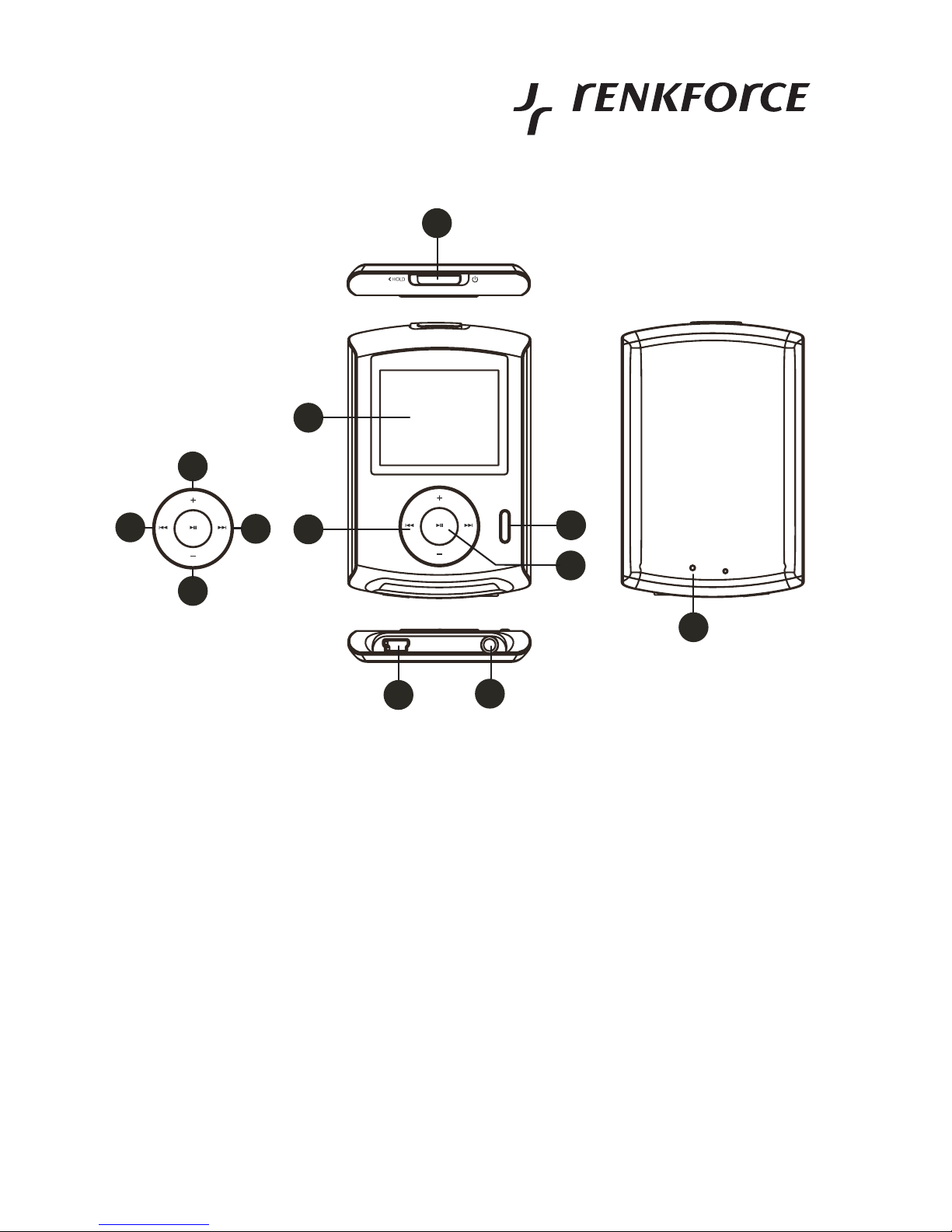
97
Bedieningselementen
1 Schuifschakelaar voor aan/uit en toetsblokkering ("HOLD")
2 LCD-scherm
3 Ronde knop voor menubediening met 4 toetsfuncties (3a....3d)
3a Toets "
"
3b Toets "
"
3c Toets "+"
3d Toets "-"
4 Toets "M" voor menufuncties
5 Toets ""
6 USB-bus voor het aansluiten aan een USB2.0 poort van een computer
7 Audiouitgang, 3,5 mm stereo-cinchbus voor koptelefoon/headset
8 Verzonken Reset-toets
2
4
1
3
5
7
6
8
3a
3c
3d
3b
Page 98

98
Gebruiksaanwijzing
Nederlands
Accu opladen
• De geïntegreerde accu wordt via USB opgeladen.
• Het laadproces kan bij een volledig lege accu meerdere uren duren.
Zoals reeds vermeld, kan het laadproces onafhankelijk van de laadstatus van
de accu worden uitgevoerd. Dankzij de toegepaste accu techniek hoeft de
accu niet eerst te worden ontladen, omdat er geen memory-effect ontstaat.
Dankzij de geïntegreerde laadelektronica wordt de accu nooit overladen en
wordt het laadproces op tijd beëindigd.
• De accu is leeg wanneer de Multimedia Player niet meer kan worden ingeschakeld.
Hetzelfde geldt, wanneer een "Batterij leeg”-waarschuwing verschijnt of wanneer de
Multimedia Player zichzelf tijdens het gebruik uitschakelt.
• Afhankelijk van het moederbord van uw computer, worden bij het uitschakelen via de aan/
uit-knop voorop de computer eventueel ook de USB-poorten uitgeschakeld (computer
bevindt zich in standby-modus).
Opladen is dan natuurlijk niet mogelijk. Hetzelfde geldt als de computer via de netschakelaar
wordt uitgeschakeld.
Omdat het onzinnig is de computer alleen aan te laten staan voor het opladen van de accu,
kunt u hiervoor ook bijv. een USB-hub met eigen voedingseenheid gebruiken. Deze blijft
normaliter ook actief wanneer de computer wordt uitgeschakeld.
Laad de Multimedia Player uitsluitend op via een USB-interface van een
computer of USB-hub en met de meegeleverde USB-kabel; anders kan de
laadelektronica en hiermee ook de Multimedia Player beschadigd raken.
Daarnaast ontstaat hierdoor brand- en explosiegevaar (kortsluiting van de
accu).
Raadpleeg ook de hoofdstukken "Veiligheidsvoorschriften"en "Accu instructies".
Page 99
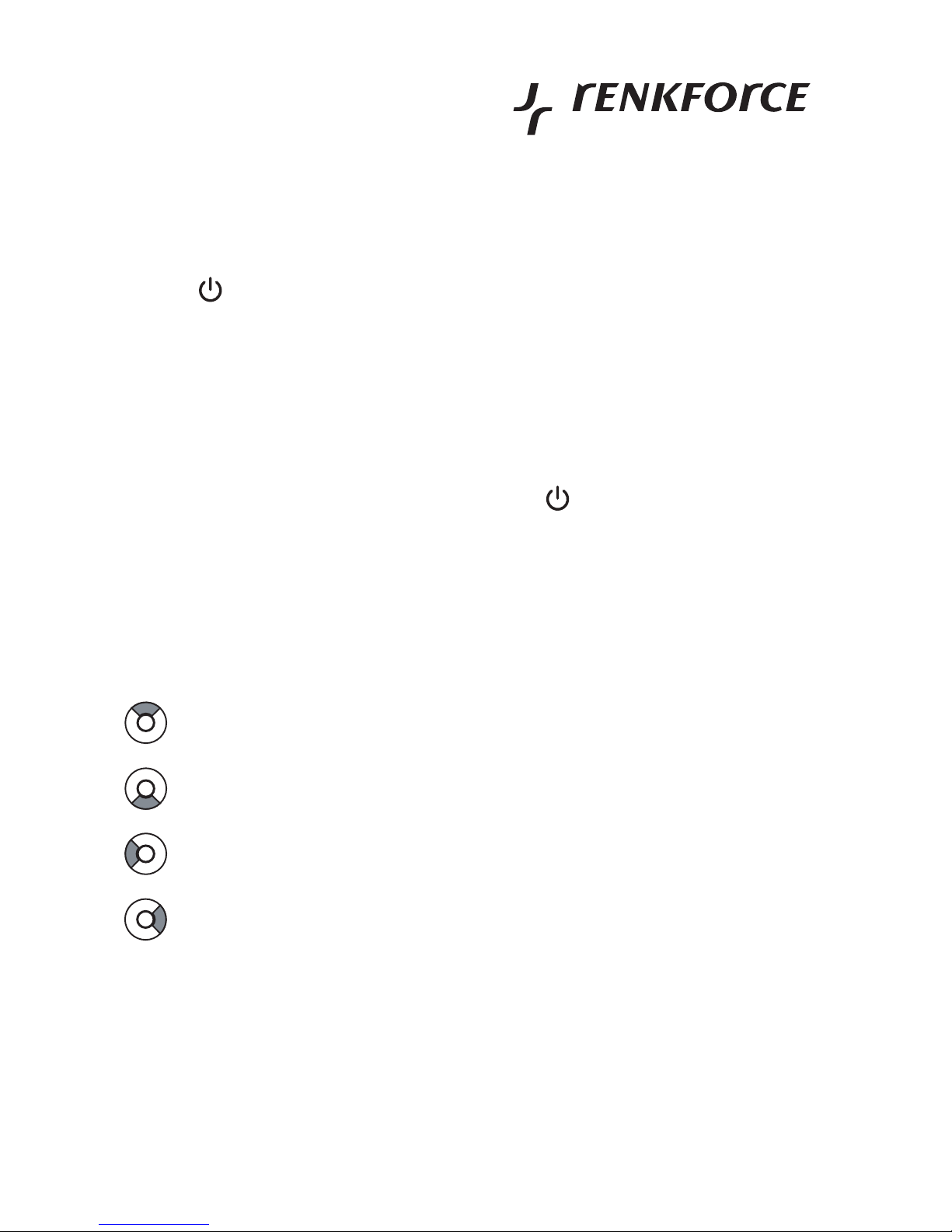
99
Basisfuncties
a) Inschakelen
Koppel de USB-verbinding naar de computer los. Zet de schuifschakelaar (1) op de bovenzijde
in de stand " " en laat deze weer los. Op het display verschijnt een begroeting en vervolgens
wordt het hoofdmenu van de Multimedia Player weergegeven.
Indien het display niet aan gaat en de begroetingstekst niet verschijnt, is de
accu leeg en moet deze eerst worden opgeladen.
b) Uitschakelen
Zet de schuifschakelaar (1) op de bovenzijde in de stand " " en houd de schakelaar in deze
stand vast totdat de Multimedia Player wordt uitgeschakeld.
c) Hoofdmenu, functies selecteren
• In het hoofdmenu en de submenu's worden de afzonderlijke functies geselecteerd met
behulp van de ronde menuselectieknop (3).
Boven, toets "+" (3c)
Onder, toets "-" (3d)
Links, toets "
" (3a)
Rechts, toets "
" (3b)
• De selectie wordt bevestigd door op de toets "" (5) in het midden van de ronde knop te
drukken (3).
• Om naar het vorige menu te gaan, kunt u drukken op de toets "M" (4).
Page 100

100
Gebruiksaanwijzing
Nederlands
d) Toetsblokkering
Beweeg de schuifschakelaar (1) naar links in de richting "HOLD". Bij een ingeschakelde
Multimedia Player verschijnt een slotsymbool op het display. Alle toetsen zijn nu functieloos.
Om de toetsblokkering op te heffen, zet u de schuifschakelaar terug in de middelste stand.
e) 3.5 mm-aansluiting (audiouitgang)
Sluit op de 3.5 mm koptelefoonbus (7) een koptelefoon resp. headset aan.
 Loading...