

Page 1
OPERATING MANUAL
1
ONDA S CASH REGISTER IS AVAILABLE IN CONFIGURATION FOR
OUTLETS WITH AVAILABILITY OF THE ELECTRICAL POWER
The content of this manual is strictly confidential.
Any copies or reproductions are prohibited
This manual is subject to regular amendments and updating by RCH.
Contents of the package
o ONDA S
o This use manual (user’s manual)
o Manufacturer’s declaration of conformity
o AC/DC 230Vca – 12Vcc 3A feeder and related network cable
Available optional accessories
o E.J. (electronic journal) on MMC RCH original memory support
o Drawer
Page 2

2
OPERATING MANUAL
INDEX
1. GENERAL DESCRIPTION............................................ 6
1.1 SECURITY NORMS AND REGULATIONS..............................................7
2. MAIN FEATURES ....................................................... 10
3. VIEW AND DIMENSIONS........................................... 11
3.1 VIEW OF THE CONNECTORS HOUSING.............................................11
3.2 VIEW OF THE MACHINE.......................................................................12
3.3 DIMENSIONS OF THE MACHINE .........................................................12
4 KEYPAD....................................................................... 13
4.1 KEYS FUNCTION..................................................................................14
5. DISPLAY AND VIEWING ............................................ 17
5.1 MODES INDICATION’ ...........................................................................17
5.2 KEYPAD LOCKING...............................................................................18
6. PROGRAMMING (PRG) ............................................. 19
6.1 DEPARTMENTS PROGRAMMING.......................................................20
6.2 PLU PROGRAMMING...........................................................................21
6.3 PAYMENT TYPES PROGRAMMING....................................................22
6.4 CLERKS PROGRAMMING....................................................................23
6.5 VAT PROGRAMMING...........................................................................24
6.6 PERCENTAGE OF INCREASE .............................................................24
6.7 PERCENTAGE OF DECREASE............................................................25
6.8 STATISTICS PROGRAMMING .............................................................25
6.9 DATE/TIME............................................................................................26
6.10 PROGRAMMING RECEIPT HEADER ...................................................27
6.11 RECEIPT FOOT PROGRAMMING ........................................................28
6.12 CUSTOMER’S MESSAGES PROGRAMMING......................................29
3
6.13 DRAWER IMPULSE PROGRAMMING..................................................30
6.14 DISPLAY LCD CONTRAST PROGRAMMING ......................................31
6.15 DISPLAY LCD LIGHTING PROGRAMMING.........................................32
6.16 KEY SOUND ..........................................................................................33
6.17 DELETE PLU .........................................................................................33
6.18 PROGRAMMING RECAPITULATION.....................................................1
6.19 PLU RECAPITULATION..........................................................................1
6.20 SERIAL PORT PROGRAMMING.............................................................1
7. RECORDING (REG) ................................................... 38
7.1 CLERK’S SETTINGS.............................................................................38
7.2 SALES TROUGH DEPARTMENTS.......................................................39
7.3 MULTIPLE QUANTITIES RECORDING ................................................41
7.4 SALES THROUGH PLU ........................................................................42
7.5 CHANGE CALCULATION.....................................................................43
7.6 DEDUCTIONS .......................................................................................44
7.7 INCREASES..........................................................................................44
7.8 PERCENTAGE DISCOUNT...................................................................45
7.8.1 PRODUCT PERCENTAGE DISCOUNT................................................45
7.8.2 PERCENTAGE DISCOUNT ONTO SUBTOTAL ...................................46
7.9 PERCENTAGE INCREASE ...................................................................46
7.9.1 PRODUCT PERCENTAGE INCREASE ................................................46
7.9.2 PERCENTAGE INCREASE ONTO SUBTOTAL....................................47
7.10 GOODS REFUND ..................................................................................48
7.11 VOIDS AND CANCELLATIONS ............................................................49
7.11.1 CL KEY................................................................................................49
7.11.2 CANCELLATION KEY .........................................................................50
7.11.3 VOID TRANSACTION .........................................................................51
7.11.4 RECEIPT VOID TRANSACTION.........................................................52
7.12 PAYMENT MODALITIES.......................................................................53
7.12.1 CASH PAYMENTS ..............................................................................53
Page 3

4
7.12.2 NOT PAID............................................................................................53
7.12.3 OTHERS PAYMENTS .........................................................................53
7.12.4 MIXED PAYMENTS.............................................................................54
7.12.5 LAST SALE VIEWING.........................................................................55
7.12.6 LAST TWO SALES TOTAL AMOUNT.................................................55
7.13 CASH COUNTER RECEIVE AMOUNT AND PAID OUT........................56
7.14 ALPHANUMERICAL STRING ...............................................................57
8. READINGS – X MODALITY........................................ 58
8.1 DAILY READING...................................................................................58
8.2 DEPARTMENTS DAILY READING.......................................................59
8.3 DEPARTMENTS PERIODIC READING.................................................59
8.4 PLU DAILY READING...........................................................................59
8.5 PLU PERIODIC READING.....................................................................59
8.6 CLERKS DAILY READING...................................................................60
8.7 VAT DAILY READING...........................................................................60
8.8 VAT PERIODIC READING.....................................................................60
8.9 DAILY HOURLY READING ...................................................................61
8.10 FINANCIAL TOTAL DAILY READING ..................................................61
9. DAILY RESET AND ELECTRONIC JOURNAL
READINGS (E.J.) ............................................................ 62
9.1 DAILY RESET........................................................................................63
9.1.1 DAILY RESET: PRINTOUT EXAMPLE .................................................64
9.2 ELECTRONIC JOURNAL READINGS ..................................................66
10. GRAPHIC LOGO....................................................... 67
11. TIME/DATE DISPLAYING......................................... 68
11.1 LEGAL TIME AND SOLAR TIME...........................................................68
12. REPLACEMENT OF THE PAPER ROLL.................. 69
13. REPLACEMENT OF THE ELECTRONIC JOURNAL70
13.1 FILLING UP THE LABEL.........................................................................71
13.2 PRUDENCE IN OPERATING THE MMC .................................................71
5
14. ERROR MESSAGES LIST........................................ 72
15. LEGISLATION AND WEEE SYMBOL....................... 77
Page 4

6
1. GENERAL DESCRIPTION
ONDA S Cash Register offers a high level of performance and management of
your business and features speed and ease to use.
ONDA S is equipped with two liquid crystal displays able to view 2 lines
consisting of 16 alphanumerical characters (clerk’s side display) and 1 line of 16
alphanumerical characters (customer’s side display).
This instrument is equipped with a high performances thermal printer able to print
any graphics (as an example, your business logo) with a high operating speed. It
does not require any ink ribbon as in the case of traditional printers, thus,
avoiding a troublesome regular replacement operation, achieving a decrease of
its management and operating costs and, further, offering an always-perfect
printout quality.
The traditional paper journal is replaced a specific MMC card memory ensuring
more reliability, safety, use practicality, and a higher operating economy. All this
with smaller dimensions.
ONDA S allows fully managing your business:
• By keeping in the memory the sales of 20 departments;
• By managing up to 10000 PLU (pre-memorised prices);
• By managing 4 clerks (to allow the “monitoring” of the work).
7
1.1 SECURITY NORMS AND REGULATIONS
Whereas RCH authorised technicians solely must install ONDA S, it
is reminded that for proper operations the following instruction must
be complied with:
• Upon installation verify that the power plug is close to the machine and may be
easily accessed during the normal operations of the machine.
• Only connect original feeders provided for this machine. Any different type
feeder may damage the machine or prevent its proper operations.
• Do not place ONDA S in unstable surface. It may fall and seriously get
damaged.
• The machine includes a LITHIUM battery that may be recharged. For its
replacement it is necessary to address solely the RCH authorised technicians.
• Avoid the operations of the machine in places too cold or hot or hit by solar
rays for long time (proper operations are ensured at temperature between -
10°C and 45°C). Do not use, in the open air, a machine installed for the use in
closed environment.
• The fiscal measurer provides for the warning of the coming exhausting of the
rolls through visual warning. Therefore, rolls with coloured ends must be used.
• Only connect drawers with original change return.
• The use of any non-original accessories or spare parts would cancel the right
to the warranty.
• In case of malfunctioning of the machine, please address a service centre
authorised by RCH.
In case of any faults or malfunctioning preventing the proper operations of the
machine from the fiscal standpoint, the cash register blocks and a short
message would appear on the display. An acoustic message is also heard.
In these cases the machine must be switched off and the technical
assistance service of the RCH Authorised Centre must be asked for.
Page 5

8
The machine must undergo a revision (preventive maintenance) at least once
a year or, in any case, not over one year from the date of the last service
performed as resulting from the fiscal book.
When the Fiscal Memory is about to finish, on the heading to the receipts of
the daily setting to zero would appear the message “fiscal memories near to
finish – XX closures”.
Such message is printed starting from 60 setting to zero before the
completion of the Fiscal Memory and, therefore, the user gets the warning
about two months before.
9
OTHER WARNINGS:
ONDA S fiscal cash register is equipped with thermal printer. Therefore it
must utilise approved thermal paper stating both the details of the approval
and the due date, according to the contents of the Ministerial Decree
(D.M.) issued by the italian Ministry of Finance on 30/03/92, attachment E.
Furthermore, the user must keep the documents provided for under the
Law, in dark places with relative humidity of less than 80% and a
temperature of less than 35°C, thus avoiding the direct contact with plastic
materials and, particularly, with polyvinyl chloride.
RCH recommends the use of the following thermal papers: Mitsubishi F
5041, or JUJO THERMAL AF 50 KSE.
Machine consistent with norms and regulations
Page 6
10
2. MAIN FEATURES
Feeding: AC/DC power supply 230Vac, CC12V 3A adapter (supplied in
the configuration by outlet)
Thermal printer: ELM208 - APS
Printing speed: 80 mm/s – columns number: 24 - MTBF: 50 Km .
(Alternatively, the printer CP295 – APS – speed 80 mm/s – columns
number: 24 - MTBF: 50 km is provided for as an alternative)
Thermal paper rolls: 57,5 ± 0,5 mm max diameter 45 mm .
Clerk’s side display: LCD display (2 lines of 16 alphanumerical
characters).
Customer’s side display: LCD display (16 alphanumerical characters).
Operating temperature: 0 ÷ 50 °C .
REPORTS:
• Daily report
• Department daily and periodic
• PLU daily and periodic
• Clerks daily
• VAT daily and periodic
• Hourly daily
• Financial daily
OPTIONAL KIT:
• PC Software
• Cash drawer
• MMC RCH original memory
support
PROGRAMMING:
• Department number: 20
• Plu number: 10000
• Payment total: 3
• Clerks number: 4
• VAT number: 8
• Report printout enabling
• Date/Time
• Heading messages and
courtesy receipt
• Store logo: 1 entered through
PC
• Halo logo: 1 entered through
PC and 4 of default
11
3. VIEW AND DIMENSIONS
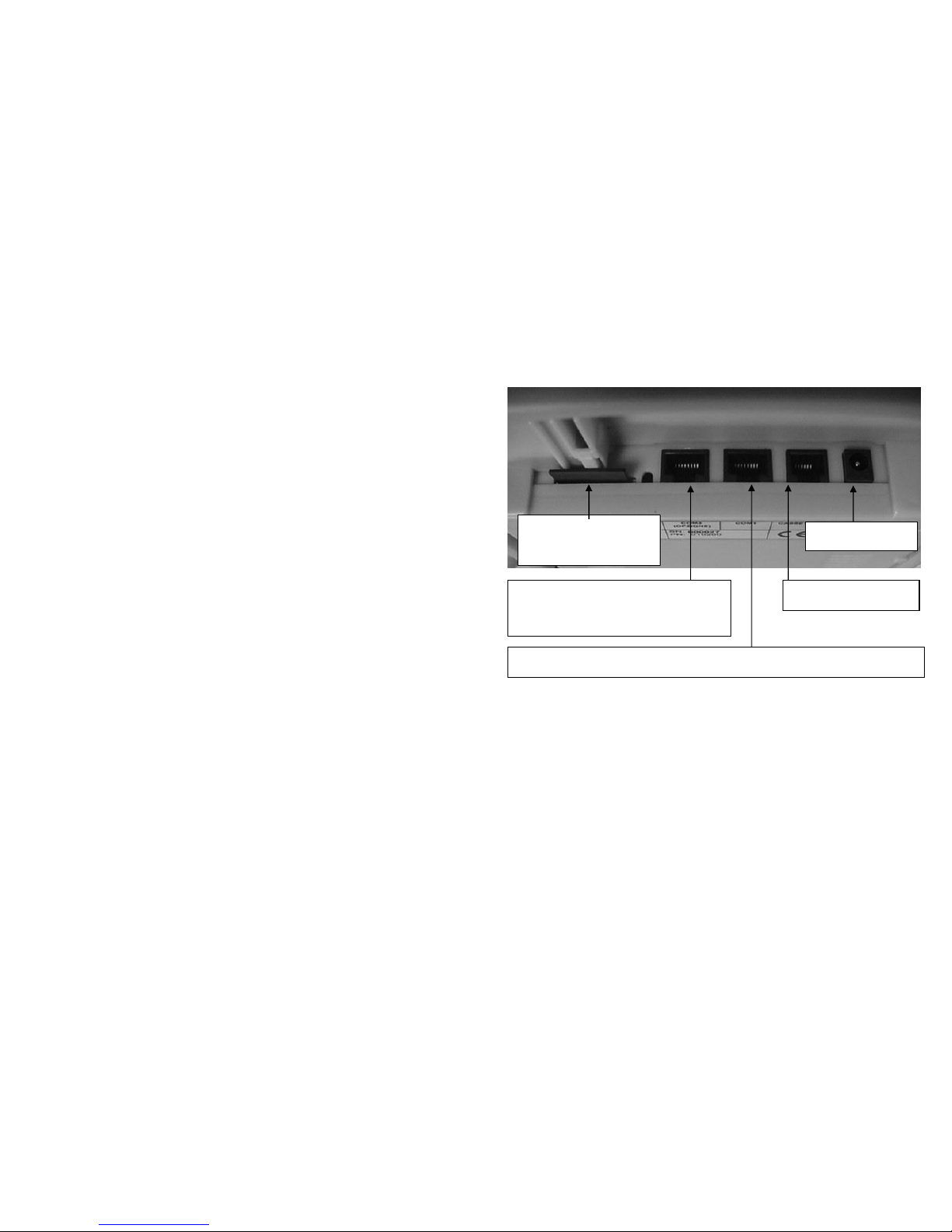
3.1 VIEW OF THE CONNECTORS HOUSING
(*) ATTENTION!; contact the technical assistance before connecting
scanner.
12 V DC feeding
Drawer connector
Connector for CONTROL UNIT or PC (only for configuration)
MMC
(E.J. electronic journal)
Connector for SCANNER or PC
(use the cable adapter)*
Page 7
12
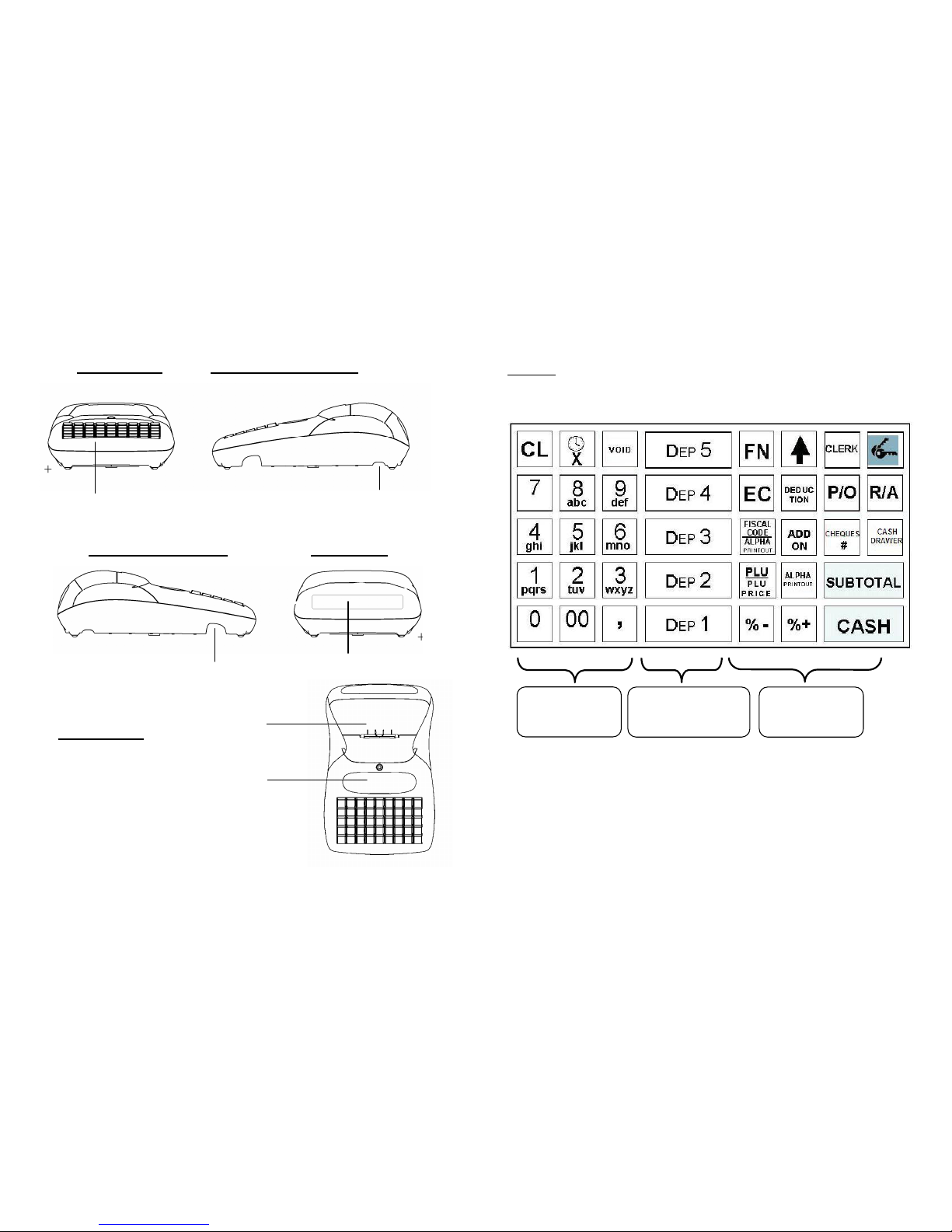
3.2 VIEW OF THE MACHINE
FRONT VIEW LATERAL RIGHT VIEW
LATERAL LEFT VIEW REAR VIEW
UPPER VIEW
3.3 DIMENSIONS OF THE MACHINE
Width: 222 mm
Depth: 346 mm
Height: 114 mm
VOUCHER EXIT
KEYPAD
CLERK DISPLAY
SWITCH
CUSTOMER DISPLAY
MMC AND CONNECTORS
13
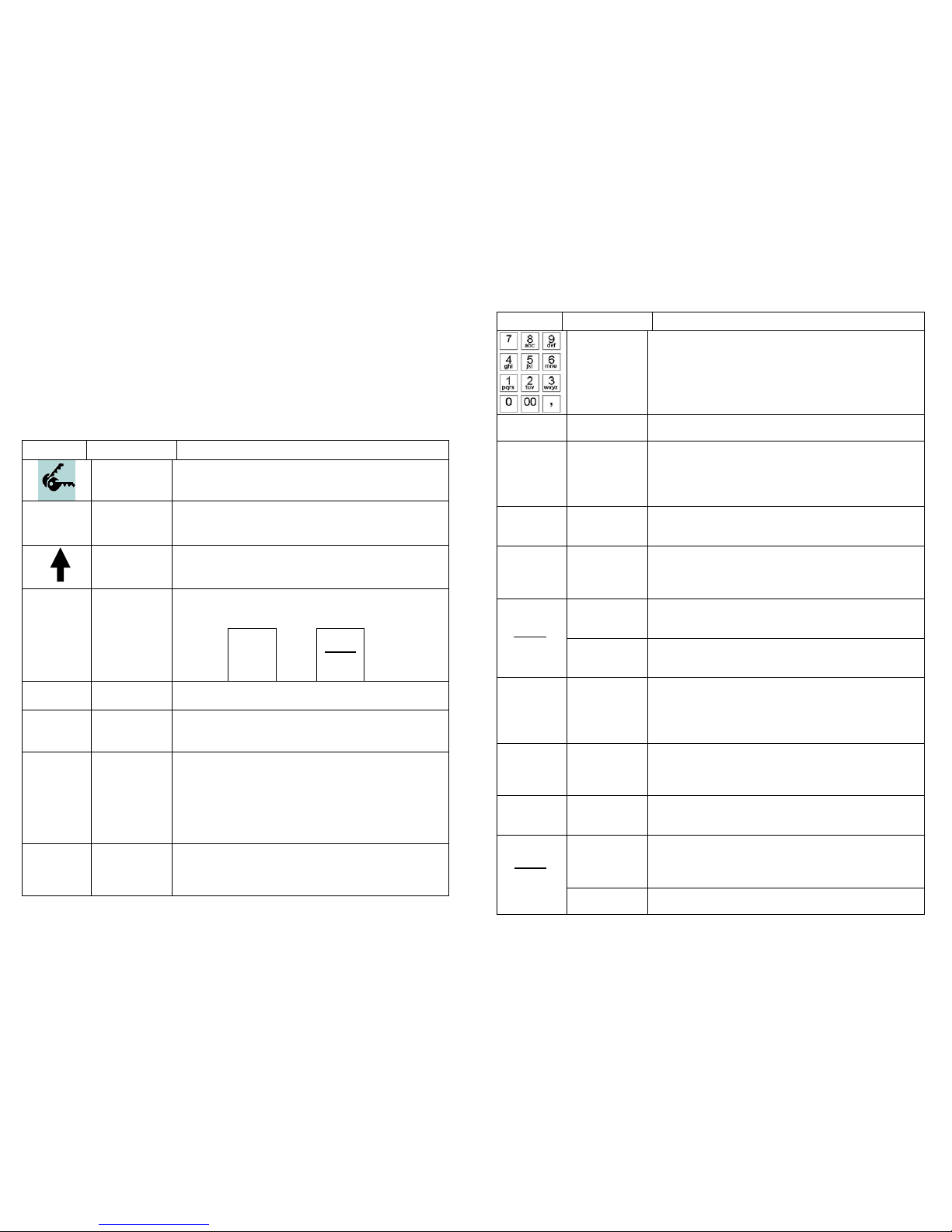
4 KEYPAD
A keypad that allows manually performing all the fiscal functions
guarantees ECR operations. The following configuration is proposed as
standard
. However, it may freely be changed by placing the keys into
different positions or by adding other departments. Contact assistance if
you need to change configuration keys.
Use the numerical keypad to enter the letters as commonly made with the
portable telephones, using the printing on the keys. As an example, by
pressing the key 1 character “1” would be displayed, by repeatedly
pressing the same key, the character entered changes and would
become P, Q, R, and S, then to become again 1. Should the next letter be
on the same key, wait a few seconds to allow the cursor to automatically
advance one position to enter the next character.
To change any entered character use the following function keys:
[ %+] = moving the cursor to the right
[ %- ] = moving the cursor to the left
[ CL ] = cancel the entire line
NUMERICAL
KEYPAD
DEPARTMENT
KEYS
FUNCTION
KEYS
Page 8
14
[ 7 ] = character “7” or “SPACE”
[ 0 ] = charater “0”, or (in sequence) “ / . : , ; ’ - = ( ) % & ! ? + * @ ”
4.1 KEYS FUNCTION
KEY Name Function definition
KEY
Key to select the operating mode (REG - X - Z PRG) and for lock keyboard.
CLERK
CLERK
(OPERATOR)
Key to enter the code and the change of the cash
counter clerk
PAPER
FEED
Key to advance the receipt paper
Alternate function key. Press, previously, by one of
the key with associated double function, would allow
entering the second function.
FN
FUNCTION
Example:
pressing
key
FN
Before
key
PLU
PLU
PRICE
The function
PLU PRICE is
utilised
Instead of PLU
function
DEP 1
DEPART.
(N)
Key utilised for the recording of the items by
previously entering the price.
VOID
VOID
Key utilised to reverse an amount of a specific
department.
¡
X
X \ TIME
The key puts together two different functions directly
accessible (it is of no use to press FN key to select X
or Time): the first function displays the time, should
the key be pressed with no fiscal receipt. The second
function multiplies the set quantity by the amount
associated with the department/PLU, during the
recording of a fiscal receipt.
CL
CLEAN
DISPLAY
Key used to cancel a data before recording it onto the
memory of a department or PLU. Also, utilised to
correct keying errors, if any, or to remove acoustic
messages or on display, if any.
15
KEY Name Function definition
NUMERICAL
KEYPAD
with
ALPHABETIC
function
The numerical keypad allows entering numerical and
alphanumerical information, useful to print the fiscal
receipt (keying for the printout of the Customer’s
Fiscal Code onto the fiscal receipt) and for the
programming operations of the fiscal numerator.
EC
CANCEL
Key utilised to cancel the last recording entered onto
the department memory or of a PLU.
DEDUC
TION
DEDUCTION
Key utilised to deduct a value from the memory of the
last department or of the current fiscal receipt PLU
(open). If utilised after the SUBTOTAL it would affect
proportionally all the items (departments and/or PLU)
of the current fiscal receipt.
P/O
PAID OUT
“Management” key to record the paid out (collection)
of cash or cheques from the cash counter
(management/control of cash in the drawer).
R/A
RECEIVE
AMOUNT
“Management” key to record the received amount
(placing cash funds upon opening of the outlet) of
cash into the cash counter (management/control of
cash in the drawer).
FISCAL
CODE
Key utilised to print the Fiscal Code (talking receipt)
within a fiscal receipt. The fiscal code follows the
acronym C.F. according to the current law.
FISCAL
CODE
ALPHA
PRINTOUT
ALPHABET
PRINTOUT
Key utilised to print information segregated from the
contents of the fiscal receipt, following the character
“#”
ADDON
INCREASES
Key used to add a value onto the memory of the last
department or PLU of the current fiscal receipt
(open). If utilised after the SUBTOTAL it would affect
proportionally all the items (departments and/or PLU)
of the current fiscal receipt.
CASH
DRAWER
#
OPEN
DRAWER
The key works as drawer opener.
CHEQUE
TOTAL 2
Key to close the receipt by cheques payment. The
access of cash into the drawer (change function) may
be programmed.
PLU
Key to record the sale of a specific item memorised
onto the machine with unit code and price. The PLU
code may be accessed with the prior keying of the
given code or scanner reading.
PLU
PLU
PRICE
PLU Price
Key to enter manually the price of a specific PLU
during the current sale (open fiscal receipt)
Page 9
16
KEY Name Function definition
SUB
TOTAL
SUBTOTAL
Key utilised to print and view the Subtotal of a receipt.
If pressed outside a fiscal transaction would calculate
and display the amounts of the last two receipts.
%-
%
DEDUC
TION
Key utilised for the deduction (discount) of an amount
(price) after recording a given department.
When in X, Z, and P operating mode, the key
allows selecting, thanks to a menu by circular
sliding, certain functions of printout, reading,
closing and programming.
%+
%
ADDON
Key utilised for the increase (price) of an amount
(price) after recording a given department.
When in X, Z, and P operating mode, the key
allows selecting, thanks to a menu by circular
sliding, certain functions of printout, reading,
closing and programming.
CASH
TOTAL 1
Key utilised to close a fiscal receipt (Sale) with
payment by CASH money. If pressed once finished
with the fiscal receipt, it would view the total amount
of the last fiscal receipt. If, instead, is pressed after
entering an amount, it allows calculating the change,
if any (on display only).
17
5. DISPLAY AND VIEWING
ONDA S is supplied with two displays, one on the clerk’s side and the other on
the customer’s side.
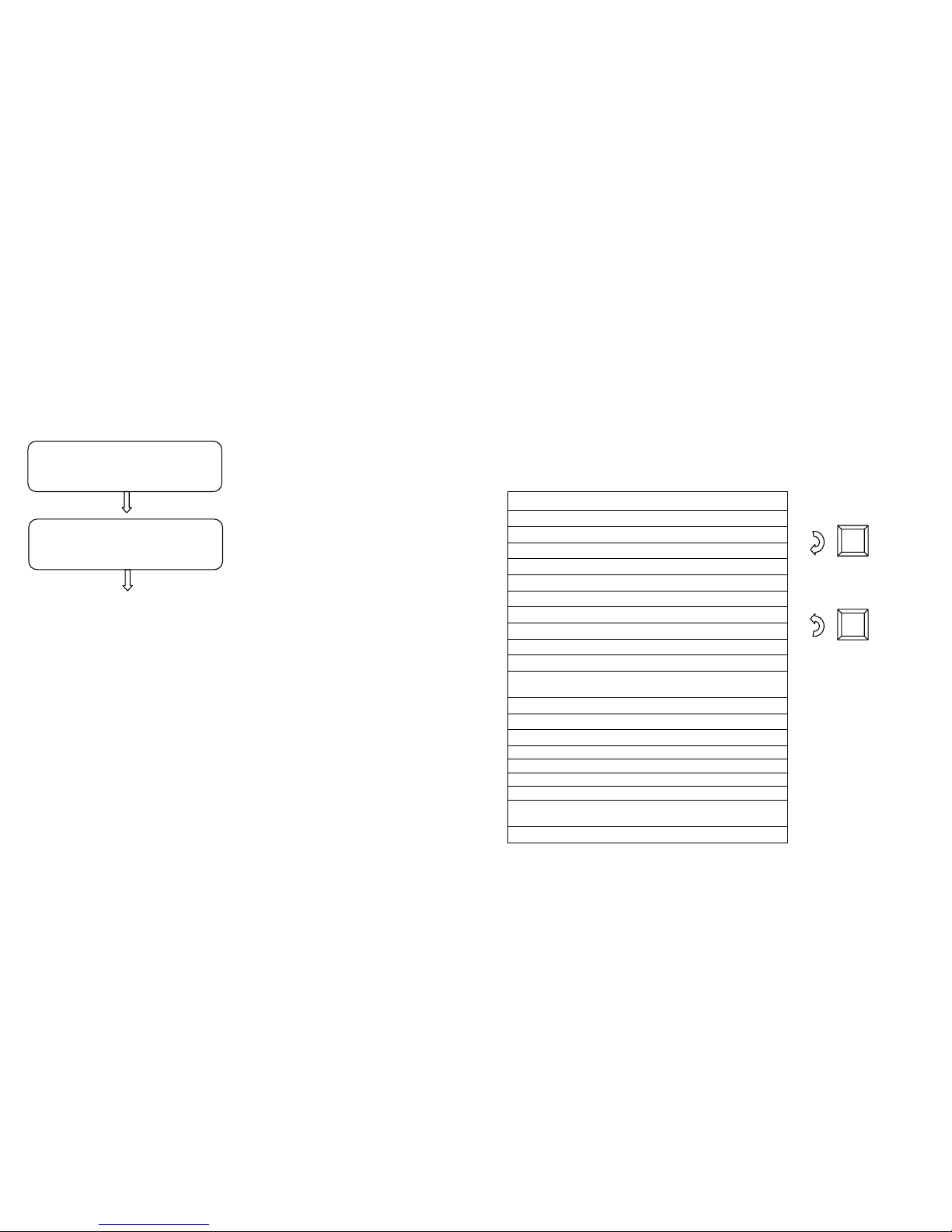
Clerk’s display: 2 alphanumerical lines x 16 characters (fig. 1)
Customer’s display: 16 alphanumerical characters
(Fig. 1) Clerk’s display
5.1 MODES INDICATION’
To select a mode it suffice to enter the number of the mode to activate
followed by the key KEY (KEY). (As an example, to set up the
programming: 4 and KEY ). When we are in a mode other than
Recording, it is possible to select one of the functions wished for through
the two sliding keys %+ e %- .
According to the mode where the machine is, the clerk’s display will
inform of it by displaying the related
identification on the upper left hand.
Once the menu is accessed through the keys %+ o %-, the display shows
on the upper line the type of display that may be selected through sliding
(see the following figure carrying an
example of display in Z mode).
To exit the menu, press the key [VOID].
MODALITIES DESCRIPTION
0 KEY Keypad locking
1 KEY REG Operating mode (recording)
2 KEY X Reading with fiscal daily reports– statistics
3 KEY Z Printout/Fiscal daily reportsof the financial, of the cash
counter sold, etc.
4 KEY PRG Programming ( PLU, Departments, Financial, etc.)
CASH
12.60
PRG
0
-Z DAILY REPORT-
Daily Reset
Page 10
18
5.2 KEYPAD LOCKING
To avoid any involuntary recording or to prevent the non-authorised
personnel from using ONDA S without, necessarily, switching off the cash
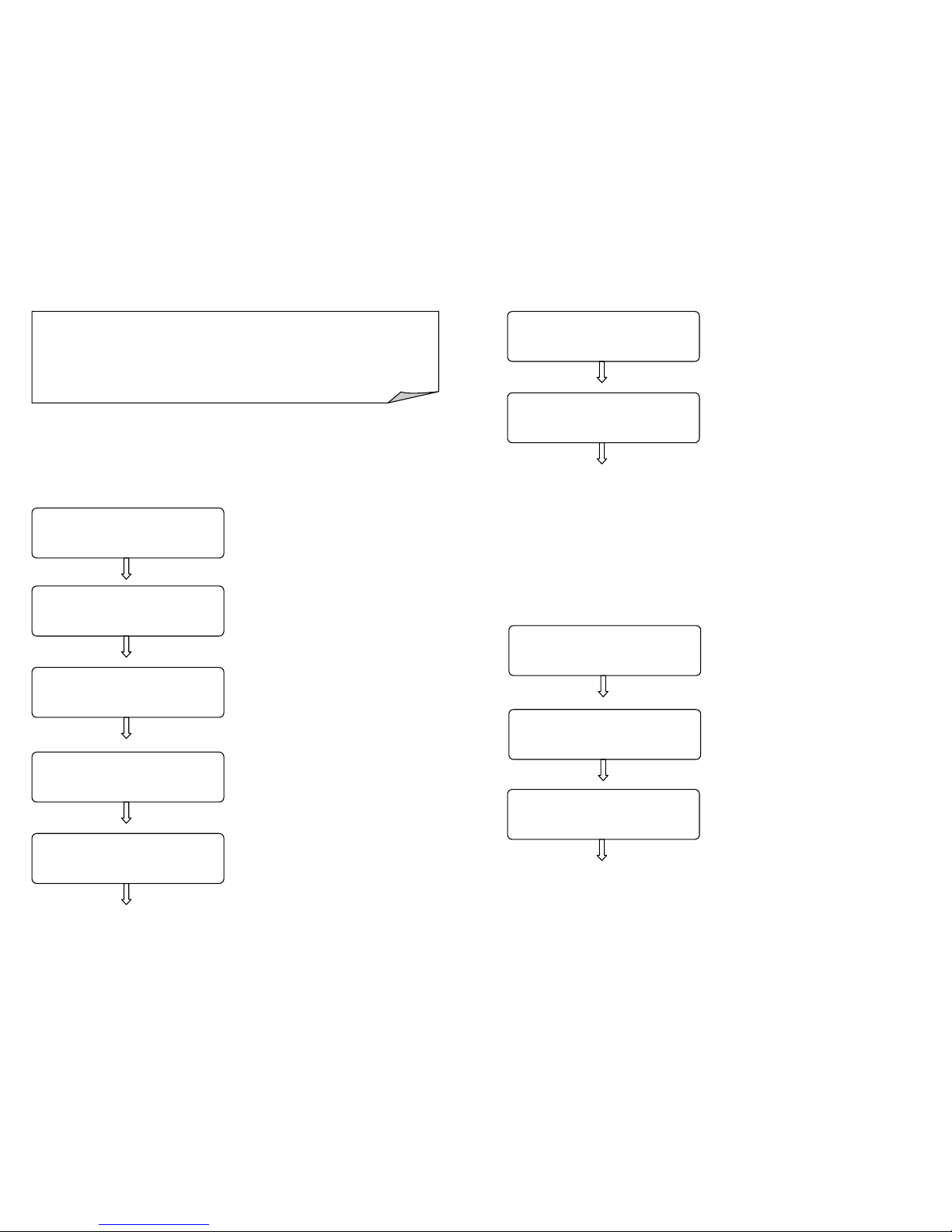
counter, use procedure “0” and key KEY from any modalities (REG – X –
Z – PRG). The display would show:
By pressing the key KONTANT the
keypad use is blocked (pre-selected
value “YES”), otherwise by pressing
the key %+ and KONTANT it gets
back to the previous mode.
To use the keypad again, it suffices pressing the sequence of the keys to
enter one of the four modes (example. 1 and KEY).
NOTE: if on display there is only value 0,00 it is possible to lock and then
unlock the keypad by pressing one after the others the keys KEY and
KONTANT.
LOCK KEYBOARD ?
<YES> / NO
* KEYBOARD *
* LOCK *
19
6. PROGRAMMING (PRG)
To access the menu programming enter keys 4 and KEY
• Move from a function to the other using the key [%+] forward and [%-]
backward.
• To select the programming function press KONTANT
• To return the main menu press the key VOID
• To exit the menu PRG and to return in REG press 1 + KEY
PROGRAMMING MENU
PROGRAMMING DEPARTMENTS
PROGRAMMING PLU
PROGRAMMING PAYMENT TYPE
PROGRAMMING CLERKS
PROGRAMMING VAT %
PROGRAMMING % INCREASE
PROGRAMMING % DECREASE
ENABLING TO DAILY STATISTICS PRINTOUT
PROGRAMMING DATE / TIME
PROGRAMMING RECEIPT HEADING
PROGRAMMING PRESSURE FOOT
(Logo printout at the end of receipt)
PROGRAMMING MESSAGES TO CUSTOMER
PROGRAMMING DRAWER IMPULSE
PROGRAMMING LCD CONTRAST
PROGRAMMING LCD LIGHTING
ENABLE KEY BEEP
DELETE PLU
PROGRAMMING RECAPITULATION PRINTOUT
PROGRAMMED PLU RECAPITULATION
PRINTOUT
SERIAL PORT PROGRAMMING
+%
-
Page 11
20
**** WARNING ****
The data programmed with the following functions are
memorised onto the RAM memory. After an upgrade action
or a total reset, all programmings are lost.
6.1 DEPARTMENTS PROGRAMMING
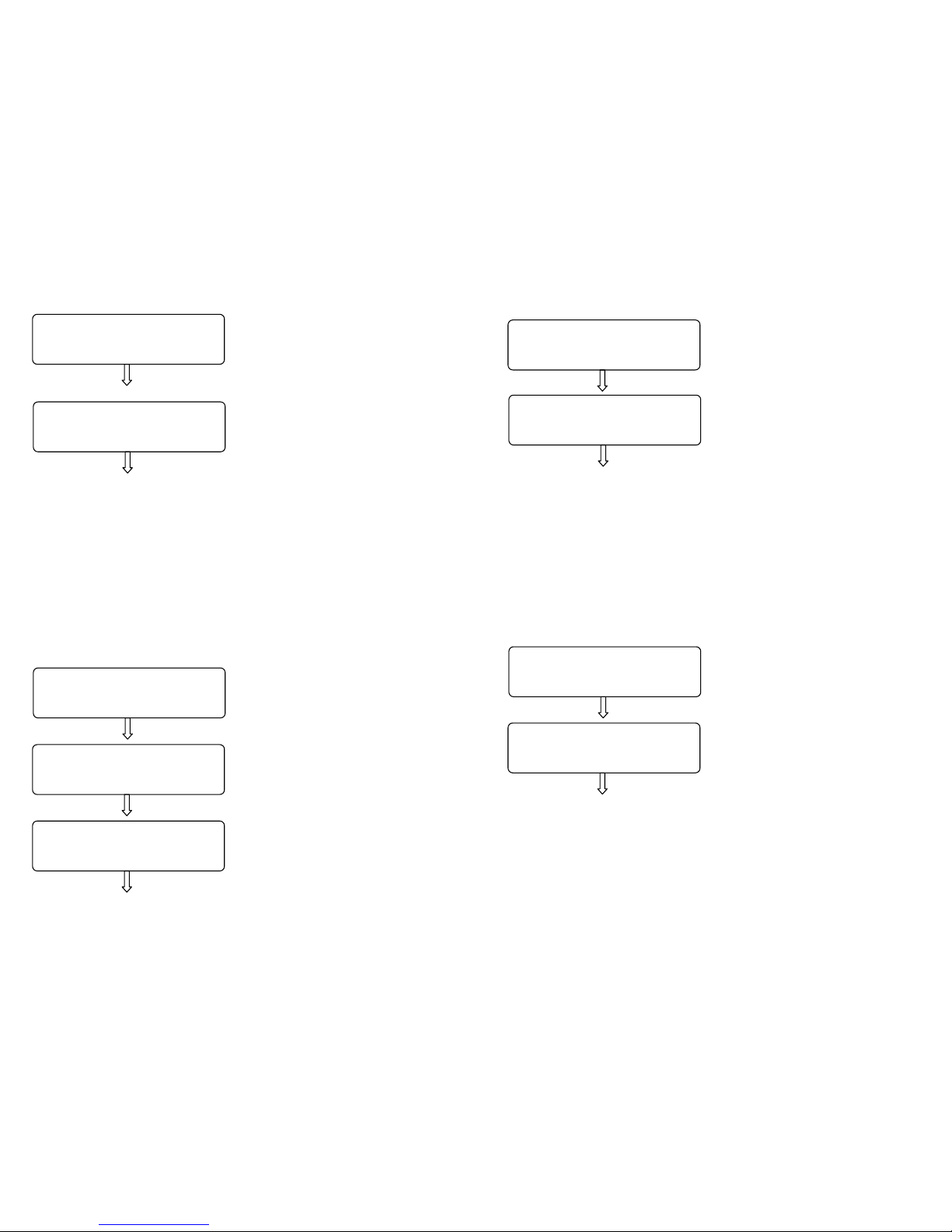
In PRG (4 + KEY) press [%+] to display Departments.
Press [KONTANT] to start programming the departments:
A) Enter a value from 1 to 20 and
press [KONTANT]
B) Enter the price to associate to the
key of the given Department and
press [KONTANT]
C) Enter the description using the
numeric keypad, entering max 12
characters and press [KONTANT]
(see chapter 4).
D) Enter the max value that a
department may accept and press
[KONTANT]. If zero, no limit.
E) Enter the minimum value that the
department may accept and press
[KONTANT]. If zero, no limit.
PRICE?
0.00
DEPT CODE ?
1
DESCRIPTION?
<DEP
T
01 > 01
HIGH LIMIT. ?
0.00
LOW LIMIT. ?
0.00
21
F) Associate a VAT code to the
department and press [KONTANT]
(see chapter 6.5).
G) Using key %+ and %- enable or
not enable the single entry on the
department and press [KONTANT]
The display sets for the next programming of another department. Repeat
the sequence to program the next PLU.
To exit the program departments function press [VOID] .
6.2 PLU PROGRAMMING
In PRG (4 + KEY) press %+ until PLU is displayed
Press KONTANT to start programming the PLU:
A) Enter a value from 1 to 10000
then press [KONTANT]
B) Enter the associated department
code and press [KONTANT]
C) Enter the price to associate to
PLU and press [KONTANT]
PRICE?
0.00
PLU CODE?
1
DEPT CODE?
1
VAT CODE ?
0
AUTO CLOSE ?
YES / <NO>
Page 12
22
D) Enter the PLU description using
the numeric keyboard, entering max
12 characters) then press
[KONTANT]. (See chapter 4)
E) Enter by keying or using the
scanner, the barcode to associate
to the PLU (EAN8/13 and UPC) and
press [KONTANT].
The display sets for the programming of another PLU. Repeat the
sequence to program the next PLU. To exit press [VOID].
Note: the PLU may be loaded through PC using the optional software.
6.3 PAYMENT TYPES PROGRAMMING
With ONDA S it is possible to use three different Totals for the payment.
In PRG (4 + KEY) press [%+] until Payments is displayed.
Press KONTANT to start programming:
A) Enter a value from 1 to 3 and
press [KONTANT]
B) Enter the description of the Type
of payment using the numerical
keypad entering a max of 12
characters and press [KONTANT].
(See chapter 4)
C) Choose with the keys [%+] and
[%-] whether or not payment must
be authorised with change
management and confirm through
[KONTANT].
DESCRIPTION?
<PLU 0001 > 01
BARCODE?
PAYMENT CODE?
1
DESCRIPTION?
<CASH > 01
CHANGE ENABLED?
<YES> / NO
23
D) Choose through keys [%+] and
[%-] if the Total increases the
CASH Counter Adding Device and
confirm through [KONTANT].
E) Choose through the keys [%+]
and [%-] if not paid payment must
be enabled and confirm with
[KONTANT].
The display sets for the next programming of a payment type. Repeat the
sequence to program the next ones. To exit the program “Payments”
function press [VOID] .
6.4 CLERKS PROGRAMMING
In PRG (4 + KEY) press [%+] until Clerks is displayed. Press KONTANT
to start the programming:
A) Enter a value from 1 to 4 then
press [KONTANT]
B) Enter the clerk’s name using the
numerical keypad, entering a max
of 12 characters and press
[KONTANT]. (See chapter 4)
The display sets for the next programming of another clerk. Repeat the
sequence to program further clerks. To exit to program “Clerks” function
press [VOID].
CASH IN DRAWER?
<YES> / NO
CREDIT ?
<YES> / NO
CLERK CODE?
1
CLERK NAME?
<JACK > 01
Page 13
24
6.5
VAT PROGRAMMING
In PRG (4 + KEY) press [%+] until VAT % is displayed. Press KONTANT
to start programming:
A) Enter a value from 1 to 7 and
press [KONTANT] (0 is exempt
VAT)
B) Enter the VAT percentage and
confirm with [KONTANT].
The display sets for the next programming of another VAT code. Repeat
the sequence to program further VAT. To exit the PRG VAT function
press [VOID].
6.6 PERCENTAGE OF INCREASE
In PRG (4 + KEY) press [%+] until Add-on % (Increase Percentage) is
displayed.
Press [KONTANT] to start programming the value to associate to the key
[%+] :
Enter the percentage of increase
with two decimal figures and press
KONTANT.
The display exits the programming displaying again “Add-on %”.
To exit the function, press the key [VOID] .
VAT CODE?
1
PERC.PRICE RISE?
10,00
VAT PERCENTAGE:
0,0
25
6.7 PERCENTAGE OF DECREASE
In PRG (4 + KEY) press [%+] until Discount % (Decrease Percentage).
Press [KONTANT] to start programming the value to associate
to key [%-] :
Enter the discount percentage
carrying two decimal figures and
press [KONTANT].
The display exits the programming by displaying again “Discount %”.
To exit the function, press the key [VOID].
6.8 STATISTICS PROGRAMMING
In PRG (4 + KEY) press [%+] until Daily stat. (Daily Statistics).
Press [KONTANT] to start programming:
A) Choose through keys [%+] and
[%-] if PLU report printout must be
enabled. Choose YES or NO then
press [KONTANT].
B) Choose through keys [%+] and
[%-] if the CLERKS report printout
must be enabled. Choose YES or
NO then press [KONTANT].
C) Choose through keys [%+] and
[%-] if the TIME report printout must
be enabled. Choose YES or NO
then press [KONTANT].
The display leaves the programming displaying again “Daily stat.”. To exit
the function, press [VOID].
CLERKS
YES / <NO>
HOURLY
YES / <NO>
PERC. REDUCTION?
5,00
PLU
YES / <NO>
Page 14
26
6.9 DATE/TIME
In PRG (4 + KEY) press [%+] until Date/Time is displayed.
Press [KONTANT] to start programming (after the Daily Reset):
A) Enter a value from 1 trough 31
referred to today, then press
[KONTANT]
B) Enter a value from 1 to 12
referred to this month then press
[KONTANT]
C) Enter this year with 4 figures,
then press [KONTANT]
D) Enter a value from 0 to 23
referred to the current time, and
then press [KONTANT]
E) Enter a value from 0 to 59
referred to the minutes of the
current hour, and then press
[KONTANT]
The display exits the programming displaying again “Date/Time”.
To exit press [VOID].
DAY:
1
MONTH:
1
YEAR:
2012
HOURS:
8
MINUTES:
30
27
6.10 PROGRAMMING RECEIPT HEADER
In PRG (4 + KEY) press [%+] until Header Msg is displayed.
Press [KONTANT] to start programming:
A) Move using keys [%+] and [%-]
to choose the heading Logo to print
on the fiscal receipt. Display the title
associated to the Logo, then press
[KONTANT].
B) Enter a value from 1 trough 6
related to the line to re-program,
then press [KONTANT].
C) Enter the personal data using
the numerical keypad, by entering a
max of 24 characters, and then
press [KONTANT]. (See chapter 4)
D) Choose through the keys
[%+] and [%-] if the centred
printing of the wording must be
enabled, then press
[KONTANT].
Repeat the same sequence for the next lines.
To exit the PRG “Header Msg” function press [VOID].
HEADER ROW NUM.?
1
- SELECT. LOGO None
DESCRIPTION ?
< RCH S.P.A. >01
CENTERED TEXT ?
<YES> / NO
Page 15
28
6.11 RECEIPT FOOT PROGRAMMING
In PRG (4 + KEY) press [%+] until Footer Logo is displayed.
Press [KONTANT] to start programming:
Move through the keys [%+] and
[%-] top chose the Logo to print at
the bottom of the fiscal receipt.
Display the title associated to the
Logo, then press [KONTANT].
Once left PRG “Footer Logo” function, press [VOID] to return in PRG Set
up or to continue the programming.
- SELECT. LOGO None
29
6.12 CUSTOMER’S MESSAGES PROGRAMMING
This programming allows programming up two courtesy lines (max 24
characters per line) that will be printed three lines under the fiscal receipt
and to program also a sliding message on the customer’s side display.
Such displays are used to market your business. It is possible to set up
the value in seconds that would allow displaying the date and the time
after a few given seconds the cash counter is idle.
In PRG (4 + KEY) press [%+] until “Customer msg” is displayed.
Press [KONTANT] to start programming:
A) Enter the wording of the first
courtesy line (24-character max.),
and then press [KONTANT].
[ CL ] = cancels the entire line
[ %- ] = moves to the left
[ %+ ] = moves to the right
[ 7 ] = Character 7 or SPACE
B) Enter the wording of the second
courtesy line (24 characters max),
then press [KONTANT].
Note: if nothing must be written,
press [KONTANT] without entering
any character.
C) Enter the wording of the sliding
advertising message (36
characters max) then press
[KONTANT].
CUSTOMER
MESSAGE
ROW 1 :
< THANK YOU >10
ROW 2 :
< SEE YOU AGAIN >14
SLIDING
MESSAGE
SLIDING MSG.
<THANKS FOR >10
Page 16
30
D) Set up the value in seconds
that allows the automatic
displaying of the date and time
after a certain number of seconds
the cash counter is idle, then
press [KONTANT]. If not to
enable, leave the value at zero,
then press [KONTANT].
Once left PRG “Customer msg” function, press the key [VOID] to return
to PRG menù (PRG Set up), or continue the programming.
6.13 DRAWER IMPULSE PROGRAMMING
In PRG (4 + KEY) press [%+] until “Drawer pulse” is displayed
Press [KONTANT] to start programming:
Enter a value from 1 to 5
according to the drawer, then
press [KONTANT].
Once left the PRG “Drawer pulse” function, press [VOID] to go back to
PRG Set up, or continue the programming.
PULSE LENGTH 1-5
AUTO SHOW
DATE / TIME
SEC.? ( 0 = OFF)
0
31
6.14 DISPLAY LCD CONTRAST PROGRAMMING
In PRG (4 + KEY) press [%+] until LCD Contrast is displayed.
Press [KONTANT] to start the programming:
A) Slide the keys [%+] and [%-] to
display a value from 0 to 5, then
press [KONTANT].
B) Slide the keys [%+] and [%-] to
display a value from 0 to 5, then
press [KONTANT].
Once left the PRG “LCD Contrast” function, press [VOID] to go back to
PRG function, or continue the programming.
CUSTOMER LCD
3
CLERK LCD
3
Page 17
32
6.15 DISPLAY LCD LIGHTING PROGRAMMING
In PRG (4 + KEY) press [%+] until LCD backlight is displayed. Such
programming allows choosing whether the displays must remain always
lighted or not. Further, it is possible to set up a value in seconds that
would allow switching off the displays after the cash counter has been idle
for a number of seconds.
Press [KONTANT] to start the programming:
A) Slide the keys [%+] and [%-] to
alternatively display
• ON
• OFF
• Automatic
Then press KONTANT.
B) If “Automatic” is chosen, by
pressing [KONTANT] the display
views
C) Enter the value in seconds that
allows the switching off of the
display, and then press
[KONTANT].
Once left the PRG “LCD backlight” function, press the key [VOID] to go
back to PRG function, or continue the programming.
- LCD BACKLIGHT -
ON
- LCD BACKLIGHT -
OFF
- LCD BACKLIGHT -
AUTO
AUTO OFF TIME ?
120
6.16 KEY SOUND
In PRG (4 + KEY) press [%+] until Key Beep is displayed.
Press [KONTANT] to start the programming:
Choose with the keys [%-]
and [%+] if the beep sound
when a Key is pressed must
be enabled or not; then press
[KONTANT].
To exit the function, press the key [VOID].
6.17 DELETE PLU
To delete some items individually, follow these steps:
1. if you already registry the items, make a PLUdaily and periodic
reset (Z mode)
2. In PRG (4 + KEY) press [%-] until DELETE PLU is displayed.
Press [KONTANT]
to start the programming:
Insert item code by keyboard or
scanner (EAN8/13 e UPC) and
press [KONTANT].
The display shows DELETE PLU; if you want to erase another item,
repeat the procedure. To exit the function, press the key [VOID].
KEY BEEP?
<YES>/ NO
ITEM CODE ?
8001980117421
PLU
deleted
Page 18
6.18 PROGRAMMING RECAPITULATION
In PRG (4 + KEY) press [%+] until Setting Summary is displayed. Press
[KONTANT] to get the printout of the programming done.
6.19 PLU RECAPITULATION
In PRG (4 + KEY) press [%+] until PLU Summary is displayed. Press
[KONTANT] to get the printout of all programmed PLU.
6.20 SERIAL PORT PROGRAMMING
In PRG (4 + KEY) press [%+] until PC PORT is displayed. Such
programming allows choosing which device is connected to the port .
Press [KONTANT] to start the programming:
A) Slide the keys [%+] and [%-] to
alternatively display
• COM2 @ 9600
• COM1 @ 57600bps
• COM1 @ 9600bps
Then press KONTANT.
Once left the PRG “PC PORT” function, press the key [VOID] to go back
to PRG function, or continue the programming.
NOTES Remember to set COM2 @ 9600 configuration before tickets
registration. When you power ON the Ecr, COM2 @ 9600 configuration is
set.
- PC PORT -
COM2 @ 9600 DE
F
38
7. RECORDING (REG)
In the following chapter there are illustrated a series of instructions and
most common examples to issue the fiscal receipt.
To perform such operations it is required to position in REG “recording”
through 1 + KEY
7.1 CLERK’S SETTINGS
Before starting the recording of the items, if required set up the clerk,
acting as follows: press the key [CLERK], and the display shows
Enter the clerk number (1 - 4) and press again the key [CLERK].
The display returns in REG showing a reference of the clerk set up.
Example for clerk 2.
CLERK CODE ?
1
REG (CL2)
0,00
Page 19
39
7.2 SALES TROUGH DEPARTMENTS
The departments may be customised by programming in PRG mode (see
chapter 6.1), or may be customised through the connection to the PC
using the optional software.
The department sales may be carried out in two ways, with free or with
set price.
Top start the recording of the items, position you in REG mode.
To sell an article by free price enter the amount of the product on the
numerical keypad, then press the department wished for.
Example: 50,00 onto department 2
Enter:
On the display:
5 0 00
DEP
2
DEPT 02
50,00
WARNING!!
ALL the next receipts (fiscal and not fiscal receipt, included
daily and periodical report) are for example only;
the real printout receipt could be different.
40
To sell an article carrying a pre set price press directly the department
key. The memorised price will be displayed.
Example, Department 2 (with set price 50,00)
Enter:
On display:
To close the receipt, press [KONTANT].
The receipt will be the following:
DEPT 02
50,00
DEP
2
HEADING MESSAGE LINE N.1
HEADING MESSAGE LINE N.2
HEADING MESSAGE LINE N.3
HEADING MESSAGE LINE N.4
ORG. NR. 0000000001
SEK
VRG 02 50,00
------------------MOMSFRITT 50,00
TL. MOMS 0,00
TOTALT SEK 50,00
KONTANT 50,00
KONTROLLENHET:
RIHTT000000001234
KONTROLLKOD:
RIAZJ700ACJMRMMGIVWMYWSRU
F6MBXSNA; JJFPWJAONCQQNIL
B34CUWZL7XM
CLK 1 JACK PC 1
13/03/2012 10:15
LÖP.NR. 00000002
R5 72000001
HEADING
(6 lines max)
DEPARTMENT
DESCRIPTION
DATE & TIME
RECEIPT No.
CLERK’S
NAME
NUMBER OF
PIECES
Page 20
41
7.3 MULTIPLE QUANTITIES RECORDING
To record multiple quantities enter X/ after entering the quantity to
multiply. Example 3 articles costing 15,00 each at the department 1
Enter:
On display:
To close the receipt,
press the key [KONTANT].
The receipt will be the following:
Note: the multiple quantities may be
associated both to a department
and to a PLU and consist at
maximum of two integers and three
decimals.
3 1 00
X
5
DEP
1
HEADING MESSAGE LINE N.1
HEADING MESSAGE LINE N.2
HEADING MESSAGE LINE N.3
HEADING MESSAGE LINE N.4
ORG. NR. 0000000001
SEK
3 X 15,00
VRG 01 15,00
------------------MOMSFRITT 45,00
TL. MOMS 0,00
TOTALT SEK 50,00
KONTANT 50,00
KONTROLLENHET:
RIHTT000000001234
KONTROLLKOD:
#########################
CLK 1 JACK PC 3
13/03/2012 10:15
LÖP.NR. 00000003
R5 72000001
REG 3X
15,00
DEPT 01
45,00
NOTE: the maximum value that
may be entered is 99.
42
7.4 SALES THROUGH PLU
PLU are articles that may be programmed and identified by a barcode. To
program the PLU see chapter 6.2, or for the loading from PC, use the
optional software.
PLU are retrieved by number, or through the barcode reader that may be
optionally connected.
To record the PLU follow the instructions of the following table:
PLU SALE PLU SALE WITH OTHER PRICE
1. Enter the PLU “code”
2. Press the [PLU] key
Note: if a scanner is used, it suffices to
read the barcode on the product’s label.
1. Enter the price for PLU
2. Press the key [PLU PRICE]
3. Enter the PLU “code”
4. Press the [PLU] key
Example, Retrieve PLU5 with programmed price and PLU9 with manual
entering of the price. Enter:
Close the receipt with the key [KONTANT].
The receipt issued will
be the following:
PRODUCTS
NAME
HEADING MESSAGE LINE N.1
HEADING MESSAGE LINE N.2
HEADING MESSAGE LINE N.3
HEADING MESSAGE LINE N.4
ORG. NR. 0000000001
SEK
PLU 0005 5,00
PLU 0009 8,00
------------------MOMSFRITT 13,00
TL. MOMS 0,00
TOTALT SEK 13,00
KONTANT 13,00
KONTROLLENHET:
RIHTT000000001234
KONTROLLKOD:
#########################
CLK 1 JACK PC 2
13/03/2012 10:20
LÖP.NR. 00000003
R5 72000001
5
8
PLU
00
PRZ..
PLU
9
PLU
Page 21
43
7.5 CHANGE CALCULATION
After the several recording, enter the amount received from the customer
and close the transaction with a closing total.
Example, Price of 89,00 at department 3, CASH 100,00
Enter:
Press the key KONTANT to close the receipt. The display would show
the change. The receipt issued will be the following:
In case it is entered a value CASH lower than the total amount (example
80,00), the receipt will remain open and the display will show “LACK TO
PAY 9,00”.
8 00 1 00
DEP
3
9 00
HEADING MESSAGE LINE N.1
HEADING MESSAGE LINE N.2
HEADING MESSAGE LINE N.3
HEADING MESSAGE LINE N.4
ORG. NR. 0000000001
SEK
VRG 03 89,00
------------------MOMSFRITT 89,00
TL. MOMS 0,00
TOTALT SEK 89,00
KONTANT 100,00
VÄXEL 11,00
KONTROLLENHET:
RIHTT000000001234
KONTROLLKOD:
#########################
CLK 1 JACK PC 1
13/03/2012 10:35
LÖP.NR. 00000004
R5 72000001
CASH
CHANGE
44
7.6 DEDUCTIONS
To deduct enter the amount to deduct and press the key [MINUS].
Example, Price 40,00 department 1, deduction of 5,00
Enter:
The deduction done is displayed.
Press the key [KONTANT] to close
the receipt.
The following is the receipt issued:
7.7 INCREASES
To do an increase of price, enter the amount to add and press the key
[ADDON]
Example, Price 100,00 at department 2, increase of 20,00 and close with
key [KONTANT]. The display shows “KONTANT 120,00”.
4 00 5 00
DEP
1
0
M INUS
DEDUCTION
HEADING MESSAGE LINE N.1
HEADING MESSAGE LINE N.2
HEADING MESSAGE LINE N.3
HEADING MESSAGE LINE N.4
ORG. NR. 0000000001
SEK
VRG 01 40,00
RABATT SEK -5,00
-------------------MOMSFRITT 35,00
TL. MOMS 0,00
TOTALT SEK 35,00
KONTANT 35,00
KONTROLLENHET:
RIHTT000000001234
KONTROLLKOD:
#########################
CLK 1 JACK PC 1
13/03/2012 10:45
LÖP.NR. 00000005
R5 72000001
ADD
ON
Page 22
45
7.8 PERCENTAGE DISCOUNT
With ONDA S it is possible to discount as a percentage on each product
or on the entire amount after SUB-TOTAL.
7.8.1 PRODUCT PERCENTAGE DISCOUNT
The discount on the products may be done either on the department or on
the PLU.
Example, Sale with PLU5 applying a 20% discount. Enter
The display shows the discount
applied to PLU.
Press the key [KONTANT] to close
the receipt.
The receipt issued is the following:
HEADING MESSAGE LINE N.1
HEADING MESSAGE LINE N.2
HEADING MESSAGE LINE N.3
HEADING MESSAGE LINE N.4
ORG. NR. 0000000001
SEK
PLU 0005 33,00
DISCOUNT 20% -6,60
------------------MOMSFRITT 26,40
TL. MOMS 0,00
TOTALT SEK 26,50
KONTANT 26,50
KONTROLLENHET:
RIHTT000000001234
KONTROLLKOD:
#########################
CLK 1 JACK PC 1
13/03/2012 10:46
LÖP.NR. 00000006
R5 72000001
5
2
0 00
% -
PLU
46
7.8.2 PERCENTAGE DISCOUNT ONTO SUBTOTAL
The percentage discount onto the Sub-total is performed once the
recording of the articles is completed by pressing the key [SUBTOTAL]
and entering the discount (example, 10% = 10,00), then pressing the key
[-%] followed by [KONTANT] to close the receipt.
7.9 PERCENTAGE INCREASE
With ONDA S it is possible to do a percentage increase on the single
products or the entire amount after the “SUB-TOTAL”.
7.9.1 PRODUCT PERCENTAGE INCREASE
The increase on the product may be done b y department and onto the
PLU. Example, Sale with PLU7 applying the 10% increase.
Enter:
7
1 0 00
%+
PLU
Page 23
47
The display shows the increase done to PLU.
Press the key [KONTANT] to close the receipt.
The receipt issued will be the following:
7.9.2 PERCENTAGE INCREASE ONTO SUBTOTAL
The percentage increase onto the Sub-total is done through the recording
of the articles by pressing the key [SUBTOTAL], by entering the increase
(example 10% = 10,00) and by pressing the key [+%] followed by the
key [KONTANT] to close the receipt.
HEADING MESSAGE LINE N.1
HEADING MESSAGE LINE N.2
HEADING MESSAGE LINE N.3
HEADING MESSAGE LINE N.4
ORG. NR. 0000000001
SEK
PLU 0007 16,00
ADDON 10% 1,60
------------------MOMSFRITT 17,60
TL. MOMS 0,00
TOTALT SEK 17,50
KONTANT 17,50
KONTROLLENHET:
RIHTT000000001234
KONTROLLKOD:
#########################
CLK 1 JACK PC 1
13/03/2012 10:49
LÖP.NR. 00000007
R5 72000001
48
7.10 GOODS REFUND
It is possible to return the goods to the wished department by pressing
the key [REFUND]. Automatically the ECR ask to make a KOPIA receipt;
push key [KONTANT] to print the copy.
Example, Recording of an article to department 5 (pre set value 10,00),
goods return 5,00 to department 4.
Enter:
On display:
Press the key [KONTANT] to close the receipt.
The receipt issued is the following:
Note: If the Goods Refund exceeds
the value of the total amount of the
articles sold (Subtotal), will not be
possible to close the receipt.
Cancel the transaction REFUND, or
perform other recording bringing the
Total sales to a positive figure.
REFUND
5 00
DEP
4
GOODS
REFUND
HEADING MESSAGE LINE N.1
HEADING MESSAGE LINE N.2
HEADING MESSAGE LINE N.3
HEADING MESSAGE LINE N.4
ORG. NR. 0000000001
SEK
-- ÅTERKöP -DEPT 04 -5,00
------------------MOMSFRITT -5,00
TL. MOMS 0,00
TOTALT SEK -5,00
KONTANT -5,00
KONTROLLENHET:
RIHTT000000001234
KONTROLLKOD:
########################
CLK 1 JACK
13/03/2012 10:51
LÖP.NR. 00000008
R5 72000001
DEPT 04
-5,00
Page 24
49
7.11 VOIDS AND CANCELLATIONS
Different manners of corrections after the sale of one or more articles on
Department or PLU are possible. The keys that may be used are the
following:
Keys [CL] (CLEAN)
[EC] (CANCEL)
[VOID]
[VOID RECEIPT].
7.11.1 CL KEY
Through the key [CL] it is possible:
1) Cancel the display
2) Cancelling any just set amount
3) Removing an error condition from the display
In case there were a procedure error, the machine would issue a short
acoustic signal displaying the type of error.
Press the key [CL] to remove the error.
50
7.11.2 CANCELLATION KEY
Through the key [EC] (CANCEL) it is possible to cancel the last sale
recorded onto the Department and PLU.
Example, recording PLU2, PLU5, and PLU8 and cancellation of PLU8
Enter:
Press the key [KONTANT] to
close the receipt.
The receipt issued will be the
following:
LAST
TRANSACTION
CANCELLED
HEADING MESSAGE LINE N.1
HEADING MESSAGE LINE N.2
HEADING MESSAGE LINE N.3
HEADING MESSAGE LINE N.4
ORG. NR. 0000000001
SEK
PLU 00002 10,00
PLU 00005 20,00
PLU 00008 110,00
-- KORR -PLU 00008 -110,00
-------------------MOMSFRITT 30,00
TL. MOMS 0,00
TOTALT SEK 30,00
KONTANT 30,00
KONTROLLENHET:
RIHTT000000001234
KONTROLLKOD:
########################
CLK 1 JACK PC 2
13/03/2012 10:53
LÖP.NR. 00000009
R5 72000001
2 5 8
E C
PLU PLU PLU
Page 25
51
7.11.3 VOID TRANSACTION
The key [VOID] is used to reverse an amount from a department
previously recorded within the same receipt.
Example, recording PLU2, PLU5, and PLU8 and void of PLU2.
Enter:
Press the key [KONTANT] to
close the receipt.
The receipt issued will be the
following:
The key [VOID] also performs
the function of “exit” from the
Programming procedures (PRG
mode).
DEPARTMENT
AMOUNT
VOID
HEADING MESSAGE LINE N.1
HEADING MESSAGE LINE N.2
HEADING MESSAGE LINE N.3
HEADING MESSAGE LINE N.4
ORG. NR. 0000000001
SEK
PLU 00002 20,00
PLU 00008 5,00
-- FELSLAG -PLU 00002 -20,00
------------------MOMSFRITT 5,00
TL. MOMS 0,00
TOTALT SEK 5,00
KONTANT 5,00
KONTROLLENHET:
RIHTT000000001234
KONTROLLKOD:
########################
CLK 1 JACK PC 1
13/03/2012 10:56
LÖP.NR. 00000010
R5 72000001
2
5
VOID
2
PLU PLU PLU
52
7.11.4 RECEIPT VOID TRANSACTION
The key [VOID RECEIPT] is used to fully cancel the current receipt.
Therefore, it cancels any previously recorded amounts.
Example: recording with PLU 5, PLU 3 and total cancellation of the
recordings.
Enter:
On display:
It is asked for confirmation of
the choice by selecting JA or
NEJ through keys [+%] [-%].
Select JA and press
[KONTANT]. The receipt is
closed at zero value and the
display shows the message
“KVITTO FELSLAG”.
The receipt issued will be the
following:
VOID
RECEIPT
HEADING MESSAGE LINE N.1
HEADING MESSAGE LINE N.2
HEADING MESSAGE LINE N.3
HEADING MESSAGE LINE N.4
ORG. NR. 0000000001
SEK
PLU 00005 20,00
PLU 00003 5,00
SUB.TL 25,00
------------------KVITTO FELSLAG
-25,00
TOTALT SEK 0,00
KONTROLLENHET:
RIHTT000000001234
KONTROLLKOD:
########################
CLK 1 JACK
13/03/2012 10:57
LÖP.NR. 00000011
R5 72000001
VOID KVITTO?
JA / <NEJ>
3 5
VOID
REC.
PLU PLU
Page 26
53
7.12 PAYMENT MODALITIES
With ONDA S different ways to pay are possible:
• KONTANT payment
• Payment by not paid (KREDIT)
• Others payment (TOT3)
The adding machines of the payment totals are managed into the
FINANCIAL reports (mode X).
• Mixed payments (using more Payment Totals)
7.12.1 CASH PAYMENTS
This is the most used payment manner that allows closing the
transactions against cash.
Carry out the various recordings and press [KONTANT].
The display shows the word “KONTANT” and the amount to collect.
7.12.2 NOT PAID
This is a manner that allows closing against not paid the fiscal receipt
and for which the cash in the CASH COUNTER adding machine does
not increase. Press the key [KREDIT] after the various recordings.
The display shows the wording “KREDIT” (TOTAL 02).
Automatically the ECR ask to make a KOPIA receipt; push key
[KONTANT] to print the copy.
For the programming refer to chapter 6.3 and the total of the receipt.
Note: the not paid key is given a payment default mode. However, as
any other payment types, it may be fully re-programmed.
7.12.3 OTHERS PAYMENTS
Total 3 may be freely programmed allows closing a receipt, as an
example, by CHEQUES or any other description and setting according
to the single needs.
54
7.12.4 MIXED PAYMENTS
With ONDA S mixed payments are possible, (as an example, a partial
payment in CHEQUES and the remaining payment by cash).
To make a mixed payment, at the end of the recordings of the articles,
enter the amount received in cheques by the customer and press the
key [TOT3] , followed by the cash amount and the entering of the key
[KONTANT].
Example, amount 90,00 at department 1, of which 50,00 are collected
by cheque and the remaining amount is paid cash. Enter:
Enter the amount received:
After pressing the key TOT3
the word “40,00 LACK TO PAY
” is
displayed to indicate an
incomplete collection. Then
press the key
KONTANT.
The following receipt will be
issued:
9
CASH
0
TOT3
00
DEP
1
5 0 00
SUBTOTAL
HEADING MESSAGE LINE N.1
HEADING MESSAGE LINE N.2
HEADING MESSAGE LINE N.3
HEADING MESSAGE LINE N.4
ORG. NR. 0000000001
SEK
VRG 01 90,00
SUB.TL 90,00
------------------MOMSFRITT 90,00
TL. MOMS 0,00
TOTALT SEK 90,00
BET. 03 50,00
KONTANT 40,00
KONTROLLENHET:
RIHTT000000001234
KONTROLLKOD:
########################
CLK 1 JACK PC 1
13/03/2012 10:58
LÖP.NR. 00000012
R5 72000001
TOTAL to pay
VOUCHER CASH AMOUNT
CHEQUES AMOUNT
Page 27

55
7.12.5 LAST SALE VIEWING
It is possible, once the receipt is closed, to retrieve on display the amount
of the last sale just pressing the key [KONTANT].
Always with closed receipt it is possible to know on display the change to
return to the customer, by entering the value of the amount collected and
pressing the key [KONTANT].
7.12.6 LAST TWO SALES TOTAL AMOUNT
It is possible, once the receipt is closed, to retrieve on display the amount
of the last two sales, by merely pressing the key [SUBTOTAL]. In this way
it is possible to verify the amount of two fiscal transactions, not-fiscal
transactions, or a fiscal and a not-fiscal transaction (Receive Amount).
Always with closed receipt it is possible to know on display the change to
return to the customer, by entering the value of the amount collected and
pressing the key [SUBTOTAL].
56
7.13 CASH COUNTER RECEIVE AMOUNT AND PAID OUT
Receipts and withdrawals from the cash counter are possible (example
cash counter fund), respectively using the key [INCOMES] (Received
amount) and [WITHDRAWAL] (Paid out).
To operate a INCOMES, in REG mode, enter the amount to enter into the
cash counter and press the key [R/A] . A not fiscal receipt is issued (see
figure 1) bearing the printout of the transaction. The CASH COUNTER
adding machine is then updated.
To operate a WITHDRAWAL, in REG mode, enter the amount to
withdraw from the cash counter and press the key [P/O]. A not fiscal
receipt is issued (see figure 2) bearing the printout of the transaction. The
CASH COUNTER adding machine is then updated.
Fig.1 Fig.2
The receipts and withdrawal transactions are memorised on specific daily
adding machines and printed onto the financial report.
HEADING MESSAGE LINE N.1
HEADING MESSAGE LINE N.2
HEADING MESSAGE LINE N.3
HEADING MESSAGE LINE N.4
** EJ FISKAL **
SEK
VÄXELKASSA 50,00
CLK 1 JACK
02/03/2012
12:48
DOK.NR. 00000001
** EJ FISKAL **
HEADING MESSAGE LINE N.1
HEADING MESSAGE LINE N.2
HEADING MESSAGE LINE N.3
HEADING MESSAGE LINE N.4
** EJ FISKAL **
SEK
UTBET 100,00
CLK 1 JACK
02/03/2012
12:48
DOK.NR. 00000002
** EJ FISKAL **
Page 28
57
7.14 ALPHANUMERICAL STRING
Within a receipt, it is possible to print one or more alphanumerical lines,
during the recording of the articles.
For the insertion, in REG mode (1 + KEY) press the key [ALPHA
PRINTOUT].
The display would show:
Enter the characters (max 16) using the numerical keys (see chapter 4).
Once the operation to enter the characters is completed, press the key
[KONTANT]. The line is printed on the fiscal receipt (figure 4).
Fig. 4
HEADING MESSAGE LINE N.1
HEADING MESSAGE LINE N.2
HEADING MESSAGE LINE N.3
HEADING MESSAGE LINE N.4
ORG. NR. 0000000001
SEK
VRG 01 50,00
#12345ABCDEFG
VRG 03 30,00
#56789LMNOPQR
------------------MOMSFRITT 80,00
TL. MOMS 0,00
TOTALT SEK 80,00
KONTANT 80,00
KONTROLLENHET:
RIHTT000000001234
KONTROLLKOD:
########################
CLK 1 JACK PC 2
13/03/2012 11:15
LÖP.NR. 00000014
R5 72000001
ALPHAN UMERI CAL LINE
PRINTOUT
TEXT?
<
_
>01
58
8. READINGS – X MODALITY
To read the statistics of the sales, both daily and periodic sales apply
position in mode X by entering 2 and KEY .
The following reading is available:
Daily FULL Reports
Daily DEPARTMENTS Periodic DEPARTMENTS
Daily PLU Periodic PLU
Daily CLERKS
Daily VAT Periodic VAT
Daily HOURLY
Daily FINANCIAL Periodic FINANCIAL
In mode X, press the key [+%] to access the circular menu and to see,
one by one, said items. If we are interested, once the item in is
displayed, press [KONTANT] to print the report.
All the receipt issued in reading mode “X” are not fiscal.
To exit the menu, press the key [VOID REC./VOID].
8.1 DAILY READING
In reading mode “X” slide the menu with the key [%+] until “Daily Report “
is displayed, then press [KONTANT].
ONDA S prints the following data in the same layout of the Daily Resett:
• Reading of the daily amount
• Reading of the global amount
• Reading of any decrease and increase (by value and percentage)
• Reading of Cancellations, Void, and Refund
• Reading of number of daily resets, sale receipts and reports.
Note: It is possible have a few statistic reports printed before these data.
To enable the printout, please refer to chapter 6.8.
Page 29

59
8.2 DEPARTMENTS DAILY READING
In the daily departments reading, it is
printed the number of the pieces
together with the daily sales value by
each single department.
Example of daily departments reading
8.3 DEPARTMENTS PERIODIC READING
In the departments periodic reading, it is printed the number of the pieces
and their cumulative value of the sales by each department. Data may be
deleted only by printing the same report, key Z (3 KEY ).
8.4 PLU DAILY READING
In the daily PLU reading, it is printed
the number of pieces sold during the
day together with their cumulative value
by each PLU.
PLU daily reading example
8.5 PLU PERIODIC READING
In the PLU periodic reading, the number of the pieces sold together with
their cumulative value is printed by each PLU, starting from the last fiscal
daily reports of the report. Data may be zeroed only by printing the same
report, key Z (3 KEY ).
** EJ FISKAL **
X PLU DAG S:A
SEK
PLU 0001 10,00
Q. 1
PLU 0002 20,00
Q. 1
---------------------TL. 30,00
Q. 2
CLK 1 JACK
14/03/2012 12:51
DOK. NR. 00000013
** EJ FISKAL **
** EJ FISKAL **
X S:A DAG RAPP
SEK
VRG 01 1,00
Q. 1
VRG 02 2,00
Q. 1
VRG 03 3,00
Q. 1
---------------------TL. 6,00
Q. 3
CLK 1 JACK
14/03/2012 12:50
DOK. NR. 00000012
** EJ FISKAL **
60
8.6 CLERKS DAILY READING
In the clerks daily reading, the number
of the receipts issued and the daily
sales values are printed by clerk.
Clerks daily reading example
8.7 VAT DAILY READING
In the VAT daily reading, the daily
sales, broken down into the different
VAT brackets set up are printed,
together with the segregation of the
taxable amount.
VAT daily reading example
8.8 VAT PERIODIC READING
In the VAT periodic reading, the VAT taxable amount is printed broken
down into the different VAT bracket set up and related segregation of the
taxable amount. Data may be zeroed only by printing the same report,
key Z (3 KEY ).
** EJ FISKAL **
X S:A BITRÄDEN
SEK
JACK 36,00
Q.2
---------------------TOT. 36,00
Q. 2
CLK 1 JACK
14/03/2012 12:53
DOK. NR. 00000014
** EJ FISKAL **
** EJ FISKAL **
X DAG MOMS S:A
SEK
MOMSFRITT 0,00
MOMSPL 1 1,00
NETTO 0,91
MOMS 1 0,09
MOMSPL 2 2,00
NETTO 1,67
MOMS 2 0,33
CLK 1 JACK
14/03/2012 12:55
DOK. NR. 00000016
** EJ FISKAL **
Page 30

61
8.9 DAILY HOURLY READING
In the daily reading by time (hourly
amounts), solely the periods where the
daily fiscal receipts were issued are
printed. Each period bears the number
of receipts issued and the daily sales.
Hourly daily reading example
8.10 FINANCIAL TOTAL DAILY READING
In the financial total daily reading, the
collections of the day are divided into
the three manners available, both for
receive amount and paid out. ONDA S
prints each amount and related number
of the receipts issued.
Financial daily reading example
** EJ FISKAL **
X HOURLY S:A
SEK
10:00-10:59 6,00
Q. 1
11:00-11:59 30,00
Q. 1
---------------------TL. 36,00
Q. 2
CLK 1 JACK
14/03/2012 12:55
DOK. NR. 00000024
** EJ FISKAL **
** EJ FISKAL **
X FINANS S:A
SEK
KONTANT 20,00
Q.2
KREDIT 10,00
Q.1
BET. 03 6,00
Q.1
---------------------TOT. 36,00
Q. 4
VÄXELKASSA 0,00
Q. 0
UTBET 0,00
Q. 0
KONT. I LÅDA 26,00
CLK 1 JACK
14/03/2012 12:58
DOK. NR. 00000026
** EJ FISKAL **
62
9. DAILY RESET AND ELECTRONIC JOURNAL
READINGS (E.J.)
To set to zero the daily and periodic sale data, enter in Z mode by keying
in the key 3 + KEY . The fiscal daily report operation sets to zero the
data of all the other daily reports, meanwhile it is possible to set to zero
the regular adding machines of the single report according the personal
needs.
To enter the circular menu press the key [+%].
Sliding the menu with the keys [+%] and [-%] it is possible:
Performing the following resetting (cancel of previous memorised data):
• DAILY RESET
• Periodic DEPARTMENTS
• Daily PLU
• Periodic PLU
• Daily CLERKS
• Periodic VAT
• Daily HOURLY
Performing the following printouts of the electronic journal (E.J.):
• Full E.J.: Sale Receipts
• Daily Resets from E.J.
• Daily Resets between dates from E.J.
• Sale Receipts between dates from E.J.
• Sale Receipts between receipt numbes from E.J.
• Full E.J.: Documents
• Documents between dates from E.J.
• Full E.J.: Price Changes
• Price Changes between dates from E.J.
Performing some specific functions onto electronic journal (E.J.)
• Sending E.J. data to PC
Page 31
63
• Initialling a new E.J. (refer to chapter 13)
• Free space on E.J. (%) (refer to chapter 13)
9.1 DAILY RESET
To perform the Daily Reset and to set to zero the data of the sold items,
enter in Z mode (3 KEY ) and press the key [+%].
The following is displayed :
A) Press [KONTANT].
B) Choose YES or NO (key [+%] or
[-%] ) and press [KONTANT].
ONDA S prints the data related to the daily sold items, increasing the
counter of the fiscal daily report and updating the Adding Machines.
Enabling the printout of the not fiscal reports (refer to chapter 6.8) it is
possible the print before the daily reset the statistical data one is
interested in (example, daily Departments).
-Z DAILY REPORTDaily Reset
Confirm ?
<YES>/ NO
The daily reset operation sets to zero the data of the reports Daily
Departments, PLU, Clerks, VAT and HOURLY.
If a single report is set to zero previously, in Z set up (3 + KEY), press the
key [%+] until the report wanted is displayed, then press [CASH].
To set to zero the Periodic reports (Departments, PLU and VAT), display
the report wanted, (using the keys [%-] and [%+]), then press CASH.
64
9.1.1 DAILY RESET: PRINTOUT EXAMPLE
Note: Before printing the Daily Reset,
verify the state of the paper roll and, if
required, replace it (presence of the
red line or finishing soon)
HEADING MESSAGE LINE N.1
HEADING MESSAGE LINE N.2
HEADING MESSAGE LINE N.3
HEADING MESSAGE LINE N.4
Z-DAGRAPPORT
ORG. NR. 0000000001
SEK
DAG TL
585,00
GRAND TOTAL SALES
614,00
GRAND TOTAL RETURN
20,00
GRAND TOTAL NET
594,00
-----------------------KONTANT 466,00
(BET.1) Q. 14
KREDIT 0,00
(BET.2) Q. 0
BET. 03 50,00
(BET.1) Q. 1
BET. 04 0,00
(BET.4) Q. 0
BET.05 69,00
(BET.5) Q. 4
VÄXELKASSA 50,00
Q. 1
UTBET 100,00
Q. 1
KONT. I LÅDA 416,00
-----------------------ÅTERKÖP 20,00
Q. 3
FELSLAG/E.C. 140,00
Q. 3
KVITTO FELSL 25,00
Q. 1
RABATT 5,00
% RABATT 6,60
% PÅLÄGG 1,60
KREDIT 0,00
-----------------------MOMSPL 1 0,00
NETTO 0,00
MOMS 1 0,00
# # # # # # # # # # # #
# # # # # # # # # # # #
Daily Total of fiscal sales
Global fiscal sales
Cancellation, Refund, Void
% Rabatt
Following…
Totals
Financial
VAT
Page 32
65
# # # # # # # # # # # #
# # # # # # # # # # # #
MOMSPL 4 0,00
NETTO 0,00
MOMS 4 0,00
MOMSFRITT 585,00
-----------------------KOPIA 0
0,00
TRÄNING 0
0,00
-----------------------Z VARUGRUPPER
VRG 01 442,00
(VRG 1) Q. 18
VRG 02 0,00
(VRG 2) Q. 1
VRG 03 13,00
(VRG 3) Q. 2
VRG 06 130,00
(VRG 6) Q. 3
-----------------------TOTALT 585,00
Q. 24
-----------------------LADÖPPNING 3
-----------------------Z-DAGRAPPORT N. 00000002
FISKALT KVITTO 00000024
EJ FISKALT DOK 00000010
------------------------
13/03/2012 19:35
Z RAP.NR. 00000002
R5 72000001
…continue.
Serial numbe
r
Date and time
Z - Dagrapports
Sale receipts issued
EJ Fiskal dok
DEPARTMENTS
66
9.2 ELECTRONIC JOURNAL READINGS
To perform the full reading of the electronic journal, enter in Z (3 KEY )
mode and press the key [+%] until is displayed
Press [KONTANT].
ONDA S starts the full printout of the electronic Journal. If required, use
the key [CL] to exit the current printout.
Instead, to use any other reading procedures of the electronic journal,
press the key [+%] until the wanted function is displayed.
Note: to read an old E.J. it is possible to use the same procedures, by
removing the current E.J. and entering the one to read. Once the reading
is finished, re-enter the current E.J. and continue the recordings.
To read “E.J. between date” Onda asks for entering the two dates
separately, displaying singly the request to enter the day, the month, the
year and confirming the data every time through the key [CASH].
To read “E.J. between receipt” Onda asks for entering the two
voucher numbers separately (beginning and end of reading), of the day,
of the month, of the year. Confirm the data every time through the key
[CASH].
Reading “send E.J. to PC” is an operation reserved to the service
centre, through the use of the PC and the HyperTerminal program, for
the full transfer of the data of the E.J. electronic journal onto the PC.
-Z DAILY REPORTFull E.J.
Page 33
67
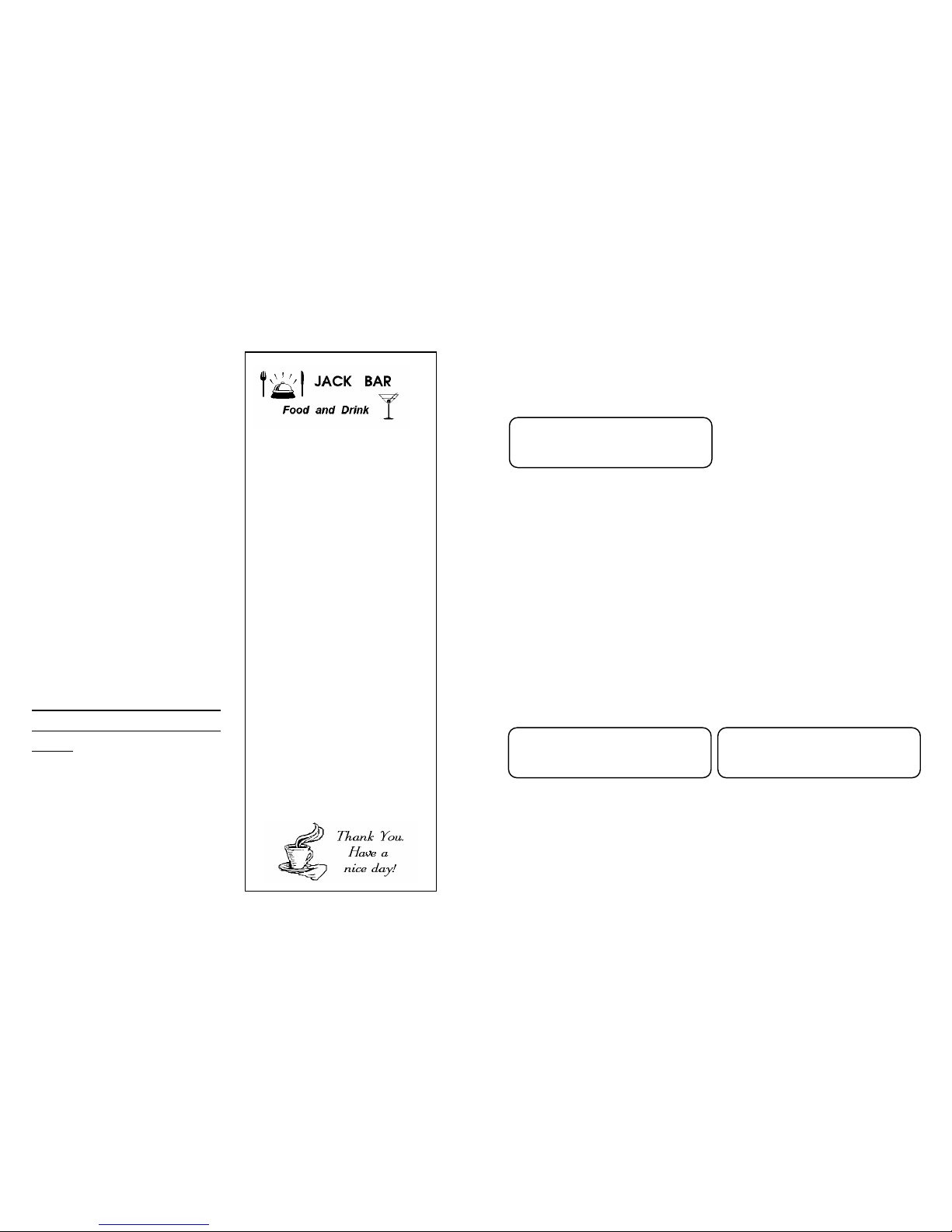
10. GRAPHIC LOGO
At the beginning and at the end of
the fiscal receipt it is possible to
enable a black and white graphic
logo. Such logos may be
customised for the outlet and
loaded through the PC (max 2
logos). To load a customised
Logo on the heading and/or at the
bottom, ask for information RCH
service centre. ONDA S, in any
case, includes some logos that
may be printed at the end of the
receipt (refer to chapter 6.11
Pressure Foot to enable the
printout).
Example of receipt with printout of
graphic logos at the beginning and at
the end.
JACK BAR
FOOD & DRINKS
HEADING MESSAGE LINE N.3
HEADING MESSAGE LINE N.4
ORG. NR. 0000000001
SEK
COFFEE 1,00
BRIOCHES 2,00
------------------------NETTO 1 2,73
MOMS 1 10.0% 0,27
TL. MOMS 0,27
TOTALT SEK 3,00
KONTANT 3,00
KONTROLLENHET:
RIHTT000000001234
KONTROLLKOD:
########################
CLK 1 JACK PC 2
15/03/2012 08:15
LÖP.NR. 00001234
R5 72000001
68
11. TIME/DATE DISPLAYING
To display the hour and the date, in REG mode (1+ KEY ) press the key
X/ .
The machine will show on both displays the current date and time.
Example of displaying of date and
time on the clerk’s display.
The asterisk states “the solar
time”.
Note: the machine displays the date and the time only if no recording is
carried out. (refer also to chapter 6.12)
11.1 LEGAL TIME AND SOLAR TIME
With ONDA S it is not necessary to move manually from the solar time to
the summer time or vice versa. In fact the automatic change function is
integrated to it upon restarting the cash counter, upon condition that the
fiscal data are zeroed with a fiscal daily report. On the next switching on
of the cash counter the clerk’s display will show one of the following
messages:
Press the key [CL] and continue the recordings.
23-03-2012
09:18:51 12.1V
*
AUTO SET
SOLAR TIME [CL]
AUTO SET
LEGAL TIME [CL]
Page 34
69
12. REPLACEMENT OF THE PAPER ROLL
The cash counter is set to signal the end of the paper through a sensor.
When during the printout the sensor detects the absence of paper the
display will show:
replace the paper roll (refer to
following procedure) and press
CL to continue the recordings.
To avoid changing the paper roll with an open receipt, it is preferable to
change it upon the coloured strips appear.
Note: it is possible using the function RECEIPT VOID to cancel the
current receipt and to issue a full new one, recording again the items.
To properly replace the paper roll, follow the procedure:
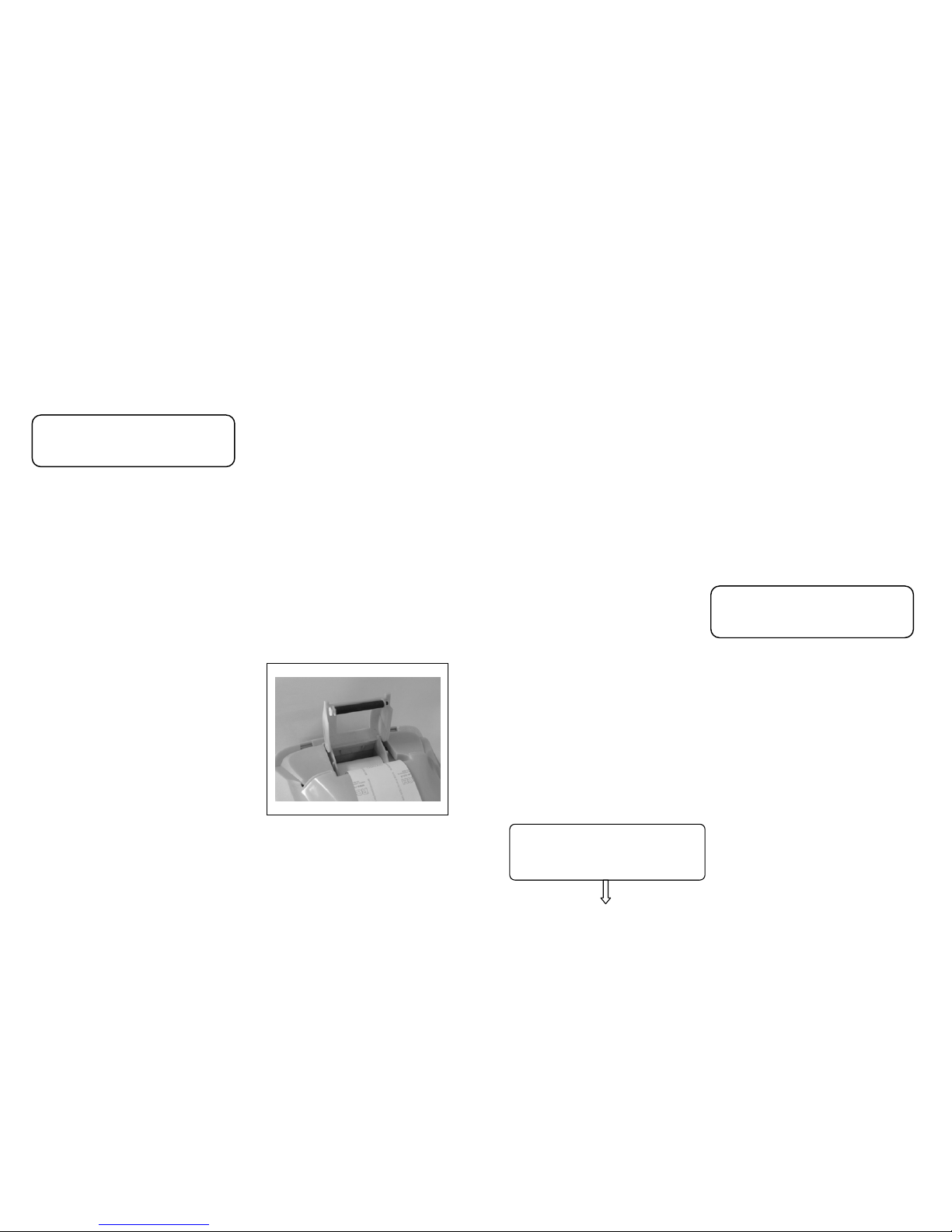
• Take away the two parts of the cover applying the force on the
specific side slots
• Open the inside cap that
contains the paper roll, putting
the fingers in the specific port
and applying force towards the
upper part to lift the cover
• Remove the core of the paper roll
• Insert a new paper roll and let
the upper edge exit
• Close the cap and hear the closing click.
• Reposition the upper cover
• Continue the recordings.
E60: PAPER OUT
Press
[CL]
70
13. REPLACEMENT OF THE ELECTRONIC JOURNAL
ONDA S use a Multi Media Card (MMC) like Electronic Journal (E.J.),
instead that “old” roll paper. The E.J. stored inside memory all fiscal
receipts printed by ONDA S and then we can read data by functions on
cap. 9.2.
When E.J. is about to finish, few days before the full memory in MMC,
ONDA S displays the warning messages accompanied by acoustic
signals (beep). These signals are repeated more frequently if the
registration of items continues keeping the already full MMC (E.J.).
To verify the space available in the MMC utilised as electronic Journal,
carry out the following operation: enter in Z mode (3 KEY ), press twice
key -% to see on display “ E.J. free space” then press [KONTANT].
The display shows the available
space, as a percentage, in MMC to
carry data.
To replace the electronic journal (E.J.), overturn ONDA S, extract the full
MMC and insert a new one, taking care that it went to stick to the specific
fixing tooth and to have previously filled up the label.
Switch on ONDA S, enter in Z mode (3 + KEY ) and slide the menu with
the key +% up to the item “ E.J. Initialling ”.
The display shows:
A) press [KONTANT]
FREE SPACE
ON E.J. = 20%
-Z DAILY REPORTInizialize E.J.
Page 35
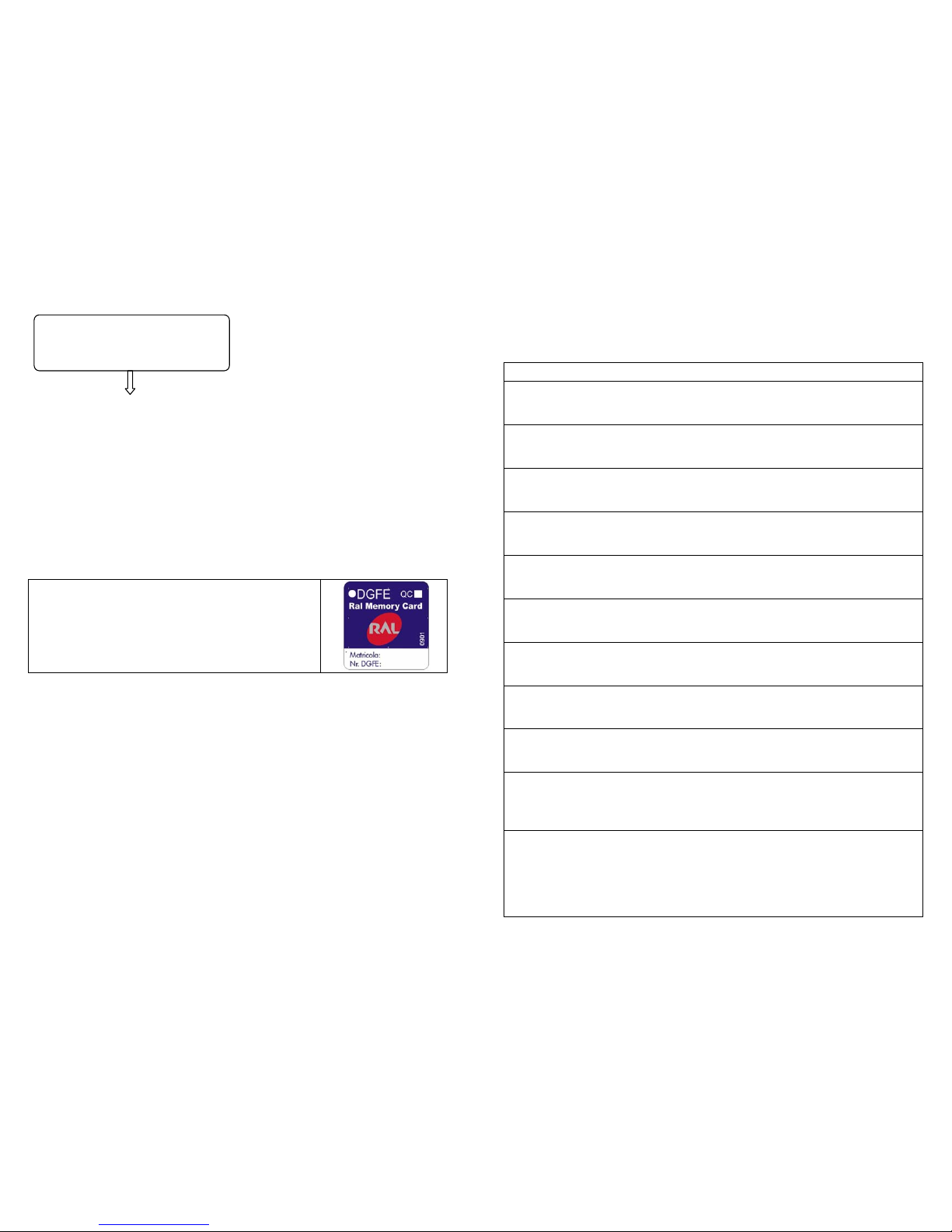
71
B) Extract the used MMC and
insert a brand new MMC. Press
[KONTANT]
After a few seconds a not fiscal receipt is printed with data referred to the
initialling of the new E.J. support.
Press the key [VOID REC./VOID] to exit the menu.
Press 1 + KEY to go back to Recordings mode.
Continue with the recording of the items.
13.1 FILLING UP THE LABEL
The label on the electronic journal support (E.J.) must be duly filled up
before utilising the MMC. Enter the following data:
• Cash counter serial number
• Cumulative number of the electronic journal
(E.J.)
13.2 PRUDENCE IN OPERATING THE MMC
• Do not operate the MMC if the ONDA S feeder is insufficient
• Do not remove MMC when transferring the data or while the
device is ON (except in the procedure of replacement of full MMC)
• Do not take away the feeder to the machine during the
reading/writing of the data in the MMC
• Do not force the insertion (and extraction) of the MMC in the
connector
• Keep MMC clear of any source of heat and humidity and do not
place it in the open sun.
INSERT NEW MMC
Press a key
72
14. ERROR MESSAGES LIST
CODE
DESCRIPTION
E01
“VALUE NOT VALID [CL] ”
It Indicates that the last key pressed is not matching the
current procedure
E02
“WRONG FUNCTION Press [CL] "
It indicates an error in the current procedure. Press CL and
verify again the entering of the data.
E03
“WRONG DATE Press [CL] "
The format of the date entered is incorrect (refer to chapter
6.9)
E04
"WRONG TIME Press [CL] "
The format of the hour entered is incorrect (refer to chapter
6.9)
E05
"WORD TOTALE NOT ADMITED [CL] "
It is not possible to program a word including the word
TOTALE.
E06
"BARCODE WRONG [CL] "
It Indicates that the barcode entered is wrong. Press CL and
verify the code again.
E07
"FISCAL CODE WRONG [CL] "
It Indicates that the barcode entered is wrong. Press CL and
try again.
E10
"MMC FORMAT NOT CORRECT! [CL] "
It Indicates that the MMC entered is other than the type
supplied by RCH. Enter only MMC supplied by RCH.
E11
“MMC ALREADY USED! [CL] "
It Indicates that the (electronic journal) inserted is not brand
new. Insert another brand new MMC.
E12
"E.J. ABSENT OR WRONG [CL] "
It indicates that MMC is missing (electronic journal), or that
the E.J. cumulative number is wrong. Insert a new MMC or
the proper E.J..
E14
“MMC WRITE ERROR!”
It indicates that an error occurred during the writing of the
data onto the electronic journal (E.J.). Switch off and switch
on again the cash counter, fully cancelling the current receipt
(Receipt void). Should the problem appear several times,
contact the service centre.
Page 36
73
E20
"WRONG SEQUENCE Press [CL] "
It indicates that the pressure onto the last pressed key is
incorrect in the sequence of the current commands.
E21
“OPERATION NOT ADMITED! [CL] "
It indicates that the last operation performed is not allowed by
the current procedure.
E22
“ITEM NOT FOUND [CL] "
It indicates that the item code (PLU) entered is not in the cash
counter memory. Verify the code.
E23
"CONTROL KEY MISSING [CL] "
It means that one or more mandatory keys are missing. The
mandatory keys (or control keys) are:
[KONTANT], [SUBTOTAL], [%+], [% -] and receipt
[Void].
They must always be present.
E30
"E.J. FULL! Press [CL] "
It indicates that the electronic journal (MMC) is finished.
Replace MMC (refer to chapter 13).
E31
"E.J. NEAR FULL [CL] "
It indicates that the electronic journal (MMC) is almost full and
that must be changed the soonest possible (refer to chapter
13).
E40
"NEGATIVE RECEIPT [CL] "
The Cash counter accepts that the subtotal may be negative.
However, it prevents the receipt from being closed. Sell
further items to close the receipt at zero or with a positive
balance.
E41
"OVERFLOW RECEIPT [CL] "
The amount of the current receipt has exceeded the allowed
limit. Cancel the receipt or close it and open a new one
concerning the non-registered items.
E42
"DAILY NET OVERFLOW [CL] "
The SALES adding machine has reached its limit. Close or
cancel the current receipt and perform a fiscal daily report.
E43
“PROGR NET OVERFLOW [CL] "
The Cash counter has reached the maximum value that may
be reached as Grand Total. Close or cancel the current
receipt and ask for RCH service.
E44
"ITEMS OVERFLOW [CL] "
It indicates it has reached the maximum number of items that
may be recorded onto the current receipt. Close the receipt
and open a new one to record the missing items.
74
E45
“CHANGE NOT ADMITED [CL] "
The closing total utilised is programmed not to accept any
change. Use another Total or re-program the one used.
E51
"FISCAL MEMORY ALREADY SET [CL] "
Performing the serialisation procedure is not possible (already
done by the manufacturer).
E52
"DATA NOT CLEARED [CL] "
It indicates that before continuing performing a fiscal daily
report is mandatory.
E60
"PAPER OUT Press [CL] "
It indicates that the paper roll has finished. Replace the roll
paper as indicated in chapter 12 of the operating manual.
E61
“HEAD ERROR Press [CL] "
It indicates that the thermal head connector (printer) is
disconnected from the printer logic card.
E62
“POWER ERROR Press [CL] "
It indicates that the cash counter is improperly fed. Contact
RCH service centre to verify the feeder.
E63
“PRINTER ERROR Press [CL] "
It indicates anomalous printer operations. It may indicate the
incorrect closing of the upper part or that some connectors
are disconnected from the logic card. Should the problem
continue, contact RCH service centre.
E64
“HEAD UP [CL] "
It indicates that the replacement of the paper roll was
improper. Read again chapter 12 of the operating manual.
Should the problem continue, contact RCH service centre.
E65
"CUTTER ERROR [CL] "
It indicates the presence of paper stuck in the cutter. Remove
the paper and press CL . Should the problem continue,
contact RCH service centre.
E70
“LOW BATTERY [CL] ”
The battery is down; re-charge the battery and continue the
sales.
E80
"FISCAL MEMORY NOT CONNECTED"
It indicates that the fiscal memory is disconnected. Contact
RCH service centre to reinstate its working.
E81
“ERROR READ FISCAL MEMORY"
It indicates a problem to access the fiscal memory. Switch off
and switch on again the cash counter. Should the problem
continue, contact RCH service centre.
Page 37
75
E82
“ERROR WRITE FISCAL MEMORY"
It indicates a writing problem onto the fiscal memory. Contact
RCH service centre.
E83
“FISCAL MEMORY FULL!"
It indicates that all the settings to zero available have been
completed (2000). Call RCH service centre.
E84
"FISCAL MEMORY NOT SERIALISED "
It indicates that it is not possible to subject the cash counter to
taxes, as fiscal memory has not the series number.
E85
“DISPLAY LCD NOT CONNECTED"
It indicates that the display is disconnected: Contact RCH
service centre to control the display.
E86
“ERROR MEMORY RAM."
There has been a malfunctioning on the cash counter RAM
memory. Contact RCH service centre to reinstate the system.
E87
“RAM ERROR / FISCAL MEMORY ”
There has been a malfunctioning between the cash counter
RAM memory and the fiscal memory. Contact RCH service
centre to reinstate the system.
E90
“CONTROL UNIT” “CONNECTION ERROR”
No connection with Control Unit not
E94
“INVALID SEQUENCE [CL]”
Invalid command to control unit.
E96
“C. U. NOT OP.” “CALL SERVICE!”
Communication error with control unit.
E97
“ID ERROR” “ CALL SERVICE!”
Control unit serial number not correct.
E98
“C.U. INTERNAL” “ERROR!”
Control unit with problems; call service.
E100
“NO STATUS” “INFORMATIONS!”
No answer from status information.
E101
“C.U. CODE ID” “NOT AVAILABLE!”
Serial number error; no reply to code id request.
E102
“SIGNATURE” “NOT AVAILABLE!”
Signature error; no reply to signature request.
E103
“C.U. FATAL” “ERROR: XXXX”
Control unit error; check the error code xxxx and call
service.
W01
“C.U. WARNING” “CONDITION [CL]”
Warning condition from control unit.
76
W02
“C.U. ERRRO” “CONDITION [CL]”
No fatal error from control unit.
W04
“C.U. BUSY” “WAIT .. PRESS [CL]
Control unit busy. Try later.
Page 38
77
15. LEGISLATION AND WEEE SYMBOL
V.01 Rel.05/12 SWE
2002/96/EC Waste Electrical and Electronic Equipment Directive on the
treatment, collection, recycling and disposal of electric and electronic
devices and their components.
The crossed dustbin symbol on the device means that it should not be
disposed of with other household wastes at the end of its working life. Instead,
the device should be taken to the waste collection centres for activation of the
treatment, collection, recycling and disposal procedure.
To prevent possible harm to the environment or human health from
uncontrolled waste disposal, please separate this from other types of wastes
and recycle it responsibly to promote the sustainable reuse of material
resources.
Household users should contact either the retailer where they purchased this
product, or their local government office, for details of where and how they can
take this item for environmentally safe recycling.
Business users should contact their supplier and check the terms and
conditions of the purchase contract. This product should not be mixed with
other commercial wastes for disposal.
78
 Loading...