

Page 1
USER’S
GUIDE
multimediamonitormultimedia
monitormultimediamonitormul
timediamonitormultimediamon
itormultimediamonitormultim
ediamonitormultimediamonito
rmultimediamonitormultimedi
amonitormultimediamonitormu
ltimediamonitormultimediamo
nitormultimediamonitormulti
mediamonitormultimediamonit
ormultimediamonitormultimed
iamonitormultimediamonitorm
ultimediamonitormultimediam
onitormultimediamonitormult
imediamonitormultimediamoni
tormultimediamonitormultime
diamonitormultimediamonitor
multimediamonitormultimedia
monitormultimediamonitormul
timediamonitormultimediamon
itormultimediamonitormultim
ediamonitormultimediamonito
rmultimediamonitormultimedi
amonitormultimediamonitormu
ltimediamonitormultimediamo
nitormultime diamon
itormultime dia
monitormu lt
imediam on
itorm ulti
media mo
nitorm ul
timedi a
monit o
rmulti
Page 2
Important Information
WARNING
To reduce the risk of fire or shock
hazard, do not expose this TV to
rain or moisture.
WARNING
RISK OF ELECTRIC
SHOCK DO NOT OPEN
This symbol indicates "dangerous
voltage" inside the product that
presents a risk of electric shock
or personal injury.
Refer to the identification/rating label located on the back panel of your product
for its proper operating voltage.
FCC Regulations state that unauthorized changes or modifications to this
equipment may void the user’s authority to operate it.
If fixed (non-moving) images are left on the screen for long periods, they
may be permanently imprinted on the screen. Such images include
network logos, phone numbers, and video games. This damage is not
covered by your warranty. Extended viewing of channels displaying these
images should be avoided.
Cable TV Installer: This reminder is provided to call your attention to Article 820-
40 of the National Electrical Code (Section 54 of the Canadian Electrical Code, Part
1) which provides guidelines for proper grounding and, in particular, specifies that
the cable ground shall be connected to the grounding system of the building as
close to the point of cable entry as practical.
To reduce the risk of electric shock, do not remove cover
(or back). No user serviceable parts inside. Refer
servicing to qualified service personnel.
This symbol indicates important
instructions accompanying the
product.
Product Registration
Please fill out the product registration card and return it immediately.
Returning the card allows us to contact you if needed.
Keep your sales receipt to obtain warranty parts and service and for proof of
purchase. Attach it here and record the serial and model numbers in case you
need them. The numbers are located on the back of the player.
Model No. ____________________________________________________
Serial No. ____________________________________________________
Purchase Date: ________________________________________________
Dealer/Address/Phone: _________________________________________
_____________________________________________________________
Page 3

Table of Contents
Connections & Setup ............................................ 5
Connecting Components to your Monitor .................................... 6
Antenna/Cable In ...................................................................... 6
Audio/Video/S-Video Inputs (Input1, Input2, Input3)............. 7
Audio/Component Video Inputs .............................................. 8
Selected Video Outputs ............................................................ 8
Audio Output ............................................................................ 9
Optional Component Connection Examples ......................... 10
Monitor and a VCR ........................................................... 10
Viewing the VCR Input Channel............................. 10
Monitor, VCR and a Satellite Receiver ............................ 11
Viewing the Components ....................................... 11
Monitor, VCR, Satellite Receiver, and a DVD Player ....... 12
Viewing the Components ....................................... 12
A/V Receiver & Speakers .................................................. 13
(S)VGA Video Inputs –(S)VGA1, (S)VGA2 ............................... 14
(S)VGA1 Input Connection Examples .............................. 15
Viewing the (S)VGA1 Input..................................... 15
(S)VGA2 Input Connection Example................................ 16
Viewing the (S)VGA2 Input..................................... 16
Front Inputs ............................................................................. 17
USB Inputs/Output .................................................................. 17
Setting Up the Monitor ................................................................ 18
1
Page 4

Table of Contents
First Time Set Up............................................................................ 18
The Point and Select Navigation Method ............................. 19
Set the Time ............................................................................ 19
Auto Channel Search .............................................................. 20
Set the VCR1 Channel (auto tuning) .................................... 21
Set the VCR2 Channel (auto tuning) ..................................... 22
Set the DVD Channel (auto tuning)....................................... 23
Set the SAT/CABLE Channel (auto tuning) ............................ 24
Label the Channels ................................................................. 25
What Now? .................................................................................... 25
Using the Remote ............................................... 27
Remote Buttons............................................................................. 28
Using the INPUT button ......................................................... 29
Programming the Remote ............................................................ 29
Testing the Remote ................................................................. 29
Programming the Remote...................................................... 30
Using Automatic Code Search ......................................... 30
Using Direct Entry............................................................. 30
Using the remote to control a device .................................... 31
Modes of Operation ............................................................... 31
Front Panel .................................................................................... 31
Remote Control Codes .................................................................. 32
Menus and features............................................ 33
Menus and Control Panels ............................................................ 34
Menus ...................................................................................... 34
Exiting a Menu ................................................................. 34
2
Page 5

Table of Contents
Control Panels ......................................................................... 35
Sliders ................................................................................ 35
Numeric Entry ................................................................... 35
Choice Lists........................................................................ 36
Audio Menu ................................................................................... 36
Picture Quality Menu .................................................................... 37
Screen Menu .................................................................................. 38
Closed-Captioning .................................................................. 38
Channel Menu ............................................................................... 39
Time Menu ..................................................................................... 40
Parental Controls and V-Chip ....................................................... 41
V-Chip TV Rating Limit ........................................................... 42
The Ratings Limits Screen ................................................ 42
Blocking Age-based Ratings ............................................ 43
Viewing Age-based Ratings ............................................. 44
Blocking Specific Content Themes .................................. 44
Viewing Specific Content Themes ................................... 45
V-Chip Movie Rating Limit ..................................................... 46
Blocking Movie Ratings.................................................... 46
Viewing Movie Ratings .................................................... 46
V-Chip Unrated Program Block .............................................. 47
Channel Block ......................................................................... 47
Front Panel Block .................................................................... 47
Lock/Unlock Parental Controls ............................................... 47
PIP (Picture-in-Picture) Operation ................................................ 48
PIP Buttons .............................................................................. 48
Using the PIP Feature ............................................................. 48
Channel Marker............................................................................. 49
3
Page 6

Table of Contents
Reference ....................................................................51
RCA MultiMedia Monitor Specifications ..................................... 52
Troubleshooting ............................................................................ 53
Monitor will not turn on.................................................. 53
Controls don’t work ......................................................... 53
Problems with Remote ..................................................... 53
Blank screen ...................................................................... 53
Picture on screen is not centered .................................... 53
Horizontal or diagonal lines on screen ........................... 53
Black Box appears on the screen ..................................... 53
No sound, picture okay .................................................... 54
Can’t select certain channel ............................................. 54
Turns off while playing .................................................... 54
Noisy stereo reception ..................................................... 54
No picture, no sound but TV is on................................... 54
Sound okay, picture poor ................................................. 54
Care and Cleaning ......................................................................... 54
RCA MultiMedia Monitor Limited Warranty ............................... 55
Radio Interference ........................................................................ 59
Index.................................................................... 60
4
Page 7

Connections & Setup
Getting started
This manual is designed to get you started quickly. The
first two sections of the manual show you how to:
• Get your monitor set up and connected,
• Set up your monitor
• Program the remote
The remaining sections discuss the menus and features,
and include a Reference section which contains
troubleshooting tips, care and cleaning instructions,
accessory ordering information and your warranty.
Connections & Setup
1
➣
Using the Remote
2
➣
Menus and Features
3
➣
Reference
4
Check out the notes that have been added
throughout the manual in these Tip
Boxes. There are some important
tips that will help you get the most from
your monitor.
5
5
Page 8
Connections & Setup
Connecting Components to your
Monitor
Your monitor has several input and output jacks that you can use with
many different types of components. This creates a great number of
connection variations. Therefore, the following section shows the different
types of jacks and examples of the types of components that can be
connected to those jacks. Before you begin, it’s a good idea to read any
connection information in other components’ user manuals as well.
Before You Connect
Protect against power surges:
• Connect all components before plugging any power cords into the
wall outlet.
• Turn off the monitor and/or component before connecting or
disconnecting any cables.
• Make sure all antennas and cables are properly grounded. Refer to
the “Important Safeguards” sheet packed with your monitor.
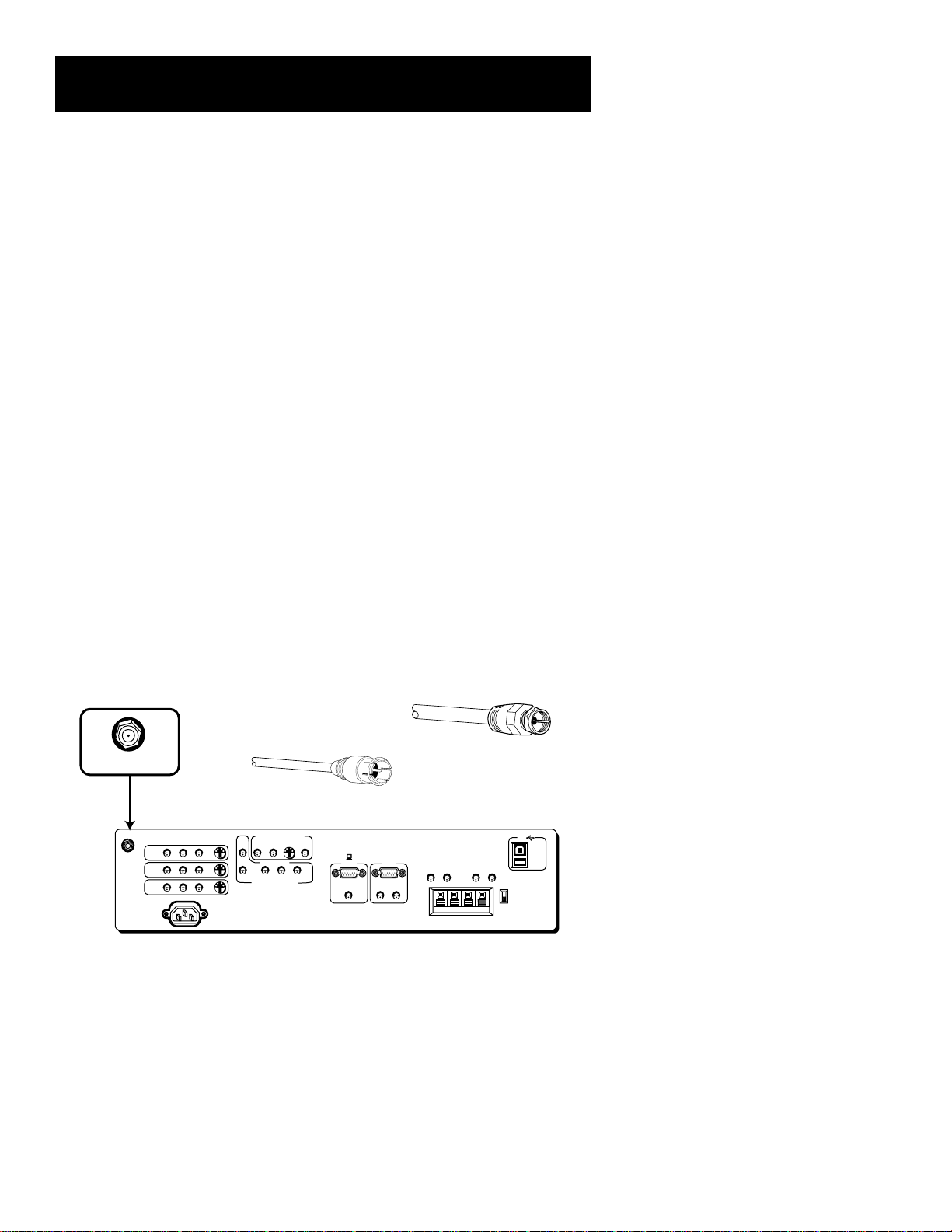
Antenna/Cable In
The ANTENNA/CABLE IN jack lets you connect a screw-on or push on
antenna or cable lead. Use this if you want the monitor to receive signals
through a coaxial cable from an antenna or other source, such as a VCR.
DIGITAL TV
INPUT
(S)VGA 2
L
R
Screw-on
coaxial cable
AUDIO OUTPUTS
FIXED
VARIABLE
LR L
EXT SPEAKERS
++
L
R
USB
PC/
HUB
DEVICE/
HUB
R
EXT
INT
ANTENNA/
CABLE INPUT
Push-on coaxial
cable
AUDIO
R
L
SELECTED OUTPUTS
S-VIDEO
PIP
MAIN
COMPONENT
BPR
YP
DVD COMPONENT INPUT
STEREO
OUTPUT
(S)VGA 1
STEREO INPUT
AUDIO INPUTS
ANTENNA/
CABLE INPUT
INPUT 1
INPUT 2
INPUT 3
POWER
AUDIO
VIDEO
L
S-VIDEO
R
You can use coaxial cables to connect devices such as:
• Antenna or cable leads
• Cable boxes
• VCRs
• Satellite receivers
6
Page 9
Connections & Setup
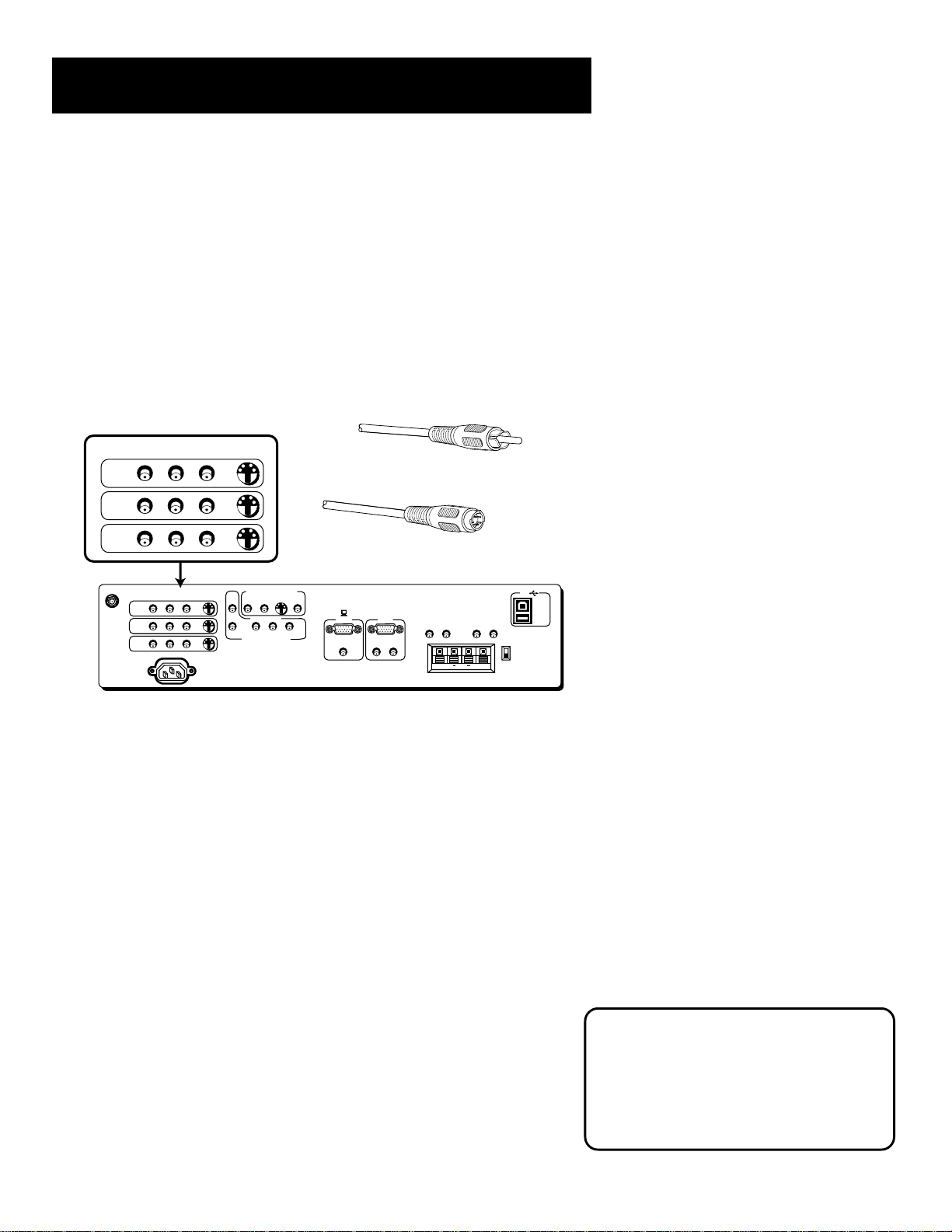
Audio/Video/S-Video Inputs
(Input1, Input2, Input3)
The audio jacks provide stereo sound. If your device has only one audio
output, you need to connect a “Y” adapter to your component and to both
the left and right inputs on the monitor.
The video jack provides better picture quality than coaxial cable, because it
carries only video signals.
If your device has S-video output, use an S-Video cable to connect the video
jacks. This method separates the video signals into two separate signals: one
for color, the other for brightness. This helps prevent the signal from
degrading and results in a sharper image.
POWER
AUDIO
L
S-VIDEO
R
RCA
cable
S-Video
(S)VGA 1
cable
DIGITAL TV
INPUT
(S)VGA 2
AUDIO INPUTS
L
R
AUDIO OUTPUTS
FIXED
EXT SPEAKERS
R
VARIABLE
L
LR L
R
EXT
INT
++
(ENLARGED VIEW)
AUDIO
VIDEO
L
S-VIDEO
R
AUDIO
R
L
SELECTED OUTPUTS
S-VIDEO
PIP
MAIN
COMPONENT
YP
BPR
DVD COMPONENT INPUT
STEREO
OUTPUT
STEREO INPUT
INPUT 1
INPUT 2
INPUT 3
ANTENNA/
CABLE INPUT
VIDEO
INPUT 1
INPUT 2
INPUT 3
You can use audio/video and s-video jacks to connect devices such as:
• VCRs
• Satellite receivers
• DVD players
• Laserdisc players
• Camcorders
USB
PC/
HUB
DEVICE/
HUB
• Internet devices
To View the Video Inputs...
First, press the TV button on the remote
to make sure that the remote is in TV
mode; then press the INPUT button to
scroll through the video inputs.
7
Page 10
Connections & Setup
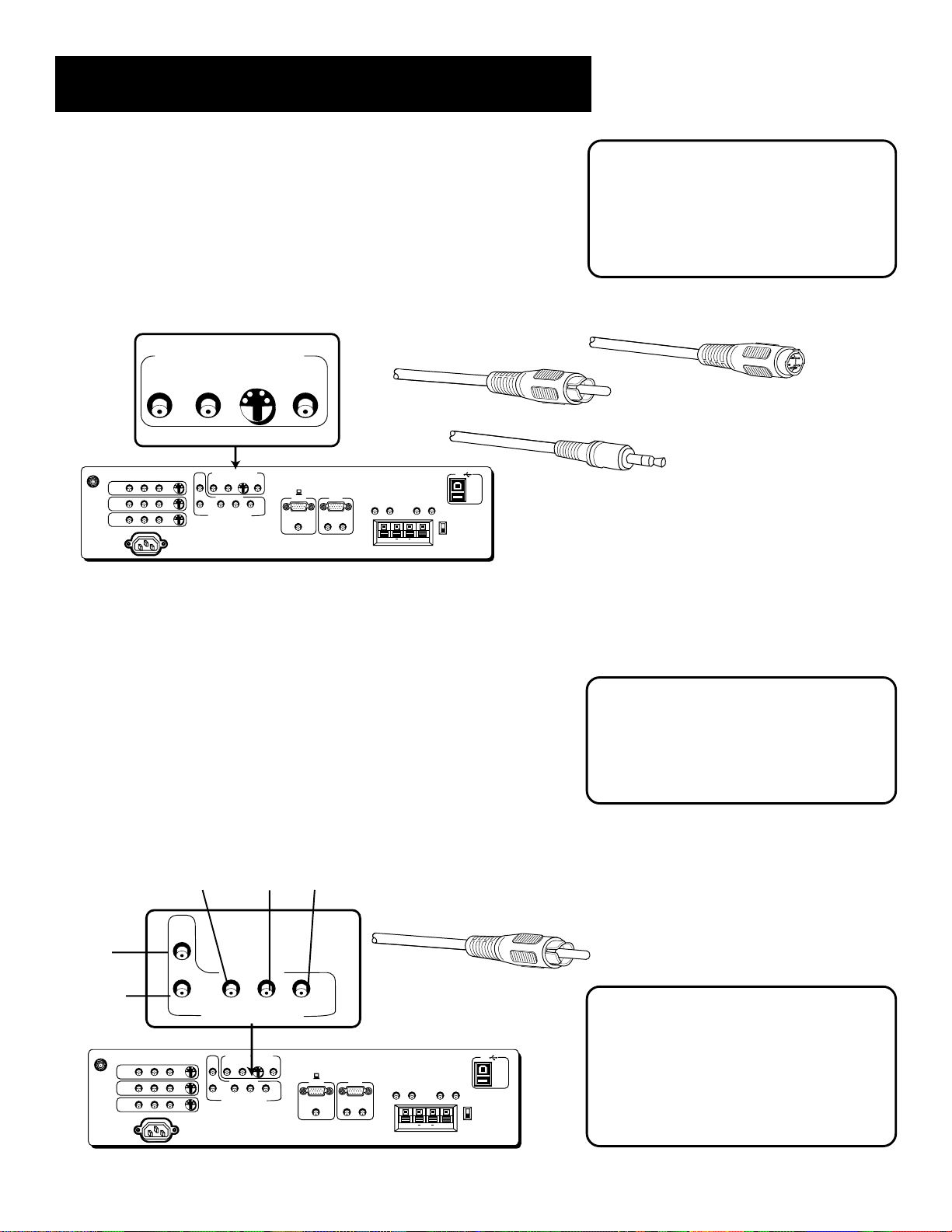
Selected Video Outputs
Provides audio and video output from the monitor tuner.
PIP provides video output for the picture-in-picture window. Note that
audio is not available with the PIP output.
MAIN provides video output for the main picture window.
S-Video provides s-video output for the main picture.
Stereo Output provides stereo audio through a 3.5 mm stereo mini-jack.
In PC Mode...
In PC mode, the last selected source (for
the selected output) appears. Basically,
whatever you were watching on INPUT 1,
2, 3, or the tuner channel).
SELECTED OUTPUTS
PIP
MAIN
S-VIDEO
STEREO
OUTPUT
Video cable
(ENLARGED VIEW)
ANTENNA/
CABLE INPUT
AUDIO
VIDEO
L
INPUT 1
INPUT 2
INPUT 3
R
POWER
S-VIDEO
AUDIO
R
L
SELECTED OUTPUTS
PIP
MAIN
COMPONENT
YP
BPR
DVD COMPONENT INPUT
S-VIDEO
STEREO
OUTPUT
(S)VGA 1
STEREO INPUT
DIGITAL TV
INPUT
(S)VGA 2
AUDIO INPUTS
L
R
AUDIO OUTPUTS
FIXED
VARIABLE
LR L
EXT SPEAKERS
L
R
USB
PC/
HUB
DEVICE/
HUB
R
EXT
INT
++
You can use selected video output jacks to connect devices such as:
• compatible A/V receivers
• compatible recording equipment
• PC with a compatible graphics card
Audio/Component Video Inputs
These jacks let you connect a compatible DVD player. Unlike a single
video input, component video maintains the video signal as three
separate signals. The component video connection provides optimum
quality. The audio jacks provide stereo sound. It is essential to match
the color coded connectors between a compatible DVD player
and the monitor.
S-video
cable
Stereo mini-jack
cable
Component Video Tip
To ensure maximum picture quality, use
three video-grade cables for the Y, P
PR connections.
B, and
8
Red
White
ANTENNA/
CABLE INPUT
INPUT 1
INPUT 2
INPUT 3
Green
AUDIO
R
L
Blue
COMPONENT
Red
RCA cable
B
P
STEREO
OUTPUT
R
(ENLARGED VIEW)
(S)VGA 1
STEREO INPUT
DIGITAL TV
INPUT
(S)VGA 2
AUDIO INPUTS
L
R
AUDIO OUTPUTS
FIXED
VARIABLE
LR L
EXT SPEAKERS
L
R
To View the DVD Component
Input...
USB
PC/
HUB
DEVICE/
HUB
R
EXT
INT
++
First, press the TV button on the remote
to make sure that the remote is in TV
mode; then press the INPUT button to
scroll through the video inputs.
YP
DVD COMPONENT INPUT
AUDIO
VIDEO
L
S-VIDEO
R
POWER
AUDIO
R
L
SELECTED OUTPUTS
S-VIDEO
PIP
MAIN
COMPONENT
YP
B PR
DVD COMPONENT INPUT
Page 11
Connections & Setup
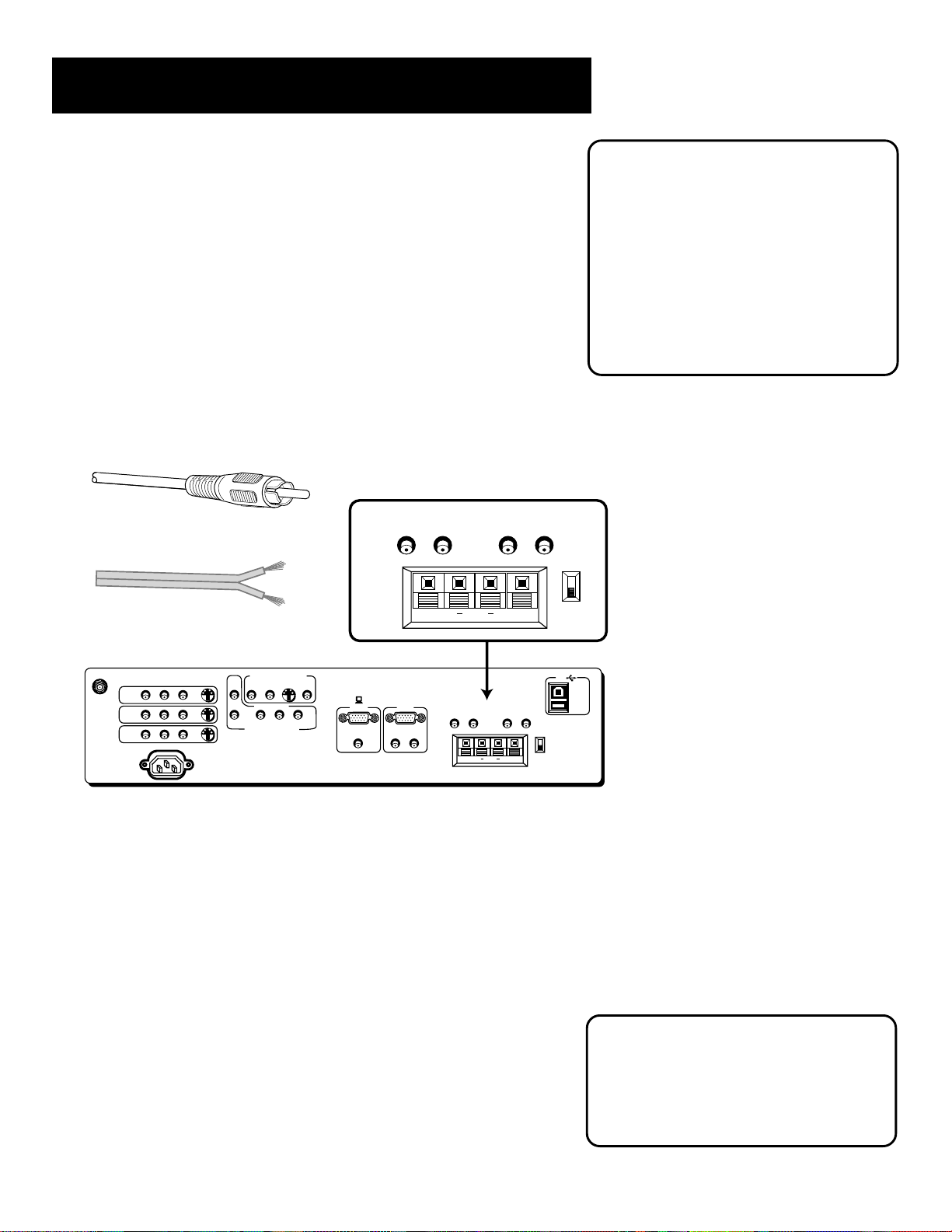
Audio Output
FIXED provides fixed-level audio output from the monitor. This audio
output is ideal for connecting to an A/V receiver when you want to
control the volume through the A/V receiver.
VARIABLE provides variable-level audio output. Volume levels are
controlled by the volume controls on the monitor and monitor remote
control.
EXT SPEAKERS lets you connect external left and right speakers to the
monitor. The EXT/INT switch beside the jacks let you turn the monitor’s
internal speakers on or off. EXT sends audio to external speakers. INT
sends audio only to the monitor’s internal speakers.
Audio Output Tips
• You may want to adjust the monitor’s
tone control and audio processor
settings to enhance the audio output
when connecting an A/V receiver to the
Variable output jacks.
• You can turn off the monitor’s internal
speakers by using the “Speaker” control
in the Audio menu. (See the “Audio
Menu” section for more information.)
RCA cable
AUDIO OUTPUTS
FIXED
LR L
EXT SPEAKERS
Speaker wire
R
AUDIO
R
L
SELECTED OUTPUTS
S-VIDEO
PIP
MAIN
COMPONENT
YP
BPR
DVD COMPONENT INPUT
STEREO
OUTPUT
(S)VGA 1
STEREO INPUT
DIGITAL TV
INPUT
(S)VGA 2
AUDIO INPUTS
L
LR L
R
ANTENNA/
CABLE INPUT
INPUT 1
INPUT 2
INPUT 3
POWER
AUDIO
VIDEO
L
S-VIDEO
R
You can use audio output jacks to connect devices such an:
• Audio/video receiver
• Audio amplifier
FIXED
AUDIO OUTPUTS
EXT SPEAKERS
R
VARIABLE
++
L
VARIABLE
R
++
L
R
EXT
INT
(ENLARGED VIEW)
USB
PC/
HUB
DEVICE/
HUB
EXT
INT
• Optional external speakers
External Speaker Rating
The external speaker rating is 8 ohms with
10 watts power handling capabilities.
9
Page 12

Connections & Setup
Optional Component Connection
Examples
The following examples feature some of the optional components you
can connect to your monitor. Refer to the preceding pages for the types
of cables used for each connection.
Monitor and a VCR
1. Connect the coaxial cable carrying your television signal (off air or
cable) to the antenna input on the VCR.
2. Connect a coaxial cable to the VCR’s antenna output and to the
ANTENNA/CABLE INPUT jack on the monitor.
3. Use RCA cables to connect the VCR’s audio/video output to the
INPUT 1 input on the monitor.
VCR
CABLE
AUDIO
VIDEO
L
IN
OUT
R
AUDIO
VIDEO
L
R
ANTENNA IN
ANTENNA OUT
OFF-AIR ANTENNA
1
2
CABLE INPUT
3
Viewing the VCR Input Channel
1. Turn on the monitor and the VCR.
2. Press the TV button on the remote control.
ANTENNA/
INPUT 1
INPUT 2
INPUT 3
POWER
VIDEO
AUDIO
L
R
S-VIDEO
AUDIO
PIP
R
L
DVD COMPONENT INPUT
SELECTED OUTPUTS
S-VIDEO
MAIN
COMPONENT
YP
BPR
STEREO
OUTPUT
(S)VGA 1
STEREO INPUT
DIGITAL TV
INPUT
(S)VGA 2
AUDIO INPUTS
L
R
AUDIO OUTPUTS
FIXED
LR L
EXT SPEAKERS
R
VARIABLE
L
++
USB
PC/
HUB
DEVICE/
HUB
R
EXT
INT
3. Press INPUT on the remote to scroll through the video inputs.
10
Direct Channel Tuning
You can set up the monitor to
automatically tune to the VCR input . This
is called auto tuning. (See “Setup” for
more information.)
Page 13
Connections & Setup
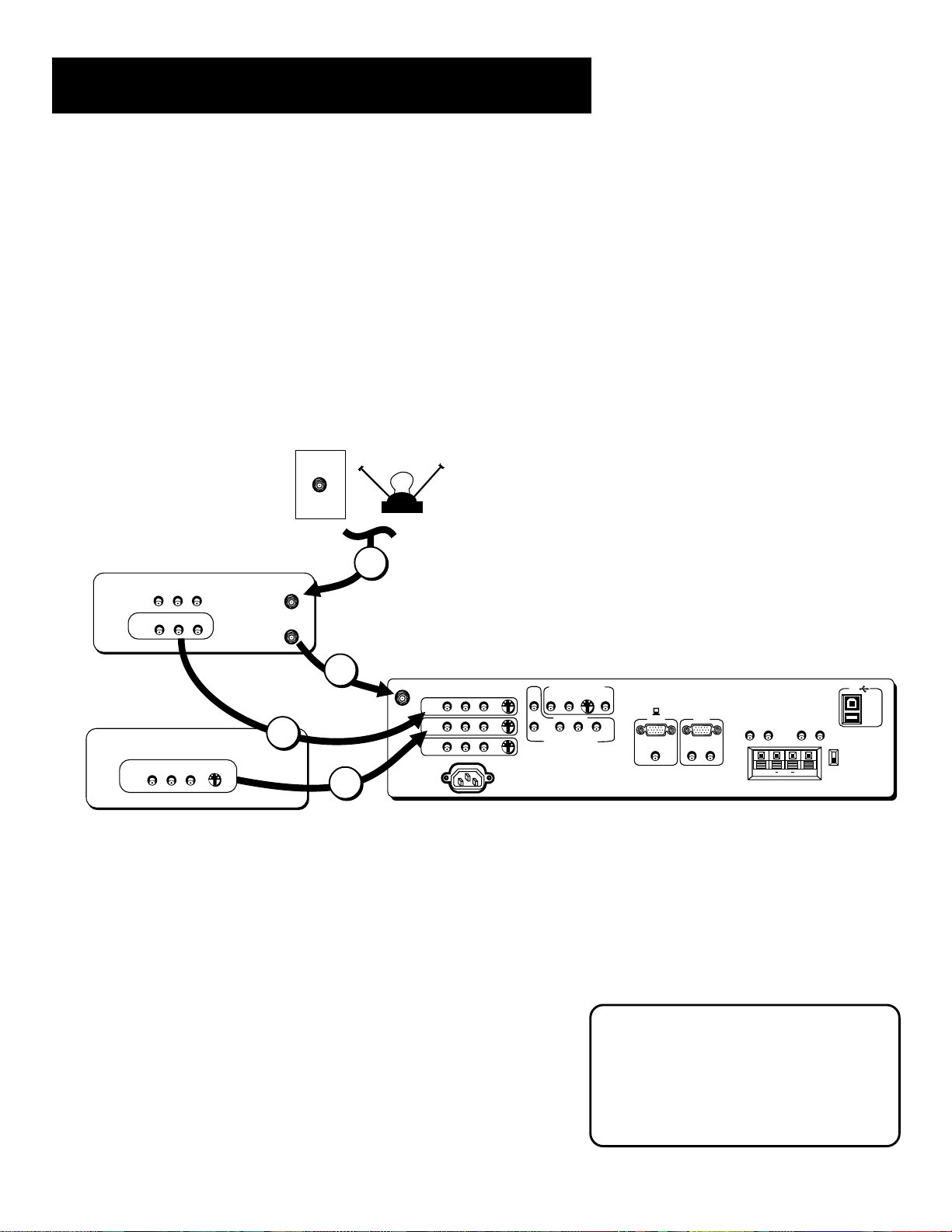
Monitor, VCR, and a Satellite Receiver
1. Connect the coaxial cable carrying your television signal (off air or
cable) to the antenna input on the VCR.
2. Connect a coaxial cable to the VCR’s antenna output and to the
ANTENNA/CABLE INPUT jack on the monitor.
3. Use RCA cables to connect the VCR’s audio/video output to INPUT 1
on the monitor.
4. Use RCA cables to connect the satellite receiver’s audio/video output
to the INPUT 2 input on the monitor. If your satellite receiver has an
S-Video output, you can make the video connection by using the SVideo jacks instead.
CABLE
OFF-AIR ANTENNA
1
VCR
AUDIO
VIDEO
L
IN
OUT
R
AUDIO
VIDEO
L
R
ANTENNA IN
ANTENNA OUT
2
AUDIO
VIDEO
L
R
INPUT 1
ANTENNA/
CABLE INPUT
SATELLITE
RECEIVER
3
S-VIDEO
AUDIO
VIDEO
L
OUT
R
4
INPUT 2
INPUT 3
POWER
Viewing the Components
1. Turn on the monitor and the component(s) you want to view.
2. Press the TV button on the remote control.
S-VIDEO
AUDIO
R
L
SELECTED OUTPUTS
S-VIDEO
PIP
MAIN
COMPONENT
YP
BPR
DVD COMPONENT INPUT
STEREO
OUTPUT
(S)VGA 1
STEREO INPUT
DIGITAL TV
INPUT
(S)VGA 2
AUDIO INPUTS
L
R
AUDIO OUTPUTS
FIXED
LR L
EXT SPEAKERS
R
VARIABLE
L
USB
PC/
HUB
DEVICE/
HUB
R
EXT
INT
++
3. Press the INPUT button on the remote control to scroll through the
video inputs.
• The VCR can be viewed on the VID 1 input channel.
• The satellite receiver can be viewed on the VID 2 input.
Direct Channel Tuning
You can set up the monitor to
automatically tune to the correct input for
channel. This is called auto tuning. (See
“Setup” for more information.)
11
Page 14

Connections & Setup
Monitor, VCR, Satellite Receiver, and a DVD Player
1. Connect the coaxial cable carrying your television signal (off air or cable) to the antenna input on the VCR.
2. Connect a coaxial cable to the VCR’s antenna output and to the ANTENNA/CABLE INPUT jack on the monitor.
3. Use RCA cables to connect the VCR’s audio/video output to INPUT 1 on the monitor.
4. Use RCA cables to connect the satellite receiver’s audio/video output to the INPUT 2 input on the monitor. If your
satellite receiver has an S-Video output, you can make the video connection by using the S-Video jacks instead.
5. Use RCA cables to connect the DVD player’s audio/video output to the INPUT 3 input on the monitor. If your DVD player
has an S-Video output, you can make the video connection by using the S-Video jacks instead.
VCR
SATELLITE
RECEIVER
DVD PLAYER
CABLE
OFF-AIR ANTENNA
Component Video
If your DVD player has a component
1
AUDIO
VIDEO
L
IN
OUT
R
AUDIO
VIDEO
L
R
ANTENNA IN
ANTENNA OUT
video output, we recommend you use the
component video input on the monitor
instead of the standard video or s-video
connection.
2
AUDIO
VIDEO
L
R
3
S-VIDEO
AUDIO
VIDEO
L
OUT
R
ANTENNA/
CABLE INPUT
INPUT 1
INPUT 2
INPUT 3
POWER
S-VIDEO
4
AUDIO
R
L
SELECTED OUTPUTS
S-VIDEO
PIP
MAIN
COMPONENT
YP
B PR
DVD COMPONENT INPUT
STEREO
OUTPUT
(S)VGA 1
STEREO INPUT
DIGITAL TV
INPUT
(S)VGA 2
AUDIO INPUTS
L
R
AUDIO OUTPUTS
FIXED
LR L
EXT SPEAKERS
R
VARIABLE
L
USB
PC/
HUB
DEVICE/
HUB
R
EXT
INT
++
5
S-VIDEO
AUDIO
VIDEO
L
R
Viewing the Components
1. Turn on the monitor and the component(s) you want to view.
2. Press the TV button on the remote control.
3. Press the INPUT button on the remote control to scroll through the
video inputs.
• The VCR can be viewed on the VID 1 input channel.
• The satellite receiver can be viewed on the VID 2 input.
• The DVD player can be viewed on the VID 3 input.
12
Direct Channel Tuning
You can set up the monitor to
automatically tune to the correct input for
channel. This is called auto tuning. (See
“Setup” for more information.)
Page 15
Connections & Setup
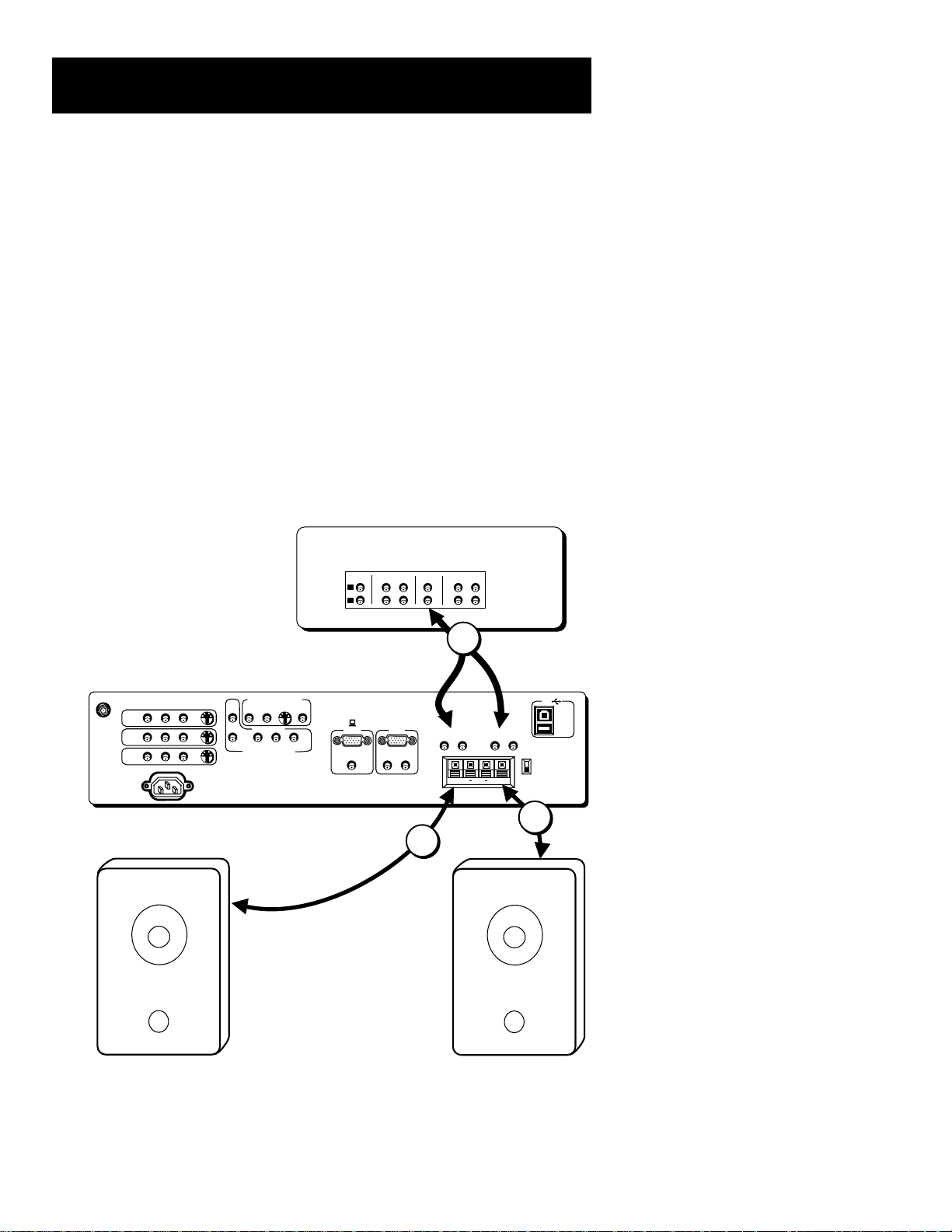
A/V Receiver & Speakers
1. Use RCA cables to connect either the FIXED or VARIABLE AUDIO
OUTPUT from the monitor to an A/V receiver.
• FIXED provides fixed-level audio output from the monitor. This
audio output is ideal for connecting to an A/V receiver that has
its own volume control.
• VARIABLE provides variable-level audio output. Volume levels
are controlled by the volume controls on the monitor and
monitor remote control.
2. Use speaker wire to connect the monitor to external speakers.
• The EXT/INT switch beside the jacks let you turn the monitor’s
internal speakers on or off. EXT sends audio to external and
internal speakers. INT sends audio only to the monitor’s
internal speakers.
A/V RECEIVER
ANTENNA/
CABLE INPUT
INPUT 1
INPUT 2
INPUT 3
POWER
TAPE
CD
IN
L
R
TV
IN OUT IN
IN
VCR
OUT
1
Connect to either FIXED or VARIABLE
Output
AUDIO
VIDEO
L
S-VIDEO
R
AUDIO
R
L
SELECTED OUTPUTS
S-VIDEO
PIP
MAIN
COMPONENT
BPR
YP
DVD COMPONENT INPUT
STEREO
OUTPUT
(S)VGA 1
STEREO INPUT
DIGITAL TV
INPUT
(S)VGA 2
AUDIO INPUTS
L
R
AUDIO OUTPUTS
FIXED
LR L
EXT SPEAKERS
R
VARIABLE
L
USB
PC/
HUB
DEVICE/
HUB
R
EXT
INT
++
2
2
13
Page 16

Connections & Setup
PICTURE MODE
1 Computer/Text
2 Video
(S)VGA Video Inputs –(S)VGA1, (S)VGA2
The (S)VGA (Super Video Graphics Adapter) inputs let you connect your
monitor to a personal computer, and internet devices. These inputs can
provide up to 800 pixel x 600 pixel resolution. How images are displayed,
however, depends on other factors such as the type of device connected
to the monitor, the media being transmitted, graphics cards and
memory allotments.
DIGIT AL TV
(S)VGA 1
INPUT
(S)VGA 2
AUDIO INPUTS
L
DIGITAL TV
INPUT
(S)VGA 2
AUDIO INPUTS
L
R
R
(ENLARGED VIEW)
AUDIO OUTPUTS
FIXED
LR L
EXT SPEAKERS
R
VARIABLE
L
USB
PC/
HUB
DEVICE/
HUB
R
EXT
INT
++
ANTENNA/
CABLE INPUT
INPUT 1
INPUT 2
INPUT 3
POWER
STEREO INPUT
AUDIO
VIDEO
L
S-VIDEO
R
AUDIO
R
L
SELECTED OUTPUTS
S-VIDEO
PIP
MAIN
COMPONENT
BPR
YP
DVD COMPONENT INPUT
STEREO
OUTPUT
(S)VGA 1
STEREO INPUT
Scan Rates
The computer scan rates supported are:
• VGA 640x480, 60/72hz progressive
• (S)VGA 800x600, 60hz progressive
Make sure that you appropriately adjust the display properties for your
computer.
You can change the picture mode settings for the (S)VGA inputs by using
the Picture Mode menu. To access the Picture Mode menu, press TV and
then FETCH on the remote.
Computer/Text is the default setting for the (S)VGA 1 input. This
input and setting is recommended for most PC connections when
viewing text and graphics. Text may not appear as crisp in Video
mode.
(S)VGA
cable
Fetch
button
Stereo mini-jack
cable
RCA cable
ON OFF
VCR1
DVD
FETCH
GUIDE
MENU
L
O
V
TV
AUX
DIRECTV
VCR2
SKIPMUTE
+
H
C
V
O
L
C
H
-
GO BACK
INFO
OK
CLEAR
TV
button
14
Video is the default setting for the (S)VGA 2 input. This input and
setting is recommended for high definition television (HDTV)
converter connections. Also, computer games may appear better in
Video mode.
Picture
Mode
menu
Page 17
Connections & Setup
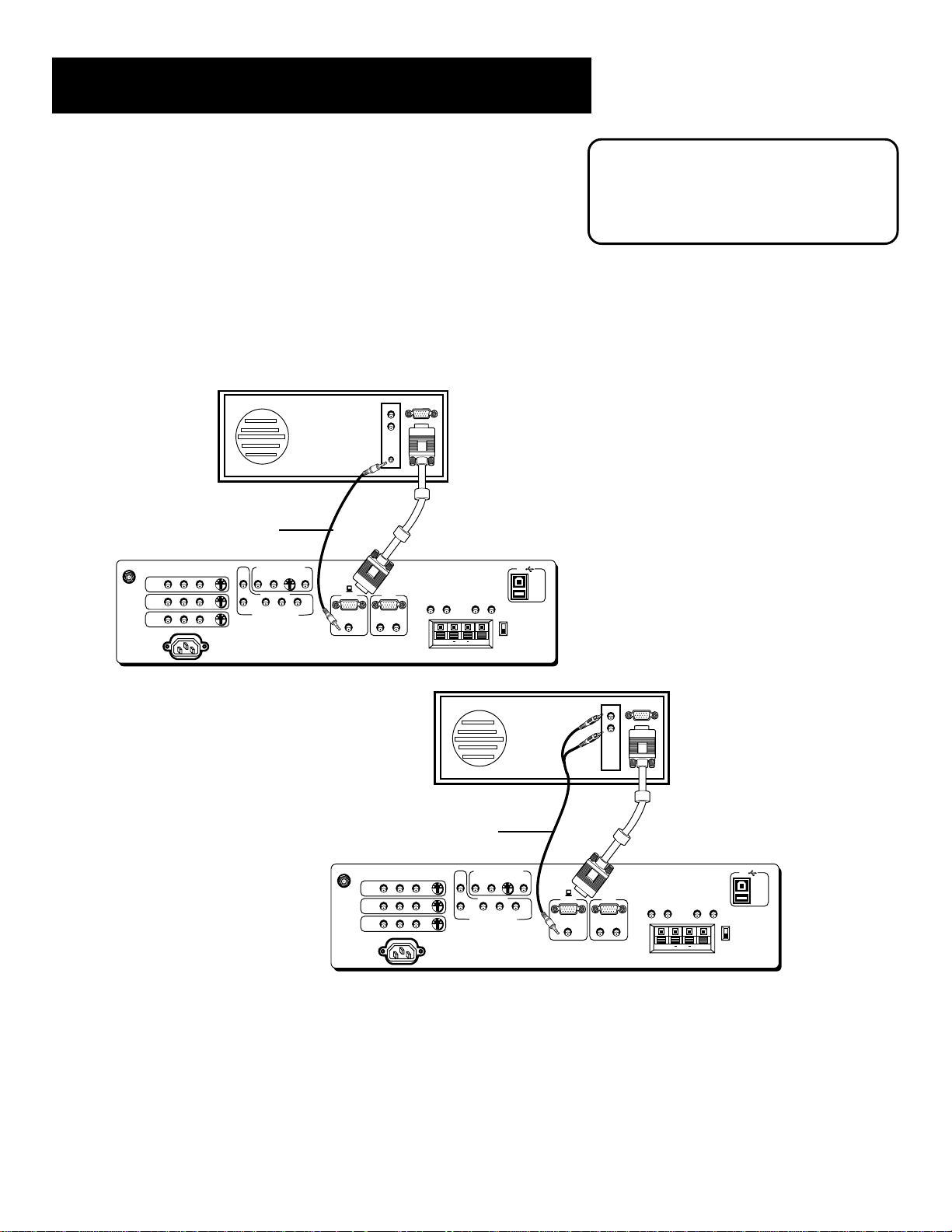
(S)VGA 1 Input Connection Examples
1. Connect the supplied (S)VGA cable to your computer and to the
monitor.
2. Connect the audio:
• Connect the stereo mini-jack cable to the computer and to the
STEREO INPUT jack on the monitor.
OR
• Connect the RCA-type connectors of a “Y” adapter to the audio
outputs on the computer, and connect the stereo mini-jack
connector to the STEREO INPUT jack on the monitor.
BACK OF COMPUTER
Stereo mini-jack
cable
AUDIO
R
L
SELECTED OUTPUTS
S-VIDEO
PIP
MAIN
COMPONENT
YP
BPR
DVD COMPONENT INPUT
STEREO
OUTPUT
(S)VGA 1
STEREO INPUT
DIGITAL TV
INPUT
(S)VGA 2
AUDIO INPUTS
L
R
AUDIO OUTPUTS
FIXED
VARIABLE
LR L
EXT SPEAKERS
L
R
R
EXT
INT
++
ANTENNA/
CABLE INPUT
INPUT 1
INPUT 2
INPUT 3
POWER
AUDIO
VIDEO
L
R
S-VIDEO
The (S)VGA 1 input supports DDC2B and
VESA DPMS when using an appropriate
cable. We recommend using the VGA
cable supplied with this monitor.
USB
PC/
HUB
DEVICE/
HUB
BACK OF COMPUTER
“Y”
Adapter
AUDIO
R
L
SELECTED OUTPUTS
S-VIDEO
PIP
MAIN
COMPONENT
YP
BPR
DVD COMPONENT INPUT
STEREO
OUTPUT
(S)VGA 1
STEREO INPUT
DIGITAL TV
INPUT
(S)VGA 2
AUDIO INPUTS
L
R
AUDIO OUTPUTS
FIXED
LR L
EXT SPEAKERS
R
ANTENNA/
CABLE INPUT
INPUT 1
INPUT 2
INPUT 3
POWER
AUDIO
VIDEO
L
S-VIDEO
R
Viewing the (S)VGA 1 Input
1. Turn on the monitor and the computer.
2. Press the TV button on the remote control.
3. Press the INPUT button on the remote control to scroll through the video inputs until you
get to the VGA 1 input.
(If you have difficulty getting your screen to appear on the monitor see the Troubleshooting
section of this manual for possible solutions.)
L
VARIABLE
++
USB
PC/
HUB
DEVICE/
HUB
R
EXT
INT
15
Page 18
Connections & Setup
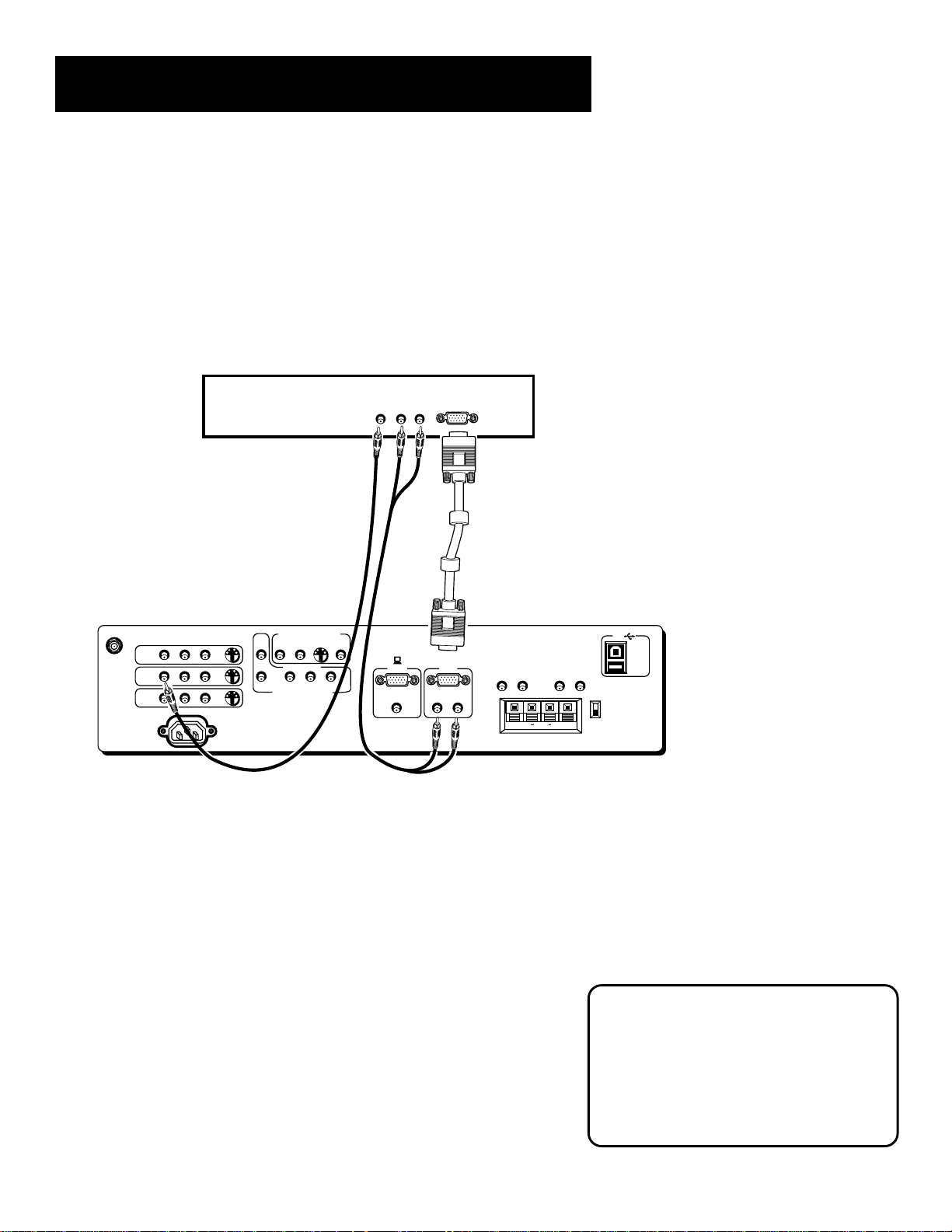
(S)VGA 2 Input
The (S)VGA 2 input can be used to connect a HDTV digital receiver so that you can receive HDTV
signals.
1. Connect the supplied (S)VGA cable to your HDTV digital receiver and to the monitor.
2. Connect an RCA-type cable to the left and right audio outputs on the digital set top
converter and to the corresponding left and right AUDIO INPUTS associated with the (S)VGA
2 input on the monitor.
3. Connect an RCA-type cable to the video output on the HDTV digital receiver and to the video
INPUT2 on the monitor.
HDTV DIGITAL RECEIVER
AUDIO
VIDEO
L
R
AUDIO
R
L
SELECTED OUTPUTS
S-VIDEO
PIP
MAIN
COMPONENT
BPR
YP
DVD COMPONENT INPUT
STEREO
OUTPUT
(S)VGA 1
STEREO INPUT
DIGITAL TV
INPUT
(S)VGA 2
AUDIO INPUTS
L
R
AUDIO OUTPUTS
FIXED
LR L
EXT SPEAKERS
R
ANTENNA/
CABLE INPUT
INPUT 1
INPUT 2
INPUT 3
POWER
VIDEO
AUDIO
L
R
S-VIDEO
Viewing the (S)VGA 2 Input
1. Turn on the monitor and the HDTV digital receiver
2. Press the TV button on the remote control.
3. Press the INPUT button on the remote control to scroll through the
video inputs until you get to the VGA 2 input.
If your RCA or PROSCAN HDTV digital receiver switches from a high
definition output to a standard definition output the monitor will
automatically switch from the high definition (S)VGA2 input channel to
the standard definition INPUT2 (VID2) input channel in order for you to
view the signal. There are two situations in which this would occur:
• When recording from the HDTV digital receiver;
• When a high definition output signal is not allowed by the program
provider and/or movie studio for that particular program.
VARIABLE
L
USB
PC/
HUB
DEVICE/
R
++
HUB
EXT
INT
Direct Channel Tuning
You can set up the monitor to
automatically tune to the (S)VGA 2 input
when you press the DIRECTV button on
the remote. This is called auto tuning.
(See “Setup” for more information.)
16
Page 19

Connections & Setup
USB Inputs/Output
USB (universal serial bus) inputs let you connect PC-type peripheral
devices to the monitor. This includes devices such as joysticks, keyboards,
and pointing devices (mouse, trackball). There are three USB inputs and
one USB output that connects to a PC. The monitor acts as a hub to the
PC.
NOTE
The USB port will function even when the
monitor is in standby mode.
USB cable
(type A)
USB cable
(type B)
AUDIO
R
L
SELECTED OUTPUTS
S-VIDEO
PIP
MAIN
COMPONENT
BPR
YP
DVD COMPONENT INPUT
STEREO
OUTPUT
(S)VGA 1
STEREO INPUT
DIGITAL TV
INPUT
(S)VGA 2
AUDIO INPUTS
L
LR L
R
ANTENNA/
CABLE INPUT
INPUT 1
INPUT 2
INPUT 3
POWER
VIDEO
AUDIO
L
R
S-VIDEO
Front Inputs
The monitor has front inputs for convenience; one set of audio/video
inputs, a headphone jack and two client USB ports. Look for a hinged
door and gently lift the cover open.
(ENLARGED VIEW)
AUDIO OUTPUTS
FIXED
EXT SPEAKERS
R
USB
PC/
HUB
DEVICE/
HUB
USB
PC/
HUB
DEVICE/
VARIABLE
L
R
++
HUB
EXT
INT
NOTE
When you plug in headphones, the
monitor’s speakers are turned off.
A/V
jacks
USB
ports
Headphone
jack
R
E
W
O
P
+
L
O
V
—
L
O
V
H
C
H
C
U
N
E
M
17
Page 20
Connections & Setup
Setting Up the Monitor
Step 1: Plug In The Monitor
Plug the end of the power cord into an appropriate wall outlet. Be sure
to insert the plug completely.
Step 2: Place batteries in remote
• Remove the battery compartment cover from the back of the
remote.
• Insert fresh batteries. Make sure that the polarities (+ and -) are
aligned correctly.
• Replace the cover.
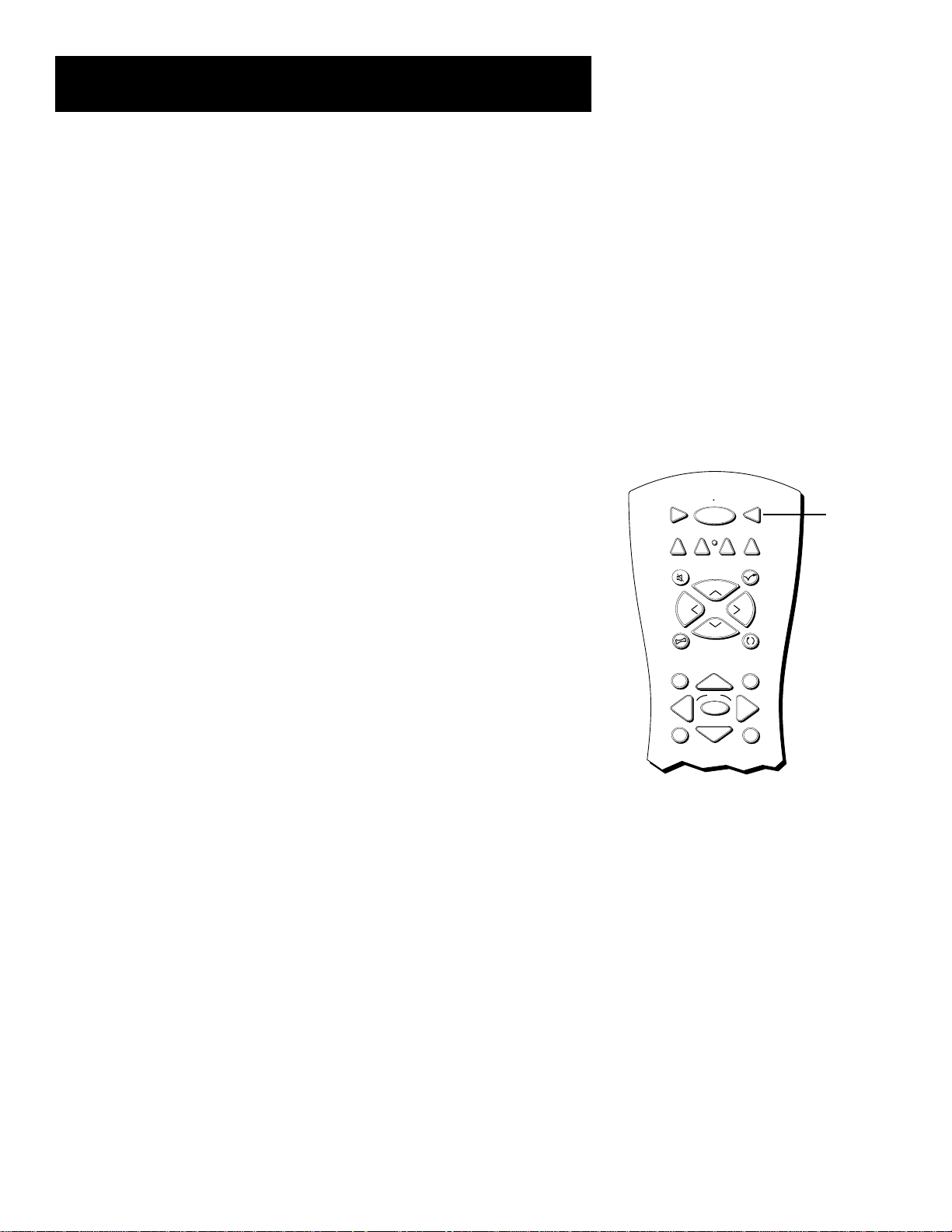
Step 3: Turn on the Monitor
Press TV on the remote, or press POWER on the monitor’s front panel.
Pressing the TV button not only turns on the monitor, but puts the
remote into TV mode, so that the buttons on the remote will control
monitor functions.
Step 4: Set Up the Monitor
The information that follows gives you step by step instructions for the
first time set up of your monitor. Take time now to read the next
section, “Setting Up Your Monitor,” and complete the set up routine.
First Time Set Up
The first time set up of your monitor includes: setting the time, auto
channel search, setting up the auto tuning feature, and labeling the
channels and inputs. Refer to this section if you ever need to reset any of
these initial settings.
VCR1
DVD
FETCH
GUIDE
MENU
ON OFF
TV
TV
AUX
DIRECTV
VCR2
SKIPMUTE
+
H
C
L
O
V
V
O
L
C
H
-
GO BACK
INFO
OK
CLEAR
button
18
Page 21

Connections & Setup
MENU
OK
CLEAR
The Point and Select Navigation Method
You can “get around” in the menu system by using just a few buttons
on the remote control. We call this the “Point and Select” method of
navigation, and it has two steps.
1. Point to a menu item using the MOVE arrows on the remote.
To point up or down, press the up or down arrows. To point left or
right, press the left or right arrows.
2. Select a menu item by pressing MENU or OK.
Selecting an item tells the monitor’s menu system to go ahead and
make the change or go to a place you have indicated.
Set the Time
The first step in the setup is to set the time.
1. Press MENU on the remote control to bring up the Main menu.
MAIN MENU
1 Audio
2 Picture Quality
3 Screen
4 Channel
5 Time
6 Parental Controls
7 Setup
0 Go Back
2. Point to Time, and press OK to select it.
TIME
1 Set Time
2 View Warranty Clock
0 Go Back
Point and Select
buttons
Alternate Navigation Method
In addition to using Point & Select, you
can also select a menu item by entering
the item number with the number
buttons on the remote.
Press CLEAR at any time to remove all
displays from the screen and return to
normal viewing.
Many VCR user manuals refer to a
PROGRAM button. The MENU button on
this remote works as a PROGRAM button
in VCR mode. Other manuals may refer to
a SELECT button. The OK button on this
remote works as a SELECT button.
3. Point to Set Time, and press OK to select it.
19
Page 22

Connections & Setup
SET TIME
: AM
01 to 12
Enter
Press OK to exit.
4. Use the left and right arrows to point to the hour and minutes
spaces. Use the up and down arrows to scroll through the numbers
and change from AM to PM. Press OK to exit.
Auto Channel Search
The next step of the setup routine “autoprograms” channels into the
channel list.
1. Press MENU bring up the Main menu and then select Channel.
1 Audio
2 Picture Quality
3 Screen
4 Channel
5 Time
6 Parental Controls
7 Setup
0 Go Back
for the hour.
TV MAIN MENU
2. From the CHANNEL menu (shown below), select Auto Channel
Search.
CHANNEL
1 Signal Type
2
Auto Channel Search
3 List and Labels
4 Auto Tuning
0 Exit
The monitor will begin searching for channels and give you a
progress report. When the channel search is complete, press OK on
the remote to go back to the Channel menu.
20
Page 23

Connections & Setup
Set the VCR1 Channel (auto tuning)
The next step lets you set the VCR1 channel. When you set the VCR1
channel, the monitor automatically tunes to the correct input channel
when press the VCR1 button on the remote. This is called “Auto
Tuning.”
If you don’t have a VCR1 component connected to the monitor, skip this
step.
1. From the CHANNEL menu (shown below), select Auto Tuning.
CHANNEL
1 Signal Type
2
Auto Channel Search
3 List and Labels
4 Auto Tuning
0 Go Back
2. From the AUTO TUNING menu (shown below), select Set VCR1
Channel.
AUTO TUNING
1 Set VCR1 Channel...
2 Set VCR2 Channel...
3 Set DVD Channel...
4 Set SAT/CABLE Channel...
0 Go Back
3. From the SET VCR1 CHANNEL menu (shown below), point to the
choice in the that matches the way you have your VCR connected to
the monitor.
SET VCR1 CHANNEL
1 Not connected
2 Channel 3
3 Channel 4
4 Video 1 Input
5 Video 2 Input
6 Video 3 Input
4. Press OK to select it.
21
Page 24

Connections & Setup
Set the VCR2 Channel (auto tuning)
You can set the VCR2 button on the remote to automatically tune to an
input channel as well. If you don’t have a VCR2 component connected to
the monitor, skip this step.
1. From the CHANNEL menu (shown below), select Auto Tuning.
CHANNEL
1 Signal Type
2
Auto Channel Search
3 List and Labels
4 Auto Tuning
0 Go Back
2. From the AUTO TUNING menu (shown below), select Set VCR2
Channel.
AUTO TUNING
1 Set VCR1 Channel...
2 Set VCR2 Channel...
3 Set DVD Channel...
4 Set SAT/CABLE Channel...
0 Go Back
3. From the SET VCR2 CHANNEL menu (shown below), point to the
choice in the that matches the way you have your VCR connected to
the monitor.
SET VCR2 CHANNEL
1 Not connected
2 Channel 3
3 Channel 4
4 Video 1 Input
5 Video 2 Input
6 Video 3 Input
4. Press OK to select it.
22
Page 25

Connections & Setup
Set the DVD Channel (auto tuning)
The next step lets you set the DVD channel. When you set the DVD
channel, you’re telling the monitor what channel to tune to when you
press the DVD button on the remote.
Indicate which input you used to connect an DVD player. If you don’t
have a DVD player connected to the monitor, skip this step.
1. From the CHANNEL menu (shown below), select Auto Tuning.
CHANNEL
1 Signal Type
2
Auto Channel Search
3 List and Labels
4 Auto Tuning
0 Go Back
2. From the AUTO TUNING menu (shown below), select Set DVD
Channel.
AUTO TUNING
1 Set VCR1 Channel...
2 Set VCR2 Channel...
3 Set DVD Channel...
4 Set SAT/CABLE Channel...
0 Go Back
3. From the SET DVD CHANNEL menu (shown below), point to the
choice in the that matches the way you have your DVD connected to
the monitor.
SET DVD CHANNEL
1 Not connected
2 Channel 3
3 Channel 4
4 Video 1 Input
5 Video 2 Input
6 Video 3 Input
7 Component Input
4. Press OK to select it.
23
Page 26

Connections & Setup
Set the SAT/CABLE Channel (auto tuning)
The next step lets you set the SAT/CABLE channel. When you set the
SAT/CABLE channel, you’re telling the monitor what channel to tune to
when you press the DIRECTV button on the remote.
Indicate which input you used to connect a satellite receiver, a cable box
or a digital set top converter. If you don’t have one of these
components connected to the monitor, skip this step.
1. From the CHANNEL menu (shown below), select Auto Tuning.
CHANNEL
1 Signal Type
2
Auto Channel Search
3 List and Labels
4 Auto Tuning
0 Go Back
2. From the AUTO TUNING menu (shown below), select Set SAT/CABLE
Channel.
AUTO TUNING
1 Set VCR1 Channel...
2 Set VCR2 Channel...
3 Set DVD Channel...
4 Set SAT/CABLE Channel...
0 Go Back
3. From the SET SAT/CABLE Channel menu (shown below), point to
the choice in the that matches the way you have your satellite
receiver or cable box connected to the monitor.
SET SAT/CABLE CHANNEL
1 Not connected
2 Channel 2
3 Channel 3
4 Channel 4
5 Video 1 Input
6 Video 2 Input
7 Video 3 Input
8 (S)VGA 2 Input
4. Press OK to select it.
24
Page 27

Connections & Setup
Label the Channels
This last step in the setup routine lets you create your channel list and
label your channels.
1. From the CHANNEL menu (shown below), select Lists and Labels.
CHANNEL
1 Signal Type
2
Auto Channel Search
3 List and Labels
4 Auto Tuning
0 Go Back
The LISTS AND LABELS menu appears (shown below).
LIST AND LABELS
Chan Normal Chan
Number List Label
59 Yes FOX---
Use the CH ^ (channel up) or CH v
(channel down) buttons to change
channels in the Chan # field. This works
even if you’re not in the Chan # field. Or,
enter the channel number directly using
the number buttons on the universal
remote. To enter a number greater than
99, press and hold “1” to enter the
hundreds digit, then press the two
remaining numbers.
The list and labels feature can also be
accessed from the Channel menu. Because
this procedure can be time consuming,
feel free to skip this step and come back
to it later.
Use ^ or v, keypad, or CH ^/v
to set channel, MENU to exit.
2. Use the left and right arrows to point to the three different areas of
the control panel (called “fields”).
3. Use the up and down arrows to scroll through the numbers and
letters and select Yes or No in the Normal List field. You may wish to
refer to the call letters listed in your newspaper’s TV section for
ideas on labelling the channels.
4. Repeat this process for each of your channels. Then press MENU or
OK to continue. The monitor can store in memory as many as 45
labels plus labels for each input.
What Now?
Now that you’ve finished the setup, you can sit back, relax, and enjoy
the monitor, or you can take a few minutes to program the remote to
control your VCR, DVD player, satellite receiver, or other components. To
find out how to program the remote, go to the next section.
25
Page 28

Connections & Setup
26
Page 29

Using the Remote
How to use your Universal
Remote
This section defines the buttons of the remote and
how to program it to control other components.
The universal remote can be programmed to control
most brands of remote controllable VCRs, satellite
receivers, and cable boxes. If you have an RCA, GE,
or ProScan component, you probably don’t need
to program it at all.
Connections & Setup
1
➣
Using the Remote
2
➣➣
Menus and Features
3
Reference
4
Modes of Operation
Because this universal remote can control
several different components (DVD
player, VCR, Cable Box, etc.) it uses
operational modes triggered by the
component buttons. For example if you
want the remote to control the TV, you
would press the TV button to put the
remote into TV mode before you could
control the TV.
27
Page 30

Using the Remote
Remote Buttons
ON•OFF When in TV mode, turns the monitor on and off. If in another
device mode (VCR, DVD, Satellite(DIRECTV), etc.) and programmed, will
turn the device on and off. Press twice within two seconds to turn off
most ProScan, RCA and GE products at once.
VCR1 Puts the remote in VCR mode and if auto tuning is enabled, it
will turn on the monitor and tune to the correct channel.
TV Turns on the monitor and puts the remote in TV mode. Also
displays channel information.
DVD Puts the remote in DVD mode and if auto tuning is enabled, it will
turn on the monitor and tune to the correct channel.
VCR2 Puts the remote in VCR2 mode and if auto tuning is enabled, it
will turn on the monitor and tune to the correct channel.
LED The LED light indicates programming mode when programming
the remote to control components.
AUX Puts the remote in AUX mode. Also, turns on the monitor.
DIRECTV Puts the remote in satellite mode and if auto tuning is
enabled, it will turn on the monitor and tune to the correct channel.
MUTE Reduces the monitor’s volume to its minimum level. Press again
to restore the volume.
SKIP Press once before changing channels and the monitor will wait 30
seconds before returning you to the original channel. Press repeatedly
to add more time.
CH ^ or CH v Scans up or down through the current channel list. Press
once to change the channel up or down; press and hold to continue
changing channels.
VOL – or VOL + Decreases or increases the monitor’s volume.
LED
1
4
7
VCR1
DVD
FETCH
GUIDE
MENU
INPUT
RECORD
VCR2
L
O
V
2
5
8
0
ON OFF
DIRECTV
AUX
+
H
C
C
H
-
GO BACK
OK
3
6
9
ANTENNA
PLAY FORWARDREVERSE
STOP PAUSE
TV
SKIPMUTE
V
O
L
INFO
CLEAR
FETCH Brings up Picture Mode choice list (Computer/text or Video)
when tuned to VGA1 or VGA2. Some ProScan, RCA and GE devices use
FETCH as a shortcut to menu items.
GO BACK Returns you to the previous channel or previous screen in
the menu system.
GUIDE In satellite (DIRECTV) mode brings up available on-screen
guides.
INFO Brings up channel information; press again to clear the screen.
MOVE (Arrows) Used to point to different items in the menu system
and adjust the menu controls. Also moves the PIP window when no
menus are on the screen.
OK When in the menu system, selects highlighted items or returns you
to the previous menu.
MENU Brings up the Main menu and selects highlighted items. When
in VCR mode, it functions as a PROGRAM button.
28
PIP
SWAP
WHOCH CTRL
NOTE
The VCR1, DVD, VCR2, and DIRECTV
buttons also turn on most RCA, GE and
ProScan products.
Page 31

Using the Remote
CLEAR Removes any menu or display from the screen and returns you
to normal viewing.
(0-9) Number Buttons Enters channel numbers and time settings
directly though the remote control. To enter a two-digit channel, press
the two digits. To enter a three-digit channel, press and hold the first
digit until the number and two dashes “– –” appear, then add the
second two. Example: to tune to channel 123, press and hold 1 until
“1– –” appears, release the 1 button and then press 2, and 3.
INPUT In TV mode, press to toggle through the available input sources
(VID1, VID2, VID3, last channel, VGA1, VGA2, component input).
ANTENNA Functions as TV/VCR button in VCR mode and TV/receiver
button in satellite (DIRECTV) mode.
REVERSE, PLAY, FORWARD, RECORD, STOP, PAUSE If programmed,
provides transport control for some remote-controllable VCRs, DVD
players, laserdisc players, tape decks, and CD players.
PIP Brings up the small picture-in-picture window. Press again to
remove the PIP window. (See “PIP Feature” later in this manual for more
information about using PIP.)
SWAP Swaps the main picture with the PIP window.
CH CTRL Selects the picture window, (that is, the main or PIP window)
to be changed by the CH ^ (channel up) or CH v (channel down) buttons.
WHO Some RCA, ProScan and GE components use the WHO button to
toggle through available channel lists and user profiles.
Using the INPUT button
Use the INPUT button to scroll through the available input channels and
view components you have connected to the monitor.
1. Press TV to place the remote in TV mode. Make sure that the
component you want to view is turned ON.
2. Press INPUT to tune to an available input channel.
3. Continue to press the INPUT button to scroll through the channels.
Programming the Remote
The universal remote can be programmed to control most brands of
remote controllable VCRs, satellite receivers and cable boxes. The remote
is already programmed to control most ProScan, RCA and GE TVs,
VCRs, DVD players, laserdisc players and satellite receivers.
Testing the Remote
To determine whether the universal remote needs to be programmed,
turn a device ON, such as a VCR, point the remote at the VCR, and press
the VCR1 button. Then press POWER or CH ^ (channel up) or CH v
(channel down) to see if the VCR responds to the remote commands. If
not, the remote needs to be programmed.
Modes of Operation
Because this universal remote can control
several different components (DVD
player, VCR, Cable Box, etc.) it uses
operational modes triggered by the
component buttons. For example if you
want the remote to control the TV, you
would press the TV button to put the
remote into TV mode before you could
control the TV.
29
Page 32

Using the Remote
Programming the Remote
Using Automatic Code Search
The following instructions can be used to program the remote to control
each of the devices connected to your monitor. If you want to exit the
automatic code search without programming any of your devices, press
and hold CLEAR until the LED turns off.
1. Turn on the device you want to control (VCR, digital satellite
receiver, etc.).
2. Press and hold the button you want to program (VCR1, DIRECTV,
etc.). While holding the device button, press and hold ON•OFF until
the red light on the remote turns on, then release both buttons.
3. Point the remote at the device, press and release PLAY, then wait 5
seconds or until the LED stops flashing.
At this point the remote is searching for the correct code to
program. If, after 5 seconds or until the LED stops flashing, the
device you want to control does not turn off, press PLAY again to
tell the remote to search the next set of codes.
VCR1
DVD
VCR2
ON • OFF
TV
DIRECTV
AUX
Continue pressing PLAY until the device turns off or you have
searched through all of the codes. There are 20 total sets of codes. If
the device does not turn off after pressing PLAY 20 times, then the
remote cannot control that particular device.
If the device you want to control does turn off:
1. Press and release REVERSE, then wait 2 seconds. Repeat this step
until the device turns back ON.
2. To finish, press and hold STOP until the red light on the remote
turns off.
Using Direct Entry
1. Turn on the component to be programmed.
2. Look up the brand and code number(s) for the component on the
code list on the last page of this section.
3. Press and hold the button on the remote you want to program.
4. Enter the code from the code list.
5. Release button, and then press ON•OFF to see if the component
responds to the remote commands. If it doesn’t, try pressing the
component button and then ON•OFF again.
6. If you get no response, repeat these steps using the next code listed
for your brand, until the component responds to the remote
commands.
LED
PLAY
REVERSE
STOP
You’ll use these buttons when you
program the remote.
The remote may not operate all models
of all brands.
30
Page 33

Using the Remote
Using the remote to control a device
Once the remote has been programmed successfully, you are ready to
use it to control your devices.
To operate the device:
1. Press the device button (TV, VCR1, VCR2, DVD, AUX, or DIRECTV) to
set the remote to control the device.
2. Press ON•OFF to turn the device ON or OFF.
3. Use the remote buttons that apply to that device.
Modes of Operation
Because this universal remote can control several different components
(DVD player, VCR, Cable Box, etc.) it uses operational modes triggered by
the component buttons. For example if you want the remote to control
the monitor, you would press the TV button to put the remote into TV
mode before you could control the monitor.
Front Panel
If you cannot locate your remote you can use the front panel of your
monitor to operate many of the monitor’s features.
MENU/OK Brings up the Main menu. When in the menu system, it
selects highlighted items. Also returns you to the previous menu.
CH v Scans down through the current channel list. In the menu system,
it points down to items and adjusts menu controls.
CH ^ Scans up through the channel list. In the menu system, it points
up to items and adjusts menu controls.
VOL < Decreases the volume. When in the menu system, VOL < is used
to point left to items and adjust menu controls.
VOL > Increases the volume. When in the menu system, VOL > is used
to point right to items and adjust menu controls.
POWER Turns the monitor on and off.
MENU CH CH VOL — VOL + POWER
The front panel below shows a typical
button layout. The exact look of the
buttons may be different from those on
the front of your monitor.
If you use the Channel Block feature, the
front panel no longer provides access to
the menus. The Front Panel Lockout
feature disables all front panel buttons.
For more information, see Parental
Control, in the Features and Menus
section.
R
E
W
O
+P
L
O
V
—
L
O
V
H
C
H
C
U
N
E
M
31
Page 34

Using the Remote
VCR
Admiral ......................................................................... 2131
Adventura.....................................................................2026
Aiko ............................................................................... 2027
Aiwa.................................................................... 2002, 2026
Akai.... 2003, 2004, 2005, 2007, 2008, 2111,2112, 2113
American High ............................................................ 2021
Asha ............................................................................... 2013
Audio Dynamics ..............................................2009, 2010
Audiovox ...................................................................... 2014
Bell & Howell...............................................................2011
Beaumark .....................................................................2013
Broksonic .......................................................... 2012, 2025
Calix ..............................................................................2014
Candle ......... 2013, 2014, 2015, 2016, 2017, 2018, 2019
Canon...................................................... 2021, 2022, 2114
Capehart............................................................ 2020, 2110
Carver ........................................................................... 2062
CCE .................................................................... 2027, 2061
Citizen2013, 2014, 2015, 2016, 2017, 2018,2019,2027
Colortyme ...................................................................2009
Colt................................................................................ 2061
Craig ............................................. 2013, 2014, 2023, 2061
Curtis-Mathes ........................... 2000, 2002, 2009, 2013,
................................. 2016, 2018, 2021, 2022, 2024, 2115
Cybernex...................................................................... 2013
Daewoo ...... 2015, 2017, 2019,2025, 2026, 2027, 2028,
Daytron.........................................................................2110
Dbx ..................................................................... 2009, 2010
Dimensia....................................................................... 2000
Dynatech ........................................................... 2002, 2026
Electrohome ..................................................... 2014, 2029
Electrophonic .............................................................. 2014
Emerson .................................................2002, 2012,2014,
............ 2015, 2021, 2024, 2025,2026,2029, 2030, 2032,
2033, 2034, 2035, 2036, 2037, 2038, 2039, 2040, 2041,
2042, 2044, 2045, 2047, 2065, 2105, 2113, 2116, 2117,
Fisher. 2011, 2023, 2048, 2049, 2050, 2051, 2052,2118
Fuji ......................................................................2021, 2119
Funai ................................................................... 2002, 2026
Garrard ......................................................................... 2026
GE ..... 2000, 2001, 2013, 2021, 2022, 2053, 2115, 2120
Goldstar............................ 2009, 2014, 2018, 2054, 2121
Gradiente ..................................................................... 2026
Harley Davidson ......................................................... 2026
Harman Kardon .......................................................... 2009
Harwood ...................................................................... 2061
Headquarter ................................................................ 2011
Hitachi2002, 2055, 2056, 2057, 2107, 2111, 2120, 2122
HI-Q .............................................................................. 2023
Instant Replay ..............................................................2021
JCL ................................................................................. 2021
JC Penney ............. 2009, 2010, 2011, 2013, 2014, 2021,
.......... 2022, 2055, 2056, 2058, 2059, 2060, 2107, 2118
Jensen ...................................................... 2055, 2056, 2111
JVC............... 2009, 2010, 2011, 2018, 2058, 2111, 2123
Kenwood .............. 2009, 2010, 2011, 2016, 2018, 2058,
KLH ............................................................................... 2061
Kodak ................................................................. 2014, 2021
Lloyd................................................................... 2002, 2026
Logik ..............................................................................2061
LXI ................................................................................. 2014
Magnavox.... 2021, 2022, 2062, 2063, 2104, 2108, 2124
Magnin ........................................................................... 2013
Marantz ..................................................2009, 2010, 2011,
.................................. 2016, 2018, 2021, 2058, 2062,2064
Marta ............................................................................. 2014
Masushita...................................................................... 2021
MEI ................................................................................. 2021
Memorex.......................................................... 2002, 2011,
..................... 2013, 2014, 2021, 2023, 2026, 2104, 2131
MGA ........................................................ 2029, 2065, 2113
MGN T echnology........................................................ 2013
Midland .........................................................................2053
Minolta .................................................... 2055, 2056, 2107
Mitsubishi ..2029, 2055, 2056, 2065, 2066, 2067, 2069,
.......... 2070, 2071, 2072, 2073, 2074, 2106, 2113, 2123
2110
2130
2111,2123
Montgomery Ward............................................ 2075, 2131
Motorola.............................................................. 2021,2131
MTC .......................................................... 2002, 2013, 2026
Multitech ................. 2002, 2013, 2016, 2026, 2053, 2061
NEC.................................... 2009, 2010, 2011, 2016, 2018,
....................... 2058, 2064, 2076, 2078, 2079, 2111, 2123
Nikko............................................................................... 2014
Noblex ............................................................................ 2013
Olympus ......................................................................... 2021
Optimus............................................................... 2014, 2131
Optonica......................................................................... 2096
Orion .............................................................................. 2035
Panasonic................. 2021, 2022, 2109, 2125, 2126, 2127
Pentax ................................. 2016, 2055, 2056, 2107, 2120
Pentex Research........................................................... 2018
Philco.............................................. 2021, 2022, 2062, 2063
Philips ............................................. 2021, 2062, 2096, 2124
Pilot ................................................................................. 2014
Pioneer................................ 2010, 2055, 2080, 2081, 2123
Portland ......................................... 2016, 2017, 2019, 2110
Proscan ................................................................ 2000, 2001
Protec.............................................................................. 2061
Pulsar............................................................................... 2104
Quarter .......................................................................... 2011
Quartz............................................................................. 2011
Quasar ...................................................... 2021, 2022, 2125
RCA .................................... 2000, 2001, 2003, 2013, 2021,
.............. 2055, 2056, 2082, 2083, 2084,2085, 2086,2087,
..............2088, 2089, 2090, 2091, 2107, 2115, 2120, 2125
Radioshack/Realistic.................... 2002, 2011, 2013, 2014
. 2021, 2022, 2023, 2026, 2029, 2049, 2050, 2096, 2131
Radix................................................................................ 2014
Randex ............................................................................ 2014
Ricoh ............................................................................... 2128
Runco .............................................................................. 2104
Samsung ................... 2005, 2013, 2015, 2033, 2053, 2112
Sanky .................................................................... 2132, 2104
Sansui ............................................. 2010, 2092, 2111, 2123
Sanyo ......................................................... 2011, 2013, 2023
Scott ... 2012, 2015, 2025, 2032, 2035, 2038, 2065, 2093,
Sears .................................... 2011, 2014, 2021, 2023, 2048,
.........................2049, 2050, 2051, 2055, 2056, 2107, 2118
Sharp ..............2002, 2017, 2029, 2094, 2095, 2096, 2131
Shintom.......................................... 2004, 2056, 2061, 2098
Shogun ............................................................................ 2013
Signature............................................................. 2002, 2131
Singer......................................................... 2021, 2061, 2128
Sony .......................... 2002, 2004, 2098, 2099, 2119, 2128
STS ........................................................................ 2021, 2107
Sylvania 2002, 2021, 2022, 2026, 2062, 2063, 2065, 2124
Symphonic ........................................................... 2002, 2026
T andy .................................................................... 2002, 2011
Tashiko ............................................................................ 2014
T atung................................................................... 2058, 2111
TEAC................................... 2002, 2026, 2058, 2085, 2111
T echnics ............................................................... 2021, 2109
T eknika..................... 2002, 2014, 2021, 2026, 2100, 2129
Tmk ........................................................... 2013, 2024, 2047
T oshiba...........2015, 2049, 2051, 2055, 2065, 2093, 2116
T oteVision ........................................................... 2013, 2014
Unitech ........................................................................... 2013
V ector Research .......................... 2009, 2010, 2015, 2016
Victor .............................................................................. 2010
Video Concepts ................ 2009, 2010, 2015, 2016, 2113
Videosonic ..................................................................... 2013
Wards.......... , 2002, 2013, 2014, 2015, 2021, 2023, 2026,
.. 2029, 2055, 2056, 2061, 2096, 2101, 2102, 2103, 2107,
XR-1000 ................................................... 2021, 2026, 2061
Y amaha..................... 2009, 2010, 2011, 2018, 2058, 2111
Zenith.................................. 2004, 2098, 2104, 2119, 2128
2116
2116, 2131
Audio
(For RCA and Dimensia brands only)
AM/FM ............................................................................ 4003
Aux .................................................................................. 4004
Phono .............................................................................. 4005
CD ................................................................................... 4007
Tape ................................................................................. 4006
Cable Boxes
ABC ...................... 5002, 5003, 5004, 5005, 5006, 5007, 5053
Antronix ..................................................................... 5008, 5009
Archer................................................... 5008, 5009, 5010, 5011
Cabletenna ............................................................................ 5008
Cableview.............................................................................. 5008
Century .................................................................................5011
Citizen.................................................................................... 5011
Colour Voice.............................................................. 5012, 5013
Comtronics................................................................ 5014, 5015
Contec ................................................................................... 5016
Eastern ................................................................................... 5017
Garrard .................................................................................. 5011
GC Electronics..................................................................... 5009
Gemini .............................................................5018, 5019, 5049
General Instrument ............................................................5003
Hamlin........................................ 5020, 5021, 5022, 5035, 5045
Hitachi.................................................................................... 5003
Hytex...................................................................................... 5002
Jasco .......................................................................................5011
Jerrold ........ 5003, 5005, 5007,5018, 5023, 5024, 5046, 5053
Magnavox...............................................................................5025
Memorex............................................................................... 5026
Movie Time ..................................................... 5002, 5027, 5028
NSC .................................................................. 5002, 5027, 5028
Oak .................................................................... 5002,5016, 5029
Panasonic.................................................................... 5048, 5052
Paragon .................................................................................. 5026
Philips ........ 5011, 5012, 5013, 5019, 5025, 5030, 5031, 5032
Pioneer........................................................................ 5033, 5034
Pulsar...................................................................................... 5026
RCA .................................................................. 5047, 5049, 5052
Realistic....................................................................... 5009, 5049
Regal ............................................................................ 5022, 5035
Regency .................................................................................5017
Rembrandt ............................................................................ 5003
Runco ..................................................................................... 5026
Samsung ...................................................................... 5014, 5034
Scientific Atlanta.................................. 5006, 5036, 5037, 5038
Signal............................................................................ 5014, 5018
Signature................................................................................ 5003
SL Marx.................................................................................. 5014
Sprucer ..................................................................................5052
Starcom............................................................ 5007, 5018, 5053
Stargate ....................................................................... 5014, 5018
Starquest................................................................................ 5018
Tandy ......................................................................................5040
Teleview ................................................................................. 5014
T ocom .............................................................. 5004, 5023, 5041
Toshiba ................................................................................... 5026
Tusa ......................................................................................... 5018
TV86....................................................................................... 5027
Unika ................................................................ 5008, 5009, 5011
United Artists ....................................................................... 5002
United Cable ........................................................................ 5053
Universal............................................... 5008, 5009, 5010, 5011
Videoway ............................................................................... 5044
Viewstar................................................ 5015, 5025, 5027, 5040
Zenith............................................................... 5026, 5050, 5051
Satellite Receivers
Chapparal ................................................................... 5056, 5057
Drake .......................................................................... 5058, 5059
GE ................................................................................ 5000, 5001
General Instuments ....................................... 5060, 5061, 5062
Panasonic............................................................................... 5075
Primestar ............................................................................... 5076
Proscan ....................................................................... 5000, 5001
RCA ............................................................................. 5000, 5001
Realistic.................................................................................. 5063
Sony ........................................................................................ 5072
STS1........................................................................................ 5064
STS2........................................................................................ 5065
STS3........................................................................................ 5066
STS4........................................................................................ 5067
T oshiba........................................................................ 5068, 5073
Uniden.................................................................................... 5069
32
Page 35

Menus and Features
Using the Monitor
This section explores the features and menus of your monitor
beginning with some information on using menus and control
panels.
Each menu is then outlined and special features are detailed in
order to help you get the most from your monitor.
Connections & Setup
1
➣
Using the Remote
2
➣➣
Menus and features
3
Reference
4
33
Page 36

Menus and Features
Menus and Control Panels
Using the buttons on both the remote and front panel enable you to
access and make changes to the Menus and Control Panels.
Menus use the point and select rule to navigate, but control panels use a
variety of methods to adjust features on your monitor. The following
pages detail how to use these controls in order to customize the
functions of your monitor.
Menus
The first menu is called the Main menu. Press MENU on the remote or on
the front panel to bring up the Main menu:
MAIN MENU
1 Audio
2 Picture Quality
3 Screen
4 Channel
5 Time
6 Parental Controls
7 Setup
0 Go Back
Menus take you to another menu or a control panel. There are two ways
to select a choice in a menu:
• Point with the MOVE arrows and then select with MENU or OK.
• Press a number button on the remote. For example, in the Main
menu press 3 to go straight to the Screen menu.
Exiting a menu
There are three ways to exit a menu:
• Point to Go Back and press MENU or OK.
• Press 0 on the remote.
• Press CLEAR. The on-screen displays are cleared from the screen and
you are returned to normal viewing.
Feel free to explore the menu system. If
you’re ever unsure where you are in the
menu system, or you’re just plain tired of
exploring, press CLEAR to remove the
menus from the screen and start over
again.
34
Page 37

Menus and Features
Control Panels
Control Panels allow you to adjust the default settings on many features
of your monitor. You can choose a setting, enter a number, or adjust a
level such as tint or brightness. There are three types of control panels:
sliders, choice lists, and numeric entry.
Sliders
Sliders are used to make adjustments to a particular control.
To use a Slider in a menu:
1. Press the up or down arrow to select the slider control for the
feature you want to adjust.
2. Press the right or left arrow to adjust the indicator line on the slider.
Arrows
VCR1
DVD
FETCH
GUIDE
ON OFF
VCR2
C
L
O
V
C
TV
DIRECTV
AUX
SKIPMUTE
+
H
V
O
L
H
-
GO BACK
INFO
OK
PICTURE CONTROLS
Contrast
Color
Tint
Black Level
Sharpness
Press OK to exit.
Numeric Entry
A numeric entry control panel is used to enter numbers or letters.
A pointer appears underneath the column you are changing.
SET TIME
: AM
Enter
01 to 12
Press OK to exit.
for the hour.
1
4
7
MENU
INPUT
RECORD
PIP
2
5
8
0
PLAY FORWARDREVERSE
STOP PAUSE
SWAP
CLEAR
3
6
9
ANTENNA
WHOCH CTRL
1. Press the up arrow to enter a number in the column above the
pointer.
2. Press the right arrow to move to the next column, then press the up
or down arrow to enter a number.
3. When you have finished entering information, press MENU or OK.
If the control panel is not set at the
current time, use the left arrow to go back
over the columns and the up arrow to
make changes.
You can also enter numbers directly by
using the number buttons.
35
Page 38

Menus and Features
Choice Lists
Choice lists are used to choose a particular setting from a list of settings.
1. Point to a choice from the list and press MENU or OK to select that
choice.
Now that you know how to access the menus and adjust the control
panels the following pages provide a brief explanation of all the menu
features. The features are organized in order of their location on the
Main Menu.
Audio Menu
Mute Press OK to reduce the monitor’s volume to its minimum level.
Press OK again to restore the volume.
Tone Controls Displays the slider controls for adjusting the monitor’s
treble, bass and balance.
Audio Processor Displays a choice list of available audio modes, which
control the way the sound comes through your speakers.
Mono Plays the sound in mono only. Use this setting when
receiving broadcasts with weak stereo signals.
CLOSED-CAPTION MODE
1 CC1
2 CC2
3 CC3
4 CC4
5 Text1
6 Text2
7 Text3
8 Text4
Stereo Splits the incoming stereo audio signal into left and right
channels. Most TV programs and recorded materials have stereo
audio. The monitor displays the word STEREO when you tune to a
program that is broadcast in stereo.
SRS Stereo (•) SRS* is an audio processing technology that adds
greater depth and stereo separation to stereo audio signals.
Enhanced SRS Stereo Enhances the SRS signal to give the
impression of even greater depth and stereo separation.
Second Audio Program (SAP) Plays the program’s audio in a
second language, if one is available. The monitor displays the word
SAP when you tune to a program that is broadcast with SAP
information. SAP audio is broadcast in mono. SAP is also used to
broadcast a program’s audio with descriptions of the video for the
visually impaired.
Speakers Displays a choice list that lets you turn the monitor’s internal
speakers on or off.
Sound Logic Sound Logic monitors a program’s audio track and limits
the volume to a maximum volume range. Whenever you adjust the
volume on the monitor, the maximum volume range adjusts, too.
MAIN MENU
1 Audio
2 Picture Quality
3 Screen
4 Channel
5 Time
1 Mute
6 Parental Controls
2 Tone Controls
7 Setup
3 Audio Processor
0 Go Back
4 Speakers
5 Sound Logic
0 Go Back
AUDIO
* SRS, Sound Retrieval System and the SRS logo are registered trademarks of SRS Labs, Inc.
36
Page 39

Menus and Features
Picture Quality Menu
Basic Picture Controls Displays the five slider controls for adjusting
the way the picture looks. You can adjust and save different settings for
each input.
Contrast Adjusts the difference between the light and dark areas
of the picture.
Color Adjusts the richness of the color.
Tint Adjusts the balance between the red and green levels.
Black Level Adjusts the brightness of the picture.
Sharpness Adjusts the crispness of edges in the picture.
When exiting this menu the Save Personal Picture Preset Choice List will
appear. You can choose either Yes or No.
When tuned to a VGA input, Color, Tint, Black Level, and Sharpness do
not appear in the list and are not available in Text mode.
Picture Presets Displays a choice list that lets you select one of three
preset picture settings: Bright Lighting, Normal Lighting, Soft Lighting or
Personal Picture Presets. Choose the setting that is best for your viewing
environment and edit your Personal Picture Preset.
Auto Color Displays a choice list that lets you turn on the feature that
automatically corrects the color of the picture. (This is especially useful
for tracking realistic flesh tone colors as you switch from channel to
channel.) Choose On or Off, depending on your preference. Auto Color
is not available for VGA or component video.
MAIN MENU
1 Audio
2 Picture Quality
3 Screen
4 Channel
5 Time
6 Parental Control
7 Setup
0 Go Back
PICTURE QUALITY
1 Picture Controls...
2 Picture Presets...
3 Auto Color...
4 Color Warmth...
5 Video Noise Reduction...
6 Picture Mode...
0 Go Back
Color Warmth Displays a choice list that lets you set one of three
automatic color adjustments: Cool for a more blue palette of picture
colors; Normal; and Warm for a more red palette of picture colors. The
warm setting corresponds to the NTSC standard of 6500ºK.
Video Noise Reduction Displays a choice list that lets you turn on the
feature that automatically reduces noise from the picture. Video Noise
Reduction is not available in Text mode.
Picture Mode The picture mode control panel appears when the
monitor is tuned to a VGA input.
Computer/Text is the default setting for the (S)VGA 1 input. This
input and setting is recommended for most PC connections when
viewing text and graphics. Text will not appear as crisp in Video
mode.
Video is the default setting for the VGA2 input. This input and
setting is recommended in such instances as HDTV digital receiver
connections.
37
Page 40

Menus and Features
Screen Menu
Closed-Caption Display Displays a choice list that lets you choose the
way closed captioning information is shown on the screen. Closedcaptioning is not available with the VGA inputs.
Off No captioning information displayed.
On Captioning information shown always, when available.
On When Sound is Muted Displays captioning information,
when available, whenever the monitor’s sound is muted by pressing
the MUTE button. The captioning information is not displayed when
the sound is not muted.
Many programs are encoded with closed captioning information, which
lets you display the audio portion of a program as text on the monitor
screen. Closed captioning is not available on all channels at all times.
Only specific programs encoded with closed captioning information are
applicable. When a program is closed captioned, the letters CC are
displayed in the channel marker.
Closed-Caption Mode Displays a choice list that lets you choose
which captioning mode is used for displaying captioning information. If
you are unsure of the differences among the modes, you may prefer to
leave the closed captioned mode set to CC1, which displays complete
text of the program in the primary language in your area.
Picture Tilt Your monitor has an extra-large picture tube which makes
it vulnerable to the effects of the Earth’s magnetic field. You may need
to adjust the picture tilt. Use the left and right arrow buttons to adjust
the picture tilt.
TV MAIN MENU
1 Audio
2 Picture Quality
3 Screen
4 Channel
5 Time
6 Parental Control
7 Setup
1 Closed-Caption Display...
0 Go Back
2 Closed-Caption Mode...
3 Picture Tilt...
4 Picture Position...
5 Picture Size...
6 Background Color...
0 Go Back
CLOSED-CAPTION MODE
1 CC1
2 CC2
3 CC3
4 CC4
5 Text1
6 Text2
7 Text3
8 Text4
SCREEN
*Picture Position This menu item appears when the monitor is tuned
to a VGA input. This control adjusts the horizontal and vertical position
of the main picture window. Use the arrows on the remote control to
move the window. Press OK to set the positioning.
*Picture Size This menu item appears when the monitor is tuned to a
VGA input. This control adjusts the horizontal and vertical size of the
main picture window. Use the arrows on the remote control to adjust
the size, then press OK to set the size.
Background Color This menu item lets you choose between blue and
transparent backgrounds.
*These options are not available when an HDTV digital receiver or computer
of similar frequency is connected to one of the (S)VGA inputs.
38
Page 41

Menus and Features
Channel Menu
Signal Type Displays a choice list that lets you select the current
antenna type.
UHF/VHF Antenna Choose this if you are currently using an off-air
antenna for TV signals.
Cable TV Choose this if you are currently using cable or a cable box
for TV signals.
Auto Channel Search Tells the monitor to search automatically for all
the channels available through the antenna input. When the monitor
finds an active channel, it places it in the channel list; inactive channels
(weak stations or channels with no signal at all) will be removed from
the channel list. Video Input channels can also be added later in the Lists
and Labels control panel.
List and Labels Displays a control panel that lets you custom-build
your channel list and choose a six-character label for up to 45 channels.
Follow the on-screen directions to enter your channels and other
information.
Channel Number Use the up and down arrows to scroll up and
down through the channel scan list. You can enter the channel
number directly using the number buttons.
Channel List Only the channels included in the Normal list are
available when you scan up and down using the CH buttons. Use the
up and down arrows to indicate whether the channel number
indicated is included (Yes) or is not included (No) in the Normal
channel list.
TV MAIN MENU
1 Audio
2 Picture Quality
3 Screen
4 Channel
5 Time
6 Parental Controls
7 Setup
0 Go Back
1 Signal Type
2
3 List and Labels
4 Auto Tuning
0 Go Back
CHANNEL
Auto Channel Search
Channel Labels Use the up and down arrows to enter a sixcharacter label for up to 45 channels. Hold the button down to scroll
quickly through the characters.
Auto Tuning Displays a choice list that lets you set up the monitor to
automatically tune to the correct input channel when you press a
component button (VCR1, VCR2, DVD, or DIRECTV) on the remote.
Set VCR1 Channel Displays a choice list that lets you select the
channel that the monitor tunes to when you press the VCR1 button.
Set VCR2 Channel Displays a choice list that lets you select the
channel that the monitor tunes to when you press the VCR2 button.
Set DVD Channel Displays a choice list that lets you select the
channel that the monitor tunes to when you press the DVD button.
Set SAT Channel Displays a choice list that lets you select the
channel that the monitor tunes to when you press the DIRECTV
button.
After you have selected the device button you want to auto tune,
you need to select the input you want the monitor to tune to when
you press that button. The available options include:
39
Page 42

Menus and Features
Not Connected Choose this if you do not have a component
connected to an antenna or video input on the back of the monitor,
or if you don’t want the monitor to tune to a channel when the
particular component button is pressed.
Channel 2 (DIRECTV only), 3 or 4 Choose this if your component
is connected to the antenna jack on the back of the monitor, and
you want the monitor to tune to channel 2 (DIRECTV/Cable only), 3
or 4 when you press the specified component button. Reminder:
Make sure the component’s Ch 2/3/4 switch is set to the
corresponding channel.
Video 1, Video 2, Video 3, or Front Input Choose this if your
component is connected to the INPUT 1, INPUT 2, INPUT 3 or Front
Input jacks of the monitor and you want the monitor to tune to
VID1, VID2, VID3 or FRNT input channel when you press the
specified component button. (If you connect S-video cables, the
channel marker displays SVID1, SVID2 or SVID3.)
Component Input (DVD only) Choose this if your DVD player is
connected to the 3 component video jacks on the back of the
monitor and you want the monitor to tune to component video
input channel when you press the specified component button.
TV MAIN MENU
1 Audio
2 Picture Quality
3 Screen
4 Channel
5 Time
6 Parental Controls
7 Setup
0 Go Back
1 Signal Type
2
Auto Channel Search
3 List and Labels
4 Auto Tuning
0 Go Back
CHANNEL
(S)VGA 2 Input Choose this if your component is connected to
the (S)VGA 2 input on the back of the monitor and you want the
monitor to tune to the (S)VGA 2 Input channel when you press the
specified component button.
Time Menu
Set Time Displays a control panel that lets you enter the current time.
The on-screen directions guide you through the steps needed to set the
time.
MAIN MENU
1 Audio
2 Picture Quality
3 Screen
4 Channel
5 Time
6 Parental Controls
7 Setup
0 Go Back
1 Set Time
0 Go Back
TIME
40
Page 43

Menus and Features
MAIN MENU
1 Audio
2 Picture Quality
3 Screen
4 Channel
5 Time
6 Parental Control
7 Setup
0 Go Back
Parental Controls and V-Chip
The Parental Controls menu allows you to program your monitor so that
children cannot see certain programs, channels, or use the front panel controls.
The first three choices in the Parental Controls menu involve a chip inside your
monitor (called V-Chip) which allows you to “block” TV programs and movies
based on violence, sex, or other content you may believe children should not
view. In other words, it lets you program your monitor so it will not display
certain programs. Once you block programs, you or other adults are not limited
to only parent-approved programs; you can “unblock” programs by entering a
password.
The V-Chip inside your TV comes turned “off,” so if you choose not to
implement it, you can just ignore it.
When turned “on,” the V-chip reads a code that most broadcasters send with programs. That code tells the V-Chip
the program’s age-based rating (TV-MA, TV-14, etc.) and content themes (Violence (V), Adult Language (L), etc.). If
you have blocked the rating and/or content themes that the program contains, you will receive the message, “This
channel is not approved for viewing,” when you turn to that particular channel. Broadcasters are not required to
provide content themes, so programs received with no content themes will only be blocked if you block their agebased rating. You can also block out programs that have been given a rating of “Not Rated”, and programs that are
considered “unrated” because no code has been sent by the broadcaster.
The TV age-based ratings and content themes you can block are listed in the table below.
PARENTAL CONTROLS
1 V-Chip TV Rating Limit
2 V-Chip Movie Rating Limit
3 V-Chip Unrated Program Block
4 Channel Block
5 Front Panel Block
6 Lock Parental Controls
0 Go Back
Age-Based Description and Content Themes for Age-Based Ratings
Rating
TV-MA Mature Audience Only. Specifically designed to be viewed by adults and may be unsuitable for
TV-14 Parents Strongly Cautioned. Contains some material that many parents would find unsuitable for
TV-PG Parental Guidance Suggested. Contains material that parents may find unsuitable for younger
TV-G General Audience. Most parents would find this program suitable for all ages.
TV-Y7 Directed to Children 7 years and older. Designed for children ages 7 and above. It may be more
TV-Y All Children. Themes and elements in this program are designed for a young audience, including
children under 17. It contains one or more of the following content themes: graphic violence (V),
explicit sexual activity (S), or crude indecent language (L).
children under 14. Parents are strongly urged to exercise greater care in monitoring this program
and are cautioned against letting children under the age of 14 watch unattended. This program
contains one or more of the following content themes: intense violence (V), intense sexual
situations (S), strong coarse language (L), or intensely suggestive dialogue (D).
children. Many parents may want to watch it with their younger children. The program contains one
or more of the following content themes: moderate violence (V), some sexual situations (S),
infrequent coarse language (L), or some suggestive dialogue (D).
appropriate for children who have acquired the developmental skills needed to distinguish between
make-believe and reality. Themes and elements in this program may include mild fantasy violence
(FV) or comedic violence, or may frighten children under the age of 7.
children from ages 2-6. It is not expected to frighten younger children.
41
Page 44

Menus and Features
V-Chip TV Rating Limit
The V-Chip TV Rating Limit lets you decide what TV programs can and
cannot be viewed.
To set TV programming limits:
1. Choose Parental Controls from the Main menu. If Parental Controls
have previously been locked, you must enter your password. If they are
not locked, you will get a message reminding you that your limits will
not be effective until you lock Parental Controls.
2. Press MENU to continue.
3. Highlight and select V-Chip TV Rating Limit.
4. Once you get to the V-Chip TV Rating Limit screen, use the arrows and
OK on your remote to change the status of a TV program rating or
content theme from View to Block.
The following sections give you more details about how to change the
status of TV program limits.
The Ratings Limits Screen
Below is an example of where items are located within the Rating Limits screen.
Rating Field
Lets you select from a list of age-based
ratings you can block or view.
PARENTAL CONTROLS
1 V-Chip TV Rating Limit
2 V-Chip Movie Rating Limit
3 V-Chip Unrated Program Block
4 Channel Block
V-CHIP TV RATING LIMIT
5 Front Panel Block
Rating Status
6 Lock Parental Controls
TV-MA VIEW
0 Go Back
^
Press ^/v to select rating.
Press MENU to exit.
RATING STATUS
TV-MA
TV-14
TV-PG
TV-G
TV-Y7
TV-Y
View
View
View
View
View
View
- - Content - -
DLSVFV
VVV
DLSVFV
VVV
VVVV
VVVV
V
Rating Status Field
Lets you select whether the status of the agebased rating limit to the left is View or Block.
V-CHIP TV RATING LIMIT
- - Content - -
Rating Status
TV-MA VIEW
^
Press ^/v to select rating.
Press MENU to exit.
RATING STATUS
TV-MA
TV-14
TV-PG
TV-G
TV-Y7
TV-Y
View
View
View
View
View
View
DLSVFV
VVV
DLSVFV
VVV
VVVV
VVVV
V
Content Themes
Lists the content
themes you can block
or view.
Content Status
Fields
Lets you select which
content themes to
view for the selected
rating, and whether
the status of the
content theme is
currently View (V) or
Block (B).
42
Page 45

Menus and Features
Blocking Age-Based Ratings
You can automatically block all program ratings above a specified
age-based rating level. For example, if you only want your child to
watch programs that have a TV-G rating and lower (in other words,
you want the child to watch TV-G, TV-Y7, and TV-Y), then you need to
block out other programming with higher ratings.
To block programs with higher ratings:
1. First, determine the lowest level rating you do not want the child
to watch.
2. Use the left and right arrows to highlight the Rating Field.
3. Use the up and down arrows on the remote to scroll through the
age-based rating limits. Keep scrolling until the rating
corresponding with the lowest rating you do not want the child
to watch appears.
In the example discussed above, you would scroll through the
rating field until TV-PG appears, since the highest rating you
want the child to watch is TV-G.
4. Use the right arrow to move the yellow highlight to the rating
status field.
5. Press the up or down arrow to toggle between View and Block.
The status for the rating listed to the left and all higher ratings
automatically changes to Block (and B).
Rating
status field
When you change the status of a rating
to Block, the system will automatically
block higher ratings and all
corresponding content themes.
Hierarchy of
Age-Based Ratings
TV-MA Mature Audience
Only
TV-14 Parents Strongly Cautioned
TV-PG Parental Guidance
Suggested
TV-G General Audience
TV-Y7 Directed to Children
7 year and older
TV-Y All Children
Rating
field
V-CHIP TV RATING LIMIT
Rating Status
TV-PG Block
Press ^/v to view programs with
this rating. Press MENU to exit.
RATING STATUS
TV-MA Block
TV-14 Block
TV-PG Block
TV-G View
TV-Y7 View
TV-Y View
^
- - Content - -
DLSVFV
BBBB
DLSVFV
BBB
BBBB
BBBB
V
Content status
fields
6. Press MENU or OK on the remote to return to the menu or exit
the screen when you are finished.
7. Select Lock Parental Controls from the Parental Controls menu.
Enter a password, and if you have not already set your password,
you will be prompted to enter it again to confirm.
43
Page 46

Menus and Features
Viewing Age-Based Ratings
After you block age-based ratings, you have the option of changing
some of the ratings back to View.
1. Determine which blocked rating you want to view.
2. Use the left and right arrows to highlight the Rating Field.
3. Use the up and down arrows to select the rating whose status is
Block.
4. Press the right arrow to move the yellow highlight to the rating
status field.
5. Press the up or down arrows to toggle between View and Block.
Note that the content status fields corresponding to the unblocked
rating become View as well. They and the age-based rating status
are the only fields that automatically change back to View when
you complete this process.
Blocking Specific Content Themes
You can block programs based on their content. (Content is
represented by the D, L, S, V, and FV on your screen. See the
beginning of this section for details.) When you block a content
theme for a particular rating, you automatically block that content
theme for higher rated programs as well.
For example, if you do not want your child to watch programs that
have adult language (L) rated TV-PG or higher, then you could block
out all programming TV-PG and above containing adult language.
To block program content:
Rating
field
Rating
status field
V-CHIP TV RATING LIMIT
Rating Status
TV-14 View
Press ^/v to view programs with
this rating. Press MENU to exit.
RATING STATUS
TV-MA Block
TV-14 View
TV-PG Block
TV-G View
TV-Y7 View
TV-Y View
^
- - Content - -
DLSVFV
VVVV
DLSVFV
BBB
VVVV
BBBB
V
You must remember to Lock Parental
Controls for rating limits to take effect.
Content Themes
D Sexually Explicit Dialogue
L Adult Language
S Sexual Situations
V Violence
Content
status
fields
1. Determine the lowest level of content you do not want the
child to watch.
2. Use the left and right arrows to highlight the Rating Field.
3. Use the up and down arrows on the remote to scroll through
the age-based ratings until the rating that corresponds with the
lowest content you do not want the child to watch appears. (In
the example above, you would scroll through the ratings until
the TV-PG rating appeared.)
4. Press the right arrow to move the highlight to the field
corresponding with the content theme you wish to block out.
5. Press the up or down arrow to change content status from V to
B. All higher ratings’ content theme will automatically change
to B.
FV Fantasy Violence
44
Page 47

Menus and Features
Rating
status field
V-CHIP TV RATING LIMIT
Rating
field
Rating Status
TV-PG View
Press ^/v to view programs with
this content for this rating.
RATING STATUS
TV-MA View
TV-14 View
TV-PG View
TV-G View
TV-Y7 View
TV-Y View
6. Press MENU or OK to return to the menu or exit the screen.
Viewing Specific Content Themes
If you block specific content themes, you have the option of going back
and changing some of the content themes back to View (V):
1. Determine the content themes you want to change to View (V).
2. Use the left and right arrows to highlight the Rating Field.
3. Use the up and down arrows to scroll through the age-based ratings
until the rating whose content theme you want to change to View
appears.
- - Content - -
DLSVFV
V B VV
^
DLSVFV
BVV
VBVV
VBVV
V
Content themes
Content status fields
You must remember to Lock Parental
Controls for rating limits to take effect.
4. Press the right arrow to move the yellow highlight to a particular
content theme status, such as the B under language (L)
corresponding with TV-14.
5. Press the up or down arrows to change its status back to V. Your
child would then be able to watch programs with TV-14 adult
language content, but not programs with TV-PG or TV-MA
language content.
Rating status field
Rating
field
V-CHIP TV RATING LIMIT
Rating Status
TV-14 View
Press ^/v to view programs with
this content for this rating.
RATING STATUS
TV-MA View
TV-14 View
TV-PG View
TV-G View
TV-Y7 View
TV-Y View
- - Content - -
DLSVFV
V V VV
^
DLSVFV
BVV
VVVV
VBVV
V
Content themes
Content status fields
Note that only the content theme status corresponding to TV-14
language (L) changes to View (V). Higher rated content themes, such as
that for TV-MA language, do not change.
45
Page 48

Menus and Features
V-Chip Movie Rating Limit
You set movie rating limits by blocking movies rated above a specified
level.
Blocking Movie Ratings
If you only want your child to watch movies that have a PG rating and
lower (in other words, movies rated PG and G), then you could
automatically block out all other movies with higher ratings.
To block movies:
1. Highlight the rating field and press the up and down arrows to find
the rating that is the lowest rating you do not want the child to
watch. (In the example above, you would point to the rating status
button corresponding to PG-13, since the highest rating you want the
child to watch is PG.)
2. Use the right arrow to highlight the rating status field. Press OK to
change the button from View to Block. All higher ratings’ View
buttons will automatically change to Block.
Rating
field
V-CHIP MOVIE RATING LIMIT
Rating Status
PG-13 Block
Press ^/v to view programs with
this rating. Press MENU to exit.
RATING STATUS
NR Block
X Block
NC-17 Block
R Block
PG-13 Block
PG View
G View
Rating
status field
^
PARENTAL CONTROLS
1 V-Chip TV Rating Limit
2 V-Chip Movie Rating Limit
3 V-Chip Unrated Program Block
4 Channel Block
5 Front Panel Block
6 Lock Parental Controls
0 Go Back
Some movies may be given a Not Rated
(NR) rating. After blocking movie ratings,
you must set NR to view separately to
view NR movies.
3. Press MENU or OK to return to the menu or exit the screen.
4. If Parental Controls are not locked, you must lock them so the
movie rating limits will take effect. See the section Locking Parental
Controls.
Viewing Movie Ratings
After you block movie ratings, you have the option of changing some of
the rating status buttons back to View:
1. Highlight the rating field and press the up and down arrows to find
the rating you want to view.
2. Use the right arrow to highlight the rating status field. Press the up
and down arrows to change the button from Block to View.
For example, if movies with a rating of PG-13 and higher are blocked, you
can change the rating status button corresponding with NC-17. Your child
would then be able to watch all movies with a G, PG, and NC-17 rating.
3. Press the left arrow to return to the menu or exit the screen, and be
sure parental controls are locked (see the section Locking Parental
Controls).
46
You must remember to Lock Parental
Controls for ratings limits to take effect.
Rating
field
V-CHIP MOVIE RATING LIMIT
Rating Status
NC-17 View
Press ^/v to block programs with
this rating. Press MENU to exit.
RATING STATUS
NR Block
X Block
NC-17 View
R Block
PG-13 Block
PG View
G View
Rating status field
^
Page 49

Menus and Features
V-Chip Unrated Program Block
Selecting this option lets you decide if programs that the V-Chip
recognizes as “unrated” can be viewed. Note that “unrated” TV
programs can include news, sports, political, religious, local, and
weather programs, emergency bulletins, public announcements, and
programs without a rating.
View All unrated programs are available.
Block All unrated programs are not available.
Don’t forget to lock parental controls after you change the status of
unrated program viewing. If you do not, the limit will not take effect.
Channel Block
Selecting this option lets you decide what channels can be viewed.
View All channels are available.
Block The front panel CH (channel) buttons will tune only to
channels that you have marked as View. The remote will still tune
to the blocked channel if you use the digits to access the channel.
Don’t forget to lock parental controls after you change the status of
Channel Block. If you do not, the channel block will not take effect.
Front Panel Block
PARENTAL CONTROLS
1 V-Chip TV Rating Limit
2 V-Chip Movie Rating Limit
3 V-Chip Unrated Program Block
4 Channel Block
V-CHIP UNRATED PROGRAM BLOCK
5 Front Panel Block
6 Lock Parental Controls
1 View
0 Go Back
2 Block
PARENTAL CONTROLS
1 V-Chip TV Rating Limit
2 V-Chip Movie Rating Limit
3 V-Chip Unrated Program Block
4 Channel Block
5 Front Panel Block
6 Lock Parental Controls
0 Go Back
Press ^ or v, keypad, or CH ^/v
to set channel, MENU to exit.
CHANNEL BLOCK
Channel # Status
59 HEADLN Block
^
Selecting this option lets you block (disable) or unblock (enable) the
monitor’s front panel. The remote still tunes to any channel. Front Panel
Block can:
• Keep children from watching TV when the parent is not present.
• Keep small children from playing with the buttons.
(When using this as a Parental Control method, you should remove
access to any remote capable of controlling the monitor while you have
the Front Panel blocked.)
Don’t forget to lock parental controls after you change the status of
Channel Block. If you do not, the channel block will not take effect.
Lock/Unlock Parental Controls
Selecting this option lets you lock and unlock parental controls settings
using a password.
If you do not lock parental controls, none of the settings for VChip, Channel Block, or Front Panel Block will take effect.
If you forget your password, press and hold TV on the remote and the
MENU button on the television simultaneously for 3 seconds. Parental
controls will then unlock and you can re-enter a password via Lock
Parental Controls.
PARENTAL CONTROLS
1 V-Chip TV Rating Limit
2 V-Chip Movie Rating Limit
3 V-Chip Unrated Program Block
4 Channel Block
5 Front Panel Block
6 Lock Parental Controls
0 Go Back
PARENTAL CONTROLS
1 V-Chip TV Rating Limit
2 V-Chip Movie Rating Limit
3 V-Chip Unrated Program Block
4 Channel Block
5 Front Panel Block
6 Lock Parental Controls
0 Go Back
FRONT PANEL BLOCK
1 View
2 Block
47
Page 50

Menus and Features
PIP (Picture-in-Picture) Operation
The PIP (picture-in-picture) feature lets you display a second, smaller
picture on top of the main picture.
Your monitor is equipped with a single tuner that tunes to cable or offair television signals. The PIP feature on your monitor requires a second
video source, like a VCR or satellite receiver to supply the second picture
to the screen. The PIP feature also requires connecting the second video
source to the monitor with audio/video cables.
PIP Buttons
There are four remote buttons that control the way the PIP window
works:
PIP Brings up the PIP window. Press PIP again to remove the window.
When PIP Caption Display – Alternate with PIP – has been selected, will
display captioning in the PIP window.
MOVE buttons Let you move the PIP window to different areas of the
screen.
SWAP Switches, or “swaps,” the video from the PIP window with the
main picture.
4
7
1
VCR1
DVD
FETCH
GUIDE
MENU
INPUT
RECORD
PIP
VCR2
L
O
V
2
5
8
0
SWAP
ON OFF
AUX
+
H
C
C
H
-
OK
3
6
9
ANTENNA
PLAY FORWARDREVERSE
STOP PAUSE
TV
DIRECTV
SKIPMUTE
V
O
L
GO BACK
INFO
CLEAR
WHOCH CTRL
Move
buttons
CH CTRL (Channel Control) Lets you switch channel control between
the PIP window and the main picture.
Using the PIP Feature
While you may use PIP in different ways, this basic PIP scenario should
get you started. While watching the TV, follow these steps to use your
VCR to supply the picture for PIP.
1. Press the PIP button on the remote. The PIP window appears on the
screen.
2. Turn on the VCR.
3. Press the TV button, then press WHO•INPUT until you see the VCR
signal displayed in the PIP window. The PIP window should display
the channel that you have the VCR tuned to.
4. At this point, in order to change the program in the PIP window,
you need to change the channel on the VCR because that is the
signal source for the PIP picture.
5. Use the channel up and down buttons and the other PIP buttons,
MOVE, SWAP and CH CTRL to adjust the two pictures.
PIP buttons
A typical use of SWAP is to scan through
channels in the PIP window, and when
you find a channel you like, press SWAP
to display that channel in the main
picture, sending the current channel to
the PIP window.
You must change the mode between the
TV and VCR after every SWAP.
48
Page 51

Menus and Features
ANTENNA/
CABLE INPUT
POWER
VIDEO
AUDIO
L
R
INPUT 1
INPUT 2
INPUT 3
S-VIDEO
PIP
MAIN
S-VIDEO
STEREO
OUTPUT
SELECTED OUTPUTS
AUDIO
R
L
COMPONENT
YP
BPR
(S)VGA 1
STEREO INPUT
(S)VGA 2
AUDIO INPUTS
L
R
AUDIO OUTPUTS
FIXED
VARIABLE
LR L
R
EXT SPEAKERS
EXT
INT
L
R
++
USB
PC/
HUB
DVD COMPONENT INPUT
DIGITAL TV
INPUT
DEVICE/
HUB
ANTENNA IN
VIDEO
AUDIO
L
R
ANTENNA OUT
IN
OUT
VCR
VIDEO
AUDIO
L
R
CABLE
OFF-AIR ANTENNA
PIP Problems?
• Make sure the remote is in the right mode. For example, once you
turn on the VCR with the VCR1 button, you can’t SWAP the pictures
until you put the remote in TV mode. Just press the TV button.
• No signal or bad reception? Most VCRs and satellite receivers have
an antenna or TV button. If your cable or off-air antenna goes into
your VCR or satellite receiver, then into your monitor, try pressing
the antenna or TV button on the front of the component.
Tip: If programmed to control your VCR, the ANTENNA button on
the remote acts as a TV/VCR button.
• Check the connections. PIP requires a second video source, like a
VCR or satellite receiver, connected to your monitor with audio/
video cables. If you use a cable box, you may need extra equipment.
Contact your cable company for more information.
Channel Marker
There are several indicators that come up when you press the TV, INFO,
PIP or SWAP button. This display is called the Channel Marker.
12:01 Displays the current time.
CC Displayed when Closed Captioning is available on the current
channel.
VCR1 Displays the label assigned to the current channel.
VID1 Displays the current channel or input channel.
Mute (or Stereo) Mute is displayed when you mute the audio. Stereo
is displayed when the current channel is broadcasting in Stereo.
PIP 59 (PIP Chan) Displays the current PIP channel.
To see a different picture in the PIP
window, you must connect another
video source, like a VCR. This connection
requires audio/video cables.
12:01 CC VCR1 VID1
Mute PIP 59
00:00
Sample displays on a Channel Marker
00:00 Displayed to count down time left on the commercial skip (SKIP)
timer.
49
Page 52

Menus and Features
50
Page 53

Reference
Good Information to Know
This section contains information that you don’t have
to know to use your monitor, but may want to refer to
from time to time. It includes a specification sheet,
some connection examples, a troubleshooting section,
the limited warranty, an accessories order form and an
index.
Connections & Setup
1
➣
Using the Remote
2
➣➣
Menus and Features
3
Reference
4
51
Page 54

Reference
RCA MultiMedia Monitor Specifications
PICTURE Optimum Contrast Screen ...................................... Yes
Picture Power (Watts) ............................................. 65
Invar Shadow Mask................................................. Yes
Stripe Pitch .............................................................. 0.78mm At Center
Dynamic Focus......................................................... Yes
Scan Velocity Modulation ...................................... Yes
Aperture Sharpness ................................................ Yes
Comb Filter .............................................................. Digital 3 Line
Auto Color Control ................................................. Color Level & Tint
Auto Color Balance ................................................. Akb Gray Scale Tracking
Black Stretch............................................................ Yes
Color Detail Enhancement ..................................... Yes
Wide Band Video Amplifier ................................... Yes
Video Noise Reduction ........................................... Yes
Calibrated Color Temperature ............................... 6500 & 9300 kelvin
MULTI-SYNC SCAN MODES NTSC......................................................................... 15.75kHz / 30Hz Interlaced
VGA 640x480, 60 / 72Hz Progressive .............................. SVGA 800x600, 60Hz
Progressive
HORIZONTAL RESOLUTION Lines Per Picture Height ......................................... 700
Lines Per Picture Width .......................................... 950
SOUND Audio Power (Watts) Total ..................................... 15 (7.5 Watts/Ch)
Dbx* Broadcast Stereo ........................................... Yes
Second Audio Program........................................... Yes
Srs / Sound Retrieval System................................... Enhanced
Speakers .................................................................. 2 - 2.25””X 5" High Compliance
CONVENIENCE Channel Tuning Capability ..................................... 181
Single tuner Picture-in-picture ............................... Yes
Pip Swap And Move................................................ Yes
Channel Labeling .................................................... Yes
Parental Control...................................................... Yes
Stereo Headphone Jack .......................................... 3.5mm Stereo Mini-jack
Front A/V Input ....................................................... Composite, L (Mono)/ Right
Universal Remote .................................................... Backlit
Plug & Play Compatibility ....................................... VESA DDC2b (Vga1)
Front Universal Serial Bus ....................................... 2 - Hub
BACK PANEL INPUTS/OUTPUTS Universal Serial Bus ................................................. Hub & Host
A/V Inputs ............................................................... 3 - S-video / Composite
Component Video Input......................................... Y-pr-pb (RCA Jacks)
Monitor Control ...................................................... VESA Ddc2b (Vga 1)
Uhf/ Vhf, Cable Input............................................. 75-ohm Terminal
Vga & Svga Inputs ................................................... 2 -15 Pin D-sub
Selected A / V Outputs............................................ S-video, Composite, L / R, Pip
Computer Audio Input Jack ................................... 3.5mm Stereo Mini-jack (Vga1)
Audio Output Jacks ................................................ Fixed And Variable
External Speaker Terminals .................................... Yes
GENERAL SPECIFICATIONS MM36100
Screen Size (Measured Diagonally) 36”
Dimensions (H X W X D) 30 X 33.5 X 24
* dbx is a registered trademark of Carillon Electronics
52
Corporation.
Page 55

Reference
Troubleshooting
Troubles sometimes are caused by simple “faults” that you can correct without the help of a service technician. If you
experience any difficulty with your monitor, check a few basic remedies before calling your service technician.
Monitor will not turn on
• Check to make sure it is plugged in.
• Check the wall receptacle (or extension cord) to make sure it is “live” by plugging in something else.
• Maybe batteries in remote control are “dead.”
• Maybe remote control is not aimed at remote sensor.
• The front panel controls may be locked (disabled). Use the remote control to unlock the front panel controls by
selecting the Front Panel Lockout in the Parental Controls menu and choosing Unlock.
Controls don’t work
• If using remote control, make sure remote is in TV mode by first pressing TV button.
• The front panel MENU button may be disabled. Use the remote control to turn off channel blocking. Select
Channel Block in the Parental Controls menu and choose Off.
• Try unplugging monitor for two minutes and then plug it back in and turn it on again.
Problems with Remote
• Maybe something is between the remote and the remote sensor.
• Maybe the remote is not aimed directly at the component (monitor, DVD player, VCR) you are trying to control.
• Maybe remote is not in TV Mode. Press the TV button so remote will control monitor.
• Maybe batteries in remote are weak, dead or installed incorrectly. Try replacing batteries. (Note, if you remove the
batteries, you may have reprogram the remote to control other components.)
• Remove batteries and hold number 1 for at least 60 seconds to drain the microprocessor inside the remote. Release
number 1, replace the batteries, and (if necessary) reprogram the remote.
Blank screen
• Maybe the component connected to the input jacks is not turned on.
• Try another channel.
• If you have connected a digital set top converter, you must connect to both the (S)VGA2 and INPUT2 inputs in order to
view both digital and analog signals.
Picture on screen is not centered
• Adjust picture by going to Picture Position in the Screen Menu. Use remote arrows to adjust the horizontal and vertical
position of the main picture window.
• Display properties may not be set correctly. Consult your computer operating system’s owner’s manual on how to adjust
the display properties.
Horizontal or diagonal lines on screen
• The computer and monitor may not be synchronized properly. To set the correct resolution for your monitor you should
consult your operating system’s owner’s manual on how to “boot” your system up into the “safe mode” to
automatically set the correct resolution required.
Black Box appears on the screen
• Captioning may be turned on. Check the Closed-Caption Display control panel in the Channel menu.
53
Page 56

Reference
No sound, picture okay
• Maybe sound is muted. Try pressing volume up button to restore sound.
• Maybe speakers are turned off. Check the Audio Output and Speakers control panel in the Audio menu.
• If using an S-VHS component, remember to also connect the component’s L and R AUDIO OUT jacks to the TV’s L and R
INPUT jacks.
Can’t select certain channel
• Channel may be blocked or not approved in the Parental Controls menu.
• If using a VCR, check to make sure the TV/VCR switch on the VCR is in the correct position.
Turns off while playing
• Schedule off function may have been activated (parental control).
• Electronic protection circuit may have been activated because of a power surge. Wait 30 seconds and then turn on
again. If this happens frequently, the voltage in your house may be abnormally high or low.
Noisy stereo reception
• May be a weak station. Use Audio menu to choose mono sound.
No picture, no sound but TV is on
• Maybe the cable/air function is set to the wrong position.
• Maybe a vacant channel is tuned.
• If watching VCR (connected only through antenna input), make sure TV is tuned to channel 3 or 4 – same as CH3/4
switch on VCR. Also check to make sure TV/VCR switch on VCR is in correct position.
Sound okay, picture poor
• Check antenna connections.
• Try adjusting sharpness function to improve weak signals.
Care and Cleaning
CAUTION: Turn OFF your monitor before cleaning.
You can clean the monitor as required, using a soft lint-free cloth. Be sure to occasionally dust the ventilation
slots in the cabinet to help assure adequate ventilation.
The monitor’s screen may be cleaned with a soft, lint-free cloth as well. Take care not to scratch or mar the
screen. If necessary, you may use a cloth dampened with warm water.
Never use strong cleaning agents, such as ammonia-based cleaners, or abrasive powder. These types of
cleaners will damage the monitor.
While cleaning do not spray liquid directly on the screen, or allow liquid to run down the screen and inside the
monitor. Also, avoid placing drinks or vases with water on top of the monitor. This could increase the risk of
fire or shock hazard or damage to the monitor.
Caution: If fixed (non-moving) images are left on the screen for long periods, they may be permanently imprinted on the
screen. Such images include network logos, phone numbers, and video games. This damage is not covered by your
warranty. Extended viewing of channels displaying these images should be avoided.
54
Page 57

Reference
RCA MultiMedia Monitor Limited Warranty
What your warranty covers:
• Any defect in materials or workmanship.
For how long after your purchase:
• One year for labor charges.
• One year for parts.
• Two years for the picture tube.
The warranty period for rental units begins with the first rental or 45 days from date of shipment to the rental firm,
whichever comes first.
What we will do:
• Pay any Authorized RCA Digital Television Service Center the labor charges to repair your monitor.
• Pay any Authorized RCA Digital Television Service Center for the new or, at our option, refurbished replacement
parts and picture tube required to repair your television.
How you get service:
• Call 1-888-901-HDTV and have your unit’s date of purchase and model number ready.
• A representative will troubleshoot your problem over the phone.
• If the representative determines that you should receive service they will provide you with name(s) of the closest
Authorized RCA Digital Television Service Center(s).
• Contact the Service Center and arrange for home service.
• Show the Authorized Service Center Representative your sales receipt or other evidence of purchase date or first
rental.
What your warranty does not cover:
• Customer instruction. (Your Owner’s Manual clearly describes how to install, adjust, and operate your monitor. Any
additional information should be obtained from your dealer.)
• Installation and related adjustments.
• Signal reception problems not caused by your monitor.
• Damage from misuse or neglect.
• Batteries.
• Images burnt onto the screen.
• A monitor that has been modified or incorporated into other products or used for institutional or other commercial
purposes.
• Acts of God, such as but not limited to lightning damage.
Product Registration:
• Please complete and mail the Product Registration Card packed with your monitor. It will make it easier to contact
you should it ever be necessary. The return of the card is not required for warranty coverage.
How State Law relates to this warranty:
• This warranty gives you specific legal rights and you also may have other rights that vary from state to state.
If you purchased your television outside the United States:
• This warranty does not apply. Contact your dealer for warranty information.
55
Page 58

Reference
Accessory Information
Antenna (or cable-TV) connections are made with either
coaxial antenna cable or twin-lead cable. Coaxial cables
are shielded so they are less susceptible to hum or
interference from adjacent cables.
Most audio/video connections between components can
The following accessories are available from most dealers and
electronics supply stores in case you want to position your
components farther apart or need additional cables.
Antenna Cables
Push-on Connector
Screw-on Coaxial
Round 75-ohm coaxial cable
Flat 300-ohm twin-lead cable
be made with shielded audio and video cables that have
RCA-type phono connectors.
Standard Audio/Video cable with RCA-type
phono plugs (such as No. VH83)
Connector
Color-Coded Jacks
The jacks on the TV’s monitor panel are color-coded for
ease of use. The video jacks are yellow, the right audio
jacks are red, and the left audio jacks are white. When
connecting components to each other, be sure that you
always connect left outputs to left inputs and right
outputs to right inputs.
To connect S-VHS (Super-VHS) components, an
S-VHS video cable is required.
VH81 (3-ft)
VH82 (6-ft)
VH89 (6-ft)
Audio/Video Cables
Gold-Tipped cable
VH83 (6-ft)
Screw-on Cable attaches to the
round antenna connectors (called
75-ohm F-type) on the back of your
VCR or TV. The ends screw onto the
connectors for a secure connection.
Push-on Cable attaches to the
round antenna connectors (called
75-ohm F-type) on the back of your
VCR or TV. Ends push on for a quick
connection.
Monaural VCR Dubbing Cable
Double cable that lets you connect
the video and audio jacks of two
VHS VCRs to duplicate tapes. Can
also be used to connect a VCR to
your TV. Cable is color-coded and
shielded. Has RCA-type phono
plugs on each end.
Stereo VCR Dubbing Cable
Triple cable that lets you connect
the
VIDEO and AUDIO jacks of stereo
components.
S-Video cable (such as No. VH913)
Gold-Plated Jacks and Gold-Tipped Cables
Gold plating helps prevent oxidation of contacts which
provides much less loss than conventional contacts. A
complete line of gold-tipped cables is available to help
you obtain optimum performance from your equipment.
56
Gold-Tipped cable
AH84 (6-ft)
VH976 (6-ft)
VH913 (12-ft)
S-Video Cable has multi-pin
connectors on each end for
connecting S-Video components to
your TV.
Page 59

Reference
STOP PAUSE
TV
ON OFF
AUX
DVD
PIP
SWAP
RECORD
WHOCH CTRL
PLAY FORWARDREVERSE
FETCH
GO BACK
C
H
+
C
H
-
V
O
L
V
O
L
SKIPMUTE
INFO
MENU
OK
CLEAR
GUIDE
ANTENNA
1
2
3
4
5
6
7
8
9
0
INPUT
VCR1
VCR2
DIRECTV
CRK76TCL2
Splitter
VH47
Remote Control This is the
remote control that came
packed with your TV.
Replacements or spares can
be ordered as needed.
2-way Signal Splitter helps
you connect to a second TV or
VCR.
Amplified VHF/UHF/FM
Antenna allows you to easily
switch from the antenna
signal to cable or satellite
easily without disconnecting
antenna.
Accessory Order Form
Description
Part No.
Screw-on antenna cable (3-ft) VH81 $4.95
Screw-on antenna cable (6-ft) VH82 $6.95
Push-on antenna cable (6-ft) VH89 $5.95
Monaural VCR Dubbing Cable (6-ft) VH83 $5.95
Stereo VCR Dubbing Cable (6-ft) VH84 $9.95
S-Video Cable (6-ft) VH976 $7.95
S-Video Cable (12-ft) VH913 $8.95
2-way Signal Splitter VH47 $3.95
Amplified Antenna ANT200 $49.95
Remote Control (CRK76TCL2) 240895 $39.95
Audio•Video Adapter 228449 $4.35
Surge Protector SCTV160 $49.95
Price
Qty
ANT200
Prices are subject to change without notice.
Total Merchandise ............................................
Sales Tax .............................................................
$
$
We are required by law to collect the
appropriate sales tax for each individual
SCTV 160 Surge Protector provides
eight outlets, coaxial and
telephone line protection.
Audible alarm for surge
failure.
state, country, and locality to which the
merchandise is being sent.
Shipping and Handling....................................
Total Amount Enclosed ....................................
$ 5.00
$
Use VISA, MasterCard, or Discover Card
reset
busy
protected
off
wiring
preferably.
Money order or check must be in U.S.
currency only.
No COD or CASH.
✂
All accessories are subject to availability.
Where applicable, we will ship a superseding model.
Please complete other side also
Detach Here
57
Page 60

Reference
Charge your order on your VISA,
MasterCard, or Discover Card by
filling in below
USE YOUR CREDIT CARD
IMPORTANT: Copy complete account number
IMPORTANT: Copy complete account number
Copy Number
above your
name on
MasterCard
IMPORTANT: Copy complete account number
from your VISA card
My card expires:
from your MasterCard
My card
expires:
from your Discover Card
United States and Canada Orders
To place your order by phone, have your Visa, MasterCard
®
s
rr
TM
or Discover Card ready and call the toll-free number listed
below between 8AM and 8PM (EST) Monday through Friday
or between 9AM and 5PM (EST) Saturday.
Use this number only to place on order for accessory items
listed on this order form.
1-800-338-0376
To place your order by mail, detach and mail the completed
order form with credit card information, money order or
check in US currency (made payable to Thomson Consumer
Electronics, Inc.) to the following address:
Video Accessories
PO Box 8419
Ronks, PA 17573
My card expires:
AUTHORIZED SIGNATURE
(Credit card order will not be processed without signature)
Prices are subject to change without notice.
Print or type your name and
address clearly. This will be
your mailing label.
A complete and correct
order will save you days
of waiting.
Name:
Street:
Apt:
City:
State:
Zip:
Please make sure that both sides of this form
have been filled out completely.
• Allow 4 weeks for delivery.
• All accessories are subject to availability.
• Prices are subject to change
58
Page 61

Reference
Radio Interference
This equipment has been type tested and found to comply with the limits for a Class B Digital Device in accordance with the
specifications in Part 15 of FCC Rules. These rules are designed to provide reasonable protection against radio and television
interference in a residential installation. This equipment generates, uses and can radiate radio frequency energy and, if not
installed and used in accordance with the instructions, may cause harmful interference to radio communications. However,
there is no guarantee that interference will not occur in a particular installation.
If this equipment does cause interference to radio or television reception (which you can determine by turning the
equipment off and on), try to correct the interference by one or more of the following measures:
• Reorient or relocate the receiving antenna (that is, the antenna for radio or television that is “receiving” the
interference).
• Change the position of the multimedia monitor with respect to the radio or television equipment that is receiving
interference.
• Move the multimedia monitor away from equipment receiving interference.
• Plug the multimedia monitor into a different wall outlet so the receiver and equipment receiving interference are on
different branch circuits.
If these measures do not eliminate interference, please consult your dealer or an experienced radio/television technician for
additional suggestions. Also, the Federal Communications Commission has prepared a helpful booklet, “How To Identify
and Resolve Radio/TV Interference Problems”. This booklet is available from the U.S. Government Printing Office,
Washington, D.C. 20402. Please specify stock number 004-000-00345-4 when ordering copies.
59
Page 62

ReferenceIndex
A
Accessories 56
Antenna/Cable In jack 6
Audio Menu
Audio Processor 36
Mute 36
Sound Logic Stereo 36
Speakers 36
Tone Controls 36
Mono 36
Second Audio Program 36
SRS Stereo 36
Stereo 36
Audio menu 36
Audio Output 9
Audio Processor 36
Audio remote codes 32
Audio/Video Inputs 7
Auto Channel Search 39
Auto Color 37
Auto Tuning 25, 39
DVD Channel 23
SA T/Cable Channel 24, 39
VCR1 Channel 21, 39
VCR2 Channel 22, 39
Automatic Code Search 30
B
Back Panel
A/V Inputs 7
Basic Picture Controls 37
Batteries 18, 49
Black Level 37
Buttons
Front panel 31
Remote 28
C
Cable box remote codes 32
Care and Cleaning 54
CC 49
Chan # 39
Chan Labels 39
Channel Block 47
Channel Marker 49
Channel menu 39
Channels
DVD/VCR2 Channel 25
Closed Caption
Display 38
Mode 38
coaxial cable 6
Color Warmth 37
Connecting Components 6
Computer 15
Digital Set Top Converter 16
Connecting Optional Components
A/V Receiver 13
DVD Player 12
Satellite Receiver 11
Speakers 13
VCR 10
Content Themes 41
Contrast 37
D
DDC2B 15
DVD Channel 23
E
Exiting a menu 34
External Speakers 9
F
Fixed images 54
Front panel buttons 31
Front Panel Inputs 17
Front Panel Lockout 47
I
Input button 29
INPUT1 40
L
Labels 25, 39
Limited Warranty 55
M
Menus 34
Choice Lists 36
Control Panels 35
exiting 34
Numeric entry 35
Sliders 35
Mono 36
Mute 36
P
Parental Controls
Channel Block 47
Channel blokc 47
Front Panel Block 47
Front Panel Lockout 47
Locking, unlocking 47
Menu 41
Parental Controls menu 41
Picture Position 38
Picture Presets 37
Picture Quality Menu 37
Black Level 37
Color 37
Contrast 37
Sharpness 37
Tint 37
Picture Size 38
Picture Tilt 38
PIP (Picture in Picture)
Buttons 48
PIP Chan 49
Problems 49
Using 48
Programming the Remote
Automatic code search 30
Testing the remot 29
R
Rating Limits
Movie 46
TV 42
RCA cable 7
Remote Control
Installing the batteries 18
Programming 29
Remote batteries are low 49
Remote control
Buttons 28
S
S-Video cable 7
S-Video Input 7
SAT/Cable Channel 24, 39
Satellite Receiver remote codes 32
Second Audio Program (SAP) 36
Selected Video Outputs 8
MAIN 8
PIP 8
60
Page 63

Reference
Index
S-Video 8
Stereo Output 8
Set
DVD Channel 23
DVD/VCR2 Channel 25
SA T/CABLE Channel 24, 39
VCR1 Channel 21, 39
VCR2 Channel 22, 39
Set Time 40
Sharpness 37
Signal Type
Cable TV 39
UHF/VHF Antenna 39
Sleep Timer 40
Stereo 36, 49
T
Time
Current 49
Time, setting 19
Tint 37
Tone Controls 36
Troubleshooting 53
U
USB Inputs/Output 17
V
V-Chip
Age-Based Ratings 41
Blocking Movies 46
Content themes 41
V-chip 41
VCR remote codes 32
VCR1 Channel 21, 39
VCR2 Channel 22, 39
VESA DPMS 15
Video Inputs
viewing 7, 8
Video Noise Reduction 37
Viewing Video Inputs 7, 8
61
Page 64

100%
10330 North Meridian Street
Indianapolis, IN 46290
©1999 Thomson Consumer Electronics, Inc.
Trademark(s)® Registered
Marca(s) Registrada(s)
Printed in USA
TOCOM 15351800
RECYCLED PAPER
MINIMUM 40% POST CONSUMER
 Loading...