

Page 1

Mini Wireless Presenter PLUS
(PC Card Size)
User’s Manual
Be sure to carefully read this
User’s Manual first for the
proper use of the Mini Wireless
Presenter and keep it for future
PP2410
Patent Pending
Page 2

Information in this document is subject to change without notice. No part of
this document may be reproduced or transmitted in any form or by any means,
electronic or mechanical, for any purpose, without the express written prior
permission of the seller.
The seller provides this document without warranty, or condition of any kind.
The seller may make improvements or change in the product described in this
documentation at any time.
Other product and company name herein may be the trademarks of their
respective owners.
c
○
2005 All rights reserved.
IMPORTANT SAFETY AND HEALTH INFORMATION
WARNING! RISK OF INJURY!
Laser beam can cause permanent damage to eyes. Do not look into the laser beam or
shine the laser beam into your eyes, other peoples’ eyes, or pet’s eyes.
WARNING! RISK OF INJURY!
Keep this device away from Children. This is a working tool, not a toy or entertainment
device. It should only be used by adults.
2
Page 3

Chapter 1 Introduction
What’s the benefits 4
Table of Contents
Equipment checklist
System requirement
Chapter 2 Product Features
Parts descriptions (Fig. 1,2,3) 6
Take out the receiver (Fig. 4)
Put back the receive (Fig. 5)
Chapter 3 Getting Started
Initial setup the Mini Wireless Presenter PLUS 8
Using the Mini Wireless Presenter PLUS
4
5
7
7
Presentation Mode
Using the Mini Wireless Presenter PLUS
Multimedia Mode: PowerDVD remote
Using the Mini Wireless Presenter PLUS
Multimedia Mode: Windows Media Player
Chapter 4 Additional Information
Specifications 12
Care and Maintenance 12
3
9
10
11
Page 4

Chapter 1 Introduction
Thank you for choosing the Mini Wireless Presenter PLUS.
— “A Fully Integrated Remote Makes Your Presentation & PC Entertainment Easier”
What’s the benefits
3-in-1 Multi-function (Laser Pointer + PowerPoint Controls + Multimedia Remote)
The Mini Wireless Presenter PLUS is the mixed of Laser pointer, RF remote control of
PowerPoint, PowerDVD and Windows Media Player. The device enables the user to
control PowerPoint presentation wirelessly up to 100 feet (30 meters) away indoors,
and the laser pointer up to over 40 meters from the target. With the Mini Wireless
Presenter PLUS, you don’t need to stand beside your computer or have an additional
person clicks the slide for you, nor do you need to aim at the receiver.
The Mini Wireless Presenter PLUS is also suitable for remote control of PowerDVD
and Windows Media Player, let the user has his own way to enjoy PC entertainment.
Slim, compact and easy to carry
The Mini Wireless Presenter PLUS is a special design of fully integrated remote, its
USB dongle is designed slim enough to snap into the main body and fit the whole
wireless presenter into the PC Card slot of your notebook PC.
Easy to use
The Mini Wireless Presenter PLUS is a USB plug-and-play device with no additional
software required. The laser beam safety switch protects people from unintentional
laser beam into human eyes.
Equipment Checklist
Carefully unpack your Mini Wireless Presenter PLUS, and keep the packing materials
for future reference. Check to make sure you have all the following items:
Mini Wireless Presenter (with USB receiver) 1
CR2032 battery 1
User’s Manual 1
4
Page 5

System Requirement
Operating systems:
Windows® 98 SE, ME, 2000, XP
Mac® OS9.1, Mac® OS X (10.1) or later
One available USB port for connecting the USB receiver.
5
Page 6
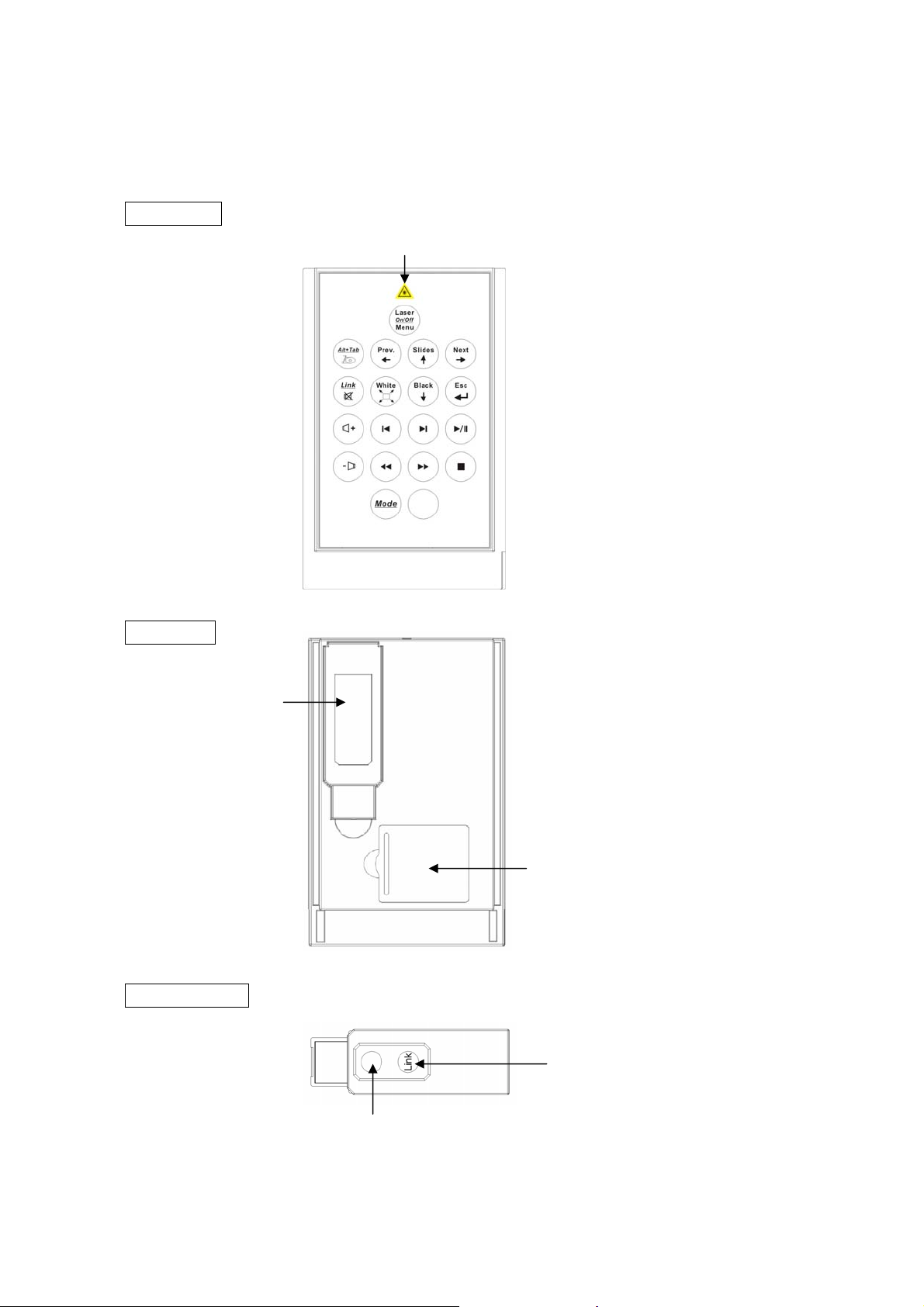
Chapter 2 Product Features
Parts Description
Front View
Laser beam
Rear View
USB Receiver
USB Receiver
Battery chamber
Link indicator
6
Link Key
Page 7
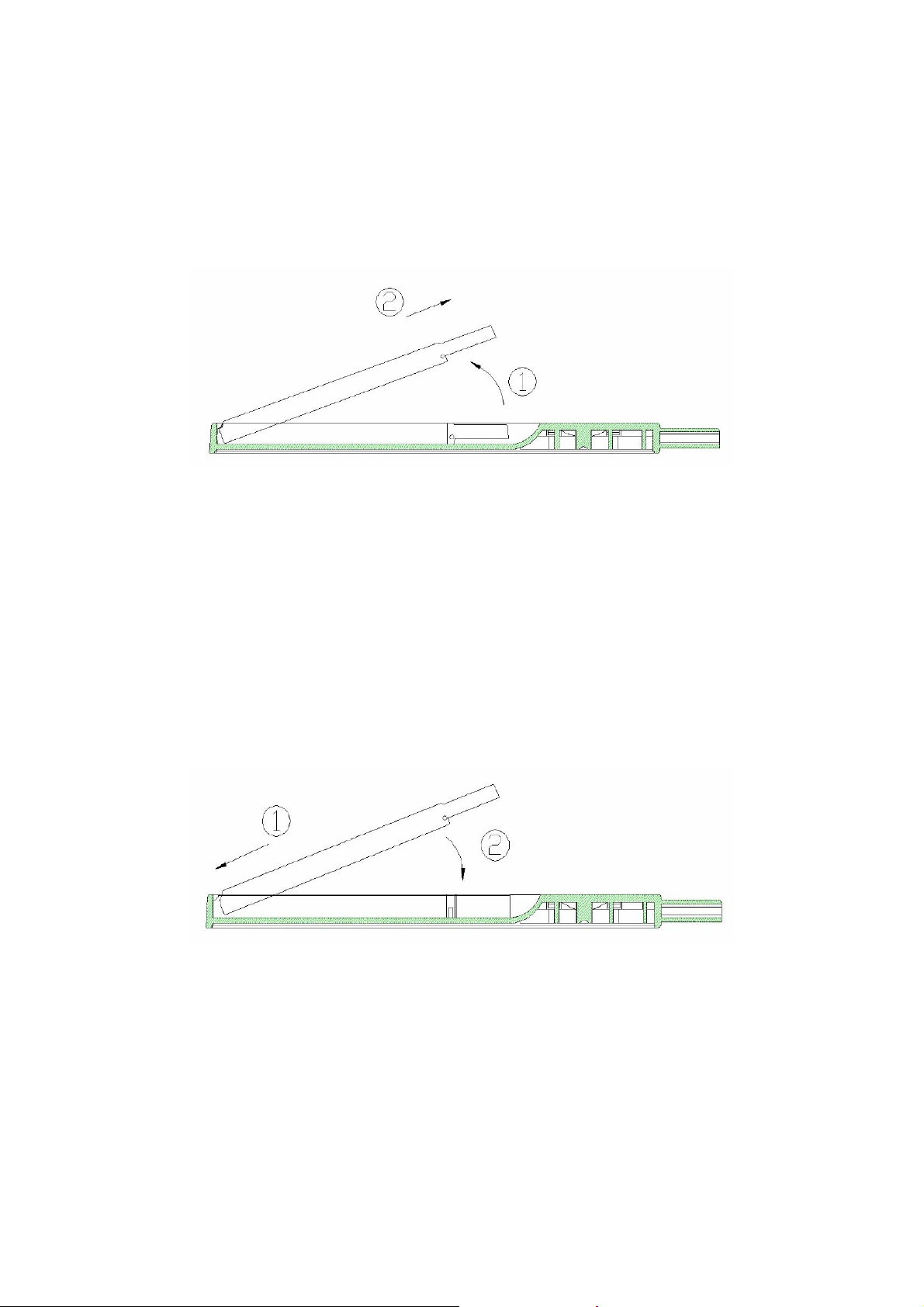
Take out the USB Receiver
Pull up the USB receiver and take out the receiver (please refer to following
drawing).
Put back the USB Receiver
Insert the bottom of the USB receiver, label upwards, into the compartment first
and press the USB receiver to the compartment (please refer to following drawing).
7
Page 8

Chapter 3 Getting Started
Initial setup the Mini Wireless Presenter PLUS
Step 1: Open the battery cover on the back and insert the battery with the (+) side up.
Notes on battery
Do not insert battery into the battery chamber in the wrong direction.
Do not leave dead or exhausted battery in the device.
If you do not use the device for a long period of time, remove the battery to
avoid possible damage from battery corrosion.
If the device does not function correctly or if the operating range becomes
reduced, try to replace the battery with new one.
Step 2: Take out the USB receiver attached on the back and plug it into an available
USB port (please refer to page 7).
You may encounter the following conditions with different Operating Systems:
Windows® 98 SE/ME
The system will prompt you to insert the operating system CD-ROM and
the follow the instruction to install the software required.
Window® 2000/XP
The operation system identifies the receiver, prompts ”USB Human
Interface Device” and begins installation automatically. Please follow the
instruction on the screen to complete the installation procedure.
Step 3: There are two operation modes for Mini Wireless Presenter PLUS, one is
『Presentation Mode』, another is 『Multimedia Mode』, the default is setting
in Presentation Mode.
Note: To activate the laser point function, press Mode and Laser On/Off
button simultaneously till the front Mode indicator blinking in red.
Note: The laser function will automatically shut off after 30 minutes idle time.
8
Page 9
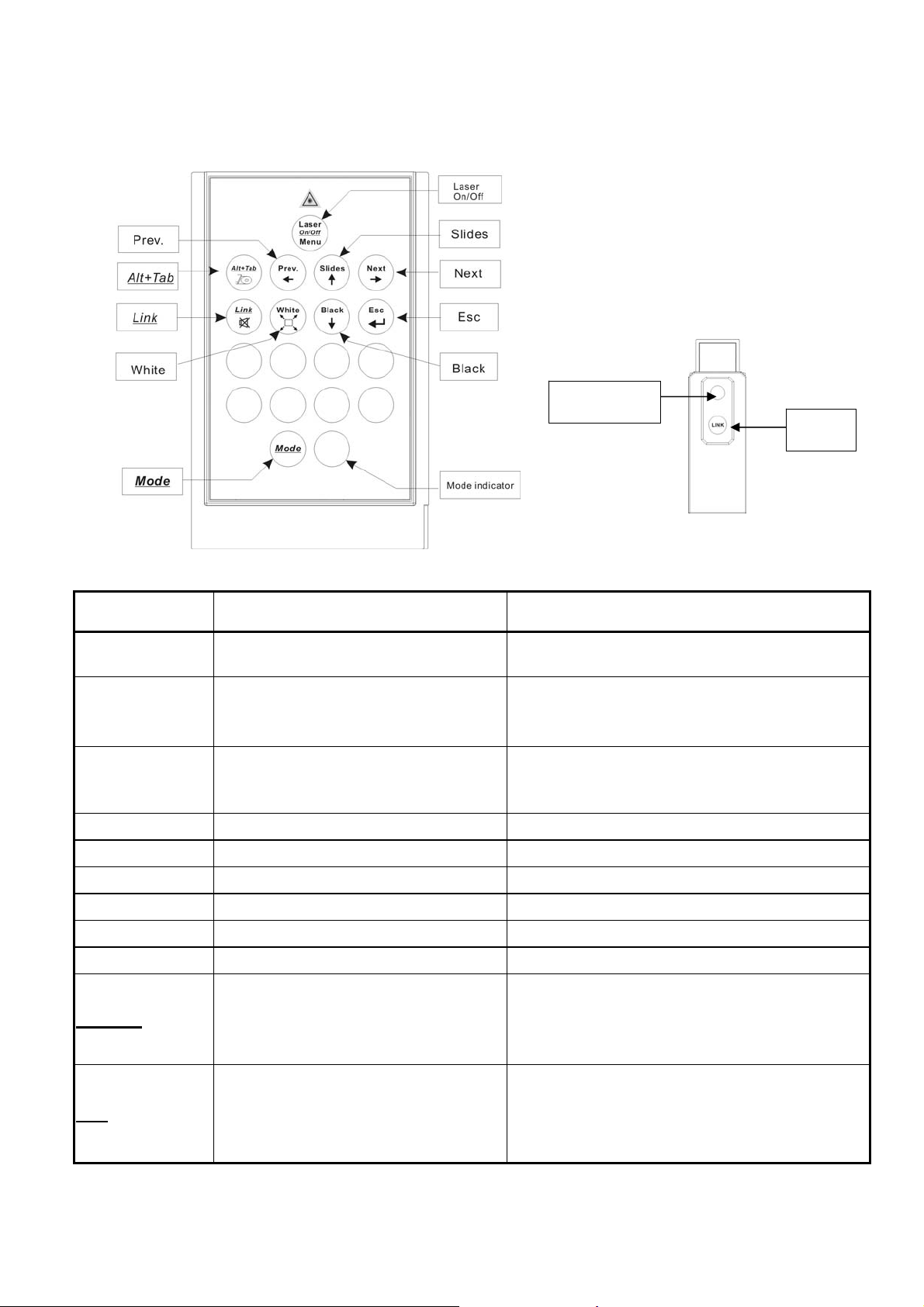
Using the Mini Wireless Presenter PLUS -- Presentation Mode
~ Laser Pointer + PowerPoint Remote Control ~
Link indicator
Keys in red Function How to operate
Mode
Mode indicator
Laser On/Off
Slides
To change operation mode
To indicate the operation mode in use
1.To activate or deactivate the laser.
2.To shoot laser beam
To start slide show Click this key to start slide sho w.
Press and hold for 3 seconds to change mode
between Presentation and Multimedia mode.
No blink: Presentation mode
Blinking in green: Multimedia mode
(Default setting in Presentation mode)
1.Press Mode and Laser On/Off simultaneously till
the Mode indicator blinking in red to turn on/off laser.
2. Press Laser On/Off key to shoot the laser beam.
ID Link
button
Esc
Next
Prev.
White
Black
Alt + Tab
Link
To exit slide show Click this key to exit slide show.
Go to next slide Click this key to go to next slide.
Go to previous slide Click this key to go to previous slide.
Turn the presentation screen to white Click this key to turn the whole screen white.
Turn the presentation screen to black Click this key to turn the whole screen black.
Press Mode and Alt/Tab keys simultaneously to
To switch to other opened file
To change ID
9
switch to other opened files – stop at the required
file icon and release the keys, using the same
process to go back to PowerPoint slides.
Implement only when serious RF interference. Click
the ID link button on USB dongle first – the Link
indicator lit in red. Press Mode and Link key
simultaneously until the ID indicator blinking in red –
the ID change is finished.
Page 10
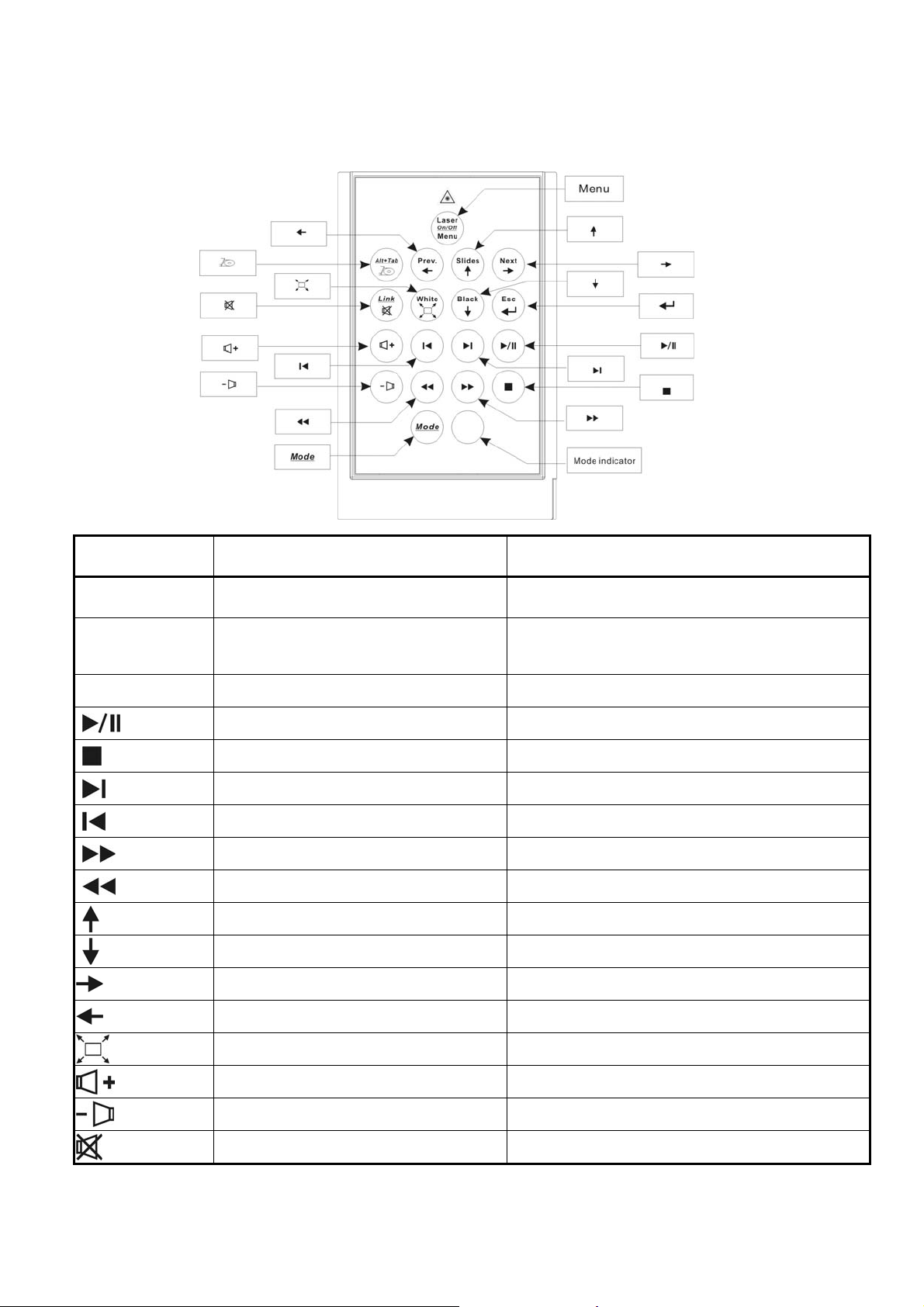
Using the Mini Wireless Presenter PLUS -- Multimedia Mode
~ PowerDVD Remote Control ~
Keys in green Function How to operate
Mode To change operation mode
Mode indicator To indicate the operation mode in use
Menu
Go to play menu Click this key to go to play menu.
To start or pause the play Click this key to start or pause play.
To stop the play Click this key to stop play.
Go to next chapter Click this key to go to next chapter.
Go to previous chapter Click this key to go to previous chapter.
For fast forward Click this key to speed forward play.
For fast rewind Click this key to speed backward play.
Go to upper selection item in play menu Click this key to go to upper selection item.
Go to lower selection item in play menu Click this key to go to lower selection item.
Go to right selection item in play menu
Press and hold for 3 seconds to change mode
between Presentation and Multimedia mode.
No blink: Presentation mode
Blinking in green: Multimedia mode
(Default setting in Presentation mode)
Click this key to go to right selection item.
Go to left selection item in play menu
To change display screen
To change volume Click this key to turn up volume.
To change volume
To change volume
10
Click this key to go to left selection item.
Click this key to enlarge or contract display screen.
Click this key to turn down volume.
Click this key to mute volume.
Page 11
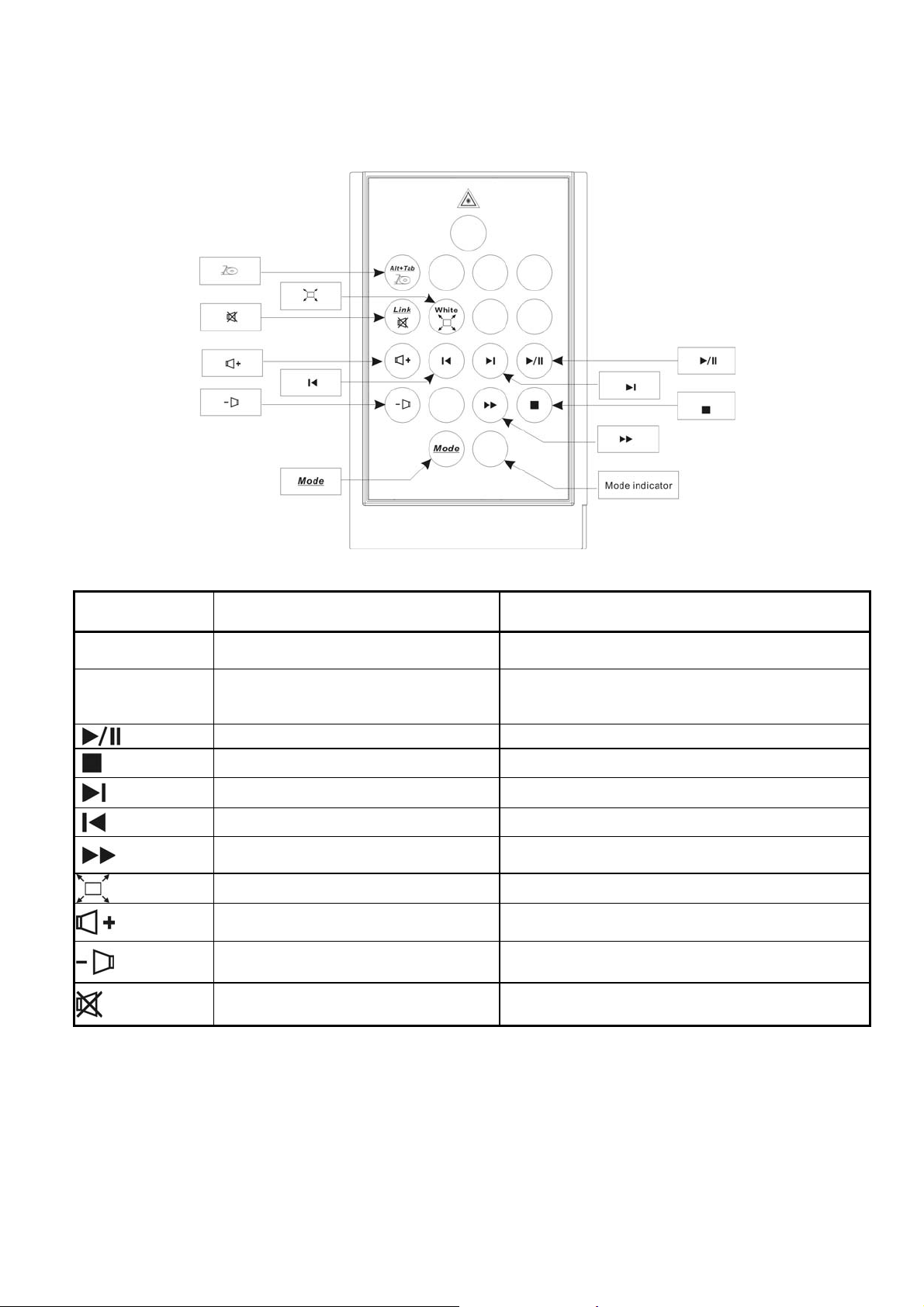
Using the Mini Wireless Presenter PLUS – Multimedia Mode
~ Windows Media Player Remote Control ~
Keys in green Function How to operate
Mode To change operation mode
Mode indicator To indicate the operation mode in use
To start or pause the play Click this key to start or pause the play.
To stop the play Click this key to stop play.
Go to next chapter Click this key to go to next chapter.
Go to previous chapter Click this key to go to previous chapter.
For fast forward
To change display screen
To change volume Click this key to turn up volume.
To change volume
To change volume
Press and hold for 3 seconds to change mode
between Presentation and Multimedia mode.
No blink: Presentation mode
Blinking in green: Multimedia mode
(Default setting in Presentation mode)
Click this key to speed forward play.
(Note: please click again to return to normal speed)
Click this key to enlarge or contract display screen.
Click this key to turn down volume.
Click this key to mute volume.
11
Page 12

Chapter 4 Additional Information
Specifications
System
Frequency range: 2400~2483MHz
(16 multi channels and 65535 ID channels)
Remote range: Approx. 100 feet (30 meters) indoors, 328 (100 meters) feet
outdoors
Operating voltage: Remote control 2.4V~3.3V, Laser 2.6V~3.3V
Power: CR2032 battery * 1
Very low power consumption: Normal operation < 5mA
Laser operation < 30mA
Sleep < 10uA
Output power: Under 1mW
Physical Dimensions
Size: 86(l) x 54(w) x 5(h) millimeters
Weight: Approx. 23 grams (with the receiver and battery)
Environmental Requirements
Temperature:
Operating: 0℃(32℉)~60℃(140℉)
Non-operation: -10℃(14℉)~65℃(149℉)
Humidity(non-condensing):
Operating: 10%~85% RH
Non-operating: 10%~95% RH
Laser: Semiconductor laser (λ= 650 nm), emission duration: continuous
Laser output power: Max. 0.95mW
Note: Design and specifications are subject to change without notice.
Care and Maintenance
For cleaning, you are advised to use a soft, slightly moistened cloth.
Avoid using solvents or abrasive substances.
Do not open the presenter for maintenance, consult qualified staff only.
This device complies with Part 15 of the FCC Rules. Operation is subject to the following conditions:
1. This device may not cause harmful interference.
2. This device must accept any interference received, including interference that may cause
undesired operation.
Changes or modifications not expressly approved by the party responsible for compliance could
void the user's authority to operate the equipment.
12
 Loading...