

Page 1

r
Wireless ExpressCard Presenter
(ExpressCard Size)
User’s Guide
Be sure to carefully read this User’s
Guide first for the proper use of the
Wireless ExpressCard Presente
and keep it for future reference.
Information in this document is subject to change without notice. No part of
this document may be reproduced or transmitted in any form or by any means,
electronic or mechanical, for any purpose, without the express written prior
permission of the seller.
The seller provides this document without warranty, or condition of any kind.
The seller may make improvements or change in the product described in this
documentation at any time.
Other product and company name herein may be the trademarks of their
respective owners.
○c 2007 All rights reserved.
1
Page 2
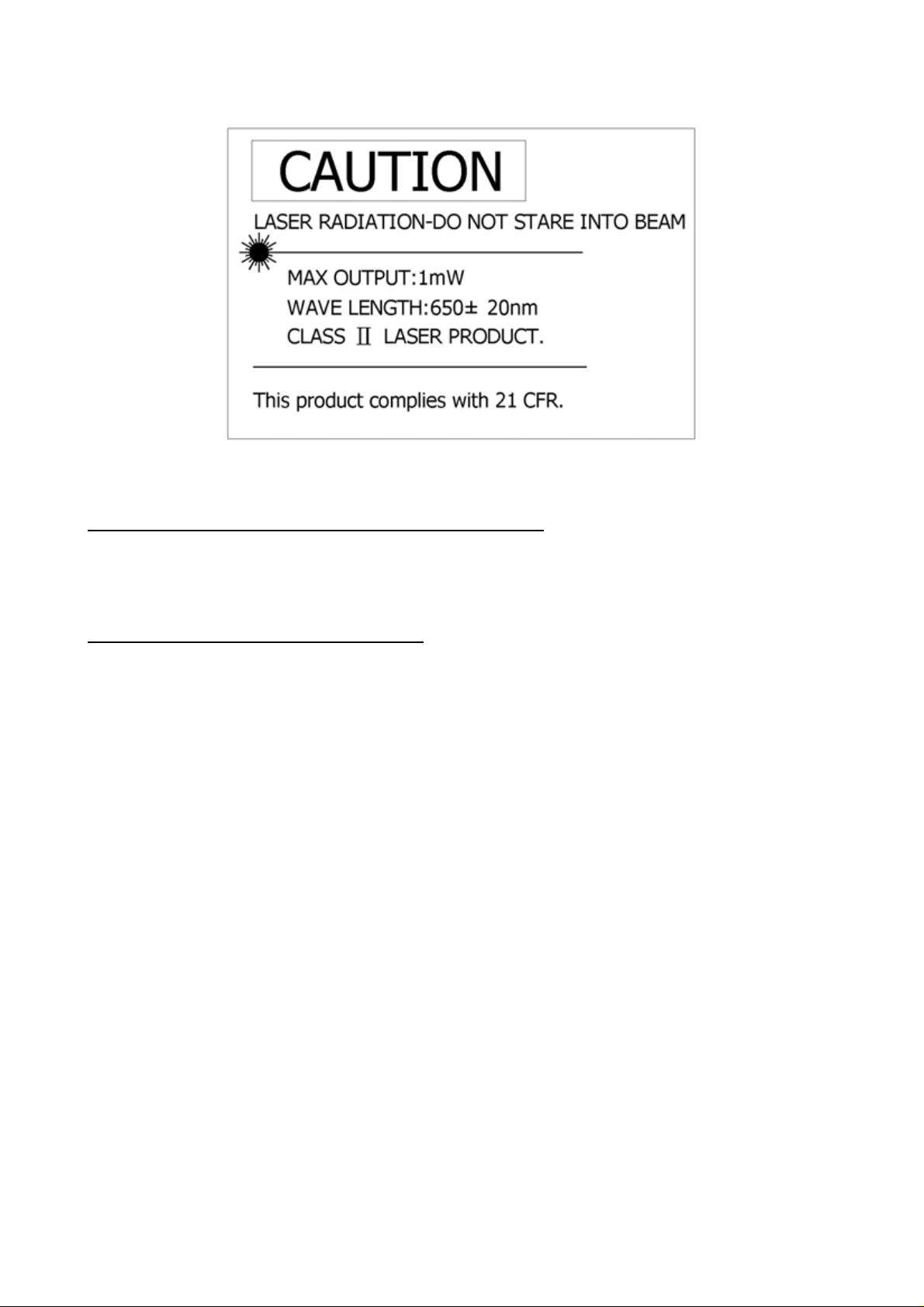
IMPORTANT SAFETY AND HEALTH INFORMATION
WARNING! RISK OF INJURY!
Laser beam can cause permanent damage to eyes. Do not look into the laser beam or
shine the laser beam into your eyes, other peoples’ eyes, or pet’s eyes.
WARNING! RISK OF INJURY!
Keep this device away from Children. This is a working tool, not a toy or entertainment
device. It should only be used by adults.
NOTE
This equipment has been tested and found to comply with the limits for a Class B digital device,
pursuant to Part 15 of the FCC Rules. These limits are designed to provide reasonable protection
against harmful interference in a residential installation. This equipment generates, uses and can
radiated radio frequency energy and, if not installed and used in accordance with the instructions,
may cause harmful interference to radio communications. However, there is no guarantee that
interference will not occur in a particular installation If this equipment does cause harmful
interference to radio or television reception, which can be determined by turning the equipment off
and on, the user is encouraged to try to correct the interference by one or more of the following
measures:
-Reorient or relocate the receiving antenna.
-Increase the separation between the equipment and receiver.
-Connect the equipment into an outlet on a circuit different from that to which the receiver is
connected.
-Consult the dealer or an experienced radio/TV technician for help.
Changes or modifications not expressly approved by the party responsible for compliance could
void the user’s authority to operate the equipment.
2
Page 3
This device complies with Part 15 of the FCC Rules. Operation is subject to the following two
conditions:(1) this device may not cause harmful interference, and (2) this device must accept any
interference received, including interference that may cause undesired operation.
This device and its antenna(s) must not be co-located or operating in conjunction with any other
antenna or transmitter.
Thank you for choosing the Wireless ExpressCard Presenter
—“Make Your Presentation Easier and More Effective”
Introduction of Wireless ExpressCard Presenter
The Wireless ExpressCard Presenter is the mixed of RF wireless control of
PowerPoint shortcuts and build-in laser point. The Presenter enables the user to control
presentation slides wirelessly up to 66 feet (20M).
The Presenter is a USB plug-and-play device with no additional software required and
featured with low-battery warning. The USB receiver is designed slim enough to snap into
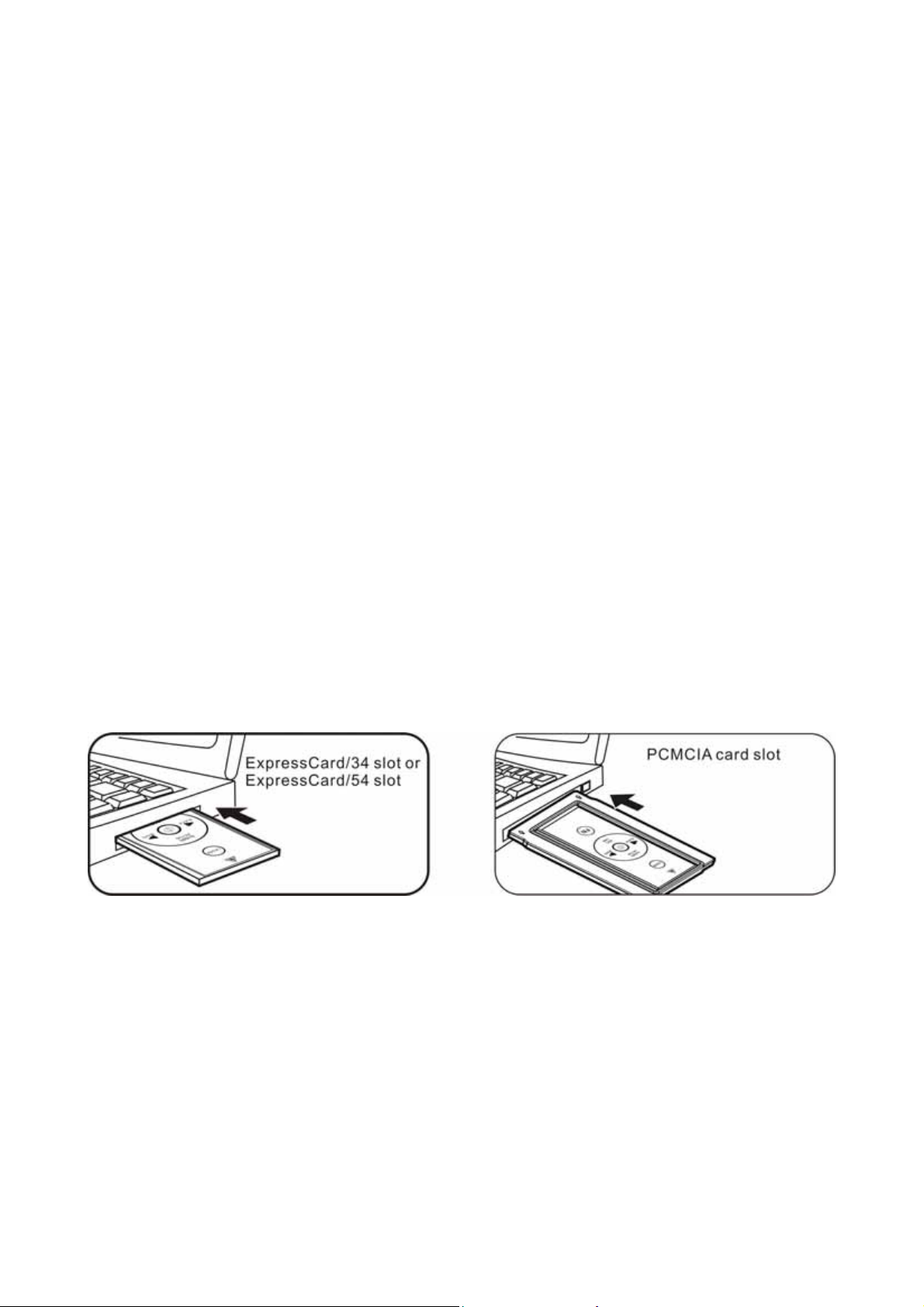
the main body and fit the whole wireless presenter into the ExpressCard/34 or
ExpressCard/54 slot of your notebook PC. You can also use the supplied PCMCIA card
boat to fit it in your PCMCIA card slot.
(Please refer to "How to use the PCMCIA card boat".)
What’s included
Wireless ExpressCard Presenter (with USB receiver) 1
CR2032 battery 1
User’s Manual 1
PCMCIA Card Boat 1
System Requirements
Windows® 2000/XP/Windows Vista
TM
PC
3
Page 4
An available USB port
How to use the PCMCIA Card Boat
The Wireless ExpressCard Presenter can be stored in the ExpressCard slot directly. In
case your computer is equipped with PCMCIA slot, please place the Presenter in the boat
and then store it in your PCMCIA card slot.
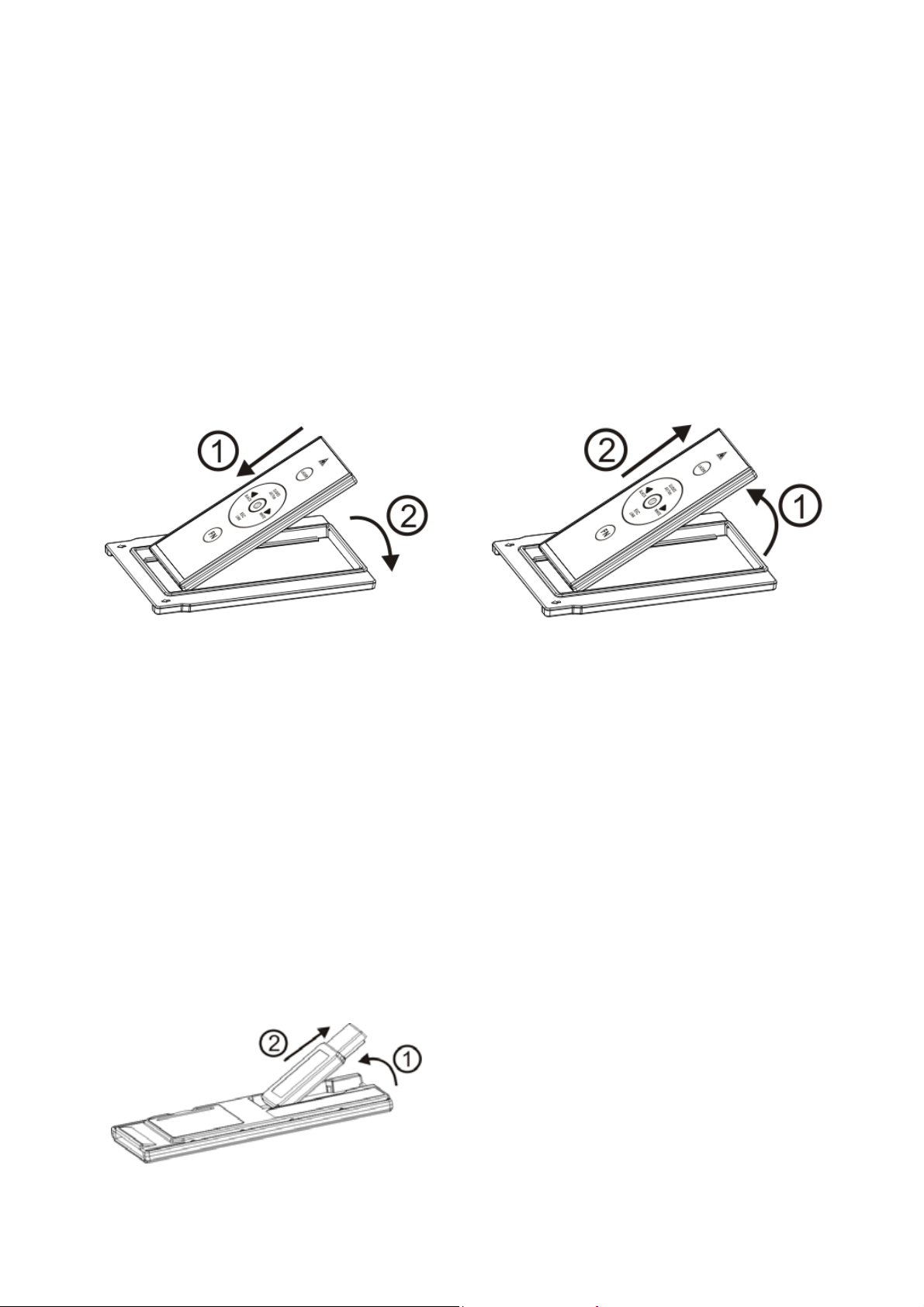
Place the Presenter in the boat
Insert the bottom of the USB receiver,
label upwards, into the compartment and
press the USB receiver to the
compartment.
Take out the Presenter form the
boat
Pull up the Presenter from its top and
take out the receiver.
Initial set up for the Wireless ExpressCard Presenter
Step 1: Insert the supplied battery CR2032 with (+) side up into the battery
compartment in back of Presenter.
Step 2: Remove the USB receiver from back of Presenter and plug into an available
USB port on your PC, the Presenter is ready to use.
Take out the USB receiver
Pull up the USB receiver from its top
and take out the receiver.
Put back the USB receiver
Insert the bottom of the USB receiver,
label upwards, into the compartment and
press the USB receiver to the
compartment.
4
Page 5
Operating the Wireless ExpressCard Presenter
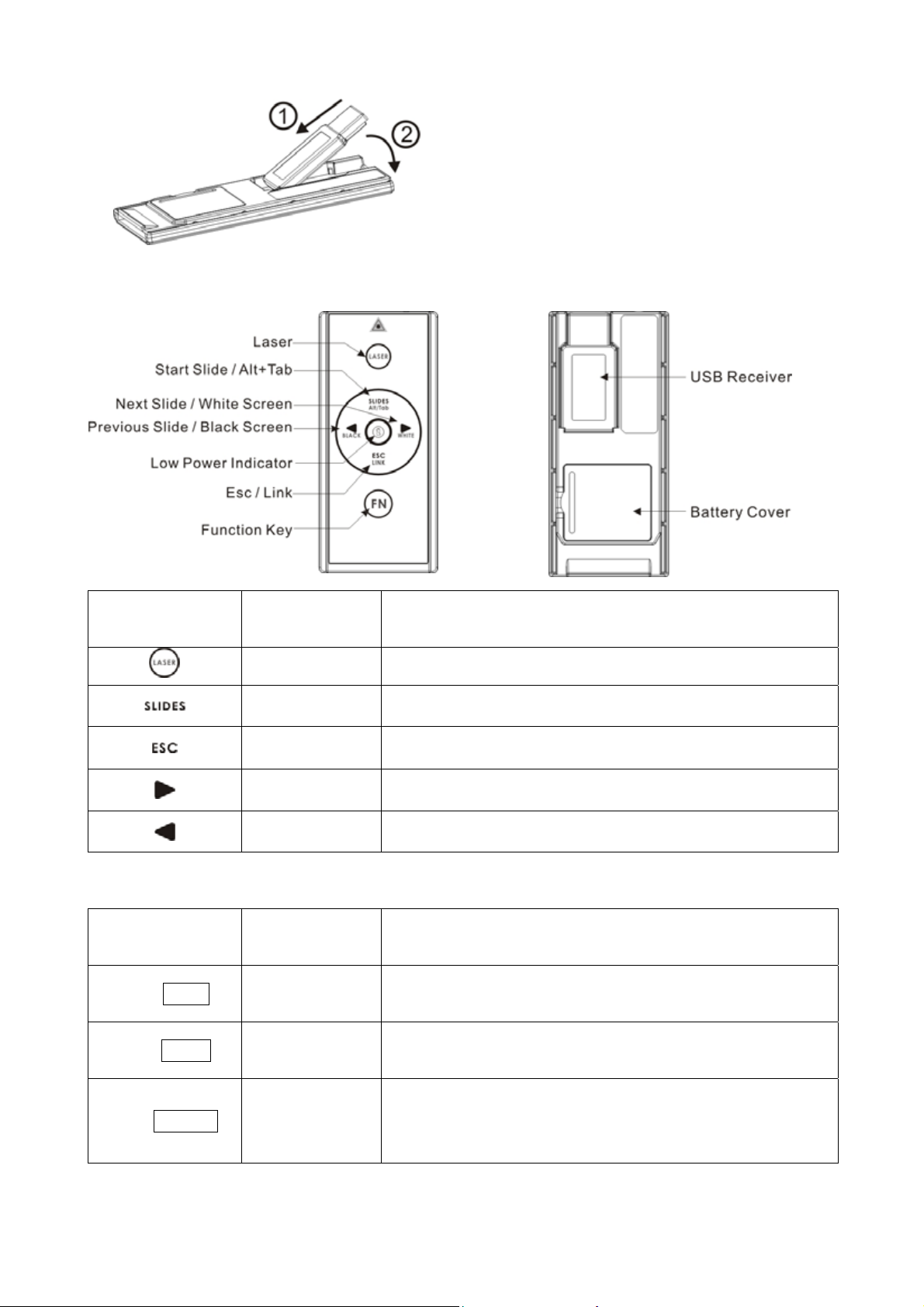
Button with
white character
Front View Rear View
Function How to operate
LASER
Slides
ESC
Press to emit the laser beam.
Press to start slide show.
Press to exit slide show.
Next
Prev.
Press to go to next slide.
Press to go to previous slide.
Note: The FN button is used in combination with the other buttons (blue character) for
special PowerPoint function as the following.
Button with blue
Function How to operate
character
Press to turn the whole screen black. Press Next
Fn + Black screen black
button returns to normal.
Press to turn the whole screen white. Press Next
Fn + White screen white
button returns to normal.
Fn + Alt+Tab
Change
presentation
Press and hold Fn button, click Alt+Tab to select the
file, then release Fn button to swap to the file selected.
program/files
5
Page 6
Please see “How to pair the Wireless ExpressCard
Fn + Link Change ID
Presenter”.
Note: Implement ID change ONLY when serious RF interference
causes the remote control malfunction.
Note: The low battery indicator on the Presenter will light up when the power is running low,
it is probably time to replace battery whenever you see the low battery indicator lights up.
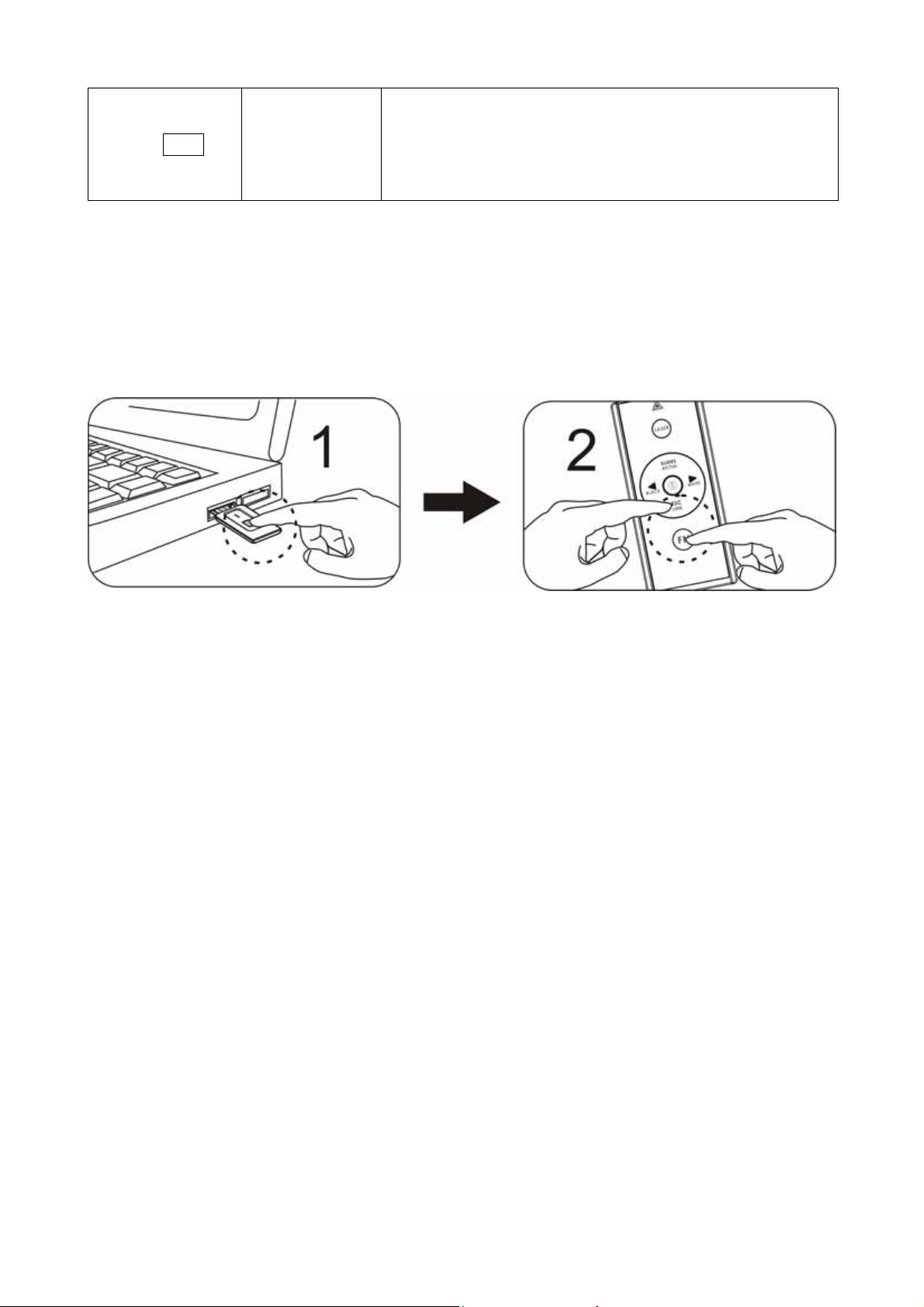
How to pair the Wireless ExpressCard Presenter
1. Click the “ID Link” button on the USB receiver first, the “Link Indicator” lights up.
2. Press and hold " FN " and " Link " buttons on the Presenter simultaneously for 3
seconds until the Link indicator on the USB receiver blinks, the paring is completed.
Product Specifications
System
Frequency range: 2400~2483MHz
(16 multi channels and 65535 ID channels)
Remote range: Up to 66 feet (20 meters)
Operating voltage: 2.6V~3.3V
Power: CR2032 battery * 1
Power consumption: Normal operation < 5mA
Laser operation < 30mA
Sleep < 10uA
Output power: Under 1mW
Physical Dimensions
Size: 75(l) x 34(w) x 5(h) millimeters
Weight: Approx. 14 grams (with the receiver and battery)
Environmental Requirements
Temperature:
Operating: 0℃(32℉)~60℃(140℉)
Non-operation: -10℃(14℉)~65℃(149℉)
Humidity(non-condensing):
6
Page 7

Operating: 10%~85% RH
Non-operating: 10%~95% RH
Laser: Semiconductor laser(λ= 650 nm), emission duration: continuous
Laser output power: Max. 0.95mW
Note: Design and specifications are subject to change and improvement without notice.
Patent Pending
7
 Loading...