

Page 1
A Division of P.I. Engineering
Desktop Train Cab Controller
RailDriver
A Division of P.I. Engineering
101 Innovation Parkway
Williamston, Michigan 48895-1663
(517)655-5523
(517)655-4926
e-mail: sales@raildriver.com
www.raildriver.com
Product Manual
P.I. Part #0378, Nov, 2011
Page 2
2
Box Contents
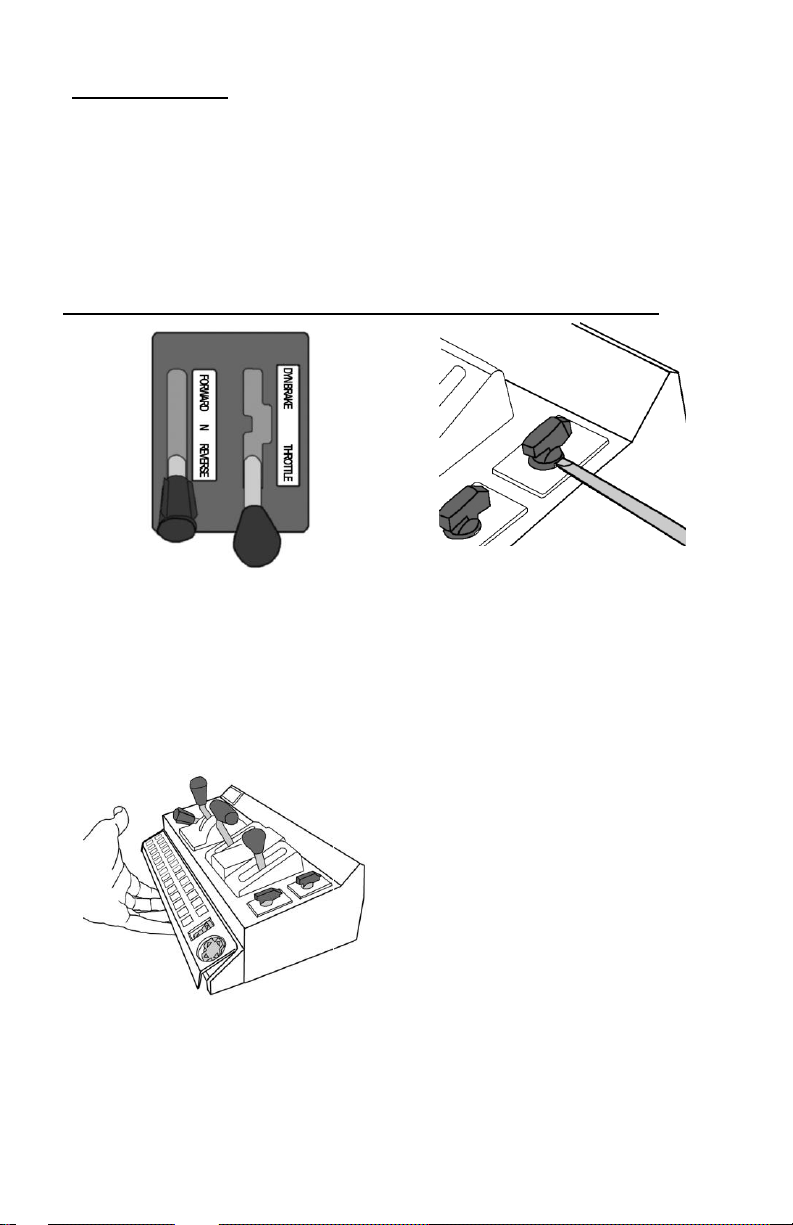
Reverser, Throttle, and Brake
decals are applied with the left end
of the label at the top of the control
lever.
To remove wiper and light switch
caps for labeling, insert a thin
bladed screwdriver into the slot on
either side of the switch and
carefully pry up until the switch cap
pops off.
To apply legends for the function keys,
pry up carefully, but with force, on the
panel cover, place the legend strips
above the keys. Insert the top of the
panel cover first, and snap the bottom
back into place.
Printable versions of these legend
strips can also be found on our website.
As you unpack your RailDriver, please check the enclosed items against
this packing list:
RailDriver Control Unit
RailDriver Installation CD
RailDriver Power Supply (AC adapter)
RailDriver Label Sheets & Game Button Identification Strips
RailDriver Operating Manual
Installing Labels for the Controls and Function Keys
Page 3
3
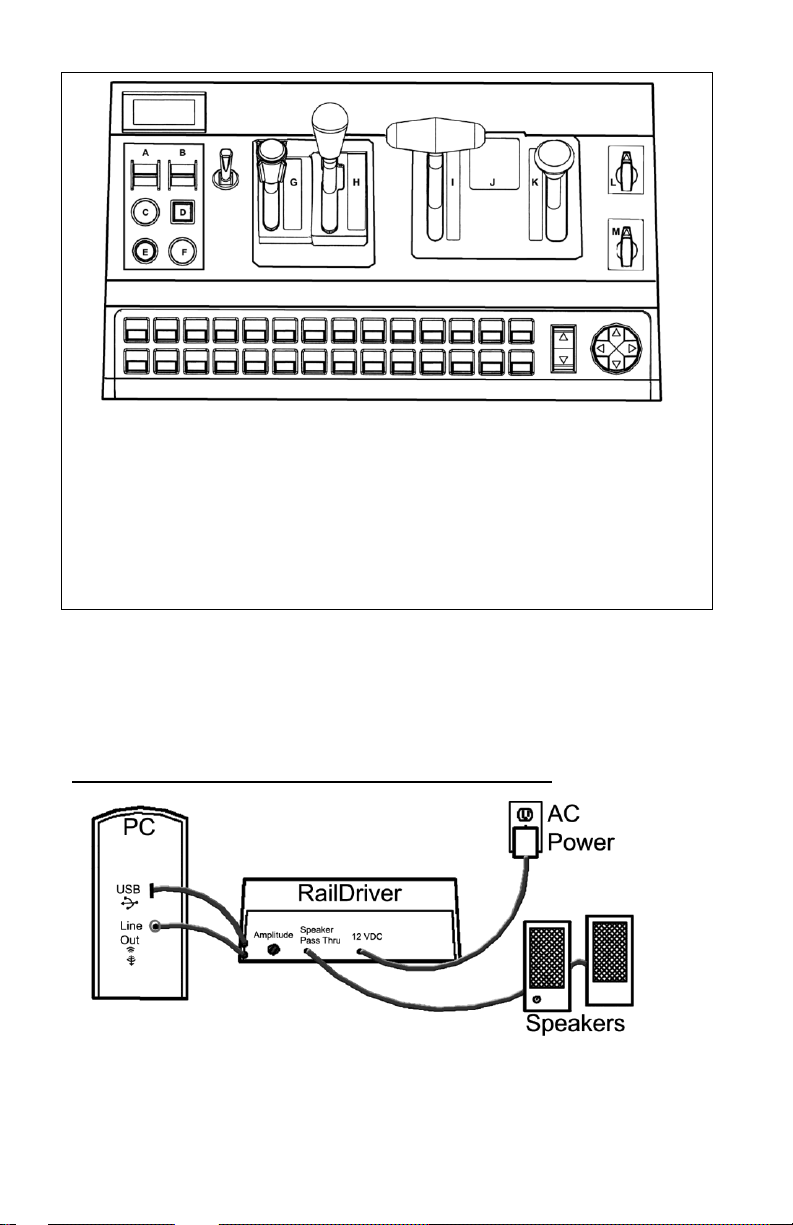
Use the drawing above to determine the location of the decals.
The following steps are required to enable the RailDriver internal subwoofer. Power and audio connections are not required for operation of the
RailDriver controls, but they do enhance the driving experience.
A. RANGE
B. E-BRAKE
C. ALERT
D. SAND
E. P (PANTOGRAPH)
F. BELL
G. FORWARD - N - REVERSE
H. DYN BRAKE - THROTTLE
I. EMG - CS - SUP - REL
J. AUTO BRAKE - IND BRAKE
K. FULL - REL
L. WIPER
M. LIGHTS
Connecting Sound and Vibration Features
Page 4

4
1. Plug the RailDriver into the line out sound port on your computer.
2. Plug the speakers (which were in the sound port) into the RailDriver
pass through sound port.
3. Connect the 12 VDC Power Supply.
4. Set the Amplitude control to mid level (adjust setting when RailDriver is
running with your train simulation software).
NOTE: The RailDriver Desktop contains a speaker which has been
magnetically shielded to prevent color distortion on video displays.
Exposing magnetic media (floppy disk, memory stick, or digital tape) to
magnetic materials may cause data loss.
Installing Your RailDriver Train Cab Controller
Please refer to the following pages for your simulation:
Trainz by Auran/N3V: Page 6
RailWorks: Page 7
Rail Simulator: Page 8
Microsoft Train Simulator: Page 9
The rapid evolution of train simulator software applications prohibits us
from keeping the most current and relevant instructions in a paper
manual.
Please see the helpmechoose.htm file on the Installation CD for
more information, or visit our website for the most up to date
software and instructions http://www.raildriver.com/support/
Page 5

5
The Default Control Layout
1. (1-28) Programmable game buttons
29. Zoom/Rocker button
30. Four way panning control
31. LED speedometer
32. Gear Shift
33. Emergency Brake
34. Alerter
35. Sander
36. Pantograph
37. Bell
38. Horn/whistle lever (operates forward or back)
39. Reverser (center detent, variable forward and reverse)
40. Combined throttle and dynamic brake (with "gate" center)
41. Automatic brake, (detent before e-brake)
42. Independent brake (w/right motion for bail-off)
43. Rotary wiper switch
44. Rotary headlight switch.
While the RailDriver Desktop control levers and switches most closely
resemble the Dash 9 layout, they may be configured to operate any type
of engine in most train simulation programs. For details on selecting
alternate control layouts or creating your own custom layout, please refer
to the Help files in our software, or the Technical Support Page on our
web site (www.raildriver.com).
Page 6

6
Installing your RailDriver Controller for use with Trainz
2004, 2006, Classics, Railwayz, 2009, 2010 and 12
The most updated instructions and troubleshooting tips can be found at:
http://www.raildriver.com/support/trainz.php
1. Install Trainz and any available updates first.
2. Insert the RailDriver CD-ROM.
Note: If the program does not start automatically, find
“ainstall.exe” on the RailDriver CD and run it.
3. Select the installation option for your specific version of the
Trainz software. You will be prompted through the installation.
Note: If you have multiple versions of Trainz, complete a
full RailDriver installation and calibration for each version
you have.
4. Plug in the RailDriver’s USB connector to a USB port on your
computer.
5. Windows will recognize new hardware and install the drivers
automatically.
6. When the installation is completed, you will be prompted to
calibrate your Controller.
7. Follow the prompts through the calibration process and put the
controls in their neutral position when finished.
Operating your RailDriver Controller with Trainz
When the RailDriver is not active, “rd” will be displayed in the
status window of the controller.
1. After completing a successful calibration, launch Trainz.
2. From the main menu, select “Driver”.
3. Select your “Route” and “Route Session”.
4. Once the session loads, you will be asked to select a “Train
Control Mode”, select “Cab Mode” for full use of the Controller. In
“DCC Mode”, only the throttle is supported.
5. The Status Window on the Controller will now display the current
speed.
Page 7

7
Installing your RailDriver Controller for use with
RailWorks (Train Simulator 2013)
At the time of this printing our software for connecting the RailDriver with
Train Simulator 2013 is being updated. Please see our website to
download the most current version of the software, and get the most
current instructions and troubleshooting tips.
http://www.raildriver.com/support/railworks.php
Operating your RailDriver Controller with RailWorks
When the RailDriver is not active, “rd” will be displayed in the
status window of the controller.
1. If on XP, skip to the next step. If on Windows Vista or 7, right
click on the MacroWorks 3.1 icon and go to "Properties." Select
the "Compatibility" tab and check the box that says "Run this
program as an administrator."
2. Please start MacroWorks 3.1 if it isn’t already running (if this is
your first time running this, you will be prompted to calibrate now)
3. Run RailWorks.
4. Select and load a Route/Scenario and choose your train if
needed.
5. All controls in the cab will adjust to match the position of the
controls on the RailDriver. The Status window on the controller
will now display the current speed.
Page 8

8
Installing your RailDriver Controller for Use with Rail
Simulator
The most updated instructions and troubleshooting tips can be found at:
http://www.raildriver.com/support/railworks.php
1. Install Rail Simulator and the mk1 and mk2 updates first.
2. Insert the RailDriver CD-ROM.
Note: If the program does not start automatically, find
“ainstall.exe” on the RailDriver CD and run it.
3. Select the installation option for “Rail Simulator”.
4. You will be prompted through the installation.
5. Plug in the RailDriver’s USB connector to a USB port on your
computer.
6. Windows will recognize new hardware and install the drivers
automatically.
7. When the installation is completed, you will be prompted to
calibrate your Controller. Once the calibration has been
completed successfully, you will be taken back to your Windows
desktop.
Operating your RailDriver Controller with Rail Simulator
When the RailDriver is not active, “rd” will be displayed in the
status window of the controller.
1. Please start RD MWII if it is not already running in your system
tray (next to the time).
2. Run Rail Simulator. Once in the simulator, go to Options >
Gameplay and change the “Control Mode” to “Expert”.
3. Select and load a Route.
4. Select the engine you want to drive.
5. Press the blue “RailDriver Run/Stop” button (#15 – lower left
corner of the controller).
6. All controls in the cab will adjust to match the position of the
controls on the RailDriver. The Status window on the controller
will now display the current speed.
Page 9

9
Installing Your RailDriver Train Cab Controller for use
with Microsoft Train Simulator (Windows XP Only)
The most updated instructions and troubleshooting tips can be found at:
http://www.raildriver.com/support/msts.php
1. Install Microsoft Train Simulator and any available updates first.
2. Insert the RailDriver CD-ROM.
Note: If the program does not start automatically, find
“ainstall.exe” on the RailDriver CD and run it.
3. Select the installation option for “Microsoft Train Simulator”.
4. You will be prompted through the installation.
5. Plug in the RailDriver’s USB connector to a USB port on your
computer.
6. Windows will recognize new hardware and install the drivers
automatically.
7. Reboot your computer when prompted.
Operating your RailDriver Controller with Microsoft
Train Simulator
When the RailDriver is not active, “rd” will be displayed in the
status window of the Controller.
1. Open RailDriver Manager. The first time you start the program,
you will be prompted to calibrate the controller
Note: If you are not prompted to calibrate the controller,
please navigate to the “Options” pull-down menu and select
“Launch RailDriver Calibration Setup”.
2. Follow the prompts through the calibration process and put the
controls in their neutral position when finished.
3. Use the pull down menu to select the engine which most closely
matches the locomotive you will be driving in MSTS. Then click
“Play”.
4. Select a route/activity and the same engine you loaded in Step 3,
then click “Start”.
5. Once the cab of your train appears on your monitor, press the
blue “RailDriver Run/Stop” button (#15 – lower left corner of the
Controller).
6. The Heads-Up Display will be activated and all controls in the
cab will adjust to match the position of the controls on the
RailDriver. The Status window on the controller will now display
the current speed.
Page 10

10
Additional Support
On the enclosed installation disk, you will find complete support for
Microsoft Train Simulator®; TrainMaster™; Trainz 2004, 2006, 2009,
2010, 12; RailWorks & Rail Simulator. Just insert the disk and follow the
on-screen instructions.
Please check our web site (www.raildriver.com) for the most current
RailDriver software as well as resources for train simulation and train
modeling.
Technical Support
Should you experience difficulties installing or running the RailDriver
Desktop, please contact our Technical Support Department:
Web: http://www.raildriver.com/support/contact.php
E-mail: tech@raildriver.com
Phone: (517) 655-5523
Normal staffing hours are M-F 9-5 EST
How to Find Us
RailDriver
A Division of P.I. Engineering
101 Innovation Parkway
Williamston, MI 48895 U.S.A.
Telephone: (517) 655-5523 Sales: (800) 628-3185
Fax: (517) 655-4926
Web: www.raildriver.com
E-mail: info@raildriver.com
Page 11

11
FCC Declaration of Conformity
This device complies with Part 15 of the FCC rules.
Operation is subject to the following two conditions: (1)
This device may not cause harmful interference, and (2)
this device must accept any interference received, including interference that may cause
undesired operation.
This equipment has been tested and found to comply with the limits for a Class B
digital device, pursuant to part 15 of the FCC rules. These limits are designed to
provide reasonable protection against harmful interference when the equipment is
operated in a residential installation. This equipment generates, uses, and can
radiate radio frequency energy and if not installed and used in accordance with the
instruction manual may cause harmful interference to radio communications.
However, there is no guarantee that interference will not occur in a particular
installation. If this equipment does cause harmful interference to radio or television
reception, which can be determined by turning the equipment off and on, the user is
encouraged to try to correct the interference by one or more of the following
measures:
Reorient or relocate the receiving antenna.
Increase the separation between the equipment and the receiver.
Connect the equipment into an outlet on a circuit different from that to which the
receiver is connected.
Consult the dealer or an experienced radio TV technician for help.
Any changes or modifications not expressly approved by the manufacturer could
void the user’s authority to operate the equipment.
LIMITED WARRANTY
For all RailDriver products purchased and installed in the United States and Canada,
P.I. Engineering warrants that the RailDriver product will be free from defects in materials
and workmanship under normal use and service, and will meet the specifications presented
by P.I. Engineering at the time of original purchase, for one year as evidenced by a copy of
the purchase receipt. Under this warranty, P.I. Engineering will, at its sole option, repair or
replace any RailDriver product which is defective, provided that you are responsible for (i)
the cost of transportation of the product to P.I. Engineering or its designated service facility,
and (ii) any loss or damage to the product resulting from such transportation.
Upon discovery of a defect in the product within the Warranty Period, you should notify
P.I. Engineering Technical Support via telephone to obtain an RMA (return authorization
number) and instructions for shipping the product to a service location designated by
P.I. Engineering. You should send the product, shipping charges prepaid, to the
designated location, accompanied by the return authorization number, your name, address,
and telephone number, proof of purchase, and a description of the defect. P.I. Engineering
will pay for return of product(s) to the customer. P.I. Engineering shall have no
responsibility to repair or replace the RailDriver product if the failure has resulted from
accident, abuse, mutilation, misuse, or repair/modification performed by any entity other
than P.I. Engineering.
THIS WARRANTY IS EXCLUSIVE OF ALL OTHER WARRANTIES, WHETHER
EXPRESSED, IMPLIED, OR STATUTORY. P.I. ENGINEERING DOES NOT WARRANT
THIS RAILDRIVER PRODUCT FOR FITNESS FOR A PARTICULAR PURPOSE OR
MERCHANTABILITY. P.I. ENGINEERING AND ITS EMPLOYEES SHALL NOT BE HELD
LIABLE FOR ANY CONSEQUENTIAL, INDIRECT, OR INCIDENTAL DAMAGES, EVEN IF
ADVISED OF THEIR POSSIBILITY, ARISING OUT OF THE USE OR INABILITY TO USE
THIS PRODUCT. SOME STATES DO NOT ALLOW FOR THE EXCLUSION OR
LIMITATION OF CERTAIN LIABILITIES, SO THE ABOVE LIMITATIONS MAY NOT
APPLY TO YOU. THIS WARRANTY GIVES YOU SPECIFIC LEGAL RIGHTS, AND YOU
MAY ALSO HAVE OTHER LEGAL RIGHTS WHICH VARY FROM STATE TO STATE.
Page 12

12
In the event that the above limitations are held unenforceable, P.I. Engineering’s liability for
XK-24 USB keypad
XK-80 USB keyboard
XK-16 Stick
XK-3 Foot Pedal
XK-12+Joystick
XK-12+Jog & Shuttle
XK-12+Touchpad
USB Encoder Board
Y-mouse Dual
Mouse Adapter
Y-key key
Dual Keyboard
Adapter
Y-mouse Keyboard
& Mouse Adapter
for USB
Steam
Firing
Manual
Decorative
Hitch
Coupler
1922
Locomotive
Cyclopedia
1922
Car Builders
Cyclopedia
1921
Maintenance of
Way Cyclopedia
any damages to you or to any party shall not exceed the purchase price you paid,
regardless of the form of any claim.
This limited warranty is valid for and only applies to products purchased and used inside
the United States (and its territories) and Canada. This limited warranty is governed by the
laws of the United States of America and the State of Michigan.
RailDriver Electronic Design: P.I. Engineering, Inc., Williamston, Michigan
Patent Pending
© 2000 - 2013 P.I. Engineering, Inc. All rights reserved.
RailDriver, Y-mouse, Y-key key, X-keys, and the “P.I. Eclipse” are trademarks of P.I. Engineering, Inc.
All other trademarks are property of their respective owners.
Visit our web site (www.xkeys.com) for detailed descriptions.
Other Products from P.I. Engineering
X-keys
®
User-programmable keyboards and controls
Y-mouse® Splitters & Adapters
RailDriver® Products
www.raildriver.com
 Loading...