

Page 1

Actionpoint
User Guide
Copyright 2007
Page 2

Qwizdom Actionpoint User GuideI
Table of Contents
Part I Introduction
Part II Getting Started
................................................................................................................................... 21 Notice
................................................................................................................................... 32 Installing Qwizdom Actionpoint
................................................................................................................................... 43 Hardware Setup
Part III Chapter 1
................................................................................................................................... 51 Actionpoint Overview
................................................................................................................................... 62 Slides
Part IV Chapter 2
................................................................................................................................... 71 Participants
Part V Chapter 3
................................................................................................................................... 101 RF Remote Setup
................................................................................................................................... 132 Q2 RF Remote Diagram
................................................................................................................................... 153 Q4 RF Remote Diagram
................................................................................................................................... 164 Q5 RF Remote Diagram
2
2
5
7
10
Part VI Chapter 4
................................................................................................................................... 181 Presentation
.......................................................................................................................................................... 19Presentation Setup
.......................................................................................................................................................... 21Presentation Features
.......................................................................................................................................................... 22Using Remotes in Presentation
................................................................................................................................... 252 Response Graph
................................................................................................................................... 263 Remote Login
................................................................................................................................... 264 Saving Results
Part VII Chapter 5
................................................................................................................................... 271 Reports
Part VIII Troubleshoot
................................................................................................................................... 361 Uninstalling Software and Hardware
18
27
28
Qwizdom Actionpoint 2007
Page 3

1 Introduction
This is a user guide for the
Qwizdom Actionpoint
. This guide provides information and
tips on using
Qwizdom Actionpoint
.
If you need assistance, please contact
Technical Support
.
Website
www.qwizdom.com
Tech Support
(253) 770-1285
Email
support@qwizdom.com
Support Hours
6 a.m. to 4:30 p.m. PST
Address
Qwizdom, Inc.
12617 Meridian East
Puyallup, WA 98373
Contents of Remote Set
Q4 RF or Q5 RF Student/Participant Remotes
1 RF Host
1 Q5 Instructor Remote
1 USB Cable
1 Charger for Q5 Instructor Remote
1 Multi-charger for Q5 Student Remotes (if applicable)
1 Screwdriver
AA Batteries
1 Remote Carrying Case
1 Quick Reference Guide
*
1 Software; Qwizdom Actionpoint
*Full user guide is located on the disc and at www.qwizdom.com.
Notices of Compliance for Qwizdom's RF Response Devices
Note:
This equipment has been tested and found to comply with the limits for a Class B
digital device, pursuant to part 15 of the FCC Rules. These limits are designed to provide
reasonable protection against harmful interference in a residential installation. This
Introduction
2
2 Getting Started
2.1 Notice
Qwizdom Actionpoint 2007
Page 4

Qwizdom Actionpoint User Guide3
equipment generates, users and can radiate radio frequency energy and, if not installed
and used in accordance with the instructions, may cause harmful interference to radio
communications. However, there is no guarantee that interference will not occur in a
particular installation. If this equipment does cause harmful interference to radio or
television reception, which can be determined by turning the equipment off and on, the
user is encouraged to try to correct the interference by one or more of the following
measures:
·
Reorient or relocate the receiving antenna.
·
Increase the separation between the equipment and receiver.
·
Connect the equipment into an outlet on circuit different from that to which the
receiver is connected.
·
Consult the dealer or an experienced radio/TV technician for help.
Caution:
Changes or modifications to Qwizdom's RF hardware that are not expressly
approved by Qwizdom could void the user's authority to operate the equipment.
System Requirements
Windows 2000
or later
Microsoft PowerPoint 2003
or later (registered version)
Microsoft Excel 2003
or later (registered version)
Microsoft .NET Framework 2.0
(included in installer)
Intel Pentium
233-MHZ or faster processor (
Pentium
III recommended)
256MB of RAM
200MB of free space
CD-ROM drive
Open USB Port
Installing Qwizdom Actionpoint
Microsoft PowerPoint 2003
(or later) must be installed before installing
Qwizdom
Actionpoint
.1.Insert the
Qwizdom Actionpoint disc
into the CD-ROM drive. The
Qwizdom
Actionpoint
wizard will appear.
2.
Click on
Next
. The
Select Installation Folder
section appears.
3.
You have the option to select the location of where you would like the
Qwizdom
Actionpoint
or use the default location.
4.
Click on
Next
to begin the installation. This will take a few moments.
5.
Once the installation is complete, click on
Close
and restart your computer.
2.2 Installing Qwizdom Actionpoint
Qwizdom Actionpoint 2007
Page 5

2.3 Hardware Setup
1.
Plug the USB cable into the RF Host and then plug the other end of the USB cable
into an open USB port.
2.
Place two AA batteries (provided in the remote set) and insert the screw (optional)
into the back of the Q4 RF remote to secure the battery compartment. Plug the Q5
RF participant and Q5 RF instructor remotes into the multi-charger and/or single
charger for 24 hours before first use.
Installing USB Drivers on Vista
You will need to do this procedure twice (
because there are two drivers
).1.Insert the
Qwizdom Actionpoint
disc into the computer and make sure the host is
plugged in properly.
2.
From the
Start
menu, go to the
Control Panel
.3.Click on
Hardware and Sound
.4.Click on
Device Manager
.5.Select the option
View Devices by Type
under the
View
menu.
6.Qwizdom RF Host
should be located under
Universal Serial Bus Controllers
,
Ports
and
Unknown
or
Other Devices
.7.When you find it, double-click on it and click on the
Driver
tab.8.Click on the button that says
Update Driver
. The installation wizard will appear.
9.
Select "
Browse Computer for Software Driver
" and click
Next
.
10.
Click on the
Browse
button. A window appears.
11.
Click on
My Computer
, click on the drive that
Qwizdom Actionpoint
is in, and then
find the folder that says
USB_Drivers
.
12.
Click
OK
and then
Next.
13.
When it's done installing, click on
Close.
Repeat the above steps once more and
then restart your computer.
Installing USB Drivers on Windows 2000/XP
You will need to do this procedure twice (
because there are two drivers
).1.Insert the
Qwizdom Actionpoint
disc into the computer and make sure the host is
plugged in properly.
2.
From the
Start
menu, go to the
Control Panel
or go to
Settings
and then
Control
Panel
.3.Double-click on the
System
icon and click on the
Hardware
tab.
4.
Click on the
Device Manager
button.
5.
Select the option
View Devices by Type
under the
View
menu.
6.
Qwizdom RF Host or Qwizdom USB Base
should be located under
Universal Serial Bus
Controllers
,
Ports
and
Unknown
or
Other Devices
.7.When you find it, double-click on it and click on the
Driver
tab.8.Click on the button that says
Update Driver
. The installation wizard will appear.
9.
Select "
Install from a list or specific location
" and click
Next
.
10.
Select "
Search for the best driver in these locations
" and check the "
Search removable
Getting Started
4
Qwizdom Actionpoint 2007
Page 6

Qwizdom Actionpoint User Guide5
media
" and "
Include this location in search
" boxes.
11.
Click on the
Browse
button, click on
My Computer
, click on the drive that
Qwizdom
Actionpoint
is in, and then find the folder that says
USB_Drivers
. (Do not open the
folder).
12.
Click
OK
and then
Next.
A prompt will appear that says the drivers have not passed
the
Microsoft Windows Update
testing, click on
Continue Anyway
and then
Finish
.
13.
Repeat the above steps once more and then restart your computer.
Installing USB Drivers on Windows 98
You will need to do this procedure twice (
because there are two drivers
).1.Insert the
Qwizdom Actionpoint
disc into the computer and make sure the host is
plugged in properly.
2.
From the
Start
menu, go to
Settings
.3.Go to the
Control Panel
and double-click on the
System
icon.
4.
Click on the
Device Manager
tab.
5.
Select the option
View Devices by Type
.6.Qwizdom RF Host or Qwizdom USB Base
should be located under
Universal Serial Bus
Controllers
,
Ports
and
Unknown
or
Other Devices
.7.When you find it, select the file and then click on the
Properties
button on the
bottom.
8.
Click on the
Driver
tab and click on the button that says
Update Driver
. The
installation wizard will appear.
9.
Click
Next
and select "
search for a better driver than the one your device is using now
."
10.
Click
Next
.
11.
Check the
CD-ROM drive
and
Specify Location
.
12.
Click on the
Browse
button. Go to the drive the
Qwizdom Actionpoint
disc is in and
then select the
USB_Drivers
.
13.
Click
OK
and then
Next.
A prompt will appear that says the drivers have not passed
the
Microsoft Windows Update
testing.
14.
Click on
Continue Anyway
and then
Finish
.
15.
Repeat the above steps once more and then restart your computer.
From right to left:
Present
(
Actionpoint icon
) button -presentation setup
Insert
Slide
-create a new slide
Question
-displays slide type
Type
-number of choices (applicable depending on question type)
3 Chapter 1
3.1 Actionpoint Overview
Qwizdom Actionpoint 2007
Page 7

Answer
-correct answer or
None
for survey
Points
-number of points awarded for correct response
Timer
-allows slide to be viewed in presentation for time that is set
Configuration Settings
button-remote setup
Participants
button-create, modify, import participant lists
Reports
button-upload saved presentation results to generate reports using
Microsoft
Excel
About
button-displays software version number
3.2 Slides
1.
Double-click on the
Qwizdom Actionpoint
icon to launch the program.
2.
Click on the
Insert
Slide
drop-down menu.
3.
Select the type of slide you want to create. The template will appear on the slide.
4.
The
Question
field will indicate the slide format.
5.
If you selected
Multiple Choice, Sequence, Multiple Mark
, or
Rating Scale
as the slide
format, the
Type
drop-down menu will show the number of choices you selected. If
not, the
Type
field will be grayed out because it doesn't apply to the question type
you selected.
6.
Type in the question and choices (if applicable).
7.
After the question has been created, click on the
Answer
drop-down menu and
select or type the correct answer.
If you type the answer into the
Answer
field, press the
Enter
key on the keyboard
to save it.
8.
Click on the
Points
drop-down menu and select the point value or type in the
desired point value and press the
Enter
key on the keyboard to apply the point
value to the slide.
9.
Click on the
Timer
drop-down menu and select the time or type in the desired time
limit and press the
Enter
key on the keyboard to apply the time to the slide.
Chapter 1
6
Qwizdom Actionpoint 2007
Page 8
Qwizdom Actionpoint User Guide7
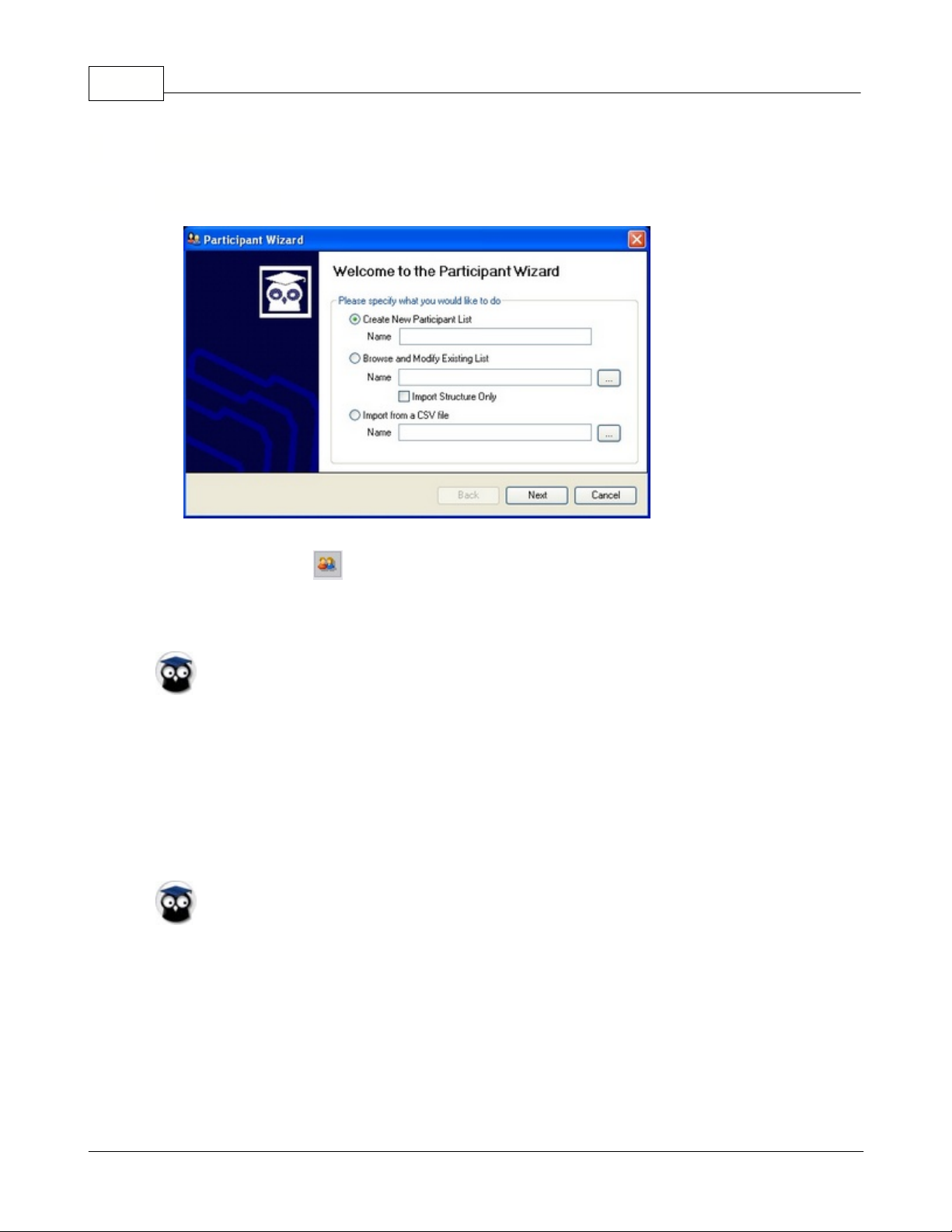
Creating a Participant List
1.
Click on the
Participant
button. The
Participant
wizard will appear.
2.
Select "
Create New Participant List."
3.
Enter a name for the class and click on
Next
.4.In the
Template Selection
, select the template you would like to use (optional).
Remote ID is a default column within the templates. You do not need to create a
field for the remote IDs, otherwise you will have two Remote ID columns.
Templates are commonly used fields to allow you to customize a participant list
you create or an existing one. You can also use the predefined ones that are
available.
5.
Select a template (optional) and click on
Next.
6.
Select the different fields you would like to use and click on
Next
. If you do not see
a field you would like in the participant list, you can create a customized field and
add it to your template.
Remote ID is a default column within the templates. You do not need to create a
field for the remote IDs, otherwise you will have two Remote ID columns.
7.
If you want to create groups, enter the name of the group in the "
Create a new
group"
field and click on
Add
. The name of the group will appear in the "
Use the
following Groups
" column. Skip to the next step if you do not want to create
groups.
8.
Click on
Next
. The participant template will appear.
9.
Fill in the fields and click on
Finish
. The
Save As
window will open.
10.
Click on
Save
and the participant list will save as a .
QPL
file.
4 Chapter 2
4.1 Participants
Qwizdom Actionpoint 2007
Page 9
Chapter 2
Importing a .CSV (Comma Separated Values) File
You can import .
CSV
class and convert it into
Qwizdom
participant lists (.
QPL).If you have a class list in Microsoft Excel you would like to import, save them as
.CSV files.
1.
Click on the
Participant
button. The
Participant
wizard will appear.
2.
Select
Import from a .CSV file.
3.
Click on the
Browse
button. The
Open
window will appear.
4.
Search for the .
CSV
file you want to import.
5.
Select the .
CSV
file and click on
Open
. The name of the class file will appear in the
Name
field.
6.
Click on
Next
. You will be taken to
Template Selection
.7.Select a template (optional) and click on
Next
. If you are importing a class list from
Qwizdom Actionpoint
, you will need to select a template and click on
Next
. You will
be taken to the
Import from CSV
window.
When importing the participant's gender, the code for the gender should be
either
M
or
True
for male and
F
or
False
for females
8.
Match the fields on the left to the fields on the right. If you don't know what the
field is, select
None
. Templates are commonly used fields to allow you to
customize a participant list you create or an existing one. You can also use the
predefined ones that are available.
9.
If the information on the left are headers, check the "
First Record is Header"
box,
otherwise leave it unchecked. For example, if the imported information on the left
shows column headers such as
Last Name, First Name, Remote ID
, etc., those are
headers so you would check the "
First Record is Header
" box. If the information on
the left show the actual name, remote number, etc., uncheck '
First Record is Header
'
because those are not headers.
10.
Click on
Next
when all the fields have been matched. You will be taken to
Group
Selection
.
11.
If you want to create groups, enter the name of the group in the '
Create a new
group
' field and click on
Add
. The name of the group will appear in the "
Use the
following Groups"
column. Skip to the next step if you do not want to create
groups.
12.
Click on
Next
. The class list will appear.
13.
Click on
Finish
and the
Save As
window will appear.
14.
Type in the class name and click on
Save
. The .
CSV
class will save as a .
QPL
file(Qwizdom Participant List
). The
Qwizdom Participant List
file format is what you will
be using for the
Qwizdom Actionpoint
program.
15.
Click on
Save
. The participant list will be available for you to select when you go
into presentation mode.
8
Qwizdom Actionpoint 2007
Page 10
Qwizdom Actionpoint User Guide9
Creating an Anonymous List
Before using an anonymous list, be sure you have the correct 'estimated number of
remotes' set under the
Configurations Settings
tab. For example, if you create an
anonymous list with a hundred participants but only have eighty as the "estimated
number of remotes," then not all remotes will register.
1.
Click on the
Presentation
button. The
Presentation Setup
window will appear.
2.
Click on the
Participant List
drop-down list and select
Anonymous
.3.Enter in the number of participants. The anonymous list has been created.
In
Configuration Settings
, check to make sure the estimated maximum number
of remotes reflects the number of the participants (or higher).
e.g If you have 32
participants but 24 as the estimated maximum number of remotes, then only 24
remotes will be allowed.
4.
Click
OK
to begin presentation.
Editing an Existing Participant List
1.
Click on the
Participant
button. The
Participant
wizard will appear.
2.
Select "
Browse and Modify Existing List
."3.Click on the
Browse
button. The
Open
window will appear.
4.
Search for the participant list you want to edit.
5.
Select it and click on
Open
. The name of the participant list will appear in the
Name
field.
6.
Click on
Next
. You will be taken to
Participant Field Selection
. You may add new
fields or remove existing fields. If you do not want to change anything, skip to the
next step.
7.
Click on
Next
. You will be taken to
Group Selection
. You may add new groups or
remove existing groups. If you do not want to change anything, skip to the next
step.
8.
Click on
Next
. The participant list will appear.
You can renumber the remotes in order of any column you click on to order by
going to
Options
(in the
Participant Wizard
window) and selecting
Autonumber
Remotes
.9.Make the necessary changes and click on
Finish
when done. The
Save As
window
will appear.
10.
Enter the name of the class and click on
Save
.
Qwizdom Actionpoint 2007
Page 11
5 Chapter 3
Follow the steps below to set up remotes. Be sure the RF host
*
is properly installed before
proceeding.
v.857 host or higher is required for Qwizdom Actionpoint. If the host is not v.857 host or higher, please contact
Technical Support to update your hardware.
·
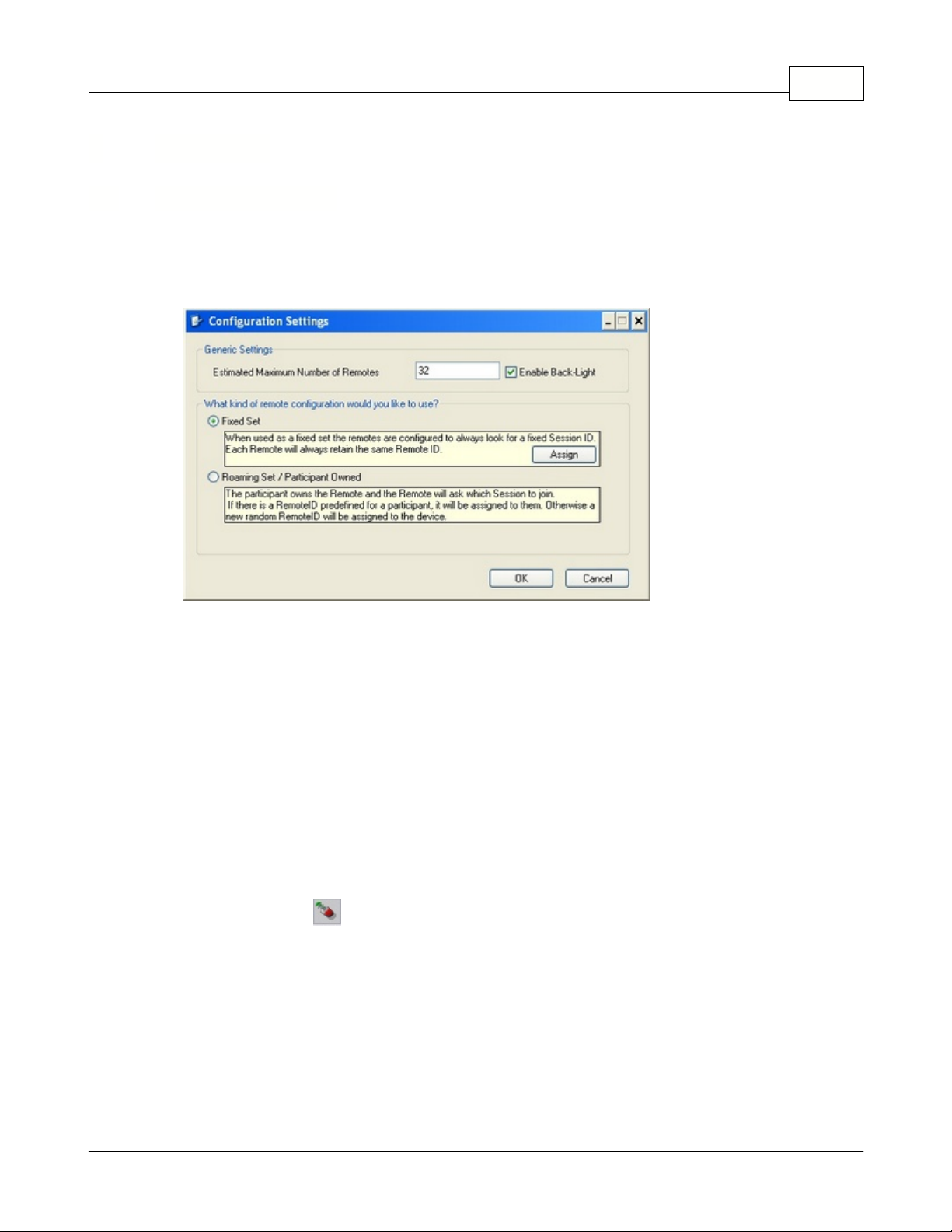
Estimated Maximum Number of Remotes
-the number of remotes that will
be in use for presentation. Class/group sizes vary, so it's best to enter the
highest estimated amount of remotes rather than accommodating each
class/group.
·
Enable Backlight
-activates the back light on the Q5 RF participant and
instructor remotes.
·
Fixed Set
-select this mode if you are K-12 or Corporate setting. Fixed Set is
where the remotes are assigned with an internal number (assigning fixed
numbers) where logging in by ID is mandatory.
·
Roaming or Participant Owned
-check this option if the participants own the
remotes. This mode is best-suited for Higher Ed/University settings.
Participants are required to either enter a Session ID or Participant ID to join a
presentation.
1.
Click on the
Configuration Settings
button. The
Configuration Settings
window
appears.
2.
Enter an estimated number of remotes that will be used.
3.
Depending on the setting, select
Fixed Set
or
Roaming Set/Participant Owned
.4.If not, click
OK
.
Session IDs
When using Q4 RF and Q5 RF remotes for the first time, the remotes may ask for a session
ID. Session IDs "assign" the remote to the host. The remote identifies and communicates
5.1 RF Remote Setup
Chapter 3
10
Qwizdom Actionpoint 2007
Page 12

Qwizdom Actionpoint User Guide11
only with the host the session ID is assigned to. Each host has a default six digit session ID
that is located on the bottom of the host.
You can also create your own Session ID. The Session ID must be unique because if you
have other hosts in the same building, the remotes will become confused on which host
they should send the information to. Session IDs can be any number from 1 to 16,777,215.
If you are using a fixed set, Session IDs only need to be entered in once. If you switch hosts
or use remotes from another set, you will need to enter the session ID for the host you will
be using into the remotes.
Assigning Fixed Numbers
If you have selected
Fixed Set
mode
,
then you would assigned fixed numbers to the
remotes if the participants will not be logging in by participant ID. Assigning fixed
numbers assigns the remote ID (
e.g. remote #1, remote #2, etc
.). The file that contains the
remote assignments are saved onto the computer, not the actual remote. You only have
to assign fixed numbers once unless you change computers or hosts.
1.
Click on the
Configuration Settings
button. The
Configuration Settings
window
appears.
2.
Select
Fixed Set
.3.Click on the
Assign
button. The
Remote Assignment
window will appear.
4.
Click on the
Host
drop-down menu and select the
COM
number (of the host) you
will be using.
5.
Enter in the session ID in the
Session ID
field or use the default ID.
6.
Click on the
Start
button.
7.
Turn on the remotes and enter the session ID. When the remotes communicate
with the host, the number of the remote (with a remote image) will appear in the
window. The remote number will also appear on the remote.
8. After all the remotes have been assigned, click on
Stop
.9.If you are not using multiple hosts, skip to
step 15
. If you are using multiple hosts,
continue to
step 10
.
10.
Click on the
Host
drop-down menu and select the
COM
number of the other host
you will be using.
11.
Enter in the session ID in the
Session ID
field.
12.
Click on the
Start
button.
13.
Turn on the remotes and enter the session ID. The remotes will be assigned to this
host only.
14.
When the remotes have been assigned fixed numbers, click on the
Stop
button.
15.
Click
OK
to save and exit the
Remote Assignment
window.
16.
Click
OK
to save and exit the
Configuration Settings
window.
Changing Session IDs
If the RF remote says "
No Net
," "
Not Found
," "
Not Active
," or "
Inactive
," it could be that the
session ID is not correct.
Qwizdom Actionpoint 2007
Page 13

Chapter 3
·
For Q4 RF remotes-press the
Menu
key, use the right arrow to scroll to
Sess. ID.,
and
press the
Send
(double arrows) key to select the option. You will see the current
session ID and will be asked if you want to change the session ID. Press
T (Ye
s) to
change. Enter the session ID and press the
Send
(double arrows) key to send.
·
For Q5 RF remotes-wait for the remote to say "
No Net
," "
Not Active,"
or "
Not Found
."
Press the
Menu
key and select
Enter Session ID
using the Send (double arrows) key or
the circle key on the thumb pad. Enter the session ID and press the
Send
(double
arrows) key.
Logging in with Participant IDs
Participant IDs can only be numeric.
1.
Click on the
Presentation
button. The
Presentation Setup
window will appear.
2.
Click on the
Login
tab.
3.
Select "
Require Login by ID
."4.Select the participant list and any other options you want to apply to the
presentation.
5.
Click
OK
to begin the presentation.
6.
The remotes will display "
User ID
."7.Enter the participant ID and press the
Send
(double arrows) key.
8.
If a remote says "
Access Denied
" or "
Denied
," then the participant ID may have been
entered incorrectly.
·
For Q4 RF remotes, press the
Menu
key, use the right arrow to scroll to
User ID
,
and press the
Send
(double arrows)
key to select it. Re-enter the participant
ID and press the
Send
(double arrows) key.
·
For Q5 RF remotes, press the
C
(clear) key, re-enter the participant ID, and
press the
Send
(double arrows) key.
The participant IDs will be remembered for the session until another participant list is
selected to present to.
Using Multiple Hosts
Up to 16 hosts (with 1000 remotes on each) can be used for presentation.
If you have selected to use fixed set, be sure you have assigned fixed numbers for the
remotes using all RF hosts.
1.
Click on the
Presentation
button. The
Presentation Setup
window will appear.
2.
Click on the
Login
tab.
3.
Select the hosts you will be using by placing a check mark in each one of the
boxes.
4.
You can create your own session ID in the
User Session
column or use the default
session ID.
If you use the default session ID in the
Host Session
column, the
User Session
column must be blank.
5.
Click on
OK
to begin the presentation.
12
Qwizdom Actionpoint 2007
Page 14

Qwizdom Actionpoint User Guide13
6.
When the presentation appears, turn on the remotes.
7.
If you assigned fixed numbers, the remotes will automatically log into the correct
host, using the session IDs used at that time.
8.
Enter the appropriate session IDs into the remotes (including instructor) if
prompted to do so and press the
Send
(double arrows) key. Press the
C
(clear) key
to delete if you accidentally mistyped a number or see
Changing Session IDs
above for more information.
9.
At this time, the remote should display the question answer choices or it may
display "
Qwizdom
" and the remote number.
10. Below are other things the remotes may display:
·
The instructor remote will say "
Ready"
or "
Last Key."·
If the remotes say "Qwizdom" and display their remote number, they are
ready and waiting for a question slide to appear. Remotes can only respond
when the slides are remote-answerable such as
Multiple Choice, True/False,
Numeric
, etc.
·
The LCD screen on the participant remotes may read "
Push Key
," "
Inactive
," or"Not Active
," press the Send (double arrows) key to "wake up" the remote.
·
If the remotes say "
No Net
" or "
Host not found
," re-enter the session ID.
·
If the remotes say "
Denied"
or "
Access Denied
," this could be that the
participant/user ID is incorrect, or the remote number attempting to
participate isn't in the participant list that was loaded. Re-enter the
participant/user ID, and check to make sure that remote number is in the
participant list.
If the remotes continue say "
No Net"
and will not establish a connection to the host, go to
Initializing the Host
to get the host to initialize. If you need further help, please contact
Technical Support
.
Participant Remote
5.2 Q2 RF Remote Diagram
Qwizdom Actionpoint 2007
Page 15

Chapter 3
1.
E-ink display-shows the last response until the remote is used again.
2.
Navigation
arrows-to scroll through question numbers. Left arrow
is also used as a backspace.
3.
True/Yes, False/No
keys-use to answer True/False and Yes/No questions
4.
Multiple Choice and Numeric
keypad-answer multiple choice and numeric
questions.
5.
Send
key-press to submit answer or select menu options.
6.
Help
key-press to request assistance
This device complies with part 15 of the FCC Rules. Operation is subject to the following two conditions: (1) This device may not
cause harmful interference, and (2) this device must accept any interference received, including interference that may cause
undesired operation.
14
Qwizdom Actionpoint 2007
Page 16

Qwizdom Actionpoint User Guide15
Participant Remote
1.Send
key-press to submit answer or select menu options.
2.
Menu
[power] key-press to view menu options (use the scroll
keys to
scroll through options and press Send
key to select the option). Holding the
Menu
button for two seconds will turn the remote on/off. Turn off remotes if they
are not in use. Remotes automatically turn off at the end of a
PowerPoint
presentation.
Search
,
Sess. ID
,
User ID
, and
Exit
are options available in the Menu.
When you're in presentation, the menu items are
Help
,
Login User Id
, and
Exit
. To
request help during presentation, press the
Menu
key, scroll to select
Help
, and
press the
Send
key to select it.
3.
Scroll
keys-to scroll through menu options, answer choices, or question
numbers.
4.
Clear
[C] key-press to delete response or change answers if instructor has enabled
the feature.
5.3 Q4 RF Remote Diagram
Qwizdom Actionpoint 2007
Page 17

5.
True/Yes
and
False/No
keys--use to answer True/False and Yes/No questions
This device complies with part 15 of the FCC Rules. Operation is subject to the following two conditions: (1) This device may not
cause harmful interference, and (2) this device must accept any interference received, including interference that may cause
undesired operation.
5.4 Q5 RF Remote Diagram
Participant Remote
1.
Send
key-press to submit answer
2.
Clear
[C] key-press to delete response or change an answer in a presentation (if
option to change responses is allowed)
3.
Thumb pad-press to navigate between letters when keying in answer, press the
circle button in the middle to select a letter or to select menu options or to scroll
through question numbers during answer keys (paper-based tests).
4.
Question
[?] key-signals help to instructor during presentation
5.
Menu
key-displays menu options
Search Again
,
Enter
Session ID
, and
Exit
. Use the
thumb pad to scroll through the menu options and the
Send
key or circle
button to select an option.
6.
True/Yes
and
False/No
keys-use to answer True/False and Yes/No questions
7.
Power switch-turns remote on/off. The remotes do not automatically turn off.
Turn off remotes if they are not in use.
8.
Light switch-turns Backlight on/off
This device complies with part 15 of the FCC Rules. Operation is subject to the following two conditions: (1) This device may not
cause harmful interference, and (2) this device must accept any interference received, including interference that may cause
undesired operation.
Chapter 3
16
Qwizdom Actionpoint 2007
Page 18

Qwizdom Actionpoint User Guide17
Instructor Remote
(this is the instructor remote for Q4 and Q5 participant remotes)
1.
Send
key-press to submit command
2.C
[Clear] key-press to clear names from the
Help Request
list.3.Thumb pad-press right/left to navigate between slide sets, up/down for menu
options, and "on-the-fly" question choices. Press the circle button (in the middle)
to select an option, play
Microsoft PowerPoint
animations, advance slides, exit the
presentation, and show/hide correct responses on the response graph.
4. ? [Help List
]
key-displays list of participants who requested help on the LCD screen
5.
Menu
key-view menu options such as entering session ID and search again for
host
6.
True/Right
and
False/Wrong
keys-not applicable using
Qwizdom Actionpoint
7.
New Q
[-] key-press to pose an "on-the-fly" question
8.
Pick
[.] key-press to display/hide a random participant's name on the computer
screen
9.
LCD Graph
[0] key-displays the results of the class responses as a graph on the
LCD screen of the instructor's remote
10.
Screen Graph
[/] key-displays the results of the class responses as a graph on
the computer (projector, television screen, etc.) screen for everyone to view. Use
the right/left controls on the thumb pad to scroll through the different graphs.
Use the circle button (in middle of thumb pad) to show/hide correct responses.
11.
Show
[7] key-not applicable using
Qwizdom Actionpoint
12.
Play
[8] key-pauses or continues a video/sound clip
13.Fn (Function) key-allows you to re-pose a question if you go back during to a
Qwizdom Actionpoint 2007
Page 19

previous slide during presentation-previous answers will be overwritten.
14.
Power switch-turns remote on/off
15.
Light switch-turns Backlight on/off. The "
Enable Backlight"
box in the
Configuration
Settings
window needs to be checked to turn on the Backlight feature.
This device complies with part 15 of the FCC Rules. Operation is subject to the following two conditions: (1) This device may not
cause harmful interference, and (2) this device must accept any interference received, including interference that may cause
undesired operation.
6 Chapter 4
Before presenting a
PowerPoint
presentation using
Qwizdom
remotes, please see
Presentation Setup
to learn about the presentation features.
1.
Click on the
Presentation
button.
2.
The
Presentation Setup
window appears.
3.
Click on the
Participant
List
drop-down field and select what type of participant list
you would like to use.
4.
Click on the
Saved
Results
drop-down field and select how you would like to save
the results.
5.
Select the options you would like available during presentation in the
General
,
Login
, and
Display
tabs in the lower part of the
Presentation Setup
window.
6.
Click on
OK
to begin the presentation.
If you present using the
PowerPoint Slide Show
options,
Qwizdom
remotes will
6.1 Presentation
Chapter 3
18
Qwizdom Actionpoint 2007
Page 20

Qwizdom Actionpoint User Guide19
not activate. You must present the slides by clicking on the
Presentation
button
to use the
Qwizdom
remotes.
7.
Have the participants turn on their remotes.
8.
Either the answer choices or a blank screen appears on the remote, depending on
the question type.
Here are a few things you may execute during presentation:
·
Display the response chart by pressing the / key
·
Display the private graph by pressing the zero key
·
Randomly call upon a participant by pressing the Pick key
9.
Go through the presentation until all the question slides are answered.
10.
When you are unable to advance to the next slide, this means the presentation is
done. Press the circle key in the thumb pad to stop the presentation (screen will go
black) and press it again to exit back to
PowerPoint
.
There are many options you can apply to your presentation. Not all options will be
applicable.
General
tab:
Send Right/Wrong Feedback to Remotes after answering
-remotes will receive a
check
mark
if answer is correct and an
X
if answer is incorrect. Remotes will receive both a
check mark
and
X
if feedback is turned off to indicate that the response has been
received.
Allow participants to change answer
-checking this option allows participants to
change their answer for the question slide they are on.
Override Points Value with Global Point value of "xxx" points
-enter the new amount
of points that will be applied to the slide temporarily for that presentation.
Timer
-you can select no timer, use the time set within the slides, and global timer by
entering the number of seconds for all slides in the presentation.
6.1.1 Presentation Setup
Qwizdom Actionpoint 2007
Page 21

Chapter 4
Login
tab:
Require Login by ID
-checking this option will have remotes prompt participants to
enter their participant ID.
Show Login Screen
-displays the login screen so the instructor can view the participants
that are logging in.
Add & Allow Unregistered participants
-participants will be added to the participant by
logging in with their participant ID. This option must be checked when using an
Anonymous
list. For the
Anonymous
list, participants will only log in with the session ID.
Deny Login After "xxx" minutes
-logins after the set amount of time will not be
accepted.
Display
tab:
Show function toolbar (not needed if using Presenter Remote)
-
checking this option
will display toolbar with
Response Chart
,
Pick
, and
Re-pose
buttons.
Display Response Indicator
-this displays the percentage of the class that has
answered; double-click the percentage to convert to a fraction.
Automatically Show Correct Answer on Chart
-checking this option will mark the
correct answer in green and show the incorrect responses in red.
Show 'Start/Stop' responding to questions indicator
-clicking on
Stop
will pause the
presentation and responses will not be accepted. Clicking on
Start
continues the
presentation activating the remotes.
20
Qwizdom Actionpoint 2007
Page 22

Qwizdom Actionpoint User Guide21
Function Bar
The control bar has the
Response Graph
,
Pick
, and
Re-Pose
buttons. To view the control bar
during presentation, select "
Show Function Bar"
in
Display
tab.
Response Graph
1.
Click on the
Response Graph
button.
2.
The
Response Graph
appears.
3.
Click on the available chart(s) to view the results.
4.
Double-click on the title bar of the window to display the graph in full screen.
Picking Participants
1.
Click on the
Pick
button to randomly call up on a participant.
2.
The participant's name will appear on screen.
3.
Click on the
Pick
button again to remove the name.
Re-posing a Question
Re-posing is used to ask a question again and/or when you accidentally skip a slide that
needs to be answered. Re-posing the question overwrites the previous responses if any are
recorded.
1.
Click on the
Re-pose
button to ask the question on the slide again.
Response Indicator
The response indicator displays the percentage of participants that have answered.
In the
Presentation Setup
window:
1.
Check the "
Display Response Indicator
" box in the
Display
tab.
2.
In presentation mode, you can move the response indicator by clicking on it with the
mouse and dragging it to another area of the screen.
3.
To change the indicator view, double-click on it to display responses as fractions.
4.
Double-click again to change indicator back to percentage.
Timer
To view the timer during presentation, click on the
Timer
drop-down list in the
General
tab
to view the timer options. Here are a few tips on using the timer:
6.1.2 Presentation Features
Qwizdom Actionpoint 2007
Page 23

Chapter 4
·
The timer has pause/play, stop, and add/subtract 5 seconds options.
·
You can move the timer by clicking on it and dragging it to another area of the
screen.
·
Remotes will not be able to answer when time is up.
You can set the timer two ways; use the time from each slide or apply a new time to the
presentation. When you create a slide, you enter the amount of time you want the slide to
display for.
To set a new time to the presentation:
1.
Click on the
Timer
drop-down list and select "
Use Global Timer Value of
..."2.Enter the number of seconds.
3.
Click on
OK
to present the presentation with the newly set time.
Points
You can set the point value two ways; use the point value from each slide or apply a new
point value to all the questions in the presentation. When you create a slide, you enter the
number of points the correct response will be awarded. Go to
Creating a Slide
for more
information.
To apply a new point value to all the questions in the presentation:
1.
Check the "
Override Point Value with Global Point value of xxx points"
option.
2.
Enter the number of points.
3.
Click on
OK
to present the presentation with the newly set time.
Right/Wrong Feedback
This allows participants to see if their response is right or wrong.
1.
Check the "
Send Right/Wrong Feedback to Remotes after answering"
box in the
General
tab of the
Presentation Setup
window.
Feedback will appear on the LCD screen of the participant's remote during presentation. A
check mark
will indicate a correct response, an
X
will indicate an incorrect response. If the
feedback is disabled, a
check mark
and
X
will appear on the LCD screen indicating that a
response was received.
Instructor Remote Tips
·
The Q5 RF instructor remote will say "
Ready
" or "
Last Key
.·Since the Q5 RF remote is not applicable during answer keys, the LCD screen will
display "
Access Denied
."·Press the / key on the RF instructor remote to display the response graph.
·
Press the / key on the RF instructor remote to close the response graph.
22
6.1.3 Using Remotes in Presentation
Qwizdom Actionpoint 2007
Page 24

Qwizdom Actionpoint User Guide23
·
Press the 0 key on the RF instructor remote to display the graph on the instructor's
LCD.
·
Press the Pick (.) key on the RF instructor remote to randomly call upon a participant
during presentation.
·
Press the
Play
(8) key on the RF instructor remote to play/stop movie or sound on
slide.
·
Press the
Show
(7) key on the RF instructor remote to show current scores of
participants/group during game mode.
·
Press the
New Q
(-) key to pose a spontaneous question. A list of question types will
appear on the LCD. Use the up/down arrows on the thumb pad to navigate
through the question types. Press the
Send
key to select the question type. Select
the correct answer and press Send; or the answer is survey only, press the
Send
key
without selecting an answer.
·
Press the
?
key to display the list of participants who have requested help.
·
Press the circle key, in the thumb pad, to close out of the presentation (must be on
last slide), play the
PowerPoint
animation and schemes (if any were applied),
move
to the next slide, or displays/hides the correct answer on response graph
Participant Remote Tips
·
"Qwizdom" will be displayed on the remotes when a lesson (non-question) slide is
in view.
·
Participants will either see answer choices or a blank screen (depending on
question type) on their remote during a question slide.
·
To request help; on the participant RF remote, press the
Menu
key to select
Help
and press
Send
on the remote to request for help. On the participant IR remote,
press the ? key to request for help.
·
To change the Session ID on the Q4 RF remote, press the
Menu
key and use the
right arrow to scroll through the menu options. When you see
Sess. ID
, press the
Send
key to select it. An existing session ID may appear and the remote will ask if
you want to change it. Press
T
for yes and enter the new Session ID. Press the
Send
key to confirm.
·
To change the Session ID on the Q5 RF remote, press the
Menu
key when the
remote displays "
No Host Found
." Use the thumb pad to navigate through the menu
options and press the
Send
key to select
Enter Session ID
.
Qwizdom Actionpoint 2007
Page 25

Chapter 4
·
To change the user ID on the Q4 RF remote, press the
Menu
key and use the right
arrow key to scroll to
User ID
. An existing user ID may appear and the remote will
ask if you want to change it. Press
T
for yes and enter a user ID. Press the
Send
key to
confirm.
·
The LCD screen on the participant remotes may read "
Push Key,"
"
Inactive
," or "
Not
Active,"
press the
Send
(double arrows) key to 'wake up' the remote. If the remote
still says "
Not Active
," re-enter the session ID.
·
If the remotes say "
No Net"
or "
Host not found
," re-enter the session ID. Go to
Changing Session IDs
for more information.
·
If the remotes say "
Denied"
or "
Access Denied
," the participant ID is incorrect, or the
remote number attempting to participate isn't in the participant list that was
loaded. Re-enter the participant ID, and check to make sure that remote number is
in the participant list.
Below are the procedures on how to respond for each question type during presentation:
·
True/False
; select T or F and press the
Send
key.
·
Yes/No
; select Y or N and press the
Send
key.
·
Multiple Choice
; select A, B, C, D, E, or F and press the
Send
key.
·
Multiple Mark
; select the letter choices and press the
Send
key.
·
Numeric
; enter the numbers and press the
Send
key.
·
Sequence
; enter the numbers in the order and press the
Send
key.
·
Multiple Answer-List
; press the letter choices and press the
Send
key.
·
Fill-in/Completion
; for
Q5
remotes only-for one answer you will see:
1)___________________
*)Send
Make sure
1)
is highlighted and press either the
Circle
or the
Send
key to select it.
1)_______________
will appear on the LCD. Press the
Menu
key to display the
alphabet. Use the arrows on the thumb pad to navigate through the letters, using
the Circle key to select the letter(s). Press the
Send
key when finished entering the
answer. You will see
1)
your answer
. Press the down arrow on the thumb pad to
select
*)Send
and press the
Send
key to confirm the answer.
For two answers, you will see:
1)___________________
2)___________________
24
Qwizdom Actionpoint 2007
Page 26

Qwizdom Actionpoint User Guide25
*)Send
Make sure
1)
is highlighted and press either the
Circle
or the
Send
key to select the
question number.
1)__________
will appear on the LCD. Press the
Menu
key to
display the alphabet. Use the arrows on the thumb pad to navigate through the
letters, using the Circle key to select the letter(s). Press the
Send
key when finished
entering the answer. You will see
1)
your answer
.
Press the down arrow on the thumb pad to select
2)__________
and press the
Circle
or
Send
key to select the question number.
2)__________
will appear on the LCD.
Press the
Menu
key to display the alphabet. Use the arrows on the thumb pad to
navigate through the letters, using the Circle key to select the letter(s). Press the
Send
key when finished entering the answer. You will see
2)
your answer
.
Press the down arrow on the thumb pad to select
*)Send
and press the
Send
key to
confirm the answers.
·
Short Answer-Specific
; for
Q5
remotes only. The alphabet menu will automatically
appear when this question type is displayed. Use the arrows on the thumb pad to
navigate through the letters, using the Circle key to select the letter(s). Press the
Send
key to confirm your answer.
During presentation, you can display a response graph to see the results of the question.
There are two response graphs you can display: the public response graph and the private
graph.
Public Response Graph
1.
Press the
/
key on the RF instructor remote.
2.
The response graph will appear on screen for the participants to view.
3.
Press the up arrow to view a different graph
*
of the results.
4.
If you press the circle key (in the middle of the thumb pad), you can change the colors
of the chart to show either the correct/incorrect responses (green/red) or hide the
correct/incorrect responses (pink, blue, yellow).
5.
Press the
/
key again to remove the response graph.
Depends on question type; pie chart may not be available for all question types.
If you have a graph displayed, whether it be on the instructor remote or
computer, you must remove that graph before displaying the other graph; both
graphs cannot be displayed simultaneously.
Private Response Graph
1.
Press the
0
key on the RF instructor remote.
2.
A bar chart showing the number of responses will display on the RF instructor remote's
LCD screen.
6.2 Response Graph
Qwizdom Actionpoint 2007
Page 27

3.
Press the
0
key again to remove the graph.
6.3 Remote Login
Logging in with IDs allows participants to use any remote. If you use participant IDs from a
participant list, the ID will link the remote to the participant's information in the list.
To have participants log in, they must have a participant ID. Participant ID's are setup
when creating participant lists. (Go to
Participant Lists
for more information). Each
participant should have a unique ID assigned to their name.
·
Participant ID's can only be numeric.
·
The maximum number of digits allowed for IDs using the Q4 RF remotes is 9
·
The maximum number of digits allowed for IDs using the Q5 RF remotes is 8.
·
IDs cannot be used for more than one participant (IDs cannot be duplicated).
1.
Open a
PowerPoint
presentation or create one to present.
2.
Click on the
Presentation
button. The
Presentation Setup
window will appear.
3.
Select a participant list from the "
Participant List
" drop-down menu.
4.
Click on the
Login
tab.
5.
Check the "
Require Login by ID"
option.
6.
Checking the "
Show Login Screen
" is optional.
7.
Select all other preferred options and click on
OK
to present. The presentation will
begin.
8.
The remotes will display "
User ID
."9.Participants will enter their ID and press the
Send
(double arrows) key.
10.
Once everyone has logged in, begin the presentation.
You can start the presentation as participants log in. Participants who are late, can log in
later if you have not set a timer to deny log-in.
Login Timer
You can deny login after a certain amount of time by setting the time under the
Login
tab.
1.
Check the "
Deny Login After ... Minutes
" option.
2.
Enter the number of minutes that participants have to log in.
For example, you have select to deny log in after 5 minutes. After 5 minutes has passed,
participants who try to log in will be denied.
All results are saved as an .
XML
(Extensible Markup Language) file but can be converted
into a .
CSV
(Comma Separated Values) file.
Manual Save
1.
Click on the
Presentation
button. The
Presentation Setup
window will appear.
2.
Select
Browse for Save Location
.
Chapter 4
26
6.4 Saving Results
Qwizdom Actionpoint 2007
Page 28

Qwizdom Actionpoint User Guide27
3.
Click on the
Browse
button. The
Save As
window appears.
4.
Select a location to save the results in.
5.
Enter the name you want the results to be saved as.
6.
Click on
Save
. The file name and location will appear in the
Save Results
field.
Auto Save
1.
Click on the
Presentation
button. The
Presentation Setup
window will appear.
2.
Select
Auto Save as 'Filename + List + Date.'
3.
The
Browse for Folder
window appears.
4.
Select the location and click on
OK.5.
The file name will contain the location, name of the participant list, date, and time
under the
Save Results
field.
You can generate reports
*
using existing saved results.
*Registered version of Microsoft Excel is required to generate reports.
1.
Click on the
Reports
button. The
Excel Report
wizard will appear.
2.
Click on the
Browse
button to search for the file you want to generate a report for.
The
Open
window will appear.
3.
The file type will be
.XML
. Search for the file and select it.
4.
Click on
Open
.
7 Chapter 5
7.1 Reports
Qwizdom Actionpoint 2007
Page 29

Chapter 5
5.
Select the type of report you want to generate and click
OK
.
Microsoft Excel
will
open to generate the report.
6.
In
Microsoft Excel
, go to the
File
menu and select
Save
to save the report.
Report Features
Excel Reports:
·
Answer Report
-displays bar chart and lists participant names, ID, and remote ID with
score and breakdown of responses for each question.
·
Answer Distribution Report
-shows a percentage for each answer choice, correct
answer, percentage of correct answers , and the average of the answer sent for each
question.
·
Score Report
-displays bar chart and shows the participant information with the
number of correct responses out of the total number of questions answered and in
the presentation. Also shows score and spontaneous question totals.
·
Participant Detail Report
-displays detailed participant information such as name,
ID, group number, username and password.
·
Participant Group Overview Report
-displays the participants in their assigned
group number with remote and participant IDs.
·
Attendance Report
-displays participant information with their remote login time,
number of questions answered and total questions.
Conversion:
·
Convert to .CSV
-selecting this options converts the .
XML
file into a .
CSV.Options:
·
Give "xx" number of points for participation
-enter the number of points to give for
participation but points . Participation points do not appear anywhere but are taken
into account when scores are calculated.
·
Override the Point value of all slides to be "xx" points
-overrides point value that
was awarded during presentation.
Use this troubleshooter to identify and solve problems related to using
Qwizdom's
Actionpoint
. Select the topics that best describe the problem and then try the suggested
steps.
1)
Which version of
Microsoft PowerPoint
do you need to run
Qwizdom's
Actionpoint
?2)How can I find out which version of
Microsoft PowerPoint
is on my computer?
3)
I installed
Qwizdom Actionpoint
but when I open
Microsoft PowerPoint,
the
toolbar isn't appearing. How can I get the
Qwizdom
toolbar to show?
4)
Do I use
Qwizdom Interact
when I use
Qwizdom's Actionpoint
? And is it okay
28
8 Troubleshoot
Qwizdom Actionpoint 2007
Page 30

Qwizdom Actionpoint User Guide29
to have both installed on the same computer?
5)
How do I initialize the host?
6)
My remotes won't respond...what do I do?
7)
When I present a
PowerPoint
activity, my remotes won't respond and the
Qwizdom
menu settings aren't showing (such as timer, response chart, etc.).
8)
How do I turn off the Right/Wrong feedback?
9)
How do I set the timer?
10)
Can I show the total number of participants that responded rather than a
percentage?
11)
Can I import a class list that I have created within
Qwizdom Interact
?
12)
How do I create a participant list?
13)
Can I import the class lists I created in
Microsoft Excel
into
Actionpoint
?
14)
How do I start a presentation so that my remotes will be activated?
15)
How do I use more than one host at a time?
16)
How do I select the correct answer for a slide?
17)
A window keeps appearing that says '
Resume Slide Show
' after I begin my
presentation. How do I get this to stop happening?
18)
I entered the time/points in the
Timer/Points
field but the value doesn't save.
19)
In the
Configurations Settings
window, how do I know if I should use
Fixed set
or
Roaming or Participant Owned
mode?
20)
What is a session ID and where do I find it?
21)
How do I create a slide using
Qwizdom
in
PowerPoint
?
22)
How can participants change their answers during a presentation?
23)
How do I go back to a previous slide using the instructor remote when in
presentation?
24) I received more remotes. How will the program know that I have more
remotes?
25)
Which version of
Microsoft PowerPoint
do you need to run
Qwizdom's
Actionpoint
?
26)
The session ID is zero. How do I correct this?
If you need technical assistance, contact us. Please provide the following questions below
as we will need this information when you call:
·
What version of
Microsoft PowerPoint
do you have?
·
What version of
Microsoft Excel
do you have?
·
How long have you had your
Qwizdom
product?
·
Where is the problem occurring?
·
If you are getting an error, what does it say? When an error occurs, it is helpful to
write down what it says.
Website
www.qwizdom.com
Phone
(253) 770-1285
Qwizdom Actionpoint 2007
Page 31

Troubleshoot
E-mail
support@qwizdom.com
Office Hours
6 a.m. to 4:30 p.m. PST
Address
Qwizdom, Inc.
12617 Meridian East
Puyallup, WA 98373
1)
Which version of
Microsoft PowerPoint
do you need to run
Qwizdom's
Actionpoint
?
To install
Qwizdom's Actionpoint
,
Microsoft
PowerPoint 2003
or later is required to
run
Qwizdom's Actionpoint
. Registered version of
Microsoft
PowerPoint
is required-
trial or limited versions are not applicable.
2)
How can I find out which version of
Microsoft
PowerPoint
I have?
To find out which version of
Microsoft PowerPoint
you have, launch
PowerPoint.
Go
to the
Help
menu and select
About Microsoft PowerPoint
. A window will appear
displaying the version of
Microsoft PowerPoint
that is installed on the computer.
3)
I installed
Qwizdom Actionpoint
but when I open
Microsoft PowerPoint,
the
toolbar isn't appearing. How can I get the
Qwizdom
toolbar to show?
Registerd version of
Microsoft PowerPoint
2003 or later is required. If you don't see
the toolbar, go to the
View
menu, select
Toolbars
and check the
Qwizdom
Actionpoint
toolbar. You can also try repairing your
Microsoft PowerPoint
by going
online to
www.microsoft.com
to check for
PowerPoint
updates. If the toolbar still
isn't appearing in
PowerPoint
, please contact
Technical Support
.4)Can I run
Qwizdom's Actionpoint
simultaneously with
Qwizdom Interact
? And
is it okay to have both installed on the same computer?
No, you either use
Qwizdom Actionpoint
or
Qwizdom's Interact
. Do not have both
programs open and running at the same time. Materials you create using
Qwizdom's Actionpoint save within PowerPoint (or wherever you choose to save)
and materials created in Qwizdom Interact save within Interact.
Since they are two separate applications, both programs can be installed on the
same computer.
5)
How do I initialize the host?
1.
You will need to do this procedure twice (
because there are two drivers
).2.Insert the
Qwizdom Actionpoint
disc into the computer or download the USB
Drivers off of www.qwizdom.com website (when download the USB Drivers
folder, do not unzip the files from the folder). Be sure the host is properly
plugged in.
3.
From the
Start
menu, go to the
Control Panel
or go to
Settings
and then
Control Panel
.
30
Qwizdom Actionpoint 2007
Page 32

Qwizdom Actionpoint User Guide31
4.
Double-click on the
System
icon and click on the
Hardware
tab.
5.
Click on the
Device Manager
button.
6.
Select the option
View Devices by Type
under the
View
menu.
7.
Scroll to
Universal Serial Bus Controllers
and
Ports
. Look for
Qwizdom RF Host.
The
Qwizdom RF Host
might also be located under
Unknown
or
Other Devices
.8.When you find it, double-click on it (if there is an exclamation point or
question mark on it) and click on the
Driver
tab.9.Click on the button that says
Update Driver
. The installation wizard will
appear.
10.
Select '
Install from a list or specific location
' and click
Next
.
11.
Select '
Search for the best driver in these locations
' and check the '
Search
removable media
' and '
Include this location in search
' boxes.
12.
Click on the
Browse
button, click on
My Computer
, click on the drive that
Qwizdom Actionpoint
is in or area where you saved the USB Drivers folder
(that was downloaded from the
Qwizdom
website), and then find the folder
that says
USB_Drivers
.
13.
Click
OK
and then
Next.
A prompt might appear that saying the drivers has
not passed the
Microsoft Windows Update
testing. Click on
Continue Anyway
and then
Finish
.
14.
Repeat the above steps once more (if needed) and then restart your
computer.
6)
My remotes won't respond while in presentation and/or in the
Assign Fixed
Numbers
screen...what do I do?
There are a few reasons why your remotes may not be responding:
Double check that the host is plugged in and installed properly (see Initializing the
Host for more information). The host must be initialized for the remotes to
respond during presentation and/or assigning fixed numbers.
Q4 RF
remotes require two AA batteries. Be sure the batteries are placed properly.
Q5 RF
remotes have rechargeable batteries. The remotes must be charged for 24
hours.
Be sure all remotes have the correct session ID entered into the remote (see RF
Hardware Setup for more information).
If remotes aren't responding during presentation, make sure you have the correct
participant list loaded and that you used the
Presentation
button to start your
presentation.
7)
When I present a
PowerPoint
activity, my remotes aren't responding and the
Qwizdom
menu options aren't appearing (such as timer, response chart, etc.).
There are a couple reasons why the menu options might not be appearing and the
remotes aren't responding during presentation:
If you select
Slide Show
or
View Show
, that will launch the
PowerPoint
presentation
using
Microsoft PowerPoint
rather than
Qwizdom
. Remotes can't be used if you
launch the presentation using
PowerPoint
. To present the
PowerPoint
activity
Qwizdom Actionpoint 2007
Page 33

Troubleshoot
using
Qwizdom
, you must click on the
Presentation
button to launch the
presentation using
Qwizdom
.
If you present using
Qwizdom
and the menu options aren't appearing during
presentation, the menu options may not be enabled. Menu options are enabled
by selecting them in the
Presentation Setup
window
.
Click on the
Presentation
button and click on the
Presentation Settings
tab. Check the '
Show Control Bar
,''Display Percentage of participants who responded
,' and '
I would like to use the Timer
function
.'8)How do I turn off the Right/Wrong feedback?
To disable Right/Wrong feedback, click on the
Presentation
button. Click on
the
Remote Settings
tab. Uncheck '
Send Right/Wrong Feedback to Remotes after
answering'
to disable the feature.
9)
How do I set the timer?
There are two ways to set the timer:
To set the time on a slide, select a slide. In the
Qwizdom
toolbar, either select the
time value or type in the desired time value in the
Timer
field (if you type in the
value, press the
Enter
key on the keyboard to apply the time). Then click on the
Presentation
button. Click on the
Presentation Settings
tab. Check
'I would like to
use the Timer function'
to activate the timer.
To apply a set time for all the slides, click on the
Presentation
button. Click on
the
Presentation Settings
tab. Check
'I would like to use the Timer function'
to activate
the timer and then check the '
Override Slide Timer with Global timer value of xx
seconds
' option. Enter the number of seconds.
10)
Can I show the total number of participants that responded rather than a
percentage?
Yes, total number of participants can be displayed rather than percentage. Click
on the
Presentation
button. Click on the
Presentation Settings
tab. Select
'
Display Percentage of participants who responded
.' Click
OK
to begin presentation.
You will see a percentage box on the screen. Use the mouse to double click on the
percentage box and it will change to show number of participants responded out
of total number of participants. To change it back to percentage, double click on
the box with the mouse.
11)
Can I import a class list that I have created within
Qwizdom Interact
?
Yes, class lists can be exported from
Qwizdom Interact
and imported into
Qwizdom
Actionpoint
. If you have
PowerPoint
open, close the program down. Open
Qwizdom Interact
and click on the
participants
tab. Select the class you want to
export and go to the
File
menu. Select
Export participants
. Name the file and click
on
Save
. The file will save as a .csv file. Close
Interact
and open
PowerPoint
. Click
32
Qwizdom Actionpoint 2007
Page 34

Qwizdom Actionpoint User Guide33
on the
Participant
button. The
Participant
wizard will appear. Select '
Import
from a CSV file'
and click on
Browse
button. Search for the class that you exported
from
Qwizdom Interact
. When you find it, select it and click on
Open
. The name of
the class list will appear in the
Name
field. Click on
Next
and follow the wizard to
import the class list. An
Interact
template should be selected.
12)
How do I create a participant list?
Click on the
Participant
button. The
Participant
wizard will appear. Select
'
Create New Participant List
.' Enter the name of the participant list and click on
Next
.
Select the template (if you want to use one) you would like to use and click on
Next
. You can edit which fields will appear in the participant list by adding or
removing them. Click on
Next
. Create groups (optional) and click on
Next
. The
participant list template will appear for you to add participants to. Click on
Done
when complete.
13)
Can I import the class lists I created in
Microsoft Excel
into
Actionpoint
?
Yes, class lists created in
Microsoft
Excel
can be imported into
Actionpoint
. Open
the class you created in
Excel
. In
Excel
, go to the
File
menu and select
Save As
.
Enter the name of the class and click on the
Save as Type
drop down menu. Select
.
CSV Comma Delimited
and click on
Save
. Close
Excel
and open
PowerPoint.
Click
on the
Participant
button. Select
'Import from a CSV file'
and click on the
Browse
button. Search for the class you saved as a .CSV, select it and click on
Open
. The
name of the class will appear in the
Name
field. Click on
Next
and follow the wizard
to import the class list.
14)
How do I start a presentation so that my remotes will be activated?
You will need to present from the
Qwizdom
toolbar to ensure the remotes will be
active during presentation. Click on the
Presentation
button. The
Presentation
Setup
window will appear. Select the desired settings in the
Presentation Setup
window.
If you present the
PowerPoint
activity using standard
PowerPoint
procedures, your
remotes will all say '
Inactive
.'
15)
How do I use more than one host at a time?
Each host can handle 1000 remotes being sent at a time. If you have a larger
group, you will want to use more hosts.
Setting up multiple hosts is a two-part process.
First, you must assign fixed numbers to the remotes using both hosts (only if using
a fixed class, which is a typical scenario when using multiple hosts). Second, you
must choose to use both hosts when setting up your presentation properties.
After installing the program, plug both hosts into the computer to be used. Make
sure both sets of drivers are installed and ready to use. Open
Microsoft
PowerPoint
Qwizdom Actionpoint 2007
Page 35

Troubleshoot
and click on the
Configuration Settings
button. The
Configuration Settings
window will appear. If you are using a fixed set, (the remotes will always be used
with the same hosts) you will want to select that option and click on the
Assign
button. The
Remote Assignment
window will appear. Click on the
Host
drop-down
menu to select the host you would first like to assign numbers to. The default
session ID will appear on the right. You may type your own session ID there if you
prefer. Click on
Start
and then turn on the desired number of remotes (no higher
than 1000). When you are done with the first host, click on
Stop
and put the
remotes aside for they will be turned off. Click on the
Host
drop-down menu and
select the next host. Select or enter the session ID and click on
Start
. Turn on the
desired number of remotes (no higher than 1000) and click on
Stop
when finished.
When all remotes have been assigned to the hosts, click on
OK.Click on the
Presentation
button and click on the
Remote Settings
tab. You will
see all available hosts listed there. Select the host(s) you will be using. If you
specified a unique session ID during the assigning process, be sure that you type
that number under the
User Session
column. Select all the other appropriate
choices in the setup area and click the
OK
button to begin your presentation.
16)
How do I select the correct answer for a slide?
There are two ways to select the answer for a slide:
Click on the
Answer
drop-down menu and select the correct answer.
Type in an answer and press the
Enter
key to apply the answer. If you do not press
Enter
, the default value will appear in the answer field.
17)
A window keeps appearing that says '
Resume Slide Show
' after I begin my
presentation. How do I get stop this from happening?
To stop this window from appearing, click on the X to close the window out. If you
select '
Resume
', the window will continue to appear in subsequent presentations.
18)
I entered the time/points in the
Timer/Points
field but the value doesn't save.
How do I get it to save?
If you type in a value, you must press the
Enter
key on the keyboard to apply it.
19)
In the
Configurations Settings
window, how do I know if I should use
Fixed set
or
Roaming or Participant Owned
mode?
Fixed set
mode should be used if the same group of remotes will always be used
with the same host. This scenario is most common in corporate and K-12 settings.
If you are going to share the set of remotes, you can still use this mode as long as
the remotes always stay with the same host. The remotes are assigned a fixed
number and the session ID is permanently assigned to the remotes. Participants
may still log in using their participant ID if you select the option in the
Presentation
Setup
window. This option allows the participant to pick up any remote rather than
having to use the same remote each time.
34
Qwizdom Actionpoint 2007
Page 36

Qwizdom Actionpoint User Guide35
Roaming or Participant Owned
mode is best suited to university settings or
situations where the participants will keep possession of the remotes and may be
in several classes where different hosts are used. In this mode, the participants
must have a numeric participant ID to enter into the remote. Each time the remote
is used, a new session ID has to be entered into the remote.
20)
What is a session ID and where do I find it?
A session ID is used to identify which host your remotes will be sending
information to. Click on the
Presentation
button. The
Presentation Setup
window will appear. Click on the
Remote Settings
tab. Select the host you will be
using. You can either use the default session ID (six digit number which is also
located on the bottom of the host) or create one. If you want to create one, type in
a number in the
User Session
column. If you want to use the defaulted session ID,
leave the
User Session
column blank. Since the session ID is not visible during
presentation, it's best to have it written on the board or a place where the
participants can see it.
21)
How do I create a slide using
Qwizdom
in
PowerPoint
?
Open
PowerPoint
and you will see the
Qwizdom
toolbar. Click on
Insert Slide
and
select the slide type. Then select the number of choices (if applicable) under
Type
.
Create your question with the answer choices (if applicable) on the slide. Now
select the answer (if applicable).
Enter
the number of points. If the point value you
desire does not appear in the
Points
drop-down menu, type in the number and
press the
Enter
key on the keyboard. Enter the time in the
Time
field. If the time
value you desire does not appear in the
Timer
drop-down menu, type in the
number and press the
Enter
key on the keyboard.
22)
How can participants change their answers during a presentation?
Participants can only change their answers during a presentation if the feature has
been enabled. Click on the
Presentation
button and the
Presentation Setup
window will appear. In the
Presentation Setup
window, click on the
Remote Settings
tab. Select the '
Allow participants to change answer
' option to enable participants
to change their answer during presentation. Participants would press the
C
(Clear)
button on their remote and send their new response.
23)
How do I go back to a previous slide using the instructor remote when in
presentation?
To allow the instructor remote to go back to previous slides during presentation,
click on the
Presentation
button. In the
Presentation Setup
window, click on the
Presentation Settings
tab. Select the '
Allow Instructor to go back to previous slide
'
option to enable the instructor remote to view previous slides during presentation.
If you go back to a question slide and want participants to answer it again, press
the Fn button on the instructor remote or click on the
Re-pose
*
button on screen.
Qwizdom Actionpoint 2007
Page 37

Troubleshoot
Check "Display Function Bar" in the Presentation Setup window to display the Re-pose button.
24)
I received more remotes. How will the program know that I have more
remotes?
You will need to change the number of estimated remotes. Click on the
Configurations Settings
button. Type in the number of estimated remotes to reflect
the number of remotes you currently have.
25)
Which version of
Microsoft PowerPoint
do you need to run
Qwizdom's
Actionpoint
?
To generate reports using
Qwizdom Actionpoint
, registered version of
Microsoft
Excel 2003
or later is required-trial or limited versions are not applicable.
26)
The session ID is zero. How do I correct this?
Unplug the host and close out of the program. Wait a few seconds and plug the
host back in. Launch Actionpoint again and see if the session ID is still zero.
Uninstalling Qwizdom Actionpoint
Before uninstalling, be sure to relocate any materials saved within the
Qwizdom
Actionpoint
folder (that you want to save) such as participant lists before uninstalling
otherwise they will be deleted.
1.
Go to
Add/Remove
programs in the
Control Panel
.2.Search for
Qwizdom Actionpoint
and click
Remove
.3.The InstallShield w
izard will appear and follow the instructions.
4.
Restart your computer for the changes to take affect.
Uninstalling USB Drivers
If the host is still not initializing after following the steps above, then the hardware needs
to be completely removed and then reinstalled. Follow the steps below.
1.
Go to your
Control Panel
from either your
Settings
or
Start
menu.
2.
Double-click on
System
and click on the
Hardware
tab or
Device Manager
tab. If
you go to the
Hardware
tab, click on the
Device Manager
button.
3.
Search for the
Qwizdom RF Host
under
Universal Serial Bus Controllers
,
Ports
, and/or
Other
or
Unknown Devices
.4.Double-click on the file and click on the
Driver
tab.
5.
Select
Uninstall
.6.Unplug your host after it is uninstalled and go back to the
Control Panel
.7.Double-click on
Add or Remove Programs
and search for
FTDI Universal Serial
Converter Drivers
.8.When you find it, remove the file.
9.
Now plug your host in. A prompt or wizard will appear notifying you of new
36
8.1 Uninstalling Software and Hardware
Qwizdom Actionpoint 2007
Page 38

Qwizdom Actionpoint User Guide37
hardware.
10.
Follow the steps above for
Windows
2000/XP
.
Qwizdom Actionpoint 2007
 Loading...