

Page 1

QA661 User’s Guide Quloos
- 1 -
Contents
1. User Instruction············································································································· 3
2. Product Introduction
2.1 Overview··················································································································· 3
2.2 Storage Media············································································································ 3
2.3 Audio Format············································································································· 3
2.4 Functional Interface ··································································································· 4
2.4.1 Front Panel·········································································································· 4
2.4.2 Rear Panel··········································································································· 5
2.4.3 Right Panel ········································································································· 6
2.4.4 Screen················································································································· 6
2.4.5 Remote Control··································································································· 7
3. Operation Instruction
3.1 Startup······················································································································· 8
3.2.File Browsing ············································································································ 8
3.3.Play··························································································································· 8
3.4 Replay······················································································································· 8
3.5 Play the previous song ······························································································· 8
3.6 Previous/Next Page···································································································· 8
3.7 Previous/Next File (Album) ······················································································· 8
3.8 Song Location············································································································ 8
3.9 File Location·············································································································· 8
3.10 Play Time Location·································································································· 8
3.11 A-B Section Play······································································································ 9
3.12 Song Deleting·········································································································· 9
3.13 CUE Operation ········································································································ 9
3.14 Favorites·················································································································· 9
3.15 Mute························································································································ 9
4. Function Settings
4.1 Playing Mode············································································································· 10
4.2 Playing Range············································································································ 10
4.3 Memory Play············································································································· 10
4.4 Gap Between Tracks ·································································································· 10
4.5.Track Name Rolling··································································································· 10
4.6 Font Size···················································································································· 10
4.7 Cursor Color·············································································································· 10
4.8 Main Color ················································································································ 11
4.9 Progress Bar ·············································································································· 11
4.10 Screen Brightness····································································································· 11
Page 2

QA661 User’s Guide Quloos
- 2 -
4.11 Automatic Off-screen ······························································································· 11
4.12 Automatic Shutdown································································································ 11
4.13 Signal Selection······································································································· 11
4.14 Language················································································································· 11
4.15 System Information·································································································· 11
5. Firmware Update············································································································· 12
6. USB Input ······················································································································· 12
7. Coaxial Input··················································································································· 14
8. Word Clock Input ············································································································ 14
Appendix I. Product Warranty Card ····················································································· 15
Attention: The copyright of this document belongs to our company, and the final right of
interpretation is reserved. In terms of any alteration of product design and specification, further
notification will not be issued, please refer to our website.
Page 3

QA661 User’s Guide Quloos
- 3 -
1. User Instruction
(1).SD card is supportive of three-level directory and two-level folder, e.g. Root directory, Parent
file folder/Sub-file. As for SDXC card, it is necessary to be formatted into FAT32 file system by
DiskGenius.
(2).SD Card is supportive of hot plugging, but please hold while deleting files, which will
damage the card.
(3).Make sure that CUE file and the whole track file are saved under the same folder. The song
name of the CUE FILE parameter is consistent with the corresponding file name of the whole
track file (including the suffix).
(4).As for the incompatible sampling resolution, sampling frequency or compressed level, such
as single track, 24bit/192KHz FLAC, APE compressed level above HIGH, it will be muted for
5s and skip to play the next song.
(5).If it shuts down while playing WAV or DSD, it is mostly due to SD card issue, please format
the SD card by SDFormatter software.
(6).DSD playing is supportive of DoP Agreement, which needs external DAC supportive of DSD
for SPDIF.
(7).DSD Playing is unsupportive of DST64 Code. Please convert it into DSD64 code by relating
software.
(8).While connecting QA100, no sound is released while playing DSD. QA100 is unsupportive
of the input of DSD signal.
(9).Please visit the official forum www.qlshifi.com/bbs for more instructions.
2. Product introduction
2.1 Overview
QA661 is the latest high-end digital disc that QLS Hifi designed through many years’
technological accumulation. The tone quality has been further improved in terms of the
presentation of minor signal, sound cleanliness, richness and looseness. QA661 has super
real-time software framework, precise circuit isolation design, QLS latest power handling
technology, new generation 0 Jitter clock and digit handling circuit. These innovative
technologies guarantee HI-END super low Jitter digital output and explore the full potential of
your system.
2.2 Storage Medium
SD Card, supportive of SD/SDHC/SDXC,FAT32 file system. The max capacity is 128G.
2.3 Audio Format
QA661 is supportive of the following formats
l WAV :16/24bit,44.1~192KHz;
Page 4
QA661 User’s Guide Quloos
- 4 -
l AIFF :16/24bit,44.1~192KHz;
l FLAC :16/24bit,44.1~48KHz,compression level 0~8;
l APE :16bit,44.1KHz,compression level Fast & Normal;
l ALAC :16bit,44.1KHz;
l MP3 :16bit,44.1~48KHz,Code rate 96kbps~320kbps,CBR、VBR、ABR encoding;
l DIFF :DoP v1.0,DSD64 encoding, 1bit, Stereo;
l DSF :DoP v1.0,DSD64 encoding, 1bit, Stereo;
l SACD :SACD ISO mirror files,DoP v1.0,DSD64 encoding, 1bit, Stereo;
l CUE :WAV/AIFF/FLAC/APE/ALAC can be related to CUE,ANSI、UNICODE、
UTF-8 encoding
2.4 Functional Interface
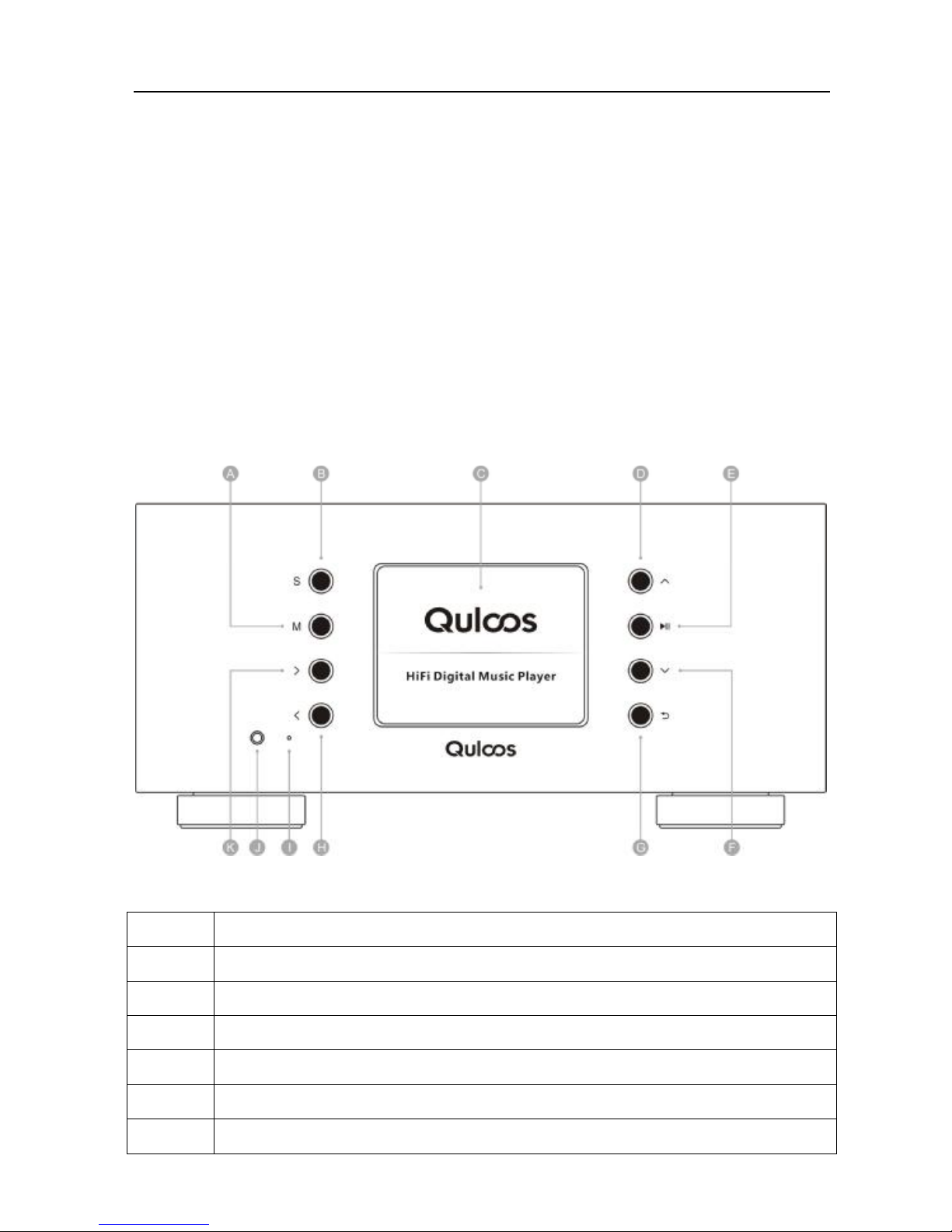
2.4.1 Front Panel
Interface
Description
A Menu Key
B Input Signal Selection Key
C 3.2-inch screen
D
Navigation key - Cursor up/Rewind(the previous song)
E Play/Pause/OK/Update Key
F Navigation key-Cursor down/the next song
Page 5
QA661 User’s Guide Quloos
- 5 -
G Back key—Switching the main interface/folder list/song list/CUE list/Favorites
list/Play Interface
H Navigation key -the previous page/Switch to full screen/ Long press for fast forward
I LED indicator light
J Remote control emitting signal receiving window
K Navigation key –the next page/ Switch to full screen/ Long press for fast forward
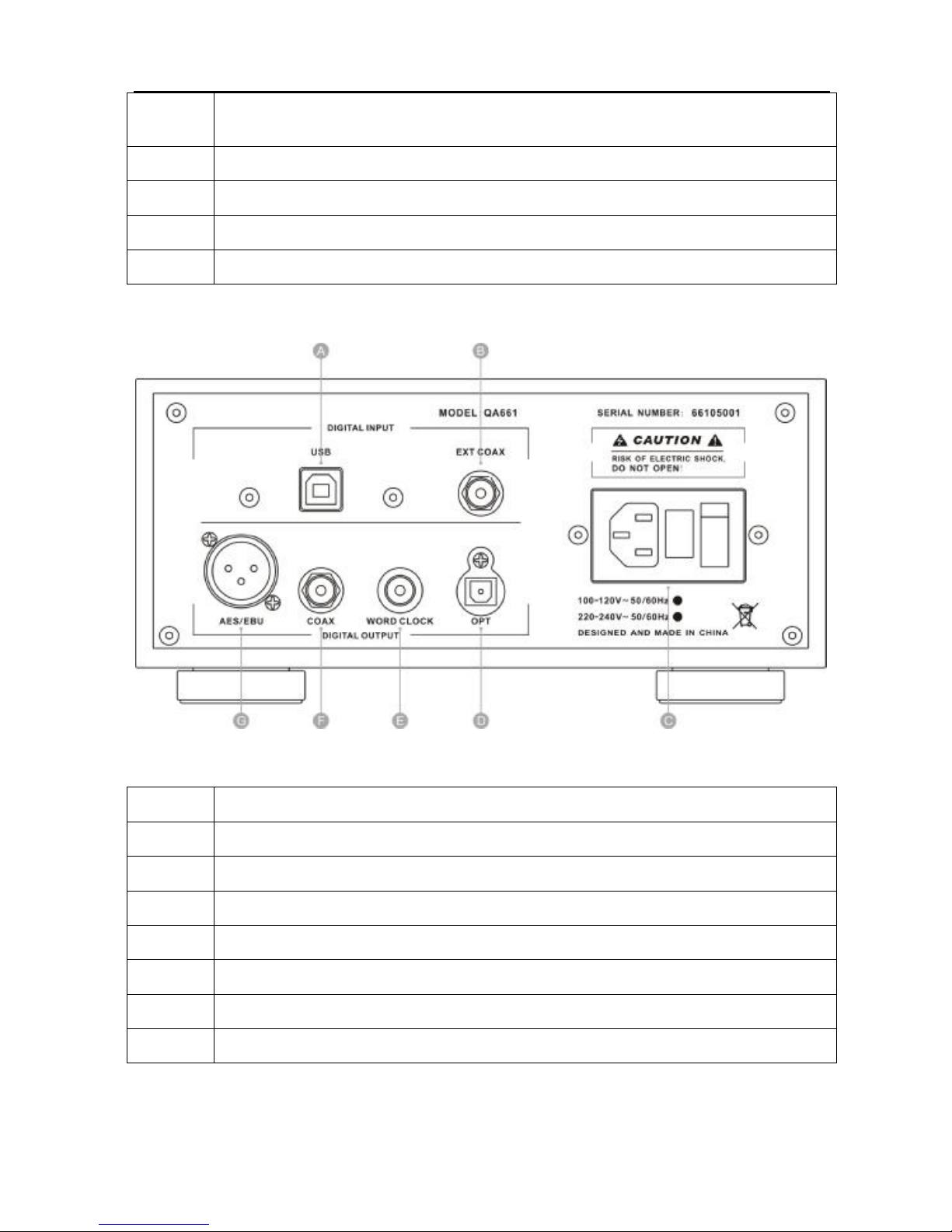
2.4.2 Rear Panel
Interface
Description
A USB input
B Coaxial input
C
110V/220V AC Power input(power switch, fuse)
D Optical output
E Word clock output
F Coaxial output
G AES/EBU Output
Note: In order to prevent the damage caused by false operation, 110V/220V Switch is set inside
the player. In need of changing the input voltage, please open the upper lid and switch it to the
corresponding voltage.
Page 6
QA661 User’s Guide Quloos
- 6 -
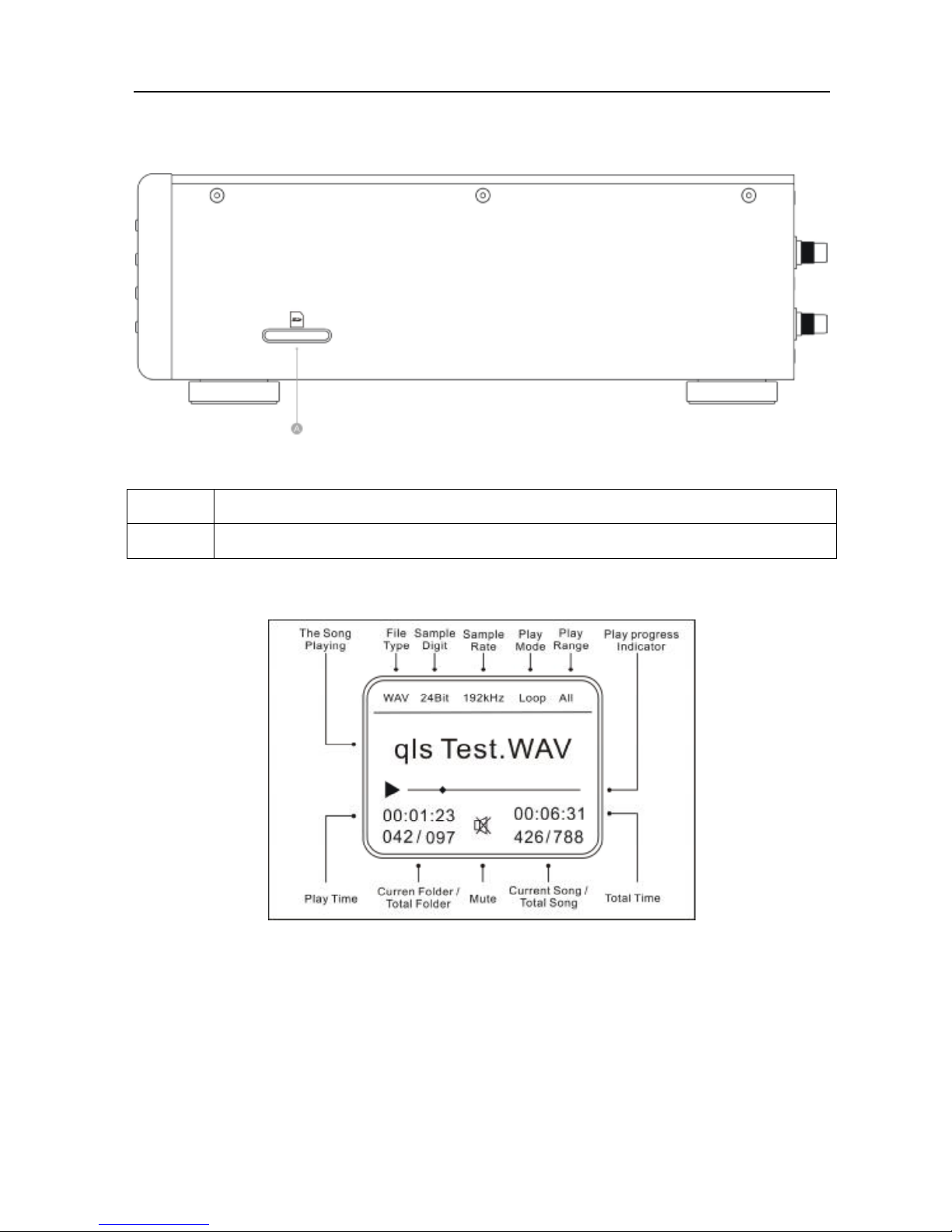
2.4.3 Right Panel
Interface
Description
A SD Card interface
2.4.4 Screen
Note: In terms of MP3, the sampling digit is the bit rate of the current MP3.
In terms of DSD, the sampling rate is DSD64, which is 2.8224MHz
Page 7
QA661 User’s Guide Quloos
- 7 -
2.4.5 Remote Control
Page 8

QA661 User’s Guide Quloos
- 8 -
3. Operation Instruction
3.1 Startup
Plug in the power line and turn on the player by the switch on the back.
3.2 File Browsing
The player includes the main interface, folder list, song list, CUE list, Favorite list and playing
interface. Press the BACK key to switch lists in a loop. Use the UP/DOWN key to move the
cursor. Use the LEFT/RIGHT Key to flip the pages and the OK key to enter the next page.
3.3 Play
Select the song and press OK to play. Press OK to play/pause the song, UP/DOWN to switch the
songs and long press LEFT/RIGHT to fast forward and backward.
3.4 Replay
In any interface, press REPLAY to replay the current song.
3.5 Play the previous song
In any interface, press REWIND to play the previous song.
3.6 Previous/Next Page
Press LEFT/RIGHT on the front panel or P-/P+ on the remote control to flip the pages quickly.
3.7 Previous/Next folder(Album)
Press F-/F+ on the remote control to switch to the previous/next folder(album) quickly.
3.8 Song Location
(1).Press 1-9 on the remote control to directly locate the songs with the index No.1-9
(2).Press _ _/_ _ _/_ _ _ _ on the remote control and input the index No. of the song to locate the
songs with the index No. 99~9999.
(3).Song location can be performed in the folder or the whole card according to the playing
range.
3.9 Folder Location
Press Fn, then input the number to locate the folder.
(1) Press Fn + 1-9 to directly locate the folder under the index No.1~9
(2) Press Fn+ _ _/_ _ _ to locate the folder under the index No. 99~999
Page 9
QA661 User’s Guide Quloos
- 9 -
3.10 Play Time Location
Press TIME on the remote control and input the time slot, then play from the set time.
3.11 A-B section play
It is used to select a certain section of the current song to play repeatedly.
Press A-B on the remote control to select the starting point A and the end point B. Thus, A-B
section will be played repeatedly. At this time press A-B to end it.
3.12 Song Deleting
Under the song list or the playing interface, select the song that needs to be deleted and press
DEL. It pops out “Delete the song or not?” Select OK to delete.
Note: The song is deleted permanently from the SD card Please take caution as it is
unrecoverable.
3.13 CUE Operation
Select CUE file, and enter the list to select songs to play. CUE mode supports many playing
modes such as Loops, Random, Single song, Single-loop, Reverse etc. The playing range
confines to the current CUE list and it shows “Album”.
3.14 Favorites
It includes “adding the song to Favorites” & “deleting the song from Favorites”
(1).Under the folder list, song list and playing interface, press the customized function key F1 on
the remote control or long press OK on the front panel for 2 seconds before release. It pops out
that “add the song to Favorites?” Select OK to add the selected folder or song to Favorites. The
maximum capacity is 99 songs.
(2).Under Favorites list, press the customized function key F1 on the remote control or long
press OK on the front panel for 2 seconds before release. It pops out that “delete the song from
Favorites?” Select OK to delete the song from Favorites.
Note: Favorites supports many playing modes such as Loops, Random, Single-song, Single-loop,
Reverse etc. The playing range confines to the current favorite list and it shows “Favorites”.
3.15 Mute
Press MUTE on the left corner on the remote control, and the player enters the mute mode, press
MUTE again to quit.
Page 10

QA661 User’s Guide Quloos
- 10 -
4. Function Settings
4.1 Playing mode
l Loops
l Random
l Single-loop
l Single-song
l Reverse
4.2 Playing range
ALL : All songs on the SD card can be effective files.
FOLDER: Only the songs under the current folder can be played, and you can only select the
songs under this folder as well.
Note: The player is supportive of 2-level directory. In order to locate songs quickly, it is
suggested that you name the parent folder with the singer name, and name the sub-folders with
the albums of this singer. Each sub-folder should only store one album.
4.3 Memory Play
OFF : Turn off the memory mode, and the main interface will show after startup.
PAUSE: Turn on the memory mode, and the playing interface will show after startup, ready for
the user to play.
AUTO : Turn on the memory mode, the playing interface will show after startup, and songs in
memory will be played.
4.4 Gap between Tracks
You can set the time gap between tracks as 0, 500, 1000, 1500 and 2000 ms.
4.5 Track Name Rolling
You can set the rolling frequency of file names as “no, 1S、2S、3S”.
4.6 Font Size
l 16
l 32
4.7 Cursor color
l Red
l Pink
l Green
l Blue
l Yellow
Page 11

QA661 User’s Guide Quloos
- 11 -
l White
4.8 Main Color
l Red
l Pink
l Green
l Blue
l Yellow
l White
4.9 Progress Bar
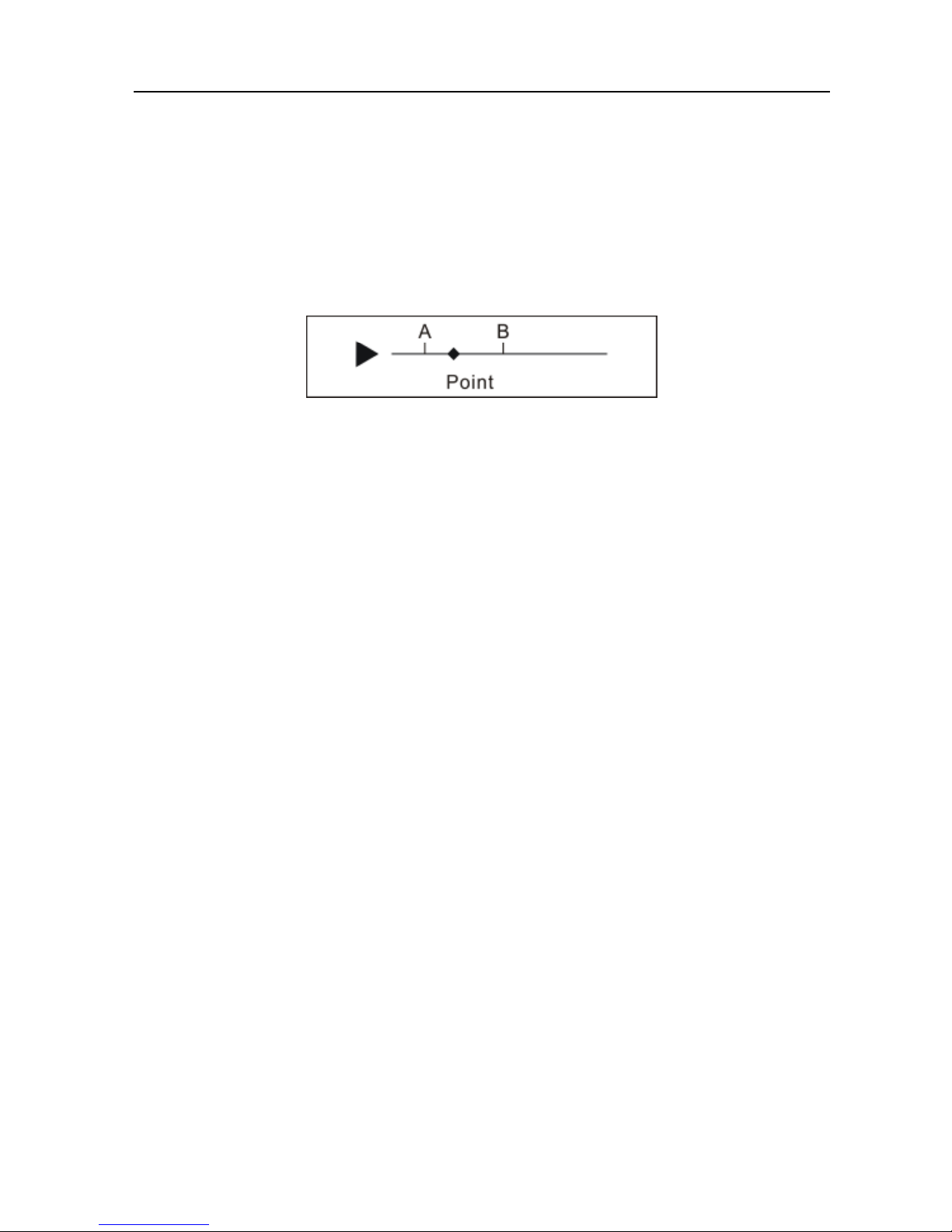
l Line 01
l Line 02
l Point 01
l Point 02
l Box
4.10 Screen Brightness
The brightness can be set as three levels - 100, 200 and 300.
4.11 Automatic Off-screen
The Automatic off-screen time options are "No, 10s, 20s, and 30s".
It will improve sound quality to turn off the screen. Meanwhile, press FO key on the remote
control to turn off the screen, press again to restart.
4.12 Key Reaction Speed
The key reaction speed mainly refers to the processing speed of long press, such as the speed of
moving the cursor upwards and downwards, FF/FB, etc.
Options are 10~100.
4.13 Signal Options
l Internal: Select to play the songs on the SD card.
l Coaxial: Select to receive the external signals from coaxial interface.
l USB: Select to receive the external signals from USB interface.
4.14 Language
The GBK encoding font library is adopted supportive of 20,000 national words with three
languages - Simplified Chinese, traditional Chinese and English.
Page 12
QA661 User’s Guide Quloos
- 12 -
4.15 System Information
Enter this menu to check the current system information:
l Product:QA661
l Version:APP-V1.00
l Date :2015.06.01
5. Firmware Update
The applications and font library can be updated in the following steps:
(1).Copy the updated file to the SD card.
(2).Insert the SD card into the player, long press OK on the front panel and turn on the power
switch, release OK once the updating mode is entered.
(3).Select the updated file in the updating list and press OK to start updating, and restart the
power after completion.
Please visit our website http://en.qlshifi.com for the latest updated files.
6. USB Input
There is an XMOS USB interface of high tone quality inside QA661. The users connect QA661
to the computer with the help of the USB cable and the computer can be used to play the music
and output from QA661
(1).Connect the computer with USB and turn on QA661
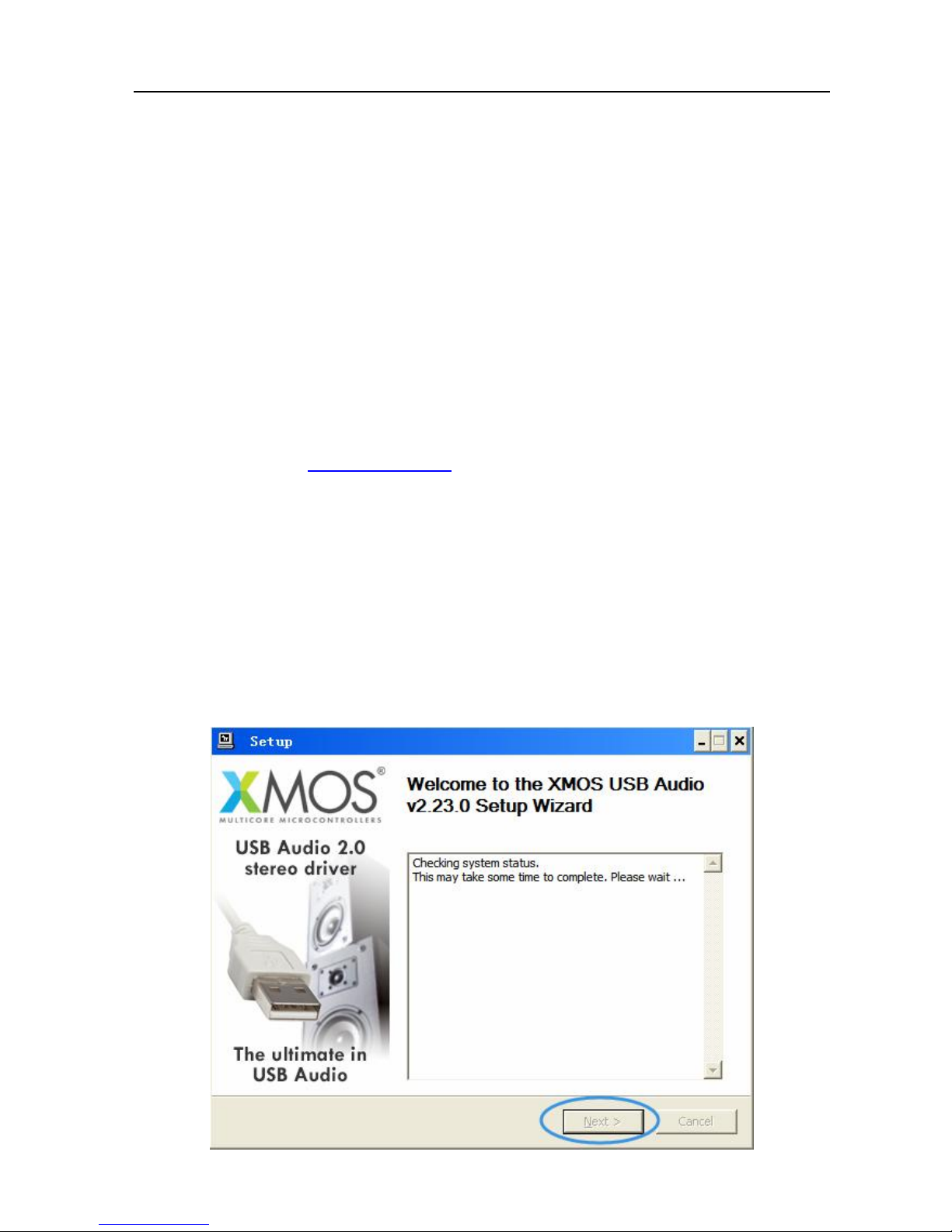
(2).Download or find the USB driver XMOS USB Audio 2.0 Driver.exe from the SD card, click
INSTALL and inspect the environment of the system. In search of XMOS USB interface, click
NEXT to install.
Page 13
QA661 User’s Guide Quloos
- 13 -
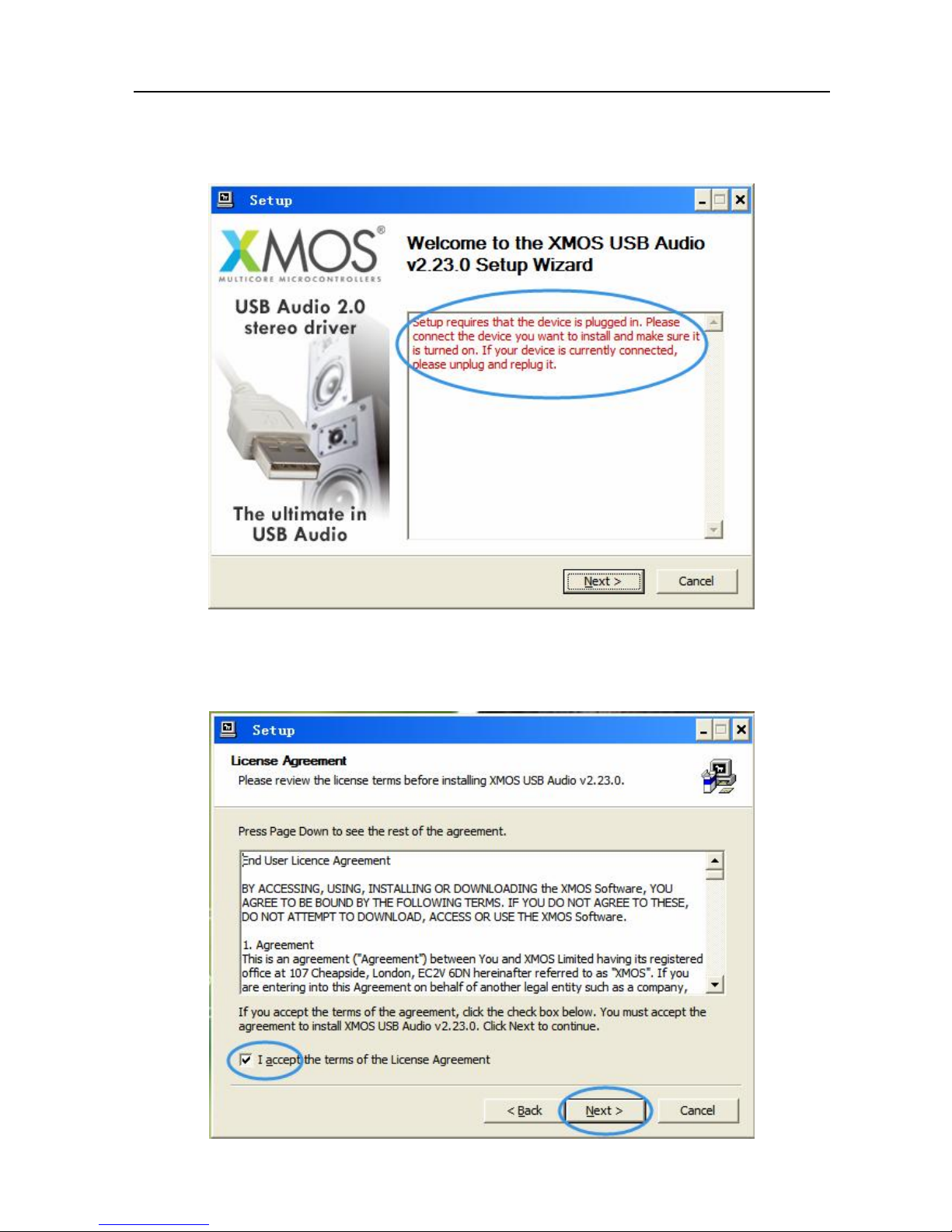
(3).If the following red words pop out, please make sure that if the USB connection is ok,
because XMOS USB interface needs to be connected to the computer to complete the
installation of driver.
(4).Check “I accept terms of the License Agreement”, then click NEXT till the driver is installed
completely.
Page 14

QA661 User’s Guide Quloos
- 14 -
(5).Once USB driver is installed, press S key on the front panel or the USB key on the remote
control to input signals. Also, the signal option of the menu can be set as “USB”, then the USB
input function is on and the screen is switched to “USB INPUT” interface.
7. Coaxial Input
Coaxial input can improve the sound of the input digital signal. No matter TV STB, DVD, high
definition player, low-end CD player, Bluetooth or WIFI, the voice will become nicer after the
signal optimization and re-arrangement of QA661 circuit as long as it has coaxial output and is
able to input to QA661.
(1).Connect the coaxial output of your device with one end of the coaxial cable and connect the
other end with the coaxial interface with EXT COAX symbol printed on the rear panel of
QA661.
(2).Turn on the power switch of QA661, press S key on the front panel or COAX key on the
remote control to select the coaxial input signal. Also, the menu signal can be set as “Coaxial”,
the coaxial input function is turned on and the screen is turned to “COAXIAL INPUT”interface.
8. Word Clock Input
QA661 has a word clock output of nice parameters and total electrical isolation when it uses an
internal player. If your DAC also has word clock input, such as Hilo, use a BNC cable to connect
DAC word clock input, then the working clock on DAC synchronizes with the player and the
sound quality will be improved on a further level.
(1).Connect one end of BNC cable with the BNC interface with WORD CLOCK symbol printed
on the rear panel of QA661, and the other end with the DAC with word clock input function.
(2).Set DAC asynchronous clock source as the word clock input.
Page 15
QA661 User’s Guide Quloos
- 15 -
Appendix I Product Warranty Card
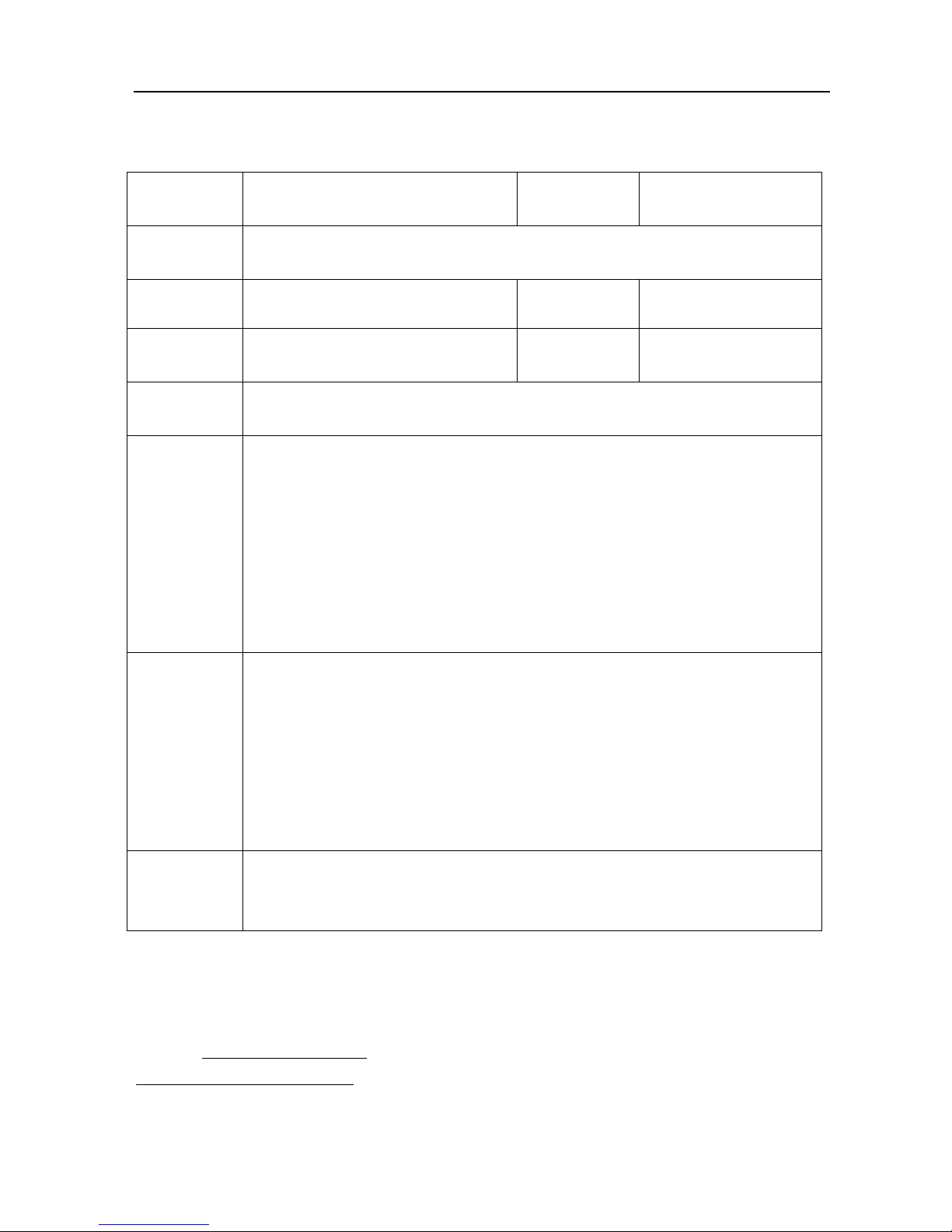
Please fill this form carefully and send it back to us along with the damaged product.
Product
Name
QA661 High-end Digital Audio
Player
Serial
Number
Purchasing
Date
(DD-MM-YY)
User Name
Zip Code
Mobile
Number
Tel
Shipping
Address
Feedback of
Abnormal
Situation
Cause
Analysis and
Solution
(This Part should be filled by the manufacturer)
Remarks
Company Name: ShenZhen QLS Electronic Technology Co.,Ltd(Quloos。)
Mailing Address:A1502, F15 Niulanqian Mansion, Minzhi Rd. Longhua Town, Shenzhen.
Tel: 0755-28187975 0755-28187976
Fax:0755-28187976
Website: http://www.qlshifi.com
E-mail:[email protected]
 Loading...