

Page 1

The Tape Experts
34XX
User’s Guide
500300 Rev. U
Page 2

Notice
Information contained in this document is copyrighted by Qualstar
Corporation. It is intended for use by Qualstar's customers and prospective
customers to evaluate, integrate, operate and maintain Qualstar products.
Customers and prospective customers may reproduce this document as
needed for these uses. Reproduction in whole or in part for any other use or
by any other party is prohibited without prior written permission from
Qualstar Corporation.
Every effort has been made to keep the information contained in this
document current and accurate as of the date of publication or revision.
However, no guarantee is given or implied that the document is error-free
or that it is accurate with regard to any specification. Qualstar reserves the
right to modify product designs and specifications without notice.
Qualstar® is a registered trademark of Qualstar Corporation.
Cipher® is a registered trademark of Overland Data.
Pertec® is a registered trademark of DDC Pertec.
IBM® is a registered trademark of International Business Machines,
Incorporated.
QUALSTAR CORPORATION
6709 Independence Avenue
Canoga Park, CA 91303
FAX: (818) 592-0116
Phone: (818) 592-0061
Email: sales@qualstar.com
Web: www.qualstar.com
500300 Rev. U i
Page 3
CAUTION
References contained in this manual to DIP switch settings, jumper locations,
primary voltages and other options are for reference only. Access to the interior
of this equipment is restricted to dealers and qualified service technicians, and
only in accordance with published service manuals and bulletins.
WARNING
PERSONAL INJURY MAY RESULT IF YOU DO NOT FULLY COMPLY WITH THE
HANDLING, OPERATING, OR SERVICE INSTRUCTIONS FOUND IN A
WARNING PARAGRAPH.
ACHTUNG
ES KÖNNEN PERSONENVERLETZUNGEN AUFTRETEN, WENN SIE DIE
UMGANGS-, BEDIENUNGS- ODER WARTUNGSANWEISUNGEN NICHT
VOLLSTÄNDIG BEFOLGEN, DIE IM ACHTUNGENPARAGRAPHEN BESCHRIEBEN
SIND.
DANGER
EXTREME HAZARD IF YOU DO NOT FULLY COMPLY WITH THE HANDLING,
OPERATING, OR SERVICE INSTRUCTIONS FOUND IN A DANGER PARAGRAPH.
GEFAHR
SIE SIND EXTREMER GEFAHR AUSGESETZT, WENN SIE DIE UMGANGS-,
BEDIENUNGS- ODER WARTUNGSANWEISUNGEN NICHT VOLLSTÄNDIG
BEFOLGEN, DIE IM GEFAHRENPARAGRAPHEN BESCHRIEBEN SIND.
NOTE
SPECIAL ATTENTION to explanatory statements found in a NOTE paragraph will help you avoid
mistakes and/or save time.
ii 500300 Rev. U
Page 4

Federal Communications Commission Requirements
This equipment has been tested and found to comply with the limits for a Class A
computing device pursuant to Subpart J of Part 15 of FCC Rules, which are designed
to provide reasonable protection against such interference when operated in a
commercial environment. Operation of this equipment in a residential area may
cause unacceptable interference to radio and TV reception, in which case the user at
his own expense will be required to take whatever steps are necessary to correct the
interference.
Patent Notice
The following patents apply to all models of the 3400 Series tape transport:
Pat. No. 4,893,312; Pat. No. 5,014,141
Bescheinigung des Herstellers/Importeurs
Hiermit wird bescheinigt, daß Qualstar Bandgeräte Modelle 3402S, 3402SD, 3404S,
und 3404SD in Übereinstimmung mit den Bestimmungen der Vfg.-1046/1984 funkentstört sind.
Der Deutschen Bundespost wurde das Inverkehrbringen dieses Gerätes angezeigt
und die Berechtigung zur Überprüfung der obengenannten Modelle auf Einhaltung
der Bestimmungen eingeräumt.
English Translation:
This certifies that the Qualstar model 3402S, 3402SD, 3404S and 3404SD tape
drives are RFI-suppressed in accordance with German Postal Regulation 1046/1984.
The marketing and sale of this equipment was reported to the German Postal
Service, along with the authorization to verify the above-mentioned models for
compliance to the regulation.
500300 Rev. U iii
Page 5

Important — Read This Before Installation
Qualstar Corporation has made every effort to provide quality merchandise.
If the merchandise arrives damaged or has been mishandled, please notify
the delivery company immediately. If the merchandise is defective in any
other way, please follow these instructions.
If this merchandise was purchased from a dealer or other reseller, contact
that dealer or reseller for return instructions.
If this merchandise was purchased directly from Qualstar, please do the
following:
• Treat the merchandise carefully to assure its suitability for return.
• Retain all shipping and packing materials. Returned merchandise must be
shipped to Qualstar in the original packing material and carton. If the original
packing material or carton has been damaged, a new set may be requested.
• Call Qualstar Customer Service at (818) 592-0061 to request a Return
Merchandise Authorization (RMA) number. Returned merchandise will not be
accepted without this number.
• Clearly identify the outside of the carton and the packing list with the RMA
number.
• Return the merchandise, including cables, manuals, software and all related
documents to the Qualstar factory.
iv 500300 Rev. U
Page 6

Table of Contents
1. Tape Drive Installation................................................................................................. 1-1
1.1 Introduction ..............................................................................................................1-1
1.2 Model identification ..................................................................................................1-1
1.3 Operating Environment............................................................................................1-1
1.4 Unpacking the Tape Drive .......................................................................................1-2
1.5 Tools required for Installation..................................................................................1-3
1.6 Power Requirements.................................................................................................1-3
1.6.1 Power Connections.............................................................................................1-4
1.7 SCSI-2 Interface........................................................................................................1-4
1.7.1 SCSI Bus Description.........................................................................................1-6
1.7.2 SCSI Cables and Connectors .............................................................................1-8
1.7.3 SCSI Bus Termination.......................................................................................1-8
1.7.4 Termination Power ..........................................................................................1-10
1.7.5 Industry Standard Interface (non-SCSI).........................................................1-11
1.8 Rack Mount Installation.........................................................................................1-12
2. Controls and Indicators................................................................................................ 2-1
2.1 Front Control Panels ................................................................................................2-1
2.1.1 Power Switch .....................................................................................................2-1
2.1.2 Push-button Switches ........................................................................................2-1
2.2 Front Panel Indicators..............................................................................................2-2
2.3 Liquid Crystal Display..............................................................................................2-3
2.3.1 Display Line One ...............................................................................................2-4
2.3.2 Display Line Two ...............................................................................................2-5
3. Operating Instructions ................................................................................................. 3-1
3.1 Applying Power.........................................................................................................3-1
3.2 Power-Up Self Diagnostic Tests ...............................................................................3-2
3.3 Loading a Tape .........................................................................................................3-3
3.3.1 Load Sequence ...................................................................................................3-5
3.3.2 Aborting a Load Sequence .................................................................................3-6
3.3.3 Load Sequence Exception Conditions................................................................3-6
3.4 Rewinding and Unloading the Tape.........................................................................3-6
3.4.1 Tape Not at BOT................................................................................................3-6
3.4.2 Tape at BOT.......................................................................................................3-7
3.4.3 Manually Unlocking the Supply Hub................................................................3-7
3.5 Changing Densities...................................................................................................3-7
3.6 Automatic Density Selection Feature (ADS)............................................................3-8
3.6.1 Density Definitions ............................................................................................3-8
500300 Rev. U v
Page 7

3.6.2 Density Modes..................................................................................................3-10
3.7 Abnormal Conditions ..............................................................................................3-12
3.7.1 The Tape Will Not Load...................................................................................3-12
3.7.2 An Out-Of -Tape-Stop Occurs..........................................................................3-12
3.7.3 The Tape Comes Off the Supply Reel ..............................................................3-12
3.7.4 A Power Failure Occurs...................................................................................3-13
3.7.5 A Tape Runaway Condition Occurs.................................................................3-13
3.8 Aborting Online Operations from the Front Panel ................................................3-14
4. Menu Operations............................................................................................................ 4-1
4.1 Menu System Description.........................................................................................4-1
4.1.1 Menu Hierarchy.................................................................................................4-1
4.1.2 Accessing the Menu Mode .................................................................................4-2
4.1.3 Accessing the Demonstration Function.............................................................4-2
4.2 Reset Head Clean Function ......................................................................................4-2
4.3 Drive Configuration Menu .......................................................................................4-3
4.3.1 Using the Drive Configuration menu ................................................................4-3
4.3.2 Drive Configuration Menu Parameters.............................................................4-5
4.4 Manual Threading Function ..................................................................................4-12
4.5 Maintenance Menu.................................................................................................4-12
4.5.1 Using the Maintenance Menu .........................................................................4-14
4.5.2 Default Configuration Function ......................................................................4-14
4.5.3 Default SCSI Configuration Function .............................................................4-14
4.5.4 SCSI Enable Function......................................................................................4-14
4.5.5 Display Firmware Sub-Menu ..........................................................................4-15
4.5.6 Prepare Media Sub-Menu................................................................................4-15
4.5.7 Demonstration Function..................................................................................4-17
4.5.8 Diagnostics Sub-Menu .....................................................................................4-17
4.5.9 Service Sub-Menu ............................................................................................4-22
5. SCSI Configuration........................................................................................................ 5-1
5.1 SCSI Configuration Menu ........................................................................................5-1
5.1.1 SCSI Device ID (Default = 5).............................................................................5-2
5.1.2 SCSI LUN (Default = 0).....................................................................................5-2
5.1.3 SCSI Parity (Default = Off)................................................................................5-2
5.1.4 SCSI Sync (Default = On) ..................................................................................5-2
5.1.5 Space (Default = Normal) ..................................................................................5-2
5.1.6 Unload (Default = Normal) ................................................................................5-3
5.1.7 Write CER (Default = Error) .............................................................................5-3
5.1.8 Write EOT (Default = Write) .............................................................................5-4
5.1.9 Write HER (Default = Report) ...........................................................................5-4
5.1.10 Write Retrys (Default = 13) ...............................................................................5-5
vi 500300 Rev. U
Page 8

5.1.11 800 Mask WP .....................................................................................................5-5
5.1.12 Block Length (Default = 2).................................................................................5-5
5.1.13 Buffer (Default = Normal)..................................................................................5-6
5.1.14 Busy (Default = Not Ready)...............................................................................5-6
5.1.15 Discon (Default = YES) ......................................................................................5-6
5.1.16 Early EOT (Default = Normal) ..........................................................................5-6
5.1.17 EOM On Read (Default = No)............................................................................5-7
5.1.18 INQUIRY Data File ...........................................................................................5-7
5.1.19 Lng Blk (Default = Stop)..................................................................................5-10
5.1.20 Model (No default) ...........................................................................................5-10
5.1.21 NRZI (Default = No LRC/CRC)........................................................................5-11
5.1.22 Read Bad Data (Default = Yes)........................................................................5-11
5.1.23 Read EOT Stop (Default = No).........................................................................5-11
5.1.24 Read Ahead (Default = 2 FMK) .......................................................................5-11
5.1.25 Read CER (Default = Ignore)...........................................................................5-12
5.1.26 Read HER (Default = Report) ..........................................................................5-12
5.1.27 Read Retrys......................................................................................................5-12
5.1.28 Residue (Default = Normal) .............................................................................5-13
5.1.29 Rewrite CER (Default = Yes) ...........................................................................5-13
5.2 Special Drive Configuration Menu Requirements for SCSI Drives.......................5-14
5.2.1 LOL Enable......................................................................................................5-14
5.2.2 Command Disp.................................................................................................5-14
5.2.3 HER on Blank ..................................................................................................5-14
5.2.4 Drive Address...................................................................................................5-14
5.2.5 FEN ..................................................................................................................5-14
5.2.6 Density CMD....................................................................................................5-14
5.2.7 WRT Parity ......................................................................................................5-15
5.3 SCSI Error Messages and Codes ............................................................................5-15
6. Preventative Maintenance ........................................................................................... 6-1
6.1 Purpose .....................................................................................................................6-1
6.2 Frequency .................................................................................................................6-1
6.3 Tape Path Cleaning Procedure.................................................................................6-2
6.4 Using 1-mil Tape.......................................................................................................6-4
6.5 Data Specifications ...................................................................................................6-5
6.5.1 Data Formats and Tape Speeds.........................................................................6-5
6.5.2 Data Transfer Rate ............................................................................................6-5
6.5.3 Media Requirements..........................................................................................6-6
6.6 Data Capacity ...........................................................................................................6-6
6.6.1 Data Capacity Tables.........................................................................................6-7
7. Errors and Operational Failures ................................................................................ 7-1
500300 Rev. U vii
Page 9

7.1 General......................................................................................................................7-1
7.2 Error Messages .........................................................................................................7-1
7.2.1 Non-Terminal Errors .........................................................................................7-1
7.2.2 Terminal Errors .................................................................................................7-1
7.2.3 Miscellaneous Messages ....................................................................................7-3
7.2.4 SCSI Error Messages .........................................................................................7-3
8. AC Power Configuration .............................................................................................. 8-1
8.1 Tools Required to Change AC Power Configuration ................................................8-2
8.2 Configuring the Drive for Available Power..............................................................8-2
viii 500300 Rev. U
Page 10
1. Tape Drive Installation
1.1 Introduction
This guide provides installation instructions and techniques for operating the
Qualstar Model 34XX Series tape drive.
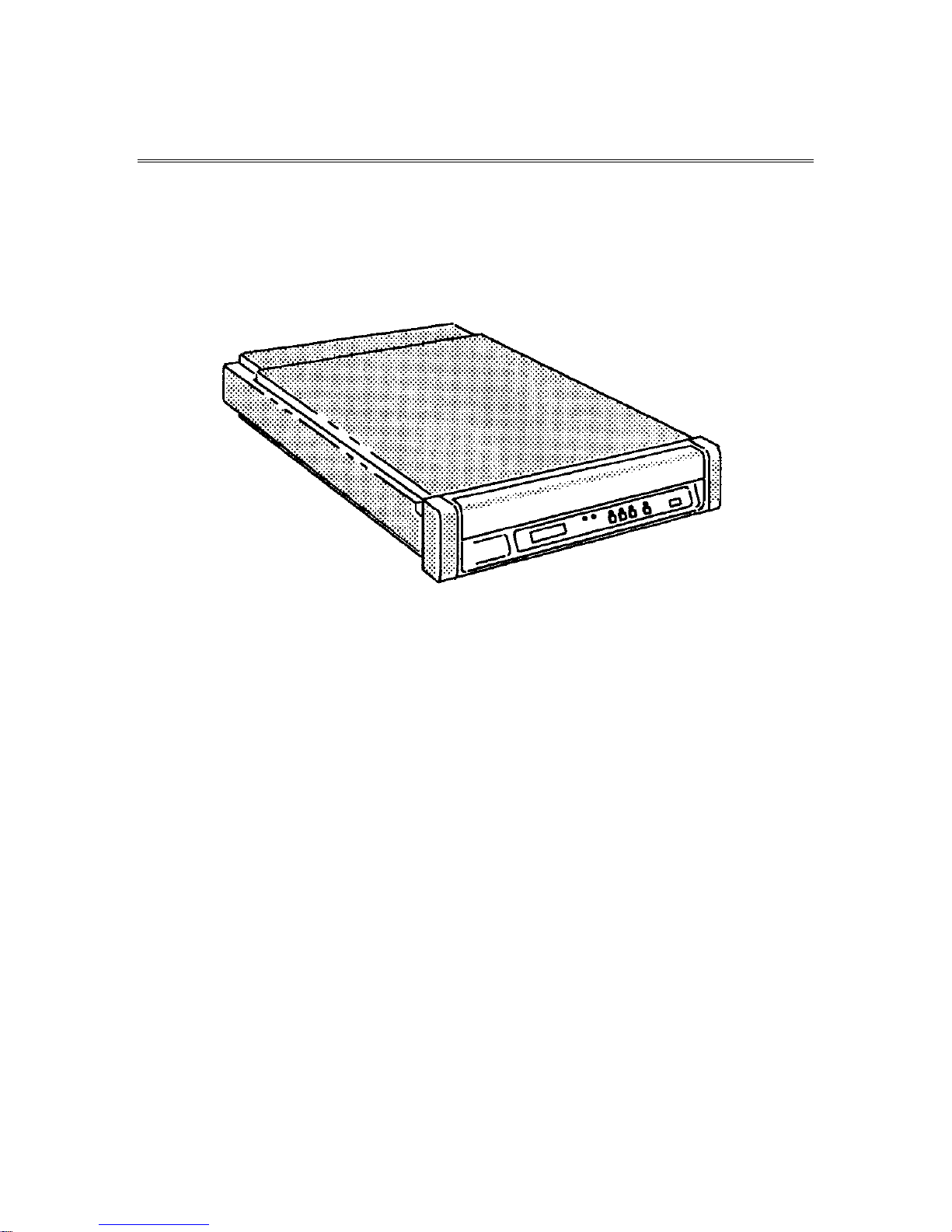
Figure 1-1 The Qualstar 34XX Series Tape Drive
1.2 Model identification
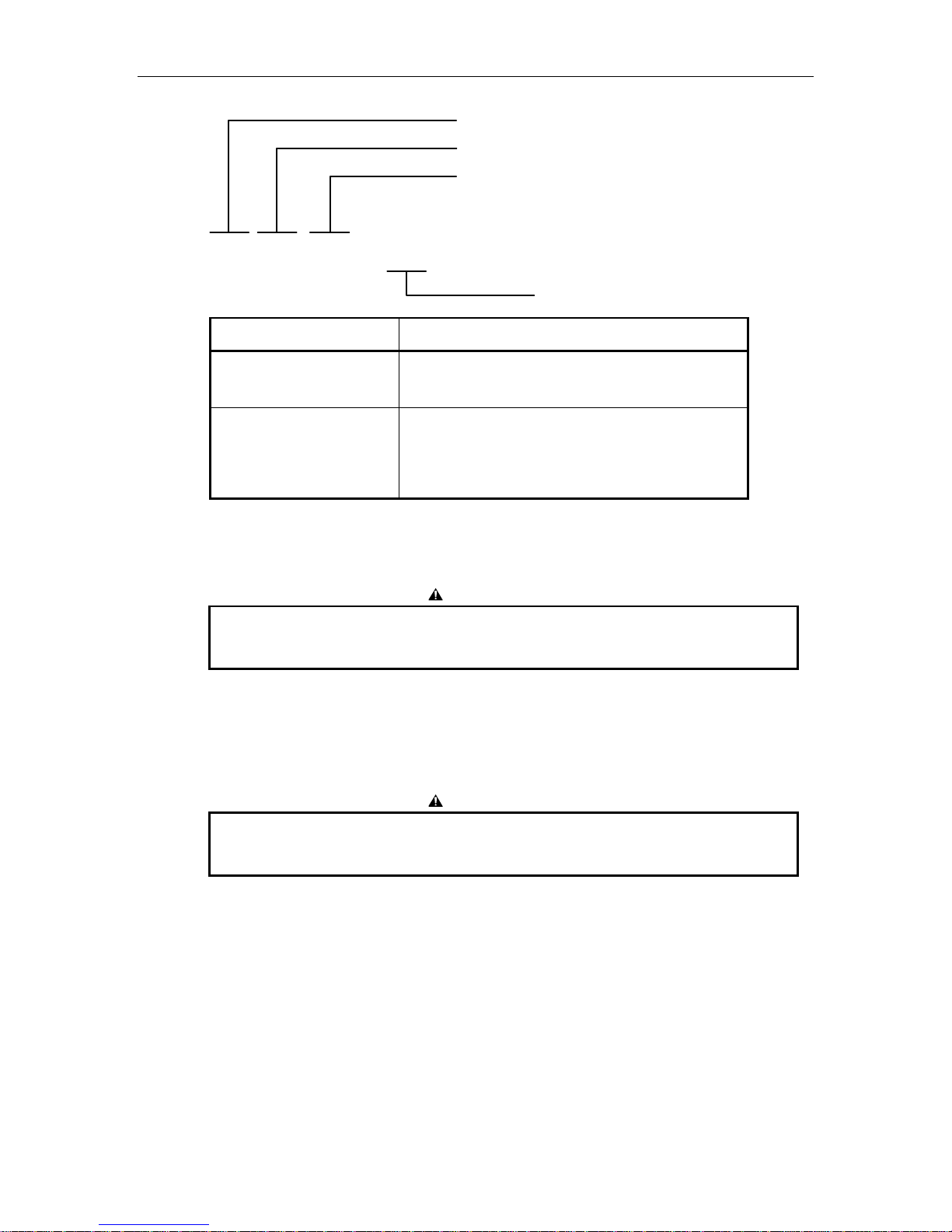
Figure 1-2 identifies the various 34XX models. This User's Guide applies to all
models; the installation and operation of the different models is basically the same.
Differences among models are noted where required; from an operator's point of
view, all models function similarly.
1.3 Operating Environment
The tape drive is designed to operate in an environment between 40° F to 104° F
(4.4° C to 40° C), 20% to 85% relative humidity, and at altitudes from 0 to +8000
feet. Moisture must not be allowed to condense inside the drive or in the tape path
area. Note that the humidity and temperature specifications of the drive exceed that
of most media.
500300 Rev. U Tape Drive Installation 1-1
Page 11
3 4 X X X X – X X
Basic Series
See Table Below
Interface Options
Blank = Industry Standard Interface
S = SCSI-2 Single-Ended
SD = SCSI-2 Differential (HVD)
Special Features
Configuration Supported Densities
Rack Mount Desktop 800
125 IPS
3402 3404 X X
3410 3412 X X X X
3413 3414 X X
3416 3418 X X X X X
Figure 1-2 Model Number Identification
To insure adequate airflow through the drive, the fan at the rear of the drive
must not be blocked.
1.4 Unpacking the Tape Drive
1600
125 IPS
CAUTION
CAUTION
3200
62.5
IPS
6250
125 IPS
6250
62.5
IPS
The tape drive weighs about 60 pounds and must be lifted out of the box by two
persons. Use caution in lifting.
The tape drive is shipped in a specially designed double-walled carton with energyabsorbing end caps and contains the following items:
• Tape Drive
• Power Cord
• User’s Guide (this document)
Remove the drive together with its end-caps from the carton and place it on a table.
Then remove the end-caps and the polyethylene bag. Remove all other materials
1-2 Tape Drive Installation 500300 Rev. U
Page 12

from the carton and store the end-caps and bag in the carton. Store the carton for
possible future transportation.
1.5 Tools required for Installation
A #2 Phillips screwdriver may be required to install the drive.
1.6 Power Requirements
The tape drive requires 100, 120, 220, or 240 volts AC, +10%/-15%, at 48 to 62 Hertz
primary power. The “worst case” power consumption is 225 watts. See chapter 8 to
change the selected voltage.
Figure 1-3 Location of Voltage Label
IF THE LINE VOLTAGE DIFFERS FROM THAT SPECIFIED ON THE VOLTAGE
LABEL, DO NOT APPLY POWER. THE POWER TRANSFORMER SELECTOR
SWITCHES AND FUSE MUST FIRST BE CHANGED BY A QUALIFIED SERVICE
PERSON TO MATCH THE LINE VOLTAGE. REFER TO CHAPTER 8.
WENN DIE LEITUNGSSPANNUNG SICH VON DER AUF DEM
SPANNUNGSAUFKLEBER ANGEGEBENEN SPANNUNG UNTERSCHEIDET, KEINE
SPANNUNG ANLEGEN. DIE LEISTUNGSTRANSFORMATOR-WAHLSCHALTER
UND SICHERUNG MÜSSEN ZUERST VON EINEM WARTUNGSFACHMANN
AUSGEWECHSELT WERDEN, DAMIT SIE ZUR LEITUNGSSPANNUNG PASSEN.
SIEHE KAPITEL 8.
WARNING
ACHTUNG
500300 Rev. U Tape Drive Installation 1-3
Page 13

1.6.1 Power Connections
The power connection to the drive is by means of a detachable power cord that
complies with the following specifications. There should be a minimum of 1.7-inches
clearance from the rear of the drive for the power connector.
• 100/120 volt applications - U.L. listed and CSA certified three conductor,
18 AWG, SVT vinyl jacketed cord. One end is terminated with an IEC 320, C13
style connector (CEE-22 standard sheet VI). The other end is terminated with
plug type NEMA 5-15P.
• 220/240 volt applications - U.L. listed and CSA certified three conductor,
18 AWG, SVT vinyl jacketed cord. One end is terminated with an IEC 320, C13
style connector (CEE-22 standard sheet VI). The other end is terminated with
the standard European plug type CEE 7/VII.
The following statement is included for compliance with German safety regulations:
Die Verbindung zür Steckdose sollte möglich kurz sein, und die Steckdose sollte frei
zugänglich bleiben.
(English translation: The connection to the power receptacle should be as short as
possible, and the receptacle should be readily accessible.)
1.7 SCSI-2 Interface
If your tape drive model number contains an “S” or “SD”, you have a SCSI (Small
Computer Systems Interface) tape drive and should read this section for important
information regarding the installation of the interface. If your tape drive has an
Industry Standard Interface (Pertec), you may skip this section. There are two types
of SCSI interfaces available:
• Single-Ended version – identified by an “S” suffix on the model number
• Differential version – identified by an “SD” suffix on the model number
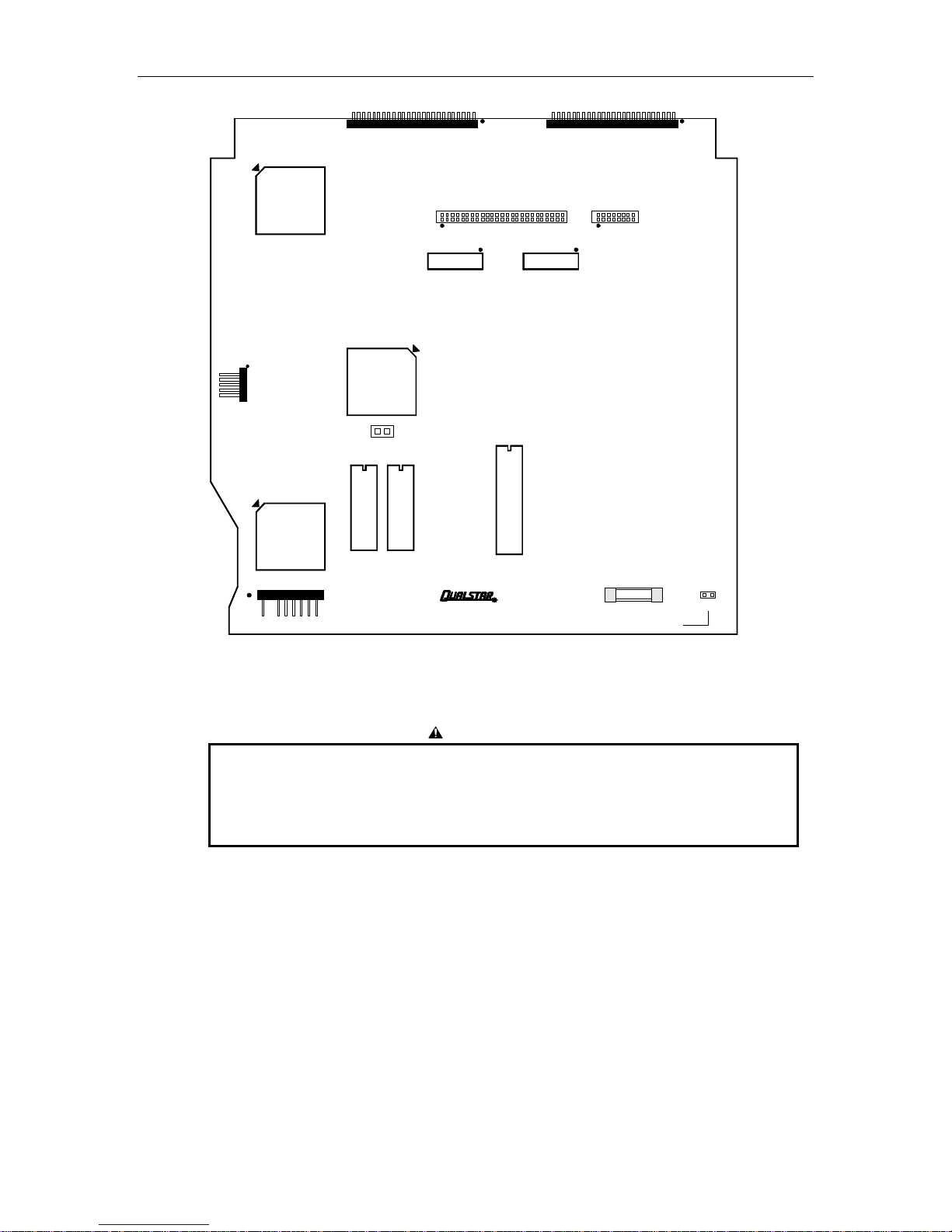
The single-ended SCSI-2 interface is provided by the 500567 board (see Figure 1-4)
which features a one-megabyte intelligent data buffer that increases the data
throughput by helping to keep the tape streaming. The buffer also allows data to
flow to and from the host interface at burst rates over and above the basic data
transfer rate (density times tape speed).
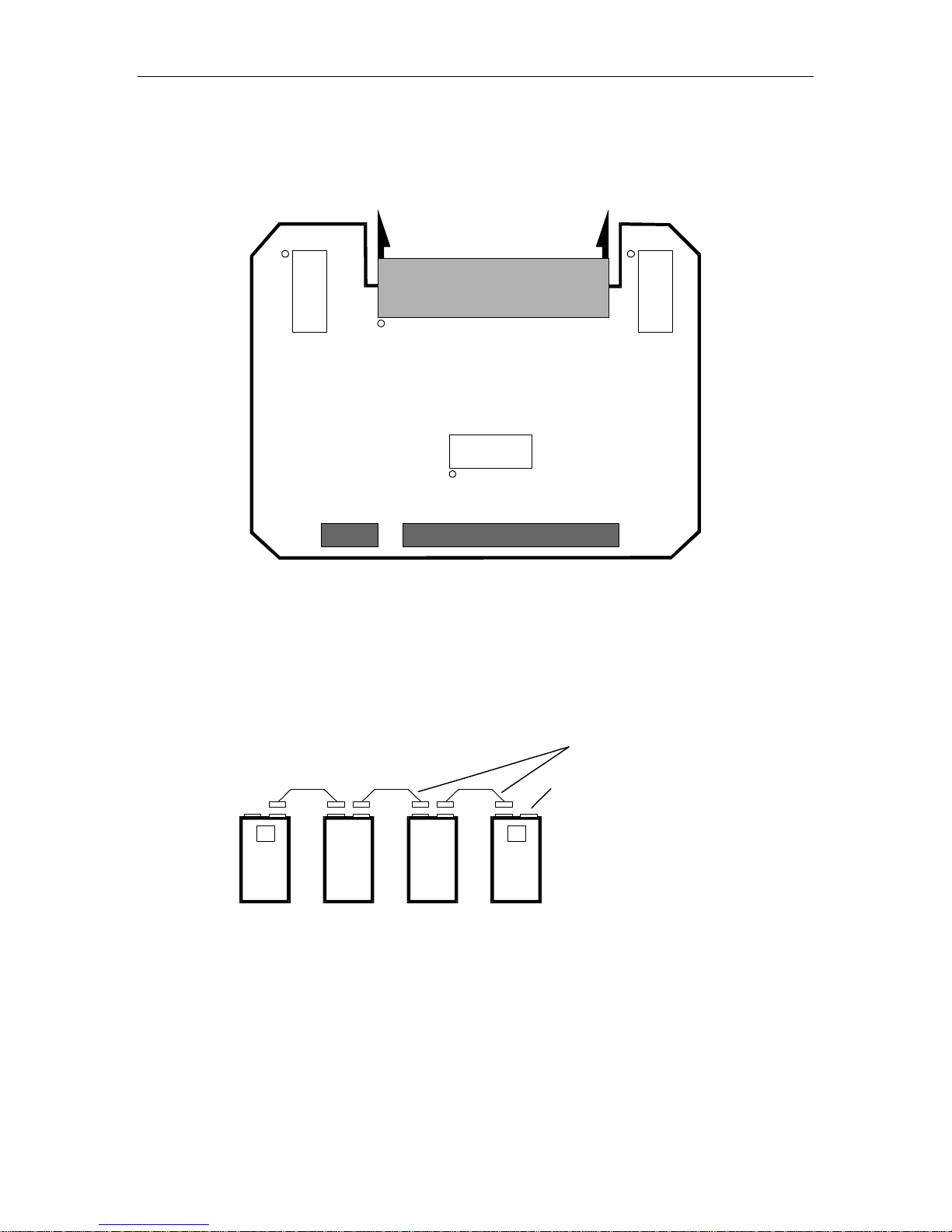
The differential SCSI-2 interface is obtained by adding a 500467 Differential
Adapter board (see Figure 1-5) to the 500567 board. The SCSI connectors remain the
same for both styles of interface.
A description of SCSI-2 is beyond the scope of this guide; however, an explanation of
the physical configuration of the SCSI bus is provided to help you understand the
principles of drive installation, bus termination, and address (device ID) selection.
1-4 Tape Drive Installation 500300 Rev. U
Page 14
U1
TAPE DRIVE INTERFACE CONNECTORS
J71
SCSI CONNECTOR
J72
J75
RN4
SCSI TERMINATORS
WREX
CONNECTOR
U14
J73
SCSI
CTLR
U21
CPU
U25
RESET
U24
EPROM
POWER
J74
CONNECTOR
PCBA 500567-
PCB500566-01-3 REV B
Figure 1-4 SCSI Single-Ended PCBA Layout – 500567 PCBA
J76
RN3
FUSE
F11ACP1
SCSI TERMINATION POWER
250V
VTERM
CAUTION
The single-ended and differential interfaces are electrically different. A device
with a differential SCSI interface will not operate if connected to a single-ended
SCSI bus. Before connecting any SCSI device to the SCSI bus, insure that the
interface types are the same.
500300 Rev. U Tape Drive Installation 1-5
Page 15
J86
RN1
RN2
Figure 1-5 SCSI Differential Adapter PCBA
1.7.1 SCSI Bus Description
A SCSI system consists of two or more devices connected together by a multi-line
cable, commonly referred to as the SCSI bus.
RN3
PCBA 5000467-
J85
SCSI Devices (locations on cable are
independent of SCSI ID assignments)
T T
Multiple SCSI Cables
An external terminator may
be installed here in place of
the internal terminator.
Figure 1-6 SCSI Cable Configurations
SCSI devices are usually some type of computer peripheral, such as a printer, a tape
or disk drive, and also a host computer. In the majority of systems, at least one of
the devices is the host itself, with the other devices are peripherals.
The following rules apply to the SCSI bus and its attached devices:
• Up to eight SCSI devices may be connected to one SCSI bus;
1-6 Tape Drive Installation 500300 Rev. U
Page 16

• The bus must have at least two devices connected to it;
• The device addresses (SCSI ID) range from 0 through 7;
• A device's priority on the bus is determined by its address, with SCSI ID 7 being
the highest priority;
• Each device must have its own, unique SCSI ID;
• The physical location of a device on the bus has nothing to do with the priority
or addressing of that device;
• The total length of the cable, or series of cables, must not exceed six meters
(single-ended configuration) or 25 meters (differential configuration) as
measured from one end to the other.
In most systems, the host computer itself is one of the SCSI devices. This is usually
done using a host adapter, a board that resides within the host and that has one
SCSI connector to the outside world. Device ID 7 is normally reserved for the host
adapter to insure that the host has the highest priority among the other SCSI
devices. Disk drives containing system, application, and data files normally have the
next priority and are assigned a device ID of 5 or 6, while tape drives, printers, and
other low priority devices have correspondingly lower ID numbers.
500300 Rev. U Tape Drive Installation 1-7
Page 17
1.7.2 SCSI Cables and Connectors
Two identical drive connectors, wired in parallel at the rear of the drive, provide a
connection point to the SCSI bus. Because both drive connectors are wired in
parallel, you may use either one as an input or output, or for an external SCSI bus
terminator. The following drive connectors are supported:
• SCSI Alternative 1 - This is a 50-pin male rectangular, polarized connector,
T&B P/N 622-50FM or equivalent. This connector is flush-mounted against the
inside of the rear panel and has no locking provisions. Plug the cable connector
into either drive connector;
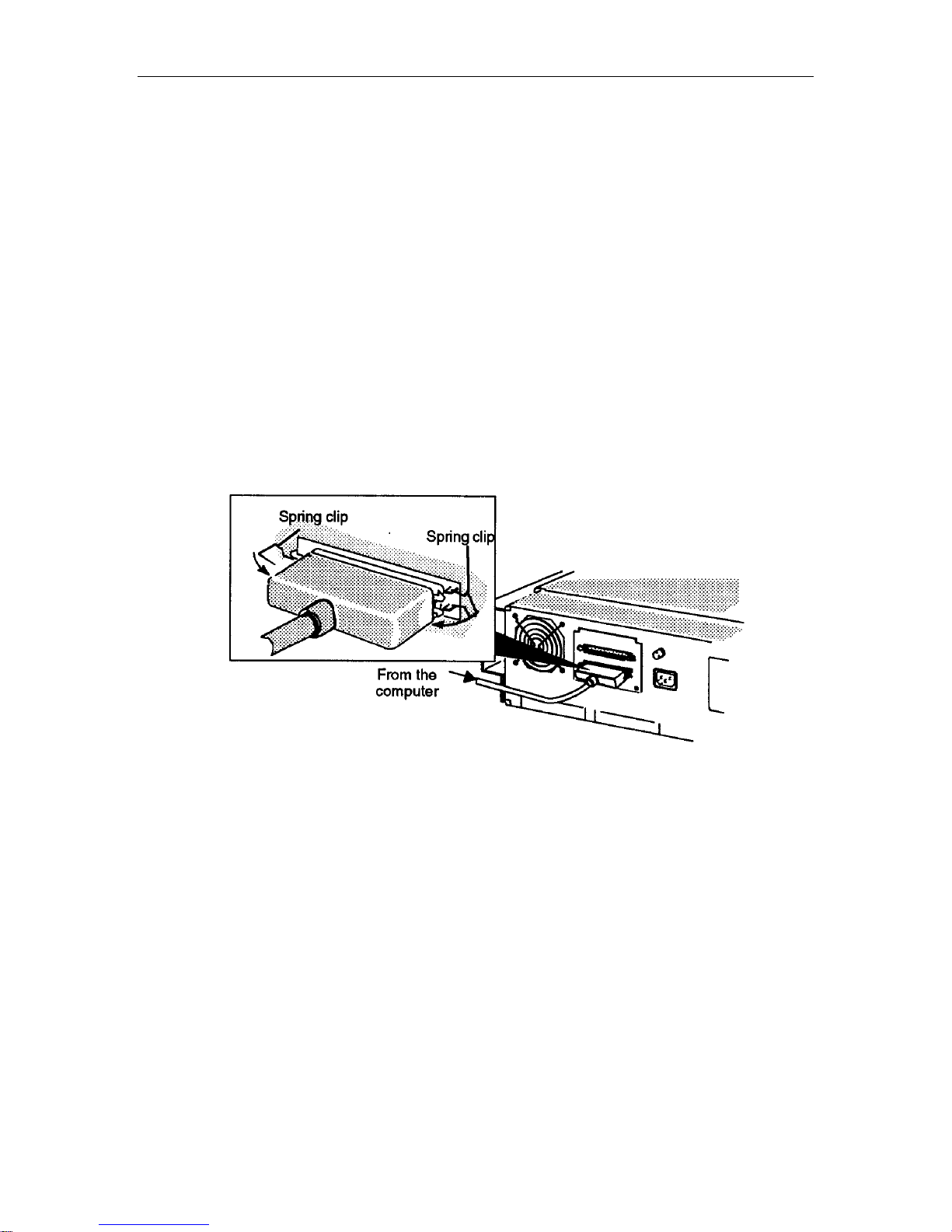
• SCSI Alternative 2 - This is a 50-pin female “Type D” polarized connector,
AMP P/N 1-499977-0 or equivalent. It can be identified by its two rows of pin
receptacles and by the built-in locking tabs at each end.
Plug the cable connector into either drive connector and secure it with the two
locking tabs as shown in Figure 1-7.
Figure 1-7 SCSI Cable Configurations
• Sun Systems Connector - This is a 50-pin female “Type D” polarized
connector, AMP P/N 746789-1 or equivalent. It can be identified by its three
rows of pin receptacles and by the screw-type locks at each end.
Plug the cable connector into either drive connector and secure it with the two
locking screws.
1.7.3 SCSI Bus Termination
The SCSI terminators can be located either internally on the SCSI PCBA, or
externally using a customer-supplied terminator plug. Power for either configuration
is supplied by a dedicated termination power line on the SCSI bus; this line may be
powered by the tape drive, as explained in Section 1.7.4, by another device (or
devices) on the SCSI bus, or by both.
1-8 Tape Drive Installation 500300 Rev. U
Page 18
While any number of devices may supply termination power, only two devices, including the
host adapter, may be terminated on a SCSI bus. If the tape drive is not physically located at the
end of the SCSI bus, you must remove all internal and external terminators from that drive.
1.7.3.1 Internal Terminators
Internal passive termination is supplied by terminators that are installed in sockets
at locations RN3 and RN4 on the single-ended SCSI board, or at locations RN1, RN2,
RN3 on the optional Differential Adapter. The terminator locations are shown in
Figure 1-4 and Figure 1-5. SCSI tape drives are shipped with the internal SCSI
terminators installed.
If the drive is connected to one physical end of the SCSI bus and if internal
termination is desired, terminators RN3 and RN4 (RN1, RN2, and RN3 if using the
differential version) must be installed. The terminators must be removed from all
other devices on the SCSI bus except the device that is physically connected to the
other end of the bus.
1.7.3.2 External Terminators
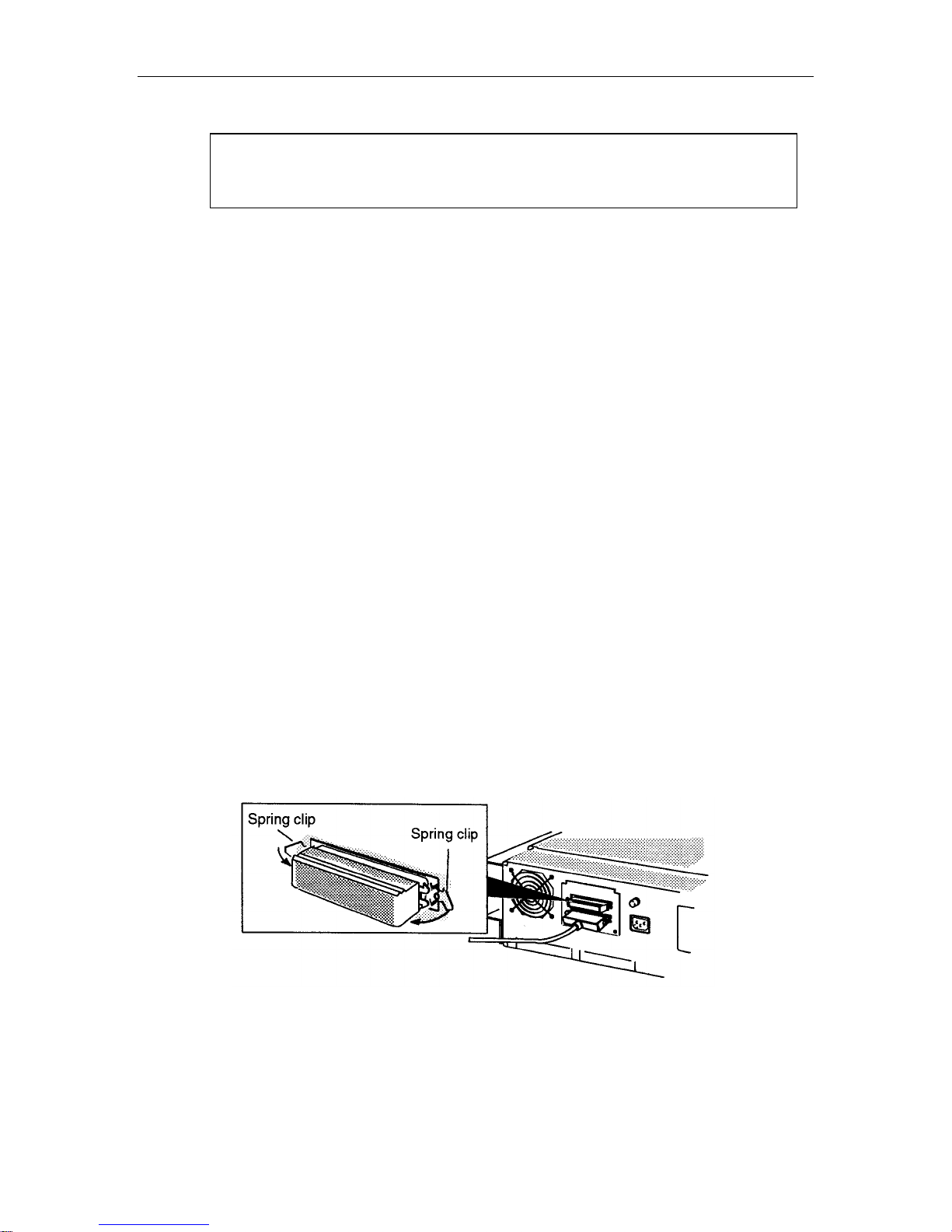
You may install an external terminator in the unused SCSI connector at the rear of
the drive as shown in Figure 1-8. If you do, you must remove the internal
terminators at locations RN3 and RN4 (RN1, RN2, and RN3 if using the differential
version). The terminator locations are shown in Figure 1-4 and Figure 1-5. In no
event should both internal and external terminators be installed.
NOTE
1.7.3.3 Active Termination
If you are connecting your tape drive to the end of a SCSI cable that has an active
type of terminator installed at the other end, you will need to remove the internal
terminators and install an active terminator at the unused SCSI port on the tape
drive. You may purchase active terminators from Qualstar.
Figure 1-8 Connecting the SCSI Cable to the Tape Drive (SCSI Alternative 2 shown)
500300 Rev. U Tape Drive Installation 1-9
Page 19
1.7.4 Termination Power
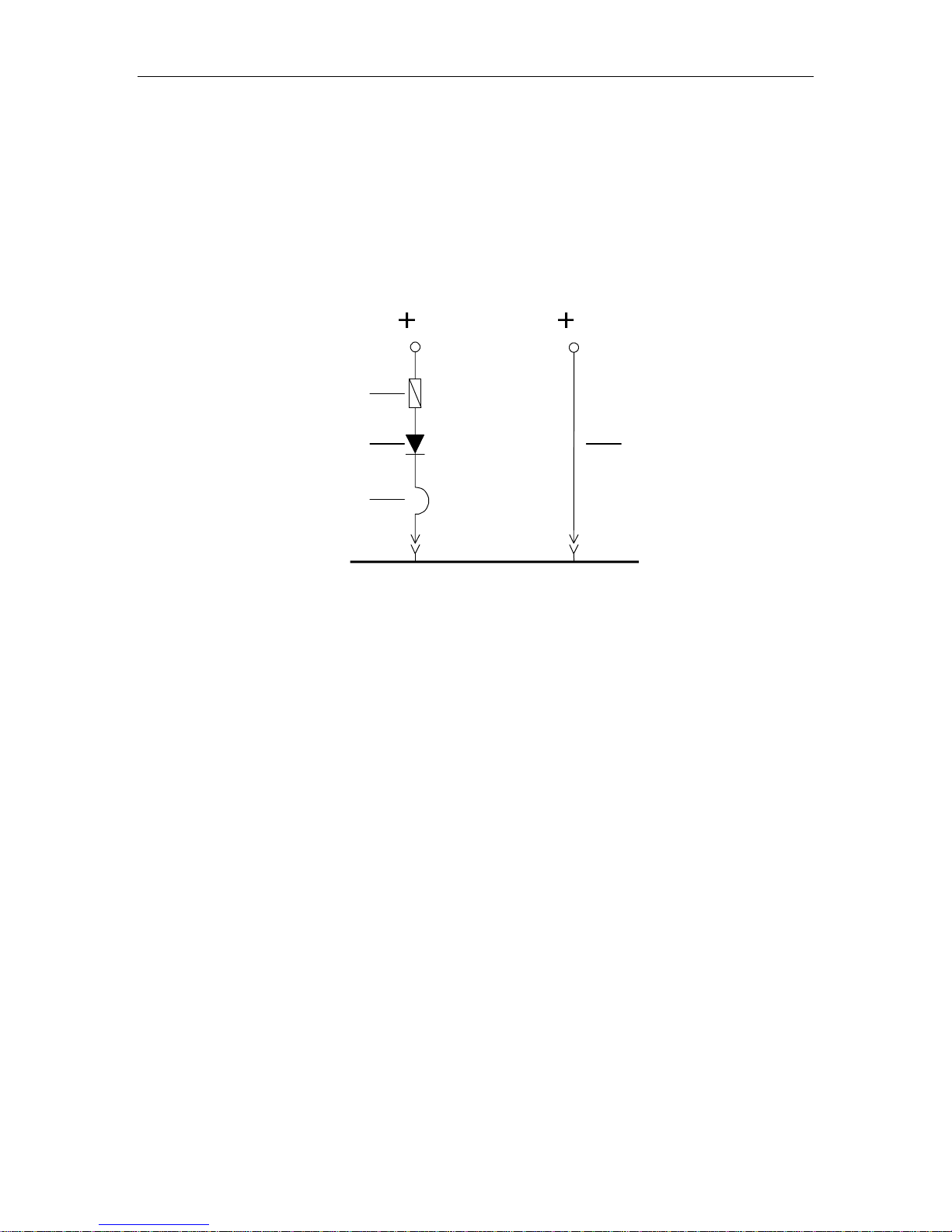
The SCSI PCBA is capable of supplying +5 volts termination voltage to the SCSI
bus. This +5 volts is fed to the SCSI bus TERMPWR line through a circuit protector,
a blocking diode and the jumper VTERM as shown in Figure 1-9. TERMPWR is
connected to both the internal and external terminators in the drive. When SCSI
operation is enabled, the termination power is periodically monitored and if missing,
the front panel will display NO SCSI TERM-V.
QUALSTAR
TAPE DRIVE
Circuit Protector
(current limiter)
Blocking Diode
W1 or VTERM Jumper
TERMPWR on SCSI Bus
Figure 1-9 Diagram of SCSI Termination Power
1.7.4.1 Circuit Protector
A solid state circuit protector and a blocking diode protect the tape drive from
excessive current draw due to an overload on the SCSI bus TERMPWR line. The
circuit protector is connected in series with VTERM between the board’s termination
voltage and the termination voltage line on the SCSI bus. If the current through the
circuit protector is excessive, the protector will open and remain open until the
overload condition is removed. On earlier units, the circuit protector consisted of a
one-ampere fuse F4 (Qualstar P/N 626-0014-3).
5 5
ANOTHER
SCSI DEVICE
(No Blocking Diode)
1.7.4.2 VTERM Jumper
Your tape drive is shipped from the factory with the VTERM jumper installed, and
Qualstar recommends that you do not remove it. If you remove VTERM, termination
power (TERMPWR in Figure 1-9) must be available from another device on the SCSI
bus.
A problem can arise if another SCSI device, which does not have a blocking diode, is
connected to the SCSI bus (see Figure 1-9). When the power to that device is
switched off, if VTERM is installed, the device's +5 volt supply draws current from
the Qualstar drive via the SCSI bus TERMPWR line. If the current draw becomes
excessive, the circuit protector on the Qualstar SCSI PCBA opens, removing the
termination voltage from the SCSI bus. If this happens with your system: either
1-10 Tape Drive Installation 500300 Rev. U
Page 20
remove VTERM, or always turn the tape drive off before turning the system off, and
always turn the tape drive on after applying power to the system. Be sure that the
tape drive is never turned on when the system is off.
1.7.5 Industry Standard Interface (non-SCSI)
The computer interface will consist of either two cables with a 50-pin card edge
connector on each, or a single cable branching out into two 50-pin card edge
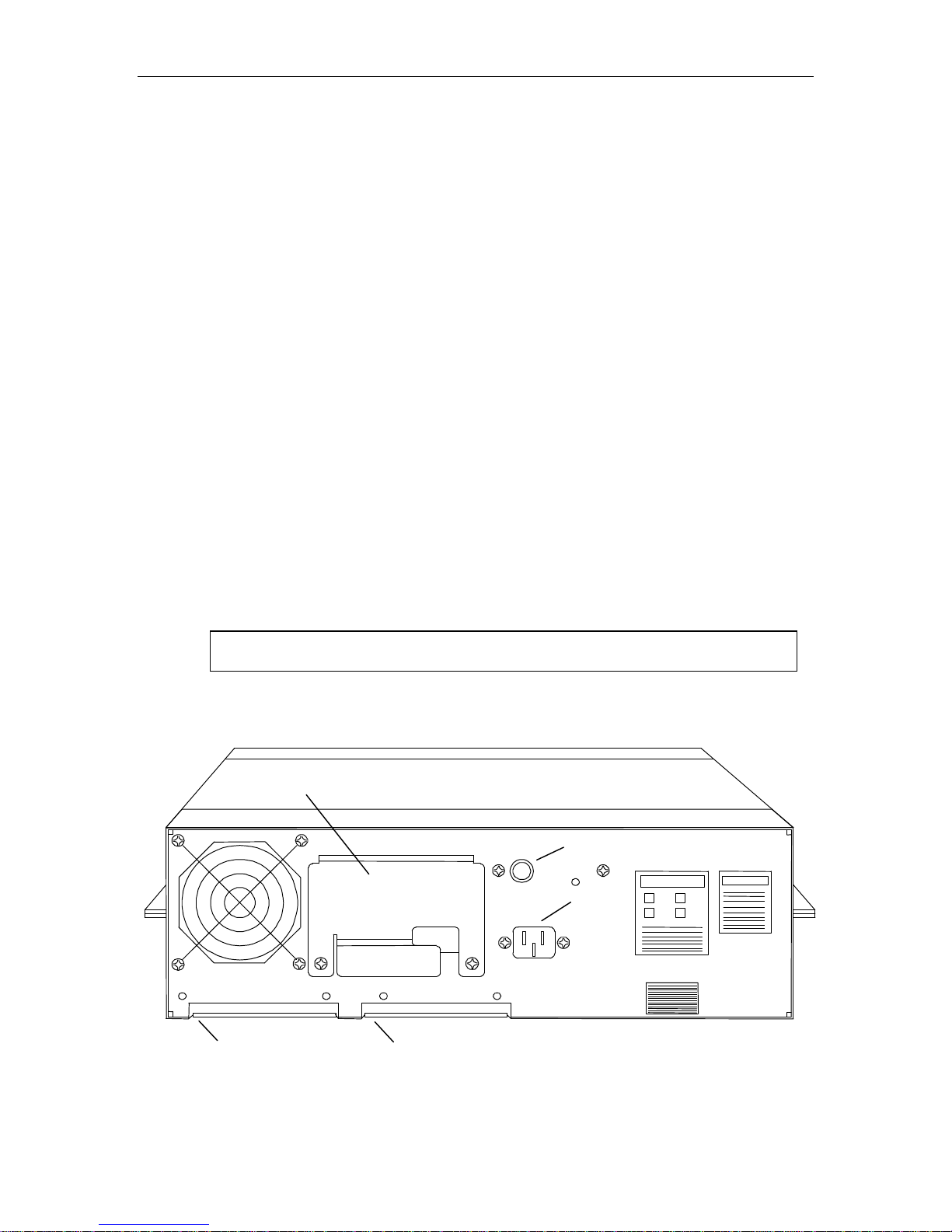
connectors. The card edge connectors must be connected to J1 and J2 at the rear of
the tape drive (sometimes referred to as J101 and J102 respectively). Connector
locations are shown in Figure 1-10.
1. There are three removable cable entry covers attached to the rear chassis panel
with two Phillips screws each.
a. When using a round interface cable, remove all cable entry covers, pass the
cable through the upper opening and attach the connectors to the PCBA. Then
replace all three cable-entry covers, routing the cable through the slot in the
upper cover.
b. When using flat ribbon cables, remove and store the two lower cable entry
covers. The upper cable entry cover remains in place.
2. Connect the cables to J1 and J2 as shown on the decals.
NOTE
Be sure to turn the tape drive off before attaching the interface cables.
3. Dress the cables, replace the cable entry covers, and secure them with the
Phillips screws.
Upper Cable Entry Cover
Line Fuse
Power
Connector
J2 Pin 1
J1 Pin 1
(Lower cable entry covers not shown)
Figure 1-10 Industry Standard Interface Connector Placement
500300 Rev. U Tape Drive Installation 1-11
Page 21
1.8 Rack Mount Installation
The tape drive is cooled by an exhaust fan mounted on the rear panel and
depends upon an unrestricted flow of ambient air. The drive must not be
mounted in any enclosure that would restrict the flow of ambient temperature
air to the drive or block the airflow from the exhaust fan. The upper cable entry
cover must be installed to insure proper cooling. If the installation is in
question, please call Qualstar.
All drives ship with rubber feet on the bottom. To prevent possible cabinet
interference when rack-mounting the drive, these rubber feet should be removed.
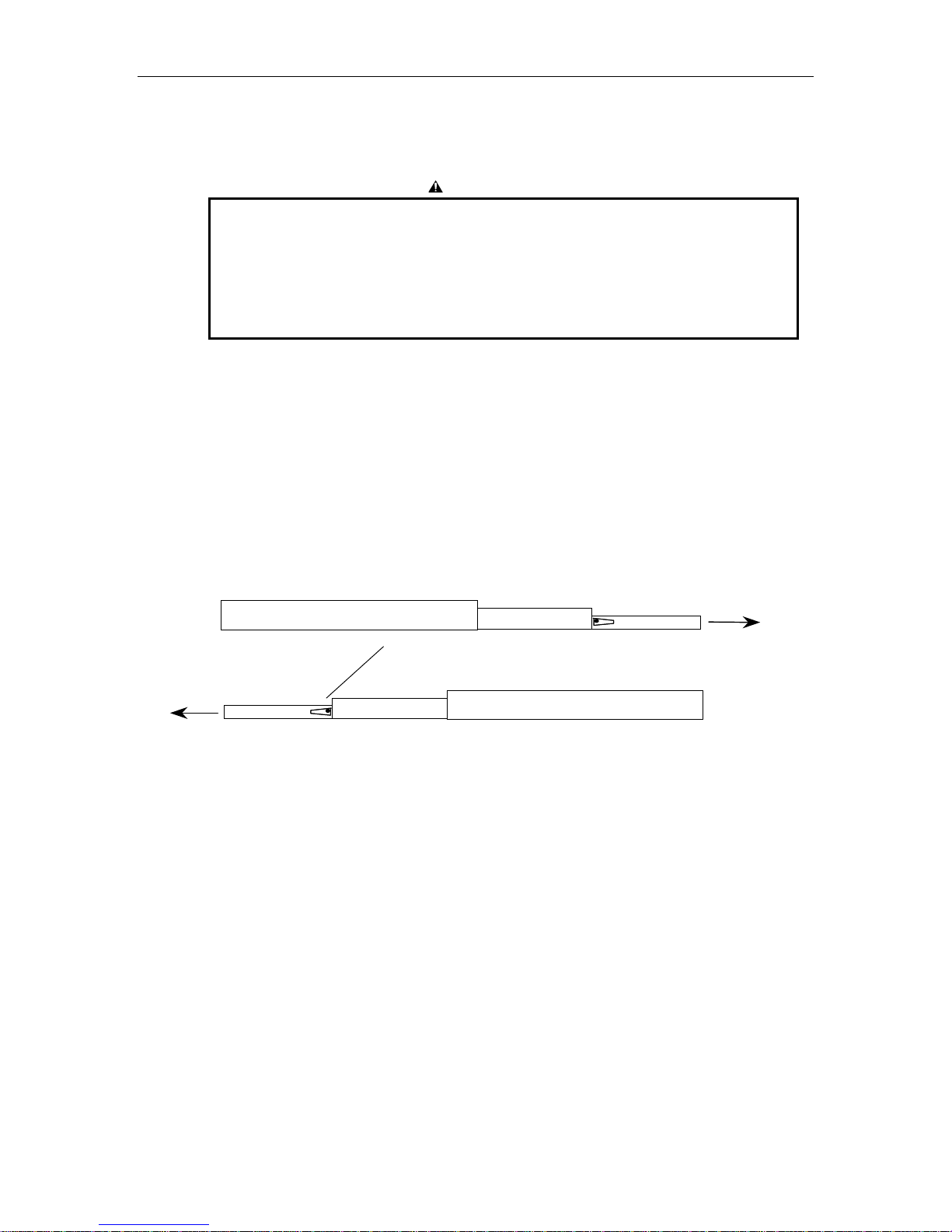
The slides are of a two-piece detachable construction, each consisting of an inner and
an outer rail. The inner rails can be extended from of the outer rails to a
predetermined safety stop, allowing the drive to be accessed for servicing without
removing it from the rack. Each inner rail has a safety lever that must be actuated
before the inner rail can be completely extended and separated from the outer rail.
Refer to Figure 1-11.
CAUTION
Left Hand Outer Slide
Safety Latch –
Move up to release Inner Rail form Outer Rail
Front of Drive
Figure 1-11 Detachable Side Assemblies
Use the following procedure to install the slide:
1. Extend the inner and outer rails of one assembly until they reach the safety
stop. The safety release lever then can be seen in the recessed part of the inner
rail.
2. Pull the safety release lever up and remove the inner rail. Do not separate the
other slide assembly at this time.
3. Using the mounting hardware provided, mount the outer rail into the cabinet.
Do not fully tighten the mounting hardware at this time.
4. Using the hardware provided, attached the inner rail to the side of the drive
and tighten the mounting screws securely.
Front of Drive
Inner Rail
Right Hand Outer Slide
1-12 Tape Drive Installation 500300 Rev. U
Page 22
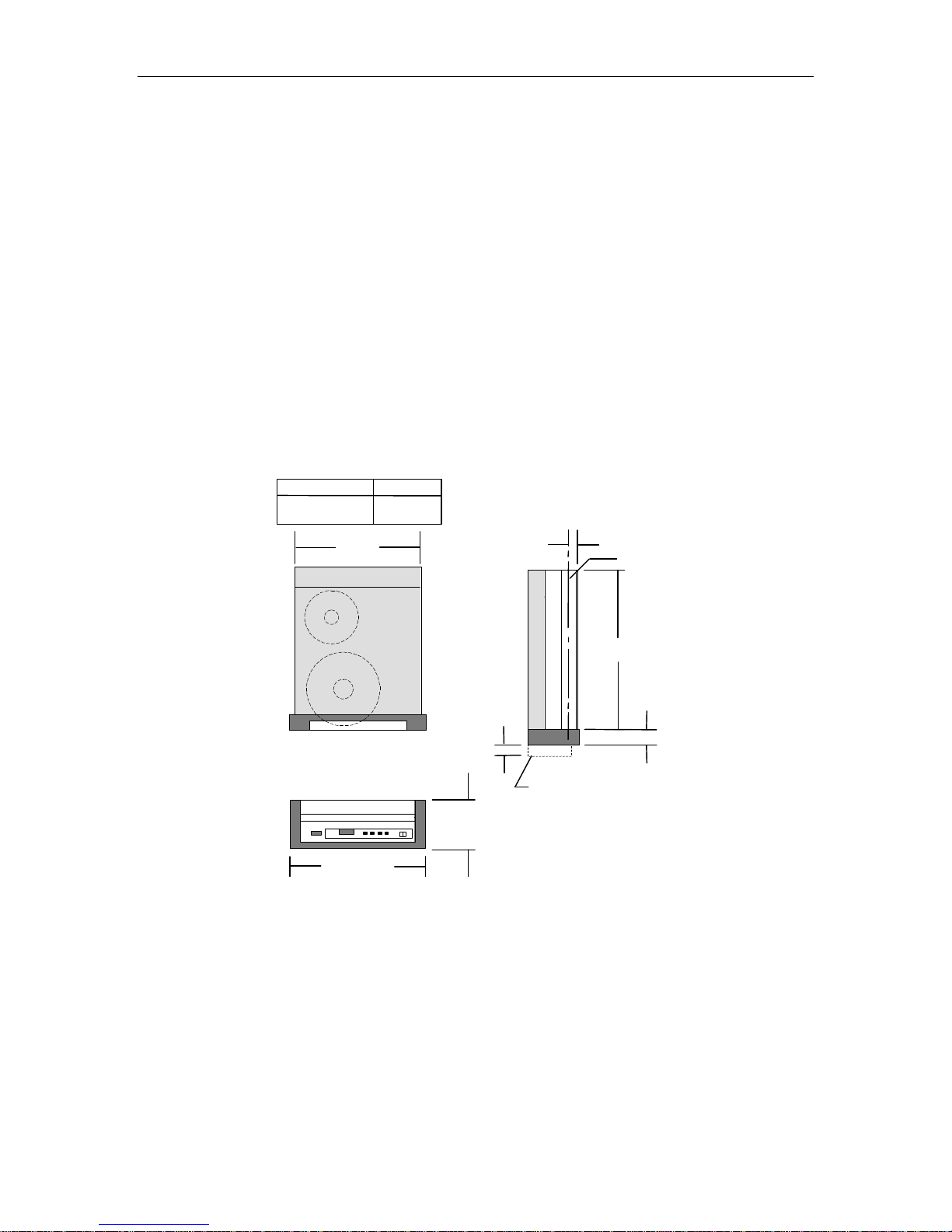
5. Separate the inner and outer slides of the remaining assembly and attach the
rails to the drive and to the rack. Figure 1-12 shows the mounting locations for
attaching the slides to the drive.
6. Attach a rack latch to the standoffs provided inside of right side of the bezel as
shown in Figure 1-13.
7. With the help of an assistant, carefully slide the tape drive with attached inner
rails into the outer rails. The rails should engage smoothly and evenly.
8. Lift both safety latches up, slide the tape drive fully into the cabinet, and
tighten the screws that hold the rails to the rear of the rack.
9. Extend the drive out about a foot, and tighten the front mounting hardware.
The drive is now securely mounted in the rack. To remove the drive, first extend it
forward until it reaches the safety stops. Then pull both safety latches up and slide
the drive forward about an inch. The drive can then be completely removed from the
outer rails.
CONFIGURATION
Rack Mount
Table Top
"A"
19.00
Maximum
"A" DIM
17.40
19.00
1.187
1.45
Door Clearance
5.25 Maximum
Note: All Dimensions in Inches
C of Slide
L
22.9
2.30
Figure 1-12 Mounting Dimensions
500300 Rev. U Tape Drive Installation 1-13
Page 23

Right Cabinet
Mounting Rail
Standoffs
Figure 1-13 Location of Rack Latch
Right Cabinet
Mounting Rail
Inside upper
Right Corner of
Drive Bezel
1-14 Tape Drive Installation 500300 Rev. U
Page 24
2. Controls and Indicators
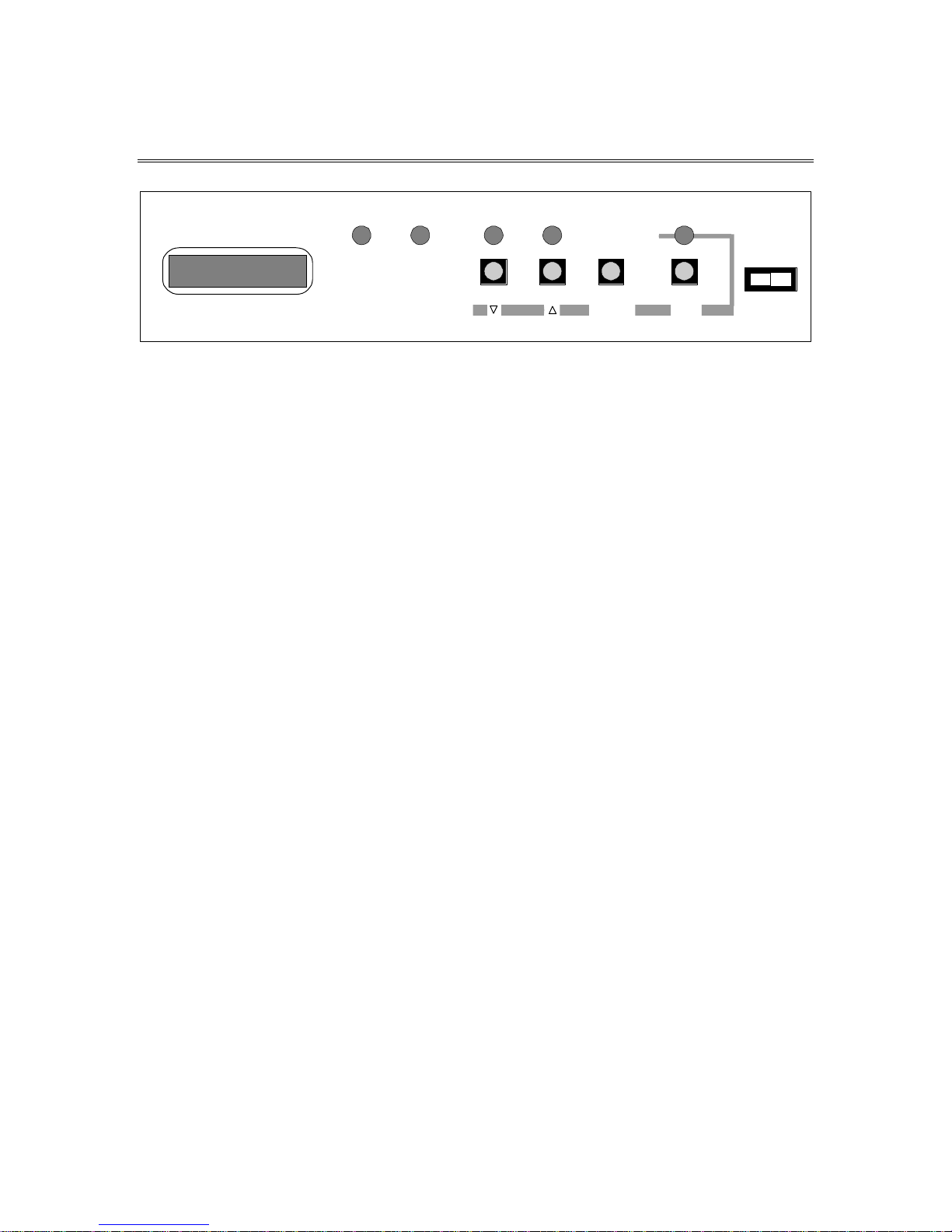
BUSY FPT LOAD ONLINE DENSITY
Figure 2-1 Front Control Panels
2.1 Front Control Panels
2.1.1 Power Switch
The power switch applies power to the drive. Press the left side (I) to turn the drive
on; press the right side (O) to turn the drive off.
2.1.2 Push-button Switches
The four push-button switches serve several purposes depending upon the current
mode of operation. Their functions in the normal operating mode are described in
the following sections.
MENU
ENTER EXIT
POWER
I O
2.1.2.1 LOAD Switch
This switch has five functions in the operating mode:
• Loads the tape if it is not already loaded.
• Rewinds the tape if it is past BOT and if the drive is off-line.
• Unloads the tape if it is held for one second while the tape is at BOT and the
drive is off-line.
• Toggles between REWIND and REWIND/UNLOAD if the tape is rewinding.
• Aborts a Load operation if pressed before the tape leader reaches the take up
reel.
2.1.2.2 ONLINE Switch
The ONLINE switch toggles the drive between the online and off-line states. When
the tape is unloaded, the drive is in the standby state and the ONLINE switch has
no effect.
500300 Rev. U Controls and Indicators 2-1
Page 25

Pressing ONLINE while the tape is loading will toggle the pending online state. A
LOADING message indicates the drive will not go online at the completion of the load
sequence; an ONLINE PEND message indicates the drive will automatically go online
after the load sequence is complete.
Once the tape has been loaded, the ONLINE switch toggles the online state as
indicated by the ONLINE indicator. The online status is also sent to the host. When
off-line, the tape drive cannot accept host commands. You may also toggle the online
state while the tape is rewinding.
Placing the drive off-line during a write operation may prematurely terminate a data block and
should only be done to abort a runaway condition. Placing the drive off-line during a read
operation will terminate the read sequence after the present block has been completely read.
2.1.2.3 DENSITY Switch
When the drive is in the standby state or when it is off-line and the tape is at BOT,
pressing the DENSITY switch cycles the selected density from 800, 1600, 3200,
6250, 6250s, and back. When the tape is beyond BOT, the DENSITY switch is
disabled. The beginning of display line one shows the density you selected.
NOTE
A small letter S following the 6250 indicates that slow-GCR (62.5 IPS) is selected, as opposed to
the normal GCR tape speed of 125 IPS. This mode is available only on certain models. In
addition, these models can be configured via the Drive Configuration menu to move tape only
at 62.5 IPS during GCR operation, or only at 125 IPS, in which case the S will not appear.
If a drive does not support a particular density, that density will not be displayed.
800 CPI is a read-only density.
2.1.2.4 MENU Switch
The MENU switch toggles the Menu mode on and off as indicated by the MENU
indicator. When in the Menu mode, all four push-button switches assume new
functions. Refer to Chapter 4 for more information.
2.2 Front Panel Indicators
Five LED indicators on the front panel display additional drive status when on:
• BUSY - The tape is in motion and the door or top cover should not be opened.
NOTE
• FPT - Where is no write-enable ring on the supply reel, or 800 CPI has been
selected, or the Read Only mode is on. In each case, the drive is File Protected
and will not write on or erase the tape.
2-2 Controls and Indicators 500300 Rev. U
Page 26

• LOAD - The tape is loaded and positioned at loadpoint (BOT).
• ONLINE - The tape is loaded and the drive is online and ready to accept a
command.
• MENU - The drive is in the menu mode, as opposed to the operating mode.
You use the menu mode to select drive options and operating parameters, and to
perform diagnostic tests. It is available to you only when the drive is offline or in the
standby state. The operating mode is the normal mode—i.e., offline, online, or
standby.
2.3 Liquid Crystal Display
The drive displays status, error conditions, parameter values, and other information
on a liquid crystal display (LCD). The LCD contains two lines of sixteen characters
each. Throughout this document, display line one refers to the top line, and display
line two refers to the bottom line. Figure 2-2 illustrates the states of the LCD at
various times during drive operation.
500300 Rev. U Controls and Indicators 2-3
Page 27

MODEL 3412S
6250sSTANDBY #0
6250s 65% 10.5“
6250s 95%<E.EOT
Display Line One
Initial Density
(A) DURING POWER- UP:
SELF-TEST NO. 19
(B) TAPE UNLOADED:
Display Line Two
Drive Address (blank if
SCSI Drive)
S = Indicates Slow
GCR (62.5 ips)
Display Line Two
Write-from-BOT density
Read-from-BOT density
Operating density
(C) DRIVE OFFLINE:
6250sOFFLINE
(D) TAPE DRIVE ONLINE
AND TAPE AT BOT:
6250s 0% 10.5“
6250 RD 6250 ID
(E) TAPE SOMEWHERE IN THE
MIDDLE AND NOT MOVING:
(F) TAPE NEAR EOT AND
MOVING REVERSE:
(G) TAPE AT OR BEYOND EOT
AND MOVING FORWARD
6250S 100%> EOT
Status
Status
Reel Diameter
Detected density
Tape Indicator (Online)
E.EOT indicates Early
End Of Tape
(≤90 feet remaining)
EOT indicates at or past
End Of Tape
Figure 2-2 LCD during Various Phases of Operation
2.3.1 Display Line One
2.3.1.1 Density Indicator
Following a load sequence, display line one indicates the density at which the tape
will write. Once the tape drive has received a read or write command and the tape
has moved away from BOT, this density indicator shows the density at which the
drive will read and write, or the operating density. Different models support
2-4 Controls and Indicators 500300 Rev. U
Page 28

different densities. When the density indicator shows 6250, a small letter S to the
right of the density indicates “slow-GCR”—GCR at 62.5 IPS.
2.3.1.2 Status
• STANDBY - Indicates the tape is not loaded.
• OFFLINE - Tape is loaded but the drive is offline and unable to accept a host
command.
• XXX% - Tape indicator — see Section 2.3.1.5.
2.3.1.3 Drive Address
The drive address appears when the drive is in the Standby condition (not applicable
to SCSI drives).
2.3.1.4 Reel Size
All models support 6, 7, 8.5, and 10.5-inch reels.
The reel diameter message is replaced with the Early EOT message (E.EOT) when
there is less than approximately 70 feet of tape remaining on the supply reel before
the physical End-Of-Tape (EOT) tab. When the EOT tab is physically past the
read/write head, the display changes to EOT, indicating the true end of tape has
been reached.
2.3.1.5 Tape Indicator
The tape indicator appears in display line one whenever the drive is online and
ready to accept host commands. It displays the amount of tape on the take up reel as
a percentage of the total amount of tape on the supply reel, regardless of the supply
reel size. The tape indicator display is continuously updated as the tape moves, and
a direction arrow appears to the right of the percent sign whenever the tape is
moving. A right arrow (→) indicates the tape is moving forward (towards EOT) and
a left arrow (←) indicates the tape is moving reverse. Forward motion causes the
percentage of tape on the take up reel to increase.
2.3.2 Display Line Two
2.3.2.1 Density Indicators
At the completion of a load sequence, the left side of display line two indicates the
density at which the drive will read, and the right side indicates the pre-existing
density of the tape, i.e., the detected density. The detected density is determined by
reading the ID burst on the tape during the load sequence. An asterisk ( * ) after the
detected density display indicates that no ID burst was found on the tape. In this
case, the detected density assumes the value of the NO-ID DEN parameter (either
Blank, 800 or 3200) which you can select in the Drive Configuration Menu (see
Chapter 4).
500300 Rev. U Controls and Indicators 2-5
Page 29

Display line two continues to indicate the read and detected densities when the
drive is placed online. When the tape moves forward from BOT, display line two
becomes a message line and its density indicators will be erased.
2.3.2.2 Messages
The message line is used to display general information, instructions, error
conditions, and other data depending upon the current situation.
2-6 Controls and Indicators 500300 Rev. U
Page 30

3. Operating Instructions
3.1 Applying Power
1. Before plugging in the tape drive, switch the power switch to the OFF position
as shown in Figure 3-1.
Figure 3-1 Power Switch Location
2. Observe the label on the rear panel to verify the drive is already configured for
the available AC voltage. It the available voltage differs, refer to Chapter 8 of
this manual to change the voltage selection.
3. Connect the power cord to the rear of the drive as shown in Figure 3-2 and
then switch on the tape drive.
Figure 3-2 Power Connection Location
500300 Rev. U Operating Instructions 3-1
Page 31

4. Applying power initiates the following sequence:
a. The drive starts the internal blower.
b. Display line one indicates the drive model number.
c. The drive then performs a series of self-tests. As each test is performed,
display line two indicates SELF-TEST NO. X, where X is the number of the test.
The tests are listed in Table 3-1.
d. If the drive detects a problem during one of the tests, it will present an
appropriate message on display line two. Press any switch to continue with
the next test.
e. When the last test is complete, display line one will indicate DDDD STANDBY,
where DDDD indicates the initial density; display line two will be blank (see
Figure 2-2B). The drive is then ready for tape loading.
3.2 Power-Up Self Diagnostic Tests
The 34XX tape drives perform an extensive suite of self-diagnostic tests upon power
up. The tests complete within a few seconds of applying power. Refer to Table 3-1 for
a complete list of the tests.
3-2 Operating Instructions 500300 Rev. U
Page 32

Test #
(341X)
Test #
(340X)
Test Name Comments
1 1 +5 V Check the +5 volt supply
2 2 ±15 V Check both the +15 and -15 volt
supplies
3 3 ±6 V Check both the +6 and -6 volt
supplies
4 4 +22 V (Line Voltage) Check the +22 volt supply; may fail
due to low line voltage.
5 5 Motion Communication Test Check comm. link between Motion
and WREX PCBAs.
6 6 Verify Motion CPU Checksum Motion PCBA microprocessor sanity
test
7 7 Check Drive Temperature Check for over-temperature condition
8 8 Verify WREX CPU Checksum WREX PCBA microprocessor sanity
test
9 N/A Read Self Test
10 N/A Read DSP Comm. Test
1
1
Read circuitry self-diagnostics
Check comm. link between WREX
and Read
microprocessor
11 N/A Verify Read DSP Checksums
1
Read PCBA microprocessor sanity
test
12 9 Write DSP Communications
Test
Check communications link between
WREX and Write microprocessor
13 10 Verify Write DSP Checksums Check Write DSP sanity
14 11 Write D/A Converter Test Check write voltage generation
circuit
15 12 Write Power Test Check for correct write current
16 13 Read Threshold D/A Conv. Test Check read threshold generation
circuit
17 14 SCSI Communications Test
2
Check communications link between
WREX and SCSI microprocessor
18 15 Verify SCSI Checksum
2
Check SCSI chip, DMA chip, RAM,
and SCSI data buffer
19 16 Invoke SCSI Self-Tests
NOTES:
1
These tests are performed only on 341X models.
2
These tests are performed only on SCSI models.
2
Table 3-1 Power Up Self-Disgnostic Tests
3.3 Loading a Tape
Before loading a tape, remove the dust protector from the reel and check to see if a
write-enable ring is installed in the bottom of the reel. You will not be able to write
on the tape unless the write-enable ring is installed. See Figure 3-3.
500300 Rev. U Operating Instructions 3-3
Page 33

Figure 3-3 Dust Protector and Write-enable Ring
1. Open the front door by pulling it toward you as shown in Figure 3-4.
Figure 3-4 Opening the Door
2. Insert the tape reel with the label side up (write-enable ring down) through the
door and onto the supply hub.
If the flanges of the reel are squeezed together during handling, damage to the edges of the tape
can result. When inserting and removing a reel of tape through the door, rest the reel on the
palm of your hand with your thumb on the bottom flange as shown in Figure 3-5.
The use of reels that contain less than 85% of their full capacity may degrade tape-handling
performance.
The tape leader must be free of creases and the BOT marker strip must be between 5 and 25
feet from the physical beginning of the tape (the ANSI specification is 16 feet). For best loading
results, the end of the tape leader should be on the right side of the reel.
3-4 Operating Instructions 500300 Rev. U
NOTE
Page 34

Figure 3-5 Correct Way to Insert Reel
6250 OFFLINE
1600 RD 1600ID
3. Close the door.
4. Press the LOAD switch.
3.3.1 Load Sequence
Pressing the LOAD switch when the door and the top cover are closed initiates the
following load sequence:
1. Display line one will indicate DDDD LOADING while the drive threads and
tensions the tape. If the Auto-Online feature has been enabled in the Drive
Configuration menu, display line one will indicate DDDD ONLINE PEND. This
means that the drive will automatically place itself online pending completion
of the load sequence.
During the load sequence, the ONLINE PENDing status can be toggled by pressing the ONLINE
switch.
NOTE
2. Display line two will indicate various progress points during the load sequence,
such as CHECKING REEL, THREADING TAPE, LOADPOINT SEEK, etc.
3. At the end of the load sequence, the drive will automatically read the ID burst
at the beginning of the tape and display line two will indicate READING ID BURST.
The ID burst identifies the density at which the tape was last written. This
detected density is indicated on the right side of display line two. Refer to
Paragraph 3.6.1 for more information about the displayed data.
Write-from-BOT density
Read-from-BOT density
Figure 3-6 Front Panel Display at End of Load Sequence (if Auto Online is off)
500300 Rev. U Operating Instructions 3-5
Detected density
Page 35

3.3.2 Aborting a Load Sequence
You may cancel the load sequence by pressing LOAD before the THREADING TAPE
message appears. The drive will stop the load process, display CANCELING LOAD . .,
wind the tape back on the supply reel and unlock the hub. Display line 2 will then
indicate LOAD CANCELED whereupon the tape may be removed.
3.3.3 Load Sequence Exception Conditions
• If the drive cannot load the tape after a series of retries, it will abort the load
sequence and display an error message. A list of error messages and their
meanings is given in Chapter 7 of this manual.
• If the drive is online but not enabled (IFEN not asserted), display line two will
indicate NOT ENABLED.
• If the drive is online but not selected (incorrect drive address), display line two
will indicate NOT SELECTED.
• If somebody opens the door while a load sequence is in progress, the tape drive
will stop the sequence and display a LOAD FAULT error message. Press any
switch to clear the error message. To restart the load sequence, close the door
and press LOAD.
3.4 Rewinding and Unloading the Tape
3.4.1 Tape Not at BOT
If the drive is online, it will rewind the tape upon receipt of an interface Rewind
command. While the tape is rewinding, display line two will indicate REWINDING and
the tape indicator will decrease to 0% as the tape reaches BOT. The rewind sequence
will stop when the tape reaches BOT. You can also rewind the tape by placing the
drive offline and pressing LOAD.
If you press LOAD while the tape is rewinding, the drive will display
REWIND/UNLOAD, and will unload the tape when it reaches BOT. During the rewind,
the LOAD switch will toggle between REWIND and REWIND/UNLOAD.
When all the tape has been wound onto the reel, the drive will unlock the hub, and
display line two will indicate TAPE UNLOADED. You may then open the door and
remove the tape by lifting the reel up over the hub and pulling out through the door
as shown in Figure 3-7. The TAPE UNLOADED message will remain until the door is
opened or until any switch is pressed.
3-6 Operating Instructions 500300 Rev. U
Page 36

Figure 3-7 Correct Method of Removing Tape Reel
3.4.2 Tape at BOT
If the tape is at BOT (LOAD indicator illuminated), pressing LOAD will cause the
drive to display HOLD FOR UNLOAD. If you release the LOAD switch immediately,
nothing happens. If you press it for longer than one second, display line one will
indicate UNLOADING and the unload sequence will commence as previously described.
3.4.3 Manually Unlocking the Supply Hub
In the event something happens which prevents the drive from automatically
unlocking the supply hub, you can manually unlock it as follows:
1. Open the door and locate the red-tipped lever at the front of the entrance. This
lever is shown in Figure 3-8.
Figure 3-8 Manual Hub Unlock Lever
2. While holding the red-tipped lever towards the left with one hand, turn the
reel clockwise until it stops, then exert additional force on the reel to unlock
the hub.
3. When the hub unlocks, remove the reel.
3.5 Changing Densities
The density can be changed in any of three basic ways. In all cases, the selected
density will be displayed in the upper left corner of the liquid crystal display.
500300 Rev. U Operating Instructions 3-7
Page 37

• You can change the density by pressing the Density switch on the front panel
when the drive is in the standby condition or when it is offline and the tape is at
BOT. The Density switch is disabled when the drive is online.
• The host can change the density when the drive is online and the tape is at
BOT.
• The tape drive itself can change the density when reading or writing from BOT.
This feature is referred to as automatic density selection or ADS for short.
3.6 Automatic Density Selection Feature (ADS)
With some tape drives, you have to know the density of the tape to be read ahead of
time and configure the drive to read that density. If you set one of these drives to a
density other than that on the tape and then attempt to read the tape, read errors
will result. To overcome this, 34XX tape drives incorporate Automatic Density Select
(ADS). ADS determines the drive's operating density when read or write commands
are received while the tape is at BOT. This section describes the operation of ADS.
3.6.1 Density Definitions
To understand ADS, you should first be familiar with certain terms and definitions.
3.6.1.1 Initial Density
The term initial density refers to the value of the INITIAL DEN: parameter in the
Drive Configuration menu. This value is stored in non-volatile memory and is used
to define the write density each time you apply power to the drive.
3.6.1.2 Write Density
The write density appears on the left side of display line one and is the density at
which the drive will write. Each time you apply power to the drive, the write density
assumes the value of the INITIAL DEN parameter.
You can change the write density via the Density switch if:
1. The tape drive is offline and the tape is at BOT, or
2. The drive is in the standby state (i.e., the tape is unloaded);
The host can change the write density if the tape drive is online, the tape is at BOT,
and the Density Command option is enabled (see Section 4.3.2.14).
The tape drive can change the write density as explained in Section 3.6.2.
3.6.1.3 Read Density
The term read density refers to the density at which the drive will read the tape. If
the read density is not the same as the density of the tape, read errors will occur.
3-8 Operating Instructions 500300 Rev. U
Page 38

Normally, the tape drive determines the read density by reading the ID burst on the
tape.
The read density is indicated at the beginning of display line two while the tape is at
BOT as shown in Figure 3-6. After the tape has left BOT, the read density is no
longer displayed.
Read commands include all read, space and filemark search commands. Write commands
include all write, erase, and write filemark commands.
3.6.1.4 Detected Density
The term detected density refers to the density indicated by the ID burst on the tape.
It is determined by the tape drive when it reads the ID burst on the tape. The
detected density is indicated at the end of display line two while the tape is at BOT
as shown in Figure 3-6 After the tape has left BOT, the detected density is no longer
displayed.
If a tape is loaded which has no ID burst, the drive displays an asterisk ( * ) and
uses the value stored in the NO-ID DEN parameter as the detected density.
NOTE
3.6.1.5 Operating Density
After a tape has left BOT, the display changes. The read and write density
indicators disappear and are replaced by the operating density which appears at the
beginning of display line one as shown in Figure 3-9 When the tape returns to BOT,
the display again indicates the write, read, and detected densities.
Operating density
(appears only after the
tape has moved
forward from BOT).
6250 1% 10.5”
Figure 3-9 Front Panel display after Tape Has Moved Forward from BOT.
3.6.1.6 NO-ID DEN
NO-ID DEN is a parameter that you can select in the Drive Configuration menu. Its
value can be 800, 3200, or BLANK, and the tape drive uses it to determine the
detected density if a tape is loaded that has no ID burst. The lack of an ID burst
could be caused by one of the following:
• The tape is recorded in the NRZI (800 CPI) format;
• The tape is new or completely blank;
• The ID burst is unreadable;
500300 Rev. U Operating Instructions 3-9
Page 39

• The tape was recorded using an older DPE format (3200 CPI) that does not have
6250 OFFLINE
1600 RD 800*ID
6250 OFFLINE
1600 RD *****ID
an ID burst.
If a tape with no ID burst is loaded, the detected density indicator in display line
two will contain the value of NO-ID DEN followed by an asterisk ( * ). If NO-ID
DEN is set to BLANK and you load a tape with no ID burst, the detected density
indicator in display line two will contain *****, and the drive will not automatically
change the read and write densities. See Figure 3-10.
An * indicates that no ID burst was
detected on the tape and that the
drive used the value of the NO-ID
DEN parameter in place of the
detected density, in this case 800 cpi.
***** indicates that no ID burst was
detected on the tape and that the NOID DEN parameter is set to BLANK.
In this case, the existing density
settings are not changed.
Figure 3-10 Front panel display when no ID burst has been detected
3.6.2 Density Modes
To allow for a wide variety of operating systems, you can choose the way ADS
operates or disable it by using the DENSITY parameter in the Drive Configuration
menu. Five modes are provided: Manual (disables ADS), Load, Read, Dual, and
Initial.
The Load, Read, Dual, and Initial modes determine how ADS selects the operating
density as explained in the following paragraphs. Remember that the density mode
determines how the read and write densities are selected only after a load sequence,
and that you can always override these selections via the Density switch or the
interface as previously described.
3.6.2.1 Manual Mode
In the Manual mode, ADS is disabled. All reading and writing will occur at whatever
density the user or the interface selects. The ID burst will be read when a tape is
loaded, and will be displayed as the detected density, but will have no further effect.
If the drive has just been powered up, the drive uses the value of the INITIAL DEN
parameter to set the read and write densities.
In this mode, the write and read densities can only be changed by the Density switch
or the interface.
3.6.2.2 Load Mode
In the Load mode, the drive reads the ID burst at the end of each load sequence and
changes the read and write densities to match it; i.e., the drive will read and write
as determined by the ID burst on the tape. If there is no ID burst, the drive uses the
value of the NO-ID DEN parameter to set the read and write densities. If NO-ID
DEN is set to BLANK, the density will not be changed.
3-10 Operating Instructions 500300 Rev. U
Page 40

In this mode, you can change the write and read densities by the Density switch, the
interface, or by loading a tape of a different density.
3.6.2.3 Read Mode
In the Read mode, the drive reads the ID burst at the end of each load sequence and
changes the read density to match it. The write density will remain unchanged. If
the drive has just been powered up, the write density assumes the value of the
INITIAL DEN parameter.
• The drive performs all read commands from BOT at the indicated read density
and changes the write density to match it. Thus, if a tape is loaded, read,
returned to BOT and then a write command is received, the original density of
the tape will be preserved.
• The drive performs all write commands from BOT at the indicated write density
and changes the read density to match it.
In this mode, you can change the write density by the Density switch, the interface
or by loading a tape of a different density and reading before writing on it.
3.6.2.4 Dual Mode
In the Dual mode, the drive reads the ID burst at the end of each load sequence and
changes the read density to match it. The write density will remain unchanged. If
the drive has just been powered up, the write density assumes the value of the
INITIAL DEN parameter.
• The drive performs all read commands from BOT at the indicated read density
and changes the operating density to match. If blocks are then overwritten or
appended, they will be written at the original density of that tape.
• The drive performs all write commands from BOT at the indicated write density
and changes the operating density to match.
• Each time a tape reaches BOT (via any interface command, an offline rewind, or
a load sequence), the write density returns to its original value.
In this mode, the write density can only be changed by the Density switch or the
interface. Loading a tape of a different density and reading will not change the write
density.
3.6.2.5 Initial Mode
In the Initial mode, the drive reads the ID burst at the end of each load sequence
and changes the read density to match it. The write density assumes the value of the
INITIAL DEN parameter.
• The drive performs all read commands from BOT at the indicated read density
and changes the operating density to match. If blocks are then overwritten or
appended, they will be written at the original density of that tape.
500300 Rev. U Operating Instructions 3-11
Page 41

• The drive performs all write commands from BOT at the indicated write density
and changes the operating density to match.
In this mode, you can change the write density by the Density switch, the interface,
or by changing the value of the INITIAL DENS parameter and then loading a tape.
3.7 Abnormal Conditions
3.7.1 The Tape Will Not Load
Although the drive will try several times to load a tape before reporting an error,
there are some conditions that the drive cannot overcome. If a particular reel
exhibits load problems, check the following:
• Verify the BOT marker is between ten and eighteen feet from the physical
beginning of the tape.
• Make sure that the tape leader is free of creases and folds and that it is not
sticking to the tape pack.
• Verify that the reel flanges are not warped so much that they wobble, drag on
the casting or cause the tape to bind.
3.7.2 An Out-Of -Tape-Stop Occurs
The Out-Of-Tape-Stop feature prevents the tape from coming off of the supply reel
in case of a host computer malfunction. This feature is controlled by the EOT-STOP
parameter in the Drive Configuration menu, and is fully described in Section 4.3.2.5.
If the feature is enabled and the tape reaches thirteen feet beyond the EOT marker,
the drive will display OUT-OF-TAPE-STOP. It will still respond to a rewind and any
reverse tape motion commands, and you may also manually rewind the tape.
3.7.3 The Tape Comes Off the Supply Reel
In rare instances, all of the tape may be wound on the take up reel and the end will
come off the supply reel. When this happens, the tape will lose tension, the reel
motors will stop, and the drive will display MOTION FAULT. This can happen if:
• There is no EOT marker strip on the tape;
• The EOT sensor has failed since the tape was loaded;
• The EOT STOP parameter in the Drive Configuration menu is set to NO and the
host continues to send forward tape motion commands to the drive after EOT
has been reported.
To recover from this condition, do the following:
1. If the drive is mounted in a rack, pull the tape drive towards you so that it
slides partially out of the cabinet.
3-12 Operating Instructions 500300 Rev. U
Page 42

2. Raise the top cover by lifting it up at its front corners just behind the bezel as
shown in Figure 3-11.
Figure 3-11 Raising the Top Cover
3. When fully open, the cover latch will hold it up. You may have to extend the
drive further out from the rack.
4. Carefully thread the end of the tape back through the tape path and onto the
supply reel such that turning the reel counterclockwise winds the tape onto it.
Moistening the end of the tape helps it to stick to the reel hub.
5. Continue winding the tape onto the reel until the EOT marker goes through
the tape path and is on the supply reel. There must be at least ten turns on the
reel.
6. Press LOAD. The tape drive will then tension and rewind the tape.
7. Release the cover latch, close the cover, and push the drive back into the rack.
3.7.4 A Power Failure Occurs
Should the power be interrupted while the tape is moving, the drive will bring the
tape to a controlled stop before dropping tape tension. No physical damage will
result to the tape. To recover, restore the power and press LOAD. The drive will
tension and rewind the tape to BOT. If a block were being written at the time of the
power loss, the block would be lost.
3.7.5 A Tape Runaway Condition Occurs
A runaway is a condition in which the tape drive does not respond to host commands
and the tape keeps moving. When using the Industry Standard Interface, tape
runaways are usually caused by an abnormal condition in the host. If the
COMMAND DISPLAY parameter in the Drive Configuration menu is enabled, the
display will indicate the last command received by the drive (see Section 4.3.2 for
more information). When using the SCSI configuration, a tape runaway indicates a
problem within the tape drive.
Other than turning the drive power off and back on, there are two methods to
recover from a tape runaway. These are described in the following paragraphs.
500300 Rev. U Operating Instructions 3-13
Page 43

3.7.5.1 Terminating Runaways Via the Host
One method of recovering from a tape runaway in non-SCSI drives is via the
Formatter Enable interface line (IFEN), or via a Bus Reset if using the SCSI
configuration. This is the recommended method, and is described in Product
Specifications 500240 (341X), 500540 (340X), and 500358 (SCSI Interface Manual).
In order to use this method, your controller must support IFEN, and you must set
the FEN ABORT parameter in the Drive Configuration menu to YES. See Section
4.3.2 for more information.
3.7.5.2 Terminating a Write Operation By Taking the Drive Offline
If a runaway exists during a write operation, it is most likely caused by a missing
ILWD signal from the host. In this case, pressing ONLINE will abort the operation
as described in Section 3.8.
3.7.5.3 Terminating Runaways By Removing Power
A runaway condition will be terminated when the power goes off. The drive will
respond exactly as though a power outage had occurred. This action should be
sufficient to cause the host to request further user input.
3.8 Aborting Online Operations from the Front Panel
You may interrupt most online operations while the drive is busy by pressing the
ONLINE switch. If the Command Display parameter in the Drive Configuration
menu is enabled, the last command received will be displayed. The following
paragraphs describe what happens when taking the drive offline while various
operations are in progress.
• REWIND - Taking the drive offline while the tape is rewinding has no effect on
the rewind operation.
• READ and SPACE - The drive will complete these operations and go offline at
the end of the current block. The drive will resume normal operation when
placed back online.
• FILEMARK SEARCH and SECURITY ERASE - The drive will terminate the
operation immediately and will resume normal operation when placed back
online.
• WRITE FILEMARK and FIXED LENGTH ERASE - The drive will complete
these operations before going offline. The drive will resume normal operation
when placed back online.
• WRITE - The drive will truncate the current block and write a normal
postamble before going offline. The block will be readable (assuming no errors
occurred) but will be shorter than expected. The drive will resume normal
operation when placed back online.
3-14 Operating Instructions 500300 Rev. U
Page 44

• VARIABLE LENGTH ERASE - The drive will terminate the erase operation
and go offline. Normally, the host determines the erase length. The drive will
resume normal operation when placed back online.
500300 Rev. U Operating Instructions 3-15
Page 45

4. Menu Operations
4.1 Menu System Description
The menu system replaces the conventional internal switches and jumpers required
to configure a drive to a particular application. It also provides a means of
calibrating the drive and performing certain diagnostic tests.
RESET HEAD
CLEAN
FUNCTION
DEFAULT
CONFIGURATION
DEMONSTRATION
FUNCTION
DRIVE
CONFIGURATION
MENU
DEFAULT SCSI
CONFIGURATION
DIAGNOSTICS
SUB-MENU
SCSI
CONFIGURATION
MENU
ENABLE
FUNCTION
SERVICES
SUB-MENU
SCSI
MANUAL
THREAD
FUNCTION
FIRMWARE
SUB-MENU
MAINTENANCE
DISPLAY
MENU
C.E.
TEST
MENU
PREPARE
MEDIA
SUB-MENU
Figure 4-1 34XX Menu Hierarchy
4.1.1 Menu Hierarchy
The menu system consists of menus, sub-menus and functions as shown in
Figure 4-1. Each menu contains several functions or parameters, and the
Maintenance menu contains both functions and lower level sub-menus that
themselves contain additional functions and parameters. This chapter discusses the
Reset Head Clean function, and the Drive Configuration and Maintenance menus
only. The SCSI Configuration menu is discussed in Chapter 5. The C.E. menu is for
factory use only and is not documented in this guide.
500300 Rev. U Menu Operations 4-1
Page 46

4.1.2 Accessing the Menu Mode
You can access the Menu mode by pressing the MENU switch whenever the drive is
in the standby state (i.e., whenever the drive is offline and not rewinding, loading or
unloading). The MENU indicator will illuminate when the drive is in the Menu
mode.
In the menu mode, the switches generally perform the following functions. These
alternate functions are also indicated by the legends below the switches:
• - Selects the previous menu item or parameter.
• - Selects the next menu item or parameter.
• ENTER - Picks the selected item, or enters into the selected menu list.
• EXIT - Backs up one level each time the switch is pressed. Eventually, this
switch will exit the Menu mode and turn off the MENU indicator. All switches
then resume their normal functions as indicated above the switches.
4.1.3 Accessing the Demonstration Function
As an example in stepping through the menus, Table 4-1 shows how to access the
Demonstration function found in the Maintenance menu.
STEP DISPLAY DRIVE STATUS
Apply power. STANDBY Drive awaits user input.
Press the Menu switch once. RESET HEAD CLEAN Drive enters Menu mode and displays first
function.
Press the UP switch once. DRIVE CONFIG. Drive steps up to Drive Config. menu.
Press the UP switch a 2nd time. SCSI CONFIG. Drive steps up to SCSI Config. menu.
Press the UP switch a 3rd time. MANUAL THREADING Drive steps up to Manual Threading
function.
Press the UP switch a 4th time. MAINTENANCE Drive steps up to Maintenance menu.
Press the ENTER switch. DEFAULT CONFIG. Drive enters Maintenance menu and
displays first item.
Press the UP switch five times. DEMONSTRATION Drive steps up to Demonstration function.
Press the ENTER switch. Demonstration text Drive performs Demonstration function until
powered down or until stopped by pressing
EXIT.
Press the EXIT switch repeatedly. MENU LED goes out Drive is back to normal operation.
Table 4-1 Accessing the Demonstration Function
4.2 Reset Head Clean Function
The tape drive continually measures the amount of tape that passes over the head
during normal operation. Each time a tape is unloaded, the measured amount is
added to a sum stored in non-volatile memory. The total represents the number of
4-2 Menu Operations 500300 Rev. U
Page 47

equivalent 2400-foot reels run from BOT to EOT and back (i.e., 4800 feet). If the
total footage exceeds the amount set in the HEAD CLEAN parameter of the Drive
Configuration menu (also expressed in 2400-foot reels), the TAPE UNLOADED message
will be replaced by a TIME2CLEAN HEAD message when you open the door or press a
front panel switch. This will continue to occur after unloading until you manually
reset the footage counter via the Reset Head Clean function.
You can use the following procedure to reset the Head Clean Odometer:
1. With the drive offline, press MENU. The display will indicate RESET HEAD
CLEAN.
2. Press ENTER twice. The display will indicate HEAD CLEAN RESET TO XX REELS
where XX is the number that was last selected in the Drive Configuration menu
(the factory default is 25).
3. Press MENU twice. The display returns to its original indication.
4.3 Drive Configuration Menu
Moving W1 on the Write Executive PCBA from ON to OFF allows Drive Configuration
parameters to be viewed but prevents them from being changed.
NOTE
4.3.1 Using the Drive Configuration menu
The following steps can be used to enter the Drive Configuration menu:
1. Place the drive offline.
2. Press the MENU switch; the MENU indicator should illuminate.
3. Press or until DRIVE CONFIG. appears in display line one.
4. Press ENTER; display line two indicates the first parameter, INITIAL DEN: XXXX.
a. To change the value of the first parameter, press ENTER; to select another
parameter, press or until the desired parameter appears in display line
two, and then press ENTER. The available parameters are listed in Table 4-2.
b. To return the drive to normal operation, press MENU repeatedly until the
display returns to its original offline or standby indication.
500300 Rev. U Menu Operations 4-3
Page 48

LCD DISPLAY
INITIAL DEN:1600
SELECTABLE VALUES
COMMENTS
1, 2
(PARAMETER)
INITIAL DEN: (6250), 3200, 1600, 800
(DEFAULTS IN BOLD)
3
Power-on density
AUTO ONLINE: NO, (YES) Drive automatically goes online after loading
LOL ENABLE: NO, (YES) Enables loading from interface (ILOL)
COMMAND DISP: NO, (YES) Displays last command from interface
2
EOT STOP: NO, (YES) Forces tape to stop 13 feet past EOT
REPORT CERS: ALL, 2TK, (NONE) Correctable error reporting to host (341X only)
HER ON BLANK: YES, (NO) Reports IHER when blank tape detected
EMULATION: (QUALSTAR), CIPHER Defines IDBY for invalid commands.
READ ONLY: (NO), YES Disables write and erase functions
FMK GAPS: (NORMAL), SHORT Short = 0.6-inch (0.3-inch in GCR)
DRIVE ADDRESS: (0) - 7 Defines drive address (not the same as SCSI ID)
FEN: (REQUIRED), IGNORE Allows operation without IFEN
FEN ABORT: NO, (YES) Allows IFEN to reset formatter
DENSITY CMD: NO, (YES) Accepts density commands from the host
ECHO 3200ID: NO, (YES) Reports IDENT for 3200 CPI tapes
WRT IBG: (NORMAL), LONG, EX-LONG Extended write gap selection
WRT PARITY: EXT, (INT) Internal or External write parity generation
DENSITY: MANUAL, LOAD, (READ), DUAL,
Sets the density mode of operation
INITIAL
NO-ID DEN: BLANK, (800), 3200 Determines density when no ID burst is
detected
SEISMIC: (NO),YES CRCC and LRCC checking is suppressed (YES)
HEAD CLEAN: OFF, 6, 12, (25), 50, 100 Equivalent # of 2400-foot reels since head last
cleaned
PE GAIN: (AUTO), FIXED Determines PE read gain operation (341X
only)
GCR SPEED: SLOW, (NORM), BOTH Sets GCR tape speed on 3416/3418 models
1
Moving W1 on the Write Executive PCBA from ON to OFF allows Drive Configuration parameters to be viewed but prevents them from
being changed.
2
Refer to the text for important information concerning these parameters on SCSI drives.
3
Selection of an unsupported density may result in unpredictable operation.
Table 4-2 Drive Configuration Menu
The first item in the Drive Configuration menu is the INITIAL DENSITY. The
display should appear as follows, with the name of the menu in the first line,
followed by the parameter and its current value.
Pressing the ENTER switch changes the display as follows:
4-4 Menu Operations 500300 Rev. U
DRIVE CONFIG.
Page 49

DN UP SAVE ABORT
INITIAL DEN:1600
Display line one now describes the alternate functions of the four push-button
switches (in order from left to right).
• Pressing the DN () or UP () switches scrolls through the list of available
selections in opposite directions. (In the example, the available densities are
displayed.)
• Pressing the SAVE (ENTER) switch saves the indicated value as the new value,
exits the change mode and returns to the original display.
• Pressing the ABORT (EXIT) switch exits the change mode without changing the
value, and returns to the original display. The new (or current) value will
always display when out of the change mode and will be the value used for
operating from that point on. (In the example, this takes effect only at power
up.)
This type of operation is the same throughout the Drive Configuration menu.
4.3.2 Drive Configuration Menu Parameters
The following paragraphs explain the options and configurations that are accessible
via the Drive Configuration menu. Some of these parameters must be set to
particular values on SCSI drives as described in Section 5.1. Also, see Note 1 at the
bottom of Table 4-2.
4.3.2.1 INITIAL DEN: (Default = Depends upon model)
The initial density is the density the drive assumes as the selected density when
power is first applied. The default is 6250 for 341X models, and 1600 for 340X
models. Select only a density that your model supports.
4.3.2.2 AUTO ONLINE: (Default = Yes)
• YES - The drive will automatically place itself online after loading a tape.
• NO - You must place the drive online yourself after loading a tape.
4.3.2.3 LOL ENABLE: (Default = Yes)
• YES - Allows the host computer to initiate a load cycle via the Interface Load
OnLine (ILOL) signal.
• NO - The ILOL signal is ignored.
4.3.2.4 COMMAND DISP: (Default = No)
When selected (YES), the drive displays the name of the industry standard interface
command being executed on display line two. The display will not change until a
different command is executed or until display line two is used for another purpose.
500300 Rev. U Menu Operations 4-5
Page 50

On SCSI drives, the low level industry standard interface command which is present
between the SCSI PCBA and the Write/Executive PCBA will be displayed. SCSI bus
commands are not displayed.
4.3.2.5 EOT STOP: (Default = Yes)
It is the responsibility of the host to monitor the EOT status signal from the tape
drive and to take appropriate action to prevent the tape from coming off of the
supply reel. The EOT STOP parameter controls an Out-Of-Tape Stop feature that
prevents the tape from coming off of the supply reel should the host malfunction.
If this feature is enabled and the tape travels thirteen feet past the EOT marker
during a write operation, the drive will truncate the block, write a normal
postamble, stop the tape, report a hard error (IHER) to the host, display OUT OF
TAPE STOP, and remain online. The block will be readable but will be shorter than
expected. If the host then sends a rewind or any reverse tape motion command, the
drive will respond in a normal manner. However, if a forward tape motion command
is received, the drive will return a hard error and cycle IFBY and IDBY without
moving tape.
If this feature is enabled and the tape travels thirteen feet past the EOT marker
during a forward read, space, or search operation, the tape drive will terminate the
operation immediately, stop the tape, report a hard error to the host, display OUT OF
TAPE STOP, and remain online.
If this feature is not enabled and the host continues to send forward commands
beyond EOT, the tape will eventually come off the supply reel and the drive will
display MOTION FAULT.
Qualstar recommends you enable this feature by setting it to YES, as this still allows
the drive to read and write up to thirteen feet past the EOT marker without danger
of the tape coming off of the supply reel.
• YES - Prevents the drive from moving the tape forward more than thirteen feet
past the EOT marker.
• NO - Allows unrestricted tape motion beyond EOT.
4.3.2.6 REPORT CERs: (Default = None)
This option pertains only to read operations; when writing, all corrected errors are
reported. This selection is not available on 340X drives. You have three choices:
• ALL - The drive reports all corrected read errors to the interface.
• 2TK - The drive reports all corrected read errors except single-track GCR errors.
• NONE - The drive does not report any corrected read errors to the interface.
4.3.2.7 HER ON BLANK: (Default = No)
• YES - The drive will report a hard error (IHER) when it detects blank tape.
4-6 Menu Operations 500300 Rev. U
Page 51

• NO - The drive will not report a hard error when it detects blank tape.
4.3.2.8 EMULATION: (Default = Qualstar)
This parameter defines IDBY when an invalid command is received, or when an
unsupported density is requested, or when a write command is received while the
drive is file protected.
• QUALSTAR - IDBY will cycle.
• CIPHER ® - IDBY will not cycle.
4.3.2.9 READ ONLY: (Default = No)
This feature allows you to configure your tape drive as a read only tape drive. You
can also use this feature to write protect a loaded tape that has a write-enable ring
installed, without having to unload the tape and remove the write-enable ring.
• YES - Disables the write and erase circuitry to prevent writing or erasing a tape,
turns on the FPT indicator, and displays RO in display line two.
• NO - The write and erase circuitry are enabled.
4.3.2.10 FMK GAPS: (Default = Normal)
This option selects one of two possible values for the file mark gap length:
• NORMAL - Selects the standard filemark gap length of 3.5-inches.
• SHORT - The filemark gap itself is zero, allowing more efficient tape use. See
Figure 4-2.
0.6 INCH (PE/DPE)
0.3 INCH (GCR)
IBG
BLOCK N
3.5 INCH NORMAL FILEMARK GAP
0 INCH (SHORT FILEMARK GAP)
Figure 4-2 Filemark Gaps
4.3.2.11 DRIVE ADDRESS: (Default = 0)
This parameter allows you to define the drive address from 0 to 7. This number will
appear in display line one when the drive is in the standby mode (non-SCSI drives
only).
Drive Address is not the same as the SCSI ID parameter. If the drive address is not set to 0 when
using the SCSI interface, the drive will display NOT SELECTED. See the SCSI Device ID section
in Chapter 5 for additional information.
FILEMARK GAP
NOTE
0.6 INCH (PE/DPE)
0.3 INCH (GCR)
IBG
FILEMARK BLOCK
N+1
500300 Rev. U Menu Operations 4-7
Page 52

4.3.2.12 FEN: (Default = Required)
The IFEN (formatter enable) signal is an input to the drive. The industry standard
interface requires this signal be true before the drive will accept any interface
command; however, some early controllers do not support this interface signal line.
This option allows the 34XX Series to function with those controllers that do not
support IFEN.
• REQUIRED - IFEN must be low (true) for the controller to access the drive.
• IGNORE - The drive can be accessed regardless of the state of IFEN.
4.3.2.13 FEN ABORT: (Default = Yes)
• YES - IFEN will reset the drive if its low-to-high transition occurs while the
drive is executing a command.
• NO - A low-to-high transition of IFEN will not reset the drive.
4.3.2.14 DENSITY CMD: (Default = Yes)
This option enables the tape drive to respond to density commands from the host,
provided the controller supports remote density change commands.)
• YES - Enables density selection via the interface command bus if the drive is
ready, online and at BOT. Also referred to as Remote Density Select.
• NO - The tape drive ignores Density Select commands and generates a Data
Busy cycle (IDBY) and a hard error indication (IHER) in response to them.
A detailed explanation of these and other interface signals can be found in the Product
Specifications (500240 and 500540).
4.3.2.15 ECHO 3200ID: (Default = Yes)
Normally, the IDENT signal is set true when a tape with an ID burst is read from
BOT. However, some early model drives did not record or report ID bursts at 3200
CPI. This option allows compatibility with those early models.
• NO - The 3200 CPI ID burst is not reported, allowing for system compatibility
with older drives.
• YES - 3200 CPI tapes with an ID burst will cause the IDENT signal to go true
upon reading from BOT.
4.3.2.16 WRT IBG: (Default = Normal)
The length of the Interblock-Gaps (IBG) written by tape drives is specified by ANSI.
Writing a longer IBG will extend the reinstruct time between blocks. This allows the
controller more time to send the next block of data, thereby improving the
NOTE
4-8 Menu Operations 500300 Rev. U
Page 53

opportunity for tape streaming, and increasing the throughput in systems that
otherwise might not be able to keep up with the drive.
If the system presents the next command to the drive before the extended gap has
been fully traversed, the drive will truncate the unused portion of the extended gap
and use only the minimum necessary to maintain streaming. The actual gap length
will be equal to the system response time multiplied by the tape speed, plus 0.150inch. In no case will the IBG be less than 0.6-inch (0.3-inch in GCR).
• NORMAL - The IBG is the nominal as specified by ANSI (0.6 inches in PE,
0.3 inches in GCR).
• LONG - The drive will extend the IBG up to 0.84 inches while writing.
• EX-LONG - The drive will extend the IBG up to 12.2 inches while writing.
Extended write gaps reduce the formatted capacity of the tape and are not generally
recommended.
4.3.2.17 WRT PARITY: (Default = Int)
Most tape controllers do not generate the write parity signal and rely on the tape
drive to do so. However, some controllers do generate write parity and send it to the
drive on the IWP interface line. This option allows the tape drive to be compatible
with both versions.
NOTE
• INT - The drive ignores the information on the IWP interface line and generates
its own write parity information.
• EXT - The host controller must provide the correct write parity signal.
4.3.2.18 DENSITY: (Default = Read)
This function sets the mode of automatic density selection for the drive. The choices
are MANUAL, LOAD, READ, DUAL, and INITIAL. Detailed information on the
application of this function is given in Section 3.6.
4.3.2.19 NO-ID DEN: (Default = 800)
The NO-ID DENsity parameter sets the detected density when a tape without an ID
burst is loaded.
• 800 - The drive assumes the tape is an 800 CPI tape and sets the detected
density to 800. An asterisk ( * ) indicates that no ID burst was detected. If the
tape is a 3200 CPI tape with no ID burst, attempts to read it will result in hard
errors.
• 3200 - The drive assumes the tape is a 3200 CPI tape and sets the detected
density to 3200. An asterisk ( * ) indicates that no ID burst was detected. If the
tape is an 800 CPI tape, attempts to read it will result in hard errors.
500300 Rev. U Menu Operations 4-9
Page 54

• BLANK - The read and write densities will not be changed if a tape with no ID
burst is loaded.
For more information on the NO-ID DEN parameter, refer to Section 3.6.1.6.
4.3.2.20 SEISMIC: (Default = NO)
The SEISMIC configuration item was implemented in the 341X tape drives to
provide a alternative reading algorithm for “Seismic” tapes. The term Seismic Tape
refers to tapes recorded during the process of oil exploration, whereby the signals
from several geophones were recorded onto digital tape for later computer analysis.
800 CPI Seismic tapes were recorded during the early years of 9–Track tape
technology. Seismic tapes were typically recorded in the field, or at sea, under
adverse conditions. Sometimes poorly–maintained equipment was used, which
produced low–quality tapes. Reading Seismic tapes today, three decades after they
were recorded, presents a special challenge to any tape drive. Therefore, Qualstar
developed the SEISMIC option for reading difficult–to–read 800 CPI tapes.
Most 800 CPI tapes will be correctly read with the SEISMIC option OFF (normal
mode). However, the SEISMIC option may be used with any 800 CPI tape that
cannot be read error free in the normal mode (SEISMIC option OFF). The SEISMIC
option is referred to in the manual in Table 4-2.
Three algorithm changes are made when the SEISMIC option is set to ON:
1. Dynamic Character Gate Timing is enabled
2. CRC and LRC error reporting is disabled
3. Read thresholds are set to higher levels
All three of these alternatives are associated with abnormally recorded tape
characteristics.
1. A poorly–maintained drive might write irregularly spaced characters. With
Dynamic Character Gate Timing enabled, the read gate timing is varied, according
to the spacing between the current character and the previous character. This
timing change may allow tapes having closely spaced or widely spaced characters to
be read correctly. However, enabling Dynamic Character Gate Timing reduces the
read reliability for tapes with constant character spacing. A data block in which a
character misses the Character Gate will be flagged by with a Hard Error (HER).
2. Some older tapes are missing the Cyclic Redundancy Character (CRC), or the
Longitudinal Redundancy Character (LRC) that are normally found at the end of
each data block. Normally, this omission will always cause a Hard Error (HER)
indication, even though the block's data content may actually be correct. When the
SEISMIC option is enabled, the 341X tape drive will not set an HER indication for a
CRC or LRC error. However, a block data parity error will still be reported as an
HER. The CRC and LRC characters will be output if they exist on tape.
3. Tapes can be recorded over previously–recorded media. An erase head on the
recording drive is supposed to erase all remnants of previously recorded data, so
4-10 Menu Operations 500300 Rev. U
Page 55

that the spaces between each recorded character and the gaps between the newly
recorded data blocks are perfectly erased. Unfortunately, poorly maintained drives
sometimes do a poor job of erasing previously recorded data. If any previously
recorded data remains on the tape, it can cause erroneous characters to be detected
in a block, or erroneous blocks to be detected in the gaps between the correctly
written blocks. Raising the read threshold level may prevent these error characters
from being recognized. However, the downside of raising the read threshold, is that
a dropout that can normally be read without error may now cause a Hard Error
(HER).
Any of the above three alternative read strategies could allow a tape with the
indicated problems to be read successfully. However, these alternatives could also
cause an otherwise good tape to be read unsuccessfully. The SEISMIC configuration
item should be set to OFF to provide the optimum decoding performance for
normally–written tapes. If a tape is encountered that cannot be read successfully
with the SEIS-MIC option turned OFF, then try re-reading the tape with the option
turned ON. Using the SEISMIC option will not harm the drive or the tape.
The SEISMIC option affects Qualstar Model 3410/12 and 3416/18 tape drives. It only
affects the reading of 800 CPI (NRZI) tapes. When activated, the feature eliminates
the reporting of Hard Errors (HERs) caused by the CRCC and LRCC characters
found at the end of each NRZI data block.
The SEISMIC configuration option has two possible values: NO and YES. Note that
this menu item will also appear on models 3413/14, but it will have no effect on
these drives, as they do not read 800 CPI (NRZI) tapes.
The SEISMIC options have the following effects when reading 800 CPI (NRZI) tapes:
NO - The drive reads 800 CPI (NRZI) tapes as it always has, checking the CRCC and
LRCC bytes on the tape against those accumulated during the reading of the block.
If the written values do not agree with the accumulated values, a Hard Error (HER)
is reported to the interface.
YES - The drive suppresses the reporting of Hard Errors (HERs) due to the CRCC or
LRCC check bytes not matching those accumulated by the tape drive during the
reading of a block. A parity error will still cause the drive to report a Hard Error
(HER).
4.3.2.21 HEAD CLEAN: (Default = 25)
This parameter represents the equivalent number of full 2400-foot reels of tape (run
from BOT to EOT to BOT) that will cause the drive to display the head-cleaning
reminder. The actual number of feet which have passed the head since the head
cleaning odometer was last reset can be calculated by multiplying 4800 feet times
the value of this parameter. Chapter 5 describes how to clean the head and
paragraph describes how to reset the head cleaning odometer.
4.3.2.22 PE GAIN: (Default = Auto)
Qualstar has developed an adaptive automatic gain system for model 341X tape
drives that enhances read reliability in the PE mode for tapes that produce a
500300 Rev. U Menu Operations 4-11
Page 56

marginal read signal amplitudes. This option is not available on model 340X tape
drives.
• AUTO - Enables the adaptive PE automatic gain system
• FIXED - Selects a fixed value of PE read gain.
4.3.2.23 GCR SPEED: (Default = Norm)
This parameter is present in all 341X drives, but is only functional in models 3416
and 3418. The GCR tape speed is always 125 IPS for models 3410 and 3412 and 62.5
IPS for models 3413 and 3414. Models 3416 and 3418 can operate at either 125 IPS
(normal) or 62.5 IPS (slow) during GCR operation.
When the system throughput is lower than the normal GCR average data transfer
rate (781 kilobytes per second), the tape drive will reposition the tape between every
block. Reducing the tape speed to 62.5 IPS reduces the GCR average data transfer
rate to 390 kilobytes per second, allowing the tape to stream on slower systems.
• NORMAL - Locks tape speed during GCR operations to 125 IPS.
• SLOW - Locks tape speed during GCR operations to 62.5 IPS.
• BOTH - Allows you to select GCR tape speed via the DENSITY switch when the
tape is at BOT. A small letter S after the 6250 in display line one indicates a
GCR tape speed of 62.5 IPS. If the host selects GCR operation, the speed will be
125 IPS.
4.4 Manual Threading Function
If necessary, you can thread the tape manually as follows:
1. Press the MENU switch; the MENU indicator should illuminate.
2. Press or until display line one indicates MANUAL THREADING.
3. Press ENTER. The BUSY indicator will illuminate and repeating instructions
will appear in the LCD.
4. Follow the instructions to manually thread the tape.
a. If the load cycle is successful, the drive will automatically exit the Menu mode
and return to normal operation.
b. If the load cycle fails, press LOAD again to try again, or press EXIT to exit
the Menu mode.
4.5 Maintenance Menu
The Maintenance menu contains a number of sub-menus designed to help you
maintain the tape drive and diagnose problems.
4-12 Menu Operations 500300 Rev. U
Page 57

MAINTENANCE
SUB-MENUS
DEFAULT CONFIG.
1
SUB-MENU
FUNCTIONS
COMMENTS
Resets Drive Configuration parameters to defaults
DEF. SCSI CONFIG. Resets SCSI Configuration parameters to defaults
SCSI ENABLE: Enable/disable communications to SCSI PCBA
DISPLAY
MODEL NUMBER Displays the tape drive model number
FIRMWARE
SERIAL NUMBER Displays the tape drive serial number
EXEC. CPU VERSION Executive CPU Firmware version and revision date
EXEC. CPU CHECKSUM Executive CPU PROM checksum in hexadecimal
WRITE DSP VERSION Write DSP firmware version and revision date
WRITE DSP
Write DSP PROMs checksum in hexadecimal
CHECKSUMS
READ FORMATTER
PART NO.
Displays the part number of the Read Formatter
PCBA
READ DSP VERSION Read DSP firmware version and revision date (341X
only)
READ DSP CHECKSUMS Read DSP PROMs checksum in hexadecimal (341X
only)
MOTION CPU VERSION Motion CPU firmware version and revision date
MOTION CPU
Motion PROM checksum in hexadecimal
CHECKSUM
SCSI VERSION SCSI CPU firmware version and revision date
SCSI CHECKSUM SCSI CPU PROM checksum in hexadecimal
PREPARE MEDIA WRITE 6250 IDENT Initializes tape with 6250 ID burst (341X only)
WRITE 3200 IDENT Initializes tape with 3200 ID burst (except
3413/3414)
WRITE 1600 IDENT Initializes tape with 1600 ID burst
SECURITY ERASE Erases tape and ID burst from BOT to EOT
VERIFY MEDIA Checks entire tape for media defects (341X only)
DEMONSTRATION Used for demos and presentations
DIAGNOSTICS GENERAL TESTS Power up diagnostics
WRITE/READ TEST Tests read and write electronics at all densities
MOTION TEST Tests tape motion
BOT/EOT TEST Quick check of BOT and EOT sensors
DISP COMMAND LOG Displays the 48 most recent interface commands
AC LINE VOLTAGE Presents a graphic indication of the AC line voltage
SCSI DIAGNOSTICS SCSI PCBA power up diagnostics
SERVICE SKEW CHECK Allows tape to be moved to check read skew
PROM CHANGE
BOARD CHANGE
1
1
See text.
See text.
MOTION CALIBRATE Recalibrates tape handling and tape sensing circuitry
1
Moving W1 on the WREX PCBA from ON to OFF disables these functions and causes the display to
read
FEATURE LOCKED.
500300 Rev. U Menu Operations 4-13
Page 58

Table 4-3 Maintenance Sub-Menus and Functions
4.5.1 Using the Maintenance Menu
To enter the Maintenance menu:
1. Place the drive offline.
2. Press the MENU switch; the MENU indicator should illuminate.
3. Press or until display line one indicates MAINTENANCE.
4. Press ENTER. Display line one indicates DEFAULT CONFIG.
a. To select this function, press ENTER (see Note 1 at the bottom of
Table 4-3.
b. To select another function, press or until the desired function appears in
display line one, and then press ENTER. The sub-menus and available
functions are listed in Table 4-3.
5. To return the drive to normal operation, press MENU repeatedly until the
display returns to its original standby or offline indication.
4.5.2 Default Configuration Function
The DEFAULT CONFIG. function resets all items in the Drive Configuration menu to
their default values. If you press ENTER, display line two will indicate ENTER TO
RESET. If you press ENTER again, display line two will indicate BUSY and the drive
will reset all Drive Configuration parameters to their factory defaults. Upon
completion, display line two will indicate DONE. Pressing EXIT will erase the DONE
message and return to the DEFAULT CONFIG. display.
Moving W1 on the WREX PCBA from ON to OFF prevents this function from being
changed and causes the display to read FEATURE LOCKED.
4.5.3 Default SCSI Configuration Function
The DEF. SCSI CONFIG. function resets all items in the SCSI Configuration menu to
their default values. Press ENTER to enable the function, and press ENTER again
to perform the function. When complete, display line two will indicate DONE.
4.5.4 SCSI Enable Function
The SCSI ENABLE: function disables communications between the tape drive and the
optional SCSI PCBA. This is only desirable when bypassing the SCSI PCBA and
interfacing directly with the Industry Standard interface. Pressing ENTER enables
this function and displays its current state:
• YES - The SCSI interface is connected and in use.
4-14 Menu Operations 500300 Rev. U
Page 59

• NO - The SCSI interface is not in use.
Pressing ENTER a second time toggles this function between YES and NO. Pressing
EXIT leaves the function as indicated in the display. NO SCSI RESPONSE indicates
that the SCSI PCBA is not connected or that it is being held reset by the SCSI bus.
4.5.5 Display Firmware Sub-Menu
The DISPLAY FIRMWARE sub-menu displays internal information about the drive and
its firmware. Information is displayed, and nothing is changed.
Press the or switches to scroll through the parameters, and press EXIT to exit.
4.5.6 Prepare Media Sub-Menu
The Prepare Media sub-menu offers five functions for the 341X drives (three
functions for the 3402/3404 drives). A tape must have write-enable ring and must be
loaded before activating these functions.
CAUTION
The Prepare Media sub-menu functions will erase part or all of the tape and
should be used with discretion.
The following steps are used to execute a Prepare Media function:
1. Load a tape.
2. Step through the menu hierarchy and enter the Prepare Media sub-menu by
pressing ENTER when display line one indicates PREPARE MEDIA.
3. Use the or switches to until the desired function appears in display line
two.
4. To select the displayed function, press ENTER again. Display line two will
then indicate ENTER = CONTINUE.
a. To continue with the function, press ENTER again. After display line two
indicates WILL ERASE TAPE!, press ENTER again to execute the operation.
Display line two will then display the appropriate message, the BUSY
indicator will illuminate, and the function will be performed. When the
function is complete, the tape will be rewound and the BUSY indicator will be
extinguished.
b. The operation cannot be aborted once it has begun.
5. To discontinue the function and return to the preceding level, press EXIT.
500300 Rev. U Menu Operations 4-15
Page 60

4.5.6.1 Write Ident Function
The WRITE 6250 (3200, 1600) IDENT functions allow you to initialize a blank tape (or to
reinitialize prerecorded tapes) to a recording density of his choice. These functions
will write the selected ID burst, erase 50 feet of tape, and rewind the tape back to
BOT. The tape will then appear as a blank tape with an ID burst, and the ID burst
will cause the tape drive to set the desired operating density when the tape is read
from BOT. Drives will not write ID bursts for unsupported densities.
4.5.6.2 Security Erase Function
The SECURITY ERASE function will completely erase a tape from BOT to a point
sixteen feet beyond EOT, including the ID burst. The tape must be at BOT before
invoking the function. The function takes less than 3 1/2 minutes for a 2400-foot reel
of tape and may be aborted at any time by pressing or EXIT.
4.5.6.3 Verify Media Function(341X only)
The VERIFY MEDIA function allows you to verify the suitability of any reel of tape for
use on the drive by writing the maximum density on all nine tracks of the tape from
BOT to EOT without any gaps. While writing, it monitors the amplitude of the
signals of all nine read channels and when one or more channels fall below the
normal threshold, a dropout is counted. Single-channel and multiple-channel
dropouts are counted separately. Multiple-channel dropouts indicate a larger defect.
When writing a normal data tape, the host is responsible for rewriting a block
whenever a dropout is detected (you may configure your SCSI drive in the Menu
mode to perform the rewrite automatically.) Therefore, almost any number of defects
can be tolerated; however, the quality of the tape and its suitability for long-term
storage is indicated by the number of dropouts detected during this test. More than
ten dropouts indicates considerable wear or dirt on the tape, and will also cause
more rewrite operations, resulting in tape repositioning and a lower data throughput
rate.
The dropout counters stop counting at 255, but the function continues until EOT:
1. While the function is running, the display will indicate the number of dropouts
detected.
2. When EOT is detected, the tape will be rewound, but the dropout counts will
remain displayed until any switch is pressed.
When display line two is cleared, the operation is complete and you may scroll the
menu with the and switches. The function takes about five minutes for a 2400foot reel of tape and may be aborted at any time by pressing .
The Verify Media function is not available on the 3402/3404 tape drives.
4-16 Menu Operations 500300 Rev. U
Page 61

4.5.7 Demonstration Function
The DEMONSTRATION function is a sales tool mode that exercises tape motion and
displays a series of messages describing the features of the drive. It may be stopped
by pressing or EXIT.
4.5.8 Diagnostics Sub-Menu
The Diagnostics sub-menu contains several offline functions that can assist you in
isolating suspected problems with the tape drive. The tape must be loaded before
enabling the Write/Read, Motion, and BOT/EOT tests. The Write/Read test will not
function if the tape is file-protected. The available functions are:
• General Tests
• Write/Read Test
• Motion Test
• BOT/EOT Test
• Display Command Log
• AC Line Voltage
• SCSI Diagnostics
4.5.8.1 General Tests
The GENERAL TESTS are the same nineteen tests (sixteen for models 340X) that are
performed each time the drive is powered up; they are described in Table 3-1.
4.5.8.2 Write/Read Test
The Write/Read test will overwrite any existing data on the tape and should be
used with discretion.
The WRITE/READ test takes about four minutes to perform and consists of the
following automated sequence:
1. The drive selects 1600 CPI;
2. The drive writes fifty blocks (32000 bytes) in the start/stop mode;
a. This checks the accuracy of the tape positioning system as well as the write
CAUTION
formatter, write power system, write head drivers, and the head;
b. Any blocks resulting in a hard or corrected error are erased and rewritten,
and the MENU indicator will extinguish during each retry;
500300 Rev. U Menu Operations 4-17
Page 62

c. If the tape drive is unable to write an error-free block within five write
retries, WRITE FAIL will be displayed and the test will be terminated;
3. The drive writes two filemarks and rewinds the tape;
4. The drive reads the tape in the streaming mode from BOT to the first filemark,
checking each block for the following conditions:
a. Hard data errors
b. Block length errors
c. Correct filemark detection
d. Correct number of blocks read
e. Corrected data errors
At the end of the read pass, only the first error encountered in the preceding list will
be reported. The drive automatically repeats the test sequence for each density
available on the drive.
There should be no errors for a properly operating drive using quality tape.
However, it is possible for a properly operating drive to fail with hard errors if a
crease in the tape was encountered during writing. If the test fails, it should be
repeated once using a different tape.
To run the test, perform the following steps:
1. Load any size reel.
2. Use the front panel switches to enter the Diagnostic sub-menu. When display
line one indicates DIAGNOSTICS, press ENTER. Display line one indicates
GENERAL TESTS.
3. Press . Display line one indicates WRITE/READ TEST.
4. Press ENTER. Display line two indicates ENTER = CONTINUE.
5. Press ENTER. Display line two indicates WILL ERASE TAPE!
6. Press ENTER. The BUSY indicator will illuminate, the test will begin, and
display line two will indicate 1600 BPI, WRITE.
a. Once begun, the test will run until completion, and display line two will
indicate the various operations as they occur.
b. If no errors are detected, the test will be repeated at the remaining densities,
and display line two will indicate PASSED upon completion of all tests. Press
any switch to clear the message.
c. If an error is detected while writing, the tape drive will attempt to recover by
performing up to five retries, during that time the Menu indicator turns off.
4-18 Menu Operations 500300 Rev. U
Page 63

d. If unrecoverable errors are detected, they will be reported in display line two
e. You can abort the test at any time by pressing or EXIT.
7. When display line two is clear, the function is complete and you may scroll the
menu with the and switches.
4.5.8.3 Motion Test
The MOTION test may be run using any size reel, and the tape must be loaded prior
to execution. The Motion test lasts about nineteen minutes (using a 2400-foot reel)
and performs a rigorous series of tape motions that exercises all aspects of servo
performance. The test runs from BOT to EOT and rewinds the tape when complete.
When display line one indicates DIAGNOSTICS, run the test as follows:
1. Press ENTER. Display line one indicates GENERAL TESTS.
2. Press twice. Display line one indicates MOTION TEST.
3. Press ENTER. The BUSY indicator illuminates, display line two indicates
BUSY, and the test begins.
and the test will halt. Note the message and then press any switch to resume
the test. Report the exact text of any error messages to a service
representative.
a. If the test completes successfully, display line two will indicate PASSED. Press
b. If an error is detected, display line one will indicate MOTION FAULT.
c. You can abort the test at any time by pressing or EXIT.
4. When display line two is clear, the function is complete and you may scroll the
menu with the and switches.
4.5.8.4 BOT/EOT Test
The BOT/EOT test is a quick way to check the BOT/EOT sensor and both TIP (tapein-path) sensors. There are two modes of operation:
• Dynamic - Checks the operation of the BOT and EOT sensors by moving the
tape to EOT and then rewinding it to BOT.
• Static - Allows you to manually check the operation of all tape path sensors.
Running the Test Dynamically
If the tape is tensioned, the test will be run dynamically. Any size reel may be used.
To check the sensors dynamically, perform the following steps when display line one
indicates DIAGNOSTICS:
any switch to clear the message.
1. Press ENTER. Display line one indicates GENERAL TESTS.
2. Press three times. Display line one indicates BOT/EOT TEST.
500300 Rev. U Menu Operations 4-19
Page 64

3. Press ENTER. The BUSY indicator illuminates and the tape moves forward.
Display line two indicates BOT/EOT TEST, and display line one provides a tape
progress indicator and also shows the reel size.
a. If the EOT sensor is functioning, the test rewinds the tape and checks the
BOT sensor upon completion.
b. If the EOT sensor fails, the tape will run off the supply reel with an
appropriate MOTION FAULT message.
c. If the test completes successfully, display line two will indicate PASSED. Press
any switch to clear the message.
d. You can abort the test at any time by pressing or EXIT. The tape will be
automatically rewound.
4. When display line two is clear, the function is complete and you may scroll the
menu with the and switches.
Running the Test Statically
If the tape is not tensioned, the test will be run statically. To avoid touching the
tape, it should be unloaded before the test is begun.
To check the sensors manually, perform the following steps when display line one
indicates DIAGNOSTICS:
1. Press ENTER. Display line one indicates GENERAL TESTS.
2. Press three times. Display line one indicates BOT/EOT TEST.
3. Press ENTER. Display line two indicates BOT EOT TIP: F R.
4. Open the cover and check individual sensor operation as follows:
a. Place your fingers in the front TIP sensor's path and verify that the F
disappears from the display.
b. Place your fingers in the rear TIP sensor and verify that the R disappears
from the display.
c. Place your fingers between the BOT/EOT sensor and the reflector opposite it
and verify that BOT and EOT disappear from the display.
5. If the display does not change during these checks, the respective sensor is
defective.
4.5.8.5 Display Command Log Function
The DISP COMMAND LOG function allows the user to display and scroll up and down
through a log containing the 48 (0 through -47) most recent commands to the drive
via the industry standard interface. The most recent command is displayed first.
The command log may be scrolled with the and switches.
4-20 Menu Operations 500300 Rev. U
Page 65

An “S” appearing in display line one indicates that the command was received before
COMMAND TEXT ZZ
CMD LOG: -1
WRITE
CMD LOG: -2
the tape drive reinstruct window closed, allowing the tape to stream. Loading a tape
clears the command log.
On SCSI models, this function does not display the commands that were transferred
via the SCSI bus, but displays the commands that were transferred from the SCSI
PCBA to the WREX PCBA.
Display line One
Display Line Two
CMD LOG:-NNS YYY
NN = Command sequence from 00 to
-47, 00 is most recent. If present,
S = indicates tape streamed for that
command.
YYY = Ending status
(FMK, HER, or CER)
ZZ = Hex Command code
CMD LOG: 00
READ REV
EXAMPLE
END OF DATA FF
Figure 4-3 Command Log Display
4.5.8.6 AC Line Voltage Function
The AC LINE VOLTAGE function presents a sixteen-segment bar graph on the liquid
crystal display. The bar graph is shown in Figure 4-4.
Line voltage low but acceptable.
Line voltage high and should be checked.
Command name
FF = no more commands stored
Figure 4-4 AC Line Voltage Display
The bar graph provides a visual indication of the AC line voltage with respect to the
tape drive's minimum and maximum line voltage requirements. When the tape
drive's AC line voltage configuration switches at the rear of the drive are correctly
set for the available line voltage, about half of the segments in the bar graph will be
500300 Rev. U Menu Operations 4-21
Line voltage unacceptably low.
LOW LINE VOLTS
Page 66

visible. If no segments are visible, the line voltage is low but still okay; if all sixteen
segments are visible, the line voltage is high but should be checked.
If the LOW LINE VOLTS message appears on the liquid crystal display, the line voltage
is unacceptably low. Either the AC line configuration switches at the rear of the
drive or the AC line voltage itself may need to be changed. Consult Chapter 8 for
information regarding the use of the configuration switches.
4.5.8.7 SCSI Diagnostics Function
The SCSI DIAGNOSTICS function is designed as a tool to provide the factory with
information to help analyze and diagnose problems. As such, it should only be used
while under the direction of trained factory personnel.
4.5.9 Service Sub-Menu
The Service sub-menu contains three functions that are used by qualified service
personnel after performing corrective maintenance.
4.5.9.1 Skew Check
The Skew Check function allows a service technician using an oscilloscope and
special skew tape to check read skew. This function is fully documented in the
technical service manual.
4.5.9.2 PROM Change Function
During the General Tests, which are also performed each time the drive is switched
on, the checksums of all EPROMs in the drive are read and compared with those
stored in the drive's non-volatile memory. If there is a mismatch, the drive reports
an error on the LCD. If an EPROM is replaced and the drive is not told about the
new checksum, it will report an error each time it is powered up or whenever the
General Tests are run from the Diagnostics sub-menu.
Activating the PROM CHANGE function causes the drive to poll all EPROMs and to
store their checksums in non-volatile memory. In addition, all parameters in the
Drive Configuration menu are reset to their factory defaults. This function must be
invoked whenever an EPROM for the Write Executive, Motion, or SCSI CPUs or
whenever an EPROM pair for the Write or Read DSPs has been changed. Note that
moving W1 on the WREX PCBA from ON to OFF disables this function and causes
the display to read FEATURE LOCKED.
After replacing EPROMs, their checksums should be displayed and compared with
the checksums written on their labels using the following procedure:
EPROMs should only be removed and replaced by a qualified technician
observing proper ESD procedures.
CAUTION
4-22 Menu Operations 500300 Rev. U
Page 67

1. Apply power to the tape drive.
2. The power up diagnostics will display a checksum error message on the front
panel display for each EPROM that was changed. Press any switch each time
this occurs to continue the diagnostics. When the diagnostics are complete, the
display will indicate STANDBY.
3. Press the MENU switch once. The MENU indicator will illuminate and the
display will indicate RESET HEAD CLEAN.
4. Display the checksums as follows:
a. Press the or switch until the display indicates MAINTENANCE.
b. Press the ENTER switch once. DEFAULT CONFIG. is displayed.
c. Press the or switch until the display indicates DISPLAY FIRMWARE.
d. Press the ENTER switch once. The drive model number will be displayed.
e. Press the or switch until the display reads EXECUTIVE CPU on the top
line and indicates a four-digit hexadecimal number on the bottom line. This
number is the newly calculated checksum for the WREX EPROM, and should
match the checksum written on the EPROM label (recorded before
installation).
f. In the same manner, the checksums of the Write DSP, Read DSP (341X only),
Motion CPU and SCSI CPU can be read. The displayed checksums should
match those recorded on the EPROM labels.
5. After the correct checksums have been verified, press the EXIT switch until
the display indicates DISPLAY FIRMWARE.
6. Update the non-volatile RAM with the new checksums as follows:
a. Press the or switch until SERVICE is displayed.
b. Press the Enter switch once. PROM CHANGE will be displayed.
c. Press the ENTER switch again. The bottom line of the display will then
indicate ENTER TO RESET.
d. Press the ENTER switch once. The tape drive will record the new checksums,
store them in the WREX microprocessor, and display DONE when the process
is complete.
7. Press the EXIT switch until the MENU indicator goes out and the display
indicates STANDBY. The tape drive is now ready for normal operation.
4.5.9.3 Board Change Function
The BOARD CHANGE function does everything the PROM Changed function does, plus
the following:
500300 Rev. U Menu Operations 4-23
Page 68

• It displays the part number of the Read Formatter PCBA installed in 341X
drives.
• It asks you whether the SCSI PCBA should be enabled.
• It resets all SCSI configuration parameters to their factory default values.
Moving W1 on the WREX PCBA from ON to OFF disables this function and causes
the display to read FEATURE LOCKED.
4.5.9.4 Motion Calibrate Function
The MOTION CALIBRATE function is used to test the motion system, calibrate the
motors, and to calibrate the BOT, EOT, TIP and FPT sensors. The calibration is
fully automatic, eliminating the need for manual adjustments. Motion Calibrate
performs the following functions:
• Checks the blower motor for correct power consumption;
• Checks the Tape-In-Path (TIP) sensors and establishes thresholds for tape
detection;
• Checks and calibrates the Reel-In-Place sensor and the two reflective tabs on
the supply hub;
• Checks the temperature sensor and the +70 volt power supply;
• Checks and calibrates the BOT/EOT sensors;
• Determines the offsets of the motor driver circuits (used in motor control);
• Determines the back-EMF of the motors;
• Loads a tape to check the loading sequence.
The test is begun with no tape on the supply hub. When display line one indicates
SERVICE, perform the following steps to run the test:
1. Press ENTER. Display line one indicates PROM CHANGED.
2. Press three times. Display line one indicates MOTION CALIBRATE.
3. Press ENTER and carefully read the instructions on the display. It is vital that
the user fully complies with all instructions.
4. Verify there is no reel of tape in the drive. If there is, remove it.
5. After reading the messages, press LOAD to start the automatic calibration
procedure. Do not open the top cover or the door until the display asks for the
insertion of a tape.
6. A series of messages will appear that describe the activities being performed. If
a problem is detected, the function will terminate and a message will be
displayed describing the problem.
4-24 Menu Operations 500300 Rev. U
Page 69

7. After about two minutes, the drive will request a 10.5-inch reel of tape with a
write-enable ring installed. Insert a full 10.5-inch reel (2400-foot), close the
door, and press LOAD to continue the calibration. Do not use a valuable tape
for this procedure.
8. The drive will load the tape, and if successful, will display CALIBRATION
COMPLETED.
a. If the function completed successfully, the calibration information will be
stored in non-volatile memory.
b. If an error is detected, an appropriate message will be displayed. Note the
message and repeat the procedure. The drive must complete the calibration
procedure successfully for the drive to operate. If the failure persists, the
drive requires service. Table 7-10 lists the possible error messages.
c. Press EXIT until the MENU indicator extinguishes.
500300 Rev. U Menu Operations 4-25
Page 70

5. SCSI Configuration
5.1 SCSI Configuration Menu
Qualstar SCSI-2 drives have an additional menu called the SCSI Configuration
menu that allows you to define the parameters shown in Table 5-1. A detailed
description follows the table.
LCD DISPLAY
(PARAMETER)
SCSI ID: 0 - 7 (5) SCSI Device ID selection
SCSI LUN: (0) - 7, ALL Sets LUN to which drive will respond
SCSI PARITY: (OFF), ON SCSI bus parity detection
SCSI SYNC: OFF, (ON) Allow synchronous data transfers
SPACE: (NORMAL), READ AHEAD Read/Write mode switching
UNLOAD: (NORMAL), INHIBIT, REWIND Sets response to Unload command
WRITE CER: (ERROR), LAST, NO, RETRY, YES Reported status of last write retry
WRITE EOT: (WRITE), RETAIN Write buffer contents when EOT sensed
WRITE HER: (REPORT), IGNORE Ignore hard write errors
WRITE RETRYS: (13) 0 - 99 Max # retries on write HER or CER
800 MASK WP: (YES), NO Mask write protect indication on 800 CPI
BLOCK LENGTH: 0 - 99 (2) Sets fixed block length to displayed value x
BUFFER: FORCE ON, FORCE OFF,
BUSY: (NOT READY), BUSY See Section
DISCON: (YES), NO DATA1, NO DATA2, NO Allow disconnection during commands
EARLY EOT: (NORMAL), EOM, 1 BLK Buffering mode after Early EOT
EOM ON READ: YES, (NO) Report EOM reads past EOT marker
INQUIRY: (QUALSTAR), various, see text Selects Inquiry Data File
LNG BLK: (STOP), CONTINUE Read ahead termination for long blocks
MODEL: 3402/4, 3410/2, 3413/4, 3416/8 Drive model number (no default)
NRZI: LRC/CRC, (NO LRC/CRC) NRZI check character disable
RD BAD DATA: (YES), NO Returns bad data to host
RD EOT STOP: YES, (NO) Disable read beyond EOT tab
READ AHEAD: OFF, 1 FMK, (2 FMK), 3 FMK Read ahead enable/termination
READ CER: (IGNORE), REPORT Inhibit reporting of correctable read errors
READ HER: (REPORT), IGNORE Ignore hard read errors
READ RETRYS: (10) 0 - 99 Max # retries on read HER
RESIDUE: INVERT, (NORMAL) Residue count format
REWRITE CER: (YES), NO Enable retries for correctable errors
SELECTABLE VALUES
(DEFAULT VALUES)
(NORMAL)
COMMENTS
256
1 Megabyte buffer enable
Table 5-1 SCI Configuration Menu
500300 Rev. U SCSI Configuration 5-1
Page 71

5.1.1 SCSI Device ID (Default = 5)
This parameter allows you to define a SCSI Device ID from 0 to 7. The SCSI ID is
independent of the drive's physical location on the SCSI bus, and depends upon the
desired priority for the drive in the system. SCSI ID 0 is the lowest priority, and
SCSI ID 7 is the highest. If more than one device on the SCSI bus have the same
SCSI ID, the system will operate in an unpredictable manner.
Do not confuse the SCSI Device ID parameter with the Drive Address parameter in
the Drive Configuration menu. The Drive Address parameter must be set to 0 for
SCSI operation. See also Section 4.3.2.11.
5.1.2 SCSI LUN (Default = 0)
This parameter determines to which SCSI Logical Unit Number the drive will
answer. Selecting ALL causes the drive to respond to all SCSI Logical Unit Numbers.
Do not confuse the SCSI LUN parameter with the Drive Address parameter in the
Drive Configuration menu. The Drive Address parameter must be set to 0 for SCSI
operation. See also Section 4.3.2.11.
5.1.3 SCSI Parity (Default = Off)
This parameter refers to the parity on the SCSI bus and not the parity recorded on
the tape.
If one device on the SCSI bus is configured to support parity, all other devices on that SCSI bus
must also be configured to support parity, and vice versa.
5.1.4 SCSI Sync (Default = On)
Two modes of data transfer are possible: synchronous and asynchronous. Deciding
which mode to use is a matter of initiator/target negotiation.
• ON - If the initiator selects the synchronous mode, the drive will transfer data in
the synchronous mode;
• OFF - If the initiator selects the synchronous mode, the drive will inform the
initiator that it will not operate in the synchronous mode, and will instead
operate in the asynchronous mode.
5.1.5 Space (Default = Normal)
NOTE
Issuing a Read or Read Reverse command places the drive in the Read mode. When
in the Read mode, the drive may or may not perform a read-ahead operation,
depending upon the setting of the Read Ahead option (see Section 5.1.23 for details
on this option). Issuing a Write command to the drive places it in the Write mode,
5-2 SCSI Configuration 500300 Rev. U
Page 72

where there is no read-ahead operation. If the drive receives a Space Blocks
command when it is in the Write mode, two courses of action are possible:
• READ AHEAD - After spacing across the specified number of blocks, the drive
switches to the Read mode and continues to move tape and read blocks into the
buffer until the buffer is full (i.e., perform a read-ahead operation.) This is
advantageous if the next command is a Read or Read Reverse command,
because the data will already be in the buffer and will be instantly available to
the host. However, if the next command is a Write command, a delay will occur
while the drive moves the tape forward across all the blocks that were read
ahead into the buffer. Only after this delay will the drive request data from the
host;
• NORMAL - The drive does not switch into the Read mode or perform a read-ahead
operation after spacing across the specified number of blocks; it stops the tape
immediately.
5.1.6 Unload (Default = Normal)
The Unload parameter determines how the tape drive responds to an Unload
command:
• NORMAL - The tape drive will rewind and unload the tape.
• INHIBIT - No tape motion will occur.
• REWIND - The tape drive will rewind the tape but will not unload it.
5.1.7 Write CER (Default = Error)
This parameter determines what the drive will report after the final write retry of a
block. Note that if the drive is eventually able to write the data correctly, the first
three choices prevent the drive from reporting that retries took place, while the last
two choices force the drive to report that recovery action occurred. In any event, the
drive will always report a Media Error if an operation ends in a hard error.
The following three choices prevent the drive from reporting the occurrence of
retries:
• ERROR - Use this choice to force the drive to report correctable write errors as
Media Errors rather than Recoverable Errors. If retries were required but the
final write retry was successful, the drive reports a Good Completion status.
• LAST - Use this choice if you want the drive to report the status of the last retry
operation rather than the status of the block. If the block was successfully
written, the drive reports a Good Completion status. If it resulted in a CER, the
drive reports a Recoverable Error. Otherwise, the drive reports a Media Error.
• NO - Use this choice to force the drive to report a Good Completion status if a
CER occurs.
The following two choices force the drive to report the occurrence of retries:
500300 Rev. U SCSI Configuration 5-3
Page 73

• RETRY - If the final retry was successful, the drive reports a Recoverable Error.
If it resulted in a CER or HER, the drive reports a Media Error.
• YES - If the final retry was successful or resulted in a CER, the drive reports a
Recoverable Error. Otherwise, the drive reports a Media Error.
PARAMETER
SETTING
REPORTED STATUS
IF LAST RETRY
WAS SUCCESSFULL
ERROR Good Completion Media Error
LAST Good Completion Recoverable Error
NO Good Completion Good Completion
RETRY Recoverable Error Media Error
YES Recoverable Error Recoverable Error
Table 5-2 Summary of the Rewrite CER Parameter
5.1.8 Write EOT (Default = Write)
This parameter determines whether or not the drive will write the contents of the
buffer to tape when buffer operations are enabled and the EOT marker is sensed
while writing.
• WRITE - All unrecorded data in the buffer will be written to tape and the drive
will then report an End Of Medium Check Condition with the Information Bytes
set to zero;
REPORTED STATUS
IF LAST RETRY
RESULTED IN A CER
• RETAIN - The drive will complete the block being written when the EOT marker
is sensed and will not write any more data. It will report an End-Of-Medium
Check Condition with the Information Bytes equal to the number of unrecorded
bytes in the buffer.
The unrecorded data may be written to tape using the Write Filemark command
or it may be recovered using the Recover Buffered Data command. Any other
tape motion command will clear the contents of the buffer.
5.1.9 Write HER (Default = Report)
The Write HER parameter allows you to inhibit the reporting of hard errors and to
disable retries during write operations.
• REPORT - Report hard errors that occur during write operations as media errors.
• IGNORE - Do not report hard errors that occur during write operations and do
not perform retries.
5-4 SCSI Configuration 500300 Rev. U
Page 74

5.1.10 Write Retrys (Default = 13)
The Write Retries parameter lets you set the number of automatic retries the drive
will perform when it detects a hard or correctable error during a write operation.
For each retry, the drive will backspace the tape over the block, erase a four-inch
length of tape, and then rewrite the data.
Use the following procedure to define the number of write retries:
1. From the top of the SCSI Configuration menu, press ENTER and then use the
and switches until display line two indicates WRITE RETRYS: YY, where YY
is a decimal number from 00 to 99;
2. Press ENTER to edit the write retry count; display line one will indicate DN UP
NEXT EXIT, and display line two will contain the actual data, with a cursor
(underline) under the first digit.;
a. Use and to change the value of the underlined digit;
b. Use ENTER to save the value above the cursor and select the other digit;
c. To accept the data as displayed and leave the editing mode, press EXIT;
d. To disable write retries, set the count to 00.
3. To return to normal operation, press EXIT until the MENU indicator goes out.
Regardless of the value of this parameter, errors that occur while writing blocks
larger than one megabyte will not result in retries.
5.1.11 800 Mask WP
This parameter affects the WP (Write Protect) bit in the Mode Sense Data that the
drive returns upon receiving a Mode Sense command, and is meaningful only when
800 CPI is selected.
• NO - When 800 CPI is selected, the WP bit in the Mode Sense Data will be true;
• YES - When 800 CPI is selected, the WP bit in the Mode Sense Data will be
false.
The setting of this parameter in no way affects the operation of the drive other than
as previously described. If you select 800 CPI (either at the front panel or by a Mode
Select command), or if you load an 800 CPI tape, the front panel FPT indicator will
be on and the drive's write and erase circuitry will be disabled.
5.1.12 Block Length (Default = 2)
The value of the Block Length parameter defines the default block length when in
the fixed block mode. The displayed value is multiplied by 256 to get the actual block
length; therefore, the default value of 2 produces an actual block length of 512 bytes.
Values from 0 through 99 are valid. Changing this parameter overrides the value
sent by any previous Mode Select command. Also, if a Mode Select command is
500300 Rev. U SCSI Configuration 5-5
Page 75

received after this parameter has been changed, the value in that Mode Select
command takes precedent.
Setting a value of 0 sets the default to the variable block mode.
5.1.13 Buffer (Default = Normal)
The Buffer parameter refers to the use of the one-megabyte buffer.
• NORMAL - The buffer is enabled after the drive is powered up. It can be disabled,
and later re-enabled, via a control bit in the MODE SELECT command;
• FORCE ON - The buffer will be enabled under all conditions, and the drive will
not respond to the buffer control bit in the Mode Select command;
• FORCE OFF - The buffer will be disabled under all conditions, and the drive will
not respond to the buffer control bit in the Mode Select command.
5.1.14 Busy (Default = Not Ready)
This parameter determines how the tape drive responds when it receives a tape
motion command while the tape is rewinding, loading, or security erasing a tape.
• Not Ready - The tape drive sets the Check Condition bit in the Completion
Status byte, and a sense key of Not Ready.
• Busy - The tape drive sets the Busy bit in the Completion Status byte.
5.1.15 Discon (Default = YES)
The Disconnect parameter allows the tape drive to disconnect from the SCSI bus
during times when the bus would otherwise be idle. This allows other devices to use
the SCSI bus during these times. Certain operations, like REWIND, can take
minutes to perform. If disconnects are not allowed, all other SCSI activity might
have to wait on the tape drive. Note that the SCSI initiator, normally the host
computer, is also allowed to prohibit disconnection on a command–by–command
basis.
• YES - Allow disconnection during commands.
• NO DATA1 - No disconnects within a DATA phase.
• NO DATA2 - No disconnects within or after a DATA phase (STATUS and
MESSAGE phases).
• NO - No disconnects at any time.
5.1.16 Early EOT (Default = Normal)
Depending upon the recording density, the block length, and other conditions when
EOT is detected, the contents of a full buffer (one megabyte) may not fit on the
remaining amount of tape. As an aid in dealing with this situation, the drive informs
5-6 SCSI Configuration 500300 Rev. U
Page 76

the SCSI PCBA when the tape reaches a point approximately 25 feet ahead of the
EOT marker strip. This point is known as Early EOT and occurs only during write
operations.
This parameter determines the course of action when Early EOT is detected:
• NORMAL - If more than 64K of unrecorded data remains in the buffer, the tape
drive will wait until it has successfully recorded all but 64K before accepting
another Write command. It will then reduce the effective buffer size to 64K.
When EOT is detected, the tape drive will report EOM to the host.
This mode of operation will prevent the possibility of running out of tape while
there is still unrecorded data in the buffer; however, the drive will not be able to
keep the tape streaming between Early EOT and the EOT marker;
• EOM - The tape drive will report EOM to the host upon detecting Early EOT and
will leave the buffer size at 1 megabyte. It will accept further Write commands
and will keep the tape streaming. It will NOT, however, report EOM when the
EOT marker is detected;
• 1 BLOCK - The buffer size is not reduced, but the tape drive will only accept data
from the host one block at a time. The block can be any size. The tape may not
stream.
5.1.17 EOM On Read (Default = No)
The setting of this parameter affects the reporting of Check Condition when the
EOT marker is detected during read operations:
• YES - The drive will report the End-Of-Medium Check Condition;
• NO - The drive will not report the End-Of-Medium Check Condition.
5.1.18 INQUIRY Data File
Use the INQUIRY parameter to select which Inquiry Data File the tape drive will
return to the host when it receives an INQUIRY command. The following choices are
available:
• QUALSTAR - The standard data file that reflects a Qualstar 34XX tape drive;
• Various others - These data files look like those returned by other vendors' tape
drives as shown in Table 5-3.
500300 Rev. U SCSI Configuration 5-7
Page 77

Inquiry
Data File
F880 018002021F000010 NCR H621 0-STD-03-46F880 1.36
HP7980 018002021F000010 HP 7980S 1.36
HP88780 018002021F000010 HP 88780 1.36
IBM 9348 0180010026000000 IBM 9348 MODEL 001 1.36 00000000 *****
Kennedy 018002021F000010 KENNEDY 96X2 TAPE UNIT 1.36
M4 DATA 018002021F000010 M4 DATA OPEN REEL TAPE 1.36
M4 SCSI 018002021F000010 M4 DATA 123107 SCSI 1.36
M890/891 0180020222000010 NCR H621 0-STD-03-46M890/ 8911 .36
M990 018002021F000010 NCR H621 0-STD-03-46M990 1.36
M990-64K 0180020222000010 NCR H621 0-STD-03-46M990- 64K1 .36
M995 018002021F000010 CIPHER M995 1.36
M996 018002021F000010 CIPHER M996 1.36
NCR ADP 01C5000027C10701 NCR ADP- 53 QUAL STAR SCSI 07.021054
1
Qualstar
340XS
1
Qualstar
340XSD
1
Qualstar
341X
STK 018002021F000010 STK 4280 1.36
Telex 018001001F000000 TELEX 2440 MODEL A10 1.36
NOTES:
1
Model dependent; 2 The “ _ ” indicates a leading blank.
First Eight
Characters
(Hexadecimal)
018002021F000010 QUALSTAR 3402/4S 1.36
018002021F000010 QUALSTAR 3402/4SD 1.36
018002021F000010 QUALSTAR _3410
Vendor ID
(8 Char)
Product ID
(16 Char)
2
Prod.
(4 Char)
1.36
Rev.
Reserved
(34 Characters)
Table 5-3 Inquiry Strings
• CUSTOM - This data file can be edited and used when the information in the
other data files is not accepted by the host.
For a particular Inquiry Data File to be returned to the host, that data file must be
selected and loaded. Selecting different data files does not change the operation of
the drive, but simply changes the information the drive reports to the host. The
following sections describe how to load or change an Inquiry Data File.
5.1.18.1 Selecting and Loading an Inquiry Data File
1. Press MENU to enter the Menu mode. Display line one will indicate RESET
HEAD CLEAN;
2. Press twice. Display line one will indicate SCSI CONFIG.;
3. Press ENTER to enter the SCSI Configuration menu and display the first
parameter. Display line two will indicate SCSI ID: X, where X is the current
SCSI Device ID;
5-8 SCSI Configuration 500300 Rev. U
Page 78

4. Press three times. Display line two will indicate INQUIRY:YYYYYYY, where
YYYYYYY is the name of the currently-loaded Inquiry Data File;
5. To load a different Inquiry Data File:
a. Press ENTER. Display line one will indicate DN UP SAVE ABORT;
b. Press or to display the available data files in display line two;
c. When the desired data file appears in display line two, load that file by
pressing ENTER. The display will indicate ***** BUSY ***** while the drive
loads the data file (if the desired data file is already loaded, ***** BUSY *****
will not be displayed).
d. After the new file has been loaded, display line two will indicate INQUIRY:
followed by the new file name;
6. Press or to select another SCSI parameter, or press EXIT until the
MENU indicator goes out to return to normal operation.
5.1.18.2 Changing the Contents of a Custom Inquiry Data File
You can connect your tape drive to a variety of hosts by editing the CUSTOM data
file. Its four fields make up the SCSI Inquiry data file, described in detail in
Qualstar document 500358, SCSI Supplement, 34XX Series:
• Custom Bytes 0-7 - These eight bytes of hexadecimal data are bytes 0 through
7 of the Inquiry data file. Edit these bytes with care to maintain compatibility
with SCSI systems;
• Custom Vendor ID - These eight bytes of ASCII data are normally used to
identify the equipment vendor;
• Custom Product ID - These sixteen bytes of ASCII data are normally used to
describe the product by name, model, etc.;
• Custom Revision - These four bytes of ASCII data are set at the factory to the
firmware revision level of the SCSI EPROM located on the SCSI Interface
PCBA.
1. Load the Custom data file using the steps in the preceding section. Display line
two will indicate INQUIRY:CUSTOM;
2. Press ENTER to display the first field. Display line one will give the name of
the field, and display line two will show the current contents of that field. The
first field to be displayed is CUSTOM BYTES 0-7;
3. Use the and switches to select the field to be edited (Bytes 0-7, Vendor
ID, Product ID, or Revision);
4. When the desired field name appears in display line one, press ENTER to
enable the editing mode. Display line one will then indicate DN UP NEXT EXIT,
and display line two will contain the actual data, with a cursor (underline)
under the first digit:
500300 Rev. U SCSI Configuration 5-9
Page 79

a. Use and to change the value of the underlined digit;
b. Use ENTER to save the value above the cursor and to advance the cursor one
place to the right;
c. To accept the data as displayed and leave the editing mode, press EXIT;
5. Use or to select the next field to be edited;
6. To return to normal operation, press EXIT until the MENU indicator goes out.
When changing from the currently-loaded data file to the Custom data file, the data in the
currently-loaded data file overwrites the data in the Custom data file. This allows you to start
with an existing data file, edit all or part of it and then load it as a Custom data file. The original
data file will remain unchanged.
When changing from the Custom data file to another data file, the data in the other file
overwrites the data in the Custom data file.
5.1.19 Lng Blk (Default = Stop)
A long block is a block that meets two conditions:
NOTE
1. The block length exceeds the currently-available buffer space, and
2. The host cannot read the data out of the buffer as fast as the tape drive can
read it in (i.e., the buffer overflows).
Long blocks are usually encountered in audio or seismic applications, and can be
many megabytes long. This option controls the operation of a read-ahead operation
when a long block is encountered, and has no effect if the read-ahead option is set to
OFF.
• STOP - The read-ahead operation stops when a long block is encountered. The
read-ahead operation may resume during a subsequent Read, Read Reverse, or
Space command;
• CONTINUE - The read-ahead operation does not pause when a long block is read.
If the block will not fit into the remaining buffer space, the Read command will
be aborted; however, the tape will continue to move until the end of the long
block is detected. The drive will then reposition the tape to the beginning of the
long block. If the block is relatively short (one or two megabytes), the reposition
time is insignificant. If the block is several megabytes long, the reposition time
becomes significant and it may be more efficient to have the drive stop the tape
until the host can catch-up (i.e., select the STOP option.)
5.1.20 Model (No default)
This parameter contains the model number of the tape drive. Its value is initially set
at the factory and should not be changed. It always remembers the last value set
5-10 SCSI Configuration 500300 Rev. U
Page 80

and is not changed by the DEF SCSI CONFIG. function in the Maintenance menu.
Depending upon the value set in this parameter, the tape drive will accept the
following density changes from the host:
VALUE VALID DENSITIES
3402/4 1600, 3200
3410/2 800, 1600, 3200, 6250
3413/4 1600, 6250
3416/8 800, 1600, 3200, 6250
Setting the Model parameter to a value that does not reflect the actual model
number will not enable unsupported densities.
5.1.21 NRZI (Default = No LRC/CRC)
The NRZI parameter refers to the fate of the CRC and LRC bytes returned by the
drive when reading 800 CPI tapes.
• LRC/CRC - The drive will transfer the CRC and LRC bytes to the host;
• NO LRC/CRC - The drive will not transfer the CRC and LRC bytes to the host.
5.1.22 Read Bad Data (Default = Yes)
This parameter determines whether or not the drive will transfer data to the
initiator when that data contains an error.
YES - The drive will transfer data that contains an error and will report a Media
Error Check Condition;
NO - The drive will not transfer data that contains an error and will clear that data
from the buffer. It will also report a Media Error Check Condition.
NOTE
The Media Error Check Condition will occur in both cases but in the YES case, it may be
accompanied by an Incorrect Length Indicator (ILI).
5.1.23 Read EOT Stop (Default = No)
YES - A read-ahead operation terminates when the EOT marker is sensed.
NO - A read-ahead operation will not terminate when the EOT marker is sensed.
5.1.24 Read Ahead (Default = 2 FMK)
This option determines whether read-ahead operation is enabled and if so, what
condition terminates a read-ahead operation. Read-ahead is the process by which
the 1 megabyte buffer is kept filled with data whenever the tape drive receives a
500300 Rev. U SCSI Configuration 5-11
Page 81

Read, Read Reverse, or Space Blocks command. This is most noticeable when the
host sends a command to read one block while the tape is at BOT, or to read one
block in the opposite direction (i.e., read reverse after a read forward operation). If
read-ahead is enabled, the drive will continue to move the tape and read blocks into
the buffer until the buffer is full. If read-ahead is disabled, the drive will move only
the amount of tape required to read one block into the buffer.
The read-ahead operation is transparent to the host, and is not available during
write operations.
• OFF - The read-ahead operation is disabled;
• 1 FMK - The read-ahead operation is enabled for any Read or Space command,
and ends either when the buffer is full or when one filemark is encountered. The
read-ahead operation will resume when a Read, Read Reverse, or Space
command is processed after the filemark is transferred to the host;
• 2 FMK - The read-ahead operation is enabled for any Read or Space command.,
and ends either when the buffer is full or when two sequential filemarks are
read. The read-ahead operation will resume when a Read, Read Reverse, or
Space command is processed after the two sequential filemarks are transferred
to the host. Note that two sequential filemarks usually indicate logical EOT.
5.1.25 Read CER (Default = Ignore)
This parameter allows you to inhibit the reporting of correctable errors (CERs)
during read operations.
• IGNORE - The drive will not report a Recoverable Error Check Condition when a
read error occurs;
• REPORT - The drive will report a Recoverable Error Check Condition when a
read error occurs.
In both cases, corrected data is sent to the host. An Incorrect Length Indicator (ILI)
may accompany the Recoverable Error Check Condition.
5.1.26 Read HER (Default = Report)
The Read HER parameter allows you to inhibit the reporting of hard errors and to
disable retries during read operations.
• REPORT - Report hard errors as media errors.
• IGNORE - Do not report hard errors and do not perform retries.
5.1.27 Read Retrys
This parameter lets you set the number of automatic retries the drive will perform
when it detects a hard error during a read operation. If the error occurs, the drive
5-12 SCSI Configuration 500300 Rev. U
Page 82

spaces across the block in the opposite direction and then repeats the read in the
original direction.
1. From the top of the SCSI Configuration menu, press ENTER and then use the
and switches until display line two indicates READ RETRYS: YY, where YY
is a decimal number from 00 to 99;
2. Press ENTER to edit the read retry count; display line one will indicate DN UP
NEXT EXIT, and display line two will contain the actual data, with a cursor
(underline) under the first digit:
a. Use and to change the value of the underlined digit;
b. Use ENTER to save the value above the cursor and select the other digit;
c. To accept the data as displayed and leave the editing mode, press EXIT,
or
d. To disable retries, set the count to 0;
3. To return to normal operation, press EXIT until the MENU indicator goes out.
NOTE
Errors that occur while reading blocks that are larger than approximately 512K may or may not
result in retries.
5.1.28 Residue (Default = Normal)
The Residue parameter refers to the contents of the Information Bytes that are
returned to the initiator in response to the REQUEST SENSE command. These
bytes are also known as the residue count, and their value equals the requested
block length minus the actual block length.
Qualstar SCSI-2 drives feature an enhancement that allows you to redefine the
residue count.
• NORMAL - The residue count value equals the requested block length minus the
actual block length;
• INVERT - The residue count value equals the actual block length minus the
requested block length.
5.1.29 Rewrite CER (Default = Yes)
This parameter lets you choose whether or not the tape drive will perform retries if
it detects a corrected error during a write operation. Normally, YES would be used,
forcing the tape drive to perform write retries. In applications where the incoming
data stream is a continuous and one-time event (seismic applications, for example),
data would be lost while the tape drive performs retries. If this is not acceptable,
and if it is okay to leave corrected errors on the tape, set this parameter to NO.
500300 Rev. U SCSI Configuration 5-13
Page 83

• YES - Forces the tape drive to automatically perform retries when it detects a
corrected error while writing. The number of retries is determined by the Write
Retrys parameter described in Section 5.1.10.
• NO - Prevents the tape drive from automatically performing retries when it
detects a corrected error while writing. Blocks containing corrected errors will
remain on the tape.
5.2 Special Drive Configuration Menu Requirements for SCSI Drives
The SCSI PCBA expects certain parameters in the Drive Configuration menu to be
set to particular values. If these values are not correct, unexpected operation of the
drive will result. This section identifies those parameters in the Drive Configuration
menu that affect SCSI operation. Unlisted parameters are transparent to SCSI
operation and may be set as desired.
5.2.1 LOL Enable
The LOL Enable parameter must be set to YES if the drive is to respond correctly to
the SCSI Load/Unload command.
5.2.2 Command Disp
You may set the Command Display parameter to either YES or NO. If you select YES,
the drive will display the low-level Pertec command, and not the SCSI bus
command.
5.2.3 HER on Blank
You must set this parameter to NO when the SCSI configuration is enabled.
5.2.4 Drive Address
This parameter is not the same as the SCSI ID or the SCSI LUN parameters in the
SCSI Configuration menu and must be set to 0 when SCSI is enabled.
5.2.5 FEN
The FEN parameter must be set to REQUIRED for proper operation of the drive.
5.2.6 Density CMD
The Density Command parameter must be set to YES if the drive is to respond to the
Density Select field in the Mode Select command.
5-14 SCSI Configuration 500300 Rev. U
Page 84

5.2.7 WRT Parity
The WRT Parity parameter must be set to INT (Internal) for proper drive operation.
5.3 SCSI Error Messages and Codes
As part of the power-on sequence, the SCSI PCBA performs diagnostics on itself to
verify proper operation. If it detects a failure during these power up diagnostics, it
will display one of the error messages in Table 5-4.
ERROR DISPLAY DEFINITION
DMA CHIP FAILURE The DMA device on the SCSI PCBA has failed.
SCSI CHIP FAILED The SCSI Controller device on the SCSI PCBA has failed.
BUFFER FAILURE A memory error in the 1-megabyte buffer has been detected.
RAM FAILURE A memory error in the RAM device has been detected.
MPU FAILURE An error in the SCSI PCBA microprocessor device has been detected
CHECKSUM ERROR Incorrect ROM checksum was returned.
Table 5-4 SCSI Power Up Diagnostic Error Codes
500300 Rev. U SCSI Configuration 5-15
Page 85

6. Preventative Maintenance
The only preventive maintenance you need to do on your tape drive is keep the head
and tape path clean. To remind you to clean the head and tape path components, the
front panel display will indicate TIME2 CLEAN HEAD each time a predetermined
amount of tape has passed the head. You can change the interval at which this
message appears to suit your particular situation. Refer to Chapter 4 for more
information about this feature.
6.1 Purpose
As magnetic tape ages, the oxide particles on the coated side loosen and flake away
from the tape. While most of these loose oxide particles will be caught by the tape
cleaner as the tape passes through the tape path, some will be deposited on the
head. If allowed to accumulate, the data reliability of the tape drive will be adversely
affected, first appearing as recoverable data errors and progressing to hard errors
during all attempts at data transfer. Because the tape cleaner removes the larger
particles of dirt and dust, you must periodically clean it, along with the oxide
buildup on the head if maximum data reliability is to be achieved.
A buildup of oxide on the write head gaps acts like a keeper across a magnet and
reduces the magnetic saturation of the flux reversals on the tape. A similar buildup
on the read head gaps can cause a reduction in the induced signal from the tape. In
severe cases, the buildup can actually lift the tape away from the head surface,
further reducing signal strength.
In addition to the oxide deposits on the head, dirt, dust and oxide particles can
accumulate on the tape guide surfaces and flanges. If allowed to accumulate, they
can be transferred to the recording side of the tape when it packs onto the supply
and take-up reels. In extreme situations, heavy accumulations on the guide surfaces
can induce a skew effect resulting in data errors most noticeable when reading tapes
generated on other drives.
6.2 Frequency
Several factors affect the frequency of cleaning:
• Age and condition of the tape - As previously stated, oxide particles tend to
flake off older tapes more readily than off newer ones. The more that older tapes
are used, the more frequently the tape path will have to be cleaned.
• General cleanliness of the operating environment - Tape drives that are
operated in dusty, smoky, or high humidity environments, or in machine shops
or heavy manufacturing areas will require more frequent cleaning than those
that are operated in office environments or in computer rooms.
• Tape handling and storage - The use of tapes that are not properly handled
and stored will require more frequent tape path cleaning. Tapes that are left on
500300 Rev. U Preventative Maintenance 6-1
Page 86

workbenches will accumulate dust on the reel flanges that will eventually work
its way into the tape path. Tape which has been partially unwound onto the
floor or which has picked up fingerprints will transfer the dust and oil from the
fingerprints to the tape cleaner and guides, necessitating more frequent
cleaning.
• Amount of tape that has passed through the tape path - Tape drives that
run many reels of tape through them each day will require more frequent
cleaning than tape drives that are used only a few minutes a day. Your tape
drive features a head cleaning odometer that records how much tape has passed
the heads. When a predetermined value is reached, the display will read TIME2
CLEAN HEAD, reminding you to clean the tape path. The reminder will appear
each time the tape is unloaded until you reset the odometer.
NOTE
The TIME2 CLEAN HEAD reminder should be considered an absolute maximum and assumes
that you operate your tape drive in a clean office environment and that the tapes are handled
properly. If you operate your tape drive in a dusty environment or use dirty, old, or mishandled
tapes, you must clean the tape path more often, and the interval at which the reminder appears
should be changed accordingly. Refer to Section 4.3.2 for instructions on changing the head
clean message interval.
6.3 Tape Path Cleaning Procedure
Dirt on the read/write head shows up as dark brown or black smudges on the face of
the head and is often difficult to see. Use a strong light and a small inspection
mirror to see the head more clearly. When cleaning the head and tape path, use only
91% isopropyl alcohol and nonabrasive applicators such as TexPads®. Using abrasive
materials, detergents, or general purpose cleaning solutions can cause permanent
damage to the head surface and roller bearings. See Figure 6-1 for the location of the
components that must be cleaned.
1. Clean the entire surface of the head, including the erase head as shown in
Figure 6-2 Rub firmly until all deposits are removed.
2. Clean the surface of all rollers and guides as shown in Figure 6-3. Clean the
areas between the roller surfaces and their flanges. Be especially alert to
deposits under the caps on the reference guides and make sure these areas are
clean.
6-2 Preventative Maintenance 500300 Rev. U
Page 87

Figure 6-1 Tape Path Components That Must Be Cleaned
Figure 6-2 Cleaning the Read/Write Head
Figure 6-3 Cleaning the Tape Guides
3. Clean the tape cleaner blade as shown in Figure 6-4.
500300 Rev. U Preventative Maintenance 6-3
Page 88

Figure 6-4 Cleaning the Tape Cleaner
4. Run the Write/Read test described in Section 4.5.8 to verify data reliability. If
the tape drive does not pass this test after cleaning the head and tape path,
call Qualstar Customer Service for assistance.
5. Reset the Head Clean odometer as described in Section 4-2.
TexPads® are individually sealed pads pre-moistened with 91% isopropyl alcohol and
are ideal for head and tape path cleaning. You can order them from Qualstar, or
directly from The Texwipe Company by calling (800) 284-5577.
6.4 Using 1-mil Tape
1-mil tape was originally designed for low-speed data logging applications. Due to
their thinner Mylar substrate, they do not meet the ANSI specifications for
thickness; however, 1-mil tape is electrically and magnetically equivalent to the
ANSI standard 1.5-mil tape.
Because of the thinner material, 1-mil tape conforms differently to the read/write
heads. As a result, the critical read/write surface of the head wears at an increased
rate and forms a profile that is different from that made by 1.5-mil tape. The
thinner tape is also more susceptible to breakage and deformation.
All Qualstar reel-to-reel tape drives will handle 1-mil tapes without deforming or
breaking them. This includes high-speed rewind as well as autoloading, in those
drives that support those features. Qualstar supports the use of 1-mil tape within
the context of the following guidelines:
1. For the reasons previously explained, you can expect reduced head life
expectancy when using 1-mil tapes.
2. Standard 1.5-mil tape cannot conform to the head wear pattern caused by the
frequent use of 1-mil tape, resulting in a greater distance between the tape and
the head gaps and a consequent reduction in signal strength. This can lead to
6-4 Preventative Maintenance 500300 Rev. U
Page 89

an increase in both write and read errors. (This is true for all reel-to-reel tape
drives.)
3. If more than 10% of the tapes used are 1-mil tapes, Qualstar recommends you
dedicate one particular tape drive to the use of thinner tapes.
If you use less than one reel in ten of 1-mil tape on any given tape drive, you should
use at least ten standard 1.5-mil tapes between each 1-mil reel.
Specifications
Your tape drive writes and reads digital data on 1/2-inch wide, 9-track magnetic
tape in a variety of recording formats. It is capable of true read-after-write operation
and operates in the streaming mode for maximum system throughput. It is selfthreading and can be configured for a variety of options.
The drive communicates with the system via the industry standard formatter
interface. Tape controllers that adapt this interface to nearly any modern mini,
micro, or personal computer are available from many sources. An optional SCSI-2
configuration is also available.
Available speeds and densities are model-dependent and are listed in Figure 1-2.
Qualstar reserves the right to modify product designs or specifications without
notice.
6.5 Data Specifications
6.5.1 Data Formats and Tape Speeds
All formats are ANSI/IBM compatible.
• 6250 CPI Group Code Recording (GCR) at 125 IPS or 62.5 IPS
• 3200 CPI Double Phase Encoding (DPE) at 62.5 IPS
• 1600 CPI Phase Encoding (PE) at 125 IPS
• 800 CPI Non Return to Zero Inverted (NRZI) at 125 IPS (read only)
6.5.2 Data Transfer Rate
• GCR - 781 or 390 kilobytes per second
• PE and DPE - 200 kilobytes per second
• NRZI - 100 kilobytes per second (read only)
500300 Rev. U Preventative Maintenance 6-5
Page 90

6.5.3 Media Requirements
The drive operates reliably using any tape meeting the requirements of ANSI X3.401983 and certified for 6250 CPI. Defective tapes and tapes that have been damaged
or subjected to heavy wear may not load or pack properly and should not be used.
Tapes frequently wear out near the beginning of tape (BOT) tab as this is the area of
greatest use. Tapes that are worn near the beginning can receive new life by cutting
off the first 25 to 50 feet and affixing a new BOT reflective tab. This tab must be
located 16 ±2 feet from the beginning of the tape and positioned on the outside
surface of the tape at the edge nearest the tape reel label. The drive supports 6
through 10.5-inch reel sizes, and both 1.5 and 1.0 mil tape.
6.6 Data Capacity
The total data capacity of a tape is determined by the following factors:
1. Tape Length - Tape length is defined as the distance between the BOT and
end of tape (EOT) reflective tabs. The data capacity is directly proportional to
the tape length.
2. Recorded Density - The drive provides recording densities of 1600, 3200 and
6250 CPI. If data were written in one continuous block from BOT to EOT, a
tape could hold twice as much data at 3200 CPI than at 1600 CPI.
3. IBG Length - Data is not normally written in one continuous stream, but in a
series of individual blocks, each separated by an IBG. The length of the IBG is
0.6-inch in the NRZI, PE and DPE modes, and 0.3-inch in the GCR mode.
Because the IBG is an erased area of tape, the total data capacity of a given
tape is reduced by the total accumulative length of the IBGs.
4. Block Length - Because every block is followed by an IBG, the number of data
characters per block greatly affects the amount of data that will fit on any
specified tape length. As the block length is increased for a given length of
tape, the number of IBGs in that length will decrease, and the data capacity
will increase.
In addition to the IBG, each data block recorded in the GCR, DPE and PE
modes contains several non-data characters. The non-data characters are
necessary to properly decode the data and to provide a means of on-the-fly
error correction. They add to the overall block length and decrease tape
capacity accordingly.
5. Filemarks - A filemark is a uniquely recorded mark on the tape that the
system can use to group blocks together into a file. In addition to the standard
IBG, each filemark is preceded by a filemark gap. The filemark gap is 3.5inches of erased tape (an option in the Drive Configuration menu reduces the
filemark gap to 0-inch). As the number of filemarks on a given length of tape
increases, the data capacity for that length decreases.
6-6 Preventative Maintenance 500300 Rev. U
Page 91

6. Erased Areas on the Tape - The more erased areas a tape contains, the less
data it can hold.
6.6.1 Data Capacity Tables
The following tables, showing the data capacities in megabytes for various length
tapes, assume a constant block length, no filemarks, and standard gap lengths.
While all 34XX tape drives are capable of reading or writing data blocks of any length, not all
computers are equally capable. A maximum data block size of 32768 bytes is generally
acceptable, but some computers have maximum limits as low as 2048 bytes (the maximum size
specified by ANSI).
Length (ft): 300 600 1200 2400 3600
Density MEGABYTES
1600 CPI 5.8 11,5 23.1 46.1 69.2
3200 CPI 11.5 23.0 46.1 92.2 138.4
6250 CPI 22.5 45.0 90.0 180.0 270.0
NOTE
Table 6-1 Unformatted Tape Capacities
Length (ft): 300 600 1200 2400 3600
Block Size MEGABYTES
80 0.4 0.8 1.6 3.2 4.8
128 0.6 1.2 2.4 4.9 7.4
256 1.1 2.2 4.4 8.9 13.3
512 1.8 3.7 7.4 14.9 22.3
1024 2.8 5.6 11.2 22.5 33.7
2048 3.8 7.5 15.1 30.2 45.3
4096 4.6 9.1 18.3 36.5 54.9
8192 5.1 10.2 20.4 40.7 61.1
16384 5.4 10.8 21.6 43.2 64.8
32768 5.6 11.2 22.3 44.6 66.9
Table 6-2 Formatted Tape Capacities, 1600 CPI
Length (ft): 300 600 1200 2400 3600
Block Size MEGABYTES
80 0.4 0.9 1.7 3.4 5.1
128 0.7 1.3 2.7 5.4 8.1
256 1.2 2.5 5.1 10.2 15.2
512 2.3 4.6 9.2 18.3 27.4
500300 Rev. U Preventative Maintenance 6-7
Page 92

1024 3.8 7.6 15.3 30.5 45.8
2048 5.7 11.5 22.9 45.0 68.8
4096 7.7 15.3 30.6 61.2 91.9
8192 9.2 18.4 36.8 73.6 110.4
16384 10.2 20.5 40.9 81.8 122.8
32768 10.8 21.7 43.3 86.7 130.0
Table 6-3 Formatted Tape Capacities, 3200 CPI
6-8 Preventative Maintenance 500300 Rev. U
Page 93

Length (ft): 300 600 1200 2400 3600
Block Size MEGABYTES
80 0.6 1.3 2.7 5.3 8.0
128 1.0 2.1 4.2 8.4 12.6
256 1.9 3.9 8.0 16.0 24.0
512 3.6 7.2 14.7 29.4 44.2
1024 6.2 12.4 25.3 50.6 75.9
2048 10.1 20.2 39.5 79.0 118.5
4096 13.9 27.9 54.9 109.8 164.7
8192 17.2 34.5 68.2 136.4 204.6
16384 19.5 39.0 77.6 155.2 232.8
32768 20.9 41.8 83.3 167.7 250.0
Table 6-4 Formatted Tape Capacities, 6250 CPI
500300 Rev. U Preventative Maintenance 6-9
Page 94

7. Errors and Operational Failures
7.1 General
Your tape drive continually monitors certain critical areas for proper operation. If it
detects a malfunction or exception condition, it will display an appropriate error
message, error code, or both. These error messages tell you the nature of the
malfunction, and are grouped into two general categories:
• Non-Terminal Errors
• Terminal Errors
Should an error occur, make a note of the displayed message or code and press any
switch to clear the error. Retain the error information, dates of occurrence, and any
other pertinent data for use by the service facility.
7.2 Error Messages
7.2.1 Non-Terminal Errors
Non-terminal errors indicate that an exception condition occurred that does not
prevent further operation of the tape drive. These can occur while the tape is
performing its power-up diagnostics, its on-going diagnostics, or during a tape
motion or data transfer operation. Examples of non-terminal errors are the detection
of blank tape, the opening of the front door while tape is in motion, or a low
regulator output.
Non-terminal errors cause a message to appear on the second line of the front panel
display. The message will remain until it is overwritten by a new message. A list of
non-terminal error messages can be found in Table 7-1 and Table 7-2.
7.2.2 Terminal Errors
Terminal error conditions indicate that an event has occurred that may require
corrective action. Upon detecting a terminal error condition, the tape drive will
immediately interrupt any operation in process, rewind the tape, and reset the drive
to the power-up state. There are two exceptions to this:
• If some fault condition causes the write power to be on when it should be off
(i.e., a Write Power Fault), the drive will not allow any further tape motion. In
this case, you should manually rewind the tape with the power off.
• If an over-temperature error occurs, the drive will move the tape in reverse at a
speed of 62.5 IPS until all the tape has been wound on the supply reel. The
supply hub will remain locked, the blower will remain on, and the drive will be
disabled until it has cooled sufficiently and the power has been cycled.
500300 Rev. U Errors and Operational Failures 7-1
Page 95

In most cases, pressing any front panel switch will clear the fault code and message
(if any) and the tape drive will revert to the standby or offline state; you may then
repeat the last operation. A list of terminal errors can be found in Table 7-3.
7.2.2.1 Load Faults
If an abnormal condition is detected during a load operation, the drive will display
LOAD FAULT:XXX (where XXX is the error code number) in display line one and will
halt the operation. Additional information may be present in display line two. In
some cases, the tape drive will perform a number of load retries before declaring a
misload, while in other cases, the load operation will be aborted when the error is
detected. If possible, the tape drive will draw the tape out of the tape path and
unlock the supply hub after a misload.
Press any front panel switch to recover from a load fault. The tape drive will clear
any error code and error message and revert to the standby condition. You may then
repeat the load operation. For a list of detected load faults, see Table 7-5.
7.2.2.2 Unload Faults
If an abnormal condition is detected during an unload operation, the drive will
display UNLOAD FAULT:XXX (where XXX is the error code number) in display line one
and will halt the operation. Additional information may be present in display line
two. The unload operation will be aborted when the fault is detected.
Press any front panel switch to recover from an unload fault. The tape drive will
clear any error code and error message and revert to the standby condition. You may
then repeat the unload operation. For a list of detected unload faults, see Table 7-6.
7.2.2.3 Motion Faults
A motion fault indicates that the tape drive has detected an error while the tape is
moving. Data errors are not considered motion faults.
Upon detecting a motion fault, the drive will abort the current operation and display
MOTION FAULT:XXX in display line one. XXX represents a decimal code number from
10 to 100. The drive will also display CMD:YY STATUS:ZZ in display line two. YY and
ZZ represent hexadecimal code numbers for internal Qualstar use. Motion faults are
described in Table 7-7 and Table 7-8.
7.2.2.4 Position Faults
Position faults are detected during read or write operations from BOT. Errors
associated with the reading and writing of data blocks are not considered position
faults.
Upon detecting a position fault, the drive will abort the current operation and
display POSITN.FAULT: X in display line one. X represents a decimal code number
from 1 through 6. For a list of Position faults, see Table 7-9.
7-2 Errors and Operational Failures 500300 Rev. U
Page 96

7.2.3 Miscellaneous Messages
Depending upon the circumstances, you may be required to intervene before tape
drive operation can continue. In these cases, a two-line message will be displayed on
the front panel. These messages are described in Table 7-4.
7.2.4 SCSI Error Messages
SCSI drives may report additional error messages not documented in this chapter.
Refer to Section 5.3 for a listing of SCSI error messages.
ERROR DISPLAY DEFINITION
BLANK TAPE READ A data block was not found during read forward within 25 feet (15 feet in GCR).
CHECK XXX SUPPLY XXX = +5V, 15V or 6V. An out-of-tolerance condition has been detected with
the indicated power supply.
CONTROLLER ABORT IFEN was pulsed false (the host aborted a read, write, or erase operation).
DENSITY LOCKED An attempt was made to change density while the density was locked via the
configuration menu.
DOOR OPEN The front door or top cover was opened while the tape was in motion.
EXEC.CHKSUM ERR. A checksum error occurred in the WREX microcomputer during power-up or
manual diagnostics.
FILE PROTECT ERR A write command was received while the tape was write-protected.
LOWLINE-HOLDING The line voltage is too low to start tape motion. The tape drive will remain in this
state until the line voltage returns to the normal range.
LOW LINE VOLTS Low line voltage. Message is cleared when condition disappears. Could also be
a +22 volt power supply problem.
MOTION CAL. FAIL The Motion Calibrate procedure failed.
MOTION COMM.FAIL Failure occurred in Motion DSP interboard communications during power-up or
manual diagnostics.
MOTN.CHKSUM ERR. A checksum error occurred in the Motion microcomputer during power-up or
manual diagnostics.
NO ARA DETECTED An ARA burst was not detected while reading a GCR tape from loadpoint.
NO ENV WHILE WRT No read envelope was detected while writing.
NOT ENABLED IFEN to the Formatter PCBA is false; if SCSI unit, something may be holding
SCSI bus reset.
Table 7-1 Non-Terminal Errors (Part 1)
500300 Rev. U Errors and Operational Failures 7-3
Page 97

ERROR DISPLAY DEFINITION
NOT SELECTED Drive address not set to 0 and SCSI operation is enabled.
OUT OF TAPE STOP The tape has reached a point 13 feet beyond the EOT marker strip.1
RD-LDP, ARA 2LONG The ARA burst exceeded 15-inches while reading a GCR tape from loadpoint.
RD-LDP, BOT HUNG The tape drive continually senses BOT during a read operation from loadpoint.
RD-LDP, BOT POSTN The tape drive did not sense the BOT tab during a read operation from
loadpoint.
RD REV INTO BOT BOT was detected during a read reverse command.
RD/WR ENV. STUCK The read envelope did not go false within the required distance after writing a
block.
READ CHKSUM ERR. A checksum error has occurred in the Read DSP during power-up or manual
diagnostics.
READ COMM. FAIL Failure occurred in Read DSP interboard communications during power-up or
manual diagnostics.
READ REV AT LDP A read reverse command was received while the tape was positioned at BOT.
READ THRESH FAIL An out-of-tolerance condition was detected in the read threshold circuitry during
power-up or manual diagnostics.
SCSI CHKSUM ERR. A checksum error has occurred in the SCSI DSP during power-up or manual
diagnostics.
SCSI COMM. FAIL Failure occurred in the SCSI DSP interboard communications during power-up
or manual diagnostics.
SCSI S.TEST FAIL A failure on the SCSI PCBA was detected during the power-up or manual
diagnostics.
UNKNOWN ERROR This indicates a problem in the drive's operating firmware.
WRITE CHKSUM ERR. A checksum error has occurred in the Read DSP during power-up or manual
diagnostics.
WRITE COMM. FAIL Failure occurred in the Write Formatter DSP interboard communications during
power-up or manual diagnostics.
WRITE-V AMP FAIL An out-of-tolerance condition was detected in the write voltage amplifier
circuitry during power-up or manual diagnostics.
WRITE-V D/A FAIL Out-of-tolerance condition detected in the write voltage DAC during power-up or
manual diagnostics.
Table 7-2 Non-Terminal Errors (Part 2)
7-4 Errors and Operational Failures 500300 Rev. U
Page 98

ERROR DISPLAY MEANING
BAD INTERRUPT XX An illegal CPU interrupt on the Write/Executive board has occurred, where XX
= a vector number between 1 and 17. This most likely indicates a firmware
problem.
FAN FAILURE The fan has not started.
GO FWD FAULT: XX An error associated with tape position during ramp-up has occurred. XX = 21
indicates that the tape position at the start of the ramp-up is too far from the
read head (creepage), and XX = 22 indicates that the tape did not reach its
nominal speed by the time the ramp-up distance was traversed.
GO REV FAULT: XX An error associated with tape position during ramp-up has occurred. XX = 21
indicates that the tape position at the start of the ramp-up is too far from the
read head (creepage), and XX = 22 indicates that the tape did not reach its
nominal speed by the time the ramp-up distance was traversed.
ID-VERIFY FAILED The ID burst could not be verified after it was written.
LOAD FAULT:XXX
(optional message)
MOTION FAULT: XXX
CMD:XX STATUS: XX
OVER TEMPERATURE Drive internal temperature too high.
POSITN.FAULT: XX An error associated with tape positioning at BOT has occurred. Position faults
UNLOAD FAULT:XXX
(optional message)
WRITE POWER FAIL The write power is off when it should be on.
WRITE PWR FAULT The write power is on when it should be off.
WRT-ID LOW SPEED The tape speed was too slow while the ID burst was being written.
An error has occurred during the loading sequence. In some cases, the drive
will attempt to reload the tape before halting and declaring a load fault. Load
faults are described in paragraph 7.2.2.1.
An error associated with tape motion has occurred. Motion faults are described
in paragraph 7.2.2.3.
are described in Table 7-9.
An error has occurred during the unloading sequence. Unload faults are
described in paragraph 7.2.2.2.
Table 7-3 Terminal Errors
ERROR DISPLAY MEANING
OVERTEMPSHUTDOWN
NEED TO COOL OFF
EEPROM CORRUPT
MUST CALIBRATE
SORRY,PRESS LOAD
TO RELOAD TAPE
Table 7-4 Miscellaneous Messages
The internal drive temperature is too high. The drive will disable the main +5
volt regulator, darken the LCD backlighting, run the blower, and wind the
tape onto the supply reel at 62.5 IPS.
This will only occur at power up. The motion board electronics must be
recalibrated before the drive will operate reliably.
This message will occur if the door or top cover is opened during a load
operation. The user must close the door or top cover and press the LOAD
switch to restart the load operation.
500300 Rev. U Errors and Operational Failures 7-5
Page 99

ERROR DISPLAY MEANING ERROR DISPLAY MEANING
LOAD FAULT: 10
TENSION ARM PROB
The Arm Index signal is
present at the start of the
LOAD FAULT: 28 Supply reel not turning
freely.
load cycle.
LOAD FAULT: 11
REEL DRAGGING?
The supply reel is
dragging during the load
LOAD FAULT: 29 Supply reel not turning
freely.
cycle.
LOAD FAULT: 12 Supply reel not turning
freely.
LOAD FAULT: 30 Mid-reel load with no reel
in place attempted;
sensor failure.
LOAD FAULT: 13 Unassigned LOAD FAULT: 31 Supply reel not turning
freely.
LOAD FAULT: 14
NO REEL IN PLACE
No supply reel mounted;
defective FPT sensor or
FPT tabs.
LOAD FAULT: 32 Can't pull tape out of
path.
TIP sensor/connector
problem
LOAD FAULT: 15 Supply reel not turning
freely.
LOAD FAULT: 16 Supply reel not turning
freely.
LOAD FAULT: 17 The hub locking solenoid
is not engaged.
LOAD FAULT: 18 Solenoid plunger stuck in
retracted position.
LOAD FAULT: 19
TAPE STUCK?
Can't pull tape out of TIP1
sensor, or TIP1 sensor
LOAD FAULT: 33 Did not detect BOT tab;
EOT/BOT sensor defective.
LOAD FAULT: 34
NO BOT TAB
The tape jumped out of
the TIP2 sensor.
LOAD FAULT: 35 TIP 2 senses tape when
TIP1 does not.
LOAD FAULT: 36
CAL DATA CORRUPT
Motion PCBA detected
invalid calibration data.
LOAD FAULT: 37-59 Not used.
failure.
LOAD FAULT: 20 Supply reel not turning
freely.
LOAD FAULT: 21 Supply reel not turning
freely.
LOAD FAULT: 22 Supply reel not turning
freely.
LOAD FAULT: 23 The supply reel will not
stop turning.
LOAD FAULT: 24
TAPE STUCK2 REEL
The tape leader is stuck
to the reel, or TIP1 failure.
LOAD FAULT: 25 Can't pull tape out of TIP2
sensor, or TIP2 sensor
LOAD FAULT:60 TIP2 sensor not sensing
tape, or tape not reaching
sensor.
1
LOAD FAULT: 61 Supply motor binding, or
supply reel or FPT ring
dragging.
1
LOAD FAULT: 62 Tape did not stick to take
up hub.
LOAD FAULT: 63 After TIP2 senses tape,
take up motor does not
pull tape from the supply
1
reel.
LOAD FAULT: 64 Take up hub pulls tape,
but tape tension not
sensed.
1
LOAD FAULT 65 Door or top cover opened
while tape is loading.
failure.
LOAD FAULT: 26 Creep mode position
error. Possible
LOAD FAULT 66
LOAD CANCELLED
Load interrupted by
operator.
tachometer problem.
LOAD FAULT: 27 Supply hub slipped;
possibly failed to lock.
NOTES:
1
Tape drive aborts the load operation if it fails to load tape after a predetermined number of automatic load attempts.
7-6 Errors and Operational Failures 500300 Rev. U
Page 100

Table 7-5 Load Errors
500300 Rev. U Errors and Operational Failures 7-7
 Loading...