

Page 1
1729 Majestic Dr. Suite 5 Lafayette, CO 80026, USA | [email protected] | +1 (866) 203-8397
ST-710, ST-711, ST-712 & ST-720 Quick Start Guide
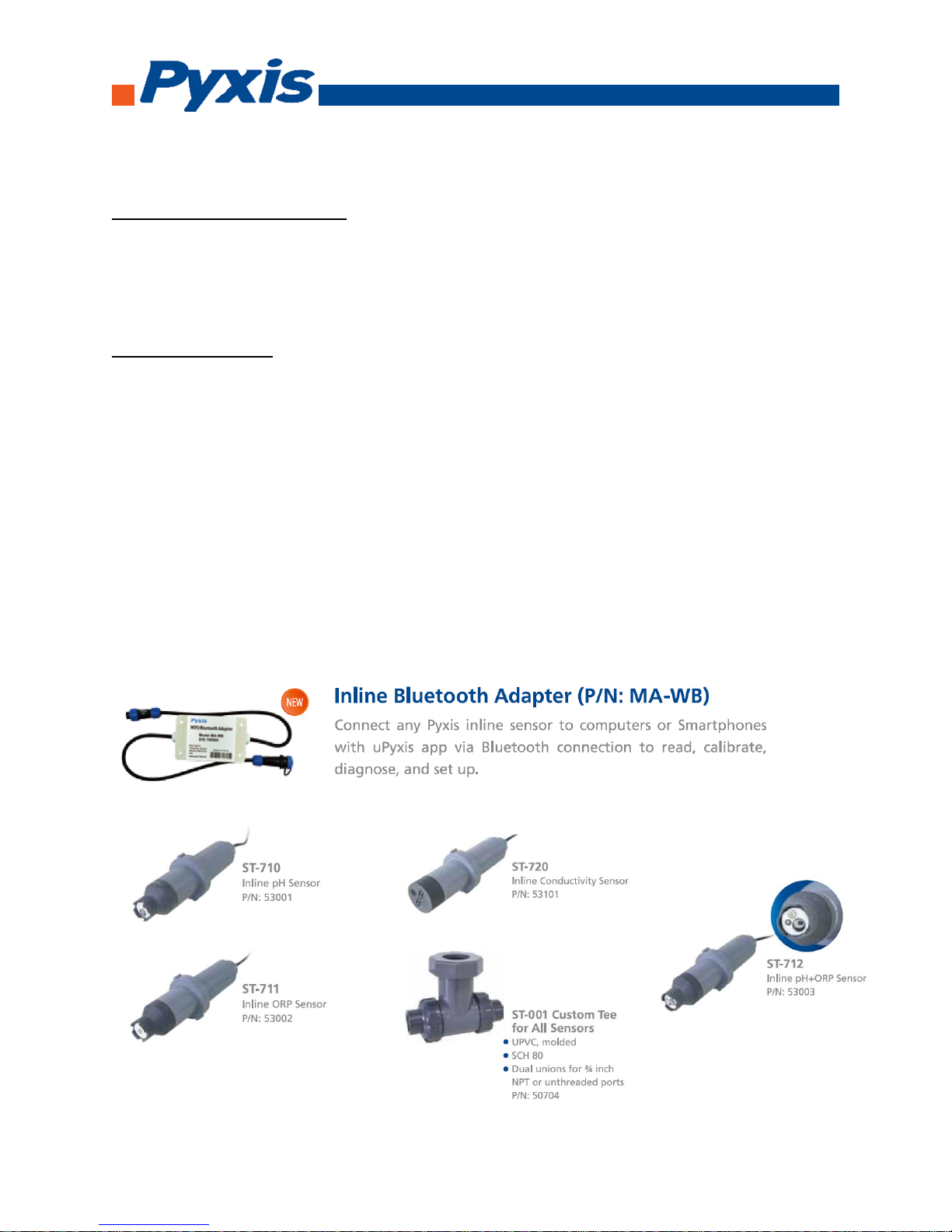
Standard Accessories Included
• ¾” NPT Inline Pyxis Tee Set (Tee, O-ring, and Nut)
• Probe Bulkhead Cable w/ Male Adapter
• Flying Lead Cable w/ Female Adapter & Open Leads (Wired to Controller)
Optional Accessories
• WiFi/Bluetooth Adaptor (Item Number: MA-WB) – For Wireless Calibration via uPyxis APP for Smartphone
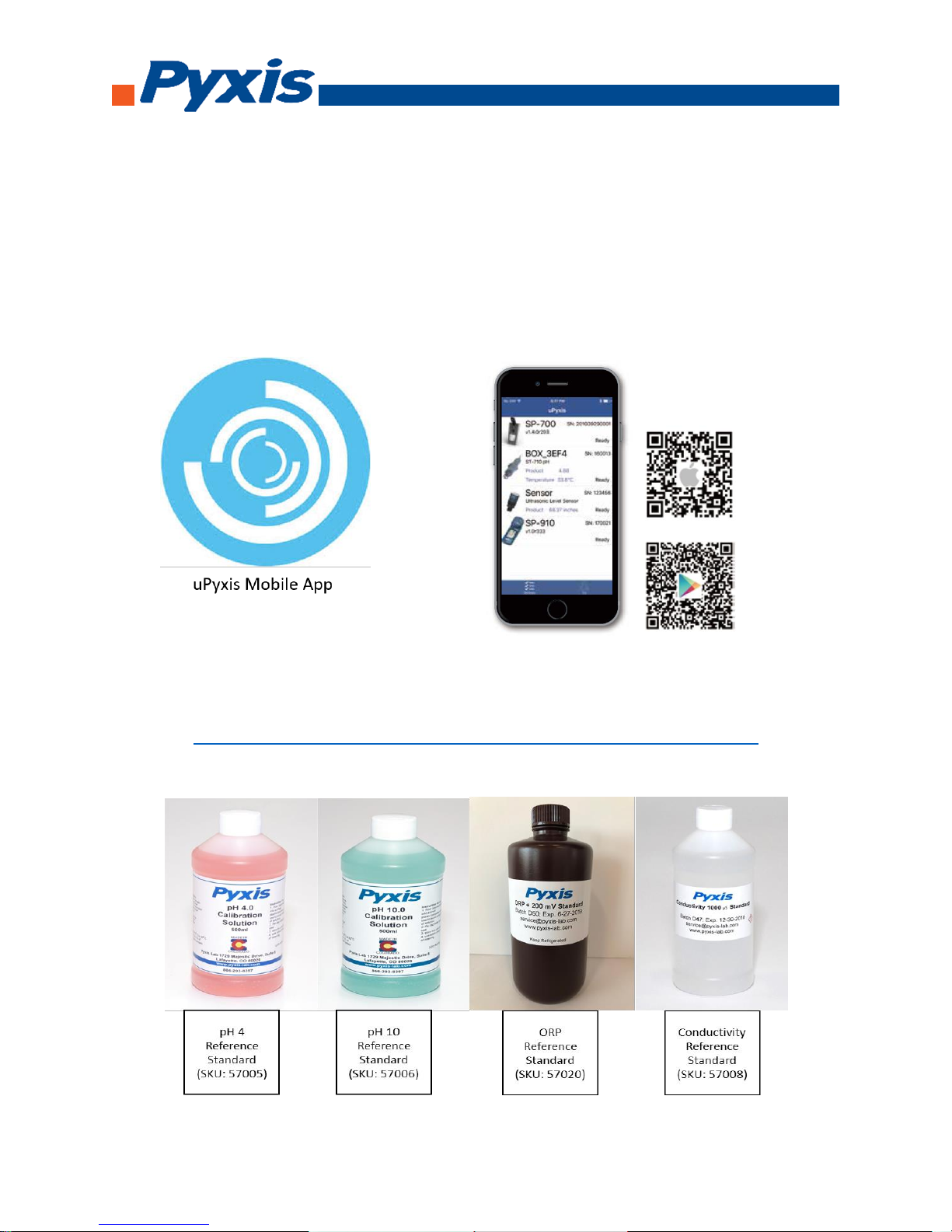
• uPyxis APP For Smartphone - (Apple iStore & Google Play)
• pH 4 Reference Standard (SKU: 57005) – For Lower Level uPyxis Calibration
• pH 10 Reference Standard (SKU: 57006) – For Upper Level uPyxis Calibration
• ORP Reference Standard 200mV (SKU: 57020) – For Single Point uPyxis Calibration
• Conductivity Reference Standard 1,000umhos (SKU: 57008) – For Single Point uPyxis Calibration
• ST Series Inline Probe Cleaning Solution (SKU: SER-01) – For Proper Probe Cleaning & uPyxis Calibrations
• Submersible Adapter (SKU: MA-102S) – For Submersed Applications – 1.5” NPT Assembly
Page 2
1729 Majestic Dr. Suite 5 Lafayette, CO 80026, USA | [email protected] | +1 (866) 203-8397
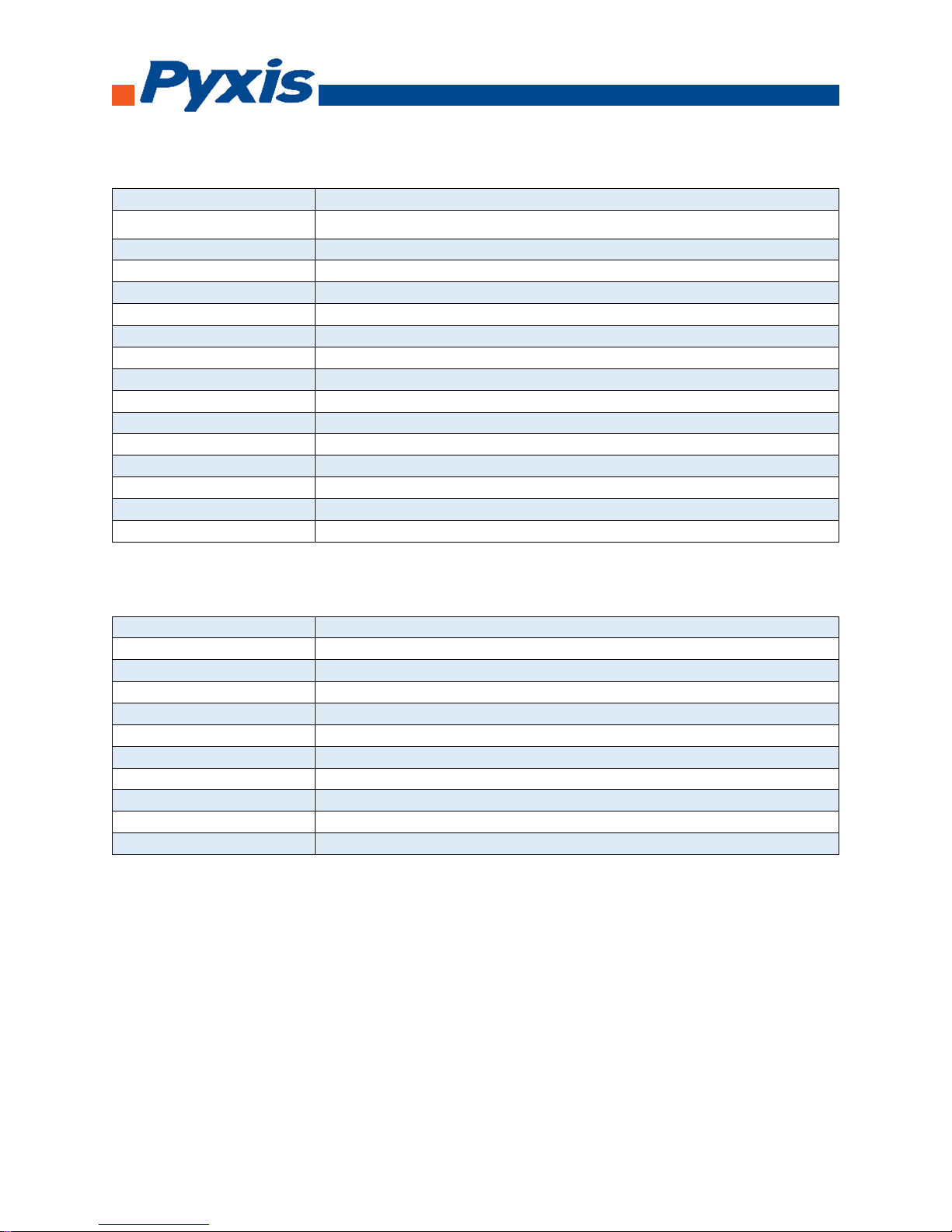
Specifications: ST-710 (pH), ST-711 (ORP), and ST-712 (pH & ORP)
Items
Specifications
pH
0 – 14 range with ATC, ± 0.01 pH unit precision
ORP
± 1500 mV range, ± 1 mV precision
Response Time
95% within 5 seconds
Power Supply
12 – 36 VDC, 1W
Output
4 – 20 mA isolated, RS-485 isolated
Connector
Custom IP67 water proof connector, 1.5 m (4.5 ft)
Operation Pressure
Up to 0.7 MPa (100 PSI) at 65 °C (149 °F)
Installation
Custom ¾ - inch tee with NPT thread
Storage Temperature
-20 °C – 60 °C (-4 – 140 °F)
Operational Temperature
0 °C – 40 °C (32 – 104 °F)
Typical Service Life
2 years
Housing Material
CPVC
Dimension
172 mm long, 36.6 mm diameter (6.8 inch long, 1.44 inch diameter)
Weight
170 g (0.37 lbs)
Regulation
CE
Specifications: ST-720 (Conductivity)
Items
Specification
Conductivity Range
0 – 10,000 µS/cm, ± 0.1 µS/cm or 0.2% of the value
Sample Temperature
32 – 104 °F
Sample Pressure
0 – 100 PSI
Power
12 – 36 VDC, 1W
Storage Temperature
-4 – 140 °F
Output
4 – 20 mA and RS – 485 Modbus
Dimension
6.8 inch long, 1.44 inch diameter
Installation
Pyxis Tee (ST-001), ¾ inch socket or threaded female union
Body Material
CPV
Others
IP67, CE
Page 3
1729 Majestic Dr. Suite 5 Lafayette, CO 80026, USA | [email protected] | +1 (866) 203-8397
Wiring Installation
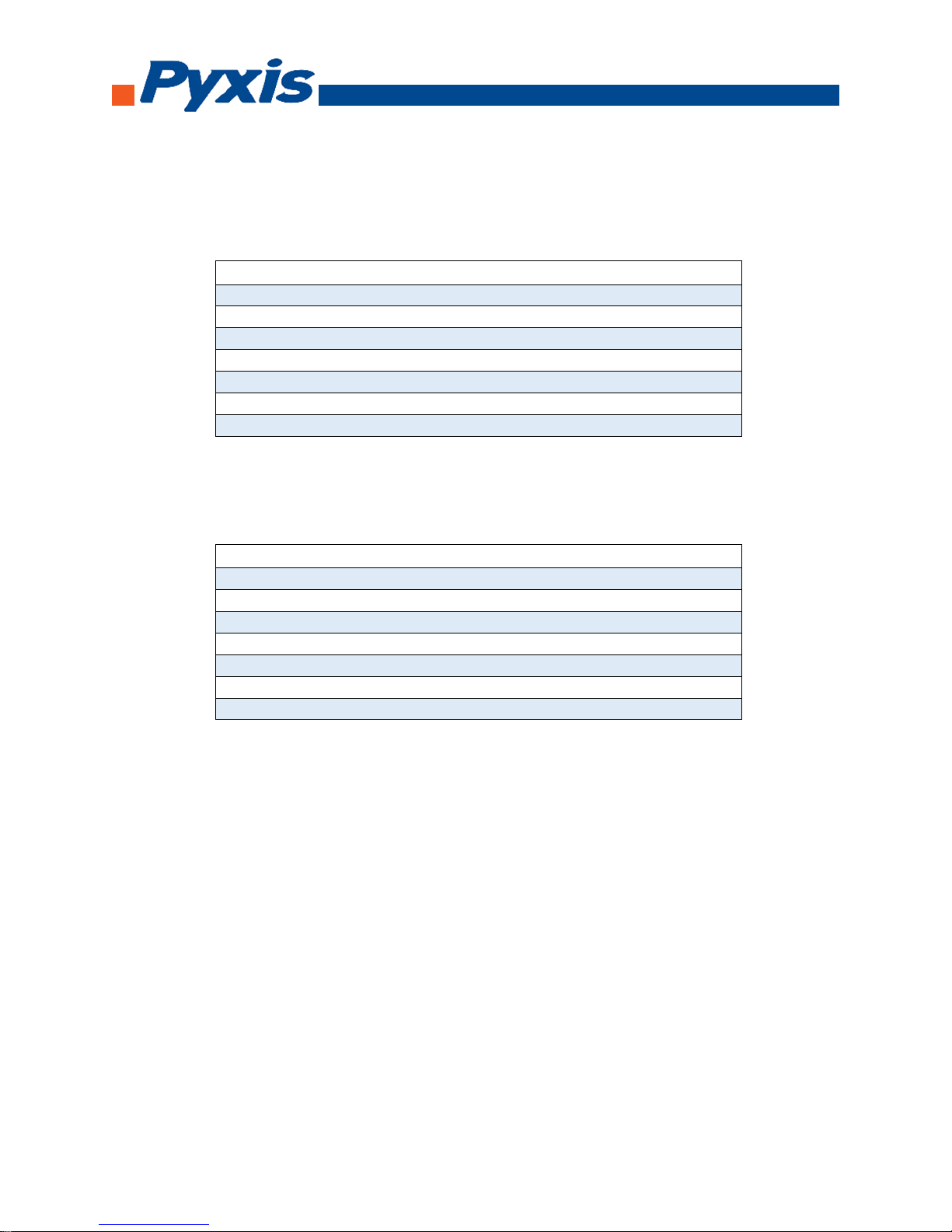
Follow the wiring table below to connect the ST-710, ST-711, ST-720 probe to a controller.
Wire Color Designation
Red 24 V
Black Power ground
White 4-20 mA +
Green 4-20 mA - Internally connected to the power ground
Blue RS-485 A
Yellow RS-485 B
Clear Shield, solution ground
Follow the wiring table below to connect the ST-712 probe to a controller.
Wire Color Designation
Red 24 V
Black Power ground and 4-20 mA -
White 4-20 mA +, pH
Green 4-20 mA +, ORP
Blue RS-485 A
Yellow RS-485 B
Clear Shield, solution ground
4 -20 mA Scaling for ST-710, ST-711, ST-712, and ST-720
ST-710 – pH Only (0-14 / 4-20mA)
ST-711 – ORP Only (0-1,500mV / 4-20mA)
ST-712 – pH & ORP (0-14 & 0-1,500mV / 2x 4-20mA)
ST-720 – Conductivity Only (0-10,000 umhos / 4-20mA)
Page 4
1729 Majestic Dr. Suite 5 Lafayette, CO 80026, USA | [email protected] | +1 (866) 203-8397
Probe Calibration with uPyxis Mobile App
Download uPyxis Mobile App
Download uPyxis Mobile App from Apple App Store or Google Play
Calibration Standards Available Online At
https://pyxis-lab.com/product-category/calibration-standards-reagents/
Page 5
1729 Majestic Dr. Suite 5 Lafayette, CO 80026, USA | [email protected] | +1 (866) 203-8397
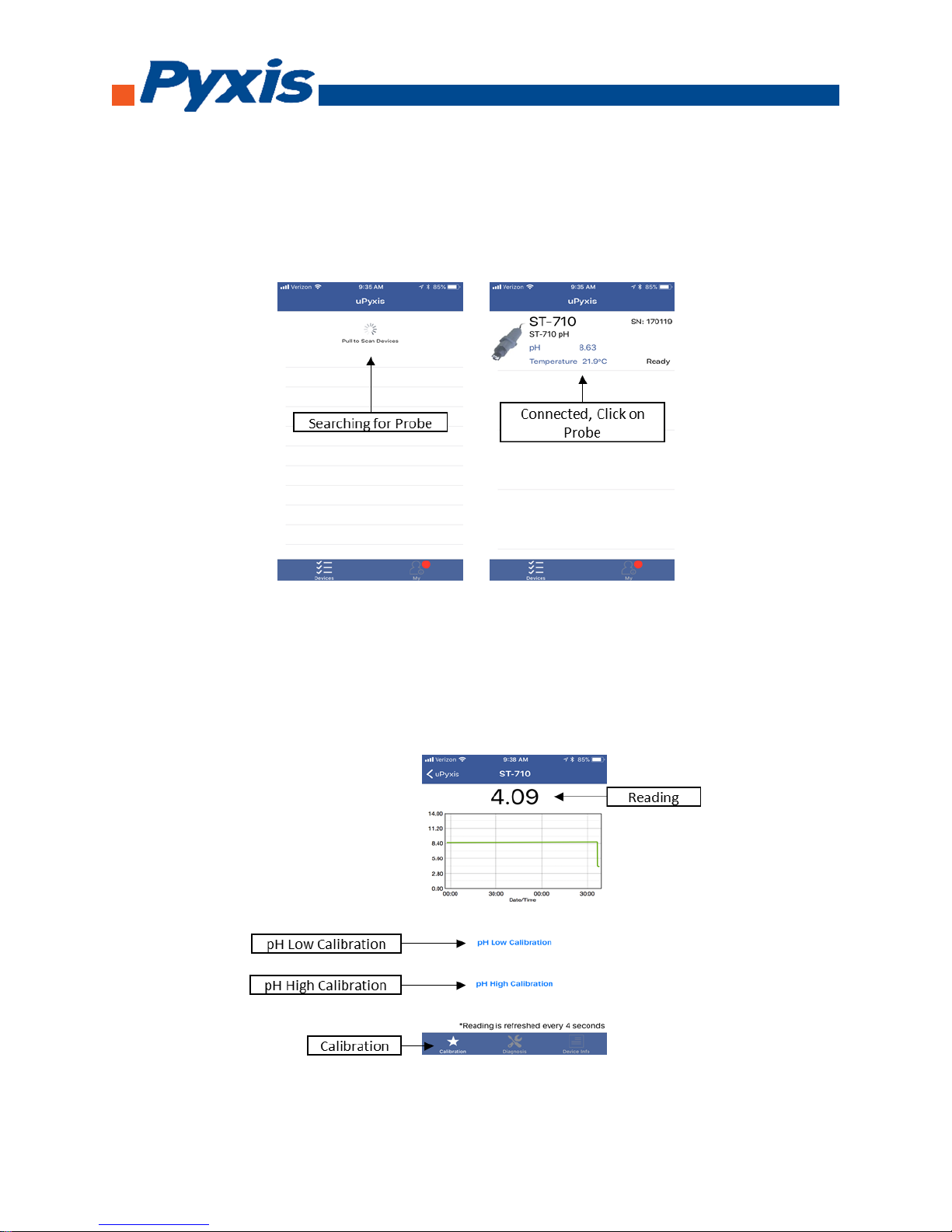
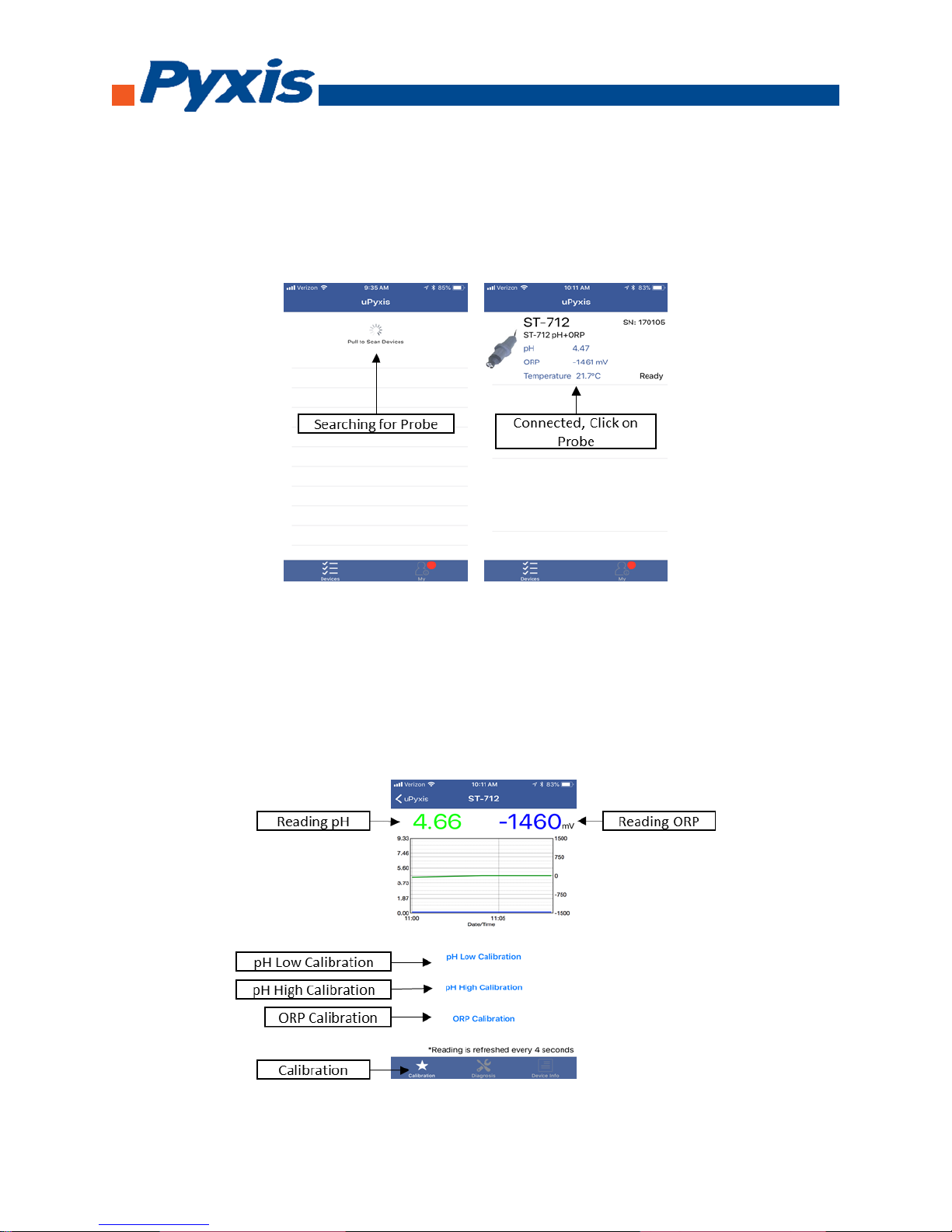
Connecting ST-710 to uPyxis Mobile App
Turn on Bluetooth on your mobile phone (Do not pair the phone Bluetooth to the probe). Open uPyxis
Mobile, uPyxis App searches for probe then connects to ST-710 probe. Click on probe once connected.
When connect, uPyxis Mobile App will default to the Calibration screen. From the Calibration screen you
can see the readings and calibrate the ST-710 probe. To perform pH Low Calibration, click on pH Low
Calibration and follow the uPyxis app prompts. To perform pH High Calibration, click on pH High
Calibration and follow the uPyxis app prompts.
Page 6
1729 Majestic Dr. Suite 5 Lafayette, CO 80026, USA | [email protected] | +1 (866) 203-8397
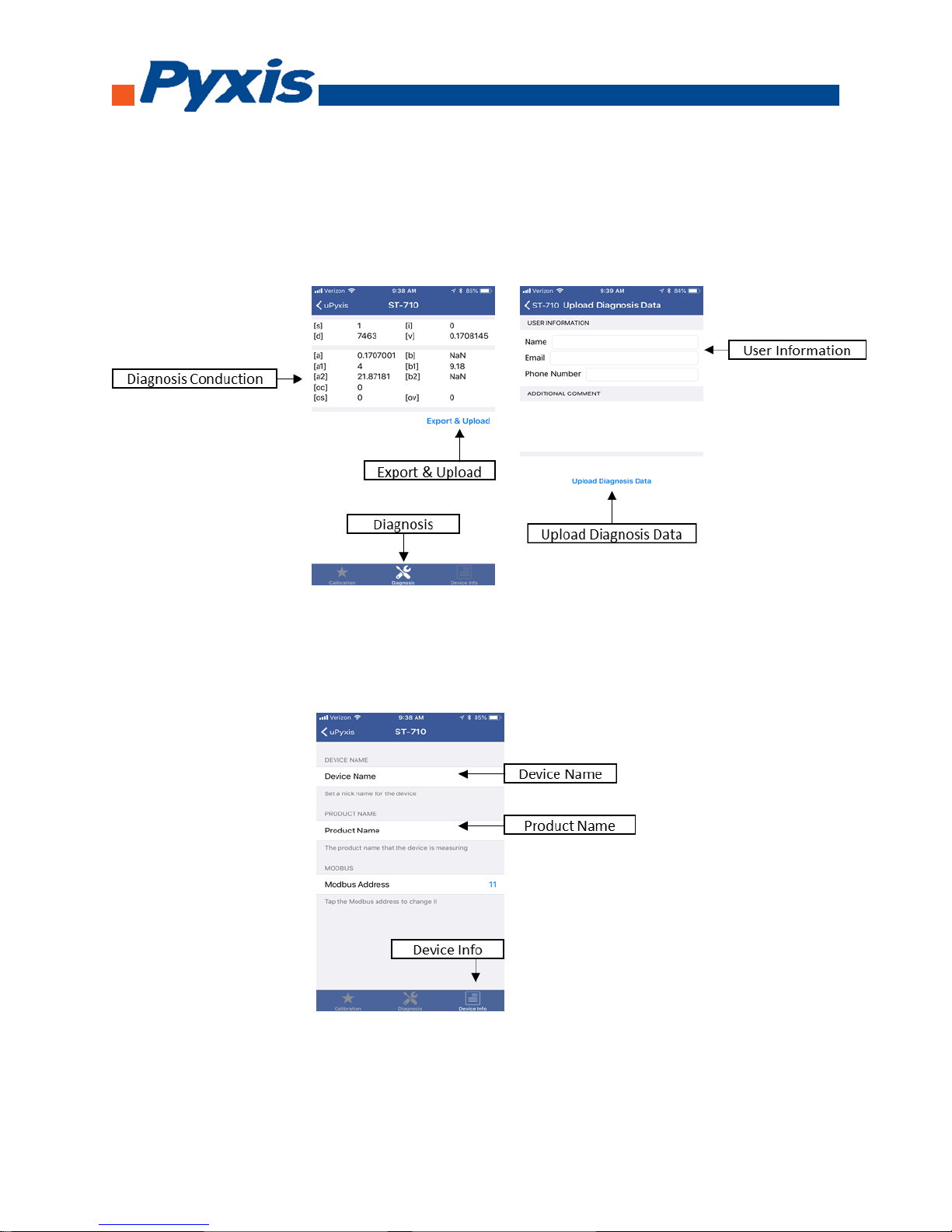
Diagnosis conduction can be checked by, click on Diagnosis to enter the diagnosis screen. In the
Diagnosis screen you can check the conduction of the meter, export, and upload diagnosis data. To
export and upload diagnosis data, click on Export & Upload. Fill in the user information then click on
Upload Diagnosis Data.
To set the Device Information, click on Device Info to enter the Device Info screen. In the Device Info
screen, you can name the device and product.
Page 7
1729 Majestic Dr. Suite 5 Lafayette, CO 80026, USA | [email protected] | +1 (866) 203-8397
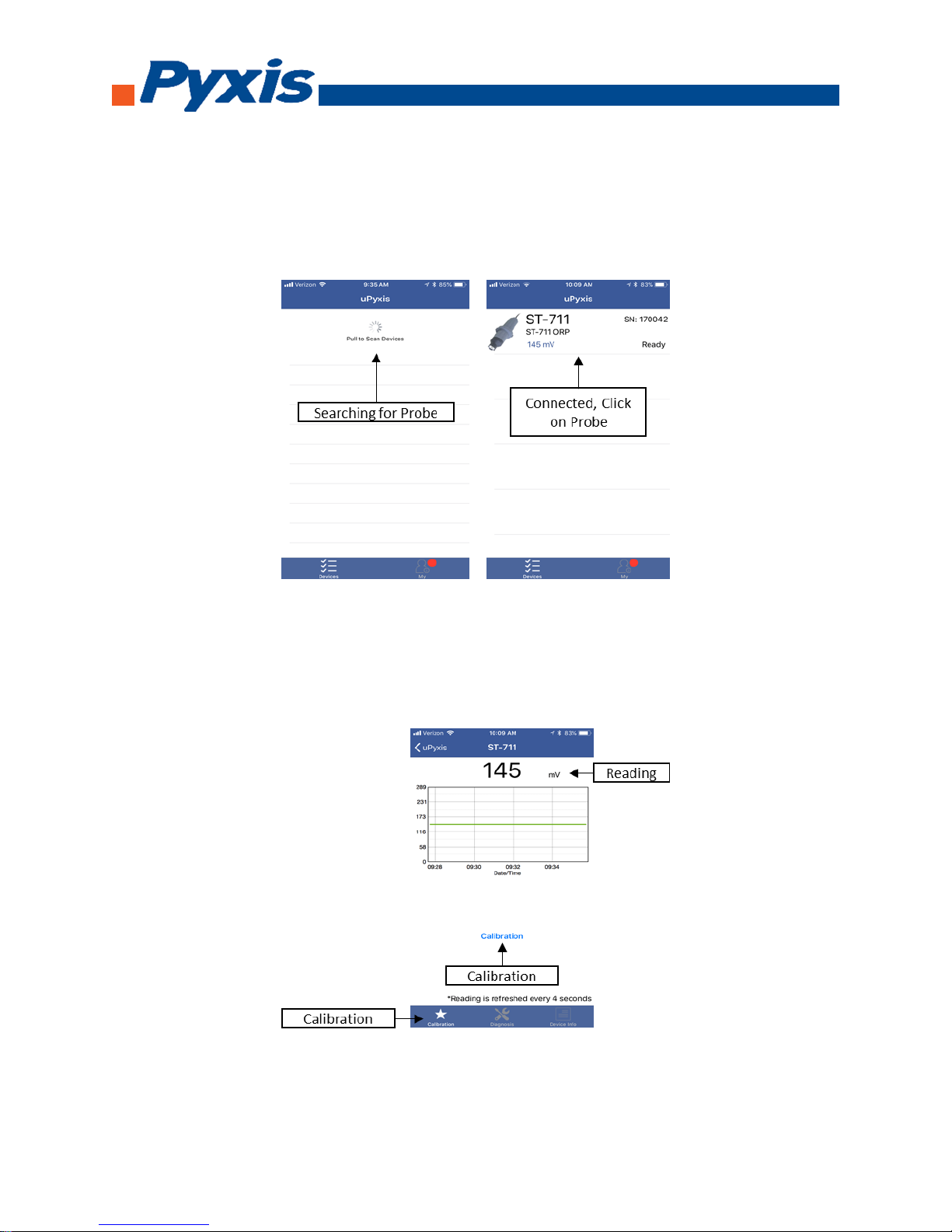
Connecting ST-711 to uPyxis Mobile App
Turn on Bluetooth on your mobile phone (Do not pair the phone Bluetooth to the probe). Open uPyxis
Mobile, uPyxis App searches for probe then connects to ST-711 probe. Click on probe once connected.
When connect, uPyxis Mobile App will default to the Calibration screen. From the Calibration screen you
can see the readings and calibrate the ST-711 probe. To perform calibration, click on Calibration and
follow the uPyxis app prompts.
Page 8
1729 Majestic Dr. Suite 5 Lafayette, CO 80026, USA | [email protected] | +1 (866) 203-8397
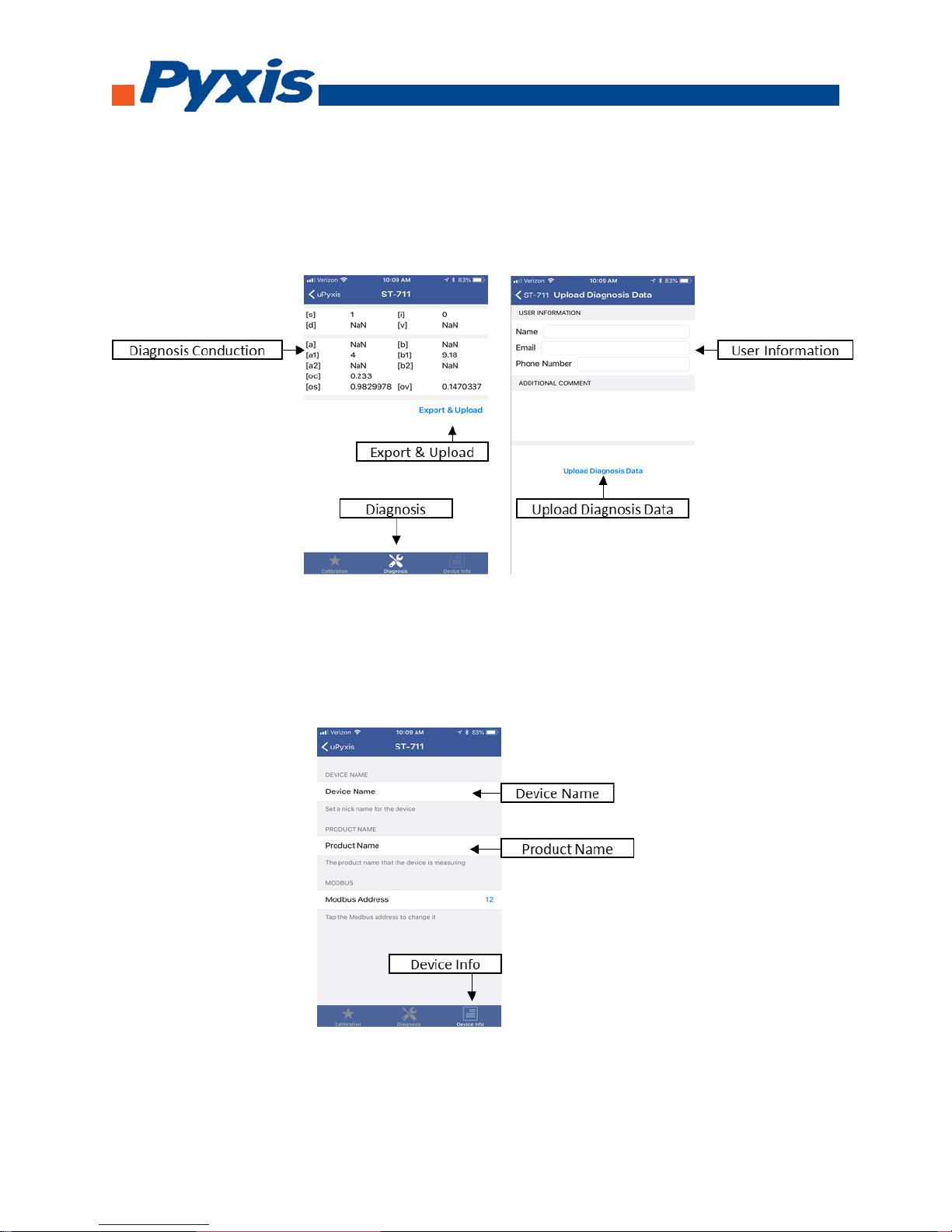
Diagnosis conduction can be checked by, click on Diagnosis to enter the diagnosis screen. In the
Diagnosis screen you can check the conduction of the meter, export, and upload diagnosis data. To
export and upload diagnosis data, click on Export & Upload. Fill in the user information then click on
Upload Diagnosis Data.
To set the Device Information, click on Device Info to enter the Device Info screen. In the Device Info
screen, you can name the device and product.
Page 9
1729 Majestic Dr. Suite 5 Lafayette, CO 80026, USA | [email protected] | +1 (866) 203-8397
Connecting ST-712 to uPyxis Mobile App
Turn on Bluetooth on your mobile phone (Do not pair the phone Bluetooth to the probe). Open uPyxis
Mobile, uPyxis App searches for probe then connects to ST-712 probe. Click on probe once connected.
When connect, uPyxis Mobile App will default to the Calibration screen. From the Calibration screen you
can see the readings and calibrate the ST-712 probe. To perform pH Low Calibration, click on pH Low
Calibration and follow the uPyxis app prompts. To perform pH High Calibration, click on pH High
Calibration and follow the uPyxis app prompts. To perform ORP Calibration, click on ORP Calibration
and follow the uPyxis app prompts.
Page 10
1729 Majestic Dr. Suite 5 Lafayette, CO 80026, USA | [email protected] | +1 (866) 203-8397
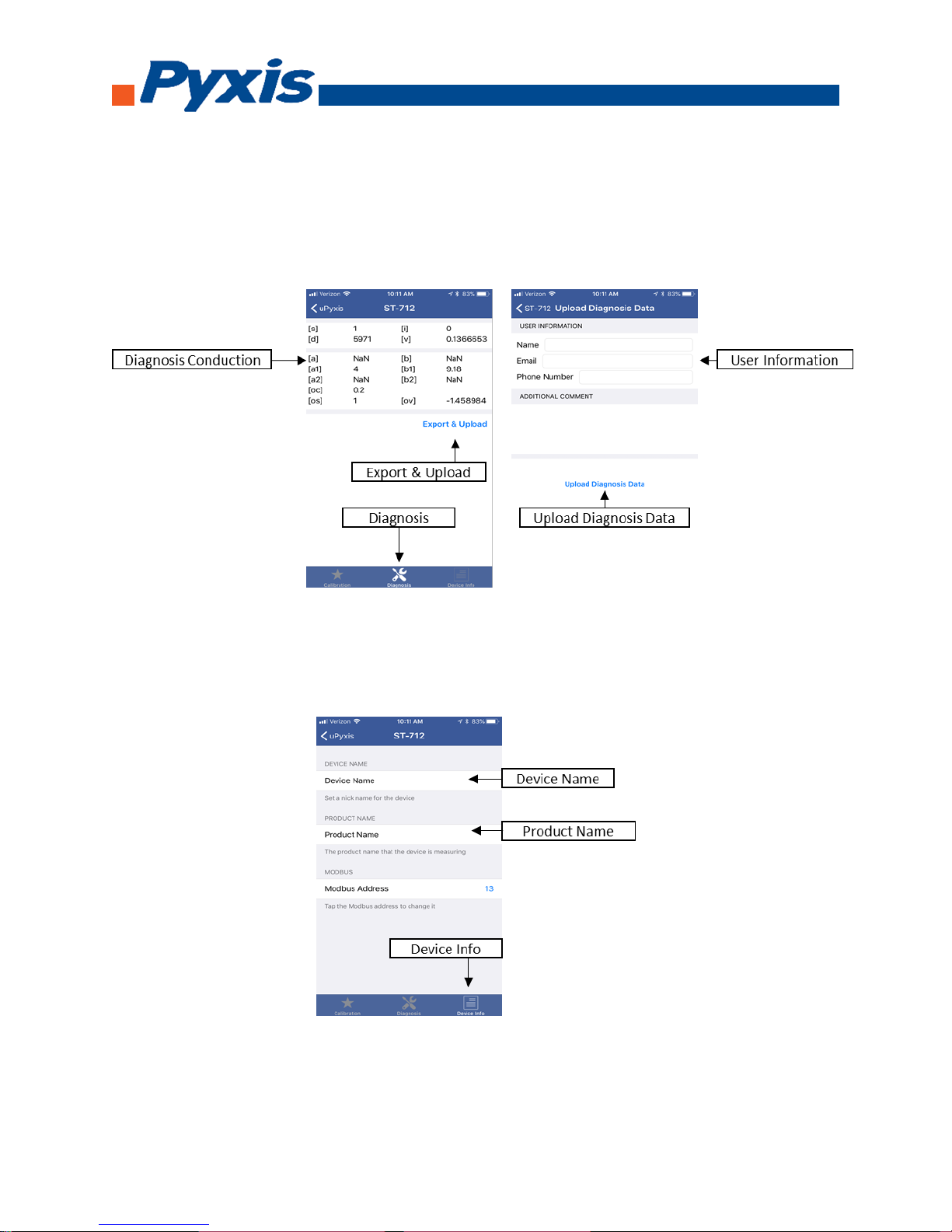
Diagnosis conduction can be checked by, click on Diagnosis to enter the diagnosis screen. In the
Diagnosis screen you can check the conduction of the meter, export, and upload diagnosis data. To
export and upload diagnosis data, click on Export & Upload. Fill in the user information then click on
Upload Diagnosis Data.
To set the Device Information, click on Device Info to enter the Device Info screen. In the Device Info
screen, you can name the device and product.
Page 11
1729 Majestic Dr. Suite 5 Lafayette, CO 80026, USA | [email protected] | +1 (866) 203-8397
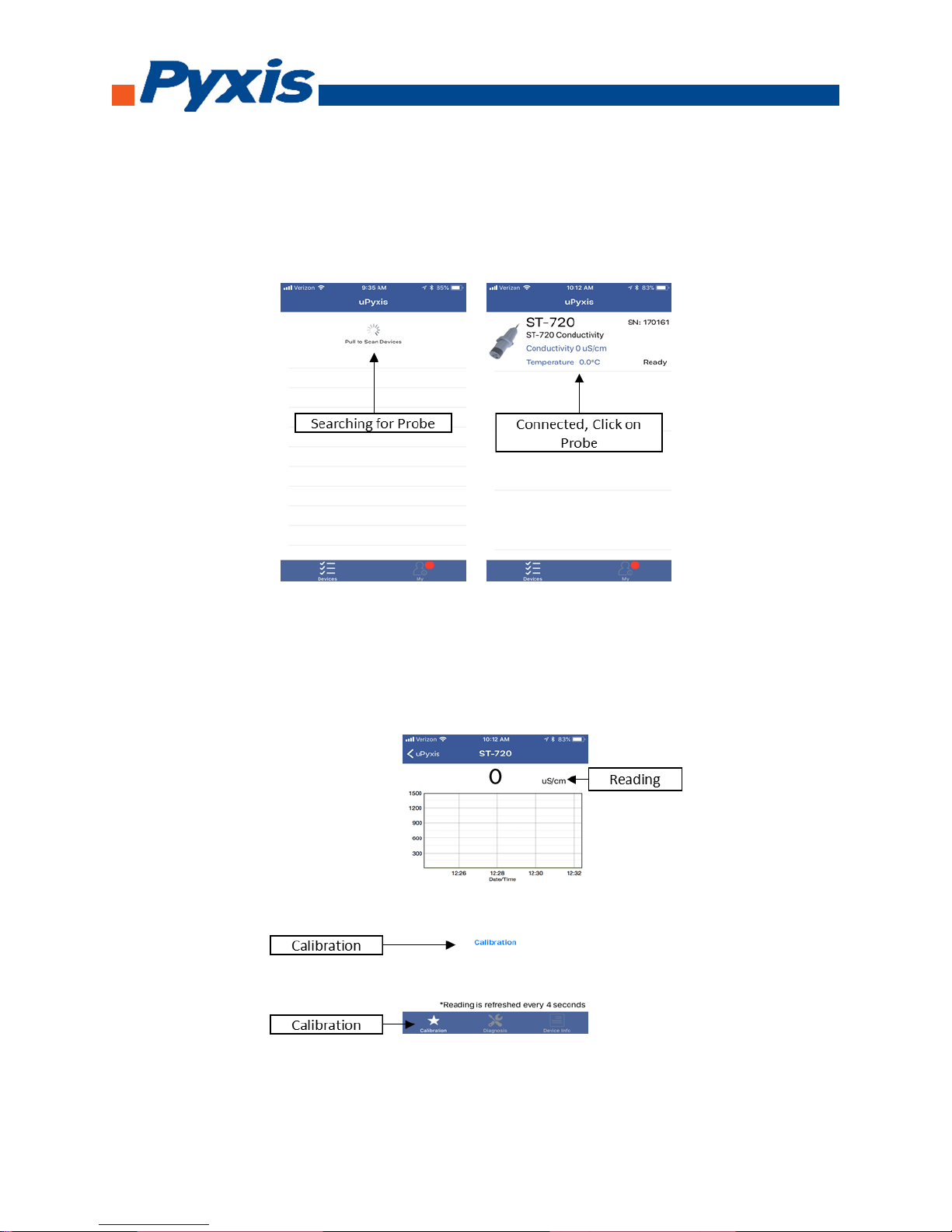
Connecting ST-720 to uPyxis Mobile App
Turn on Bluetooth on your mobile phone (Do not pair the phone Bluetooth to the probe). Open uPyxis
Mobile, uPyxis App searches for probe then connects to ST-720 probe. Click on probe once connected.
When connect, uPyxis Mobile App will default to the Calibration screen. From the Calibration screen you
can see the readings and calibrate the ST-720 probe. To perform Calibration, click on Calibration and
follow the uPyxis app prompts.
Page 12
1729 Majestic Dr. Suite 5 Lafayette, CO 80026, USA | [email protected] | +1 (866) 203-8397
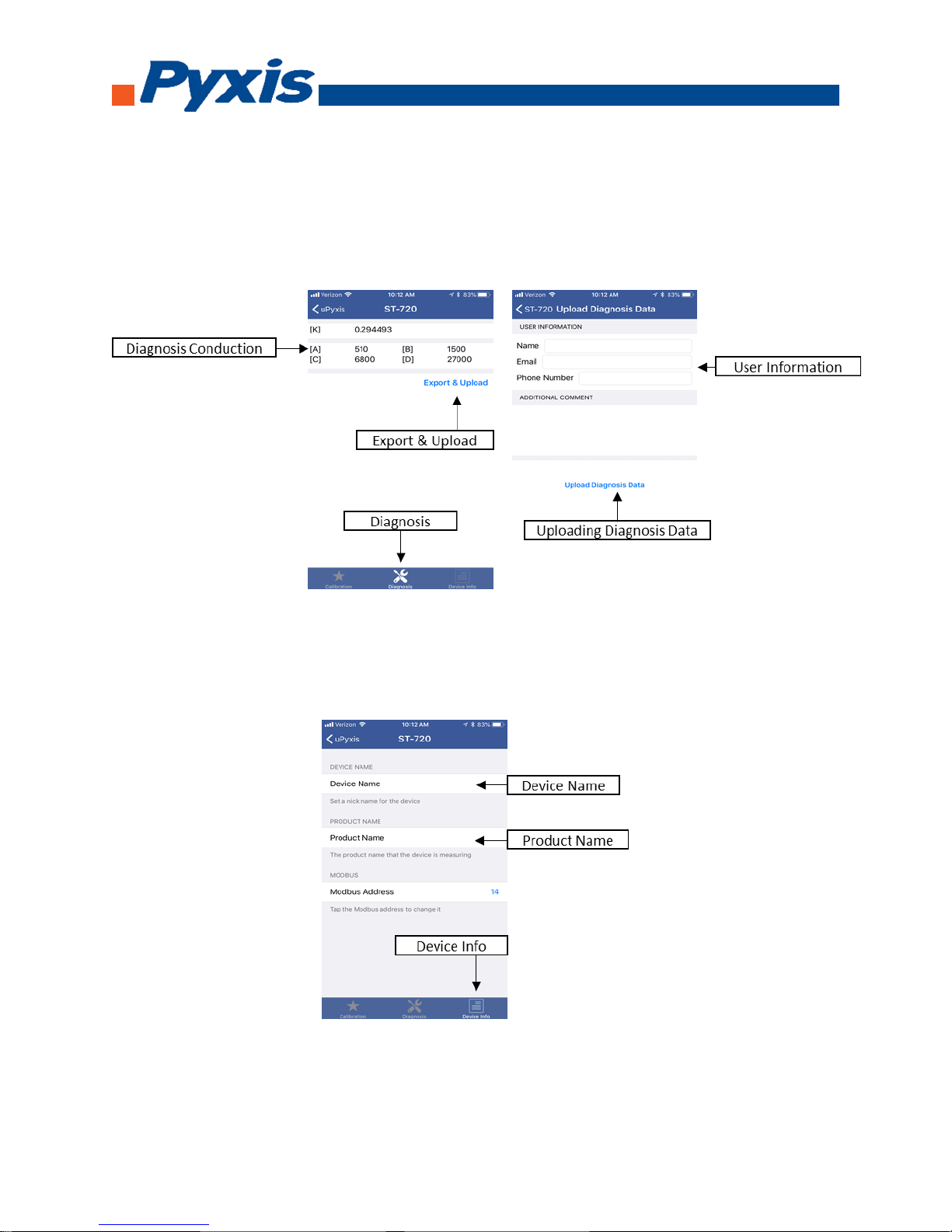
Diagnosis conduction can be checked by, click on Diagnosis to enter the diagnosis screen. In the
Diagnosis screen you can check the conduction of the meter, export, and upload diagnosis data. To
export and upload diagnosis data, click on Export & Upload. Fill in the user information then click on
Upload Diagnosis Data.
To set the Device Information, click on Device Info to enter the Device Info screen. In the Device Info
screen, you can name the device and product.
Page 13
1729 Majestic Dr. Suite 5 Lafayette, CO 80026, USA | [email protected] | +1 (866) 203-8397
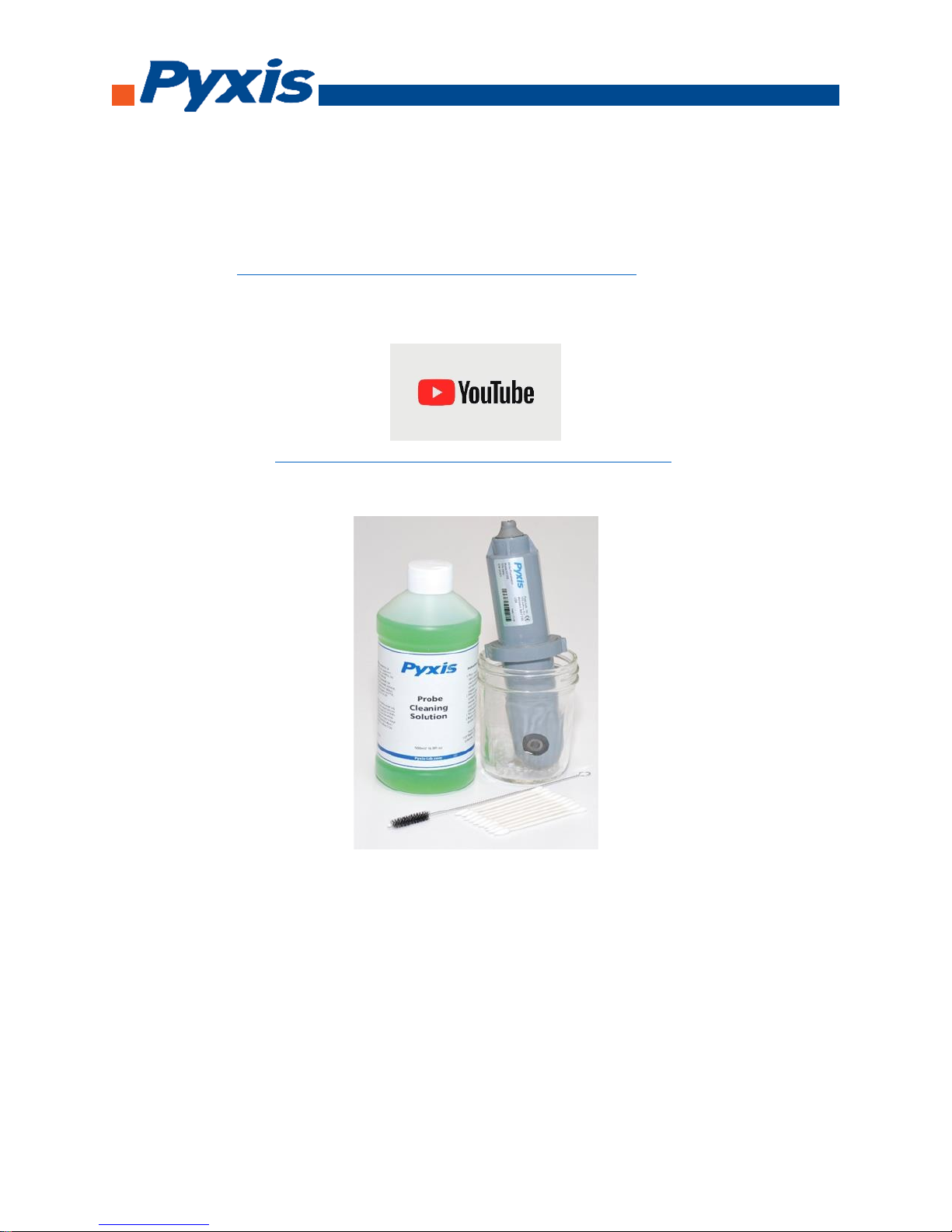
How to clean the Probe
Soak the lower half of the probe in 100 mL inline probe cleaning solution for 15-30 minutes. If the
surface is not entirely clean, continue to soak the probe for an additional time until clean. Rinse the
probe with distilled water. Pyxis Lab Inline Probe Cleaning Solution can be purchased at our online
Estore/Catalog at https://pyxis-lab.com/product/st-500-probe-cleaning-kit/
Follow the Youtube link on how to properly clean and calibrate your probes
https://www.youtube.com/watch?v=Y0OfGGOqNY4.
 Loading...