

Page 1
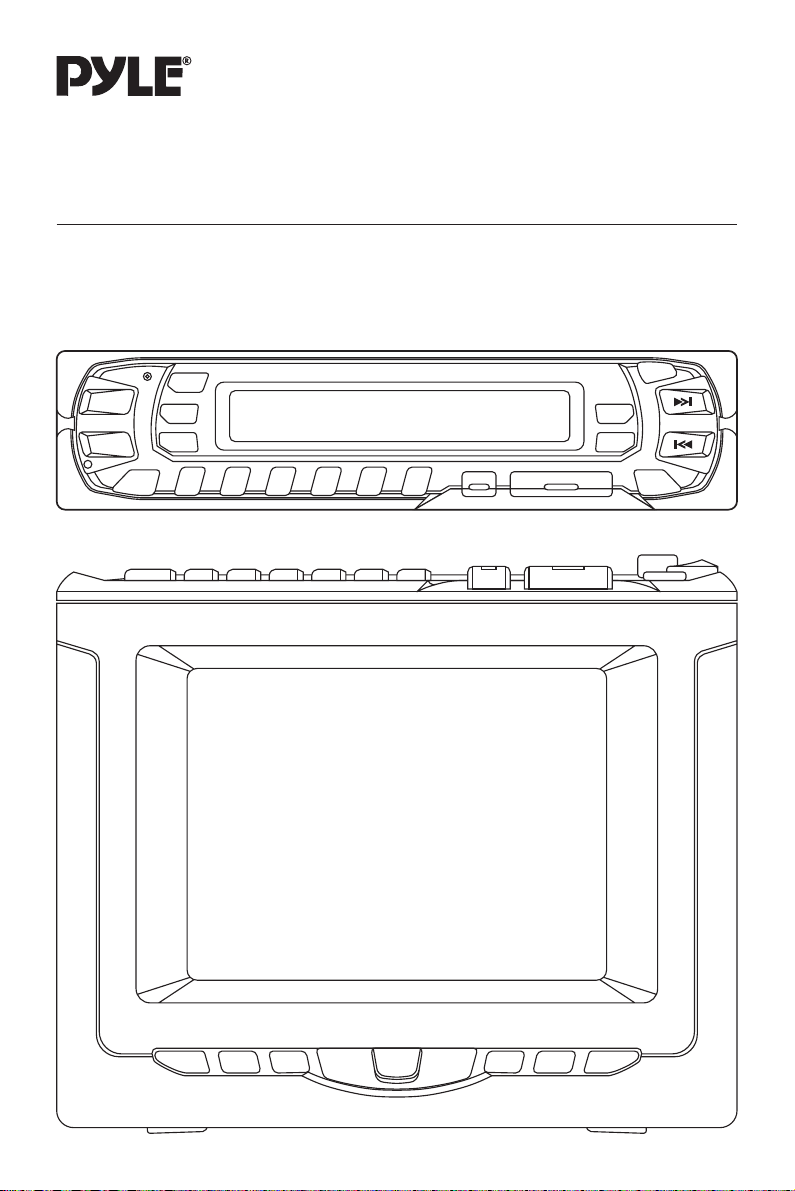
OWNER’S MANUAL
COLOR LCD TV/RECEIVER WITH
CD CHANGER CONTROL
PLTVR5
Page 2

INSTALLATION
Notes:
• Choose the mounting location where the unit will not interfere with the normal
driving function of the driver.
• Before finally installing the unit, connect the wiring temporarily and make sure it is
all connected up properly and the unit and the system work properly.
• Use only the parts included with the unit to ensure proper installation. The use of
unauthorized parts can cause malfunctions.
• Consult with your nearest dealer if installation requires the drilling of holes or other
modifications of the vehicle.
• Install the unit where it does not get in the driver’s way and cannot injure the
passenger if there is a sudden stop, like an emergency stop.
• If installation angle exceeds 30˚ from horizontal, the unit might not give its optimum
performance.
30˚
• Avoid installing the unit where it would be subject to high temperature, such as from
direct sunlight, or from hot air, from the heater, or where it would be subject to dust,
dirt or excessive vibration.
INSTALLATION HARDWARE
Bracket (A)
(2 pcs)
Hexagonal Bolt
(M6 x 12) (4 pcs)
Tapping Screw
(M5 x 25) (1 pcs)
Bracket (B)
(2 pcs)
Tapping Screw
(M5 x 12) (4 pcs)
Nut
(M5) (1 pcs)
Mounting Bolt
(M5 x 5) (8 pcs)
Plain Washer
(M5) (1 pcs)
2
Double sided
tape (2 pcs)
Mounting Bolt
(M4 x 5) (4 pcs)
Spring Washer
(M5) (5 pcs)
Lever
(2 pcs)
Strap (1 pcs)
Spring Washer
(M6) (4 pcs)
Page 3
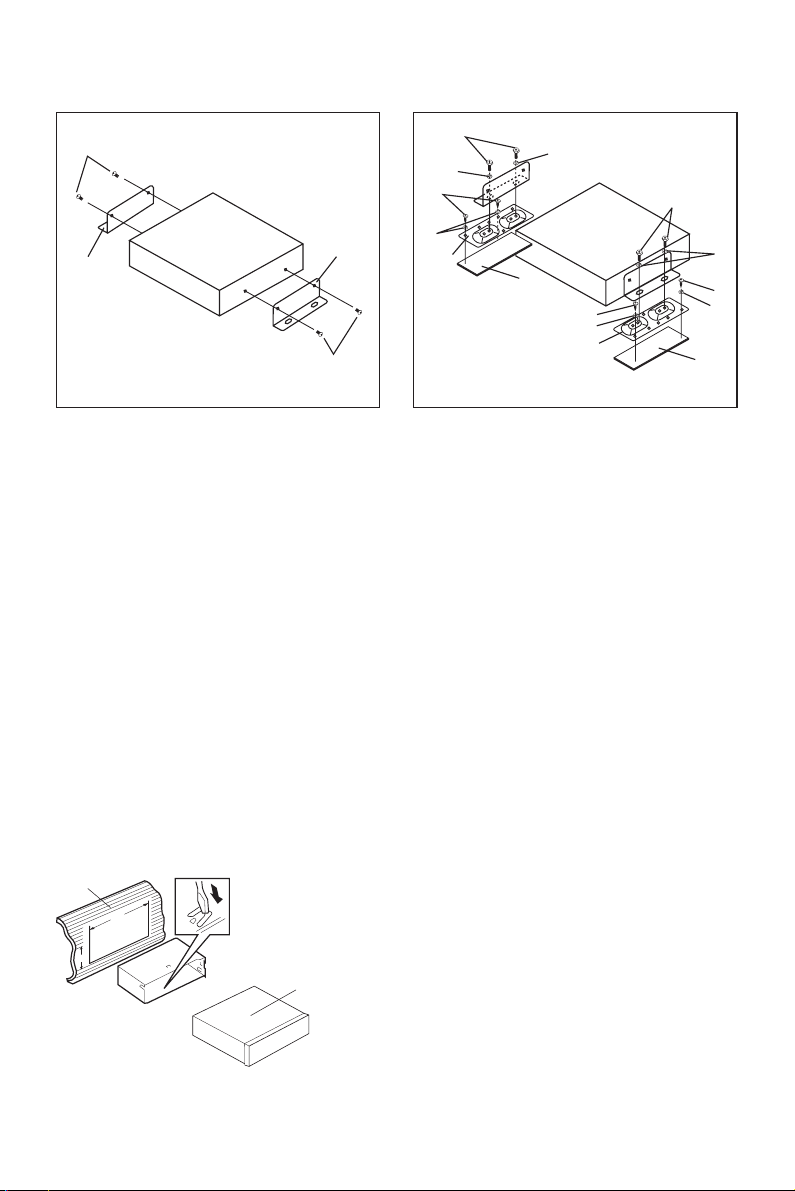
MOUNTING THE TUNER UNIT
2
1
1
2
4
6
5
7
3
6
4
8
5
7
3
7
8
Step 1 Step 2
1. Bracket (A) 5. Tapping Screw with Washer (M5 x 12)
2. Mounting Bolt (M5 x 5) 6. Spring Washer (M6)
3. Bracket (B) 7. Spring Washer (M5)
4. Hexagonal Bolt with Washer (M6 x 12) 8. Double Sided Tape
INSTALL THE DISPLAY UNIT
Before install the display unit, please remove its tail screw and cable parts. This unit
can be properly installed either from “front” (convertional DIN Front-mount) or “rear”
(DIN Rear-mount installation, utilizing threaded screw holes at the sides of the unit
chassis). For details, refer to the following illustrated installation methods.
6
5
DIN FRONT-MOUNT
Installing the unit
1
182
53
(Fig. 1)
2
1. Dashboard
2. Holder
After inserting the holder into the
dashboard, select the appropriate tab
3
according to the thickness of the
dashboard material and bend them
inwards to secure the holder in place.
3. Display Unit
3
Page 4
1
6
4
2
3
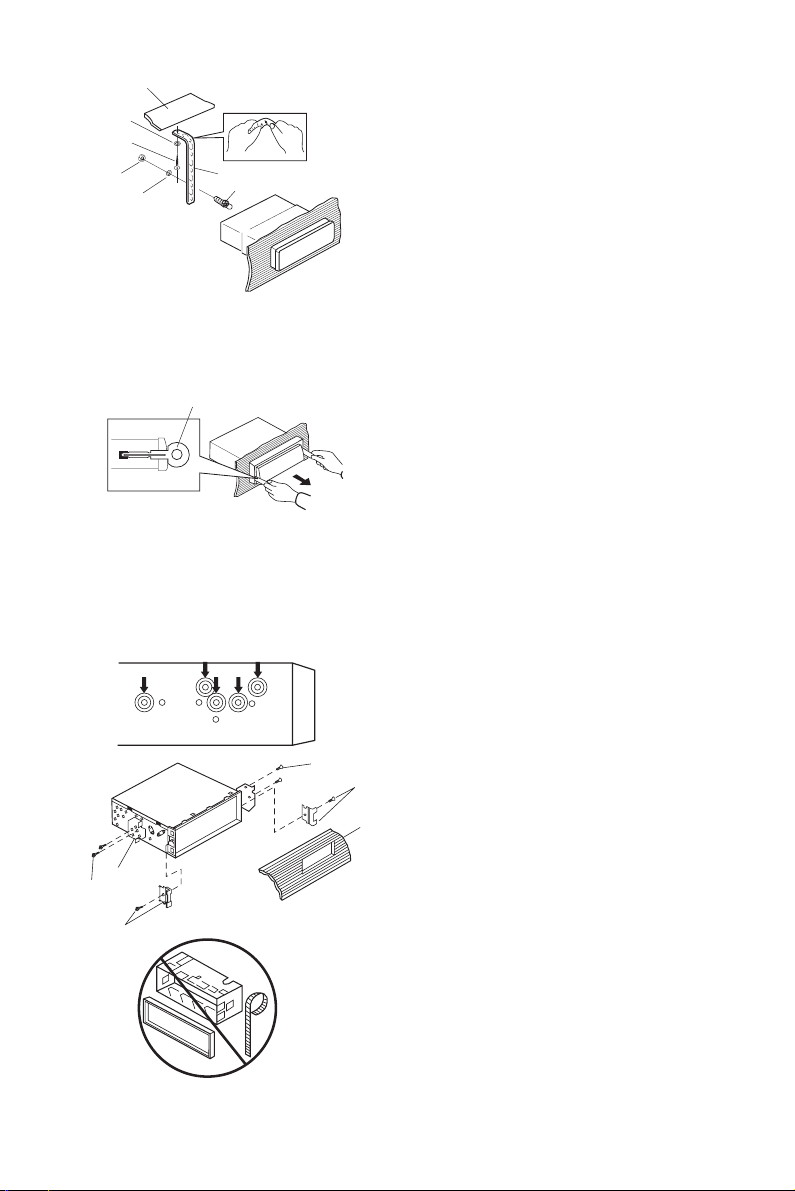
(Fig. 2)
Removing the unit
1. Dashboard
2. Nut (M5)
3. Spring Washer
4. Tapping Screw with Washer (M5 x 25)
7
5
5. Screw
6. Plain Washer
7. Strap
Be sure to use the strap to secure the
back of the unit in place. The strap can
be bent by hand to the desired angle.
1
1. Lever
Insert the levers supplied with the unit
into the grooves at both sides of the unit
as shown in figure until they click.
Pulling the levers upward and out to
makes it possible to remove the unit.
DIN REAR-MOUNT
Installation using the screw holes on the both sides of the unit.
1
2
3
2
5
Fastening the unit to the factory radio
mounting bracket.
1. Select a position where the screw holes
of the bracket and the screw holes of
5
the main unit become aligned (are fitted),
and tighten the screws at 2 places on
each side.
4
Use either truss screws (5 x 5mm) or
screws (4 x 5mm), depending on the
shape of the screw holes in the bracket.
2. Screw
3. Factory Radio Mounting Bracket
4. Dashboard or Console
5. Hook and Screw (Remove this part)
Note: The frame, strap, and half-sleeve are
not used for REAR-MOUNT.
4
Page 5
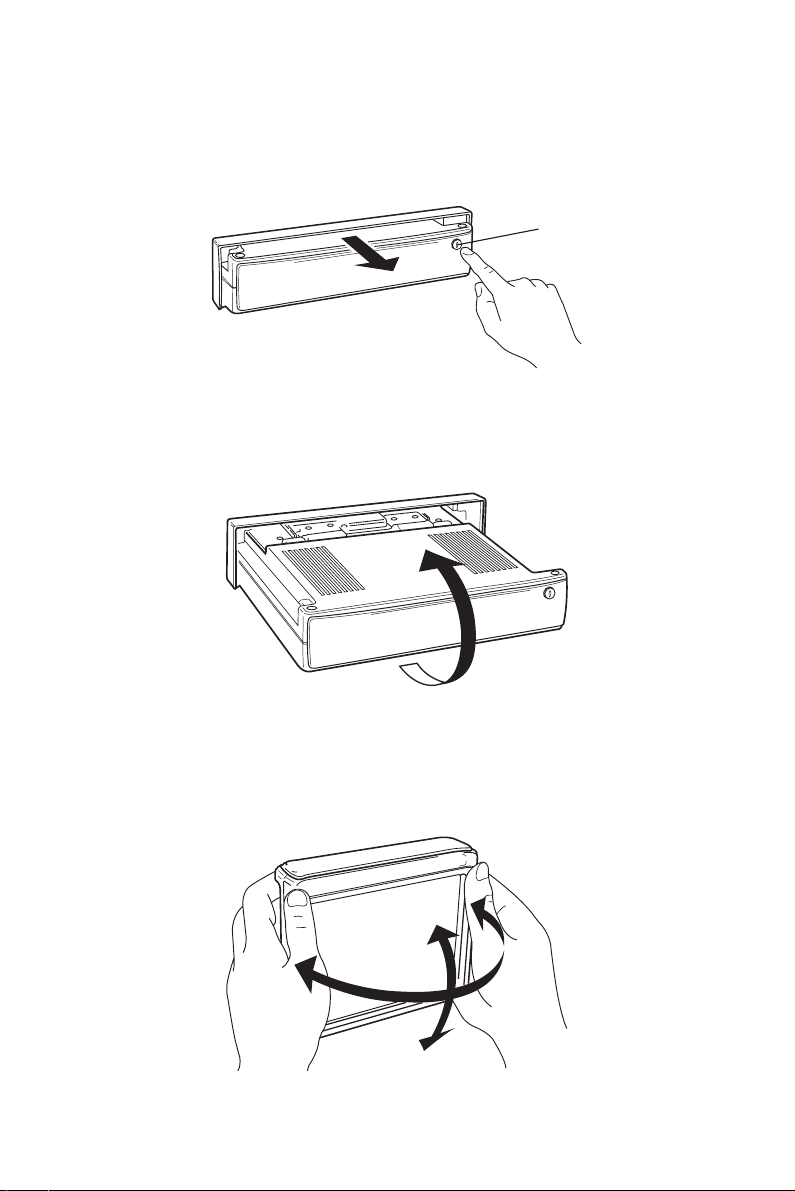
HOW TO OPEN AND CLOSE THE SCREEN DISPLAY
1. Press release button to draw out the screen display.
Release Button
2. Turning the display upward.
3. Adjusting the viewing angle. Angle should be adjusted slowly without applying
unreasonable force.
5
Page 6

4. Turning the display downward. Make sure to return the display to centre position
before drawing in. It cannot be draw in with its angles adjusted.
5. Push the panel, the display will be drawn in.
6
Page 7

ELECTRICAL CONNECTION
BOX
CHOKE
BLUE/WHITE POWANT
RED ACC
YELLOW MEMORY
BLACK GROUND
TO POWER SUPPLY
RADIO/TV MAIN UNIT
(VIEW FROM REAR)
TV DIVERSITY ANTENNA INPUT
CDC INPUT
GREY
TV CONTROL
VIOLET
VIOLET/BLACK
GREY/BLACK
TO CD CHANGER
GREEN
GREEN/BLACK
RADIO ANTENNA INPUT
TV DIVERSITY ANTENNA INPUT
GREY
WHITE
GREY/BLACK
WHITE/BLACK
FRONT RCA CABLE
(BROWN)
Rch RED
Lch WHITE
REAR RCA CABLE
(FOR RCA LINE VERSION ONLY)
(GREY)
Rch RED
Lch WHITE
RADIO/TV MAIN UNIT
(VIEW FROM FRONT)
AV INPUT
AV1
AV2
VIDEO AUDIO–R AUDIO–L
VIDEO OUTPUT
75ohm RF WIRE (BLACK)
DISPLAY UNIT
TV MONITOR
RADIO CONTROL
FROM VIDEO/AUDIO SOURCE
BLACK CABLE
RADIO CONTROL
TV MONITOR
GREY PLUG
BLACK PLUG
BLACK/GREY CABLE
REAR
REAR
FRONT
FRONT
Rch SPK
Lch SPK
Rch SPK
Lch SPK
CAUTION:
1. If the TV control grey cable is connected to car brake, when the car is running, you
cannot switch into TV mode.
2. To select CD changer’s sort:
Before installing the unit, connect the CD changer with the unit correctly and turn
on the power to make the unit work in CD changer state. If the operation normally,
the switch button’s position is right, otherwise, please dial the switch button to the
other position.
Note: How to select A or B in CDC SET is different according to the units and the
customers use.
7
Page 8

OPERATION
11
9 210 516 13
3212
223
15
4
20 21191817
6 8
7
1
14
30 42829 2624 2725 3123
8
Page 9

GENERAL OPERATION
• ON/OFF
Switch on the unit by pressing POWER button (1). When system is on, press it
again to turn it off.
• FACEPLATE RELEASE
Press REL button (2) to draw out the faceplate, push the panel to draw in.
When the faceplate is drawn out, turn the faceplate upward and adjust TV display.
• SELECTING SOUND MODE
Press SEL button (6) to move display through volume, bass, treble, balance and
fader functions. Use VOLUME > (7) and VOLUME < (8) buttons to adjust the
selected mode. When mode has not been adjusted for several seconds, display
returns to previous display status (e.g. radio display or CDC display).
VOL BAS TRE BAL FAD
(Volume) (Bass) (Treble) (Balance) (Fader)
Volume
Adjust volume level using VOLUME > (7) and VOLUME < (8) buttons.
Bass
Press SEL button (6) for one time. Adjust bass level using VOLUME > (7) and
VOLUME < (8) buttons.
Treble
Press SEL button (6) for two times. Adjust treble level using VOLUME > (7) and
VOLUME < (8) buttons.
Balance
Press SEL button (6) for three times. Adjust sound balance between left and right
speakers using VOLUME > (7) and VOLUME < (8) buttons.
Fader
Press SEL button (6) for four times. Adjust sound balance between front and rear
speakers using VOLUME > (7) and VOLUME < (8) buttons.
• SELECTING PLAYING MODE
When the screen display is drawn in, press MODE button (12) to select desired
playing mode between radio and CDC. When the screen display is drawn out, the
unit would automatically switch into TV mode. By pressing MODE button (12), you
can select desired playing mode among TV, radio and CDC.
CAUTION: The unit cannot be switched into TV mode, when the car is running.
So at this time, you just select playing mode between radio and CDC.
• MUTE
Press MUT button (3) to cut down sound output, “MUTE” will appear on the display.
Press it again to resume the previous volume mode.
• LOUDNESS
Press LOU button (22) to increase bass output, “LOUD” will appear on the display.
Press it again to release the mode.
9
Page 10

• MONO/STEREO
Press MON button (10) to select mono or stereo mode.
In radio operation, press the button to select mono or stereo reception for radio
station. You can sometime improve reception of distant stations by select mono
mode.
• SETTING THE CLOCK
Press DSP button (5) to change the display into clock display. While the current
time is appeared on the display, press it again to return to frequency showing.
Time Setting
- Set hours:
Holding down DSP button (5) for several seconds, and the clock is blinking on
the display, press button (14) to adjust the hour.
- Set minutes:
Holding down DSP button (5) for several seconds, and the clock is blinking on
the display, press button (13) to adjust the minutes.
• LIQUID CRYSTAL DISPLAY
The LCD (4) can show the current state of the unit.
• RESET
Reset button (32) must be activated with either a ball point pen or thin metal object.
Reset button (32) is to be activated for the following reasons:
- Initial installation of the unit when all wiring is completed.
- All the function buttons do not operate.
- Error symbol on the display.
10
Page 11

RADIO OPERATION
• SELECTING BAND
Press BAND button (11) to change between three FM bands and two AM bands.
Each band stores up to six preset stations.
FM1 FM2 FM3 AM1 AM2
• SELECTING STATION
During radio mode, press button (13) to increase frequency or button (14) to
decrease frequency by one step of channel spacing. Hold the button longer for fast
tuning. The frequency is updated correspondingly on display.
• LOCAL/DISTANCE
Press the LOC button (9) to select between local mode for receiving with strong
signals and distance mode for receiving with weak signals when tuning.
• SELECTING MEMORY
Press preset memory buttons (15) to preset stations at tuner mode. With this
system, a total of 30 stations can be stored in the memory of six buttons.
The stations might be FM1, FM2, FM3, AM1 and AM2 band. The operation is as
below:
- Store in Memory
Press and hold desired memory location button for several seconds. The current
listening station will be stored into the number button.
- Retrieve a Preset Station
Press any one of the buttons (15) to retrieve a station which had been stored in
the memory in advance the chosen number is shown on display.
• AUTO MEMORY STORING & SCANNING
- Auto Memory Storing
Seeks the six strongest stations in the pre-selected band automatically and stores
the stations automatically in preset memories.
Initially the tuner seeks and memories the stations in local mode until 6 stations
are fully occupied. Otherwise, seeking is proceeded in distance mode.
- Auto Memory Scanning
Check the stations stored in the preset memories.
Press to retrieve automatically the current stations stored in six preset memories
and it will display for several seconds. Press either the AMS button (16) again or
anyone of the memory buttons to stop the scan operation. During the preset
scan operation, the channel number flashes on the display for several seconds.
Preset station scan continuously in the pre-selected band.
11
Page 12

CDC OPERATION
• SELECTING TRACK
During CDC mode, press button (14) or button (13) shortly to move to the
previous track or the next track. The track number shows on the display.
• SELECTING CD
Press D.UP button (17) to select next disc and D.DN button (18) to select previous
disc.
• REPEAT THE SAME TRACK
Press RPT button (19) to continuously repeat the same track on the current disc.
Press it again to continuously repeat all tracks on the current disc. Press it the third
time to stop repeating.
• PREVIEW ALL TRACKS
Press SCN button (20) to play the first several seconds of each track on the current
disc. Press it again to stop intro and listen to track.
• PLAY ALL TRACKS
Press RND button (21) to play all tracks on the current CD in random order.
Press it again to cancel the mode.
• CD CHANGER SETTING
MAIN UNIT
(VIEW FROM FRONT)
CDC SET
AB
Switch Button
Reference the figure above, when the CD input use 6 disc CD changer, the switch
button should be dialed to B side, when the CD input use 10 disc CD changer, the
switch button should be dialed to A side.
12
Page 13

TV OPERATION
• SELECTING RECEIVING MODE
Press TV/AV button (31) to select among TVch/AV1/AV2.
• PICTURE ADJUSTMENT/PROGRAM SETTING/SYSTEM CONTROL
In TV mode, press MENU button (23) to enter the main menu. And the menu
includes three sub-menus: PICTURE MENU, TUNER MENU and SYSTEM MENU.
Press the button repeatedly or press CHANNEL SELECT + button (28) or CHANNEL
SELECT – button (29) to select the desired item then press CONTROL + button
(24) or CONTROL – button (25) to enter the corresponding sub-menu to set.
- In PICTURE MENU, use CHANNEL SELECT + button (28) or CHANNEL SELECT
– button (29) to select picture mode upward or downward as follows:
BRIGHT CONTRAST COLOR SHARP TINT
Then use CONTROL + button (24) or CONTROL – button (25) to adjust the
selected item. Note: In PAL SYSTEM, there is no “TINT” item.
- In TUNER MENU, use CHANNEL SELECT + button (28) or CHANNEL SELECT
– button (29) to select picture mode upward or downward as follows:
POS SKIP BAND FINE AFT SEARCH ASM
Then use CONTROL + button (24) or CONTROL – button (25) to adjust the
selected item.
- In SYSTEM MENU, use CHANNEL SELECT + button (28) or CHANNEL SELECT
– button (29) to select picture mode upward or downward as follows:
COLOR SOUND LANG. B/B CORING HALFTONE
Then use CONTROL + button (24) or CONTROL – button (25) to adjust the
selected item.
In AV mode, press MENU button (23), the screen will display PICTURE MENU and
SYSTEM MENU but not TUNER MENU. And in SYSTEM MENU, there is no
“SOUND” item. The setting method is the same with that in TV mode.
Note: In the menus (except TUNER MENU), if you don’t operate over 6 seconds,
the screen display will disappear.
• SELECTING CHANNEL
Press CHANNEL SELECT + button (28) or CHANNEL SELECT – button (29) to
choose channel upward or downward.
• PROGRAM SCANNING
Press SCAN button (26), “SCAN OFF” will display on the lower left corner of the
screen. Press it again, the screen will display “SCAN ON”, then it begins to scan
1.5 seconds of each channel in sequence. When it completes, the screen will
display “SCAN OFF”.
13
Page 14

In the course of scanning, press SCAN button (26), “SCAN OFF” will also display
on the screen and it stops on the TV channel just scanning.
• SCREEN DISPLAY
Press DISP button (27), the screen will display the current status such as
TVch/AV1/AV2, the COLOR SYSTEM and the SOUND SYSTEM on the right-top
corner. In AV mode, there is no SOUND SYSTEM display.
• REMOTE SENSOR
Point the remote control handset to the remote sensor (30).
Press the function keys on the handset to control TV.
14
Page 15

REMOTE CONTROL HANDSET
1
2
3
4
17
16
5
6
8
10
11
9
7
13
14
1512
CONTROL & FUNCTION KEYS
1. POWER = Press POWER to turn the unit ON or OFF
2. TV/AV = Switch between TV/AV1/AV2
3. 0 - 9 = Numeric buttons, press to select the corresponding channel
4. -/-- = Digital selecting button, cooperatively used with numeric buttons
5. MUTE = Press to mute the sound. When release the button, the screen will
6. SCAN = Scan 1.5 seconds of each channel
7. MENU =
8. / = In case of MENU mode, the buttons are used to select the sub-menus
9. / =
10. VOL + = Increase the volume level
11. VOL – = Decrease the volume level
12. PICT = Select picture mode. There are five modes: STANDARD, SHARP,
13. RETURN = Switch between last viewed channel and this time viewed channel
14. CH + = Choose channel upward
15. CH – = Choose channel downward
16. DSP = Press to display the channel number and SYSTEM status. In AV mode,
17. SORT = Program sorting button, cooperatively used with digital selecting button
display VOLUME XX for about 4 seconds, and this is the AUDIO level
setting value of the TV unit. The users may not mind it, and that adjust
the volume level by VOL + and VOL – buttons.
Display the main menu to adjust picture and set program and control system
In case of MENU mode, the buttons are used to adjust the selected item
BRIGHT, MEMORY and MILD. The MEMORY mode is user-defined
mode and the others are preset mode.
there is no SOUND SYSTEM display
and numeric buttons
15
Page 16

SPECIFICATION
GENERAL
Power Supply Voltage : DC 12 Volts, Negative Ground
Maximum Power : 4 x 60 Watts
Load Impedance : 10 Ampere (max.)
Tone Controls
- Bass (at 100 Hz) : + / – 10 dB
- Treble (at 10 KHz) : + / – 10 dB
TV
Monitor Screen Size : 5.0” TFT
Resolution : 960 x 234 dots
TV Sensitivity : 45 dBµV/PD (max.) @CH25 in average
RADIO
Frequency Coverage : 87.5 to 107.9 MHz
Sensitivity (30 dB S/N) : 6 µV
Image Rejection : > 45 dB
Stereo Separation : > 25 dB
Frequency Coverage : 530 to 1710 KHz
Sensitivity (20 dB S/N) : 35 dB
Image Rejection : 45 dB
FM
AM
www.pyleaudio.com
16
88-T0901-15
 Loading...