

Page 1

PKBRD8100
Electric Musical Keyboard
Portable and Foldable Electronic Piano Keyboard
with 88 Standard Keys and 129 Tones
Page 2
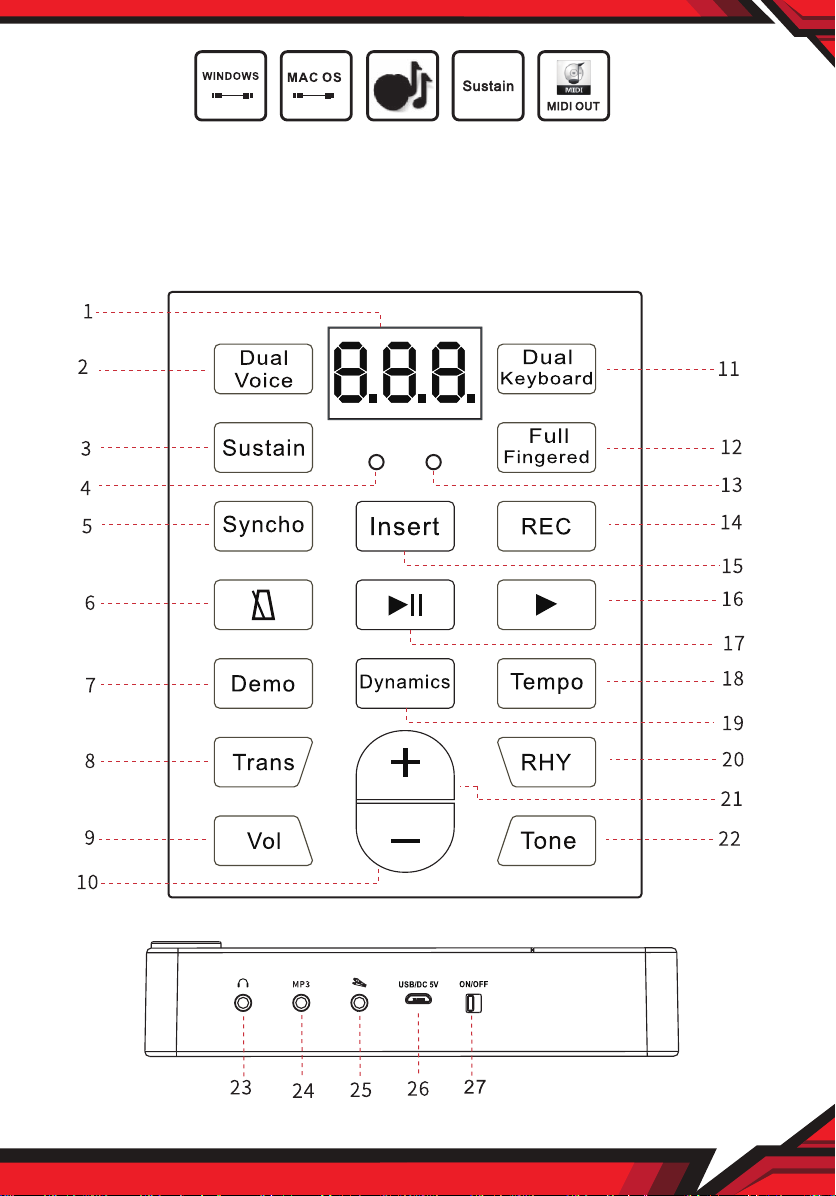
Before you use this keyboard, we recommend that you carefully read
through this manual. Please keep the instruction manual for future
reference.
PART NAMES AND FUNCTIONS
www.PyleUSA.com
2
Page 3
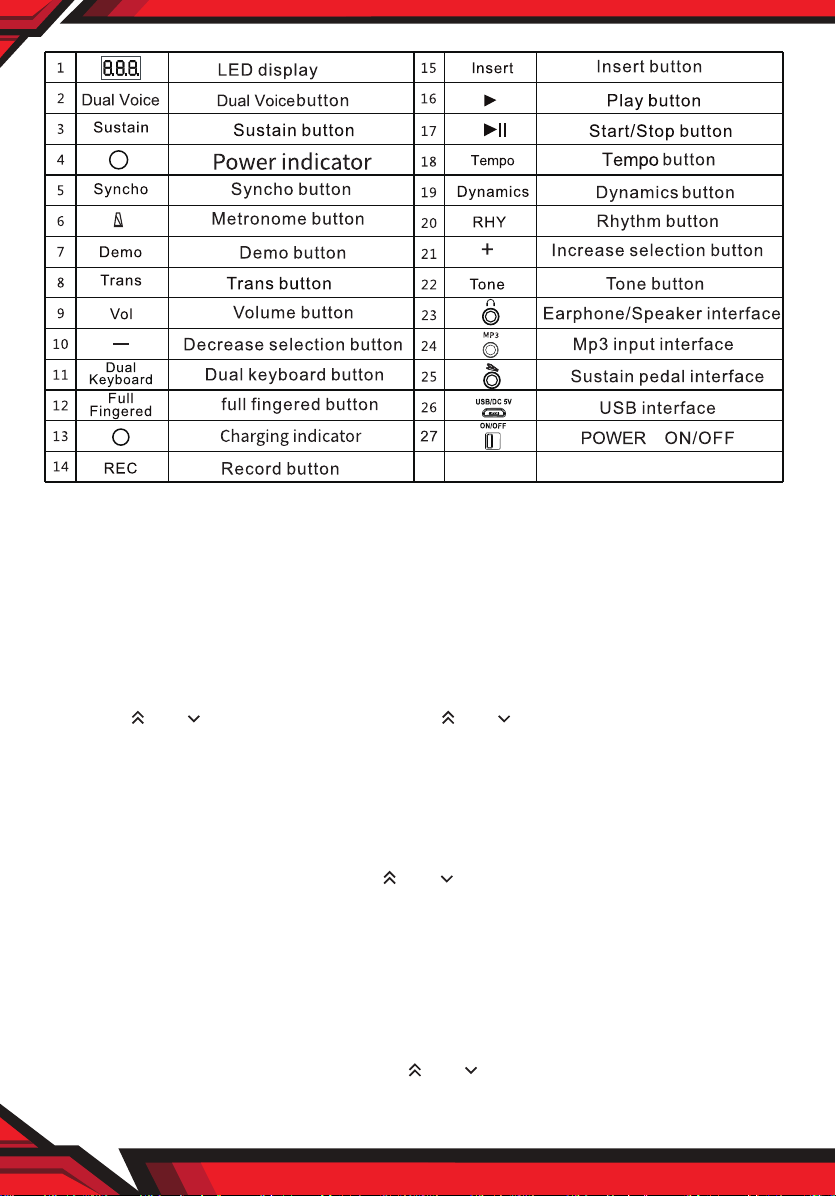
FUNCTION DESCRIPTION
1. ON/OFF: Used to turn the instrument ON/OFF.
2. Tone:
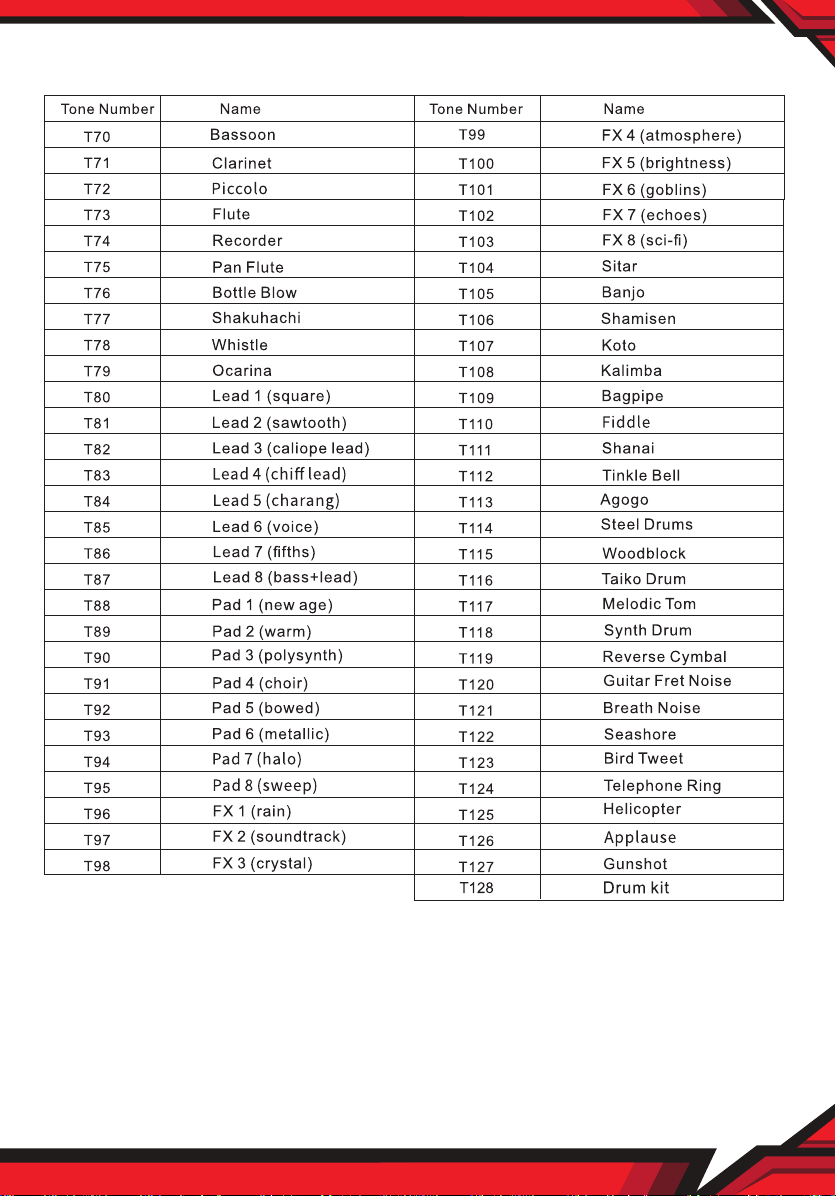
• With 129 tones
• You can select a tone and adjust the way that it sounds.
The initial number is: 000, the digital screen displays "000".
Press " " or " " to select the tone. Press " " or " " and hold for one second to
quickly select the tone.
• In other function selection modes, press the tone button to go back to the
tone selection mode.
3. Volume:
• Press the “voIume” button, press " " or " " again to increase or decrease the
volume, the digital screen will display the corresponding level number.
• The initial volume level number is 12 and the highest is 15.
4. Rhythm:
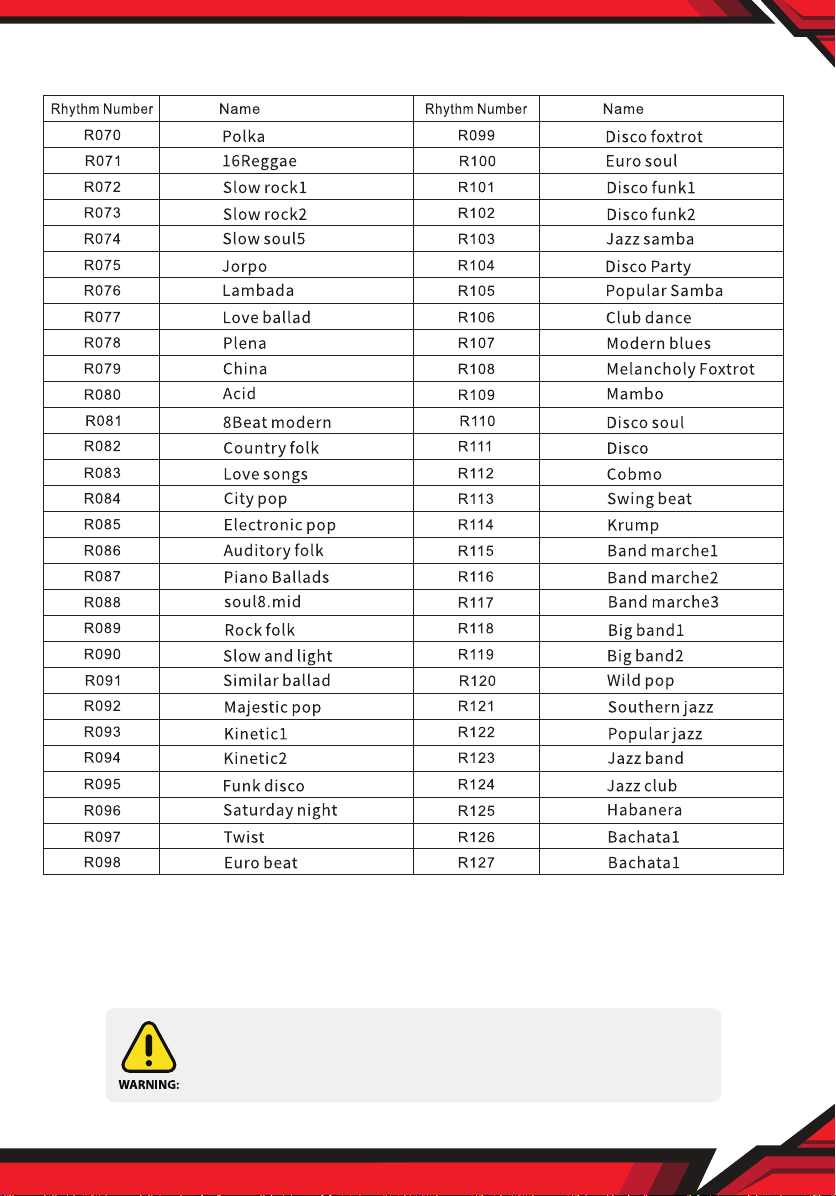
• With 128 rhythms
• Press “Start”, ” Stop” or “Rhythm”, to play rhythm mode automatically, press
again “start" or “stop” to stop. Press " " or " " to select a rhythm.
www.PyleUSA.com
3
Page 4

• Press " " or " " and hold for one second to quickly select the rhythm and
plays the corresponding rhythm when released.
• Press “Syncho” button to start the rhythm playing.
• Press “Insert” button to insert new rhythm into the basis rhythm.
5. Demo:
• With 30 demos
• Press ”Demo” button to play all the demos, press ”Start” or ”Stop” to start or
stop playing demo.
• Press " " or " " to select demo.
• Press " " or " " and hold for one second to quickly select the demo and plays
the corresponding demo when released.
6. Dynamics Control Function:
• Press ”Dynamics” button to turn ON/OFF dynamics.
7. Chord Accompaniment:
• When playing any rhythm, press “Full Fingered" button to use single & nger
mode. The LED will display “C03“, then press “Syncho“ button to play chord
accompaniment.
• Chord function: Bass area, 61 keys ( from C-f# area total of 19 keys), 88 keys
(from A2-f# area total of 34 keys) play chords that match the rhythm, and the
pitch of the chord changes with the pitch of the keys, different chord styles at
different rhythms. Finger (major triads chord and minor triads chord), only
single have major triads chord. In chord mode, press the “Full Fingered” to turn
off the chord.
8. Record Function:
• Press ”Record” button to record mode then digital screen displays REC.
You can record your performance, including accompaniment. You can play
back a recorded performance to check your playing, or to play along with it.
• Into record mode, press the keyboard freeIy and the system will automatically
record the keys played by the user. When memory is fuII, LED displays “fuII”.
• Press “Play” to play the recorded notes.
lt will return to original state automatically when nished.
• Select the tone while pIaying, the recorded notes will be refreshed automatically
when re-record and reset.
www.PyleUSA.com
4
Page 5

• Close the metronome sound through START/STOP button according to your
recording needs.
9. Trans Function:
• Total of 13 levels: -6, -5, -4, -3, -2, -1, 0, 1, 2, 3, 4, 5, 6
• In playing mode, press ”Trans” button to use trans function through " " or " "
trans.
10. Adjust the playing speed:
• In playing mode, press ”Tempo” to adjust function, through " " or " " button
to control the playing speed.
11. USB-MIDI-IN-OUT Function: Connect the computer or cable through USB.
12. Metronome Function: Metronome assist function. Press “ “ to select the 4
metronome cycIicaIIy:
b01(2/4 beat), b02 (3/4 beat), b03 (4/4 beat), b04 (1/4 beat)
13. Drum Kit Function: Select the 128th tone for drum tone.
14. Sustain Function: Press ”Sustain” button to turn ON/OFF sustain function.
15. Pedal Sustain Function: Step sustain pedal for sustain effect
16. Sleep mode: The Keyboard will enter into “Sleep mode” and LED turns off
automatically if theres no activity, press any keys to wake up.
17. LED Indicator: Red LED indicator light for low battery or the built-in lithium
battery is not fully charged. Plug in the USB 5V cable to charge.
18. Dual Voice Function: Press “+” or “-” to select your favorite tone (the rst tone)
when opening. Then press “Dual voice” button to open this function, the LED
will display ON, and re-press “+” or ”-” to select your second favorite tone.
The mixed sound of two selected tones will play. Press this button again to
turn off this function and the LED will display OFF.
(Remark: It will not retain the previously selected tone when turned off)
19. Dual Keyboard Function: Press the “Dual Keyboard” button, the LED will
dispIay “ON” 28 keys on the left bass area xed bass. Select your favorite tone
on 29-88 keys area on the Iight, re-press “Dual Keyboard” button to turn off,
the LED will display OFF.
20. Wireless BT Streaming APP function (Wireless BT 5.0):
• Search MIDI PIANO to connect by mobile APP
• iPhone connection method:
www.PyleUSA.com
5
Page 6

Pop Piano Connection:
1. Scan the QR code to download the Pop piano;
2. Turn ON the Wireless BT in your phone then open the Pop piano APP, seIect
any song, start playing after entering;
3. Click on the top left of the phone screen , select after opening:
Wireless BT connection- Next-conrm to connect with the BT;
4. Conrming Wireless BT connection, this icon is blue.
GarageBand Connection:
1. Download and open the GarageBand in your phone.
2. Turn ON Wireless BT in your phone;
3. Open the GarageBand, cIick the setting icon on the top right of the phone
screen;
4. Song setting-advanced-BT device to connect the piano Wireless BT.
Perfect Piano Connection:
1. Download the Perfect piano APP in your phone;
2. Turn ON the Wireless BT in your phone;
3. Connect the GarageBand then open perfect piano APP to use.
Android connection method:
Pop Piano Connection:
1. Scan the QR code to download the Pop piano;
2. Turn on the Wireless BT in your phone;
3. Open the Pop piano, seIect any song and start playing;
4. Click on the top left of the phone screen , select BT connection- Next-
conrm to connect with the Wireless BT;
5. Icon turns blue when Wireless BT connection succesful.
21. Wireless BT function: After turning on, the Wireless BT function automatically
turns ON with a prompt tone. Search “Music-Piano” in your phone to connect
with a prompt tone after successful connection. Increase or decrease the
volume or music selection on your phone. (Only for Wireless BT audio version)
www.PyleUSA.com
6
Page 7
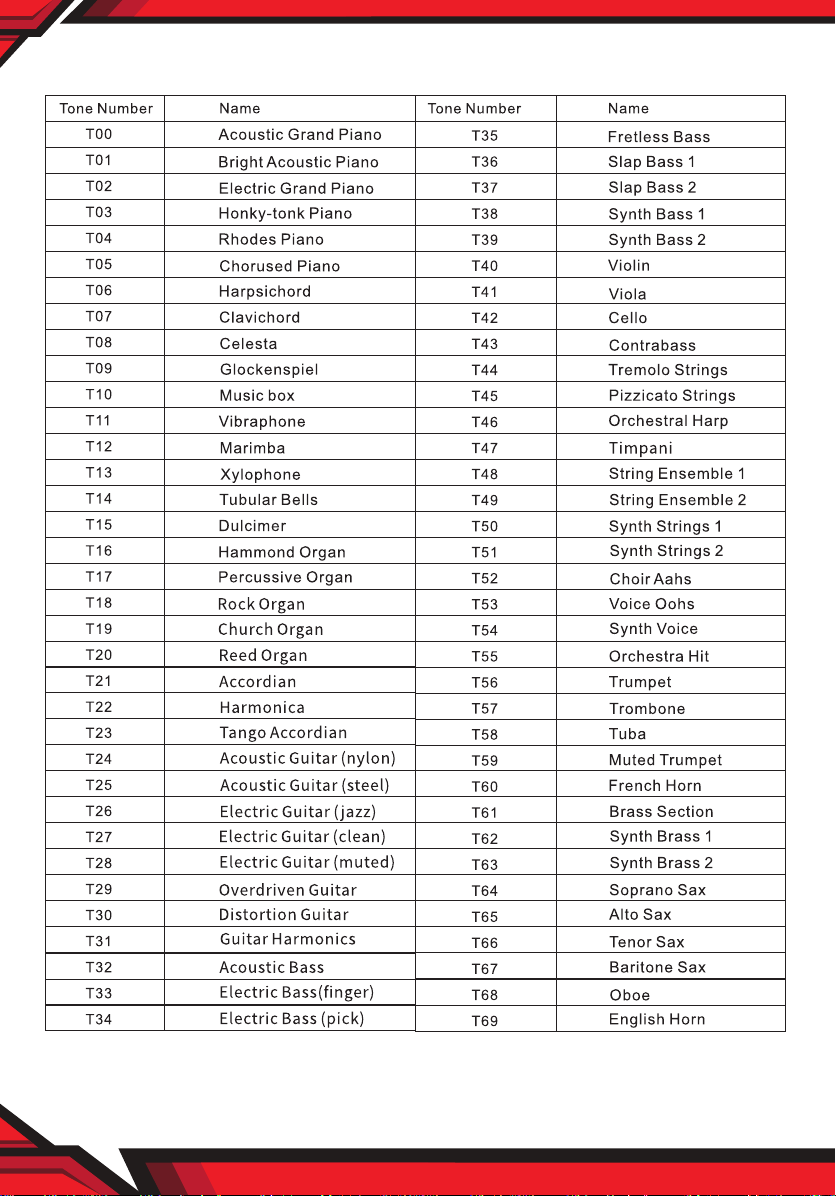
TONE LIST
www.PyleUSA.com
7
Page 8
www.PyleUSA.com
8
Page 9
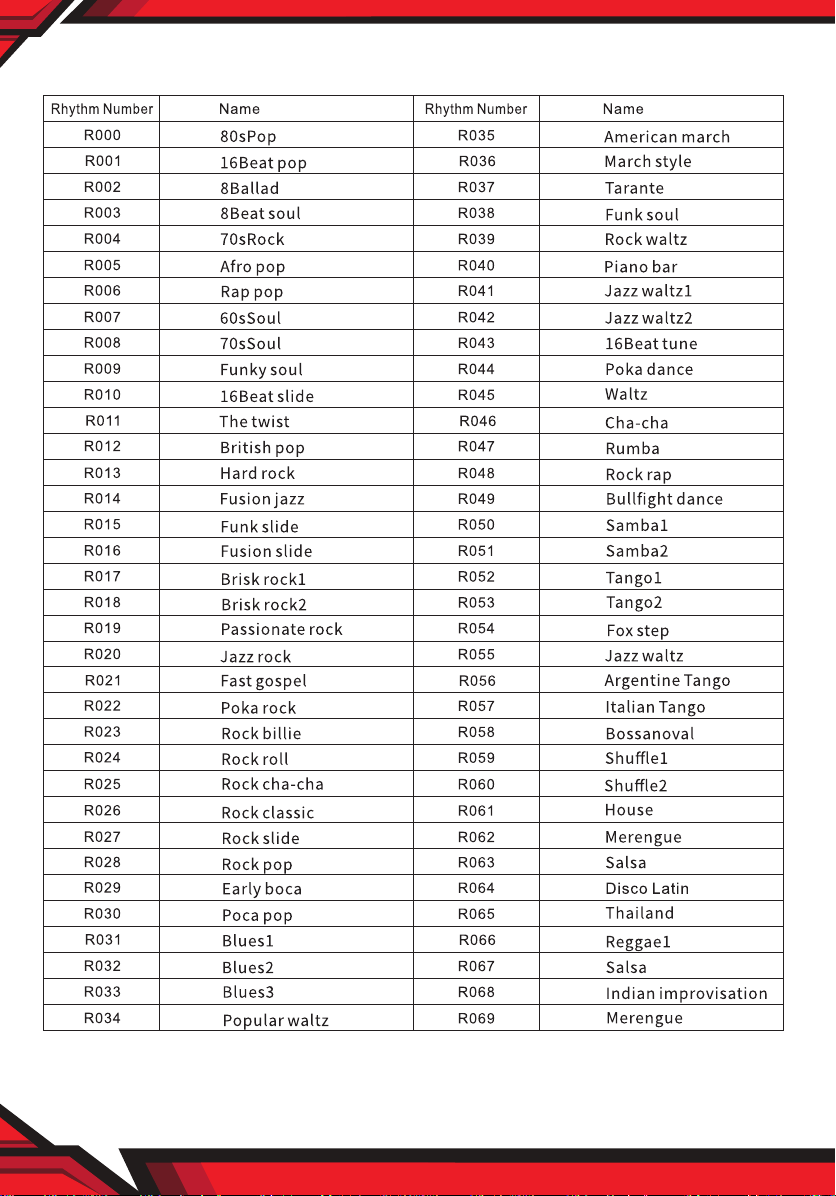
RHYTHM LIST
www.PyleUSA.com
9
Page 10
www.PyleUSA.com
10
This products can expose you to a chemical or group of chemicals, which
may include ”Cadmium” which is known in the state of California to
cause cancer, birth defects, or other reproductive harm.
For more info, go to https://www.p65warnings.ca.gov/.
Page 11

DEMO LIST
IMPORTANT SAFETY INSTRUCTIONS
• Do not use near water.
• Clean only with a soft, dry cloth.
• Do not block any ventilation openings.
• Do not place near any heat sources such as radiators, heat registers, stoves, or
any other apparatus (including ampliers) that produces heat.
• Refer all servicing to qualied service personnel. Servicing is required when the
apparatus has been damaged in any way, such as liquid has been spilled or
objects have fallen into the apparatus, the apparatus has been exposed to rain
or moisture, does not operate normally, or has been dropped.
TROUBLESHOOTING
• If the sound is abnormal or the key is invalid, please power ON/OFF the piano,
restore to the original setting.
• If the battery voltage is low, the sound may be abnormal or the keys may be
invalid. Please charge in time.
www.PyleUSA.com
11
Page 12

www.PyleUSA.com
12
Page 13

Features:
• 9 Functions: Record, Rhythm, Demo, Metronome, Drum Kit Dual Voice, Dynamic
Switch, Wireless BT MIDI and BT Audio
• Compact & Portable Musical Piano
• Simple Electronic Plug-in Operation
• Built-in Full Range Stereo Speakers
• Connect & Stream Audio from External Devices
• Works with Smartphones, Tablets, Laptops, Computers
• Multiple Preset Selectable Keyboard Sound, Tone & Rhythm Styles
• Digital LCD Display & LED Indicator Lights
• Adjustable Volume Control
• Record & Playback Mode
• Auto Power Off, Power Saving Function
• Perfect for Home Theater Living Room Performances
• Fun for Kids of All Ages: Children & Adults
What’s in the Box:
• Portable & Foldable Piano Keyboard
• USB Charger Cable
• USB Adapter
• Manual
• Piano Bag
• Sustain Pedal
Technical Specs:
• (88) Keyboard Keys
• (129) Preset Selectable Tones
• (128) Preset Selectable Audio Rhythms
• Audio Interface: Aux (3.5mm) Input Jack / Mic Input
• Max Sound Level: Up to 110 dB
• USB/Power Cable Length: 3.9’ ft.
• Construction Material: Engineered ABS, PC,PVC
• Built-in Rechargeable Battery: 3.7V Li-ion, 1100mAh
• Power Supply: 120/240V, USB 5V/1A
• Piano Dimensions (L x W x H): 28.7’’ x 9.0’’ x 2.6’’ -inches
www.PyleUSA.com
13
Page 14

 Loading...