

Page 1

Quick Start Guide
Page 2

Important Notice
Please read carefully beforeyoucontinue.
Purism SPC provides the enclosed product(s) under the following conditions:
This development board/kit/module is intended for use for ENGINEERING DEVELOPMENT, DEMONSTRATION OR EVALUATION
PURPOSES ONLY and is not considered by Purism SPC to be a finished end-product fit for general consumer use. Persons handling the
product must have electronics training and observe good engineering
practice standards. As such the goods being provided are not intended
to be complete in terms of required design-, marketing-, and/or manufacturing related protective considerations, including product safety
and environmental measures typically found in the products that incorporate such semiconductor components or circuit boards. This
development board/kit/module does not fall within the scope of the
European Union directives regarding electromagnetic compatibility,
FCC, CE or UL and therefore may not meet the technical requirements
of these directives or other related documents.
The user assumes all responsibility and liability for proper and safe
handling of the goods. Further, the user indemnifies Purism SPC from
all claims arising from the handling or use of the goods. Due to the
open construction of the product, it’s the user’s responsibility to take
any and all appropriate precautions with regard to electrostatic discharge, conducted and radiated emissions.
EXCEPT TO THE EXTENT OF THE INDEMNITY SET FORTH ABOVE
NEITHER PARTY SHALL BE LIABLE TO THE OTHER FOR ANY INDIRECT SPECIAL INCIDENTAL OR CONSEQUENTIAL DAMAGES.
Purism SPC provides a limited warranty of 6 months against manufacturing defects. The device is manufactured, assembled and tested in
the United States of America (USA).
If you do not agree to the above terms then do not unpack /
use the board/kit/module and return the product as-is for a
full refund.
2
Page 3

Package Contents
The Librem 5 is supplied with the following
components and accessories:
• Battery (installed)
• Tray for nano-SIM and microSD cards
(removable)
• USB A to USB C cable
• Wall power adapter
If any of these are missing, please contact Purism
support for guidance.
You Will Also Need
You will need to provide:
• A nano-SIM card
• A microSD card – optional
The nano-SIM card is supplied by your mobile network
provider.
You can use a microSD card to add additional storage
to the phone.
3
Page 4
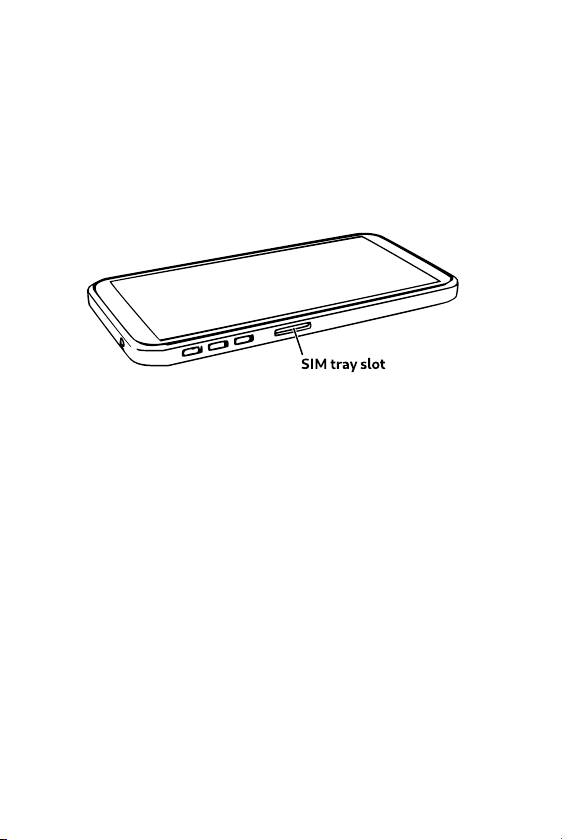
Install the Nano-SIM Card and microSD Card
The phone accepts a nano-SIM card and a microSD
card in the slot marked in the diagram below.
These are installed together using the tray included
with the phone.
To install the cards:
1. Insert the nano-SIM card into the tray
2. Insert a microSD card into the tray (optional)
3. Insert the tray into the socket
The socket should click as the card is latched into place.
4
Page 5
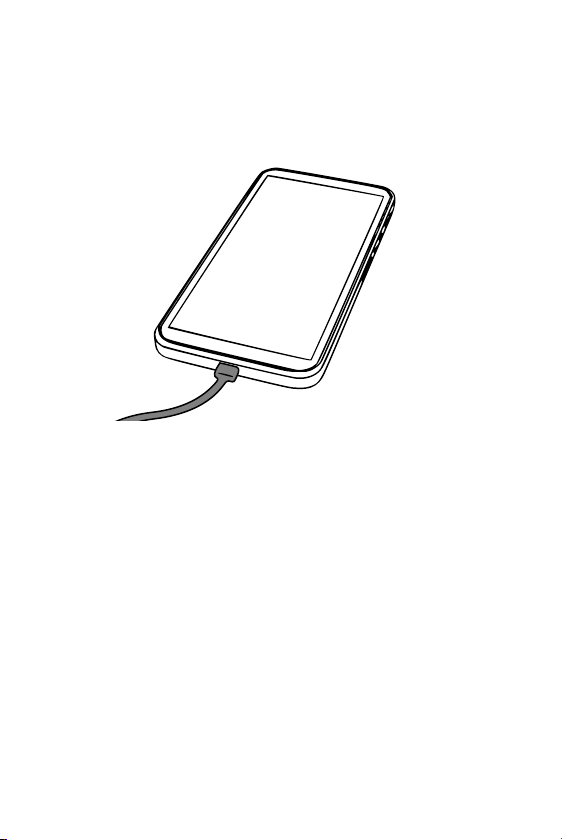
Charge the Phone
The phone will need to be charged before it can be
used.
To charge the phone:
1. Connect the phone to the charger via the USB
cable provided
2. Place the phone on a flat, hard, level surface
3. Plug the charger into a suitable wall power outlet
Leave the phone to charge until the power indicator
shows a level of 50%.
Unplug the charger from the power supply.
Unplug the USB cable from the phone.
5
Page 6
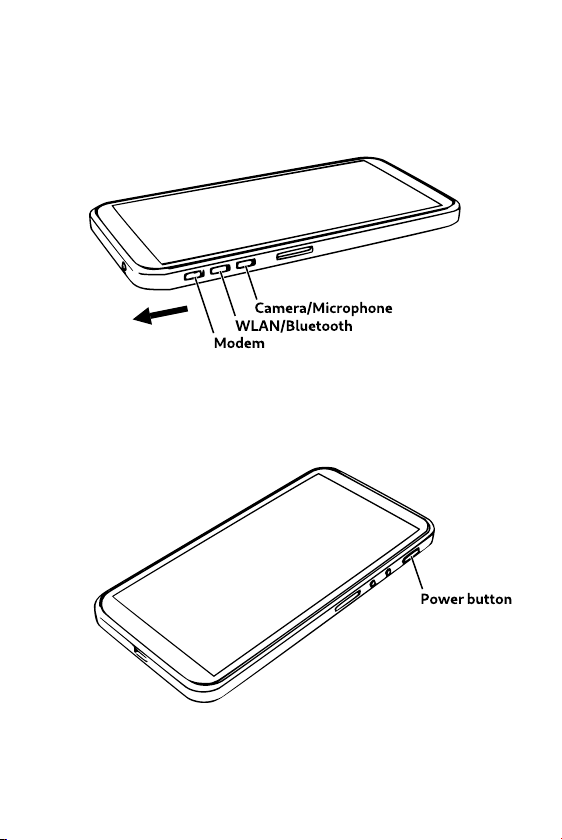
Power on the Phone
Enable the Modem and WLAN by pushing those
switches away from the SIM slot, as shown.
Ensure that the screen is visible.
Locate the power button.
Hold down the power button until the screen lights up.
6
Page 7
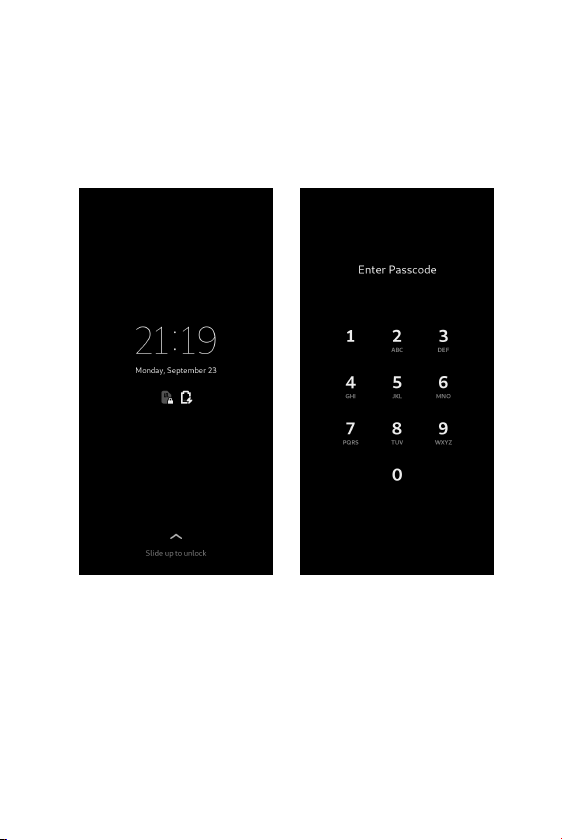
Unlock the Screen
The phone will show a lock screen.
To unlock it, swipe up from the bottom of the screen to
reveal the passcode entry screen.
Enter the default six digit passcode – 123456 – using
the numeric keypad.
When you have entered your code the phone will
unlock.
You will be able to change the passcode later.
7
Page 8
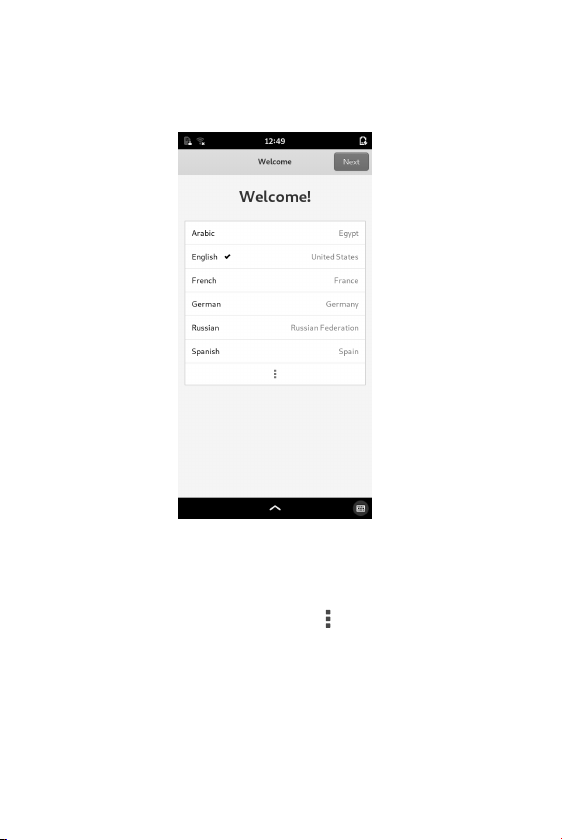
Initial Setup
The application starts with a Welcome screen.
Select the language that you wish to use.
If your language is not shown, expand the list to show
more languages by pressing the (view more) icon at
the bottom of the list.
Press the Next button to continue.
8
Page 9
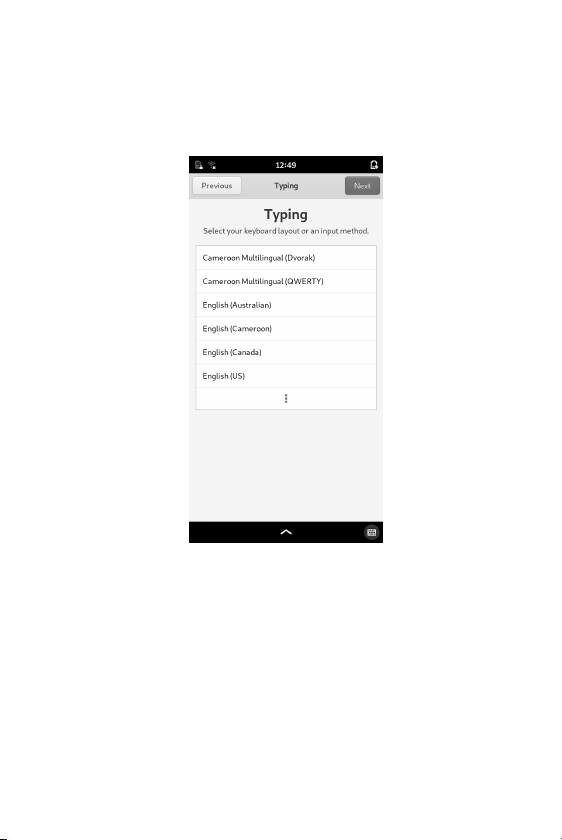
Text Input
The Typing page shows a selection of keyboards that
are relevant to your language.
Select the keyboard that you want to use.
Expand the list to find the one you want, if necessary.
Press the Next button to continue.
9
Page 10
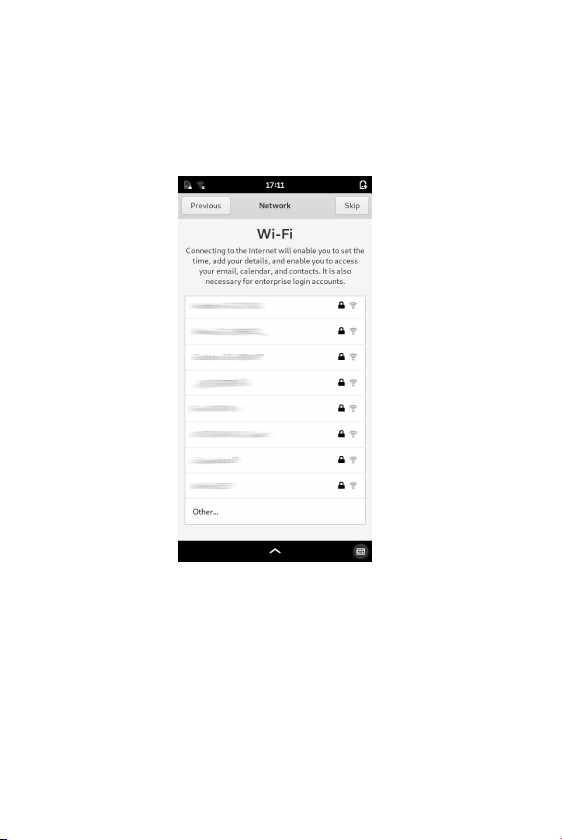
Wireless Internet
If the WLAN switch is enabled, the Network page is
shown. This lets you configure your wireless
connection to the network.
The WLAN interface may take a few seconds to list
nearby wireless networks.
Select a network to begin the connection process, or
swipe the list upwards to find the Other… item at the
bottom of the list. Select this to connect to a hidden
network.
10
Page 11
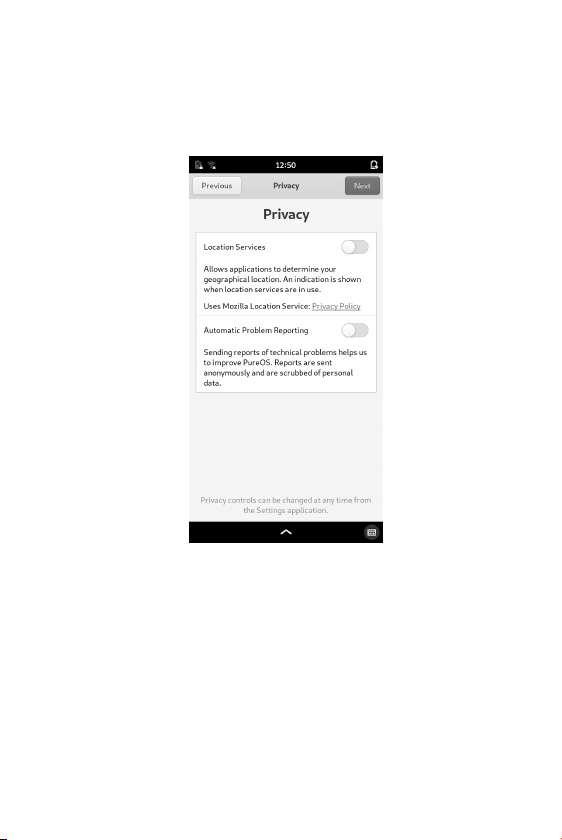
Privacy
The Privacy page lets you opt-in to services that may
be useful to you.
You don’t have to accept the use of these. You can
enable the services you want, or leave all of them
disabled.
Press the Next button to continue.
11
Page 12
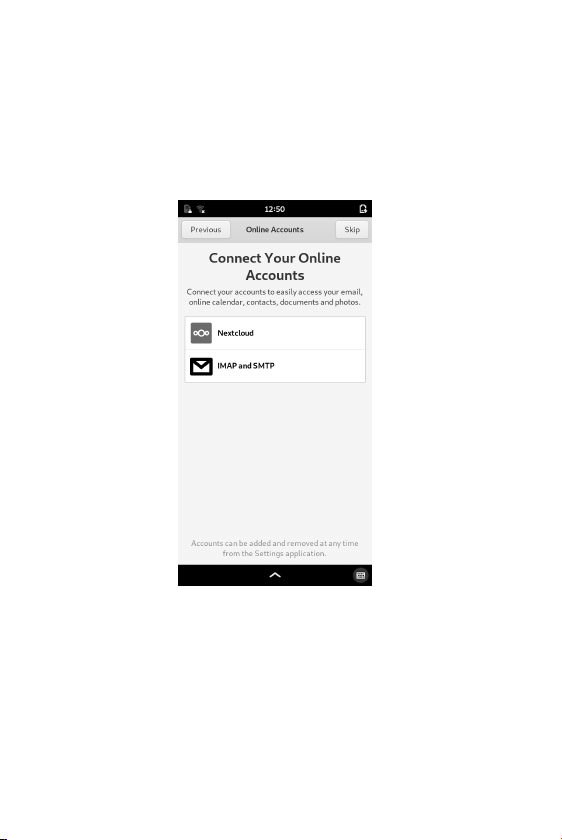
Online Accounts
This page allows you to configure connections to any
existing online accounts you may have. These are
typically services that store contacts, e-mail or
calendar information.
If you want to set up accounts now, select each one in
turn and follow the instructions, or just press the Skip
button to show the final page.
Press the Start Using your Librem 5 button to
continue.
12
Page 13
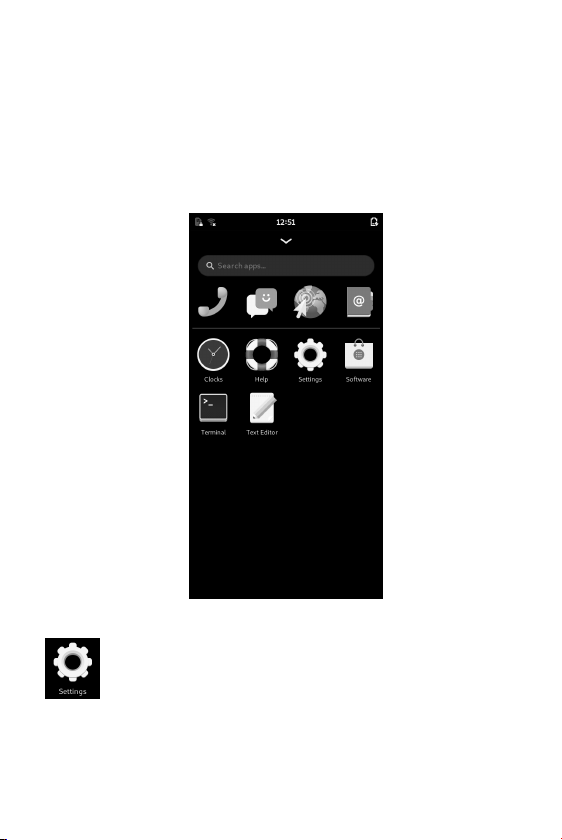
Open the Settings
The next thing to do is to change the default passcode.
This is done in the Settings application.
You should see a selection of applications on the
screen.
Tap the Settings icon to open the application.
Select the Details category in the list of settings, then
select Users.
13
Page 14
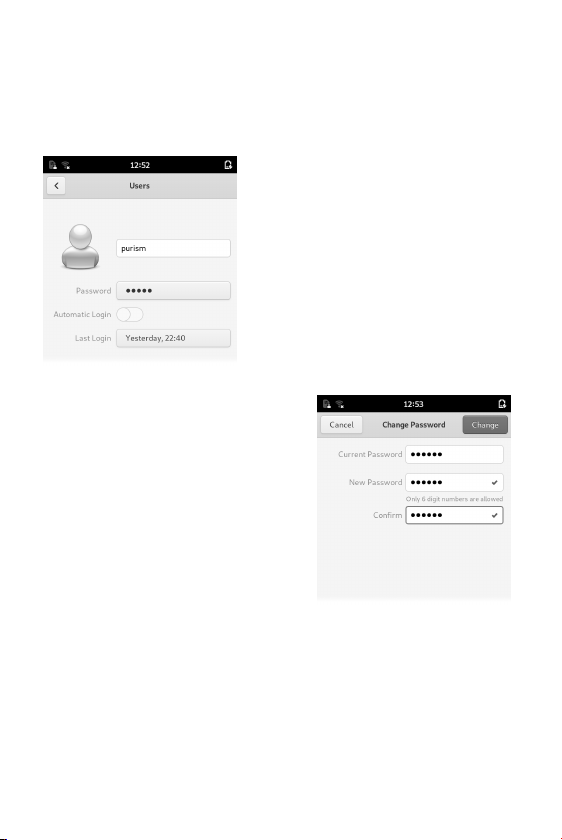
Change your Passcode
The Users page lets you change information about
your user account on the phone.
Tap the button containing
the hidden text, next to the
Password label.
This opens the Change
Password dialog.
Enter your old passcode
in the Current Password
field.
Enter your new passcode
in both the New Password
and Confirm fields.
Press the Change button at the top-right of the screen
to save the new passcode.
14
Page 15

User Guide
The Librem 5 User Guide contains more information
about the operating system and built-in applications.
It also includes introductory guides, including:
• An overview of the phone’s user interface
• Connecting to a mobile network
• Placing and receiving calls
• Sending and receiving messages
• Setting up Wireless Internet
• Installing applications
The guide is provided as a collection of web
pages on the phone, and can be accessed via
an icon on the home screen.
It can also be viewed at https://docs.puri.sm/Librem_5.html
15
Page 16
Support and compliance
The latest warranty details and policies related to hardware
and services can be found at https://puri.sm/policies/
Should you encounter any software defects with the preinstalled PureOS, please report them at https://tracker.pureos.net
You can also ask questions and discuss with other users at
https://forums.puri.sm or through [email protected]
Your Librem 5 ships with Free software where the source code
is openly available under various freedom-respecting licenses.
You are allowed (and encouraged!) to inspect, improve and
redistribute it. You can obtain the source code for all the freed
components of the system at https://source.puri.sm/Librem5
A summary of the software components which includes names,
versions and descriptions, links to descriptions of corresponding source code, copyright and license information is part of
the user guide, available at https://docs.puri.sm/Librem_5.html
©2019 Purism SPC
Quick Start Guide for the Librem 5 is licensed under a Creative
Commons Attribution-ShareAlike 4.0 Unported License.
See http://creativecommons.org/licenses/by-sa/4.0/
1 Market Street
Spear Tower, 36thFloor
San Francisco, CA 94105
USA
https://puri.sm
Document version: 1.0.3
 Loading...