

Page 1
User Manual
PT-SW-HD41S
User Manual
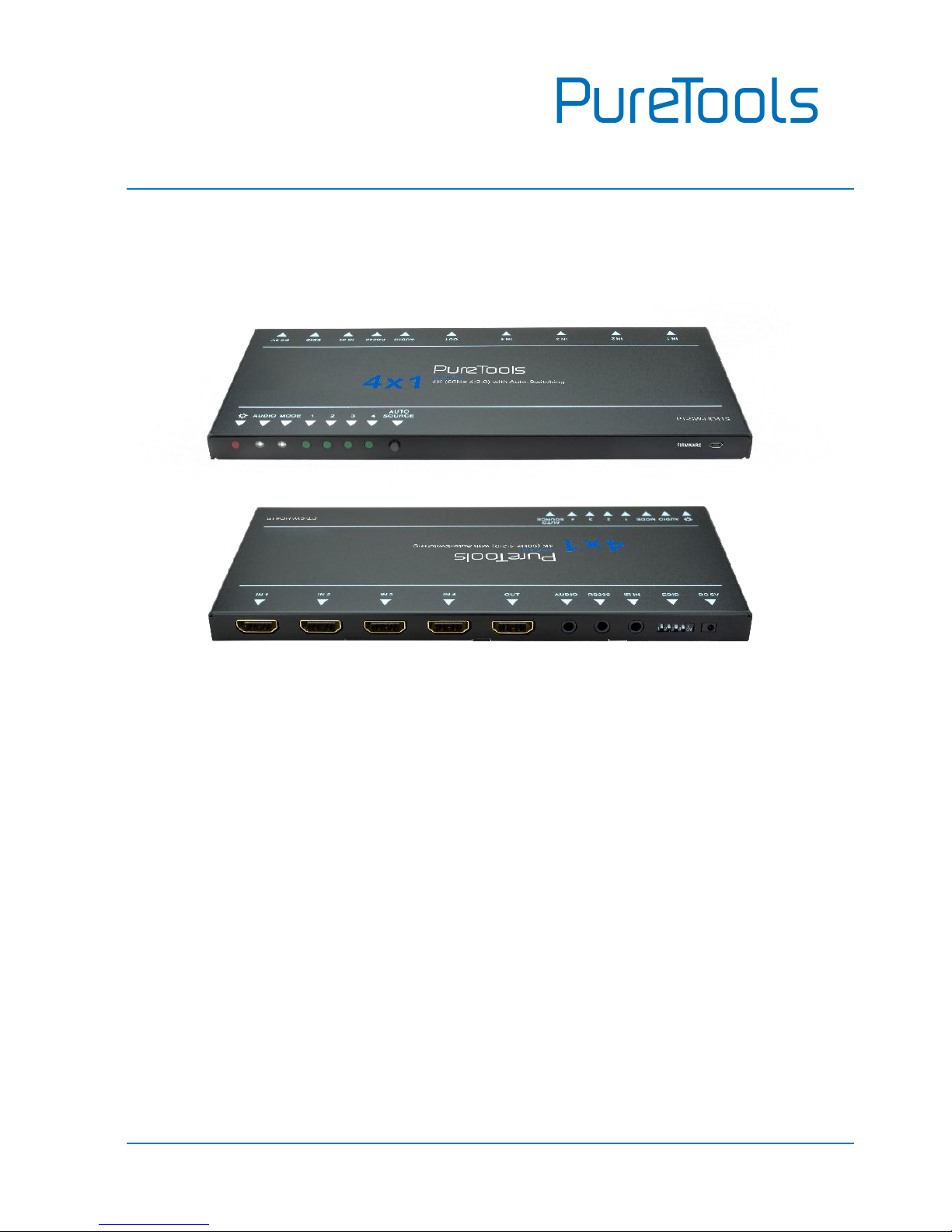
HDMI Switcher 4x1 4K (60Hz 4:2:0) with Auto-Switching
Model PT-SW-HD41S
Designed in Germany
© 2017 PureLink GmbH All rights reserved. VersionV1.0
Page 2

User Manual
PT-SW-HD41S
Preface
Read this user manual carefully before using this product. Pictures shown in this
manual are for reference only. Different model layouts and specifications are subject
to the physical product.
This manual is for operation instructions only, not for any maintenance usage.
In the constant effort to improve our product, we reserve the right to make changes in
functions or parameters without prior notice or obligation.
Trademarks
Product model and logo are trademarks. Any other trademarks mentioned in this
manual are acknowledged as the properties of the trademark owner. No part of this
publication may be copied or reproduced without the prior written consent.
FCC Statement
This equipment generates, uses and can radiate radio frequency energy and, if not
installed and used in accordance with the instructions, may cause harmful
interference to radio communications. It has been tested and found to comply with
the limits for a Class B digital device, pursuant to part 15 of the FCC Rules. These
limits are designed to provide reasonable protection against harmful interference in
a commercial installation.
Operation of this equipment in a residential area is likely to cause interference, in
which case the user at their own expense will be required to take whatever measures
may be necessary to correct the interference.
Any changes or modifications not expressly approved by the manufacture would void
the user’s authority to operate the equipment.
Page 3
User Manual
PT-SW-HD41S
REACH | 1907/2006/EU
ROHS | 2011/65/EU
PureLink hereby declares that this product PureTools PT-SW-HD41S complies
with Directives 1907/2006/EU und 2011/65/EU.
EMC / LVD (Electro Magnetic Compatibility / Low Voltage Directive)
PureLink GmbH hereby declares that this product PureTools PT-SW-HD41S
complies with Directives 2014/30/EU and 2014/35/EU. The full text of the EU
Declaration of Conformity is available at the following Internet address:
http://www.purelink.de/ce/4251364706992_CE.pdf
Page 4

User Manual
PT-SW-HD41S
SAFETY PRECAUTIONS
To insure the best from the product, please read all instructions carefully before
using the device. Save this manual for further reference.
Unpack the equipment carefully and save the original box and packing
material for possible future shipment
Follow basic safety precautions to reduce the risk of fire, electrical shock and
injury to persons.
Do not dismantle the housing or modify the module. It may result in electrical
shock or burn.
Using supplies or parts not meeting the products’ specifications may cause
damage, deterioration or malfunction.
Refer all servicing to qualified service personnel.
To prevent fire or shock hazard, do not expose the unit to rain, moisture or
install this product near water.
Do not put any heavy items on the extension cable in case of extrusion.
Do not remove the housing of the device as opening or removing housing may
expose you to dangerous voltage or other hazards.
Install the device in a place with fine ventilation to avoid damage caused by
overheat.
Keep the module away from liquids.
Spillage into the housing may result in fire, electrical shock, or equipment
damage. If an object or liquid falls or spills on to the housing, unplug the
module immediately.
Do not twist or pull by force ends of the optical cable. It can cause
malfunction.
Do not use liquid or aerosol cleaners to clean this unit. Always unplug the
power to the device before cleaning.
Unplug the power cord when left unused for a long period of time.
Information on disposal for scrapped devices: do not burn or mix with general
household waste, please treat them as normal electrical wastes.
Page 5

User Manual
PT-SW-HD41S
Contents
1. Introduction .................................................................................................................................. 1
1.1 Introduction to PT-SW-HD41S ...................................................................................... 1
1.2 Feature ................................................................................................................................ 1
1.3 Package Content ............................................................................................................... 2
2. Panel Description ........................................................................................................................ 3
2.1 Front Panel ......................................................................................................................... 3
2.2 Rear Panel .......................................................................................................................... 4
3. System Connection ..................................................................................................................... 5
3.1 Usage Precaution .............................................................................................................. 5
3.2 System Diagram ................................................................................................................ 5
3.3 Connection Procedure .................................................................................................... 6
3.4 ARC Solution ...................................................................................................................... 7
3.5 Application ......................................................................................................................... 7
4. System Control............................................................................................................................. 8
4.1 Button Control ................................................................................................................... 8
4.2 IR Control ............................................................................................................................ 9
4.3 RS232 Control .................................................................................................................10
4.3.1 RS232 Control Software .................................................................................. 10
4.3.2 RS232 Command ............................................................................................... 12
4.4 EDID Management ..........................................................................................................13
5. Firmware Upgrade .................................................................................................................... 15
6. Specification .............................................................................................................................. 16
7. Panel Drawing ........................................................................................................................... 17
8. Troubleshooting & Maintenance .......................................................................................... 18
9. After-Sales Service ................................................................................................................... 19
Page 6

User Manual
PT-SW-HD41S
1
1. Introduction
1.1 Introduction to PT-SW-HD41S
The PT-SW-HD41S is a HDMI switcher accommodates 4 HDMI inputs.
Select any of the inputs by front panel button or IR Remote, the corresponding
indicator on the front panel will illuminate to show real-time I/O connection status.
Compliance with HDMI 1.4& HDCP1.4, PT-SW-HD41S can transmit non-depressed 4K
(at max) signal.
PT-SW-HD41S boasts comprehensive audio capacities including PCM, Dolby Digital,
DTS, and DTS-HD. Besides, it provides an ARC audio output socket to transfer ARC
audio to ARC speakers like Yamaha.
Moreover, PT-SW-HD41S supports convenient online firmware update through USB
port.
1.2 Feature
4 HDMI inputs.
Support Hot-plug.
Compliant with HDMI 1.4, capable to transmit 4K signal.
High bandwidth: 10.2Gbps.
HDCP1.4 compliant, support auto-detecting for input HDCP compliant status.
Support EDID management, including 5 embedded EDID data, 10 (max)
user-definable EDID data, and EDID data automatically captured and copied.
Intuitive indicators for power, switch mode, I/O connection status and audio
output signal.
Convenient online firmware update.
Page 7

User Manual
PT-SW-HD41S
2
1.3 Package Content
1 x PT-SW-HD41S
2 x Mounting Ears with 4 Screws
4 x Plastic Cushions
1 x IR Remote
1 x IR Receiver
1 x Power Adapter (DC 5V 1A)
1 x User Manual
Note: Confirm if the product and the accessories are all included, if not, please contact
with your dealers.
Page 8
User Manual
PT-SW-HD41S
3
2. Panel Description
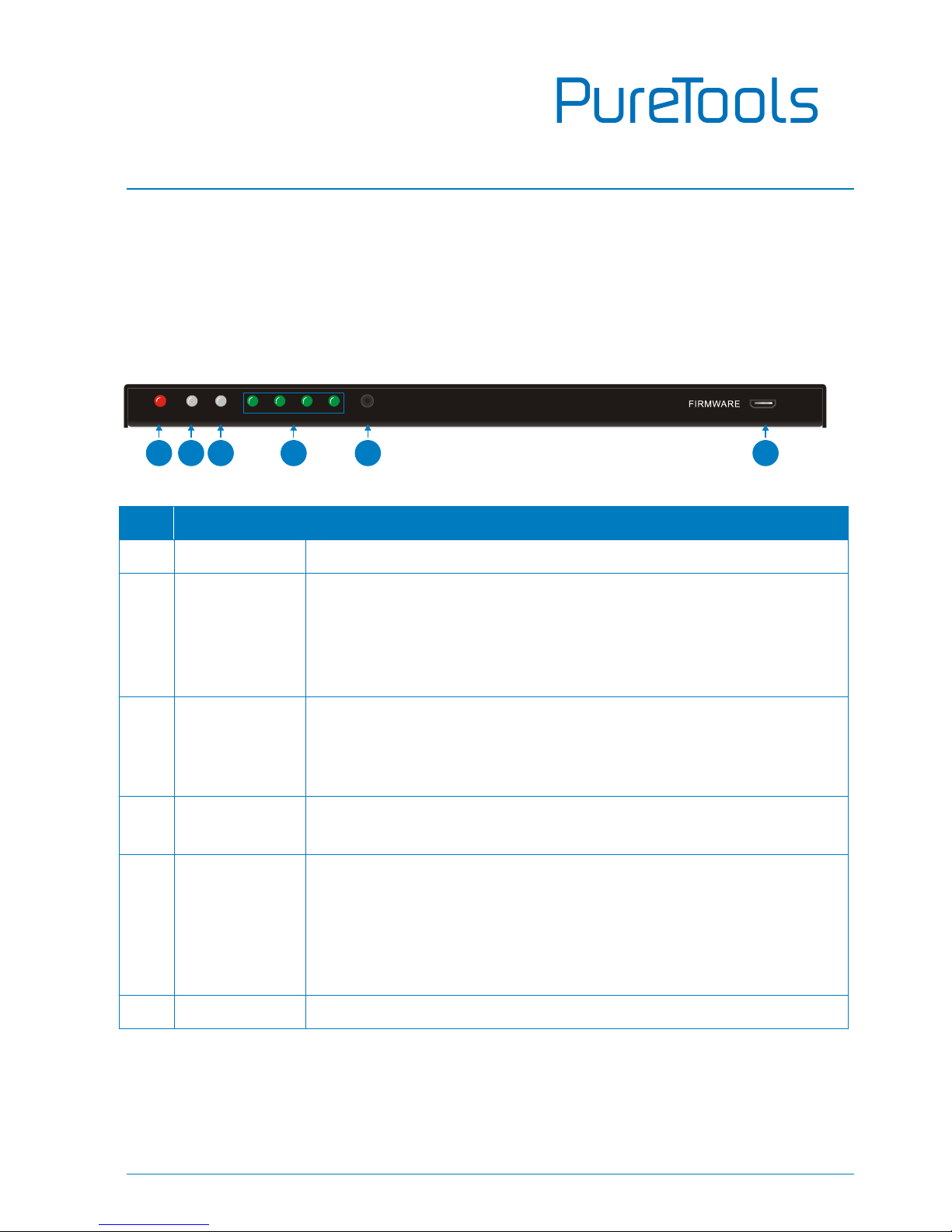
2.1 Front Panel
No.
Name
Description
①
Power
Illuminate red once powered on
②
AUDIO
Bi-colored LED indicator for audio source
Illuminate green when the audio is de-embedded from
HDMI signal
Illuminate yellow when the audio is ARC
③
Mode
Bi-colored indicator for present switch mode
Illuminate yellow when in auto-switch mode
Illuminate green in manual switch mode.
④
Input
Indicate the present input source, 4 in total, the indicator of
the present input source illuminate green
⑤
SOURCE/
AUTO
Used as video source selection button, press to switch
among the 4 inputs source circularly
Used as switch mode selection button, press and hold for
3 seconds or more to switch between auto-switch mode
and manual switch mode.
⑥
FIRMWARE
USB port, used for firmware update & powering
Note: Output HDCP compliant status depends on input signal. When the input signal is
with HDCP, then output signal is with HDCP and vice versa.
1
2
3
4
5 6
Page 9
User Manual
PT-SW-HD41S
4
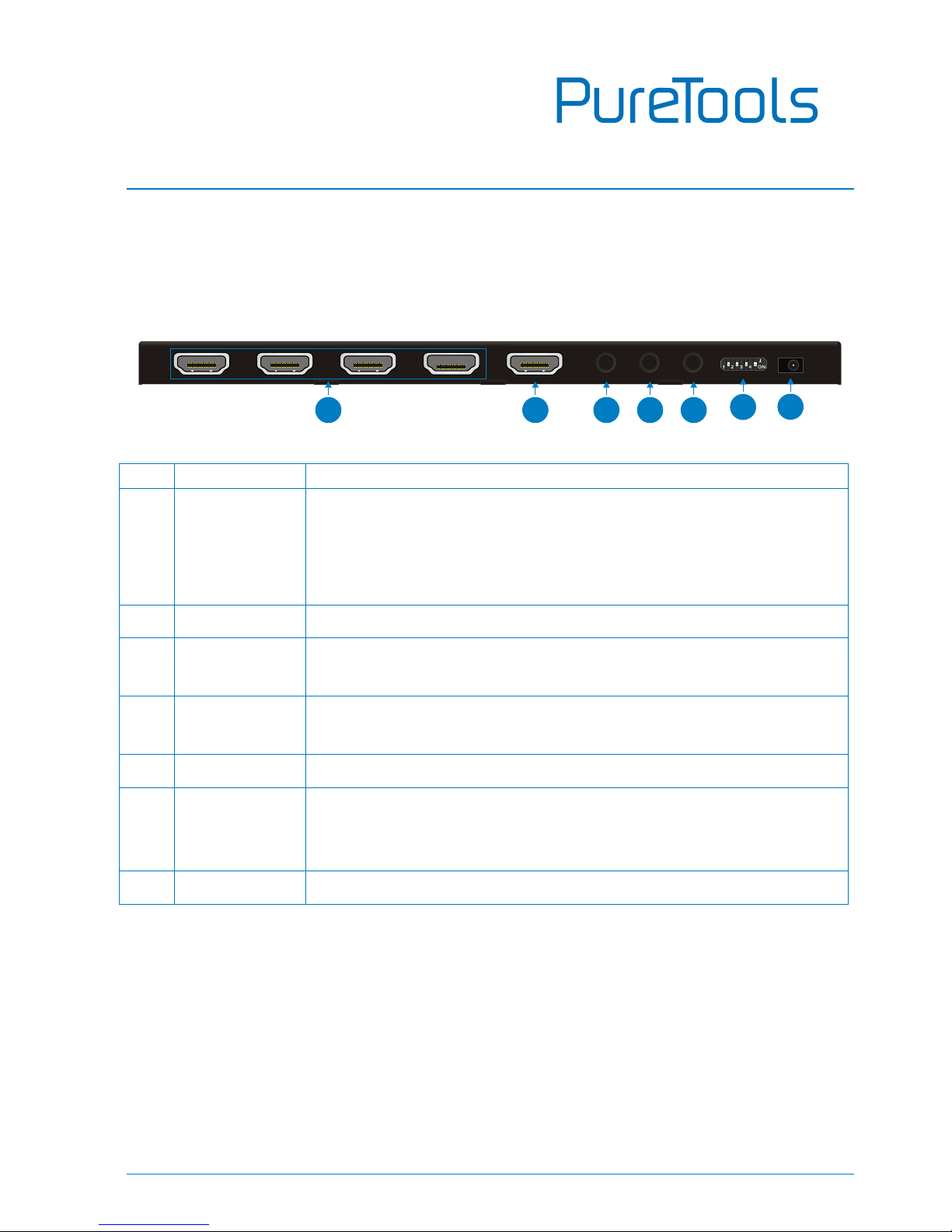
2.2 Rear Panel
No.
Name
Description
①
IN
HDMI input ports. 4 in total, connect with HDMI or DVI
source device such as DVD/ Blue-ray, supports input
signals up to 4k& 1080p 3D
ARC audio output ports, connect with ARC speakers
②
OUT
HDMI output port, connect to HDMI display
③
AUDIO
Audio output port, connect with speaker to repeat HDMI
audio signal or output ARC audio
④
RS232
Serial control port, connect with control device (e.g. a PC) to
control PT-SW-HD41S.
⑤
IR IN
Connect with IR receiver to collect infrade signal
⑥
EDID
4-pin EDID DIP switchers to set EDID data, “1” stands for
“On”, “0” stands for “Off”. Dial the switchers to change EDID
data refering to the explainations in 4.4 EDID Management.
⑦
DC 5V
Power port, plug a DC 5V power adapter into this port
Note: Pictures shown in this manual are for reference only, different model and
specifications are subject to real product.
1
2
3
4
5
6
7
Page 10
User Manual
PT-SW-HD41S
5
3. System Connection
3.1 Usage Precaution
System should be installed in a clean environment, preferably at ambient
temperature or within given working temperature range (see page 16 for limits).
All of the power switches, plugs, sockets and power cords should be insulated.
All devices should be connected before power on.
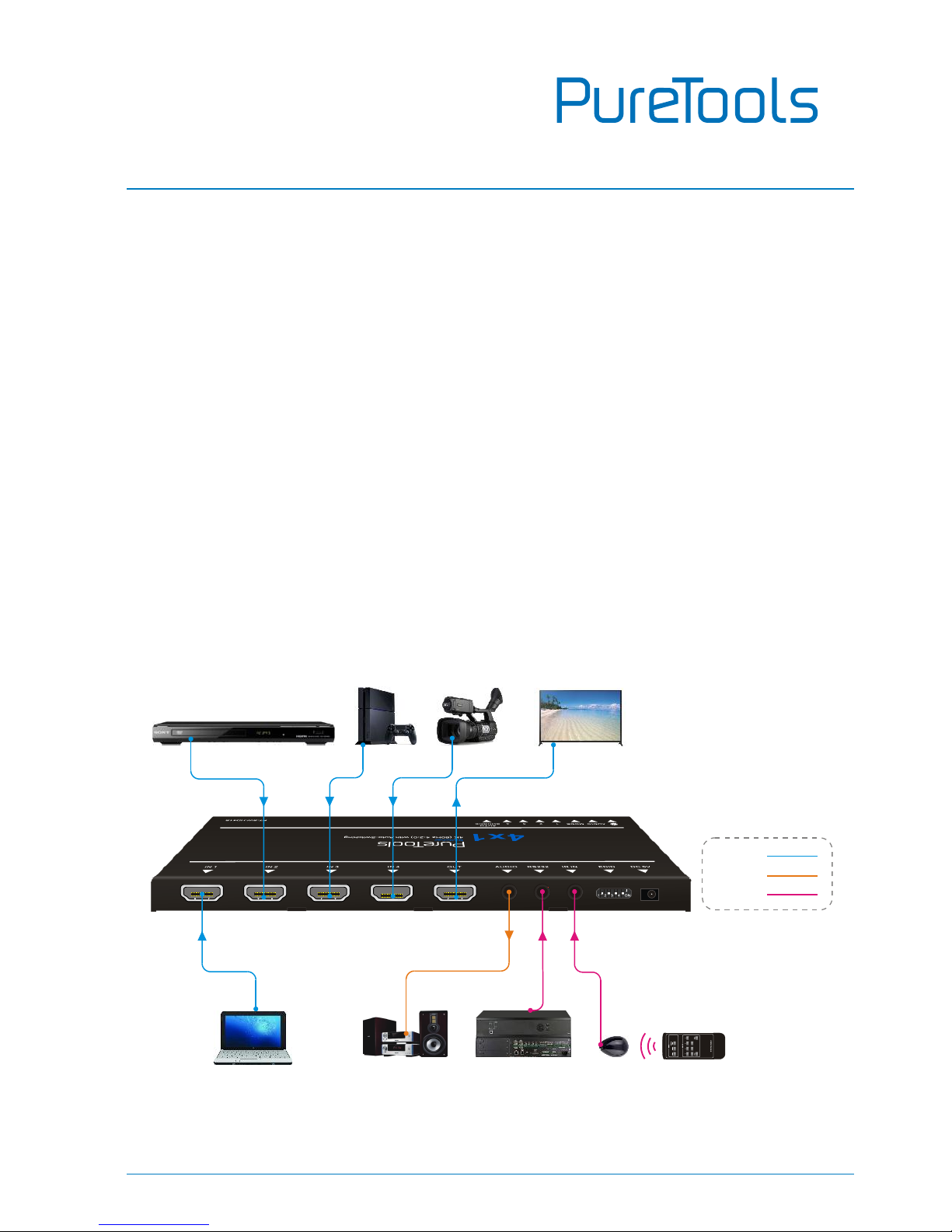
3.2 System Diagram
The following diagram illustrates typical input and output connections that can be
utilized with PT-SW-HD41S:
HDTV
Ray-Blu DVD Game Console
Laptop
Camera
5 6 7
Receiver RemoteCentral Control
System
HDMI:
Audio:
Control:
Page 11

User Manual
PT-SW-HD41S
6
3.3 Connection Procedure
Step1. Connect HDMI/ DVI source device(s) (e.g. Blue-ray DVD) to the HDMI INPUT
ports of PT-SW-HD41S with HDMI cable.
Step2. Connect HDMI displays to HDMI OUTPUT ports of PT-SW-HD41S with HDMI
cable.
Step3. Connect an amplifier to the audio output.
Step4. Connect an IR Receiver to the IR IN to enable IR control.
Step5. Connect the control device (e.g. a PC) to the RS232 port to enable RS232
control.
Step6. Plug a DC 5V power adapter to the power port of PT-SW-HD41S.
Note: All the ports support hot-plug.
Page 12
User Manual
PT-SW-HD41S
7
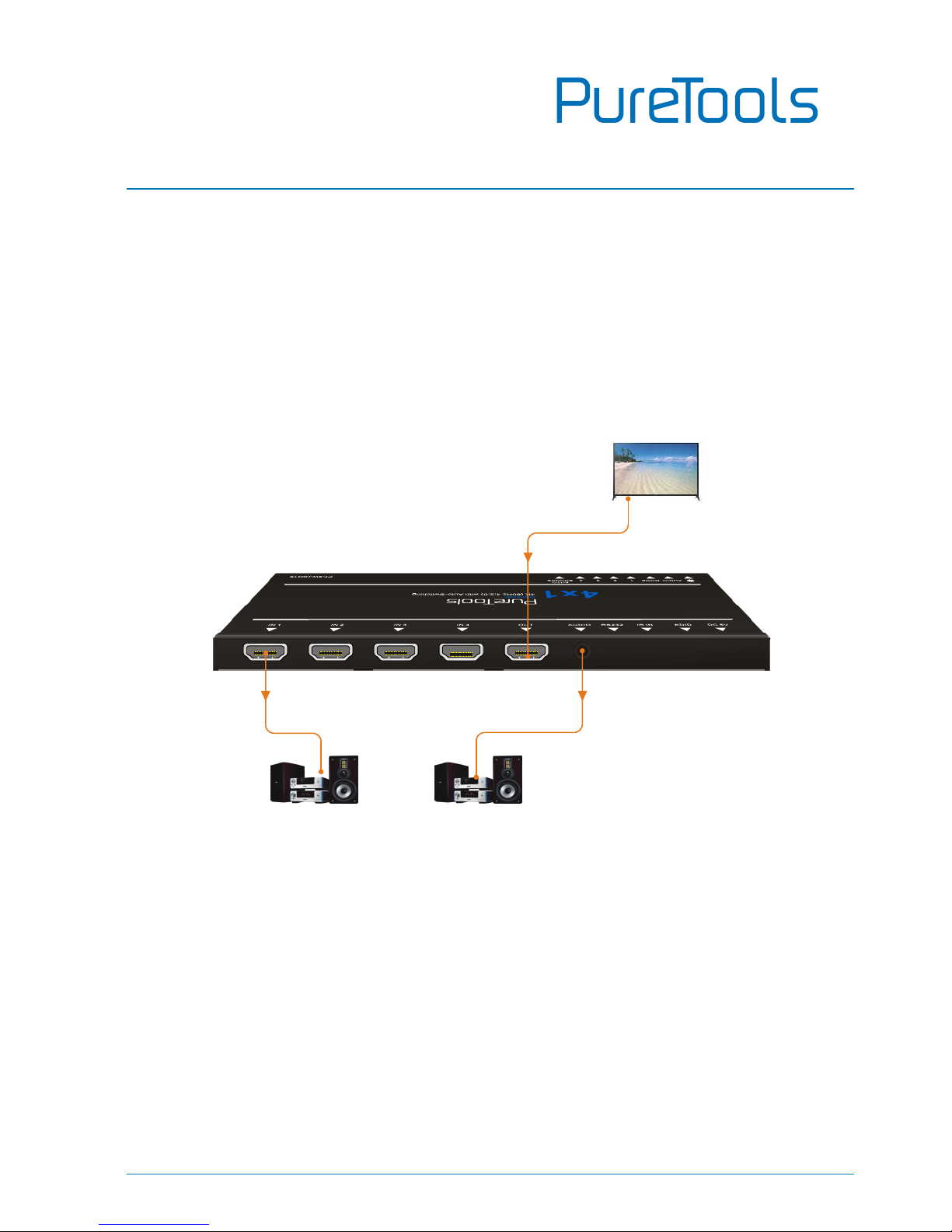
3.4 ARC Solution
The ARC (Audio Return Channel) enables a display, via a single HDMI cable, to either
send or receive audio via HDMI, upstream or downstream, depending on system
set-up and user preferences, increasing user flexibility. Connect the devices abiding
by the following figure:
Note: All utilized devices including the HDMI cable should support Audio Return
Channel functionality when connected to Audio Return Channel-enabled devices.
3.5 Application
PT-SW-HD41S has a good application in various occasions, such as computer realm,
monitoring, conference room, big screen displaying, television education, command
& control center and smart house etc.
Speaker Speaker
HDTV
Audio
AudioAudio
Page 13

User Manual
PT-SW-HD41S
8
4. System Control
4.1 Button Control
SOURCE/AUTO button on the front panel can be used to change input source and
switch mode.
Switch input source: Press the button to switch circularly among input 1~4, the
corresponding indicator illuminate green synchronously for easy recognition.
Change switch mode: Input signal supports auto-switch and manual switch. Press
and hold SOURCE/AUTO button for 3 seconds or more to switch between the two
modes. (Default: Manual switch.)
In auto-switch mode, source selection abides by the following principles:
New input principle
Once detecting a new input signal, PT-SW-HD41S switch to this new signal
automatically.
Power rebooting principle
Once rebooted, PT-SW-HD41S will automatically select input 1 as input source
even though there is no connection in input 1.
Signal removing principle
Once removed the current display signal, PT-SW-HD41S will detect all input
signals with priority from INPUT 1 to INPUT 4. It will transfer the first available
source to the output device.
In manual-switch mode, once rebooting, PT-SW-HD41S will output the source
signal before rebooting.
Page 14
User Manual
PT-SW-HD41S
9
4.2 IR Control
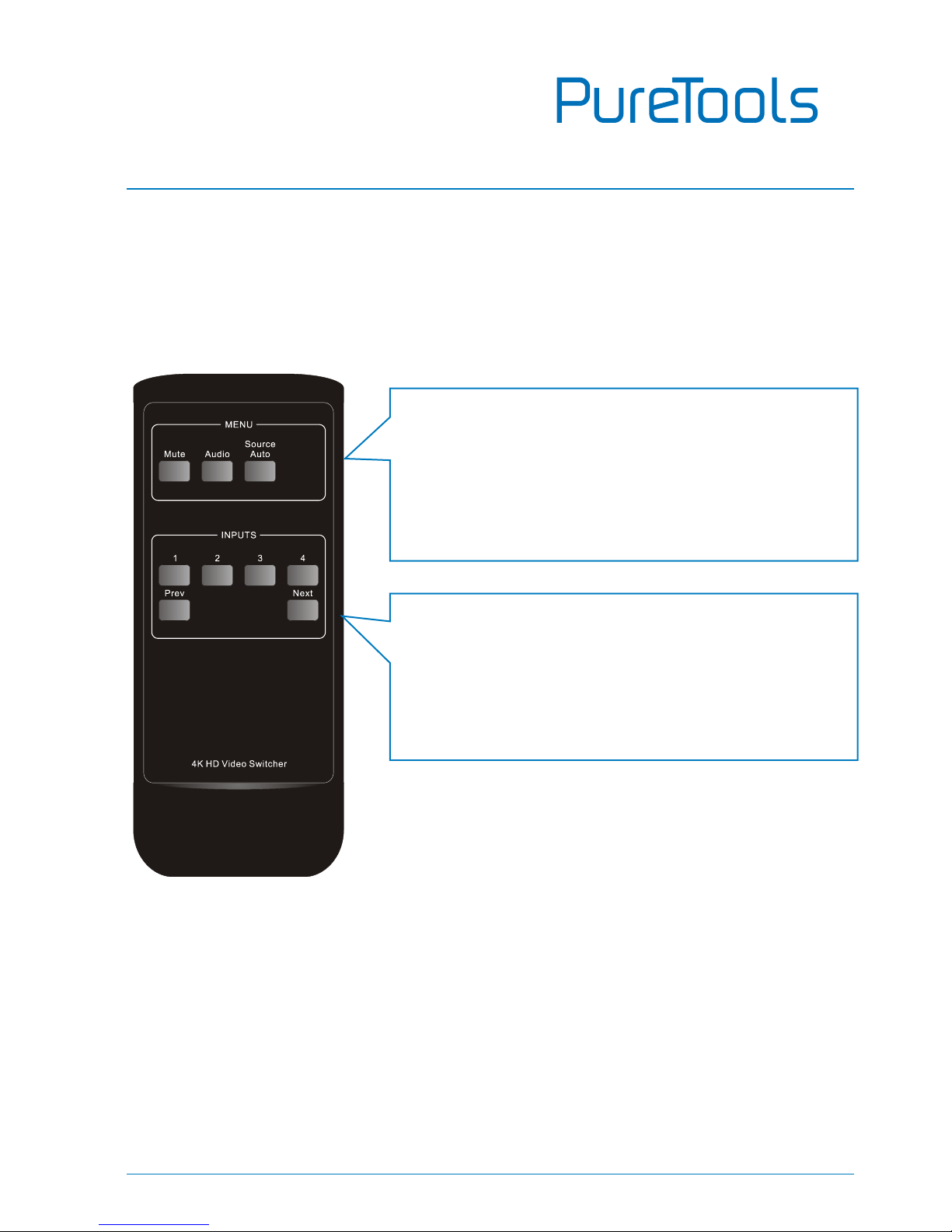
Connect an IR receiver to the IR IN port, users can control the device via the included
IR remote. Here is a brief introduction to the IR remote:
MENU:
Mute: press to switch on/off Audio& Video output
Audio: switch between HDMI signal and ARC audio
Source/Auto: share the same function with
SOURCE/AUTO button on the front panel
INPUTS:
1~4: press to switch input source, correspond to
input 1~4 separately
Prev/ Next: switch to the previous/ next input
source abiding by the order 1~4
Page 15

User Manual
PT-SW-HD41S
10
4.3 RS232 Control
PT-SW-HD41S provides with 1 3.5mm RS232 port for serial port control. Connect
PT-SW-HD41S to the control device (e.g. a PC) with RS232 cable and set the
parameters in the right manner, the control device is capable to control
PT-SW-HD41S via designed software.
4.3.1 RS232 Control Software
Installation: Copy the control software file to the computer connected with
PT-SW-HD41S.
Uninstallation: Delete all the control software files in corresponding file path.
Basic Setting:
Firstly, connect PT-SW-HD41S with an input device and an output device. Then,
connect it with a computer which is installed with RS232 control software.
Double-click the software icon to run this software.
Here we take the software CommWatch.exe as example. The icon is showed as below:
Page 16
User Manual
PT-SW-HD41S
11
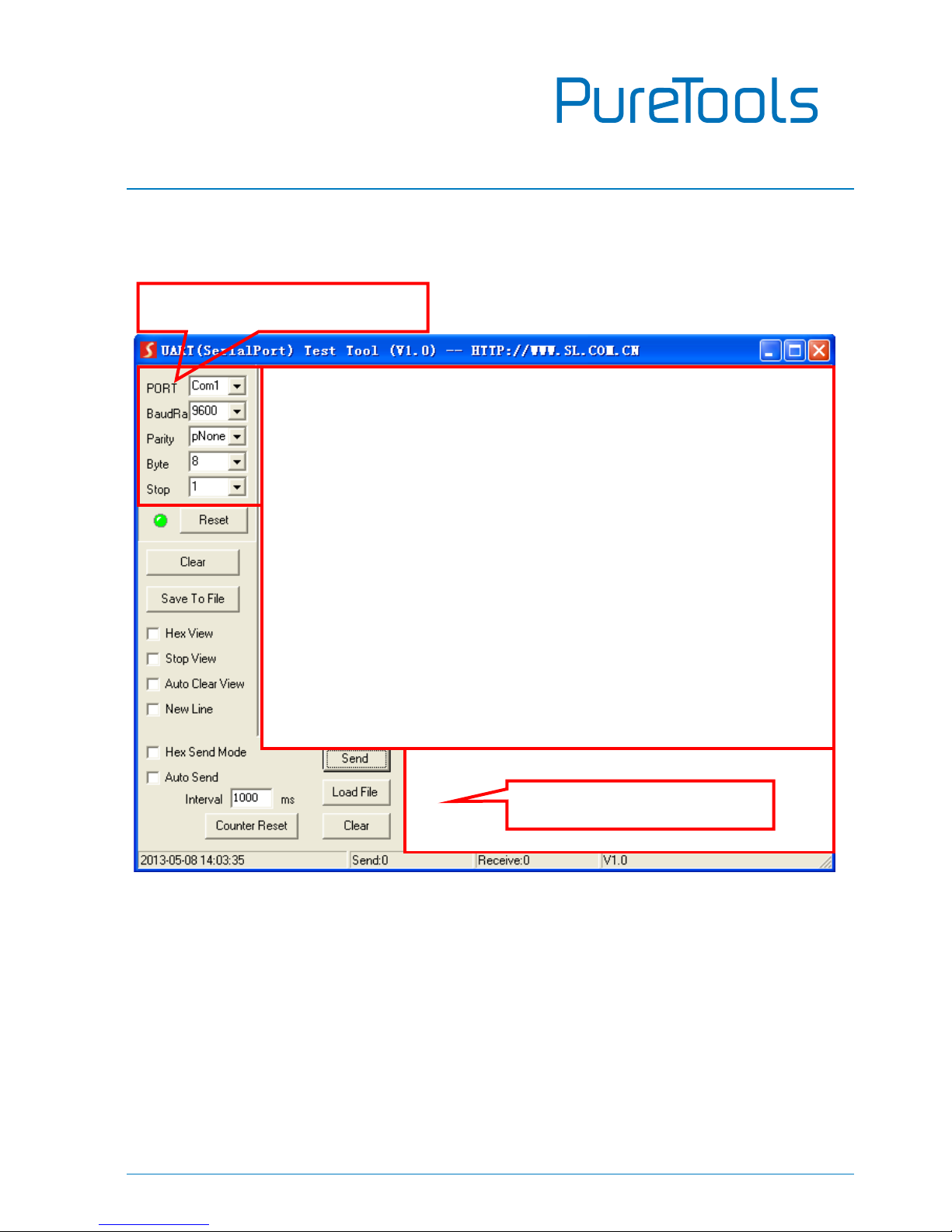
The interface of the control software is showed as below:
Please set the parameters of COM number, bound rate, data bit, stop bit and the
parity bit correctly, only then will you be able to send command in Command Sending
Area.
Monitoring area, indicates
whether the command
sent works.
Command Sending area
Monitoring area, indicates
whether the command
sent works.
Parameter Configuration area
Command Sending area
Page 17

User Manual
PT-SW-HD41S
12
4.3.2 RS232 Command
Baud rate: 9600; Data bit: 8; Stop bit: 1; Parity bit: none.
Command
Function
Feedback Example
[x]B1.
Switch audio and video signal of
input x synchronously, x=1~4
AV: x -> 1
0B0.
Switch off output
Mute On
0B2.
Switch on output
Mute Off
600%
Inquire operation status, including
I/O connection, switch mode, and
ARC mode
AV: x -> 1
Manual/ Auto Switch
Switch Device System/
Switch Device System
601%
Activate auto switch mode to detect
all input signals with priority from
INPUT 1 to INPUT 4 and transfer the
first available signal to the output
device.
Auto Switch
602%
Activate manual switch
Manual Switch
EDIDUpgrade[
x].
Upgrade EDID data via serial port, x
stands for the serial number of the
DIP switcher status
x=1~5, correspond to embedded
EDID 1~5 separately
x=6~15, correspond to the 10 custom
EDID
EDID Upgrade OK!
ARC [x]&
Switch on/off ARC audio output
x=1, switch on ARC audio output
x=0, switch off ARC audio output
Audio Return System (x=1)
Switch Device System (x=0)
Page 18

User Manual
PT-SW-HD41S
13
Note:
In above commands, “[”and “]” are symbols for easy reading and do not need to be
typed in actual operation.
Type in the complete commands including ending symbol “.”.
Load the desired EDID file to the RS232 control software after sending command
EDIDUpgrade[x]. , it will show “EDIDUpgrade OK!” after the upgrade is completed.
4.4 EDID Management
PT-SW-HD41S provides with convenient EDID management to create effective
communication between the display and sources.
In factory default status (Status: 0000), PT-SW-HD41S pass through the signals
directly, input& output device process the signal automatically. You can change the
EDID data by adjusting the 4-pin EDID DIP switcher.
Invoke EDID data:
Here is an introduction to the EDID data to be utilized:
Embedded EDID data: 5 sets in total, the chart below illustrates the 5 Embedded
EDID data:
No.
Switcher Status
(From right to left)
EDID information
1
0001
1080P 3D 2CH
2
0010
1080P 3D Muiltichannel
3
0011
1080P 2D 2CH
4
0100
1080P 2D Muiltichannel
5
0101
3840x2160 2D (30Hz)
Page 19

User Manual
PT-SW-HD41S
14
Custom EDID data: max at 10 sets, custom EDID data (.bin) and program the data
into the device by sending command EDIDUpgrade[x]..
To get the corresponding switcher status of a serial number for EDID data, convert
the decimal number to binary one first. The chart below shows switcher status for
6~15 (serial numbers for custom EDID data):
No.
Switcher Status
No.
Switcher Status
6
0110
11
1011
7
0111
12
1100
8
1000
13
1101
9
1001
14
1110
10
1010
15
1111
EDID Copy: automatically capture the EDID data of the display and copy to input
devices
Upgrade EDID data:
EDID data supports upgrade via serial port. Follow these steps to upgrade EDID:
Send command to upgrade the saved EDID data one by one.
Step1. Copy the upgrade file (.bin) to PC.
Step2. Send command EDIDUpgrade[x]. via the RS232 control software.
x is the serial number of EDID data
x=1~5, correspond to the 5 embedded EDID data listed on the above chart
separately;
x=6~15, correspond to the 10 custom EDID separately;
Step3. Click Load File and select the desired upgrade file (.bin). Press Send to start
upgrade.
It will return “EDID Upgrade OK!” when the upgrade finishes. Reboot the unit, users
can adjust the dip switchers on rear panel to invoke the upgraded EDID.
Page 20
User Manual
PT-SW-HD41S
15
5. Firmware Upgrade
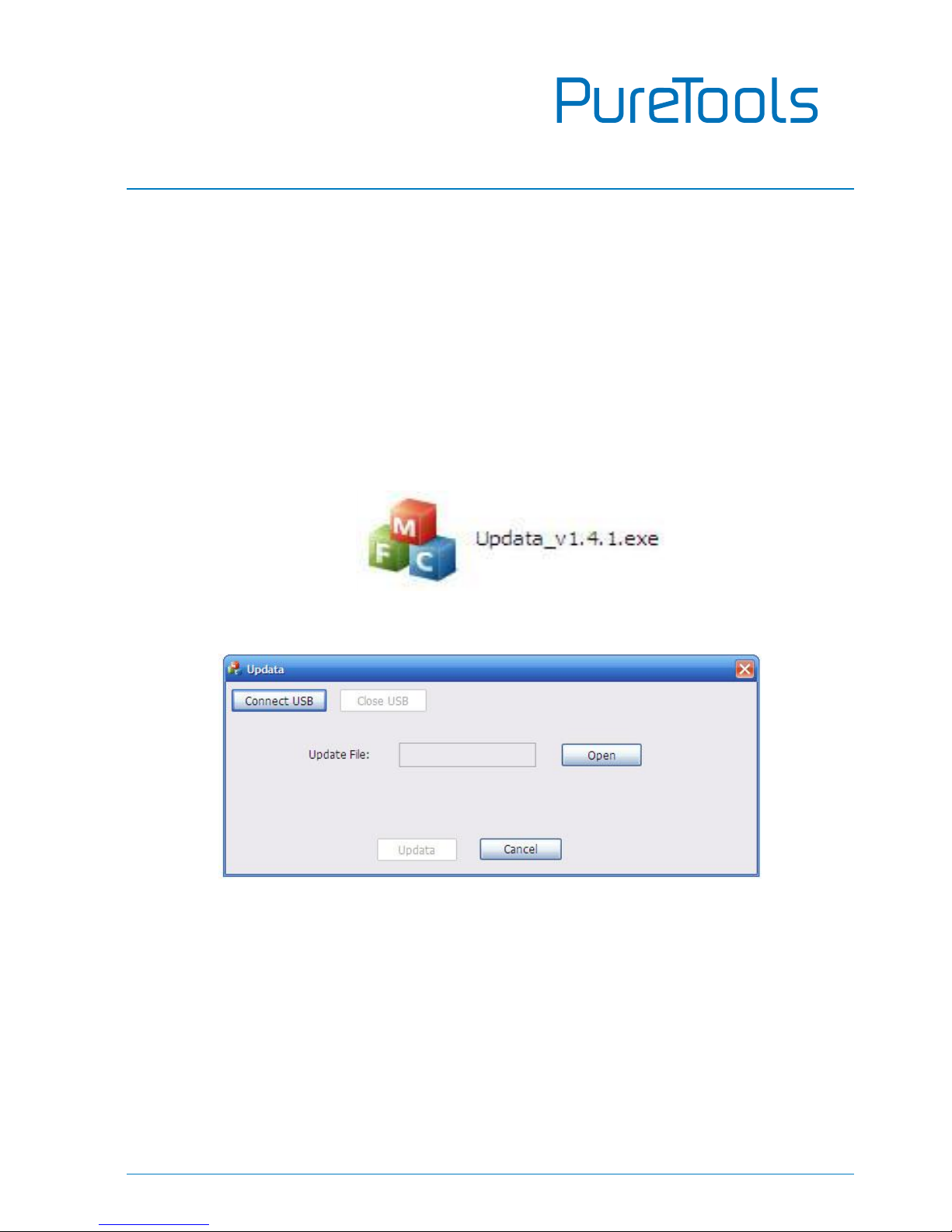
PT-SW-HD41S boasts a USB port for online firmware upgrade on the front panel.
Follow these steps to upgrade firmware:
Step1. Copy the upgrade software and the latest upgrade file (.bin) to PC.
Step2. Connect the USB ports of PT-SW-HD41S and the PC via USB cable.
Step3. Double-click the update software icon (see as below).
It will enter the upgrade interface shown as below:
Step4. Click Connect USB.
Step5. Click Open to load the upgrade file, then click Updata to start firmware
upgrading.
Note:
The USB port can also be used to energize the device.
The COM number connected with PC is available only when from 1 to 9.
Page 21

User Manual
PT-SW-HD41S
16
6. Specification
Product Model
PT-SW-HD41S
HDMI Standard
HDMI 1.4, support HDMI Deep Color, full 3D & 4Kx2K@30Hz
HDCP
HDCP 1.4 compatible
Video Signal
Support VESA and SMPTE Video; 480p/720p/1024x768/
1280x800/1080p/3840x2160@30Hz
ARC
HDMI support ARC function
Bandwidth
10.2Gbps
IR Control
IR IN, DC 5V, connect to the IR receiver and receive the IR
signal of IR remote
Input
HDMI x 4; 3.5mm(IR IN) x 1
Output
HDMI x 1; 3.5mm(audio) x 1
Other Connector
RS232(3.5mm) x 1; Power Connector x 1;
DIP(EDID for 4P) x 1
HDMI Connector
Type A
3.5mm Connector
IR IN x1 / audio x 1 /RS232 x 1
Chassis Dimension
W194xH12xD80(mm), ultra-thin
Raw Materials
Aluminum chassis
Weight
About 160g
Power Supply
DC 5V 1A
Consumption
4.2W
Temperature
﹣10 ~ ﹢40℃
Reference Humidity
10%-90%
Page 22
User Manual
PT-SW-HD41S
17
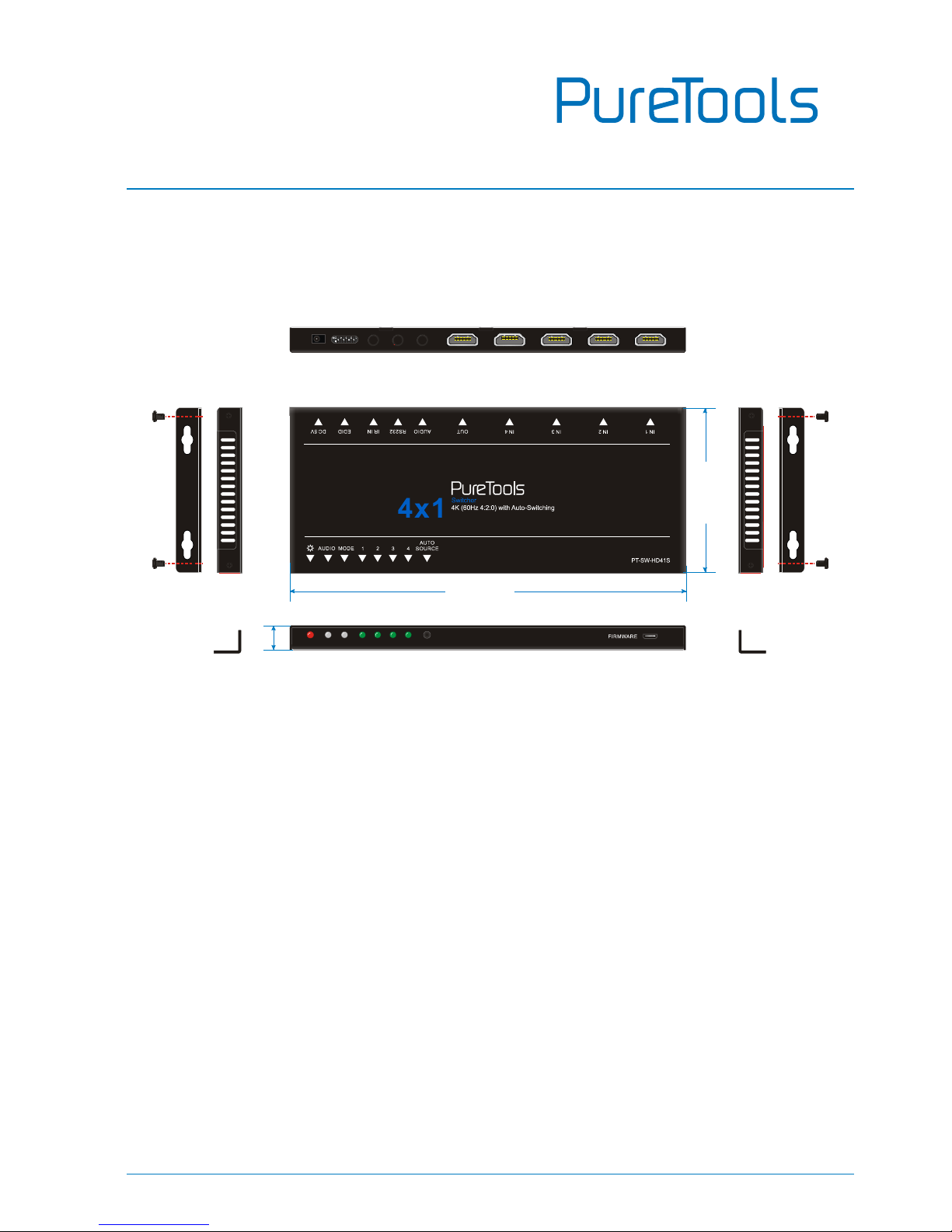
7. Panel Drawing
80 m
m
194 mm
12 m
m
Page 23

User Manual
PT-SW-HD41S
18
8. Troubleshooting & Maintenance
Problems
Causes
Solutions
Color losing or no video
signal output in HDMI
display
The connecting cables
may not be connected
correctly or it may be
broken.
Check whether the cables
are connected correctly
and in working condition.
No HDMI signal output in
PT-SW-HD41S while local
HDMI input is in normal
working state
Splash screen in output
devices
Poor quality of the
connecting cable
Change for another cable
of good quality.
Cannot control
PT-SW-HD41S by control
device (e.g. a PC) through
RS232 port
Wrong RS232
communication
parameters
Make sure the RS232
communication
parameters are correct.
PT-SW-HD41S is broken
Send it to authorized
dealer for repairing.
Static becomes stronger
when connecting the
video connectors
Bad grounding
Check the grounding and
make sure it is connected
well.
If your problem persists after following the above troubleshooting steps, seek further
help from authorized dealer or our technical support.
Page 24

User Manual
PT-SW-HD41S
19
9. After-Sales Service
If there appear some problems when running the product, please check and deal with
the problems referring to this user manual. Any transport costs are borne by the users
during the warranty.
1) Product Limited Warranty: This product will be free from defects in materials and
workmanship for two years (The purchase invoice shall prevail).
Proof of purchase in the form of a bill of sale or receipted invoice which is
evidence that the unit is within the Warranty period must be presented to obtain
warranty service.
2) What the warranty does not cover (servicing available for a fee):
Warranty expiration.
Factory applied serial number has been altered or removed from the product.
Damage, deterioration or malfunction caused by:
Normal wear and tear.
Use of supplies or parts not meeting our specifications.
No certificate or invoice as the proof of warranty.
The product model showed on the warranty card does not match with the
model of the product for repairing or had been altered.
Damage caused by force majeure.
Servicing not authorized by distributor.
Any other causes which does not relate to a product defect.
Delivery, installation or labor charges for installation or setup of the product.
3) Technical Support: For any questions or problems, contact your distributor or
reseller and tell them the respective product name and version, the detailed
failure situation as well as the formation of the cases.
Page 25

User Manual
PT-SW-HD41S
Page 26

User Manual
PT-SW-HD41S
Page 27

User Manual
PT-SW-HD41S
Page 28

User Manual
PT-SW-HD41S
Asking for Assistance
Technical Support:
Phone: +49 5971 800299 - 0
Fax: +49 5971 800299 – 99
Technical Support Hours:
8:30 AM to 5:00 PM Monday thru Thursday
8:30 AM to 4:00 PM Friday
Write to:
PureLink GmbH
Von-Liebig-Straße 10
D - 48432 Rheine
www.purelink.de
 Loading...