

Page 1

MP02 Mobile Phone
Instruction manual
Page 2

Contents
Part one
16
17
18
Network and SIM information
Network compatibility
SIM information
Inserting a SIM card
Viewing the SIM’s phone number
SIM PIN
Charging the battery
Cable compatibility
Using the supplied charger
Charging from a computer
Using a different charger
Troubleshooting
Preserving battery charge
Switching on and off
Switching on
Switching on for the first time
Switching off
22
23
24
25
26
Network connection
Signal strength
Mobile network provider settings
Sounds
Ringtone selection
Message alert selection
Phone volume level
Silent mode
Vibration alert feature
Start
Date and Time
Automatic or manual setting
Setting the date manually
Setting the time manually
Choosing 12
Alternate time zone
Language selection
The operating system language
The input language
Resetting the MP02
Forced restart
Deleting all Contacts
Deleting everything
After a reset
27
28
29
30
Phone information
Technical information
Activity log and storage counts
Data usage
Bluetooth
About Bluetooth
Turning Bluetooth on and off
Pairing with another device
‘Visibility’
Device name
Shortcuts
Introducing Shortcuts
Creating a Shortcut
Features and actions that can be linked to
Using a Shortcut
Deleting a Shortcut
Entering text I
The T9 system
Memorising the keypad
Entering text II
Text
Input languages
Capitalisation
10
11
12
Safety
Using the MP02 safely
Safe disposal information
Emergency calls
About emergency calls
Making an emergency call
First steps
How to use this manual
Using a new MP02 for the first time
Controls and key components
Included with the MP02
Keypad
The MP02’s operating system
The Home screen
Main Menu
Status menu
Options Menus
Scrolling
Highlighting
Selecting
Notifications
Part two
20
Security I
About the keypad lock feature
Locking and unlocking the keypad
Setting the keypad to lock automatically
Passcode protection
SIM PIN
BlackBerry Secure
6
6
7
8
8
8
9
16
16
16
16
16
17
17
17
17
17
22
22
23
23
23
23
23
23
-up/shut-down sound
27
27
27
28
28
28
28
28
9
9
10
12
12
13
17
18
18
18
24
24
24
24
24
25
25
26
-hour or 24-hour format
29
29
29
29
29
30
30
31
31
-entry modes
13
14
14
14
15
Punkt. MP02 Mobile Phone - Instruction manual
20
20
20
20
20
21
26
26
26
31
31
23.07.2019
2
Page 3

Contents
32
33
34
36
37
Entering text III
Using predictive text
Using multi
Entering text IV
Entering numbers
Entering a space
Entering other characters
Entering ideograms
Deleting text
Contacts I
About the Contacts directory
Adding Contacts
Viewing Contacts
Amending or adding numbers to Contacts
Deleting a Contact
Viewing the MP02’s own number
Contacts II
Speed
Copying and moving Contacts between the
MPO2’s memory and the SIM card
Sharing Contact information with other
devices
Contacts III
Backing up Contacts
Creating a Contacts .
Copying the Contacts .
38
40
42
Copying a Contacts .
to the MP02
Calls I
Making a call
Speed
Receiving a call
Using phone
Ending a call
Two calls simultaneously
Putting a call on hold
Calls II
Voicemail
Diverting incoming calls
Call history
Calls III
Call volume levels
Using the hands
Muting the microphone
Using external audio equipment (e.g. an
earpiece or an in
Putting calls on hold
Showing/hiding phone number on outgoing
calls
Part three
Message threads
Replying to a message
Forwarding a message
Deleting messages
Using message templates
Using the content of a text message
Alternatives to backing up
44
46
47
48
49
50
51
Clock features
Alarm
World Clock
Timer
Stopwatch
Calendar
Calculator
Updating the operating system
Providing Internet access
Notes
About Notes
Creating a Note
Adding a Reminder
Viewing a Note
Amending a Note
Deleting a Note
Text messages (SMS) I
Texting on the MP02
Composing and sending a message
Incoming messages
Part four
55
56
Appendix 1
Regulatory information
Appendix 2
Trademarks
37
vcf file from a computer
51
32
32
33
33
33
33
33
-tap text entry
38
38
39
39
39
39
39
-dial numbers
-based automated services
44
44
45
45
52
52
52
52
53
53
34
34
34
35
35
35
36
36
36
-dial numbers
40
40
41
42
42
42
42
42
42
-free speaker
-car system)
55
56
50
50
50
50
50
50
37
37
37
vcf file on the MP02
Punkt. MP02 Mobile Phone - Instruction manual
vcf file to a computer
51
51
51
23.07.2019
3
Page 4

About this instruction manual
⏤ Version
1.0
⏤ Revision date
July 2019
⏤ Change
All information and illustrations are indicative
only; individual units may vary.
First version
Punkt. MP02 Mobile Phone - Instruction manual
23.07.2019
4
Page 5

Part one
Punkt. MP02 Mobile Phone - Instruction manual
23.07.2019
5
Page 6
Safety
Using the MP02 safely
Before using the
MP02, read the
Be aware of radio wave interference
The MP02 emits radio waves, which may
interfere with other electronic devices.
Interference from other electronic devices
may affect the functioning of the MP02.
Do not use the MP02 in the following
situations/ environments:
Restricted areas
Turn off the MP02 before entering areas
Be safe on the road
Obey all local laws covering the use of mobile
phones in motor vehicles. Do not use the
phone while driving, unless in conjunction
with an appropriate hands-free device and
then only if legal to do so.
Be alert to distraction
Use of headphones may affect the ability to
hear external sounds and can lead to a
Keep the MP02 clean and dry
Do not use it in dusty or dirty conditions. Do
not let it get wet or use/store it in areas of
humidity. The MP02 is splash-proof but is
NOT water-proof. Protect it from all forms of
moisture at all times. If taking it from a cold
area to a warm area, place it in a plastic bag
first, to prevent condensation.
Protect against heat and cold
following safety
information
carefully.
where the use of mobile phones is not allowed
or where it may cause radio interference or
danger.
Medical devices and hearing aids.
Keep the MP02 away from medical devices,
including pacemakers and hearing aids. These
could malfunction, potentially causing serious
harm or death.
Volatile materials
dangerous lack of awareness of one’s
surroundings.
Prevent hearing damage
Exposure to loud sound levels can
permanently damage hearing. Do not hold the
device near the ear in hands-free mode. Take
care if using headphones or similar, as highvolume settings may damage hearing.
Do not expose the MP02 or charger to fire or
other heat sources. It may cause explosion,
fire or other hazards.
Avoid extreme temperatures (below 0° C or
above 40° C). Exposure to extreme
temperatures may cause the phone to stop
working temporarily and/or cause permanent
damage.
Do not use the MP02 in environments with a
risk of explosion, such as near petrol
(gasoline) pumps. Sparks may cause an
explosion or fire resulting in injury or death.
Punkt. MP02 Mobile Phone - Instruction manual
Keep away from children
Keep the MP02 out of the reach of small
children. The device and its accessories are
not toys, and they contain small parts.
For optimal performance and battery life,
store the MP02 in temperatures between
15° C and 25° C.
23.07.2019
6
Page 7

Safety
Use the charger safely
Only use the charger indoors. Use only
approved chargers and accessories that are
known to be fully compatible. Never use a
damaged charger or other accessory. Unplug
the charger when not in use, especially if there
is a possibility of lightning nearby. Use the
charger for its intended purpose only. When
unplugging always pull the plug (not the
cable).
Leave it to the professionals
Do not open or dismantle the MP02. The
battery is not consumer-replaceable and will
become hazardous if damaged. If liquid from
the battery touches the skin or eyes, seek
urgent medical assistance. If the MP02 stops
working, or if the battery needs to be
replaced, contact a local Punkt. dealer or get
in touch with Punkt. directly.
Safe disposal information
The crossed-out symbol above signifies that
the product (including its battery) must be
disposed of separately from household waste.
• Separate out electronic equipment and
packaging materials.
• Do not remove the battery.
• Do not dispose of the MP02 as unsorted
Take care if the MP02 is damaged
If the MP02 is damaged, stop using it and
place it in a plastic bag to contain possible
battery leakage. The screen on the MP02 is
made of glass: protect it from impact. If it
breaks, do not touch or attempt to remove the
broken glass. Stop using it and arrange for the
screen to be replaced by an authorised
municipal waste. At the end of its life, take
it for recycling at an appropriate collection
point. Contact the local authority for more
information, or locate a specialist phone
recycling service.
technician.
Punkt. MP02 Mobile Phone - Instruction manual
23.07.2019
7
Page 8

Emergency calls
About emergency calls
Do not rely on the MP02 for emergency
communication, especially when engaging in
hazardous activities and/or entering areas of
limited mobile network coverage. Any device
can fail, and a network connection can never
be guaranteed.
Emergency call numbers vary by location.
Ensure that they are known, especially when
Making an emergency call
⏤ If the keypad is not locked
• Press the or the key repeatedly, until
the home screen is shown.
• Enter the appropriate emergency number
for the present location.
• Select Call by pressing the key and then
the key.
travelling. Most emergency numbers can be
called when the keypad is locked, but not all.
Calls to emergency numbers can usually be
made without a SIM card, without any credit
on a PAYG SIM card, etc. – but there are some
regional exceptions to this.
⏤ If the keypad is locked
• Press the On/Off button.
• Enter the appropriate emergency number
for the present location.
• Select Call by pressing the key and then
the key.
For full information about making calls to
Punkt. MP02 Mobile Phone - Instruction manual
emergency numbers, see p 20.
23.07.2019
8
Page 9

First steps
How to use this manual
The MP02 is a relatively simple phone to use.
But it is very different to a smartphone, it
does not have a “Help” feature, and many of
its features are not readily guessable.
Therefore, it is necessary to learn its features
in a systematic manner.
This manual is designed to be worked through
in the order that it is written,
features that are unlikely to be used) and then
finish off by doing a total reset.
Troubleshooting tips are available on the
Punkt. website. For any further questions, the
Punkt. customer care team will be happy to
help.
Using a new MP02 for the first time
Before an MP02 can be used phone for the
comprehensively and from start to finish. It
should be recognised as being primarily an
instruction manual rather than a reference
manual. Later sections will assume knowledge
of information presented in earlier sections –
especially the contents of Section One.
The end result is that the user learns exactly
how his/her entire phone works; a refreshing
change compared to the byzantine nature of a
first time, the following steps need to be
taken:
• Insert a SIM card.
• Fully charge the battery.
• Turn the MP02 on.
• Follow the start-up process that will
automatically appear.
The MP02 is produced with a protective film
Punkt. MP02 Mobile Phone - Instruction manual
smartphone’s operating system and apps.
The best way to use this manual is to do a
“dummy run”, entering temporary settings
and playing with the phone until each and
every feature is totally understood (even
over the screen. Only remove this when it is
certain that the phone is not going to be
returned under the retailer’s returns policy.
23.07.2019
9
Page 10
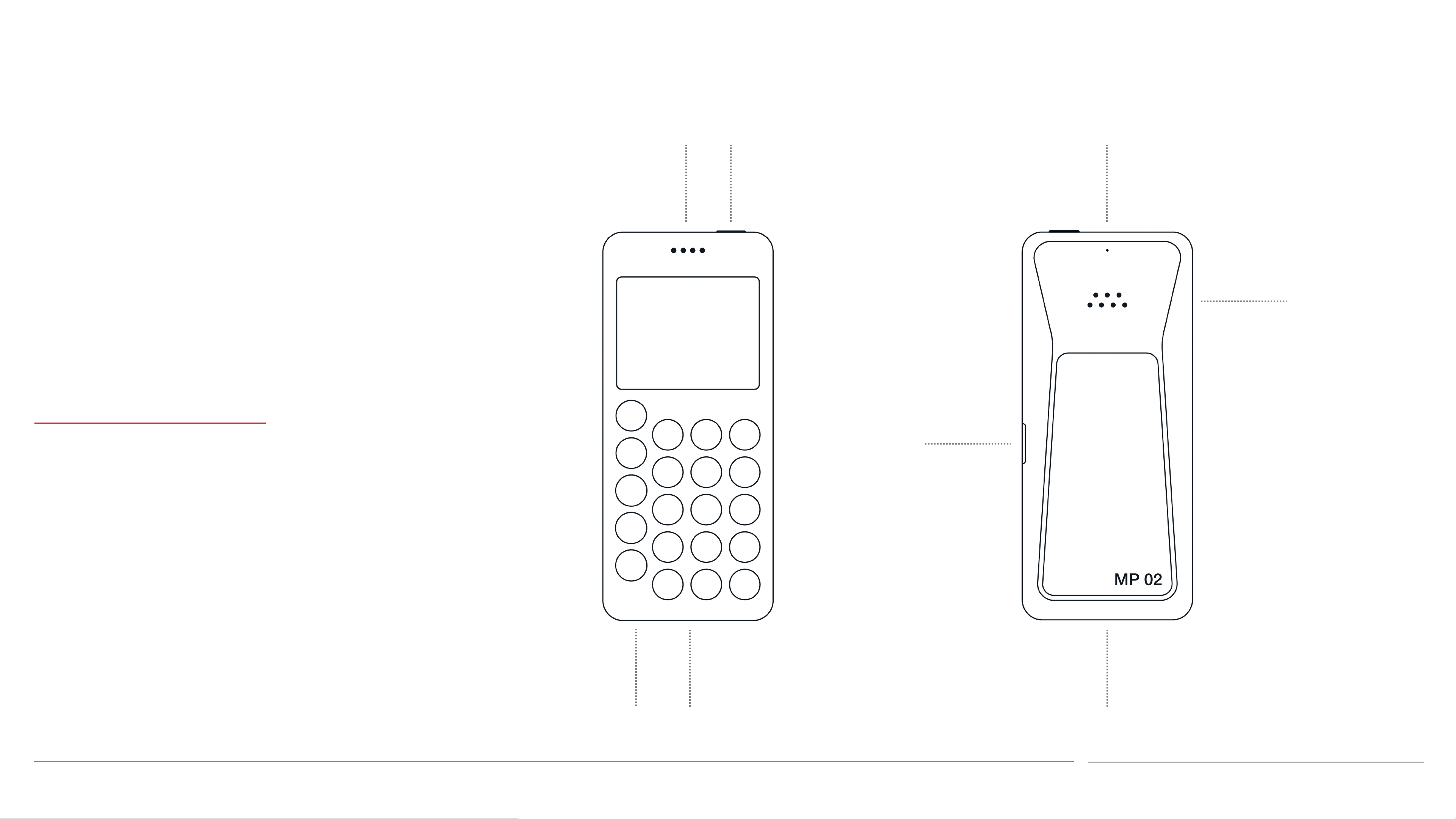
Controls and key components
Main speaker
On/Off button
Noise-cancelling
microphone
Hands-free
speaker
Included with the MP02:
• USB charger
• USB-A to USB-C cable
• SIM removal tool
• USB-C earpiece
• Product documentation: Getting
Started guide, Warranty and
SIM tray
access
Product information
Punkt. MP02 Mobile Phone - Instruction manual
USB-C socketMicrophone
Antenna areas
23.07.2019
10
Page 11

Keypad
Call
• With a Contact highlighted or
number entered: make a call
• Incoming call: accept call
• Home screen: view call history
Back
• Go back to previous screen
• While entering text: delete one
Up
• Within a menu or range of options:
scroll upwards (long press: rapid
scrolling)
• Within text: move cursor left (long
press: rapid movement)
• Increase numerical values
• Home screen: open Status menu
Punkt.
Contacts
• Home screen: open Contacts
• Home screen, long press: add a new
contact
Text messages
• Home screen: open the Messages
menu
• Home screen, long press: compose
Star
• While entering text: view symbols
list
• While entering a phone number:
insert a ✻ symbol
Zero
• Insert a space or enter a zero
• While entering a phone number
character (long press: delete all)
End
• Incoming call: reject call
• During a call: end call
• Other areas of the operating
system: end activity and return
directly to the Home screen
• Home screen, long press: switch
phone off
• Unlock screen
• Select/open a highlighted option or
menu item
• Home screen: access Main Menu
• Within a message thread: compose
a new message
Down
• Within a menu or range of options:
a new SMS message
• With a Contact or phone number
highlighted: compose a new SMS
message addressed to that
recipient
Number keys (1-9)
• Enter a number or letter
• Home screen, long press: call
voicemail (1) or activate a short-cut
into Contacts, long press: insert a +
symbol
Hash
• While entering text: change input
1
mode and capitalisation setting
• While entering text: long press:
select input language
• While entering a phone number:
insert a # symbol
Punkt. MP02 Mobile Phone - Instruction manual
scroll downwards (long press: rapid
scrolling)
• Within text: move cursor right
(long press: rapid movement)
• Decrease numerical values
• Home screen: open Notifications
list
(2-9)
1 Also known as crosshatch, hatch, pound, pound
sign, number, number sign, octothorpe, (garden)
fence, crunch, mesh, hex, flash, grid, pig-pen, tictactoe,
scratch (mark), (garden) gate, hak, oof, rake, unequal,
punch mark
23.07.2019
11
Page 12
The MP02’s operating system
Instead of a
touchscreen, the
MP02’s operating
system uses a
text-based interface,
with dedicated keys for
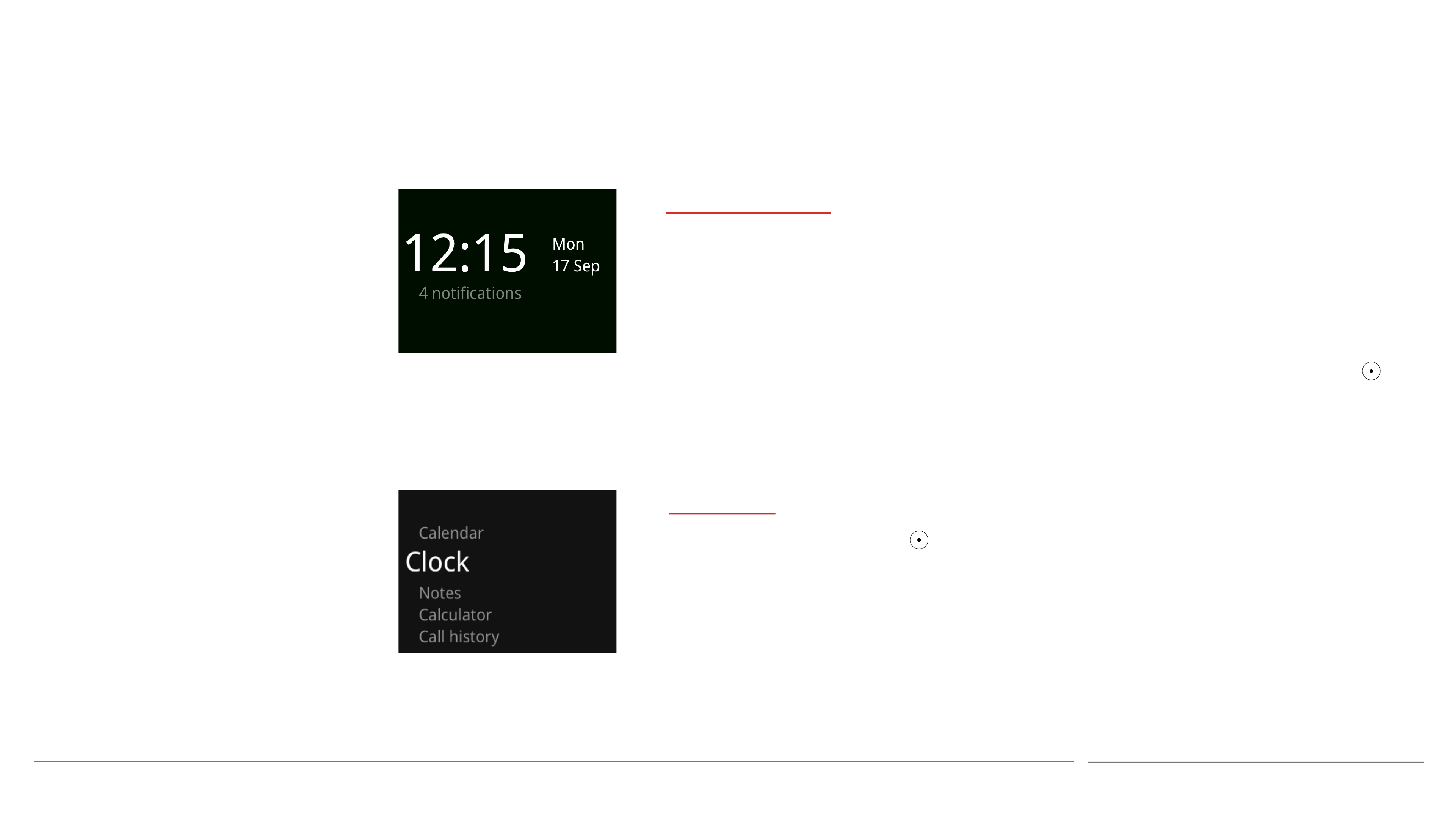
The Home screen
The MP02’s minimalist Home screen always
displays the current time, date and day of the
week. It also gives a very limited amount of
priority information about the phone,
including whether its battery is charging or if
the charge level is below 10%, if the network
signal is weak, and whether there are any
Notifications to read (e.g. an alarm setting, a
The Home screen can be reached from other
areas of the OS by pressing the End key (or by
repeatedly pressing the Back key).
All actions described in this instruction
manual are based on starting from the Home
screen, unless otherwise stated. The MP02’s
secondary features are accessed via the Main
menu, which is opened by pressing the key
while the Home screen is displayed.
calls and text
messaging. This page
introduces some key
menus and actions
that will be referred to
repeatedly through the
missed call, etc.)
Main Menu
This is opened by pressing the key when on
the MP02’s Home screen.
It is used to access some of the MP02’s
features and also to open the Settings menu.
rest of this manual.
Punkt. MP02 Mobile Phone - Instruction manual
23.07.2019
12
Page 13
The MP02’s operating system
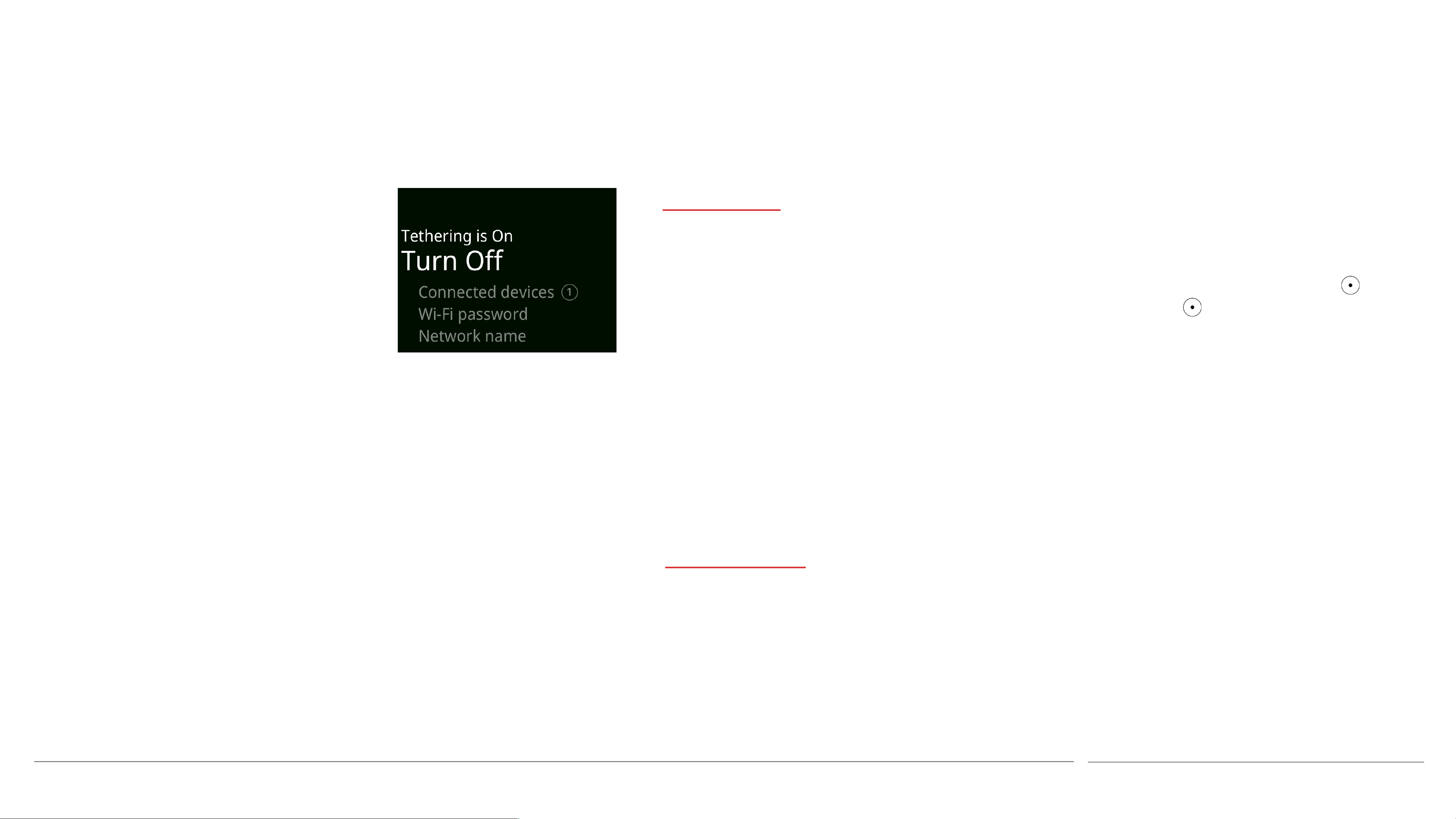
Status menu
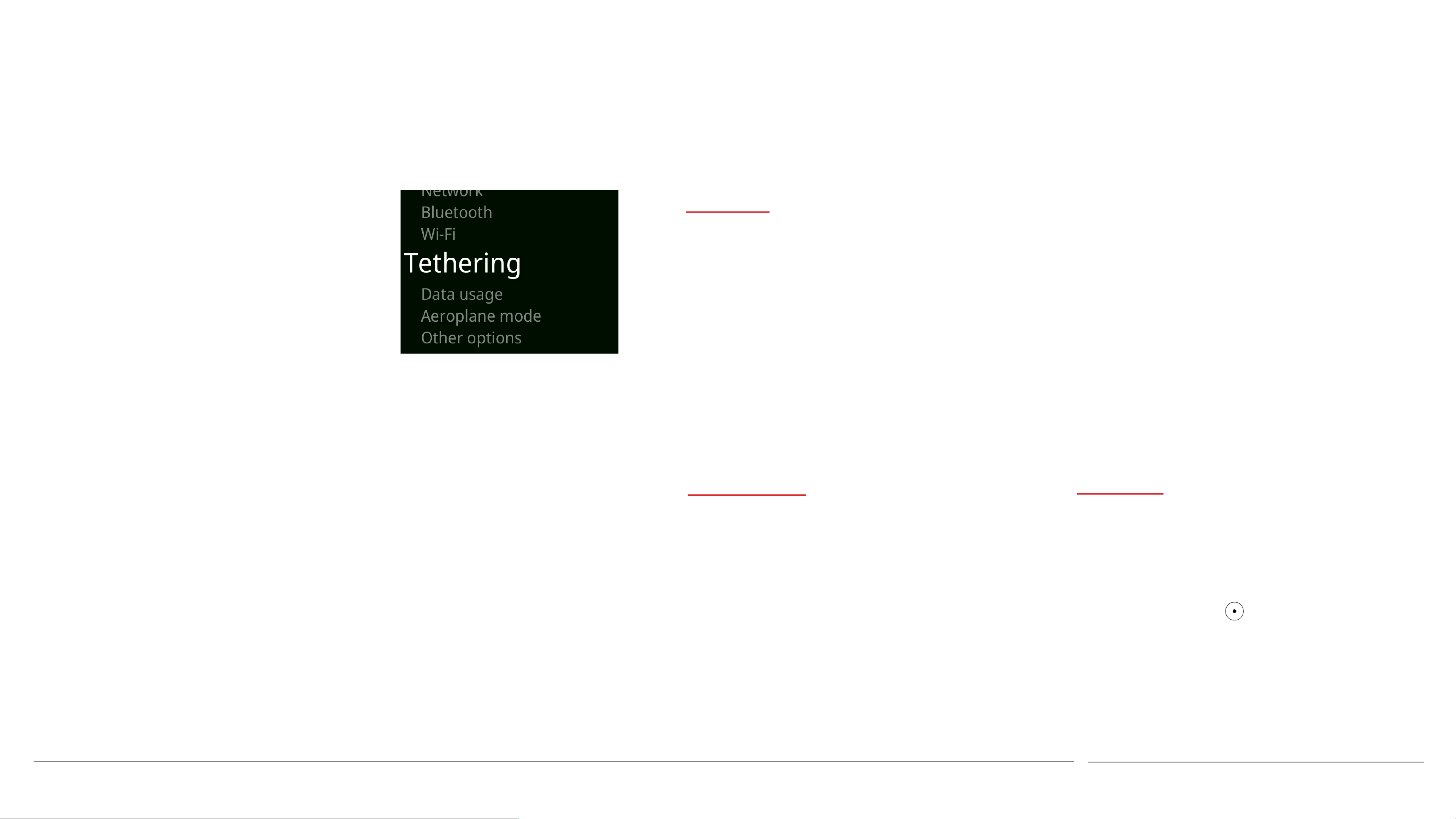
The Status menu can be opened from the
Home screen by pressing the Up key. It
provides quick access to the following
features/information:
• USB connection (only displayed when
connected to a computer)
• Tethering
• Network
Scrolling to an element on the Status menu
will cause it to display specific status
information and/or offer an option to switch
between On and Off. To switch on/off, or
access more information, press the key.
Long press the key when Tethering, Network
or Bluetooth are highlighted to access more
aspects of these features.
• Battery
• Silent mode
• Aeroplane mode
• Bluetooth
Options menus
Various elements of the operating system have
a short menu that contains a number of
The top of an Options Menu is shown in the
bottom-left corner of the screen. It is accessed
by pressing the Down key (sometimes
repeatedly, see the next section), and exited by
Punkt. MP02 Mobile Phone - Instruction manual
specific commands. For example, when
composing a text message the Options Menu
offers actions like Send, Save as draft, and so
on.
pressing the Up key.
23.07.2019
13
Page 14
The MP02’s operating system
Scrolling
This is a fairly standard procedure, and is
done by using the Up and Down keys.
However, it is important to be aware that it
is sometimes necessary to scroll horizontally
through text before continuing to scroll
vertically upwards or downwards.
Long-pressing the Up or Down keys will
accelerate the scrolling – particularly useful
for moving through text as described
above, and for accessing Settings at the
bottom of the Main menu.
Highlighting
When something is scrolled to (e.g. a menu
item or a text message) it becomes
highlighted.
Selecting
This is a two-stage procedure, comparable
to moving a computer mouse’s pointer to
an item and then clicking on it. To select
something on the MP02, first highlight it
and then press the key.
Selecting an item will generally enter a
command, lead to another menu, reveal
extra information, or access a feature.
Punkt. MP02 Mobile Phone - Instruction manual
23.07.2019
14
Page 15
The MP02’s operating system
Notifications
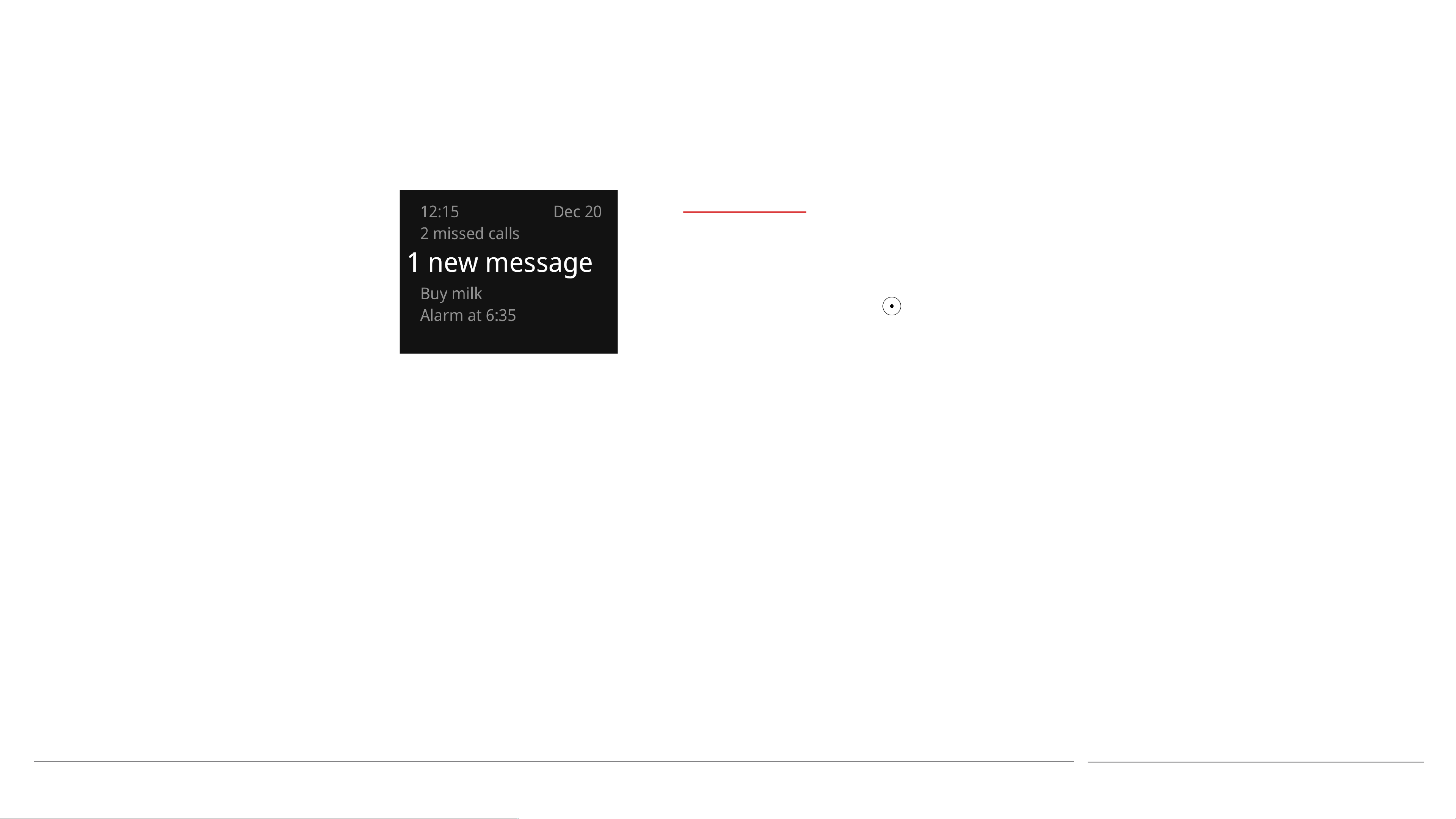
Press the Down key to access Notifications.
Each Notification can be expanded by
scrolling to it and then, when it is
highlighted, pressing the key. For some
types of Notification, this causes a list of
options to be displayed.
Punkt. MP02 Mobile Phone - Instruction manual
23.07.2019
15
Page 16
Network and SIM information
Network compatibility
The MP02 is a quad-band phone. It
can operate with 2G, 3G and 4G
(LTE), and is VoLTE-compatible.
SIM information
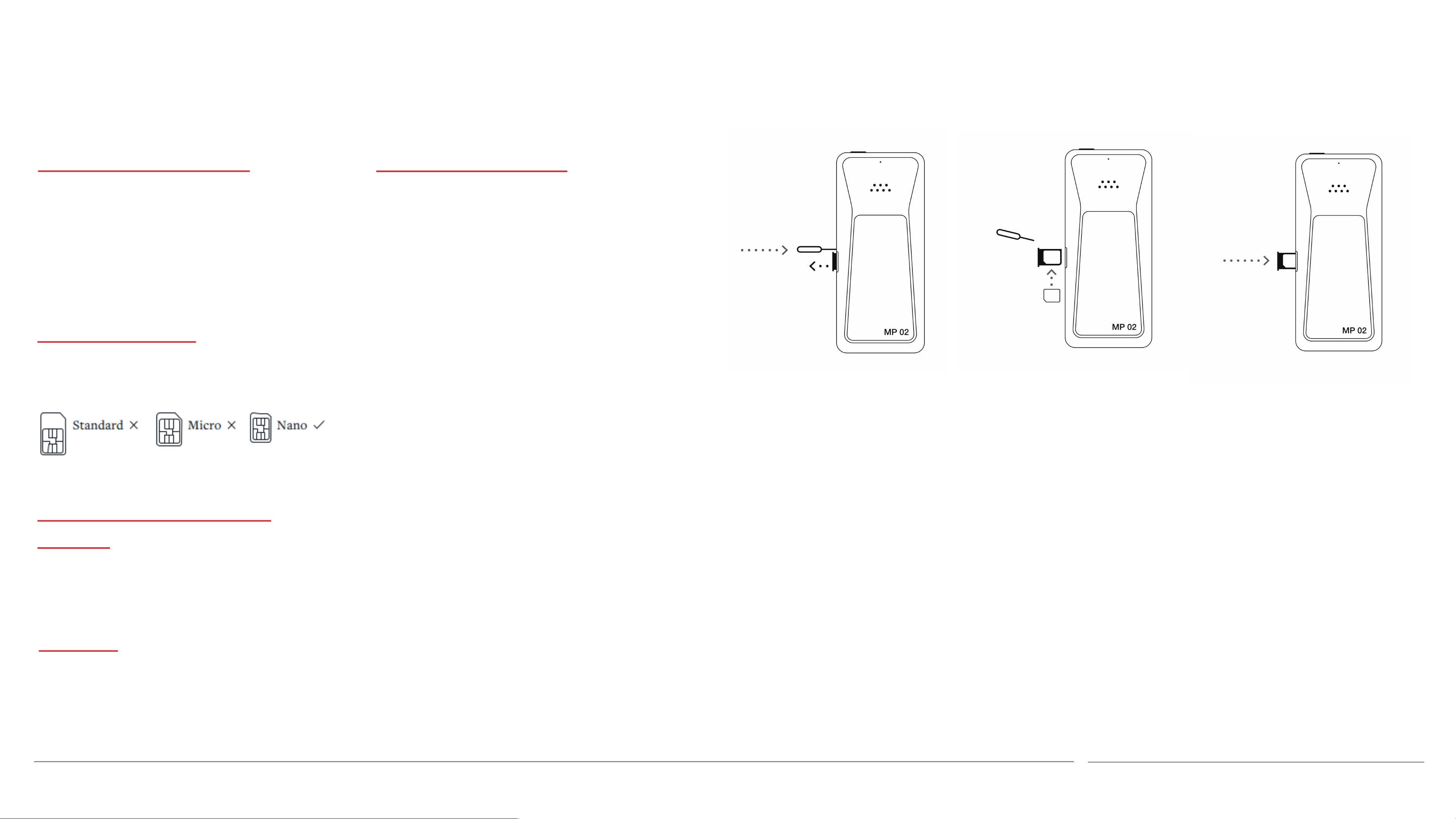
The MP02 uses a nano-SIM (4FF)
Inserting a SIM card
Warning: Only use the correct type
of SIM card, as described above.
Using another SIM card format may
cause permanent damage to the
phone and/or SIM card.
Warning: When handling a SIM
card, avoid finger-contact with the
metal area.
card.
Viewing the SIM’s phone
number
See p 16 for viewing the phone
number linked to the SIM.
It is okay to insert/remove the SIM
card while the MP02 is switched on.
1. Place the MP02 face down on a table,
rotated left or right as preferred. Insert
the SIM tray removal tool (provided)
into the small hole at the side of the
SIM tray and press firmly to cause the
tray to pop out slightly.
2. Pull the SIM tray to remove it from the
3. Put the SIM card into the tray with its
metal contacts facing down (i.e. in the
same direction as the front of the
phone). The angled corner ensures
correct orientation.
4. Reinsert the SIM tray into the phone
and push until it clicks into place.
SIM PIN
See p 16 for information about
activating the SIM’s PIN passcode
protection.
Punkt. MP02 Mobile Phone - Instruction manual
phone.
5. Keep the SIM tray removal tool in a safe
place, for example in the box that the
MP02 was supplied in.
23.07.2019
16
Page 17

Charging the battery
A new MP02 should be completely
charged before being switched on for the
first time. (This will take about 2.5
hours.)
To prevent damage to the USB port or
cable, hold the connector when removing
the USB-C cable from the MP02. Always
pull the connector in line with the USB
socket.
few minutes to appear). When the
screen goes black, it can be reactivated
by pressing the On/Off button.
• When the battery image is solid white,
remove the cable by pulling the plug
(always pull in line with the socket,
and never pull the cable). Unplug the
charger from the mains (or switch off
its supply) to conserve electricity.
If using a third party USB charger, ensure
that it comes from a reputable source.
There are numerous counterfeit or
otherwise defective chargers on the
market that could damage the MP02
and/or cause a fire.
Troubleshooting
If after several minutes the battery is not
indicating that it is charging, despite the
Preserving battery charge
If the battery is close to running out of
charge and it is not currently possible
to recharge it, power consumption can
be minimised by taking the following
steps (explained elsewhere in this
manual).
• Do not switch off: switching back on
again uses a significant amount of
Cable compatibility
The MP02 requires a USB-C cable.
Using the supplied charger
• Insert the small end of the supplied
USB-C cable (either way up) into the
socket on the bottom edge of the
MP02 with the wider part of the metal
element.
• Insert the other end of the cable into
Charging from a computer
It is also possible to use a computer’s
USB socket for charging the MP02.
Before connecting to the computer, from
the Main menu open the Settings menu,
then Connectivity, then Other options. If
the USB connection is set to Sync mode,
press the key to change it to Charge
only.
Charging from a computer will generally
On/Off button being pressed, carry out
the following tests (in any order).
• Test the mains socket by plugging in
another electrical device that is known
to be working (e.g. a lamp).
• Test the USB power supply by
plugging the USB cable into an
alternative USB power source that is
known to be working (e.g. a computer,
see below).
power.
• Deactivate the vibration alert
feature.
• Reduce volume levels. Consider
silencing the phone completely (the
screen will illuminate whenever a
call or text message is received).
• Deactivate Bluetooth.
• Try to keep the phone in an area
with a strong mobile signal.
the charger provided.
• Connect the USB charger to an
appropriate mains power outlet. If
necessary, switch the mains supply on.
• If the MP02 is switched off, it will now
display an image indicating the charge
level as it increases. (this may take a
Punkt. MP02 Mobile Phone - Instruction manual
take longer than from a dedicated
charger.
Using a different charger
The MP02 is supplied with a small,
portable charger. Faster charging can be
achieved by using a larger, desktop
charger.
• Test the USB cable by using it to
connect a different device that is
known to be working, or by using a
different (compatible) USB cable that
is known to be reliable.
• Lock the keypad as soon as the
phone is no longer in use, to avoid
illuminating the screen
unnecessarily.
23.07.2019
17
Page 18

Switching on and off
Switching on
• To switch the MP02 on, press and hold
the On/Off button on the top of the
phone.
• If the phone has been set to require a
passcode, enter it when requested and
press the key. More information
about passcodes can be found on p 20.
• If the SIM card has been set to require a
Switching on for the first time
When an MP02 is switched on for the first
time (or after a reset), it will prompt the
user to choose a language, choose a clock
format (12hr/24hr) and enter the current
time and date, to ensure that text messages
are given a correct date stamp from the
outset.
The Back key can be used to return to a
• If 12-hour clock format has been
selected, use the Up and Down arrows
to specify AM or PM for the current
time. When the correct option is
shown, press to enter.
• Repeat this three times to set the
current date. (Note whether it is in
little-endian or middle-endian format.)
passcode, this will be requested next.
More information about the SIM
passcode (PIN) can be found on p 20.
previous stage. If the screen goes black,
press any key or button to reactivate it. The
setting-up process can be cancelled by
switching the MP02 off.
• Select a language by using the Up and
Down arrows to scroll through the list.
When the desired language is
highlighted, press to enter.
• Select the clock format by using the Up
Switching off
To switch off, press and hold the On/Off
button, and then select Yes when
prompted.
Punkt. MP02 Mobile Phone - Instruction manual
and Down arrows again to highlight the
desired format, and then press to
enter.
• Current time: enter the hours, either
with the Up and Down arrows or the
number keys. When the correct value is
shown, press to enter. Repeat for
the minutes value.
23.07.2019
18
Page 19

Part two
Punkt. MP02 Mobile Phone - Instruction manual
23.07.2019
19
Page 20

Security I
About the keypad lock feature
To protect the MP02 against
unauthorised access, and to reduce the
likelihood of keys being unintentionally
pressed while the MP02 is in a pocket or
bag, the keypad can be locked.
In accordance with industry standards, it
is still possible to make a call to
emergency numbers when the keypad is
Setting the keypad to lock
automatically
The MP02 can be set to lock the keypad
automatically after a specified length of
time.
• From the Main menu, select Settings,
then Preferences, then Auto-lock.
• Select the desired delay (or Never to
then Security, then Passcode.
• Select Enable passcode or Disable
passcode as applicable.
• If this is the first time the passcode is
being activated, use the keypad to
create it (4-6 digits) and press the
key. Repeat to confirm.
⏤ Changing the MP02’s passcode
The SIM will come with a pre-set
passcode (PIN). This is likely to be
universal for many/all of that company’s
SIMs and therefore public knowledge; it
should be changed immediately on
receipt, even if only to protect it from
unauthorised change.
! Activating PIN protection on the SIM
card
locked (multiple numbers from around
the world are recognised, and the call is
given connection priority on the cellular
network). Keeping the phone in a case
when not in use can help prevent this
from happening unintentionally. For
more information about calls to
emergency numbers, see p 8.
⏤ Locking and unlocking the keypad
• Press the On/Off button. The screen
will go dark.
deactivate auto-lock).
Passcode protection
The MP02 can be set to require its
passcode to be entered each time the
keypad is unlocked and also before
carrying out a full reset.
Ensure that multiple copies of the
passcode are retained. If the passcode is
forgotten and no copies are available, the
MP02 will need to be returned to Punkt.
for resetting. A fee will apply, and all data
• From the Main menu, select Settings,
then Security, then Passcode, then
Change passcode.
• Enter the current phone passcode
and press the key.
• Enter a new phone passcode and
press the key. Repeat to confirm.
SIM PIN
The SIM card can be set to require a
passcode (also known as a PIN, which
With PIN protection activated, it will be
impossible to use that SIM without
entering its PIN each time any phone in
which it is installed is switched on.
Important: Do not try to guess a SIM
PIN. If an incorrect number is entered
too many times (typically three attempts)
the SIM will become locked and it will
not be possible to use it until a Personal
Unlocking Key (PUK) has been entered.
A PUK can be obtained from the SIM’s
provider.
• Pressing the On/Off button again will
reactivate the screen and the Home
screen will be displayed; the keypad
will still be locked. Press the key
to unlock it.
Punkt. MP02 Mobile Phone - Instruction manual
on it will be lost.
⏤ Activating or deactivating the MP02’s
passcode protection
• From the Main menu, select Settings,
stands for “Personal Identification
Number). This protects it against
unauthorised use in the MP02 or any
other phone.
• From the Main menu, select Settings,
then Security, then SIM PIN.
• Select Enable SIM PIN, enter the
current PIN and press , twice.
23.07.2019
20
Page 21

Security I
⏤ Changing the SIM card’s PIN
• From the Main menu, select Settings,
then Security, then SIM PIN.
• Select Change SIM PIN.
• Enter the current PIN and press .
• Enter the new PIN (at least four
digits) and press .
• Enter the new PIN a second time and
BlackBerry Secure
BlackBerry Secure protection
continuously monitors the MP02 for
activity or configuration changes that
indicate a compromise to security, thus
helping to safeguard data that it holds.
⏤ Checking the MP02’s security status
press . The new PIN will now be
valid.
• From the Main menu, select Settings,
then Security, then Security status.
• The status should be ‘Excellent’.
• If the status is ‘At risk’ the phone may
be compromised. Contact Punkt.
Customer Care for further
information. The MP02 can still be
used, but extra care should be taken
regarding important data.
Punkt. MP02 Mobile Phone - Instruction manual
23.07.2019
21
Page 22

Network connection
Specifies automatic or manual network
Signal strength
The current mobile network signal
strength can be ascertained by viewing
Network in the Status menu.
The radio antennae are located at the
top corners and along the bottom of the
MP02. Avoid covering these areas
during calls, especially when there is
limited mobile signal.
Signal strength has a major impact on
Mobile network provider settings
With a SIM is inserted, each time the
MP02 is switched on it automatically
chooses a network provider according to
information contained within the SIM.
This can be overridden by choosing a
network provider manually. There are a
number of other settings that in some
cases may need to be changed.
The name of the network provider
Network setting Description
Allows connection to other network
Roaming data
providers when travelling abroad.
Provides access to the Internet using
Mobile data
mobile network signal.
battery life. If a mobile phone is used in
an area with low signal, it has to
transmit with higher power. If a phone
is being used indoors, signal strength
can sometimes be improved by using
the phone near a window or in another
part of the building.
currently in use can be viewed by
highlighting Network in the Status menu.
This may sometimes be different to the
contracted network provider, as providers
often collaborate to ensure coverage.
Manual network selection can be useful
near national borders, to avoid
connection with a foreign provider and
thereby incurring unnecessary roaming
charges. Conversely, this may be
preferable in situations where the local
VoLTE
1
Network type
Carrier
Allows voice calls over the 4G data
network.
Chooses connection type between 2G,
3G or 4G (LTE), depending on signal
availability.
selection. In manual mode, a list of
available network providers is
1 VoLTE: The carrier network needs to support this
service
2 APN: An APN is used for making a data connection.
Not all network providers allow the APN settings to be
edited/modified, and the parameters must be entered
exactly as specified by them.
Punkt. MP02 Mobile Phone - Instruction manual
provider’s signal is too weak.
To change network settings, from the
Main menu, select Settings, then
Connectivity, then Network. If necessary,
the following settings can be changed.
APN
2
displayed.
Configures Access Point Name
(APN) settings. For more details,
contact the network provider.
23.07.2019
22
Page 23

Sounds
Ringtone selection
A range of ringtones are available; it is
also possible to have no sound at all when
there is an incoming phone call.
⏤ To choose a ringtone option
• From the Main menu, select Settings,
then Sounds, then Calls.
• Listen to the available ringtones by
selecting them; repeat by pressing the
k. key again. (This will not work if
⏤ To choose a ringtone option
• From the Main menu, select Settings,
then Sounds, then Messages.
• Listen to the two options by selecting
them; repeat by pressing again.
(This will not work if the phone is in
Silent mode.)
• When the desired option has been
selected (it will be marked with a solid
circle), press the End or Back key to
Silent mode
The phone’s sounds (except the alarm
clock) can be temporarily muted by
activating Silent mode.
• In the Status menu, highlight Silent
mode and press the key.
• Repeat to deactivate Silent mode.
• (This can also be done via the Sounds
menu.)
vibration alert are both deactivated, the
MP02 will still indicate an incoming call
via a message on the screen.
Start-up/shut-down sound
The MP02 can make a columbine sound
when it is switched on and off.
⏤ To start or stop the pigeon
• From the Main menu, select Sounds,
and then Start-up sound.
the phone is in Silent mode.)
• When the desired option has been
selected (it will be marked with a
solid circle), press the End or Back
key to exit.
Message alert selection
A choice of two text message (SMS) alert
sounds are available; it is also possible to
exit.
Phone volume level
The MP02’s ringtone and text alert
volume levels, together with other alert
tones, can be collectively adjusted as
follows.
• From the Main menu, select Settings,
then Sounds, then Phone volume.
Vibration alert feature
The vibration alert feature provides a
relatively discreet indication of an
incoming call or text message. When it is
in “On” mode, it will always be activated
when a call or text is received, even when
the phone is on silent.
Switching off the vibrating alert will help
conserve the battery’s charge level.
• Press the key to toggle between
On and Off.
have no sound at all when a text message
arrives.
Punkt. MP02 Mobile Phone - Instruction manual
• Use the Up and Down keys to choose
the desired level.
• Press the End or Back key to exit.
If the ringtone does not sound when a
call is received, despite the phone not
being set to silent, this may be because
call diversion is active.
⏤ To turn the vibration alert on or off
• From the Main menu, select Settings,
then Sounds, then Vibration.
• Press the key to toggle between
On and Off.
Even when both the ringtone and
23.07.2019
23
Page 24

Date and Time
Automatic or manual setting
The MP02 can be set to have the time and
date updated automatically by the mobile
network provider, if this is part of their
service.
⏤ To turn automatic date and time
setting on or off
• From the Main menu, select Settings,
then Date and time.
• The current setting will be displayed
within the menu.
Setting the date manually
• Ensure that manual time setting is
activated, as described above.
• From the Main menu, select Settings,
then Date and Time.
• The current date will be displayed
within the menu. Note that it is in
middle-endian format (month first).
• To change the date, select it and use
either the Up and Down keys or the
number keys to alter each entry
• Change the hours and minutes
settings, and the AM/PM setting if
applicable (phone set to 12-hour clock
display) by using the Up and Down
keys or the Number keys. Use the
and Back keys to move between fields.
• To finish, press the key with the
final entry highlighted (hours or
AM/PM).
Choosing 12-hour or 24-hour
format
Alternate time zone
The alternate time zone feature makes
it possible to quickly change the
MP02’s clock to match a different time
zone. (Note that this will affect the
time/date stamp applied to text
messages.)
⏤ To select a different time zone
• From the Main menu, select Settings,
then Date and Time.
• The current time zone will be
• To change it, select Mode and then
press the key.
• Press the End or Back key to exit.
To ascertain whether automatic time and
date setting is available, either contact
the network provider or try entering a
time that is slightly inaccurate and see if
it is corrected. (There may be a delay
before this happens.) Keep the difference
(month first). Use the and Back
keys to move between the fields.
• To finish, press the key with the
year setting highlighted.
Setting the time manually
• Ensure that manual time setting is
activated, as described above.
• From the Main menu, select Settings,
then Date and Time.
• Ensure that manual time setting is
activated, as described above.
• From the Main menu, select Settings,
then Date and Time.
• The current time and format will be
displayed within the menu.
• Select Time, then Format. This will
cause the phone to switch between
12-hour and 24-clock format.
displayed within the menu.
• To change this, select it and then
move across the map by using the
Up and Down keys.
• When the required time zone is
indicated, exit by pressing the
key.
fairly small, to avoid problems with the
time/date stamp attached to text
messages.
Punkt. MP02 Mobile Phone - Instruction manual
• The current time will be displayed
within the menu.
• Select Time, and then the current
time as displayed in the menu that
follows.
• Press the End or Back key to exit.
Reactivate automatic time setting, if
required.
23.07.2019
24
Page 25

Language selection
The MP02 functions
in the following
languages:
The operating system language
This affects every aspect of the MP02 apart
from text entry. It can be set to function in
the following languages:
Danish, Dutch, English, Finnish, French,
German, Greek, Italian, Japanese, Norwegian,
Russian, Spanish, Swedish.
⏤ To set the operating system language
The input language
This refers to the language that is used for
creating Notes, messages, etc.
The input language can also be set via the
Preferences menu, but it can also be quickly
changed, while text is being entered, by
long-pressing the Hash key. As well as
affecting the predictive text, this provides
access to diacritics (e.g. Québec rather than
• From the Main menu, select Settings, then
Preferences.
• The currently-selected OS language will be
displayed within the menu. To change it,
select it and then choose the new language
from the list.
If the OS is set to a language that cannot be
understood, the list of Languages can be
accessed by following this sequence of key
Quebec).
It can be set to the following languages:
Arabic, Chinese (simplified), Danish, Dutch,
English, Finnish, French, German, Greek,
Hindi, Italian, Japanese, Norwegian,
Portuguese Russian, Spanish, Swedish.
Punkt. MP02 Mobile Phone - Instruction manual
presses:
End/ /Down x5/ /Down x2/ x2
If this does not work, switch the phone off
and back on again, and then repeat the
sequence.
23.07.2019
25
Page 26

Resetting the MP02
Forced restart
If the MP02 stops responding, long-press
the On/Off button for at least ten
seconds. Also, ensure that it is within the
stated minimum and maximum operating
temperatures.
If this does not solve the problem, please
contact Punkt. Customer Services.
The rest of the phone (Settings, Notes,
Messages, etc.) are also not affected.
Warning: This process cannot be
cancelled or undone.
• From the Main menu, select Settings,
then Reset.
• Select Reset contacts.
• Confirm when prompted.
it elsewhere. (Always have at least two
separate copies of important data.)
See p 37 for information on how to do
this.
• From the Main menu, select Settings,
then Reset.
• Select Factory reset.
• Enter the phone passcode if passcode
protection has been activated.
Deleting all Contacts
This will cause all information to be
deleted from the phone’s Contacts
directory.
Any vCard copies of the Contacts
directory stored on the phone will not be
deleted. These can be deleted by
connecting the MP02 to a computer,
either immediately after backing up or at
a later point, or by doing a total reset as
Deleting everything
This will cause everything on the phone
to be deleted, including any vCard copies
of the Contacts directory.
⏤ To remove all user settings and
permanently delete all user data and
vCard files.
Warning: This process cannot be
cancelled or undone.
• Confirm when prompted.
After a reset
When the phone is restarted, it will be
necessary to go through the standard
setting up procedure again.
Punkt. MP02 Mobile Phone - Instruction manual
described in the next section. For more
information on vCard copies, see p 37. For
maximum security, overwrite these files.
Contact Punkt. for more information on
how to do this.
• Create a backup copy of the Contacts
list, export it to a computer, and then
delete it from the MP02 (and any
others that may exist). Make a copy of
the most recent backup file and store
23.07.2019
26
Page 27

Phone information
Technical information
The MP02’s About menu links to
technical information about numerous
aspects of that specific phone, including
the following elements.
• The installed SIM and the network
connection.
• The IMEI number (“International
Mobile Equipment Identity”: a unique
Activity log and storage counts
The total number of calls that the phone
has made since it was new (or was last
reset), plus the current number of
Contacts, Messages and Notes saved in
the phone, can be seen by selecting
Applications, which is also in the Settings
menu.
Data usage
identifier, needed when contacting
Punkt.’s customer services
department).
• The phone’s IP address.
• The software version installed.
The About section is located in the
Settings menu, which is in the Main
menu.
Data usage can be viewed by selecting
Connectivity, then Data usage, again from
the Settings menu.
Punkt. MP02 Mobile Phone - Instruction manual
23.07.2019
27
Page 28

Bluetooth
About Bluetooth
Bluetooth allows the MP02 to wirelessly
connect with other devices over short
distances. It is named after the 10th
century Danish king Harald Bluetooth,
famous for bringing different tribes
together. He is also responsible for the
oldest extant bridge in northern
Scandinavia.
Turning Bluetooth on and off
To conserve the battery’s charge level,
turn Bluetooth off when it is not needed.
As well as using the Main menu to access
the Bluetooth menu, Bluetooth can more
quickly be turned on and off via the
Status menu (see p 42).
Pairing with another device
‘Visibility’
The MP02 can be made visible or invisible
to other devices, by selecting Visibility on
the Bluetooth menu.
Device name
This refers to how the MP02 is
represented on other devices. The default
name is “MP 02”, but this can be changed
if desired.
⏤ The MP02 uses Bluetooth to
• connect with an earpiece/headphones
or a car audio system, and
• exchange contact details with another
device.
A simple set-up process is required to
enable a Bluetooth connection with
another device.
A USB-based earpiece or pair of
Creating a Bluetooth connection between
two devices is called “pairing”.
• From the Main menu, select Settings,
then Connectivity, then Bluetooth.
• If Bluetooth is off, select Turn on.
• Next, select Devices, then Search for
new devices.
• Select a device to pair with.
• Follow the on-screen instructions. A
• Select Name on the Bluetooth menu.
• Delete the existing name by pressing
the Back key and use the keypad to
enter the new name.
• Press the key to save the new
name.
• The process can be cancelled by
repeatedly pressing the Back key (the
name will appear to be deleted, but no
Punkt. MP02 Mobile Phone - Instruction manual
headphones can also be connected via the
USB socket.
code number will be displayed; select
Pair if it matches on both devices.
• The devices are now paired.
changes will be saved).
23.07.2019
28
Page 29

Shortcuts
Introducing Shortcuts
A Shortcut provides instant access to a
feature pre-allocated by the user. Each
number key apart from “1” can be linked
to a feature from the list below.
Creating a Shortcut
• From the Main menu, select Settings,
then Preferences, then Shortcuts.
• Choose a number key to link from.
Features and actions that can be
linked to
• Call Contact
• Message contact
• New message
• New note
• New contact
• Voicemail
• Open app (see below)
• Turn on Bluetooth
Using a Shortcut
To use a shortcut, long-press its number
key with the Home screen displayed.
Deleting a Shortcut
It is not possible to simply remove a
Shortcut (other than by resetting the
entire phone). The only option is to
replace a number key’s Shortcut with a
different Shortcut.
(The “1” key is permanently linked to
Voicemail.)
• Select the desired action. To create a
Shortcut to access one of the MP02’s
features, e.g. the Clock, select Open
App and select again from the
sub-menu that appears.
• Turn on Wi-Fi
• Turn on Tethering
Open App leads to this sub-list:
• Contacts
• Clock
• Messaging
• Settings
• Notes
• Calculator
• Call history
Punkt. MP02 Mobile Phone - Instruction manual
• Calendar
23.07.2019
29
Page 30

Entering text I
This section
describes how to
use the MP02’s
keypad for entering
text when creating
a Note, entering a
Contact’s name,
The T9 system
The MP02 uses the T9 keypad system (T9
stands for “text on nine keys”). Most of
the number keys also represent three or
four letters plus the associated digit, “0” is
used for entering a space, “1” accesses a
short list of commonly-used punctuation
marks and the Star key opens the full list
of punctuation marks. Some punctuation
marks will automatically have a space
added after them; this, or any character,
Memorising the keypad
• Note that the two four-letter keys are
symmetrically placed: bottom-left and
bottom-right.
• Memorise <1-symbols> <4-GHI> and
<7-PQRS>, and then the rest of the
keypad. Consolidate this by visualising
the keys at spare moments throughout
the day, in horizontal, vertical and
diagonal lines in both directions across
the keypad.
composing a text
message (SMS),
etc.
can be deleted by pressing the Back key.
• Thenceforth, never look at the keypad.
The T9 system takes time to learn, but
This will be frustrating at first, but
once the keypad has been memorised it is
soon text entry will be possible at high
very effective.
speed.
Practise by creating a Note: select “Notes”
• For maximum efficiency, use the MP02
from the Main menu, and then “New note”
one-handed and with the non-dominant
(clear it afterwards by repeatedly pressing
hand. This is ultimately the fastest
the Back key).
method and it frees up the dominant
hand for writing, using another device,
Punkt. MP02 Mobile Phone - Instruction manual
etc. The <5-JKL> key has a raised dot on
it for orientation: place the thumb
there whenever the phone is picked up.
23.07.2019
30
Page 31

Entering text II
Text-entry modes
The MP02 can be set to one of three
text-entry modes.
• Predictive text: the MP02 offers
suggestions as to what word is currently
being entered.
• Multi-tap text: letters are entered one
by one.
text and then selecting from the menu that
appears.
The most recently selected language will
generally be retained for future text entry,
but in some situations, for example in
search fields or when adding Contacts, the
MP02 will switch to English (US).
When that activity has been completed, the
input language will revert to that which has
Capitalisation
A word will automatically be rendered with
an initial capital letter if it appears to be at
the beginning of a sentence (i.e. is preceded
by a full stop and a space).
To change capitalisation, press the Hash
key immediately after entering word (or
any single letter). The following options are
available.
• Numbers only: only digits can be
entered.
The text-entry mode is selected by pressing
the Hash key while entering text. The
modes are referred to as follows.
• Predictive
• <the current text-entry language>
• 123
been previously set by the user.
As standard, all the MP02’s text input
languages are displayed. If desired, this can
be reduced to a user’s specific preferred
languages.
• From the Main menu, open Settings,
then Preferences, then Input language.
• Select the languages that are to appear
in the list offered during text entry.
_________________________
Abc Capitalise first letter
_________________________
ABC All letters upper case
_________________________
abc All letters lower case
_________________________
Capital letters within words can be
rendered by inserting a temporary space,
putting the letter into upper case, and then
Punkt. MP02 Mobile Phone - Instruction manual
Input languages
Text can be entered in a range of languages;
the input language can be different to the
MP02’s operating system language, and can
be changed during text entry.
The input language is chosen by
long-pressing the Hash key while entering
Selected languages will be marked with
a solid circle; select a thus-marked
language to remove it from the list.
• When finished, select Save (at least one
language must be marked). To exit and
leave the list unchanged, press the End
key or the Back key.
deleting the space.
23.07.2019
31
Page 32

Entering text III
Using predictive text
• Find the key that includes the first
letter of the desired word, and press it
once – ignore whatever letter appears
on the screen. Repeat for the second
letter, and so on, always with a single
press. (There is no time constraint.)
• The MP02 will provisionally create a
word on the main screen, while also
offering a series of words in the word
bar at the bottom (including the
inserted word, which will be
highlighted). Scroll through the
suggested words and/or continue to
• If the desired word is not forthcoming,
temporarily switch to multi-tap by
inserting a space, pressing the Hash key
and then deleting the space. Predictive
texting can be reactivated in the same
way, as desired.
• If a word is entered that does not exist
in the predictive text dictionary, the
MP02 will offer the option to add it.
Press the key to do this, otherwise
simply continue entering text.
As an example, with the target word as
“prediction” the following routes are
possible.
Using multi-tap text entry
• To enter a letter, find it on the keypad
and press the applicable key repeatedly
and fairly quickly until the desired
character to be shown on the screen. If
the desired character is missed, keep
pressing the key to go round again.
• When the desired character is
displayed, wait until the cursor
(immediately to the right of the letter)
disappears and then reappears. The
displayed character will now be entered
and any further key presses of that
same key will display a new character.
enter letters. (It is important to
remember which letters have been
entered.)
• “Junk words” may be generated. This is
a necessary side-effect of the word
compression system.
• When the correct word is shown (and
highlighted), enter it into the text by
pressing “0”. This will also add a space
• 7733 plus lots of scrolling
• 77334 plus rather less scrolling
• 773342 with brief scrolling
• 7733424, no scrolling required
• (The MP02 will modify its predictions
after being used for a while, so the
above outcomes may vary slightly.)
• Pressing a different key at any time will
immediately cause the preceding
character to be entered.
• If a mistake has been made, the
character can be deleted by briefly
pressing the Back arrow and the process
can be repeated.
Punkt. MP02 Mobile Phone - Instruction manual
after the word. Alternatively, the word
can be selected without adding a space
by pressing .
23.07.2019
32
Page 33

Entering text IV
Entering numbers
• Individual numbers can be entered in
either predictive or multi-tap mode by
long-pressing the applicable key.
• Alternatively, Numbers only mode can
be used. In this mode, the 1-9 keys
immediately enter their applicable
number and other characters are not
available. Long-pressing a key causes its
number to be entered repeatedly.
Entering other characters
• Common punctuation marks can be
entered by repeatedly pressing the “1”
key. (The symbol on the key refers to
the voicemail speed-dial feature.)
• The Star key gives access to the full
range of punctuation marks and special
characters. Pressing it repeatedly will
cycle through three grids of symbols.
• Each symbol's grid is a representation
Entering ideograms
Long-press the Star key to access the
MP02’s range of ideograms.
Two grids of ideograms are available; these
function in the same way as the symbols
grids described see above.
To exit the ideograms grids without
entering anything, press the Back key.
Deleting text
Entering a space
• To enter a space between words, press
“0” when in either Predictive or
Multi-tap mode. (The secondary symbol
on the key denotes a space.)
• This can be repeated to enter multiple
spaces.
• Pressing the “0” key twice in quick
of the keypad . (The Star key is linked
to Next on each grid.)
• The desired symbol can be entered by
pressing the key that equates to the
character’s position in the grid (each
character has a label in small, faint text
that identifies its linked key).
• To exit the symbols grids without
entering a character, press the Back key
• Delete a single character by briefly
pressing the Back key.
• Delete all the entered text
simultaneously by long-pressing the
Back key.
• Pressing the End key will cause entered
text to be discarded.
Punkt. MP02 Mobile Phone - Instruction manual
succession will cause a full stop to be
entered.
(or select “Return” in the third grid).
• Symbols can also be entered by
scrolling through the grids and pressing
the key when a desired symbol is
highlighted.
23.07.2019
33
Page 34
Contacts I
About the Contacts
directory
A Contact is a person or
organisation, whose
phone number(s) are
stored in the Contacts
directory.
Adding Contacts
There are multiple ways to create a new
Contact.
1) Via the Contacts menu:
• Press the Contacts key.
• Select Add contact.
• Select an element from the list and enter
the required numbers or text, pressing
• Follow the previous instructions.
• Finish as described previously.
3) Number first, via the Home screen:
This method can be the most convenient when
face-to-face with someone.
• With the Home screen showing, use the
keypad to enter a phone number.
• Press the Down key and select Save, then
the key to return to the menu. Special
characters can be accessed via the Star
key.
• Continue with other elements on the list
(e.g. Name), as many or as few as is
desired.
• Finish by pressing the Call key (or by
selecting Save), or cancel by selecting
Discard.
New contact.
• Add more information as required, using
the key to open and close each
element.
• Finish as described above.
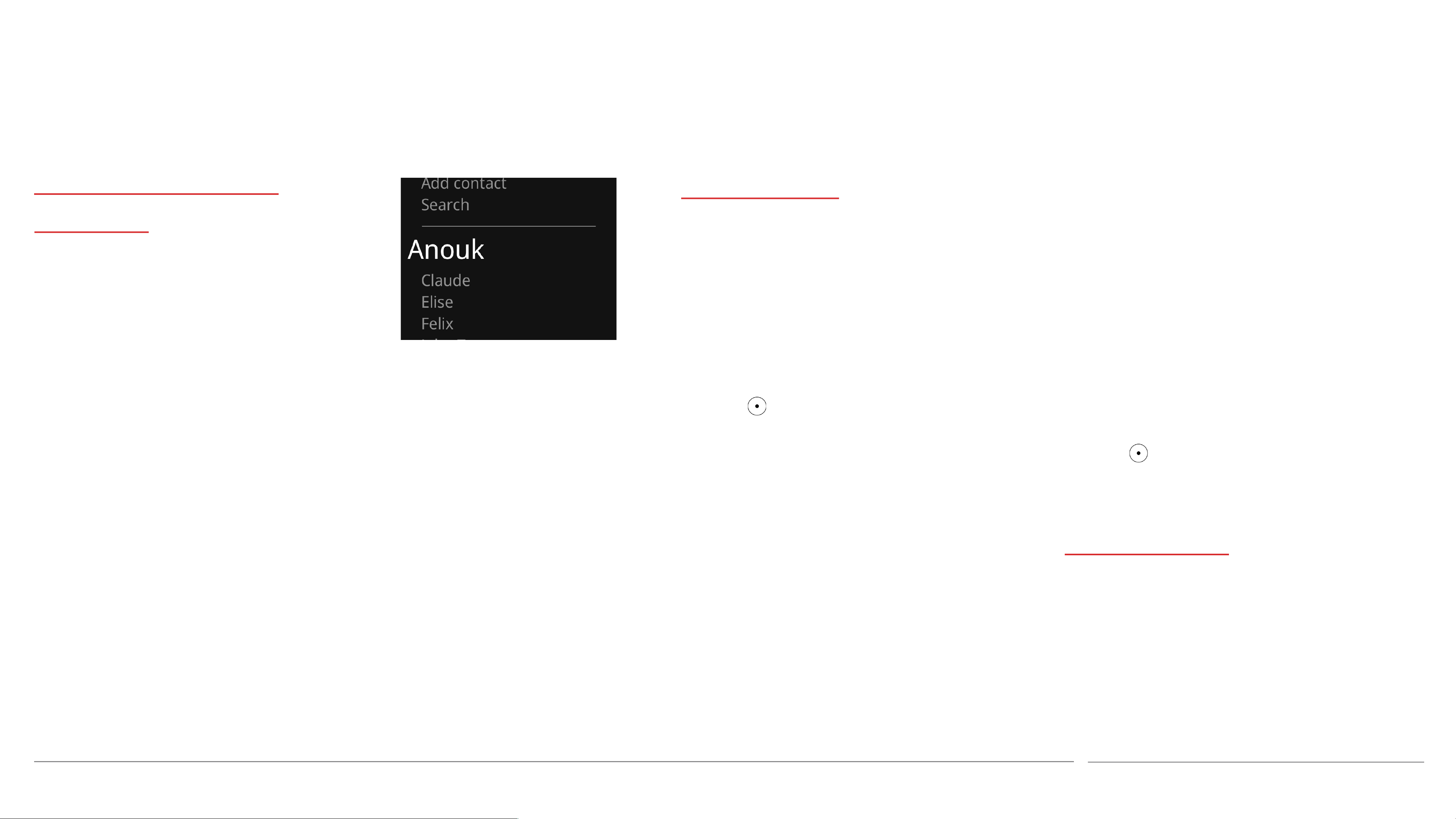
Viewing Contacts
• Press the Contacts key.
• Use the Up and Down keys to scroll
Punkt. MP02 Mobile Phone - Instruction manual
2) Based on a call that has been sent or
received:
• Press the Call key and select the number
to be used when adding a Contact.
• Select Add to contacts.
through the list of Contacts.
• This can be speeded up by selecting
Search and then entering the Contact’s
initial letter(s).
23.07.2019
34
Page 35

Contacts I
Amending or adding numbers to
Contacts
1) Via the Contacts menu:
• Press the Contacts key.
• Select a Contact to add the number
to; this can be speeded up by
selecting Search and then entering
the Contact’s initial letter(s).
• Select Edit detail.
3) Adding a number taken from within a
text message that has been sent or
received:
• See “Using the content of a text
message” (p 53).
4) Adding a number entered on the
Home screen:
• As above, but select Add to existing
instead of New contact.
Deleting a Contact
• Press the Contacts key.
• Select a Contact, then Delete.
• Select Yes to confirm
Viewing the MP02’s own number
• Press the Contacts key.
• Select My number. (If no number is
shown, it can be added manually.)
• Add and/or modify information as
described above, pressing the key
to open and close each field.
• Finish as described above.
2) Adding a number taken from a call
that has been sent or received:
• Press the Call key and select the
number to be added.
• Select Add to contacts, then Add to
• Press the End key or the key to
exit.
Punkt. MP02 Mobile Phone - Instruction manual
existing.
• Select a Contact to add the number
to, using the Search feature if
desired.
• Add a label for the number, if desired
(it will be necessary to scroll through
the number).
23.07.2019
35
Page 36

Contacts II
Speed-dial numbers
To assign a key to instantly calling a
Contact’s number:
• From the Main menu select Settings,
then Preferences, then Shortcuts.
• Select a number key and then Call
contact.
• Select a Contact, and if necessary a
specific number.
The “1” number key is reserved for
calling the voicemail service. For more
Information from a Contact file can be
copied (original left unchanged where it
is) or moved (original is deleted)
between the MP02’s memory and the
SIM card. The SIM card can only store a
Contact’s name and phone number; if a
Contact is moved to it, all other
information will be lost. The direction
that a Contact file is copied or moved is
automatically defined by where the
original file is located.
⏤ Copying Contacts
Sharing Contact information with
other devices
A Contact’s information can be sent to or
from someone else’s phone (or similar
device), either in a text message (SMS) or
via Bluetooth.
⏤ Sending Contact information via a
text message (SMS)
• Press the Contacts key.
• Select a Contact, then Options, then
Share via SMS. A text message will be
⏤ Sending Contact information via
Bluetooth
• Pair the MP02 with the other device.
(For more information about
Bluetooth see p 28.)
• Press the Contacts key.
• Select a Contact, then Options, then
Share via Bluetooth.
• Follow the on-screen instructions.
⏤ Receiving Contact information via
Bluetooth
information on Shortcuts, see p 29.
Copying and moving Contacts
between the MP02’s memory and
the SIM card
Contact files can be stored in the MP02’s
memory, on the SIM card, or both. If
both, the Contact will appear in duplicate
in the Contacts list. (The copied version
will be listed below the original.) Any
subsequent modification to/deletion of
• Press the Contacts key.
• Select a Contact.
• Select Options, then Copy to
phone/SIM.
⏤ Moving a Contact
• Press the Contacts key.
• Select a Contact.
• Select Options, then Move to phone/SIM.
• When advised about loss of
shown, containing the Contact’s
information (delimited by
semicolons).
• Press the Down key to open the
Options menu.
• Select Send and then select one or
more recipients. (Selected recipients
will be indicated by a solid circle.)
• Select Save.
• Open the Options menu again, and
• Pair the MP02 with the other device.
(For more information about
Bluetooth see p 28.)
• On the other device, choose which
Contacts to send, and then send.
• An incoming file <filename.vcf>
Notification will appear on the
MP02’s Home screen; note its name
and select Accept.
• Press the Contacts key.
one of the entries will not be replicated in
the other.
Punkt. MP02 Mobile Phone - Instruction manual
information (see above), select Yes (if
appropriate).
select Send. (For more information
about text messages see p 51.)
• Select Manage contacts, then Restore
Contacts.
• Select the .vcf file that has just
arrived, and then select Yes.
23.07.2019
36
Page 37

Contacts III
Backing up Contacts
A copy of the MP02’s contacts list should
be created and copied to a computer on a
regular basis. This means that if the
phone is damaged, lost or stolen, or
needs to be reset, all but the most recent
contact information can be recovered.
It is also a good idea to copy of the
Contacts list before making major
changes to it on the MP02, in case a
mistake is made and information needs
to be recovered. This copy can simply be
The backup file can be copied to a
Windows or Mac computer. If copying to
the latter it must have Android File
Transfer installed (or a similar
application that can transfer files to/from
an Android device).
A USB-C to USB-A cable (supplied) is
needed for connecting the MP02 to the
computer.
Creating a Contacts .vcf file on the
MP02
o Double-click on the MP02 icon that
will have appeared, and then on
“Storage”; locate the “Contacts”
folder. (The path is This PC\MP
02\Internal shared storage\Contacts)
o Copy the correct vCard file from the
Contacts folder to an appropriate
destination on the computer. Delete
it on the MP02 (optional).
o Follow the computer’s required
procedure for disconnecting the
MP02.
Copying a Contacts .vcf file from a
computer to the MP02
This is the procedure to follow if it is
necessary to restore the MP02’s
Contacts. It can also be used for
importing new Contacts from a different
source, for example another phone or the
computer itself.
The entire contents of the vCard file will
be added to the MP02’s Contacts list. If it
is not empty, take appropriate steps to
left on the MP02, or deleted by accessing
it from a computer.
The backup process consists of two
stages: creating a portable file on the
MP02, and then copying it onto a
computer.
Backup files are created in vCard format
(.vcf – Virtual Contact File). Each file is
given a name according to the current
date and time, preceded by “Punkt”. For
example, a backup file
created on 12th September 2018 at
14:35:07 has the name
• Press the Contacts key, and select
Manage contacts.
• Select Backup contacts, and then select
Yes. This will cause a .vcf file to be
created on the MP02.
Copying the Contacts .vcf file to a
computer
• Use a USB-C to USB-A cable to
connect the MP02 to a suitable
computer (see above).
• Open the Status menu, and select
USB connection, then select Sync mode.
• Copying to a Mac computer:
o Open Android File Transfer (or an
equivalent).
o Look for a folder called “Contacts” at
root level; locate the vCard file.
o Use the file transfer program to
locate the vCard file and copy it to an
appropriate destination on the
computer. Delete it on the MP02
(optional).
o Follow the computer’s required
procedure for disconnecting the
MP02.
prevent duplicate entries.
• Connect to the computer by
following the procedure above.
• Copy the vCard file into the MP02’s
Contacts folder.
• Press the Contacts key, and select
Manage contacts, then Restore contacts.
• Select the vCard file that has just
been copied across, and then select
Yes.
“Punkt20180912143507”.
Punkt. MP02 Mobile Phone - Instruction manual
• Copying to a Windows computer:
23.07.2019
37
Page 38
Calls I
The radio antennae
are located at the
top corners and the
bottom edge of the
MP02. For optimal
network
Making a call
⏤To make a call by entering the recipient’s
phone number directly
• Enter the number by using the keypad.
• Press the Call key.
If preferred, a country calling code can be
inserted by entering at least one digit of the
phone number and then scrolling down to
select Add country code. Locate the country by
⏤ To call a Contact
• Press the Contacts key.
• Highlight the desired Contact.
• If the Contact has multiple phone
numbers, scroll to highlight the desired
number.
• Press the Call key.
⏤ To call a number that is stored in the
phone’s Call History
connection and
maximum battery
life, avoid covering
these areas during
calls.
entering the first letter or two of its name.
Speed-dial numbers
The number keys can each be allocated a
phone number, which can then be called with
a single touch. This set up via the MP02’s
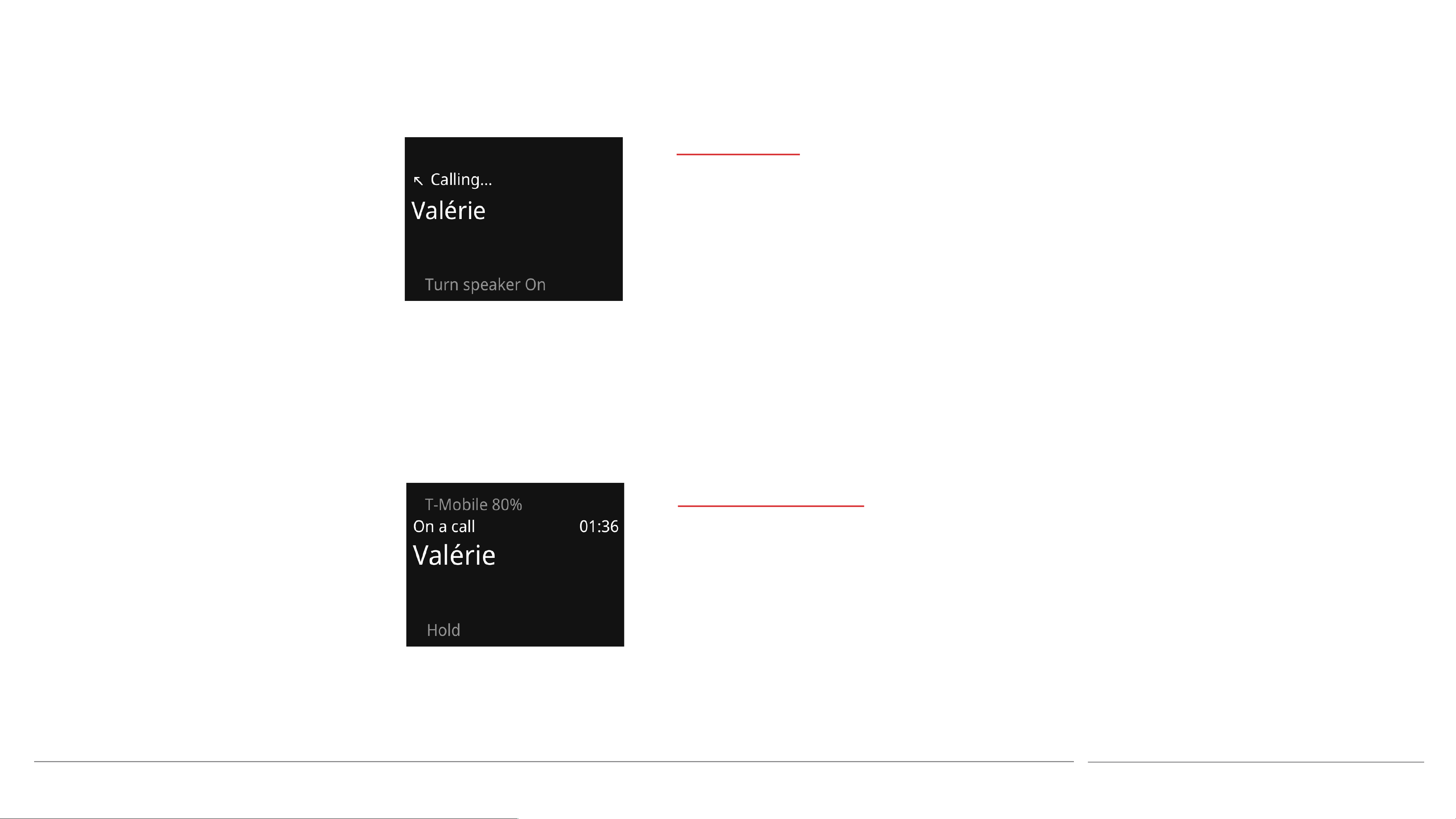
• Press the Call key.
• Highlight the desired number or Contact,
and press the Call key.
The “1” key is for calling voicemail, as
indicated by its audio-tape symbol. For more
information about accessing voicemail, see
page 40.
Punkt. MP02 Mobile Phone - Instruction manual
Shortcuts feature.
• For information about assigning
speed-dial numbers, see page 36.
• To call a speed-dial number, press and
hold the applicable number key.
23.07.2019
38
Page 39

Calls I
Receiving a call
When a call is received, the screen will
light up, the ringtone will sound (unless
its volume is set to zero), and the
vibration alert will be triggered (unless it
has been deactivated). For more
information about the ringtone and
vibration alert, see p 23.
• To answer an incoming call, press the
Call key.
• To reject a call, press the End key.
when to have the Reminder appear.
For more information about
Reminders, see p 50.
• To reject a call and block the caller’s
number, press the Down key and
select Block number.
Using phone-based automated
services
If a Pay As You Go management service,
an automated switchboard, a voicemail
service, a telephone banking system or
⏤ Turning the network provider’s Call
Waiting service on or off
• From the Main menu, select Settings,
then Calls, then Call waiting.
• Select Activate or Deactivate.
• Use Query status to check that Call
Waiting is functioning.
⏤ Dealing with an incoming call while on
a call already
• To answer the new call, press the Call
key.
• To silence the ringtone and still the
vibration alert, press the Down key
and select Silent. (Nothing else will
change: the caller will continue to hear
a ringing tone and the call can still be
answered in the usual way.)
• To reject a call but send a text
message to the caller, press the Down
key, select Send message, and then
either select one of the template
similar requires the user to press keys on
their phone during a call, and a text
message is received at the same time,
clear the screen by opening the Options
menu and selecting Dismiss.
Ending a call
• To end a call, press the End key.
Two calls simultaneously
• To see other options, press the Down
key.
⏤ Making a new call while on a call
already
• Highlight a number in the Contacts,
and press the Call key. The first call
will be put on hold.
• To switch between the two calls, press
the Down key and select Swap calls.
Punkt. MP02 Mobile Phone - Instruction manual
messages or New message, write a
message and press the key to send
it.
• To reject the call and set a Reminder
to call back, press the Down key and
select Remind me, and then choose
The MP02 is capable of handling two calls
at once, if the network provider offers a
Call Waiting service. During a phone call a
second call can be begun or an incoming
call accepted.
⏤ Putting a call on hold
• To put a call on hold, press the Down
key and select Hold.
• To resume the call, press the Call key.
23.07.2019
39
Page 40

Calls II
Voicemail
Voicemail allows callers to leave a voice
message when their call is not answered,
or when the MP02 is switched off or out
of network coverage. It is handled by the
network provider.
To turn voicemail on or off, set an
outgoing message for callers to hear,
listen to incoming messages, etc., it is
necessary to call a voicemail access phone
• The access number will now be called.
Follow the network provider’s
automated instructions for setting up
and using their voicemail service.
• Press the End key to finish the call.
Diverting incoming calls
The network provider’s system can
usually be set to divert calls to another
number, or to their voicemail service.
Contact them for more information on
this.
The following situations can be set to
trigger a call diversion.
• When a call is not answered.
automatically – use the Down key to
scroll through it to access menu
options below.
• Select Update to send the number to
the network provider. Alternatively,
press the Back key or select Cancel to
exit the procedure and leave the
network provider’s settings
unchanged.
⏤ Activating/deactivating call diversion
number that is specific to the network
provider. Contact them for more
information about how to use this
service.
The network provider’s voicemail
number can be saved in the MP02 for
instant access to voicemail services.
⏤Setting the voicemail access number
• From the Main menu, select Settings,
then Voicemail.
• When the MP02 is busy on another
• Use the Down key to scroll through
call.
the destination phone number, and
• When the MP02 is unreachable
select Turn on or Turn off.
(switched off or out of network
• Call diversion can be turned off
coverage).
completely by selecting Cancel all
• All calls.
diversions.
⏤ Setting up call diversion
⏤ Confirming call diversion
• From the Main menu, select Settings,
• To check with the network provider
then Calls, then Divert calls.
that call diversion is functioning,
• Enter the network provider’s
voicemail access phone number.
⏤ Accessing voicemail
• From the Home screen, long-press
the “1” key (marked with a symbol
that represents audio tape).
Punkt. MP02 Mobile Phone - Instruction manual
• Select a trigger situation, as described
above.
• Enter the destination number, either
manually or from the Contacts list. If
there is already a number entered –
the network provider’s voicemail
number may have been set
select Cancel all diversions, then Query
status. (No settings will be changed.)
23.07.2019
40
Page 41
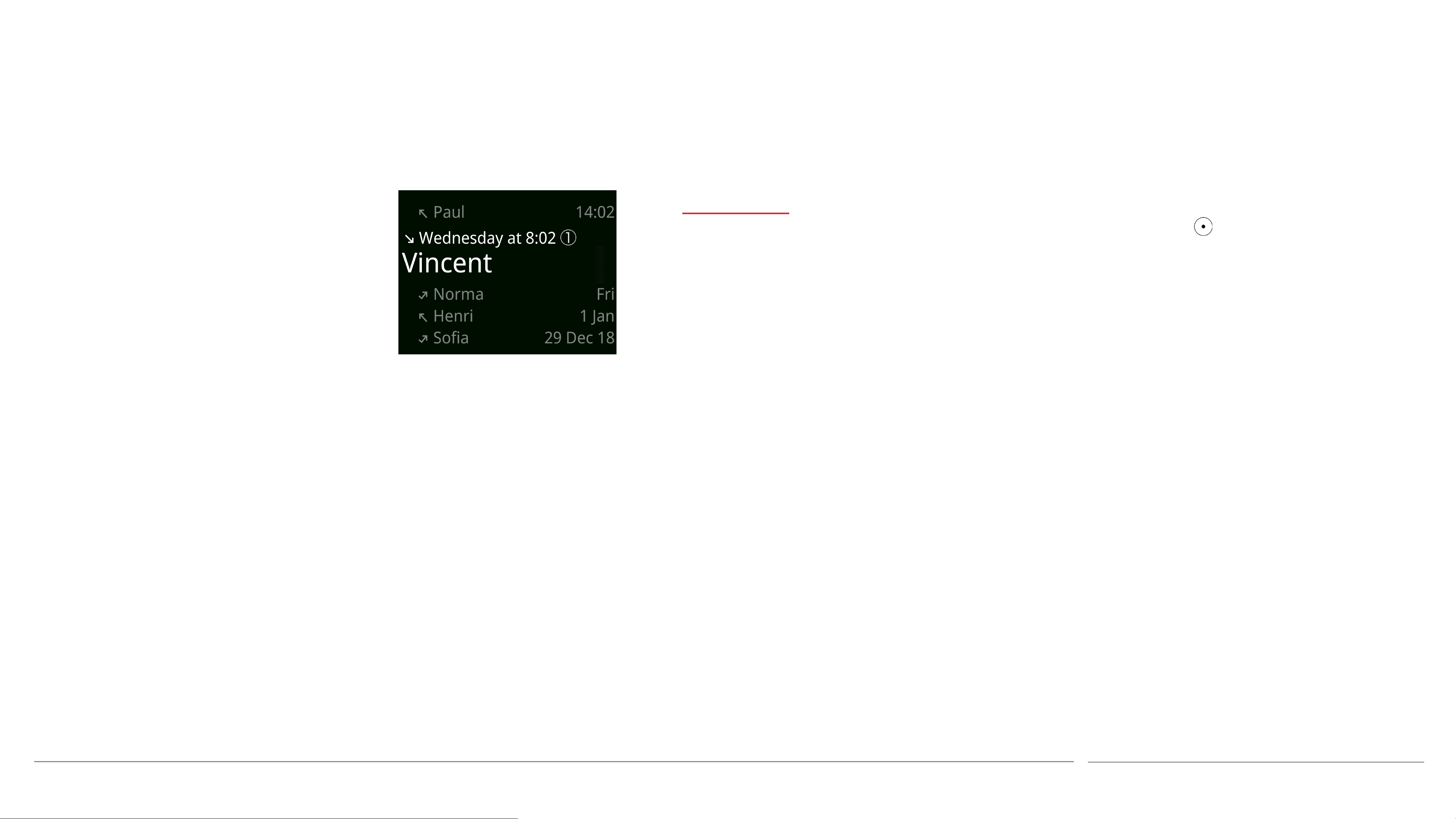
Calls II
Call history
It is possible to view a list of calls that have
been made or received, including missed
calls.
• From the Home screen press the Call key.
• Callers will be identified by their phone
number, or their name if they are in the
MP02’s Contacts list. A small number in a
circle will show how many times a call has
been made to or received from that caller.
• Pressing the key will bring up a list of
options: call the number, send a text
message, add the number to the MP02’s
Contacts list or amend its associated
information if already entered, or delete
this call from the Call history. A full list
of calls made to/received from that caller
can be viewed by selecting the top entry
in this sub-menu.
• To make a call to a number listed, select
it and press the Call key again.
Punkt. MP02 Mobile Phone - Instruction manual
23.07.2019
41
Page 42

Calls III
Call volume levels
• From the Main menu, select Settings, then
Sounds, then Calls volume.
• Use the Up and Down keys to make
callers’ voices louder or quieter, for both
the main speaker and the hands-free
speaker.
• Press the End key or the Back key to exit.
⏤ Adjusting the volume during a call
Muting the microphone
• From the Options menu, select Mute.
• To cancel, select Mute again.
Using external audio equipment (e.g.
an earpiece or an in-car system)
⏤ Connecting via Bluetooth
• While on a call, press the Back key until
the Home screen is displayed.
Putting calls on hold
When a call is on hold, neither party can
hear the other. To put a call on hold, press
the Call key. To resume the call, press it
again.
Showing/hiding phone number on
outgoing calls
When a call is made, the caller’s phone
• Open the Options menu and select
Volume.
• Make the desired adjustment by pressing
the Up and Down keys. Long-press for
accelerated adjustment.
• Press the key to exit.
Using the hands-free speaker
• During a call, open the Options menu and
number (“caller ID”) is normally made
• From the Status menu, select Bluetooth is
visible to the recipient.
off.
Depending on the network provider, it is
• Choose a connected Bluetooth device, or
usually possible to prevent this from
search for devices.
happening – this is known as “hiding caller
• Press the Back key to return to the Home
ID”.
screen, and a second time to return to
⏤ To hide caller ID
the screen displaying the current call.
• From the Main menu, select Settings, then
• To switch back to the MP02’s built-in
Calls, then Caller ID.
speakers, select Switch audio.
Punkt. MP02 Mobile Phone - Instruction manual
select Turn speaker on.
• If additional numbers have been entered
during the call, e.g. for navigating an
automated switchboard, these will need to
be cleared first. This can be done by
pressing the Back key; the call connection
will not be affected.
⏤ Connecting via USB
The supplied USB-C earpiece, or another
compatible product, can be plugged directly
into the MP02’s USB socket.
• Select the desired option. Set by network
will defer to the network provider’s
settings.
23.07.2019
42
Page 43

Part three
Punkt. MP02 Mobile Phone - Instruction manual
23.07.2019
43
Page 44

Clock features
Alarm
The MP02’s alarm clock can be
programmed with multiple settings, and
uses the powerful hands-free loudspeaker
in combination with the vibrating alert
feature. It is unaffected by the MP02’s
Silent mode and general volume setting;
it does not function when the phone is
switched off.
Ensure that the MP02 has sufficient
battery life when setting the alarm.
• Select whether the alarm is to sound
once only within the next 24 hours, or
on a regular basis as desired, by
scrolling and then pressing the key.
• A Notification will be created, stating
when the alarm is set to go off. The
alarm can be modified by clicking on
the Notification.
⏤ To select a different time zone
• From the Main menu, select Settings,
then Date and Time.
inactive.
• Select an option: Turn on/off, Delete or
Edit.
If an alarm is already set, its
Notification can be used to directly
access the Alarms section of the MP02.
⏤ Silencing the alarm
• When the Alarm is sounding, press
the End key to silence it (or the Back
key to activate the snooze feature).
Alternatively, press the Down arrow
World Clock
The MP02’s World Clock feature allows
the user to quickly find out the current
time in other parts of the world by
creating a list of designated locations.
⏤ Setting world locations
• From the Main menu, select Clock,
then World Clock, then Add location.
• Choose whether to specify a location
via a map or a list of city names. If
using the map, first use the Up and
⏤ Creating a new alarm setting
• From the Main menu, select Clock,
then Alarm, then New.
• Use the number keys or the Up and
Down keys to enter the desired time,
and to specify AM or PM if applicable.
Use the and Back keys to move
between the settings and then to
move through to the next step.
• Alternatively, from the Home screen,
enter the desired alarm time in
24-hour clock format (even if the
• The current time zone will be
displayed within the menu.
• To change this, select it and then
move across the map by using the Up
and Down keys.
• When the required time zone is
indicated, exit by pressing the key.
⏤ Using previously-defined alarm
settings
• From the Main menu, select Clock,
then Alarm.
and choose Stop or Snooze.
• If the snooze feature is activated, the
alarm will sound again after ten
minutes.
It has been clearly shown that the best way
to sleep effectively is to use a dedicated alarm
clock, rather than a phone, and to not use a
snooze option. While the MP02 is much less
of a disturbance to sleep than a smartphone
is, like any phone its alarm feature should
ideally just be used as a travel alarm clock
and for situations other than waking up from
Down keys to highlight a region and
press the key to expand it. Next,
use the Up and Down keys again to
highlight a city and finish by pressing
the key.
• The newly-selected city will appear in
the list of countries within the main
World Clock page. It is possible to
have cities that share a time zone on
the list together. (If a city cannot be
selected, this means that it is already
on the list.)
phone is set to 12-hour format) and
select Set alarm.
Punkt. MP02 Mobile Phone - Instruction manual
• Select the desired alarm setting.
Settings that are marked with a filled
circle are set to go off, settings that
are marked with an empty circle are
sleep.
• To remove a city from the list, select it
and then select Delete. A Delete All
option is available at the top of the list.
23.07.2019
44
Page 45

Clock features
Timer
The Timer feature is a countdown alarm;
at the end of the specified length of time
an audio signal will sound (unless the
MP02’s Master Volume has been set to
zero or Silent mode has been activated).
⏤ Setting the Timer
• From the Main menu, select Clock,
then Timer.
will reopen the Timer window.
• To stop the countdown and either set
a new time or return to the Clock
menu, select Reset or Cancel from the
Options menu.
• When the countdown has finished,
press the End key or select Dismiss or
Cancel from the Options menu.
Stopwatch
• Use the number keys or the Up and
Down keys to specify the length of
time before the audio signal sounds.
Use the and Back keys to move
between the individual settings.
• Press with the seconds highlighted
to begin the countdown.
• Alternatively, from the Home screen,
enter the desired countdown time
(e.g. 12345 for 1 hour, 23 minutes and
The stopwatch feature allows the user to
measure how long something lasts.
⏤ Setting the Stopwatch
• From the Main menu, select Clock,
then Stopwatch.
• Press the key to start the
Stopwatch.
• Pressing the key again will pause
and then restart the Stopwatch.
45 seconds) and select Set timer.
• The Timer feature can be exited while
still in operation by pressing the End
key (or the Back key); the countdown
will continue and a Notification will
be set, showing how much time
remains. Selecting this Notification
Punkt. MP02 Mobile Phone - Instruction manual
• To reset the time back to zero, first
pause the Stopwatch and then press
the Back key.
• Unlike with the Timer, pressing the
End key when the Stopwatch is
running will close it completely and
delete its reading.
23.07.2019
45
Page 46

Calendar
The MP02 has a simple reference Calendar.
It allows the user to ascertain which dates
correspond with which days of the week, and
which ISO week number a specific date is in.
One month is displayed at a time; week
numbers are shown on the left of the screen.
The Calendar is accessed via the Main menu.
Use the Up and Down arrows to move
between months.
To be reminded of an event on a specific
date, use the MP02’s separate Reminder
feature. More information about Reminders
can be found on page 50.
Punkt. MP02 Mobile Phone - Instruction manual
23.07.2019
46
Page 47

Calculator
The MP02’s Calculator is accessed via the Main menu.
Numerals are entered by using the keypad in the normal way.
The symbols for plus, minus, divide and multiply (+ - / x) are
entered by pressing the Star key. Brackets, percentage sign and
decimal point are entered by pressing the Hash key. Press the
applicable key repeatedly until the desired symbol is shown.
Press the key to show the result of the calculation.
To clear the screen, press the Down key and then select Clear.
A brief reminder text on how to access the mathematical
symbols can also be accessed via the Down key.
Punkt. MP02 Mobile Phone - Instruction manual
23.07.2019
47
Page 48

Updating the operating system
The MP02 uses a system called OTA
(“Over The Air”) for ascertaining
whether its operating system is up to date
and for downloading newer versions.
The procedure requires access to an
external Wi-Fi network. (This has
nothing to do with the MP02’s ability to
provide Internet access to a second
device via a 4G service and its own Wi-Fi
tethering feature.)
available.
⏤ Connecting to the Wi-Fi network
• From the Main menu, select Settings,
then Connectivity, then Wi-Fi.
• Select Turn on.
• Choose the relevant Wi-Fi network
from the list available and press the
key. Alternatively, manually add a new
network to the list.
and installing the new software. This
process may take several minutes.
• Important: the MP02 may appear to be
switched off – do not try to switch it
on at any time. However, if the Wi-Fi is
unsuitable, the MP02 may simply
continue to display the message
“Downloading” without anything
actually happening. If this message is
displayed for 30+ minutes, switch the
⏤ Disconnecting from the Wi-Fi
network
If there is no new software available, or it
is not a convenient time to download and
install it, end the Wi-Fi connection by
returning to the Wi-Fi menu (see above)
and selecting Turn off.
If possible, avoid public Wi-Fi services. As
well as potential security vulnerabilities,
these services often require the user to
log in on-screen (e.g. register, agree to
terms & conditions of use, etc.) and this
is not possible with the MP02. Other
technical difficulties can arise as well.
⏤ Preparation
• Ensure that the MP02 has at least 30%
battery charge.
• Use the keypad to enter the correct
Wi-Fi password and press the key.
• The MP02 should now indicate that it
is connected, with signal strength
shown.
⏤ Checking for updated software
• From the Main menu, select Settings,
then About, then Firmware.
• Select Check for updates. (Look out for
MP02 off and then back on again.
Make another attempt with a different
Wi-Fi connection, preferably a private
office or home.
• When the installation process is
finished, the MP02 will automatically
restart.
• If the passcode feature has previously
been activated, it will need to be
entered as part of the phone’s
• If using a public Wi-Fi service, check
that it is possible to access it directly
without any kind of on-screen activity.
• If phone passcode or SIM PIN
protection is activated (see p 20),
ensure that the correct passcode is
Punkt. MP02 Mobile Phone - Instruction manual
a message that may briefly appear, if
there is a problem with the Wi-Fi
connection.)
• If the MP02 reports that new software
is available, to install it select Yes and
then press the key to confirm.
• The MP02 will now start downloading
restarting process. The same applies
for the SIM PIN.
23.07.2019
48
Page 49

Providing Internet access
The MP02 can be used to provide
another device (e.g. a tablet or laptop
computer) with an Internet connection,
via 4G (LTE).
This linking process is called tethering.
Most mobile phone contracts permit it,
but some do not; contact the network
service provider for more information if
required.
⏤ To make the MP02’s Internet
cancel this process, repeatedly press
the Back key (the network name or
password will be deleted from the
screen, but this will have no effect on
what is saved in the phone).
Alternatively, press the Up or Down
key repeatedly.
• The security protocol is WPA2 PSK;
this cannot be changed.
• Tethering can also be quickly turned
The external device can now connect
with the MP02 via Wi-Fi, Bluetooth or
USB. USB is the fastest, and also uses
the least battery power (in each device);
it will usually require software to be
installed in the second device.
connection available to other devices
• From the Main menu, select Settings,
then Connectivity, then Tethering.
• Select Turn on.
• If desired, the MP02’s network name
and password can be changed. To
on or off via the Status menu.
• The MP02’s OTA Wi-Fi connection
feature (as used for connecting to an
external Wi-Fi router for
downloading new software) will
automatically switch off when
tethering is activated.
Punkt. MP02 Mobile Phone - Instruction manual
23.07.2019
49
Page 50
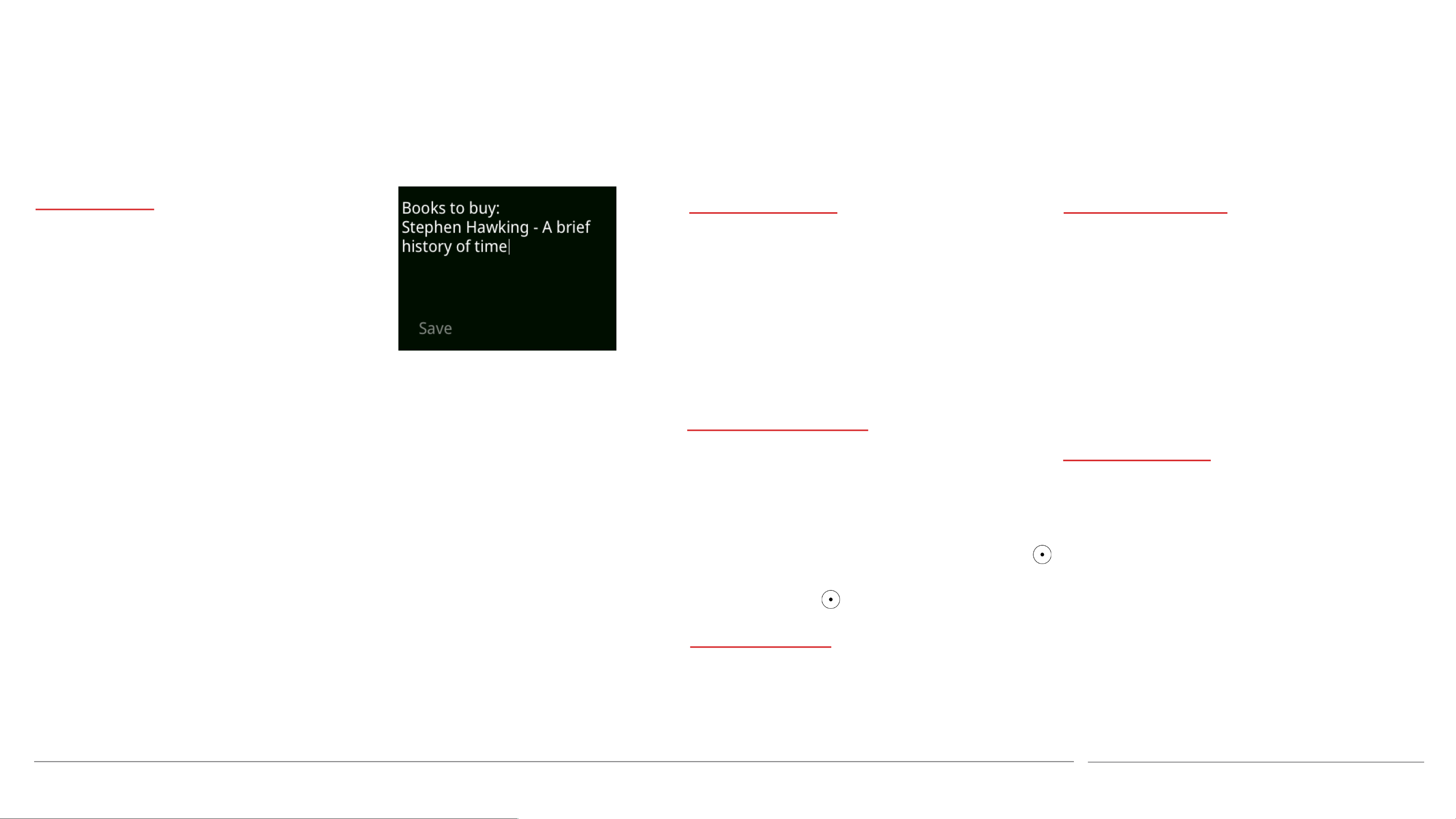
Notes
About Notes
If desired, a Reminder can be
added to a Note. This will
cause an alarm signal to sound,
and the Note will appear on the
screen for a few seconds. Until
this happens, the
Note/Reminder will be
referenced in the Notifications
list; selecting it will open the
Creating a Note
• From the Main menu, select Notes, then
New note.
• Use the keypad to enter the desired
information. (See p 30 for information
about text entry.)
• Open the Options menu by pressing the
Down key, and select Save.
Adding a Reminder
Amending a Note
• From the Main menu, select Notes, and
then the Note that is to be amended.
• Open the Options menu and select Edit
and/or Add reminder.
• Make the desired changes and save as
before. (Any previous Reminder will be
deleted if a new one is created.)
Notes section.
• Open the Options menu by pressing the
Down key.
• Select Add reminder.
• Specify the desired day/date and time
(including AM/PM if applicable). Use the
key and the Back key to move left and
right, and the key to save the settings.
Viewing a Note
Deleting a Note
• From the Main menu, select Notes, and
then the Note that is to be deleted.
• Open the Options menu by pressing the
Down key, and select Delete.
Punkt. MP02 Mobile Phone - Instruction manual
• From the Main menu, select Notes, and
then any Note on the list.
23.07.2019
50
Page 51

Text messages (SMS) I
Texting on the MP02
The MP02 has a minimalist texting
system; its focus is on making phone
calls, which are generally more efficient.
It’s often useful to explain to other
people that calls are preferred, for
instance when exchanging contact details.
Nevertheless, texting can be useful when
there is limited signal coverage, low
Composing and sending a message
• Press the Message key.
• Select New message.
• Select a recipient from the Contacts
list (if necessary, use the Search
feature by entering the first letter or
two of a Contact’s name). If the
Contact has multiple numbers, select
one from the list.
Incoming messages
• When a message is received, its sender
will appear at the top of the list of
messages that is shown when the
Messages key is pressed. It will have a
number in a circle next to it,
representing how many unread
messages from that sender there are.
• A Notification will be created and
Message threads
• Message threads can be accessed via
the list that appears when the
Messages key is pressed.
• To view a thread, select the sender.
Use the Up and Down keys to scroll
through the series of messages – each
message will expand in turn – and also
to scroll through the messages
battery charge, in a noisy (or very quiet)
environment, etc.
Messages are grouped into threads. This
means that all messages sent to and
received from the same number/Contact
are presented together in chronological
order, newest at the bottom. Sent
messages are shown on the right of the
screen and received messages are shown
on the left.
• Alternatively, select Add number to
enter a phone number manually (press
the key after this is done).
• Write the message, and press the
key when finished.
• Check that the recipient is correct and
– with the recipient highlighted – press
the key. The message will now be
sent.
(depending on what is happening with
the phone at the time) a full-screen
announcement will appear.
• The message can be opened by
selecting the Notification, by pressing
the key while the full-screen
announcement is showing, or by
pressing the Messages key and
selecting the sender in the list of
Messages that will appear.
themselves if they are too long to fit
on the screen.
• To expand a single message, press the
l. key while it is highlighted. Press the
Back key to return to the message
thread.
See p 11 for information about using the
MP02’s keypad.
Punkt. MP02 Mobile Phone - Instruction manual
• If there is a problem with sending the
message (e.g. lack of mobile signal), it
will be saved as a draft message and a
Notification will be created, offering
the option of retrying.
• The Notification can be exited by
pressing the End or Back key; the
full-screen announcement can be
dismissed in the same way, or by
selecting Dismiss in the Options menu.
• The sender of the message can be
called by selecting their message in the
list and pressing the Call key.
23.07.2019
51
Page 52

Text messages (SMS) I
Replying to a message
• Press the Messages key and select a
message thread.
• Enter text in the “New message” box
(see p 11 for information about using
the MP02 keypad) and press the Down
key to access the Options menu.
• With the name of the recipient
highlighted, press the key again.
Forwarding a message
• Select a single message from a thread,
as described previously.
• Open the Options menu and select
Forward.
• Add a recipient from the Contacts list
and/or by manually entering a phone
number. Recipients will be marked
with a filled circle; remove them by
• Select Delete, and then select Yes to
confirm.
⏤ Deleting a whole message thread
• Press the Messages key.
• Select a Contact/phone number from
the Messages menu.
• When the thread appears, open the
Options menu and select Delete
thread, and then select Yes to confirm.
(See p 11 for information about using
the MP02 keypad.)
• Open the Options menu by
long-pressing the Down key to reach
the end of the text and then pressing
it again.
• Select Save, or to cancel press the End
key.
⏤ Creating a new template
• The reply will now be sent, and a copy
will appear at the bottom of the
message thread.
• To add recipients, select Edit recipient.
Select Contacts as required, and/or
highlight Add number and enter a
phone number manually. Recipients of
this message will be marked with a
filled circle; pressing the key while
a recipient is highlighted will
alternately remove them from and
selecting them again.
• Select Save.
• Check the recipient(s) and press the
key.
• The message will now be saved.
Deleting messages
⏤ Deleting a single message
• Press the Messages key.
• Select a Contact/phone number from
Using message templates
Message templates are pre-composed
pieces of text that can be used as or
inserted into text messages. The MP02
comes pre-loaded with a small collection
of templates; these can be edited and
saved for future use in their amended for,
and new templates can be created.
Templates can also be deleted if no longer
required.
• From the Messages Menu, select
Templates and then New template.
• Enter the required text.
• With the cursor at the end of the
entered text (long-press the Down key
if necessary), open the Options Menu
and select Save. To abandon the
process, press the Back key or select
Delete.
⏤ Deleting a template
return them to the list.
• The other available options are to save
the reply as a draft for working on
later, inserting text from a template,
and deleting the entire thread.
Punkt. MP02 Mobile Phone - Instruction manual
the Messages menu.
• Select the message to be deleted from
within the thread that appears, as
described above.
• Open the Options menu.
⏤ Editing an existing template
• Open the Messages Menu by pressing
the Messages key.
• Select Templates, and select a
Template to edit.
• Add, delete or change text as desired.
• From the Messages Menu, select
Templates, and then select a Template
to delete.
• Press the Down arrow to open the
Options Menu, select Delete, and then
select Yes to confirm.
23.07.2019
52
Page 53

Text messages (SMS) I
⏤ Using a template in a text message
• While composing a message, with the
cursor at the end of the text
(long-press the Down key if
necessary), open the Options Menu
and select Template.
• Select the desired Template.
• The Template text will appear in the
new message, inserted at the end of
existing one have an extra phone
number added.
⏤ Using the content of a Message in a
Note
• Select an individual Message.
• Press the key again (or open the
Options Menu and select Use content,
then Save as note).
• From the Options Menu, add a
• The detected phone number(s) will be
visible in the list, alongside Save as
note.
• Select the phone number.
• From the menu that appears, select
Save to create a new Contact or add
the number to an existing Contact,
Send message, or Call.
Alternatives to backing up
another device, for example a computer
that is set up to receive SMS-format
messages.
any text that may already be there.
• Multiple templates can be inserted, if
desired.
Using the content of a text
message
The contents of a text message can be
extracted and used in the following ways.
• The entire message can be forwarded
Reminder if desired, and then select
Save. The process can be cancelled by
selecting Delete (the original message
will not be affected); it is also possible
to exit by pressing the End key
(long-pressing to jump to the
beginning of the text).
⏤ Using a phone number that is
enclosed within a Message
It is not possible to export backup copies
of text messages from the MP02.
Texting is not an efficient way of sending
important information that may need to
be archived. Email is far superior for this
purpose: it is easier to work with
efficiently, attachments can be added, it is
more readily available on a full-size
screen, and if required it can easily be
to different recipient (or multiple
recipients).
• An enclosed phone number can be
called.
• A Note can be created from some or
all of the content of the message, with
a Reminder if desired.
• A new Contact can be created, or an
Punkt. MP02 Mobile Phone - Instruction manual
• Select the Message, as described
above.
• If a phone number (or multiple phone
numbers) is/are detected, they will be
underlined and rendered in green.
• Open the Options Menu, and select
Use content.
printed out in a way that displays
information about its sender. SMS
messages can often be intercepted en
route between sender and recipient; if
confidentiality is important, encrypted
email should be used.
The content of a text message can be
archived by forwarding text messages to
23.07.2019
53
Page 54

Part four
Punkt. MP02 Mobile Phone - Instruction manual
23.07.2019
54
Page 55
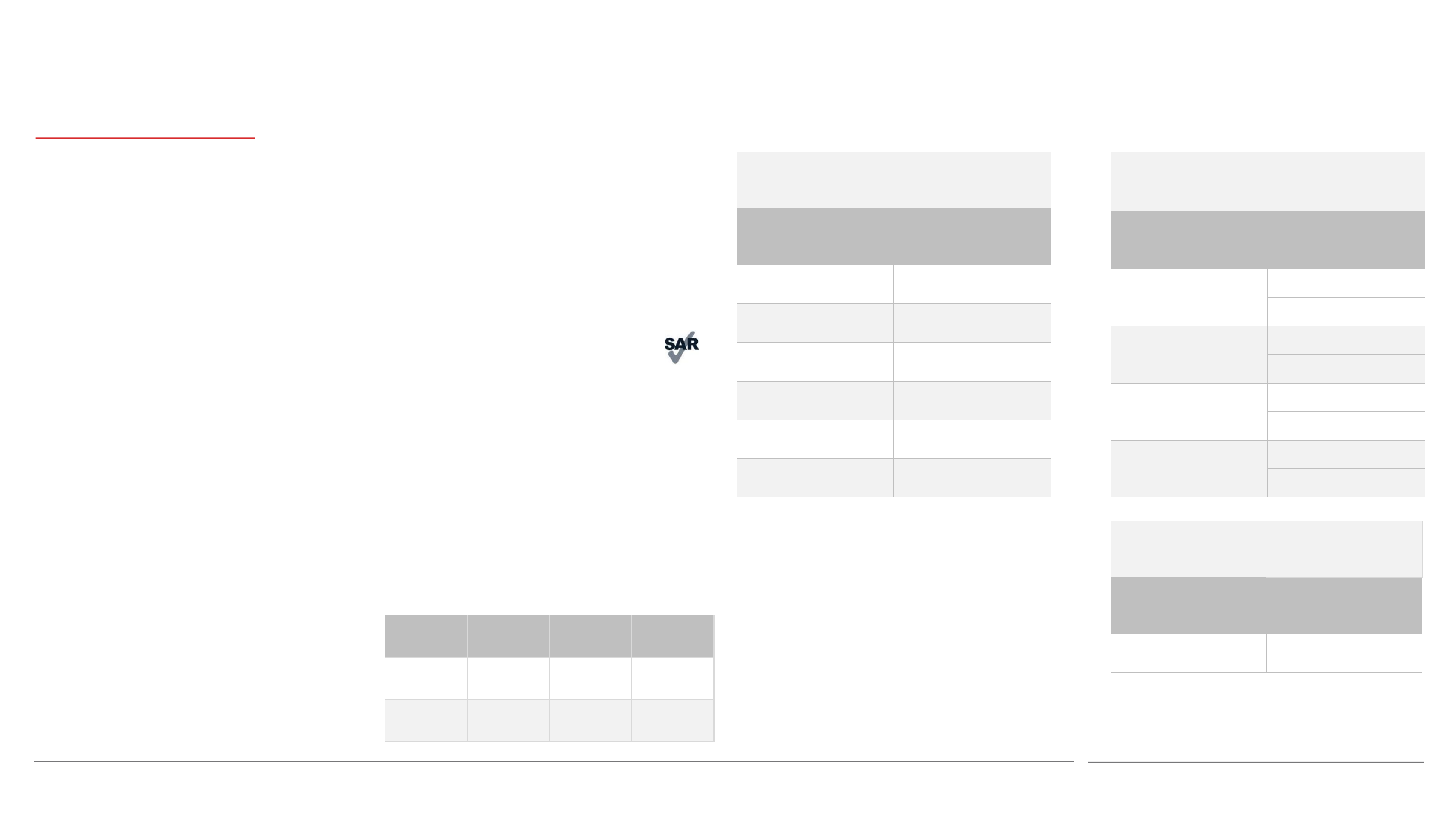
Appendix 1
Regulator
Over 10 g
2G (GSM) 850 ² / 900
Standard / Frequency
Standard / Frequency
Regulatory information
The information in this document is
provide “as is” without any obligation,
representations or warranties- express
or implied. Punkt. reserves the right to
amend or update information at any
time and without prior notice.
Information about regulatory
requirements and guidelines relating to
the MP02 can be found by opening the
Main menu and selecting Settings, then
About, then Regulatory. Further
information can also be found at
punkt.ch.
CE (EU) compliance statement:
Punkt Tronics AG declares that the
Operation is subject to the following two
conditions: (1) This device may not cause
harmful interference, and (2) this device
must accept any interference received,
including interference that may cause
undesired operation.
To ensure that interference stays within
acceptable levels, appropriate cables and
accessories must be used.
RF Specific Absorption Rate (SAR)
The MP02 meets international guidelines
for exposure to radio waves. To reduce
exposure to electromagnetic radiation
during communication, a hands-free
option such as the built-in speakerphone
or the included earpiece can be used.
Radio frequency band information
Cellular Network
Maximum output
Frequency band
power
33 dBm
¹
2G (GSM) 1900 ² /
30 dBm
1800 ¹
3G (WCDMA)
24 dBm
B1/5/6/8/19 ¹
3G (WCDMA)
24 dBm
B1/2/4/5/8 ²
4G LTE (FDD)
23 dBm
B1/3/5/7/8/19/20 ¹
4G LTE (FDD)
23 dBm
B1/2/4/5/7/12/17 ²
Wi-Fi
802.11b / 2.4~2.4835
GHz
802.11g / 2.4~2.4835
GHz
802.11n20 / 2.4~2.4835
GHz
802.11n40 / 2.4~2.4835
GHz
Maximum output
power
17.57 dBm ¹
14.18 dBm ²
17.28 dBm ¹
13.40 dBm ²
16.76 dBm ¹
13.04 dBm ²
14.98 dBm ¹
12.91 dBm ²
MP02 complies with Radio Equipment
Directive 2014/53/EU.
FCC and ISED Canada compliance
statement:
This device complies with Part 15 of the
FCC Rules. This device complies with
ISED Canada RSS standard(s) for
permit-free devices and CAN-ICES-3
(B)/NMB-3(B).
The maximum specific absorption rates
for the MP02 when either held to the ear
or attached to a body-mounted holder are
below.
SAR
Head Body
(W/kg)
Over 1 g
1.389 1.286 1.6
(FCC/IC)
1.215 1.750 2.0
(CE)
y limit
Bluetooth
Maximum output
power
4.1 / 2.4 GHz 3.3 dBm
¹ UE, JAPAN, AUSTRALIA
² USA, CANADA
Punkt. MP02 Mobile Phone - Instruction manual
23.07.2019
55
Page 56

Appendix 2
Trademarks
© 2018 Punkt. Tronics AG. All rights
reserved. “Punkt.” and the Punkt. logo
are registered trademarks owned by
Punkt. Tronics AG. The MP02 is a
registered product design.
Trademarks, including but not limited
to BLACKBERRY, BLACKBERRY
SECURE, EMBLEM Design and
BLACKBERRY SECURE Design, are the
trademarks or registered trademarks of
Blackberry Limited, used under licence,
and the exclusive rights to such
trademarks are expressly reserved.
The Bluetooth® word mark and logos
are registered trademarks owned by
Bluetooth SIG, Inc.
Wi-Fi is a trademark of the Wi-Fi
alliance.
All other trademarks are property of
their respective owners.
Punkt. MP02 Mobile Phone - Instruction manual
23.07.2019
56
Page 57

 Loading...