

Page 1

Your MP 01 Mobile Phone.
User Guide.
Page 2

Contents.
3 About This User Guide.
4 Your MP 01 Mobile Phone.
4 What is in the box?
4 Safety
5 Get to know your phone
6 Keypad
7 Getting Started.
7 Inserting your SIM card
8 Charging your phone
8 Turning your phone on or off
8 Start-up guide
9 Locking or unlocking your
phone’s keypad
9 Connecting a headset
10 Your Home screen.
10 About your Home screen
10 Status Icons
11 Notifications
11 Shortcut menu
12 Calls.
12 Making calls
12 Ending calls
12 Answering calls
12 Rejecting calls
13 Multiple calls
13 Changing the volume of a call
13 Muting your microphone
13 Putting calls on hold
13 Using speed dial numbers
14 Viewing your call history
14 Showing or hiding your
phone number on outgoing calls
15 Voicemail.
15 Checking your voicemail
15 Setting your voicemail number
16 Contacts.
16 About contacts
16 Adding contacts
16 Viewing contacts
16 Editing contacts
17 Deleting contacts
17 Sharing contacts
17 Viewing your own phone number
17 Adding and deleting speed dial numbers
18 Copying and moving contacts between
your phone and SIM card
18 Backing up and restoring contacts
19 Text Messages.
19 About text messages
19 Entering text on your phone
20 Sending text messages
20 Viewing text messages
20 Deleting text messages
21 Using text message templates
21 Using the content in a text message
22 Alarms.
22 About alarms
22 Setting a new alarm
22 Setting or cancelling the saved alarm
23 Reminders.
23 About reminders
23 Setting a reminder
23 Editing a reminder
23 Deleting a reminder
24 Calendar.
24 Viewing your calendar
25 Sounds.
25 About sounds
25 Changing your ringtone volume
25 Changing your ringtone
25 Changing your message tone
25 Turning vibrate on or off
25 Turning the keypad tones on or off
26 Date And Time.
26 Changing the date and time setting
26 Setting the date
26 Setting the time
26 To set the time
26 Changing the time zone
27 Connectivity.
27 About Bluetooth
27 Turning Bluetooth on or off
27 Pairing with a Bluetooth device
27 Connecting to a paired Bluetooth device
28 Changing settings for a paired
Bluetooth device
28 Changing the device name of your phone
28 Changing your network settings
29 Security.
29 About passcodes and PINs
29 Using a passcode for your phone
29 Using a PIN for your SIM card
29 Setting your phone’s keypad
to lock automatically
30 Phone Management.
30 Changing the language
30 Resetting your phone
30 Viewing information about your phone
31 How To Take Care Of Your
MP 01 Mobile Phone.
32 Specifications.
33 Safety and regulatory.
33 Safety
33 Disposal
33 Regulatory compliance
34 Trademarks
35 Warranty and customer care.
35 Warranty
35 Customer care
35 Contact us
Punkt. MP 01 Mobile Phone.
Page 2
Page 3

About This User Guide.
— Version
1.0
— Revision date
November 2016
— Change
First version
To use your MP 01 Mobile Phone,
refer to this user guide.
Read more about how to use your
MP 01 phone at punkt.ch.
All screens and images in this user
guide are for reference only and may
differ from your phone.
Punkt. MP 01 Mobile Phone.
Page 3
Page 4

Your MP 01 Mobile Phone.
Congratulations on your
new MP 01 Mobile Phone,
designed by Jasper Morrison.
The MP 01 is a simple phone
that supports basic calling
and text messaging.
Disconnect and rediscover
the simple things in life.
Enjoy!
What is in the box?
· MP 01 Mobile Phone
· Quick guide
· USB charger
· Micro USB cable
· Micro USB headset
· Micro USB to 3.5 mm converter
· SIM adapter
· SIM tray pin
Safety
Before you use your phone, read
the following safety messages.
Turn off your phone in
restricted areas
Turn off your phone in areas
where the use of mobile phones
is not allowed.
Be safe on the road
Obey all local laws. Do not use your
phone while driving or in control
of a vehicle, unless you use a hands
free device.
Radio waves can cause interference
Your phone emits radio waves, which
may interfere with other electronic
devices. Interference from other
electronic devices may affect your
network signal.
Keep your phone clean and dry
Do not use your phone in dusty or
dirty conditions. Do not get your
phone wet, or use it in areas with
high humidity or moisture.
Leave it to the professionals
Do not open or dismantle your
phone, except for tasks described in
this user guide. If your phone stops
working, contact your local Punkt.
dealer or get in touch at punkt.ch.
Protect your hearing
To prevent damage to your hearing,
do not set the volume of a call higher
than necessary.
Punkt. MP 01 Mobile Phone.
Page 4
Page 5
Your MP 01 Mobile Phone.
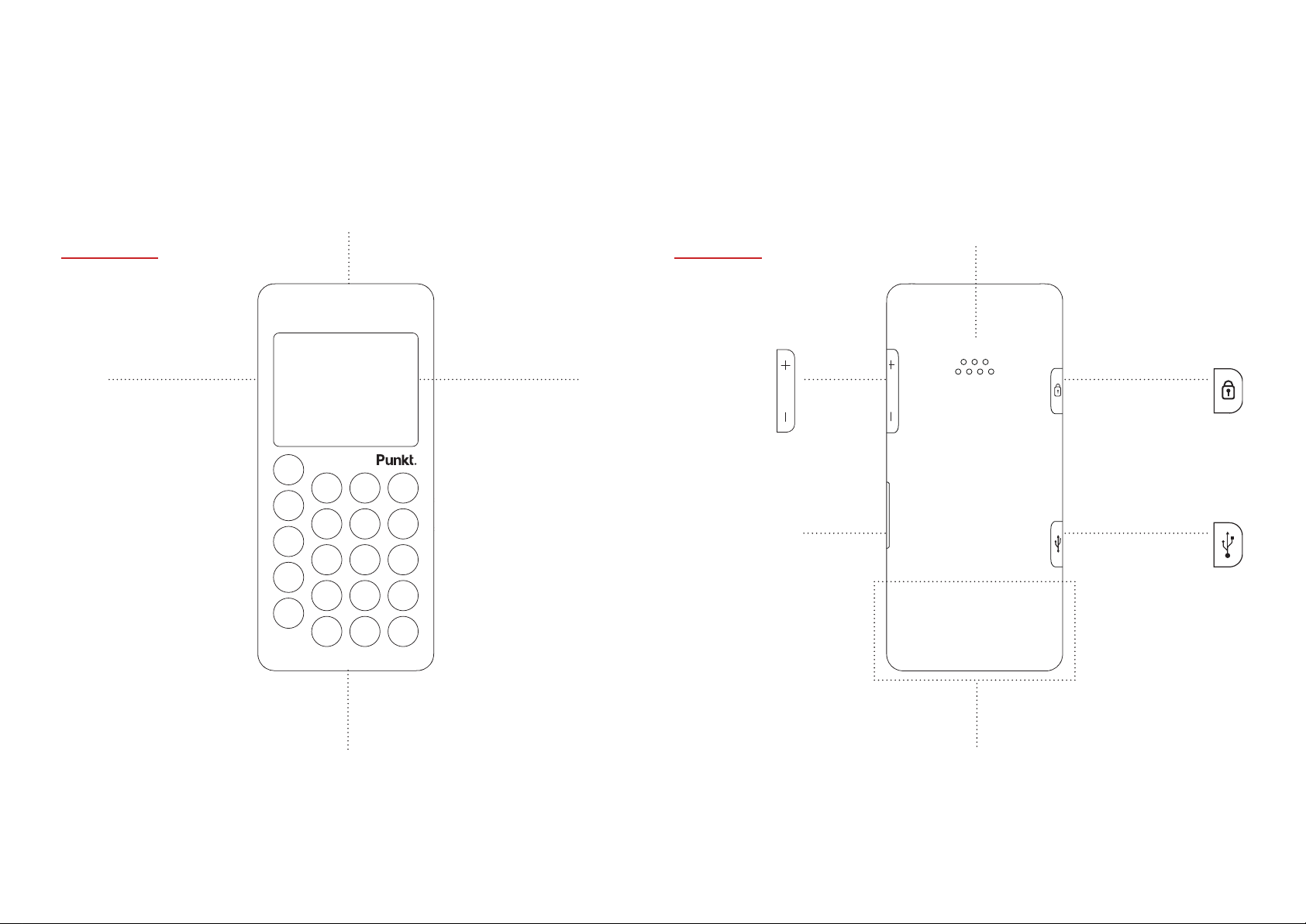
Get to know your phone
Front view Rear view
Gorilla Glass 3
& anti-fingerprint
coating
High quality audio with
noise cancellation
Full-colour
2.0 inch high
resolution
LCD display
Loudspeaker
Volume Power and
Key lock
External
SIM tray
Micro USB for
phonebook
sync, charging
and headset
Punkt. MP 01 Mobile Phone.
1,000mAh battery
290 mins talk time
3 wks standby
When you use your phone, hold it
so your hand does not cover the
antenna area.
If you cover the antenna area, it
may affect your network signal.
Antenna area
Page 5
Page 6

Your MP 01 Mobile Phone.
Keypad
Use the keypad on your phone to
navigate menus, and enter numbers
or letters.
Up
· Move up in a list
· Move the cursor left when
entering text
Punkt.
· Select the highlighted option
· On your Home screen:
open the main menu
Down
· Move down in a list
· Move the cursor right when
entering text
Contacts
· On your Home screen:
open your contacts list
· Press and hold on your Home
screen: add a new contact
Messages
· On your Home screen:
open the Messages menu
· Press and hold on your Home
screen: create a new message
· Send a text message template
to someone calling you
Send
· Make a call
· Answer a call
· On your Home screen:
view your call history
Back
· Go back to the previous screen
· Delete a character
End
· End a call
· Reject a call
· Return to your Home screen
· Press and hold on your Home
screen: view the shortcut menu
Number keys
(0 to 9)
· Press and hold on
your Home screen:
call speed dial number
· Enter a number or letter
Star
· Choose symbols when
entering text
· Enter symbols, for example +,
when entering a phone number
Hash
· Change input mode
when entering text
· Press and hold when entering
text: swap between predictive
and multi-tap modes
Punkt. MP 01 Mobile Phone.
Page 6
Page 7
Getting Started.
Before you can use your phone for
the first time, you need to do the
following:
1. Insert a SIM card into your phone
2. Charge your phone fully
3. Turn your phone on
4. Follow the start-up guide
on your phone
Inserting your SIM card
Your MP 01 phone is designed for
use with micro-SIM (3FF) cards. If
you have a nano-SIM card, use the
SIM adapter that is provided in your
phone box. Punkt. recommends that
you do not permanently use the
SIM adapter.
Warning: Only use micro-SIM cards
or the provided SIM adapter. If you
use another type of SIM card, you
may damage your phone or SIM card.
Before you insert your SIM card,
turn off your phone and unplug the
micro USB cable. Read more about
turning your phone off on page 8.
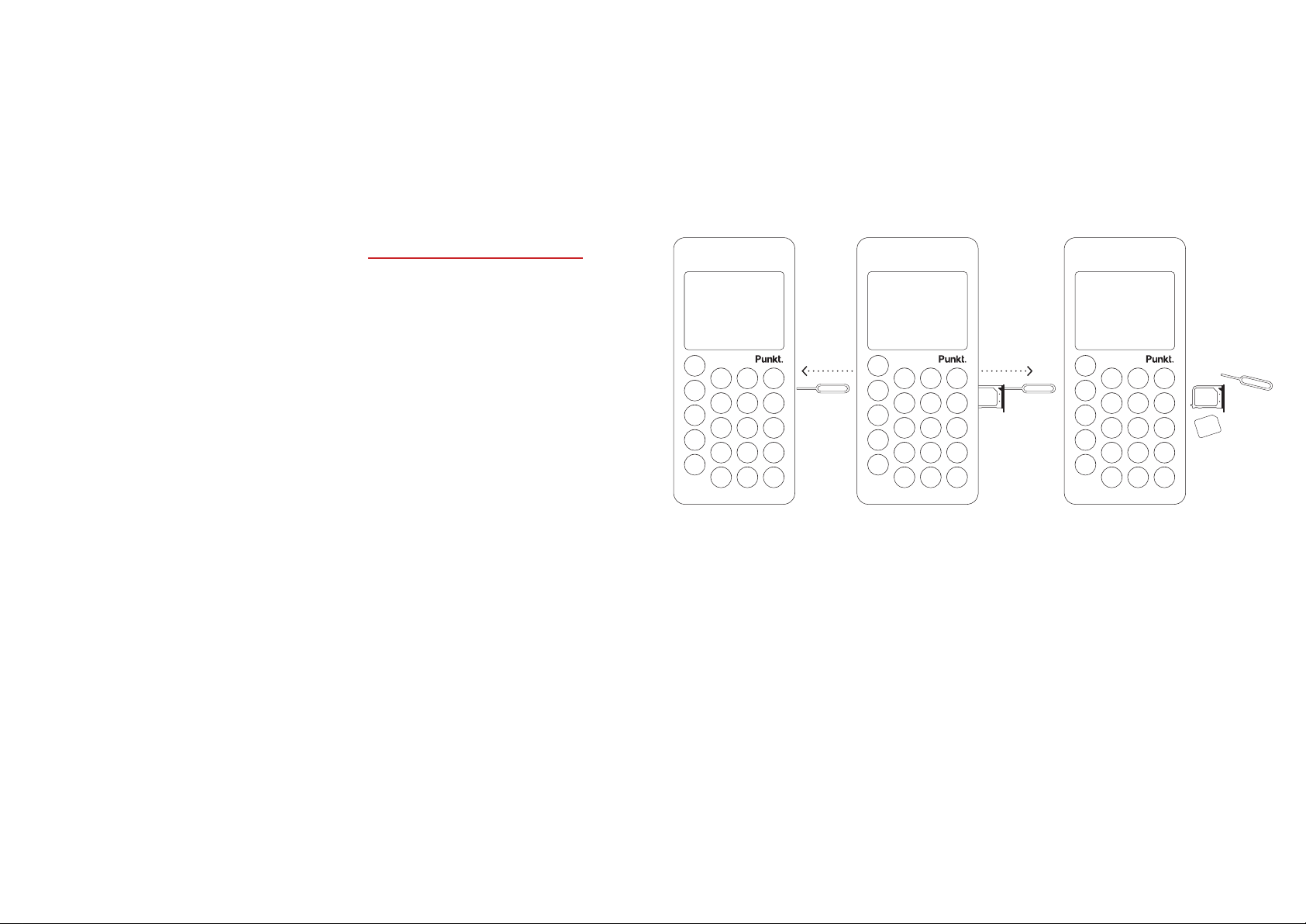
1. Insert the SIM tray pin into the
hole on your phone, until the SIM
tray pops out.
2. Pull the SIM tray carefully to
remove it from your phone.
3. Place your SIM card into the SIM
tray, with the metal side of the
SIM card facing down.
4. Insert the SIM tray back into your
phone and push it in until you feel
it click into place.
Punkt. MP 01 Mobile Phone.
Page 7
Page 8
Getting Started.
Charging your phone
You can easily charge your phone
with the provided micro USB cable.
Before you turn your phone on for
the first time, charge it fully.
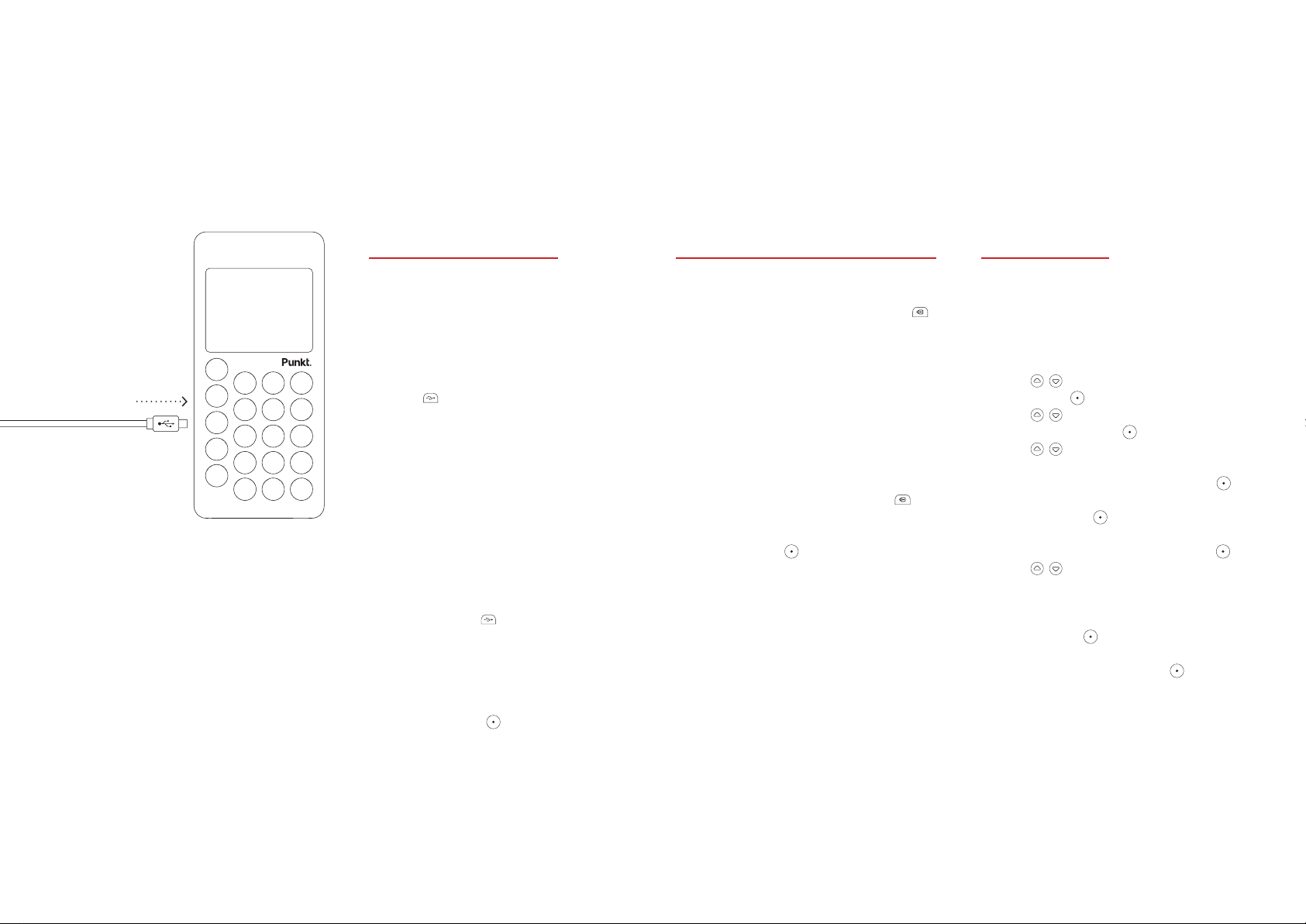
1. Open the cover of the USB
port on your phone.
2. Insert the micro USB cable
into the USB port.
3. Insert the other end of the micro
USB cable into the USB charger.
4. Connect the USB charger to
a power outlet. Your phone starts
to charge. The phone displays
Battery charging and the current
battery level.
5. When your phone is fully charged,
remove the micro USB cable from
your phone and close the cover of
the USB port .
Tip: You can also use a
computer’s USB port to charge
your phone. If your phone is
on when you connect it to a
computer, press to charge it.
Turning your phone on or off
— To turn your phone on
1. Press and hold the lock button
on the side of the phone, until
the screen turns on.
2. If your phone has a passcode,
enter it with the keypad.
3. If your SIM card has a PIN,
enter it with the keypad.
4. Read more about passcodes and
PINs on page 29.
— To turn your phone off
Press and hold the lock button
on the side of the phone. If your
phone displays a confirmation
message, press .
Start-up guide
When you turn your phone on
for the first time, a start-up guide
appears. This start-up guide sets up
your phone so you can start using it.
1. Use
and press .
2. Use
format and press .
3. Use
in the format
a. Choose the hour, then press .
b. Choose the minute,
then press .
c. If you use a 12-hour clock,
choose AM or PM and press .
4. Use
5. Your phone is now ready to use.
· To continue choosing settings
on your phone, select Settings
and press .
· To start using your phone,
select Later and press .
to choose a language
to choose a clock
to set the time,
hhmm
to set the date.
.
Punkt. MP 01 Mobile Phone.
Page 8
Page 9

Getting Started.
Locking or unlocking your
phone’s keypad
When your phone is in your
pocket or bag, you can accidentally
press keys or buttons. To prevent
this from happening, lock your
phone’s keypad.
Tip: You can set your phone’s keypad
to lock automatically after a certain
amount of time. Read more about
automatic locking on page 29.
· To lock your phone’s keypad,
press the lock button on the
side of the phone. When the
keypad is locked, your phone
displays the status icon.
· To unlock your phone’s keypad,
press and hold the lock button
on the side of the phone.
Connecting a headset
Sometimes you might want to use
your phone but keep your hands free.
You can use your phone with the
following:
· A micro USB headset
· A Bluetooth enabled device,
for example, a Bluetooth headset
or the audio system in your car.
Read more about connecting
your phone to a Bluetooth
device on page 27.
When a headset is connected to your
phone, your phone displays the
status icon.
— To connect a micro USB headset
1. Open the cover of the USB port
on your phone.
2. Insert the micro USB headset into
the USB port.
Tip: To connect a pair of headphones
with a 3.5 mm connector, use the
provided converter.
Punkt. MP 01 Mobile Phone.
Page 9
Page 10
Your Home Screen.
22:46
Missed call: Vincent
New message: Henri
Reminder: Pick up milk
MON
29 Nov
Status Icons
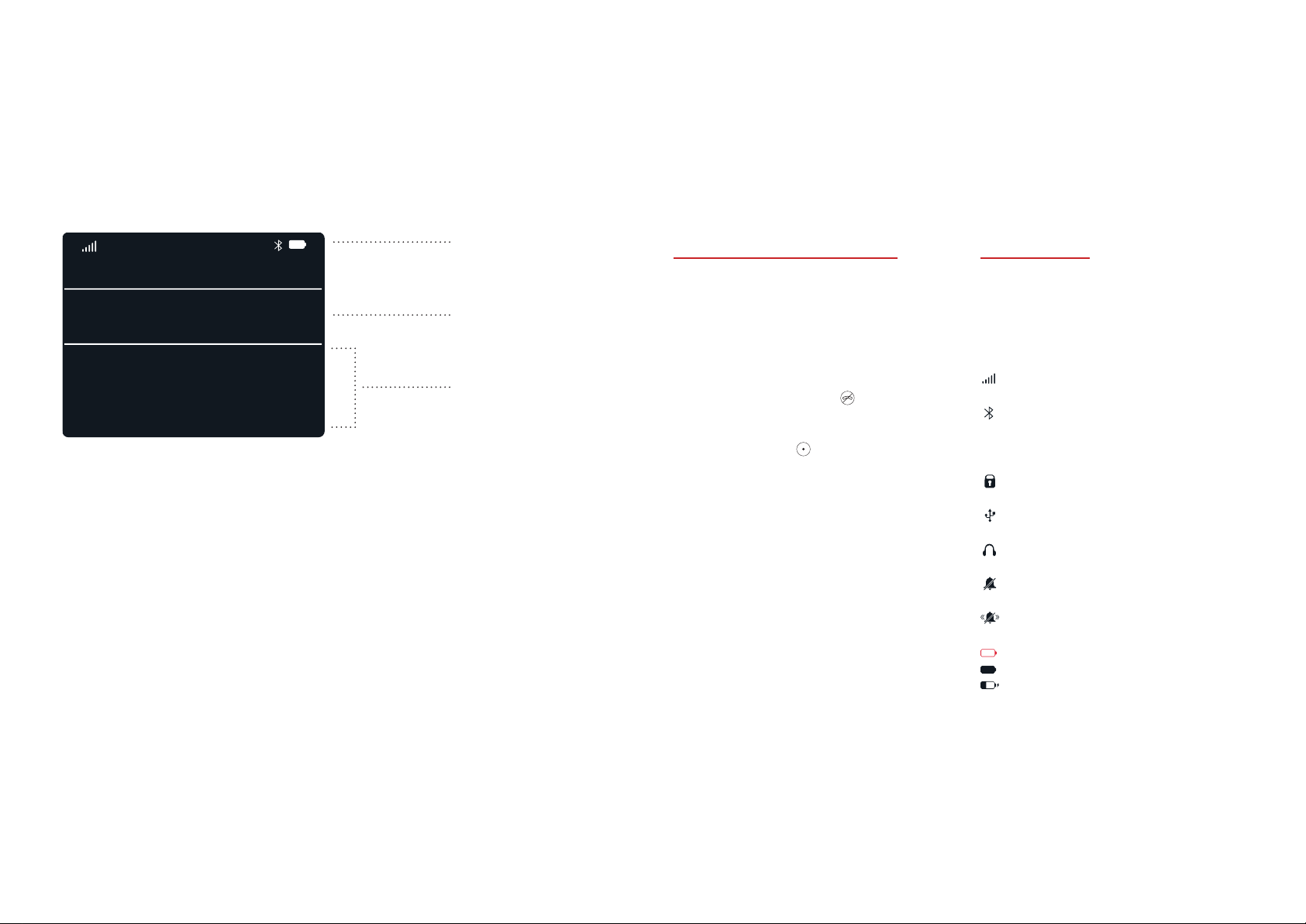
Current time and date
Notifications
About your Home screen
When you turn on your phone,
it displays your Home screen.
Your Home screen displays a clock
and notifications.
To return to your Home screen from
any other screen, press .
When the current time and date
is selected, press to open the
main menu.
Note: All of the steps described in
this user guide assume you start on
your Home screen, with the current
time and date selected.
Status icons
Your phone displays the following
status icons at the top of your
Home screen.
Strength of network signal
Gray - Bluetooth is on
White - Bluetooth is on and a
device is connected
Keypad is locked
Connected to a computer
Connected to a headset
Silent mode without vibrate
Vibrate only mode
Red - Battery is empty
Battery is full
Battery is charging
Punkt. MP 01 Mobile Phone.
Page 10
Page 11

Your Home Screen.
22:46
MISSED CALL
Vincent
New Message: Henri
Reminder: Pick up milk
Alarm: 06:00
29 Nov
13:00
Notifications
Your Home screen displays
notifications. You can receive
notifications for calls, text messages,
reminders, and alarms.
— To view m ore information about a
notification on your Home screen
1. Use
and press .
2. If you press again, your
phone displays content or a list
of options. For example, for a
reminder notification, you can
delete or edit the reminder, or
add an alert.
You can choose when to receive
notifications. Choose to never
receive notifications, always receive
them, or only receive them when
your phone’s keypad is unlocked.
— To change your
notification settings
1. Press .
2. Use to select Settings
and press .
3. Use to select Preferences
and press .
4. Use
and press .
5. Choose when to receive
notifications and press
to select a notification
to select Notifications
to save.
Shortcut menu
From your Home screen, you can
change common settings with the
shortcut menu. Use the shortcut
menu to quickly turn vibrate and
Bluetooth on or off, or change your
network settings.
· To view the shortcut menu, press
and hold on your Home screen.
Punkt. MP 01 Mobile Phone.
Page 11
Page 12
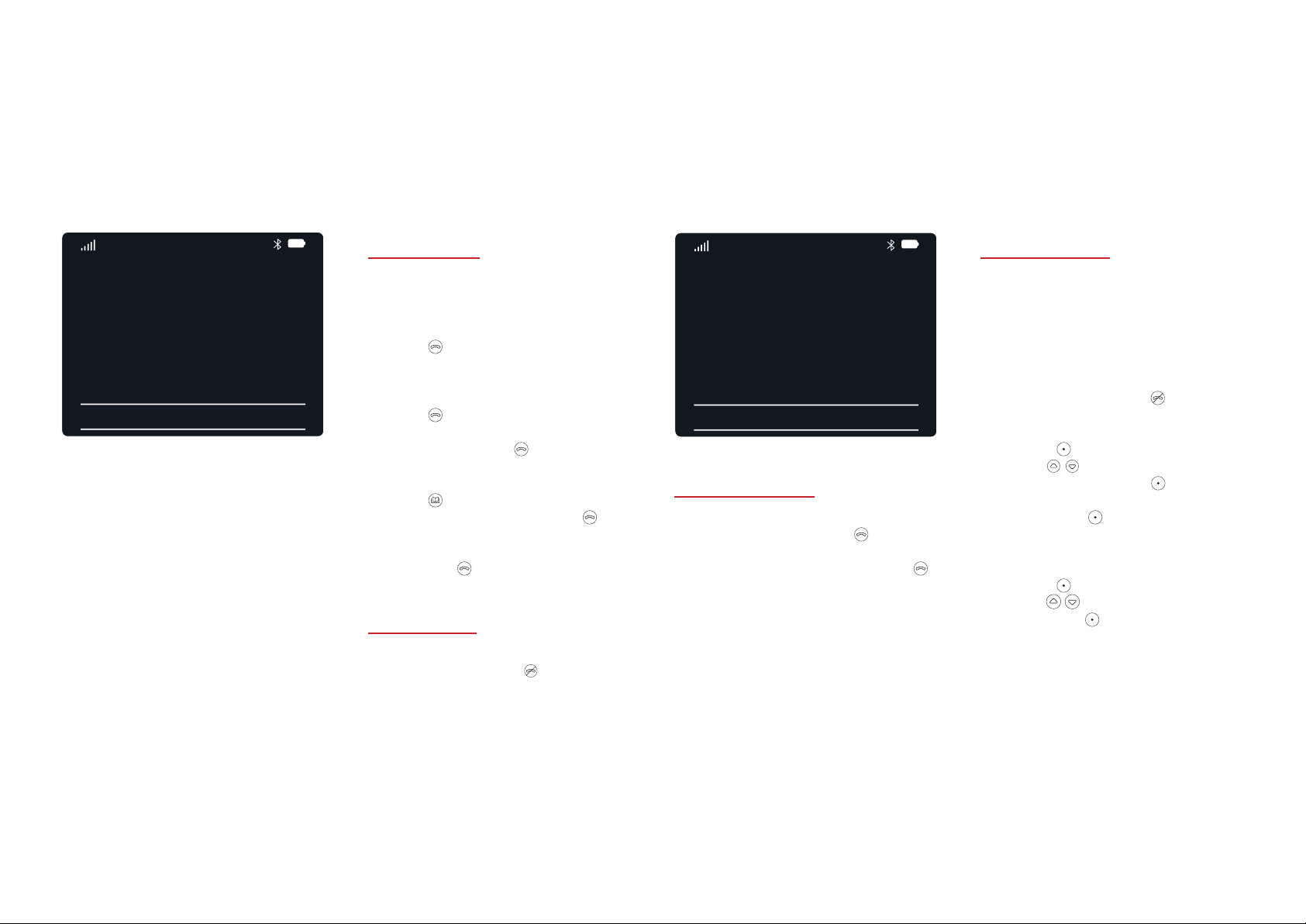
Calls.
003133
56747964
Vincent
Options
Making calls
— To call a phone number
1. Use the keypad to enter
a phone number.
2. Press .
— To call someone in your
call history
1. Press .
2. Choose a phone number or
contact and press .
— To call a contact
1. Press .
2. Choose a contact and press .
3. If the contact has multiple phone
numbers, choose a phone number
and press .
Ending calls
· To end a call, press .
INCOMING CALL
Artie Buckle
Mobile
Options
Answering calls
· To answer a call, press .
· To answer a call with your phone
on loudspeaker, press and hold .
Tip: To change your ringtone,
see page 25.
Rejecting calls
When you do not want to answer a
call, you have several options.
· To silence a call, press either of
the volume buttons on the side of
your phone.
· To reject a call, press .
· To reject a call and send a text
message to the caller
a. Press
b. Use
message and press .
c. Choose a text message template
and press .
· To set a reminder for you to call
the caller back
a. Press .
b. Use to select Remind me
and press
shown on your Home screen.
Read more about reminders on
page 23.
.
to select Send
. The reminder is
Punkt. MP 01 Mobile Phone.
Page 12
Page 13

Calls.
Multiple calls
Sometimes you might receive a call
when you are already on a call.
If call waiting is on, when you are
on a call and receive a new call, you
can put the current call on hold and
answer the new one. You can also
make a new call when you are
already on a call.
Note: Not all network providers
or contracts allow you to handle
multiple calls. For more information,
contact your network provider.
— To answer or reject calls when you
are already on a call
· To answer the new call, press .
The current call is put on hold.
· To see other options, for example,
rejecting the new call and sending
a text message to the caller,
press .
— To make a new call when you are
already on a call
· To call a phone number, enter it
with the keypad and press . The
current call is put on hold.
· To call a contact, press . Then
choose a contact and press .
The current call is put on hold.
— To turn call waiting on or off
1. Press .
2. Use
and press .
3. Use
and press .
4. Use
and press .
5. Choose Activate or Deactivate,
then press .
Tip: To check your current setting
for call waiting, choose Query status
and press .
to select Settings
to select Calls
to select Call waiting
Changing the volume
of a call
When you are on a call, you can
change the volume of the call or put
it on loudspeaker.
· To change the volume of a call, use
the volume buttons on the side of
the phone.
· To put a call on loudspeaker,
press . Use
speaker on and press .
to select Turn
Muting your microphone
· To mute your microphone,
press . Use
mute on and press .
to select Turn
Putting calls on hold
· To put a call on hold, press .
· To resume the call, press .
Using speed dial numbers
Speed dial numbers allow you to
instantly call a phone number or
contact, at the touch of a key. Read
about adding and deleting speed dial
numbers on page 17.
· To call a speed dial number, press
and hold the assigned key. For
example, to dial the phone number
or contact in speed dial position 2,
press and hold .
Tip: Speed dial position1 is assigned
to your voicemail. Read about
checking your voicemail on page15.
Punkt. MP 01 Mobile Phone.
Page 13
Page 14
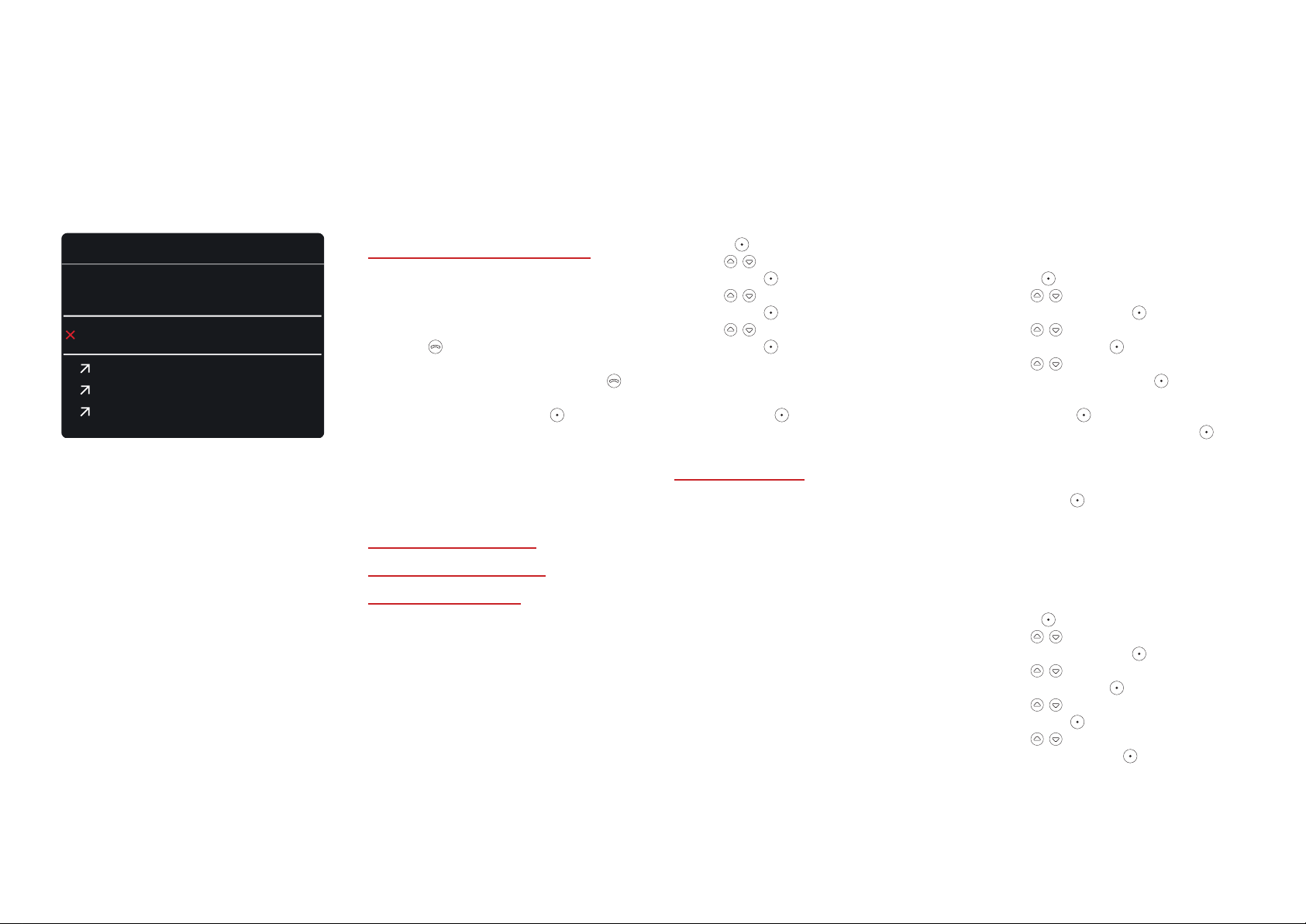
Calls.
Call history
Delete all
Norma Work
Mobile
Elena Gatti
Armin Link
Denny Mango
20:00
08:00
25/12
25/12
Viewing your call history
Your call history shows recent calls
that you have made and received.
1. Press .
2. To call someone in your call
history, choose a call and press .
3. To view the details of a call,
choose a call and press .
From the Options menu you can
call the phone number, send a
text message, or add it to your
contacts list.
Showing or hiding
your phone number
on outgoing calls
To hide your phone number when
you make a call, hide your caller ID.
When your phone number is
hidden, the person who you are
calling cannot see your number.
Note: Not all network providers
or contracts allow you to change
the caller ID settings. For more
information, contact your
network provider.
1. Press .
2. Use to select Settings
and press .
3. Use to select Calls
and press .
4. Use to select Caller ID
and press .
5. Choose to show or hide your
phone number, or use your
network provider’s settings.
Then press .
Diverting calls
You can divert calls to another
number or to your voicemail.
You can choose from the
following settings:
· Divert calls when you do not
answer
· Divert calls when you are busy
· Divert calls when you do not have
network signal
· Divert all calls
Note: Not all network providers or
contracts allow you to change the
divert call settings. For more
information, contact your network
provider.
— To divert calls to another
number or to your voicemail
1. Press .
2. Use to select
Settings and press .
3. Use to select
Calls and press .
4. Use to select
Divert calls and press .
5. Choose a divert setting,
then press .
6. Choose Activate, then press
Tip: To check the current divert
setting, choose Query status
and press
7. Choose where to divert calls
and then follow the on-screen
instructions.
— To cancel all diverts
1. Press .
2. Use to select
Settings and press .
3. Use to select
Calls and press .
4. Use to select Divert calls
and press .
5. Use to select Cancel all
diverts and press .
.
.
Punkt. MP 01 Mobile Phone.
Page 14
Page 15

Voicemail.
Checking your voicemail
When you do not answer a call, the
caller can leave a message on your
voicemail provided by your
network provider. When someone
leaves a message on your voicemail,
you receive a text message.
Note: Your voicemail settings
depend on your network provider
or contract. For more information,
contact your network provider.
· To check your voicemail, press
and hold .
Setting your
voicemail number
Before you can check your voicemail,
you need to set your voicemail
number. Your voicemail number is
specific to the network provider of
your SIM card. If you do not know
your voicemail number, contact
your network provider.
1. Press .
2. Use
and press .
3. Use
and press .
4. Enter your voicemail number
and press .
to select Settings
to select Voicemail
Punkt. MP 01 Mobile Phone.
Page 15
Page 16

Contacts.
About contacts
You can save the phone numbers for
family and friends as contacts on
your phone. A contact can have up
to three phone numbers assigned
to it, each with a different label. For
example, your friend might have a
home phone number and a work
phone number.
Adding contacts
To add a new contact, you can use
your contacts list or the dialler.
— To add a new contact from your
contacts list
1. Press .
2. Use
and press twice .
3. Enter the phone number and press
twice .
4. Choose a label for the phone
number and press .
5. Enter the contact name and press
twice to save the contact.
To add another phone number to
the contact, see page 16.
— To add a new contact from
the dialler
1. Use the keypad to enter a
phone number.
2. Press .
3. Use to select Add to
contacts and press twice.
4. If required, edit the
phone number.
5. Press twice.
6. Choose a label for the
phone number and press .
7. Enter the contact name.
8. Press twice to save the contact.
to select Add contact
To add another phone number to the
contact, see page 16.
Viewing contacts
1. To view your contacts
list, press .
Tip: To search for a contact in
the list, use the keypad to enter
the name of the contact.
2. To view the phone numbers for
a contact, choose a contact and
press .
Editing contacts
You can edit the name of a contact,
edit their phone number, or add
another phone number.
— To edit the name of a contact
1. Press .
2. Choose a contact and
press twice.
3. Use
Edit and press .
4. Use
and press .
to select
to select Edit name
5. Edit the contact name and
press twice to save.
— To edit the phone number
of a contact
1. Press .
2. Choose a contact and
press
3. If there are multiple phone
numbers for a contact, choose
the number to edit and press .
4. Use to select Edit number
and press .
5. Edit the phone number and
press twice.
6. Choose a label for the phone
number and press to save.
— To add another phone number
to a contact
1. Press .
2. Choose a contact and
press
3. Use
Edit and press .
4. Use
Add number and press .
5. Enter the phone number
and press twice.
6. Choose a label for the phone
number and press to save.
twice.
twice.
to select
to select
Punkt. MP 01 Mobile Phone.
Page 16
Page 17

Contacts.
Deleting contacts
1. Press .
2. Choose a contact and
press twice.
3. Use to select Delete and
press twice.
Sharing contacts
You can share a contact with family
and friends. Choose to send the
contact details in a text message or
send them by Bluetooth.
1. Press .
2. Choose a contact and
press twice.
3. Use to select Share
and press .
4. To choose how to share the
contact, use
· To send the contact details in a
text message, select Share via
message and press . Choose a
recipient and then follow
the on-screen instructions.
Read more about text messages
on page 19.
.
· To send the contact details
by Bluetooth, select Share via
Bluetooth and press . Choose
another device and then follow
the on-screen instructions.
Read more about Bluetooth
on page 27.
Receiving a shared contact
with Bluetooth
When someone uses Bluetooth to
send you a contact, your phone
displays a notification. After you
receive the shared contact, add it to
your contacts list. Read more about
Bluetooth on page 27.
1. To receive the shared contact,
choose Yes and then press .
A vCard format (.vcf) file is saved
on your phone.
2. Press .
3. Use to select Manage
contact and press .
4. Use to select Restore
contacts and press .
5. Choose the .vcf file and press
to add it to your contacts list.
Viewing your own
phone number
You can view your own phone
number in your contacts list.
Note: For some SIM cards, you
cannot view your own phone number
in your contacts list. To check your
own phone number, contact your
network provider.
· To view your own phone number,
press . Your phone number is
displayed at the top of the list.
Adding and deleting speed
dial numbers
You can add phone numbers or
contacts that you call a lot to speed
dial numbers. Your voicemail is
always assigned to speed dial
number 1.
1. Press .
2. Use to select Manage
contact and press .
3. Use to select Speed dial
and press .
4. To add a phone number or a
contact to a speed dial number,
choose an unassigned number
and press .
5. To delete a speed dial number,
choose a number and press .
Punkt. MP 01 Mobile Phone.
Page 17
Page 18

Contacts.
Copying and moving
contacts between your
phone and SIM card
— To copy contacts between your
phone and SIM card
1. Press .
2. Use to select Manage contact
and press .
3. Use
and press .
4. Choose where to copy contacts to,
then press .
5. Choose to copy individual
contacts or all contacts,
then press .
· If you are copying individual
contacts, choose the contact
and press to copy it. To copy
another contact, press .
· If you are copying all contacts,
press to start.
to select Copy contacts
— To move contacts between your
phone and SIM card
1. Press .
2. Use to select Manage contact
and press .
3. Use
and press .
4. Choose where to move contacts
to, then press .
5. Choose to move individual
contacts or all contacts,
then press .
· If you are moving individual
contacts, choose the contact and
press to move it. To move
another contact, press .
· If you are moving all contacts,
press to start.
to select Move contacts
Backing up and
restoring contacts
You can back up your contacts list to
a computer and then restore it at a
later date. Your phone can use
backups in the vCard format (.vcf).
Tip: Read more about backing up and
restoring contacts at punkt.ch.
When your phone backs up your
contacts list, it saves it as a .vcf file.
It names the backup with the current
date and time. For example, a backup
created on 11th March 2016 at
14:35:07 has the name
Punkt20160311143507.
— To back up your contacts list
to a computer
1. Press .
2. Use to select Manage contact
and press .
3. Use to select Backup
contacts and press twice
to save the backup.
4. Use the micro USB cable to
connect your phone to a computer.
5. To put your phone in sync mode,
use to select Sync mode and
press .
6. Copy the backup file from your
phone to the computer.
— To restore your contacts list
from a computer
1. Use the micro USB cable
to connect your phone to a
computer.
2. To put your phone in sync mode,
use to select Sync mode and
press .
3. Copy the backup file from the
computer to your phone.
4. Disconnect your phone from the
computer.
5. Press .
6. Use to select Manage contact
and press .
7. Use to select Restore
contacts and press .
8. Choose a backup and press to
restore it.
Punkt. MP 01 Mobile Phone.
Page 18
Page 19

Text Messages.
Abc
ABC
abc
Abc
ABC
abc
123
ABC
About text messages
Text messages allow you to keep in
touch with family and friends. When
you send and receive text
messages, your phone saves them in
folders so you can easily find them.
Your phone uses the following
folders for text messages.
— Inbox
Text messages that you have
received.
— Drafts
Text messages that you have started
but not sent.
— Outbox
Text messages that you are currently
sending or text messages
that have failed to send.
— Sent
Text messages that you have sent.
— Templates
Text messages that you can quickly
send.
Tip: You can save up to 1000 text
messages on your phone.
Entering text on your phone
To enter text on your phone, use the
keypad. Each number key represents
several letters. For example,
you can use the key to enter the
letters a, b, or c. You can enter text
in the following ways:
· Predictive text
· Multi-tap text
150 Abc
Lorem
Options
When you enter text, press
to
cycle through the text entry modes.
Your phone cycles through the
modes in the following order.
1.
— Predictive text
Capitalise the first letter
2.
— Predictive text
All upper case letters
3.
— Predictive text
All lower case letters
4.
— Multi-tap text
Capitalise the first letter
5.
— Multi-tap text
All upper case letters
6.
— Multi-tap text
All lower case letters 123
7.
— Number
Tip: To instantly swap between
predictive and multi-tap modes,
press and hold
.
Note: If your phone is not in English,
the first two letters of your phone’s
language is used to display the
text entry mode.
— To use multi-tap text entry
To enter a letter, press a key. Each
time you press the key, it cycles
through the associated letters.
For example, to enter the letter c,
press three times.
— To use predictive text entry
With predictive text, you can press
fewer keys to enter a word.
1. To enter a letter, press a key once.
As you continue to press keys,
your phone suggests words at the
bottom of your screen.
2. To choose the suggested word that
is highlighted in orange, press .
3. To choose another suggested
word, use and then press .
Tip: To choose a word and also insert
a space after it, press .
When you use predictive text input,
is displayed in the top-right
of your screen.
Punkt. MP 01 Mobile Phone.
Page 19
Page 20

Text Messages.
— To enter other characters
· To enter a space between words,
press .
· To enter a full stop, press .
· To enter a number, press and
hold a key. You can also press
multiple times until the phone is
in number mode.
· To view a list of symbols, press
Then press the relevant key
.
to insert a symbol, or press to
view the next page of symbols.
Sending text messages
You can send a text message to a
phone number or contact. To send
the text message to more than one
person, add multiple phone numbers
or contacts to the recipient list.
1. Press .
2. Press .
3. Enter your message and
press twice.
4. To choose who to send the
text message to, use .
· To send the text message to
a phone number, select Enter
number and press . Enter the
phone number and press .
· To send the text message to
a contact, select Add from
Phonebook and press .
Choose a contact and press .
If the contact has multiple
phone numbers, choose a
number and press .
5. When you have added all of the
recipients, press twice to send
the text message.
Tip: If your phone cannot send the
text message, a message appears.
Your phone saves the message
to your outbox folder.
Viewing text messages
— To view a new text message
When you receive a new text
message, a notification appears on
your Home screen. To open the text
message, press .
Tip: To change your message
tone, see page 25.
— To view text messages in
a message folder
1. Press .
2. Use to choose a message
folder, then press .
3. To view a text message, choose
a message and press .
Tip: If you want to call the person
who sent you the text message,
you can quickly call them from the
message. To call the person who
sent you the text message, press .
Select Call and then press .
Replying to or forwarding
text messages
1. View a text message.
2. To choose an option, use .
· To reply to the person who sent
the text message, select Reply
and press .
· To forward the text message
to someone else, select Forward
and press .
3. Enter your message and press
twice.
4. Choose who to send the text
message to.
5. When you have added all of the
recipients, press twice to send
the text message.
Deleting text messages
1. Press .
2. Use to choose a message
folder, then press .
3. To choose which messages to
delete, use .
· To delete a text message, choose
a message and press twice.
Then select Delete and
press twice.
· To delete all text messages in
the folder, select Delete all and
press twice.
Punkt. MP 01 Mobile Phone.
Page 20
Page 21

Text Messages.
Using text message
templates
You can quickly send text message
templates. For example, when you
receive a call but cannot answer it,
you can reject it and send a text
message template to the caller saying
“Call me later”. Read more about
rejecting calls on page 12.
— To insert a template into your text
message
1. When you are entering a text
message, press .
2. Use to select Insert
template and press .
3. Choose a template and press
to insert it into your message.
Using the content in a
text message
When you receive a text message
that contains certain types of
content, your phone can use it.
For example, if you receive a text
message that contains a phone
number, you can call the number
directly from the message.
— You can use the content
of a text message to do
the following:
· Call a phone number
· Send a text message to a
phone number
· Create a reminder from part
of the message
· Create a reminder from
the full message
· Set an alarm
· Add or update a contact
— To use the content in a
text message
1. Press .
2. Use to choose a message
folder, then press .
3. To view a text message, choose a
message and press twice.
Tip: To use the sender’s phone
number to add or update a
contact, select Add to contacts
and press . Follow the on-screen
instructions.
4. Use to select Use message
content and press .
5. Choose the content to use
and press .
6. Choose an option and follow the
on-screen instructions.
Punkt. MP 01 Mobile Phone.
Page 21
Page 22

Alarms.
About alarms
To wake you up at the start of the
day, set an alarm on your phone.
When you set an alarm, your phone
sets it for the next possible time.
After you set an alarm, your Home
screen displays the alarm icon
and the alarm time.
Tip: If your phone is turned off and
you have set an alarm, it wakes up at
the alarm time.
Setting a new alarm
1. Use your keypad to enter the
alarm time, in the format
For example, press for
an alarm at 10:20 in the morning.
2. Press .
3. Use to select Set alarm and
press .
4. If you use a 12-hour clock, choose
AM or PM and press .
hhmm
Setting or cancelling the
saved alarm
You can set or cancel the saved
alarm.
1. Press .
2. Use to select Alarm and
press . The saved alarm time is
displayed.
3. To set or cancel the alarm,
press .
Snoozing or turning off
your alarm
.
When your alarm sounds, you can
snooze it for 5 minutes or turn it off.
· To snooze the alarm when it
sounds, press . The alarm
sounds again in 5 minutes.
· To turn off the alarm when it
sounds, press . When you turn
off the alarm, your phone
cancels it. To set the alarm again,
see page 22.
Punkt. MP 01 Mobile Phone.
Page 22
Page 23

Reminders.
About reminders
To help you remember something
important, set a reminder on your
phone. Your Home screen displays
any reminders that you set.
To remind you at a specific date
and time, you can also add an alert
to a reminder.
Setting a reminder
1. Press .
2. Use to select Reminders
and press twice.
3. Enter the description for
the reminder, for example,
David’s birthday
4. Press twice.
5. Choose whether or not to add
an alert to the reminder,
then press .
6. If you chose to add an alert, set
the date and time for the alert.
a. Use and to enter
the date.
b. Use and to enter
the time.
.
Editing a reminder
When you have set a reminder, you
can edit its description or alert.
— To edit a reminder’s description
1. Press .
2. Use to select Reminders
and press .
3. Choose a reminder and
press twice.
4. Use to select Edit reminder
and press .
5. Edit the description for the
reminder.
6. Press twice to save.
— To edit a reminder’s alert
1. Press .
2. Use to select Reminders
and press .
3. Choose a reminder and
press twice.
4. Use to select Edit reminder
alert and press .
5. To remove the alert, press .
6. To change the date or time for the
alert, use to select Modify
date/time and press . Then set
the date and time for the alert.
a. Use and to enter
the date.
b. Use and to enter
the time.
Deleting a reminder
1. Press .
2. Use to select
Reminders and press
3. Choose a reminder and
press twice.
4. Use to select Delete
and press .
.
Punkt. MP 01 Mobile Phone.
Page 23
Page 24

Calendar.
Viewing your calendar
You can easily view a calendar on
your phone.
1. Press twice. Your calendar
opens and displays the
current month.
2. To view another month, use
3. To return to the current month,
press .
Tip: To be reminded of an event on
a specific date, set a reminder with
an alert. Read more about reminders
on page 23.
.
Punkt. MP 01 Mobile Phone.
Page 24
Page 25

Sounds.
About sounds
Your phone can play a sound and
vibrate when you receive a call or
text message. You can also set your
phone to play a sound each time you
press a key, or turn the phone
on and off.
Changing your
ringtone volume
When you change your ringtone
volume, it also affects the volume of
message tones, keypad tones, and
other sounds.
· To change the volume of your
ringtone, from your Home screen,
use the volume buttons on the
side of the phone. Ensure you are
not on a call.
When you are in a meeting or do not
want to be disturbed, put your phone
on silent.
· To put your phone on silent, press
and hold the volume down button
on the side of the phone.
If your phone is set to vibrate,
it still vibrates when you receive
a call or message.
Changing your ringtone
The ringtone plays when you receive
a call.
1. Press .
2. Use
and press .
3. Use
and press .
4. Use
of ringtones and hear a sample of
each ringtone.
5. To set the new ringtone, press .
to select Sounds
to select Calls
to move through the list
Changing your message tone
The message tone sounds when
you receive a text message.
1. Press .
2. Use
and press .
3. Use
and press .
4. Use
list of message tones and hear a
sample of each tone.
5. To set the new message tone,
press .
to select Sounds
to select Messages
to move through the
Turning vibrate on or off
You can set your phone to
vibrate mode when you receive
a call or text message. If your phone
is set to vibrate, it still vibrates
whether or not your phone
is on silent.
1. Press .
2. Use
press .
3. Use
press .
4. Choose On or Off, then press .
to select Sounds and
to select Vibrate and
Turning the keypad tones
on or off
To hear a sound each time you press
a key, turn on the keypad tones.
1. Press .
2. Use
press .
3. Use
and press .
4. Choose On or Off, then press .
to select Sounds and
to select Keypad tone
Turning the start-up
sound on or off
To hear a sound when you turn your
phone on or off, turn on the start-up
sound.
1. Press .
2. Use
press .
3. Use
and press .
4. Choose On or Off, then press .
to select Sounds and
to select Start-up sound
Punkt. MP 01 Mobile Phone.
Page 25
Page 26

Date And Time.
Changing the date and
time setting
You can set the date and time on
your phone manually, or your phone
can update them automatically.
1. Press .
2. Use
press .
3. Use
and press .
4. Use
and press .
5. Choose Automatic or Manual,
then press .
Note: For some network providers,
you cannot automatically update
the date and time. If the date and
time do not update when you choose
Automatic, set them manually.
to select Settings and
to select Date and time
to select Mode
Setting the date
You can easily set the date on
your phone.
1. Press .
2. Use
and press .
to select Settings
3. Use
and press .
4. Use
press twice.
5. To enter the date, use
to select Date and time
to select Date and
and .
Setting the time
You can easily set the time on your
phone, and choose between a 12hour or 24-hour clock.
— To change the clock format
1. Press .
2. Use
and press .
3. Use
and press .
4. Use
and press .
5. Use
and press .
6. Choose to use a 24-hour or 12hour clock, then press to save.
— To set the time
1. Press .
2. Use
and press .
3. Use
and press.
4. Use
and press twice.
to select Settings
to select Date and time
to select Time
to select Format
to select Settings
to select Date and time
to select Time
5. Use
in the format
a. Choose the hour, then press .
b. Choose the minute,
then press .
c. If you use a 12-hour clock,
choose AM or PM and press .
to set the time,
hhmm
.
Changing the time zone
When you travel to a different time
zone, you can update the clock on
your phone to the local time.
To update the clock on your phone,
do not change the time.
Instead, set a time zone and then
turn on the time zone.
If you often travel to a different
time zone, set the time zone to that
location. Turn on the time zone
when you travel, then turn it off
when you are back home.
Tip: If you receive a text message
that has the wrong time stamp,
check the time zone settings.
The wrong time stamp could be due
to the following:
· The time zone is not currently set.
· The wrong time zone is set.
· The time is different due to
daylight-saving time.
— To set the time zone
1. Press .
2. Use
and press .
3. Use
and press .
4. Use
and press .
5. Choose a city for the time zone
and press . To update the
clock on your phone, turn on
the time zone.
— To turn on the time zone
1. Press .
2. Use
and press .
3. Use
time and press .
4. Use
zone and press .
5. Use
and press .
to select Settings
to select Date and time
to select Time zone
to select Settings
to select Date and
to select Use time
to select On
Punkt. MP 01 Mobile Phone.
Page 26
Page 27
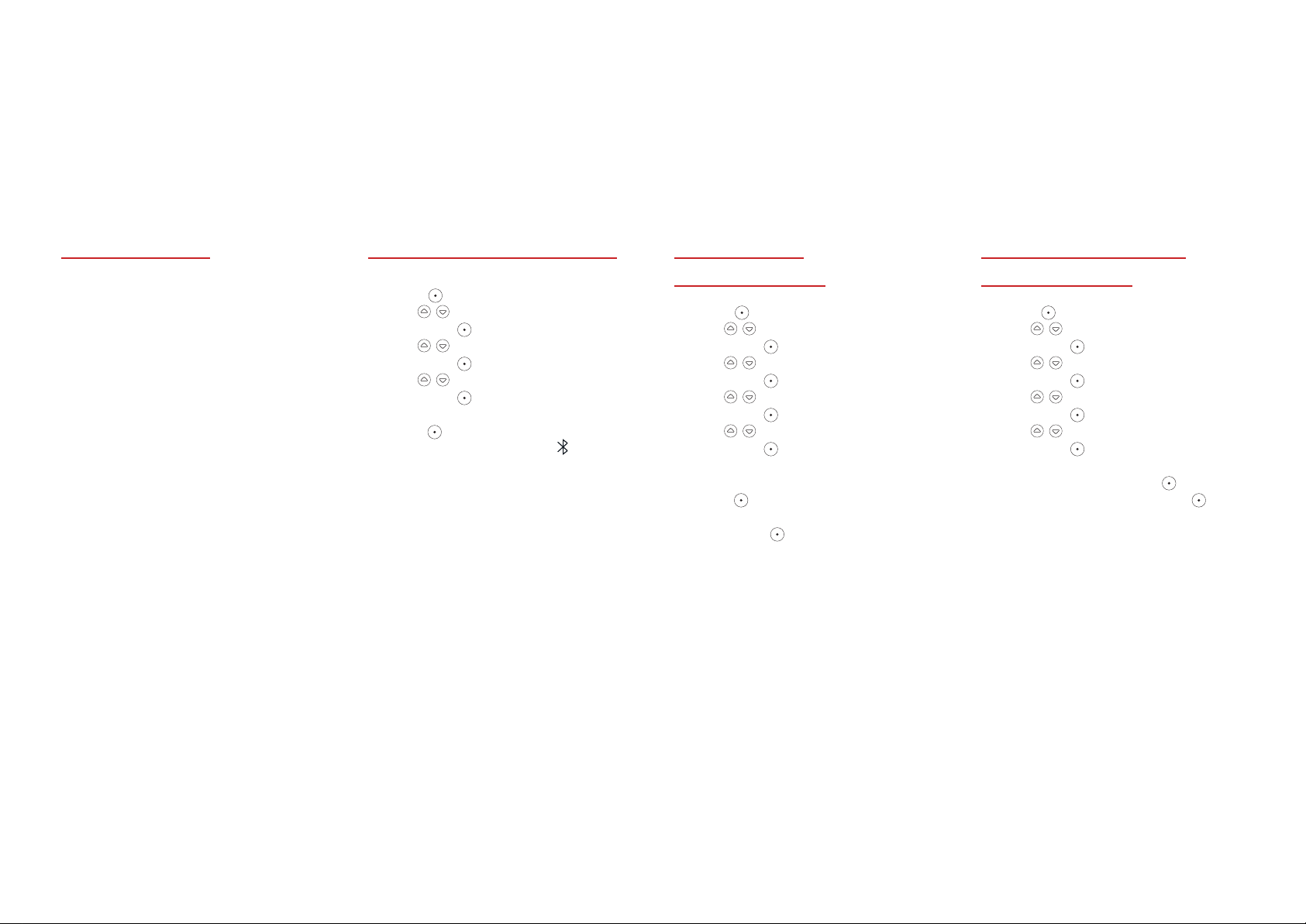
Connectivity.
About Bluetooth
Use Bluetooth to wirelessly
connect to other devices, for
example, another phone or a
Bluetooth headset.
When you use Bluetooth,
you can do the following:
· Connect to a Bluetooth headset or
similar device
· Send and receive contact details
Before you can connect your phone
to a Bluetooth device, you need to
pair your phone with it. You can
then allow a paired Bluetooth
device to connect to your phone
automatically.
Turning Bluetooth on or off
1. Press .
2. Use
and press .
3. Use
and press .
4. Use
and press .
5. To turn Bluetooth on or off,
press . When Bluetooth is on,
your phone displays the status
icon.
Tip: To save battery power, turn
Bluetooth off when it is not in use.
to select Settings
to select Connectivity
to select Bluetooth
Pairing with a
Bluetooth device
1. Press .
2. Use
and press .
3. Use
and press .
4. Use
and press .
5. Use
and press twice. Your phone
searches for nearby Bluetooth
devices. To stop the search,
press .
6. Choose a device to pair with,
then press .
7. Follow the on-screen instructions.
If required, enter a code for
authentication and then enter
the same code on the Bluetooth
device. Your phone is now paired
to the Bluetooth device and is
ready to connect.
to select Settings
to select Connectivity
to select Bluetooth
to select Devices
Connecting to a paired
Bluetooth device
1. Press .
2. Use
and press .
3. Use
and press .
4. Use
and press .
5. Use
and press .
6. Choose a paired Bluetooth device
from the list and press .
7. Choose Connect and press .
to select Settings
to select Connectivity
to select Bluetooth
to select Devices
Punkt. MP 01 Mobile Phone.
Page 27
Page 28

Connectivity.
Changing settings for a
paired Bluetooth device
You can rename a paired Bluetooth
device, change its connection
settings, or delete it. If you delete a
Bluetooth device, you must pair it
again before you can use it.
1. Press .
2. Use to select Settings
and press .
3. Use to select Connectivity
and press .
4. Use to select Bluetooth
and press .
5. Use to select Devices
and press .
6. Choose a device and press .
7. Choose an option and follow
the on-screen instructions.
Tip: To allow the device to connect
to your phone automatically, choose
Authorise and press . Then choose
Always connect and press .
Changing the device name of
your phone
You can change the device name
of your phone. The device name is
shown when someone searches for
Bluetooth devices. For example, you
can include your own name to easily
identify your phone when you
pair it with another device.
1. Press .
2. Use to select Settings
and press .
3. Use to select Connectivity
and press .
4. Use to select Bluetooth
and press .
5. Use to select Name
and press .
6. Edit the name of your phone.
7. Press twice to save.
Tip: You can make your phone visible
or invisible to other Bluetooth
devices. In the Bluetooth menu,
use to select Visibility and
press to make it visible
or invisible.
Changing your
network settings
When you insert your SIM card,
your phone automatically chooses a
network provider. You can manually
choose a different network provider.
— To choose your network provider
1. Press .
2. Use to select Settings
and press .
3. Use to select Connectivity
and press .
4. Use to select Network
and press twice.
5. To choose a setting, use .
· To set your network provider,
select Automatic and press .
· To choose a network provider,
select Manual and press . Your
phone displays a list of possible
network providers. Choose a
network provider and press .
— To show or hide your
network provider’s name
on your Home screen
1. Press .
2. Use to select Settings
and press .
3. Use to select Preferences
and press .
4. Use to select Show network
and press .
5. Choose On or Off, then press .
Punkt. MP 01 Mobile Phone.
Page 28
Page 29

Security.
About passcodes and PINs
To help stop other people using your
phone, set a passcode. A passcode is
a code of up to four numbers for
your phone. You can also set a PIN
for your SIM card, which stops other
people using it for calls or text
messages.
If a passcode or PIN is turned on,
you must enter it whenever you turn
your phone on.
The default passcode for your phone
is 7658. The default PIN for your
SIM card is set by your network
provider. If you do not know the
PIN for your SIM card, contact your
network provider.
Using a passcode for
your phone
Phone passcode can have up
to four numbers.
— Turning your phone passcode on
or off
1. Press .
2. Use to select Settings
and press .
3. Use to select Security
and press twice.
4. Use to select Passcode
and press .
5. Enter your phone passcode and
press . The default passcode
is 7658.
— Changing your phone passcode
1. Press .
2. Use to select Settings
and press .
3. Use to select Security
and press .
4. Use to select Phone passcode
and press .
5. Use to select Change
passcode and press twice.
6. Enter your current phone
passcode and press .
The default passcode is 7658.
7. Enter your new phone passcode
and press . You can enter up to
four numbers.
8. Enter your new phone passcode
again, then press to save.
Using a PIN for your
SIM card
The PIN for your SIM card must be
at least four numbers.
Warning: Do not try to guess the PIN
for your SIM card. If you enter the
wrong PIN three times, then
your SIM card becomes locked.
If your SIM card is locked, request a
Personal Unlocking Key (PUK) from
your network provider.
— Turning the PIN for your SIM
card on or off
1. Press .
2. Use to select Settings
and press .
3. Use to select Security
and press .
4. Use to select SIM PIN
and press twice.
5. Enter your PIN and press .
— Changing the PIN for your SIM
card
1. Press .
2. Use to select Settings
and press .
3. Use to select Security
and press .
4. Use to select
SIM PIN and press .
5. Use to select Change SIM
PIN and press .
6. Enter your current PIN
and press .
7. Enter your new PIN and
press . You must enter at least
four numbers.
8. Enter your new PIN again,
then press to save.
Setting your phone’s keypad
to lock automatically
You can set your phone’s keypad to
lock automatically after a certain
amount of time. For example, you
can set the keypad to lock after 30
seconds of inactivity.
1. Press .
2. Use to select Settings
and press .
3. Use to select Preferences
and press twice.
4. Choose how long to wait before
the keypad locks automatically.
To turn off automatic locking,
choose Never.
5. Press .
Punkt. MP 01 Mobile Phone.
Page 29
Page 30

Phone Management.
Changing the language
Your phone can display content in
several languages.
1. Press .
2. Use to select Settings
and press .
3. Use to select Preferences
and press .
4. Use to select Language
and press .
5. Choose a language and press
to save.
Resetting your phone
You can reset the settings on your
phone, or erase all content and
restore the phone to factory settings.
If your phone stops responding,
press the reset switch on the back
of your phone.
— To reset settings or restore your
phone to factory settings
1. Press .
2. Use to select Settings
and press .
3. Use to select Reset
and press .
4. To choose a reset option, use .
· To reset the settings on your
phone, select Reset all settings
and press .
· To erase all content and restore
your phone to factory settings,
select Erase content and reset
and press .
5. If you have a phone passcode,
enter your passcode and press .
The default passcode is 7658.
6. To start the reset, press .
Warning: You cannot cancel or undo
a phone reset. When you restore your
phone to factory settings, it erases all
content on the phone except the files
in internal storage. Before you reset
your phone, back up your contacts
list and then export it to a computer.
Read more about backing up your
contacts list on page 18.
— To press the reset switch on the
back of your phone
Sometimes your phone can stop
responding. To turn the phone off
and on again, you can use the reset
switch on the back of your phone.
Note: While you remove the rear
cover, hold the volume buttons
and the lock button to keep them
attached to your phone.
1. Remove the rear cover
of your phone.
a. Insert your fingernail or a thin
object into the gap at the top
of your phone.
b. Gently pull the top of the rear
cover away from your phone.
c. Continue to insert your
fingernail or a thin object into
the gap around the edge of
your phone, and remove
the rear cover.
2. To press the reset switch in the
top left of the rear of your phone,
use a pin.
3. Replace the rear cover
of your phone.
a. With your phone facing down
on a flat surface, align the rear
cover with your phone.
b. Press the section of the rear
cover that is between the
volume buttons and
the SIM tray.
c. Press the rear cover around
the edges of your phone, until
the rear cover has fully clicked
into place.
Viewing information
about your phone
You can use your phone to view the
following information.
· Software version installed on
your phone
· IMEI number, which is a unique
identifier for your phone
· Number of contacts saved on
your phone
· Number of text messages saved
on your phone
— To view information about
your phone
1. Press .
2. Use to select About
and press .
3. Use to select About this
phone and press .
Punkt. MP 01 Mobile Phone.
Page 30
Page 31

How To Take Care Of Your
MP 01 Mobile Phone.
For best performance, store your
phone in temperatures between
15 °C and 25 °C.
Do not expose your phone to
temperatures lower than 0 °C
and higher than 40 °C. Exposure
to extreme temperatures may
cause your phone to stop working
temporarily. Prolonged exposure
to extreme temperatures may
damage your phone or battery.
Keep your phone clean and dry. Do
not use or store your phone in wet,
dirty, or dusty conditions. If your
phone gets dirty, use a soft and clean
cloth to clean it.
Keep your phone away from sources
of heat. Do not expose the battery
to fire, as it may explode.
Take care not to drop, impact,
or shock your phone. If your phone
is damaged, do not use it.
Do not open, dismantle, or modify
your phone in any way, other than
that described in this user guide.
Only use your phone and accessories
as described in this user guide.
When you use your phone, hold
it so your hand does not cover
the antenna area. If you cover the
antenna area, it may affect your
network signal.
Punkt. MP 01 Mobile Phone.
Page 31
Page 32

Specifications.
Supported networks:
GSM 850, GSM 900, GSM 1800
and GSM 1900 MHz.
Estimated battery life:
290 minutes talk time and
500 hours standby time.
Various factors may affect the
estimated battery life, for example,
network conditions, use of features,
battery condition, or temperature.
Punkt. MP 01 Mobile Phone.
Page 32
Page 33
Safety And Regulatory.
Safety
To use your phone safely, use it only in
the way described in this user guide.
As a general rule, always switch off
your phone wherever the use of such
device is prohibited. Do not use your
phone when in control of a vehicle,
except with a hands-free device or
headset. Always turn off your phone
inside an aircraft.
Your phone emits radio waves,
which may interfere with electronic
devices. Do not use your phone
when near devices that are possibly
inadequately shielded.
Keep your phone out of reach of
small children, as your phone has
some small parts.
Continuous exposure to loud volumes
may damage your hearing. If you use
a headset, take care as excess volumes
and sound pressure may damage your
hearing. If you use a headset, it may
affect your ability to hear other sounds.
If the battery is replaced with one
of the wrong type, there is a risk of
explosion.
Disposal
To dispose of your phone, use a
dedicated collection point.
Do not dispose of your phone in
general waste.
Dispose of packaging materials and
electrical or electronic equipment
separately.
Dispose of used batteries according
to the instructions on the battery.
Do not dispose of batteries in a
fire, as they can explode.
Regulatory compliance
EU compliance statement
Hereby, Punkt Tronics AG declares
that this device is in compliance with
the essential requirements and
other relevant provisions of
Directive 1999/5/EC.
0700
Distance of operation
This device model has been tested
and meets radiofrequency exposure
guidelines when used as follows:
· Against the ear: Place or receive a
device call and hold the device as
you would a wire line telephone.
· Body worn: When transmitting,
place the device in a carry
accessory that contains no
metal and positions the device
a minimum of 1.5 cm from your
body. Use of other accessories may
not ensure compliance with radio
frequency exposure guidelines.
If you do not use a body worn
accessory and are not holding the
device at your ear, position the
device a minimum of 1.5 cm from
your body.
· Data operation: When using a
data feature, position the phone
a minimum of 1.5 cm from your
body for the whole duration of the
data transmission.
FCC regulations
This device complies with Part 15 of
the FCC Rules. Operation is subject
to the following two conditions:
(1) This device may not cause
harmful interference, and (2) this
device must accept any interference
received, including interference that
may cause undesired operation.
This device has been tested and
found to comply with the limits for a
Class B digital device, pursuant to
Part 15 of the FCC Rules.
These limits are designed to provide
reasonable protection against
harmful interference in a residential
installation.
This device generates, uses, and can
radiate radio frequency energy.
If not installed and used in
accordance with the instructions,
this device may cause
harmful interference to radio
communications. However, there is
no guarantee that interference will
not occur in a particular installation.
To determine whether this device
is causing interference to radio
or television reception, turn the
device off and on. If this device
does cause interference to radio
or television reception, try the
following solutions:
Punkt. MP 01 Mobile Phone.
Page 33
Page 34

Safety And Regulatory.
· Reorient or relocate the
receiving antenna.
· Increase the separation
between the device and the
affected equipment.
· Connect the equipment into
an outlet on a circuit different
from the one the receiver is
connected to.
· Contact your supplier or an
experienced radio or
television technician.
Changes or modifications not
expressly approved by the party
responsible for compliance could
void the user’s authority to operate
the device.
RF exposure information (SAR)
This device meets the government’s
requirements for exposure to radio
waves. This device is designed
and manufactured not to exceed the
emission limits for exposure to radio
frequency (RF) energy set by
the Federal Communications
Commission of the
U.S. Government.
The exposure standard for
wireless devices employs a unit of
measurement known as the Specific
Absorption Rate, or SAR.
The SAR limit set by the FCC is 1.6
W/kg.
Tests for SAR are conducted using
standard operating positions
accepted by the FCC with the phone
transmitting at its highest certified
power level in all tested frequency
bands. Although the SAR is
determined at the highest certified
power 20 level, the actual SAR level
of the phone while operating can
be well below the maximum value.
This is because the phone is designed
to operate at multiple power
levels, to only use the power
required to reach the network.
In general, the closer you are to a
wireless base station antenna, the
lower the power output.
The highest SAR value for the device
reported to the FCC when tested is:
· For use at the ear: 0.603 W/kg.
· When worn on the body:
0.495 W/kg.
Body-worn measurements differ
among phone models, depending
upon available enhancements and
FCC requirements. While there
may be differences between the SAR
levels of various phones and at
various positions, they all meet the
government requirement.
The FCC has granted an Equipment
Authorization for this device with all
reported SAR levels evaluated
as in compliance with the FCC
RF exposure guidelines. SAR
information on this device is on
file with the FCC and can be found
under the Display Grant section of
http://www. fcc.gov/oet/fccid after
searching on FCC ID: Z3PMP01.
For body worn operation, this device
has been tested and meets the FCC
RF exposure guidelines for use
with an accessory that contains no
metal and that positions the handset
a minimum of 1.5 cm from the
body. Use of other enhancements
may not ensure compliance with
FCC RF exposure guidelines. If you
do not use a body-worn accessory
and are not holding the device at
your ear, position the device a
minimum of 1.5 cm from your body
when the device is switched on.
IC statement
This device complies with CAN
ICES-3 (B)/NMB-3 (B). This device
complies with Industry Canada
licence-exempt RSS standard(s).
Operation is subject to the following
two conditions: (1) this device
may not cause interference, and
(2) this device must accept any
interference, including interference
that may cause undesired operation
of the device.
Trademarks
The Bluetooth® word mark and
logos are registered trademarks
owned by Bluetooth SIG, Inc. and
any use of such marks by Punkt
Tronics AG is under license.
Other trademarks and trade names
are those of their respective owners.
Punkt. MP 01 Mobile Phone.
Page 34
Page 35

Warranty And Customer Care.
Warranty
Punkt. guarantees this product for
a period of two years from the date
of purchase. The warranty only
applies to defects attributable to
the production process or materials
used. The product covered by the
warranty may be repaired or replaced
after being assessed by Punkt.
The service for products covered by
the warranty can only be obtained by
presenting proof of purchase (a valid
receipt) and the original packaging.
The warranty does not cover parts
subject to normal wear and tear
due to daily use of the product.
For example, the warranty does not
cover batteries (if provided with
the product), power cords, various
cables, connectors or sockets,
external parts and plastic parts
that do not show obvious signs of
manufacturing defects. The
warranty does not cover accidental
damage, misuse, negligence and
is null and void if the product
has been tampered with by
unauthorized persons.
For further information, or if other
problems arise, please contact the
Punkt. dealer closest to you, or get
in touch with us using the form on
the Punkt. website punkt.ch.
Customer care
In the unlikely event that a
problem should occur with one
of our products, we kindly ask
you to return the product to the
store where it was purchased. The
staff will be able to help solve the
problem and, should the product
malfunction be due to defects in
workmanship or materials, they will
handle the replacement procedure.
Only products covered by the
warranty will be replaced.
If you are unable to return the
product to the store where it was
purchased, please use the form on
the Punkt. website, punkt.ch.
Your personal information will only
be used for Punkt. customer care
purposes and will therefore only be
communicated to other companies
providing repair services.
Your information will not be used
for sending you information or
promotional material from Punkt.
or its partners.
Contact us
If you have any questions or would
like to comment on our products,
please write to [email protected].
For more product information,
visit the Punkt. official website at
punkt.ch.
Punkt. MP 01 Mobile Phone.
Page 35
Page 36

punkt.ch
[email protected]
Tel +41 91 924 9003
Fax +41 91 924 9004
Punkt Tronics AG
Via Losanna 4
CH-6900 Lugano
Switzerland
Punkt. MP 01 Mobile Phone.
Page 36
 Loading...