

Page 1
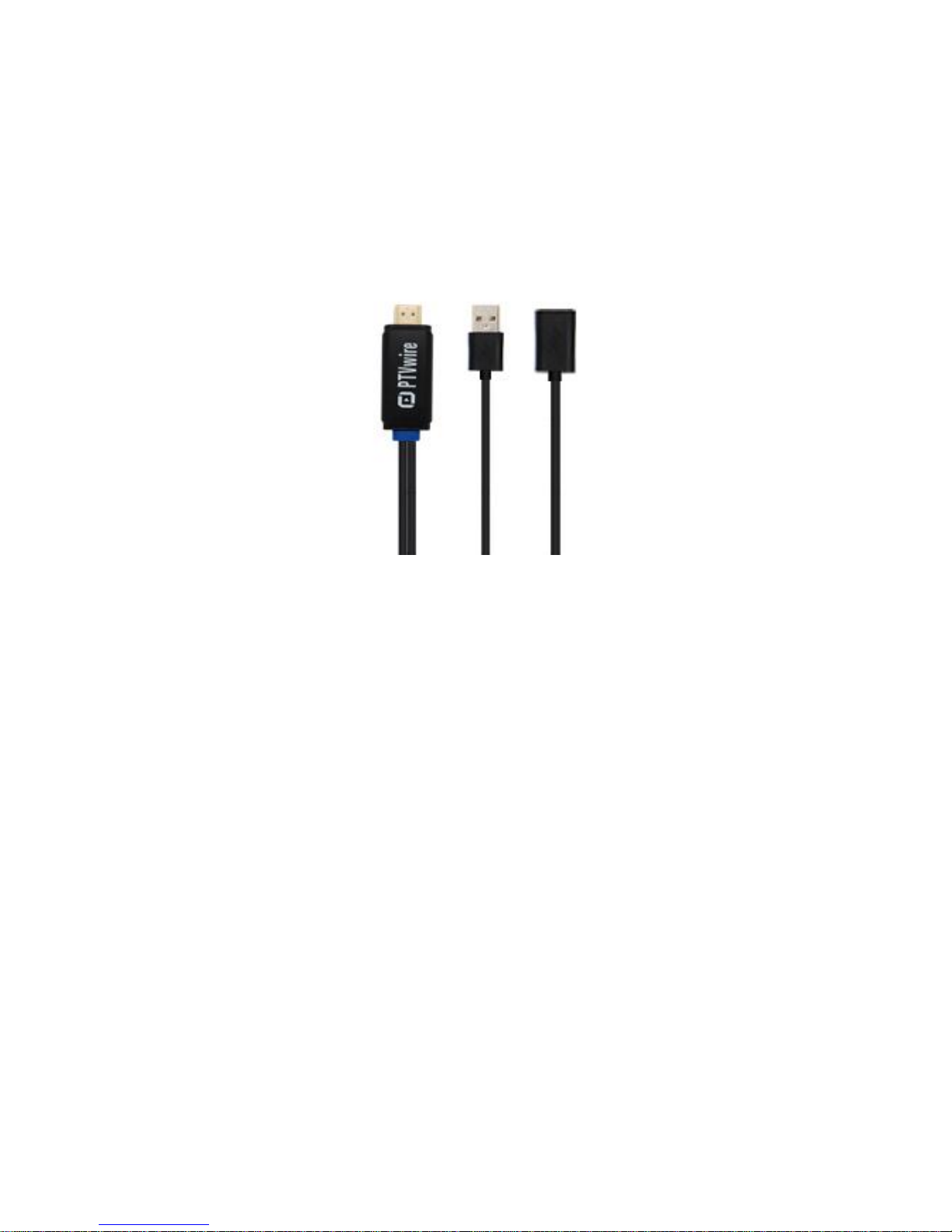
PTVwire
USB to HDMI Adapter
Quick Start Guide
Rev. 1.0
Introduction
Thanks for choosing PTVwire! The PTVwire contains the cutting-
edge PTVwire technology, and firmware upgrade will be provided
accordingly in order to compatible with latest devices. Please read the
installation guide below to setup your PTVwire. Let’s enjoy mirroring!
Page 2
Hardware Installation
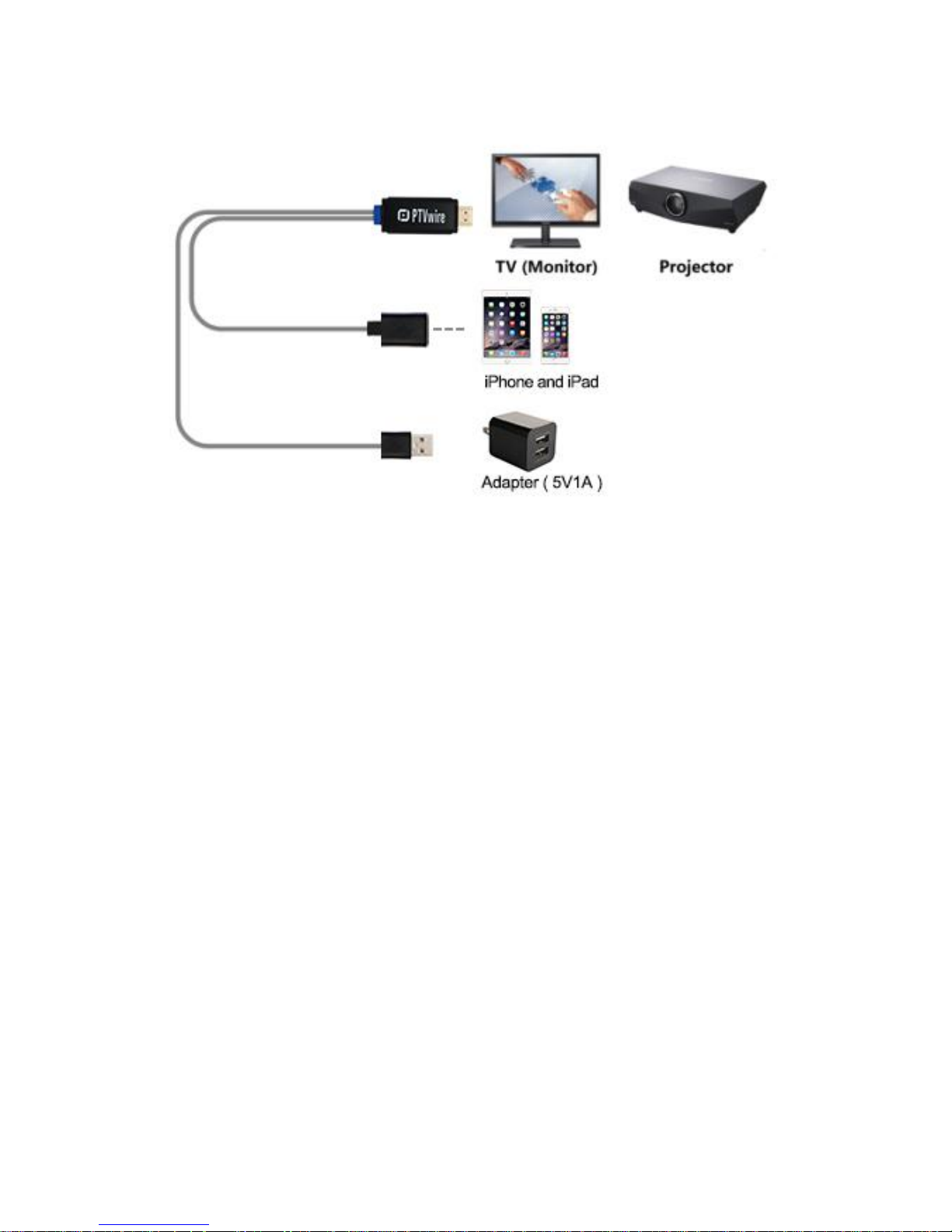
Please follow below steps to setup PTVwire :
(1) Connect PTVwire to your TV (Monitor or Projector)
(2) Connect the USB type-A plug with an external (5V) adapter.
(3) Connect the lightning plug with your iOS* device
* Support iOS9 and above
(4) If the HDMI source is set correctly, you should see the PTVwire
setup screen on TV
(5) Wait for a few seconds for initialization*, the screen of your iOS
device will be shown on TV.
* Some iOS devices may popup "This accessory may not be supported". Please feel
at ease to use as this is a normal notification.
Page 3
Firmware Upgrade
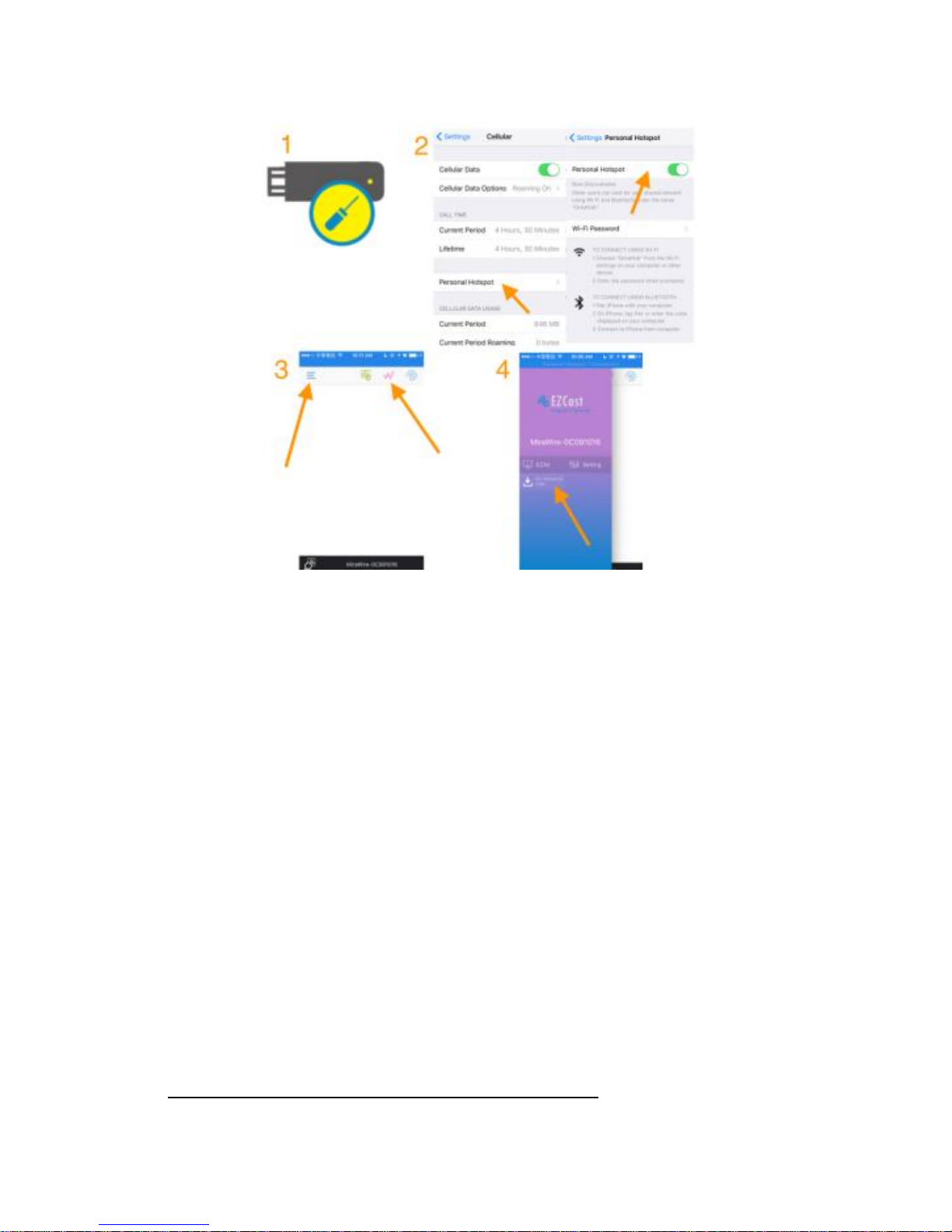
(1) Insert a paper clip into the hole on the PTVwire dongle, and push
the key inside the hole to enable HotSpot mode (Internet)
(2) Enable “Personal HotSpot” of your iOS* device
Note: Cellular (3G/4G) data is needed at your iOS device,
(3) Download “EZCast” App, launch it. Click the “Wire” Button on
the right to establish connection, and then click the “Menu” Button on
the left
(4) Click the “Firmware OTA” button
Note: Please DO NOT power off during upgrade.
Page 4
Output Resolution
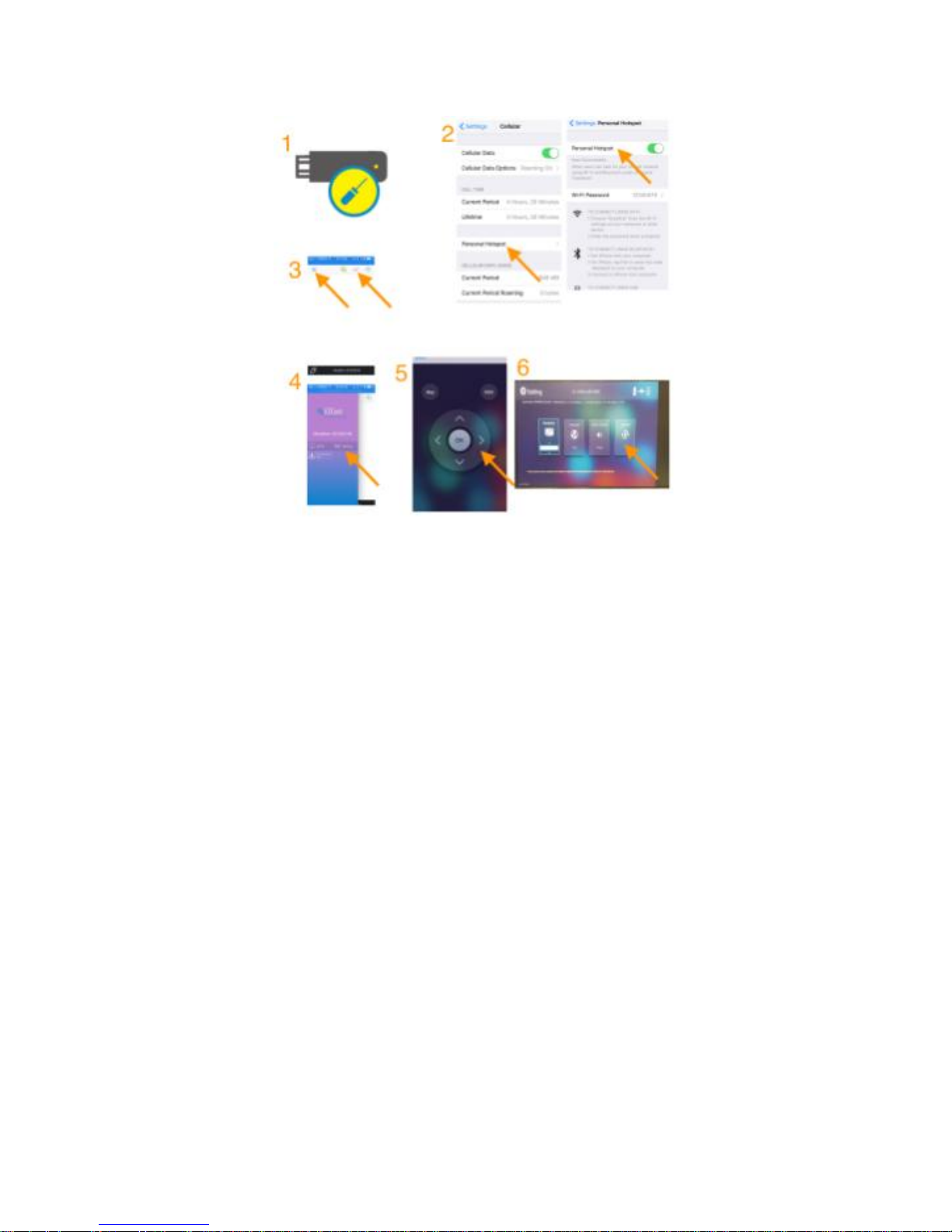
(1) Insert a paper clip into the hole on the PTVwire, and push the key
inside the hole to enable HotSpot mode (Internet)
(2) Enable “Personal HotSpot” of your iOS* device
Note: Cellular (3G/4G) data is needed at your iOS device,
(3) Launch EZCast App. Click the “Wire” Button on the right to
establish connection, and then click the “Menu” Button.
(4) Click the “Setting” button
(5) Use the keypad to control PTVwire
(6) Switch to your favor output resolution (ex 1080p)
 Loading...