

Page 1

©2012
10227
Cricut® Wireless Adapter
Quick Start Guide
Step-by-step instructions for using the
Cricut® Wireless Adapter
Page 2
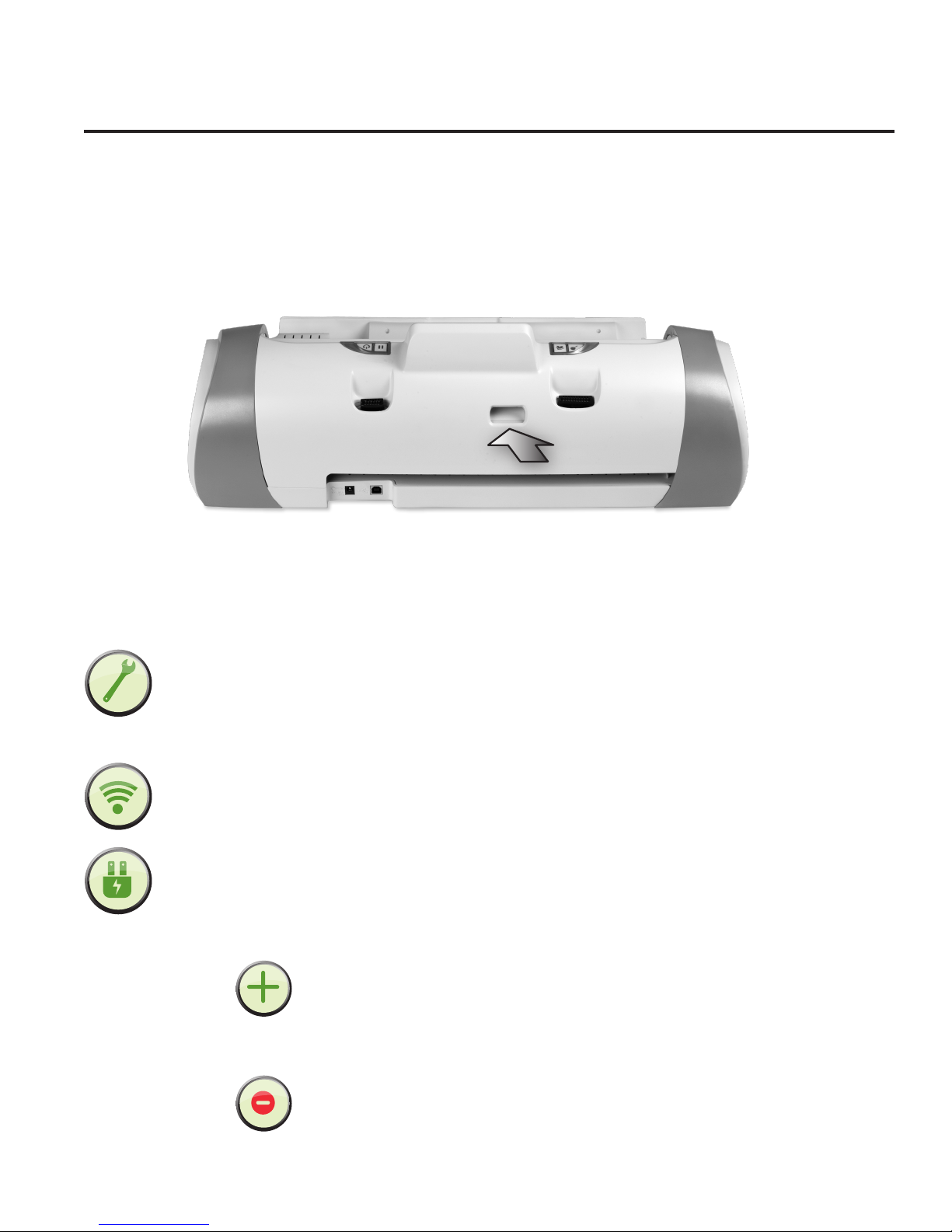
Step 4: Scroll until you find the Wireless button. Click on the button.
Step 5: Highlight the network you wish to connect to and click Connect.
If the network you wish to connect to does not
automatically appear in the list, click the Add
Network button to manually input the information.
To remove a network from the list, highlight the
network name and click the Remove button.
Step 1: Turn o the Cricut Expression
®
2 machine and insert the
wireless adapter. Make sure the adapter is placed logo side
up into the slot.
Step 3: On the Cricut Expression
®
2 LCD screen, click to view the
settings menu.
Connecting to your wireless network
Step 2: Turn on the Cricut Expression® 2 machine.
Page 3
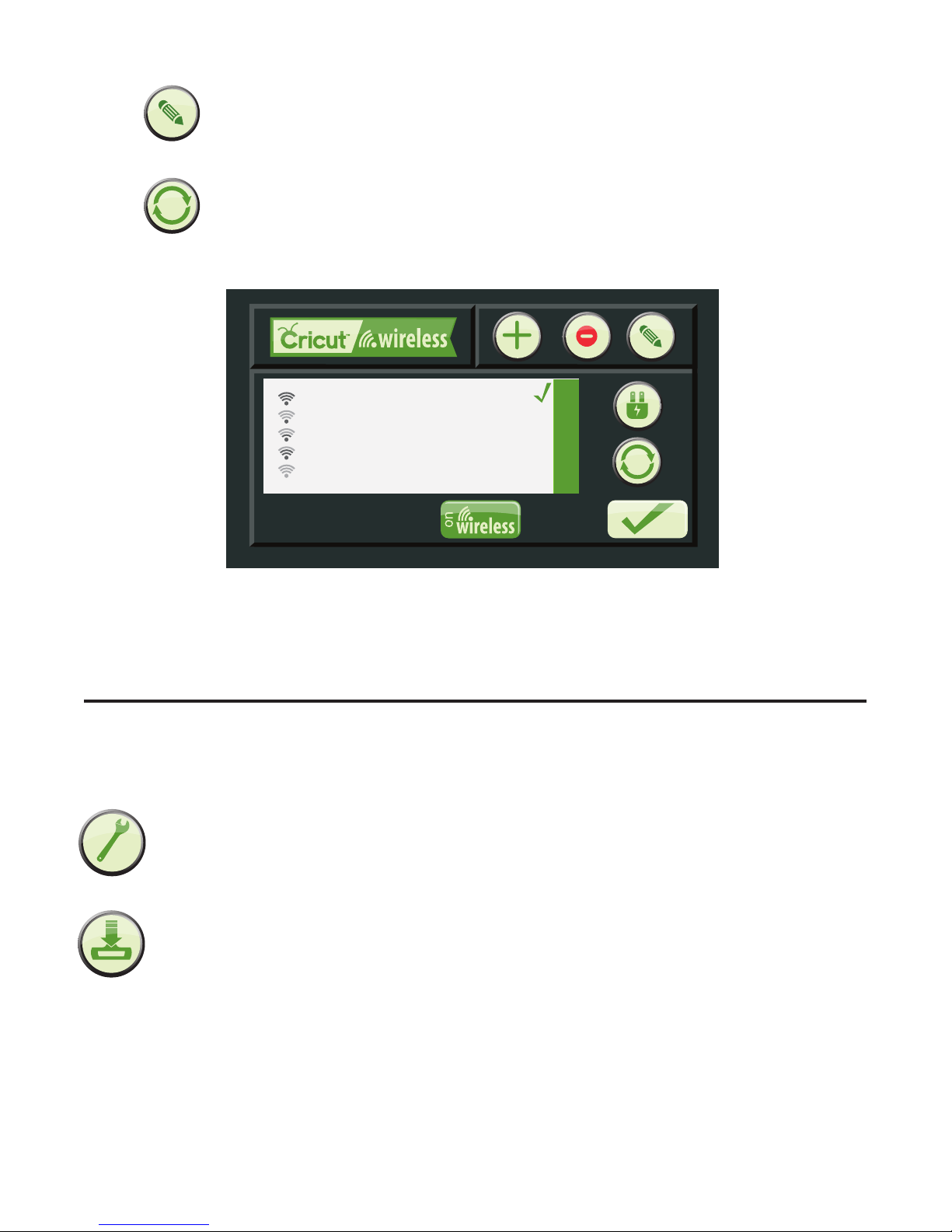
To edit an existing network, highlight the network name and
click the Edit Network button.
Step 1: Turn on the Cricut Expression
®
2 machine. Ensure that the
machine is connected to a wireless network.
Step 2: On the Cricut Expression
®
2 LCD screen, click to view
the settings menu.
Step 3: Scroll until you find the Update Machine button. Click the button.
Step 4: Follow the onscreen instructions to download and install any
available updates for the Cricut Expression
®
2 machine.
Mean_N_Green
greenandfunforguests
EBF02521
utefan4u
library_public_wifi
Updating your Cricut Expression® 2 machine wirelessly
To refresh the network list, click the Refresh button.
Page 4
Step 1: Turn on the Cricut Expression® 2 machine. Ensure that the
machine is connected to a wireless network.
Step 2: On the Cricut Expression
®
2 LCD screen, click to view the setting menu.
Step 3: Scroll until you find the CCR Login button. Click the button.
Step 4: Input your Cricut
®
username in the field. Click Save.
Note: If you do not already have a Cricut
®
account, please go to www.cricut.com
and create a free account.
Step 5: Log in to the Cricut Craft Room™ design tool on your computer.
Your computer must be connected to the same wireless network
as your Cricut Expression
®
2 machine.
Step 6: Design a project and click CUT.
Step 7: Select the Cricut Expression
®
2 machine.
Note: Even after disconnecting your machine from your wireless network, your
Cricut Expression
®
2 machine will appear in the Select Device list for about a week.
Wirelessly cutting with the Cricut Craft Room™ design tool
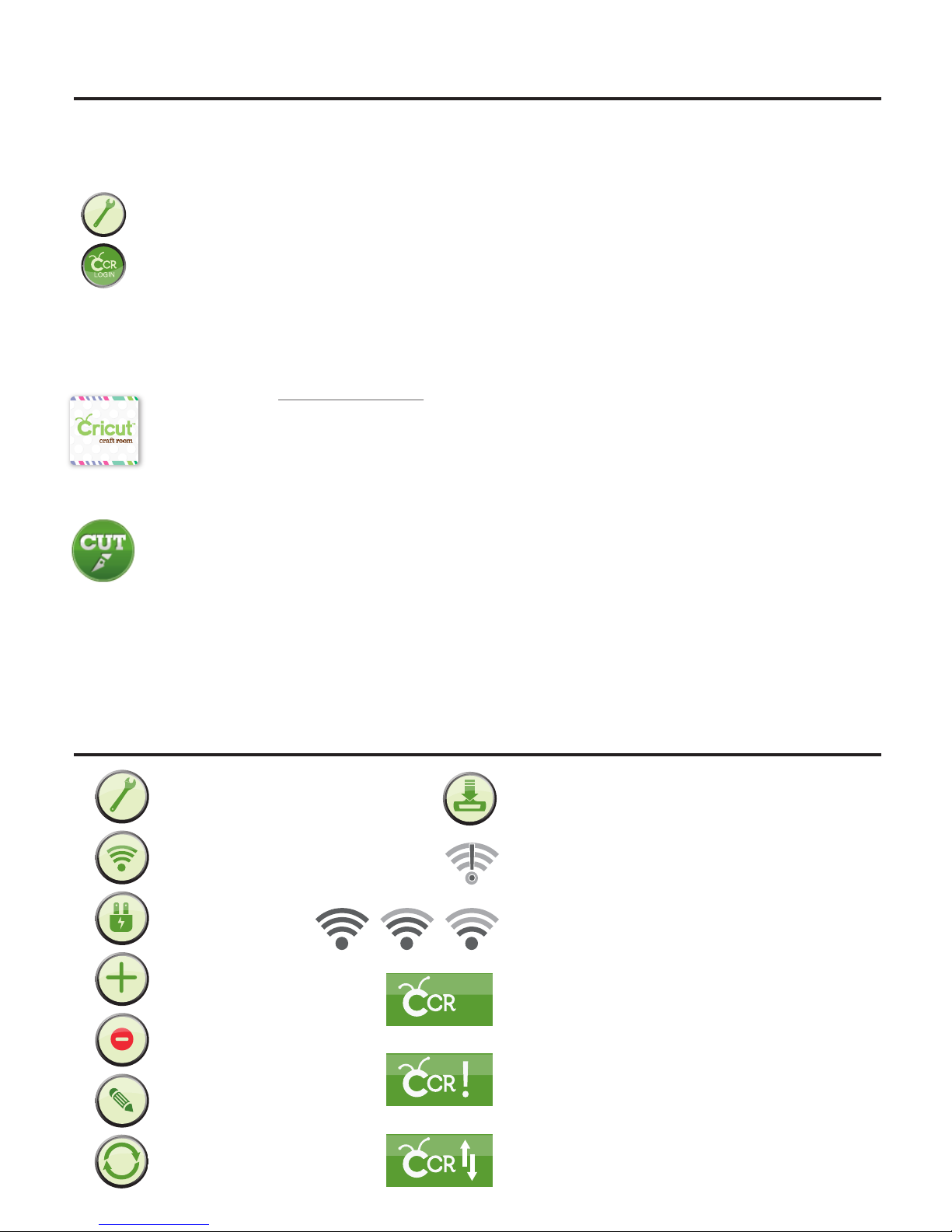
Legend
Settings menu
Wireless indicator
Connect
Add
Remove
Edit
Refresh
Update Machine
Please check your wireless connection.
Wireless strength indicator
No Cricut Craft Room
™
login information saved on the machine.
Cannot connect to the Cricut Craft Room
™
server. Please check
the login saved on your machine or try again later.
Successfully connected to the Cricut Craft Room
™
design tool.
 Loading...