

Page 1

VCR
USER'S MANUAL
J
P RO S CAN'
_ • _ _ _ _; i ,_! _,¸¸_¸
%
%.
'%•
• %•
MODEL PSVR87
Page 2
WARNING
To reduce risk of fire or
shock hazard, do not
expose this product to
rain or moisture.
TO REDUCE THE RISK OF ELECTRICSHOCK, DO NOT REMOVE
COVER (OR BACK). NO USERSERVICEABLE PARTSINSIDE.
REFER SERVICING TO QUALIFIED SERVICE PERSONNEL.
,_ This symbol indicates imporlant _ This symbol indicates"dangerous
instructions accompanying the _,_ voltage" inside the product that presents
product, a risk of electric shock or personal injury.
Cautions
Care and Cleaning:
Caution: To prevent electric shock, match wide blade of plug to wide slot, fully
insert.
Attention: Pour 6viter les chocs _lectriques, introduire la lame la plus large de la
fiche dans la borne correspondante de la prise et pousser jusqc_ au fond.
Refer to the identification/rating label located on the back panel of your product
for its proper operating voltage.
FCC Regulations state that unauthorized changes or modifications to this
equipment may void the user's authority to operate it.
Cable TV Installer: This reminder is provided to call your attention to Article 820-
40 of the National Electrical Code (Section 54 of the Canadian Electrical Code,
Part 1) which provides guidelines for proper grounding and, in particular, specifies
that the cable ground shall be connected to the grounding system of the building
as close to the point of cable entry as pract ca
Use a soft cloth or the dusting attachment of your vacuum cleaner to dust your
VCR. Remove dust from the ventilation holes.
Plastic surfaces are easily scratched and can be marred by alcohol and vanous
solvents. Avoid excessive use of oil-based furniture polishes since the materials
used in the cabinet will accumulate more dust. A nonabrasive, antistatic cleaner/
polisher is recommended.
Product Registration
Please fill out the product registration card and return it immediately. Returning the card allows us to contact you if needed.
Keep your sales receipt to obtain warranty parts and service and for proof of purchase. Attach it here and record the serial and model
numbers in case you need them. The numbers are 5ocatedon the back of the product.
Model No. PSVR87
Serial No.
Purchase Date:
Dealer/Address/Phone:
VCR Plus+ system and PlusCode are register_:l trademarks of Gemstar Development Corporation
The VC_ Plus+ System i_ manu[a( lured under the licetlse (tom Gemstar Developmen( Corporation¸
COMMERCIAL ADVANCE and MOVIE ADVANCE are registered trademarks of 5R T, Inc.; a lerry Iggulden invention licensed in ascot iation with Arthur D. Little _nterprises,
Page 3
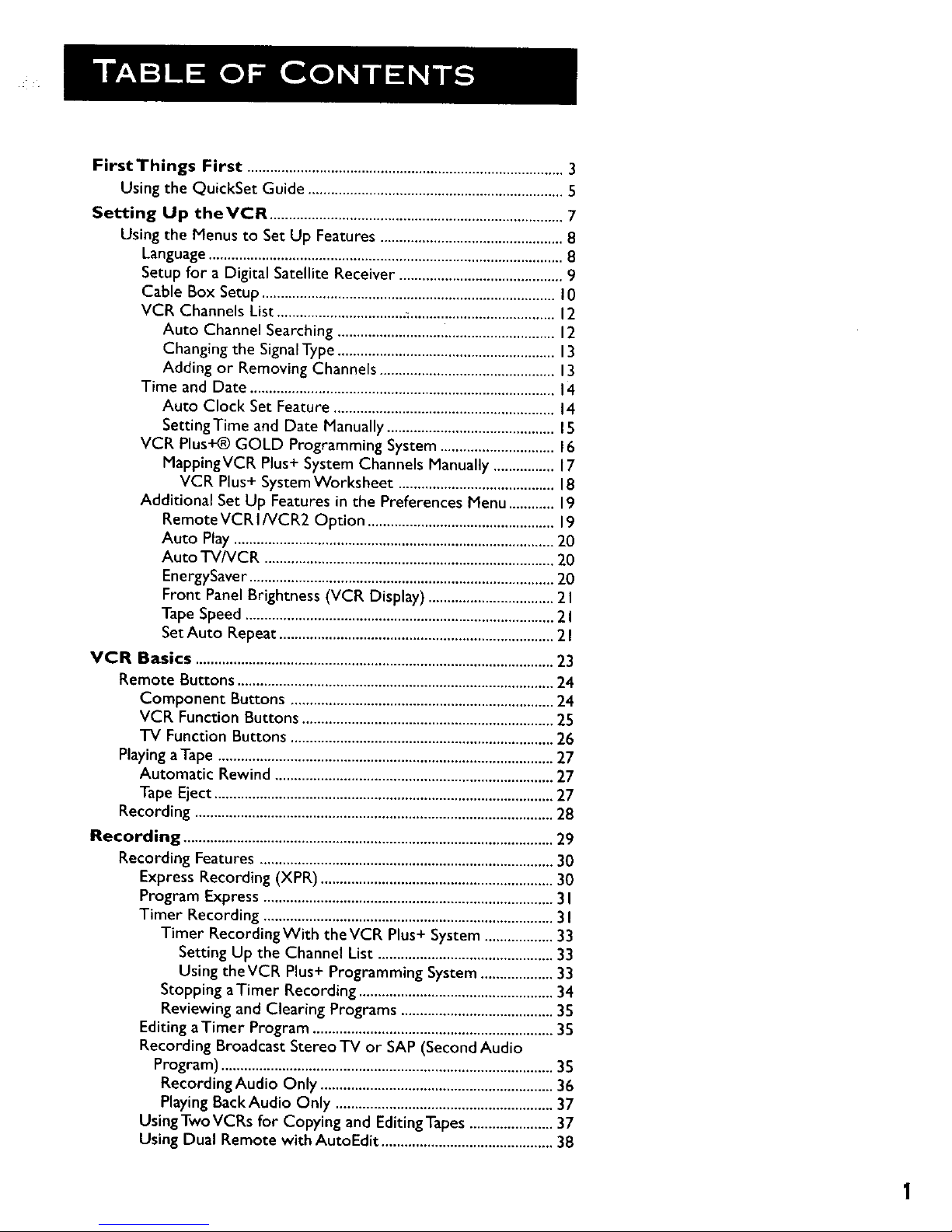
First Things First ...................................................................................3
Using the QuickSet Guide ...................................................................5
Setting Up theVCR .............................................................................7
Using the Menus to Set Up Features ................................................8
Language.............................................................................................8
Setup for a Digital Satellite Receiver ...........................................9
Cable Box Setup .............................................................................I0
VCR Channels List..................................;......................................12
Auto Channel Searching .........................................................12
Changing the Signal Type .........................................................13
Adding or Removing Channels ..............................................13
Time and Date ................................................................................14
Auto Clock Set Feature ..........................................................14
SettingTime and Date Manually ............................................15
VCR Plus+@ GOLD Programming System .............................. 16
MappingVCR Plus+ System Channels Manually ................ 17
VCR Plus+ System Worksheet .........................................18
Additional Set Up Features in the Preferences Menu ............ 19
Remote VCRI/VCR2 Option .................................................19
Auto Play ....................................................................................20
Auto TV/VCR ............................................................................20
EnergySaver ................................................................................20
Front Panel Brightness (VCR Display) .................................2I
Tape Speed .................................................................................2 I
SetAuto Repeat ........................................................................21
VCR Basics ..............................................................................................23
Remote Buttons ...................................................................................24
Component Buttons .....................................................................24
VCR Function Buttons ..................................................................25
"IV Function Buttons .....................................................................26
PlayingaTape ........................................................................................27
Automatic Rewind .........................................................................27
Tape Eject .........................................................................................27
Recording ..............................................................................................28
Recording .................................................................................................29
Recording Features .............................................................................30
Express Recording (XPR) .............................................................30
Program Express ............................................................................3 I
Timer Recording ............................................................................3I
Timer RecordingWith the VCR Plus+ System ..................33
Setting Up the Channel List ..............................................33
Using the VCR Plus+ Programming System ...................33
Stopping aTimer Recording ...................................................34
Reviewing and Clearing Programs ........................................35
Editing a Timer Program ...............................................................35
Recording Broadcast StereoTV or SAP (Second Audio
Program) .......................................................................................35
Recording Audio Only .............................................................36
Playing Back Audio Only .........................................................37
Using Two VCRs for Copying and Editing Tapes ......................37
Using Dual Remote with AutoEdit .............................................38
Page 4
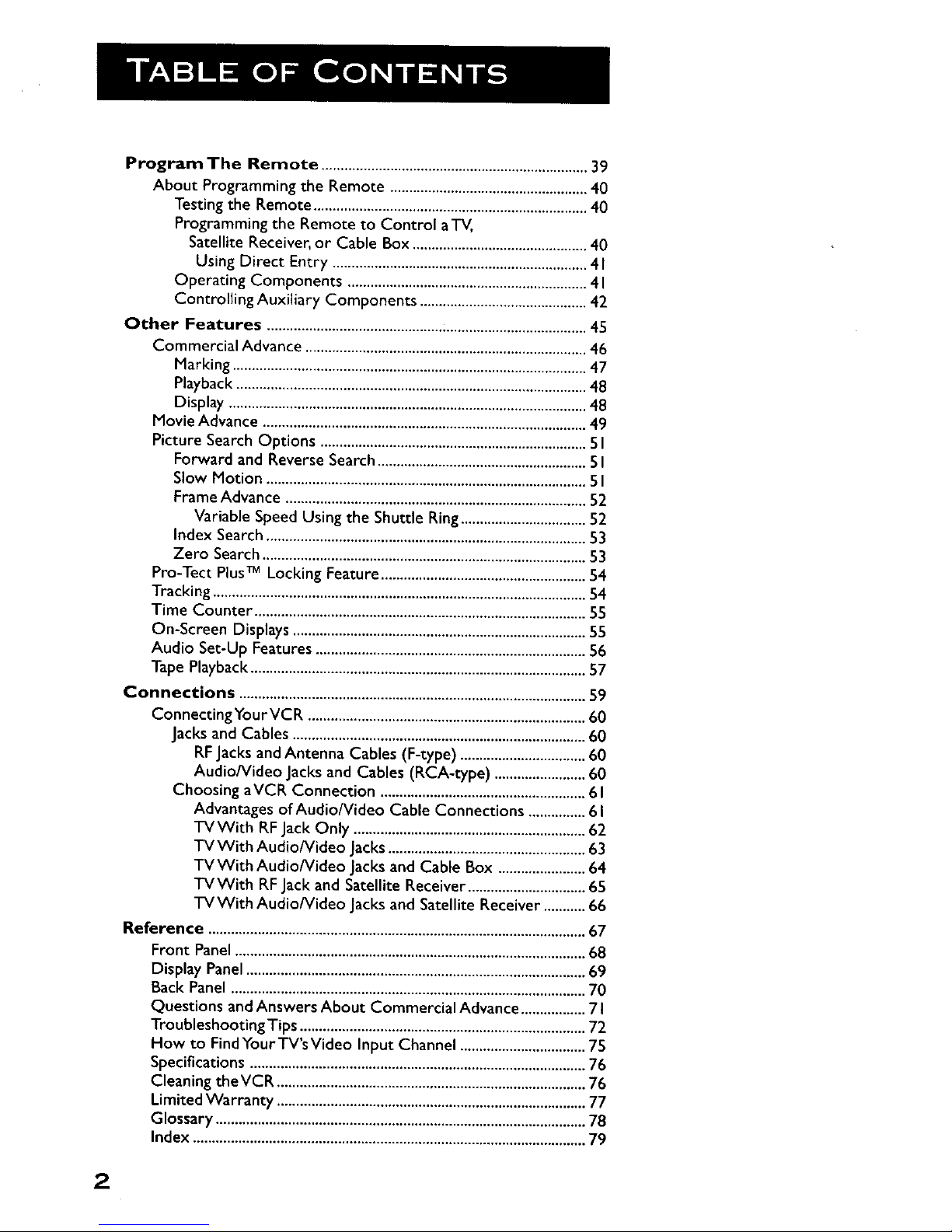
Program The Remote ......................................................................39
About Programming the Remote ....................................................40
Testing the Remote ........................................................................40
Programming the Remote to Control aTV,
Satellite Receiver, or Cable Box ..............................................40
Using Direct Entry ...................................................................4 I
Operating Components ...............................................................41
Controlling Auxiliary Components ............................................42
Other Features ....................................................................................45
Commercial Advance ..........................................................................46
Marking .............................................................................................47
Playback ............................................................................................48
Display ..............................................................................................48
Movie Advance .....................................................................................49
Picture Search Options ......................................................................5I
Forward and Reverse Search .......................................................5 I
Slow Motion ....................................................................................5I
Frame Advance ...............................................................................52
Variable Speed Using the Shuttle Ring.................................52
Index Search ....................................................................................53
Zero Search .....................................................................................53
Pro-Tect PlusTM Locking Feature ......................................................54
Tracking ..................................................................................................54
Time Counter .......................................................................................55
On-Screen Displays .............................................................................55
Audio Set-Up Features .......................................................................56
Tape Playback ........................................................................................57
Connections ...........................................................................................59
ConnectingYourVCR .........................................................................60
Jacks and Cables .............................................................................60
RFJacks andAntenna Cables (F-type) .................................60
Audio/Video Jacks and Cables (RCA-type) ........................60
Choosing aVCR Connection ......................................................61
Advantages of Audio/Video Cable Connections ...............61
TVWith RFJack Only .............................................................62
TV With Audio/Video Jacks ....................................................63
TVWith Audio/Video Jacks and Cable Box .......................64
TVWith RFJack and Satellite Receiver ...............................65
TVWith Audio/video Jacks and Satellite Receiver ........... 66
Reference ...................................................................................................67
Front Panel ............................................................................................68
Display Panel .........................................................................................69
Back Panel .............................................................................................70
Questions and Answers About Commercial Advance .................7 I
Troubleshooting Tips ...........................................................................72
How to Find Your TV's Video Input Channel .................................75
Specifications ........................................................................................76
Cleaning theVCR .................................................................................76
Limited Warranty .................................................................................77
Glossary .................................................................................................78
Index .......................................................................................................79
2
Page 5
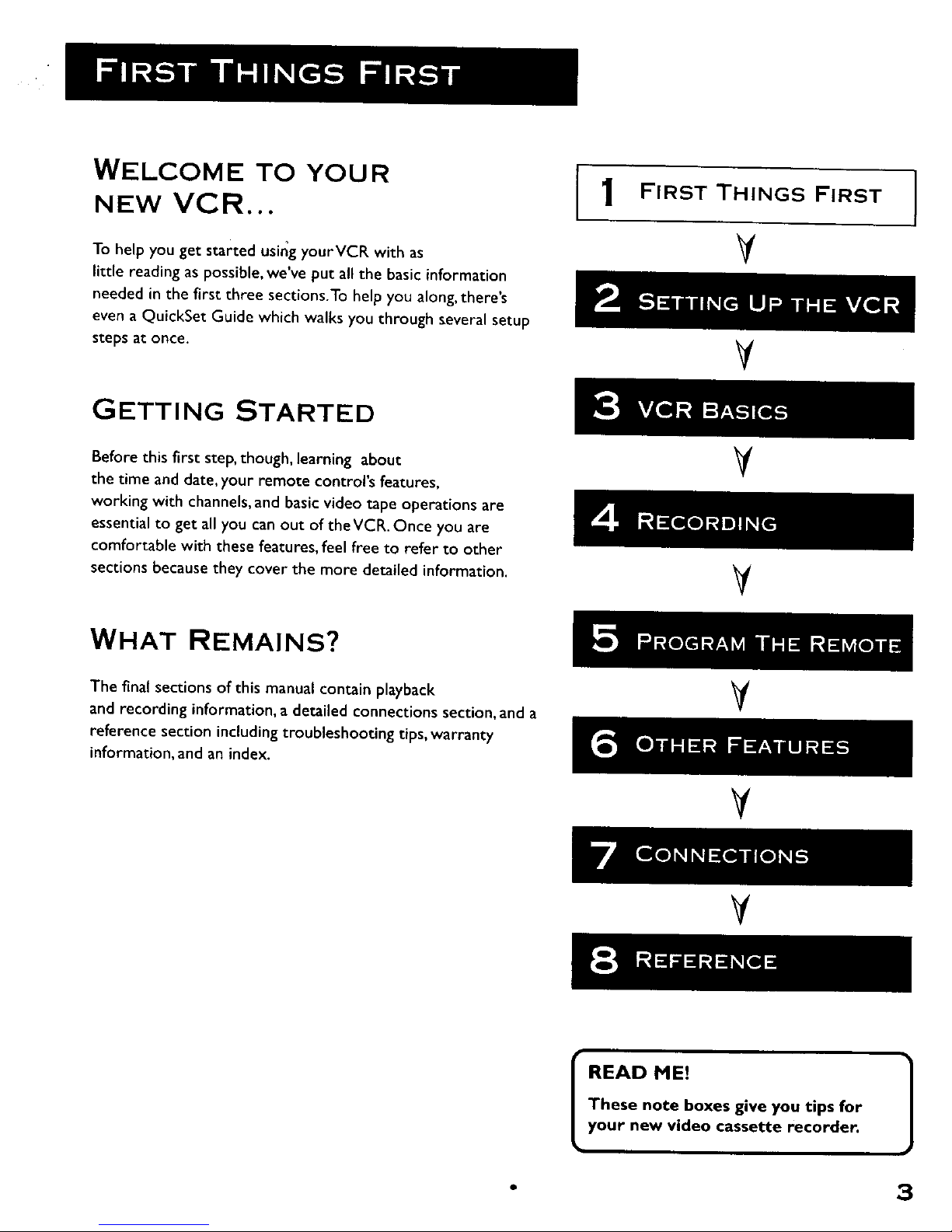
WELCOME TO YOUR
NEW VCR...
To help you get started using yourVCR with as
little reading as possible, we've put all the basic information
needed in the first three sections.To help you along, there's
even a QuickSet Guide which walks you through several setup
steps at once.
1 FIRST THINGS FIRST I
I
¥
V
GETTING STARTED
Before this first step, though, learning about
the time and date, your remote control's features,
working with channels, and basic video tape operations are
essential to get all you can out of the VCR. Once you are
comfortable with these features, feel free to refer to other
sections because they cover the more detailed information.
V
V
WHAT REMAINS?
The final sections of this manual contain playback
and recording information, a detailed connections section, and a
reference section including troubleshooting tips, warranty
information, and an index.
¥
V
V
READ ME!
These note boxes give you tips for
your new video cassette recorder.
- 3
Page 6

STEP 1: WHAT'S IN THE Box?
The following items come packed in the box:
• • VCR
• Remote control
• RF coaxial cable
STEP 2: INSTALL BATTERIES
THE REMOTE CONTROL
Follow these steps whenever you need to install or change the
batteries in your VCR's remote.
.
.
Remove the cover of the battery compartment.
Place the batteries into the remote's back panel. Match the
positive (+) and negative (-) ends of each battery to the
diagram inside the battery compartment.
3. Replace the cover.
L _
.-:
QQq
STEP 3: CONNECT YOUR VCR
if you connect your VCR to your home antenna or cable system
and then to your TV, use the VCR's ANT. IN and RF OUT jacks
for a good signal as shown to the right.
If you have a TV with AUDIO/VIDEO jacks, use the jacks for a
better connection. Refer to the section, Connections, toward
the back of the manual, for additional connection options.
STEP 4: PLUG IN THE VCR
Your VCR's power cord has a plastic band strung through the
blades. Remove plastic band before plugging the cord into the
power outlet. To remove band, cut with a pair of scissors and
pull it free of the blades. Once the plastic is removed, match the
wide blade of the power cord to the wide slot in the AC outlet.
Be sure to insert the plug completely.
Coaxial Connection
CABLE, CABLE BOX, OR ANTENNA
VCR
I I
'N
I
4
Page 7
STEP 5: TUNE THE TV
Tune the TV to the VCR viewing channel. The VCR viewing
channel is channel 3 or 4 or the TV's video input.
• If you connect your VCR using the ANT. IN and RF OUT
jacks with RF coaxial cable, set the 3 CH 4 switch to
channel 3 or channel 4-- the channel you want to use on
your TV.
• If you connect your VCR using the AUDIO/VIDEO jacks
with audio/video cables, select the TV's video input with
the remote's TV and INPUT buttons to see the signal. For
more information see "How to Find Your TV's Video Input
Channel" in the References section of this manual.
STEP 6: TURN ON THE VCR
Press ON • OFF on the VCR's front panel or VCR1 on the
remote control to turn on the VCR. The first time you turn the
VCR on, a menu screen appears. This is the start of a QuickSet
Guide which helps you pick different options for your VCR.
STEP 7: USING THE
QUICKSET GUIDE
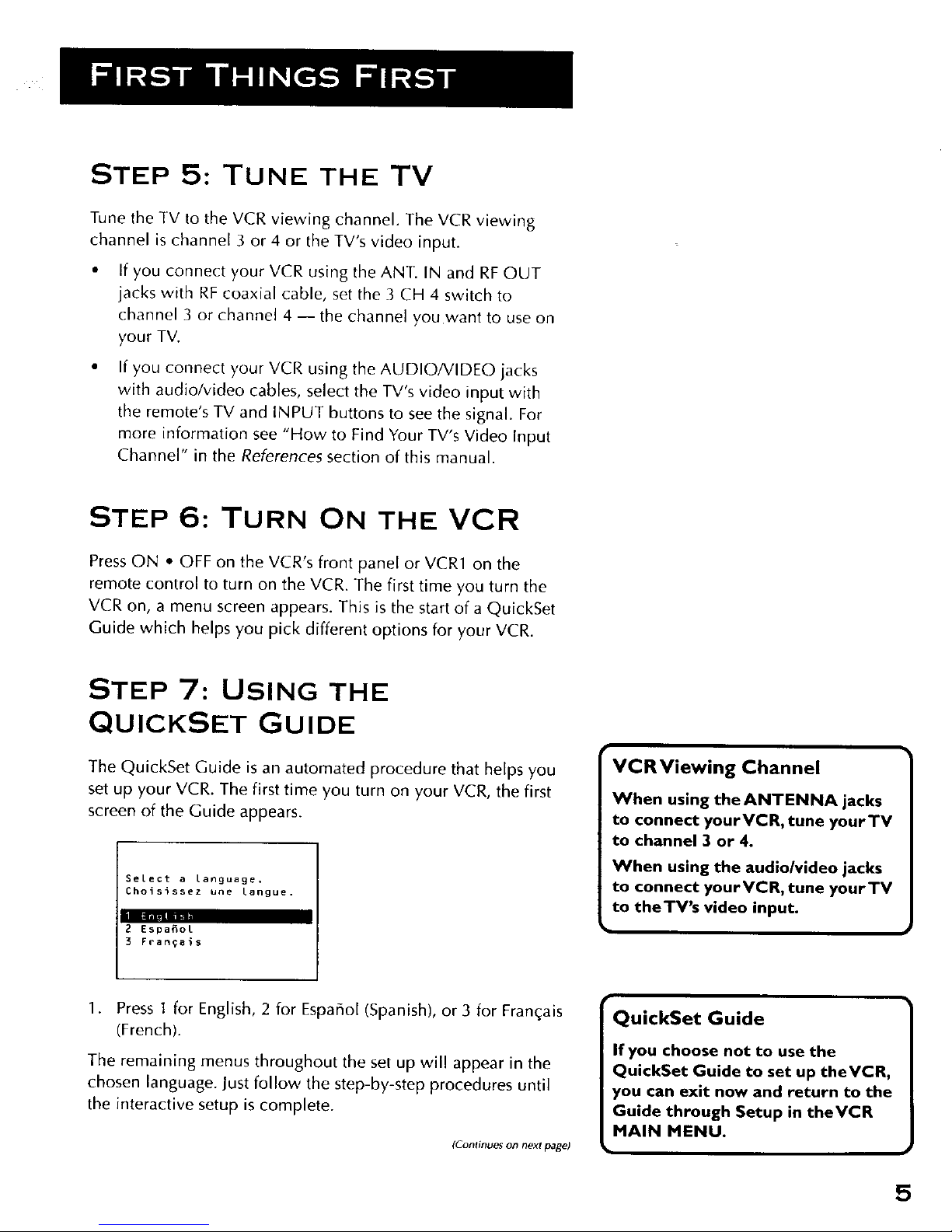
The QuickSet Guide is an automated procedure that he[ps you
set up your VCR. The first time you turn on your VCR, the first
screen of the Guide appears.
Select a Language.
Choisissez une Langue.
-I- I
2 Espa_ol
3 Fran_ai$
VCR Viewing Channel
When using the ANTENNA jacks
to connect yourVCR, tune yourTV
to channel 3 or 4.
When using the audio/video jacks
to connect yourVCR, tune yourTV
to theTV's video input.
1. Press I for English, 2 for Espaffol (Spanish), or 3 for Fran(,:ais
(French).
The remaining menus throughout the set up will appear in the
chosen language. Just follow the step-by-step procedures until
the interactive setup is complete.
(Continues on next page)
QuickSet Guide
If you choose not to use the
QuickSet Guide to set up theVCR,
you can exit now and return to the
Guide through Setup in theVCR
MAIN MENU.
5
Page 8
6
(L-ontinued lronl previous pag(')
If the menu does not appear:
• Make sure the TV is tuned to the same channel as the 3 CH
4 switch or the TV's video input "channel" (see "How to
Find Your TV's Video Input Channel" in the References
section of this manual for more information).
• Make sure the VCR indicator is on in the VCR display if you
connected your VCR using the ANT. IN and RF OUT jacks.
• Check your connections.
If you choose to set up your VCR options individually rather
than setting them up in the QuickSet Guide, then go to the next
section.
STEP 8: ACCESS THE MENUS
The MENU and number buttons let you access, select, and
change the VCR's display preferences. For example, to select a
different preferred on-screen language than the one selected
during the initial set up, do the following:
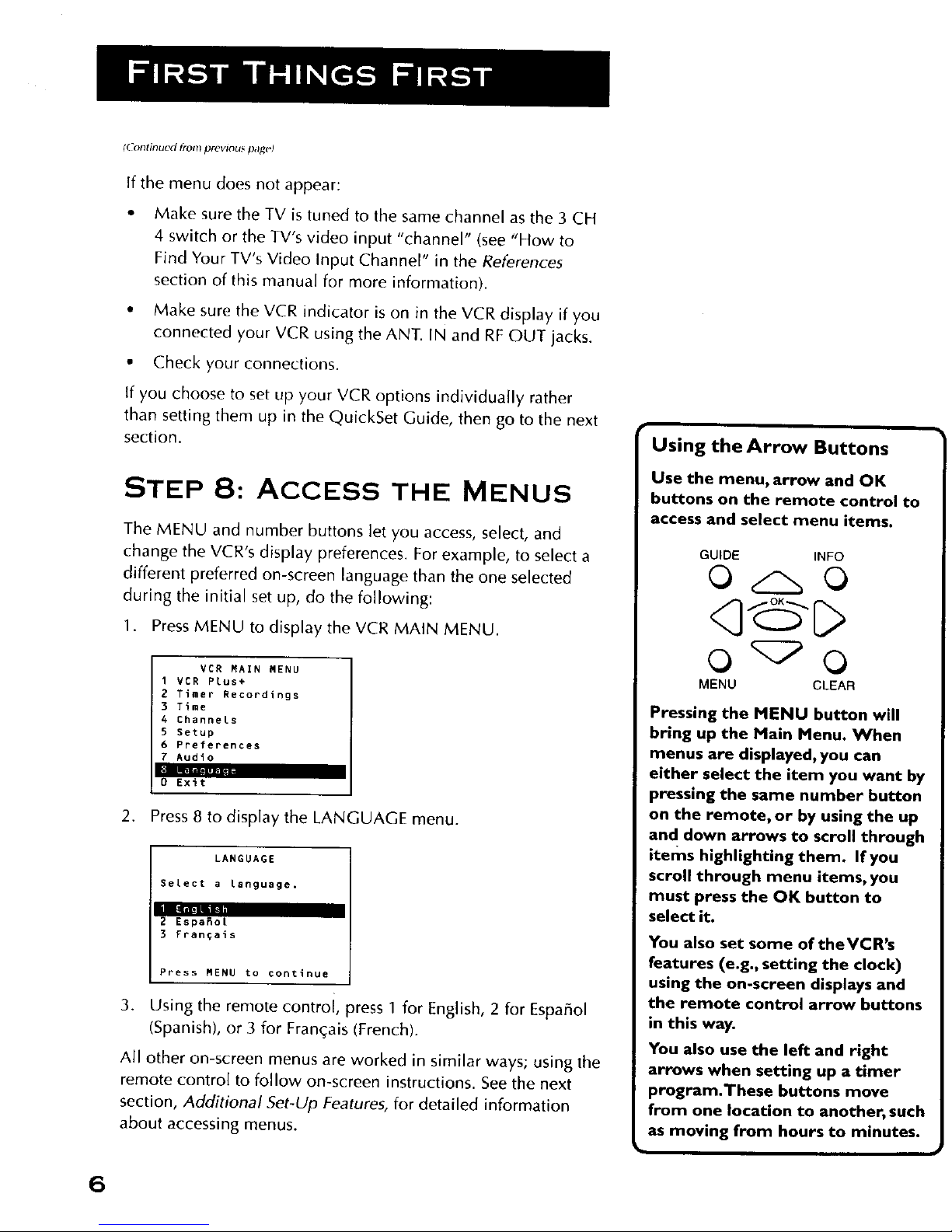
1. Press MENU to display theVCR MAIN MENU.
VER MAIN MENU
1 VCR PLus+
2 Timer Recordings
3 Time
4 Channels
5 Setup
6 Preferences
7 Audio
|
| |i|
0 Exit
2. Press 8 to display the LANGUAGE menu.
LANGUAGE
SeLect a Language.
2 Espa_ot
3 Fran_ais
Press MENU to continue
3. Using the remote control, press 1 for English, 2 for Espaffol
(Spanish), or 3 for Fran£:ais (French).
All other on-screen menus are worked in similar ways; using the
remote control to follow on-screen instructions. See the next
section, Additional Set-Up Features, for detailed information
about accessing menus.
Using the Arrow Buttons
Use the menu, arrow and OK
buttons on the remote control to
access and select menu items.
GUIDE INFO
O O
MENU CLEAR
Pressing the MENU button will
bring up the Main Menu. When
menus are displayed, you can
either select the item you want by
pressing the same number button
on the remote, or by using the up
and down arrows to scroll through
items highlighting them. If you
scroll through menu items, you
must press the OK button to
select it.
You also set some of theVCR's
features (e.g., setting the clock)
using the on-screen displays and
the remote control arrow buttons
in this way.
You also use the left and right
arrows when setting up a timer
program.These buttons move
from one location to another, such
as moving from hours to minutes.
Page 9
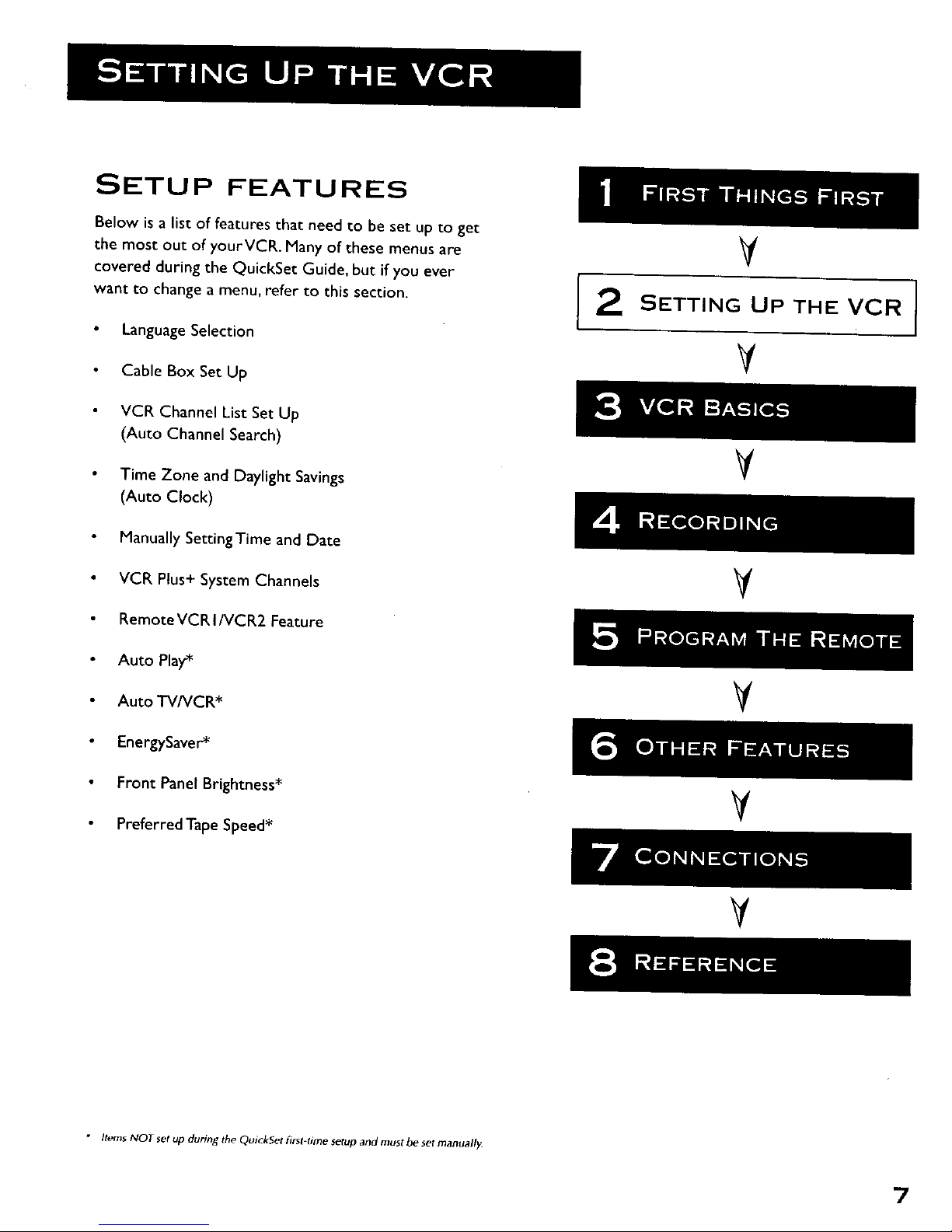
SETUP FEATURES
Below is a list of features that need to be set up to get
the most out of yourVCR. Many of these menus are
covered during the QuickSet Guide, but if you ever
want to change a menu, refer to this section.
Language Selection
Cable Box Set Up
VCR Channel List Set Up
(Auto Channel Search)
Time Zone and Daylight Savings
(Auto Clock)
Manually SettingTime and Date
VCR Plus+ System Channels
RemoteVCR I/VCR2 Feature
¥
SETTING UP THE VCR
V
V
V
Auto Play*
Auto TV/VCR*
V
EnergySaver*
Front Panel Brightness*
Preferred Tape Speed*
V
[ • • •
V
• Items NOT set up during the QuickSet first-fime setup and must be set manuall_
7
Page 10
USING THE MENUS TO SET
UP FEATURES
You set up features by using the menu system as discussed in
the previous section. Each feature that appears in the QuickSet
Guide is explained in this section as well as a few other features
you should set up before you begin using your VCR.
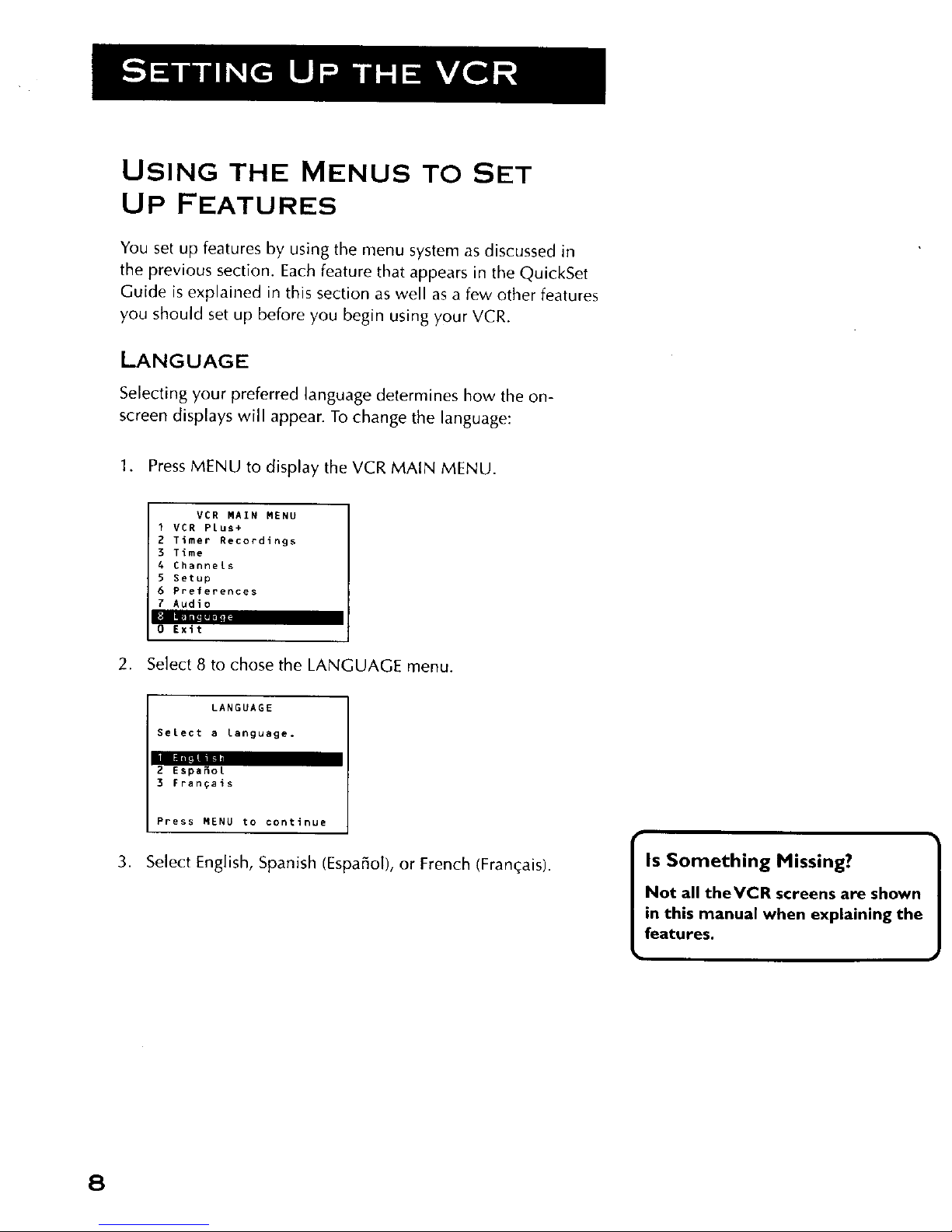
LANGUAGE
Selecting your preferred language determines how the on-
screen displays will appear. To change the language:
1. Press MENU to display the VCR MAIN MENU.
VCR MAIN MENU
I VCR Plus+
2 Timer Recordings
3 Time
4 Channels
5 Setup
6 Preferences
7 Audio
I •
0 Exit
2. Select 8 to chose the LANGUAGE menu.
,
LANGUAGE
Select a language.
2 EspaSot
3 rrangais
Press MENU to continue
Select English, Spanish (Espaffol), or French (Fran_ais).
Is Something Missing?
Not all theVCR screens are shown
in this manual when explaining the
features.
8
Page 11
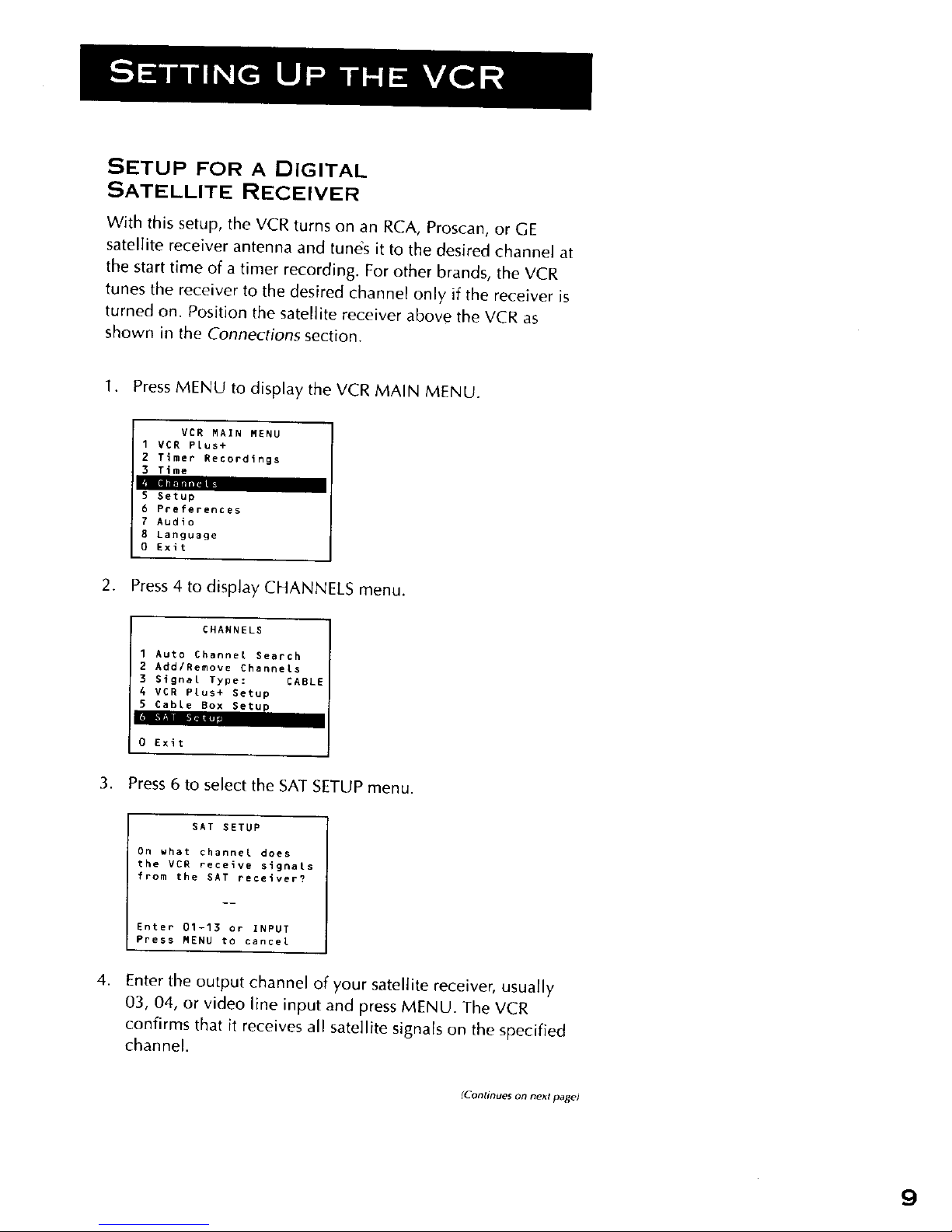
SETUP FOR A DIGITAL
SATELLITE RECEIVER
With this setup, the VCR turns on an RCA, Proscan, or GE
satellite receiver antenna and tunes it to the desired channel at
the start time of a timer recording. For other brands, the VCR
tunes the receiver to the desired channel only if the receiver is
turned on. Position the satellite receiver above the VCR as
shown in the Connections section.
1. Press MENU to display the VCR MAIN MENU.
VCR MAIN MENU
I VCR Plus+
2 Timer Recordings
3 Time
5 Setup
6 Preferences
7 Audio
8 Language
O Exit
2. Press 4 to display CHANNELS menu.
CHANNELS
1 Auto Channel Search
2 AddlRemove Channels
3 Signal Type: CABL{
4 VCR Plus+ Setup
5 CabLe Box Setup
I
0 Exit
3. Press 6 to select the SAT SETUP menu.
4,
SAT SETUP
On what channel does
the VCR receive signals
from the SAT receiver?
Enter 01-13 or INPUT
Press MENU to cancel
Enter the output channel of your satellite receiver, usually
03, 04, or video line input and press MENU. The VCR
confirms that it receives all satellite signals on the specified
channel.
IContinaes on next parle)
9
Page 12
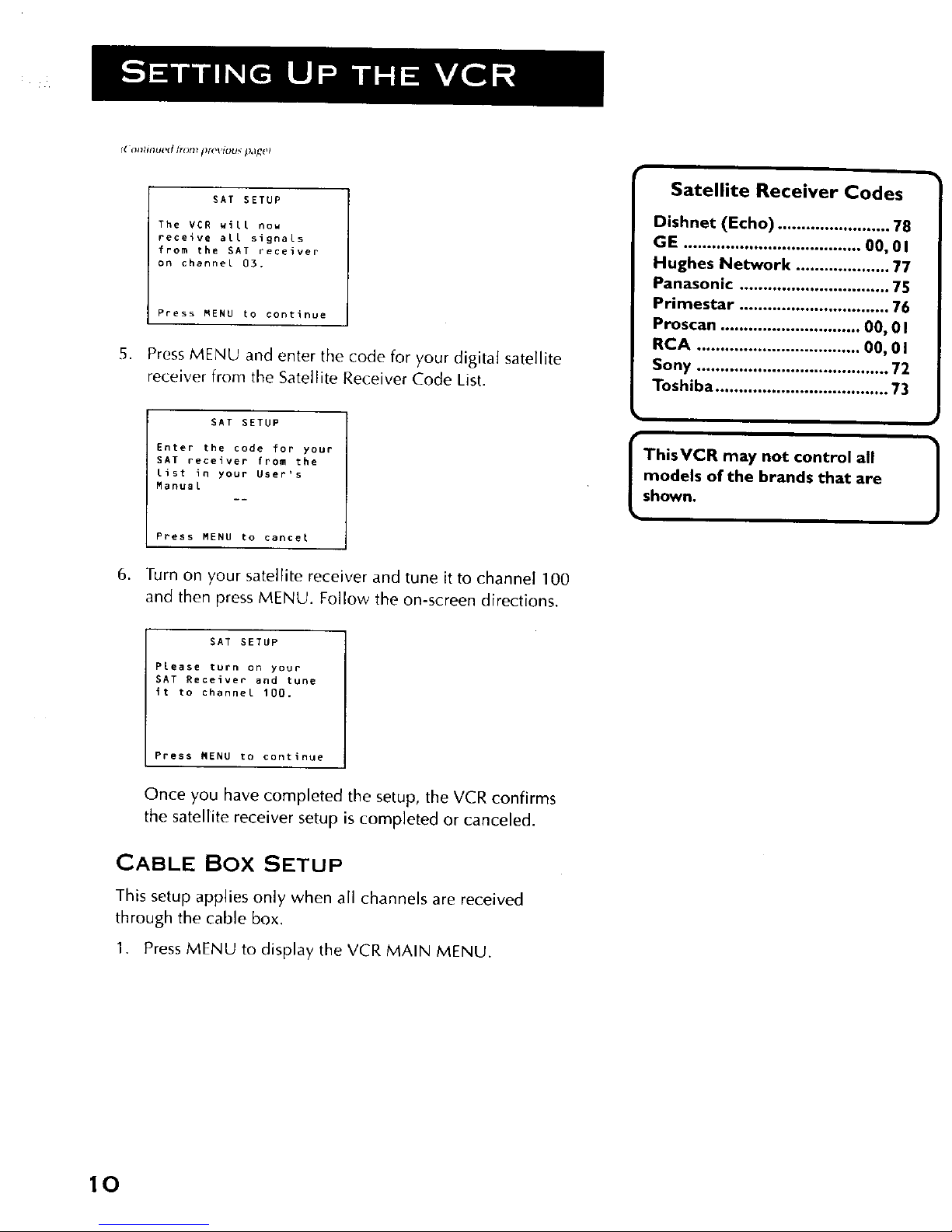
f( ontinued #ore !lrel sl_us f_,Uql'_
SAT SETUP
The VER will now
receive all signals
from the SAT receiver
on channel 03.
Press MENU to continue
5. Press MENU and enter the code for your digital satellite
receiver from the Satellite Receiver Code List.
Satellite Receiver Codes
Dishnet (Echo) ........................ 78
GE ...................................... 00, 01
Hughes Network .................... 77
Panasonic ................................ 75
Primestar ................................ 76
Proscan .............................. 00, 0 I
RCA ................................... 00, 0 I
Sony ......................................... 72
Toshiba ..................................... 73
SAT SETUP
Enter the code for your
SAT receiver from the
[ist in your User's
ManuaL
Press MENU to cancel
ThisVCR may not control all
models of the brands that are
shown.
)
6. Turn on your satellite receiver and tune it to channel 100
and then press MENU. Follow the on-screen directions.
SAT SETUP
PLease turn on your
SAT Receiver and tune
it to channel 100.
Press MENU to continue
Once you have completed the setup, the VCR confirms
the satellite receiver setup is completed or canceled.
CABLE BOX SETUP
This setup applies only when all channels are received
through the cable box.
I. Press MENU to display the VCR MAIN MENU,
10
Page 13
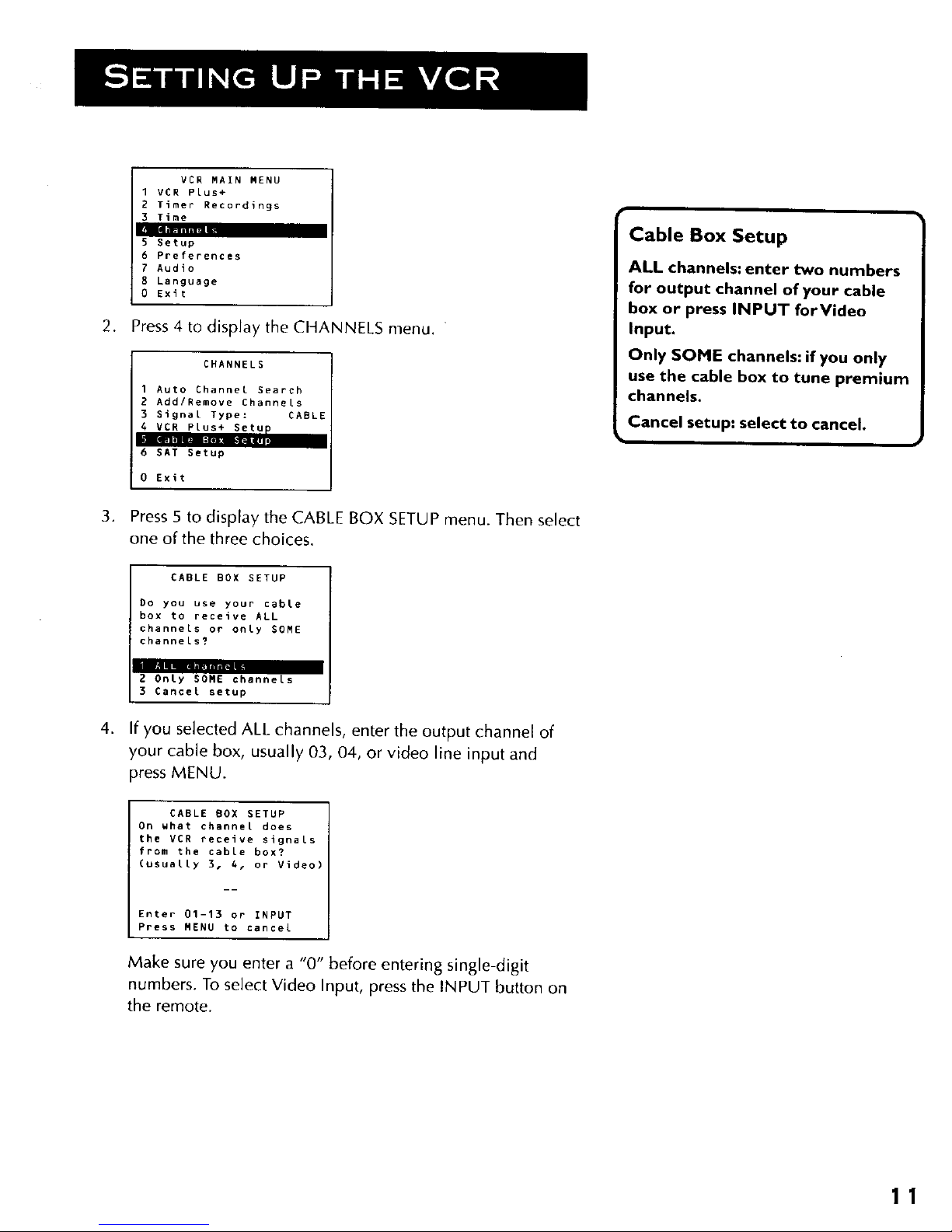
VCR MAIN MENU
1 VCR PLus+
2 Timer Recordings
3 Time
5 Setup
6 Preferences
7 Audio
8 Language
0 Exit
2. Press 4 to display the CHANNELS menu.
CHANNELS
1 Auto Channel Search
2 Add/Remove Channels
3 Signal Type: CABL
4 VCR Plus+ Setu
6 SAT Setup
0 Exit
Cable Box Setup
ALL channels: enter two numbers
for output channel of your cable
box or press INPUT forVideo
Input.
Only SOME channels: if you only
use the cable box to tune premium
channels.
Cancel setup: select to cancel.
3. Press 5 to display the CABLE BOX SETUP menu. Then select
one of the three choices.
,
CABLE BOX SETUP
Do you use your cable
box to receive ALL
channels or onLy SOME
channeLs?
mm
2 OnLy SOME channels
3 Cancel setup
If you selected ALL channels, enter the output channel of
your cable box, usually 03, 04, or video line input and
press MENU.
CABLE BOX SETUP
On what channel does
the VCR receive signals
from the cabLe box?
(usuaLLy 3. 4, or Video)
Enter 01-13 or INPUT
Press MENU to cancel
Make sure you enter a "0" before entering single-digit
numbers. To select Video Input, press the INPUT button on
the remote.
11
Page 14
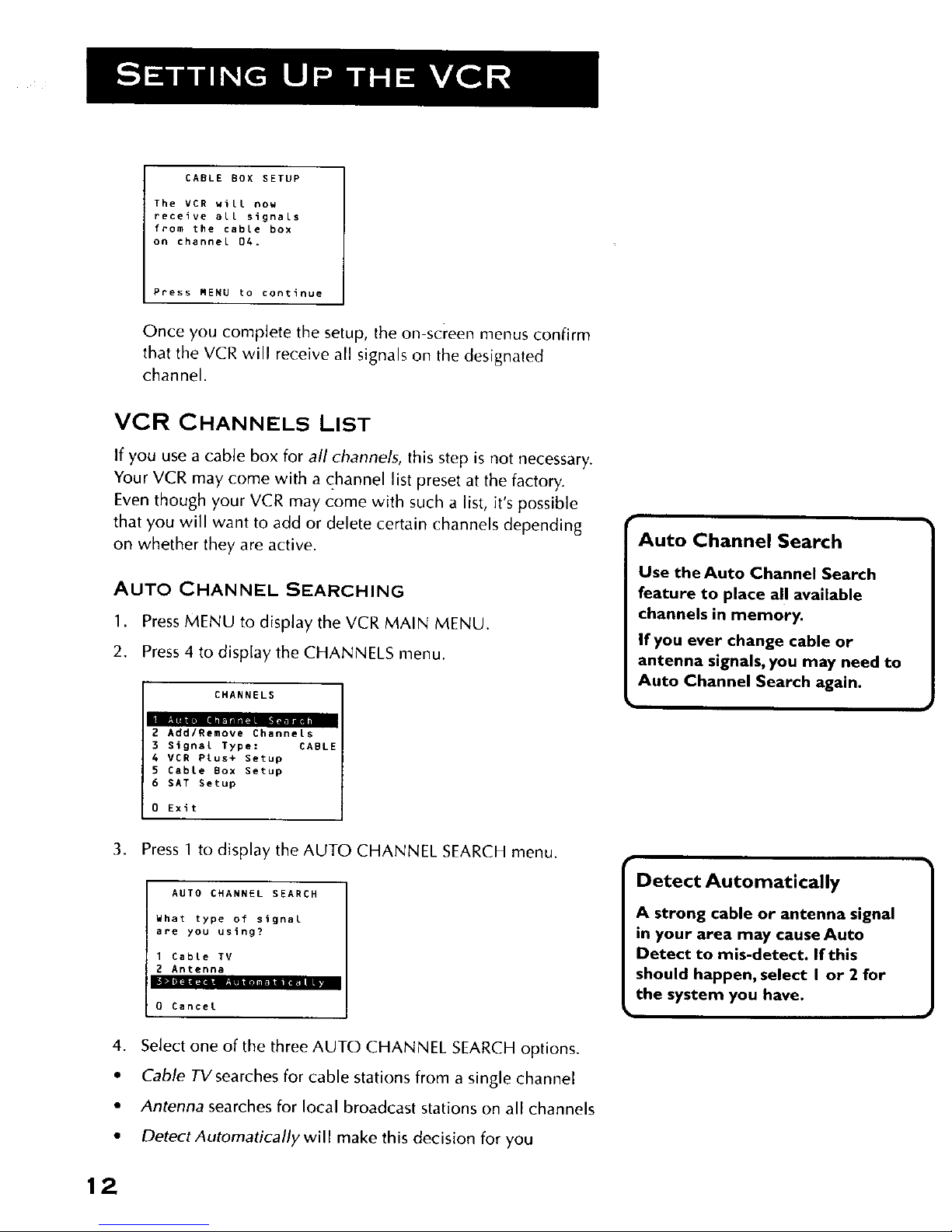
CABLE BOX SETUP
The VCR will now
receive all signals
from the cable box
on channel 04.
Press MENU to continue
Once you complete the setup, the on-screen menus confirm
that the VCR will receive all signals on the designated
channel.
VCR CHANNELS LIST
If you use a cable box for all channels, this step is not necessary.
Your VCR may come with a channel list preset at the factory.
Even though your VCR may come with such a list, it's possible
that you will want to add or delete certain channels depending
on whether they are active.
AUTO CHANNEL SEARCHING
1. Press MENU to display the VCR MAIN MENU.
2. Press 4 to display the CHANNELS menu.
CHANNELS
2 Add/Remove Channels
3 Signal Type: CABLE
4 VCR Plus+ Setup
5 Cable Box Setup
6 SAT Setup
0 Exit
Auto Channel Search
Use the Auto Channel Search
feature to place all available
channels in memory.
If you ever change cable or
antenna signals, you may need to
Auto Channel Search again.
W
3. Press 1 to display the AUTO CHANNEL SEARCH menu.
AUTO CHANNEL SEARCH
What type of signal
are you using?
1 Cable TV
2 Antenna
_ Fial'.llllmllllunllllm i_ m
0 Cancel
4. Select one of the three AUTO CHANNEL SEARCH options.
• Cable TVsearches for cable stations from a single channel
• Antenna searches for local broadcast stations on all channels
• Detect Automatically will make this decision for you
Detect Automatically
A strong cable or antenna signal
in your area may cause Auto
Detect to mis-detect. If this
should happen, select I or 2 for
the system you have.
}
12
Page 15
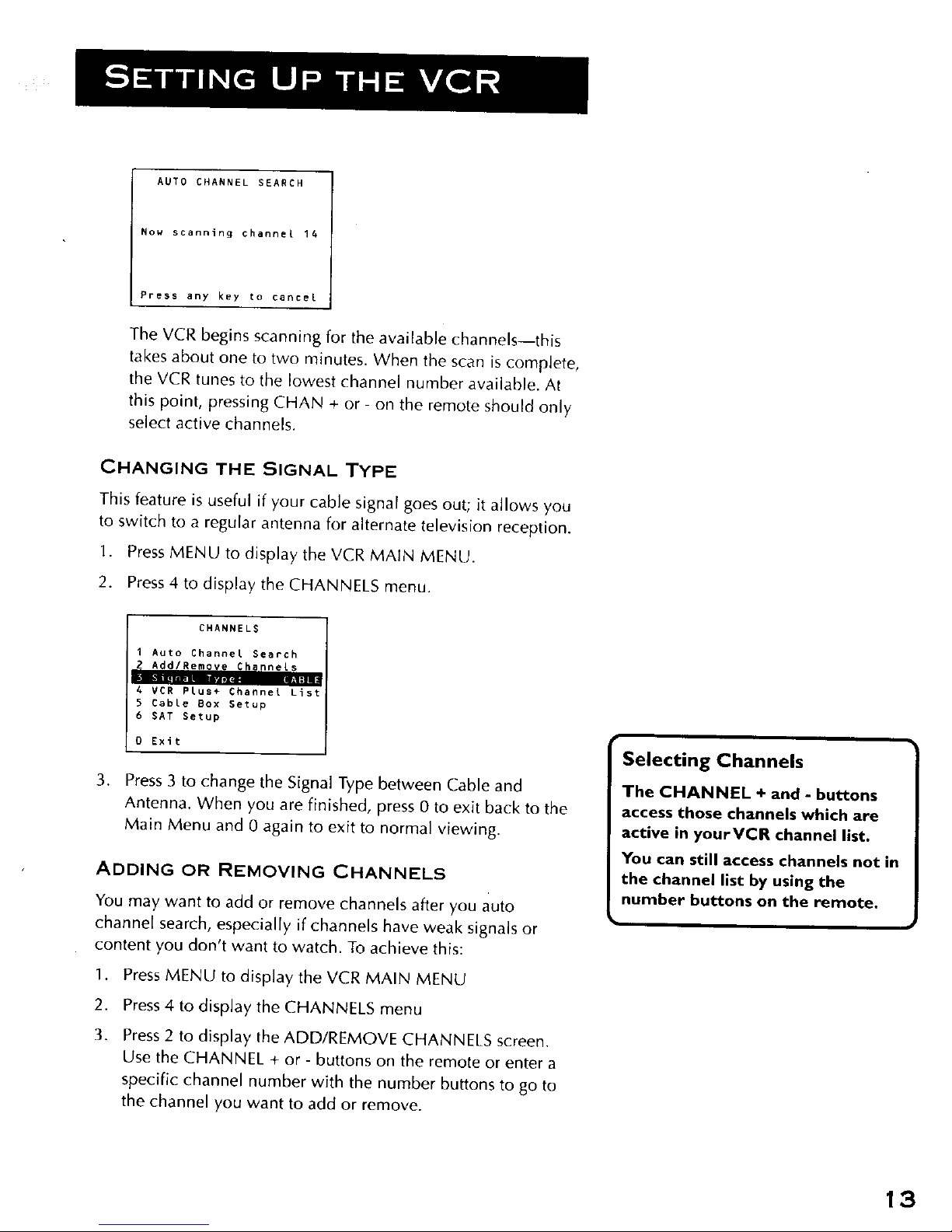
AUTO CHANNEL SEARCH
Now scanning channel 14
Press any key to cancel
The VCR begins scanning for the available channels--this
takes about one to two minutes. When the scan is complete,
the VCR tunes to the lowest channel number available. At
this point, pressing CHAN + or - on the remote should only
select active channels.
CHANGING THE SIGNAL TYPE
This feature is useful if your cable signal goes out; it allows you
to switch to a regular antenna for alternate television reception.
1. Press MENU to display the VCR MAIN MENU.
2. Press 4 to display the CHANNELS menu.
CHANNELS
I Auto _hannel Search
2 Add/Remove Channels
A VCR Plus+ Channel List
5 Cable Box Setup
6 SAT Setup
0 Exit
3. Press 3 to change the Signal Type between Cable and
Antenna. When you are finished, press 0 to exit back to the
Main Menu and 0 again to exit to normal viewing.
ADDING OR REMOVING CHANNELS
You may want to add or remove channels after you auto
channel search, especially if channels have weak signals or
content you don't want to watch. To achieve this:
1. Press MENU to display theVCR MAIN MENU
2. Press 4 to display the CHANNELS menu
3. Press 2 to display the ADD/REMOVE CHANNELS screen.
Use the CHANNEL + or- buttons on the remote or enter a
specific channel number with the number buttons to go to
the channel you want to add or remove.
Selecting Channels
The CHANNEL + and - buttons
access those channels which are
active in yourVCR channel list.
You can still access channels not in
the channel list by using the
number buttons on the remote.
13
Page 16
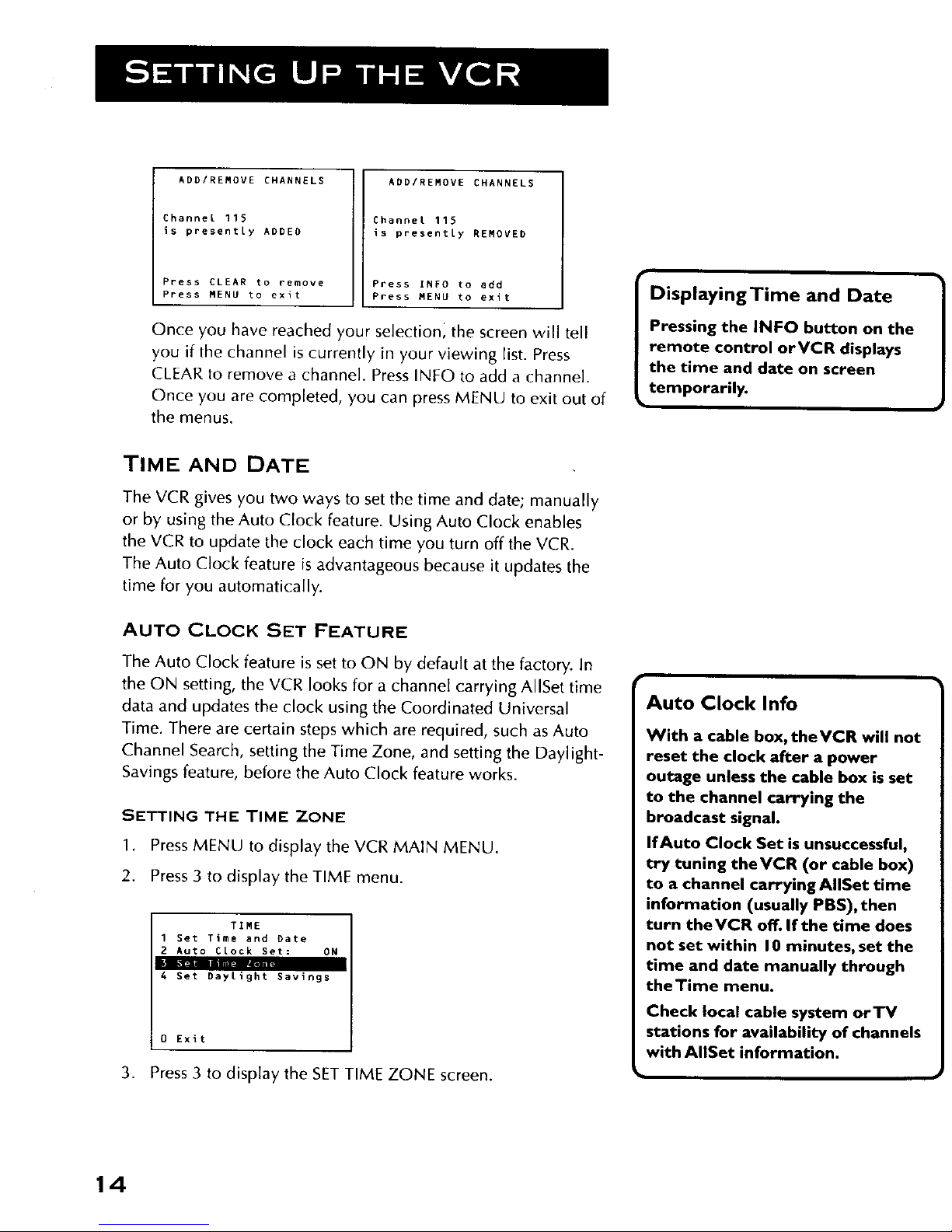
ADD/REMOVE CHANNELS
Channel 115
is presently ADDED
Press CLEAR to remove
Press MENU to exit
ADD/REMOVE CHANNELS
Channel 115
is presently REMOVED
Press INFO to add
Press MENU to exit
Once you have reached your selection, the screen will tell
you if the channel is currently in your viewing list. Press
CLEAR to remove a channel. Press INFO to add a channel.
Once you are completed, you can press MENU to exit out of
the menus.
DisplayingTime and Date
Pressing the INFO button on the
remote control orVCR displays
the time and date on screen
temporarily.
TIME AND DATE
The VCR gives you two ways to set the time and date; manually
or by using the Auto Clock feature. Using Auto Clock enables
the VCR to update the clock each time you turn off the VCR.
The Auto Clock feature is advantageous because it updates the
time for you automatically.
AUTO CLOCK SET FEATURE
The Auto Clock feature is set to ON by default at the factory. In
the ON setting, the VCR looks for a channel carrying AIISet time
data and updates the clock using the Coordinated Universal
Time. There are certain steps which are required, such as Auto
Channel Search, setting the Time Zone, and setting the Daylight-
Savings feature, before the Auto Clock feature works.
SETTING THE TIME ZONE
1. Press MENU to display the VCR MAIN MENU.
2. Press 3 to display the TIME menu.
TIME
1 Set Time and Date
2 Auto Clock Set: ON
L
4 Set Daylight Savings
0 Exit
3. Press3 to displaytheSET TIME ZONE screen.
Auto Clock Info
With a cable box, theVCR will not
reset the clock after a power
outage unless the cable box is set
to the channel carrying the
broadcast signal.
If Auto Clock Set is unsuccessful,
try tuning theVCR (or cable box)
to a channel carrying AIISet time
information (usually PBS),then
turn theVCR off. If the time does
not set within I 0 minutes, set the
time and date manually through
theTime menu.
Check local cable system orTV
stations for availability of channels
with AIISet information.
14
Page 17
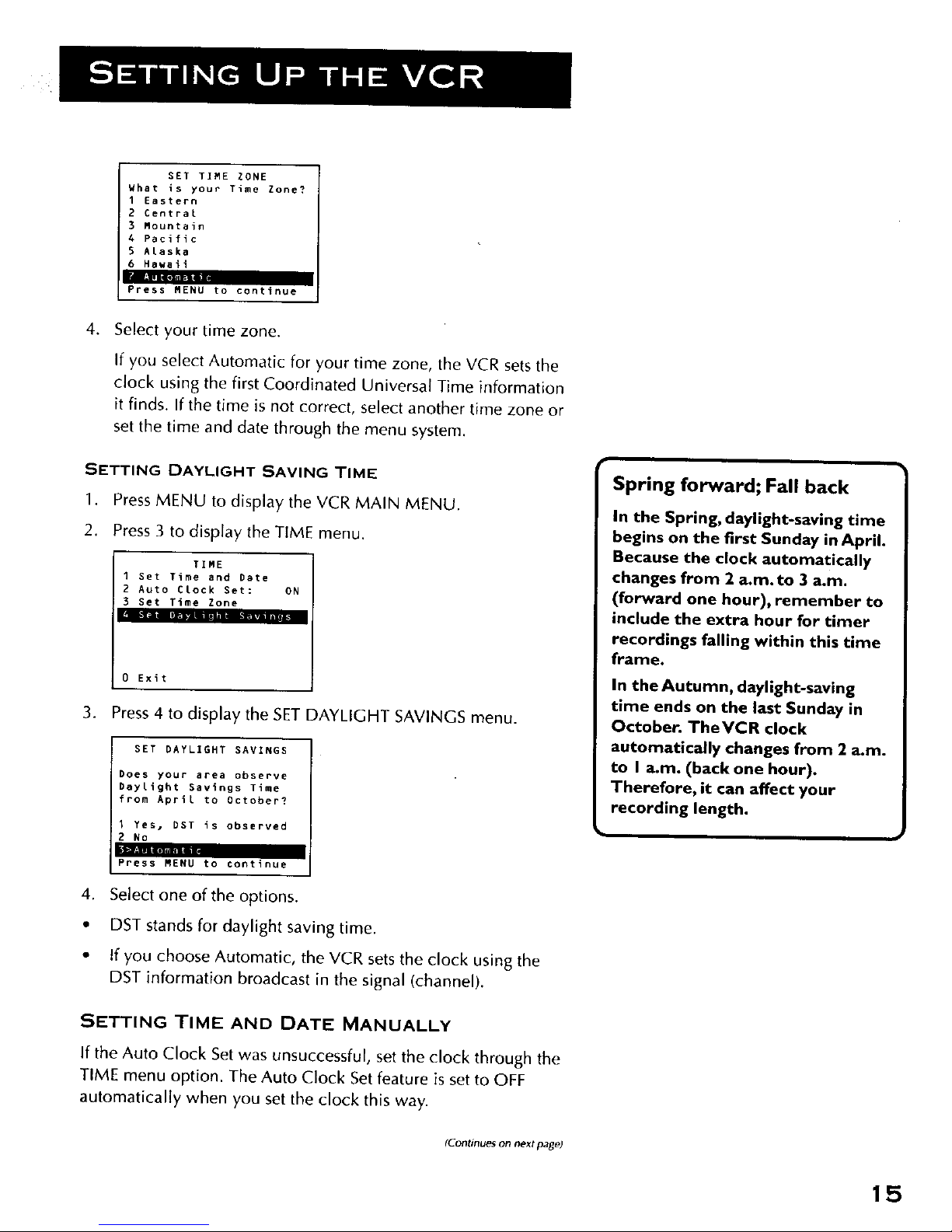
SET TIME ZONE
What is your Time Zone?
1 Eastern
2 Central
3 Mountain
A Pacific
5 Alaska
6 Hawaii
r_llR
Press MENU to continue
4. Select your time zone.
If you select Automatic for your time zone, the VCR sets the
clock using the first Coordinated Universal Time information
it finds. If the time is not correct, select another time zone or
set the time and date through the menu system.
SETTING DAYLIGHT SAVING TIME
1. Press MENU to display the VCR MAIN MENU.
2. Press 3 to display the TIME menu.
TIME
I Set Time and Date
2 Auto CLock Set: ON
3 Set Time Zone
Ill i- i liB.|lit mlii_ I • i IAII_!
0 Exit
3. Press 4 to display the SET DAYLIGHT SAVINGS menu.
SET DAYLIGHT SAVINGS
Does your area observe
Daylight Savings Time
from April to October?
1 Yes, DST is observed
2 NO
Press MENU to continue
4. Select one of the options.
• DST stands for daylight saving time.
• If you choose Automatic, the VCR sets the clock using the
DST information broadcast in the signal (channel).
SETTING TIME AND DATE MANUALLY
If the Auto Clock Set was unsuccessful, set the clock through the
TIME menu option. The Auto Clock Set feature is set to OFF
automatically when you set the clock this way.
(Continues on next page)
Spring forward; Fall back
In the Spring, daylight-saving time
begins on the first Sunday in April.
Because the clock automatically
changes from 2 a.m. to 3 a.m.
(forward one hour), remember to
include the extra hour for timer
recordings falling within this time
frame.
In the Autumn, daylight-saving
time ends on the last Sunday in
October. TheVCR clock
automatically changes from 2 a.m.
to I a.m. (back one hour).
Therefore, it can affect your
recording length.
15
Page 18
iCiinlinu_,lt tronl ille,l Jou_ page9
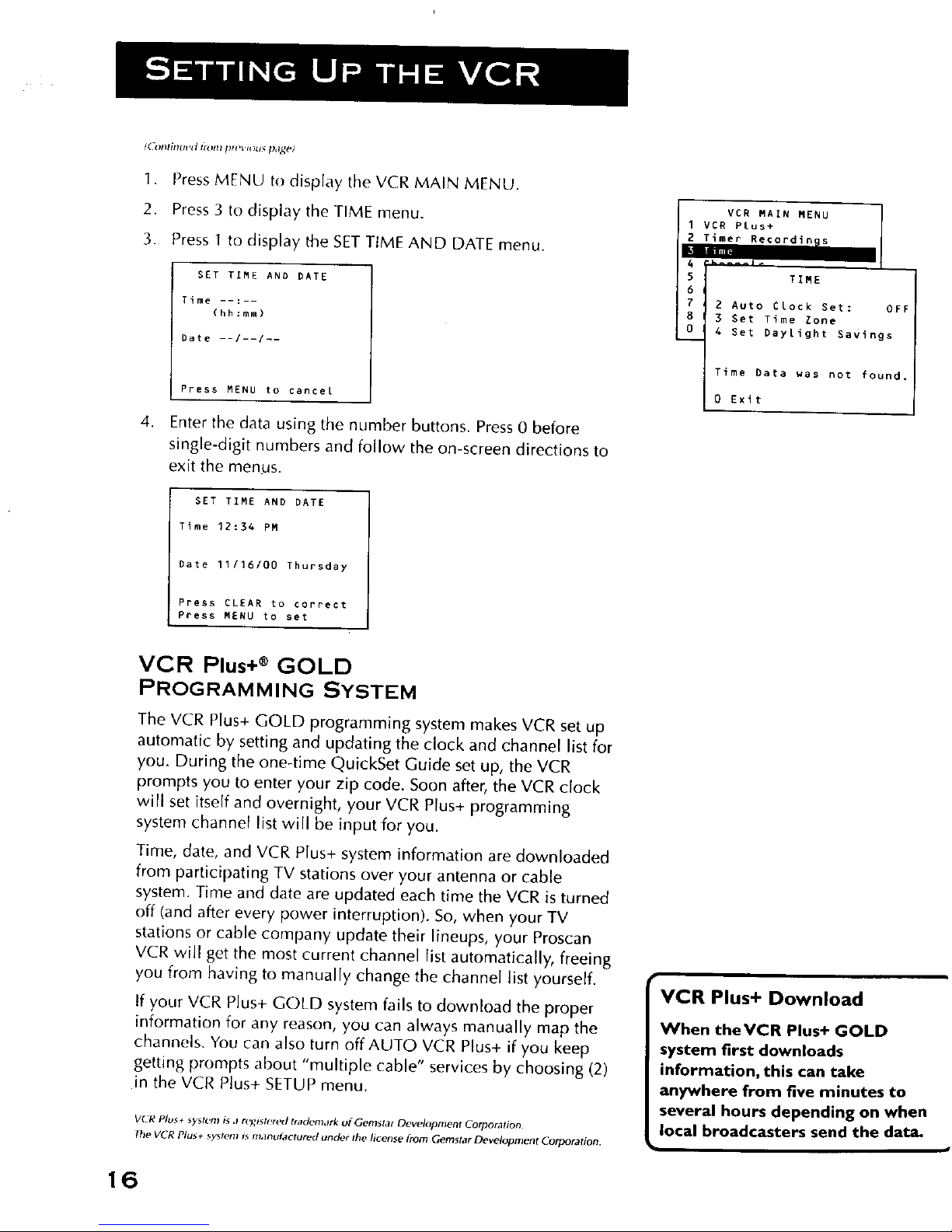
1. Press MENU tl) display the VCR MAiN MENU.
2. Press 3 to display the TIME menu.
3. Press 1 to display the SET TIME AND DATE menu.
SET TIME AND PATE
Time --:--
(hh:mm)
Date --/--/--
4,
Press MENU to cancel
Enter the data using the number buttons. Press 0 before
single-digit numbers and follow the on-screen directions to
exit the menus.
SET TIME AND DATE
Time 12:34 PM
Date 11/16/00 Thursday
Press CLEAR to correct
Press MENU to set
VCR Plus+ ® GOLD
PROGRAMMING SYSTEM
The VCR P{us+ GOLD programming system makes VCR set up
automatic by setting and updating the clock and channel list for
you. During the one-time QuickSet Guide set up, the VCR
prompts you to enter your zip code. Soon after, the VCR clock
will set itself and overnight, your VCR Plus+ programming
system channel list will be input for you.
Time, date, and VCR Plus+ system information are downloaded
from participating TV stations over your antenna or cable
system. Time and date are updated each time the VCR is turned
off (and after every power interruption). So, when your TV
stations or cable company update their lineups, your Proscan
VCR will get the most current channel list automatically, freeing
you from having to manually change the channe[ list yourself.
If your VCR Plus+ GOLD system fails to download the proper
information for any reason, you can always manually map the
channels. You can also turn off AUTO VCR Plus+ if you keep
getting prompts about "multiple cable" services by choosing (2)
in the VCR Plus+ SETUP menu.
VC_ PLUS+ s_ gt(_'{ll ix d f_.,_lgt(!r(,_d (raden_,lrk O( Ge(_s(af (]eveloprnent Cord]of{it{on
The VCR Plus + system is manufadured under the license flora Gemstar Development Corporation.
16
I
VCR MAIN MENU I
I
3 VCR P£us÷
2 Timer Re_ordi_ls
TIME
2 Auto Clock Set: OFI
3 Set Time Zone
4 Set Daylight SavigDs
Time Data was not found.
0 Exit
i
VCR Plus+ Download
When theVCR Plus+ GOLD
system first downloads
information, this can take
anywhere from five minutes to
several hours depending on when
local broadcasters send the data.
Page 19
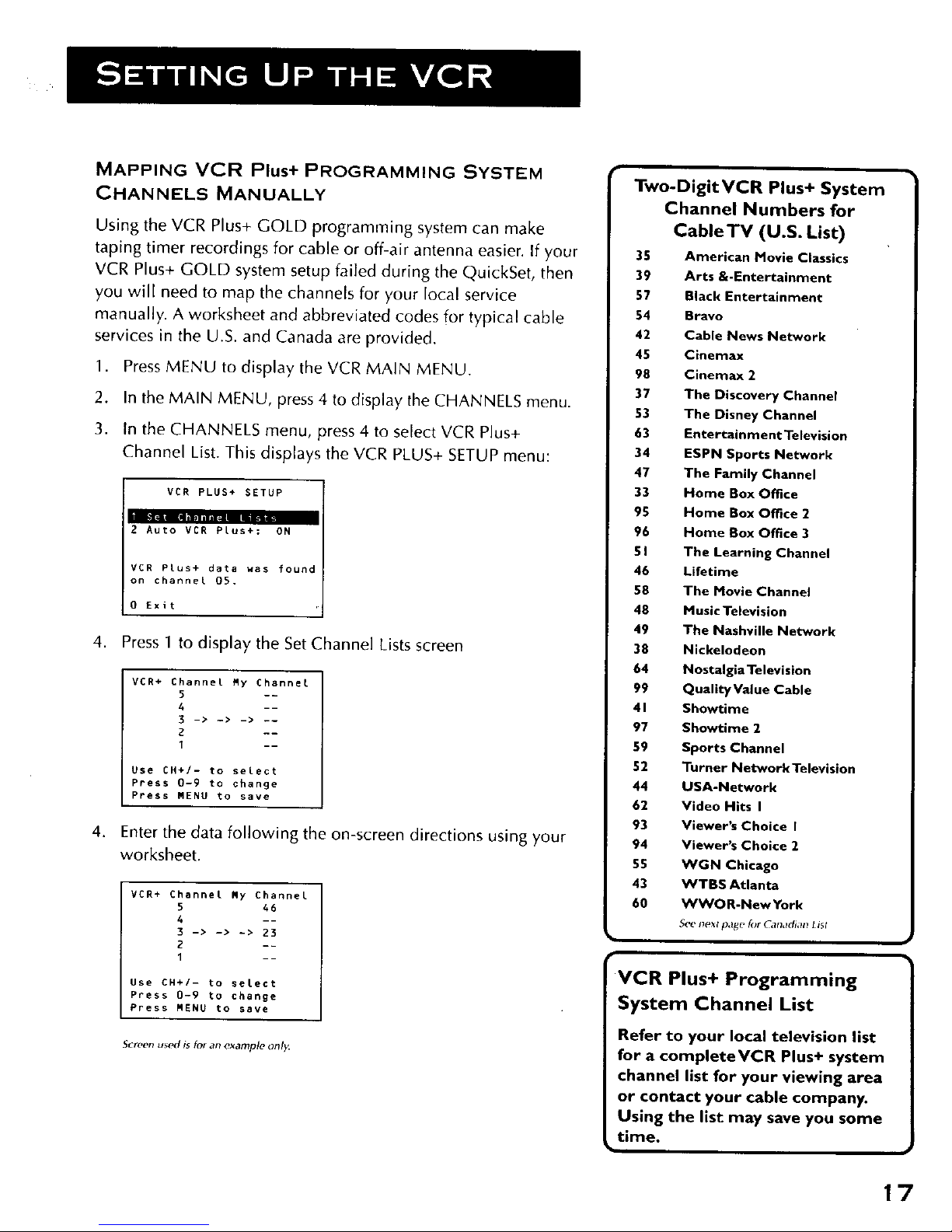
MAPPING VCR Plus+ PROGRAMMING SYSTEM
CHANNELS MANUALLY
Using the VCR Plus+ GOLD programming system can make
taping timer recordings for cable or off-air antenna easier. If your
VCR Plus+ GOLD system setup failed during the QuickSet, then
you will need to map the channels for your local service
manually. A worksheet and abbreviated codes for typical cable
services in the U.S. and Canada are provided.
1. Press MENU to display the VCR MAIN MENU.
.
3.
In the MAIN MENU, press 4 to display the CHANNELS menu.
In the CHANNELS menu, press 4 to select VCR Plus+
Channel List. This displays the VCR PLUS+ SETUP menu:
_ETUP
2 Auto VCR PLus+: ON
VCR Plus+ data was foun
on channel O5.
O Exit
4. Press 1 to display the Set Channel Lists screen
,
VCR+ Channel Ry Channel
5 --
4 --
3 -> -> -> --
2 --
1 --
Use CH+/- to select
Ppess 0-9 to change
Press MENU to save
Enter the data following the on-screen directions using your
worksheet.
VCR+ Channet Ry Channel
5 46
A --
3 -> -> -> 23
1 --
Use CH+/- to select
Press 0-9 to change
Press MENU to save
Screen use(I is for an example onl_
Two-Digit VCR Plus+ System
Channel Numbers for
Cable TV (U.S. List)
35 American Movie Classics
39 Arts &-Entertainment
57 Black Entertainment
54 Bravo
42 Cable News Network
45 Cinemax
98 Cinemax 2
37 The Discovery Channel
53 The Disney Channel
63 Entertainment Television
34 ESPN Sports Network
47 The Family Channel
33 Home Box Office
95 Home Box Office 2
96 Home Box Office 3
51 The Learning Channel
46 Lifetime
58 The Movie Channel
48 Huslc Television
49 The Nashville Network
38 Nickelodeon
64 Nostalgia Television
99 Quality Value Cable
41 Showtime
97 Showtime 2
59 Sports Channel
52 Turner Network Television
44 USA-Network
62 Video Hits I
93 Viewer's Choice I
94 Viewer's Choice 2
55 WGN Chicago
43 WTBS Atlanta
60 WWOR-New York
S('e next page for Canadian List
VCR Plus+ Programming
System Channel List
Refer to your local television list
for a complete VCR Plus+ system
channel list for your viewing area
or contact your cable company.
Using the list may save you some
time.
17
Page 20
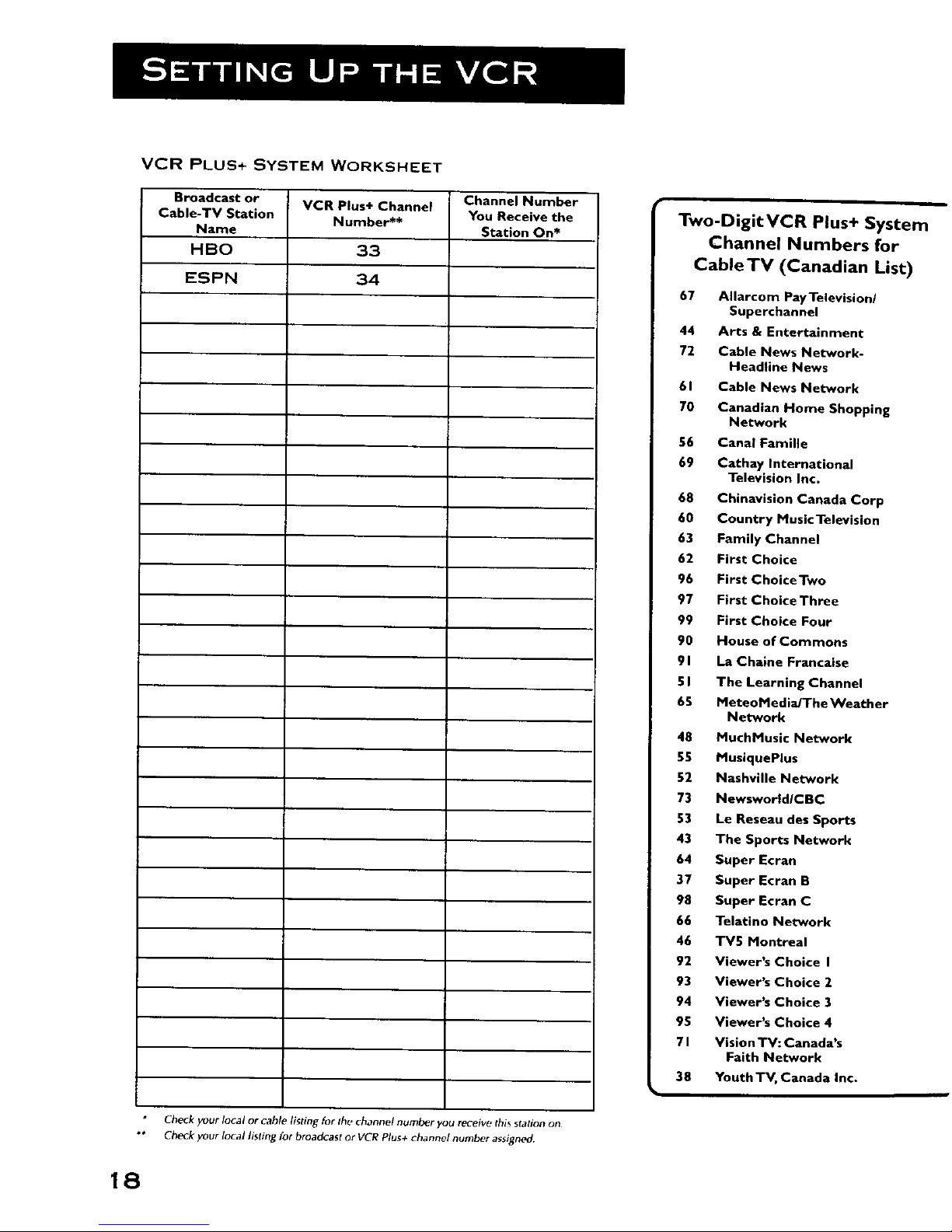
VCR PLUS+ SYSTEM WORKSHEET
Broadcast or
Cable-TV Station
Name
HBO
ESPN
VCR Plus+ Channel
Number**
33
34
Channel Number
You Receive the
Station On*
Check your local or cable listing for the channel number you receiw, this sfation on
_'" Check your local listing for broadcast or VCR Plu_+ channel number a_signed
18
Two-DigitVCR Plus+ System
Channel Numbers for
CableTV (Canadian List)
67 Allarcom Pay Television/
Superchannel
44 Arts & Entertainment
72 Cable News Network-
Headline News
61 Cable News Network
70 Canadian Home Shopping
Network
56 Canal Famille
69 Cathay International
Television Inc.
68 Chinavision Canada Corp
60 Country Music Television
63 Family Channel
62 First Choice
96 First Choice Two
97 First Choice Three
99 First Choice Four
90 House of Commons
91 La Chalne Francaise
51 The Learning Channel
65 MeteoM ediaJThe Weather
Network
48 MucbMusic Network
55 MusiquePlus
52 Nashville Network
73 Newswortd/CBC
53 Le Reseau des Sports
43 The Sports Network
64 Super Moran
37 Super Ecran B
98 Super Moran C
66 Telatino Network
46 TV5 Montreal
92 Viewer's Choice I
93 Viewer's Choice 2
94 Viewer's Choice 3
95 Viewer's Choice 4
71 Vision TV: Canada's
Faith Network
38 Youth TV, Canada Inc.
Page 21
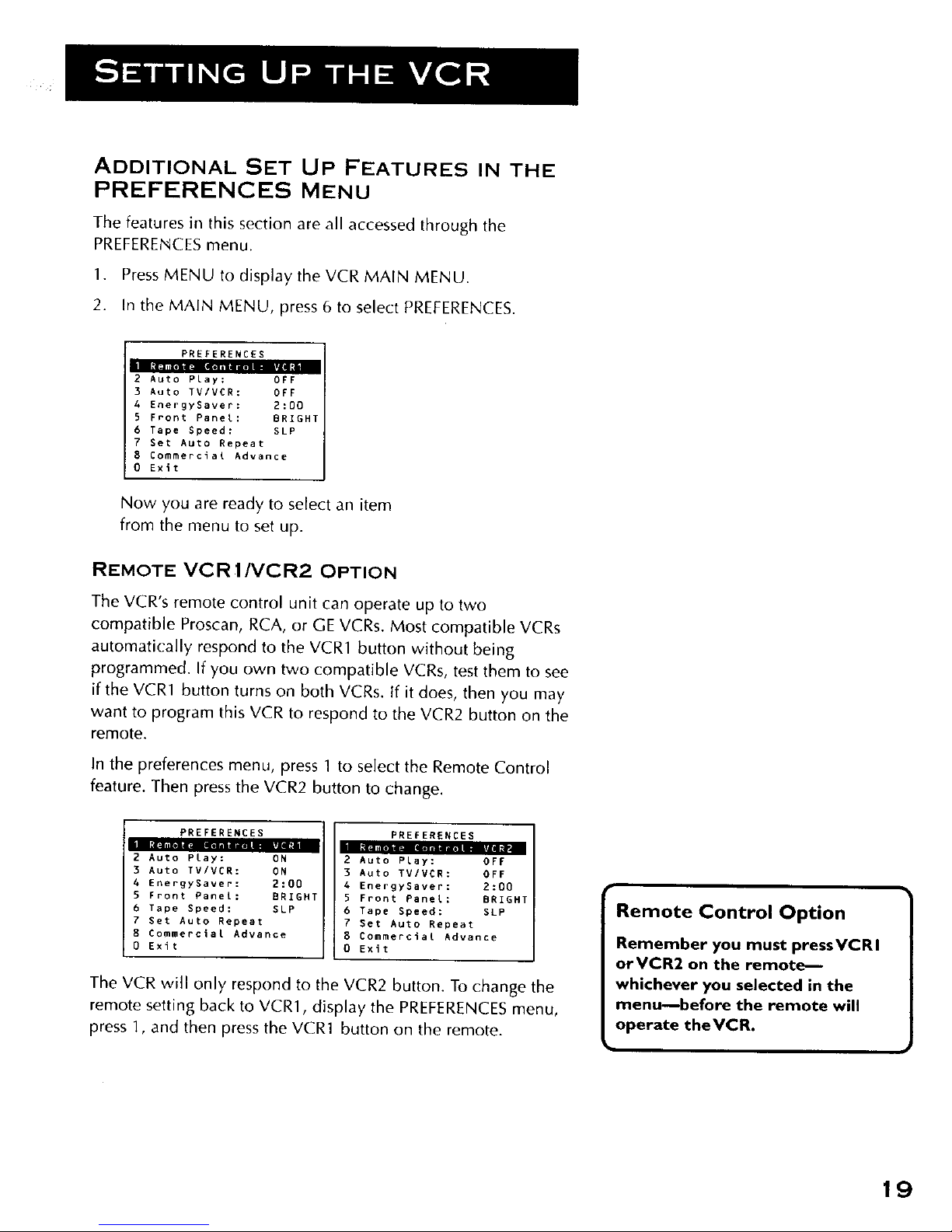
ADDITIONAL SET UP FEATURES IN THE
PREFERENCES MENU
The features in this section are all accessed through the
PREFERENCES menu.
1. Press MENU to display the VCR MAIN MENU.
2. In the MAIN MENU, press 6 to select PREFERENCES.
PREFERENCES
2 Auto PLay: OFF
3 Auto TV/VCR: OFF
4 EnergySaver: 2:00
5 Front Panel: BRIGHT
6 Tape Speed: SLP
7 Set Auto Repeat
8 Commercial Advance
0 Exit
Now you are ready to select an item
from the menu to set up.
REMOTE VCR 1/VCR2 OPTION
The VCR's remote control unit can operate up to two
compatible Proscan, RCA, or GE VCRs. Most compatible VCRs
automatically respond to the VCR1 button without being
programmed. If you own two compatible VCRs, test them to see
if the VCR1 button turns on both VCRs. tf it does, then you may
want to program this VCR to respond to the VCR2 button on the
remote.
In the preferences menu, press 1 to select the Remote Control
feature. Then press the VCR2 button to change.
PREFERENCES
2 Auto Play: ON
3 Auto TV/VCR: ON
4 EnergySaver: 2:00
5 Front Panel: BRIGHT
6 Tape Speed: SLP
7 Set Auto Repeat
8 Commercial Advance
0 Exit
PREFERENCES
2 Auto Play: OFF
3 Auto TV/VER: OFF
A EnergySaver: 2:00
5 Front Panel: BRIGHT
6 Tape Speed: SLP
7 Set Auto Repeat
8 Commercial Advance
0 Exit
The VCR will only respond to the VCR2 button. To change the
remote setting back to VCR1, display the PREFERENCES menu,
press 1, and then press the VCR1 button on the remote.
Remote Control Option
Remember you must press VCR I
orVCR2 on the remot_
whichever you selected in the
menu--before the remote will
operate theVCR.
]
19
Page 22
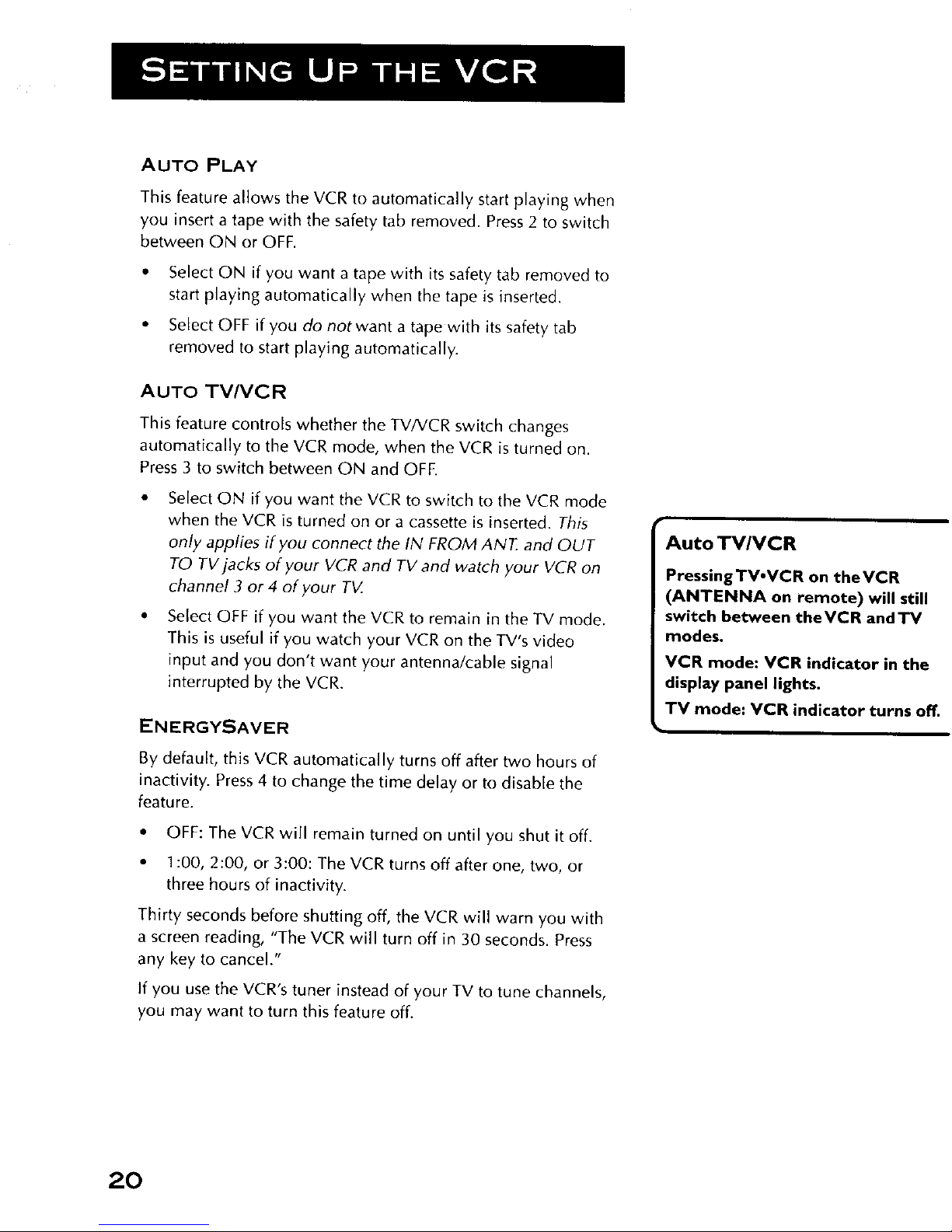
AUTO PLAY
This feature allows the VCR to automatically start playing when
you insert a tape with the safety tab removed. Press 2 to switch
between ON or OFF.
• Select ON if you want a tape with its safety tab removed to
start playing automatically when the tape is inserted.
• Select OFF if you do not want a tape with its safety tab
removed to start playing automatically.
AUTO TVNCR
This feature controls whether the TV/VCR switch changes
automatically to the VCR mode, when the VCR is turned on.
Press 3 to switch between ON and OFE
• Select ON if you want the VCR to switch to the VCR mode
when the VCR is turned on or a cassette is inserted. This
only applies if you connect the IN FROM ANT. and OUT
TO TV jacks of your VCR and TV and watch your VCR on
channel 3 or 4 of your T_Z
• Select OFF if you want the VCR to remain in the TV mode.
This is useful if you watch your VCR on the TV's video
input and you don't want your antenna/cable signal
interrupted by the VCR.
ENERGYSAVER
By default, this VCR automatically turns off after two hours of
inactivity. Press 4 to change the time delay or to disable the
feature.
• OFF: The VCR will remain turned on until you shut it off.
• 1:00, 2:00, or 3:00: The VCR turns off after one, two, or
three hours of inactivity.
Thirty seconds before shutting off, the VCR will warn you with
a screen reading, "The VCR will turn off in 30 seconds. Press
any key to cancel."
If you use the VCR's tuner instead of your TV to tune channels,
you may want to turn this feature off.
Auto TV/VCR
PressingTV.VCR on theVCR
(ANTENNA on remote) will still
switch between the VCR and TV
modes.
VCR mode: VCR indicator in the
display panel lights.
TV mode: VCR indicator turns off.
20
Page 23
FRONT PANEL BRIGHTNESS
(VCR DISPLAY)
You can change the brightness level of the fluorescent display
panel on the front of the VCR. Press 5 to switch between the
options.
• AUTO brightens the display when the VCR is on and dims
the display when the VCR is off.
• BRIGHT keeps the display bright.
• DIM keeps the display at a low brightness level.
TAPE SPEED
You can select a preferred tape speed for recording. The speed
you select appears in the display panel and in the timer and VCR
Plus+ recording menus. Press 6 to switch between SP and SLP.
You can override the preferred tape speed:
• Press the SPEED button on the remote.
• Set the tape speed in the timer or VCR Plus+ recording
menu.
When you turn off the VCR, the tape speed reverts to the one
you have selected.
SET AUTO REPEAT
A tape can be set to play the same segment over and over in a
repeating loop with the Set Auto Repeat feature. Set Auto
Repeat uses the VCR's memory counter to determine the
duration of the loop.
In the PREFERENCESmenu, press 7 to choose Set Auto Repeat.
The Set Auto Repeat dialog box will ask for a loop end time to
be specified:
AUTO REPEAT
Set the length of time
you want the tape to
play in a repeating loop
Loop from 0:00 to -:--
(h:mm)
Press CLEAR to turn off
Press MENU to exit
Tape Speeds
SP (Standard Play)
Gives the best quality recording,
but fewer programs can be
recorded on the tape. Special
effects such as pause, slow motion,
picture search, and frame advance
work well when you play back
tapes recorded in this speed.
SLP (Super Long Play)
Gives three times the recording
time of tapes recorded in SP.
Special effects such as pause, slow
motion, picture search, and frame
advance work well when you play
back tapes recorded in this speed.
RecordingTimes
Cassette SP SLP
T- 120 2 Hr 6 Hr
T-160 2 Hr/40 Min 8 Hr
(Continues on Next Page)
21
Page 24
(C(_ntmued t_l_rn prel,lc;us p,l_t*)
• The CLEAR key will erase all three numbers entered and
move the cursor back to the first position (hours).
• The "Press CLEAR to turn off" message will appear only after
the first number has been entered into the end time.
• Auto Repeat is set back to -:-- by resetting the dialog box, by
cassette ejecting or insertion, by powering off the VCR, by
power interruption, or by recording start.
When a duration time has been set:
The VCR will automatically switch to rewind if the counter
meets or goes past the Auto Repeat set duration.
The VCR will automatically switch to playback during
rewind if the counter equals or is less than 0:00.
The Auto Repeat may be adjusted by setting the counter to
00:00. This can be done by pressing the CLEAR button while
the tape counter is on screen or on the front panel display.
The counter will not reset while rewinding in an Auto
Repeat loop.
AUTO REPEAT
Set the Length of time
you want the tape to
play in a repeating loop
Loop from 0:00 to -:--
(h:mm)
Press CLEAR to turn _f_
Press MENU to exit
22
Page 25
LEARN THE BASICS TO GET
YOU STARTED
TheseVCR basics should be enough for you to begin
enjoying yourVCR. Learning the remote control functions,
playing a recorded tape, and recording a program should
do just that.
However, there are other features that enhance the
enjoyment of yourVCR, but they aren't necessary to get
you started. Ifyou want to learn more about yourVCR,
just keep reading.
V
V
3 VCR BASICS
V
V
V
V
V
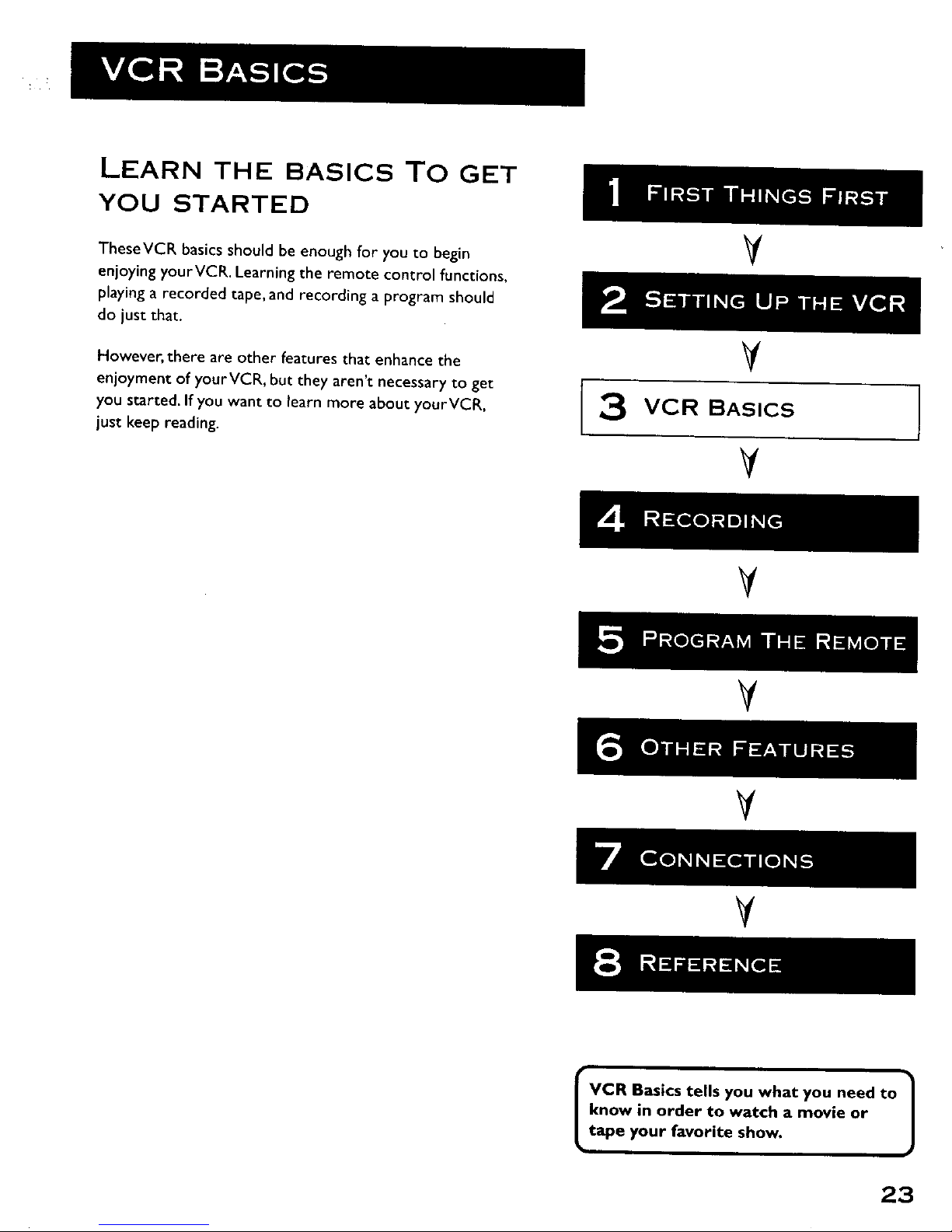
VCR Basics tells you what you need to /
know in order to watch a movie or
J
tape your favorite show.
23
Page 26
REMOTE BUTTONS
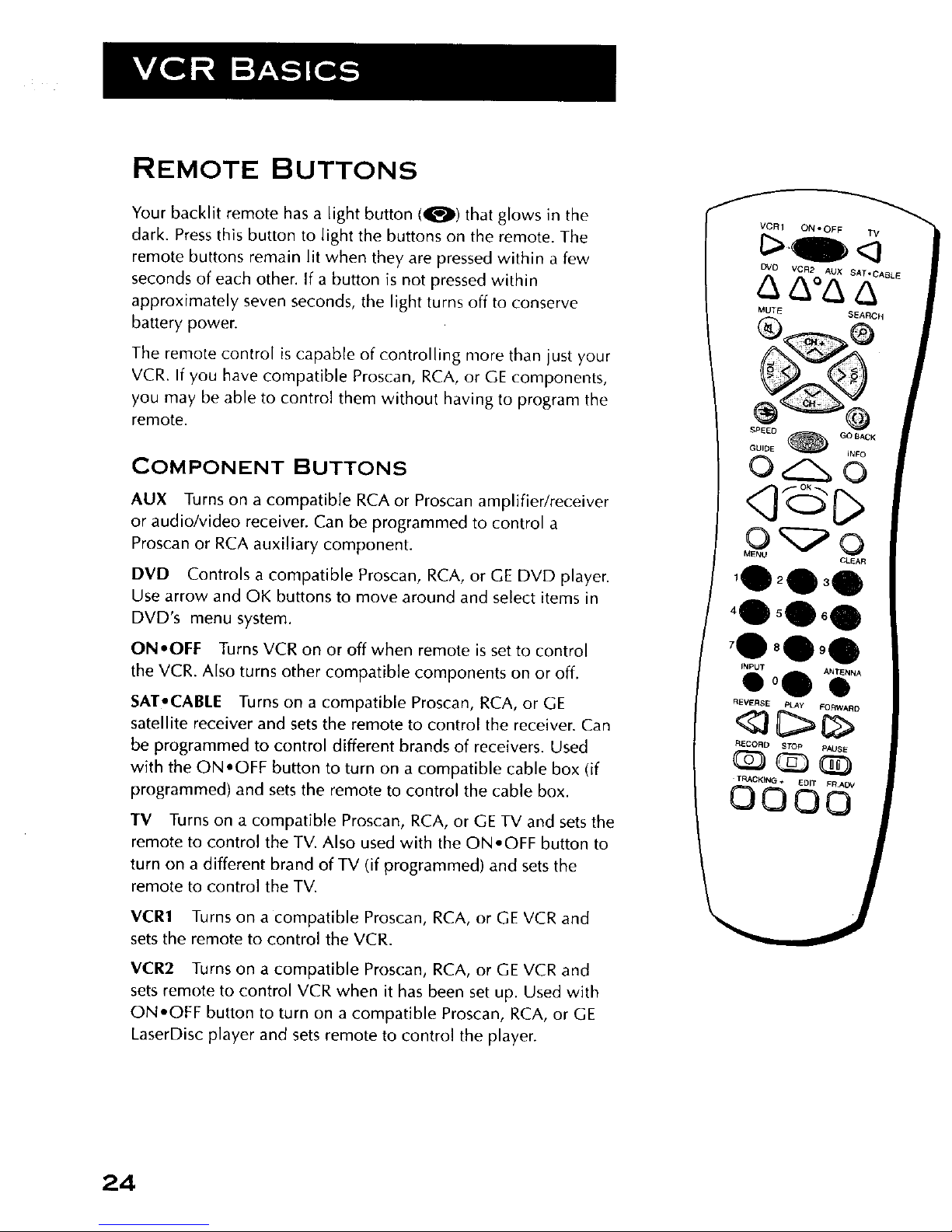
Your backlit remote has a light button (0) that glows in the
dark. Press this button to light the buttons on the remote. The
remote buttons remain lit when they are pressed within a few
seconds of each other. If a button is not pressed within
approximately seven seconds, the light turns off to conserve
battery power.
The remote control is capable of controlling more than just your
VCR. If you have compatible Proscan, RCA, or GE components,
you may be able to control them without having to program the
remote.
COMPONENT BUTTONS
AUX Turns on a compatible RCA or Proscan amplifier/receiver
or audio/video receiver. Can be programmed to control a
Proscan or RCA auxiliary component.
DVD Controls a compatible Proscan, RCA, or GE DVD player.
Use arrow and OK buttons to move around and select items in
DVD's menu system.
ON.OFF Turns VCR on or Off when remote is set to control
the VCR. Also turns other compatible components on or off.
SAT-CABLE Turns on a compatible Proscan, RCA, or GE
satellite receiver and sets the remote to control the receiver. Can
be programmed to control different brands of receivers. Used
with the ON.OFF button to turn on a compatible cable box (if
programmed) and sets the remote to control the cable box.
IV Turns on a compatible Proscan, RCA, or GE TV and sets the
remote to control the TV. Also used with the ON.OFF button to
turn on a different brand of TV (if programmed) and sets the
remote to control the TV.
WZR1 Turns on a compatible Proscan, RCA, or GE VCR and
sets the remote to control the VCR.
VCR2 Turns on a compatible Proscan, RCA, or GE VCR and
sets remote to control VCR when it has been set up. Used with
ON-OFF button to turn on a compatible Proscan, RCA, or GE
LaserDisc player and sets remote to control the player.
I
I
.Q o
CLEAR
INPUT ANTENN A
eoQ •
REVERSE PLAy FORWAR D
RECORD STOp PAUSE
TRACKING + EDIT FR.ADV
0000
24
Page 27
VCR FUNCTION BUTTONS
ANTENNA Switches the picture signal so that it either comes
from the VCR or cable/antenna system. Turns VCR indicator in
VCR display panel on or off.
Arrow Buttons (,'7) Allow you to move through the menus,
enter data, and change settings of selected features.
CH + and- Selects next higher or lower channel in the VCR's
channel memory.
CLEAR Resets time counter to 0:00:00. Allows you to change
entries when setting the clock or a timer recording.
EDIT Simultaneously pauses and unpauses two VCRs when
dubbing.
FORWARD Fast forwards the tape when the VCR is stopped.
Searches forward through a tape during playback. Starts slow
motion during play-pause and increases slow-motion speed.
FR. ADV (Frame Advance) Advances the tape one frame at a
time during play-pause.
GO BACK Switches between two channels. Select one
channel and then se{ect another using the number buttons. Press
GO BACK to switch between the two channels.
INFO Shows the status displays on the TV screen.
INPUT Selects between the line inputs and the VCR's tuner.
Line input refers to the signal coming from the component
connected to the audio/video input jacks on the back or front of
the VCR.
MENU Displays and accesses menu system.
Numbers (0 through 9) Select a channel up to 99 by pressing
two numbers. Select a cable channel over 99 by pressing and
holding I until I -- appears on the screen. Then press the other
two numbers.
ON,OFF Turns the VCR off or on.
PAUSE Pauses playback or recording. Press PAUSE again to
return to playback or recording.
PLAY Plays a tape.
RECORD Starts VCR recording. Also used for express recording.
REVERSE Rewinds the tape when the VCR is stopped. Searches
backward through a tape during playback. Starts slow motion
during play-pause and decreases slow-motion speed.
25
Page 28

SEARCH Displays MOVIE ADVANCE screen for prerecorded
movies or displays index and Zero search menus oil TV screen.
Starts COMMERCIAL ADVANCE skipping during playback
SPEED Selects a recording speed (SP or SLP).
STOP Stops the current VCR function such as record,
playback, rewind, or fast forward.
TRACKING - and + Allows the manual reduction of streaks
which may appear on the picture during regular or slow-motion
playback. Reduces picture "jitter" during stop-action Cpaused)
playback.
TV FUNCTION BUTTONS
ANTENNA Switches between antenna system on some TVs.
CH + and- Selects next higher or lower channel in the TV's
channel memory.
CLEAR Removes menus or status displays from the screen.
GO BACK Switches between two channels. Select one
channel and then select another using the number buttons. Press
GO BACK to switch between the two channels.
GUIDE Displays channel guide on some TV's.
INFO Shows the TV's status displays on the TV screen.
MUTE Reduces volume to minimum level.
Numbers (0 through 9) Select a channel up to 99 by pressing
two numbers. Select a cable channel over 99 by pressing and
holding 1 until 1 --appears on the screen. Then press the other
two numbers.
ON-OFF Turns the TV on and off.
VOL < and > Raises and lowers sound of TV.
DVD VCR 2 AU x SAT.CABL E
MUTE SEAR c
0
<3@C>
CLEAR
'0 0
'Q'Q'O
Q'Q00
INPUT ANTENN A
Ib°ll ID
REVERSE PLAy FORWARD
RECORO STOp PAUSE
=TRACKING + EDIT FRADV
0000
TV Buttons
The TV buttons may not control
all features of all models of
Proscan, RCA, and GE TVs.
26
Page 29

PLAYING A TAPE
1. Tune theTV to your VCR viewing channel
(3, 4, or TV's video input).
2. Insert a tape in tire VCR.
If the Auto Play feature is set to ON, the tape automatically
begins playback (if the safety tab on the cassette is removed).
• Press FWD or REV (FORWARD or REVERSE on the remote)
to position the tape.
• Press PLAY (if necessary) to begin tape play.
• Press PAUSE for stop action.
• Press TRACKING up or down (TRACKING + or-on the
remote)
to remove any streaks from the picture, if necessary.
• Press STOP to stop playback.
AUTOMATIC REWIND
The VCR automatically rewinds the tape if it reaches the end of
the tape during playback. While rewinding, you can press
ON•OFF and the VCR will turn off after rewinding.
TAPE EJECT
PressEJECTon the VCR when it is stopped to eject the tape.
Pause
If you pause, theVCR
automatically switches from pause
to stop after a few minutes to
reduce tape wear.
Automatic Tracking
The VCR has automatic tracking
which adjusts the picture when
playing back a tape recorded on
anotherVCR. Automatic tracking
is turned on whenever a tape is
inserted or theVCR's power is
turned on.
27
Page 30

RECORDING
If you want to record something that you're watching, you can
use basic recording.
1. Set the tape speed by pressing the SPEED button on the
remote. (See "Tape Speed" in Setting Up the VCR section for
information about tape speeds.)
2. Press the RECORD button to begin recording.
3. Press STOP to stop recording.
If you just want to pause the recording for a short time (like
during a commercial), press PAUSE instead of STOP.
CHECK THE SAFETY TAB
No matter which recording option you use, make sure there is a
tape in the VCR, and that the tape's safety tab is in place. You
cannot record on a tape with the safety tab removed.
Safety Tab
If the safety tab is removed and you want to record over it,
simply cover the hole with vinyl tape.
28
Page 31

SEVERAL RECORDING
OPTIONS
Now that the necessary steps to operate theVCR have
been examined, it's time to look at the different recording
features available to suit various recording needs.
Recording Features:
Recording (explained in VCRBasicssection)
Express Recording
Program Express Recording
Timer Recording
Timer Recording with the VCR Plus+ System
Broadcast Stereo or Second Audio Program (SAP)
Audio Only Recording
Copying and EditingTapes
V
V
RECORDING
V
V
V
V
29
Page 32

RECORDING FEATURES
There are five ways to record programs:
• Recording lets you press one button to start recording a
program (See VCR Basics section).
• Express Recording (XPR) allows recording to start while a
program is being watched, and automatically stops
recording after a designated period of time.
Program Express lets you program a timer recording using
the VCR's front panel controls.
Timer Recording allows the VCR to be programmed for
automatic recording, starting and stopping at a
predetermined time.
Timer Recording with VCR Plus+ allows the VCR to be
programmed to record just by entering a PlusCode
programming system number found in some TV program
guides.
EXPRESS RECORDING (XPR)
Use express recording when you want to quickly record the
remaining portion of the program you are watching.
1. Press the SPEED button on the remote if you want to
override the preferred Tape Speed setting.
2. Press the RECORD button to begin recording.
3. Repeatedly press the RECORD button to set up the recording
duration.
Rec Ch 36
Record Length 0:00
Press REC to set Length
Rec Ch 36
Record Length 1:30
Press REC to set Length
Each time you press the RECORD button, you add 30 minutes to
the recording time (up to 4 hours).
The VCR continues to record for the amount of time you
indicate, and then automatically turns off.
To stop an express recording, press and hold STOP for several
seconds until STOP appears.
Express Recording (XPR)
Express recording is a great way to
tape the last quarter of the game,
or the last part of a movie when
you have to leave.
3O
Page 33

PROGRAM EXPRESS
Program Express allows you to quickly program the VCR for a
complete one-time recording using the VCR's control panel
instead of the on-screen menus. The VCR automatically turns off
at the end of the recording. You can use the arrow keys on the
remote control or the VCR's front panel to move through these
menus.
.
2.
3.
4.
5.
6.
Insert a tape with the safety tab in place. Make sure the
clock is set correctly.
Open the control door in the lower left corner of the VCR's
front panel.
Press PROG. EXP.to activate the display. The channel
number flashes in the display panel.
Use the up • and down • arrow buttons to choose a
channel, then press PROG. EXP. to select it.
Repeat step 4 to enter START time, END time, DATE of
recording, and tape SPEED information.
Press PROG. EXP. when SAVE flashes in the display. SAVED
appears to let you know the program is set.
Use the up • and down • arrow buttons to review or
cancel your entries.
7. Turn off the VCR.
TIMER RECORDING
You can set up as many as eight timer recording programs.
1. Press MENU to display the VCR MAIN MENU.
VCR MAIN MENU
I VCR Ptus+
1
3 Time
4 Channels
5 Setup
6 Preferences
7 Audio
8 Language
0 Exit
2. Press 2 to display the TIMER RECORDINGS menu.
31
Page 34

TIMER RECORDINGS
|nu|_ili i Jllaall li_ m*i
2 Review Existing Progs.
3 Use VER PLus+ Code
O Exit
3. Select 1 to create a New Program.
How often should this
program record?
!
2 DaiLy (every day)
3 Weekdays (M-F)
4 Weekly (once per week)
0 Cancel
4. Select how often you want the program to record.
Program I (One time)
Channel --
Start Time --:--
End Time --:--
Start Date --/--/--
Tape Speed SLP
Press MENU to cancel
5. Enter the data for the program with the number buttons.
The data includes the channel number (press INPUT to
select the line input), start time including AM or PM, and
end time. The start date is automatically entered based on
the VCR dock. Both the date and speed can be changed.
6. Review the information to make sure it is correct, and then
press MENU to save.
Program I (One Time)
Channel 03 Cable
Start Time 08:00 PM
End Time 09:30 PM
Start Date 11/16/00 Thu
Tape Speed SLP
I=SP 2=SLP
Press CLEAR to correct
Press MENU to save
Program 1 has beefl saved
Remember to insert a
recordabte tape and
turn the VCR off befoee
the program start time.
Remember to Leave your
cable box on.
Timer Recording Information
Clock must be set correctly.
Insert a tape with the safety tab in
place and enough tape to record
the program.
The output of your cable box
appears in the Channel item of the
timer recording menu if you've set
up theVCR for a cable box for all
channels.
PROGRAMS OVERLAP appears if
you have entered two programs
where the times overlap.
TIMER appears in the display when
you turn off the VCR and a timer
recording has been set. TAPE
flashes if there is no tape in the
VCR.
For cable box or satellite receiver,
turn it on and tune it to the
channel you want to record before
the recording is to begin.
32
Page 35

TIMER RECORDING WITH THE VCR PLUS+
PROGRAMMING SYSTEM
You can use VCR Plus+ to simplify timer programming by using
the PlusCode '_programming number shown in your local
television programming guide.
SETTING UP THE CHANNEL LIST
If you did not set up the VCR Plus+ channel list, you can do
it now.
1. Display the CHANNELS menu from the VCR MAIN MENU.
2. Display the VCR Plus+ Channel List menu.
3. Go to Setting Up Your VCR if you need more information on
setting up your VCR Plus+ channel list.
USING THE VCR PLUS+ PROGRAMMING SYSTEM
1. Press MENU to bring up the VCR MAIN MENU.
VCR MAIN MENU I
1 VCR PLus+
2 Timer Recordings
3 Time
• III
CHANNELS
1 Auto Channel Search
2 Add/Remove Channels
^ _* M ^,b,,.
VCR+ Channel My Channel
5 46
4 --
3 -> -> -> 23
2 --
I --
Use UH+/- to select
Press 0-9 to change
Press MENU to sa_e
VCR MAIN MENU
I
2 Timer Recordings
3 Time
4 Channels
5 Setup
E Preferences
7 Audio
8 Language
0 Exit
2. Press 1 to display the VCR PLUS+ system menu.
VCR PLUS+
Enter PtusCode Number
(from TV Listing)
Press MENU to cancel
3. Enter the VCR PtusCode system shown in your Iocai
television programming guide (Screen shown is just an
example).
iContinueson nextpage)
Plu_Code is a registered trademark of the Gemstar Development Corpora tion.
The VCR Plus+ system i5 manufactured under the license from Gemstar Development Corporation.
33
Page 36

i('ontHlu[,d tr(inl previous pagl(')
VCR PLUS+
Enter PlusCode Number
(from TV listing)
12876
Press CLEAR to correct
Press MENU when done
4. Press MENU to enter the VCR PlusCode system number.
HOW often should this
p¢ogcam record!
ii lU iiii
2 Daily (every day)
3 Weekdays (M-F)
4 Weekly (once per week)
0 Cancel
5. Indicate how often you want the program to be recorded.
,
Program 1 (One time)
Channel 03 Cable
Start Time 08:00 PM
End Time 09:30 PM
Start Pate 11/16/00 Thu
Tape Speed SLP
Press CLEAR to adjust
Press MENU to save
Change the speed with the SPEED button on the remote or
the program end time with the CLEAR button on the remote
(if necessary).
Changing the end time comes in handy when you are
recording a program, such as a sporting event, that may
exceed the scheduled broadcast time.
7. Press MENU to save the program.
Program 1 has been saved
Remember to insert a
recordable tape and
turn the VCR off before
the program start time.
Remember to leave your
cable box on,
STOPPING A TIMER RECORDING
To stop or cancel a timer recording in progress (even an Express
Recording):
• Press and hold the STOP button for several seconds until
STOP appears.
VCR Plus+ Recording
Clock must be set correctly,
Insert a tape with the safety tab in
place and enough tape to record
the program.
UNRECOGNIZED NUMBER...
PLEASE RE-ENTER appears when
theVCR does not recognize the
PlusCode number.
PROGRAMS OVERLAP appears if
you have entered two programs
where the times overlap.
TIMER appears in the display when
you turn off theVCR and a timer
recording has been set. TAPE
flashes if there is no tape in the
VCR.
For a cable box, turn it on and tune
it to the channel you want to
record before the recording is
to begin.
34
Page 37

REVIEWING AND CLEARING PROGRAMS
To review programs that you have already set up:
1. Press 2 when the VCR MAIN MENU is displayed to display
the TIMER RECORDINGS menu.
TIMER RECORDINGS
3 Use VCR Plus+ Code
0 Exit
2. Press 2 to display the Review Existing Progs. screen.
Program I (One time)
Channel 104 Cable
Start Time 12:00 AM
End Time 01:30 AM
Start Date 11/16/00 Thu
Tape Speed SLP
Press INFO to edit
Press CLEAR to erase
PreSs MENU for next prog
3. Press [NFO to edit, CLEAR to erase, or MENU to see the next
program.
EDITING A TIMER PROGRAM
Instead of having to delete and reenter a timer program, you can
edit incorrect entries of the program.
1. Display the program you want to edit, and press INFO.
2. Indicate how often you want the program to be recorded.
3. Use the CLEAR or left •and right • buttons to move the
cursor to the item you want to change.
4. Use the number or up • and down v buttons to enter the
correct information in the program.
5. When you have made your correction(s), press MENU to
save the timer program.
Remote Control Buttons
GUIDE INFO
MENU CLEAR
Front Panel Buttons
RECORDING BROADCAST STEREO TV OR
SAP (SECOND AUDIO PROGRAM)
Some TV programs are broadcast with stereo audio or SAP
(Second Audio Program).
35
Page 38

,
2.
3.
,
,
6.
Turn on the TV and tune it to the VCR viewing channel
(either 3, 4, or TV's video input).
Insert a tape with safety tab in place.
If your VCR viewing channel is 3 or 4, make sure the VCR
indicator appears in the VCR's display panel. If not, press
TV.VCR on the VCR or ANTENNA on the remote to turn it on.
Press the SPEED button on the remote if you want to
override the preferred Tape Speed setting. The tape speed
indicator appears on the TV screen.
Select the channel or line input to be recorded.
Set the Reception: STEREO/MONO/SAP feature for the type
of audio you want to record. See Other Features section.
AUDIO
L--l
2 Tape Playback: HI-FI
0 Exit
7. Press RECORD to start recording.
8. Press STOP when you are finished.
RECORDING AUDIO ONLY
You can record audio only from another audio source
connected to either the AUDIO IN 1 (R and L) jacks on the back
of the VCR or the jacks on the front of the VCR.
1. Press the INPUT button once to record from the back
AUDIO IN jacks. L1 will appear in the VCR's display panel.
Press the INPUT button twice to record from the front
AUDIO IN jacks. L2 will appear in the VCR's display panel.
2. Press the SPEED button on the remote if you want to
override the preferred Tape Speed setting.
3. Start audio source playing and press RECORD to begin
recording.
4. Press STOP when you are finished.
Recording audio only will erase
anything that was previously
recorded on the tape.
Audio Connection
AMPLIFIER/
RECEIVER
36
Page 39

PLAYING BACK AUDIO ONLY
To get stereo sound, connect the AUDIO OUT jacks of the VCR
to the appropriate input on your amplifier or receiver. Do not use
the phono input. Refer to your amplifier or receiver user's guide.
USING TWO VCRS FOR COPYING AND
EDITING TAPES
Use one VCR as the playback VCR and the other as the
recording VCR.
1. Turn on the TV and VCRs.
,
3.
,
Tune the TV to the VCR viewing channel (either 3, 4, or TV's
video input).
If you connected your VCR using the IN FROM ANT. and
OUT TO TV jacks, tune recording VCR to channel 3 or 4--
the one selected on the back of the playback VCR.
If you have connected your VCR using the audio/video
jacks, press INPUT on the recording VCR's remote to select
the line input. Select L1 for the jacks on the back of the VCR
or L2 for the jacks on the front.
Insert the tape you want to copy into the playback VCR.
Insert a blank tape with safety tab in place into the
recording VCR.
5. Press PLAY on the playback VCR to begin playback. When
you reach the point on the tape or program where you want
to begin copying, press PAUSE. You may need to adjust the
tracking.
6. Press the RECORD button, then press PAUSE, on the
recording VCR.
7. Press the PAUSE buttons on both VCRs at the same time to
begin copying the tape.
8. To edit segments that you do not want to copy:
• Press PAUSE on recording VCR to pause copying.
• Locate the next segment you want to copy on playback VCR
by using FWD, REV, and PLAY, and then press PAUSE.
• Press PAUSE on both VCRs at the same time to resume
copying.
9. Press STOP on both VCRs when you are finished.
Caution:
The unauthorized recording of
satellite broadcasts, television
programs, or other copyrighted
materials may infringe the rights
of others.
}
Two VCR Connection
CABLE BOX
OR ANTENNA"T _
PLAYBACKVCR
RECORDING VCR
TO T_/ TO TV
Note that the two VCRs used in the diagram may not
look exactly like the VCRs you ar_ connecting The
important thing is to match the proper cable
,onnl'ctions. Use the OUT ja_k_ of tile playback VCR to
connect to IN jacks of the recording VCR. R output
jacks connect to R INPUT jacks, L output to L input,
and VIDEO out connects to VIDEO in.
37
Page 40

USING DUAL REMOTE WITH AUTOEDIT
Use this VCR as the playback VCR and set it to respond to VCR2
on the remote as described in Setting Up the VCR section. Use
your other compatible VCR as the recording VCR, which should
respond to VCR1.
1. Follow step 1-4 in the "Using Two VCRs for Copying and
Editing Tapes."
2. Press VCR1 on remote to control recording VCR. Press
RECORD (REC), then PAUSE, to put recording VCR in
pause mode.
3. Press VCR2 on remote to control playback VCR.
4. Use FORWARD, REVERSE, and PLAY to locate the point
where you want to begin copying. Press PAUSE while VCR
is playing to put playback VCR in pause mode.
5. Press EDIT on remote to start the VCRs copying.
6. Press EDIT again when you want to pause copying.
7. Repeat step 4-6 as needed.
8. Press VCR'{, STOP, then VCR2, STOP, when you are
finished.
38
Page 41

CONTROLLING YOUR
OTHER COMPONENTS...
The remote's TV and SAT.CABLE buttons can be
programmed to control other brands of remote
controllableTVs, digital satellite receivers, and cable boxes.
The remote is already programmed to operate most
Proscan, RCA, and GE televisions and satellite receivers.
The AUX button can be programmed to control a Proscan
or RCA auxiliary component.
V
¥
V
V
5 PROGRAM THE REMOTE
V
V
V
39
Page 42

ABOUT PROGRAMMING THE
REMOTE
The universal remote's TV and SAT,CABLE buttons can be
programmed to control other brands of remote controlled TVs,
digital satellite receivers, and cable boxes. Your remote is
already programmed to operate most Proscan, RCA, and GE
televisions as well as digital satellite receivers.
The AUX button can be programmed to control a Proscan or
RCA auxiliary component.
TESTING THE REMOTE
To determine whether the universal remote needs to be
programmed, turn the component on (such as a TV), point the
remote at the TV and press the TV button. Then press ON,OFF,
CH +, or CH - to see if the TV responds to the remote
commands. If the TV does not respond, then the remote control
needs to be programmed.
PROGRAMMING THE REMOTE TO
CONTROL A TV, SATELLITE RECEIVER,
OR CABLE BOX
The remote features Code Search, a technology that largely
automates the programming process. Follow these steps to
program the remote to control a TV, digital satellite receiver, or
cable box.
,
2.
Turn on the component you want to control (TV, digital
satellite receiver, or cable box).
Press and hold the button you want to program (TV or
SAT,CABLE). While holding the component button, press
and hold ON,OFF until the LED on the remote flashes, then
release both buttons.
3. Press and release PLAY, then wait five seconds.
The remote searches through a set of codes. If, after five
seconds, the component does not turn off, press PLAY again
to tell the remote to search the next set of codes.
You can press FORWARD to individually search through the
last ten codes that were transmitted when you pressed PLAY.
ON,OFF
AUX
LED
I REVERSE PLAY FORWARD
You'll use these buttons when you
program the remote to control a
TV, digital satellite receiver, or
cable box.
40
Page 43

.
Repeat step 3 until the component turns off or you have
searched through all of the codes.
To cancel Code Search, press and hold CLEAR until the
LED turns off.
There are 20 total sets of codes. If the device does not turn
off after pressing PLAY 20 times, the remote cannot control
that particular component.
If the component you want to control does turn off:
1. Press and release REVERSE, then wait two seconds. Repeat
this step until the component turns back on. This means
the remote has identified the correct code.
2. To finish, press and hold STOP until the LED turns off.
USING DIRECT ENTRY
Direct Entry is another way to program your remote if the
Automatic Code Search is unsuccessful.
1. Turn on the component to be programmed.
2. Look up the brand and code number(s) for the component
in the code list at the end of this chapter.
3. Press and hold the button on the remote you want to
program.
4. Enter the code from the list at the end of this chapter.
5. Release the button, and then press ON.OFF to see if the
component responds to the remote commands. If it
doesn't, try pressing the component button and then
ON.OFF again.
6. Repeat these steps using the next code listed for your
brand if you get no response.
OPERATING COMPONENTS
After programming the remote, see which buttons operate your
component.
1. Point the remote at the component, and press its
corresponding button on the remote.
2. Experiment to see which buttons operate your component.
Try pressing buttons that relate directly to the component.
TheVCR's remote control may
not operate all models and/or
brands of components.
Note the difference between the
VCR and other component's on-
screen displays to determine
which one the remote control is
operating.
41
Page 44

PROGRAMMING THE REMOTE
TO CONTROL AN AUXILIARY
COMPONENT
Your remote can also control the brands of the equipment listed,
such as a radio, CD player, tape player, or phonograph. It is
already programmed to control some Proscan and RCA
amplifiers and audio/video receivers.
1. Turn on the component to be programmed.
2. Look up your component's code number on the code list.
3. Press and hold theAUX button.
4. Enter the 4-digit code from the code Fiston the next page.
5. Release the AUX button and press ON.OFF or CHAN up or
down to see if the auxiliary component responds to the
remote commands.
OPERATING THE AUXILIARY COMPONENT
After you have programmed your remote, see which buttons will
operate your component.
1. Point the remote at the component and press AUX. If it does
not turn on, press AUX and then ON.OFF.
2. You may want to experiment to see which buttons will
operate your component. Try pressing buttons, such as play,
REVERSE, and FORWARD.
AUX
REVERSE PLAy FORWARD
You'll use these buttons when you
program the remote to control an
auxiliary component.
Auxiliary Component Codes
Proscan/RCAJDimensia (only)
AMIFM 0003
Auxiliary Component 0004
Phono 0005
Tape I 0006
CD 0007
I This remote may not operate all 1
models of the brands that are
shown.
42
Page 45

ABEX .........................................................................................1172
Admiral ..........................................................................1001,1173
Adventura .................................................................................1174
Aiko ........................................................................................1016
Aileron ...................................................................................1046
Amtron ...................................................................................1038
Akai ..........................................................................................1002
Anam National .............................................................1003, 1038
AOC ...................................1004, 100S, 1006, 1007, 117S, 1176
Audiovox ..................................................................................1038
Belcor ........................................................................................1004
Bell &Howell .....................................................1001, 1083, 1162
_ra_ord ..............................................................................._038
Brokwood ..............................................................................1004
Candle ...................................................1004, 1006, 1008, 1174
Capehar t ...............................................................................I175
Celebrity ................................................................................1002
Centurio ........................................................................... 1009
Citizen ....................................................1004. 1006, 1008, 1016,
....................................................1038, FIOS, II71, 1174,[177
Clairton ................................................................................._176
Colortyme ..................................................................._004, 1006
Concerto ....................................................................1004, 1006
Conce¢/Cony ...............................1012, 1013, 1014, 1038, 1176
Craig ..........................................................................................1038
Cro_n ............................................................................1038. LA71
Curtis-Mathes ..................................................1000, 1004, 1006,
...................................................................1015, II05.1162, 1171
CXC ..........................................................................................1038
Daewoo .............................................................1004, 1005. 1006.
........................................................1016. 1017. 1018, 1127. 1171
Daytton ...............................................................1004, 1006. 1171
Dimensia ...................................................................................100(3
Dumont .........................................................................1004. 1151
Dynatech ..................................................................................1178
Electronband .................................................................1002, II 76
Electrohorne................................1003. 1004. 1006, 1019, 1022
Emerson ...........................1004. 1006, 1012, 1014. 1023, 1024,
.................................1025. 1026, 1027, 1028. 1029,F030, 1031,
................................1032, 1033. 1034. 1035. 1036, 1037. 1038,
................................1039, 1041. 1042. 1043. 1044, 1046. 1047,
......................1123. 1124. 1162. 1171, I t76, 1177. 1179, 1191
Envision ..........................................................................1004. 1006
Fisher.................................._048, 1049, 1050, 1051, 1162, 1180
Fujitsu........................................................................................1046
Funai...............................................................................1038, 1046
Puturete¢ ..................................................................................1038
GE ..........................1000. _003.10_4, _00,6,L0IZ. 1053.,_054.
.......................1055, 1087, 1164, 1165, 1166, 1167, 116B, 1181
Gibralter ........................................................................1004, 1151
Goldstar ...................................................1004. 100S, _006. 1012
.......................1019, 1056, 1057, 1058, _155, 1156. 1171, 1172
Grundy ................................................................1038, 1046, 1171
Hallmark ........................................................................1004, 1006
Harvard .....................................................................................1038
Hitachi ................................1004, 1006, 1012, 1013,1059, 1060,
.......................1061. 1135. 1136. 1137. 1138. __39t 140, _t61,
.......................1142. 1143. 1144. 1145. 1146. I F48. I IS0, 1179
IMA ............................................................................................1038
Infinity .......................................................................................1062
Jzr_eit..........................................................................................I 174
JBL..............................................................................................1062
JCB .............................................................................................1002
JC Penney ...............................................1(300,1004, 1005, 1006,
............................................1008, 1022. 1052, 1054, 1058, 1063,
........................1064, 1072. 1087, 1105, 1128, 1171,1172,1181
Jensen.............................................................................1004. 1006
Jvc ...........................................................1012, 1013. 1054, 1060,
.......................1065, 1066, 1067, 1089, 1157, 1188. 1189, 1182
Kawasho .............................................................1002, _0_4. _0_6
Kaypani ......................................................................................1175
Kenwood ............................................................1004, 1006, 1019
Kloss Novabeam ....................................1068. 1069. 1174. 1183
KT_ ...............................................1038, 1070, 1171. 1176, 1177
Loewe ........................................................................................1062
Logik..........................................................................................1083
Luxman .........................................................................1004, 1006
LXI ......................................................................100(1,1006. 1049,
............................................1062. 1071. 1072. 1073.1162. __81
Megatron .......................................................................1006. 1059
Magnavox ................................................1004. 1006, 1008. 1019.
......................1062. 1068. 1069, 1074, 1075.1076. 1077. 1088,
.......................1009, 1130, I _31, H 32, 1133, 1134, I t83, I IP,4
Majestic .....................................................................................1083
Marants .....................................................................................1062
Marantz ....................................................1004. 1006, 1062. 1078
MEI .............................................................................................1176
Memorex ......................................1001, 1006. 1082, 1083. 1162
MGA ........................................................1004. 1005. 1006. 1019.
........................................................1022, 1051. 1079. 1080, 1082
Midland ........................................ 1054. 1151, 1171. 1172, I I81
Minutz ................................................................................... 1052
Mitsubishi ............................................... 1004, 100S, 1006, !019,
................................. 1022. 1051. 1079, 1080. 1081. 1082, 1125
Montgomery Ward ........................................................ 1083
Motorola ....................................................................... 1003, _173
MTC .................................. 1004, 1005, 100h, I _05, 1176, 117B
Multitech .................................................................... 1038, 1178
MuRivision ............................................................................... 1084
NAD ......................................................... 1006, 1071, 1072, 1185
NEC ............................................ 1003, 1004, t005, 1006, 1089
NIKKO .......................................................................... 1006. 1016
NTC ........................................................................................ 1016
Onwa ......................................................................................... 1038
Optimus .................................................................................. 1185
Optomca .................................................................. 1095, 1173
Orion .................................................................. _035, 1191
Panasonic .............................................. 1003. 1054, 1062, 1170
Philco ...................... 1003. 1004, 1005. 1006. 1008. 1012, 1019.
Philips ...................... 1003, 1004. 1000, 1012, 1019, 1062, 1068.
.......................... 1069, 1074, 1075, 1076, I 0fi6, 1087, 1088,089
Pilot ......................................................................... 1004, 1171
Pioneer ................... 1004, 1006, _090. 109 I. 1092, ! 179, I 185
Portland ........................................ 1004, 1005, 1006. 1016, 117_
Price Club ............................................................................... 1105
Prism ........................................................................................ 1054
Proscan .......................................................................... 1000. 1181
Proton ........................................... J004, 1006, _012. 1093, 117S
Pulsar ......................................................................................... 1151
Pulser ....................................................................................... 1004
Quasar ..................................................... 1003, 1054, 1070, 1094
Radia S_acWReatisdc ........................... L000, 1004, L006, IOL2,
............................................. 1038. 1049, 1095, 1162, 1171, 1172
RCA .............................................. 1000, 1003, 1004, 1005, 1006.
................................. 1007, 1019, 1096, 1098, 1099, 11(30, II01,
....................... 1102, 1103, 1129, 1179, 1181, 1187, 1188, 1190
Rhapsody ................................................................................ I 176
Runco ........................................................................................ I 15 I
Sampo .......................................... 1004, 1006, 1171, 1172, 1175
Samsung .................................................. 1004, 1005, 1006, 1012.
................................. 1015, I0_9, 1104, 1105, 1106, 117 I, _ _7_
Samsux ..................................................................................... 1171
Sansul ........................................................................................ 1191
Sanyo ........................................................ 1004, 1048, 1049, 1050,
............................................. 1080, 1107, 1108, 1162, 1169, 1180
Scotch ....................................................................................... 1006
Scott ........................ 1004, 1006, 1012, 1024, 1035, 1038, IO46
Sears ........................................................ 1000, 1004, 1006, 1015.
................................ 1019, 1046, 1048, 1049, 1050, 1051, 1066,
....................... IO71,1072,1109,1110,11fi2,11fiO, H8LIIfi9
Sharp ....................................................... 1004_ 1006, 1012, 1029,
................................. 1095, IIILIII2, HI3,1122,1171,1173
Shogun ...................................................................................... 1004
Sigwa_ure ............................................................. _00_, 1003, _ _ _S
Simpson .................................................................................... 1008
Sonic .......................................................................................... I 176
Sony ........................................................................................... 1002
8oundesifin ................................... 1004. 1006, 1008, 1038, 1046
Squarevi_r_v ............................................................................... 1189
SSS................................................................................... 1004, 1038
Starlite ....................................................................................... 1038
Supre-macy .............................................................................. I 174
Supreme .................................................................................... _00_
Sylvania ................... _004, 1006, 1008, 1019, 1062, 1068, 1069,
............ 1074,1075,1076,1077,1088.111fi. H61,1183,1184
Symphonic .......................................................... 1033, 1038, 1189
T_ndy ........................................................................................ 1173
Tatung ............................................................................. 1003, 1178
Tochnics .................................................................................... 1054
Techwood ........................................................... 1004, 1006, 1054
Teknlka ................... 1004, 10(35, 1006, 1008, 1012, 1013. 1016,
....................... 1038, 1046, 1076, 1082, _083, 1105, 1170, 1171
Telecapuon ............................................................................... II 17
TMK ................................................................................ 1004, 1006
Toshiba .................................................... 1049, 1071, 1072, 1089,
............................................ __OS, __09, __ _7, __ _8, __6_. __62
Totevision ................................................................................. 1171
Universal ...................................................................... 1052, 1087
Victor ......................................................................... 1066, 1182
Vidtech ............................................................... 1004, 1005, 10(36
Viking ......................................................................................... 1174
Wards ................................ 1000, 1001, 1004, 1005, 1006, 1019,
...................... 1024, 1033, 1046, 1052. 1062, 1068, 1069. 1074,
........... 1075. 1076, 1083, 1087, 1088, 1095. I 119, 1120, 1184
Yamaha ..................................................... t004, 1005, 1_06, 1019
Zenith ............................................ 1004, 1151, 1152, 1153, 1154
ABC ......................... 5002, 5003.5004, 5005.5006, 5007, S053
Ant_onix ........................................................................ 8008, 5009
Archer ...................................................5008, $009. SOI0.SOI I
Cabletenna ..............................................................................5008
CableView ...........................................................................5008
Century ............................................................................. 501I
Cit zen ......................................... 5011
Colou rVoice ............................................................ 5012.5013
Comeronics ...............................................................$OI4, 58_5
Contec .................................................................................5016
Eastern......................................................................... 5017
Garrard .................................................................................501 I
GC Electronlcs.......................................................................$009
Gemini ............................................................5018.5019.5049
General Instrument ..............................................................$003
Hamlin ...........................................5020. 502 I, 5022. 5035, 5045
Hitachi ...................................................................................5003
Hytex .......................................................................... 5002
Jasco ........................................................................... 5011
Jerrold ...........S003,5005. 5007,5018. S023, 5024, 5046. 5053
Magnavox ............................................................ •..............5025
Memorex .......................................................................... S026
Movie Time ................................................ 5002, 5027, 5028
NSC ............................................................. 5002, 5027, 5028
Oak ...................................................... 5002,5016, 5029
Panason_c............................................................. 5048. 5052
Paragon .............................................................................. 5026
Philips...........501 I, 5012, 5013, 5019. 5025.5030, 503 I. 5032
Pioneer .........................................................................5033. 5034
Pulsar......................................................................................S026
RCA .................................................................$047. S049. $052
Realistlc ..........................................................................5009, 5049
Regal .............................................................................8022, 5035
Regency ..................................................................................5017
Rembrandt ...............................................................................5003
Runco ........................................................................................5026
Samsung.........................................................................5014.5034
ScIentificAtlanta .....................................5006, 5056, S037. 5038
Signal..............................................................................5014. 5018
Signature...................................................................................5003
SL Marx ..................................................................................5014
Sprucer ...................................................................................5052
Suarcom..............................................................S007. 5018. 5053
S_arga_e.........................................................................S0_4, 50_8
Starquest ...................................................................................5018
Tandy .........................................................................................5040
Teleview ....................................................................................5014
Tocom ................................................................5004, 5023, 504I
Toshiba ......................................................................................S02fi
Tusa ............................................................................................5018
TV86 .........................................................................................5027
Unika ..................................................................S008. $009. 501 !
United Art,sts ..........................................................................$002
UnIted C_ble ...........................................................................5053
Universal ..................................................5008, $009. 5010. 501 I
Videoway ..................................................................................5044
V_e_s_ar..................................................8015, S025.5027. S040
Zeni_h ..................................................................5026. 5050. 5051
Chapparal ......................................................................5056, 5057
Drake .............................................................................5058, 5059
GE ...................................................................................5000, 5001
General Instruments ........................................5060, 5061,5062
Panasonic..................................................................................5075
Primes_ar ..................................................................................5076
Proscan ..........................................................................5000, 5001
RCA ................................................................................SO00,SO0I
P,ealisuc...................................................................................5063
Sony ...........................................................................................5072
STSI ...........................................................................................5064
STS2...........................................................................................5065
gTS3 ...........................................................................................5066
STS4...........................................................................................5067
Toshiba .....................................................................................8068
Toshiba ......................................................................................5073
Uniden .......................................................................................5069
AM/FM .....................................................................................0003
AuxIliary Component ............................................................0004
CD .......................................................................................0007
DSS I ........................................................................................0008
DBS2 .........................................................................................001 I
DVD .........................................................................................0010
Phono .......................................................................................0005
43
Page 46

44
Page 47

FEATURES TO ENHANCE
VCR OPERATION
Commercial Advance
Movie Advance
Picture Search Options
Pro-Tect PlusTM Locking
Tracking
Time Counter
On-Screen Displays
Audio Reception
Audio Tape Playback
V
V
V
V
V
6 OTHER FEATURES
V
V
45
Page 48

COMMERCIAL ,, ADVANCE ®
The feature, Commercial Advance, is patented technology that
detects and marks most commercials on your tape for any
recording that is more than 15 minutes long. After recording, the
VCR rewinds the tape to the beginning of the recording and
determines where the commercials are located. It then marks the
beginning and end of the detected commercial segments, and
when finished, returns the tape to the end of the recording. It
does not erase commercials from the tape.
During playback, the VCR automatically skips the detected
commercial segments, or you can chose to manually skip them.
This feature reduces three minutes of commercials to
approximately 8-12 seconds of fast forwarding in the SLP speed.
You can select a background display of blue or see the recorded
video as the commercials are skipped.
Because television signals do not indicate where the ads are
located, the Commercial Advance feature finds and marks them
through a set of formulas based on how television is broadcast.
Since television stations broadcast differently and insert their
own commercials, you may experience some variations in this
feature's effectiveness. Station promotions, identifications, and
announcements are not considered commercials, but might be
skipped by this feature. For more information, see "Questions
and Answers About Commercial Advance" in the Reference
section of this manual. All Commercial Advance features are
accessed through the COMMERCIAL ADVANCE menu.
I. Press MENU to display the VCR MAIN MENU.
VCR RAIN MENU
I VCR Plus+
2 Timer Recordings
3 Time
4 Channels
7 Audio
8 Language
0 Exit
2. Press 6 to display the PREFERENCES menu.
COMMERCIAL ADVANCE is a registered trademark of SRT, In,
46
Page 49

PREFERENCES
1 Remote ControL: VCR1
2 Auto Play: OFF
3 Auto TV/VCR: OFF
4 EnergySaver: 2:00
Front Panel: BRIGHT
6 Tape Speed: SLP
7 Set Auto Repeat
L
0 Exit
3. Press 8 to display the COMMERCIAL ADVANCE menu.
COMMERCIAL ADVANCE
I Marking: ON
2 Playback: AUTO
3 Display: BLUE
0 Exit
Now you can select one of the COMMERCIAL ADVANCE
features.
COMMERCIAL ADVANCE MARKING
Press 1 to turn commercial Marking: ON or OFF.
• Select ON, and the VCR will mark commercials within
approximately 30 seconds for the following types of
recording:
-- Timer, Timer with VCR Plus+, or Express Recording
Sets the VCR to automatically mark commercials after
the power is tuned off.
-- Recording Allows the VCR to prompt you to mark the
commercials when you've stop the recording.
The VCR is waiting to
mark commercials in the
program you recorded.
I Mark them now
2 Mark them later
3 Bon_t mark commercials
The VCR will begin
marking in 30 seconds...
• Select OFF and the VCR will not mark the commercials.
47
Page 50

COMMERCIAL ADVANCE PLAYBACK
Press 2 to switch between Playback: AUTO and MANUAL.
• Select AUTO to have the VCR automatically advance
through the blocks of marked commercials.
* It works with most 30, 45, and 60-second commercials.
* A commercial group starting with the first two minutes or
last two minutes of a recording will not automatically be
skipped.
A commercial will not be skipped if a recording starts in the
middle of a commercial segment, one isolated commercial
is shown without others, or a commercial is longer than one
minute. Press FWD on the VCR (FORWARD on remote) to
scan through the commercial.
Part of a recorded program may be skipped if the program
segment is either between commercials and is less than one
minute, or there are frequent dark and quiet scenes in the
program. If this happens, automatic skipping can be
temporarily stopped by pressing PLAY (or STOP) on the
remote control while that portion of the tape is being
skipped. Then, reverse the tape back to a point just before
the segment starts and press PLAY. Automatic skipping will
be re-enabled after the VCR detects the end of the segment.
• Select MANUAL and the VCR won't advance through the
blocks of marked commercials until you press SEARCH.
If you press SEARCH during playback of material other than
commercials, the VCR advances to the end of the next "marked"
commercial block and resumes playback.
The VCR resumes playback when it reaches the end of the
marked commercials.
COMMERCIAL ADVANCE DISPLAY
Press 3 to switch between Display: BLUE or VIDEO.
• Select BLUE to display a blue background when the VCR
advances through the block of marked commercials.
• Select VIDEO to display the recorded video when the VCR
advances through the block of marked commercials.
48
Page 51

MOVIE I I,, ADVANCE ®
The Movie Advance feature helps you locate certain parts of
prerecorded movies (rented or purchased). This feature works,
two ways: 1) you can go to the beginning of the movie, or, 2)
you can skip from one preview to the next. The feature works
only on cassettes recorded in the SP speed with the safety tab
removed.
1. To select the Movie Advance feature, insert a tape with the
safety tab removed and press SEARCH. The following menu
appears:
What type of tape
is this?
ilillill_ldtll. - [ Illl |dliQmml- ,|in -
2 Home Recording
3 Other
Press CLEAR to cancel
.
Press 1 if the tape is a purchased or rented movie,
press 2 if it's a recording made at home, or press 3 if
it's something else, you don't know, or you do not want
to use the Movie Advance feature.
Pressing 2 or 3 gives the same response and takes you to a
different search feature. If you accidentally make a wrong
selection, press STOpoEJECT on the VCR (STOP on remote)
and reinsert the tape. Press SEARCH.
If you press 1, the MOVIE ADVANCE menu appears.
.
MOVIE ADVANCE
Would you like to go to
the start of the movie
or to the next preview?
1
2 GO to preview
Press CLEAR to cancel
PressI to advance directly to the beginning of the movie or
press 2 to view the first (next) preview.
I he Movie Advance feature works 1
only on cassettes recorded in the
SP speed with the safety tab
removed.
MOVIE ADVANCE is a registered trademark of SRT, Inc.
49
Page 52

• Press 1 to Go To Movie. The following screen appears with
a blue background.
MOVIE ADVANCE
Searching for start
or movie,..
Rewinding tape
Press STOP to cancer
When the movie is found, the following screen is displayed:
MOVIE AOVANCE
The movie is ready.
Press PLAY to start.
Press STOP to cancel
• Press2 to Go ToPreview. Thefollowing screen appears with
a video background:
Searching for preview...
Press SEARCH to reverse
Press STOP to cancel
When a preview is detected, the VCR cues it and begins
playing.
Press SEARCH for next
Searching for Previews
While theVCR is searching for the
next preview, pressing SEARCH on
the remote control reverses the
direction of the search and
pressing STOP will cancel the
search.
After theVCR has found the
beginning of a preview and started
playing it, press SEARCH to
advance to the start of the next
preview.
50
Page 53

PICTURE SEARCH OPTIONS
The most basic way to search during playback is using the
FORWARD or REVERSE buttons (FWD and REV on the VCR).
This section contains several other options available for
searching a tape.
FORWARD AND REVERSE SEARCH
You can search a tape during playback. Sound is turned off
during picture search. Search works well for tapes recorded at
the SP or SLP speed.
1. Press FORWARD (FWD) to search forward or REVERSE
(REV) to search in reverse.
2. Press FORWARD (FWD) or REVERSE (REV) again or press
PLAY to return to normal playback.
SLOW MOTION
You can view a tape during play or play-pause using slow
motion. Slow motion works well for tapes recorded at the SP or
SLP speed.
1. In pause mode, press FORWARD (FWD) or REVERSE (REV)
to start slow-motion playback.
2. Press FORWARD (FWD) to increase or REVERSE (REV) to
decrease the speed of the search.
3. Use TRACKING + or-to remove any streaks from the
picture.
4. Press PLAY to return to normal playback.
The VCR switches automatically from slow-motion playback
to stop after a few minutes.
51
Page 54

FRAME ADVANCE
Frame advance lets you view one-stop action frame after
another during playback. Frame advance works well for tapes
recorded at the SP or SLP speed.
1. Press PAUSE on the remote (PLAY/PAUSE on the VCR) to
freeze the action.
,
3.
Press FR. ADV on the remote each time you want to view
the next frame of the scene.
Press PAUSE or PLAY on the remote (PLAY/PAUSE on the
VCR) to return to normal playback.
VARIABLE SPEED USING THE
SHUTTLE RING
The shuttle ring on the VCR's front panel allows variable speed
searching during playback. The picture is best for tapes recorded
in the SP or SLP speed.
1. In play or still mode, turn the shuttle ring--clockwise for
forward or counterclockwise for reverse---to begin
searching. The farther you turn the dial, the faster the search
speed.
2. Press PLAY/PAUSE to turn off the shuttle feature and return
to normal playback.
ADDITIONAL NOTES ON THE
SHUTTLE DIAL:
In the stop mode, turn the shuttle ring more than half way
clockwise to start fast forward and turn the shuttle ring more
than halfway counterclockwise to start rewind.
Some noise or streaks in the picture are normal during
searching.
After three minutes in still or slow, the VCR will go into stop
mode.
Insert Tape:
Don't forget to insert a recorded
tape when using the search
features.
52
Page 55

INDEX SEARCH
The VCR has a "VHS Index Search System" that automatically
records an index mark on the tape every time you start a
recording. During playback you can locate the program you
want to play by the number of index marks or by scanning. The
VCR will search forward or reverse from the location you are on
the tape.
TO SEARCH:
1. Press STOP.
.
3.
4.
Press SEARCH on the remote to display the INDEX SEARCH
screen on the TV screen.
if you want to search through a certain number of index
marks, press two number buttons to enter the number of
marks you want to search. Press CLEAR on the remote to
correct an entry.
Press FORWARD (FWD) to search forward or REVERSE
(REV) to search in reverse. The VCR will locate your index
mark and begin playback. If you did not enter a specific
index number, the VCR will locate the next index mark and
begin playback.
5. Press STOP to stop index searching.
Some index marks may be missed by the VCR:
• A mark too close to your location on the tape.
• The mark at the beginning of a recorded segment of five
minutes or less.
• The first index mark on the tape when you start at the
beginning of the tape.
ZERO SEARCH
The Zero Search feature enables the VCR to quickly return to a
counter reading of 0:00:00 anywhere on the tape. This is
especially convenient when you want to repeat a segment of the
tape several times.
1. Go to the beginning of the program you wish to return to.
2. Press CLEAR twice to reset the counter to 0:00:00.
3. Continue playing the tape.
4. Press STOP.
)Continues on next page)
INDEX SEARCH
Press REV or FWD
to begin scanning
OR
enter a specific
index number
Press SEARCH to exit
INDEX SEARCH
Searching for
index number 12...
Press STOP to cancel
INDEX SEARCH
Searching for
index marks...
Press STOP to cancel
53
Page 56

tContinul,d triJr_l {irevtolts _laglfl
5. Press SEARCH on the remote until the ZERO SEARCH screen
appears on the TV screen.
6. Press REVERSE (REV) to return to 0:00:00 on the tape.
7. Press STOP to stop zero searching.
PRO-TECT PLUS TM LOCKING
FEATURE
To disable the usage of the VCR, or to protect your timer
recordings, you can lock the VCR so that the buttons on the
VCR or remote won't work.
To Lock: Press and hold either the remote control's
ON °OFF, VCR1, or VCR2 button (whichever controls your
VCR) until LOCK appears in the display. LOCK appears
when the feature is activated and if you attempt to turn on
the VCR while the feature is on.
To unlock the feature and turn on the VCR: Press and hold
either the remote's ONoOFF, VCR1, or VCR2 button
(whichever button your VCR is set to respond to) until LOCK
disappears.
ZERO SEARCH
Current tape counter is
2:17:25
Press REV to go to
0:00:00
Press SEARCH to exit
ZERO SEARCH
Searching for
0:00:00...
Press STOP to cancel
TRACKING
Your VCR has automatic tracking which removes the streaks or
noise from the picture. Automatic tracking is activated when you
insert a tape or turn on the VCR. Occasionally you may need to
manually adjust tracking, especially if the tape was recorded on
a different VCR. Use the TRACKING buttons to remove the
streaks or noise. You can also use tracking when you PAUSE a
tape to reduce jittering of the picture.
_When you manually adjust the picture, automatic tracking is
turned off. To turn automatic tracking back on, eject the tape
and reinsert it.
Tracking has no effect during recording--only playback.
LockingYour VCR:
If a timer recording is
programmed, make sure yourVCR
is turned ofT.Locking yourVCR
prevents theVCR from being
accidentally turned on.
54
Page 57

TIME COUNTER
The time counter shows the actual time it takes to record a
program or play back a segment of a recorded tape. It helps
locate the beginning or end of programs you taped. The time
counter resets to 0:00:00 whenever the tape is ejected from
the VCR.
For example, if you record a 30-minute program at the
beginning of the tape and you want to go to the end of that
program to begin another recording, you would:
1. Press the INFO button twice to display only the time
counter.
,
3.
.
.
Press CLEAR to reset the time counter to 0:00:00.
Press FORWARD (FWD) to forward the tape until the time
counter reads 0:30:00.
Press STOP. This is the approximate end of the program.
(You may want to press PLAY to verify.) Now, you can begin
recording at this spot.
Press the INFO button to remove the time counter from the
screen and return to the normal display mode.
ON-SCREEN DISPLAYS
The INFO button shows the status of the VCR (Stop, Play
Record, etc.), channel number, time counter, date, time, and
tape speed on the TV screen. The date and time must be set
before they can be displayed.
.
2.
Press INFO to see the on-screen displays. The current time is
displayed in the VCR's display panel.
Press INFO again to have only the time counter remain on
the screen. The time counter is displayed in the VCR's
display panel.
.
4.
Press INFO again to have no displays appear on the TV
screen. The time counter remains in the VCR's display panel.
This is useful for dubbing tapes.
Press INFO again to return to the normal display. The
current time is displayed in the VCR's display panel.
Turning off the VCR also resets the displays.
Hours Minutes
/
'b=3o=ool
Seconds
Stop Ch 05 0130:00
11/18/99 Thu 01:30PM SLP
On-screen display(timesoutl
0:30:00
_rs)_ courier only
(doesnot time out)
No displays will appear
(useful for dubbing)
3
55
Page 58

AUDIO SET-UP FEATURES
The audio setup features affect your tape playback and
recordings. The features in this section are accessed through the
AUDIO menu and are shown in the displays below.
1. Press MENU to bring up the VCR MAIN MENU.
VCR MAIN MENU
I VCR Plus+
2 Timer Recordings
3 Time
4 Channels
5 Setup
Preferences
8 Language
0 Exit
2. Press 7 to display the AUDIO menu.
AUDIO
Tape Playback: HI-FI
0 Exit
Now you are ready to select an item from the menu to set up.
RECEPTION
Some TV programs are broadcast with stereo audio or a second
audio program (SAP) which offers a second language. The
Reception feature {ets you select the type of audio you want to
record. Press 1 to switch between Reception: STEREO, MONO,
and SAP.
• Select STEREO for normal or stereo broadcast TV recording.
The STEREO indicator lights when the station you are tuned
to is broadcasting stereo.
• Select MONO if the stereo signal is weak and the sound is
too noisy.
• Select SAP to record a second audio program instead of the
normal audio on both the Hi-Fi and linear tracks.
56
Page 59

TAPE PLAYBACK
The VCR records the same audio on both the Hi-Fi stereo and
linear tracks on the tape. Hi-Fi sound is recorded on separate
left and right stereo channels. Monaural sound is recorded on
the linear track. Press 2 to switch between Tape Playback: Hi-Fi,
LINEAR, and MIX.
To enjoy Hi-Fi sound, connect your VCR to a stereo television or
amplifier/receiver using the audio jacks. The Tape Playback
feature lets you select which audio you play back.
• Select HI-FI to play back sound recorded on the Hi-Fi tracks
and for normal use. The Hi-Fi indicator lights.
• Select LINEAR to play back the sound recorded on the linear
monaural track, such as a second audio program (SAP), or a
dubbed voice-over.
• Select MIX to play back the sound recorded on both the
linear track and the Hi-Fi track, sound-on-sound. The Hi-Fi
indicator lights.
57
Page 60

58
Page 61

THINGS TO KNOW BEFORE
CONNECTING COMPONENTS
PROTECT YOUR COMPONENTS
FROM POWER SURGES
Connect all components before plugging any power cords
into the walt outlet.
Always turn off the TV and other components before you
connect or disconnect any cables.
POSITION CABLES CORRECTLY TO
AVOID AUDIO HUM OR INTERFERENCE
Insert all cable plugs firmly into their jacks.
Place the audio/video cables to the sides of theTV's back
panel instead of straight down the middle after you
connect your components.
Try not to coil any twin-lead cables and keep them away
from the audio/video cables as much as possible.
Make sure all antennas and cables are properly grounded.
Refer to the SafetyTips sheet packed with your unit.
PROTECT YOUR COMPONENTS FROM
OVERHEATING
Do not block ventilation holes in any of the components.
Arrange the components so that air can circulate freely.
Do not stack components.
Allow adequate ventilation when placing your
components in a stand.
Place an amplifier or satellite receiver on the top shelf of
the stand so heated air rising from it will not flow around
other components.
7
V
V
V
V
V
¥
CONNECTIONS
V
59
Page 62

CONNECTING YOUR VCR
Refer to these pages to help you connect your VCR.
JACKS AND CABLES
RF JACKS AND ANTENNA CABLES
(F-TYPE)
The RF jacks provide good picture and mono sound
quality, and must be used if audio/video connections are
not available for your TV.
These jacks are required for antenna or cable-TV
connections. The RF jacks on the VCR are labeled IN
FROM ANT. and OUT TO TV. The antenna cable supplied
with your VCR is used to connect the VCR's OUT TO TV
jack and your TV's antenna input.
@
RF Jack
AUDIONIDEO JACKS AND CABLES
(RCA-TYPE)
The audio/video jacks provide very good picture and
sound quality, and can be used if your TV has audio/video
input jacks.
These jacks are used for most audio/video connections
between components. The VCR audio/video jacks are
color coded (yellow for video, red for right audio, and
white for left audio). If your TV only has one input for
audio (mono), you may need a Y-adapter to hear sound
from both channels.
O
Audio/VideoJack
6O
Page 63

CHOOSING A VCR CONNECTION
There are several different ways to connect your VCR,
depending on whether or not you have cable service, if you
have a cable box to see this service, whether some of the cable
channels are scrambled, and so on.
Five connections are described in this section and one of them
should provide you with a VCR connection that works.
• TV with RF jack only
• TV with audio/video jacks
• TV with audio/video jacks and cable box to unscramble pay
channels only
• TV with RF jack and satellite receiver
• TV with audio/video jacks and satellite receiver
If you need to connect additional components not shown in the
diagrams here (and are unsure of how to connect them), refer to
the instruction manual that came with that particular
component.
ADVANTAGES OF AUDIONIDEO CABLE
CONNECTIONS
Using a simple antenna cable connection gives you good
picture quality. If your television has audio/video jacks, it is
highly recommended to use them for even better picture quality
and stereo sound when recording and playing back videotapes.
These connections give you more convenient operation by not
having to share the TV's antenna signal.
DON'T FORGET ABOUT THE
AUTO TVNCR FEATURE
The TV/VCR switch controls whether the picture signal is
coming from the VCR or the TV.
You can set the Auto TV/VCR feature to ON when using only the
IN FROM ANT. and OUT TO TV jacks and OFF when using the
AUDIO/VIDEO output jacks--so your TV signal is not
interrupted when the VCR is turned on. You can change the
setting manually by using the TV.VCR button on the VCR or the
ANTENNA button on the remote.
61
Page 64

TV WITH RF JACK ONLY
THIS CONNECTION ASSUMES:
• You are connecting antenna, cable, or cable box system.
• Your television has only an RF input jack.
THIS CONNECTION PROVIDES:
• Mono sound playback from VCR.
• Record one channel while watching another (except
when using a cable box for all channels).
TO USE THIS CONNECTION, YOU MUST HAVE:
• One coaxial cable for cable or antenna connection; two
cables for a cable box
IF THE VCR CAN CONTROL YOUR DIGITAL SATELLITE
RECEIVER:
• Position it above the VCR as shown. Make sure not to
block any of the VCR's ventilation holes.
TO CONNECT:
I. Connect cables as shown.
2. Return to First Things First, then follow the steps.
USING THIS CONNECTION
Tune your TV to channel 3 or 4, whichever one you selected
with the CH. 3/4 switch on the back of the VCR.
Position Remote-Controllable
Cable Box
VCR
2_22:_"_2;222222222222 TRANSMITTER
VCR'S
SIGNAL
AUTO TVNCR SETTING:
• Set the Auto TV/VCR feature to ON.
TO PLAY A TAPE:
1. Insert a tape,
2. If necessary, press PLAY.
TO RECORD ONE PROGRAM AND WATCH ANOTHER:
I. Begin recording a program using one of the
recording features.
2. Press the TV•VCR button on the VCR (ANTENNA on
remote) and select a different channel on the TV.
VCR
TV
CABLE, CABLE BOX, OR ANTENNA_
62
Page 65

TV WITH AUDIONIDEO JACKS
THIS CONNECTION ASSUMES:
• You are connecting an antenna, cable, or cable box system.
• Your television has audio/video jacks.
THIS CONNECTION PROVIDES:
• Stereo sound playback from VCR.
• Record one channel while watching another (except when
using a cable box for all channels).
To USE THIS CONNECTION, YOU MUST HAVE:
• (1) coaxial cable for cable/antenna connection; (2) for
cable box
• (3) audio/video cables
IF THE VCR CAN CONTROL YOUR DIGITAL SATELLITE
RECEIVER:
• Position it above the VCR as shown. Make sure not to block
any of the VCR's ventilation holes.
TO CONNECT:
1. Connect cables as shown.
2. Return to First Things First, then follow the steps.
USING THIS CONNECTION
Tune your TV to its video input channel. Use of TV•VCR button
on the VCR (ANTENNA on remote) is not required.
AUTO TV/VCR SETTING:
• Set the Auto TV/VCR feature to OFF.
TO PLAY A TAPE:
1. Insert a tape.
2. If necessary, press PLAY.
TO RECORD ONE PROGRAM AND WATCH ANOTHER:
1. Begin recording a program using one of the
recording features.
2. Select a different channel on the TV.
Position Remote-Controllable
Cable Box
VCR
.............._" i
_! CABLE BOX!t
S_I "'_'_-IISI_ .. TRANSMITTER
( ]
VCR'S
SIGNAL
CABLE, CABLE BOX, OR ANTENNA_ "°_
VCR
TV
63
Page 66

TV WITH AUDIO/VIDEO JACKS AND
CABLE BOX TO UNSCRAMBLE PAY
CHANNELS ONLY
THIS CONNECTION ASSUMES:
• You are using a cable box on]y to unscramble premium
channels.
• Your TV has audio/video input jacks.
THIS CONNECTION PROVIDES:
• Stereo sound playback from VCR.
• Recording a scrambled or unscrambled channel through the
cable box while watching an unscrambled channel.
TO USE THIS CONNECTION, YOU MUST HAVE:
• (3) coaxial cables
• (3) audio/video cables
• (1) splitter
IF THE VCR CAN CONTROL YOUR DIGITAL SATELLITE
RECEIVER:
• Position it above the VCR as shown. Make sure not to block
any of the VCR's ventilation holes.
TO CONNECT:
1. Connect cables as shown.
2. Return to First Things First, then follow the steps.
USING THIS CONNECTION
Tune your TV to its video input channel. Use of TVoVCR button
on the VCR (ANTENNA on remote) is not required.
AUTO TVNCR SETTING:
• Set the Auto TV/VCR feature to OFF.
TO PLAY A TAPE:
1. Insert a tape.
2. If necessary, press PLAY.
TO RECORD A SCRAMBLED OR UNSCRAMBLED PROGRAM
AND WATCH ANOTHER UNSCRAMBLED PROGRAM:
1. Begin recording a scrambled or unscrambled program
through the cable box using one of the recording features.
2. Select an unscrambled channel on the TV.
Position Remote-Controllable
Cable Box
VCR
TRANSMITTER
VCR'S
SIGNAL
All scrambled channels must be }
viewed through theVCR.
For Cable Box Setup, select ALL
channels (see Setting Up the VCR).
CABLE
v
64
Page 67

TV WITH RF JACK AND DIGITAL
SATELLITE RECEIVER
THIS CONNECTION ASSUMES:
• You have a basic digital satellite system and your TV does
not have audio/video input jacks.
THIS CONNECTION PROVIDES:
• Mono sound playback from VCR, recording from a satellite
receiver, and recording one off-air or cable channel while
watching another.
TO USE THIS CONNECTION, YOU MUST HAVE:
• (4) coaxial cables and (3) audio/video cables
IF THE VCR CAN CONTROL YOUR SATELLITE RECEIVER:
• Position it above the VCR as shown. Make sure not to block
any of the VCR's ventilation holes.
TO CONNECT:
1. Connect cables as shown.
2. Return to the First Things First Section, then follow the steps.
USING THIS CONNECTION
- Tune your TV to channel 3 or 4, whichever one you selected
with the CH. 3/4 switch on the back of the VCR.
• To record and watch off-air or cable, tune your VCR to
channel 3 or 4 whichever one you selected with the CH. 3/4
switch on the back of the receiver. Turn off receiver.
• To watch and/or record from the digital satellite receiver,
tune your VCR to its line input (L1 if you have connected the
receiver to the back jacks or L2 for the front jacks).
AUTO TV/VCR SETTING:
• Set the Auto TV/VCR feature to ON.
TO PLAY A TAPE:
1. Insert a tape.
2. If necessary, press PLAY.
TO RECORD ONE OFF'AIR OR CABLE PROGRAM AND
WATCH ANOTHER
1. Turn off the digital satellite receiver and begin recording a
program using a recording feature.
2. Press TV•VCR on the VCR (ANTENNA on remote) and
select a different channel on the TV.
TO RECORD A DIGITAL SATELLITE RECEIVER PROGRAM
1. Turn on the receiver, tune the VCR to its line input, and
begin recording a program using a recording feature.
Position Remote-Controllable
Cable Box
VCR
........ 2222222222:22222 TRANSMITTER
VCR'S
SIGNAL
Caution
The unauthorized recording of
satellite broadcasts, television
programs, or other copyrighted
materials may infringe the rights
of others.
}
CAOLECAOLEOOXORANTENN
S ELLTESGNAL<?
I c"°......Z_LL_TJ
65
Page 68

TV WITH AUDIONIDEO JACKS AND
DIGITAL SATELLITE RECEIVER
THIS CONNECTION ASSUMES:
• You have an advanced digital satellite system and your TV
has audio/video input jacks.
THIS CONNECTION PROVIDES:
• Stereo sound playback from VCR, recording from receiver
while watching cable or off-air channel, and recording one
cable or off-air channel while watching another.
TO USE THIS CONNECTION, YOU MUST HAVE:
• (3) coaxial cables and (6) audio/video cables
IF THE VCR CAN CONTROL YOUR SATELLITE RECEIVER:
• Position it above the VCR as shown. Make sure not to block
any of the VCR's ventilation holes.
TO CONNECT:
1. Connect cables as shown.
2. Return to the First Things First Section, then follow the steps.
USING THIS CONNECTION
• Tune your TV to its video input to record (or watch) the VCR
or satellite receiver.
• To record from the digital satellite receiver, tune your VCR to
its line input (L1 if you have connected the receiver to the
back jacks or L2 for the front jacks).
AUTO TVNCR SETTING:
• Set the Auto TV/VCR feature to OFF. Use of TV•VCR button
on the VCR (ANTENNA on remote) is not required.
TO PLAY A TAPE:
1. insert a tape.
2. If necessary, press PLAY.
TO RECORD ONE OFF-AIR OR CABLE PROGRAM AND
WATCH ANOTHER:
1. Begin recording a program using a recording feature.
2. Select a different channel on the TV.
TO RECORD A DIGITAL SATELLITE RECEIVER PROGRAM
AND WATCH A CABLE OR OFF-AIR CHANNEL:
1. Turn on the receiver, tune the VCR to its line input, and
begin recording a program using a recording feature.
2. Select a different channel on the TV.
Position Remote-Controllable
Cable Box
VCR
222222"'222222222222222
i
TRANSMITTER
VCR'S
SIGNAL
66
Page 69

This section gives you some additional information about the
VCR, including a description of the unit's controls and displays.
You will also find the section, TroubleshootingTips,and a
question and answer section about Commercial Advance in
this Appendix.These areas might help resolve some of those
simple problems.
Finally,this section of the manual also contains your warranty
information.
V
V
V
¥
V
V
¥
REFERENCE
67
Page 70

FRONT PANEL
Front Panol Idoor opel})
I I
J
/ Transmittor
t
\
\
K_,lnot_,5(,nS_;r
AUDIO (R and L MONO) and VIDEO In Jacks Receives signals from another component like a VCR or
camcorder when it is connected to these jacks. Use INPUT to select L2 to record from these jacks.
CHANNEL*TRACKING and Up • and Down • Selects next higher or lower channel in the VCR's
channel memory. Adjusts tracking when a tape is playing. Used for program express and moving through
menu system.
CLEAR and Left d Resets time counter to 0:00:00. Allows you to change entries when setting the clock
or programming the timer. Used for program express and navigating through the menu system.
FWD Forwards the tape when the VCR is stopped. Searches the picture forward during playback. Starts
slow motion during play-pause and increases slow-motion speed.
INFO and Right • Displays information on the TV screen. Used for program express and navigating
through the menu system.
INPUT Selects between the line inputs and VCR's tuner. Line input refers to the signal coming from the
component connected to the audiolvideo input jacks on the back or front of the VCR.
MENU Displays and accesses VCR's menu system on the TV screen.
PLA¥1PAUSE Plays a tape. Pauses action for viewing during playback. Pauses recording to prevent
recording of unwanted scenes.
PROG. EXP. Used for program express.
ON,OFF Turns the VCR on or off.
RECORD Starts VCR recording. Used for express recording.
Remote Sensor Receives signals from the remote control. Aim the remote at this sensor.
REV Rewinds the tape when the VCR is stopped. Searches the picture in reverse during playback. Starts
slow motion during play-pause and decreases slow-motion speed.
Shuttle Ring Turn clockwise to search forward or counterclockwise to search in reverse. Turn farther
(over halfway) clockwise to fast forward or farther counterclockwise to rewind.
STOPIEJECT A single press of this button stops norma[ VCR functions such as record, playback, rewind,
fast-forward, or pause. If pressed a second time, this button ejects an inserted tape.
Tape Speed Selects a recording speed (either SP or SLP).
Transmitter Transmits signal to a compatible remote-controllable cable box or digital satellite receiver.
TV.VCR Switches the picture signal so that it either comes from the VCR or the TV cablelantenna signal.
68
Page 71

DISPLAY PANEL
PWR TIMER HI-FI VCR
!-1!QU
I I_11_1
Fun(:tk)n_
I-I .I-IFI
UU. UU
CJock/C(_unter
Clock/Counter Displays current time, time counter, tape speed, or channel numbers when
switching channels.
FUNCTION DISPLAYS:
BYE Power off
CLOCK, TIMER, CHAN, START, END, DATE, SAVE, SAVED, RVIEW, CANCEL, 0-LAP Appear
during Express Recording.
DOWN & LOAD Front display alternates between these two words when AllSet data is being
downloaded.
EJECT Displays when a videocassette is being ejected.
FFWD Fast forward
HELLO Power on
LOCK Appears for Pro-Tect Plus TM locking feature
MARK COM Appears when the Commercial Advance feature is forwarding through commercials.
PLAY Tape is in playback mode.
REC Displays when the VCR is recording.
REC-P Paused recording.
REW Rewind
SRCH+ Forward picture search
SRCH- Reverse picture search
STILL
SLOW
STOP
T-REC
X-REC
Playback is paused; still-frame displayed
Tape playing back in slow motion
Tape is in stop mode
Timer recording in progress
Express recording in progress
Hi-Fi Indicator Lights when HI-FI or MIX is selected in the audio menu.
PWR indicator Displays when the VCR is powered on.
TIMER indicator Displayed when Express Recording (XPR) or timer recording is under way or
when the VCR is set for a timer recording and the power is turned OFF. "TIMER" flashes on the
VCR front panel when a timer recording is set and no tape is inserted in the VCR.
VCR Indicator (Applies only if the VCR Viewing Channel is 3 or 4). Press the TV.VCR on the
VCR (ANTENNA on remote) to turn on or off.
• VCR indicator on: Picture from VCR.
• VCR indicator off: Picture from TV channel.
69
Page 72

BACK PANEL
rAuo,o- A.T.,.
@ @ L .FOUT
OUT -- IN
L. VIDEO _
CH. 3/4 switch Determines the channel to which the TV must
be tuned in order to see the VCR's picture. Not used when
connecting the VCR to the TV using Audio/Video cables.
AUDIO (R and L/MONO) and VIDEO IN jacks Receives
signals from another component, such as a VCR or camcorder,
when connected to these jacks. Use the INPUT button on the
VCR or remote control to select the video line input (LI) and
record from these jacks.
AUDIO (R and L) and VIDEO OUT jacks Sends signals from
the VCR to another component, like a TV or VCR, when the
other component is connected to these jacks.
IN FROM ANT. jack Receives a signal from an antenna or
cable system when the VCR is attached with RFcables.
OUT TO TV jack Passes signal to TV using the supplied RF
cable.
70
Page 73

QUESTIONS AND ANSWERS ABOUT
THE COMMERCIAL ADVANCE FEATURE
WILL COMMERCIALS BE SCANNED THROLJGH ONLY ON PLAYBACK OF RECORDINGS?
Yes. The VCR does not rewind and mark commercial segments until after recording is finished.
How FAST DOES A COMMERCIAL ADVANCE VCR SCAN THROUGH COMMERCIALS?
In 5LP tape speed, a 3-minute commercial break is scanned through in approximately 8-12 seconds. In SP,it
takes about 25-35 seconds.
ARE COMMERCIALS STILL RECORDED IF I WANT TO WATCH THEM?
Yes. The recorded program, including commercials, can be viewed by setting the Playback feature to
MANUAL.
WHAT IF THE VCR SCANS FORWARD THROUGH PART OF MY PROGRAM?
To start skipping override, while the VCR is skipping press PLAY on the VCR or remote control. Then, press
rewind to go back to a point before the skipping started and press PLAY on the VCR or remote control.
Automatic skipping will start again once Commercial Advance detects the segment is over.
ONCE A RECORDING HAS BEEN MARKED, DOES THE COMMERCIAL ADVANCE FEATURE
WORK EACH TIME THE TAPE IS PLAYED?
Yes. If the Playback feature is set to AUTO, the marked commercials should be skipped each time the tape is
played in a COMMERCIAL ADVANCE VCR.
AFTER MARKING COMMERCIALS, IS THE TAPE LEFT AT THE BEGINNING OR END OF THE
RECORDING?
The tape is left at the end of the recording so it is in position to begin additional programmed recordings.
DOES THE MARKING PROCESS INTERFERE WITH OTHER PROGRAMMED RECORDINGS?
No. If two or more recordings are programmed together without sufficient time to mark the first recording,
marking will take place after all recordings are completed.
WHAT HAPPENS IF THE MARKING PROCESS IS INTERRUPTED?
Marking can be interrupted to allow use of the VCR. Marking will resume again when the VCR's power is
turned off as long as the tape has not been ejected from the VCR.
DOES THIS FEATURE WORK IN ALL RECORDING SPEEDS?
Yes, COMMERCIAL ADVANCE works in SP and SLP.
WILL COMMERCIAL ADVANCE MARKED RECORDINGS WORK IN NON-COMMERCIAL
ADVANCE VCRs?
A recording marked with the Commercial Advance feature will play in a VCR that doesn't offer this feature,
but commercials will not be automatically skipped.
71
Page 74

TROUBLESHOOTING TIPS
NO POWER
• Check to make sure it is plugged into an operating outlet.
• Check to make sure your connections are correct.
VCR DOES NOT RESPOND TO REMOTE
• Press VCR1 (VCR2) to set remote to control the VCR.
• Check to make sure there are no objects between the VCR and remote.
• The batteries may need changing.
• Make sure to press the VCR1 or VCR2 button on the remote to operate the VCR--whichever one
corresponds to'the Remote VCR1/VCR2 setting.
• Remove batteries for at least one minute, then replace them. This resets the remote, so it may
require reprogramming.
REMOTE NO LONGER CONTROLS A PROSCAN, RCA, OR GE TV
• PressTV to set remote to control a compatible TV.
• Check to make sure the remote is programmed to control an Proscan, RCA, or GE TV.
POOR OR NO PICTURE FOR NORMAL TV VIEWING
• Check to make sure the VCR indicator is off.
• Check to make sure the TV is switched to an active channel.
• Check to make sure the antenna connections are secure and correct.
NOISY OR NO PICTURE DURING PLAYBACK
• Press TVoVCR on VCR (ANTENNA on remote) to turn VCR indicator on,
• Check TV channel selected (3 or 4) to make sure it matches the channel selected with CH. 3/4
switch on
back of VCR.
• Check to make sure the TV's fine tuning is correct for the channel you have selected.
• Check video cable connections between VCR and TV monitor.
• Check to make sure the TV monitor is set to video input.
° Try another tape.
° Some noise/streaks are normal during search, stop action, frame advance, and slow-motion
playback.
STREAKS IN PICTURE DURING NORMAL PLAYBACK
• Press one of the TRACKING buttons to move streaks up or down for the best picture.
• Check to make sure the tape is of good quality and not worn out.
TIME COUNTER NOT WORKING OR TIME COUNTER NOT WORKING IN SEARCH MODES
• The time counter does not advance during unrecorded portions of tape. When an unrecorded
segment of tape is encountered, the time counter will hold its count until recorded material is
detected again.
• A minus (-) will appear in front of the time if you rewind the tape farther back than a counter
reading of 0:00:00.
72
Page 75

WILL NOT RECORD OR PLAY
• Check to make sure there is a tape in the VCR.
• Try ejecting and reinserting the cassette.
• Check to make sure the tape is not broken.
• Check to make sure the VCR is not in pause mode. Press PAUSE or PLAY to return to
normal playback.
• Check the Pro-Tect Plus TM feature.
WILL NOT RECORD
• Check to make sure the safety tab is intact.
REWIND DOES NOT OPERATE
• Check to make sure the tape is not already rewound.
VCR PLUS+ OR TIMER RECORDING NOT MADE OR WRONG PROGRAM RECORDED
• Check to make sure the correct VCR Plus+ code is entered.
• Check to make sure the cable box or satellite receiver was turned on when recording was
to begin.
• Check to make sure the program was entered correctly (wrong channel or times).
• Power interruption. Reset the clock.
• Check to see if time and date are correct--including AM/PM.
• Check to make sure the program did not exceed the tape's length or the tape was not
rewound beforehand.
• Check to make sure the VCR was turned off at the time recording was to start.
• Check to make sure there was a tape in the VCR and the cassette's safety tab was intact.
• VCR ejects cassette when the end of the tape is reached during a timer recording.
• Check to make sure VCR Plus+ setup was completed correctly.
CLOCK SHOWS INCORRECT TIME OR DATE
• Power interruption. Automatic clock set was not turned on or did not work properly.
Check time zone and daylight-savings settings.
• Make sure VCR or cable box is tuned to channel carrying AIISet information.
• Auto clock set is not supported by digital satellite receivers. Set the clock manually.
TIME DID NOT ADJUST FOR DAYLIGHT-SAVING TIME
• Check to make sure daylight-saving feature is set correctly.
VCR MAKES NOISE WHEN STOPPED
• VCR is removing tape from heads. This is normal. The head cylinder inside the VCR will
continue to rotate for a few minutes after you put the VCR in the stop mode.
WILL NOT AUTO CHANNEL SEARCH ACTIVE CHANNELS CORRECTLY
• Check to make sure the antenna connections are secure and correct.
• Check to make sure the Signal Type: CABLE/ANTENNA feature is set correctly.
• If Detect Automatically was selected for the Signal Type in the AUTO CHANNEL SEARCH
menu, try using either CABLE TV or ANTENNA instead.
• May not be necessary if using a cable box for all channels. Contact your local cable
company for more information.
73
Page 76

TAPE PLAYS BACK IN SLOW MOTION
• Press PLAY to return to normal playback.
CASSETTE WITH SAFETY TAB REMOVED DOES NOT START TO PLAY AUTOMATICALLY
• Check to make sure the Auto Play ON/OFF feature is set to ON.
TIMER OR TAPE INDICATOR FLASHES
• Check to make sure there is a cassette in the VCR when a timer recording is set.
TIME COUNTER DISAPPEARS DURING SEARCHING
• This is normal.
ON-SCREEN MENUS APPEAR IN A FOREIGN LANGUAGE
• Check LANGUAGE feature to choose the desired on-screen language.
NO STEREO SOUND DURING PLAYBACK
• Check to make sure the Tape Playback feature is set to HI-FI to hear stereo sound during
playback.
• Must use the AUDIO/VIDEO jacks on the back of the VCR to hear stereo sound.
STEREO AUDIO TOO NOISY
• Stereo signal is weak. Set Reception: STEREO/SAP/MONO feature to MONO.
• Press one of the TRACKING up or down buttons to minimize the noise.
INDEX AND ZERO SEARCH FEATURES DO NOT OPERATE
• Check to see if the MOVIE ADVANCE feature is activated.
CANNOT ACCESS THE MOVIE ADVANCE FEATURE
• The video cassette must have the safety tab removed and the recording must be in SP speed.
• Home recording was selected for the tape type in the on-screen display. Eject cassette and
reinsert.
VCR FORWARDS THROUGH COMMERCIALS OR MOMENTARILY DISPLAYS A BLUE
SCREEN DURING PLAYBACK
• The Commercial Advance feature is set to AUTO. Set it to MANUAL.
THE COMMERCIAL ADVANCE FEATURE DOES NOT MARK COMMERCIALS WHEN:
• The marking feature is set to OFF in the commercial advance menu. Set it to ON.
• A recording is less than 15 minutes or the commercial is longer than one minute.
• A single isolated commercial can not be marked.
• Recording started in the middle of a commercial segment.
• A commercial group within the first or last two minutes of a recording.
• Accuracy and effectiveness can vary depending on the program content and the characteristics
of the commercials.
• A commercial is between 30 and-45 seconds and 45 and-60 seconds,
• Effectiveness may vary when local television stations insert their own commercials.
COMMERCIALS RECORDED EVEN THOUGH THE COMMERCIAL ADVANCE FEATURE
WAS SET TO ON,
• Commercial advance is designed to record the commercials, mark them, and then skip over
them during playback.
74
Page 77

HOW TO FIND YOUR TV's
VIDEO INPUT CHANNEL
"You need to tune your TV to the Video Input Channel if you are
using the VCR's AUDIO/VIDEO OUT jacks to connect to the
TV's AUDIO/VIDEO INPUT jacks. You must select this
"channel" before you can see the VCR's menus, the cable or
antenna reception, and the content that's on a tape.
The Video Channel on TVs varies for different brands and
different models. Below are some steps to try:
• If your TV brand is RCA, GE, or PROSCAN, press the TV
button on the remote control that came with the VCR. Then
press the INPUT button on the remote.
• if you have another brand of TV, consult the section,
Programming The Remote, to see if the VCR's remote
control can be set to control your TV. If so, follow the step
above.
If those options do not work, try the following ideas. You might
access the Video Input Channel by:
• pressing a button on the remote (see table below)
• selecting the channel from the TV's menu system
(see table below)
• tuning directly to the channel by selecting a specific
channel number (see table below)
• going through all the channels in the channel list by
pressing the channel up or down buttons on the TV.
Some common scenarios are listed in the Video Input Channel
Variations table that follows:
Video Input Channel Variations
Button/Switch Button on the Channel
on the TV TV Remote Number
VIDEO VID 1 00
SIGNAL LINE 90
VID 1 VID 91
VID 2 VIDEO 92
S-ViD S-VID 93
S-VIDEO INPUT VlD 1
S-VIDEO VlD 2
SOURCE
AUX
INPUT
Button "_
TV Buttl_n
VCR1 ON-OFF
REVERSE pLAy FORWARD
RECORD STOP pAUSE
. TRACKING + EOIT FRADV
O000
75
Page 78

SPECIFICATIONS
Format:
Record/Playback
System:
system
Video Signal System:
Antenna:
Tuner:
Type:
synthesis
Power Requirement:
Power Consumption:
Dimensions:
Weight:
Other:
Storage Temperature
Range:
VHS
Video: 4-head
Audio: VHS Hi-Fi record/playback
EIA standard: NTSC color
7S-ohm external VHF/UHF combined
antenna terminal
USA: 181 channels capability*
(125 cable channels)
Canada: ] 78 channels capability*
(122 cable channels)
AutoProgramming frequency
120V AC, 60 Hz
23 watts (standby < 3.3 watts)
3,58 inches high (91 mm)
16.93 inches wide (430 ram)
9.57 inches deep (243 ram)
7,1 pounds (3.2 kg)
Automatic head cleaner
- 22°F to +149°F
(-30°C to +65°C)
Operating
Temperature Range:
+41°F to +104°F
(+5°C to +40°C)
*Check your cable company's compatibility requirements.
CLEANING THE VCR
Use a soft cloth or dusting attachment of your vacuum cleaner
to dust your VCR. Remove dust from the ventilation holes on the
top, back, sides, and bottom of the cabinet.
Plastic surfaces are easily scratched and can be marred by
alcohol and various solvents. Avoid excessive use of oil-based
furniture polishes since the materials used in the cabinet will
accumulate more dust. We recommend using a nonabrasive,
antistatic cleaner and polisher.
Specifications are subject to
change without notice.
76
Page 79

LIMITED WARRANTY
What your warranty covers:
Any defect in materials or workmanship.
For how long after your purchase:
• 6 months for labor charges.
• One year for parts.
The warranty period for rental units begins with the first rental or 45 days from date of shipment to the
rental firm, whichever comes first.
What we will do:
• Pay any Authorized Proscan VCR Service Center the labor charges to repair your VCR.
• Pay any Authorized Proscan VCR Service Center for the new or, at our option, refurbished replacement
parts required to repair your VCR.
How you get service:
• Take your VCR to any Authorized Proscan VCR Service Center. To identify your nearest Authorized
Proscan VCR Service Center, ask your dealer, look in the Yellow Pages, or call 1-800-PROSCAN.
• Show the Authorized Service Center Representative your evidence of purchase date or first rental.
• Pick upyour VCR when repairs are completed.
What your warranty does not cover:
• Customer instruction. (Your Owner's Manual clearly describes how to install, adjust, and operate your VCR.
• Any additional information should be obtained from your dealer.)
• Insta]lation and related adjustments.
• Signal reception problems not caused by your VCR.
• Damage from misuse or neglect.
• Cleaning of video/audio heads.
• Batteries.
• A VCR that has been modified or incorporated into other products or is used for institutional or other
commercial purposes.
• AVCR purchased or serviced outside the U.S.A.
• Acts of God, such as but not limited to lightning damage.
Product Registration:
• Please complete and mail the Product Registration Card packed with your VCR. It will make it easier to
contact you should it ever be necessary. The return of the card is not required for warranty coverage.
How State Law relates to warranty:
• This warranty gives you specific legal rights, and you also may have other rights that vary from state to state.
If you purchased your VCR unit outside the United States:
• This warranty does not apply. Contact your dealer for warranty information.
Service calls that do not involve defective materials or workmanship are not covered by this warranty.
Costs of such service calls are the sole responsibility of the purchaser.
77
Page 80

GLOSSARY
AutoEdit Lets you control two VCRs simultaneously with a
single remote. Useful when making a copy of a video tape.
A/V Cables & Jacks Commonly called "RCA-type" cables.
Improves picture and sound quality. Required for stereo audio.
Code Search Simplifies programming the remote control by
not requiring you to identify and enter a code to operate a
component.
Commercial Advance Lets you skip commercials during video
tape playback.
EnergySaver Automatically turns the VCR off after a (user
definable) period of inactivity, cutting energy consumption.
Express Recording (XPR) A method of timer recording that lets
you tape the remaining portion of a program.
Movie Advance Helps you locate certain parts of prerecorded
movies (rented or purchased).
Program Express Lets you quickly program a timer recording
using the VCR's front panel buttons instead of the on-screen
menu,
Pro-Ted PlusTM Allows you to "lock" the VCR so that the front
panel and remote control buttons don't work. Useful for
protecting timer recordings.
QuickSet Guide An interactive, menu-based guide which
helps you set up a number of your VCR's features. Also
accessible through the main on-screen menu.
SAP (Second Audio Program) A second sound track that may
be included with a stereo broadcast. Usually used for foreign
language dubs of programs.
Shuttle Ring A control on the VCR's front panel that allows
variable-speed control of picture Search.
VCR Channels List A "list" of channels you want the VCR to
be able to tune when using the CH+/- buttons.
VCR Plus+ Simplifies timer recording by entering a PlusCode
Programming Number from an available TV listing.
XPR See Express Recording.
78
Page 81

A
Accessories
included 4
ADD/REMOVE CHANNELS screen 13
ANTENNA button
20, 25, 36, 61, 62, 63, 64, 65, 66
Arrow buttons 6, 24, 25, 68
Audio
playback type 56
selecting 56
Audio code list 42
Audio features, set up 56
AUDIO menu 56
Audio only
playing back 37
recording 36
Audio/Video (A/V) jacks
5, 36, 37, 60, 61, 63, 64, 66, 68, 70, 75
Auto channel search 12
Auto clock feature 14
Auto play feature 20, 27
Auto TV/VCR feature
20, 61, 62, 63, 64, 65, 66
AutoEdit feature 38
Automatic rewind 27
Automatic tracking 27, 54
AUX button 24, 42
AUX button codes 43
Auxiliary component codes 42
Auxiliary component codes for remote 43
B
Back panel jacks 70
Backlit remote 24
Basic recording 28
Basics, learning 23
Batteries
installing in the remote 4
Broadcast stereoTV recording 35
BYE display 69
C
Cable box codes 43
Cable box setup 10
Cables
positioning 59
types of 60
CH + and- buttons 25, 26, 40, 42
CHAN buttons 13
Channel 3/4 switch 5, 62, 65
CHANNEL buttons 13, 68
ChanneI,VCR viewing 5
Channels, adding/removing 13
CHANNELS menu 9, II, 13, 17, 33
Choosing aVCR connection 61
CLEAR button 25, 26, 34, 41, 53, 55, 68
Clearing timer programs 35
Clock display 69
Code search feature 40
Codes for remote 43
COMMERCIAL ADVANCE 46
display 48
marking 47
menu 47
playback 48
questions and answers 71
Component buttons 24
Connecting yourVCR 4
Connections 59
audio/video cable 61
choosing 6 I
TV with A/V jacks, cable box 64
TV with A/V jacks 63
TV withA/V jacks, satellite receiver 66
TV with RF jack only 62
TV with RF jack, satellite receiver 65
twoVCRs 37
Controls
back panel 70
front panel 68
Copying and editing tapes 37
7g
Page 82

D
Date and time setting 14
Design specifications 76
Digital satellite receiver setup 9
Display panel 69
Displays, on screen 55
Dual remote with AutoEdit 38
DVD button 24
I
IN (FROM ANT) jack
4, 5, 6, 20, 3"/, 60, 61, 62, 65, 70
Included accessories 4
Index search 53
Indicators in display panel 69
INFO button 25, 26, 35, 55
INPUT button 5, 25, 32, 36, 37, 68, 75
E
EDIT button 25, 38
Editing timer programs 35
EJECT button 27
Eject, tape 27
EnergySaver feature 20
Express Recording (XPR) 30
F
FADV button 25
Fast forward (shuttle ring) 52
FFWD display 69
FORWARD button 25, 27, 40, 42, 51, 53, 55
FRADV button 52
Frame advance 52
Front panel controls 68
FWD button 37, 38, 51, 53, 55, 68
G
Glossary 78
GO BACK button 25, 26
GUIDE button 26
H
HELLO display 69
Hi-Fi indicator 69
J
Jacks
Audio/Video (A/V) 75
Jacks, types of 60
L
LI indicator 36, 37, 65, 66
L2 indicator 36, 37, 65, 66
LANGUAGE
choosing 6
LANGUAGE menu 8
LED on remote 40
Left and right buttons 35, 68
Light button 24
LOCK display 54, 69
Locking feature 54
M
MappingVCR Plus+ System Channels 17
MENU button
6, & II, 12, 13, 14, 15, 16, 17, 19, 25, 31, 32. 33,
34, 35, 46, 56, 6B
MOVIE ADVANCE 49
MUTE button 26
80
Page 83

N
Number buttons 6, 16, 25, 26
o
OK button 24
ON-OFF button 24, 25, 26, 40, 42, 54, 68
On-screen displays 55
OUT (TOTV)jack
4, 5, 6, 20, 37, 60, 61, 62, 65, 70
Overheating 59
P
PAUSE button 25, 27, 28, 37, 38, 52, 54
Picture search options 5 I
PLAY button
25, 27, 37, 38, 40, 51, 52, 62, 63, 64, 65, 66
PLAY display 69
PLAY/PAUSE button 52, 68
Playing a tape 27
Plugging in theVCR 4
PlusCode number 33
POWER button 27
Power surges 59
PREFERENCES menu 19, 46
Pro-Tect Plus locking feature 54
Problem solving 72
PROG EXP button 31, 68
Programming the remote 39
cable boxes 40
satellite receivers 40
TVs 40
Programming the remote to Control Audio
components
auxiliary component 42
PROGRAMS OVERLAP message 32, 34
Q
QuickSet guide 5, 8
R
REC button 38
REC display 69
Reception: STEREO/MONO/SAP feature 36, 56
RECORD button 25, 28, 30, 36, 38, 68
Recording
audio only 36
basic 28
broadcast stereoTV 35
copying and editing tapes 37
Express (XPR) 30
options 29
program express 31
SAP 35
speeds 2 I
timer 3 I
timer withVCR Plus+ 33
Remote
buttons 24
installing batteries 4
programming for other components 40
sensor 68
Remote codes 43
Remote codes (other components) 43
RemoteVCRI/VCR2 19
Removing/adding channels 13
REV button 37, 68
REVERSE button 25, 27, 41, 42, 51, 53, 54
Review programs screen 35
Reviewing timer programs 35
REW display 69
Rewind (shuttle ring) 52
Rewind, automatic 27
S
Safety tab 20, 28, 31
SAP,recording 35
SAT-CABLE button 24, 40
81
Page 84

Satellite receiver codes I0, 43
Search
forward 5 I
reverse 5 I
SEARCH button 26, 53, 54
Sensor, remote 68
Set up
auto play feature 20
auto TV/VCR feature 20
cable box 10
daylight-savings 15
digital satellite 9
EnergySaver feature 20
features in PREFERENCES menu 19
front panel (VCR display) feature 2 I
language feature 8
remoteVCRI/VCR2 option 19
tape speed feature 21
time and date 14
time and date manually 15
time zone 14
using menu system 8
VCR Plus+ channels 17
Shuttle ring 52, 68
Signal type
changing 13
selecting 13
Skipping commercials 46
SLOW display 69
Slow motion 5 I
Solving problems 72
Specifications 76
Speed
SLP 2 I
SP 21
SPEED button 21, 26, 28, 30, 34, 36
Speeds, recording 21
SRCH+ and - display 69
STILL display 69
STOP button
26, 28, 30, 34, 36, 37, 38, 41, 53, 54, 55, 68
STOP display 69
Stopping a timer recording 34
T
T-REC display 69
Tab, safety 28
TAPE display 32, 34
Tape eject 27
Tape playback feature 57
Tape playback: HI-FI/LINEAR/MIX 57
Tape, playing a 27
Tape speeds 21
Time and date setting 14
Time counter 55
Time counter display 55, 69
Time display onTV 55
TIMEmenu 14, 15, 16
Time setting
set daylight saving 15
set time zone 14
TIMER display 32, 34
Timer programs
clearing 35
editing 35
reviewing 35
Timer recording 31
stopping 34
Timer recording (VCR Plus+) 33
TIMER RECORDINGS menu 31, 35
Tips, troubleshooting 72
Tracking 54
TRACKING buttons 26, 27, 51, 54, 68
Troubleshooting tips 72
TV button 5, 24, 40, 75
TV codes for remote 43
TV function buttons 26
TV,VCR button 20, 36, 61, 62, 63, 64, 65, 66
TV's video input channel 75
U
UNRECOGNIZED NUMBER... message 34
Up and down buttons 31, 35
82
Page 85

V
Variable speed search 52
VCR button 5
VCR channels list 12
VCR function buttons 25-26
VCR indicator 20, 36, 69
VCR MAIN MENU
5, 6, 8, 10, 14, 16, 17, 19, 31, 33, 35, 46, 56
VCR Plus+
channel list menu 17, 33
channels 17
PlusCode number 34
recording 33
system channel numbers 17
VCR PLUS+ menu 33
worksheet for channels 18
VCR Plus+ GOLD 16
VCR viewing channel 5, 27
VCRI button 19, 24, 38, 54
VCR2 button 19, 24, 38, 54
Viewing channel 5, 69
VOL buttons 26
X
X-REC display 69
Z
Zero search 53
83
Page 86

84
Page 87

85
Page 88

PROSCAN
An RCA Entertainment Product
If your VCR needs service, please contact your dealer or the
nearest Service Center from the yellow pages. Please do not
send any products to the Indianapolis address listed in this
manual or on the carton. This will only add delays in service
for your product.
to_ 11"IOMSON CONSUMER ELECTRONICS
10330 North Meridian Street
Indianapolis, IN 46290
@ 2000 Thomson Consumer Electronics, Inc.
Trademark(s)@ Registered
Marca(s) Registrada(s) MODEL #
Printed in the U.S.A.
TOCOM 15530190 PSVR8"/
15530190
As an ENERGY STAR ® Partner,Thomson Consumer
Electronicshas determined thatthisproductor
product model meets the ENERGY STAR®guidelines
for energy efficiency.
 Loading...