

Page 1
PP 1500
Quick Start Guide
Version 1.3.1
Page 2
PP 1500
Quick Start Guide
Select
Alarm
Power
On/Off
Refe rence G rade AC
PP1500
Conditioner
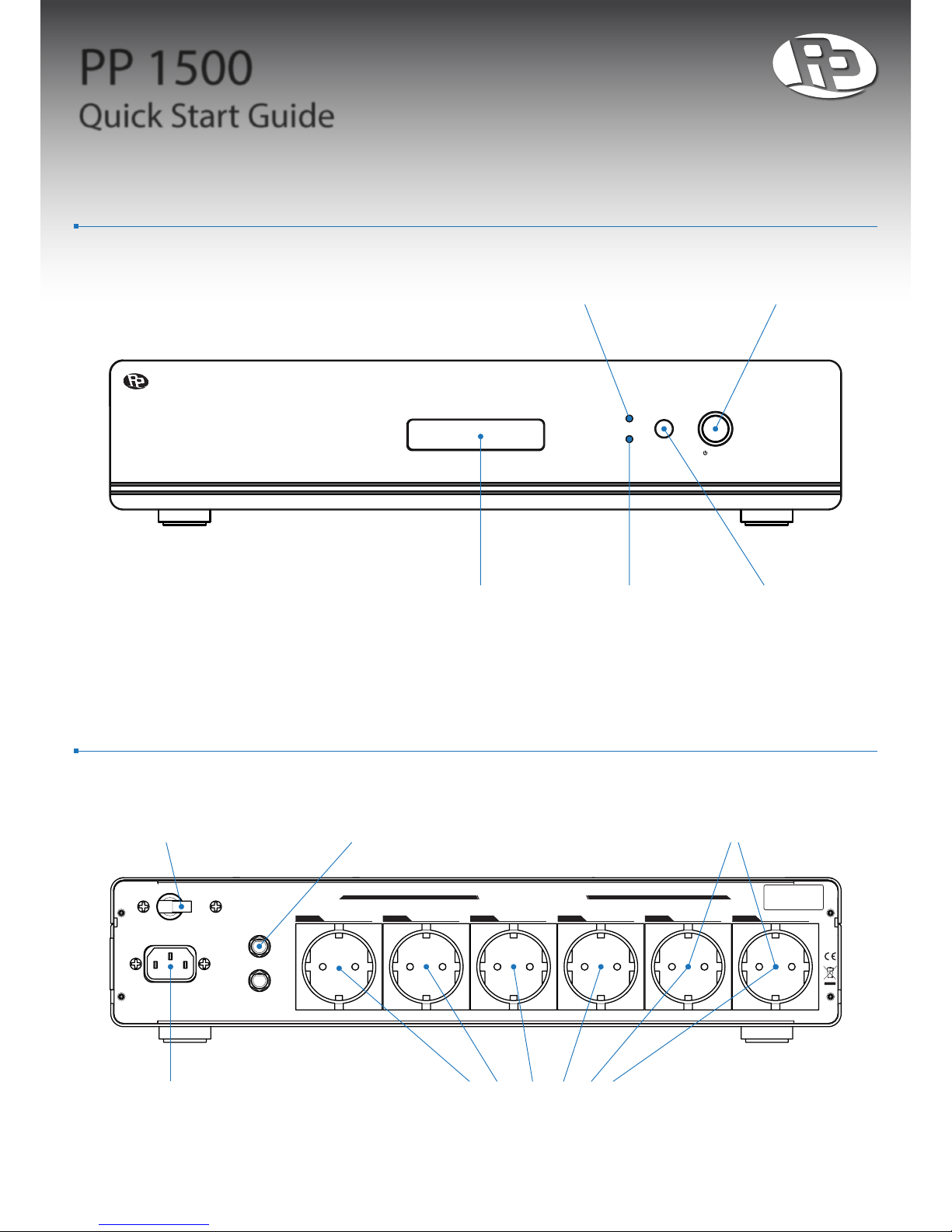
Power Button
Press to turn unit
ON or OFF.
Fault Indicator
Indicates a fault
when lit.
Power Indicator
Indicates power
status of unit.
LCD Display
LCD display shows
unit status.
FRONT PANEL
1. The model shown in the image is the 230V / 50Hz version. Other version not shown here: 120V / 60Hz.
2. The model shown in the image is the shuko version. Other versions not shown here: NEMA (4 Zones), UK (6 Zones), AUS (6 Zones).
Select Button
Used to perform
various functions.
ZONE 0 1
High Cur rentHigh Cur rent
ZONE 0 4
ZONE 0 3
ZONE 0 2
SATELLITE/CATV
SURGE PROTECTION
INPUT
OUTPUT
INPUT BREAKER
INPUT AC 230V 50/60HZ 5.1A
WWW.PPOWERUS.COM
OUTPUT AC 230V 50/60HZ 1500VA 1050W
Input Power
Receptacle for input power cord.
1
Input Breaker
Protects unit when current
exceeds breaker limit.
Satellite/CATV Protection
Surge protection circuits for
satellite or TV coaxial cable.
Regulated Outlets
Sequentially switched
isolated output outlets.
2
High Current Outlets
Switched and isolated outlets for
demanding loads such as ampliers..
BACK PANEL
Page 3
PP 1500
Quick Start Guide
Operation Guide - Powering On
1. Conrm INPUT BREAKER is in the “OFF” position. By default, it should be “OFF”.
2. Plug power cord into the INPUT POWER socket.
3. Plug in audio equipment such as CD player, pre-amp, and power amplier into the rear outlets.
4. Switch INPUT BREAKER to the “ON” position.
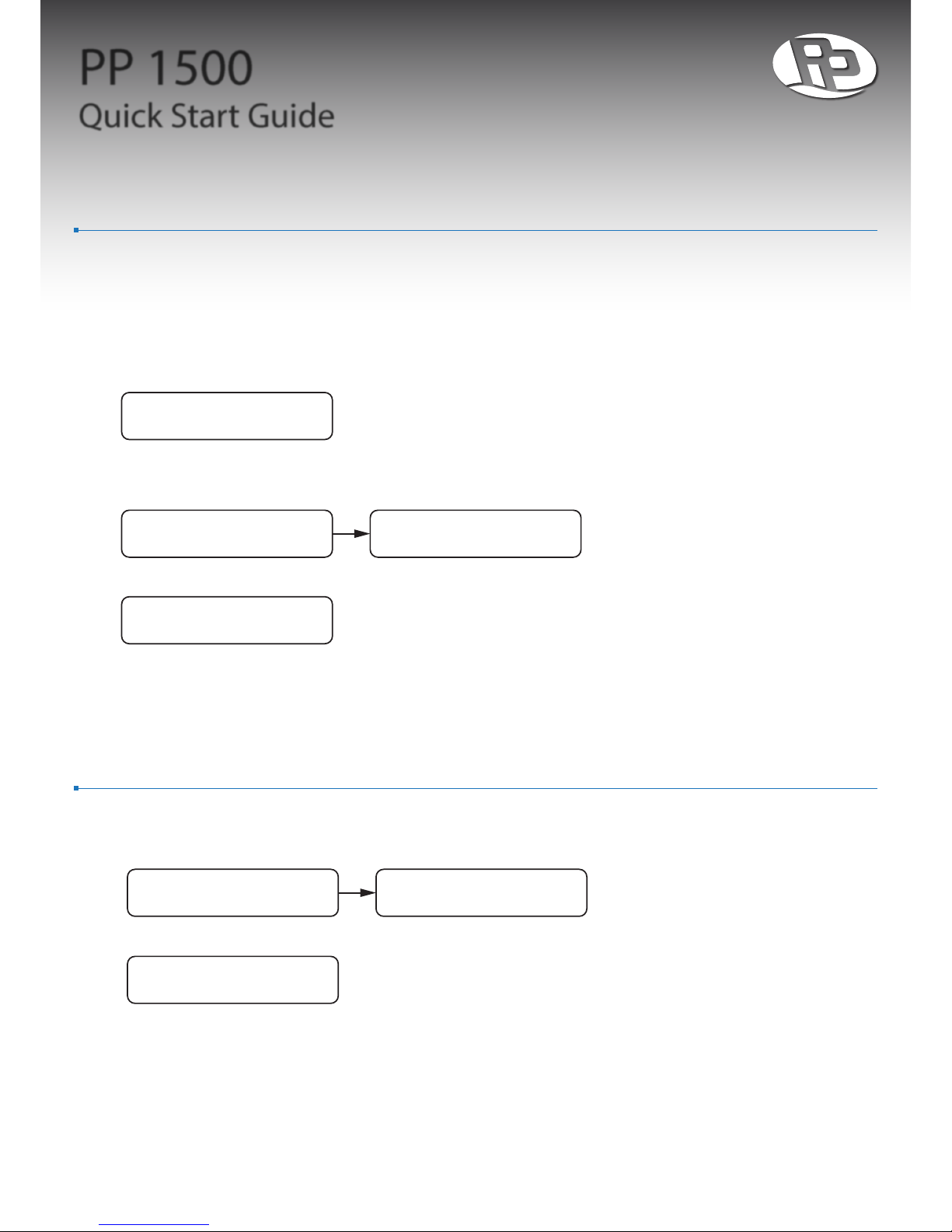
5. LCD DISPLAY should now display the model name. The unit is in standy mode.
6. Press POWER BUTTON to turn unit on.
7. Unit will sequentially switch on the output outlets starting from Zone 1 to Zone 4, then HIGH CURRENT.3
8. After all zones has been switched on, LCD displays output status.
9. Enjoy the pure sound from your audio equipment!
ProPower
PP 1500
Turning on...0 Turning on...4
Regenerating...
Operation Guide - Powering O
1. Press POWER BUTTON while unit is on to turn it o.
2. Unit will sequentially switch o the output outlets starting from HIGH CURRENT, then from Zone 4 to Zone 1.3
3. After switching o, the unit will be in standby mode.
4. Switch INPUT BREAKER to the “OFF” position.
Turning o...4 Turning o...0
ProPower
PP 1500
3. Number of zones vary depending on the output receptacle type: Shuko/UK/AUS (6 Zones), NEMA (4 Zones).
Page 4
PP 1500
Quick Start Guide
Operation Guide - Turning O LCD Display
1. Press the SELECT BUTTON to toggle between two lighting modes. In the default mode, the LCD DISPLAY is turned
on and the light around the POWER BUTTON is at full brightness. In the second mode, the LCD DISPLAY is turned o
and the light around the POWER BUTTON is dimmed.
Operation Guide - Changing Output Waveform
1. There are two dierent output waveform modes: Sine-wave (default) and Modulated-wave.
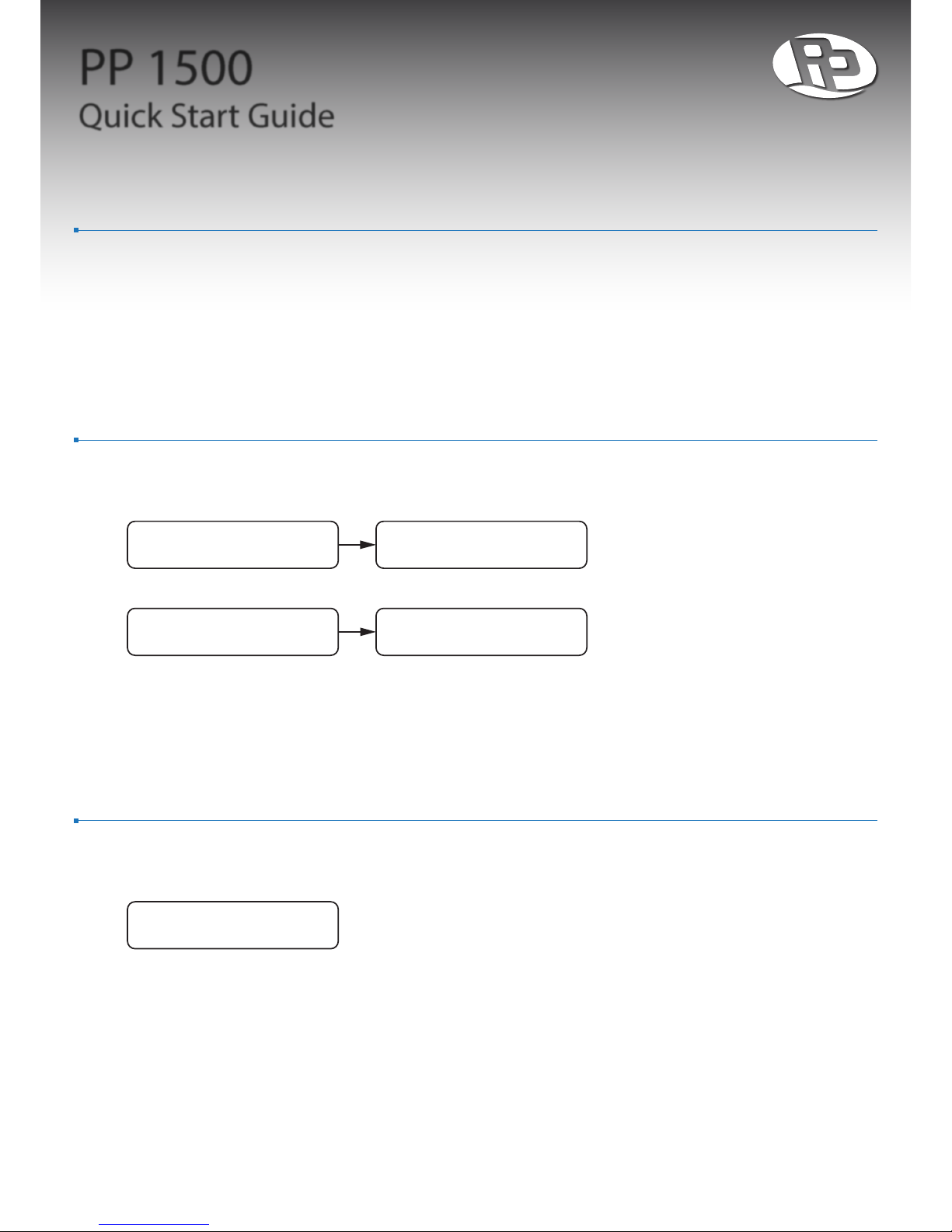
2. While the unit is regenerating output power, press and hold the SELECT BUTTON until LCD DISPLAY shows:
3. To switch to Modulated-wave output, press and hold the SELECT BUTTON until LCD DISPLAY shows:
4. The above steps will toggle between Sine-wave and Modulated-wave output modes.
Regenerating...
sinewave
Regenerating... Regenerating...
sinewave
Regenerating...
Modulated-wave
Operation Guide - Setting the Output Voltage
1. You can set the output voltage only when the unit is in standby mode (refer to section “Powering ON”).
2. Press and hold the SELECT BUTTON for more than 2 seconds, then release. Repeat until LCD DISPLAY shows:
3. Short press the SELECT BUTTON to set the output voltage between several preset voltages.
Output Voltage
230 V
Page 5
PP 1500
Quick Start Guide
Operation Guide - Power Amp Optimization
1. Certain amps may perform more optimally when the Power Amp Optimization feature is turned on.
2. To set Power Amp Optimization rst enter standby mode (refer to section “Powering On”).
3. Press and hold the SELECT BUTTON for more than 2 seconds, then release. LCD DISPLAY shows:
4. Short press the SELECT BUTTON to toggle Power Amp Optimization on and o.
Power Amps
Optimization O
 Loading...