

Page 1
Note: This equipment has been tested and found to comply with the limits for a Class B digital device,
pursuant to part 15 of the FCC Rules. These limits are designed to provide reasonable protection against
harmful interference in a residential installation. This equipment generates, uses and can radiate radio
frequency energy and, if not installed and used in accordance with the instructions, may cause harmful
interference to radio communications. However, there is no guarantee that interference will not occur in a
particular installation. If this equipment does cause harmful interference to radio or television reception,
which can be determined by turning the equipment off and on, the user is encouraged to try to correct the
interference by one or more of the following measures:
—Reorient or relocate the receiving antenna.
—Increase the separation between the equipment and receiver.
—Connect the equipment into an outlet on a circuit different from that to which the receiver is connected.
—Consult the dealer or an experienced radio/TV technician for help.
WARNINGS
Brand: PROPOINT
Model: PP-PRO
FCC ID: N26-PPVPPPRO
The changes or modifications not expressly approved by the party responsible for
compliance could void the user’s authority to operate the equipment.
To comply with the FCC RF exposure compliance requirements, this device and its antenna
must not be co-located or operating to conjunction with any other antenna or transmitter.
This device complies with Part 15 of the FCC Rules. Operation is subject to the following
two conditions:
(1) this device may not cause harmful interference.
(2) this device must accept any interference received, including interference that may
cause undesired operation.
PP-PRO
Bluetooth headsets
COMPLIANT
User Manual
Page 2
Contents
Package Contents 2
Product Description 2
Main Features 3
Installation 3
Package Contents
Operation 7
Mobile phone operation 7
Intercom operation 9
Music operation 10
GPS navigator operation 11
FM Radio operation 12
Trouble shooting 12
Headset embedded battery charging 14
LED light Indicator 14
1
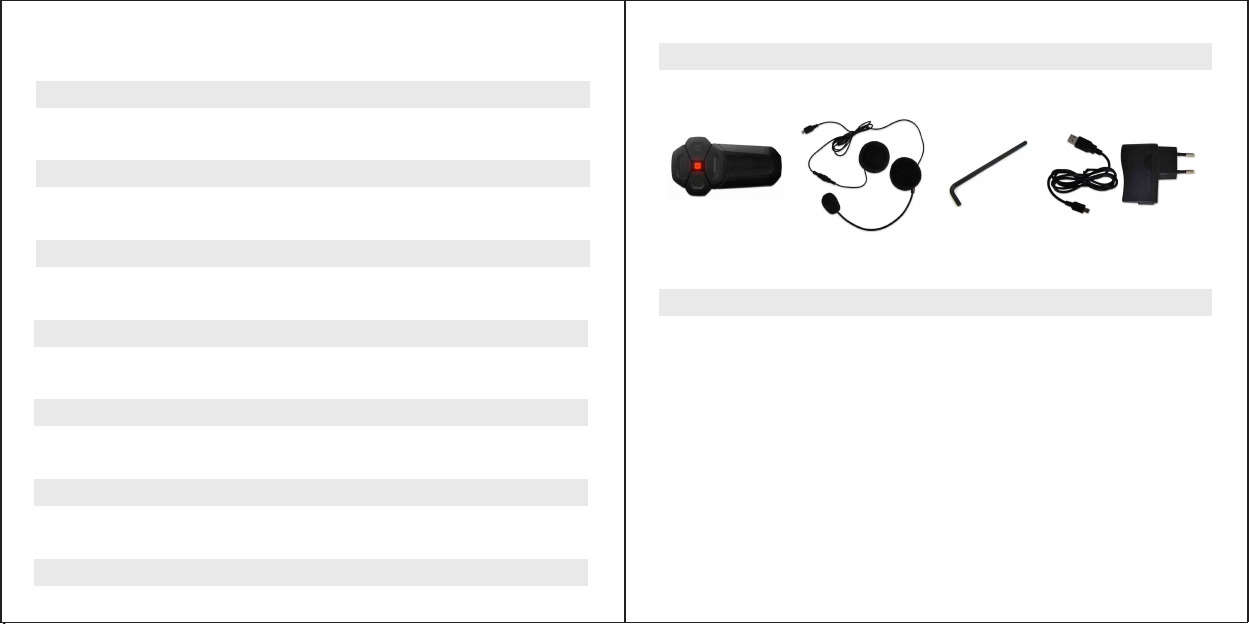
PP-PRO Device Headset Ellen Key USB Cable + Adaptor
Product Description
Thank you for having chosen the PP-PRO, the Bluetooth® Headset for
Motorcycle Riders. This Manual will help you operate the headset, but you
should first familiarize yourself with the Bluetooth® functionality of your
cellular phone or GPS device before using.
PP-PRO stereo is a Bluetooth® system for helmets, enabling you to talk
with passenger or other rider, and entertainment while riding your
motorcycle. PP-PRO stereo works and communicates with cellular phones,
GPS navigators, and musical readers equipped with Bluetooth®
technology.
2
Page 3
2
1
4
3
5
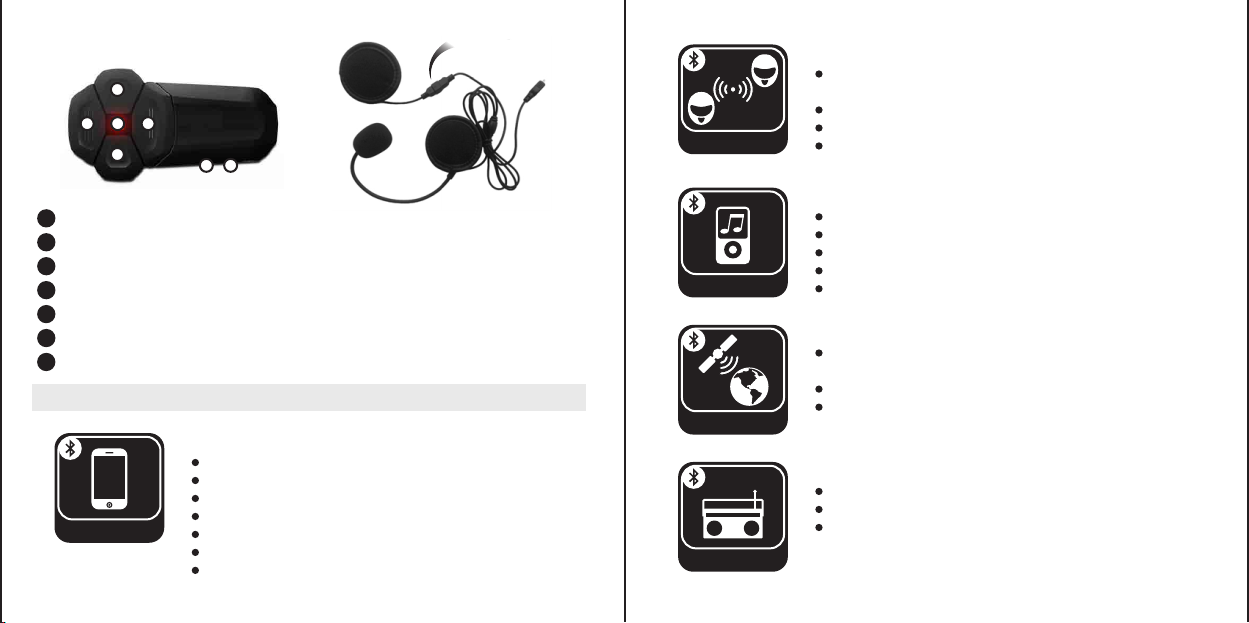
1
MFB (Multi-function Button)
2
Volume + ( Volume up / Track forward / Voice dial )
3
Control Button ( Power / Pairing / Intercom )
4
LED light indicator
5
Volume – ( Volume down / Track back / Last number redial )
6
Charging jack
7
Headset jack
6 7
Main Features
Mobile phone functions
Bluetooth® Hands-free
Voice dial
Last number redial
Phone
3
Automatically answer call
Reject a call
Independent Mobile phone volume control
Mobile phone highest priority
Detachable
200m*
Intercom
Music/A2DP
GPS
FM radio
Intercom functions
Rider to rider (Maximum communication range up to 656ft/200m for
PP-PRO)
Rider to pillion
Independent Intercom volume control
Mobile phone highest priority
(Note: *actual range will depend on weather conditions, terrain and presence of obstacle)
Stereo functions
Bluetooth® A2DP music play
Enjoy music from Mobile phone or other music sources
Remote control music play with AVRCP
Independent music volume control
Mobile phone highest priority
GPS functions
Audio guide information from Bluetooth® GPS navigator by A2DP
function.
Independent A2DP volume control
Mobile phone highest priority
FM Radio functions
Frequency covers 76~108MHz
Independent FM volume control
Mobile phone highest priority
4
Page 4
Water and dust resistance
PP-PRO body is designed for water and dust resistance.
Adapts to sudden changes in weather.
Resistance
DSP technique, wind noise suppression and echo cancellation to ensure the crystal
voice quality when speeding high (Up to 150km/h).
AGC (Automatic Gain Control): In addition to manual Volume Control, the PP-PRO
system will automatically increase and reduce its volume according to ambient
noise and driving speed.
Installation
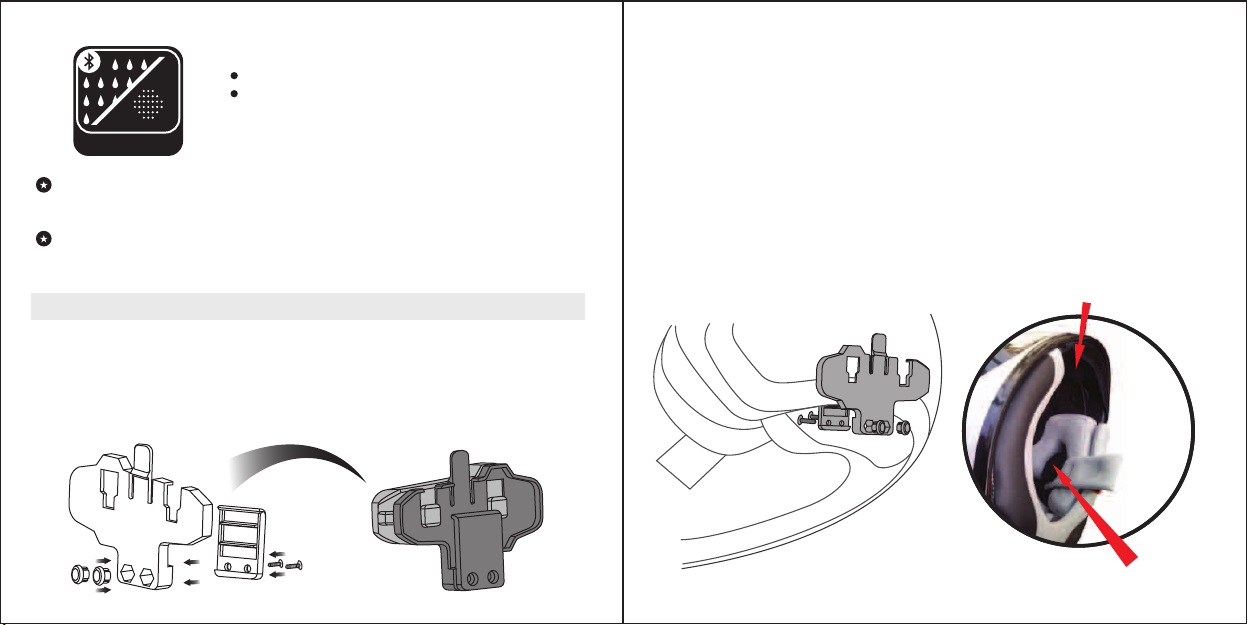
1. Mouthing the Clip
The headset clip must be mounted onto the helmet. Once mounted, the
headset unit can be attached or detached from the headset clip at any
time. Even remove it for charging and storage.
Note: We recommend that you remove the headset from the helmet when not in use.
2. Mounting the Microphone and Speakers
2.1 The Microphone must be positioned in front of the center of the mouth.
2.2 Attach the speakers to the Velcro inside your helmet opposite your ears
(short speaker cord for left ear & long speaker cord for right ear), or use
the supplied Velcro pads.
2.3 For some countries’ traffic regulations, only one speaker is permitted to
install in the helmet. In this case, the right side speaker can be detached
and then leave only one speaker for better keep your mind on the road
condition.
Note: Always prioritize your riding, not Mobile phone calls. , or whilst using the interphone,
deceleration and concentrate on your riding. In bad weather and/or heavy traffic, we recommend
pulling over and stopping, before answering.
Microphone
Speacker
5
6
Page 5

Operation
(Please read the manual carefully before operating the system, and operate
strictly according to the manual, otherwise performance might not be
optimum.)
Power On and Off
1. In power off state, press CTRL and hold it for 3 seconds, until hear a “di”
tone, release the button, Blue indicator will flash to indicate power on
successfully.
2. In power on state, press CTRL and hold it for 5 seconds, until hear a long
“di” tone, all LED indicators will be shut off to indicate the headset is
powered off.
Enter Pairing Mode
While the headset is on power off, please press and hold CTRL until
Red/Blue lights flashes alternately. Now, your headset is on Pairing Mode.
Note: If the pairing process is not completed within one minute, the headset will turn to Standby mode.
Auto Off
When PP-PRO is not in use or paired with any device, it will automatically
turn off after 10 minutes to safe power.
Mobile phone operation
When the light is flashing Red/Blue alternately, your PP-PRO is in pairing
mode, go to the Bluetooth® menu in your Mobile phone and select search
for devices (please refer to the mobile phone or navigator manual). The
Mobile phone will detect PP-PRO. Simply select it, and enter the pin code
“0000”. Once paired successful, LED Indicator will change from Red/Blue
alternately to Blue flashing with a “di” tone. Now you can use the headset to
answer you phone call, or enjoy the music from your Mobile phone.
1. Automatically answer incoming call:
automatically answer function. If there is not any operations on the headset after
about 3 incoming call ring tones played (about 12 seconds), the Bluetooth® Helmet
headset will answer the phone call automatically.
The Bluetooth® Helmet headset has the
2. Manual Answer incoming call: When there is an incoming phone call, short
press MFB to receive the call.
3. Reject a call: Once hear the ring tone, just press and hold MFB for 2 seconds till
hear a “du” tone, release the button, now the incoming call is rejected.
4. Hang up call : In call active state, short press MFB to hang up the call.
5. Last number redial: Double click Volume -, then the Mobile phone will dial out the
latest called number.
6. Voice Dial: Double click Volume +, after you heard the audio prompt, then speak
out the voice tag of your desired phone number, your mobile phone will call out the
number.
(Note: Please make sure your Mobile phone supports Voice Dial before activate Voice Dial function)
7
8
Page 6

7. Volume control
Click Volume + / Volume – to adjust the phone call volume you like.
8. Audio Transfer
While during call active state, press and hold MFB for 2 seconds, then
release button after hear a tone note. Phone call audio can be transfer
from helmet headset to mobile phone, or from mobile phone to headset.
Intercom operation
1. Pairing Intercom Headsets
1.1 Please press and hold CTRL until Red/Blue lights flashes alternately to
enter Pairing Model.
1.2 Short press CTRL of either headset, it will search the other one which in
pairing state, and then try to pair with it.
(Note: Please do not press both CTRL while starting the search operation!)
1.3 Within a few seconds, both headsets will turn off the Red light, and then
flashing slowly in Blue. Pairing is finished.
1.4 To pair with another headset, repeat the above steps please.
2. At the first pairing, just short press either of CTRL after pairing
successfully, then the Intercom Function will be activated.
3. Pairing is a one time process. Once the headsets are paired during this
setup procedure, they will remain paired and automatically recognize
each other whenever they are within available range.
4. Either of headset users wants to turn off the Intercom talking function,
just short press CTRL, and then the Intercom function will be terminated.
5. Click Volume + / Volume – to adjust your Intercom volume till you feel
good. When reaching the maximum/minimum volume, a “DiDong” tone
will be played.
6. Mobile phone has highest priority. Mobile phone call can interrupt the
intercom call. The Intercom will be restored automatically after phone call
ended.
Music operation
Please pair the music source devices and please refer to the devices User
Manual first.
1. Play / Pause
In Bluetooth® A2DP music playback state, short press the MFB to
control the music play or pause
2. Track forward
Click Volume + to select next music
3. Track backward
Click Volume - to select previous music
(Note: The above function requires the mobile phone supports Bluetooth® A2DP and AVRCP)
9
10
Page 7

4. Volume control
Press and hold Volume + to turn up the music volume; press and hold
Volume - to turn down your music volume. Release the Button till you feel
good. When reaching the maximum/minimum volume, a “DiDong” tone
will be played.
(Important: Adjust the right volume during riding and make sure the volume do not interfere with warning honk from
other vehicle)
5. Mobile phone or intercom calls have higher priority than music. Mobile
phone/Intercom call will pause the music. The music will be restored
automatically after call ended
GPS navigator operation
1. Please pair GPS devices and please refer to the GPS navigator User
Manual first. Share the audio information from GPS via A2DP.
2. Press and hold Volume + to turn up the GPS volume; press and hold
Volume - to turn down your GPS volume. Release the Button till you feel
good. When reaching the maximum/minimum volume, a “DiDong” tone
will be played.
3. Mobile phone or intercom calls have higher priority than GPS audio.
Mobile phone/Intercom call will pause the GPS audio. The audio will be
restored automatically after call ended.
FM Radio operation
1. Turn On/Off FM
Quick double press the MFB can turn On/Off the FM Radio receiver.
2. Search forward
Click Volume + to make the FM radio to search station forward.
3. Search backward
Click Volume - to make the FM radio to search station backward.
4. Volume control
Press and hold Volume + to turn up the FM volume; press and hold
Volume - to turn down your FM volume. Release the Button till you feel
good. When reaching the maximum/minimum volume, a “DiDong” tone
will be played.
5. Mobile phone or intercom call has higher priority than FM radio. Mobile
phone/Intercom call will mute the radio. The FM will be activated
automatically after call ended.
Trouble shooting
1. Not working:
It could be a flat battery, charge it for 3 hours.
11
12
Page 8

2. No sound:
Physically check out whether the speakers and microphone have been
connected right? Have you turned down the volume too low?
3. Whistling of the speakers:
If the microphone is too closed a speaker, the speaker will make a
whistling, take the microphone away from the speaker, and it will be ok.
make it system halted, please just charge the unit, and then it will be
reset and normally work again.
8. Please turn the headset back to After-sale Service Department if you
can’t resolve the problem with the help of clause 1-6.
Headset embedded battery charging
4. Lose connection with the Mobile phone or music sources:
Please check out whether the battery is too low.
5. Can not connect with your Mobile phone:
Please confirm and try to connect with your Mobile phone before
purchasing. We don’t undertake that it can connect with all types of
Mobile phone since some Mobile phone may not take the standard
Bluetooth profile.
6. Can not reconnect with your Mobile phone:
Please cancel all Bluetooth devices on your Mobile phone then turn off,
take out your Mobile phone battery for a few seconds, and then put back
the battery, turn on your Mobile phone, restart the Bluetooth function and
search the Bluetooth device. Now you can reconnect with your Bluetooth
helmet headset.
7. Reset:
In some regions of high RF strength or near high power TV transmitters,
GSM station or airport radars, these can overwhelm the headset and
13
Helmet headset has embedded rechargeable battery, please charge the
helmet headset for 3 hours until the red LED off before use.
Note 1: Please use the USB cables gently, do not pull it too hard or the helmet headset may be
damaged.
Note 2: In order to keep the battery capacity and extend it life, please stock the headset in 15°C to
25°C environment while not use.
LED light indicator
LED Indicator
All LED Indicators off Power off
Red/Blue lights flashing alternately Pairing mode
Blue light short flashing every 3 seconds Standby state
Blue light long flashing every 3 seconds Connected state
Red light flashing every 3 seconds Battery is low
Solid red light Headset is being charged
Note: While charging, solid red light will be off to indicate charging complete.
Indicated States
14
 Loading...