

Page 1
ProofVision
Outdoor Aire TV
PV32HB-4K | PV43HB-4K | PV55HB-4K | PV65HB | PV75HB
User Manual
Please read these instructions thoroughly before
attempting to operate or adjust this television.
1. About your TV . . . . . . . . . . . . . . . . . . . . . . . . . . . . . . . . . . . . . . . . . . . . . . . . . . . . . . . 2
2. TV connections . . . . . . . . . . . . . . . . . . . . . . . . . . . . . . . . . . . . . . . . . . . . . . . . . . . . . . 3
3. Installation . . . . . . . . . . . . . . . . . . . . . . . . . . . . . . . . . . . . . . . . . . . . . . . . . . . . . . . . . . 4
4. Remote . . . . . . . . . . . . . . . . . . . . . . . . . . . . . . . . . . . . . . . . . . . . . . . . . . . . . . . . . . . . 7
5. Menus . . . . . . . . . . . . . . . . . . . . . . . . . . . . . . . . . . . . . . . . . . . . . . . . . . . . . . . . . . . . . . 8
6. Warranty & troubleshooting. . . . . . . . . . . . . . . . . . . . . . . . . . . . . . . . . . . . . . . . . . . 13
ProofVision
“Making it work in challenging conditions”
Page 2
About your TV
Dear customer, thank you for purchasing the Aire television.
The ProofVision Aire TV model is designed for full outdoor use all year round. It follows a conventional
TV design with slight engineering modifications to ensure safety and durability outdoors while being
easy to install and even easier to use.
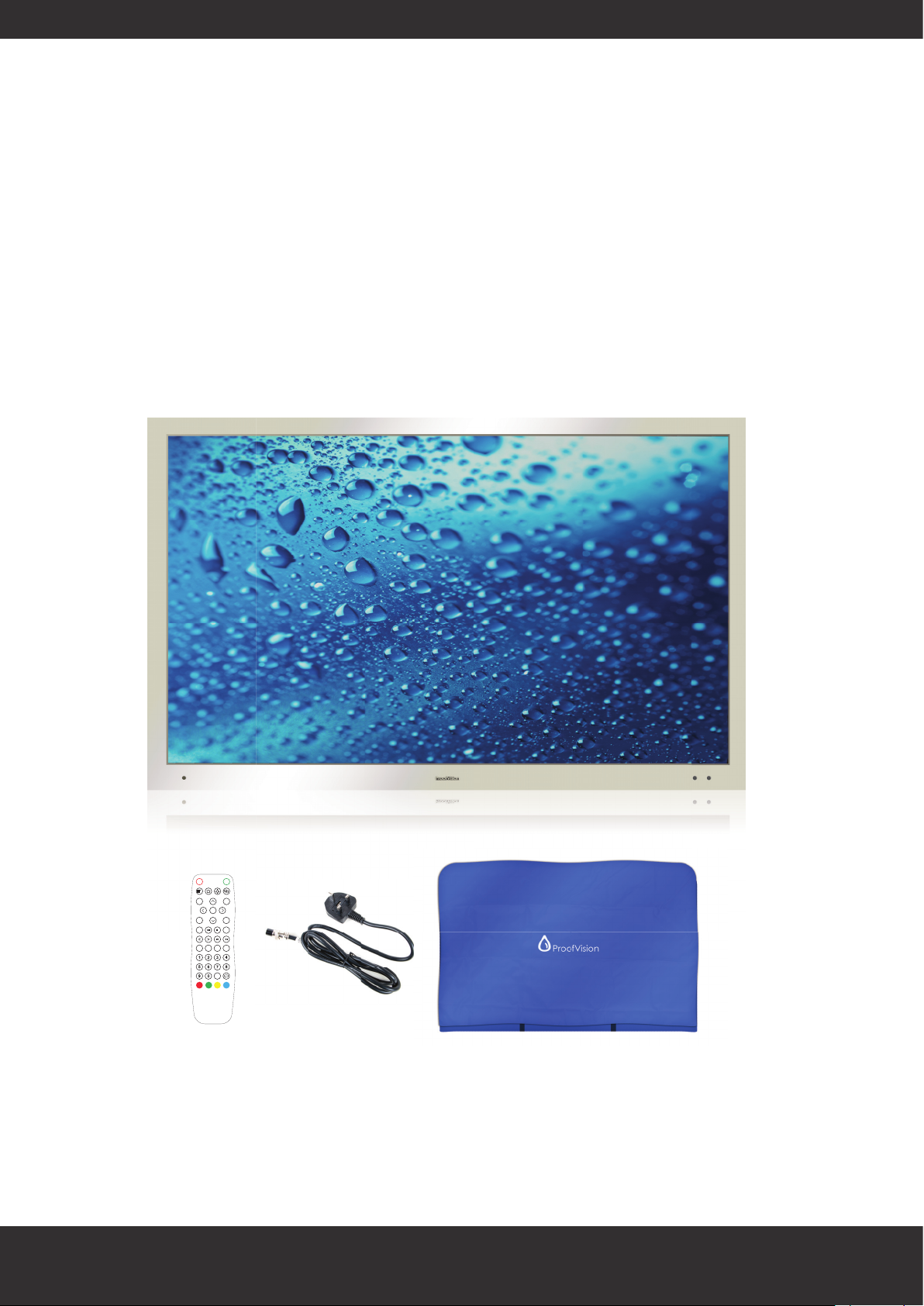
Package Contents
MUTE
POWER
EXIT
MENU
ENTER
+
+
CH
VOL
_
_
EPG SLEEP
INPUT FAV
-/--
Bracket & speakers sold separately
www.proofvision.co.uk 2
Page 3
TV Connections
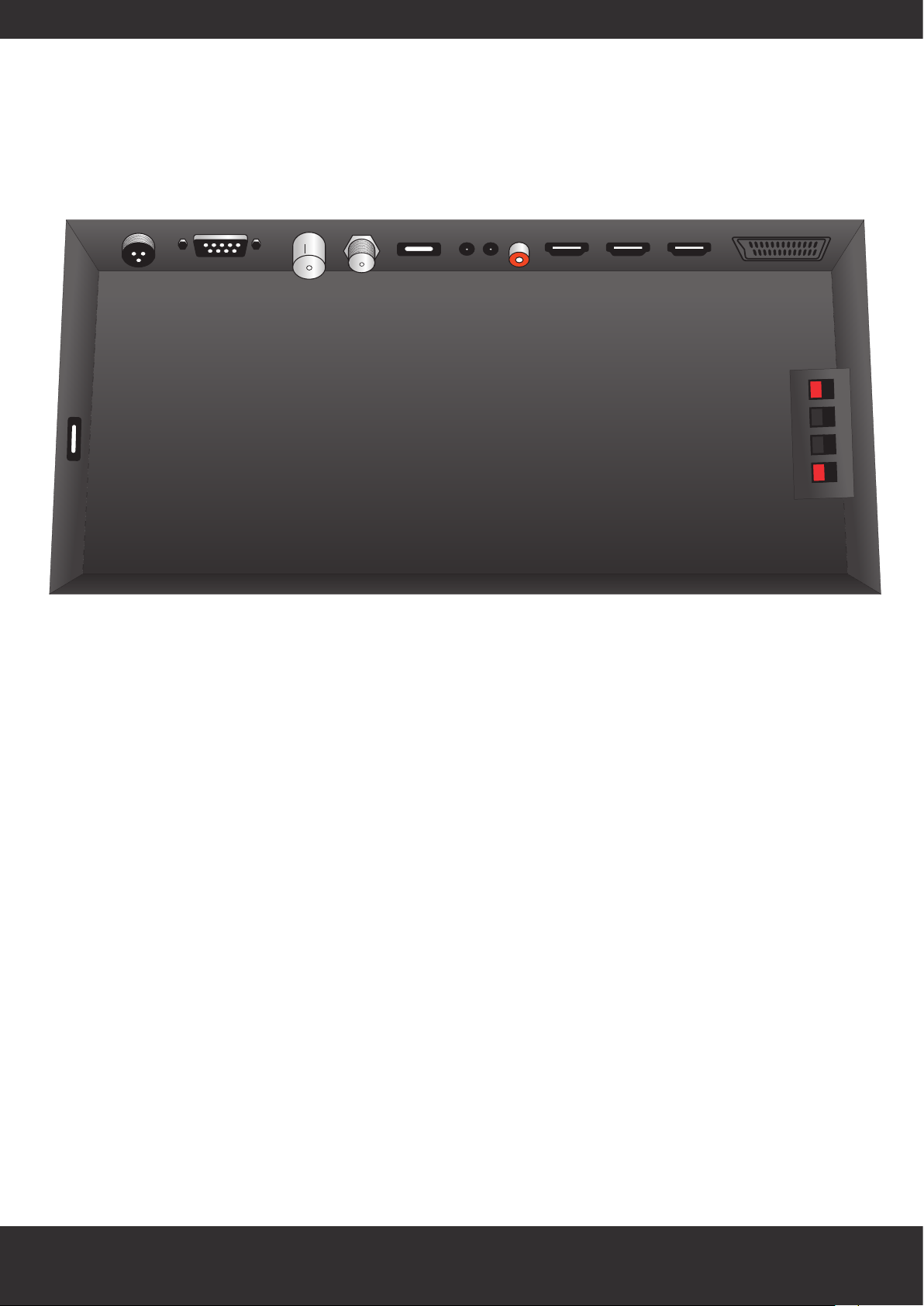
Power
USB - Power only
RS232 TV TV
(S2)
USB AUDIO
OUT
IR COAX HDMI HDMI2 HDMI3
(ARC)
SCART
Speakers
Power 240v input. Use lead supplied with TV only.
RS232 Serial port for integration with automation/control systems. Drivers available at
https://www.proofvision.co.uk/downloads/
+
-
-
+
TV Aerial port to receive Freeview signal
TV (S2) Port for connecting satellite signals
USB Insert media via USB media stick
Audio Out 3.5mm jack. Can be used to run analogue sound to external amplifier. Keep blue
connector in place if using amplifier to run to external speakers
IR Can run a receiver to increase signal distance
Coax Digital coaxial audio port
HDMI 1/2/3 For accepting HDMI signals. HDMI 3 supports Audio Return Channel (ARC)
SCART For connecting SCART sources
Speakers To connect to outdoor passive speakers using red/black speaker cable. Ensure small
blue connector is plugged in to Audio out connection to operate.
www.proofvision.co.uk 3
Page 4

Installation
Installation must be carried out by a qualified installer i.e. AV technician or electrician
• These screens will require 2 people to do any lifting as they are heavier than normal domestic
televisions.
• The installation of the cables must be carried out in a dry place and sealed tightly with the screws
provided on the inputs cover. If these screws are lost/damaged, please contact ProofVision to
arrange replacement.
• The VESA screws provided should be the only screws used with the ProofVision Outdoor TV, for
spares please contact ProofVision directly.
• Please ensure the wall and bracket/stand used for mounting can support the weight of the TV.
• The TVs top operating temperature is 60 degrees Celsius and the unit can reach this temperature
if exposed to direct sunlight while in use over a long period of time, so it is recommended to
factor this in when deciding install location.
Caution
Never tamper with any of the components, or any other adjustment controls not mentioned in this
manual. The LED panel used in this product is made of glass. Therefore, please take care it can break
when the product is dropped or applied with impact. When you are cleaning the panel, make sure
the power cord is pulled out from the plug receptacle. Then wipe the receiver with a dried soft cloth.
All technical work on the TV should only be performed by an electrician, due to the high voltage
power input.
VESA standard 400x100mm 400x200mm 400x200mm 520x400mm 400x400mm
Weight 21kg 35kg 45kg 60kg 85kg
32” 42” 55” 65” 75”
www.proofvision.co.uk 4
Page 5
Steps
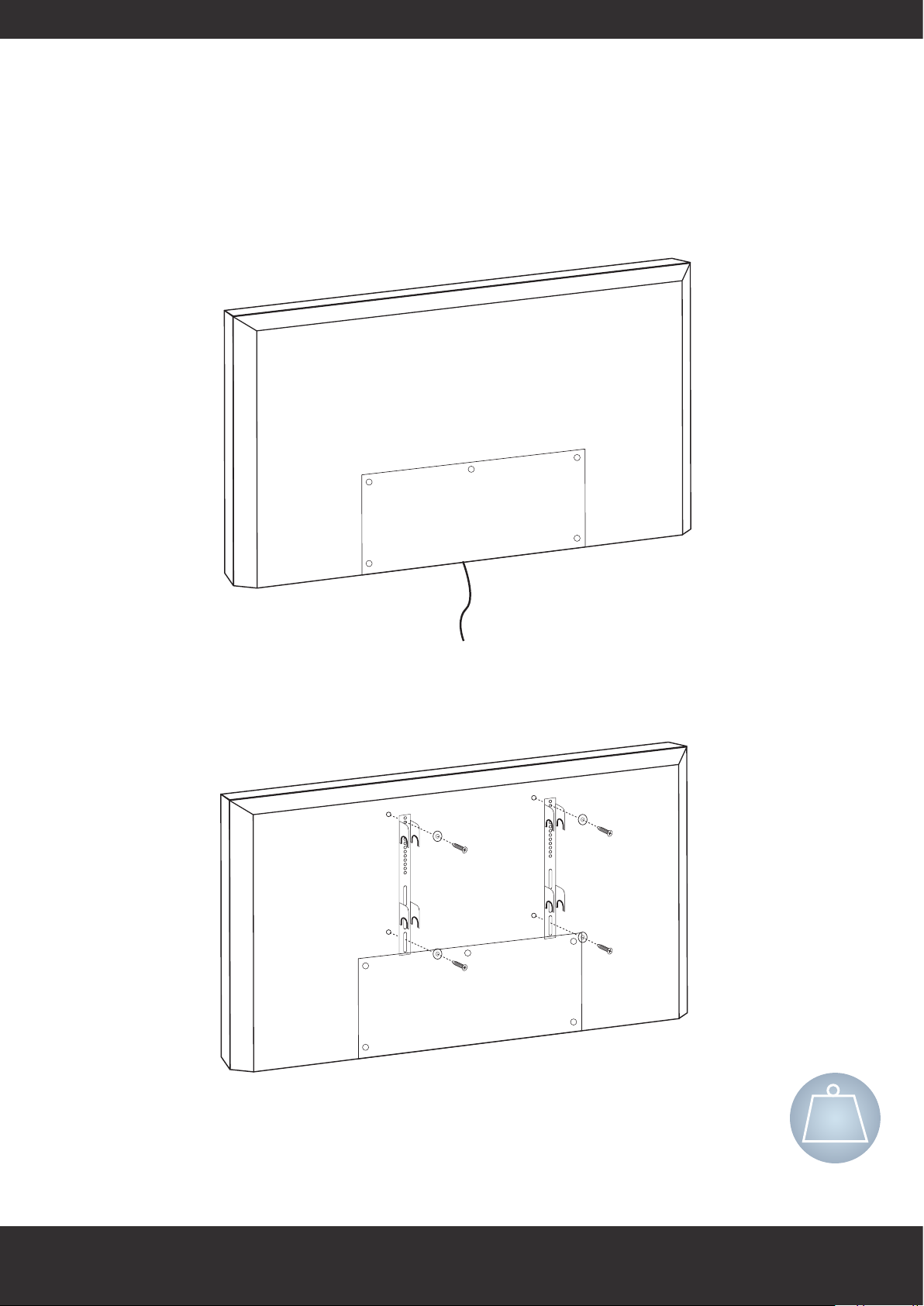
1. Remove input cover using the small silver screws
2. Connect wires to correct inputs on what is required
3. Put inputs cover back in place with wires through the middle seal and screw tight
(see below how it should look)
4. Unscrew 4 silver VESA screws on the back of the TV
5. Attach mounting hooks to the TV and secure using these screws
6. Mount TV to wall/floor/ceiling mount by attaching the hooks to the mount.
Caution:
60kg
Two man lift
www.proofvision.co.uk 5
Page 6
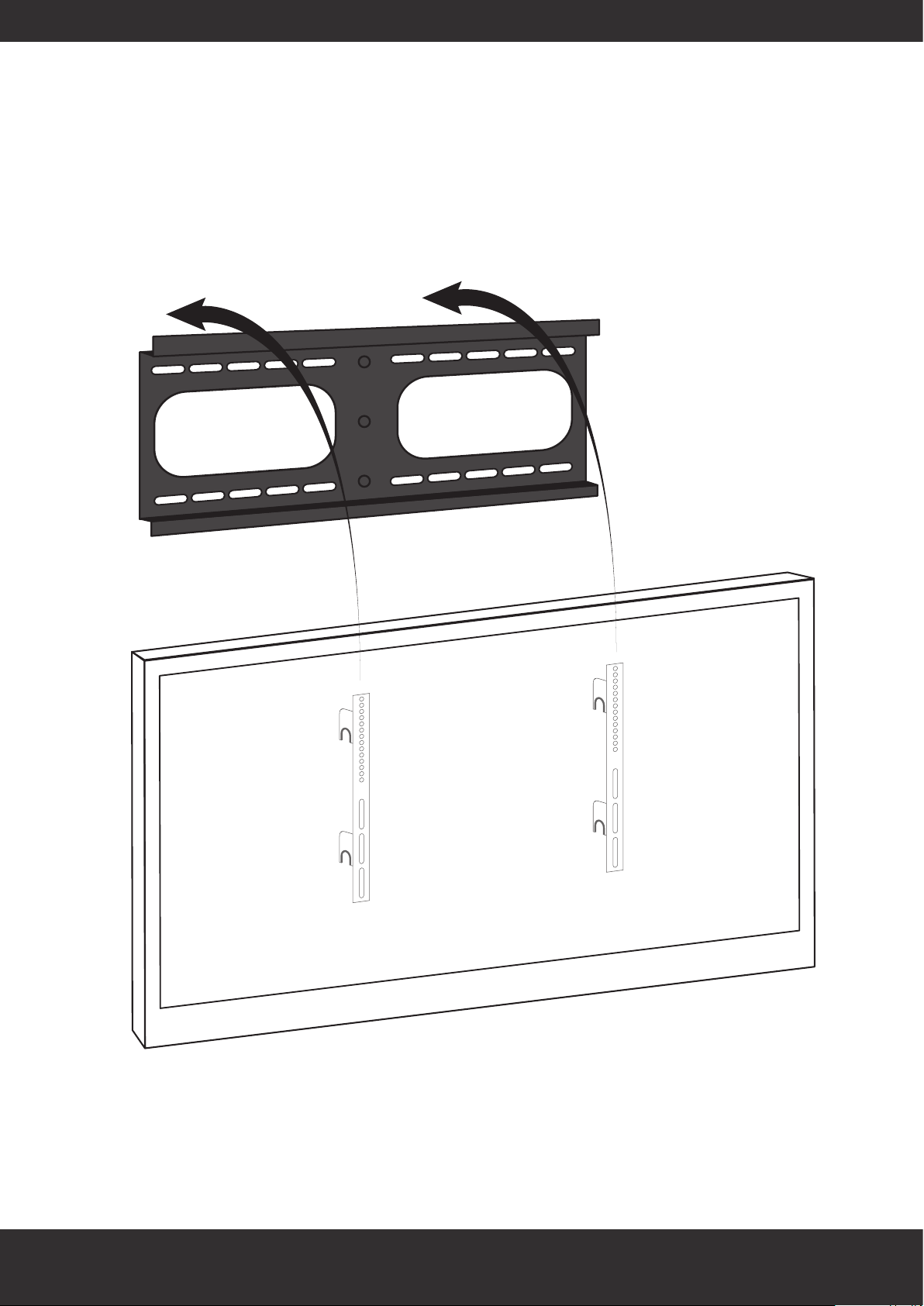
Installing on ceiling and floor mounts
ProofVision
www.proofvision.co.uk 6
Page 7
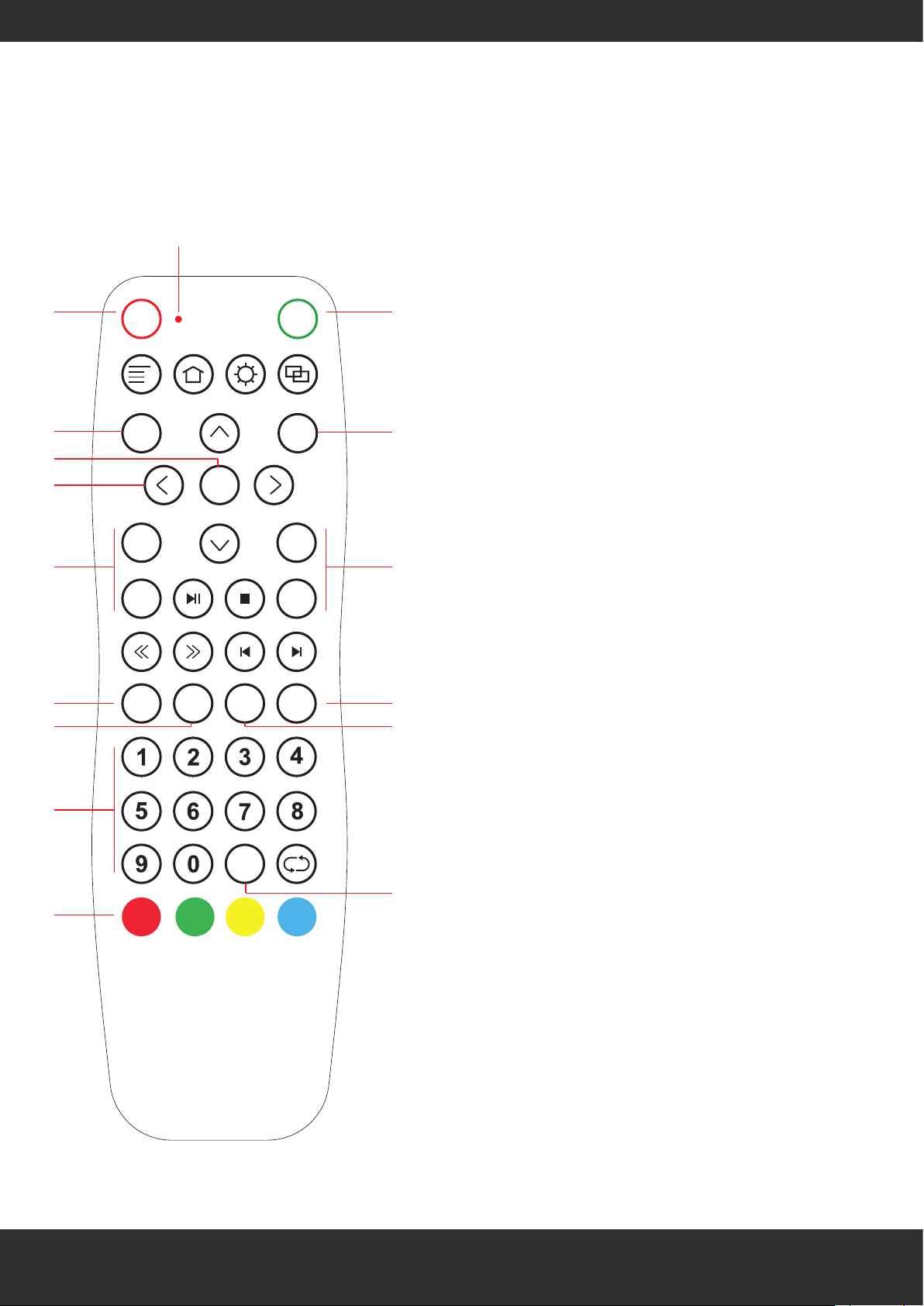
Remote control
LED light will flash when button is pressed
1. POWER button-Press this button to switch on the TV when in standby mode or
to turn off and put on standby
1
7
POWER
MENU
MUTE
EXIT
5
6
+
3
VOL
_
ENTER
+
CH
_
2. MUTE button-Press this button to mute or restore sound
2
3. VOL+, VOL- button- Increase or decrease the Volume
4. CH+, CH- button-To change the TV channel
5. ENTER button-Confirm the menu option
6. UP/DOWN/LEFT/RIGHT button-Press these buttons to get last/next/left/right
8
4
menu options
7. MENU button-Press this button to enter into TV main menu
8. EXIT button-Press this button to go back to menu
9. 0-9 button-Press these buttons to get given TV channels
10. -/-- button-One/two/three-digit channel selection
11. INPUT button-Press this button to switch the input source. Change the SOURCE
from VGA/HDMI/TV/AV
12. SLEEP button-Adjust the sleep timer
13. FAV button-Press this button to open or close favourite program group
14. EPG button-Press this button to display preview programs
15. Red/Green/Yellow/Blue colour button-Press these buttons to execute various
colour coded texts/functions in TELETEXT
11
13
9
15
INPUT FAV
EPG SLEEP
-/--
12
14
10
www.proofvision.co.uk 7
Page 8
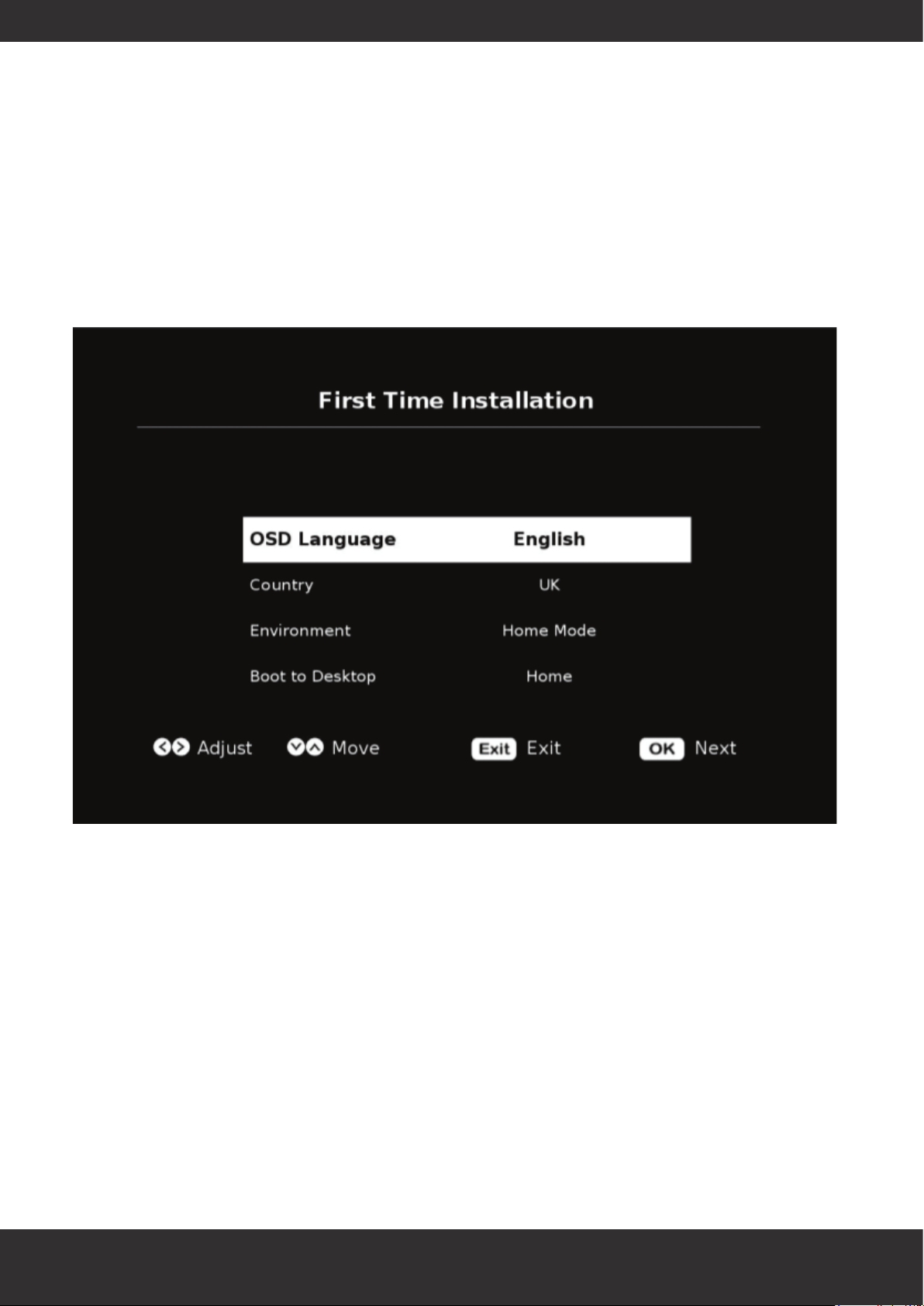
Menu screens
First Time Installation
Once your TV is mounted and all cables connected/sealed, you can turn on the TV using the power
button on the remote. When you turn on the TV, you will see the First Time Installation menu.
Continue through this process to tune in the TV using the prompts at the bottom of the screen or skip
this process by pressing the Exit button on the remote (TV can be tuned in later from the menu).
www.proofvision.co.uk 8
Page 9
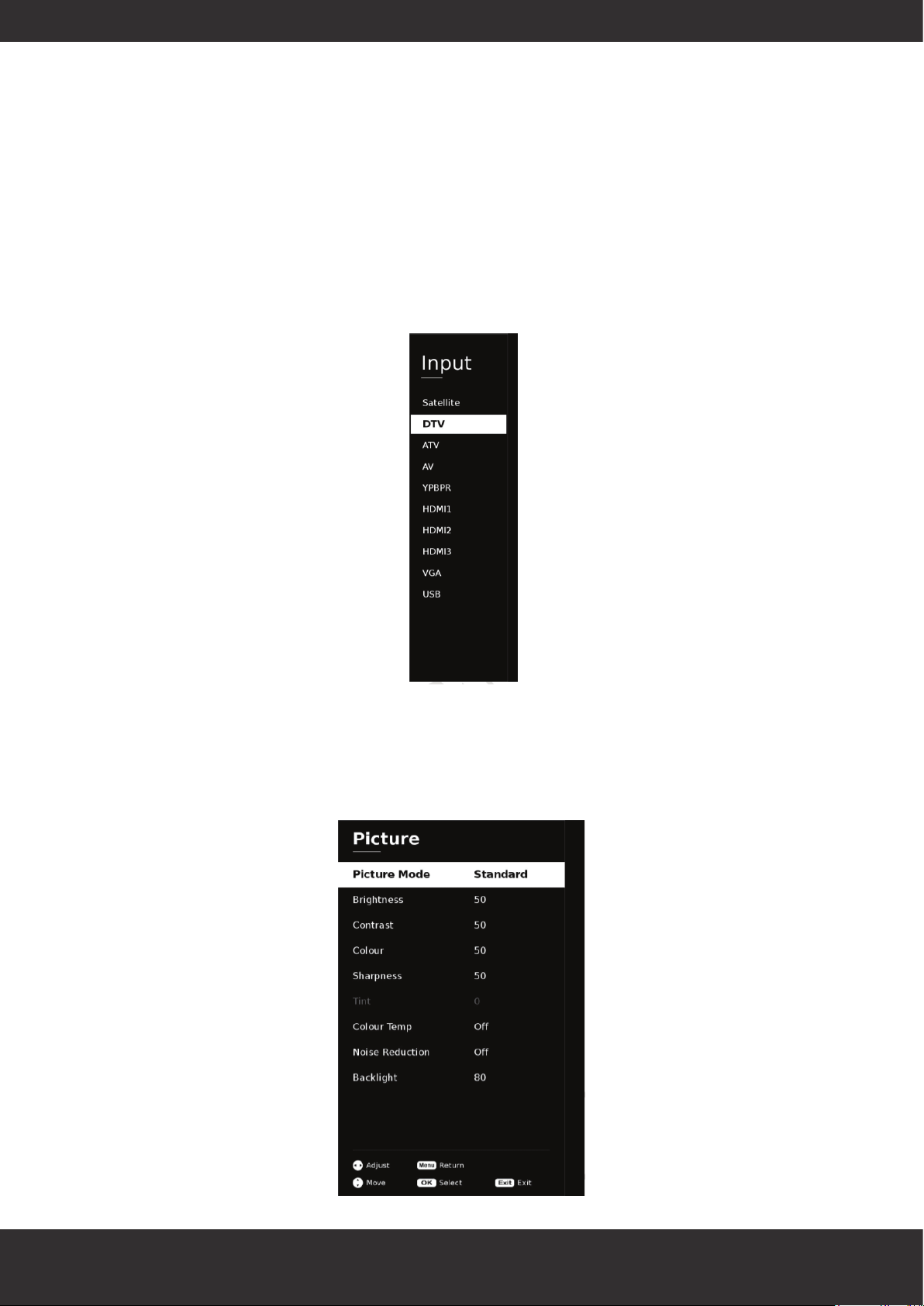
Menu screens
Input Menu
You can change source on the TV by pressing the Input button on the remote which will bring up the
below screen. Use up and down buttons to navigate and Enter button to select a source for the TV.
Picture
This menu contains settings to amend the screen. Press Enter to change and use left and right buttons
to change settings. If settings are greyed out, change Picture Mode to User which will open these
settings to be changed.
www.proofvision.co.uk 9
Page 10
Menu screens
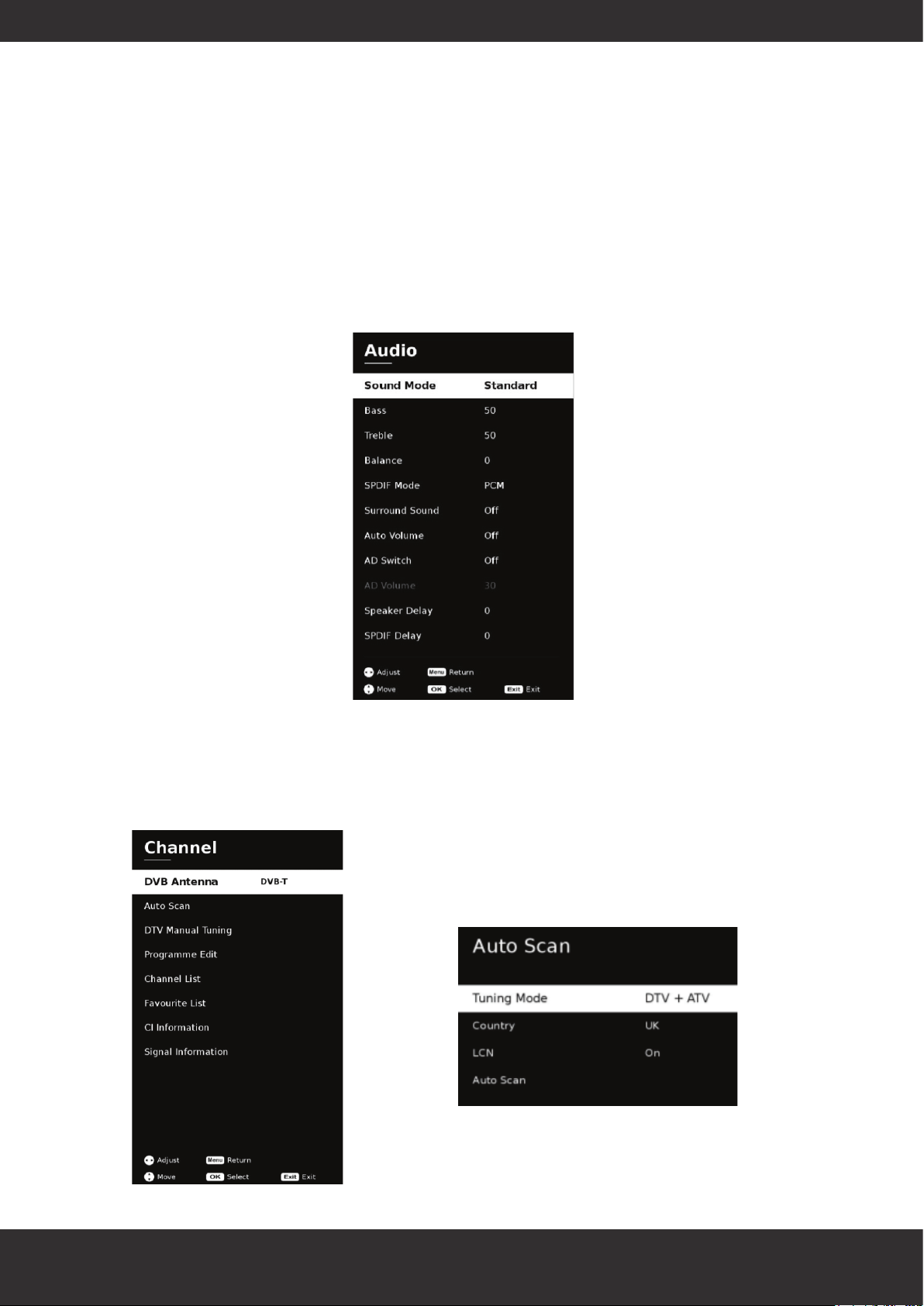
Audio
This menu contains settings to amend the sound distributed from the TV.
If settings are greyed out, change Sound Mode to User which will open these settings to be changed.
Channel
PLEASE NOTE: This menu will only be available when using the DTV input.
This area contains functions to control terrestrial television signal.
Ensure DVB Antenna is set to DVB-T and then use
Auto Scan function to search for channels. Ensure
Tuning mode is set to DTV on menu as below:
Let the scan run its course and then channels
will be available on DTV.
www.proofvision.co.uk 10
Page 11
Menu screens
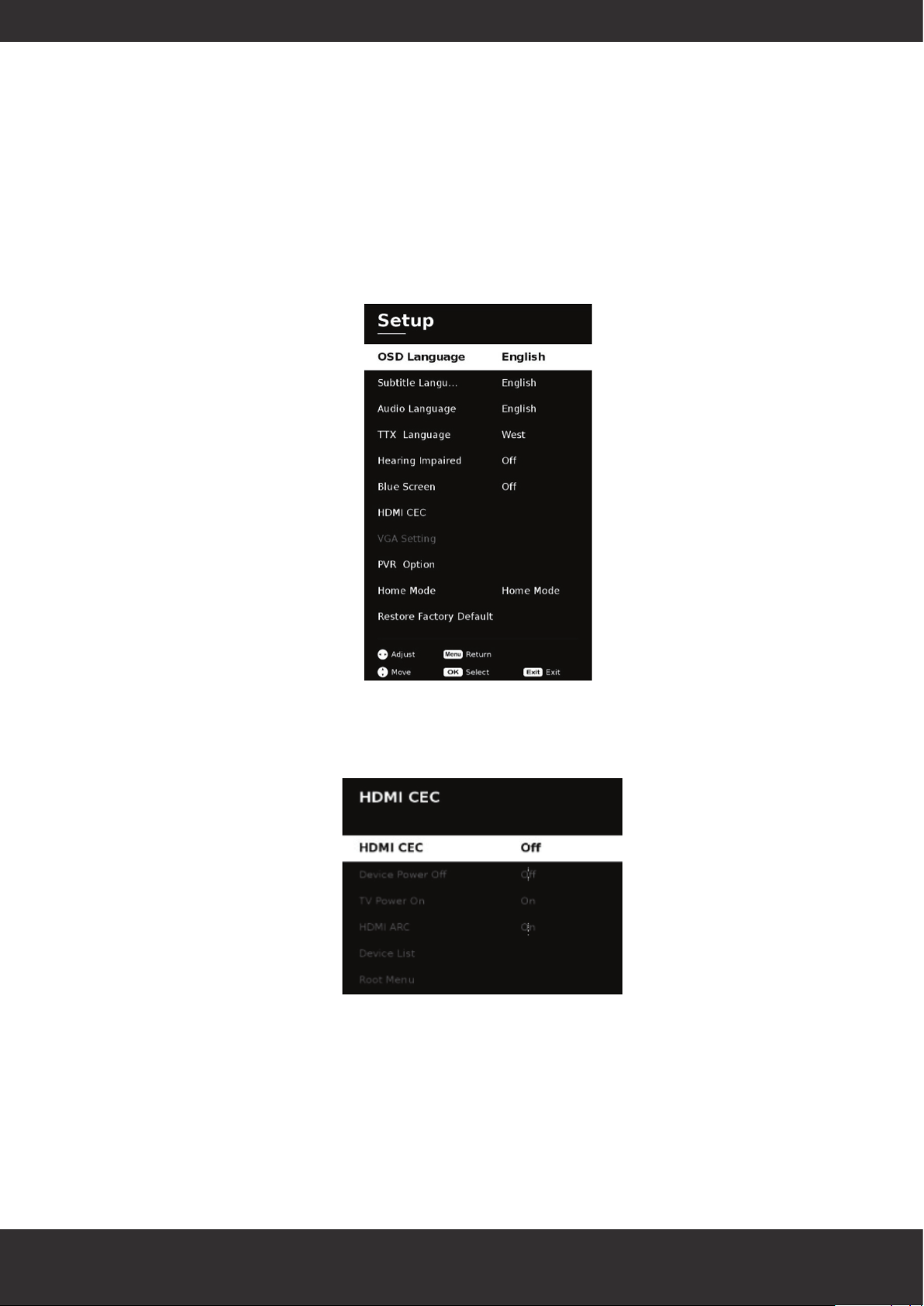
Setup
This menu will contain settings for various TV functions.
Under HDMI CEC, there are the following options available.
www.proofvision.co.uk 11
Page 12
Menu screens
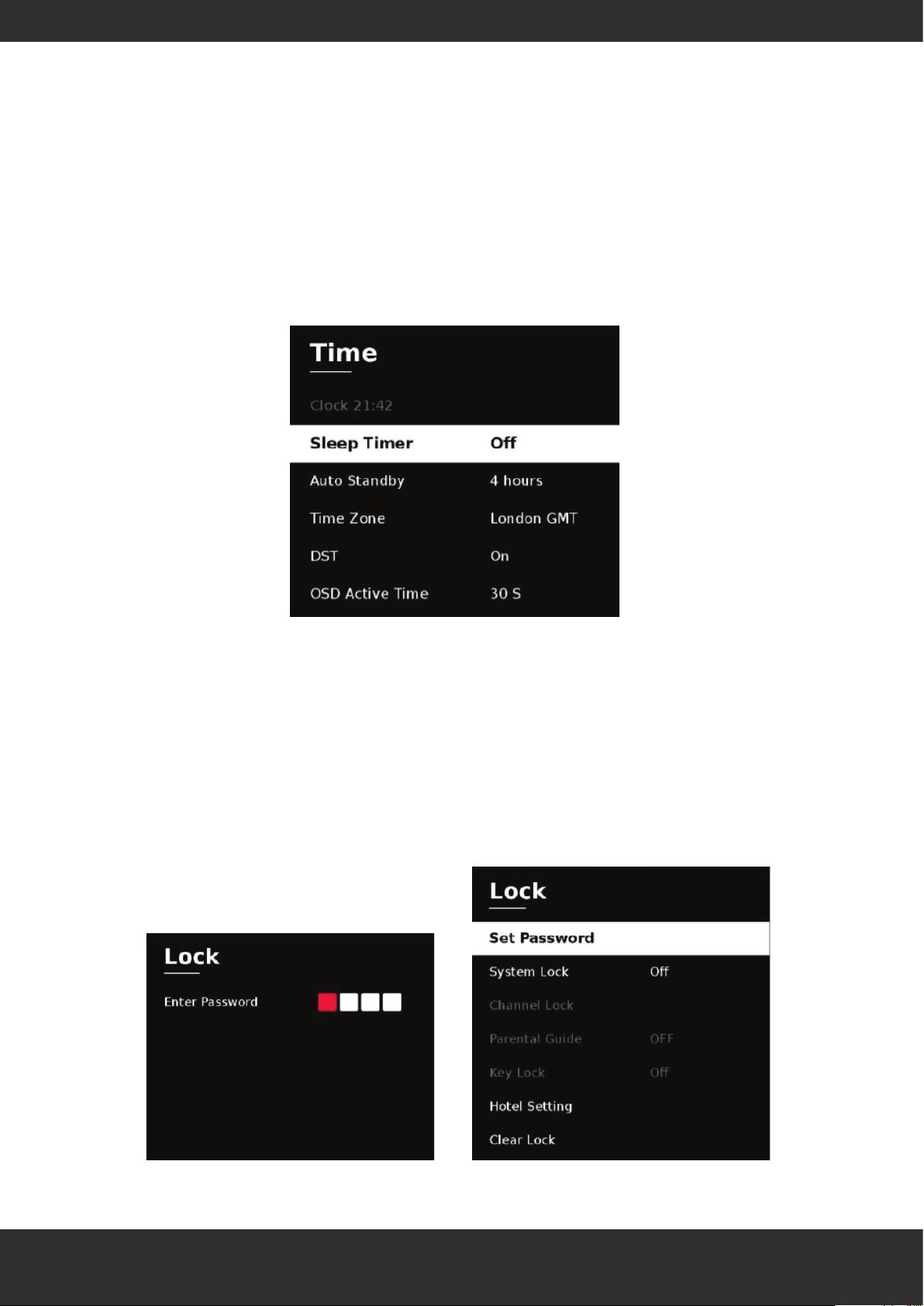
Time
This menu has options to customize functionality of the screen
Lock
To control password locking features of the screen.
Default password is 0000 to enter this area and access the below settings. This password will remain
the same unless changed in the ‘Set Password’ function.
www.proofvision.co.uk 12
Page 13

Warranty and troubleshooting
Delivery
Please report damage in transit within 48 hours of receiving the TV otherwise we may not be able to
accept a warranty claim.
If you are missing any parts for the TV (see contents on page 2), please contact ProofVision directly to
arrange replacements.
Warranty
Your ProofVision outdoor TV comes with 2 years standard warranty. This is a manufacturer’s warranty.
Labour involving the TV will not be supplied or covered by ProofVision in any circumstance.
If the TV does develop a fault over the two years, please either report to retailer/installer who
procured your ProofVision product or report directly to ProofVision by phoning 0203 4111 693 or
emailing [email protected]. Please have serial number to hand.
Troubleshooting
Some issues may be solved by trouble shooting, so before contacting us, please carry out the below
steps:
Issue Solution
No red standby light Check power cable is connected properly.
Stuck on Standby light Disconnect power for 24 hours and reconnect
Aerial Interference Try moving the aerial to a better position and retune, check cable is
plugged in correctly
Unresponsive remote Replace CR2032 3v battery
Channels in wrong order Re-tune using Auto-Scan and ensure LCN is ON
No sound from speakers Ensure small blue 3.5mm connector is connected into Audio out as this
port routes the sound to the speaker terminals.
No USB detected Make sure that the USB port in the row of connections is used for media.
USB port below power is for supplying power only to devices.
www.proofvision.co.uk 13
Page 14
A
A
A
A
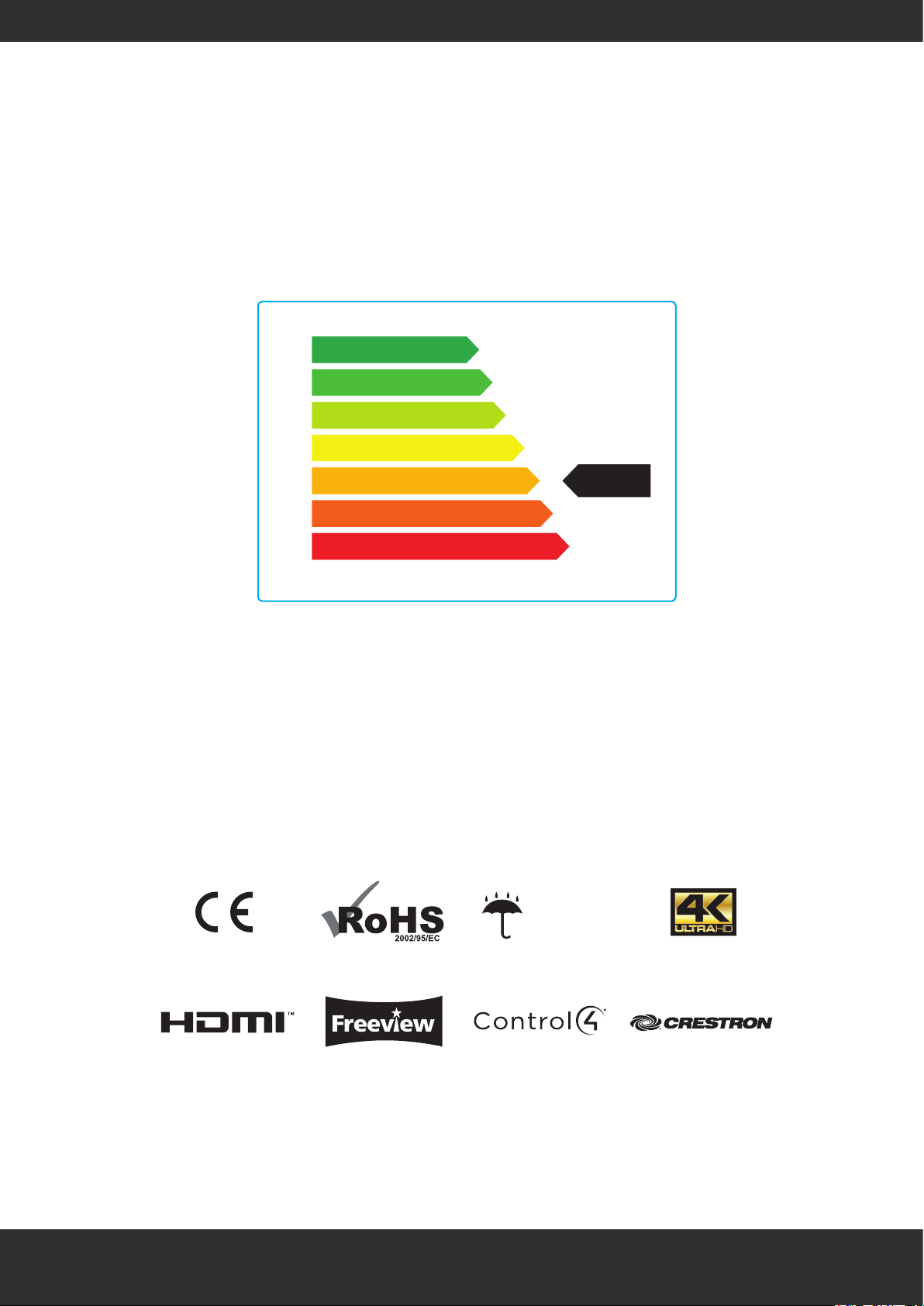
Energy rating
+++
++
+
B
B
C
D
32” 43” 55” 65” 75”
Energy efficiency class B B B B B
On-mode power consumption (as defined) 100W 150W 220W 280W 360W
The visible screen diagonal 81.28cm/32” 109cm/43“ 139.7cm/55” 165cm/65“ 190.5cm/75”
IP66 rated
www.proofvision.co.uk 14
 Loading...