

Page 1
Page 2

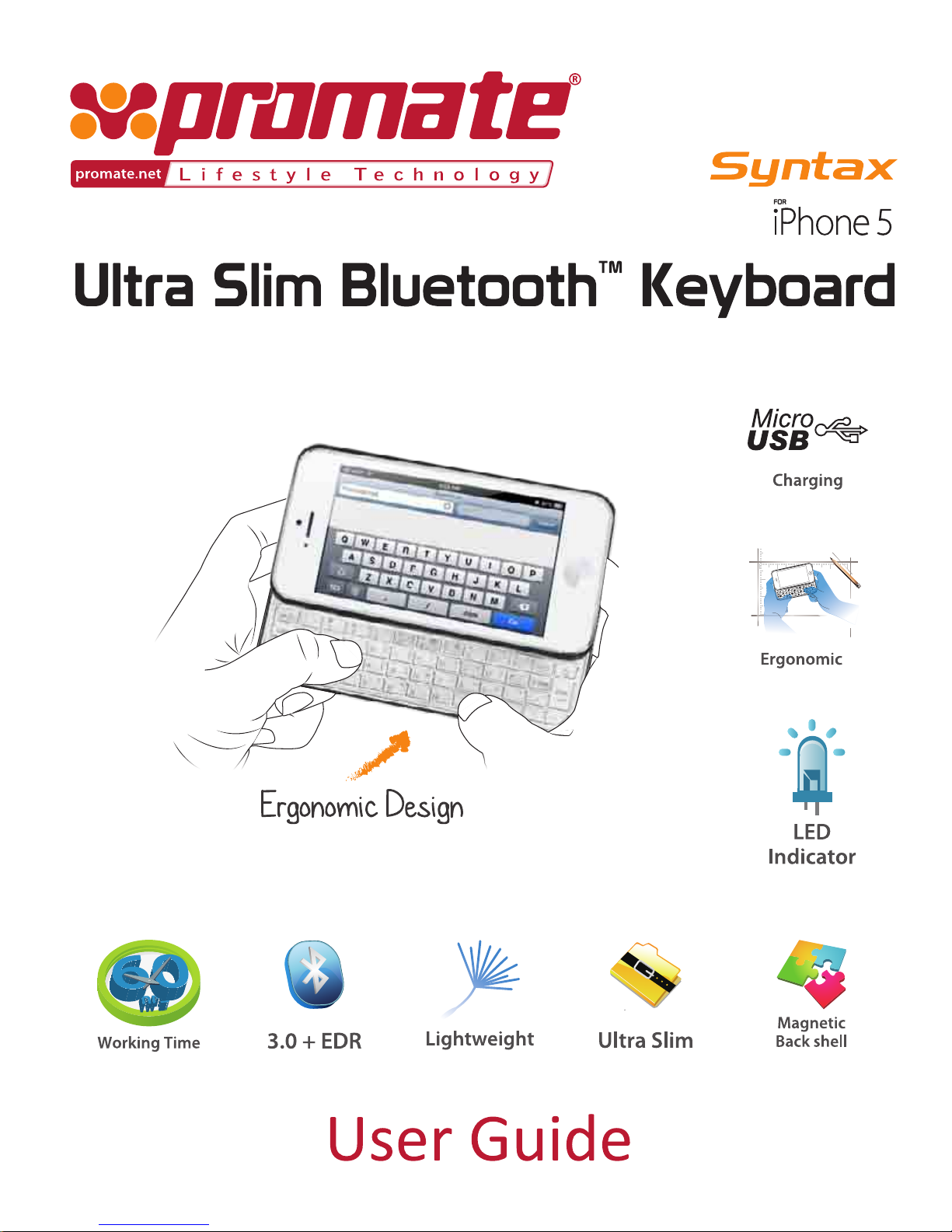
Thank you for purchasing Promate Syntax - Bluetooth™ Keyboard
with Induction Charging System. This product provides multiple
functions, fast and reliable power and sync options, complete
protection and uniquely fined outlook.
Introduction
• Syntax
• Micro-USB cable
• Charging pad
• Shell Case
• User Guide
• Warranty card
Packaging Contents
Please read this User Guide carefully before using the product.
The contents herein may be changed to deliver the better services
to the end-user. To keep the perfect performances of the product,
never use it in cold, hot, dusty or moist areas or places, especially
under the following conditions:
1. Moist or underwater environment.
2. Areas near a heater or high-temperature service.
3. Direct sunshine exposure
4. Conditions with apt falling.
Never dismantle the product without due permission, otherwise
it may nullify the warranty clauses.
Precautions
1
Page 3

1. Product Overview
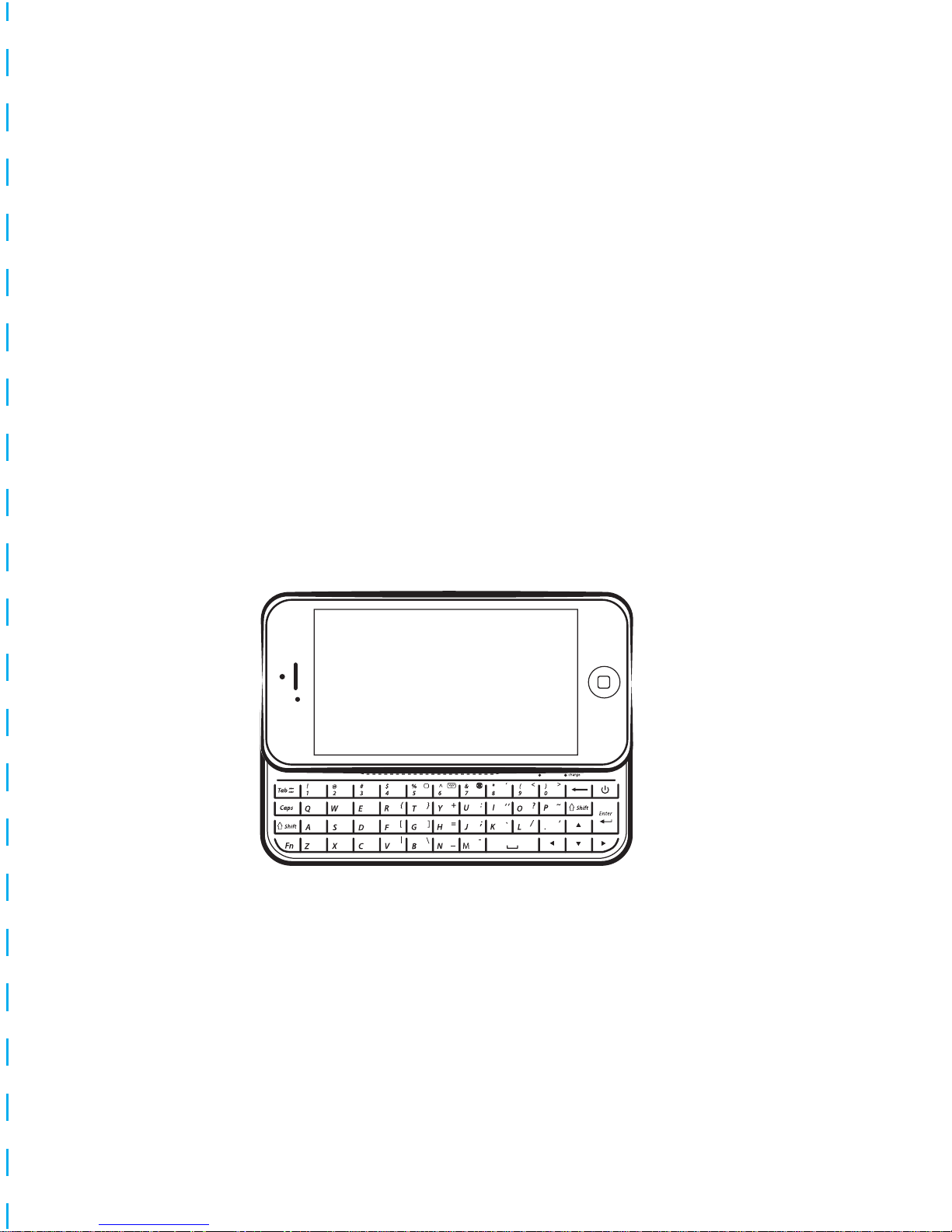
The Syntax is a one of a kind easily detachable Bluetooth™
keyboard with magnetic technology made for iPhone 5. It
consists of an iPhone 5 shell case that incorporates a highly
sensitive metallic keyboard for an accurate character input.
Syntax allows you effortlessly to remove the keyboard when not
needed and use as protection cover for your device. Charging
occurs through induction point connectors. You can simply
power up your Syntax by placing it on its charging pad for an
easy and wire-free charging. A device, designed to make the
most of your iPhone 5, Syntax just makes typing easy and fast.
Instructional Usage
Pairing with iPhone 5
Step 1: Press and hold the Power button for four seconds. The
blue LED light will start blinking. At this status, the Syntax is
ready to be paired with the iPhone 5.
Step 2: On the iPhone 5 screen, go to Settings/Bluetooth. Turn
on the Bluetooth and search for Syntax.
Step 3: Once Syntax is found, select it for connection.
Step 4: Once connected, you can now use the Syntax.
Note: If there is no activity within 10-15 minutes, the Syntax will
disconnect and enter into standby mode. Press any key to wake
up and reconnect automatically. To reconnect from“Off”status,
press and hold the power button for 4 seconds, then it will
reconnect automatically.
2
Page 4
Troubleshooting
Unable to connect:
1. Make sure the power switch is on.
2. Make sure the keyboard is within the operating distance.
3. Make sure the battery is charged.
4. Make sure iPhone Bluetooth setting is on.
5. Make sure wireless keyboard is connected to iPhone.
6. Make sure wireless keyboard has been paired with the
iPhone.
Charging
When the battery power is low, the power LED light will start
blinking, it means that you should recharge the keyboard.
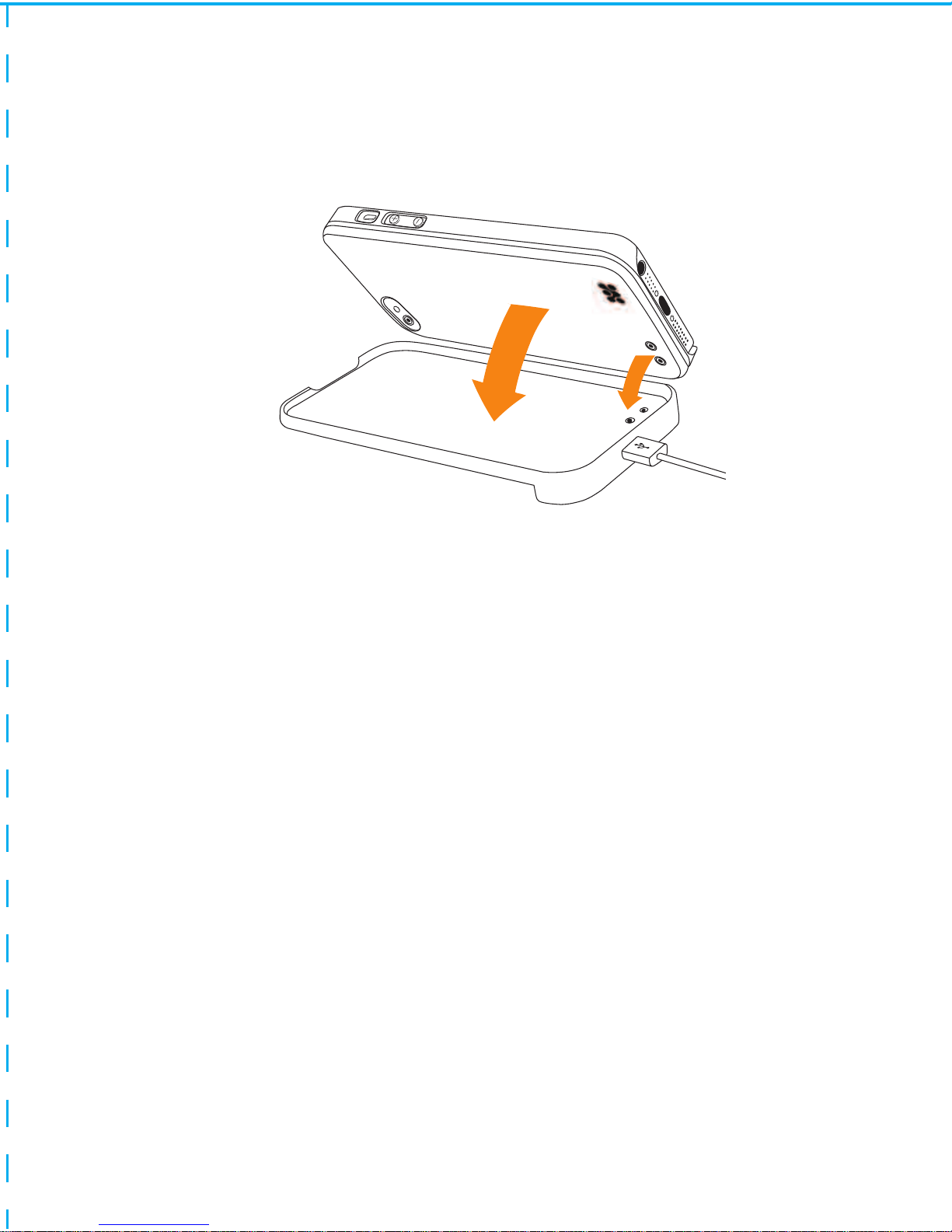
Step 1: Connect the Micro USB to the charging pad.
Step 2: Connect the USB-A to any standard USB power port.
Step 3: Put the shell case for charging on the keyboard onto the
contact point of the charging pad tightly.
Step 4: The LED on the Bluetooth ™ Keyboard will light up to red
whilst charging. When charging is done, the red LED will turn off.
3
Page 5
Unable to charge keyboard:
1. Make sure the USB power cable is connected properly to the
keyboard and the power source.
2. If charging from AC power socket, make sure the AC wall
charger is plugged in.
All of the above suggestions apply equally to your device,
battery, charger, or any enhancement. If any device is not
working properly, take it to the nearest authorized service
facility for maintenance.
4
Page 6

 Loading...